What is the workflow canvas in n8n?
Updated · By Robert Breen
The workflow canvas is the main editing screen in n8n: a blank grid where each step of an automation appears as a box (a node), lines show which way the data flows, and the buttons for adding steps, testing and chatting with an agent sit around the edges.
Why it matters for a small business
Most people meet n8n through the canvas, and it can look like a wiring diagram at first. Learning to read it pays off fast. Left to right is the order things happen. A line between two boxes means the data from one is handed to the next. A red warning on a box means it is missing something it needs, and a green check after a test means it ran. Once you can read those signals, you can open anyone's workflow and tell what it does in a minute.
The canvas is also where you fix things. You double-click a node to open its settings, close it with the × to get back to the overview, and click the + on a node's right edge to add what comes next. You never write code to connect steps; the canvas is the program.
In a real lesson: n8n AI Agent Tutorial: Save Social Media Ideas to Google Sheets
In the AI Social Media Idea Agent lesson, you build for BrightPath Marketing, a made-up marketing agency. You click Create workflow on the overview page and land on an empty canvas. Add first step… opens a panel of triggers, and you pick On chat message. n8n opens the node; you close it with the × and you are back on the canvas with one box.
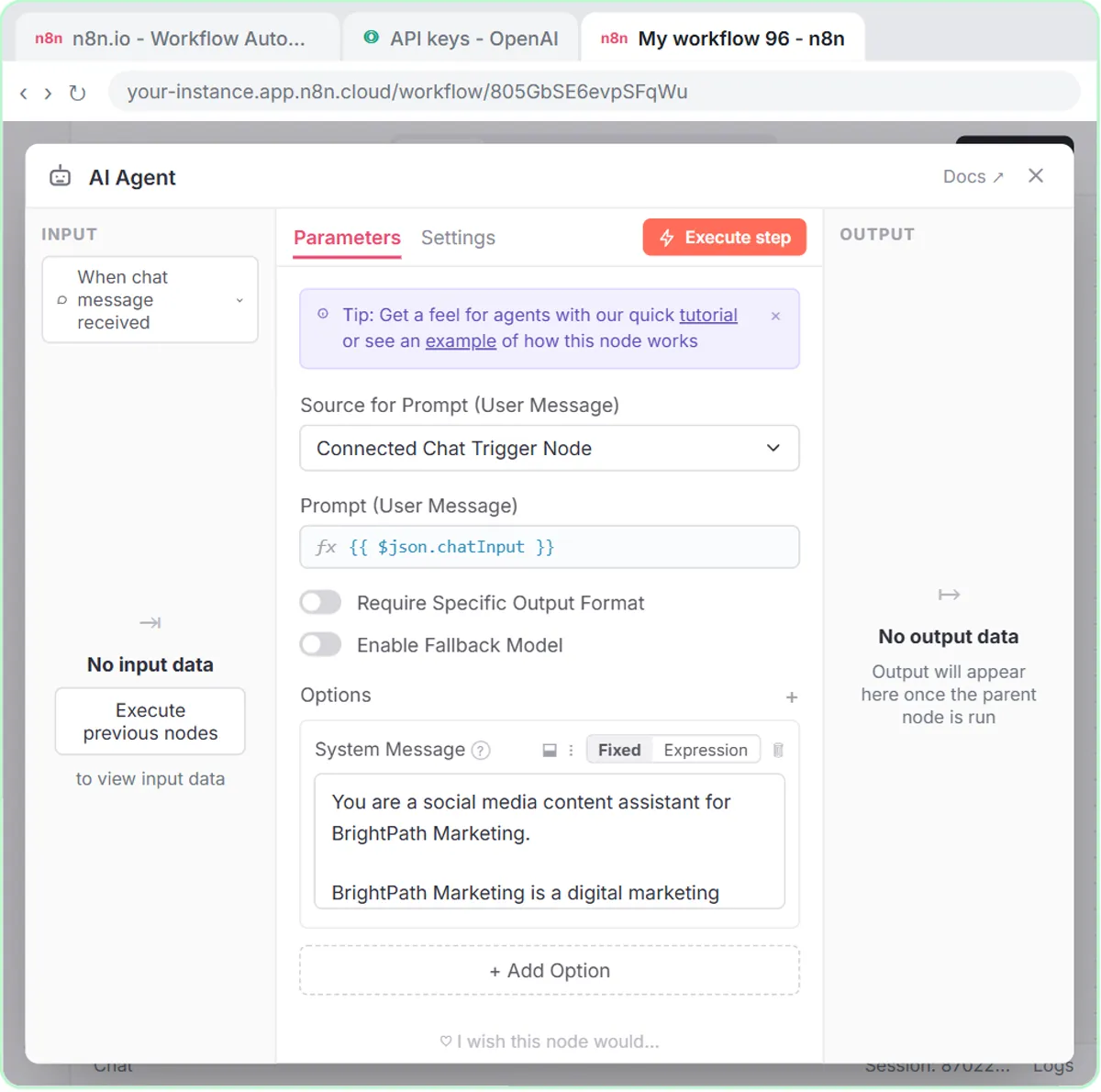
Next you click the + on the right edge of the trigger and choose AI Agent. The agent box has slots underneath it for Chat Model, Memory and Tool, and a red warning until a model is plugged in. You add OpenAI Chat Model, Simple Memory and a Google Sheets Tool through those slots, and each one appears on the canvas hanging below the agent.
To test, you click Open chat at the bottom of the canvas, ask for social media ideas, then ask the agent to save them. As it works you can watch which boxes light up, which is the quickest way to see that it really called the Sheets tool.
Try this lesson free or read the step-by-step guide.
Common confusions
Canvas vs workflow
The workflow is the saved set of steps. The canvas is just the screen you view and edit it on. Two people can open the same workflow on their own canvases.
Main line vs sub-nodes
Boxes joined left to right run in order. Boxes hanging under an AI Agent, like the chat model or a tool, are not later steps; they are parts the agent uses while it runs.
Tips
- Read a new canvas left to right before you touch anything.
- Treat every red warning as a to-do item; the workflow won't run cleanly until they are gone.
- Rename nodes to say what they do, like "Read today's jobs", so the canvas explains itself.
Related terms
Where you use it: free lessons
- n8n AI Agent Tutorial: Save Social Media Ideas to Google Sheets (n8n, 12 min)
- Daily Job Alerts: Email Each Tech Their Jobs from Google Sheets with n8n (n8n, 10 min)
- AI Receipt Extractor: Receipts to Google Sheets with n8n (n8n, 12 min)
More free tutorials
Frequently asked questions
- How do I add a step on the n8n canvas?
- Click the + on the right edge of the node that should come before it, search for the node you want and pick it. n8n connects the two for you.
- What does a red warning on a node mean?
- The node is missing a required setting, such as a credential, a chosen spreadsheet or, for an AI Agent, a chat model. Open it and fill in what it asks for.