Updated . Built against the tool’s current screens and checked step by step. How we check this lesson
A beginner GA4 walkthrough on real screens: read the Reports snapshot, then the Traffic acquisition report, to see whether search, social, email or referrals bring your website visitors. Free; read only.
At a glance
| Question | Answer |
|---|---|
| What you build | A beginner GA4 walkthrough on real screens: read the Reports snapshot, then the Traffic acquisition report, to see whether search, social, email or referrals bring your website visitors. Free; read only. |
| Tools | Google Analytics |
| Time | About 8 minutes, 8 steps in 3 parts |
| Level | Beginner, no coding needed |
| Cost | Free |
| Ways to learn it | Practice it step by step |
The 3 parts, in short
- Read the snapshot: Open Reports, Read the four numbers, Open Acquisition.
- Which channel brings visitors: Traffic acquisition, Scroll to the table, Read the channel table.
- Down to the exact source: Session source / medium, Read the sources.
What you'll build
You post on LinkedIn, keep your Google profile up to date and send a monthly newsletter, but you cannot say which one brings people to your website, so every channel gets the same time. Google Analytics already knows. In this lesson you read the Reports snapshot and the Traffic acquisition report in GA4, then drill into the exact sites. Every screen is a real GA4 screen; the numbers are blurred because it is a real website.
You read the four snapshot numbers, opened Traffic acquisition to see sessions and engagement by channel, and switched to Session source / medium for the exact sites. Do the same on your own property each month and put your time into the channel with the most engaged visits. Next: which pages they read and which forms they send.
- Tools: Google Analytics
- Time: about 8 minutes, 8 steps in 3 chapters
- Level: beginner, no coding needed
- Price: free
Practice first, then build it for real
Practice copy built from real Google Analytics 4 screens (captured 24 October 2026). Nothing here touches your Analytics account. It is a real property, so every number and name is blurred. To build it for real you need your own Google Analytics account, and some services charge once you use them for real work, so check each tool's current pricing.
Try it yourself, free
Reading the steps is a start. Doing them is how it sticks. The interactive module walks you through every click in a practice copy of Google Analytics, checks each step, and never touches your real accounts.
Start “Google Analytics 4: See Which Channel Brings Your Visitors for Marketing”Step by step: Google Analytics 4: See Which Channel Brings Your Visitors for Marketing
All 8 steps of the interactive module, in order. In the module you watch each one, then do it yourself in a practice copy that checks your work.
1. Read the snapshot
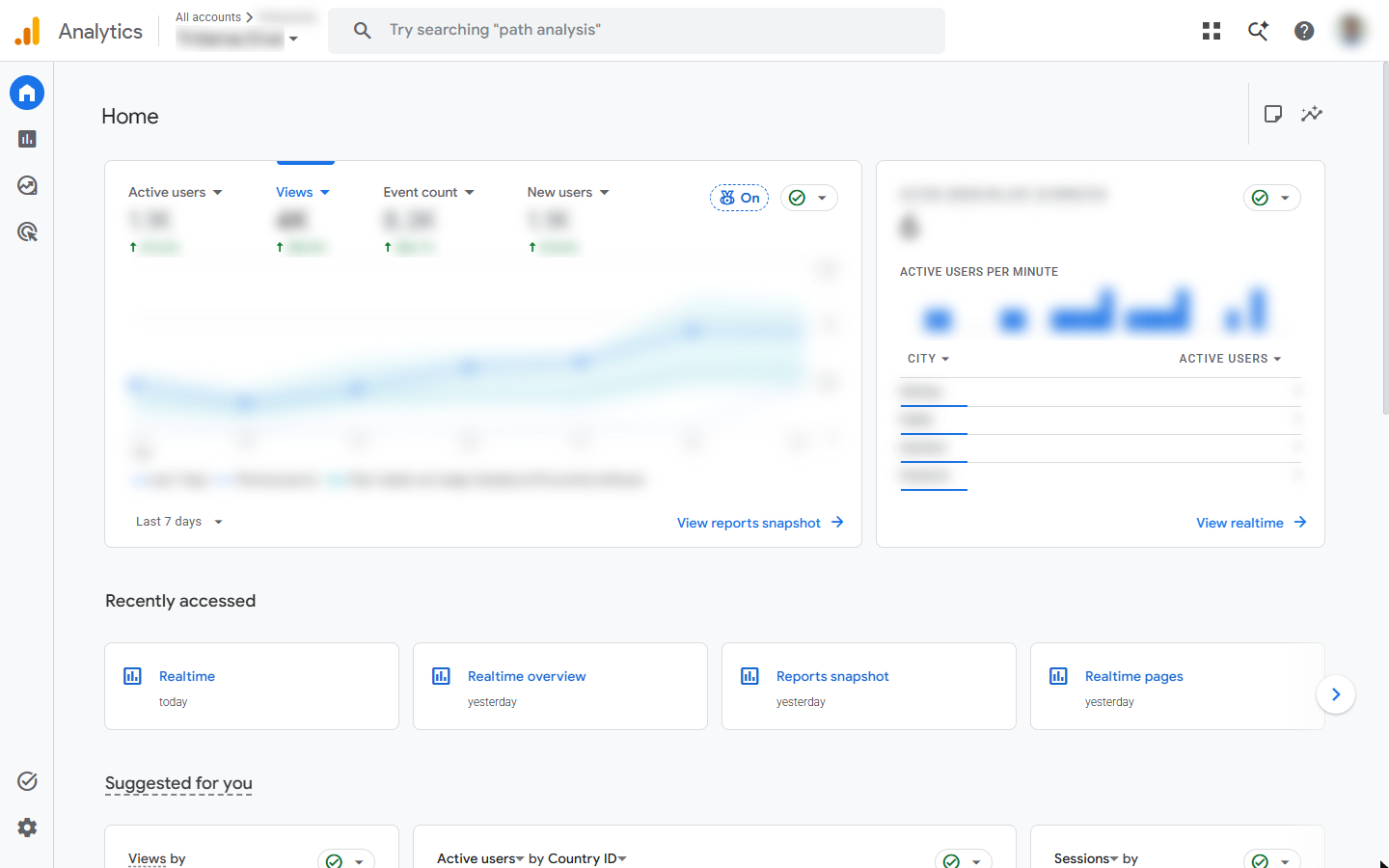
- Open Reports. Open Google Analytics at analytics.google.com. Home shows a quick summary. Click the Reports icon (the bar chart) in the left bar.
This is Google Analytics.
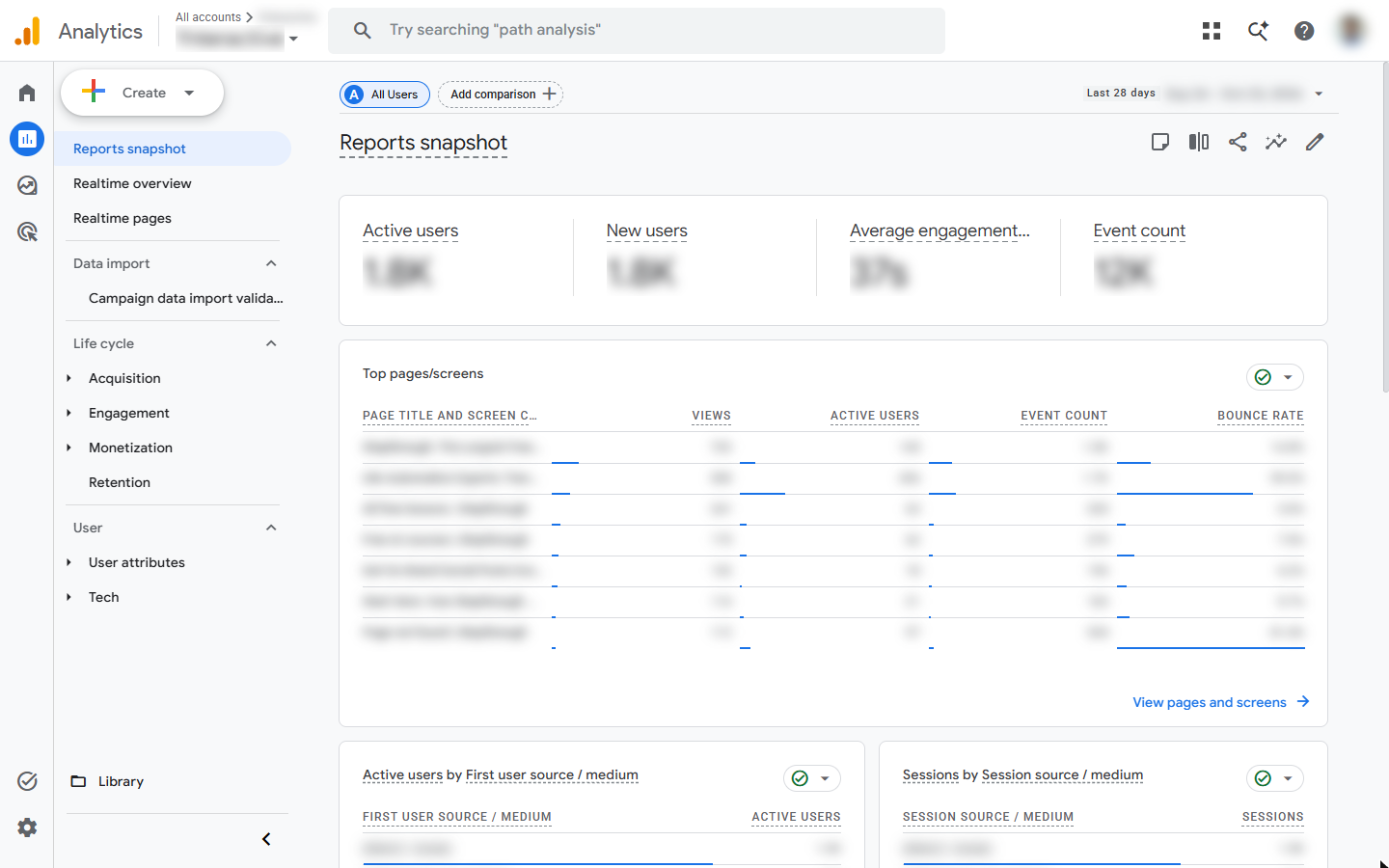
- Read the four numbers. Reports snapshot opens with four cards for the date range at the top right (last 28 days by default): Active users, New users, Average engagement time and Event count. Click the cards row.
The snapshot has four numbers for the last 28 days. Active users, new users, engagement time, and events.
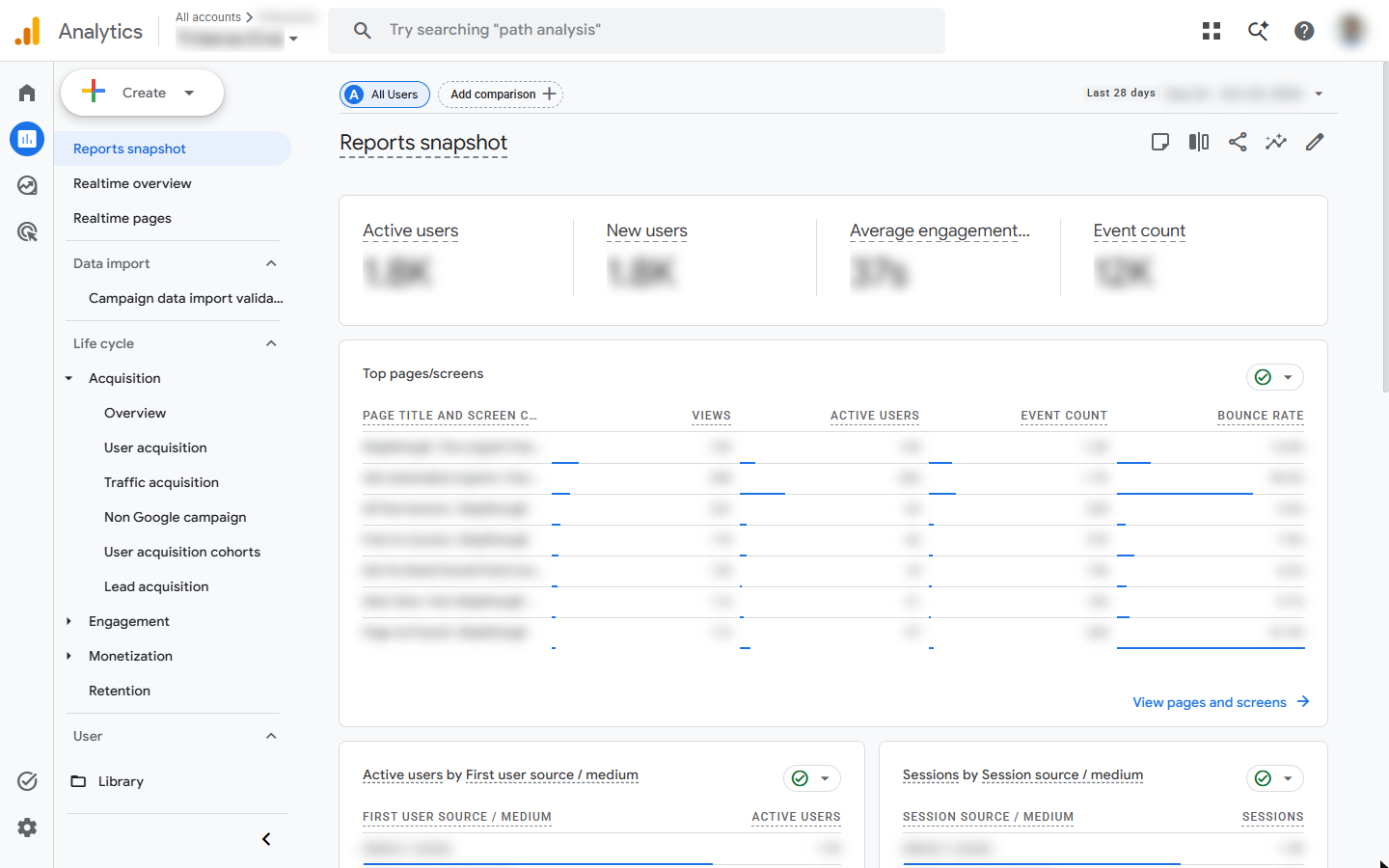
- Open Acquisition. The snapshot says how many people came, not where from. Under Life cycle, click Acquisition.
That tells you how many came, not where from.
2. Which channel brings visitors
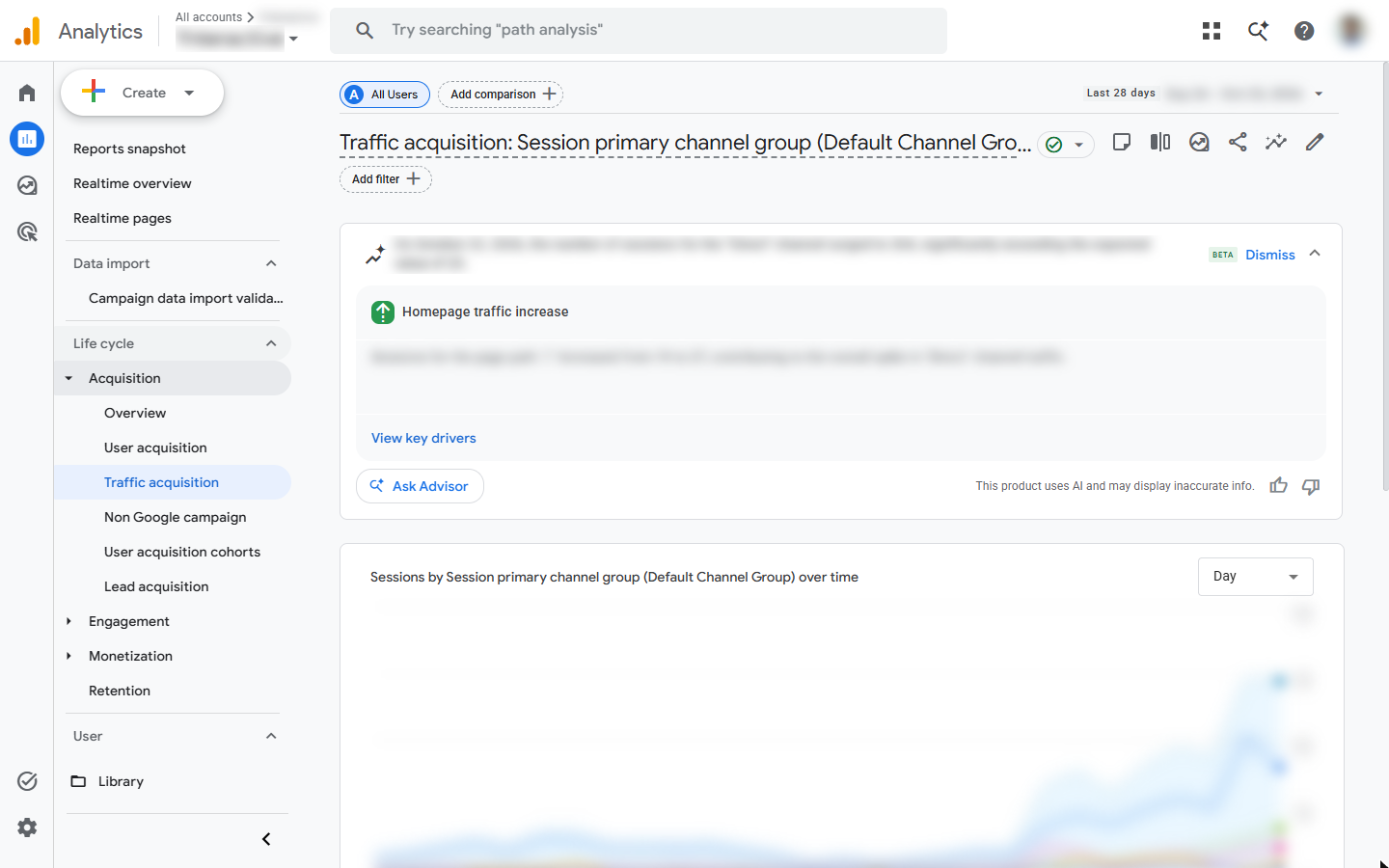
- Traffic acquisition. Click Traffic acquisition. It groups every visit (session) by where it came from.
It groups every visit by where it came from.
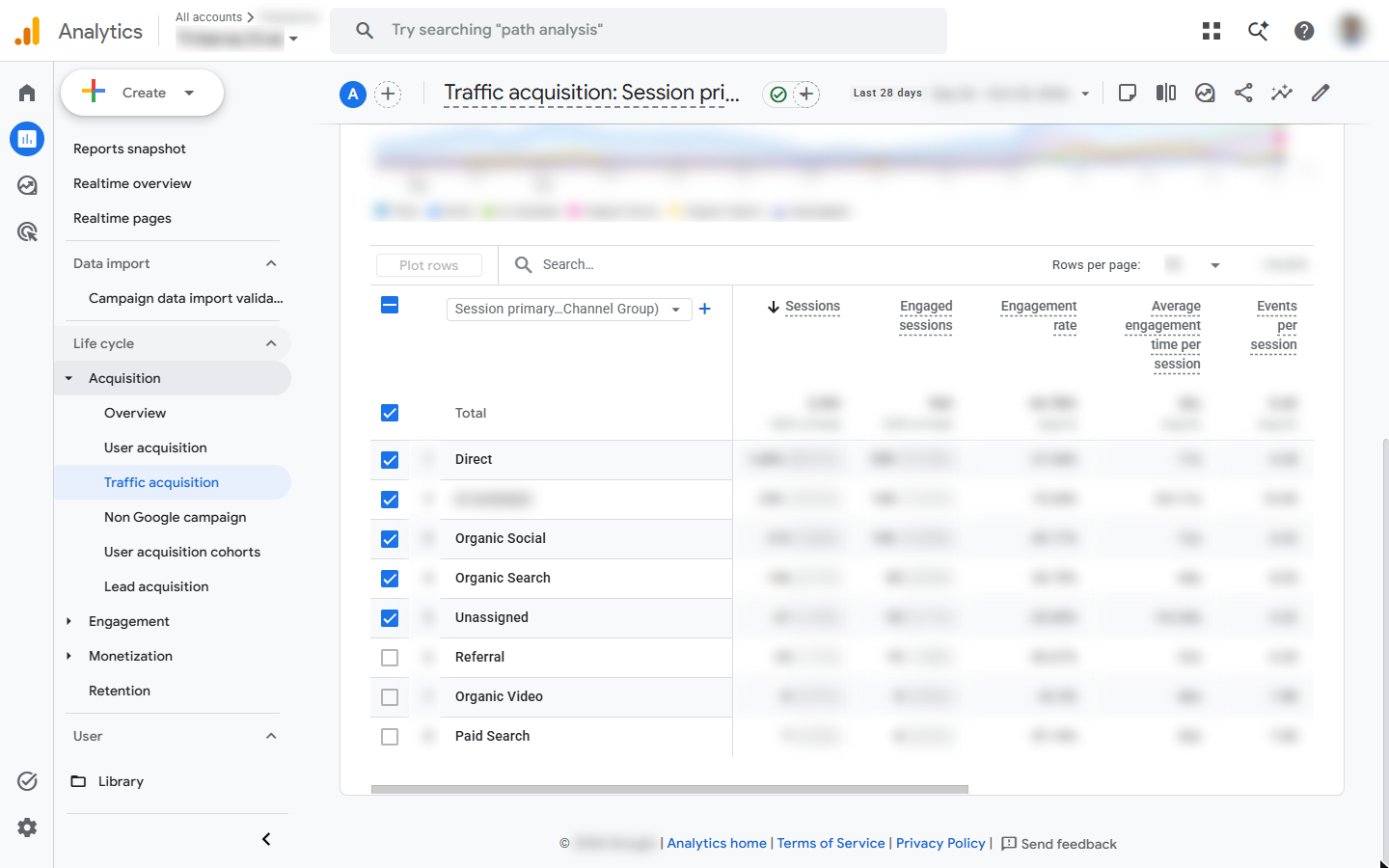
- Scroll to the table. At the top, Google may show AI insights, then a chart of sessions over time per channel. Scroll down to the table.
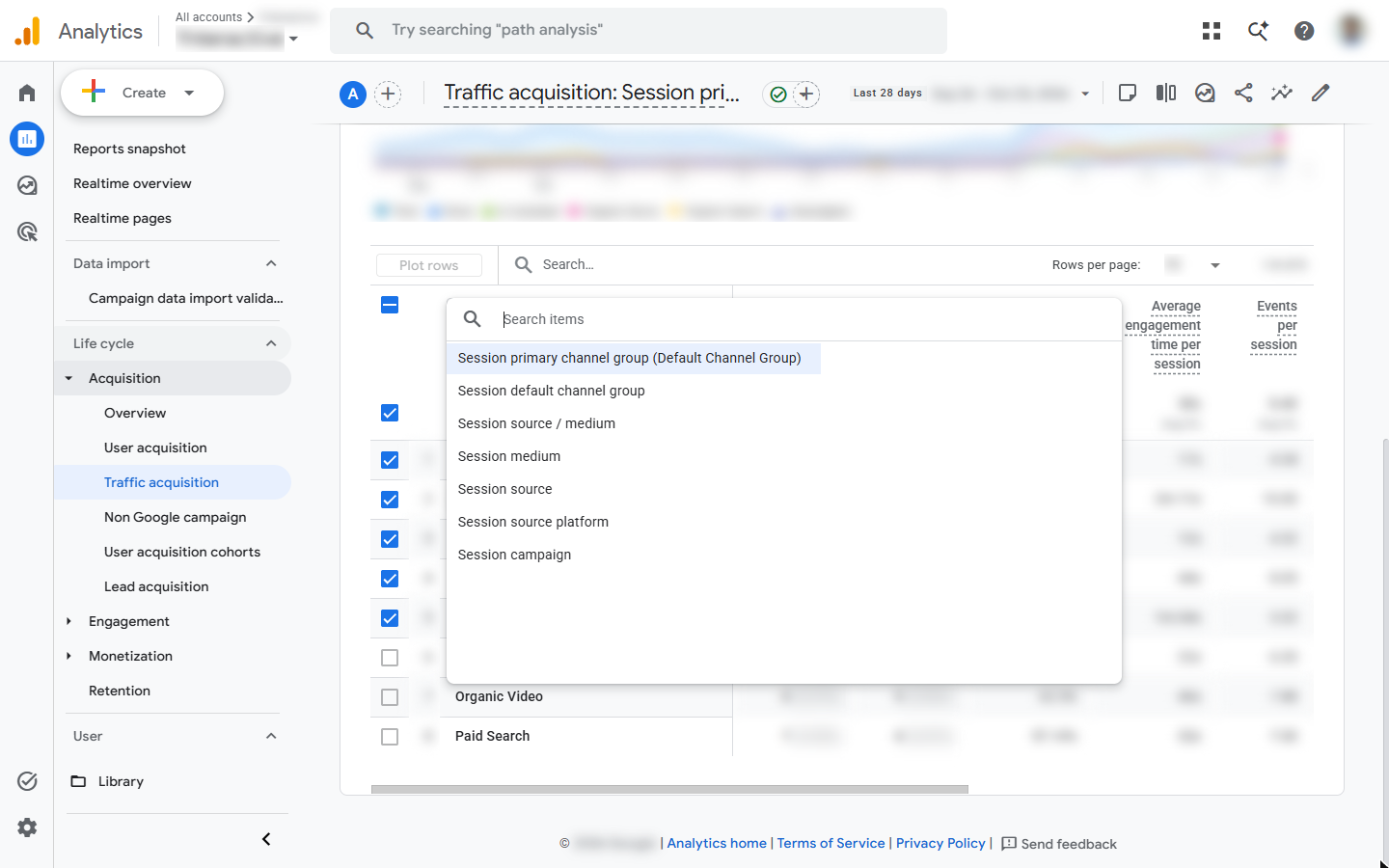
- Read the channel table. One row per channel: Direct, Organic Search, Organic Social, Referral, Email and so on, with Sessions, Engaged sessions and Engagement rate. Sort by clicking a column. To see the exact sites, click the Session primary channel group dropdown.
One row per channel, with sessions and engagement rate. To see exact sites, open the dimension dropdown.
3. Down to the exact source
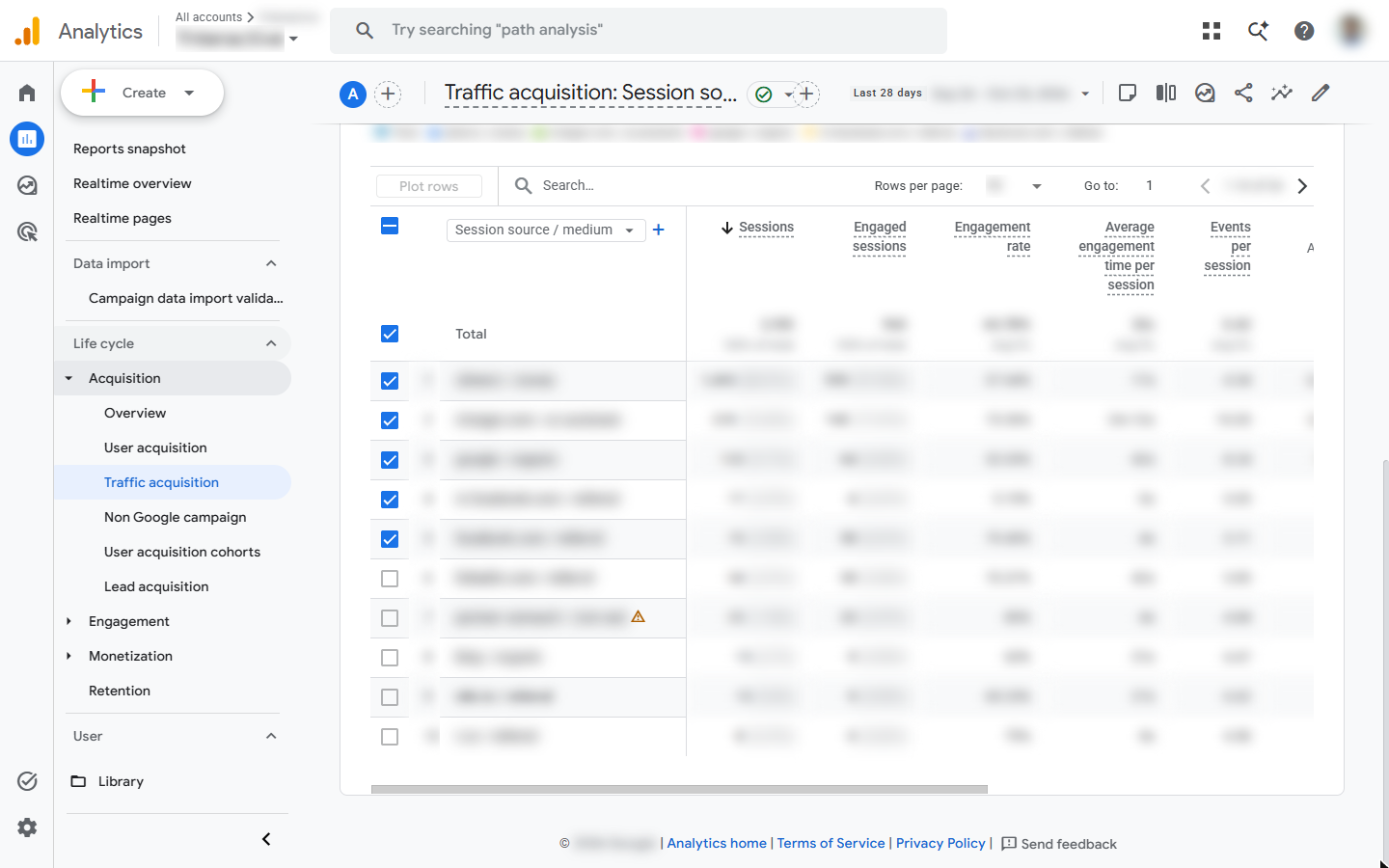
- Session source / medium. Click Session source / medium.
- Read the sources. Now each row is a site and a medium, such as google / organic, linkedin.com / referral or newsletter / email. The top rows are where your visitors really come from. Click the first row.
Now each row is a site and a medium. The top rows are where your visitors really come from.
Screenshots
Free cheat sheet
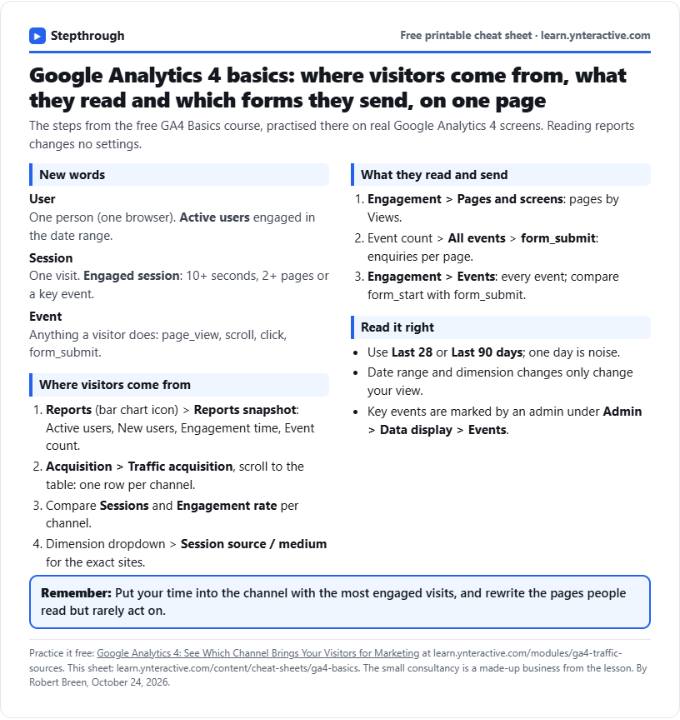
Print it or save the PDF: the key steps and checks from this lesson on one page, free.
All free printable cheat sheets
Terms in this lesson
Plain-English definitions, each with an example from a free lesson.