Updated . Built against the tool’s current screens and checked step by step. How we check this lesson
A beginner GA4 walkthrough on real screens: find the pages people read most, see which pages bring contact form submissions, and read the Events report over 90 days. Free; read only.
At a glance
| Question | Answer |
|---|---|
| What you build | A beginner GA4 walkthrough on real screens: find the pages people read most, see which pages bring contact form submissions, and read the Events report over 90 days. Free; read only. |
| Tools | Google Analytics |
| Time | About 8 minutes, 8 steps in 3 parts |
| Level | Beginner, no coding needed |
| Cost | Free |
| Ways to learn it | Practice it step by step |
The 3 parts, in short
- Your top pages: Pages and screens, Scroll to the table.
- Which pages bring enquiries: Pick an event, form_submit.
- What visitors do: The Events report, Change the date range, Last 90 days, Read the events.
Start here first: Google Analytics 4: See Which Channel Brings Your Visitors for Marketing (module 1 of Digital marketing)
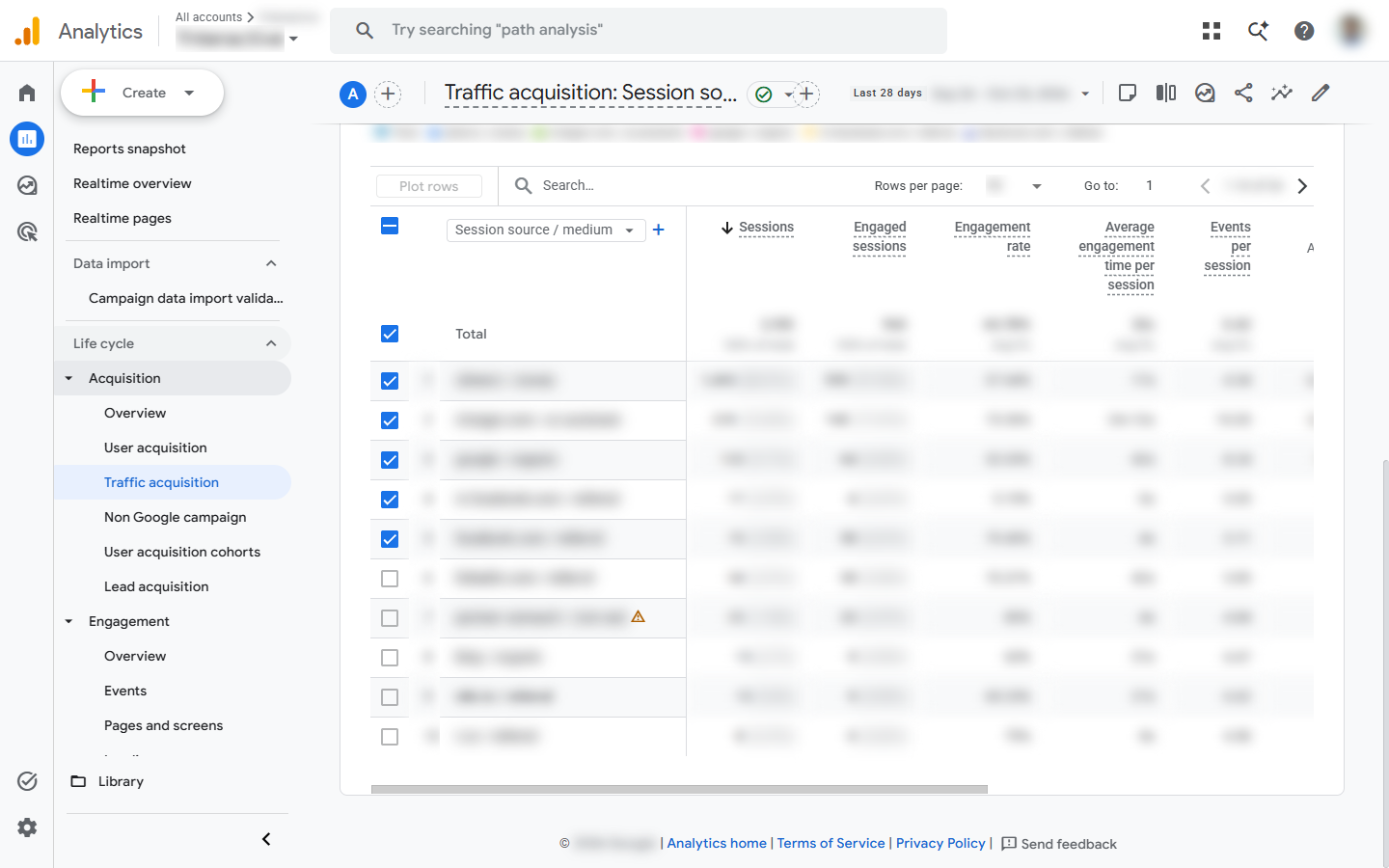
What you'll build
Your website has a dozen pages, and you are about to rewrite them. Which ones do people actually read, and which ones lead to a contact form? In this lesson you open Pages and screens in GA4, switch Event count to form_submit, then read the Events report over 90 days. Every screen is a real GA4 screen; the numbers are blurred because it is a real website.
You found your most viewed pages, switched Event count to form_submit to see which pages bring enquiries, and read the Events report over 90 days, comparing form_start with form_submit. Rewrite the pages people read but rarely act on first. Next: put these numbers in a one-page report your team can open any time.
- Tools: Google Analytics
- Time: about 8 minutes, 8 steps in 3 chapters
- Level: beginner, no coding needed
- Price: free
Practice first, then build it for real
Practice copy built from real Google Analytics 4 screens (captured 24 October 2026). Nothing here touches your Analytics account. It is a real property, so every number and name is blurred. To build it for real you need your own Google Analytics account, and some services charge once you use them for real work, so check each tool's current pricing.
Try it yourself, free
Reading the steps is a start. Doing them is how it sticks. The interactive module walks you through every click in a practice copy of Google Analytics, checks each step, and never touches your real accounts.
Start “Google Analytics 4: Find Your Top Pages and Form Submissions for Marketing”Step by step: Google Analytics 4: Find Your Top Pages and Form Submissions for Marketing
All 8 steps of the interactive module, in order. In the module you watch each one, then do it yourself in a practice copy that checks your work.
1. Your top pages
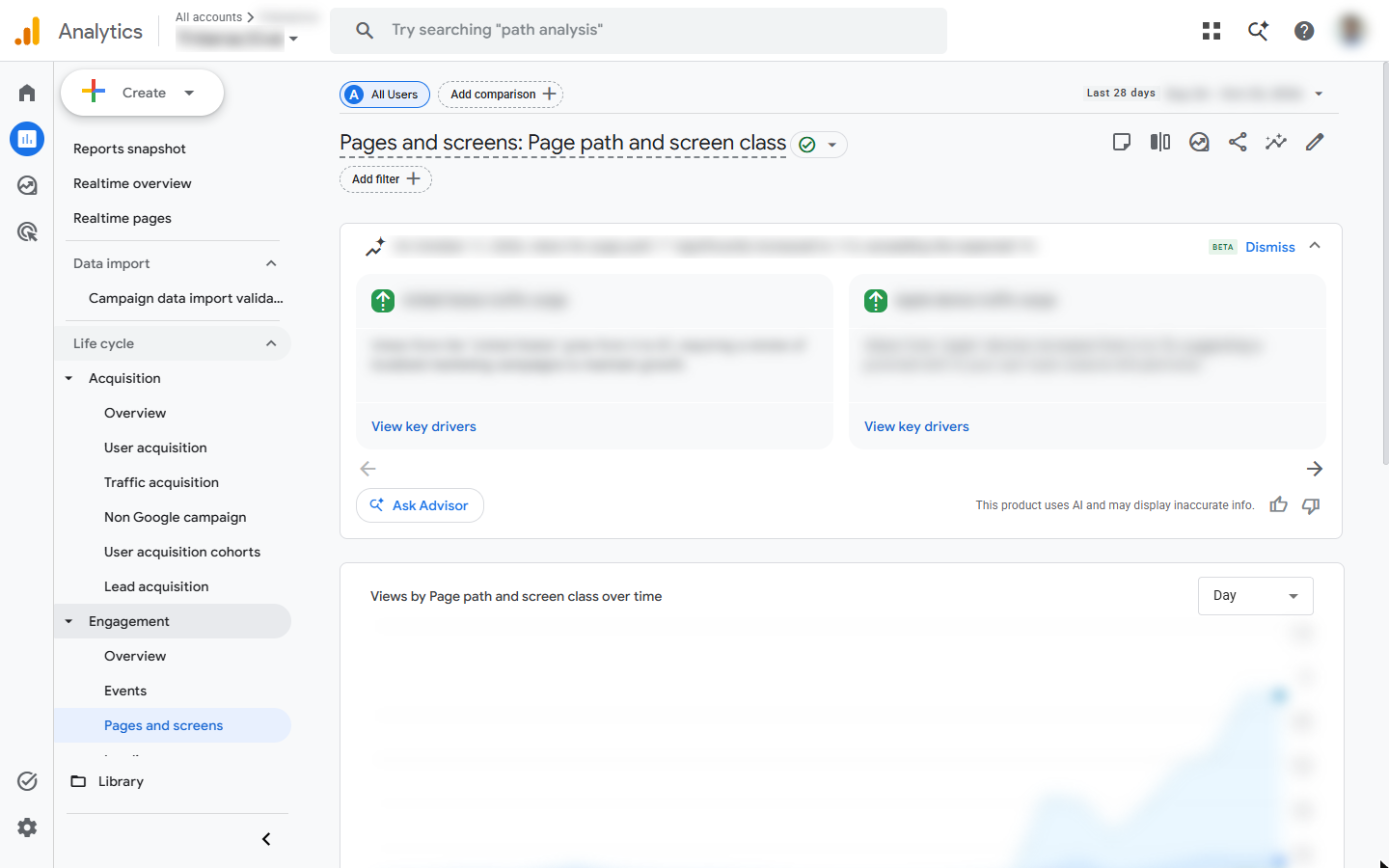
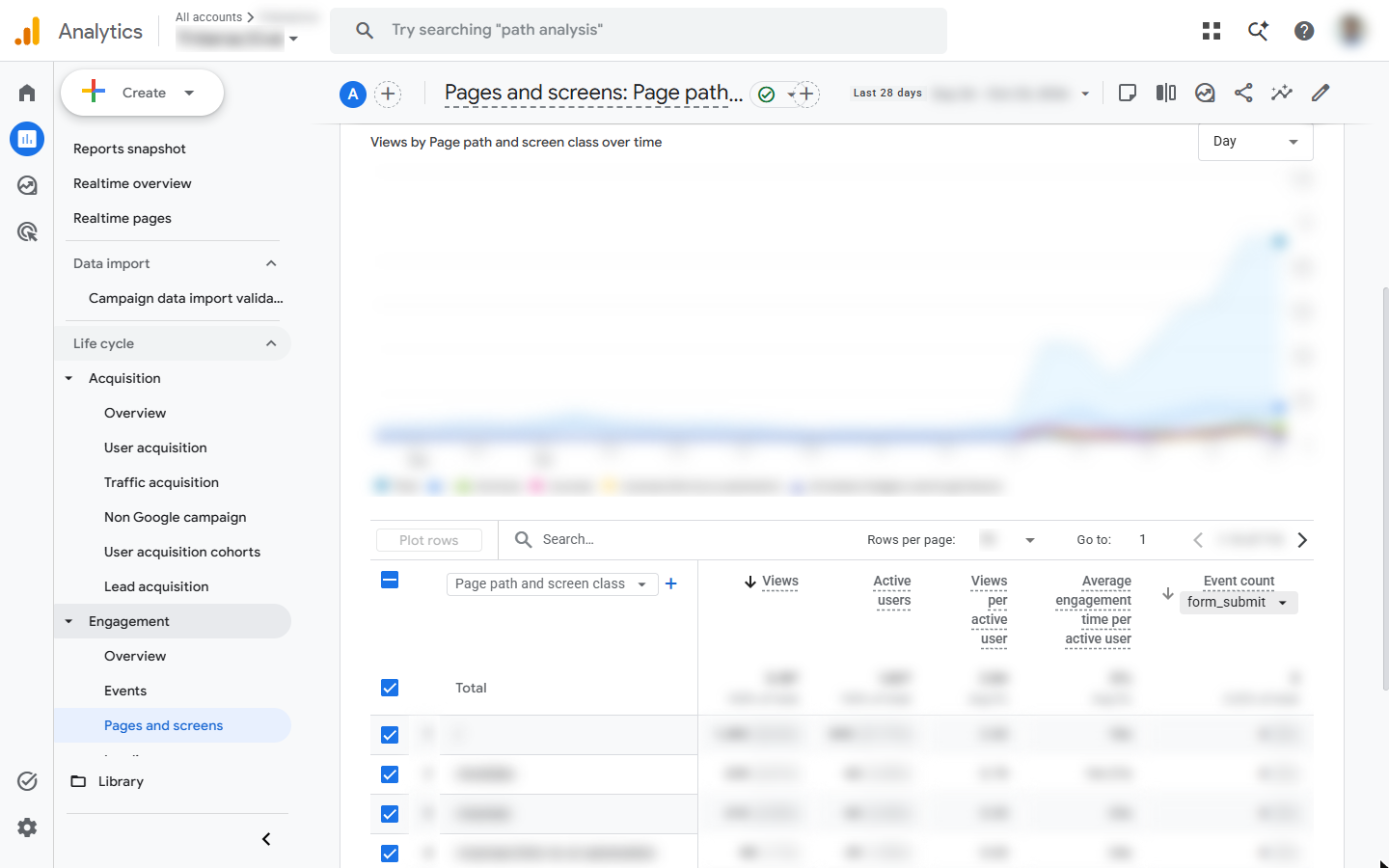
- Pages and screens. In Reports, under Life cycle, click Engagement to open it, then click Pages and screens.
In Reports, open Engagement, then click Pages and screens.
- Scroll to the table. The chart shows views over time for your top pages. Scroll down to the table.
2. Which pages bring enquiries
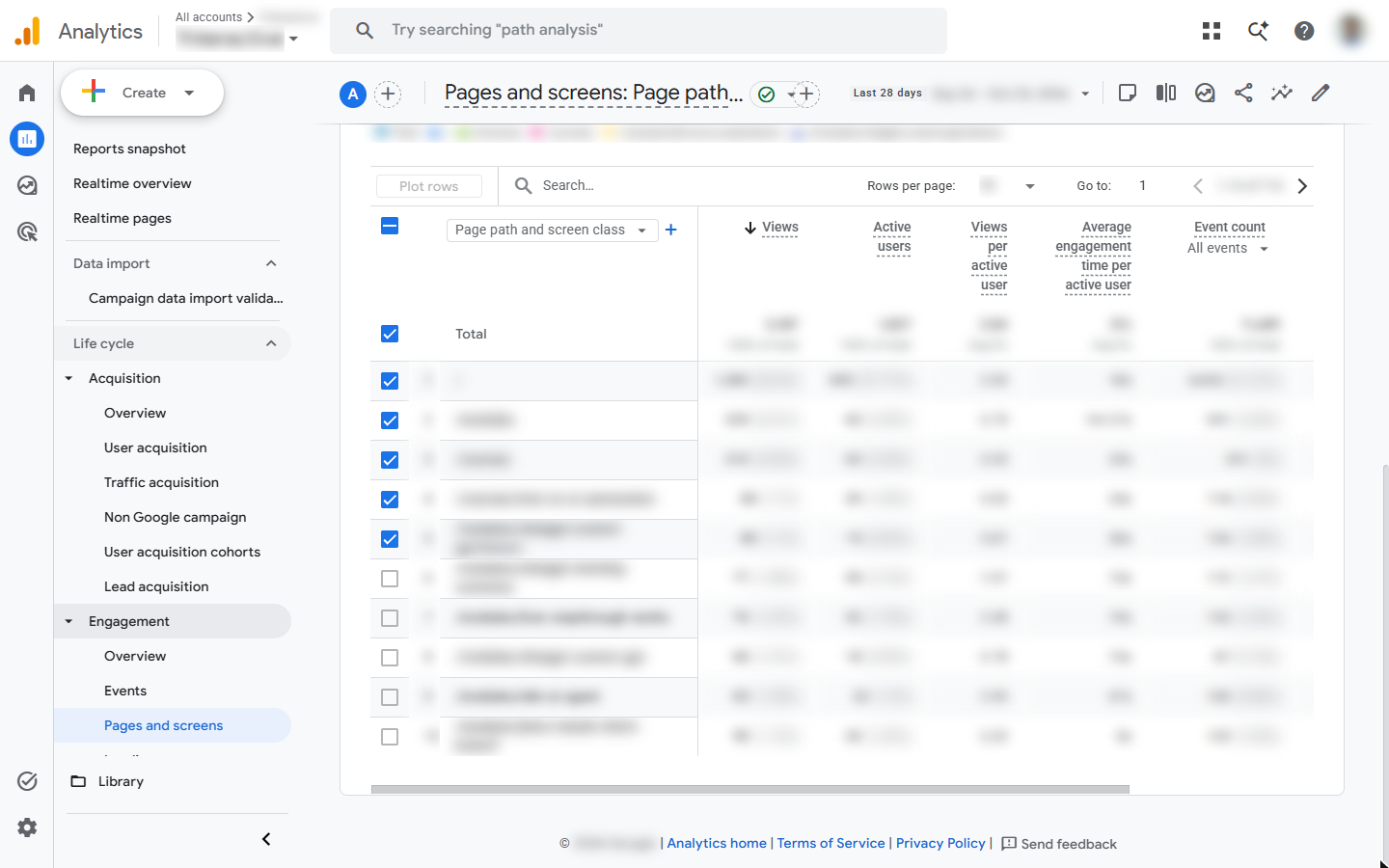
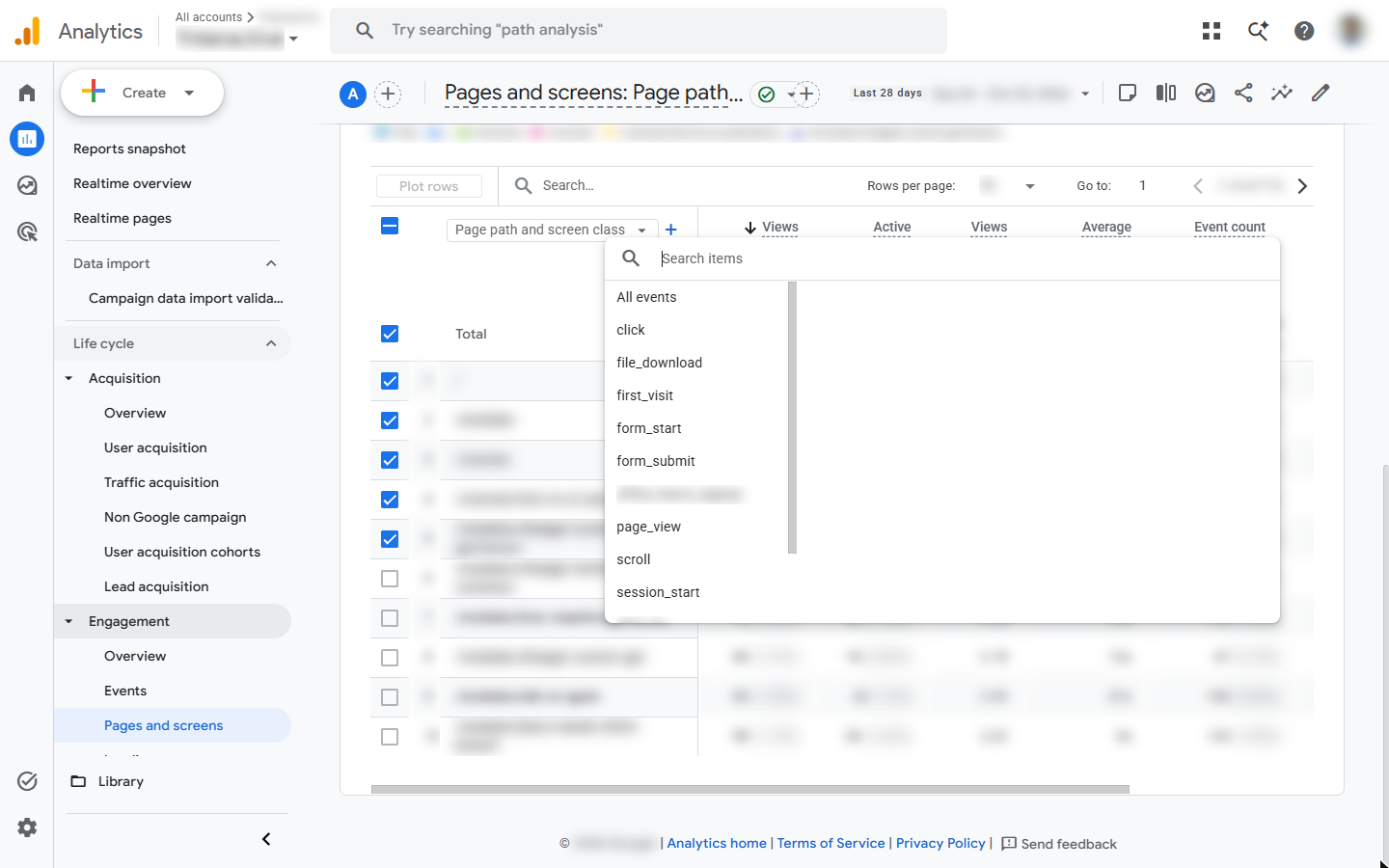
- Pick an event. One row per page (by page path), sorted by Views, with Active users, Views per active user, engagement time and Event count. Event count adds up every event; click All events under it to pick one.
One row per page, sorted by views.
- form_submit. The list holds every event your site sends. Click form_submit: a visitor sent a form, such as a contact or quote request.
That is a visitor sending a form.
3. What visitors do
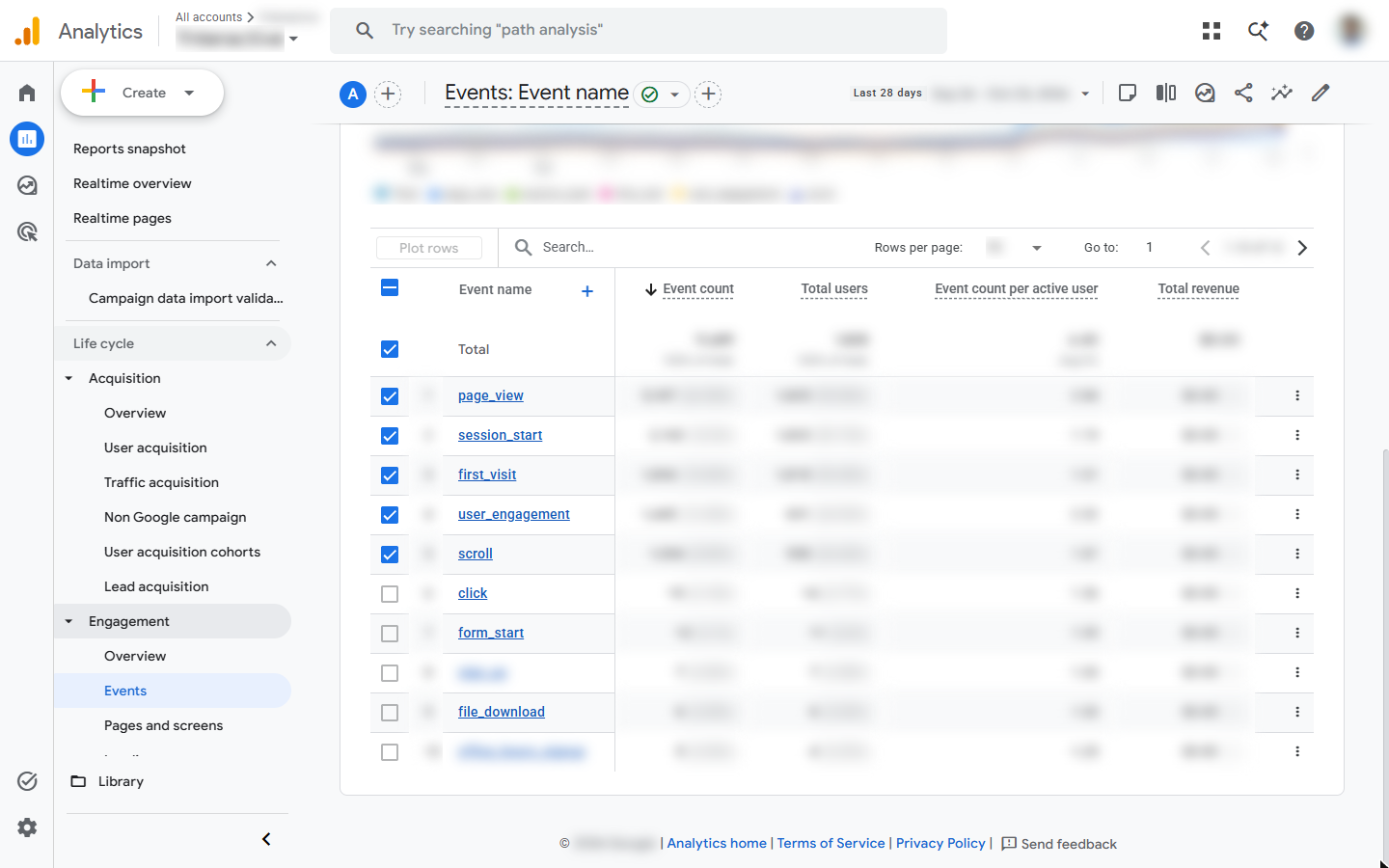
- The Events report. Event count now shows form submissions per page, so you can see which pages turn readers into enquiries. For every event at once, click Events in the menu.
Now you can see which pages bring form submissions.
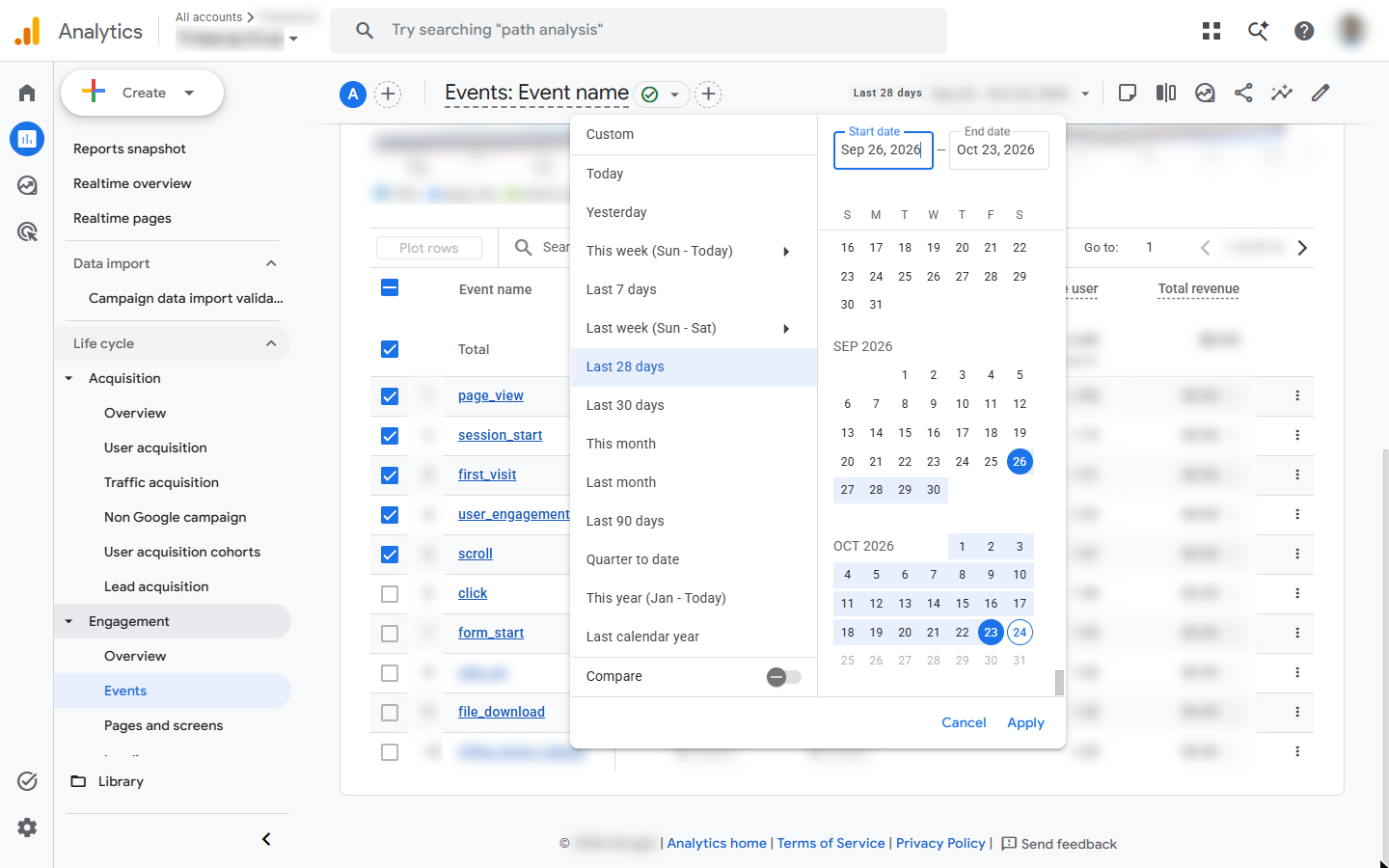
- Change the date range. One row per event with Event count and Total users: page_view, session_start, first_visit, user_engagement, scroll, click, form_start and more. Short ranges are noisy, so click the date range at the top right.
One row per event. Short ranges are noisy, so open the date range.
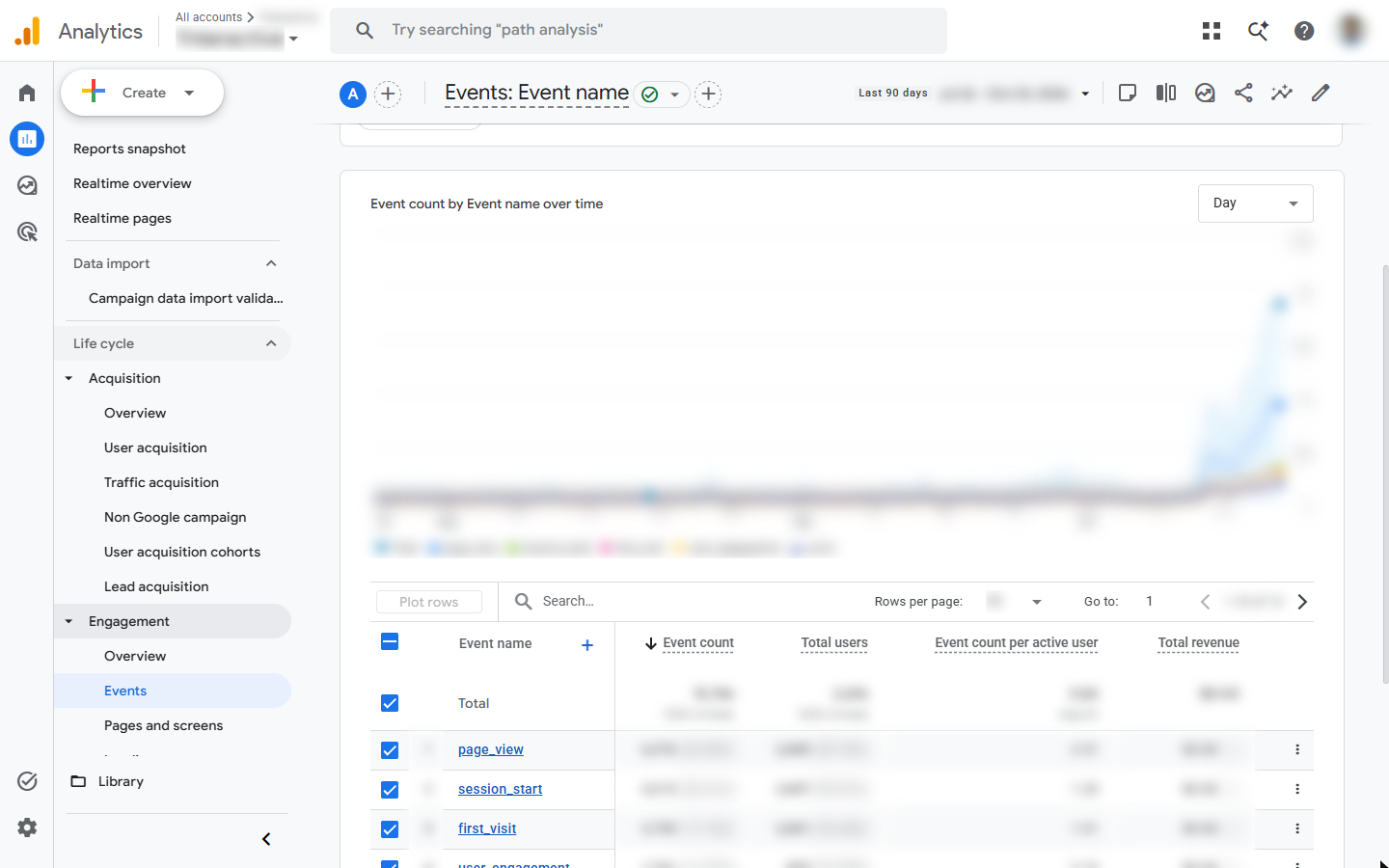
- Last 90 days. Click Last 90 days, then Apply. The range only changes your view of the report, not any setting.
Pick Last 90 days, then Apply.
- Read the events. Now compare form_start with form_submit: many starts and few submits means people give up on the form. Click page_view to finish.
Compare form start with form submit. Many starts and few submits means people give up on the form.
Screenshots
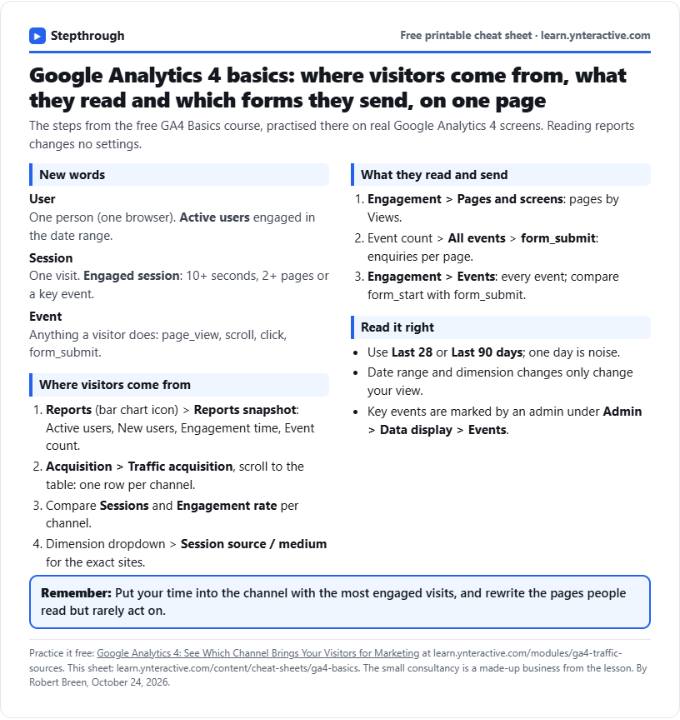
Free cheat sheet
Print it or save the PDF: the key steps and checks from this lesson on one page, free.
All free printable cheat sheets
Terms in this lesson
Plain-English definitions, each with an example from a free lesson.