Updated . Built against the tool’s current screens and checked step by step. How we check this lesson
Turn three GA4 numbers into a one-page dashboard: a trend over time, a table of which channel brings visitors, and a date picker so colleagues change the period themselves. Free, on real Data Studio screens.
At a glance
| Question | Answer |
|---|---|
| What you build | Turn three GA4 numbers into a one-page dashboard: a trend over time, a table of which channel brings visitors, and a date picker so colleagues change the period themselves. Free, on real Data Studio screens. |
| Tools | Looker Studio |
| Time | About 9 minutes, 14 steps in 3 parts |
| Level | Beginner, no coding needed |
| Cost | Free |
| Ways to learn it | Practice it step by step |
The 3 parts, in short
- The trend: Add a chart, Time series, Make room.
- Where visitors come from: Add a table, Change the dimension, Session default channel group, Sessions and engagement.
- Let people pick the dates: Add a control, Date range control, View, Open the date picker, and 3 more steps.
Start here first: Tableau Public: Your First Chart and Dashboard (module 1 of Business intelligence)
What you'll build
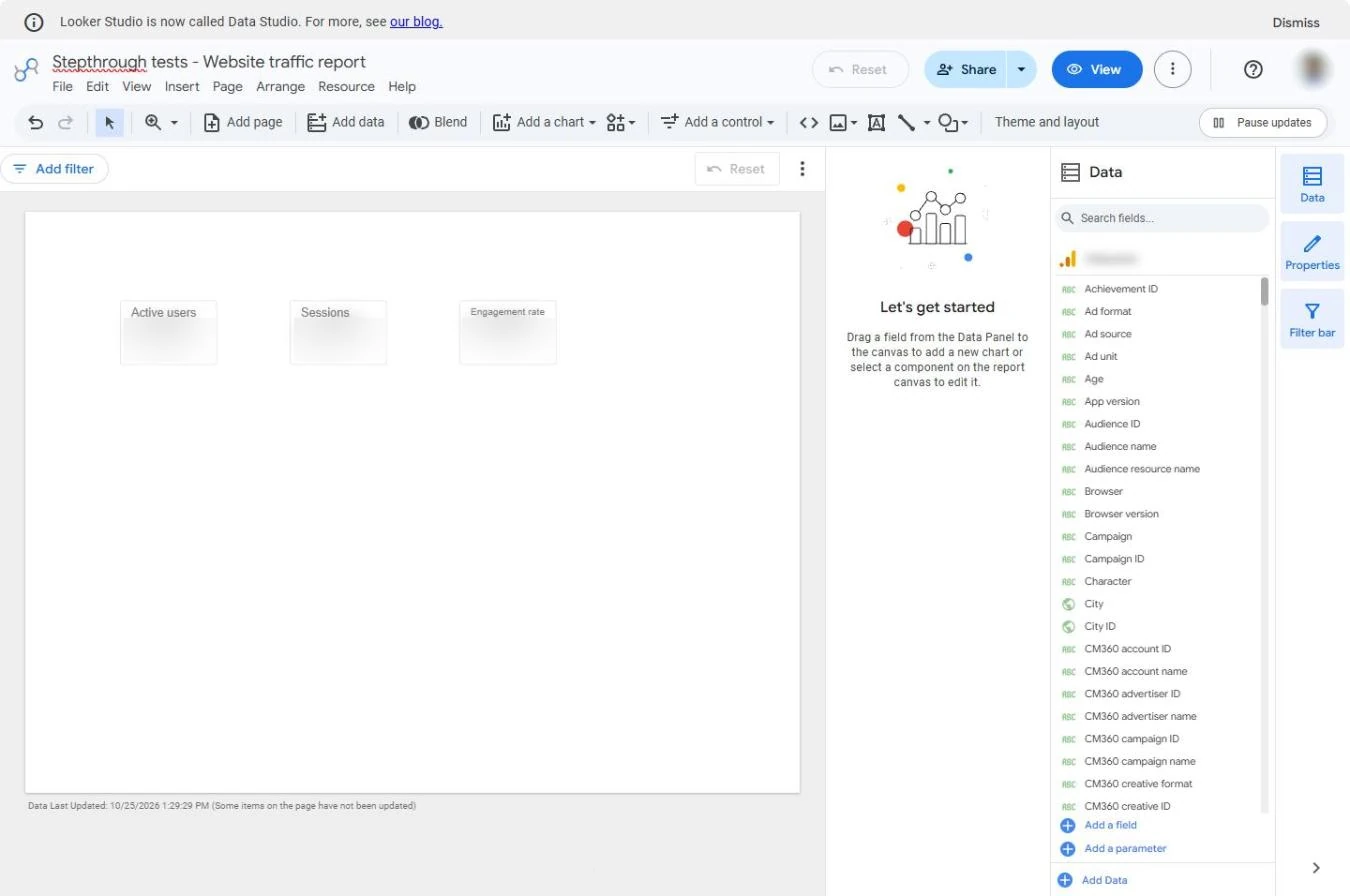
The headline numbers are on the report, but the partners still ask the same three questions every week: are we going up or down, where do the visitors come from, and what about last month? Each question used to mean another screenshot. In this lesson you add a trend chart, a table by channel and a date control to the Looker Studio report, so the answers are one click away for everyone. Every screen is a real Data Studio screen; the numbers are blurred because it is a real website.
You added a time series of Active users, a table of Sessions and Engagement rate by channel, and a date range control, then used it in View mode like a colleague would. Share the link once instead of sending screenshots every week: the report updates itself, and everyone picks their own dates. The same steps work for any data source Data Studio connects to, such as Google Sheets or Google Ads.
- Tools: Looker Studio
- Time: about 9 minutes, 14 steps in 3 chapters
- Level: beginner, no coding needed
- Price: free
Practice first, then build it for real
Practice copy built from real Looker Studio (Data Studio) screens, captured 25 October 2026. Nothing here touches your Google account. The report reads a real GA4 property, so every number and name is blurred. To build it for real you need your own Looker Studio account, and some services charge once you use them for real work, so check each tool's current pricing.
Try it yourself, free
Reading the steps is a start. Doing them is how it sticks. The interactive module walks you through every click in a practice copy of Looker Studio, checks each step, and never touches your real accounts.
Start “Looker Studio: Add a Trend Chart, Channel Table and Date Picker”Step by step: Looker Studio: Add a Trend Chart, Channel Table and Date Picker
All 14 steps of the interactive module, in order. In the module you watch each one, then do it yourself in a practice copy that checks your work.
1. The trend
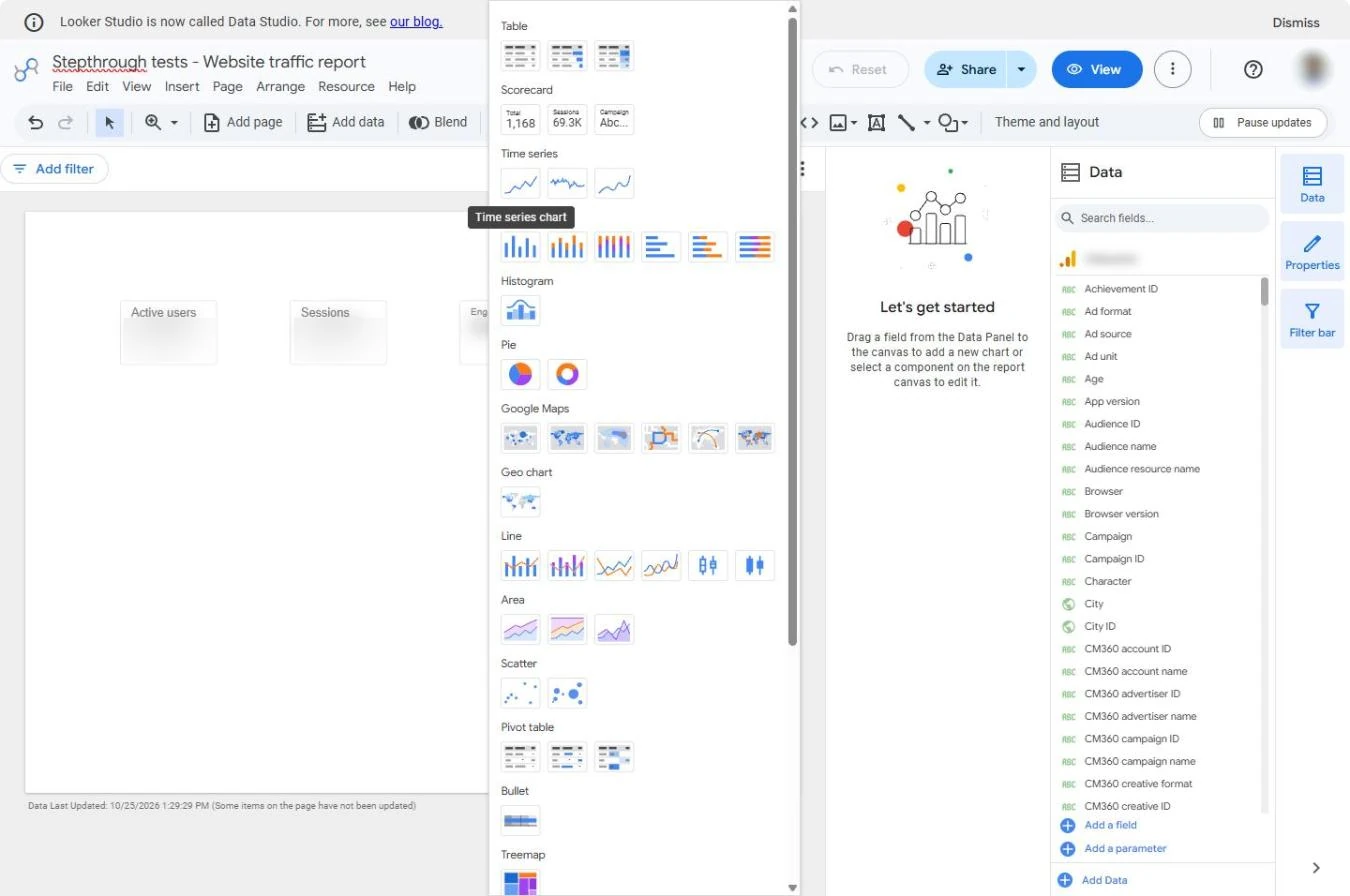
- Add a chart. Open the report from the last module (three scorecards at the top). The numbers alone do not say whether things are getting better. Click Add a chart.
Three numbers do not show the trend.
- Time series. Under Time series, click the first chart, then click on the page under the scorecards.
Pick the first time series chart, and click under the scorecards to place it.
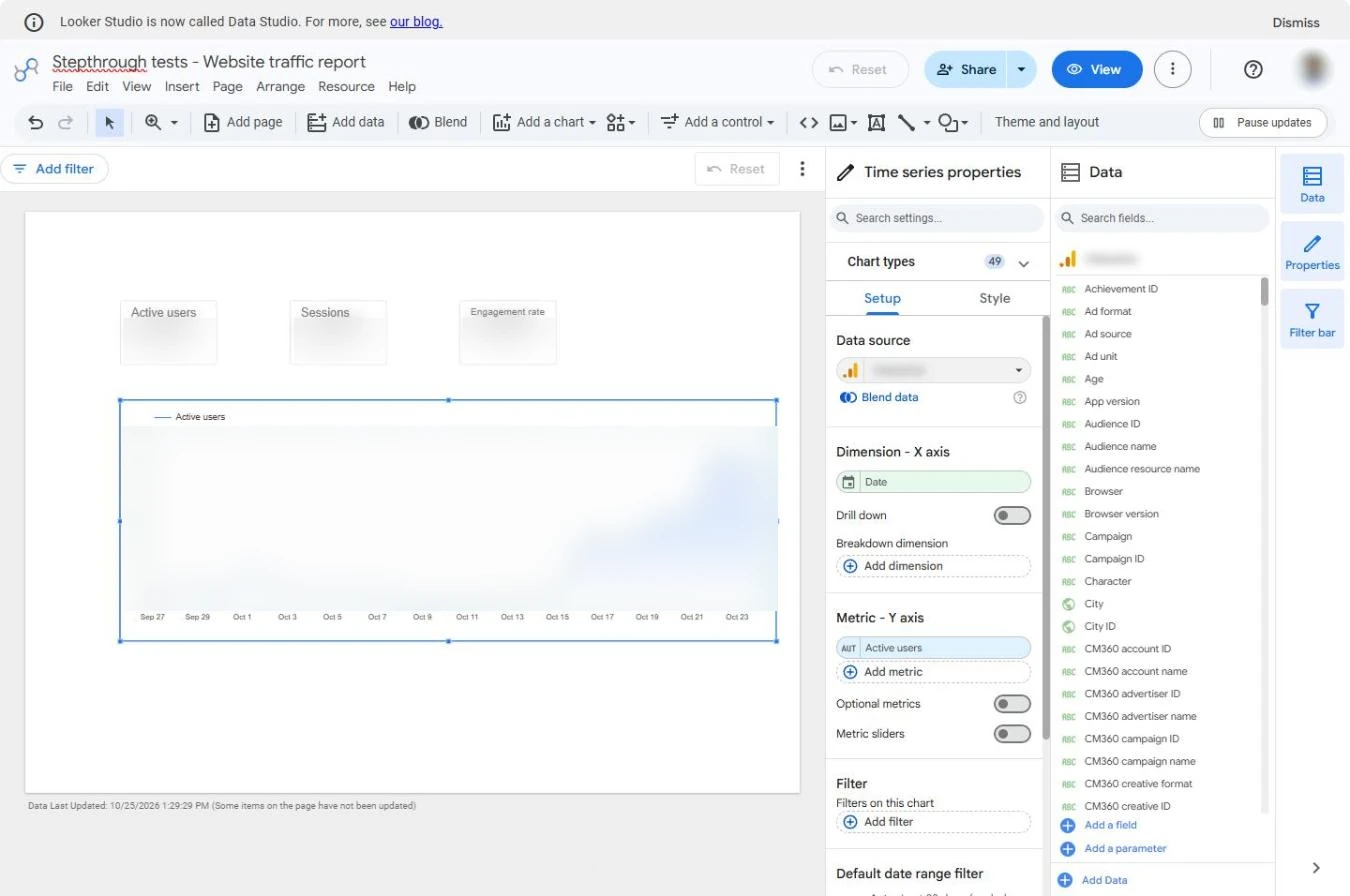
- Make room. Data Studio draws Active users per day, with Date across the bottom. Resize the chart by dragging its edges (here it was stretched to the full width): make it about half the page wide, so the table can sit next to it.
One point per day.
2. Where visitors come from
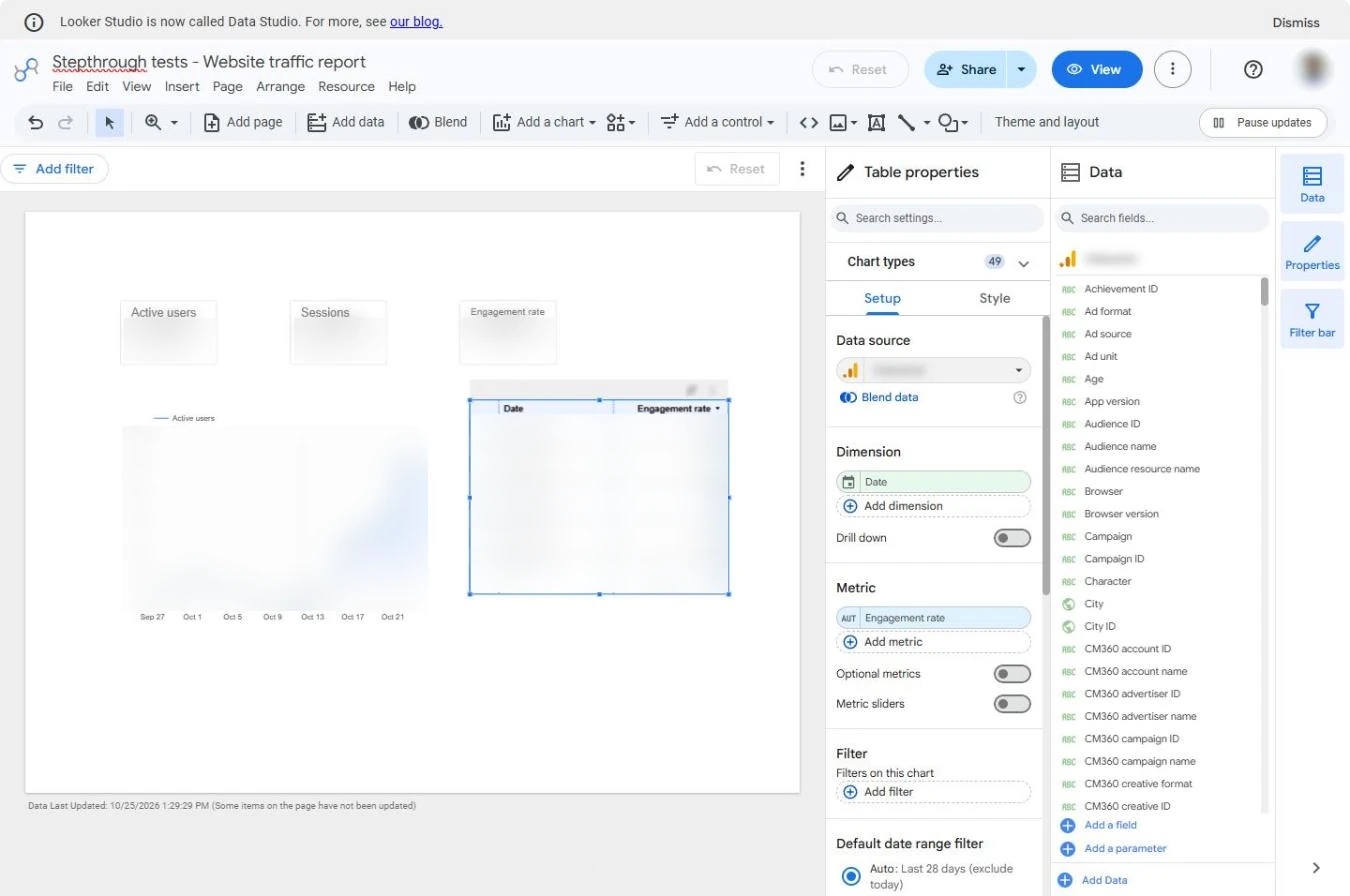
- Add a table. Click Add a chart again, click the first Table, then click on the page to the right of the chart.
Add a chart again, pick the first table, and place it next to the chart.
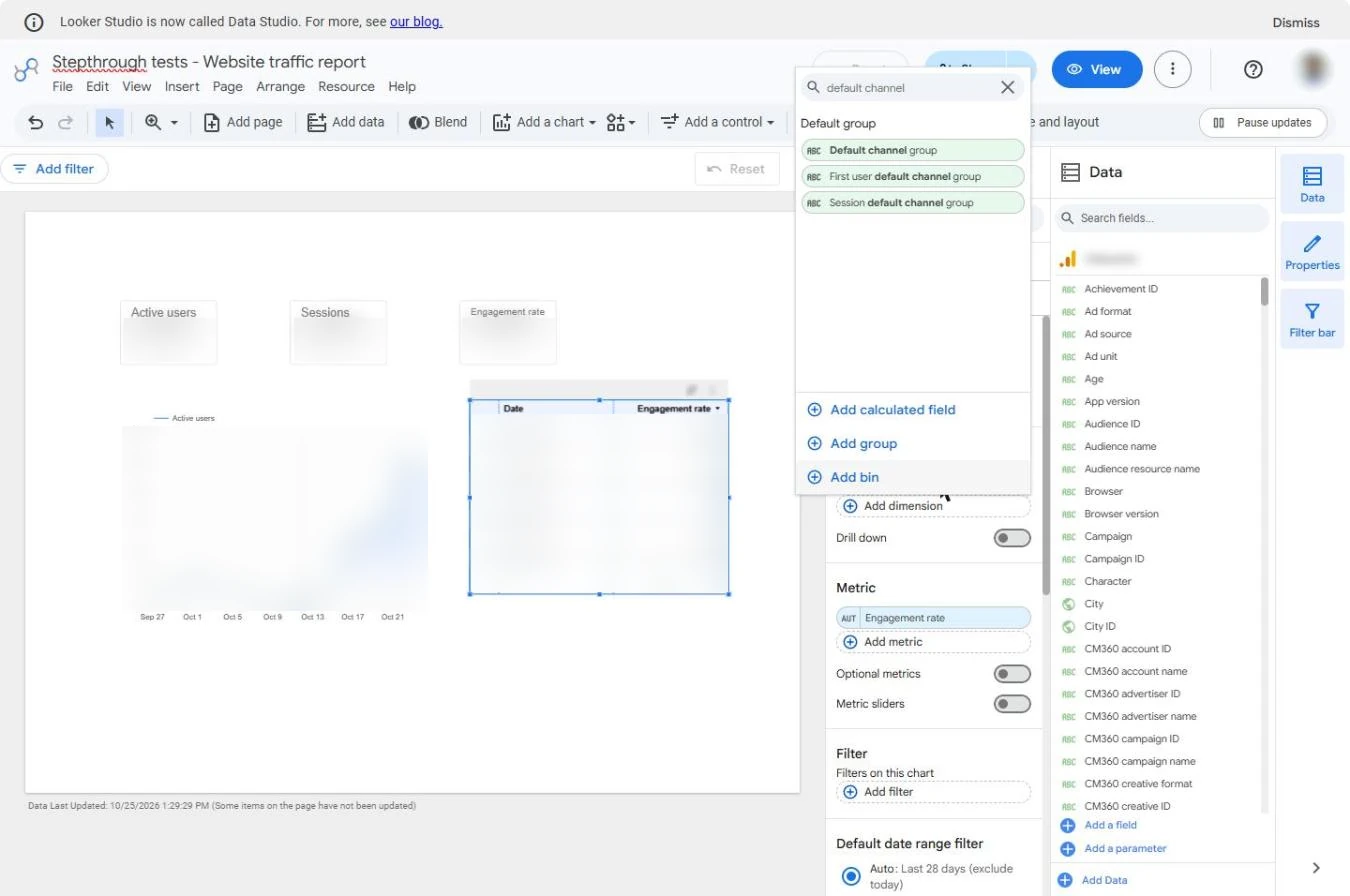
- Change the dimension. The table starts with Date as its dimension. You want one row per channel instead: in Setup, click Date under Dimension.
The table starts by date.
- Session default channel group. Type default channel and click Session default channel group.
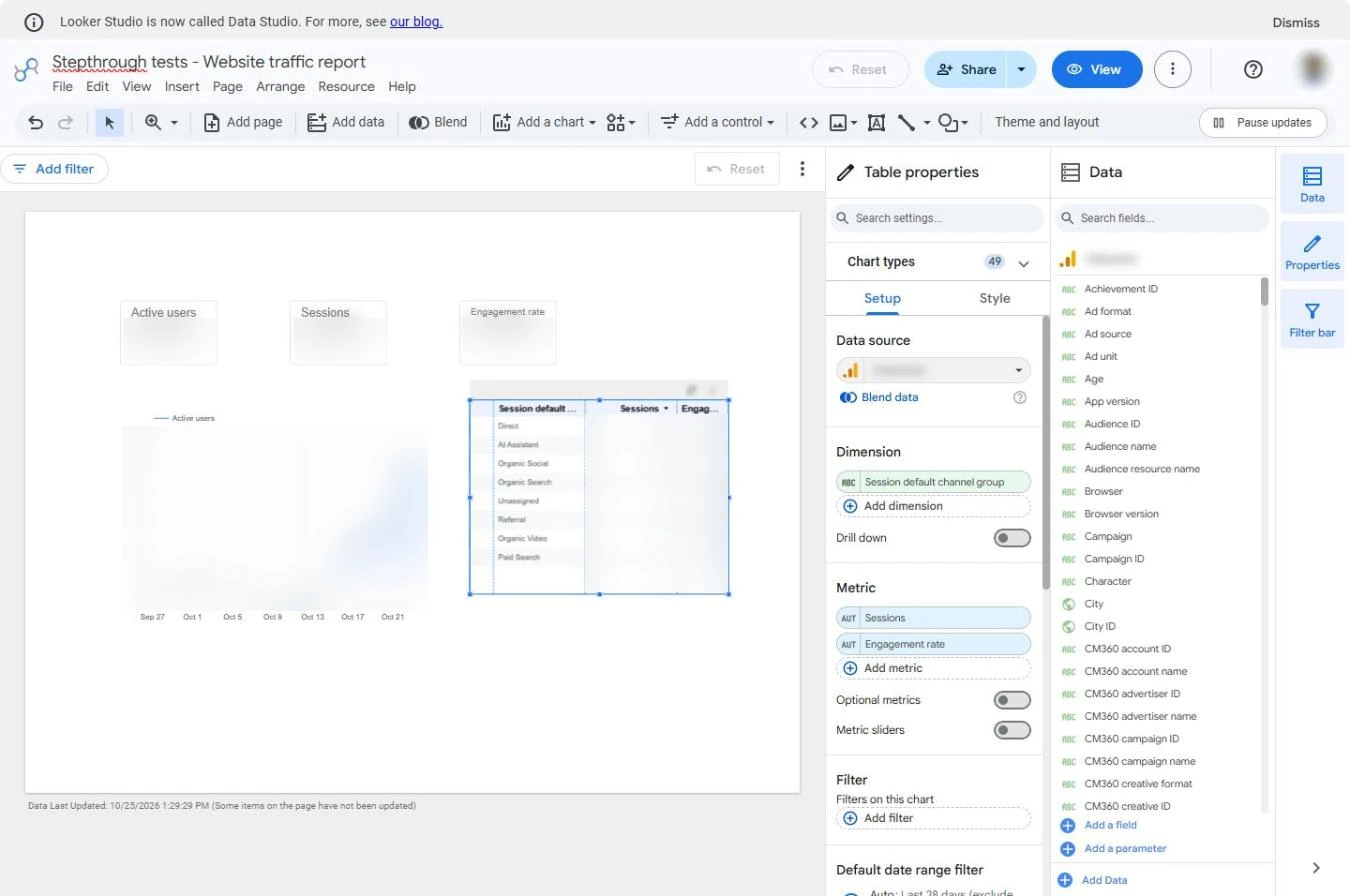
- Sessions and engagement. Now there is one row per channel: Direct, Organic Search, Organic Social, Referral and so on. Under Metric, click the metric and pick Sessions, then click Add metric and pick Engagement rate. The table sorts by Sessions.
One row per channel. Set the metric to Sessions, and add Engagement rate.
3. Let people pick the dates
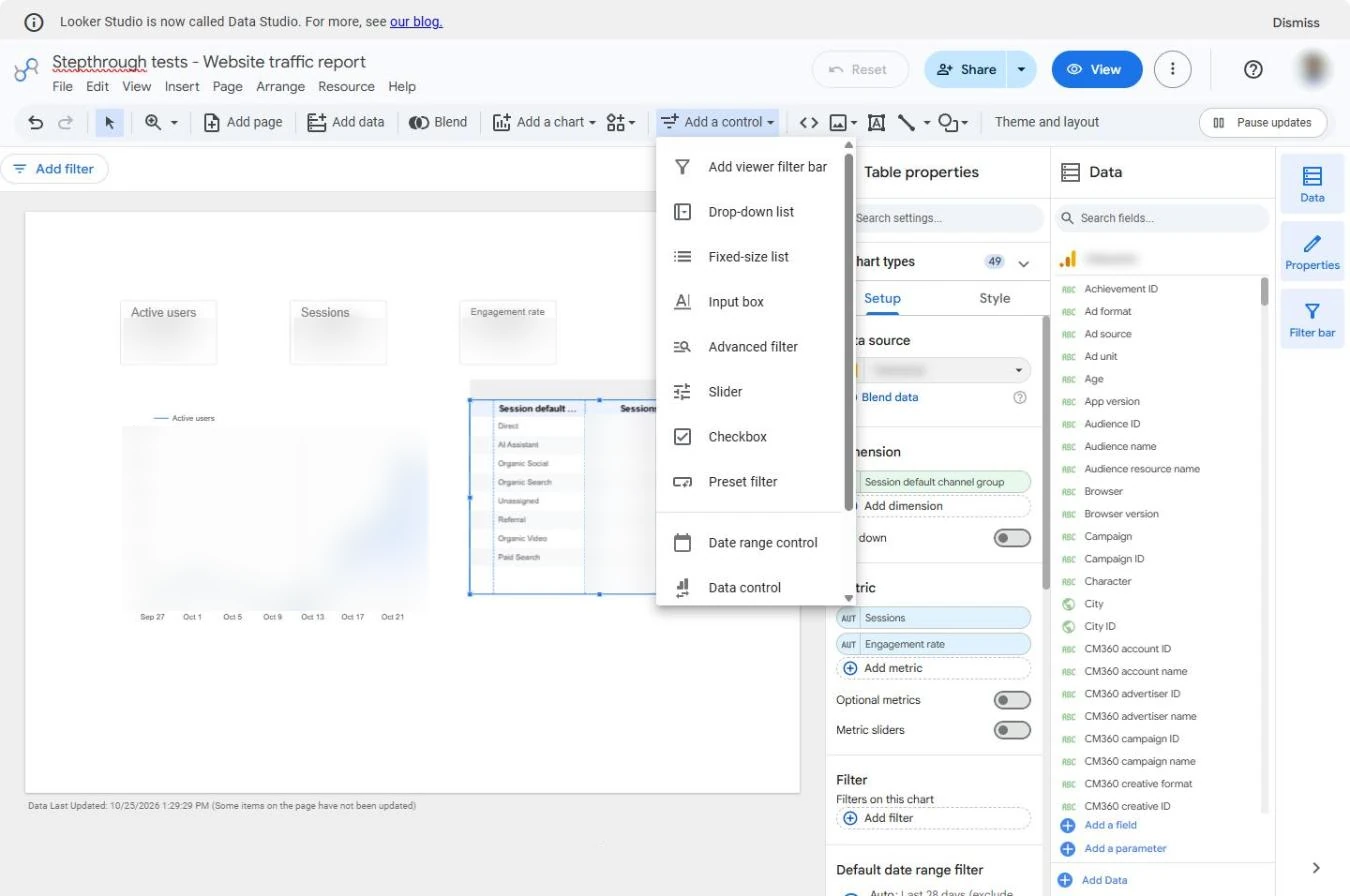
- Add a control. Last step: let anyone change the period without editing. Click Add a control.
Now let anyone change the dates.
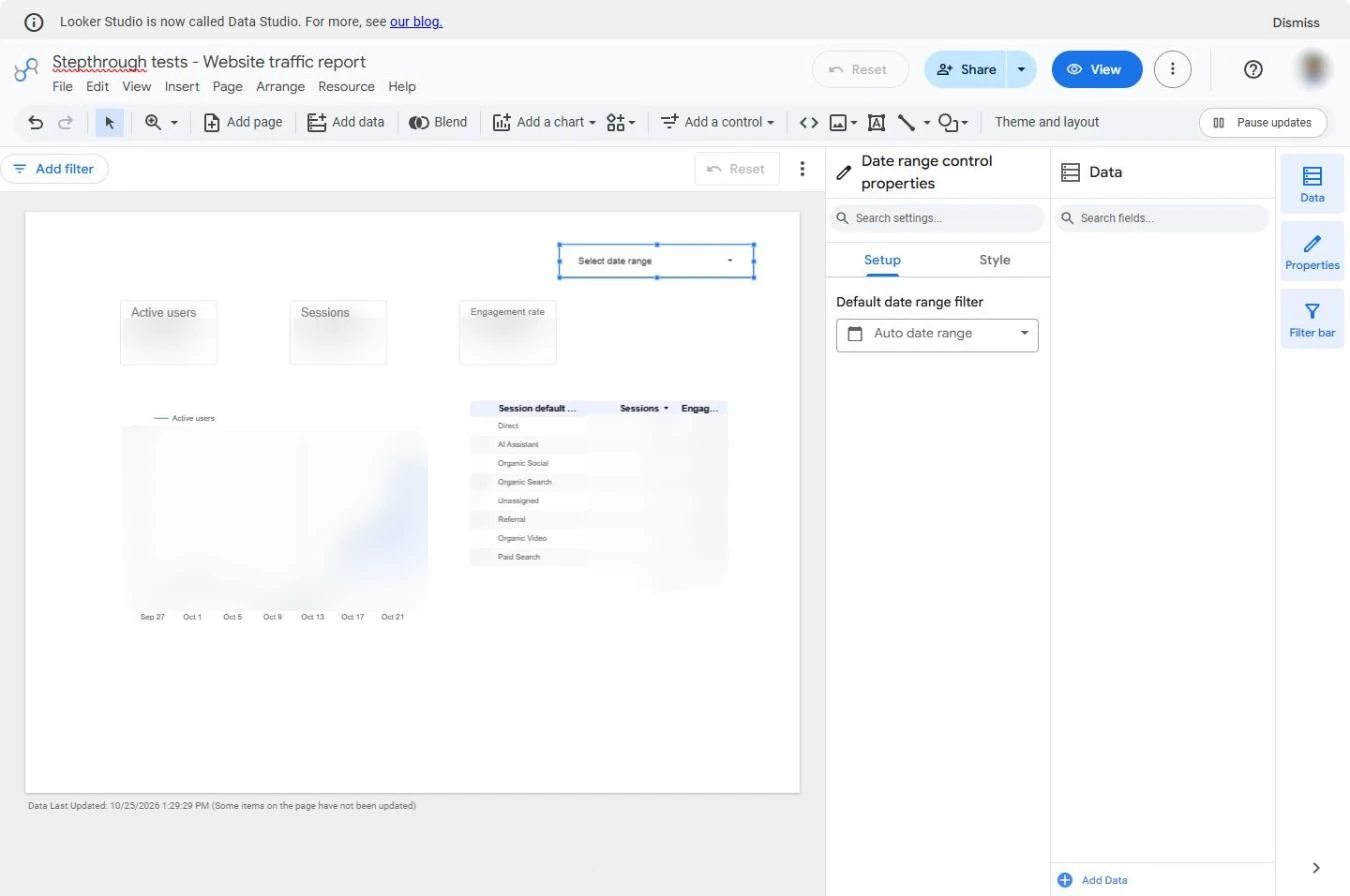
- Date range control. Click Date range control, then click at the top right of the page to place it.
Pick Date range control, and place it at the top right.
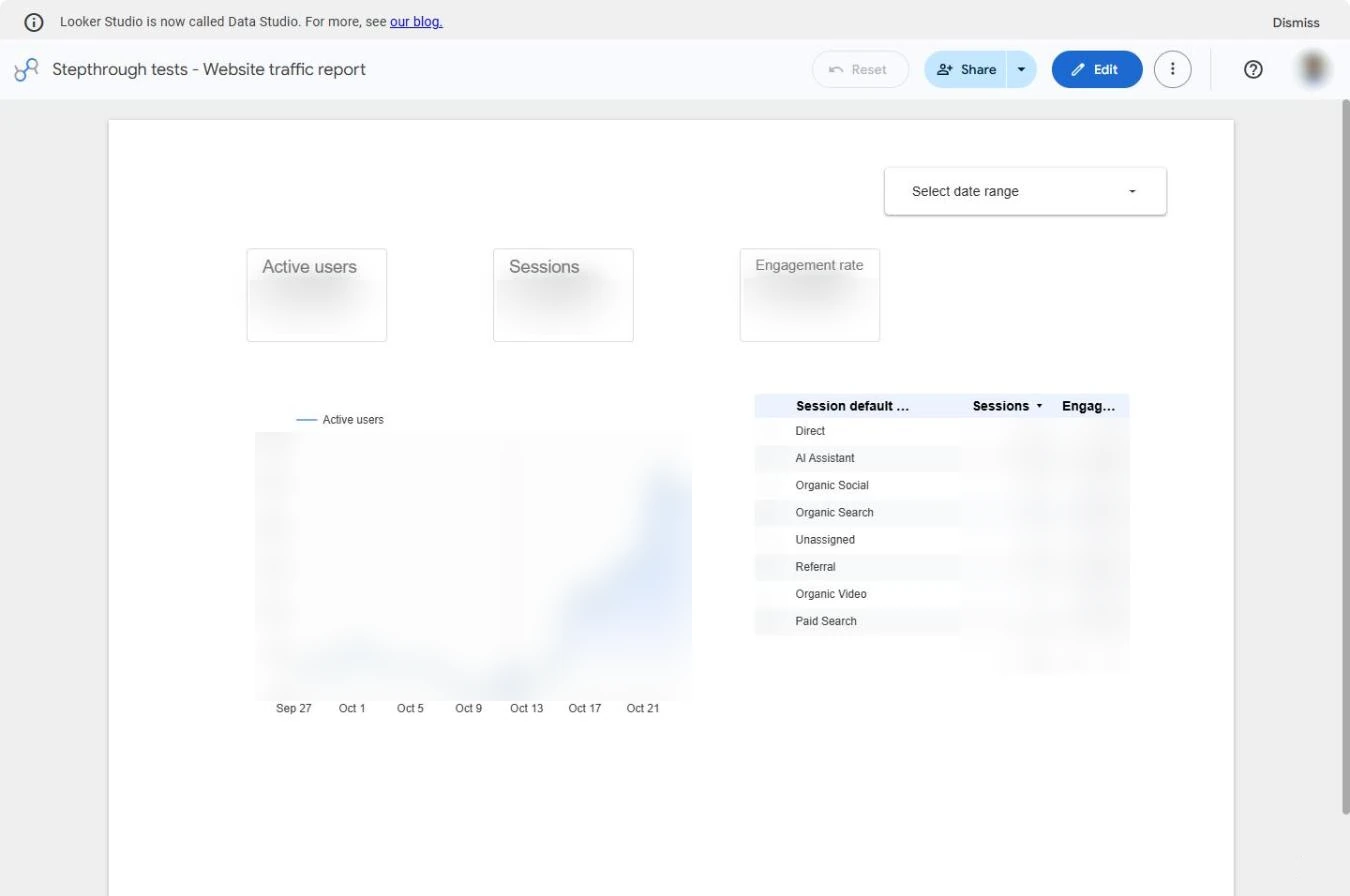
- View. The control is on the page. Click View at the top right to see the report the way your colleagues will.
- Open the date picker. This is the finished one-page report. Click the date control.
This is your report.
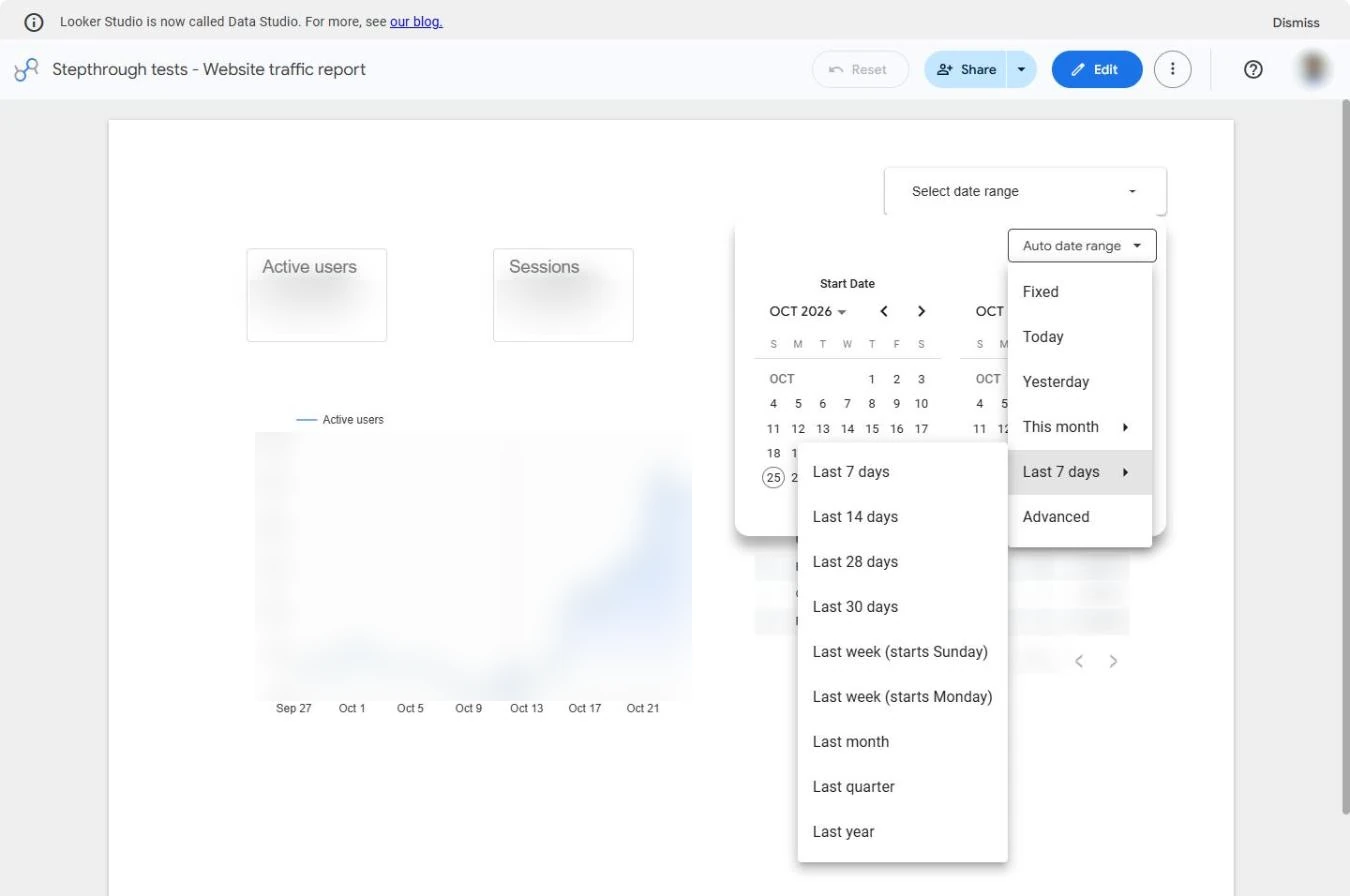
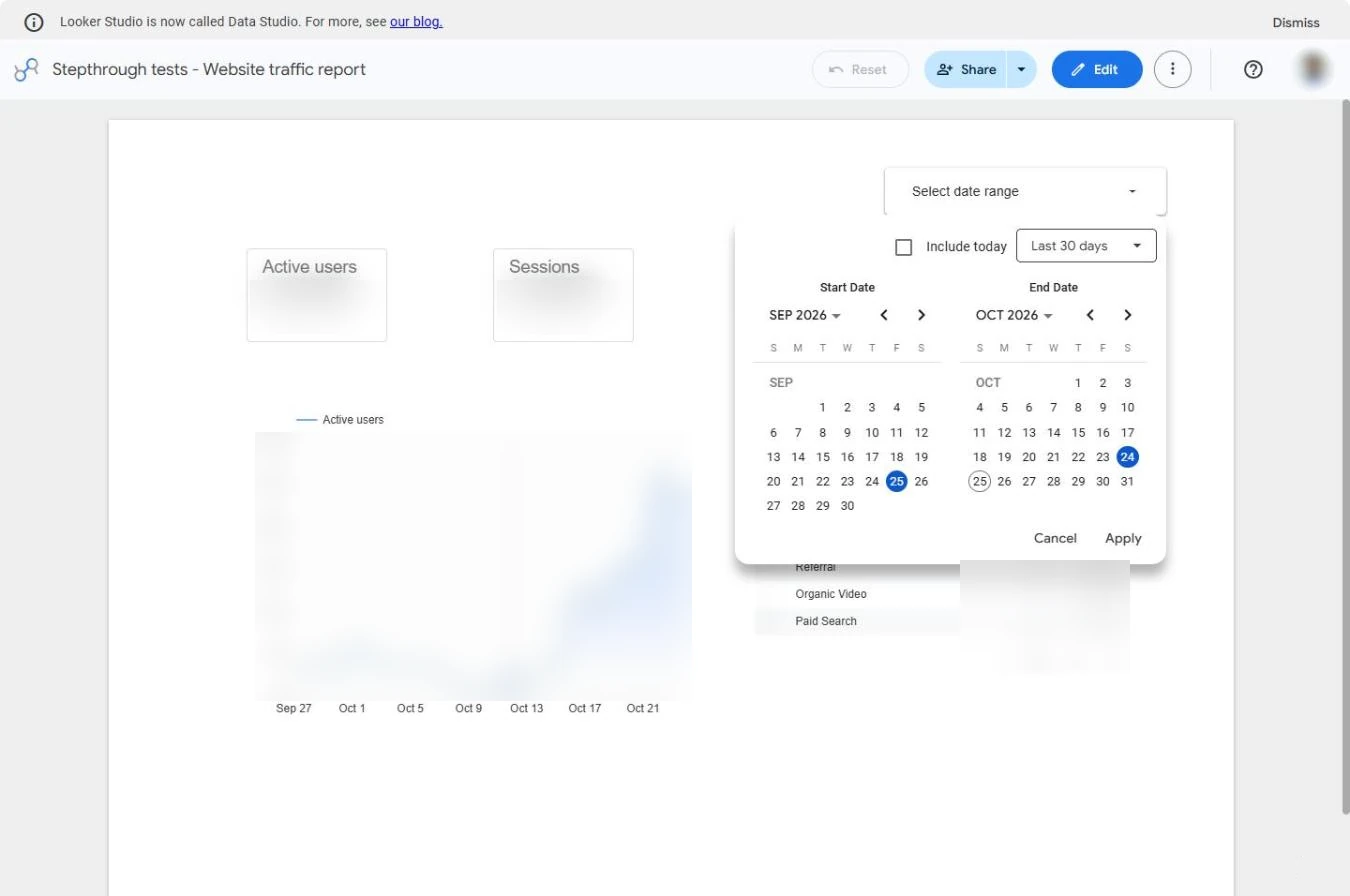
- Last 30 days. Click the Auto date range dropdown, point at Last 7 days and click Last 30 days.
- Apply. The calendars show the 30 days. Click Apply.
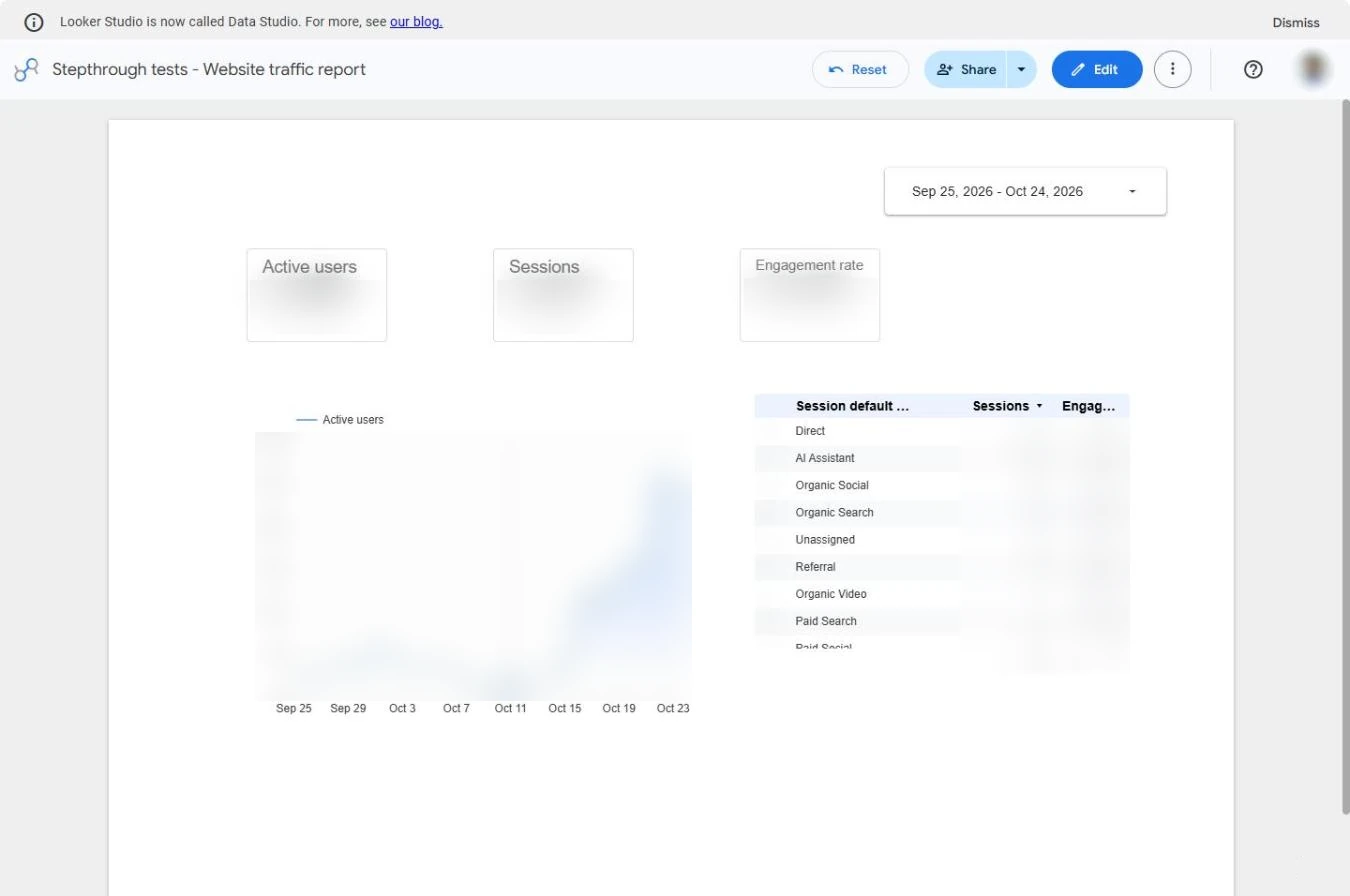
- Read the report. Every chart now shows the last 30 days, and the control shows the dates. Read the table: the channel with the most sessions, and the one with the best engagement rate. When you are ready to share, use Share and add people by email; the report stays private until you do.
Every chart now shows the last 30 days. Read the table: most visits, and best engagement. It stays private until you share it.
Screenshots
More in Business intelligence
All 3 modules in Business intelligence
Free cheat sheet
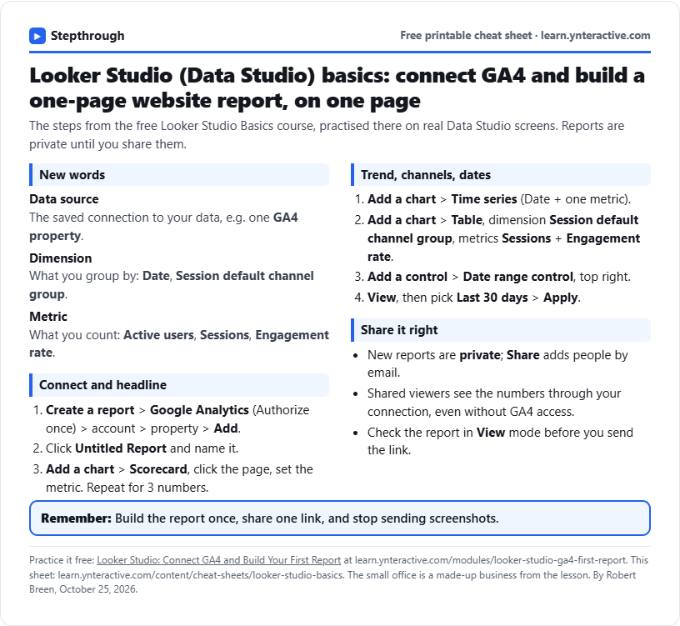
Print it or save the PDF: the key steps and checks from this lesson on one page, free.
All free printable cheat sheets
Terms in this lesson
Plain-English definitions, each with an example from a free lesson.