Updated . Built against the tool’s current screens and checked step by step. How we check this lesson
A beginner Tableau Public walkthrough on real screens: connect a CSV, build revenue by region, give viewers a product filter, put it on a dashboard and find Save to Tableau Public. Free tool, sample data.
At a glance
| Question | Answer |
|---|---|
| What you build | A beginner Tableau Public walkthrough on real screens: connect a CSV, build revenue by region, give viewers a product filter, put it on a dashboard and find Save to Tableau Public. Free tool, sample data. |
| Tools | Tableau |
| Time | About 15 minutes, 16 steps in 5 parts |
| Level | Beginner, no coding needed |
| Cost | Free |
| Ways to learn it | Practice it step by step |
The 5 parts, in short
- Connect to the CSV: Connect to a text file, Pick the CSV, Check the types, then go to the sheet.
- Build revenue by region: Region to Columns, Revenue to Rows.
- Let viewers filter by product: Product to Filters, Tick every product, OK, Open the filter’s menu, and 2 more steps.
- Put it on a dashboard: Name it Revenue by region, New Dashboard, Drag the sheet onto it.
- Publish to Tableau Public: Open the File menu, Save to Tableau Public.
What you'll build
Your VP wants weekly revenue by region by Monday and wants to filter to one product line without emailing you. In this lesson you build it in the free Tableau Desktop Public Edition from a four-row sample CSV: a bar chart, a product filter, a one-page dashboard, and the menu that publishes it. Every screen is a real Tableau screen.
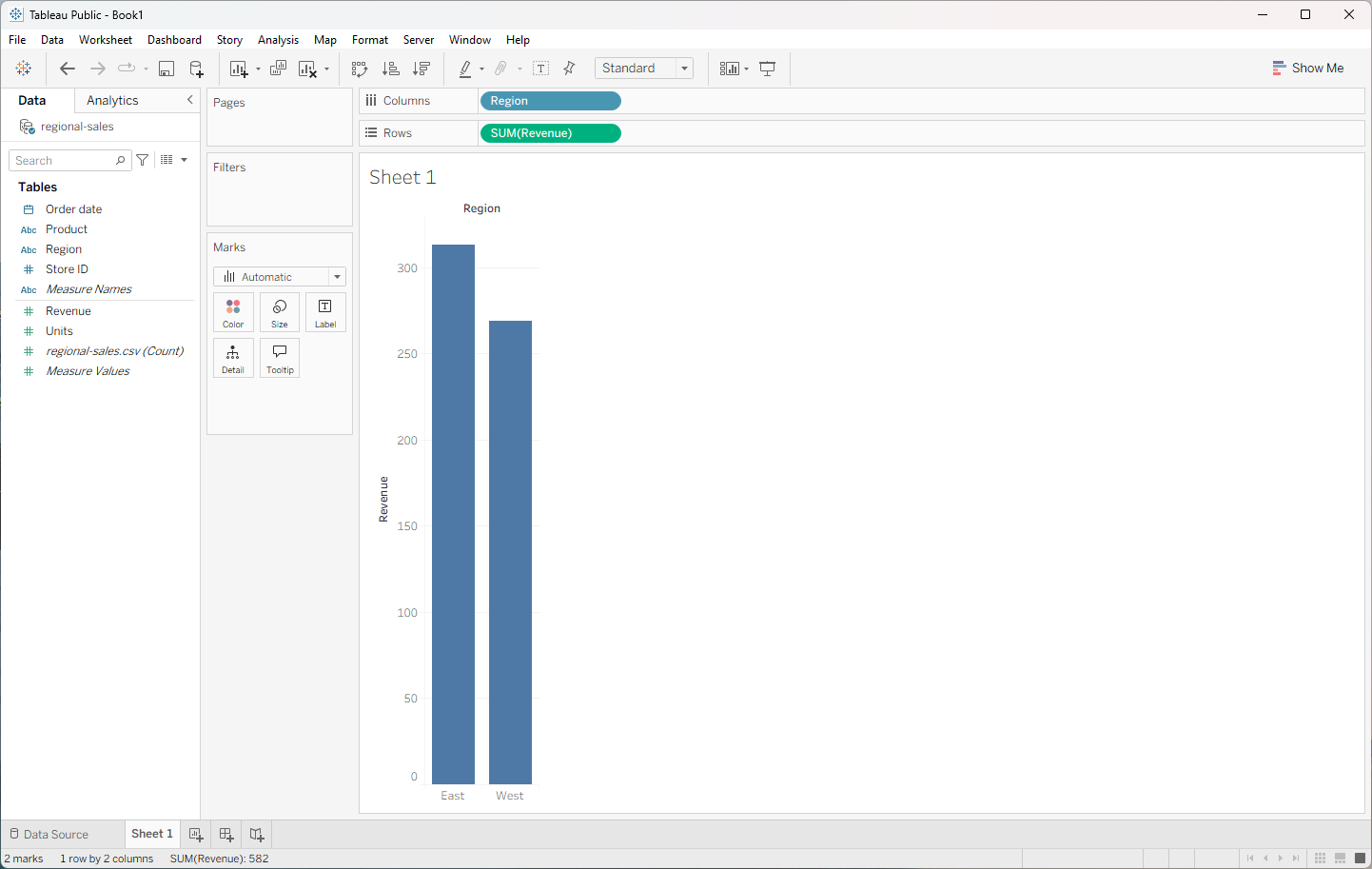
You connected a CSV, dragged Region to Columns and Revenue to Rows (East $313, West $269), added a Product filter that viewers can use, renamed the sheet, put it on a dashboard and found File > Save to Tableau Public. Now build it in your own copy: the lesson page has the checklist and the sample CSV.
- Tools: Tableau
- Time: about 15 minutes, 16 steps in 5 chapters
- Level: beginner, no coding needed
- Price: free
Practice first, then build it for real
Practice copy built from real Tableau Desktop Public Edition 2026.2 screens (captured 22 October 2026). Nothing here touches your Tableau account. The sales data is sample data. To build it for real you need your own Tableau account, and some services charge once you use them for real work, so check each tool's current pricing.
Try it yourself, free
Reading the steps is a start. Doing them is how it sticks. The interactive module walks you through every click in a practice copy of Tableau, checks each step, and never touches your real accounts.
Start “Tableau Public: Your First Chart and Dashboard”Step by step: Tableau Public: Your First Chart and Dashboard
All 16 steps of the interactive module, in order. In the module you watch each one, then do it yourself in a practice copy that checks your work.
1. Connect to the CSV
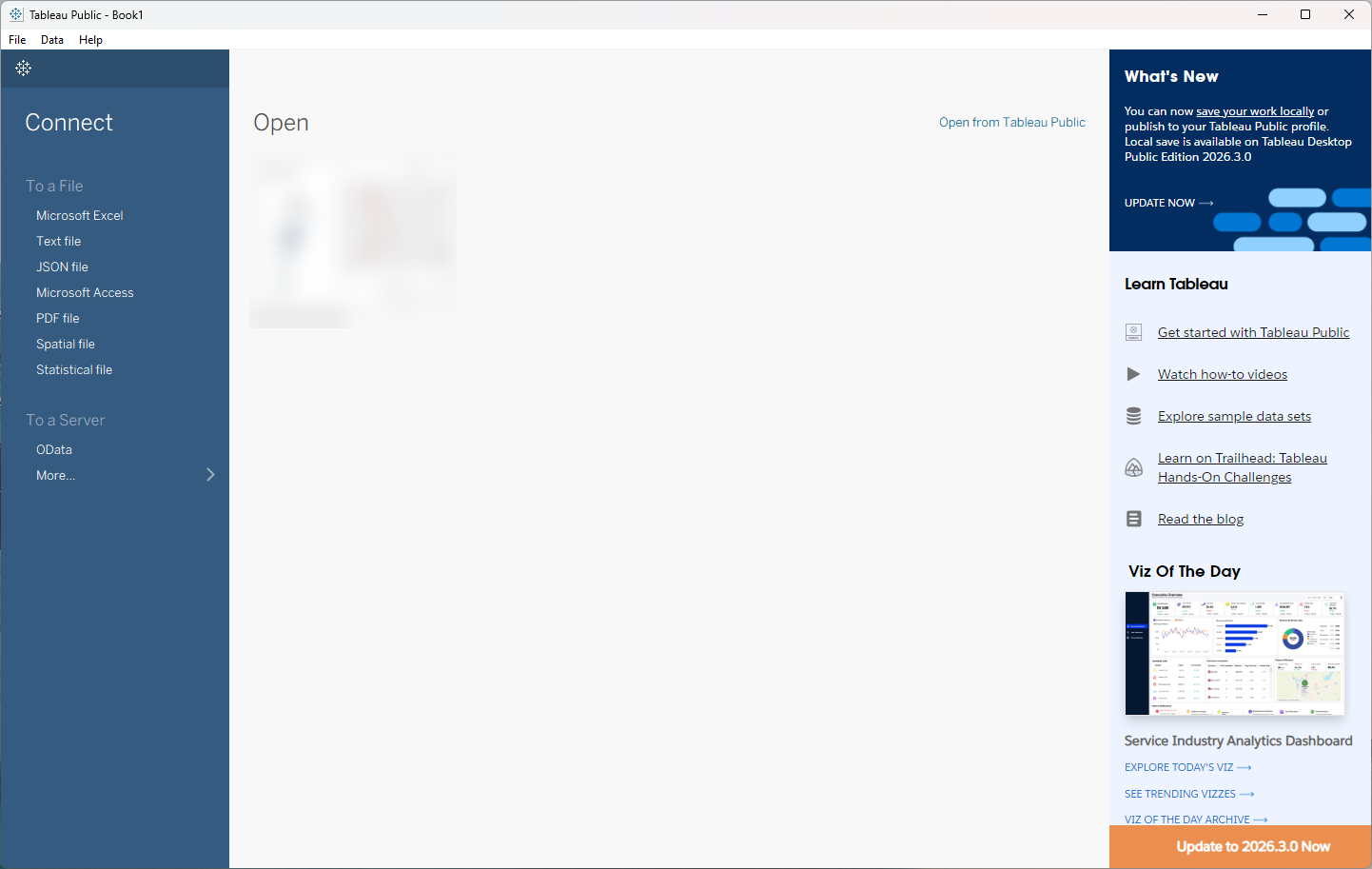
- Connect to a text file. Open Tableau Desktop Public Edition. On the start page, under Connect > To a File, click Text file.
On the start page, under Connect, click Text file.
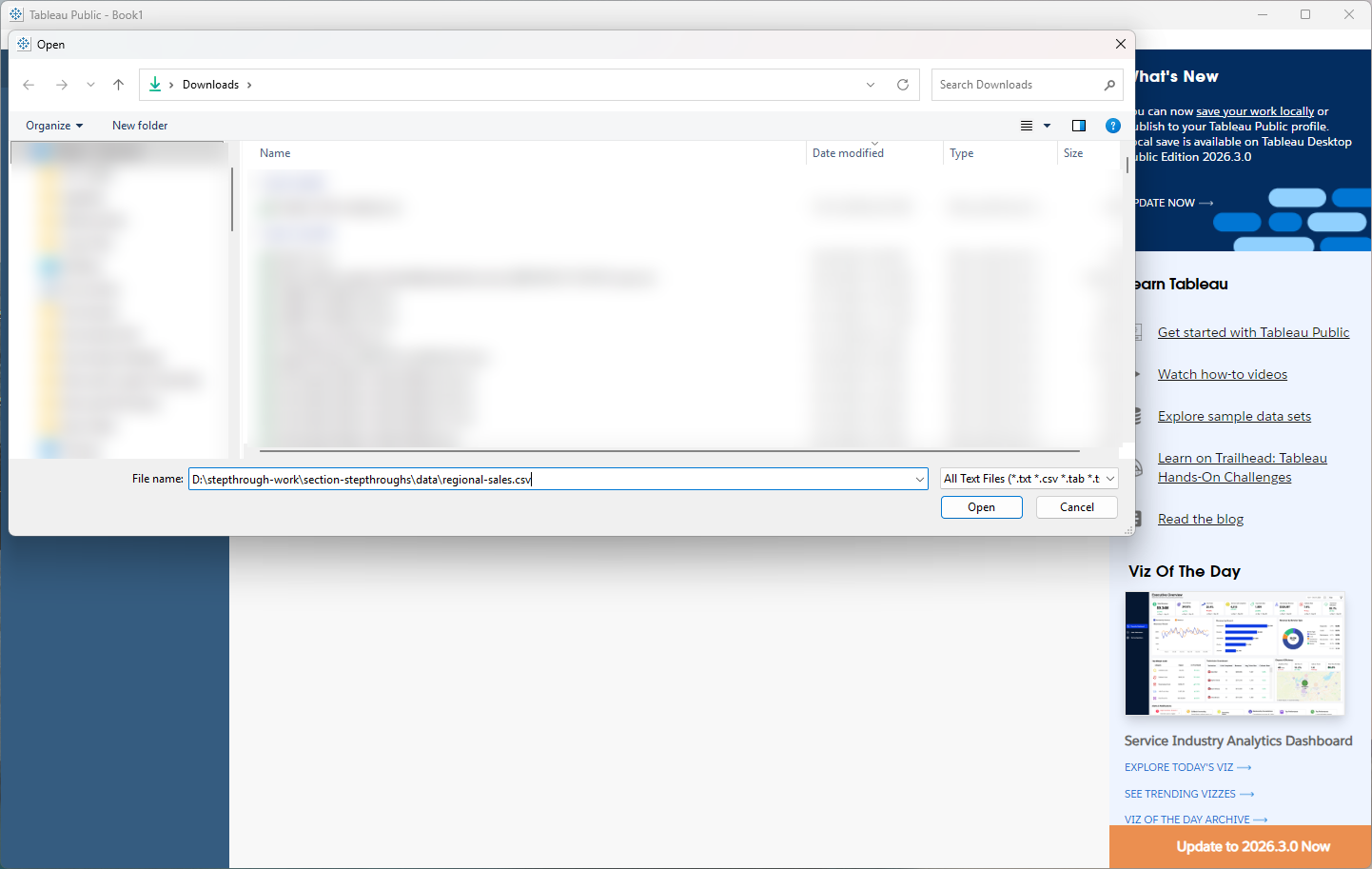
- Pick the CSV. Choose your CSV (download regional-sales.csv on this page to follow along) and click Open.
Pick the sample CSV, and click Open.
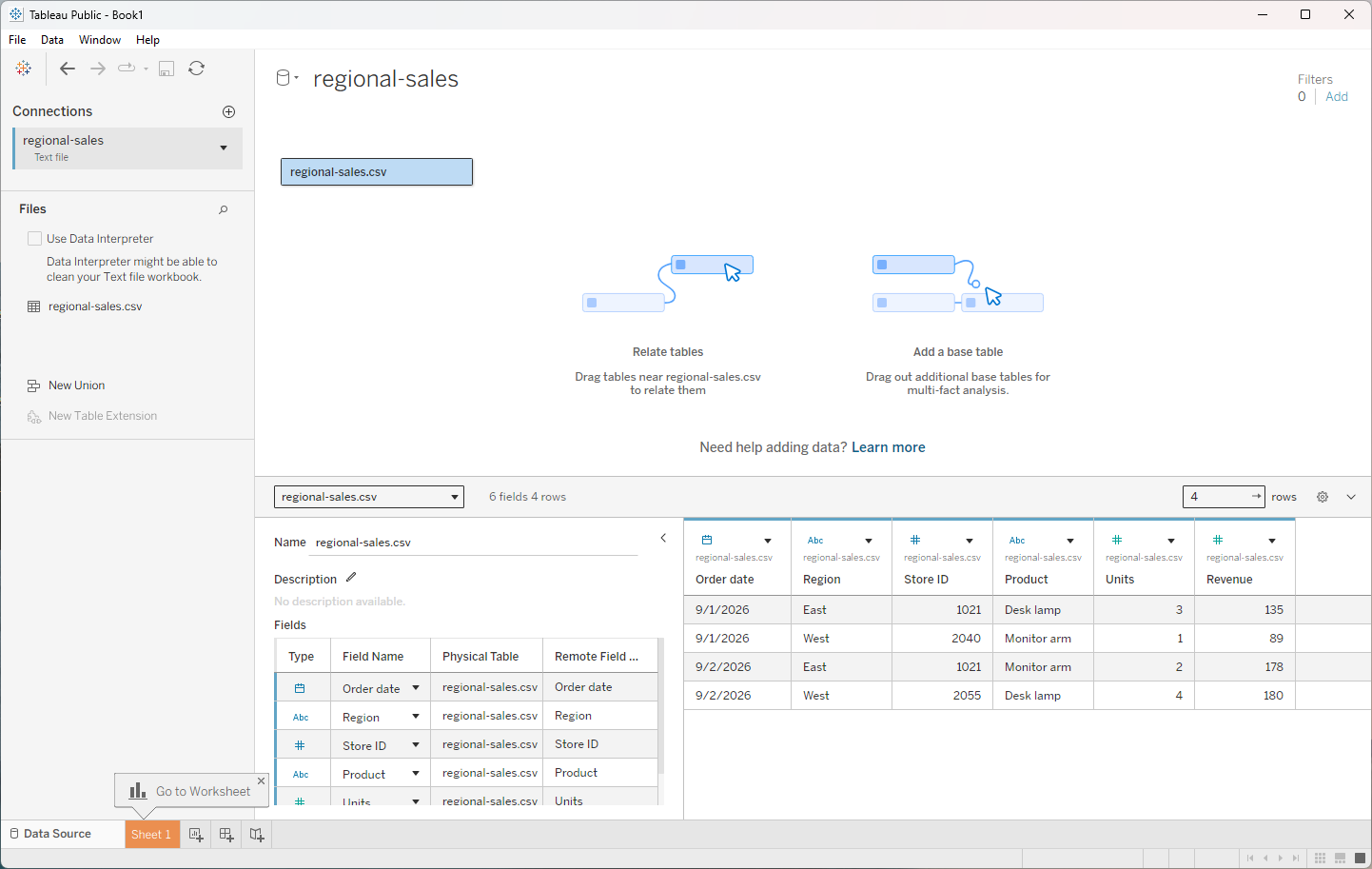
- Check the types, then go to the sheet. The Data Source page previews the four rows. Order date has a calendar icon; Units and Revenue show #; the rest show Abc. Click the Sheet 1 tab.
Check the column types in the preview.
2. Build revenue by region
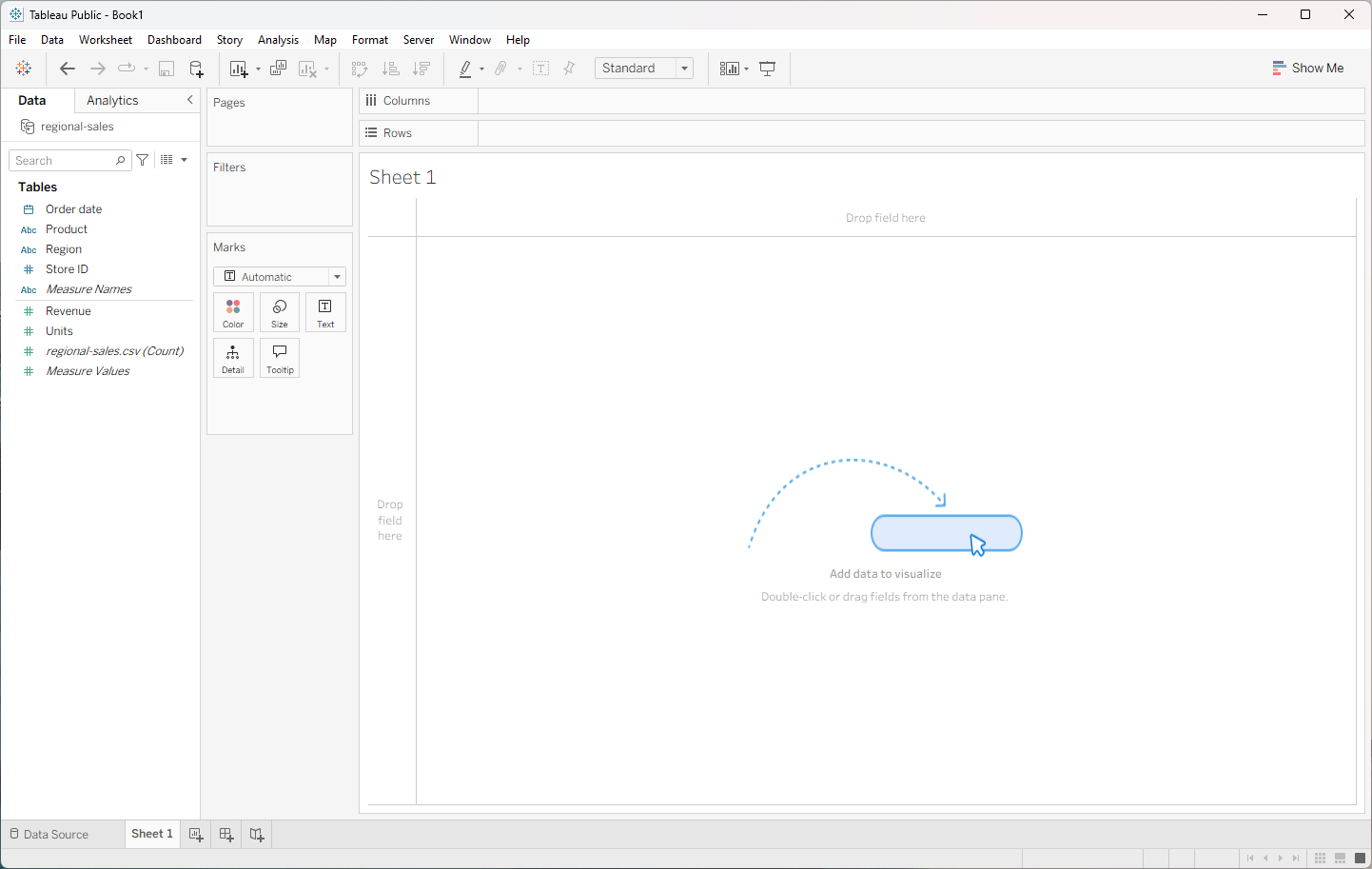
- Region to Columns. The Data pane lists dimensions (Order date, Product, Region, Store ID) above measures (Revenue, Units). Drag Region to Columns.
Dimensions on top, measures below.
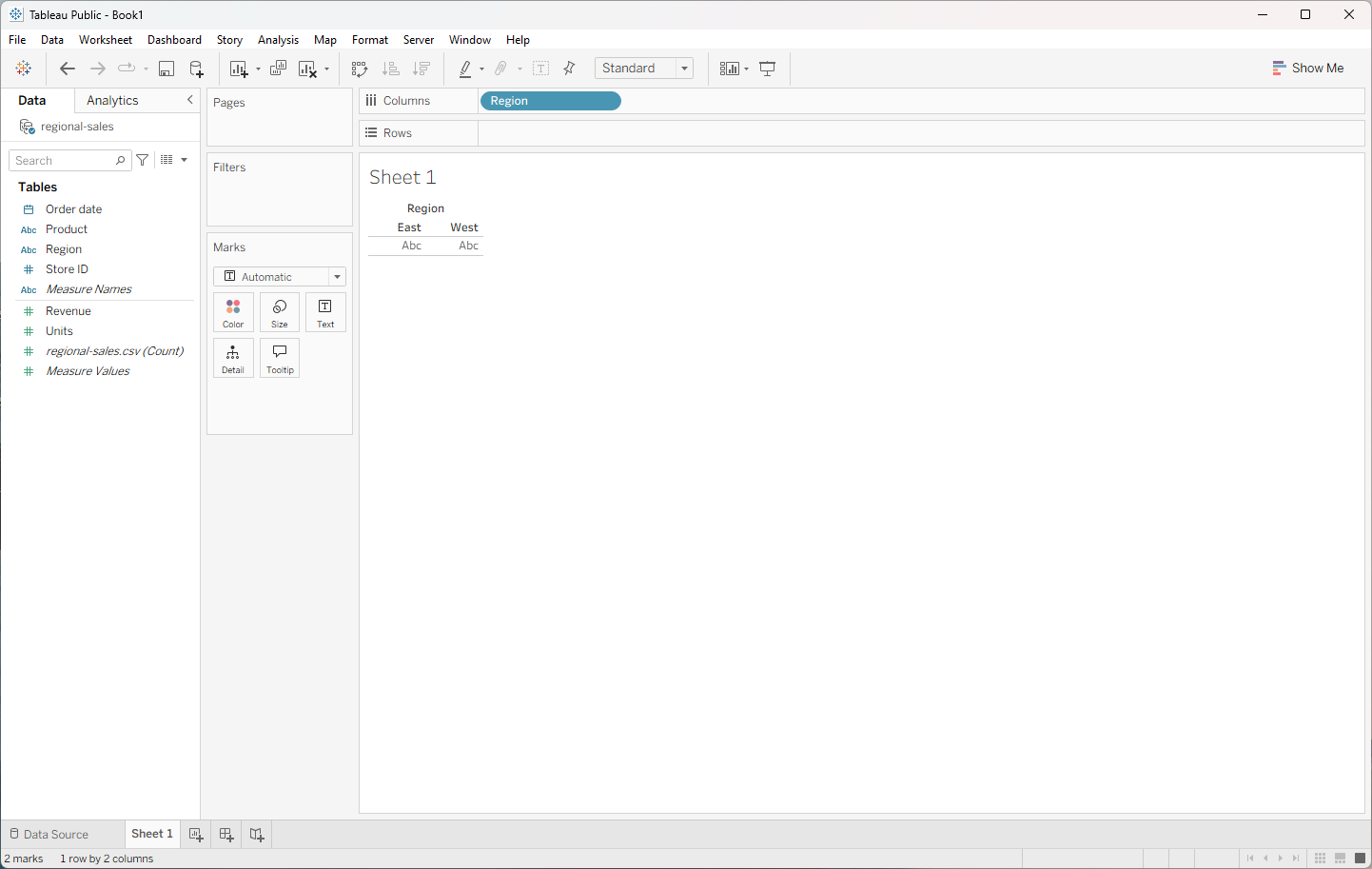
- Revenue to Rows. A blue Region pill makes one header per region: East and West. Now drag Revenue to Rows.
Region made two headers.
3. Let viewers filter by product
- Product to Filters. Two bars: East about 313, West about 269 (the status bar says SUM(Revenue): 582). Revenue is a green pill, so it makes an axis. Drag Product to the Filters card.
Two bars. East about three thirteen, West about two sixty-nine.
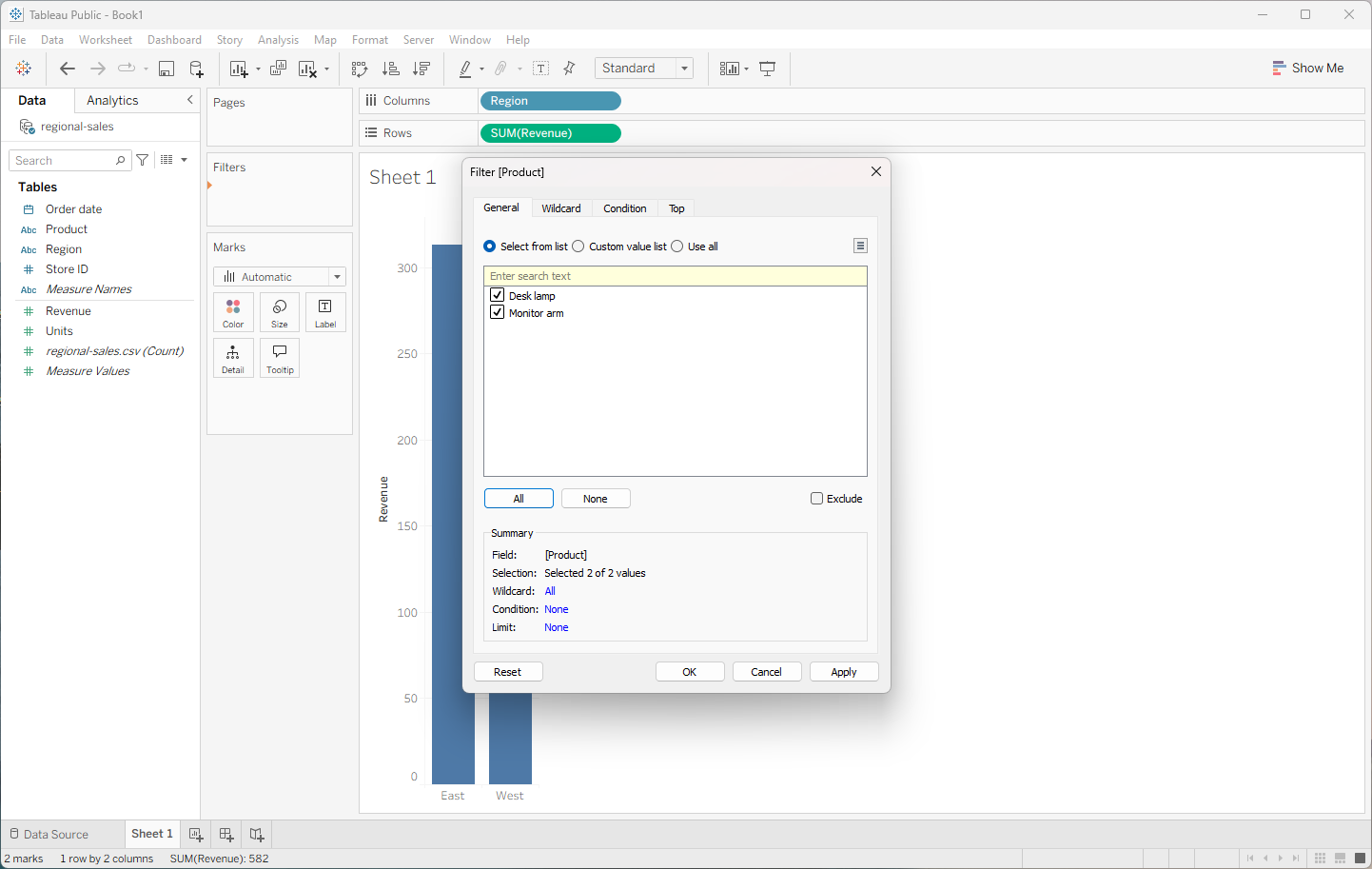
- Tick every product. The filter dialog opens with nothing ticked ("Selected 0 of 2 values"). Click All.
Nothing is ticked yet.
- OK. Both products are ticked. Click OK.
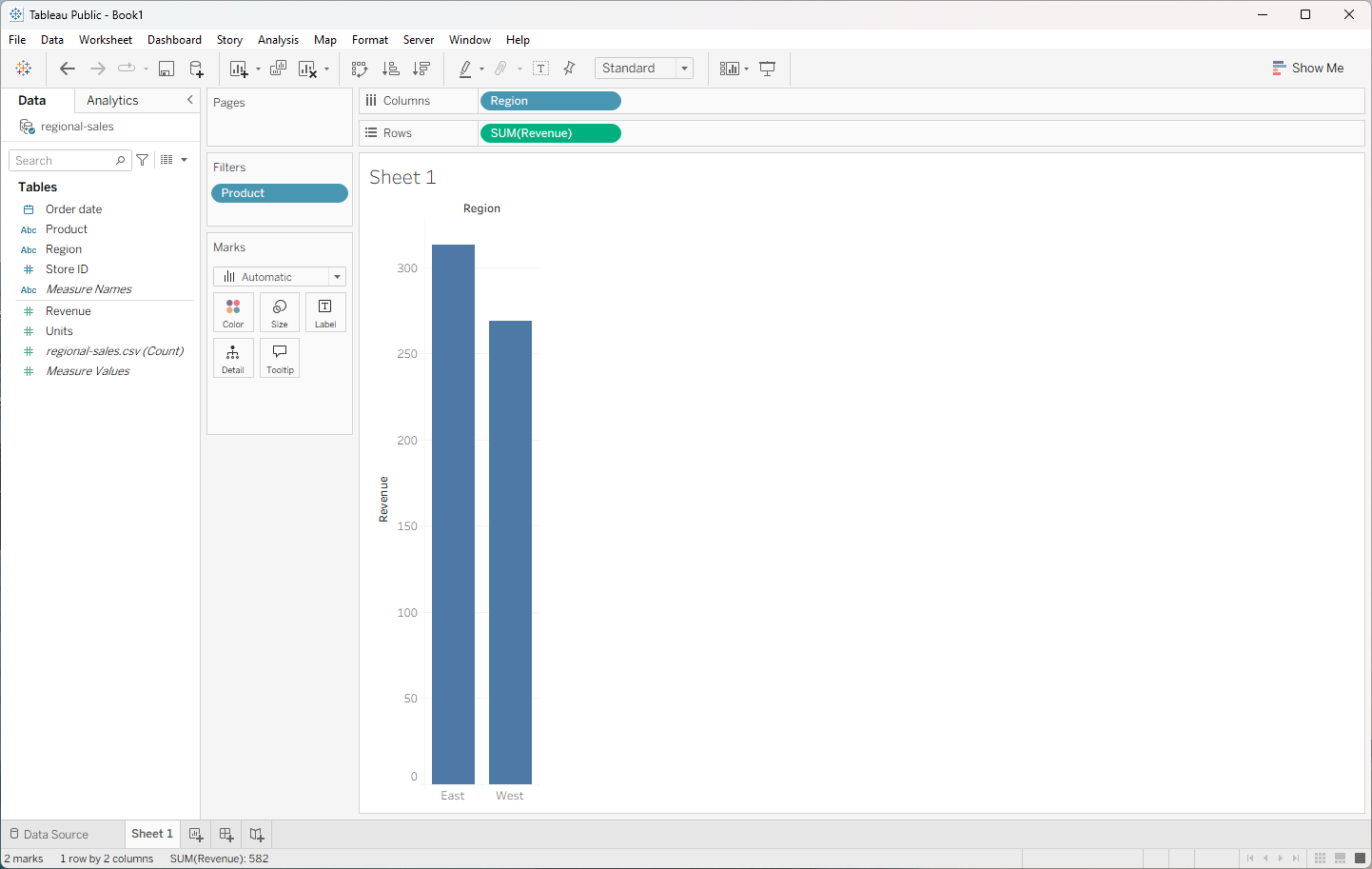
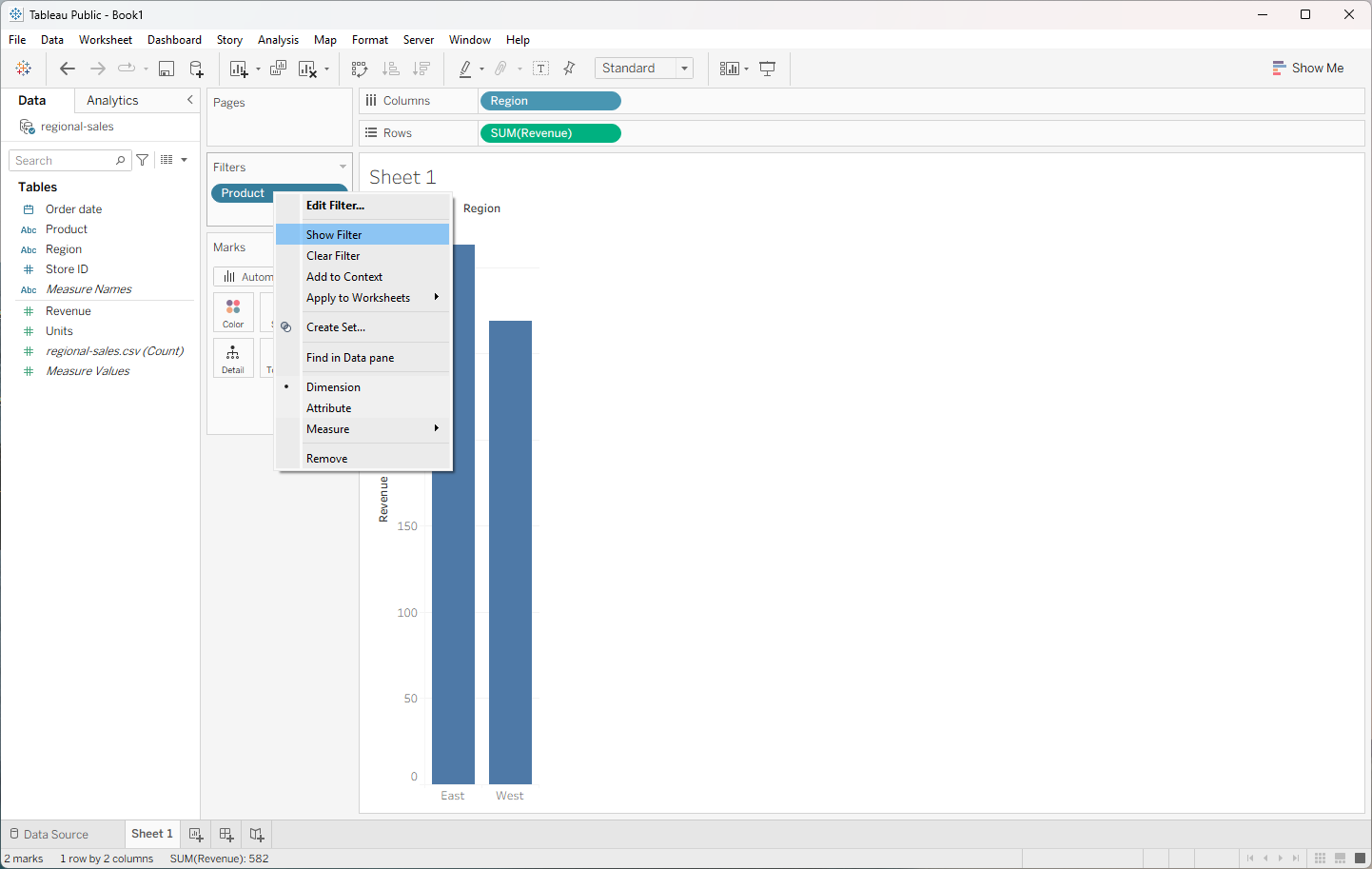
- Open the filter’s menu. Product is on the Filters card, but viewers can’t use it yet. Right-click the Product pill.
Right-click the Product pill.
- Show Filter. Click Show Filter.
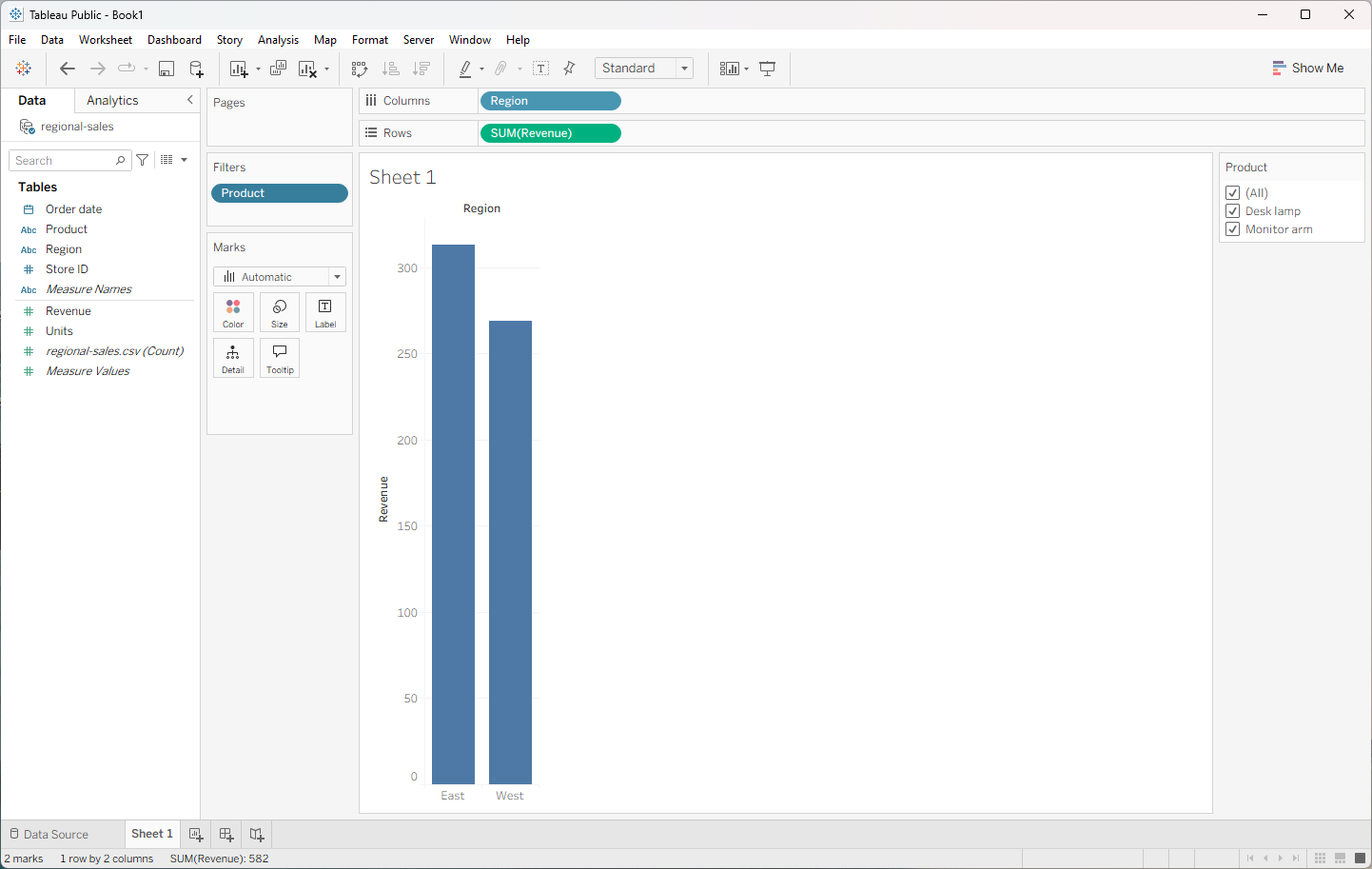
- Rename the sheet. A Product checklist appears on the right for viewers. Now double-click the Sheet 1 tab.
A filter appears on the right. Now double-click the Sheet 1 tab.
4. Put it on a dashboard
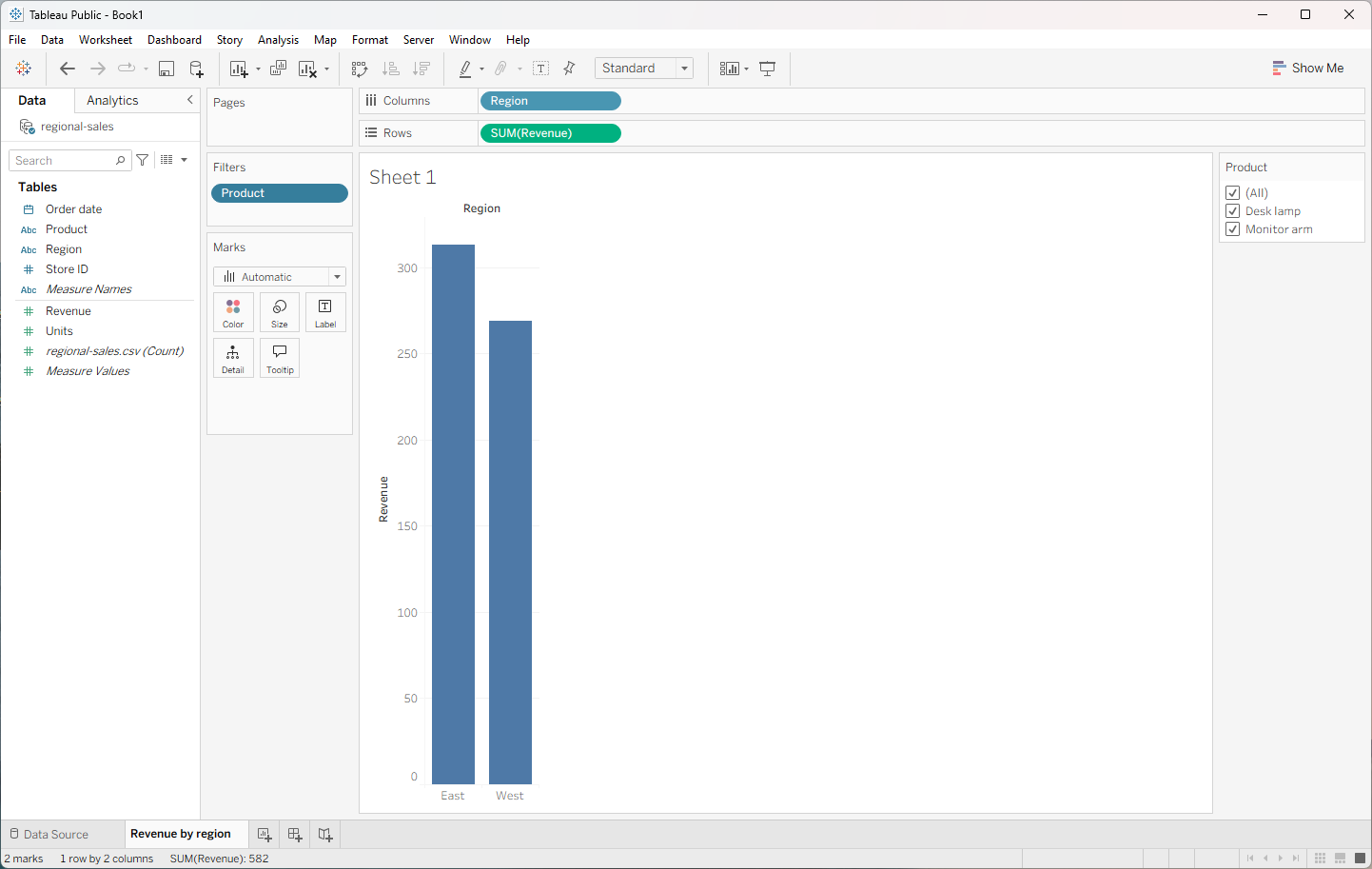
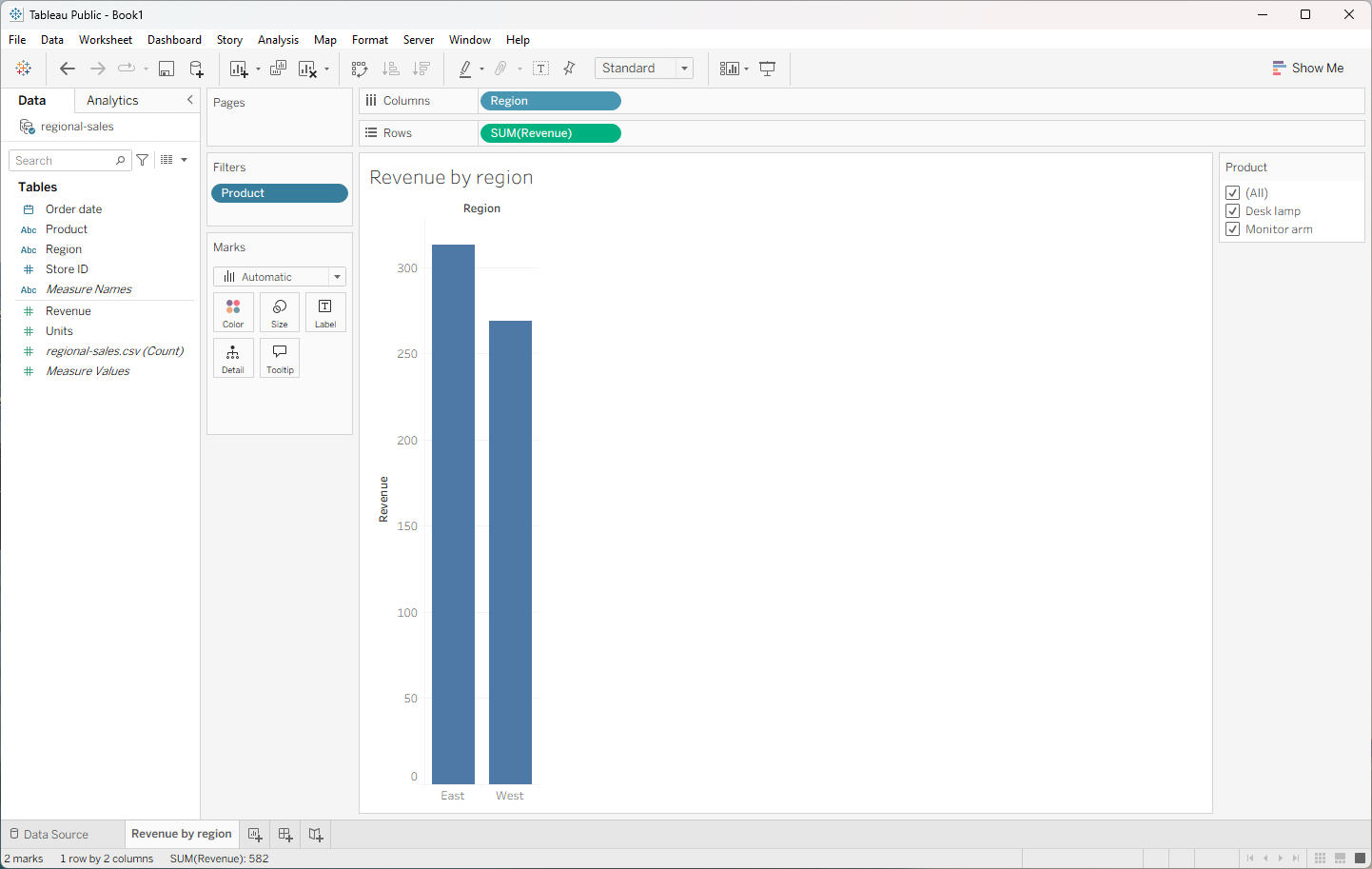
- Name it Revenue by region. Type Revenue by region and press Enter.
- New Dashboard. Click the New Dashboard button at the bottom (the middle of the three icons).
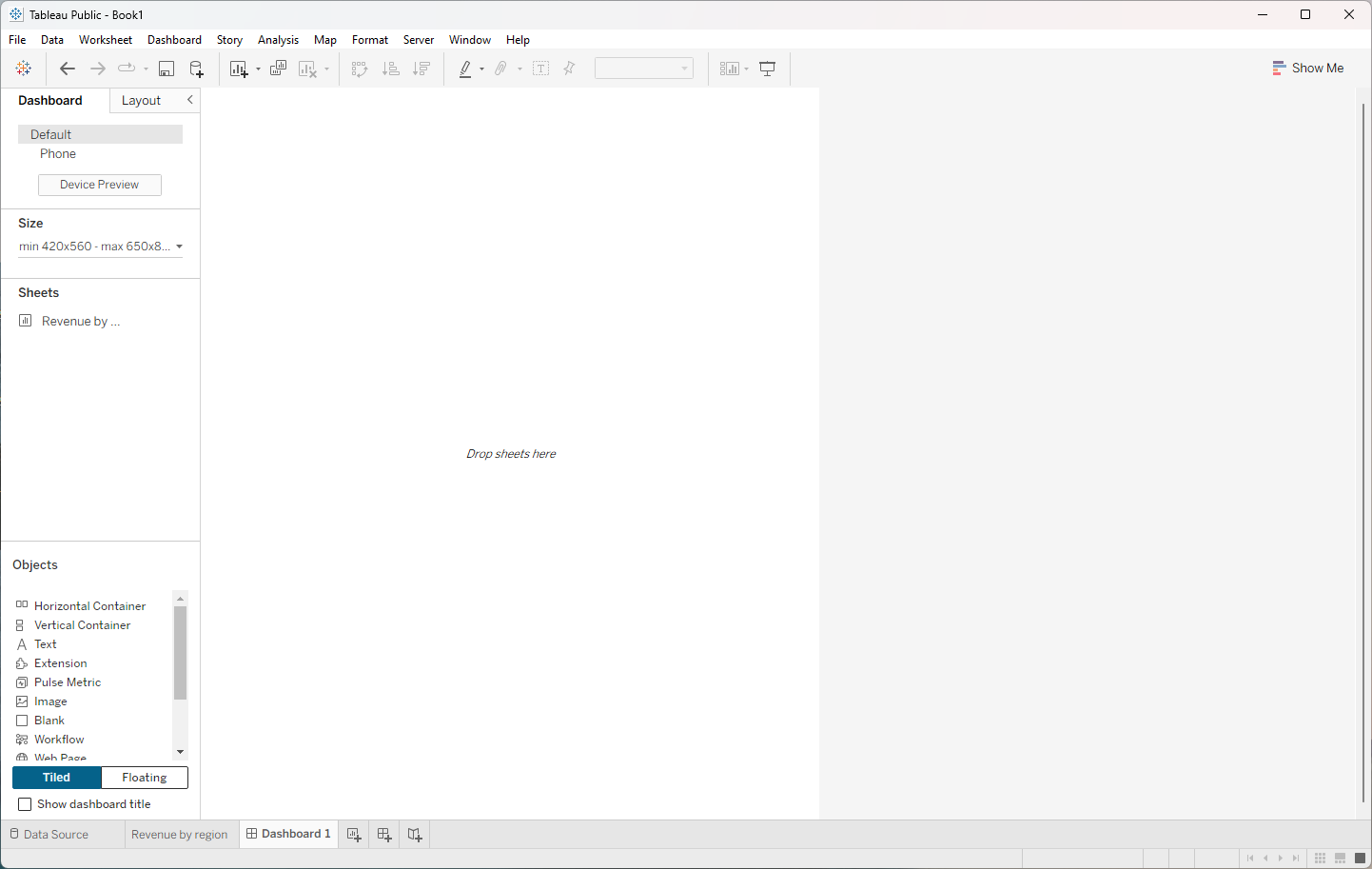
- Drag the sheet onto it. Drag Revenue by region from the Sheets list onto the canvas ("Drop sheets here").
5. Publish to Tableau Public
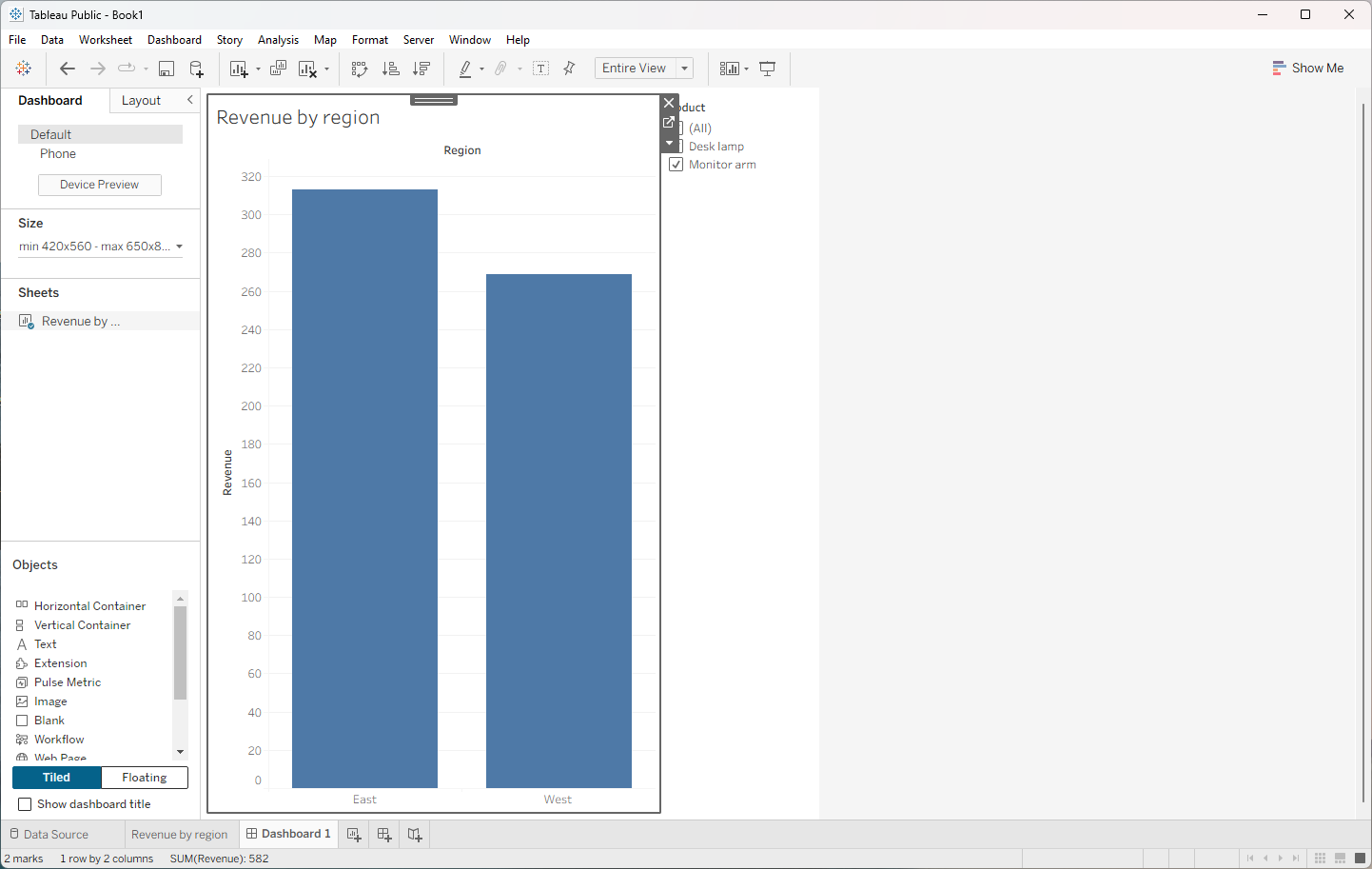
- Open the File menu. The chart and its Product filter came together. To publish, click File.
The chart and its filter came together.
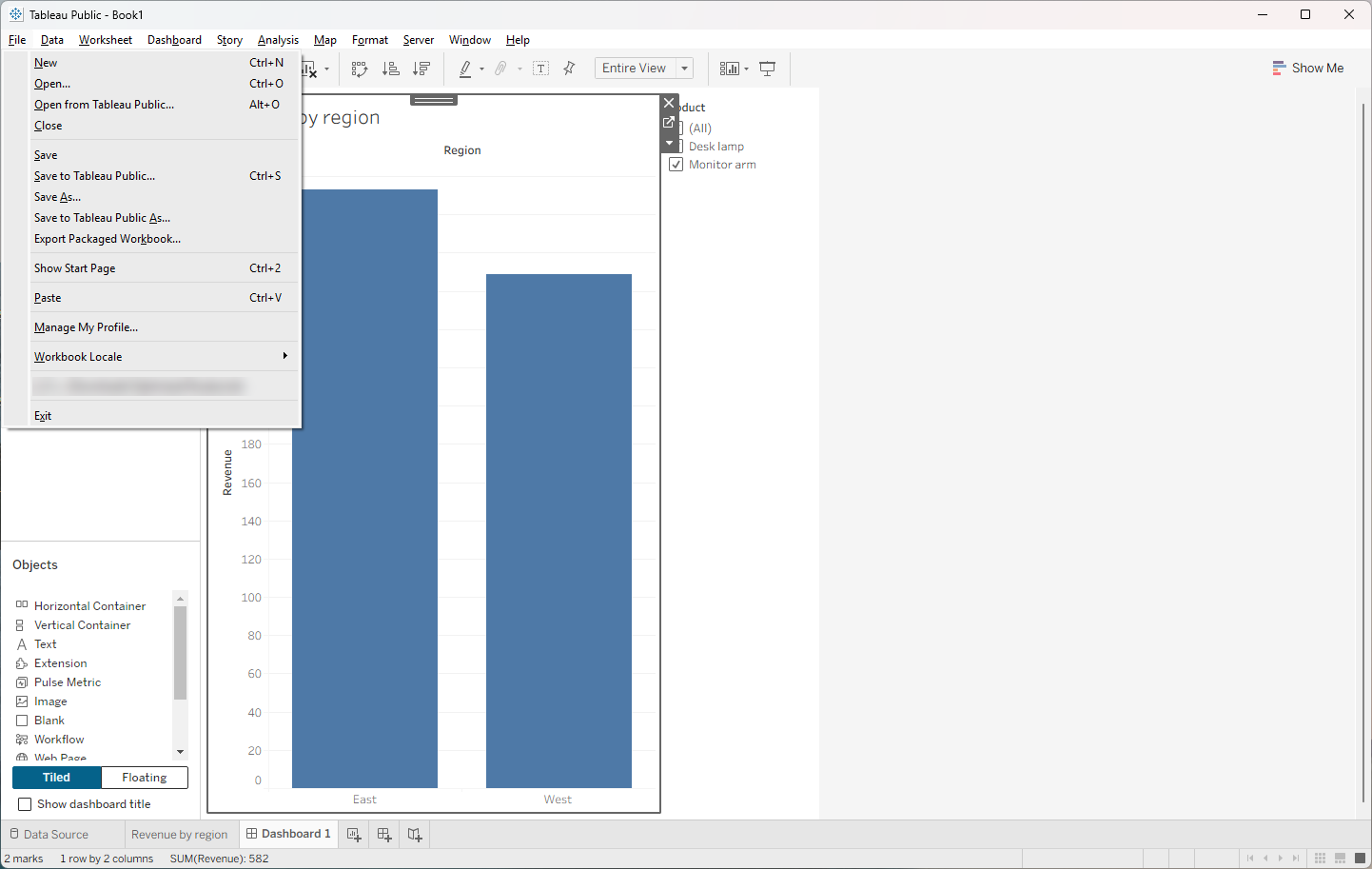
- Save to Tableau Public. Click Save to Tableau Public… (Ctrl+S). (It used to be under Server.) Name the workbook and save; you get a link to share. Anything saved there is public, so use sample data. We stopped here and didn’t publish.
Anything you save there is public, so use sample data.
Screenshots
![Tableau Filter [Product] dialog with no values selected](/content/img/tableau-public-first-chart/07-filter-dialog.webp)
Free cheat sheet
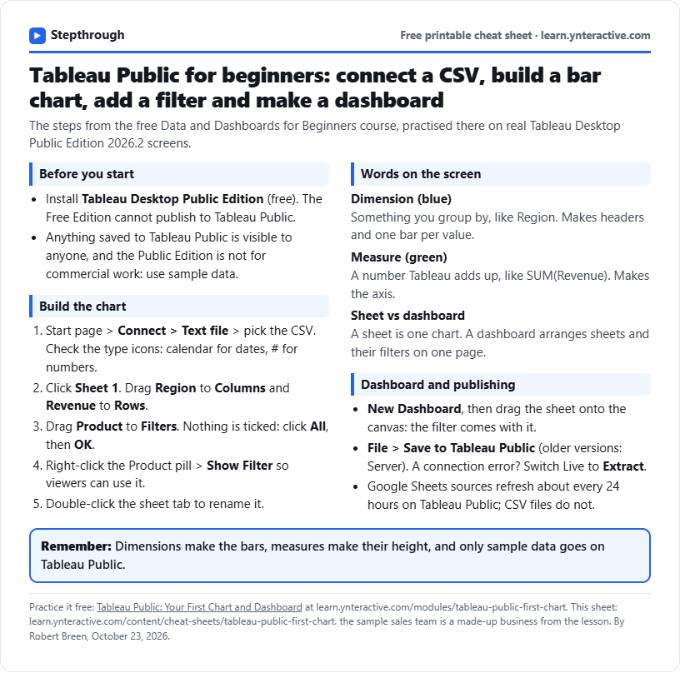
Print it or save the PDF: the key steps and checks from this lesson on one page, free.
All free printable cheat sheets
Terms in this lesson
Plain-English definitions, each with an example from a free lesson.