Updated . Built against the tool’s current screens and checked step by step. How we check this lesson
Stop screenshotting Google Analytics every Monday. Connect GA4 to the free Looker Studio (now Data Studio) and put the three numbers that matter at the top of a report that updates itself.
At a glance
| Question | Answer |
|---|---|
| What you build | Stop screenshotting Google Analytics every Monday. Connect GA4 to the free Looker Studio (now Data Studio) and put the three numbers that matter at the top of a report that updates itself. |
| Tools | Looker Studio |
| Time | About 8 minutes, 9 steps in 2 parts |
| Level | Beginner, no coding needed |
| Cost | Free |
| Ways to learn it | Practice it step by step |
The 2 parts, in short
- Connect GA4: Create a report, Pick Google Analytics, Pick the property, then Add, Name the report.
- Your first scorecards: Add a chart, Scorecard, Change the metric, Active users, and 1 more step.
Start here first: Tableau Public: Your First Chart and Dashboard (module 1 of Business intelligence)
What you'll build
Every Monday someone at the office opens Google Analytics, takes screenshots and pastes them into an email for the partners meeting. It takes half an hour, the numbers are out of date by Wednesday, and nobody can click into them. Looker Studio, Google's free report builder (now called Data Studio), connects straight to GA4: build the report once and everyone opens the same link with live numbers. In this lesson you connect GA4 and add the three headline numbers. Every screen is a real Data Studio screen; the numbers are blurred because it is a real website.
You created a report, connected it to a GA4 property, named it and added three scorecards: Active users, Sessions and Engagement rate. That already replaces the Monday screenshots: the numbers update on their own. Next: add a trend chart, a table of where visitors come from and a date picker so anyone can change the period.
- Tools: Looker Studio
- Time: about 8 minutes, 9 steps in 2 chapters
- Level: beginner, no coding needed
- Price: free
Practice first, then build it for real
Practice copy built from real Looker Studio (Data Studio) screens, captured 25 October 2026. Nothing here touches your Google account. The report reads a real GA4 property, so every number and name is blurred. To build it for real you need your own Looker Studio account, and some services charge once you use them for real work, so check each tool's current pricing.
Try it yourself, free
Reading the steps is a start. Doing them is how it sticks. The interactive module walks you through every click in a practice copy of Looker Studio, checks each step, and never touches your real accounts.
Start “Looker Studio: Connect GA4 and Build Your First Report”Step by step: Looker Studio: Connect GA4 and Build Your First Report
All 9 steps of the interactive module, in order. In the module you watch each one, then do it yourself in a practice copy that checks your work.
1. Connect GA4
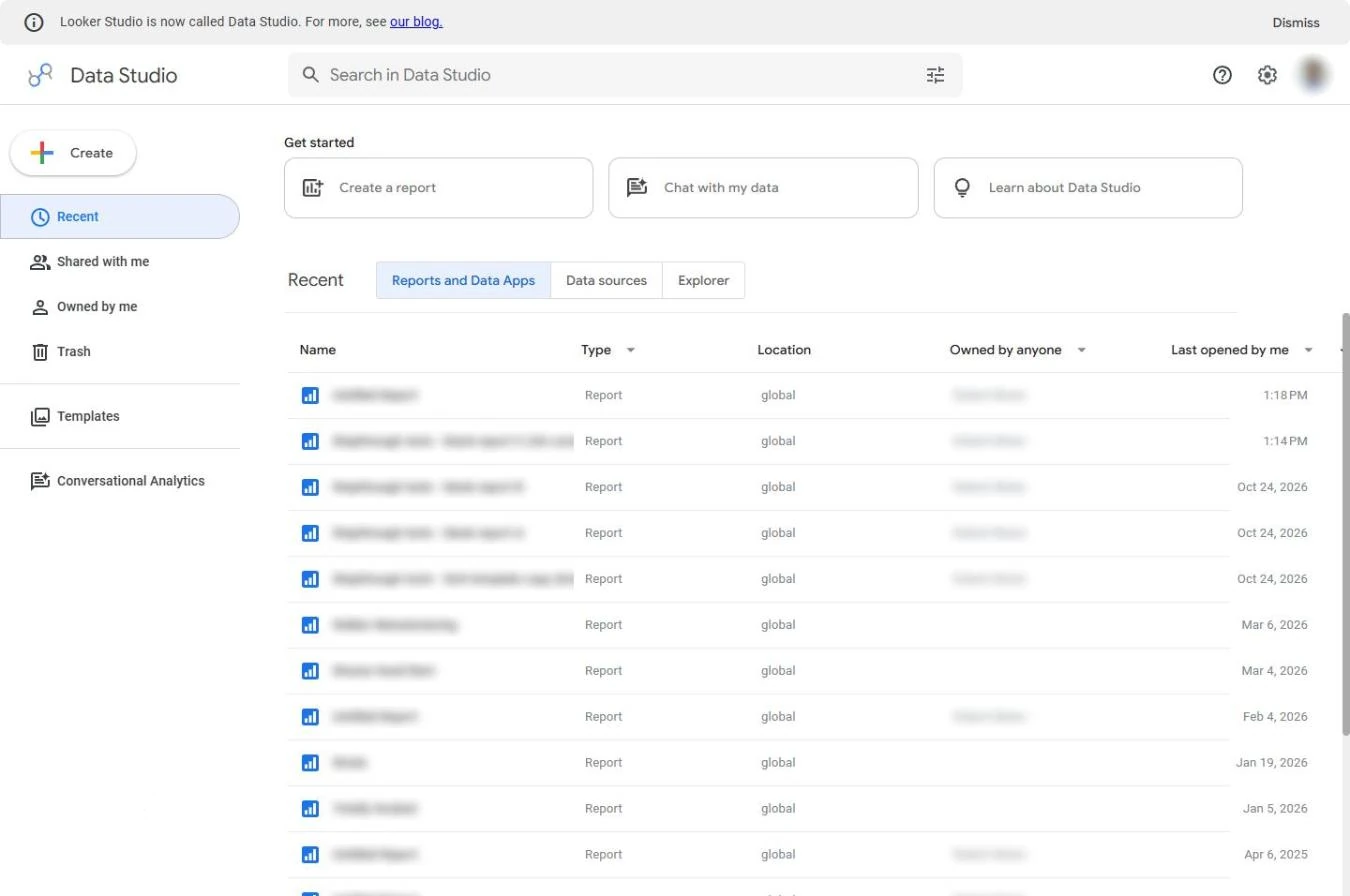
- Create a report. Open lookerstudio.google.com (Google now calls it Data Studio; the old address still works) with the Google account that can see your GA4 property. Click Create a report.
This is Looker Studio, now called Data Studio.
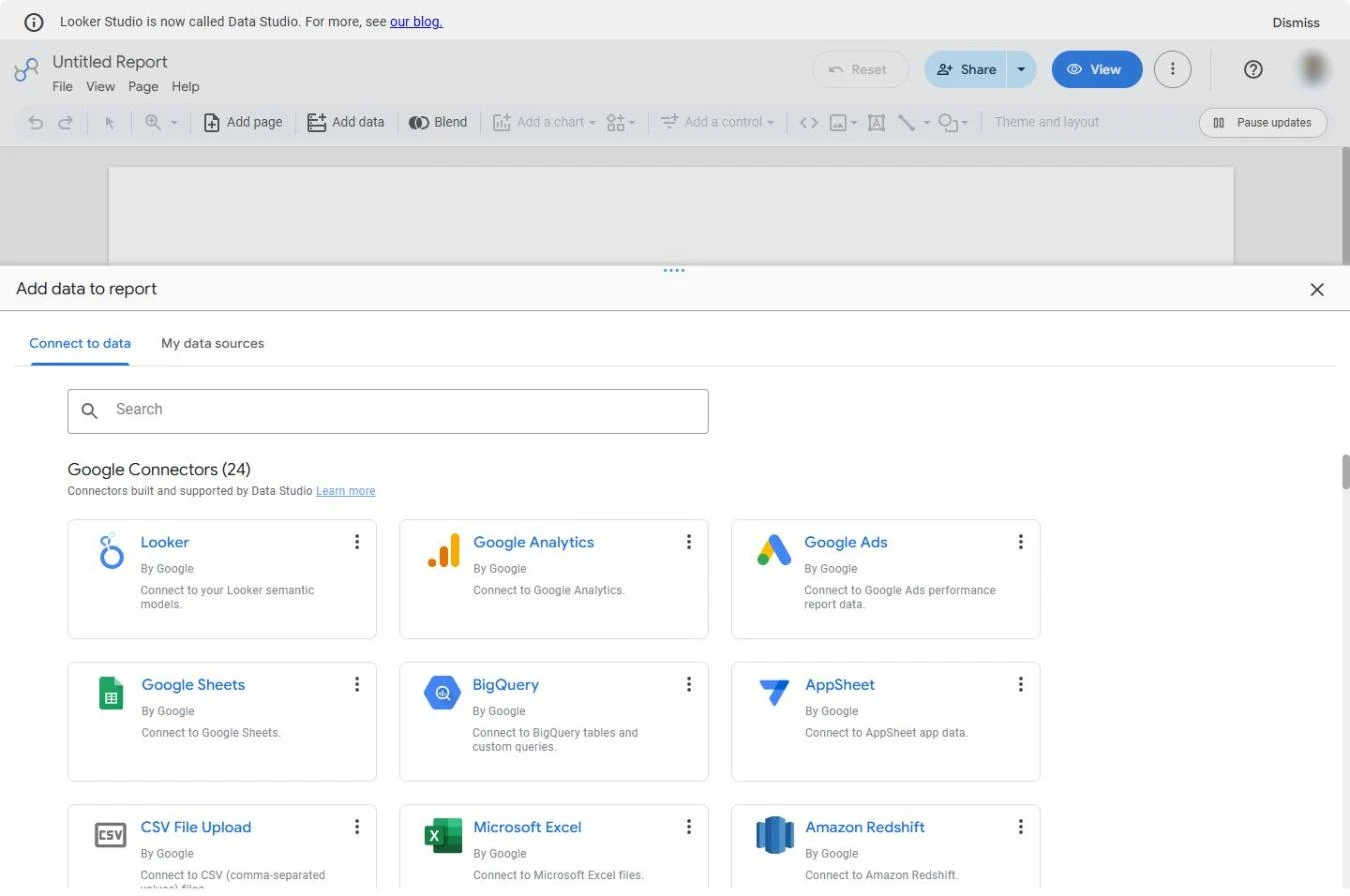
- Pick Google Analytics. A blank report opens with Add data to report: one card per connector. Click Google Analytics. The first time, Data Studio asks you to Authorize it to read your Analytics accounts; that is a one-time Google permission for your own account.
A blank report opens, and asks for data.
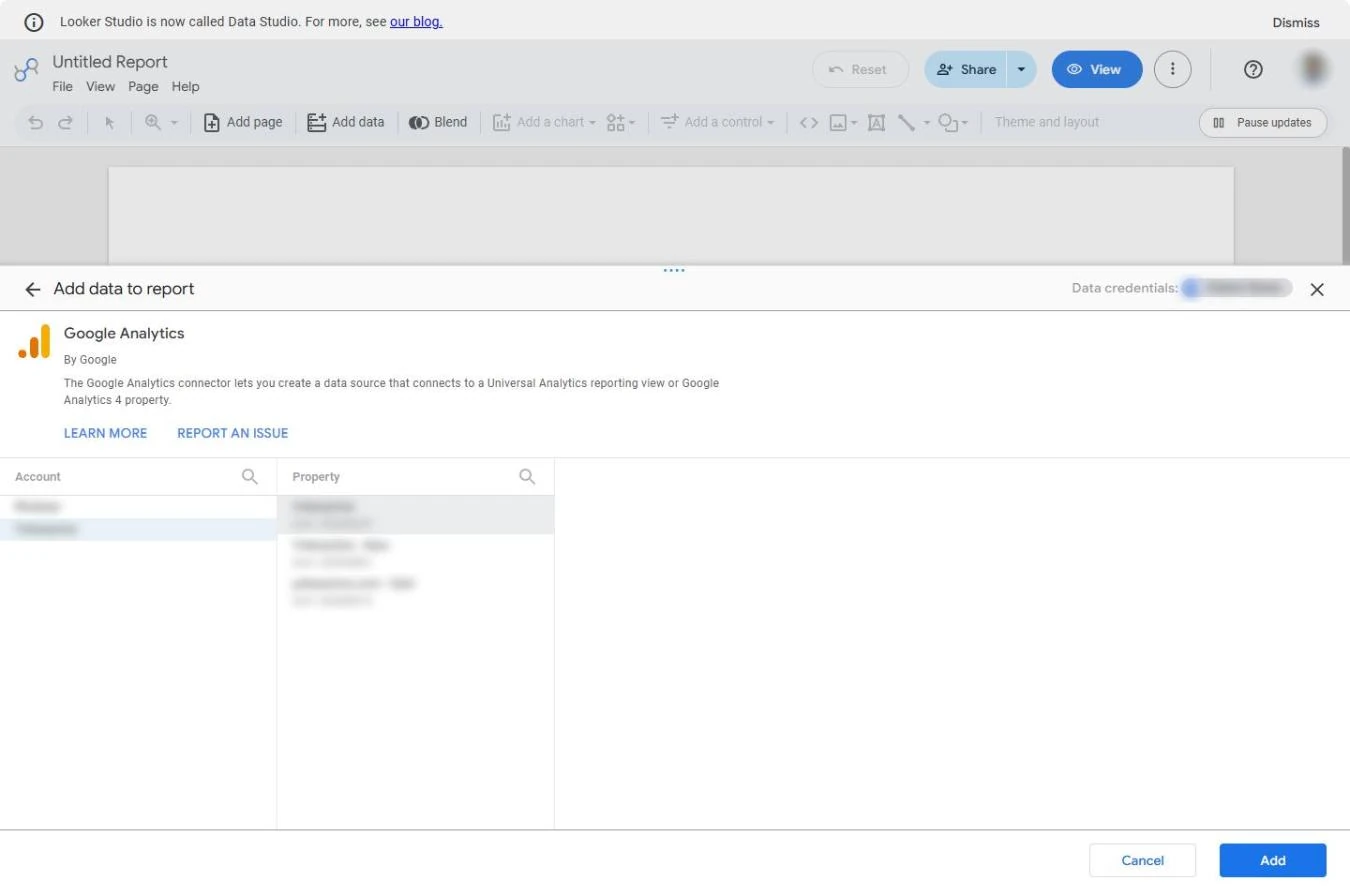
- Pick the property, then Add. Pick the Account on the left, then the GA4 property (the website) next to it, and click Add. If Data Studio asks you to confirm, click Add to report. No GA4 property yet? Google offers a free demo account (Google Merchandise Store) you can add from the Analytics help centre.
Pick your account, then your website property, and click Add.
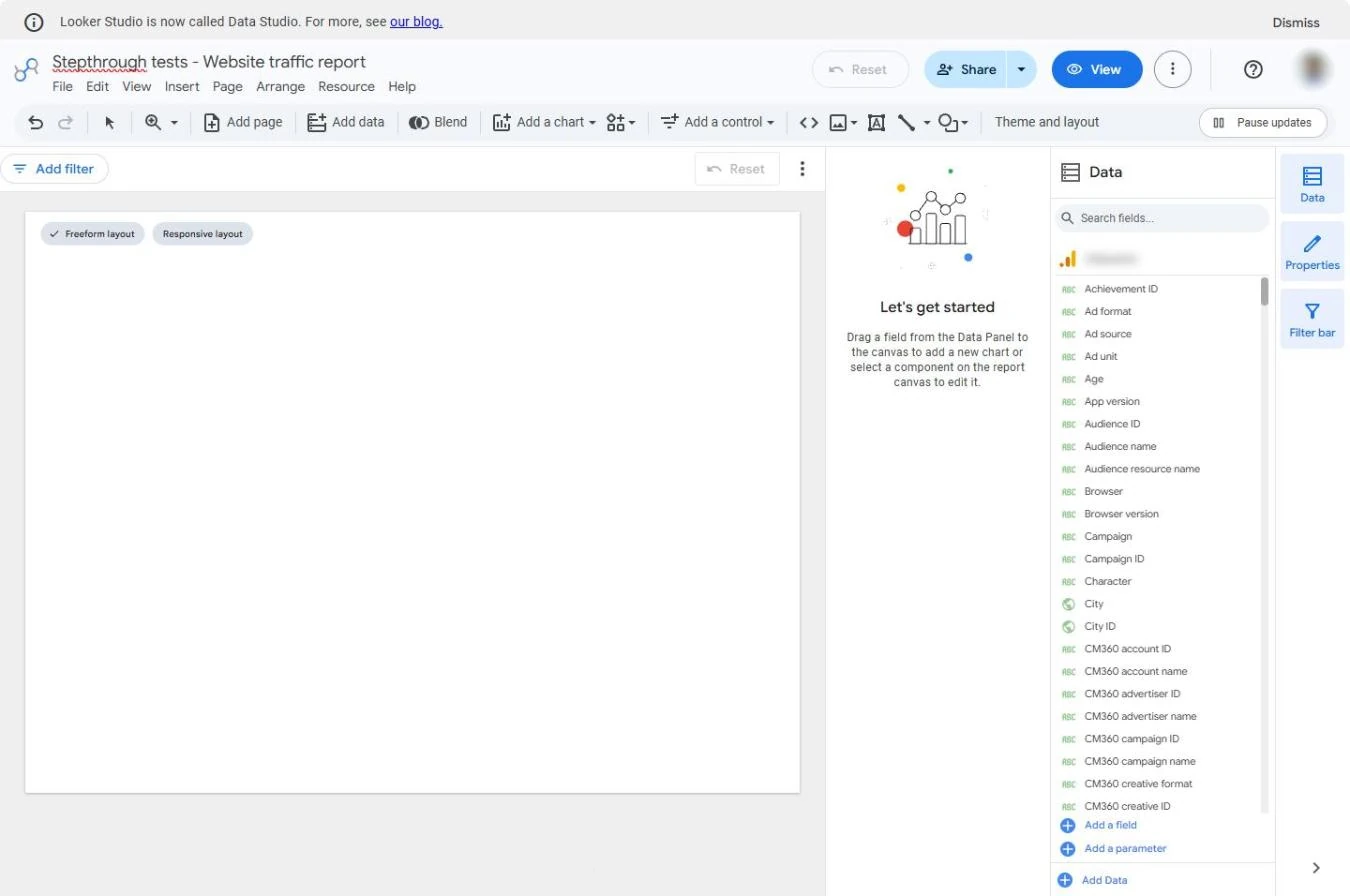
- Name the report. The report is connected: the Data panel on the right lists every GA4 field. Click Untitled Report at the top left and type a name people will recognise, such as Website traffic report. Data Studio saves every change by itself.
Now the report is connected.
2. Your first scorecards
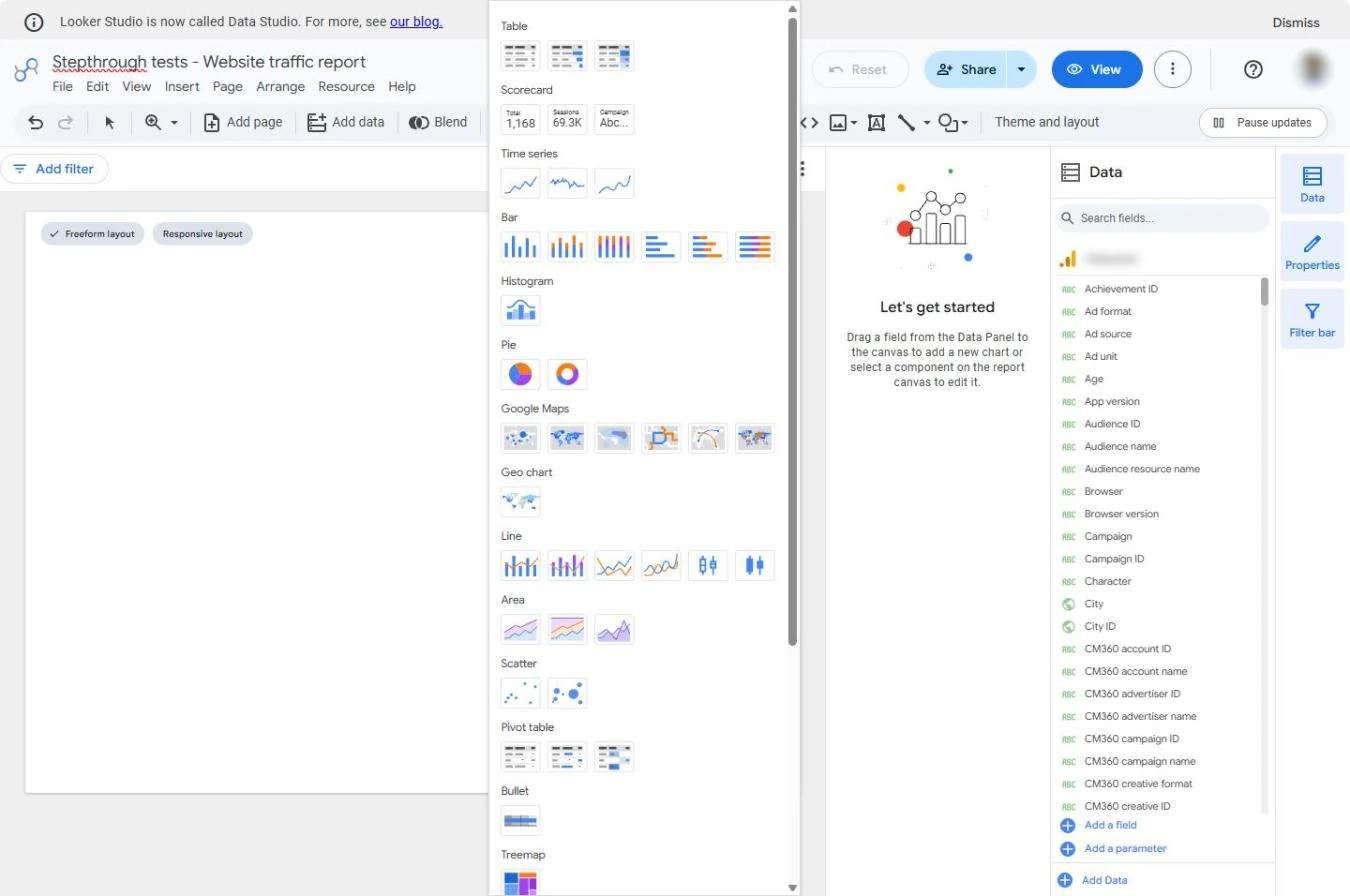
- Add a chart. Click Add a chart in the toolbar.
- Scorecard. Under Scorecard, click the first one (one big number). Then click on the page where it should go.
Pick the scorecard, one big number, and click on the page to place it.
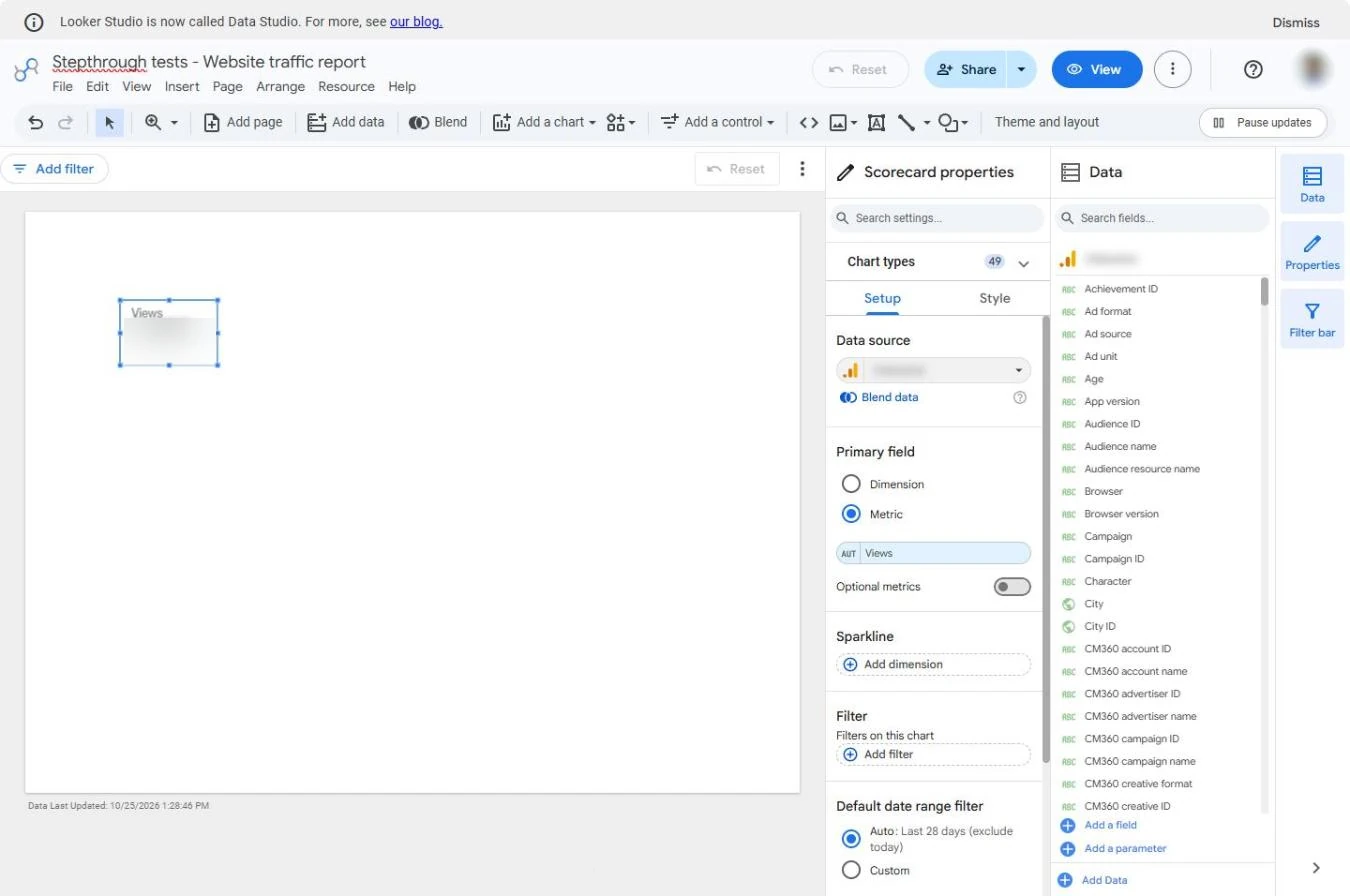
- Change the metric. Data Studio picks a metric for you (Views here). In Setup on the right, click the metric under Metric to change it.
It picked Views.
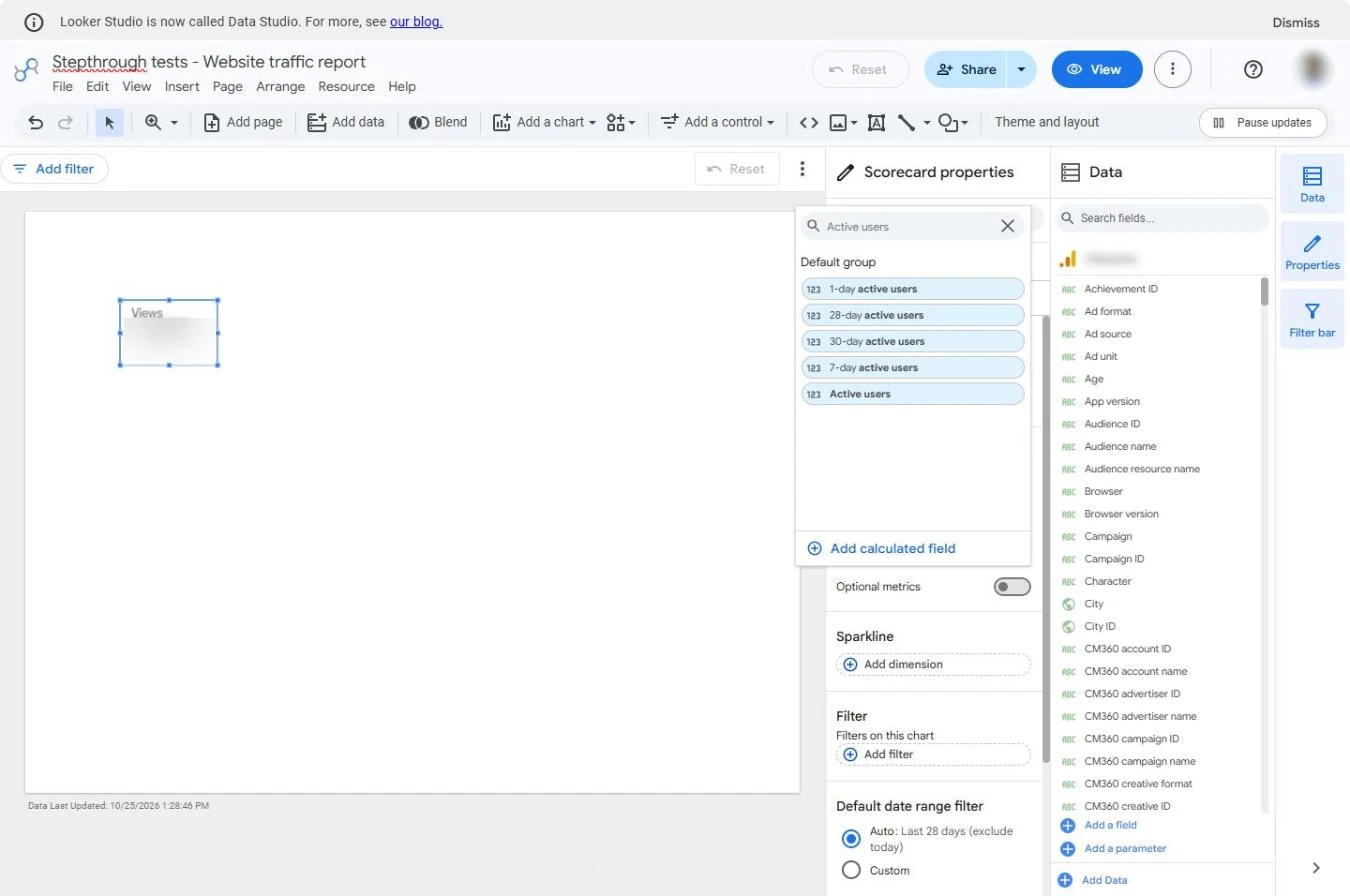
- Active users. Type Active users and click Active users (not the 1-day or 28-day versions). Then add two more scorecards the same way: Sessions and Engagement rate.
Pick Active users. Then add two more scorecards the same way: Sessions, and Engagement rate.
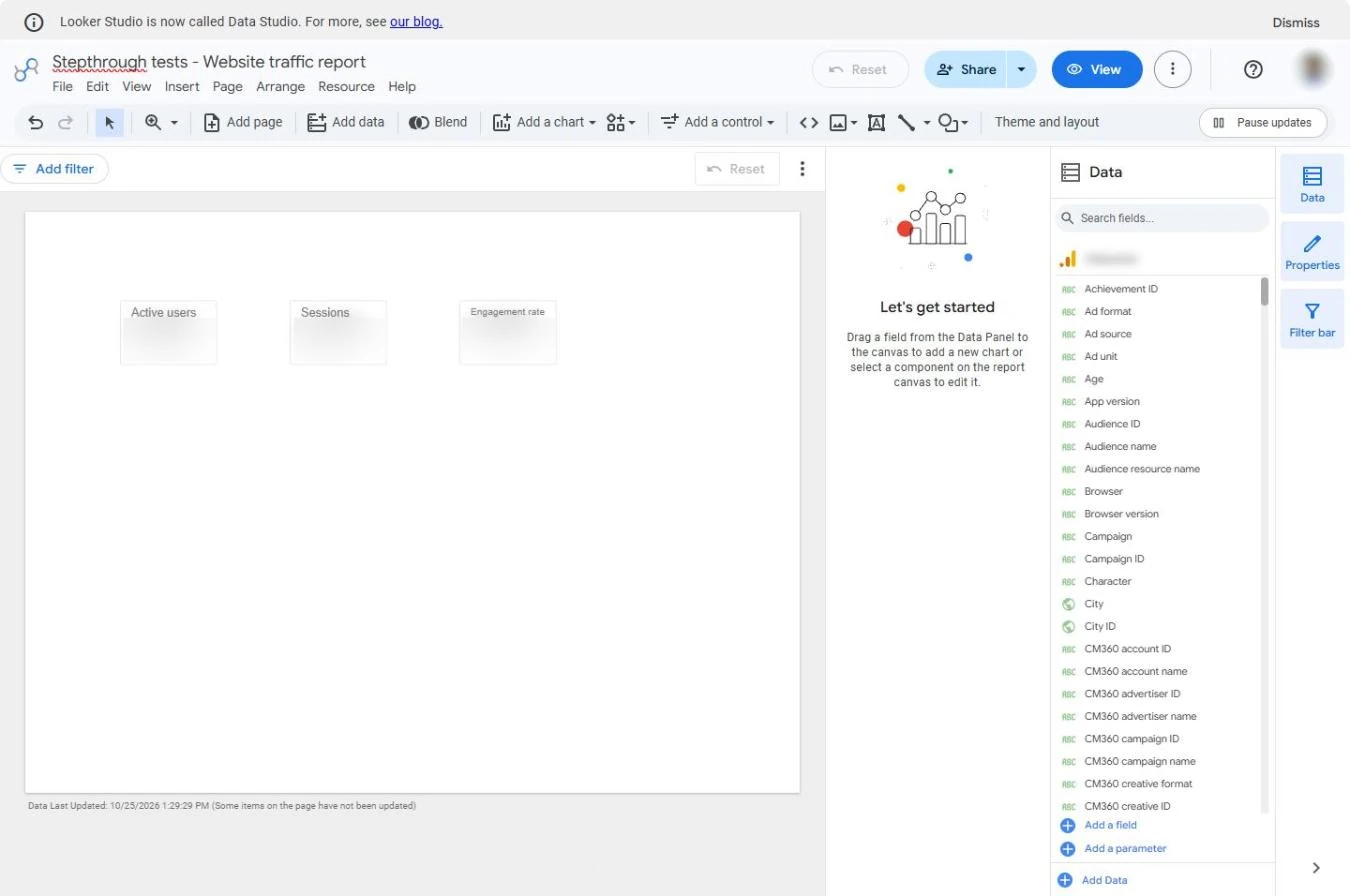
- Three numbers at the top. Three scorecards: Active users (people), Sessions (visits) and Engagement rate (visits that lasted 10+ seconds, saw 2+ pages or converted). They show the last 28 days by default. The numbers are blurred here because it is a real website.
Three numbers at the top: people, visits, and how engaged they were. That is the headline of your report.
Screenshots
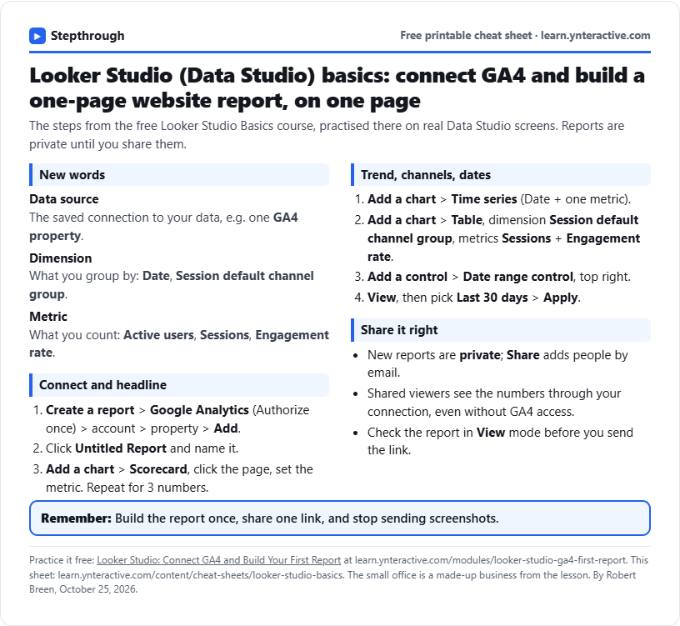
Free cheat sheet
Print it or save the PDF: the key steps and checks from this lesson on one page, free.
All free printable cheat sheets
Terms in this lesson
Plain-English definitions, each with an example from a free lesson.