Updated . Built against the tool’s current screens and checked step by step. How we check this lesson
Most calls to a small business are the same few questions: how much, when are you open, where are you. In this free, interactive Lovable tutorial you add an AI chat assistant to a small salon's website just by chatting. It uses Lovable AI, the AI built into Lovable, so there is no API key to create and no AI company account to set up. You test it like a customer, check that it won't make things up, change how it answers, see what each answer costs, and publish it.
At a glance
| Question | Answer |
|---|---|
| What you build | Ask Lovable for a chat assistant that answers visitors' questions from your own services, prices and hours, using Lovable's built-in AI with no API key. Test it in the preview, change how it answers by chatting, check what it costs, and publish. |
| Tools | Lovable |
| Time | About 8 minutes, 23 steps in 5 parts |
| Level | Beginner, no coding needed |
| Cost | Free |
| Ways to learn it | Practice it step by step |
The 5 parts, in short
- Ask for the chatbot: Click the chat box, Describe the assistant, Send it.
- Test it in the preview: Open the chat, Ask about a price, Send the question, Ask about opening hours, and 3 more steps.
- Tweak its instructions: Click the chat box, Update its instructions, Send it, Open the chat again, and 2 more steps.
- Check what it costs: Open More, Open AI, Close More.
- Publish the update: Open Publish, Publish changes, Open your live site, Open the chat on the live site.
Start here first: Build a Landing Page with Lovable from One Prompt (module 1 of Build Apps with Lovable)
In the course: Part 10 · Build Apps with Lovable (Module 48 of the full course)
What you will build
You continue the Hazelbrook Hair Studio site from the first two modules of this course. Hazelbrook is a made-up salon on Orchard Lane, and its site already has a services list with prices, opening hours, a Visit us section and a booking request form.
By the end of this module the site has a round chat button in the bottom right corner. It opens a small chat window called Ask Hazelbrook, with a welcome message and three example questions. Visitors can ask about prices, hours or the address, and the assistant answers only from the salon's own details. When it doesn't know, it says so and suggests calling, and when someone wants to book, it points them to the booking form.
The steps, in order
The module has 23 steps across five short chapters. Each one mirrors a real screen in Lovable.
- Ask for the chatbot: click Ask Lovable in the project chat and describe the assistant. Say where the chat button goes, what it may answer from (services, prices, hours, address and phone), what it must never do (make up prices, services or discounts), and where bookings go. Then send it.
- Test it in the preview: Lovable adds the chat window and a backend function that sends each question to Lovable AI. Open the chat in the preview and ask real customer questions: the price of a women's cut, whether the salon opens on Mondays, and a service it doesn't offer, to check it won't invent an answer.
- Tweak its instructions: the assistant never mentions the new-client offer from the site's banner, so you ask Lovable in the chat to update the assistant's instructions. Open the chat again and test the change with a men's cut question.
- Check what it costs: open the More tab in the project toolbar and click AI. Each test question appears as a request, with the model it used, its tokens, the credits it cost and how long it took.
- Publish the update: close More, click Publish, then Publish changes, and open the live site to find the chat button there.
Lovable AI or your own OpenAI key?
Lovable AI, which Lovable's docs call the built-in AI connector, is the simplest way for a beginner to add AI to an app. Lovable creates and manages the key for each project, and the model calls run through a secure backend function, so no key ever sits in the browser. It is on by default. Depending on your workspace settings, Lovable either uses it right away or asks you to allow it first. For the best experience, Lovable recommends using it together with Lovable Cloud, the built-in backend you turned on in module 2.
Lovable picks a default chat model for you, currently a fast Gemini Flash model, and you can ask for a different supported model by name, including OpenAI and Claude models. If you would rather be billed by an AI provider directly, you can ask Lovable to call that provider from a backend function with your own API key stored as a secret. The built-in option itself can't use your own key.
What a chatbot costs to run, plainly
Building the chatbot uses your normal Lovable build credits. Running it is separate: every answer the assistant gives uses a small amount of Lovable credits, based on the model and how long the question and answer are. Lovable's plans currently include a small monthly AI allowance for this, and after that, answers come out of your credits. If your workspace runs out of credits, the assistant stops answering until you add more.
You can see every request, its cost and whether it succeeded under More, then AI, in the editor. Check it now and then once real visitors start using the chat. Stepthrough itself is completely free, but anything you use in Lovable is paid to Lovable.
Tips for a chatbot you can trust
Give the assistant a small, clear job. Tell it exactly what it may answer from, and tell it what to do when it doesn't know. Test with the questions your customers really ask, plus at least one it should refuse, like a service you don't offer. Check each answer against your real prices and hours, and test again whenever they change.
Change one or two things at a time by chatting with Lovable, then test again. AI answers can still be wrong, so keep bookings, payments and anything important in your form or on the phone, not in the chat.
How the interactive lesson works
Each step plays first in the Watch panel with a short voice-over, then you do it yourself in Your turn, on a practice copy of Lovable. Every click is checked, and Do it for me helps if you get stuck. No AI model is called, nothing is published and no credits are used.
Try it yourself, free
Reading the steps is a start. Doing them is how it sticks. The interactive module walks you through every click in a practice copy of Lovable, checks each step, and never touches your real accounts.
Start “Add an AI Chatbot to Your Website with Lovable AI”Step by step: Add an AI Chatbot to Your Website with Lovable AI
All 23 steps of the interactive module, in order. In the module you watch each one, then do it yourself in a practice copy that checks your work.
1. Ask for the chatbot
- Click the chat box. This is the Hazelbrook Hair Studio site from modules 1 and 2. Click Ask Lovable... at the bottom left.
Here's the Hazelbrook Hair Studio site, with the booking form from module 2. Customers still call to ask simple things, like prices and opening hours. Let's add an AI assistant that answers those questions for you.
- Describe the assistant. Say where it goes, what it may answer from, what it must never do, and where bookings go. Paste in the request.
A good request says where the chat goes, what it's allowed to answer from, what it must never do, and where people should go to book. Here, it may only use the salon's services, prices, hours and contact details, and it must never make up prices.
Add an AI chat assistant to the site using Lovable AI: a round chat button in the bottom right corner that opens a small chat window titled "Ask Hazelbrook". It should answer visitors' questions only from the salon's services and prices, opening hours, address and phone number. Keep answers short and friendly. If it doesn't know something, it should say so and suggest calling (555) 014-2230. Never make up prices, services or discounts. For bookings, point people to the Request an appointment form. Show a short welcome message with three example questions.
- Send it. Click the send arrow. You need no API key: Lovable AI is built in and runs through Lovable Cloud.
You don't need an API key or an account with an AI company. Lovable AI is built in, and it runs through the Lovable Cloud backend you turned on in module 2. Depending on your settings, Lovable may ask first. If it does, click Allow.
2. Test it in the preview
- Open the chat. Lovable added a chat button and a backend function that calls Lovable AI. Click the round chat button at the bottom right of the preview.
Lovable added the chat button, plus a backend function that sends each question to Lovable AI, using its default chat model. The preview is a working copy of your site, so test it like a customer.
- Ask about a price. It greets you with example questions. Type How much is a women's cut?
It says hello and suggests a few questions. Start with something customers really ask.
- Send the question. Click the send arrow.
- Ask about opening hours. Right price, and it points to the booking form. Now type Are you open on Mondays?
Fifty-five dollars, the same price as on the site, and it points to the booking form. Always check answers against your real details. Now try the hours.
- Send the question. Click the send arrow.
- Ask about something you don't offer. Correct again. Now test the edge: a service the salon doesn't offer. Type Do you do eyelash extensions?
Right again. Now try something the salon doesn't offer, to check it won't make things up.
- Send the question. Click the send arrow.
A good assistant says it doesn't know, instead of inventing an answer.
3. Tweak its instructions
- Click the chat box. It didn't invent a service. One thing is missing, though: it never mentions the new-client offer from the banner. Click Ask Lovable...
It didn't invent a service, and it offered the phone number instead. Good. But it never mentions the new client offer from the banner at the top of the page. You change how the assistant behaves the same way you built it: by chatting.
- Update its instructions. Say what to change in the assistant's instructions. Paste in the request.
Tell Lovable what to change in the assistant's instructions. Here, mention the offer whenever someone asks about a haircut, and keep answers short.
Update the chat assistant's instructions: whenever someone asks about a haircut, also mention our new client offer from the banner, 20% off the first cut. Keep every answer to two or three sentences.
- Send it. Click the send arrow.
- Open the chat again. Lovable updated the instructions. The preview refreshed, so click the chat button again.
Lovable updated the instructions. The preview refreshes after a change, so open the chat again.
- Test the change. Type How much is a men's cut?
Test the change with a haircut question.
- Send the question. Click the send arrow.
There's the offer, in a short answer. Change a little at a time, and test again after each change.
4. Check what it costs
- Open More. Every answer uses a little of your Lovable credits. To see them, click More in the toolbar at the top (the stacked icon after Code).
Every answer the assistant gives uses a small amount of your Lovable credits. Let's see how much. In the toolbar at the top, click More, the stacked icon after the code brackets.
- Open AI. Your app's AI features have their own section. Click AI in the list on the left.
Your AI features have their own section, separate from Cloud.
- Close More. Each test question is a request, with its model, tokens, credits and time (the numbers here are examples). Lovable plans currently include a small monthly AI allowance; after that, answers use your credits. Click the × at the top right.
Each of your test questions shows up here, with the model it used, how many tokens it used, what it cost, and how long it took. These numbers are only examples. Lovable plans currently include a small monthly AI allowance, and after that, answers come out of your Lovable credits. Stepthrough is free, but what you use in Lovable is paid to Lovable. Close More with the X at the top right.
5. Publish the update
- Open Publish. The dot on Publish means the live site doesn't have the assistant yet. Click Publish.
The dot on Publish means your live site doesn't have the assistant yet.
- Publish changes. The quick security scan found nothing. Click Publish changes.
The quick security scan found nothing, so click Publish changes.
- Open your live site. Your update is live. Click the link.
Your update is live.
- Open the chat on the live site. The chat button is on your live site. Click it.
There's the chat button on your live site. From now on, real visitors' questions use your credits too, so check More, then AI, now and then.
Frequently asked questions
- Do I need an OpenAI API key to add a chatbot in Lovable?
- No. Lovable AI is built in, and Lovable generates and manages the key for each project. You only need your own key if you want an AI provider to bill you directly, in which case Lovable can call that provider from a backend function with your key stored as a secret.
- How much does a Lovable AI chatbot cost?
- Each answer uses a small amount of Lovable credits, depending on the model and the length of the conversation. Lovable's plans currently include a small monthly AI allowance, and after that, usage comes from your credits. You can see each request's cost under More, then AI.
- How do I change what my Lovable chatbot says?
- Ask Lovable in the project chat to update the assistant's instructions, for example to mention an offer or keep answers shorter. Then test it again in the preview before you publish.
- Is this course really free?
- Yes. Stepthrough is completely free, and the practice copy needs no accounts. To build it for real you need your own Lovable account, and the chatbot's answers use Lovable credits.
More in Build Apps with Lovable
Describe a small business website in one prompt, let Lovable build it, then change it by chatting, by pointing at the page and by typing on it. Undo a change from…
Free · Live ~9 min
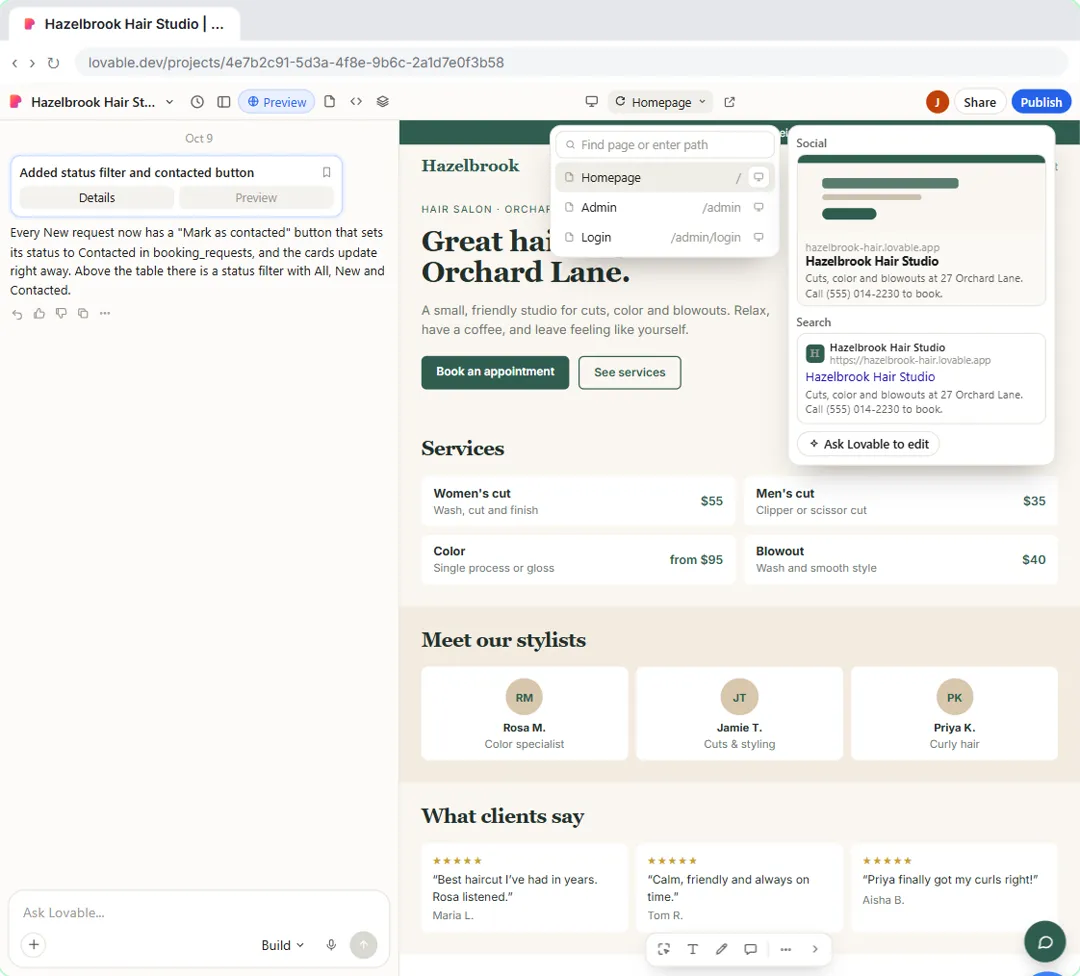 Publish Your Lovable Site and Connect Your Own Domain
Give your Lovable site a proper title, description and sharing image, publish the update, then connect a domain you already own: add the A and TXT records at your…
Free · Live ~9 min
All 5 modules in Build Apps with Lovable
More Lovable tutorials
 Lovable + n8n: Build a Web App with an AI Backend
Build a contact form in Lovable and connect it to an n8n workflow — webhook trigger, AI Agent, Google Sheets, Gmail, and a Respond node that ties it all together.
Free · Live ~15 min
 Build an AI Service Request Form for Your HVAC Company
Build a service request form in Lovable for Cedar Ridge Heating & Air and connect it to n8n — the AI agent sorts each job into repair, maintenance, install or…
Free · Live ~15 min
 Build an AI Quote Request Form for Electrical Contractors
Build a quote request form in Lovable and connect it to an n8n workflow — webhook trigger, an AI Agent that drafts an initial estimate note, Google Sheets, Gmail, and a…
Free · Live ~15 min
 Build an AI Emergency Request Form for Your Plumbing Company
Build an emergency service-request form in Lovable and connect it to an n8n workflow — webhook trigger, AI Agent that prioritizes the job, Google Sheets, Gmail, and a…
Free · Live ~15 min
 Build an AI Demo Request Form That Qualifies Leads
Build a "Book a demo" form in Lovable for Northwind Scheduling Software and connect it to n8n — the AI agent rates each lead hot, warm or nurture, saves it to Google…
Free · Live ~15 min
 Build a Lead Magnet Signup Form with an AI Welcome Email
Build a "Get the free guide" signup form in Lovable for Harbor & Pine Coffee Roasters and connect it to n8n — the AI agent tags each lead by interest, saves it to…
Free · Live ~15 min
Terms in this lesson
Plain-English definitions, each with an example from a free lesson.