Build an AI Emergency Request Form for Your Plumbing Company
A pipe bursts under the kitchen sink and the homeowner cannot find the shutoff. Your website form should treat that very differently from a dripping faucet. In this free lesson you build a request form for Blue Maple Plumbing in Lovable and connect it to an n8n AI dispatcher that sets the priority, logs the job and emails next steps.
What you will build
A Need a Plumber? form built in Lovable. It has four required fields, Name, Email, What's the problem? and Service address, and a line telling people to shut off the main valve if water is actively leaking. Behind it is an n8n workflow: a webhook trigger, an AI Agent, a Google Sheets tool that saves each request to a Service Requests sheet, a Gmail tool, and a Respond to Webhook node.
In the test, Dana reports a pipe spraying under the kitchen sink at an address in Lititz. The agent marks it as an emergency, saves the row, and emails her a confirmation that includes how to shut off her main water valve.
Who this is for
Plumbing owners and office managers who get urgent requests at night, on weekends, or while everyone is under a house. It is the third plumbing lesson, after the quote writer and the follow-up agent. No coding required.
The lesson itself needs nothing, because it runs in a practice copy. For the real build you need Lovable for the form, n8n for the workflow, an OpenAI API key for the model, and a Google account for Sheets and Gmail. If you built the follow-up agent, you already have the OpenAI key and the Google connection.
Step by step: what you do
- Build the form: start a Lovable project, paste the form prompt and click Build.
- Webhook trigger: in n8n, add On webhook call and set it to respond with a Respond to Webhook node.
- AI Agent: set the prompt source to Define below, paste a template that pulls name, email, problem and address from the form, and paste the dispatch system message.
- Chat model: connect OpenAI with your key and pick gpt-5-mini.
- Sheets tool: create the Service Requests sheet with Name, Email, Problem and Address columns, connect Google and map the columns.
- Gmail tool: add Gmail and approve the permissions.
- Respond node and publish: add Respond to Webhook, then publish.
- Add the secret: copy the production webhook URL and save it in Lovable as N8N_WEBHOOK_URL.
- Test the form: preview, fill with test data, click Request Service and check the sheet.
How the AI sets the priority
The system message gives three levels. Emergency: an active leak, a burst pipe, a sewage backup or no water. Same-day: no hot water, a clogged main drain, or a sump pump that won't run. Scheduled: everything else. The agent saves the request, then emails the customer their priority and next steps. For emergencies, it includes how to shut off the main water valve, which can save a floor while the truck is on the way. The priority goes in the email; the sheet keeps exactly what the customer typed.
Why it works
Most plumbing damage happens in the minutes before anyone answers. A form that replies right away with shutoff steps helps the customer and shows them you are on it. Clear priority rules mean the AI is not guessing; it is applying the same triage your dispatcher would. The webhook URL is kept in a Lovable secret rather than the page code, and the Respond node makes the form wait until the request is saved.
What the homeowner sees
The form asks four questions and all four are required, including the service address, so the office never has to call back just to find out where the job is. The email format is checked before it sends. While sending, the button changes to Sending. After it works, the page says the request was received and to check email for the priority and next steps. If the webhook fails, the page tells the customer to call instead, which matters when water is on the floor.
The confirmation email is where the priority shows up, along with next steps. A routine request is marked Scheduled. A household with no hot water is marked Same-day, so they know it is being handled today. A burst pipe is marked Emergency, and that email also explains how to shut off the main water valve.
How to use this in your plumbing business
Change the priority rules to match your own dispatch, and add your after-hours policy to the email if you like. The form earns its keep in the busy stretches: frozen and burst pipes in a January cold snap, flooded basements when sump pumps fail in spring storms, and backed-up kitchen drains after big holiday meals. Everything lands in one sheet with the address, so the office can plan routes as soon as it opens. The email also tells an after-hours customer that the request was read, which keeps some of them from calling three other plumbers while they wait.
Frequently asked questions
- How does the AI decide what is an emergency?
- It follows the rules in the system message: active leak, burst pipe, sewage backup or no water is an emergency; no hot water, a clogged main drain or a sump pump that won't run is same-day; everything else is scheduled. You can edit these rules.
- Does the customer get instructions right away?
- Yes. The agent emails a confirmation with the priority and next steps, and for emergencies it explains how to shut off the main water valve.
- Is this free to build?
- The Stepthrough lesson is free. Running it for real needs your own Lovable, n8n, OpenAI and Google accounts, and some of those cost money for ongoing use. Check their current pricing.
- How does the interactive lesson work?
- Each step is shown to you first on the left (Watch). Then you do it yourself in a practice copy on the right (Your turn), and every click is checked. If you get stuck, press Do it for me. It is a practice copy, so no real accounts are touched.
- How long does the lesson take?
- About 15 minutes across 87 guided steps.
More in AI Automation for Plumbers
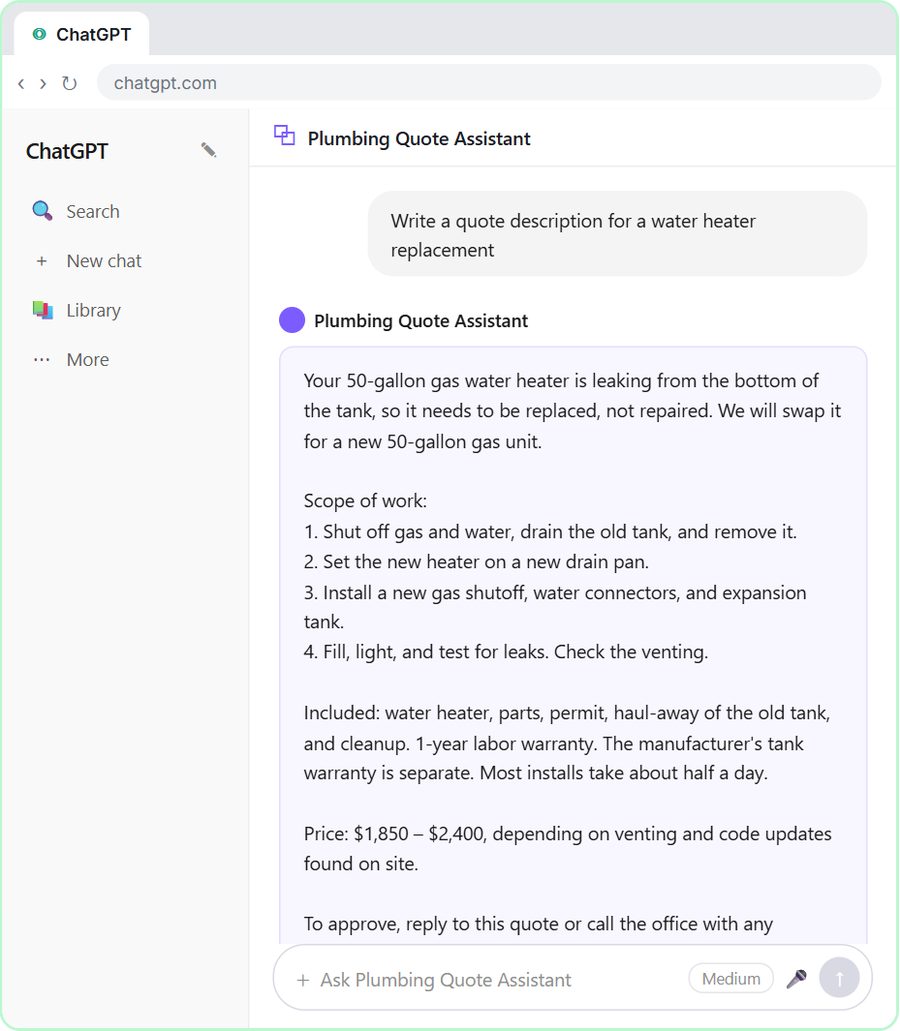 Build a Custom GPT Plumbing Quote Writer
Build a Custom GPT that writes plumbing quotes from your own price list: scope, what is included and a clear price. Free, step-by-step lesson for plumbers.
Free · Live
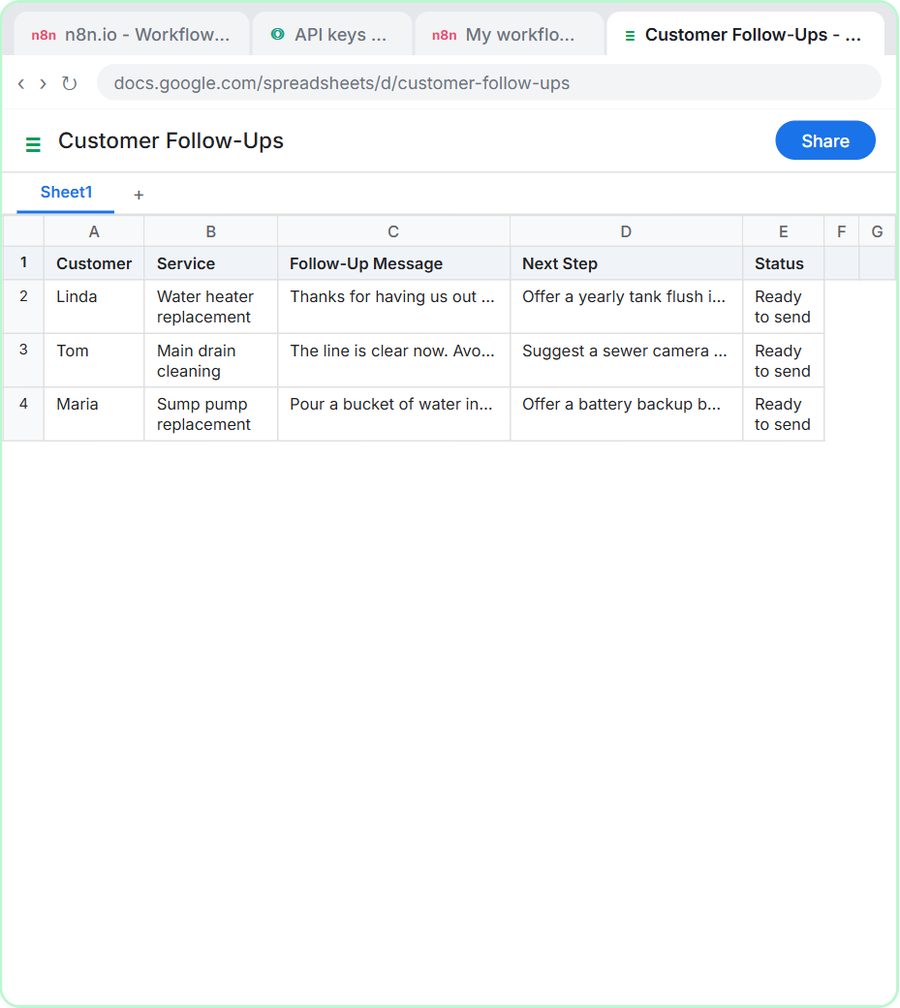 Build an AI Customer Follow-Up Agent for Plumbers
Build an n8n AI agent that writes follow-up texts with care tips after each plumbing call and saves them to Google Sheets. A free, step-by-step lesson.
Free · Live