n8n AI Agent Tutorial: Save Social Media Ideas to Google Sheets
A chatbot talks. An agent does things. In this free n8n AI agent tutorial you build an agent for BrightPath Marketing that comes up with social media post ideas and then writes them straight into a Google Sheet your team can review.
What you will build
You will build a working AI agent inside n8n, the workflow automation tool. You chat with it, ask for social media ideas, and it returns three ideas for LinkedIn, Instagram and Facebook, each with a topic, a hook, a short description and a call to action. Then you tell it to save them, and it adds each idea as a new row in a spreadsheet called Social Media Ideas.
Along the way you wire together the five parts almost every n8n agent uses: a trigger, the AI Agent node, a system prompt, a chat model, memory and a tool.
Who this is for
This module is for people who have used ChatGPT and want the AI to take action, not just answer. It follows the Custom GPT module: there you still had to copy the output by hand, and here the agent saves its own work. No coding is needed. If you have never opened n8n, the lesson starts at the sign-up page.
What you need
- An n8n account (n8n Cloud or your own instance).
- An OpenAI API account with some credit on it. This is platform.openai.com, which is billed separately from a ChatGPT subscription.
- A Google account for Google Sheets.
Step by step: what you do
The lesson has 70 steps across 12 chapters. Most are single clicks, and long text is pasted for you.
- Get n8n: start at n8n.io, click Get started free, enter an email and continue.
- API key: on platform.openai.com, add credit to your balance first (a key with no credit only returns errors), then go to API Keys, create a secret key named n8n agent, and copy it. You learn that OpenAI shows the key only once and that it should never be pasted into a chat or a recording.
- New workflow and chat trigger: create a workflow, add the first step, and pick On chat message.
- AI Agent and system prompt: add the AI Agent node, open Options, choose System Message, and paste a prompt that describes BrightPath Marketing, its audience, its voice and the exact format for each idea.
- Chat model: add an OpenAI Chat Model, create a new credential, paste your key, save it, and pick gpt-5-mini.
- Memory: add Simple Memory so the agent remembers the ideas when you later say "save those."
- Sheets tool: add a Google Sheets Tool, then switch to Google Sheets and make a spreadsheet named Social Media Ideas with five headers: Platform, Post Topic, Hook, Description and Call to Action.
- Configure Sheets: sign in with Google, allow the Sheets, Drive and external service permissions, set the operation to Append Row, pick the document and Sheet1, and click the sparkle button next to each column so the model fills it in.
- Test the agent: open the chat, ask for ideas, then ask it to save them and watch the rows appear.
Why the agent works
The system prompt and the spreadsheet use the same five fields. Because the prompt tells the agent to return a platform, topic, hook, description and call to action, and the sheet has columns with those exact names, the agent can match each piece to the right column on its own. That is what the sparkle buttons do: they let the model decide the value for each column instead of you mapping fields by hand.
Memory is the quiet hero. Without it, every message starts from nothing, and "save those ideas" would mean nothing to the agent. With Simple Memory, the recent conversation stays inside n8n with no extra database or credentials.
The lesson also builds good habits around the OpenAI key. You add credit before creating the key, because a key with a zero balance only returns errors. You name the key after what uses it, so you can find and revoke it later. And you save it once as an n8n credential, which every future workflow can reuse without you pasting it again.
How to use this in your business
Swap BrightPath Marketing for your own company in the system prompt and you have an idea generator your whole team can review in a shared sheet. Beyond social posts, the same shape fits blog topics, email subject lines, ad angles or product descriptions. Anything you ask ChatGPT for today and then paste into a spreadsheet is a candidate. Once the agent pattern clicks, you can give it other tools, like Gmail, which is exactly what the next module does.
How the practice works
Each step is demonstrated on the left under Watch, then you repeat it on the right under Your turn, in a practice copy of n8n, OpenAI and Google Sheets. Every click is checked, and Do it for me finishes a step if you get stuck. No account is created, no key is made and nothing is billed.
Frequently asked questions
- What is an AI agent in n8n?
- It is the AI Agent node plus a chat model, optional memory and one or more tools. The model decides what to do, and the tools let it act, for example by writing a row to Google Sheets.
- Is this course really free?
- Yes. Stepthrough is completely free, and the practice copy needs no accounts. To build it for real you need your own n8n, OpenAI and Google accounts, and some of those cost money once you use them for real work.
- How much does the OpenAI API cost for this?
- You pay per request, not per month. The lesson suggests ten dollars of credit, which goes a long way for short requests like these. Check OpenAI's pricing page for current rates.
- Why does my agent show a red warning?
- The AI Agent node needs a chat model underneath it. Until you add one, such as the OpenAI Chat Model, n8n flags the node.
- Do I need memory for an n8n agent?
- For a back-and-forth chat, yes. Without memory the agent forgets earlier messages, so a follow-up like "save those ideas" fails.
More in AI Automation for Beginners
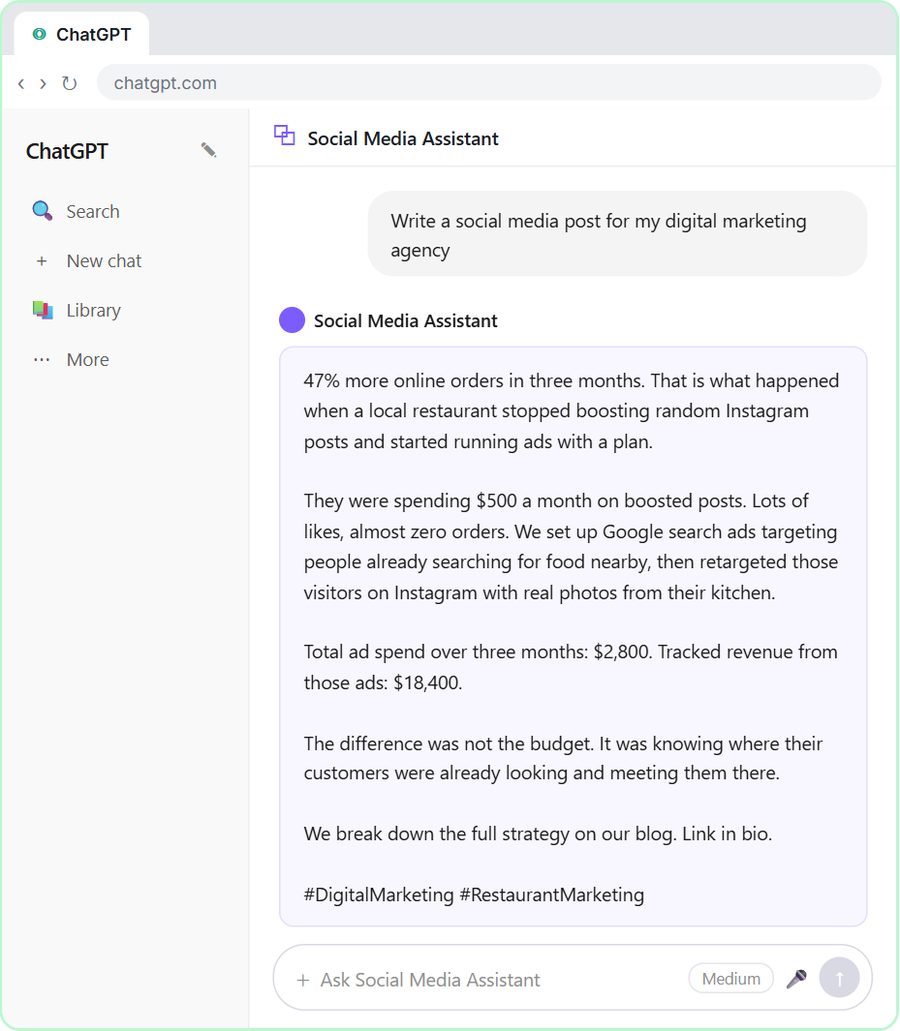 Build a Custom GPT Social Media Assistant
Learn to build a Custom GPT that writes social media posts in your brand voice. Free, interactive, step by step: instructions, a knowledge file and a test.
Free · Live
 Lovable + n8n: Build a Web App with an AI Backend
Build a contact form in Lovable and connect it to an n8n webhook, AI agent, Google Sheets and Gmail. A free, interactive, no-code step by step tutorial.
Free · Live