The short version: open the flagged node first, read what it says it's missing, fix that one thing, and run again.
What do n8n's warning and error signs mean?
n8n marks nodes in three ways: a warning before a run (something isn't set up), red after a run (that step failed), and green with an item count (that step worked). Here are the ones the lessons show:
| What you see | When | What it means in the lessons | First fix |
|---|---|---|---|
| Warning on an imported template node | Before running | The step still needs your spreadsheet or account | Open it and pick the Document and Sheet |
| Red triangle on an AI Agent | While building | The agent has no Chat Model | Add an OpenAI Chat Model under Chat Model |
| Red node, "Error in sub-node" | After Execute workflow | A node attached to the agent failed | Open the red sub-node and read its message |
| Green checks | After a run | Every step ran | Check the real output anyway |
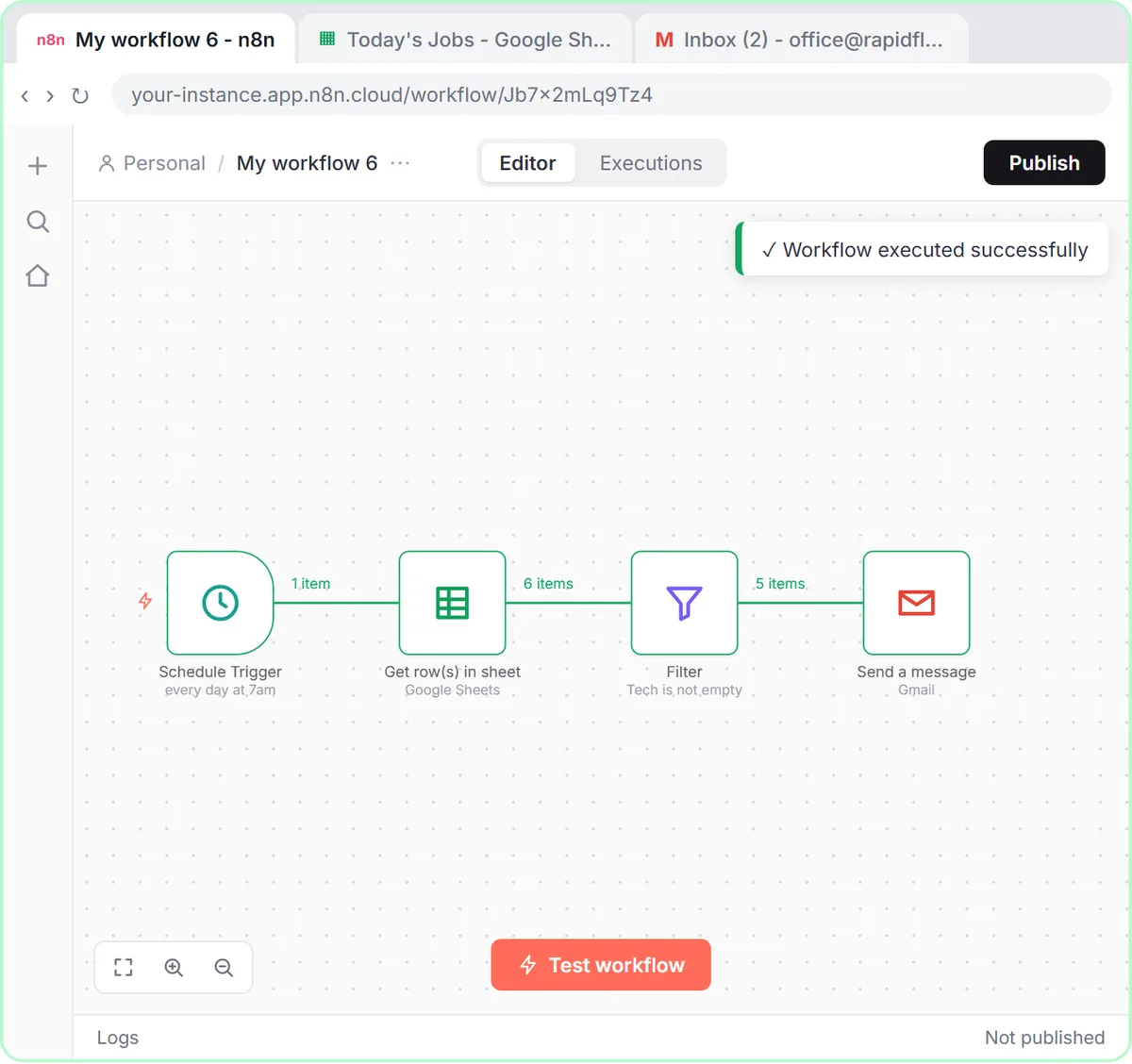
| Item counts on the lines | After a run | How many items each step passed on | Compare them with what you expected |
Why does an imported n8n template show warnings?
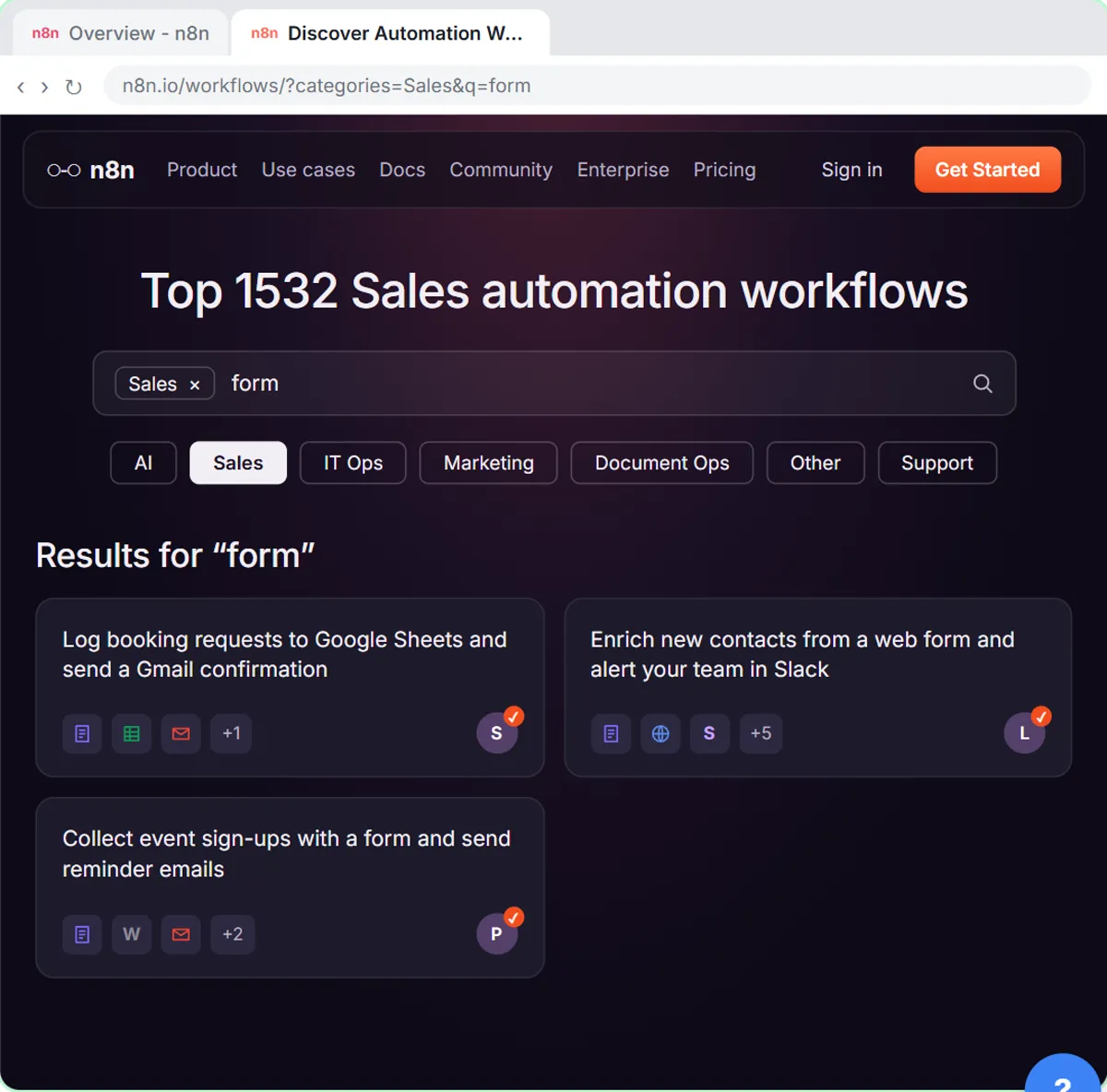
A template can't know which of your spreadsheets or accounts to use, so its nodes show warnings until you fill those in. In the template lesson, the workflow for Hillside Pet Grooming (a made-up business) arrives with a form, an Append row in sheet step and a Send a message step.
- The Set up template window lists each account the workflow needs. Create the Google Sheets and Gmail credentials there; each gets a green check.
- Open Append row in sheet. The lesson explains that "the warning means it still needs your spreadsheet." Your credential is already filled in, so pick the Document and the Sheet.
- Open Send a message and replace the template's message with your own.
After that, the lesson says "Every warning is gone," and you can click Execute workflow. How to Use n8n Templates covers the full template setup.
Why is there a red triangle on my n8n AI Agent?
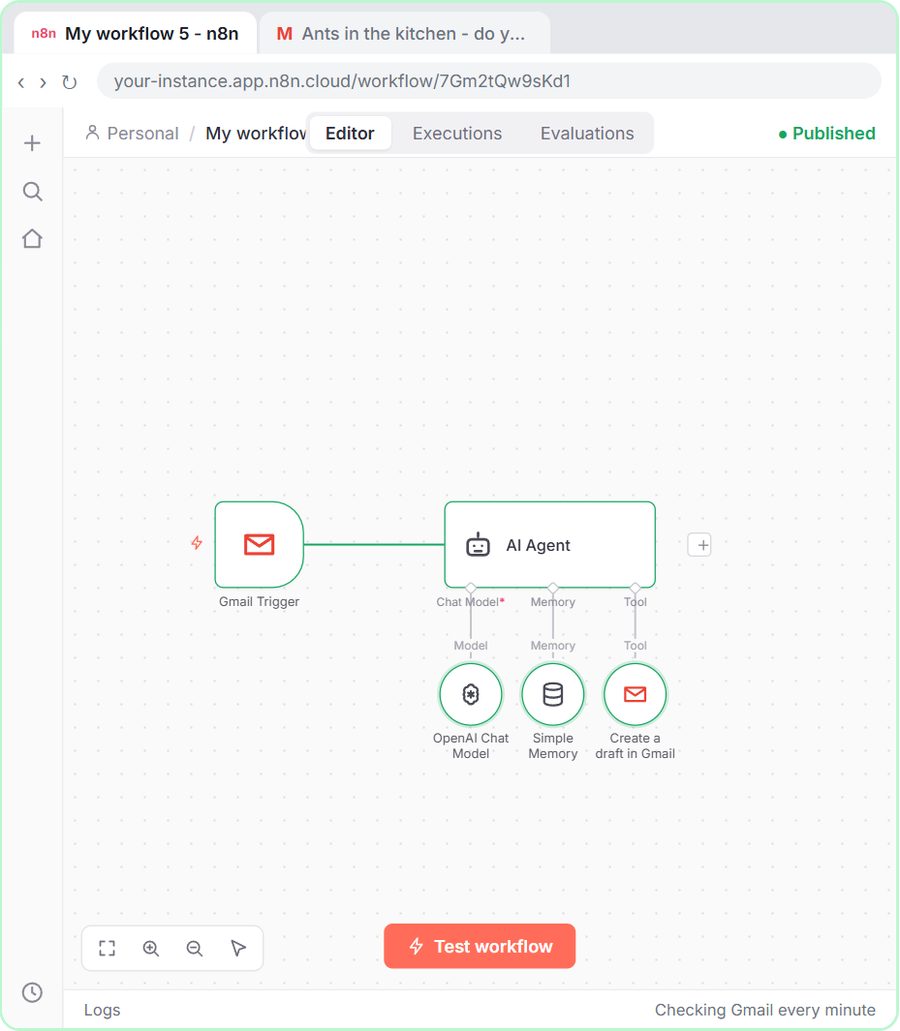
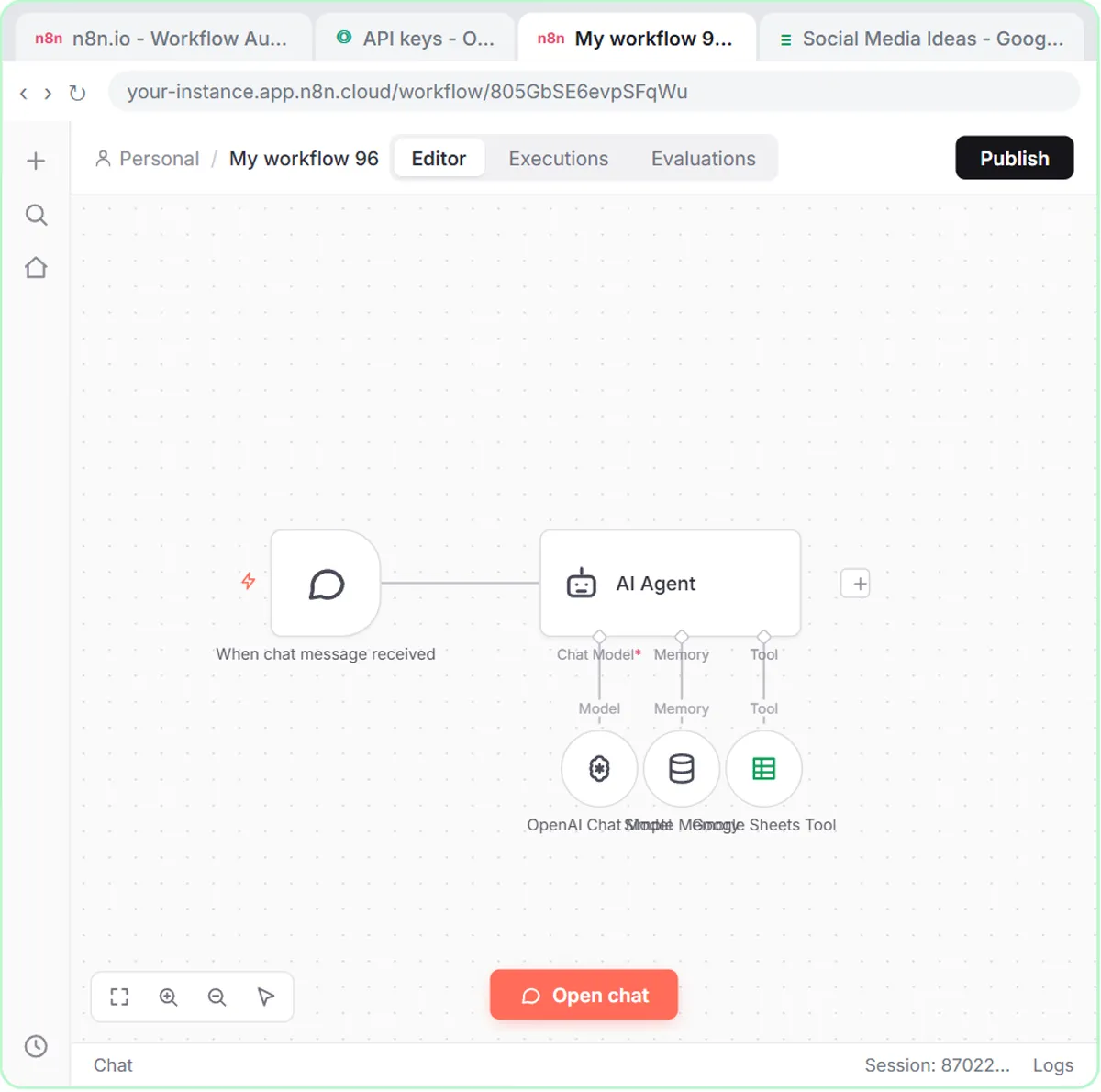
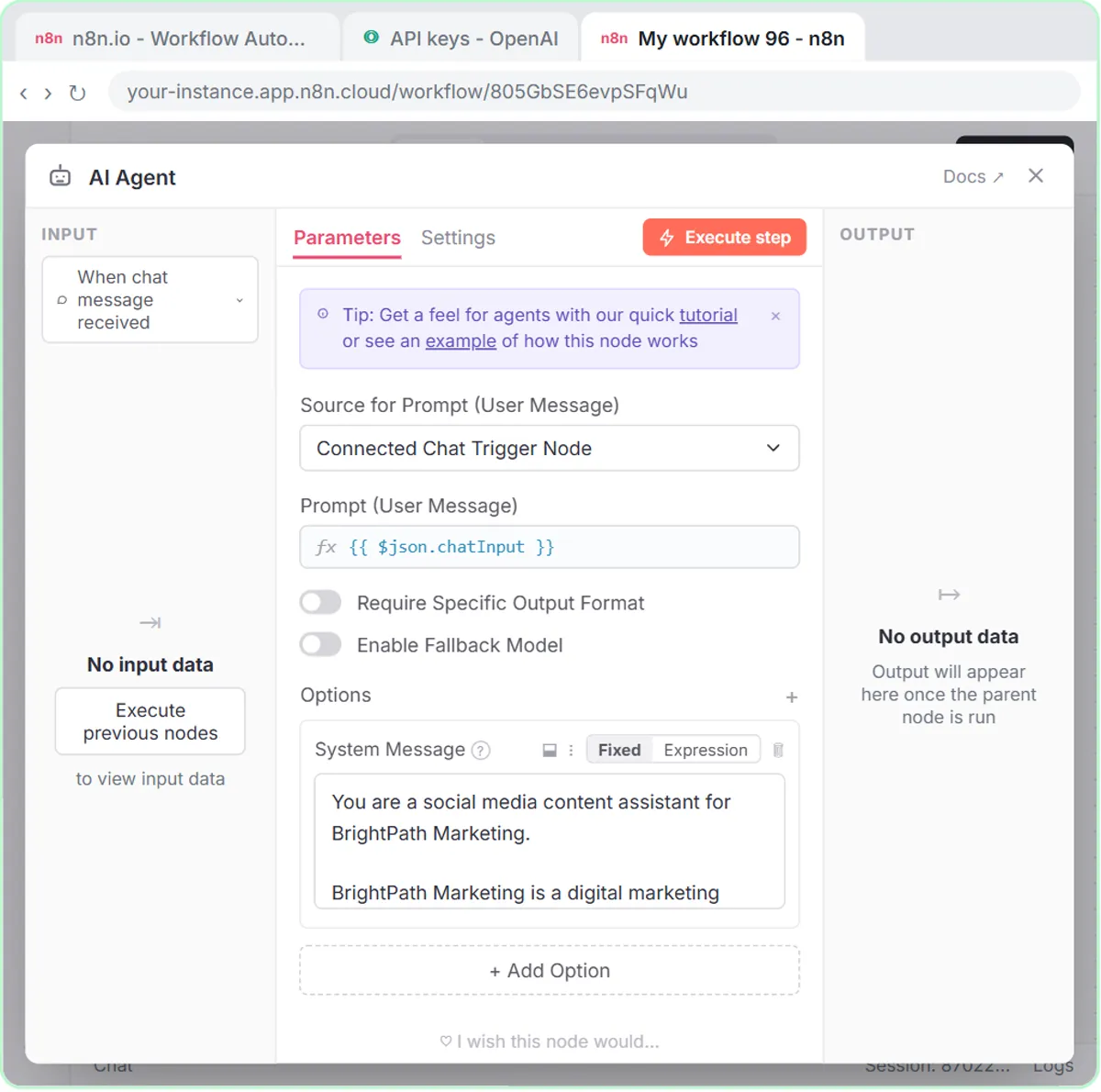
The AI Agent has no language model connected yet. In the AI Social Media Idea Agent lesson, the narration calls it out: the agent "is complaining because it has no model." An agent can plan, but it can't think without a model underneath it.
The fix:
- Click the + under Chat Model on the agent.
- Choose OpenAI Chat Model.
- Pick or create your OpenAI credential, then choose a model such as gpt-5-mini.
The red triangle goes away once the model is attached. If the agent later errors when it runs, check your OpenAI account has credit: the lessons warn that a new key with a zero balance just returns errors.
What does "Error in sub-node" mean in n8n?
It means one of the nodes plugged into the AI Agent (its model, memory or a tool) failed, and n8n names which one. In the email responder lesson, the first test run turns red with "Error in sub-node" for Simple Memory and the message No session ID found.
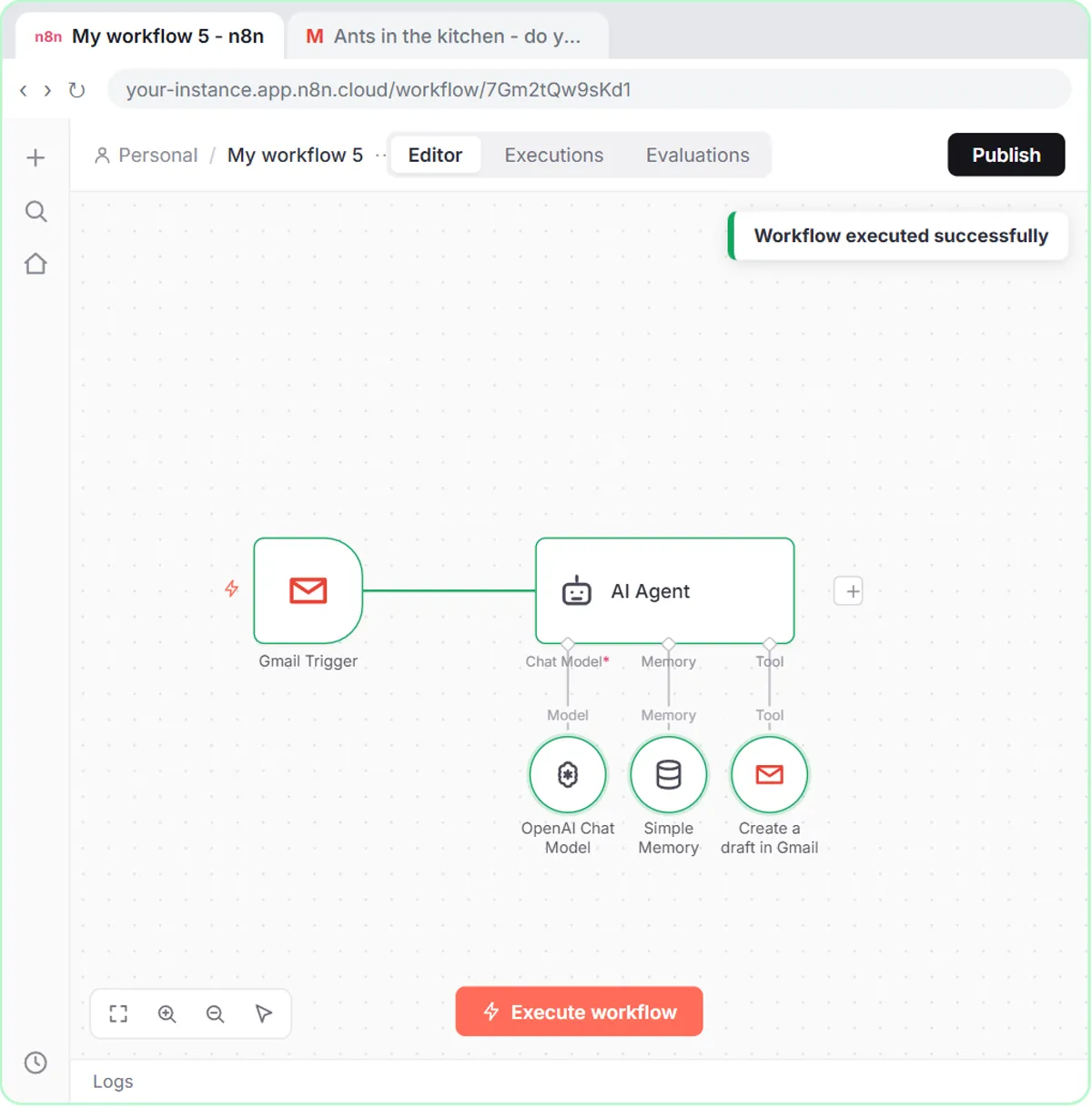
The lesson's steps to fix it:
- Double-click the red Simple Memory node. It's looking for a chat session ID, which comes back undefined because an email isn't a chat.
- Open Session ID and choose Define below.
- Paste
{{ $json.threadId }}as the key, so memory keeps one conversation per email thread. - Click Execute workflow again. Everything turns green.
Fix "No session ID found" in n8n Simple Memory explains why the thread ID is a better fix than deleting the memory node.
Try it free, step by step
n8n AI Email Responder: Draft Gmail Replies Automatically. Build an n8n agent that watches your Gmail, reads each new customer email, and writes a reply as a draft in the same thread, ready for you to check and send. You do every step yourself in a practice copy of n8n, it checks your work as you go, and “Do it for me” finishes any step you get stuck on. Free, and nothing touches your real accounts.
Start the free lessonHow do you read a red node in n8n?
Open the red node before you change anything else. The message inside usually names what the step expected and didn't get, which points straight at the setting to fix.
A few habits that help:
- Fix the first red node, not the last. A step that fails stops the steps after it, so later nodes may look wrong only because nothing reached them.
- Read the input on the left. When a field comes back empty, compare the expression with the fields the previous step actually produced.
- Change one thing, then run again. Two changes at once make it hard to tell which one worked.
- Check credentials. A node with no credential selected, or one connected to the wrong Google account, can't do its job.
What do green checks and item counts tell you?
Green checks say each step ran, and the numbers on the lines say how many items each step passed on. In the template lesson, the test run ends with every step green: the booking went into the sheet and the confirmation went out. In the Daily Job Alerts lesson, the lines read 6 items from the sheet and 5 out of the Filter, because one job had no tech assigned.
Item counts catch quiet problems. If a Filter passes 0 items, the steps after it have nothing to do, and the run can still look clean. If a sheet step reads 6 rows and you expected 20, the node is probably pointed at the wrong tab.
Is a green n8n workflow always right?
No. Green means every step ran, not that the result is what you wanted, so check the real output. The lessons always end by looking at the result itself:
- The template: the test booking row in the sheet and the confirmation email.
- The email responder: the Gmail draft under the customer's email, with the right area and the right price, and not sent.
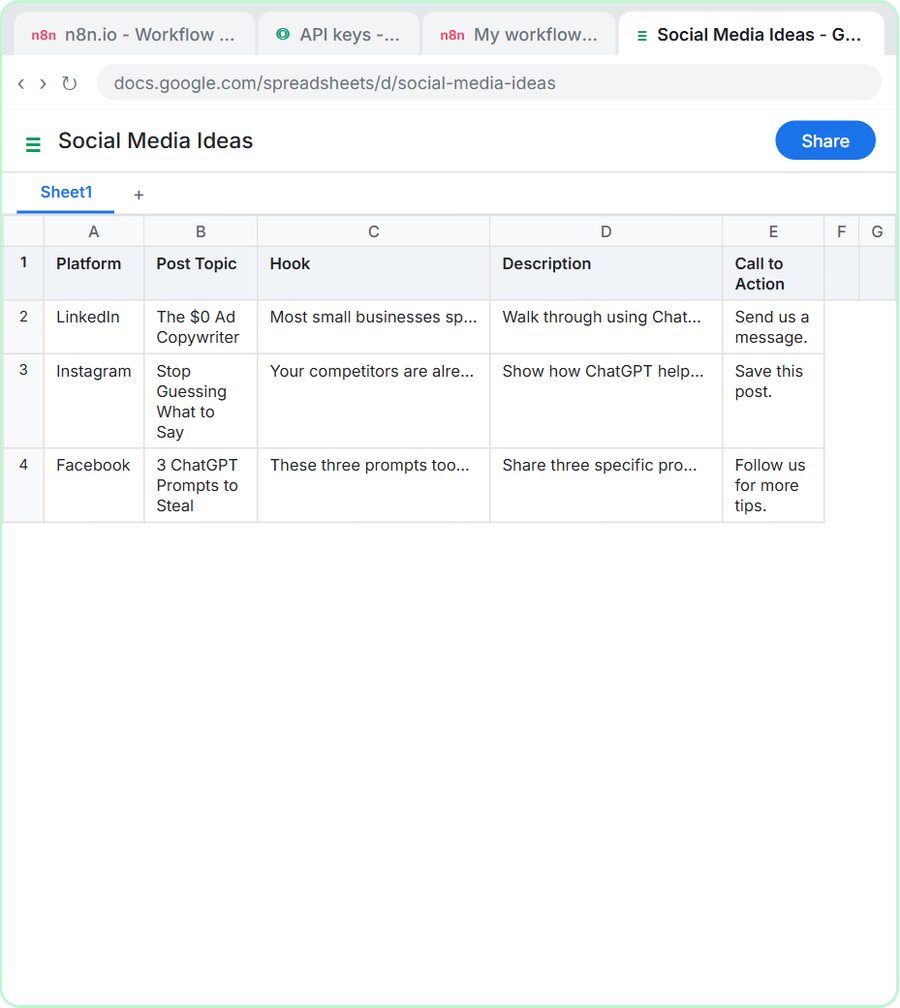
- The AI agent: the rows in the Social Media Ideas sheet after "Yes, save those ideas to the sheet."
When the output is wrong but nothing is red, the fix is usually in the instructions (the system message or the prompt), the column headers, or an expression, not in the node's connections.
On cost: the lessons are free and run in practice copies. Building for real needs n8n (n8n Cloud is paid after a free trial, or self-host it), and the AI steps need an OpenAI API key, which is pay-as-you-go and billed separately from ChatGPT plans. More lessons are on the n8n tool page.
Key takeaways
- A warning on an imported n8n template node usually means it still needs your own spreadsheet or account.
- A red triangle on an n8n AI Agent means no Chat Model is attached; add an OpenAI Chat Model under Chat Model.
- "Error in sub-node" names the node attached to the agent that failed, such as Simple Memory with "No session ID found."
- Open the first red node and read its message before changing anything else.
- Green checks mean every step ran, so still check the real output, such as the sheet row or the Gmail draft.
Frequently asked questions
- Can I run an n8n workflow that still shows warnings?
Fix the warnings first. In the template lesson, the test run happens only after every warning is gone.
- Why is my n8n AI Agent red before I've run anything?
It has no Chat Model yet. Click the + under Chat Model and add an OpenAI Chat Model with your credential.
- What should I do when n8n says "Error in sub-node"?
Double-click the red sub-node, read what it's missing and fix that setting. For "No session ID found" with an email trigger, set Session ID to Define below with the email's thread ID.
- My workflow is all green but the email is wrong. Why?
Green only means each step ran. Check the system message, the prompt, the column headers and your expressions, then run it again.