Updated . Built against the tool’s current screens and checked step by step. How we check this lesson
In a small B2B sales team, the person who should be on calls spends hours every week finding companies that fit, copying details into a sheet and writing first emails one by one. Strawberry (strawberrybrowser.com) is a browser with AI agents, called companions, that can do that legwork in your own tabs and connected apps: research firms with sources, fill a Google Sheet and draft replies. Because it works with your logins, the setup matters as much as the prompt. This guide shows a small team how to use it safely: tighten the send permission first, ask for evidence and confidence on every row, check the work trace, and approve every email yourself. It comes with a free practice lesson built from Strawberry's docs. Strawberry 1.0 launches on 26 October 2026, so screens may change. This is my own guide, not an official Strawberry course.
At a glance
| Question | Answer |
|---|---|
| What you build | Use the Strawberry AI browser to research 10 target firms with sources, save them to a Google Sheet and draft first emails, with a person approving every send. |
| Tools | Strawberry |
| Time | About 9 minutes, 15 steps in 5 parts |
| Level | Beginner, no coding needed |
| Cost | Free |
| Ways to learn it | Practice it step by step, read the guide with screenshots |
The 5 parts, in short
- Set the guardrail: Open connected apps, Open Gmail, Ask before every send.
- Research the leads: Start a new chat, Ask for the research, Send it, Open the work trace.
- Put them in a sheet: Clean it up and save it to a sheet, Send it.
- Draft, check, approve: Ask for three first emails, Send it, Fix the email before it goes, Approve the send.
- Make it repeatable: Save it as a skill, Send it.
Start here first: Build an n8n AI Agent That Writes Deal Follow-Ups (module 1 of AI Automation for Sales)
Part of: AI for Sales Teams (step 13 of 23). Next up: Build an n8n AI Agent That Writes Deal Follow-Ups
Part of: AI Apps Worth Knowing (step 33 of 77). Next up: Preview Every Website Change Before Your Client Sees It using Kosuke
Strawberry: Research Leads into a Sheet and Approve Every Email: step-by-step guide with screenshots
About the screenshots. They come from Stepthrough’s simulated practice environment (a practice copy of Strawberry), not the live tool, so no real account appears. The buttons and labels match the real screens the lesson was built against. Practice it yourself free at learn.ynteractive.com.
- Tools: Strawberry
- Time: about 9 minutes, 15 steps in 5 parts
- Level: beginner, no coding needed
Part 1: Set the guardrail
Step 1: Open connected apps
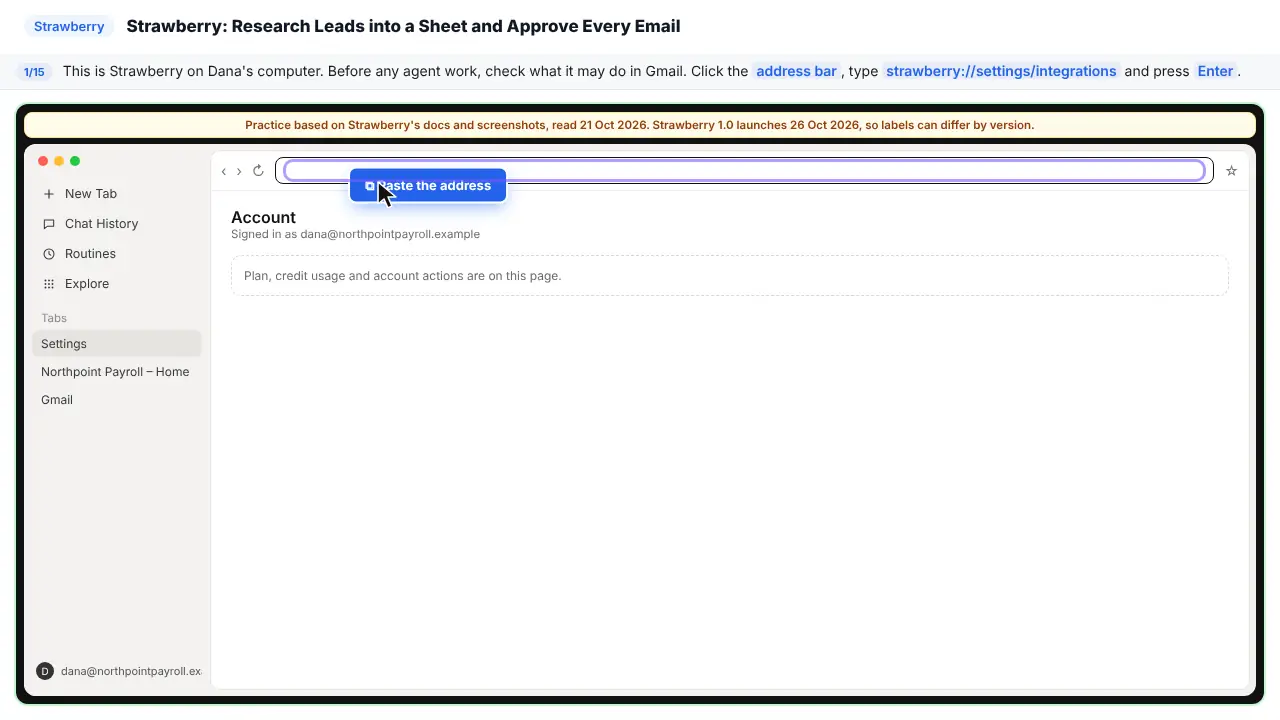
This is Dana Whitfield. She runs sales at Northpoint Payroll Partners, a made-up firm. Every week her team loses hours. They research firms into a sheet. Then they write first emails by hand. Strawberry can do that work in the browser. But first, set a guardrail.
Step 2: Open Gmail
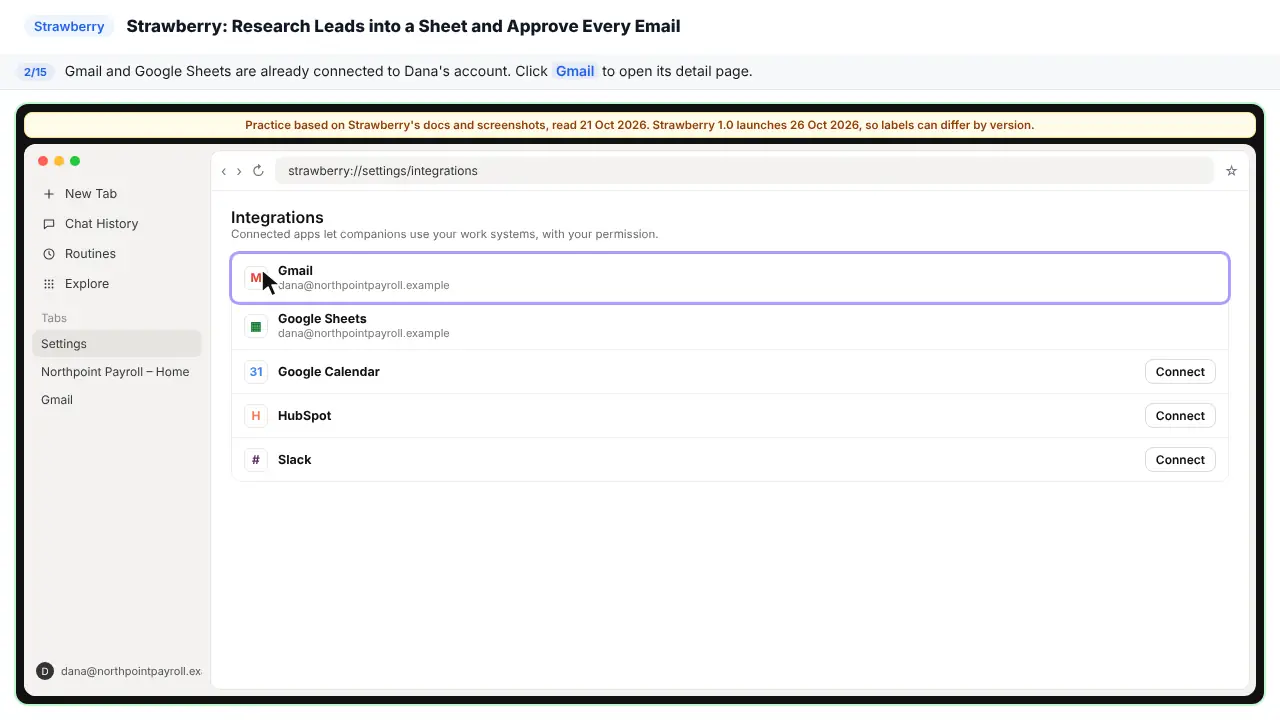
Gmail and Google Sheets are already connected.
Step 3: Ask before every send
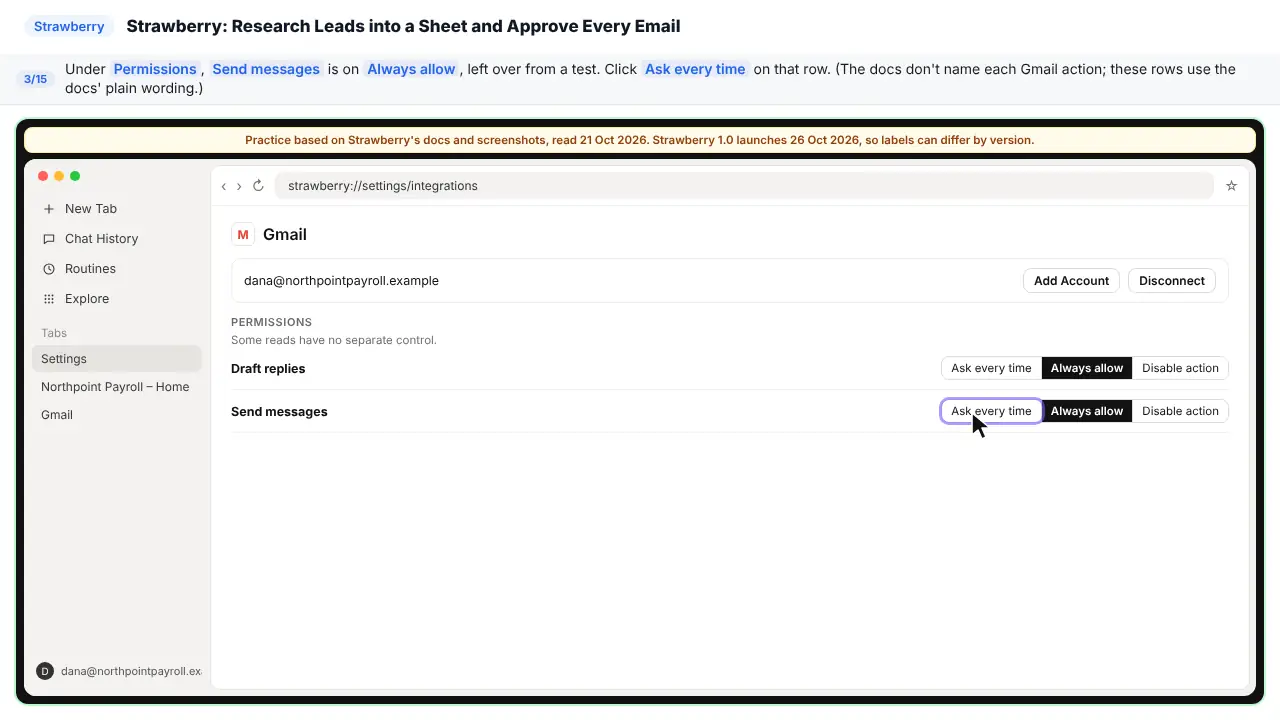
Look at Send messages. It is on Always allow. A teammate left it that way after a test. That means an agent could send email with no check.
Part 2: Research the leads
Step 4: Start a new chat
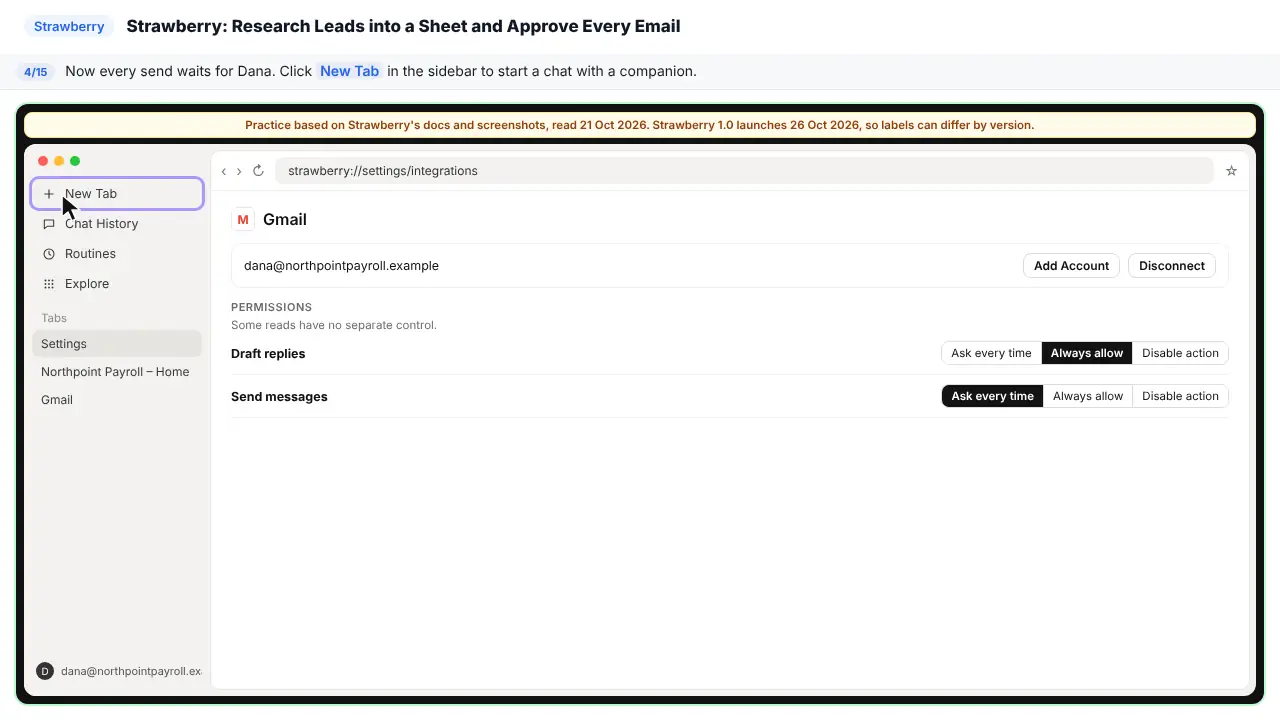
Now every send waits for Dana.
Step 5: Ask for the research
It starts with the decision. Which firms to contact this month. It says where to look. It asks for a table, with a source link and a confidence for each firm. It says, do not guess. Do ten first, then wait. And ask me before sending anything.
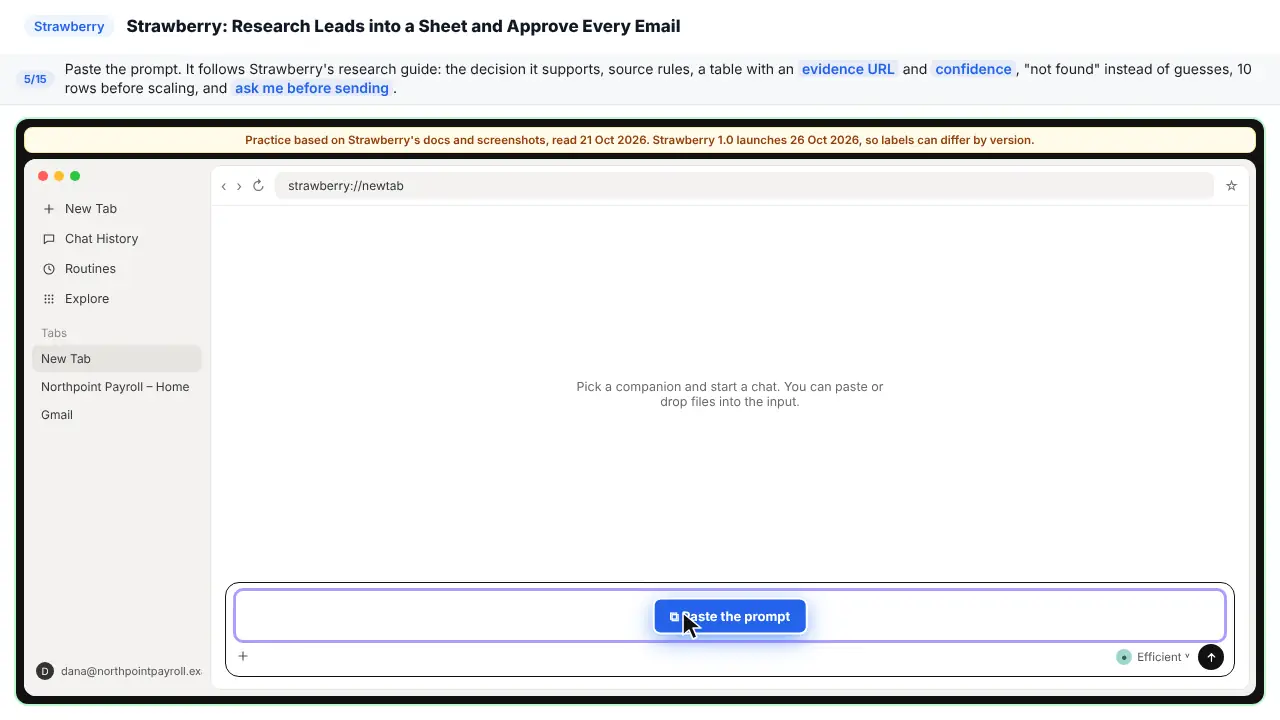
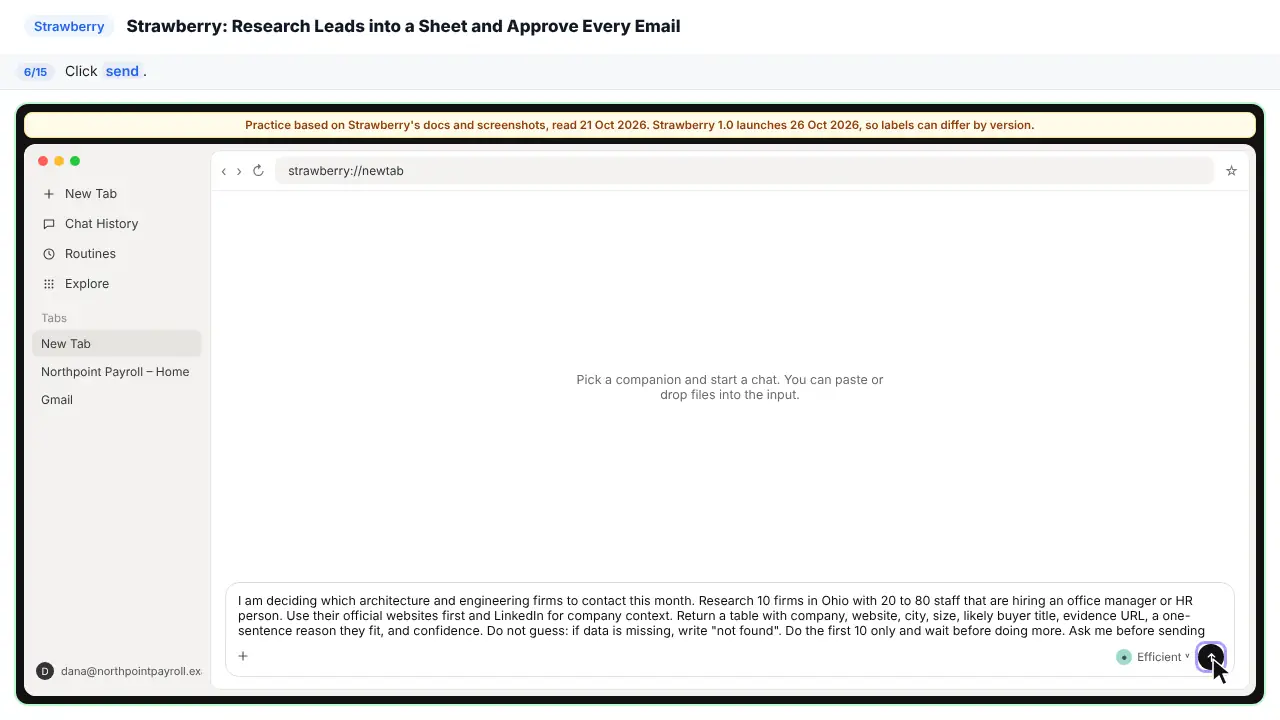
I am deciding which architecture and engineering firms to contact this month. Research 10 firms in Ohio with 20 to 80 staff that are hiring an office manager or HR person. Use their official websites first and LinkedIn for company context. Return a table with company, website, city, size, likely buyer title, evidence URL, a one-sentence reason they fit, and confidence. Do not guess: if data is missing, write "not found". Do the first 10 only and wait before doing more. Ask me before sending any outbound messages.
Step 6: Send it
Step 7: Open the work trace
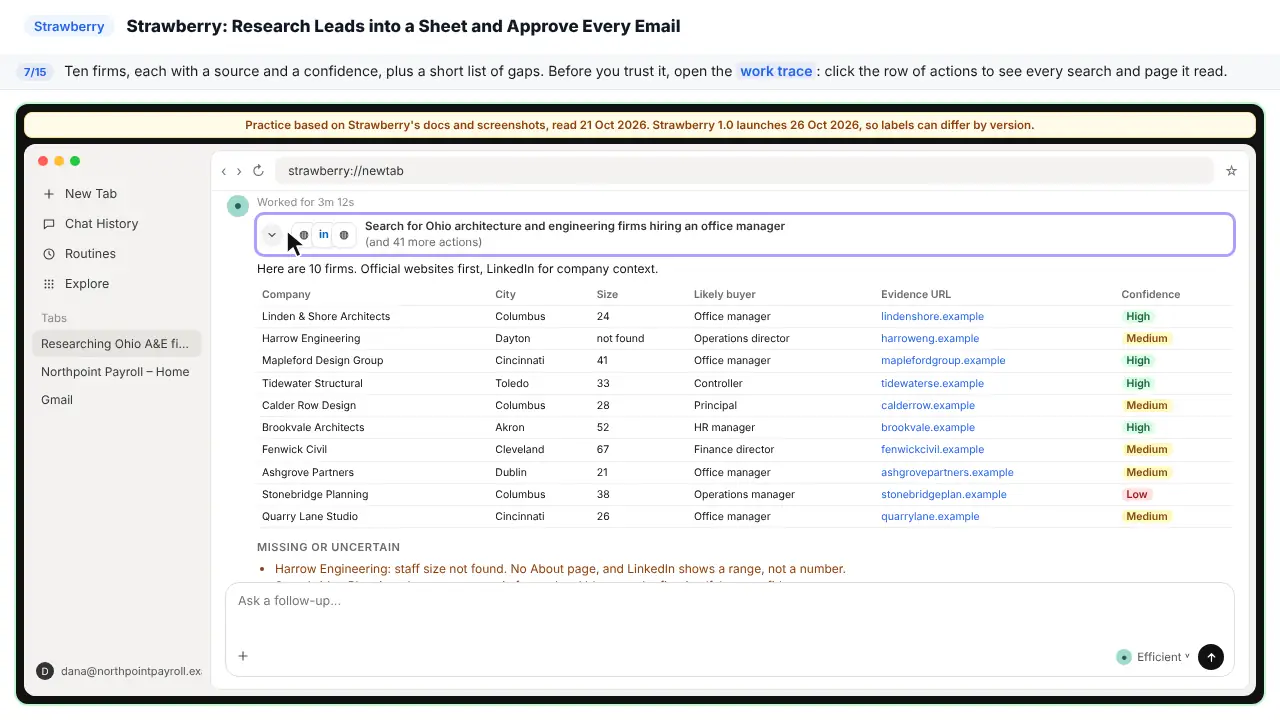
Ten firms. Each one has a source and a confidence. And there is a short list of gaps. Before you trust it, check how it got there.
Part 3: Put them in a sheet
Step 8: Clean it up and save it to a sheet
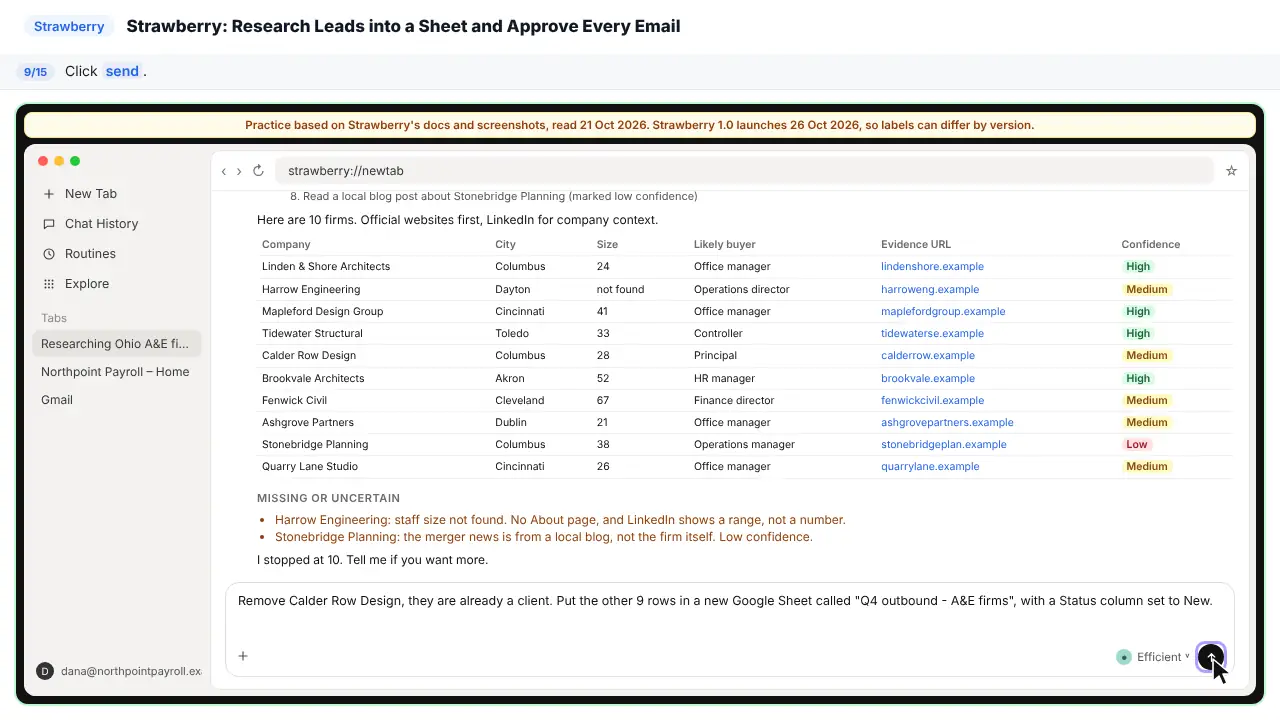
The trace shows the searches and pages. Official sites first. One blog, marked low confidence. Good. One firm, Calder Row Design, is already a client. It drops that firm and saves the rest to a new sheet.
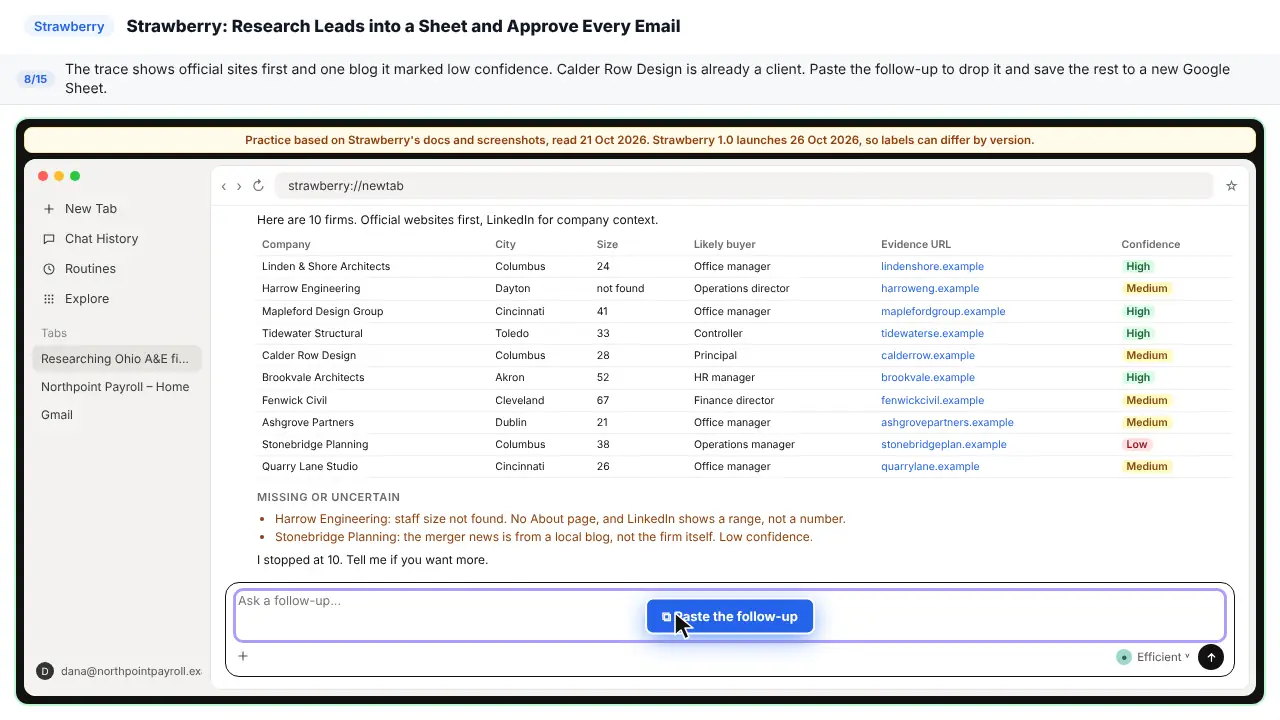
Remove Calder Row Design, they are already a client. Put the other 9 rows in a new Google Sheet called "Q4 outbound - A&E firms", with a Status column set to New.
Step 9: Send it
Part 4: Draft, check, approve
Step 10: Ask for three first emails
The sheet is ready. Nine rows, each with a status. Now the first emails. One real fact per email. Under ninety words. No claims about price. And wait for approval.
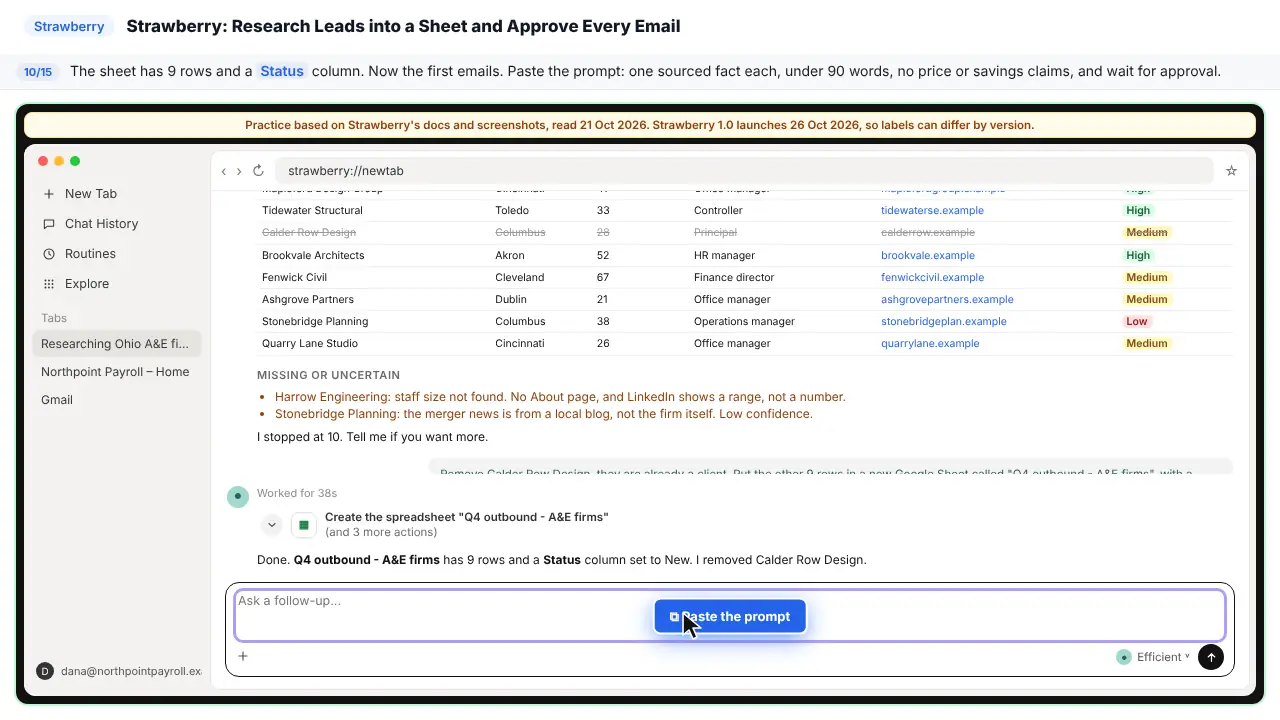
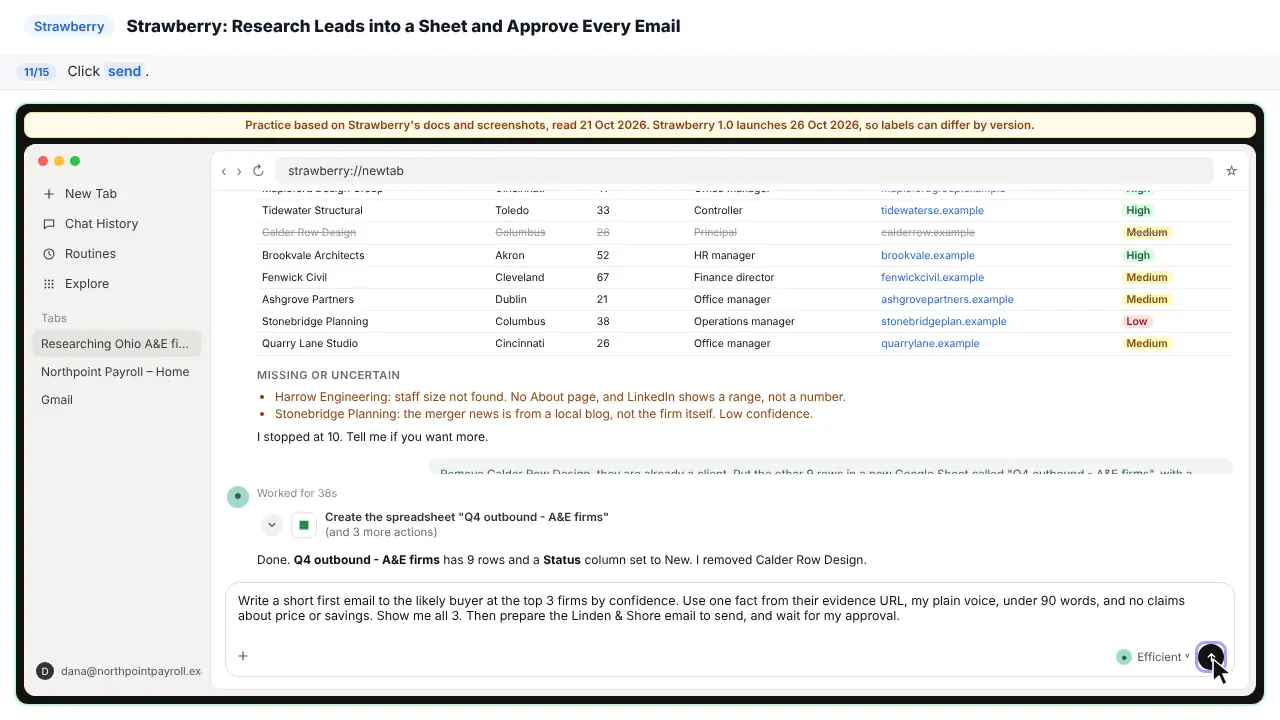
Write a short first email to the likely buyer at the top 3 firms by confidence. Use one fact from their evidence URL, my plain voice, under 90 words, and no claims about price or savings. Show me all 3. Then prepare the Linden & Shore email to send, and wait for my approval.
Step 11: Send it
Step 12: Fix the email before it goes
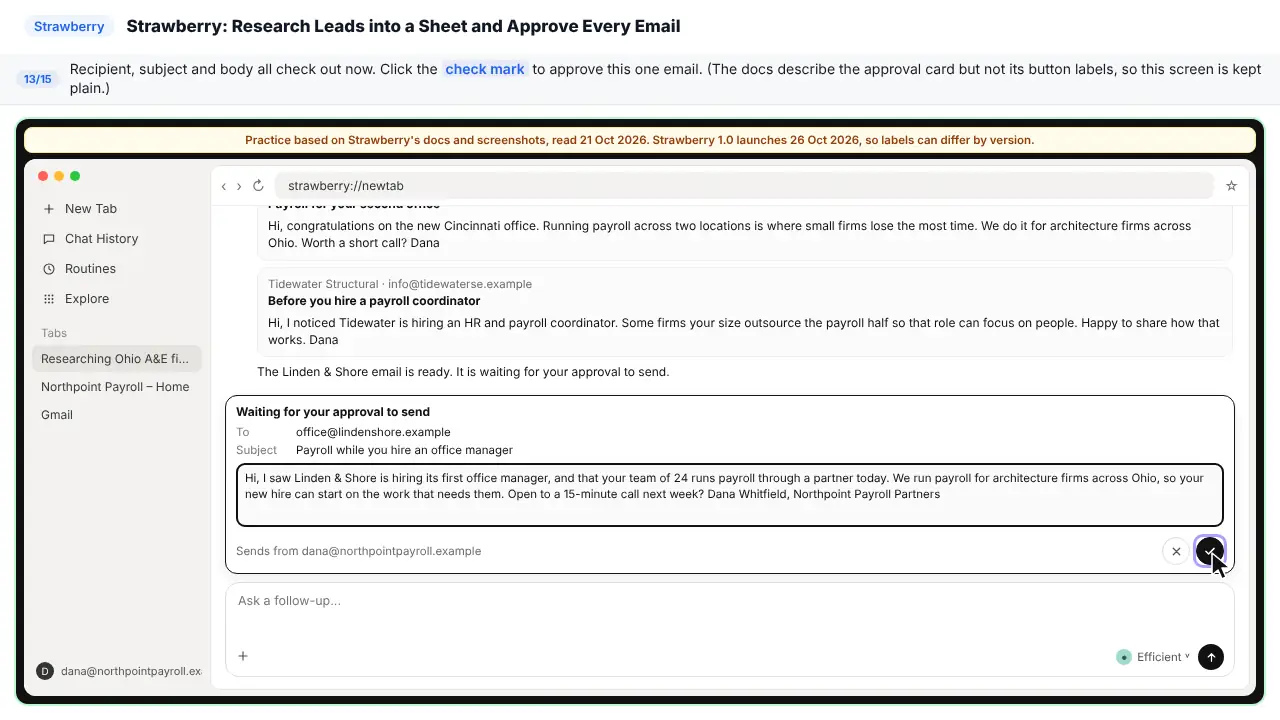
Here is the approval request. It waits above the chat box. Nothing has been sent. Read it like a client would. It says a forty-person team. The source says twenty-four. A wrong fact in a first email loses the deal. You can edit the card.
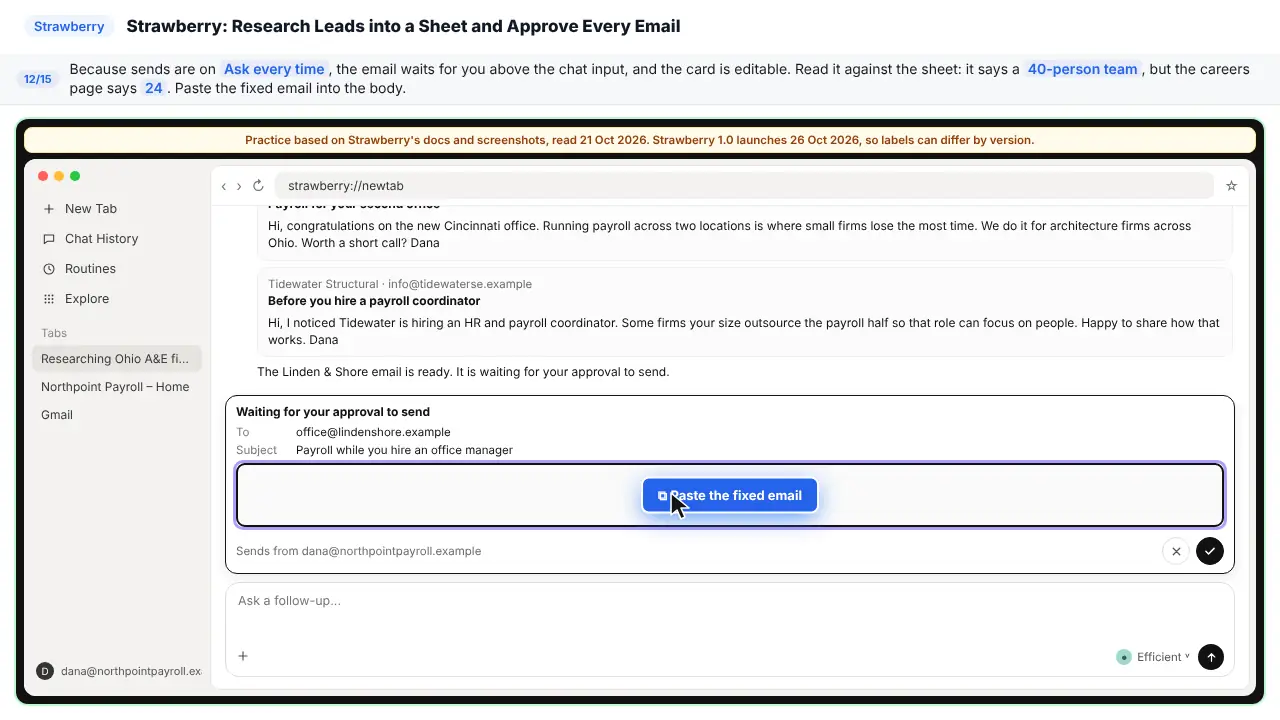
Hi, I saw Linden & Shore is hiring its first office manager, and that your team of 24 runs payroll through a partner today. We run payroll for architecture firms across Ohio, so your new hire can start on the work that needs them. Open to a 15-minute call next week? Dana Whitfield, Northpoint Payroll Partners
Step 13: Approve the send
Now check the recipient and the subject. Both look right. Approve this one email.
Part 5: Make it repeatable
Step 14: Save it as a skill
One email sent. Two drafts still wait for Dana. Next week she wants the same steps. It turns this chat into a skill.
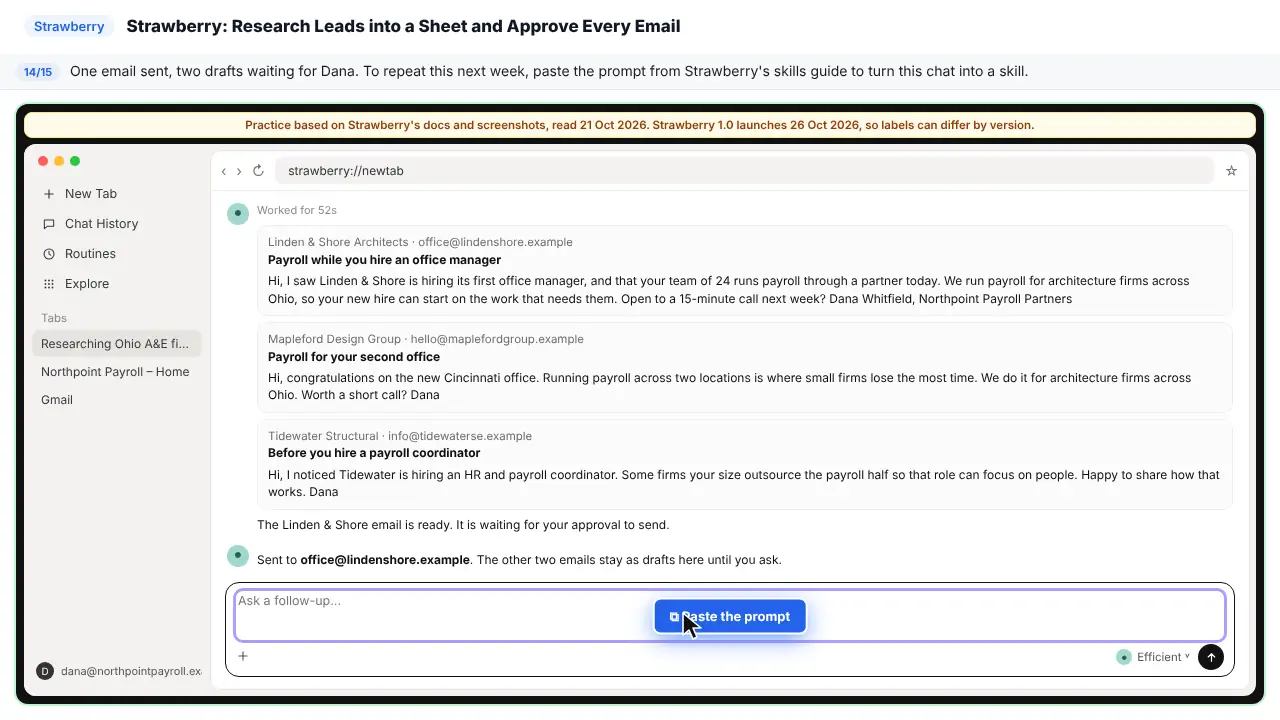
Create a skill for me from what we just did. Make sure it includes the questions you asked, the sources you checked, the approval rules, and the final output format.
Step 15: Send it
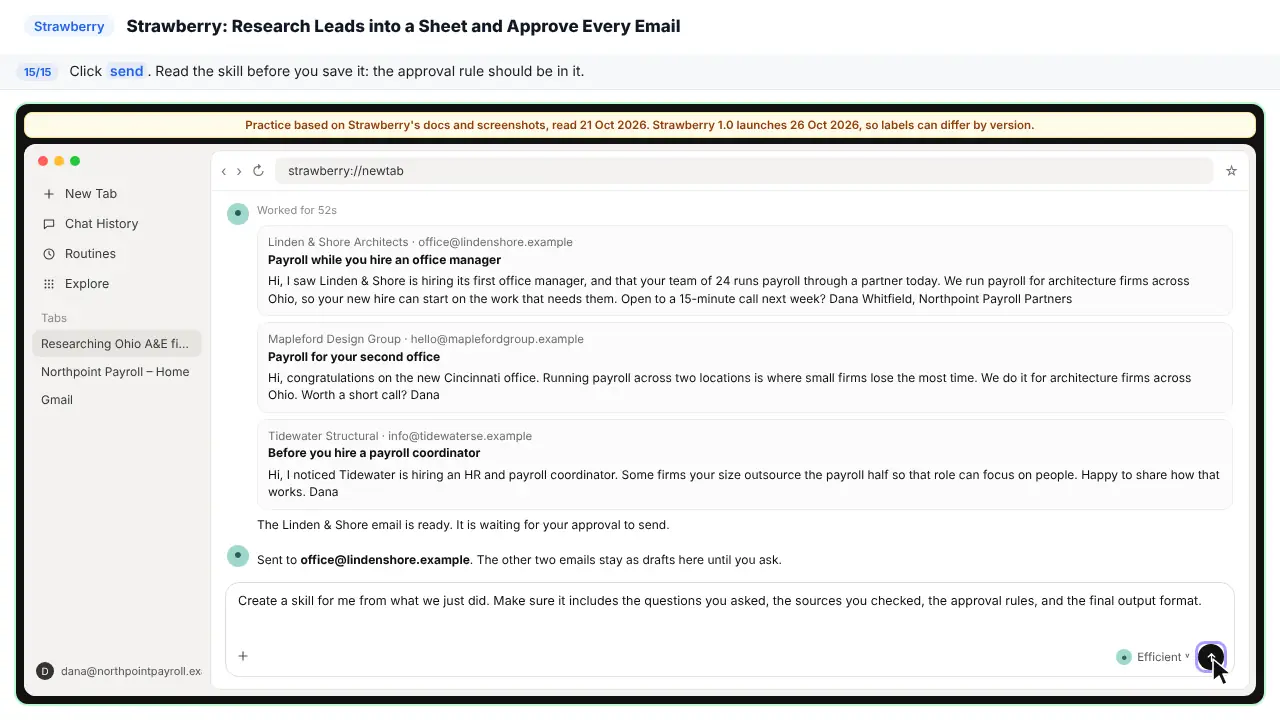
Then read the skill before you keep it. The last rule matters most. Never send. Show each email first. You now have a sourced lead list, a sheet, and emails a person approved.
Part of these free courses: AI Apps Worth Knowing, AI for Sales Teams
Now do it yourself, free
Reading the steps is a start. Doing them is how it sticks. The interactive lesson puts you in a practice copy of Strawberry: you do every step yourself, it checks your work, and “Do it for me” finishes any step you get stuck on. Nothing touches your real accounts.
Practice “Strawberry: Research Leads into a Sheet and Approve Every Email” step by step
The three prompts from the lesson
Paste these into a Strawberry chat and replace the bracketed parts. The first follows Strawberry's research guide; the third is the skill prompt from Strawberry's skills guide.
| Prompt | What it does |
|---|---|
| I am deciding which [type of company] to contact this month. Research 10 [companies] in [region] with [size] that [show this buying signal]. Use their official websites first and LinkedIn for company context. Return a table with company, website, city, size, likely buyer title, evidence URL, a one-sentence reason they fit, and confidence. Do not guess: if data is missing, write "not found". Do the first 10 only and wait before doing more. Ask me before sending any outbound messages. | A sourced lead table: evidence URL and confidence on every row, "not found" instead of guesses, 10 rows before scaling, and no sends without asking. |
| Write a short first email to the likely buyer at the top 3 firms by confidence. Use one fact from their evidence URL, my plain voice, under 90 words, and no claims about price or savings. Show me all 3. Then prepare the first one to send, and wait for my approval. | Three short first emails with one sourced fact each, then one email held for your approval. |
| Create a skill for me from what we just did. Make sure it includes the questions you asked, the sources you checked, the approval rules, and the final output format. | Turns the chat into a reusable skill, with the approval rule written into it. |
The business case: do the research, keep the judgment
Picture Dana Whitfield, who runs sales at Northpoint Payroll Partners, a made-up nine-person firm that sells outsourced payroll to architecture and engineering firms. Her best signal is a firm hiring its first office manager or HR person: that is when payroll lands on somebody's desk. Every week she or a colleague searches for those firms, opens their careers pages and LinkedIn, copies the details into a sheet and writes a first email to each.
Here is the arithmetic, using example numbers you should replace with your own. Twenty firms at 12 minutes of research and 6 minutes of writing each is six hours a week, from the people who should be on calls. The obvious fix is an AI agent. The trap is letting it send: one wrong fact or the wrong person in a first email costs you that prospect. The safe split is clear. The agent does the lead enrichment and the drafts; a person checks the sources and approves every send.
What Strawberry is
Strawberry is a full desktop browser for macOS and Windows with AI companions built in. You use it like a normal browser, with tabs, bookmarks, profiles and saved passwords, and when you need help a companion can read what is on screen, operate web pages, use connected apps such as Gmail, Google Sheets, HubSpot or Slack, create files and keep working on multi-step tasks in the background. That makes it a browser agent: the AI works in the same browser, tabs and logins you do.
Its docs call the main pieces companions (the AI profiles you chat with), agent runs (when a companion does work, not just replies), work traces (the record of what it did), skills (reusable instructions), routines (scheduled or event-triggered runs) and memory. Strawberry's site lists a free plan with monthly AI credits and paid plans; normal browsing without a companion uses no credits. Strawberry 1.0 launches on 26 October 2026.
Privacy and safety: an agent with your logins
A companion acts with your access. Built-in app connections such as Gmail, Calendar, Drive, Slack and CRM apps are shared across every browser profile signed into the same Strawberry account, so switching profiles separates website sign-ins but not those connections. Before a task touches a client, check which connected account it will use. Connect only the apps the workflow needs, and disconnect the ones you stop using.
Permissions are the main control. In strawberry://settings/ai-permissions you choose a permission mode (Default or Ask Always) and see Permanent Permissions; on each connected app's page you can set listed actions to Ask every time, Always allow or Disable action. Saved permissions still apply in Ask Always mode, and some reads have no separate control. Strawberry's own advice: start read-only, avoid Always allow for anything that sends messages, changes records, deletes data, invites users or spends money, and review permissions whenever you add a routine.
For client data: Strawberry says chat messages and detailed chat data are encrypted before they are saved on its servers, and its site says saved passwords are encrypted on your device. Shared companions grant edit access to their instructions, memories and files, so keep client files out of a companion you share widely. Public file links show the current file to anyone with the link until you revoke it. Treat links in generated answers like any other untrusted link, and check your firm's own rules before an AI tool handles client records. Human in the loop is not a formality here: it is the step that keeps a wrong email from going out under your name.
Step 1: tighten the send permission
Open strawberry://settings/integrations, connect the apps you need (Connect or Add Account), then open Gmail's detail page. Under Permissions, set the actions that send messages, and anything that creates or updates records, to Ask every time. If a teammate set something to Always allow during a test, now is when you find it.
Then look at strawberry://settings/ai-permissions. Ask Always makes actions covered by approval controls ask first unless you already saved a permission for them, so review Permanent Permissions and existing chat approvals too.
Step 2: ask for sources, then check a sample
Start a chat from a new tab and paste the research prompt from the box above. It follows Strawberry's research guide: it states the decision, sets source rules (official websites first, LinkedIn for company context), asks for a table with an evidence URL and a confidence on every row, and says to write "not found" instead of guessing. It asks for 10 rows and a pause, so you check the format before spending credits on 100.
Then open the work trace, the row of actions above the answer. It lists the searches, the pages read, app actions and any sub-agents. In the lesson it shows official careers pages for most firms and one local blog post the companion marked low confidence. Check two or three rows against their sources, remove firms that are already clients, and only then ask it to save the list to a new Google Sheet with a Status column.
Step 3: draft first emails, then approve each one
Paste the draft prompt. Each email uses one fact from the firm's evidence URL, stays under 90 words and makes no price or savings claims. Ask to see all of them, and to prepare only one to send.
Because sending is on Ask every time, the email waits for you in an approval request above the chat input. Email cards are editable: recipients, subject and body, and for Gmail your signature appears in the body so you can change it. In the lesson the draft says "your 40-person team" while the careers page says 24, so Dana fixes the number before approving. Strawberry's human review checklist is a good habit: which account is sending, which app will change, does the output cite sources, is the data current, and can the action be undone.
Step 4: save it as a skill, schedule it later
When a chat goes well, paste the skill prompt. Strawberry turns the steps, sources, approval rules and output format into a reusable skill you can read and edit at strawberry://skills, and run next week by naming it in a new chat. Read it before you keep it, and make sure the rule "never send, show each email first" is in it.
A routine can run the same work on a schedule or when an app event fires. Strawberry's docs suggest adding routines only once the workflow is trusted, and for routines it is often safer to let it read and draft, then notify you for approval before sending or changing anything.
Where to go next
To compare the same job in other tools, try an AI sales agent in Kylon, outbound email from Claude with Pancake or a speed-to-lead agent in n8n. Not sure whether the job needs an agent or a plain workflow? See AI agent vs chatbot vs automation.
For research with sources in other apps, see pricing research with Felo or a client brief with Metis AI. When the replies come back, answering a pricing objection is the natural next step.
Who this is for
Founders, sales leads and account managers at small B2B firms who research prospects and write first emails by hand, and who want an AI to take the legwork without letting it speak for the company unchecked. The practice lesson needs nothing installed. To do it for real you need Strawberry on macOS or Windows and the email and sheet apps your team already uses.
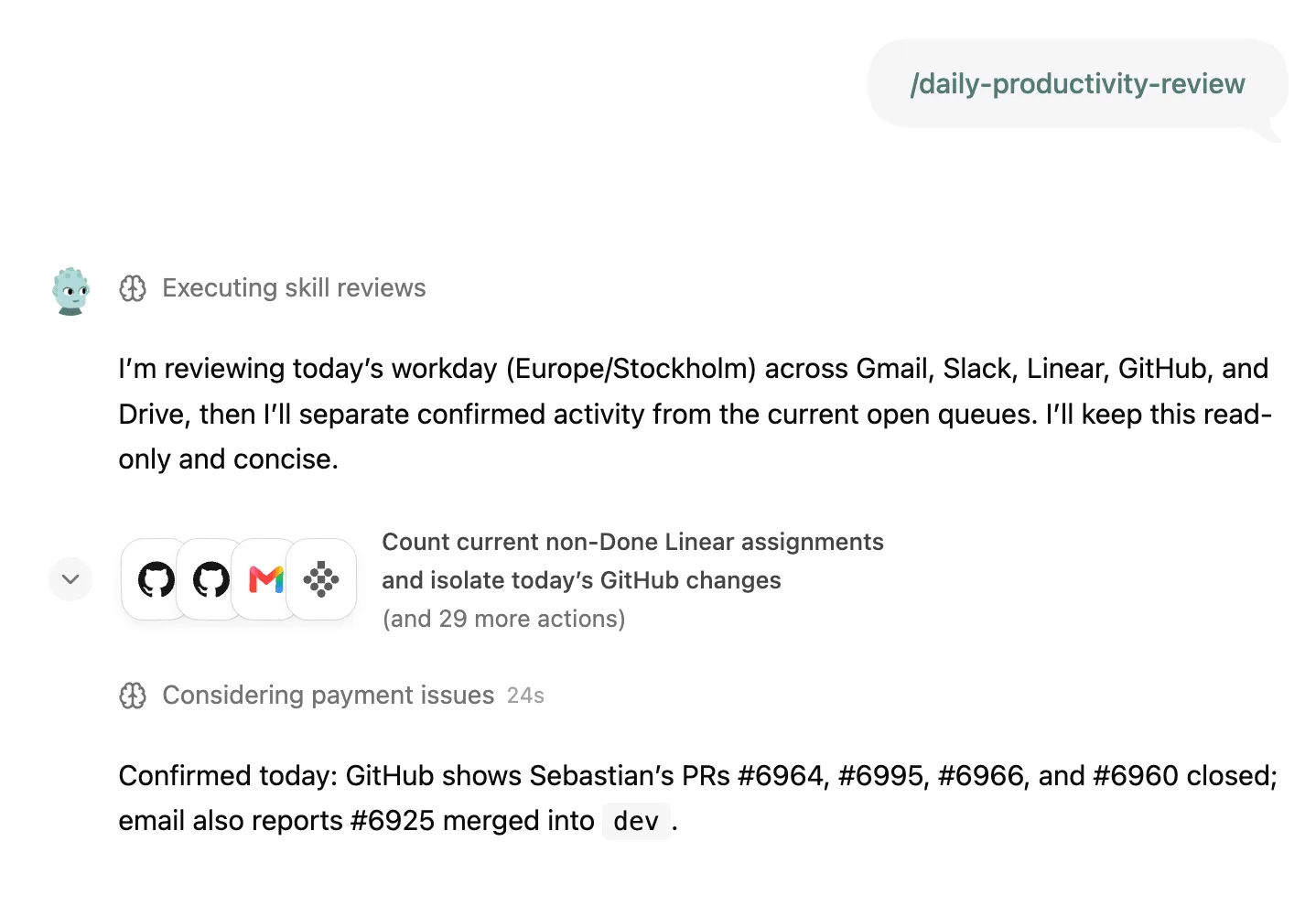
A note on the screens: the lesson and this guide were built from Strawberry's public docs and site on 21 October 2026 without installing the app, days before the 1.0 launch on 26 October, so labels and layout can differ in your version. The two screenshots below are Strawberry's own, from its updates page.
Mistakes to avoid
- Leaving send or record-changing actions on Always allow because they were set that way during a test.
- Asking for 100 leads before checking 10.
- Accepting a filled-in number with no source instead of "not found".
- Trusting the table without opening the work trace.
- Approving an email without checking its facts against the source and its recipient.
- Running outreach for a client from the wrong connected account: app connections are shared across profiles.
- Putting client files into a companion you share with the whole team.
- Turning the workflow into a routine before it has run well by hand.
Links
- Strawberry: the product site: download for macOS and Windows, plans and the sales playbook.
- What Strawberry is (Strawberry docs): companions, agent runs, routines, memory and skills, and what still needs your judgment.
- AI permissions (Strawberry docs): permission mode, connected app tool permissions and editable action approval cards.
- Research workflows (Strawberry docs): start with the decision, source rules, samples before scale, structured output and gaps.
- Security and control best practices (Strawberry docs): start read-only, be careful with always-allow, shared companions, public links and a human review checklist.
Try it yourself, free
Reading the steps is a start. Doing them is how it sticks. The interactive module walks you through every click in a practice copy of Strawberry, checks each step, and never touches your real accounts.
Start “Strawberry: Research Leads into a Sheet and Approve Every Email”Screenshots
Frequently asked questions
- Is this an official Strawberry course?
- No. This is my own guide and practice lesson. Strawberry is a separate product from strawberrybrowser.com. The two screenshots are from Strawberry's updates page, credited and linked; everything else follows Strawberry's public docs, read 21 October 2026.
- Can Strawberry send emails without asking me?
- It can if a permission allows it. Each connected app lists actions you can set to Ask every time, Always allow or Disable action, and saved permissions apply without a new prompt. Set sends to Ask every time and Strawberry shows an approval card first; email cards let you edit the recipients, subject and body.
- Is Strawberry free?
- Strawberry's site lists a free plan with monthly AI credits as well as paid plans. Normal browsing without companion help does not use credits; companion chats, agent runs, research and app actions do. Check the current plans on its site.
- Which computers does Strawberry run on?
- Strawberry's docs say it is available for macOS and Windows. Version 1.0 launches on 26 October 2026.
- Does Strawberry see my passwords and client data?
- Strawberry says saved passwords are encrypted on your device and that chat messages are encrypted before they are saved on its servers. A companion can still read the pages and connected apps you let it use, so connect only what a task needs and check your firm's rules for client data.
- What is the difference between a skill and a routine in Strawberry?
- A skill is reusable instructions for a kind of task that you run by asking for it. A routine runs work on a schedule or when an app event fires, such as a new email. Start with a skill, and add a routine only once the output is reliable.
More in AI Automation for Sales
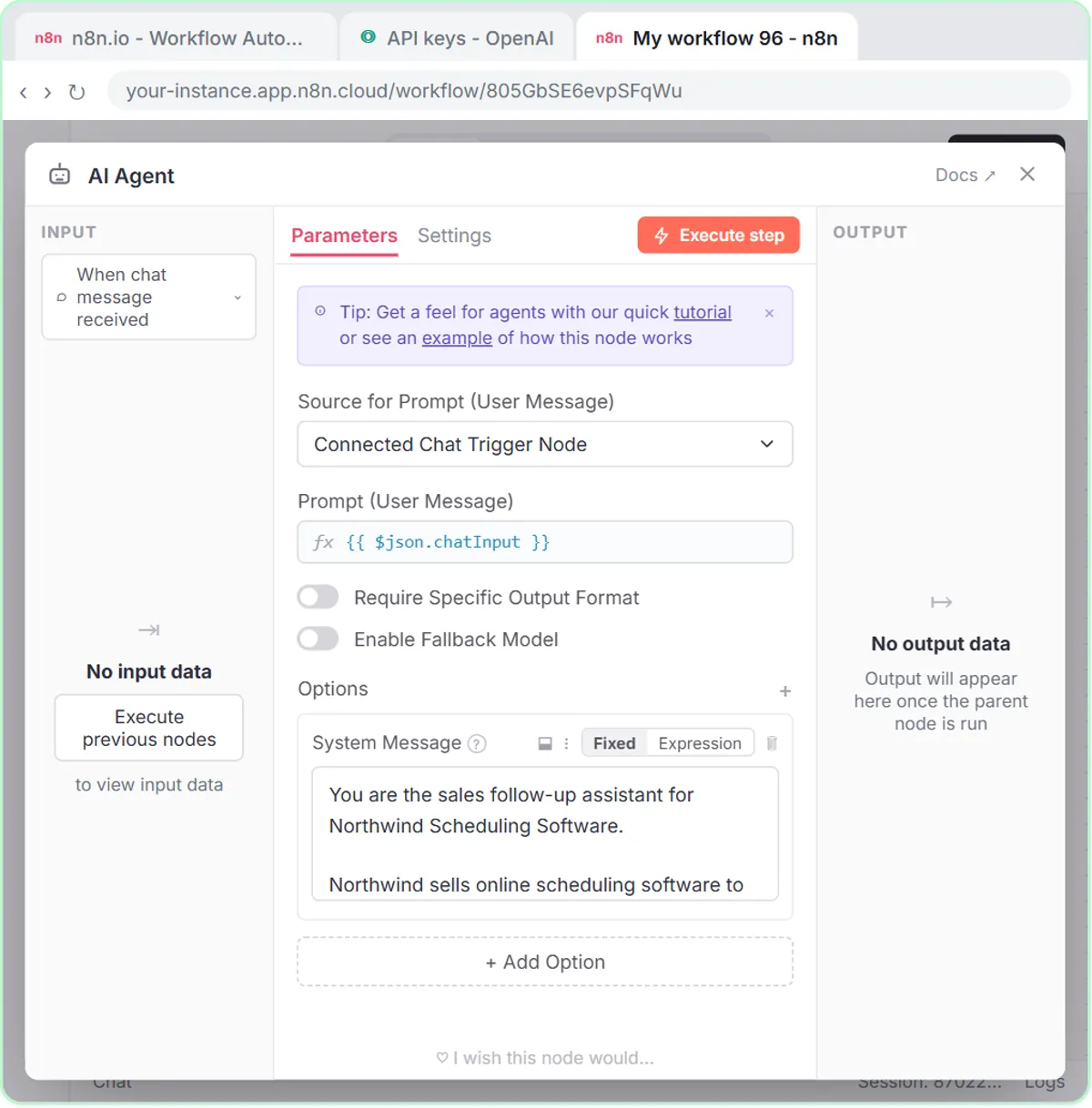 Build an n8n AI Agent That Writes Deal Follow-Ups
Build an AI agent for Northwind Scheduling Software that writes follow-up messages for your open deals and saves them to Google Sheets — chat trigger, AI Agent, system…
Free · Live ~12 min Intermediate
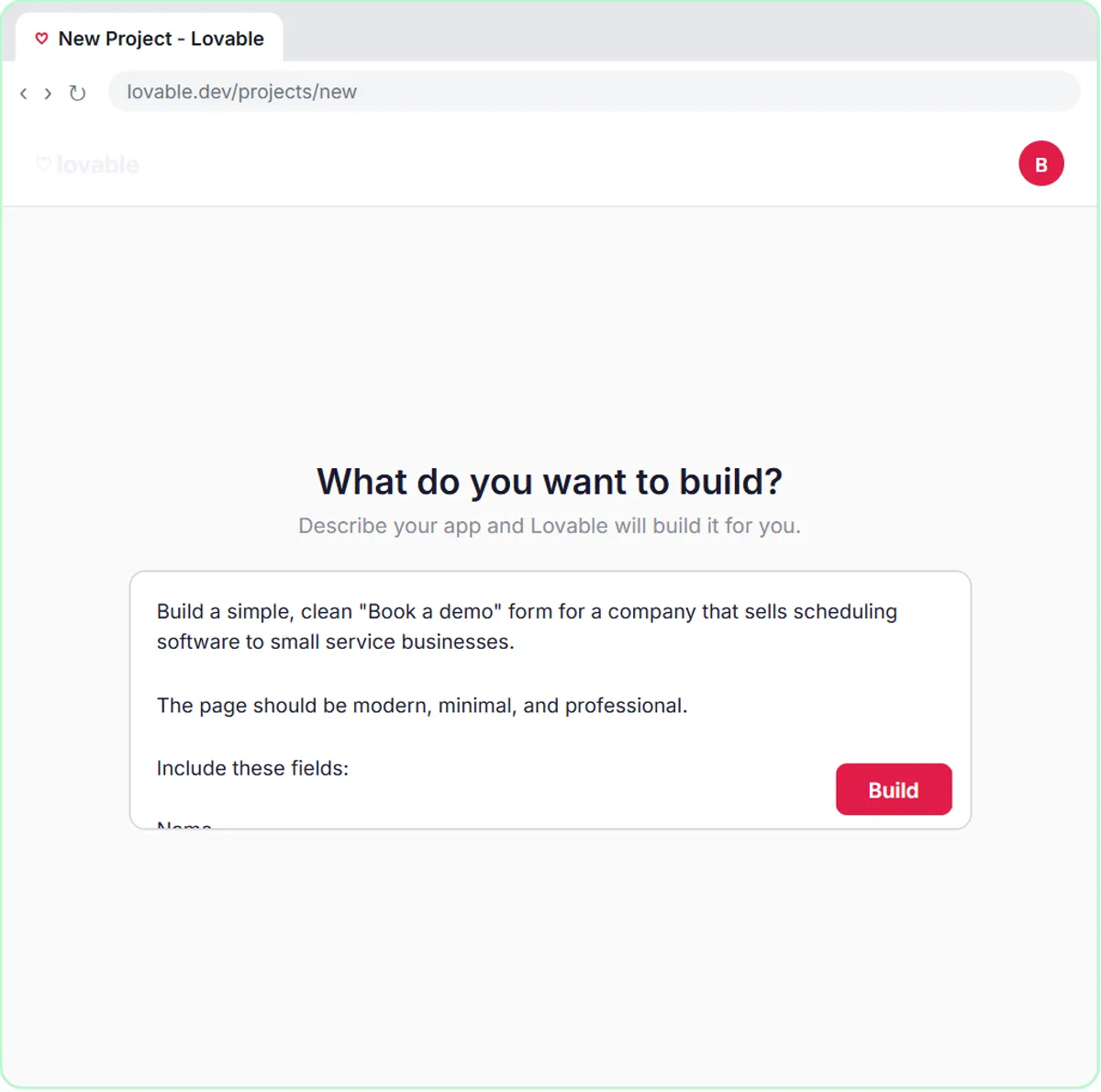 Build an AI Demo Request Form That Qualifies Leads
Build a "Book a demo" form in Lovable for Northwind Scheduling Software and connect it to n8n — the AI agent rates each lead hot, warm or nurture, saves it to Google…
Free · Live ~15 min Advanced
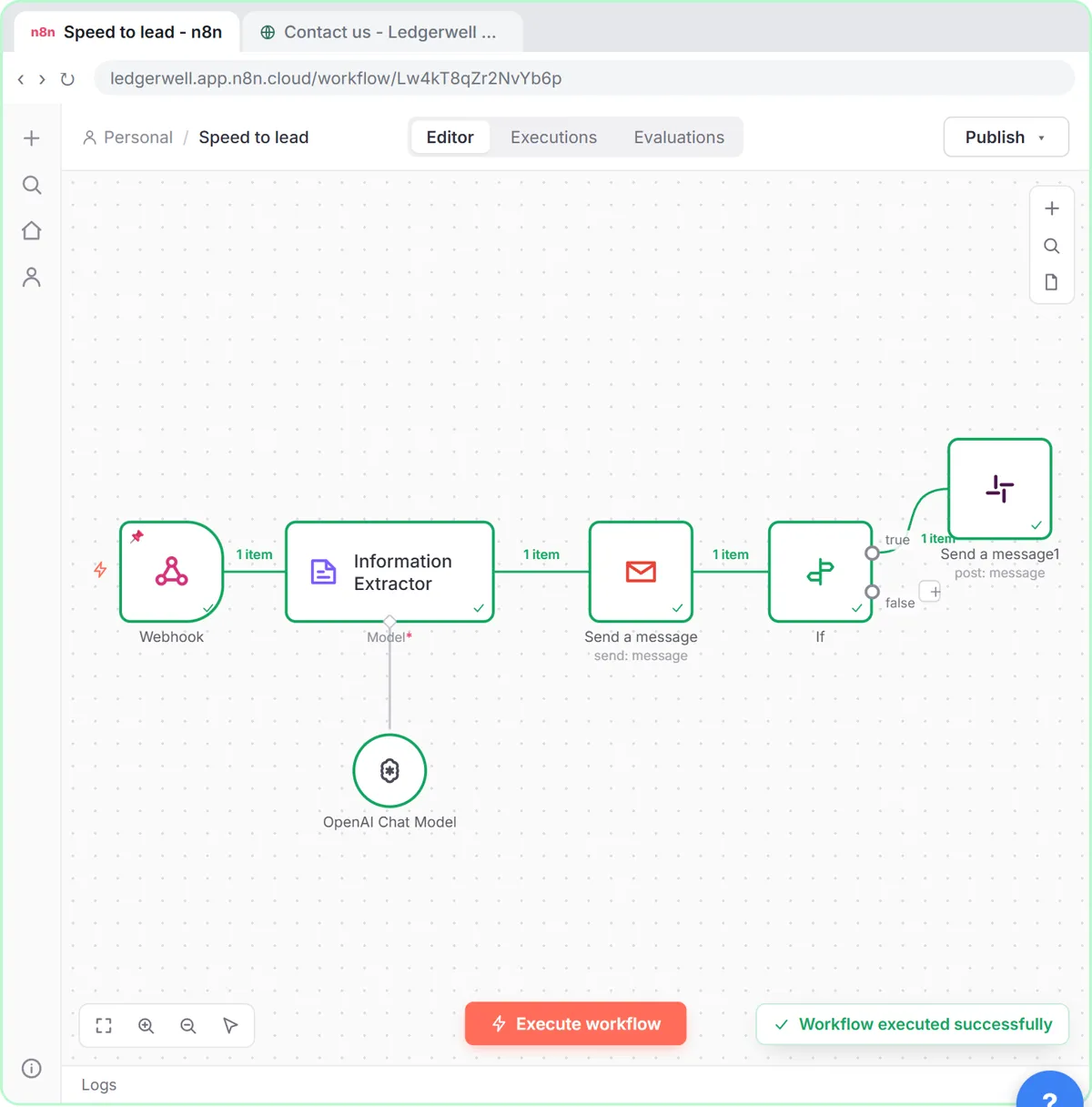 Speed-to-Lead Agent: Answer Every Web Lead in 60 Seconds
Build an n8n workflow that scores every website lead with AI, emails a personal first reply within seconds, and pings Slack only when a lead is hot.
Free · Live ~15 min Advanced
 Kylon AI Sales Agent: Find the Reason to Reach Out
Add a sales agent to your Kylon workspace, teach it what a good account looks like, check its sourced reason for one firm, approve a short first email, then make it a…
Free · Live ~8 min Intermediate
◷Pancake: Get Qualified Sales Conversations from Claude Without Hiring a BDRPrice a sales hire against $99 a month, connect Pancake to Claude, describe your ideal client, approve the leads and the messages, then read the replies and learn the…
Free · Live ~16 min Intermediate
◷Never Lose a Client Follow-up using Capsule CRMA business case for a small firm: price what dropped follow-ups cost, then use Capsule CRM to give every enquiry an owner and a next step: add a client, check the…
Free · Live ~18 min Beginner
All 13 modules in AI Automation for Sales
From the blog
Strawberry Lead Research FAQ: Sources, Sheets, ApprovalsPlain answers on Strawberry lead research: Gmail send permissions, prompts with sources, the work trace, saving to a Google Sheet and approving emails.
Oct 21, 2026 5 min read
Strawberry Lead Research: 8 Mistakes to AvoidStrawberry lead research mistakes: sends left on Always allow, prompts with no sources, skipping the work trace and approving emails with wrong facts.
Oct 21, 2026 5 min read
Terms in this lesson
Plain-English definitions, each with an example from a free lesson.