Updated . Built against the tool’s current screens and checked step by step. How we check this lesson
Independent lesson. Stepthrough is not affiliated with Metis. Small agencies answer client research questions all the time, and the answer usually lives in ten browser tabs, a notes app and a document. Metis AI is an open-source, self-hosted workspace where an AI agent works next to a browser, terminals, files, notes and projects. In this free business-case lesson you use a practice copy built from real screens of the Metis demo, October 2026, to price the tab juggling for a made-up web agency, open a client project, set the agent to ask before it acts, send a research question, check its steps and sources, open the brief canvas, save a note and schedule a weekly check. Metis is self-hosted, so you install it yourself by following the README on GitHub. This is my own lesson, not an official Metis course, and not a recommendation.
At a glance
| Question | Answer |
|---|---|
| What you build | A business case for small agencies that research client questions across ten tabs: price the juggling, then use Metis AI, an open-source, self-hosted agent workspace, to research in a client project with approval on, turn the answer into an editable brief, save a note and schedule a weekly check. |
| Tools | Metis AI |
| Time | About 12 minutes, 19 steps in 6 parts |
| Level | Intermediate |
| Cost | Free |
| Ways to learn it | Practice it step by step |
The 6 parts, in short
- Ten tabs for one client question: Read the client email, Put a price on it, Meet Metis AI.
- Give the client its own project: Open the client project, See what a project keeps, Start a chat in the project.
- Research with approval on: Check what the agent may do, Choose Approval required, Ask the research question, See how it researched, and 1 more step.
- Turn the research into a brief: Turn it into a brief, Edit the brief.
- Keep it, and keep it current: Save the decision as a note, Schedule a weekly check, Fill in the automation, Create the automation.
- What it saves, and how to install it: What this saves you, Install it yourself.
Start here first: Granola: Client Call Notes Written for You, With No Meeting Bot (module 1 of AI Automation for Consulting & Agencies)
The business case: ten tabs for one client question
Picture Maya Torres, who runs Lantern & Pine Creative, a made-up three-person web agency. A client, Harlow Fitness, asks whether their new member dashboard should be built in React or Vue, and wants a one-page brief before Thursday. Maya opens ten tabs of docs and articles, keeps notes in one app and drafts in another.
Here is the arithmetic, using example numbers you should replace with your own. Say one question takes about 3 hours from first search to finished brief, and Maya gets about 4 a month. At $75 an hour that is about $900 a month, and next month the research is hard to find again.
Who this is for, and what you need
Agency owners, consultants and anyone who turns research into a client deliverable. To follow along you need nothing: the lesson is a practice copy with made-up data.
To do it for real you need your own Metis AI install. Metis is open source under the MIT license and self-hosted: you run it on your own computer or server. The README on GitHub lists Node.js 22+ and pnpm 9+, or Docker, and opens the app at 127.0.0.1:3100 by default. You connect a model provider such as OpenAI, Anthropic or Gemini under Settings, Providers, and that provider bills you separately. The README says not to expose a default install to the public internet.
Step 1: give the client its own project
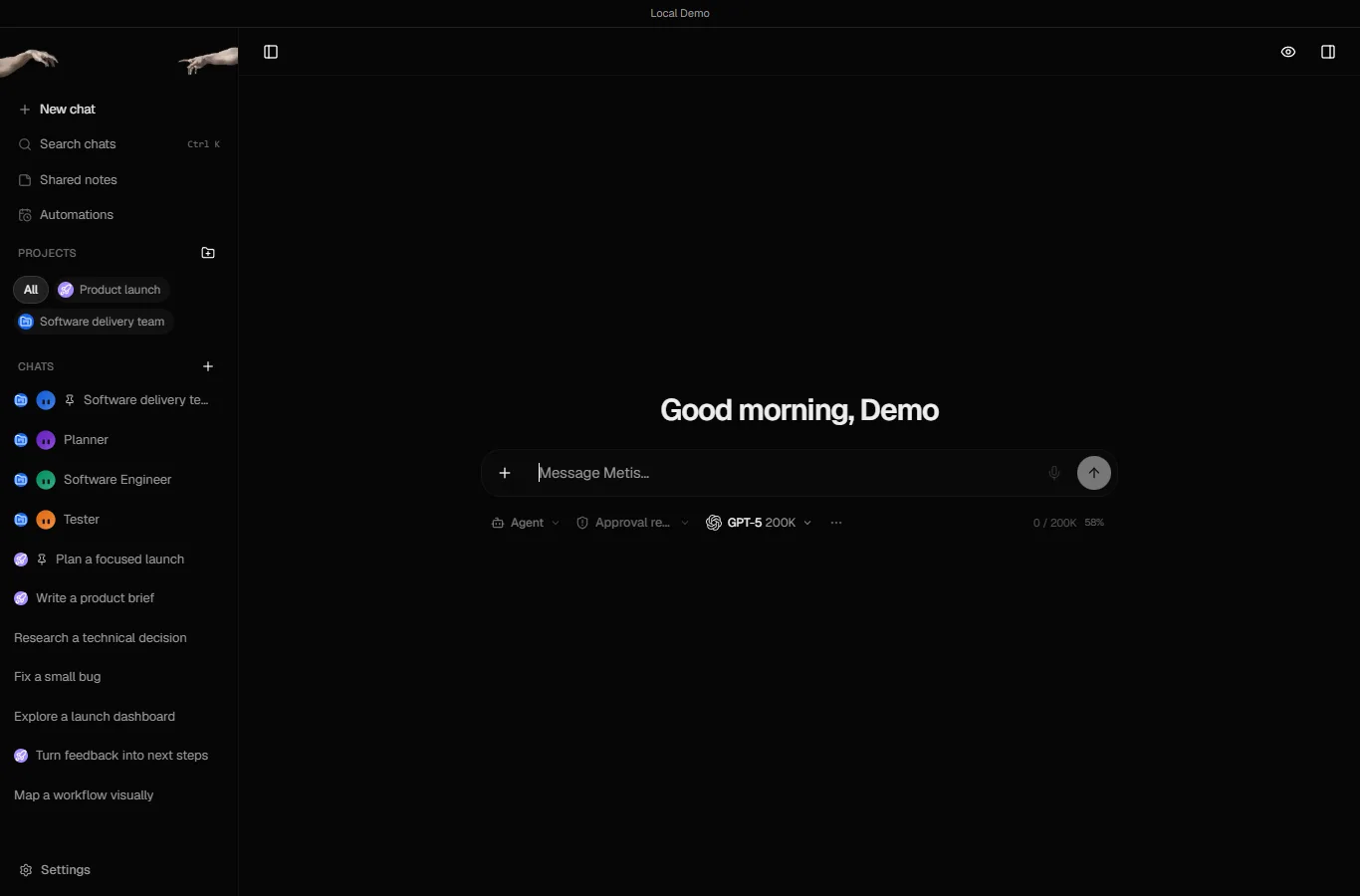
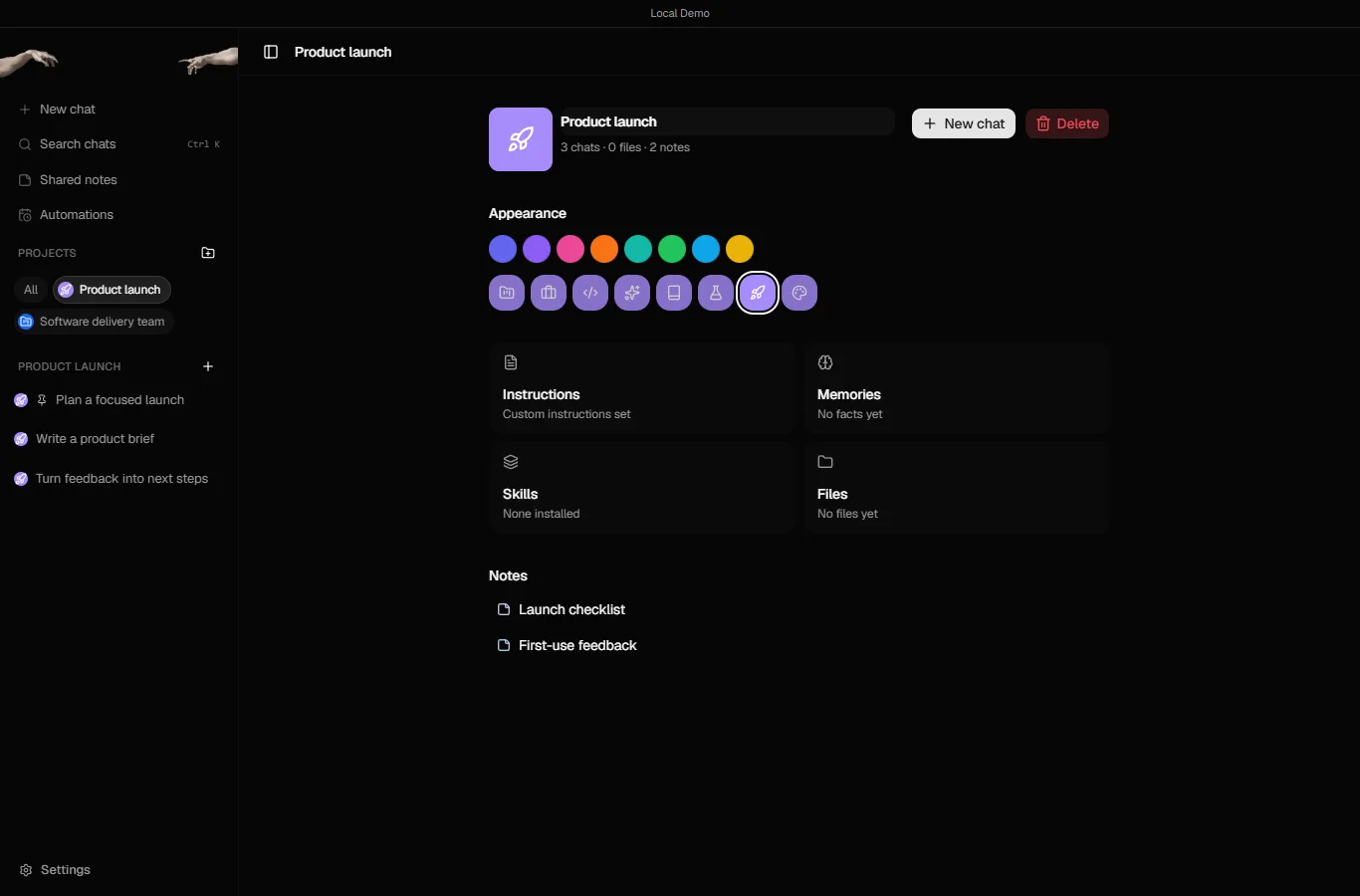
The Metis sidebar has New chat, Search chats, Shared notes, Automations, Projects and Chats. In the demo the project is called Product launch; for Maya it would be Harlow Fitness.
A project page has cards for Instructions, Memories, Skills, Files and Notes. Put the client's rules in Instructions, such as plain English, one page and cite your sources. Then click New chat so the chat belongs to the project.
Step 2: research with approval on
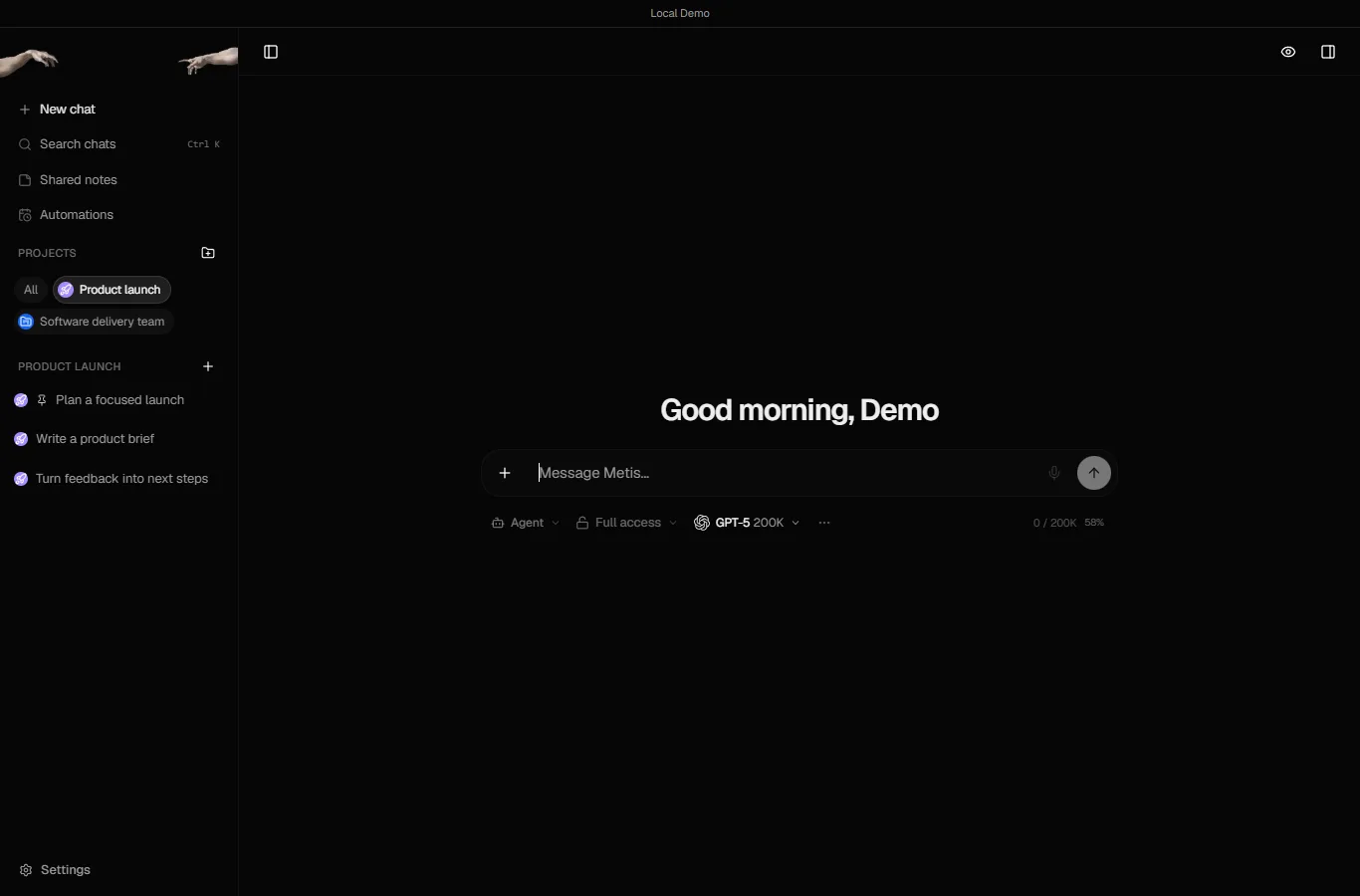
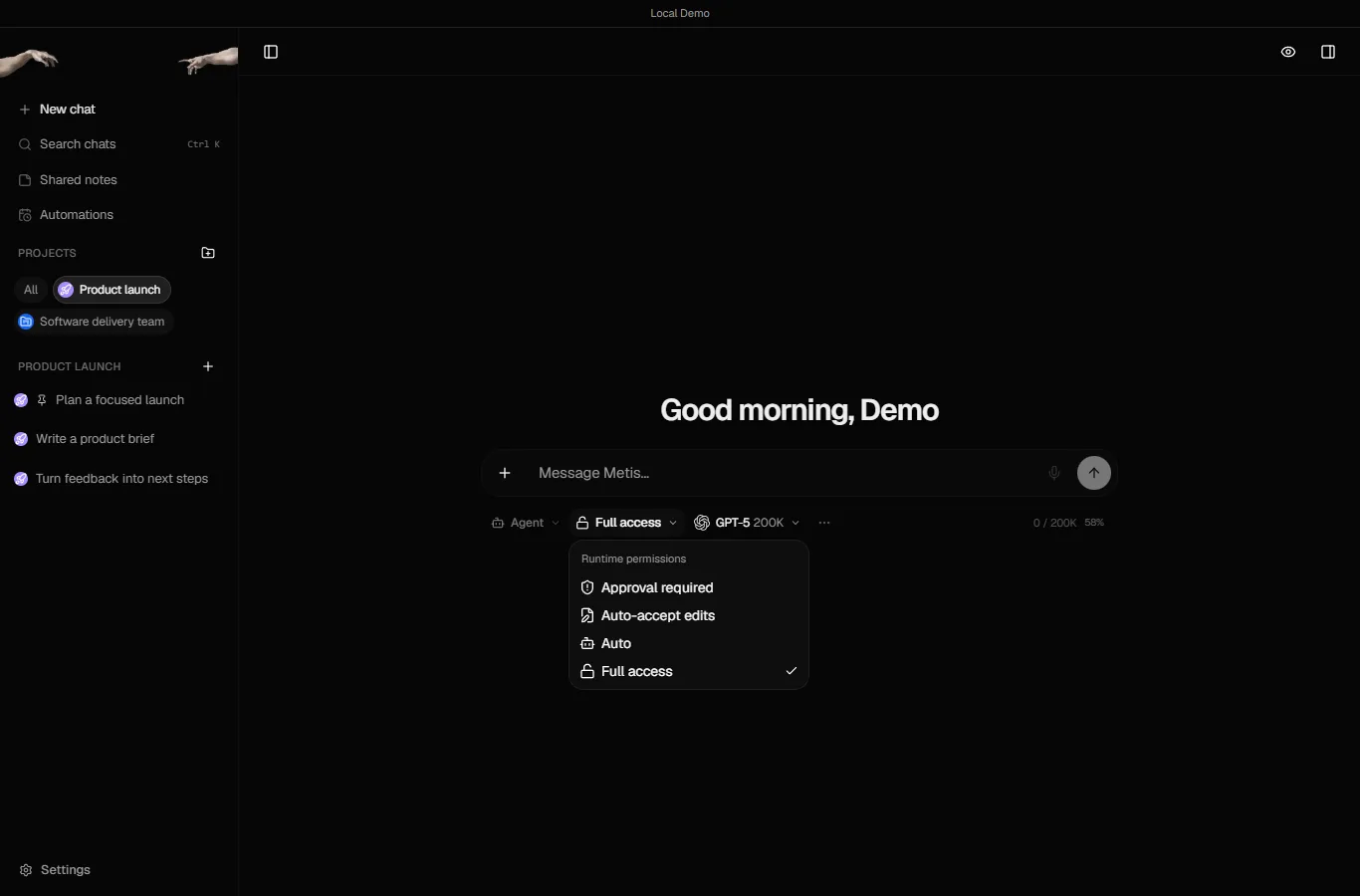
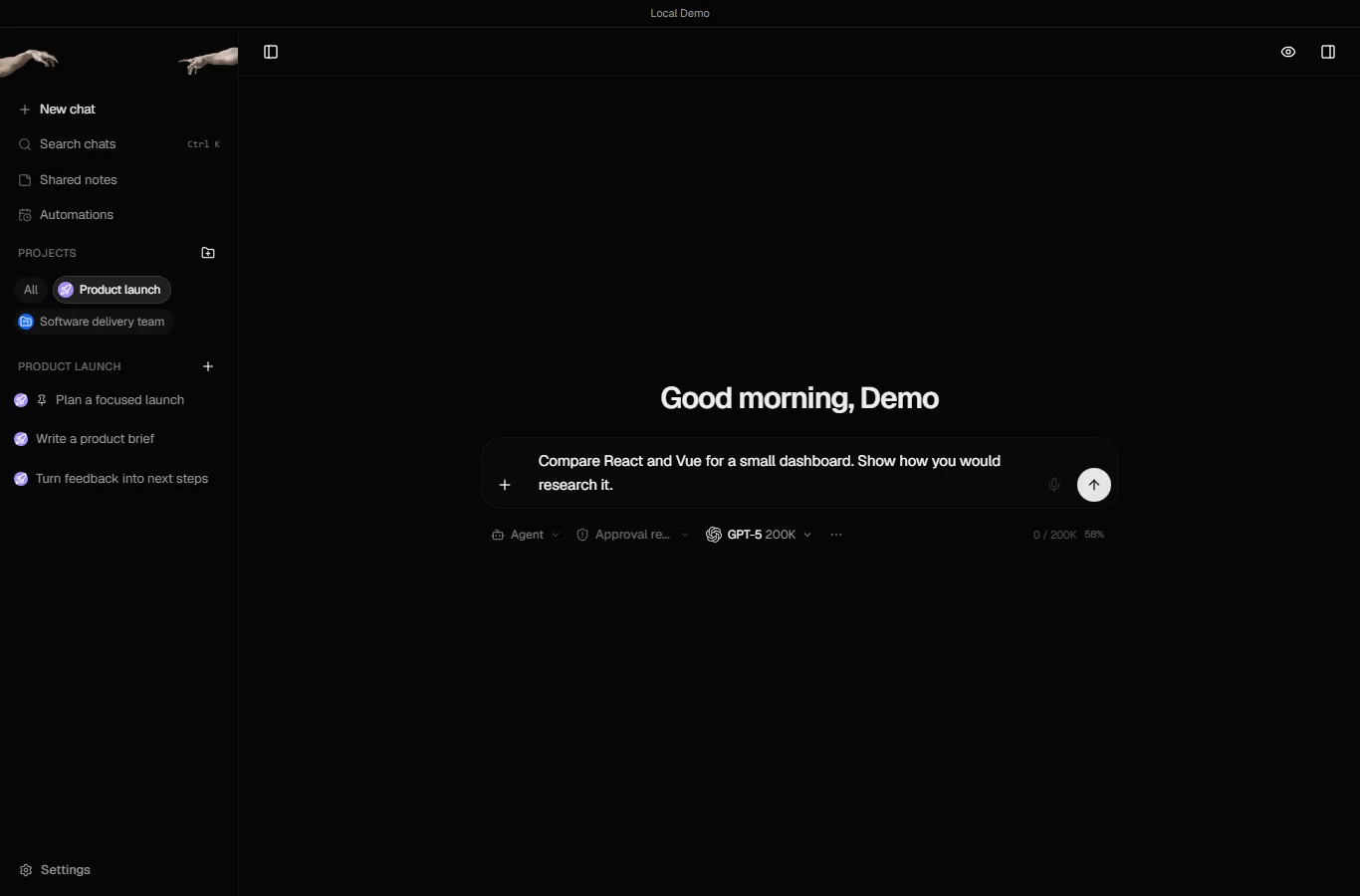
Under the message box are the mode (Agent), the runtime permissions and the model. In the demo project the chat starts on Full access. Open it and choose Approval required from Approval required, Auto-accept edits, Auto and Full access, so the agent asks before it acts.
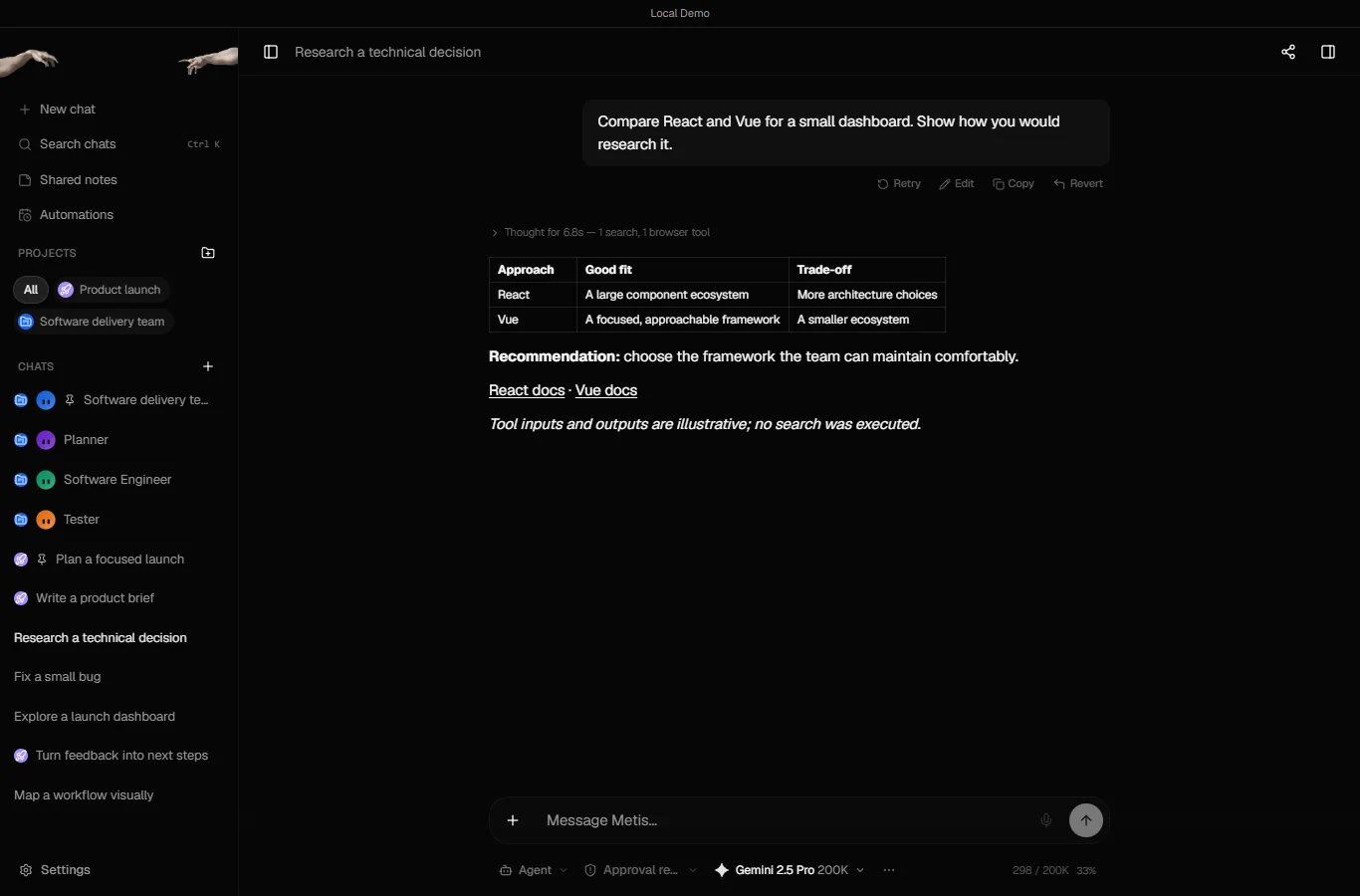
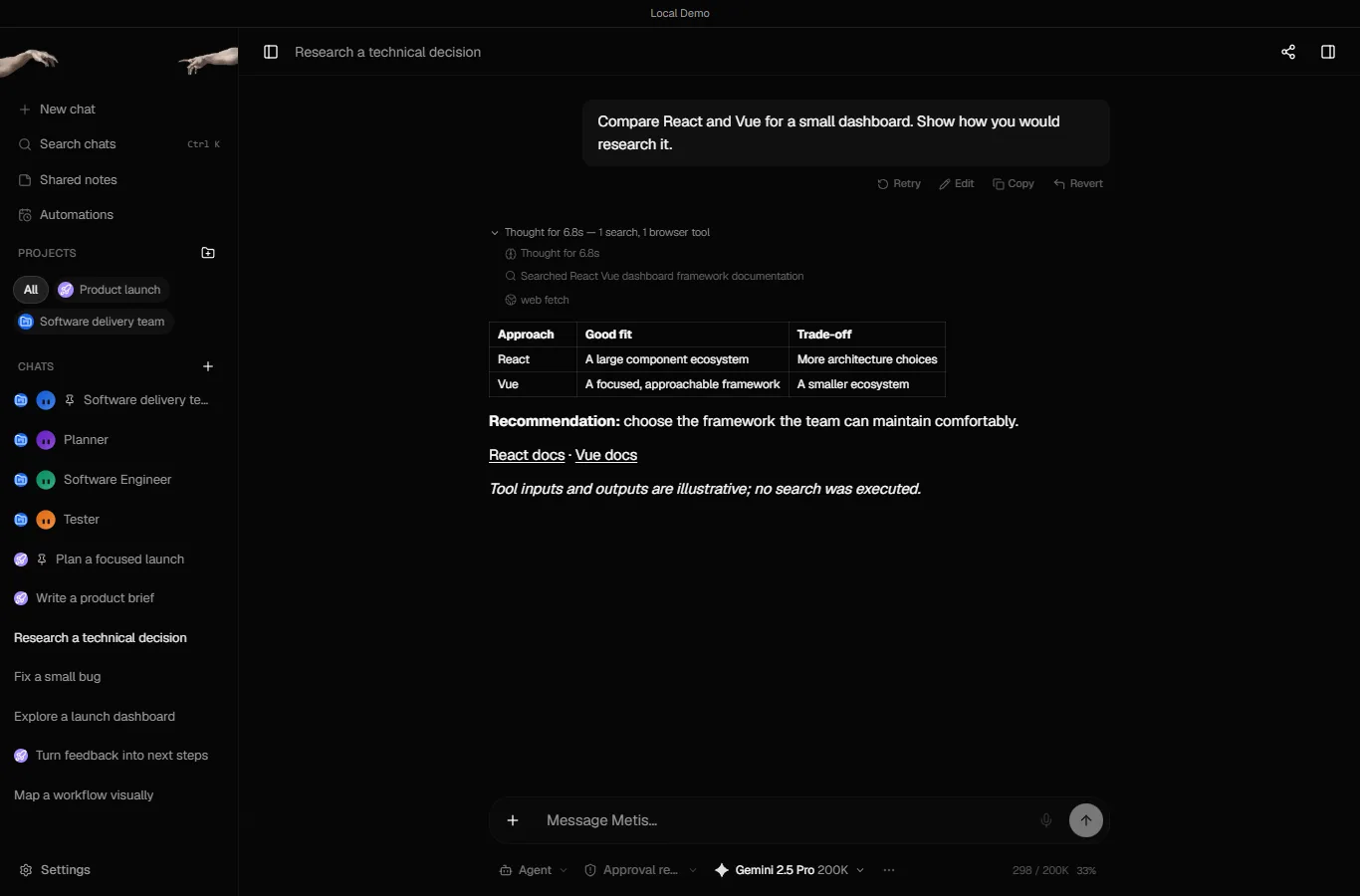
Send the question. The demo's sample answer is a table with Approach, Good fit and Trade-off columns and a recommendation. Click the line that says Thought for 6.8s, 1 search, 1 browser tool to see the steps: a search and a web fetch, with React docs and Vue docs listed as sources. The demo notes that its tool results are illustrative; in your own install the agent searches and opens pages for real.
Step 3: turn the research into a brief
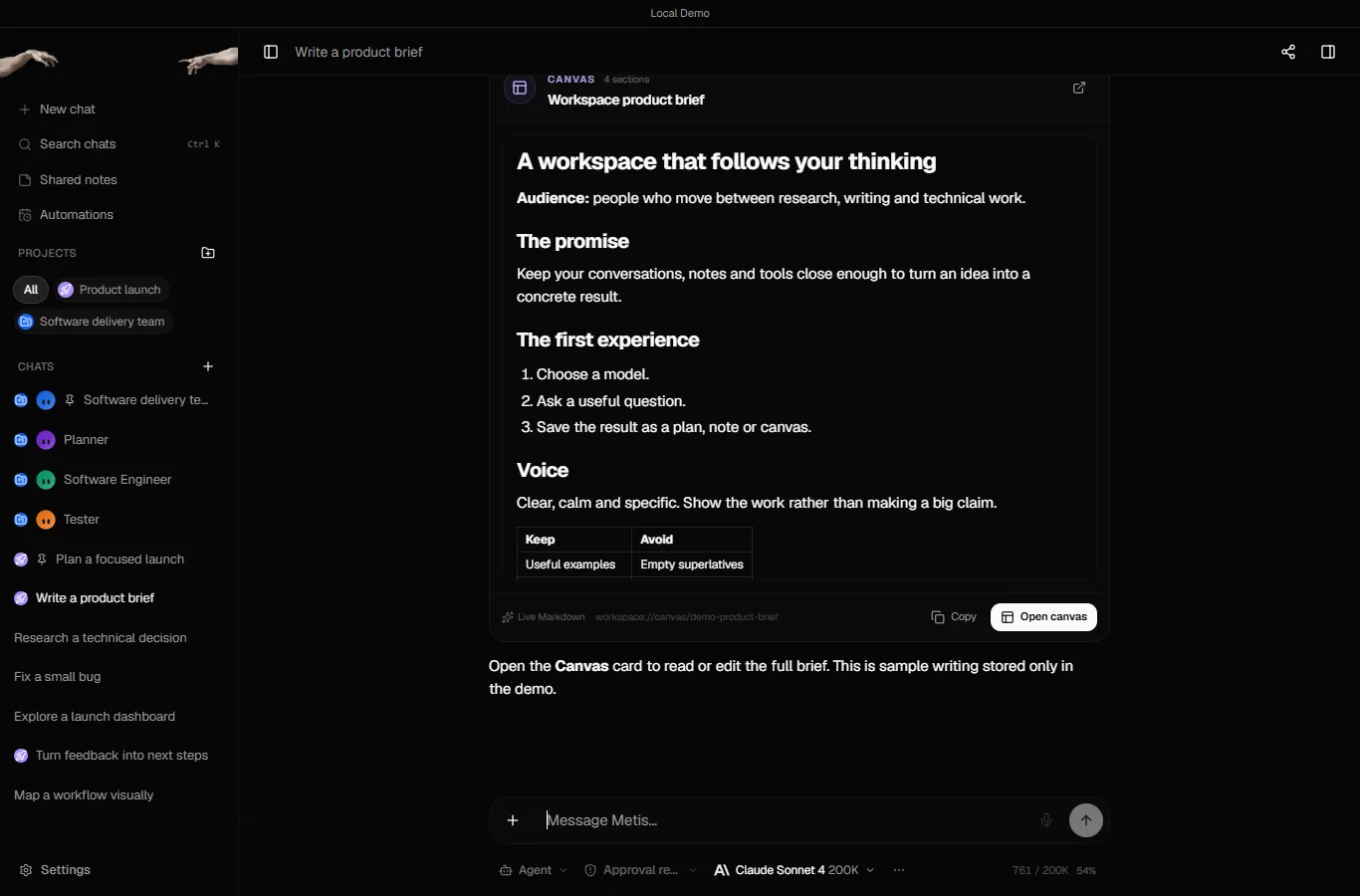
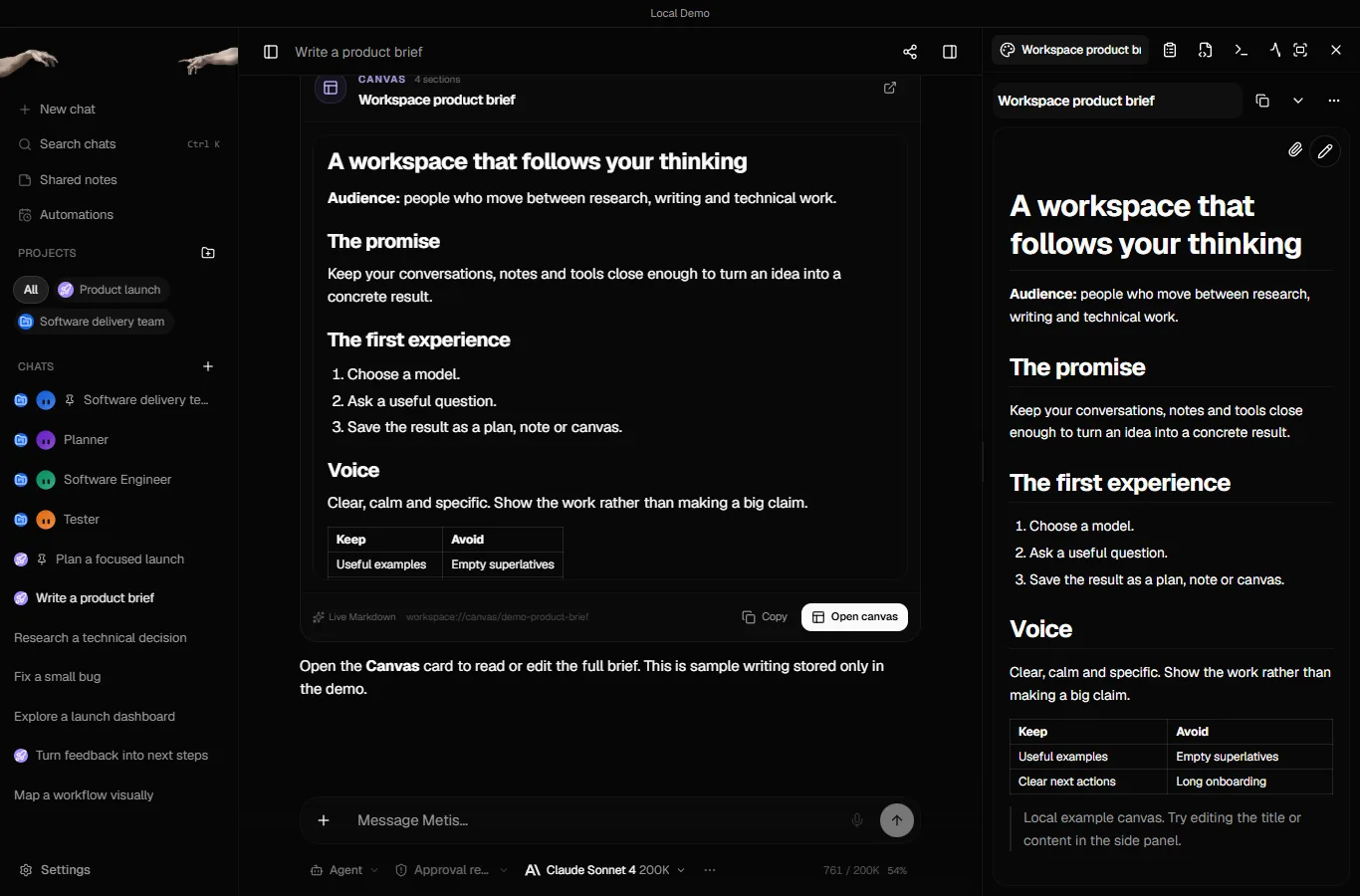
Ask for the deliverable, for example: turn this into a one-page client brief and save it in a canvas. The demo's sample chat Write a product brief shows the result, a Canvas card with four sections and an Open canvas button.
The canvas opens in the workspace panel on the right, which also has tabs for files, a terminal and a monitor. Click the pencil to edit the brief before a client sees it.
Step 4: keep it, and keep it current
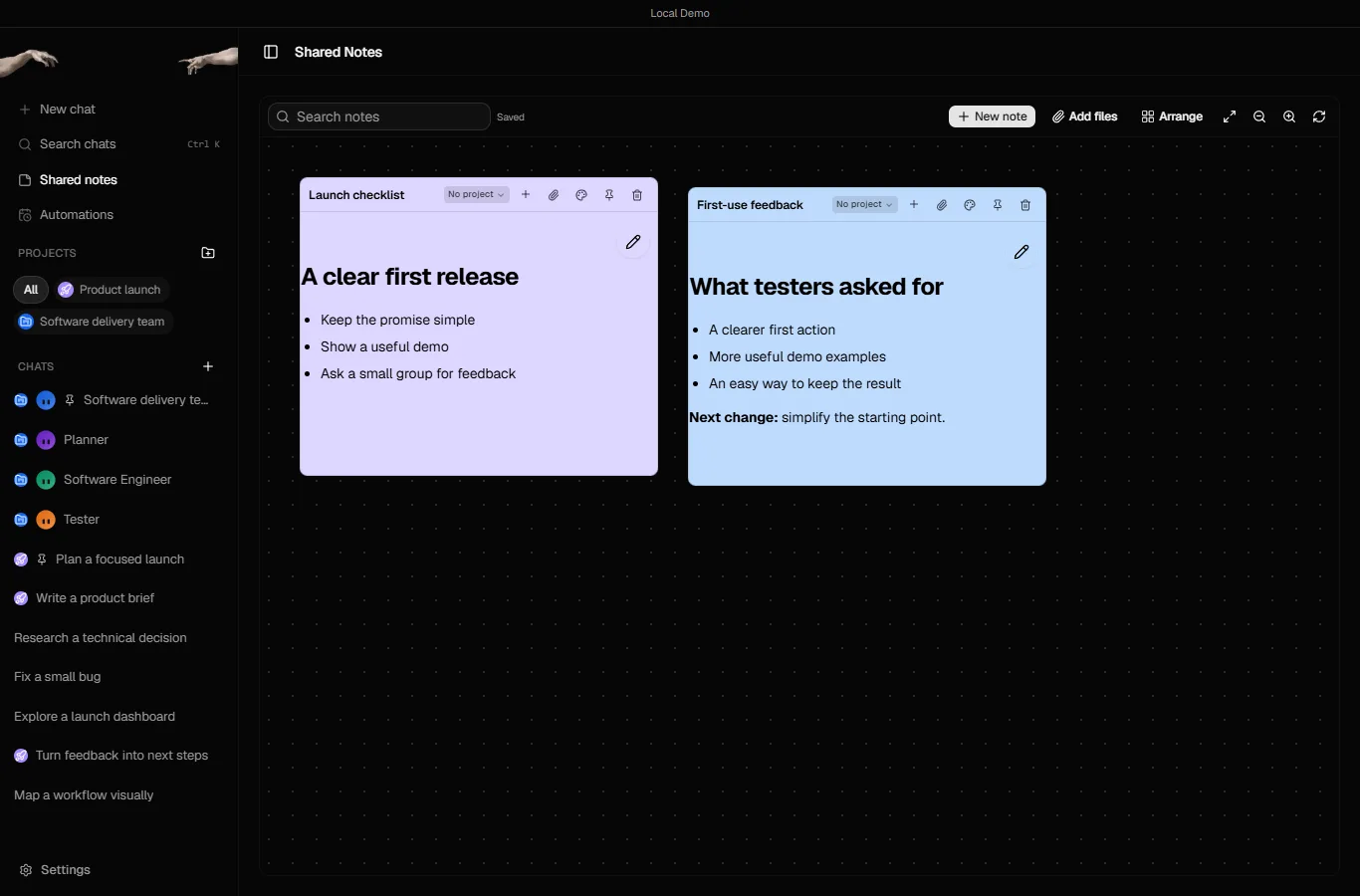
Shared notes is a board of sticky notes, each of which can be linked to a project. Save the short version of the decision with New note.
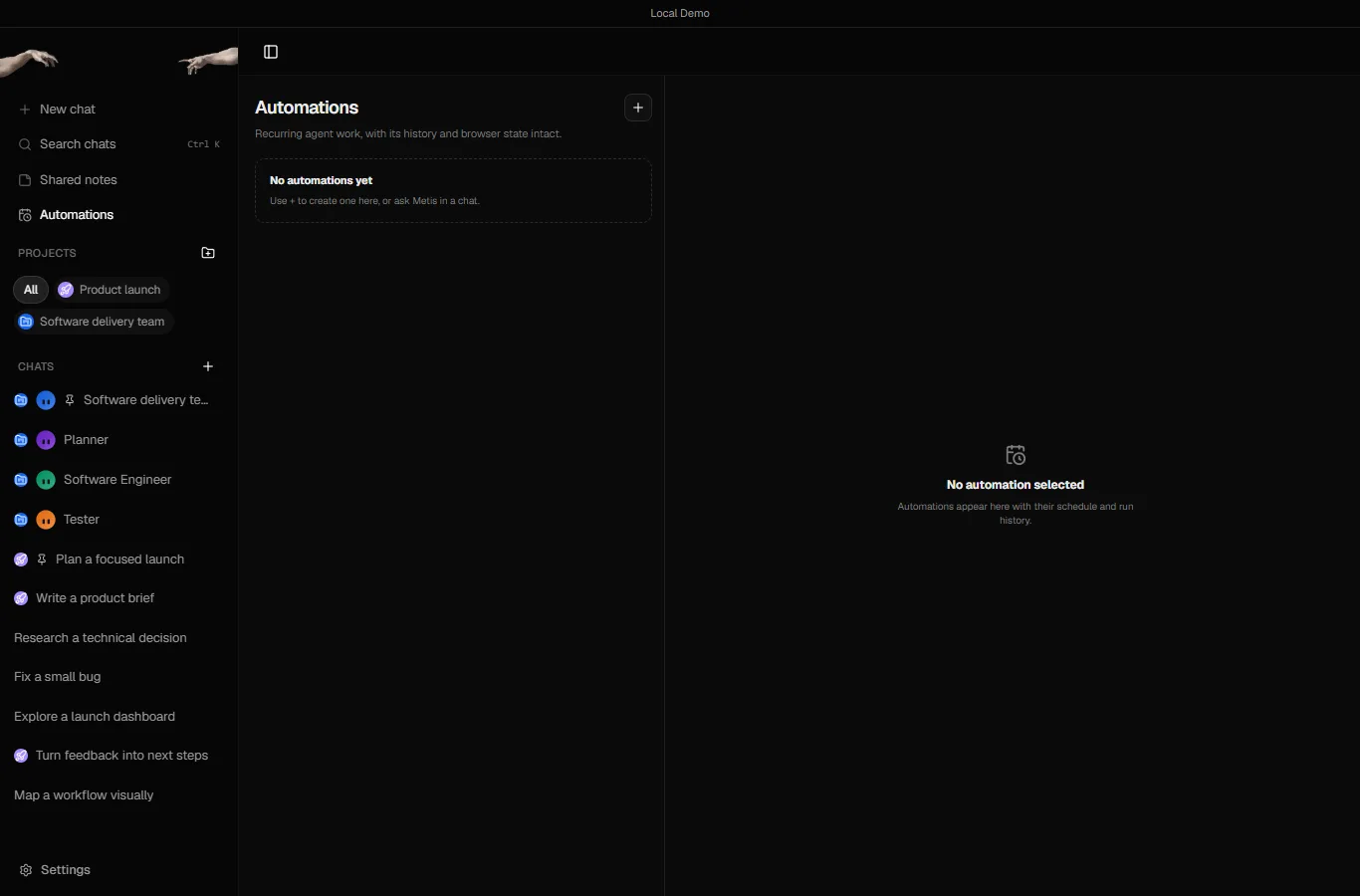
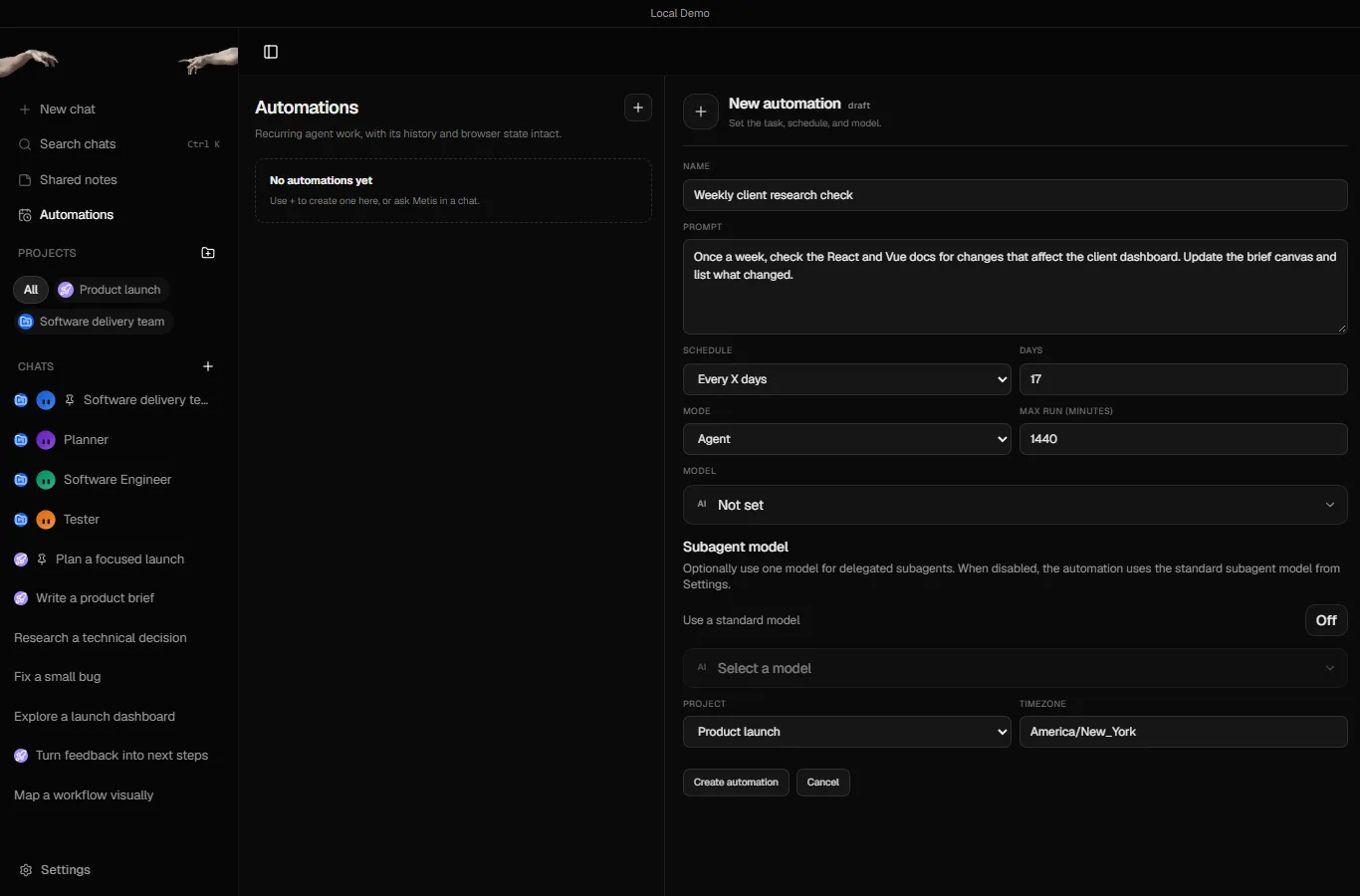
Automations is recurring agent work, with its history and browser state intact. The New automation form asks for a name, a prompt, a schedule such as every 7 days, a mode, a model, a project and a timezone. In the demo nothing runs, because the preview has no backend.
Mistakes to avoid
- Leaving an agent with a browser and a terminal on Full access. Start with Approval required.
- Sending the brief without opening the sources. The agent does not check facts for you.
- Putting a default install on the public internet. The README says to keep it on localhost or behind a trusted proxy.
- Mixing clients in one project. One project per client keeps instructions and notes apart.
- Forgetting the provider bill. Metis is free to run, but the model provider you connect charges for use.
Links
- Metis AI: the agent workspace this lesson covers. Stepthrough is not affiliated with Metis. The site has the clickable workspace preview the lesson's screens come from.
- Metis AI on GitHub: the source code (MIT license) and the README with install steps. Metis is self-hosted, so you install it yourself.
- Gemini Deep Research: Build a Cited Brief Before a Client Meeting: a comparable Stepthrough lesson: research a client question and get a cited brief in a hosted tool.
- Research a Prospect's Market with Claude Research Before a Pitch: a comparable Stepthrough lesson for consultants and agencies: a cited research scan with Claude.
Try it yourself, free
Reading the steps is a start. Doing them is how it sticks. The interactive module walks you through every click in a practice copy of Metis AI, checks each step, and never touches your real accounts.
Start “Metis AI: Research a Client Question and Turn It into a Brief in One Agent Workspace”Step by step: Metis AI: Research a Client Question and Turn It into a Brief in One Agent Workspace
All 19 steps of the interactive module, in order. In the module you watch each one, then do it yourself in a practice copy that checks your work.
1. Ten tabs for one client question
- Read the client email. Maya Torres runs Lantern & Pine Creative, a three-person web agency (made up). A client, Harlow Fitness, asks whether their new member dashboard should be built in React or Vue, and wants a one-page brief before Thursday. Click the email.
Meet Maya. She runs a small web agency. A client wants to know: React or Vue, for their new dashboard? And they want a one-page brief by Thursday.
- Put a price on it. Today Maya does this across ten browser tabs, a notes app and a document. One question to a finished brief takes about 3 hours, and she gets about 4 client briefs a month. At $75 an hour, that is about $900 a month. These are example numbers, so swap in your own. Click the total.
Today, Maya does this in ten browser tabs, a notes app, and a document. About three hours a brief. Four briefs a month. That's about nine hundred dollars of her time.
- Meet Metis AI. Metis AI is an open-source, self-hosted workspace for AI agents. The agent works next to a browser, terminals, files, notes and projects, all in one place. You install it yourself from GitHub, and we cover that at the end. This practice uses real screens from the clickable workspace preview on metis.f1shy312.com, captured October 2026. Click the Metis card.
Metis AI is an open-source workspace for AI agents. You run it yourself, on your own computer or server. The agent works next to a browser, files, notes, and projects. We'll practise on real screens from the Metis demo.
2. Give the client its own project
- Open the client project. This is the Metis workspace. On the left are New chat, Shared notes, Automations and your Projects. Give each client a project. In the demo, the project is called Product launch. For Maya it would be Harlow Fitness. Click Product launch.
This is the Metis workspace. On the left, you'll see chats, notes, automations, and projects. Give each client their own project. In the demo, it's called Product launch.
- See what a project keeps. A project keeps one client together: Instructions, Memories, Skills, Files and Notes, plus its chats. Put the client's rules in Instructions, such as "plain English, one page, cite your sources". Click Instructions.
A project holds everything for one client. Instructions, memories, files, and notes. Put the client's rules in Instructions. For example: plain English, one page, cite your sources.
- Start a chat in the project. Chats you start here belong to the project, so they see its instructions and notes. Click New chat.
Chats you start here belong to this client.
3. Research with approval on
- Check what the agent may do. Under the message box are the mode (Agent), the runtime permissions and the model (GPT-5 in the demo; you pick from the providers you connect). In this demo project the chat starts on Full access. An agent that can use a browser and a terminal should ask first. Click Full access.
Under the message box are three settings. The mode. The permissions. And the model. Right now, permissions say Full access. An agent with a browser and a terminal should ask before it acts.
- Choose Approval required. The Runtime permissions menu lists Approval required, Auto-accept edits, Auto and Full access. Start with the safest one. Click Approval required.
You get four choices. Approval required. Auto-accept edits. Auto. And Full access. Start with the safest.
- Ask the research question. The permissions now read Approval required. The question is typed: "Compare React and Vue for a small dashboard. Show how you would research it." That is the demo's own sample question, and the same one Harlow Fitness asked. Click Send.
Permissions now say Approval required. The question is typed in. Compare React and Vue for a small dashboard, and show how you'd research it.
- See how it researched. The answer is a table, Approach, Good fit, Trade-off, and a Recommendation. Before you trust it, see what the agent did. Click Thought for 6.8s, 1 search, 1 browser tool.
The answer comes back as a table, with a recommendation. Before you trust it, check how it got there.
- Check the sources. The steps open: Searched React Vue dashboard framework documentation, then a web fetch. Under the answer are the sources, React docs and Vue docs. The demo notes that its tool results are illustrative, so nothing was searched here. In your own install the agent searches and opens pages for real. Click the sources.
Now you can see the steps. It searched, then opened a page. The sources are listed under the answer. In the demo nothing really ran. In your own copy, it does. Always open the sources.
4. Turn the research into a brief
- Turn it into a brief. Next, ask for the deliverable in the same project, for example: "Turn this into a one-page client brief and save it in a canvas." The demo's sample chat Write a product brief shows the result: a Canvas card, Workspace product brief, with 4 sections. The demo brief is about a sample product; yours would be about Harlow's dashboard. Click Open canvas.
Next, ask for the deliverable. Turn this into a one-page brief, and save it in a canvas. A canvas is a document the agent writes, and you can edit. The demo shows one here.
- Edit the brief. The canvas opens in the workspace panel on the right. The same panel has tabs for plans, Files, Terminal and Monitor. Read the brief and fix anything before a client sees it. Click the pencil (Edit Markdown).
The brief opens on the right, in the workspace panel. The same panel has files, and a terminal. Read the brief, and fix anything before the client sees it.
5. Keep it, and keep it current
- Save the decision as a note. Shared notes is a board of sticky notes, and each one can be linked to a project (the No project chip). Save the short version of the decision for next time. Click New note.
This is Shared notes. Each note can belong to a project. Save the short version of the decision, so you can find it next month.
- Schedule a weekly check. Automations is "recurring agent work, with its history and browser state intact". There are none yet. Click the + button.
Automations run agent work on a schedule. There are none yet.
- Fill in the automation. The New automation form asks for a Name (Weekly client research check), a Prompt (check the React and Vue docs for changes that affect the dashboard and update the brief), a Schedule (Every X days, 7), a Mode (Agent), a Model, a Project (Product launch) and a Timezone. Click the name and prompt.
Give it a name, and a prompt. Check the docs every week, and update the brief. Set the schedule to every seven days. And pick the client's project.
- Create the automation. Click Create automation. The demo has no backend, so nothing runs here. In your own install it runs on the schedule and keeps its history.
In the demo, nothing runs. In your own copy, it runs every week.
6. What it saves, and how to install it
- What this saves you. One project now holds the research, the brief, the note and a weekly check, instead of ten tabs and three apps. It does not check facts for you. Click What this saves you.
One project now holds the research, the brief, the note, and a weekly check. It won't check the facts for you. That's still your job.
- Install it yourself. Metis AI is open source (MIT license) and self-hosted: you install it yourself by following the README on GitHub (github.com/f1shyondrugs/metis). The README lists Node.js 22+ and pnpm 9+, or Docker, and opens the app at 127.0.0.1:3100. You connect your own model provider under Settings, Providers, and that provider bills you. The README says not to expose it to the public internet. Click Install it yourself.
Metis is free and open source. You install it yourself, using the README on GitHub. You connect your own AI provider, and they bill you. Keep it off the public internet.
Screenshots
Frequently asked questions
- Is this an official Metis AI course?
- No. This is an independent lesson, and Stepthrough is not affiliated with Metis. The screens are from the Metis demo, the clickable workspace preview at metis.f1shy312.com, captured October 2026.
- Is Metis AI free?
- The source code is open under the MIT license. You supply the computer or server, and the model providers you connect may charge separately.
- How do I install Metis AI?
- Metis AI is self-hosted, so you install it yourself by following the README at github.com/f1shyondrugs/metis. It lists Node.js 22+ and pnpm 9+, or Docker, and one-line installers for Linux, macOS and Windows.
- Which AI models does it work with?
- The Metis site lists OpenAI, Anthropic, Gemini and xAI cloud models, local models through Ollama, agent runtimes such as Codex and Claude Code, and OpenRouter. You connect them under Settings, Providers.
- Did you run the research for real?
- No. We did not install Metis for this lesson. The research and brief chats are the demo's own sample chats, and the demo notes that its tool results are illustrative.
More in AI Automation for Consulting & Agencies
Take a client call with Granola: jot a few lines, let it write the notes from the transcript, check the budget against its source, draft the follow-up email and share…
Free · Live ~5 min Beginner
◷Beautiful.ai: A Client Review Deck from Your Brief in Under an HourBuild a client quarterly review deck with Beautiful.ai Create with AI: brief it with the real numbers, fix the outline before generating, check every figure and share a…
Free · Live ~6 min Beginner
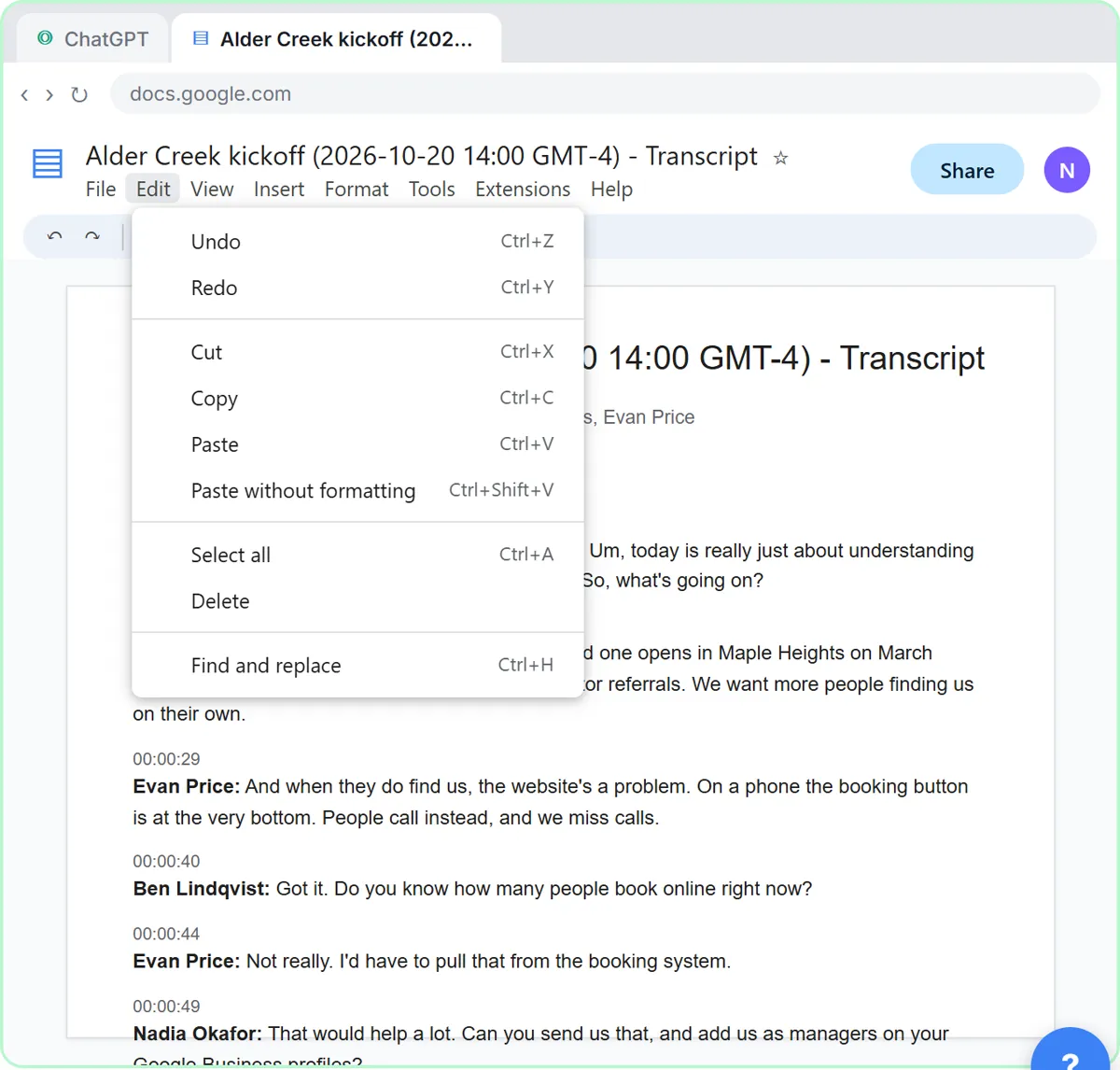 Turn a Client Kickoff Call into a Proposal Outline with ChatGPT (Agencies & Consultants)
Turn the transcript of a client kickoff call into the scope, budget and timeline the client stated, an action items table, open questions, and a recap email with a…
Free · Live ~10 min Beginner
◷Handle Scope Creep Without Losing the Client using ChatGPTA client asks for "one small extra" and a new language, and wants the launch date to hold. Give ChatGPT the thread and the project facts, catch the free work and the…
Free · Live ~9 min Beginner
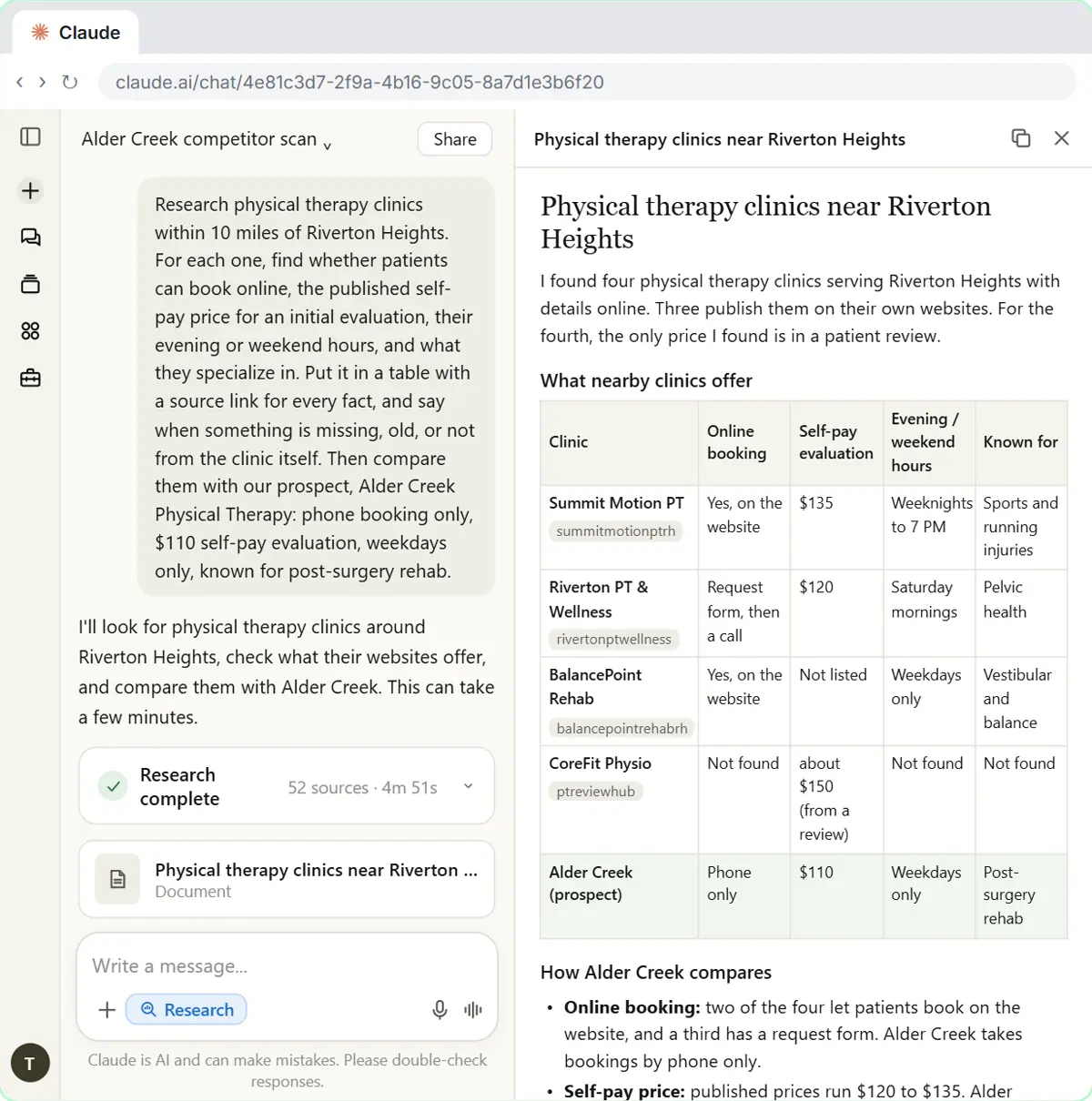 Research a Prospect's Market with Claude Research Before a Pitch (Consultants & Agencies)
Turn on Research before a pitch, have Claude check what a prospect's competitors offer online, read the cited report, check a source and turn it into talking points for…
Free · Live ~7 min Beginner
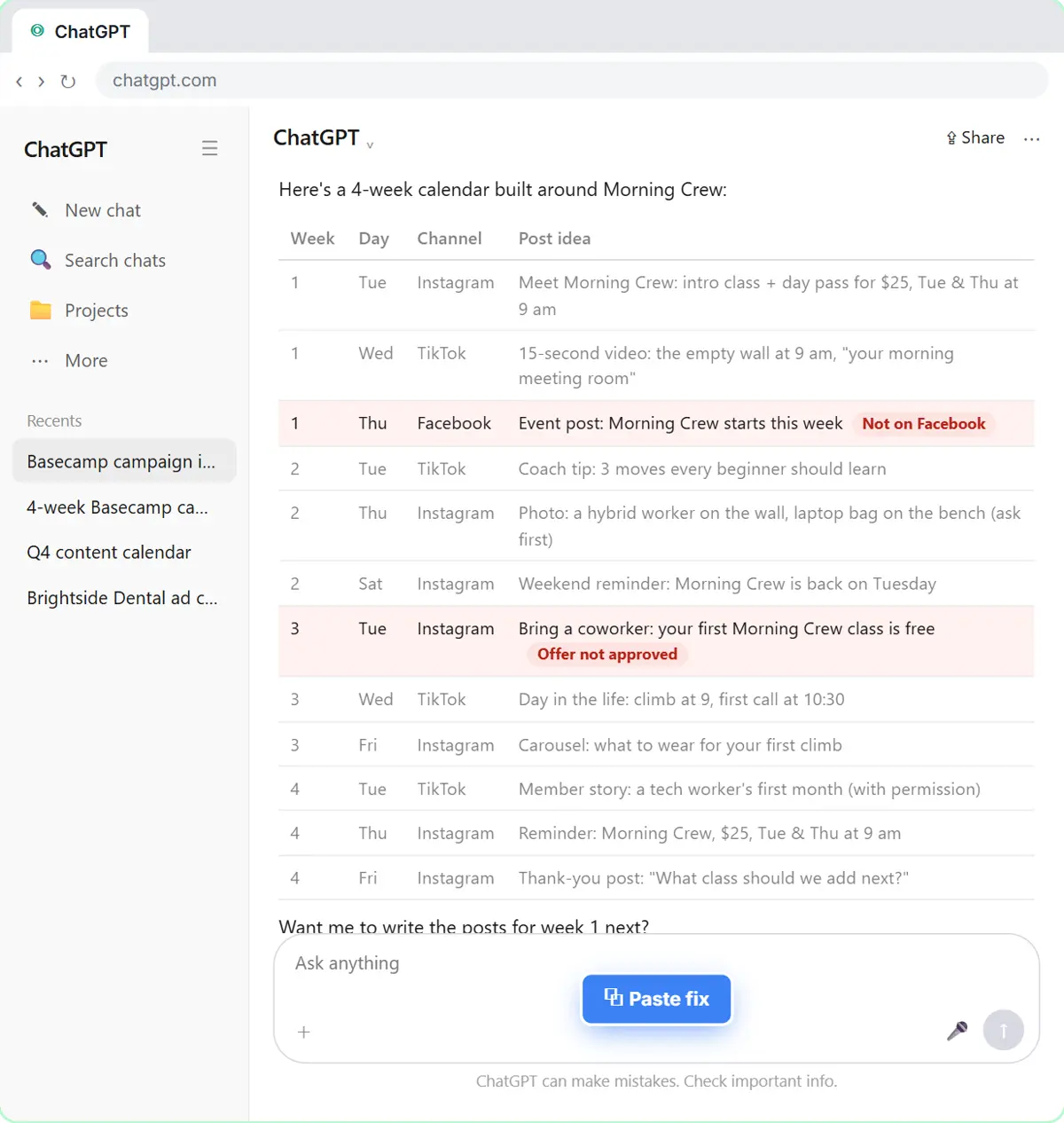 Prompt Chaining for a Client Campaign Plan: Build It in Steps with ChatGPT (Agencies)
Ask ChatGPT for a client's whole 4-week campaign in one prompt, then build a better one in four steps: audiences, offers, a calendar table checked against the client's…
Free · Live ~7 min Beginner
All 14 modules in AI Automation for Consulting & Agencies
Terms in this lesson
Plain-English definitions, each with an example from a free lesson.