Updated . Built against the tool’s current screens and checked step by step. How we check this lesson
Beautiful.ai is a third-party presentation app whose Create with AI turns a brief into an outline and then a deck that stays laid out as you edit. In this free lesson you start with the business case: an agency account manager spends about three hours on each monthly client review deck. Then, in a practice copy of Beautiful.ai, you write a brief that holds the real numbers, remove a slide the AI added on its own, ask for a next steps slide, pick a theme with no AI images, generate the deck, check every figure and copy a public link.
At a glance
| Question | Answer |
|---|---|
| What you build | Build a client quarterly review deck with Beautiful.ai Create with AI: brief it with the real numbers, fix the outline before generating, check every figure and share a public link. |
| Tools | Beautiful.ai |
| Time | About 6 minutes, 14 steps in 4 parts |
| Level | Beginner, no coding needed |
| Cost | Free |
| Ways to learn it | Practice it step by step |
The 4 parts, in short
- The cost of building decks by hand: Count the time, Price the fix.
- Brief the AI: Create with AI, Write the brief, Submit the brief.
- Fix the outline first: Remove a slide nobody asked for, Ask for a next steps slide, Pick a theme, Choose No images.
- Generate, check and share: Generate the deck, Check every number, Open Share, Share a public link, and 1 more step.
Start here first: Granola: Client Call Notes Written for You, With No Meeting Bot (module 1 of AI Automation for Consulting & Agencies)
Part of: AI Apps Worth Knowing (step 57 of 62). Next up: Agorapulse: Draft a LinkedIn Post with AI and Schedule It
Part of: AI Presentations & Client Decks (step 7 of 7)
The business case: hours of layout every month
An agency or consulting account manager builds a review deck for each client every month: the results, what worked, what did not and the plan. The message takes minutes. Building and formatting the slides takes most of the three hours. At four clients that is twelve hours a month.
When the AI builds the deck from a good brief, the work is the brief and the checking: about an hour a deck, or four hours a month. The lesson uses those example numbers; put in your own.
What you will do in the lesson
You are Priya, an account manager at Fernhill Marketing, a made-up agency, building the Q3 review for Copperline Coffee. You click Create with AI and paste a brief that names the audience, the tone and the quarter's real numbers. Beautiful.ai answers with a slide-by-slide outline first.
You remove an industry trends slide that was not in the brief and has no facts behind it, ask the AI chat for a next steps slide, pick a warm theme and choose No images, so no made-up pictures land on a results deck. Then you generate the presentation, open the results slide to check each number against your brief, and copy a public link to send.
Who this is for
Account managers, consultants, marketing coordinators and anyone who rebuilds the same kind of deck every month. No design or AI experience is needed. The lesson is a practice copy, so no deck is created and you do not need a Beautiful.ai account to take it.
How Create with AI works, from Beautiful.ai's help center
From the My Presentations tab you click Create with AI and describe the presentation. You can also add documents, PDFs or links. Beautiful.ai writes an outline you can edit: change titles and copy, reorder or remove slides, or ask the AI chat in plain words. Under Visual Preferences you choose a theme, an image source (AI-generated, stock, web or no images), an image style and a language, then click Generate Presentation.
To share, click Share in the editor, then Share Public Link, optionally name the link and click Copy Link.
Mistakes to avoid
- Leaving numbers out of the brief. The AI fills gaps; give it the real figures.
- Generating before you read the outline. Removing a slide now is cheaper than fixing a finished one.
- AI images on a results deck. Pictures that are not the client's business can mislead.
- Sending without a number check. Every figure on a client deck is your promise.
Plans
Beautiful.ai lists a 14-day free trial, and its pricing page says the trial needs a credit card. Check beautiful.ai/pricing for current plans.
Links
- Creating a presentation with AI: the steps the lesson follows: Create with AI, the prompt, the outline and AI chat, Visual Preferences and Generate Presentation.
- Sharing a link to your presentation: Share, Share Public Link, naming the link and Copy Link.
- Beautiful.ai plans: the 14-day free trial and paid plans. Beautiful.ai is a separate product with its own account and plans.
Try it yourself, free
Reading the steps is a start. Doing them is how it sticks. The interactive module walks you through every click in a practice copy of Beautiful.ai, checks each step, and never touches your real accounts.
Start “Beautiful.ai: A Client Review Deck from Your Brief in Under an Hour”Step by step: Beautiful.ai: A Client Review Deck from Your Brief in Under an Hour
All 14 steps of the interactive module, in order. In the module you watch each one, then do it yourself in a practice copy that checks your work.
1. The cost of building decks by hand
- Count the time. Priya is an account manager at Fernhill Marketing, a small agency. Every month she builds about four client review decks, and each takes about three hours of building and formatting. Click the row that shows 12 hours a month.
Priya is an account manager at a small marketing agency. Every month she builds about four client review decks. Each one takes about three hours, mostly building and formatting.
- Price the fix. If the AI builds the deck from a good brief, the work is the brief and the checking: about an hour a deck. These are example numbers, so use your own. Click the time with Beautiful.ai row.
Now say the AI builds the deck from a good brief. The work becomes the brief, and the checking. About an hour a deck. These are example numbers, so use your own.
2. Brief the AI
- Create with AI. This is Beautiful.ai, on the My Presentations tab. Click Create with AI in the upper right corner.
This is Beautiful dot A I, on the My Presentations tab.
- Write the brief. Describe the deck: who it is for, the tone, and the real numbers, so the AI never has to guess them. Paste in the brief.
Describe the deck. Who it is for, the tone, and the real numbers. Put the numbers in yourself, so the A I never has to guess them.
A 6-slide quarterly marketing review for our client Copperline Coffee, for their owner and marketing lead. Friendly, plain and confident.
Q3 results: website visits 18,400 (up 22% on Q2), email list 6,150 subscribers (up 640), Instagram followers 9,800 (up 1,100), online orders from email 412.
What worked: the Cold Brew Week email series. What did not: paid ads on Facebook.
Next quarter: holiday gift box campaign and a loyalty email in November.
- Submit the brief. Click the submit arrow. Beautiful.ai writes a slide-by-slide outline first, before any slides.
Beautiful dot A I writes an outline first, before it makes any slides.
3. Fix the outline first
- Remove a slide nobody asked for. Read the outline before you generate: fixing it now is cheaper than fixing slides later. Industry coffee trends was not in the brief and has no facts behind it. Click its remove button.
Read the outline before you generate anything. Fixing it now is cheaper than fixing slides later. Industry coffee trends was not in the brief. There are no facts behind it. Remove it.
- Ask for a next steps slide. You can also change the outline in plain words in the AI chat panel. Paste in the request.
You can also change the outline in plain words, in the chat panel. Ask for a next steps slide.
- Pick a theme. Under Visual Preferences, pick a theme. Click the warm, orange one, close to the client's own colors.
Now the look. Under Visual Preferences, pick a theme. It is close to the client's own colors.
- Choose No images. For the image source, choose No images. A client results deck should not carry AI pictures of coffee shops that are not theirs.
For images, choose No images. A client results deck should not carry made up pictures of coffee shops that are not theirs.
4. Generate, check and share
- Generate the deck. Click Generate Presentation.
- Check every number. Open the Website and email results slide and check each figure against your brief. Every number on a client deck is your promise. Click that slide.
Every number on a client deck is your promise.
- Open Share. All four numbers match. Now send it to Copperline Coffee. In the editor, click Share.
All four numbers match. Now send it to the client.
- Share a public link. Click Share Public Link. You can name the link if you like.
- Copy the link. Click Copy Link, then paste it into your email to the client.
Deck done, and every number checked.
Frequently asked questions
- How does the interactive lesson work?
- Each step is shown to you first (Watch). Then you do it yourself in a practice copy that checks every click (Your turn). If you get stuck, press Do it for me. No deck is made and no Beautiful.ai account is touched.
- Is Beautiful.ai part of Stepthrough?
- No. Beautiful.ai is a separate, third-party product from beautiful.ai. This free lesson was built from its public help center and has not been tested in the real app, so your screens may look a little different.
- Can I edit the outline before Beautiful.ai makes the slides?
- Yes. Its help center says you can change slide titles and copy, reorder or remove slides, add sections, or ask the AI chat for changes before you click Generate Presentation.
- How do I share a Beautiful.ai deck?
- In the editor click Share, then Share Public Link, optionally name the link, and click Copy Link.
More in AI Automation for Consulting & Agencies
A client asks for "one small extra" and a new language, and wants the launch date to hold. Give ChatGPT the thread and the project facts, catch the free work and the…
Free · Live ~9 min Beginner
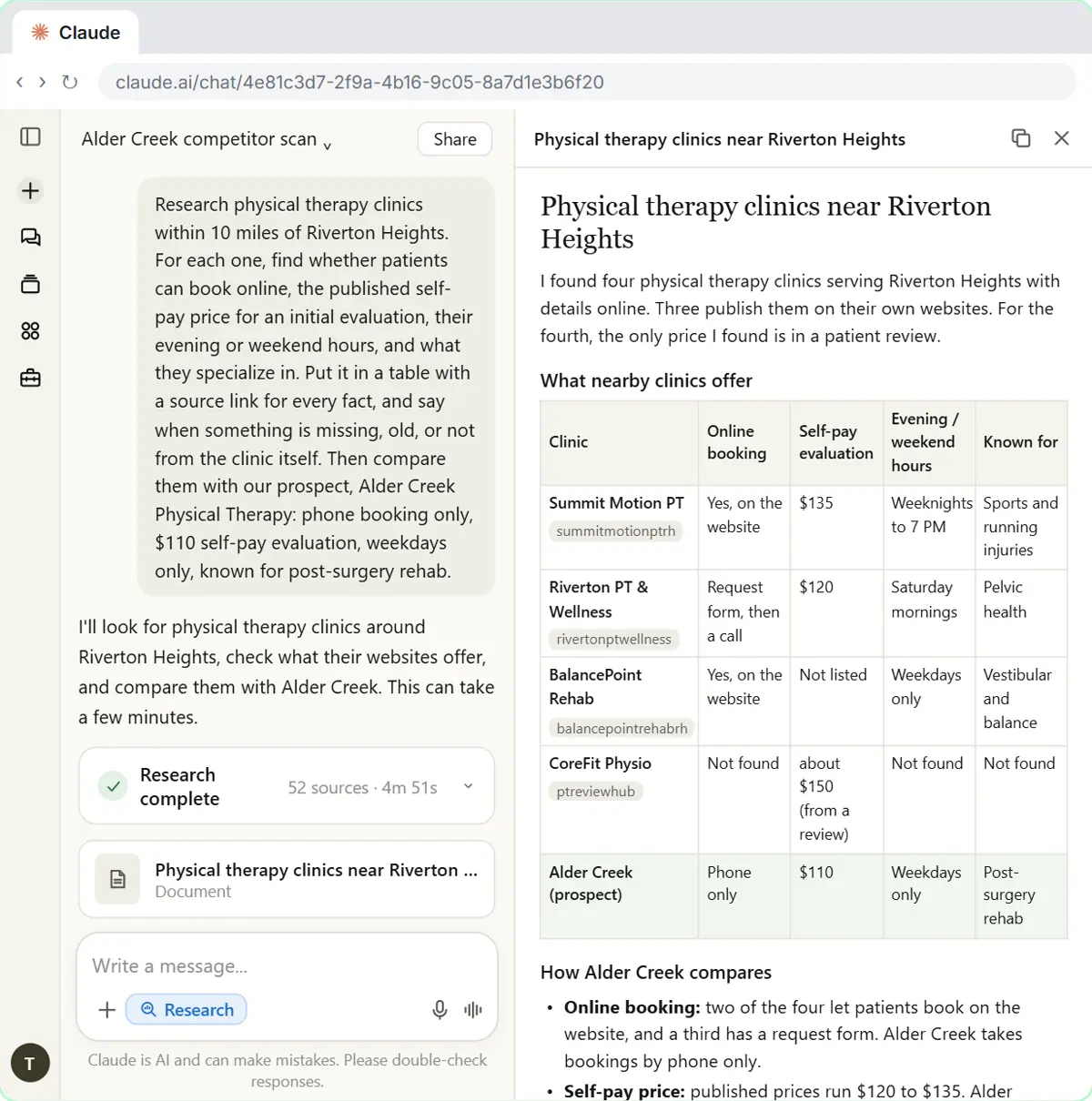 Research a Prospect's Market with Claude Research Before a Pitch (Consultants & Agencies)
Turn on Research before a pitch, have Claude check what a prospect's competitors offer online, read the cited report, check a source and turn it into talking points for…
Free · Live ~7 min Beginner
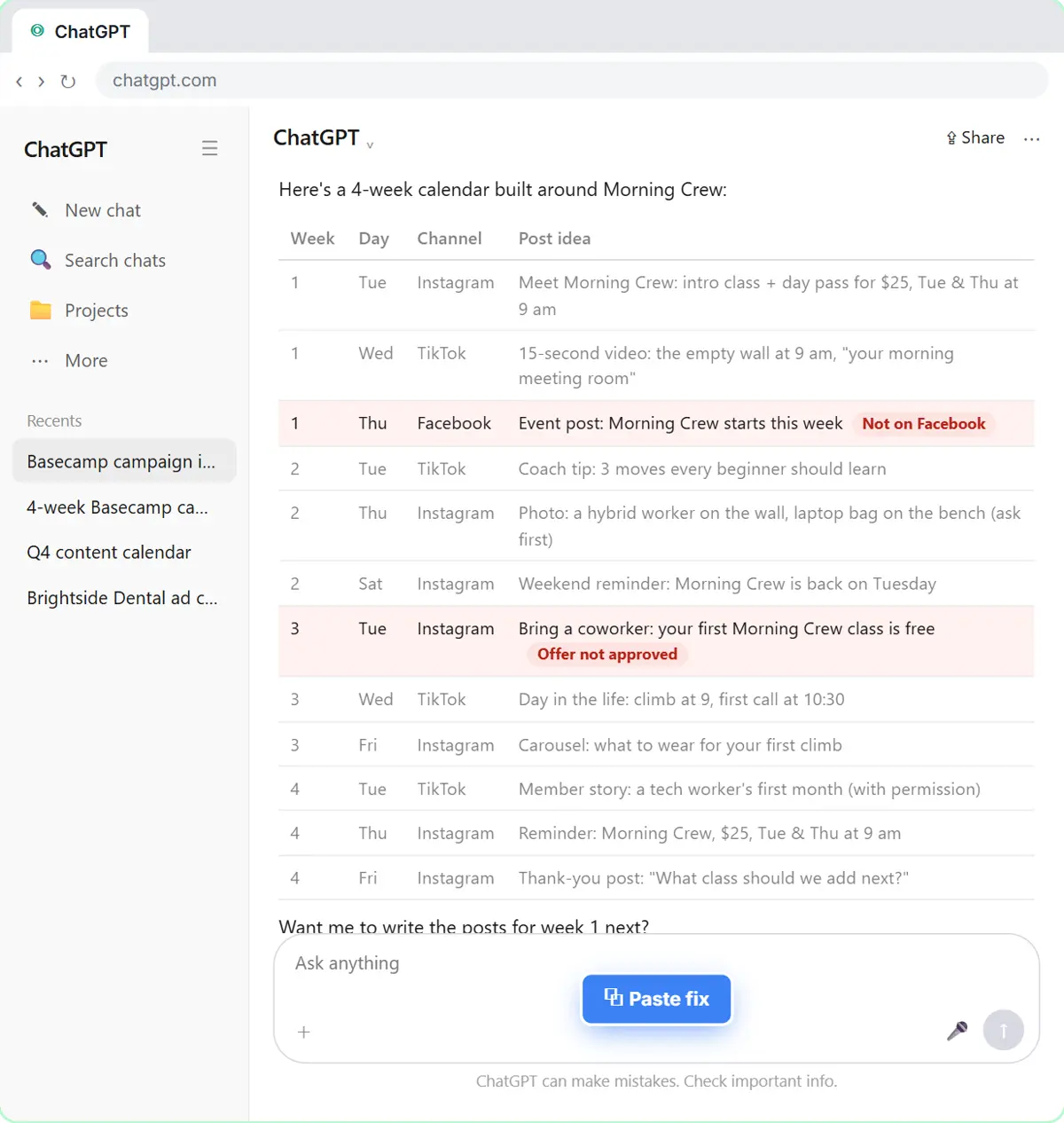 Prompt Chaining for a Client Campaign Plan: Build It in Steps with ChatGPT (Agencies)
Ask ChatGPT for a client's whole 4-week campaign in one prompt, then build a better one in four steps: audiences, offers, a calendar table checked against the client's…
Free · Live ~7 min Beginner
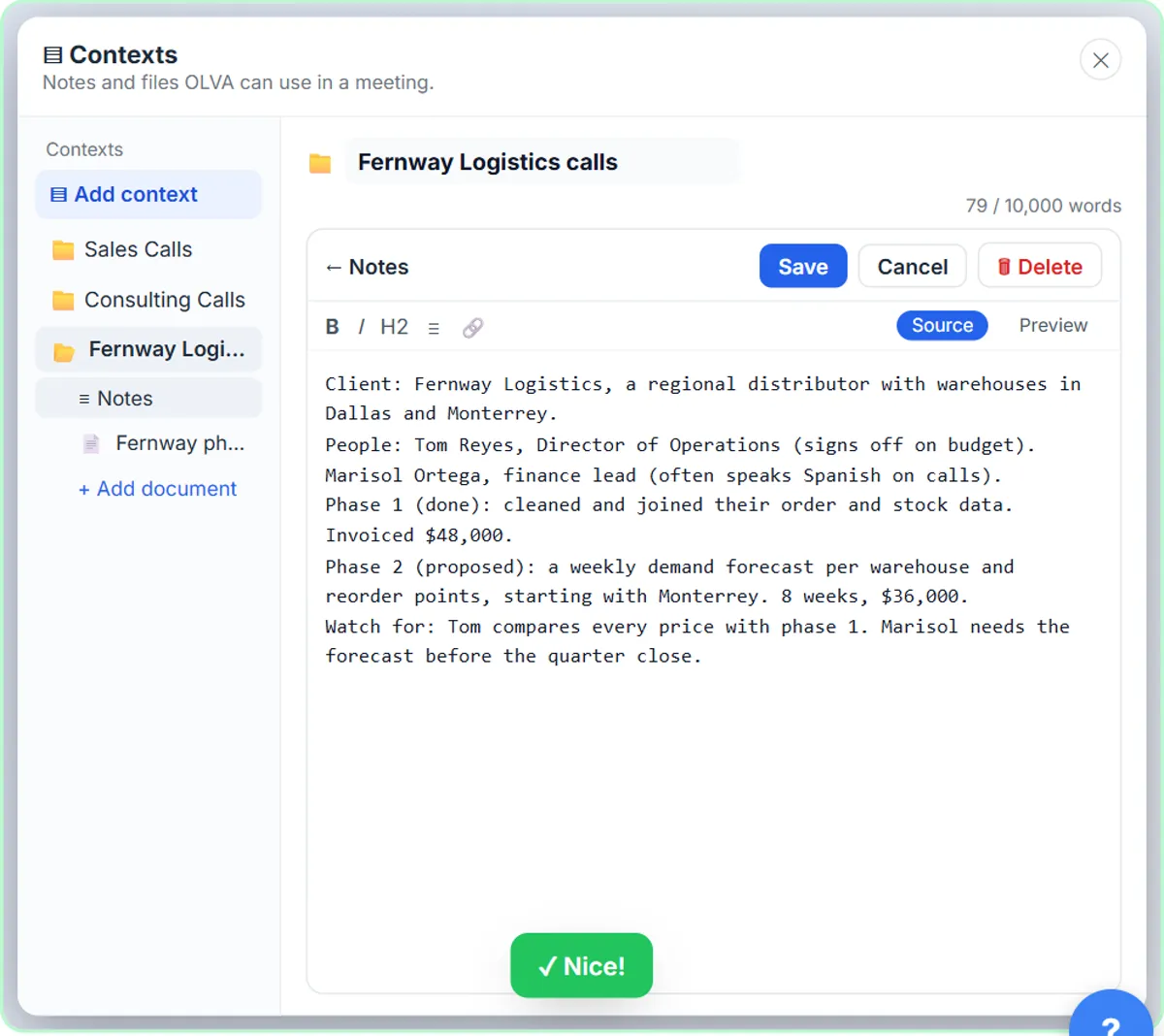 OLVA: A Private AI Assistant on Your Client Calls
Give OLVA your client notes, get private answers and fact checks during a Zoom call, then turn the meeting into minutes, a follow-up email and a PowerPoint deck.
Free · Live ~9 min Intermediate
◷Turn a Messy Client Brief into a Finished Proposal Deck using RunableA business case for a small agency: price what a slow proposal costs, then use Runable, an AI agent, to turn a messy client email into a finished six-slide proposal…
Free · Live ~16 min Beginner
◷Preview Every Website Change Before Your Client Sees It using KosukeA business case for agencies and small businesses that use an AI coding agent: price what an unchecked website change costs, then use Kosuke to give every change a live…
Free · Live ~15 min Intermediate
All 14 modules in AI Automation for Consulting & Agencies
Terms in this lesson
Plain-English definitions, each with an example from a free lesson.