Updated . Built against the tool’s current screens and checked step by step. How we check this lesson
AI coding agents like Claude Code make website changes fast. Checking them is still slow: a staging copy, screenshots, a few emails, and sometimes a bug the client finds first. Kosuke runs your coding agent in a cloud sandbox and gives every change its own live preview, an automated QA run that records video, a link you can send the client, and a pull request at the end. In this free business-case lesson you use a practice copy to price what an unchecked change costs a small agency, then connect Claude Code, import a client's website, ask for a fee table in plain words, catch a phone bug in the preview, let Kosuke test it, share it with the client and hand it off for review.
At a glance
| Question | Answer |
|---|---|
| What you build | A business case for agencies and small businesses that use an AI coding agent: price what an unchecked website change costs, then use Kosuke to give every change a live preview, check it on a phone, let Kosuke test it and record proof, share it with the client, and open the pull request. |
| Tools | Kosuke |
| Time | About 15 minutes, 31 steps in 9 parts |
| Level | Intermediate |
| Cost | Free |
| Ways to learn it | Practice it step by step |
The 9 parts, in short
- The cost of an unchecked change: Read the client email, Put a price on it, Meet Kosuke.
- Set up once: connect the AI: Connect your AI provider, Pick Claude Code, Paste the code and connect, Open Preferences, and 2 more steps.
- Set up once: bring in the website: Import the website, Let Kosuke see the repository, Pick the client site, Import it, and 1 more step.
- Ask for the change in plain words: Start a new session, Describe the change, Start the session.
- Check it like your client will: Click the new button, Go back to Services, Check it on a phone, Say what you see.
- Let Kosuke test it and record proof: Run Kosuke's QA, Watch the proof.
- Show the client before it goes live: Back to the Preview, Share the preview, Create the link, Copy it for the client.
- Hand it off for review: Open the pull request, The last step is on GitHub.
- What this saves you: What this saves you, Next business case.
Start here first: Turn a Client Kickoff Call into a Proposal Outline with ChatGPT (Agencies & Consultants) (module 1 of AI Automation for Consulting & Agencies)
Part of: AI for Consulting & Agencies (step 14 of 18). Next up: Meeting to Action: Recap, Tracker Rows and a Kickoff Deck (ChatGPT, n8n, Gamma)
Part of: AI Apps Worth Knowing (step 19 of 21). Next up: Litescrape in n8n: Swap SerpApi for a Cheaper Search API
The business case: what an unchecked website change costs
Picture Jordan, who runs Harbor Lane Studio, a made-up agency that looks after 12 client websites. Jordan uses an AI coding agent for the changes, so the code part is quick. The slow part is trust. Each change goes to a staging copy, Jordan takes screenshots, emails the client, waits for a reply, and only then pushes it live. Nobody checks it on a phone, and nothing records what was tested.
Here is the arithmetic, using example numbers you should replace with your own. Say that checking takes about 1.5 hours per change and the agency ships 20 changes a month. That is 30 hours, or about $2,250 of time at $75 an hour, and $27,000 a year. Then there is the change nobody checked properly: last month a client's new booking button did nothing on phones for four days, and the client found it before Jordan did.
The fix is not a bigger team or a slower process. It is a live, clickable preview of every change, a test run you can show, and a link the client can open before anything goes live.
Who this is for, and what you need
Agency owners, operations people and small business owners who use an AI coding agent such as Claude Code or Codex to update a website or an internal tool, and who need to check the result without reading code. You do not need to be a developer. Kosuke even has an Agent replies setting, Not-tech, that makes the agent explain its work without technical terms.
To use Kosuke for real you need three things: a GitHub repository for the site (Kosuke imports from GitHub), an Anthropic or OpenAI account for the agent (an API key, or your Claude Code or Codex login), and a Kosuke workspace. The practice copy in this lesson needs none of them.
How Kosuke keeps the live site safe
Every change in Kosuke happens in a chat session, and every session gets its own branch, its own sandbox (a running copy of your site) and its own Preview. Nothing reaches the live site until a pull request is merged on GitHub, which is the same review step a development team already uses. If the client says no, the session is archived and its pull request closed.
The Preview is the site running from that sandbox, not a screenshot. You can type a path such as /services, open it in a new tab, switch to phone and tablet sizes, read the logs, and restart it. A sandbox pauses when nobody is using it, and wakes again when you send a message or open the session.
What the automated QA actually checks
While it works, the agent keeps a Testing Checklist: one line per behaviour, with the action and the expected result, grouped into sections and marked critical, major or minor. When you run /kosuke:automated-qa, one tester per section opens your site in a headless browser, works through its items and records a video. Each item ends Passed, FAILED or BLOCKED, with the reason.
The result is a QA Report in the session's Artifacts tab, and on the pull request a qa: passed, qa: blocked or qa: failed label with a comment that links the report and the videos. Running it with --fix asks the agent to repair what failed and test those items again. A passed report is evidence, not a guarantee, so still click through anything that matters to the client yourself.
Sharing a preview with a client
Share preview gives you a link to the running site for that session. The visitor sees the site, and the QA Report if there is one, but not the chat or the code, and needs no Kosuke account. The link has no password and no expiry, so send it only to the client and press Revoke link when you are done. A visit wakes a paused sandbox, and that time counts toward your workspace's usage.
What this saves you
- Most of the 1.5 hours per change: in the example, staging, screenshots and emails become about 20 minutes of describing the change, clicking through the preview on desktop and phone, and sending the client a link. At 20 changes a month that is about 23 hours, or $1,750 of time. These are estimates from example numbers, not a promise.
- Bugs found by you, not your client: the phone check happens in the preview, before anything is live.
- Proof on every pull request: what was tested, what the tester saw, and a video.
- What it does not do: decide what the client wants, or merge for you. The final review stays with you or your developer.
Plans and costs
A new Kosuke workspace starts on a free Trial with $10 of sandbox credit, granted once per person ($30 with a promo code), and up to 3 sandboxes at once. Kosuke charges for sandbox time by the second while a sandbox runs: a Small sandbox (2 vCPU, 4 GB) is $0.51 an hour, so the Trial credit covers roughly 20 hours on Small. Paid plans are Starter at $20 a month with $25 of included usage and Pro at $190 a month with $250. The AI model is not on the Kosuke bill: it runs on your own Anthropic or OpenAI account or subscription. When the Trial credit runs out, Kosuke stops starting sandboxes until you subscribe, and nothing is billed. Check Kosuke's plans and billing page for current prices.
What we checked in a real Kosuke account
We opened a real Kosuke workspace on the Trial plan in October 2026 and checked the Projects page and its Get started checklist (seven steps, from Create your workspace to Merge your first PR), Settings > Workspace > AI Providers (Anthropic with API Key, Claude Code and AWS Bedrock), the Claude Code Login box, the Import Project box (Connect your repositories and Install on GitHub), Preferences (Agent replies: Not-tech, Simplified or Standard; Commits: Manual or Automatic), Billing and Usage ($10.00 of free credits). We did not connect a Claude account or GitHub, so the deploy, session, Preview, QA, share link and pull request steps follow Kosuke's own documentation and screenshots at docs.kosuke.ai. Kosuke's screens change over time, so yours may differ slightly.
Next business case: clear a client's punch list overnight
Once single changes are safe, the next time sink is the list of small fixes every client sends after a launch. Kosuke can hold each fix as a Backlog session and start them in parallel, each with its own preview, so you review a batch of finished changes instead of making them one by one.
Links
- Kosuke: the product this lesson teaches. A new workspace starts on a free Trial.
- Kosuke docs: Make a change without writing code: Kosuke's own guide for people who are not engineers.
- Kosuke docs: Preview and sandboxes: the Preview, phone sizes and share links.
- Kosuke docs: /kosuke:automated-qa: the Testing Checklist, the QA Report and the qa: labels.
- Kosuke docs: Plans and billing: Trial credit, plan prices and sandbox rates.
Try it yourself, free
Reading the steps is a start. Doing them is how it sticks. The interactive module walks you through every click in a practice copy of Kosuke, checks each step, and never touches your real accounts.
Start “Preview Every Website Change Before Your Client Sees It using Kosuke”Step by step: Preview Every Website Change Before Your Client Sees It using Kosuke
All 31 steps of the interactive module, in order. In the module you watch each one, then do it yourself in a practice copy that checks your work.
1. The cost of an unchecked change
- Read the client email. Jordan Ellis runs Harbor Lane Studio, a small agency that looks after 12 client websites. Jordan uses an AI coding agent to make changes. Last month a new button went live without a proper check, and the client found the problem first. Click the email.
Jordan runs a small agency that looks after twelve client websites. An AI coding agent makes the changes. Last month a new button went live without a proper check. The client found the problem first.
- Put a price on it. Every change means a staging copy, screenshots and a few emails before anyone trusts it: about 1.5 hours. At 20 changes a month and $75 an hour, that is $2,250 of time a month. These are example numbers, so swap in your own. Click the total.
Every change means a test copy, screenshots, and a few emails, before anyone trusts it. About an hour and a half. At twenty changes a month, that is twenty two hundred and fifty dollars of time. These are example numbers. Use your own.
- Meet Kosuke. Kosuke runs your AI coding agent (Claude Code or Codex) in a cloud sandbox. Every change gets its own live Preview you can click through, an automated QA run that records video, and a pull request at the end. Click the Kosuke card.
Kosuke runs your A I coding agent in the cloud. Every change gets its own live preview you can click through. Kosuke tests it and records a video. Then it hands you a pull request.
2. Set up once: connect the AI
- Connect your AI provider. This is Kosuke's Projects page with the Get started checklist. "Create your workspace" is already ticked. Kosuke uses your own Claude or OpenAI account to run the agent. Click Connect your workspace AI provider.
This is the Projects page, with the Get started checklist. Your workspace is already made. Kosuke uses your own Claude or Open A I account to run the agent.
- Pick Claude Code. Settings opens on AI Providers. Under Anthropic there are three ways in: API Key, Claude Code and AWS Bedrock. If you already pay for Claude, use that login. Click Configure next to Claude Code.
Settings opens on A I Providers. Under Anthropic there are three ways in. An A P I key, Claude Code, or A W S Bedrock. If you already pay for Claude, use that login.
- Paste the code and connect. A Claude Code Login box opens, and a Claude sign-in tab opens beside it. In real life you sign in there, approve, and paste the code it shows into Authorization code. The practice copy has pasted it for you. Click Connect.
A Claude Code login box opens, with a Claude sign in tab beside it. In real life, you sign in there, approve it, and paste the code it shows you. We pasted it for you here.
- Open Preferences. Claude Code now reads Connected. You are not a developer, so ask the agent to talk like a colleague. Under Your account, click Preferences.
Claude Code is connected. You are not a developer, so ask the agent to talk in plain words. Under your account, click Preferences.
- Plain-English replies. Next to Agent replies, click Not-tech. The agent then explains what it did without technical terms.
Next to Agent replies, click Not tech. The agent then explains what it did, without technical words.
- Close Settings. Leave Commits on Automatic, so the agent saves its work after each turn. Click the X at the top right to close Settings.
Leave Commits on Automatic, so the agent saves its work as it goes. Close settings with the X at the top right.
3. Set up once: bring in the website
- Import the website. Your client's website lives on GitHub. Click Import your project.
Your client's website lives on GitHub.
- Let Kosuke see the repository. The first time, the Import Project box reads Connect your repositories. Click Install on GitHub. In real life GitHub opens: pick only the repositories Kosuke may see, approve, and you land back here.
The first time, Kosuke asks you to connect your repositories. GitHub opens. Pick only the sites Kosuke may see, approve it, and you come back here.
- Pick the client site. Open the Repository list and click harborlane/calder-finch-site.
- Import it. Click Import Project.
- Deploy once. Kosuke opens the project with a Deploy chat on the left. The deploy agent works out how to run the site and starts it in a sandbox. You do this once per project. Click Deploy.
Now deploy it once. The deploy agent works out how to run the site, and starts it in a sandbox. You only do this once per project.
4. Ask for the change in plain words
- Start a new session. The chat reads Deployed · Your project is live. Calder & Finch want their tax packages on the Services page. Click New Session (Ctrl+J) at the top right.
Deployed. Your project is live. Now the real job. The client wants their tax packages on the services page.
- Describe the change. Leave Start now selected. In Describe what you want to build, write it the way you would to a colleague: what goes where, and what the buttons do. Paste the request below.
Leave Start now selected. Describe the change, the way you would to a colleague. What goes where, and what the buttons do.
On the Services page, add a fee table for our three tax packages: Starter $450, Business $1,200 and Full-service $2,800. Put a Book a consultation button under each one that opens the contact form with that package picked.
- Start the session. The Model is your Claude model. Click Start session. The agent works on its own branch, in its own copy of the site, so the live website is not touched.
The agent works on its own copy of the site. The live website is not touched.
5. Check it like your client will
- Click the new button. The agent replied on the left, and the Preview on the right is the site running with the change. Do what a client would. Under Business, click Book a consultation.
The agent is done. On the right is the site, running with the change. Do what a client would. Under Business, click Book a consultation.
- Go back to Services. The contact form opened with Business already picked. That works. Click Services in the site's menu to go back.
The contact form opened, with Business already picked. That works.
- Check it on a phone. Most of the firm's visitors are on phones. Click the responsive toggle (the phone icon) in the Preview toolbar, or press Ctrl+Shift+M. Pick a phone size.
Most visitors are on phones.
- Say what you see. There it is: on a phone the fee cards run off the screen. This is the bug the client would have found. Tell the agent in plain words, in Type your message, and press Enter.
There it is. On a phone, the cards run off the screen. That is the bug your client would have found. Tell the agent what you see, and press enter.
6. Let Kosuke test it and record proof
- Run Kosuke's QA. The Preview updates: the cards now stack, one per row. Now let Kosuke test the whole change. Type /kosuke:automated-qa and press Enter. Testers open the site in a browser, work through the Testing Checklist and record a video.
Fixed. The cards stack now. Next, let Kosuke test the whole change. It works through a checklist in a real browser, and records a video.
- Watch the proof. The QA Report opens in the Artifacts tab: 5 passed. Every item says what the tester did and saw. Click On a phone the cards stack one per row to see its evidence.
The Q A report is in. Five passed. Each item says what the tester did, and what it saw.
7. Show the client before it goes live
- Back to the Preview. Now let the client see it before it is live. Click the Preview tab (the eye icon).
Now let the client see it, before it goes live. The eye icon.
- Share the preview. Click Share preview in the Preview toolbar.
- Create the link. Anyone with the link can open the running site, without a Kosuke account. They see the site, not the chat or the code. Click Create share link.
Anyone with the link can open the running site, with no Kosuke account. They see the site, not the code.
- Copy it for the client. The link has no password and no expiry, so send it only to the client, and press Revoke link when you are done. Click Copy share link.
The link has no password, and does not expire. So send it only to the client, and revoke it when you are done.
8. Hand it off for review
- Open the pull request. The client said yes. Click Open PR under the message box. The agent saves the work and opens a pull request on GitHub, with the QA Report linked in it.
The client said yes. The agent opens a pull request on GitHub, with the Q A report linked in it.
- The last step is on GitHub. A Ready for review banner shows the pull request, #12, labelled qa: passed. You or your developer merge it on GitHub as usual, and the session moves to Completed. Click #12.
Ready for review. The pull request is labelled, Q A passed. You or your developer merge it on GitHub, as usual.
9. What this saves you
- What this saves you. Click What this saves you.
Here is what it saves.
- Next business case. Click Next business case.
Next up, clearing a client punch list overnight.
Frequently asked questions
- What is Kosuke?
- Kosuke runs an AI coding agent, such as Claude Code or Codex, on your GitHub repository in a cloud sandbox. You describe a change in a chat session, try it in a live preview of your app, let Kosuke test it in a browser with video, and end the session with a pull request that your team reviews and merges on GitHub.
- Do I need to be a developer to use Kosuke?
- No. Kosuke has a guide for making changes without writing code, and an Agent replies setting called Not-tech that makes the agent explain its work in plain language. Someone does need to import the repository and deploy it once, and someone reviews and merges the pull request on GitHub.
- Can my client see the change before it goes live?
- Yes. Share preview creates a link to the running site for that session. Your client opens it without a Kosuke account and sees the site, not the code. The link has no password and does not expire, so revoke it when you are done.
- How does Kosuke test a change?
- The agent keeps a Testing Checklist of what the change should do. When you send /kosuke:automated-qa, testers work through it in a headless browser, record a video per section and publish a QA Report. The pull request gets a qa: passed, qa: blocked or qa: failed label with a comment linking the evidence.
- Is Kosuke free?
- A new workspace starts on a free Trial with $10 of sandbox credit, granted once per person. After that, plans start at $20 a month. The AI model runs on your own Anthropic or OpenAI account, which bills separately. Check docs.kosuke.ai for current plans and rates.
- Has this lesson been tested in the real Kosuke app?
- Partly. We checked the Projects page, the Get started checklist, AI Providers, the Claude Code login box, Import Project, Preferences, Billing and Usage in a real Kosuke account. We did not connect a Claude account or GitHub, so the deploy, session, preview, QA, share and pull request steps follow Kosuke's own documentation and screenshots.
More in AI Automation for Consulting & Agencies
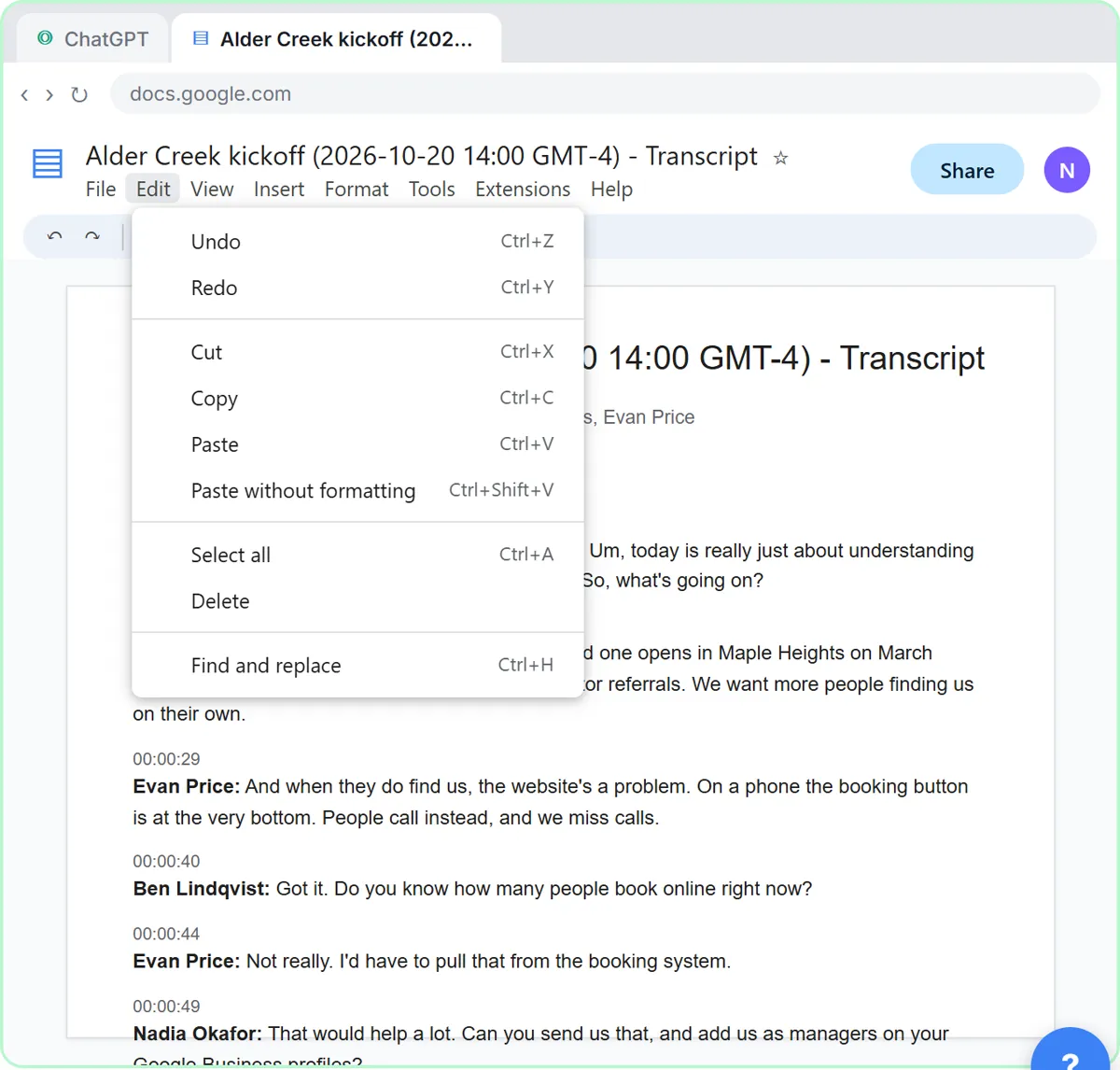 Turn a Client Kickoff Call into a Proposal Outline with ChatGPT (Agencies & Consultants)
Turn the transcript of a client kickoff call into the scope, budget and timeline the client stated, an action items table, open questions, and a recap email with a…
Free · Live ~10 min Beginner
◷Handle Scope Creep Without Losing the Client using ChatGPTA client asks for "one small extra" and a new language, and wants the launch date to hold. Give ChatGPT the thread and the project facts, catch the free work and the…
Free · Live ~9 min Beginner
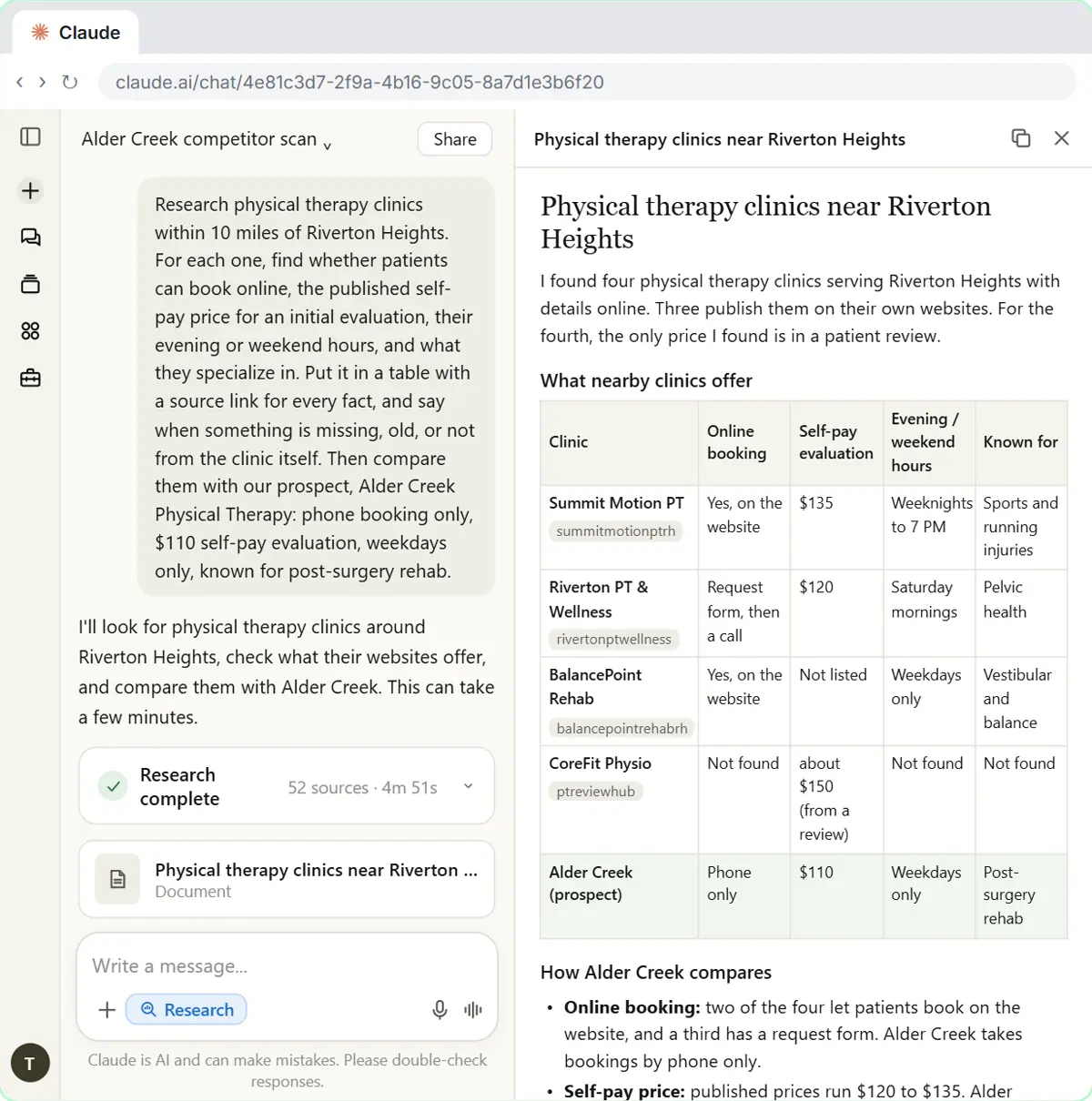 Research a Prospect's Market with Claude Research Before a Pitch (Consultants & Agencies)
Turn on Research before a pitch, have Claude check what a prospect's competitors offer online, read the cited report, check a source and turn it into talking points for…
Free · Live ~7 min Beginner
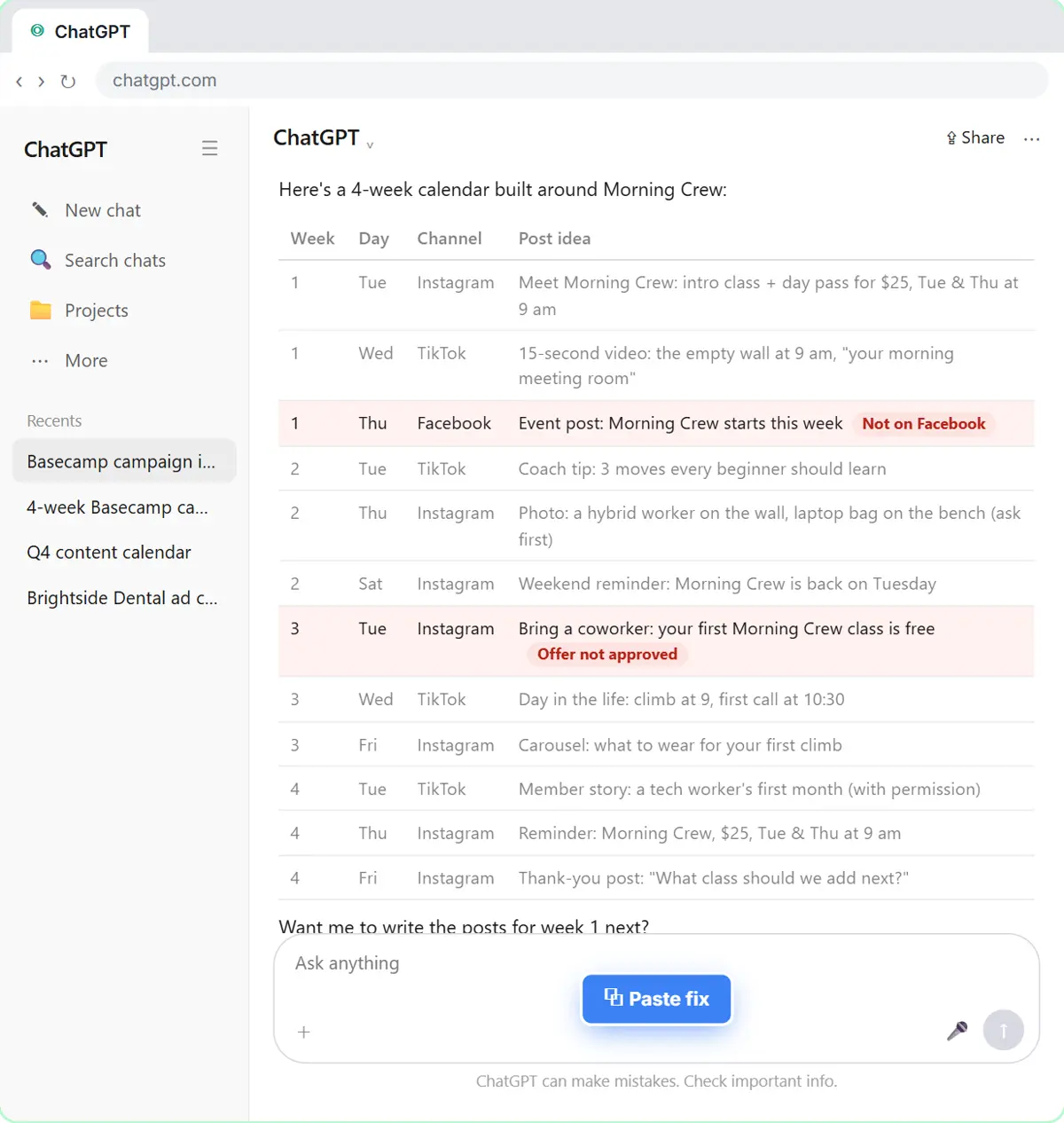 Prompt Chaining for a Client Campaign Plan: Build It in Steps with ChatGPT (Agencies)
Ask ChatGPT for a client's whole 4-week campaign in one prompt, then build a better one in four steps: audiences, offers, a calendar table checked against the client's…
Free · Live ~7 min Beginner
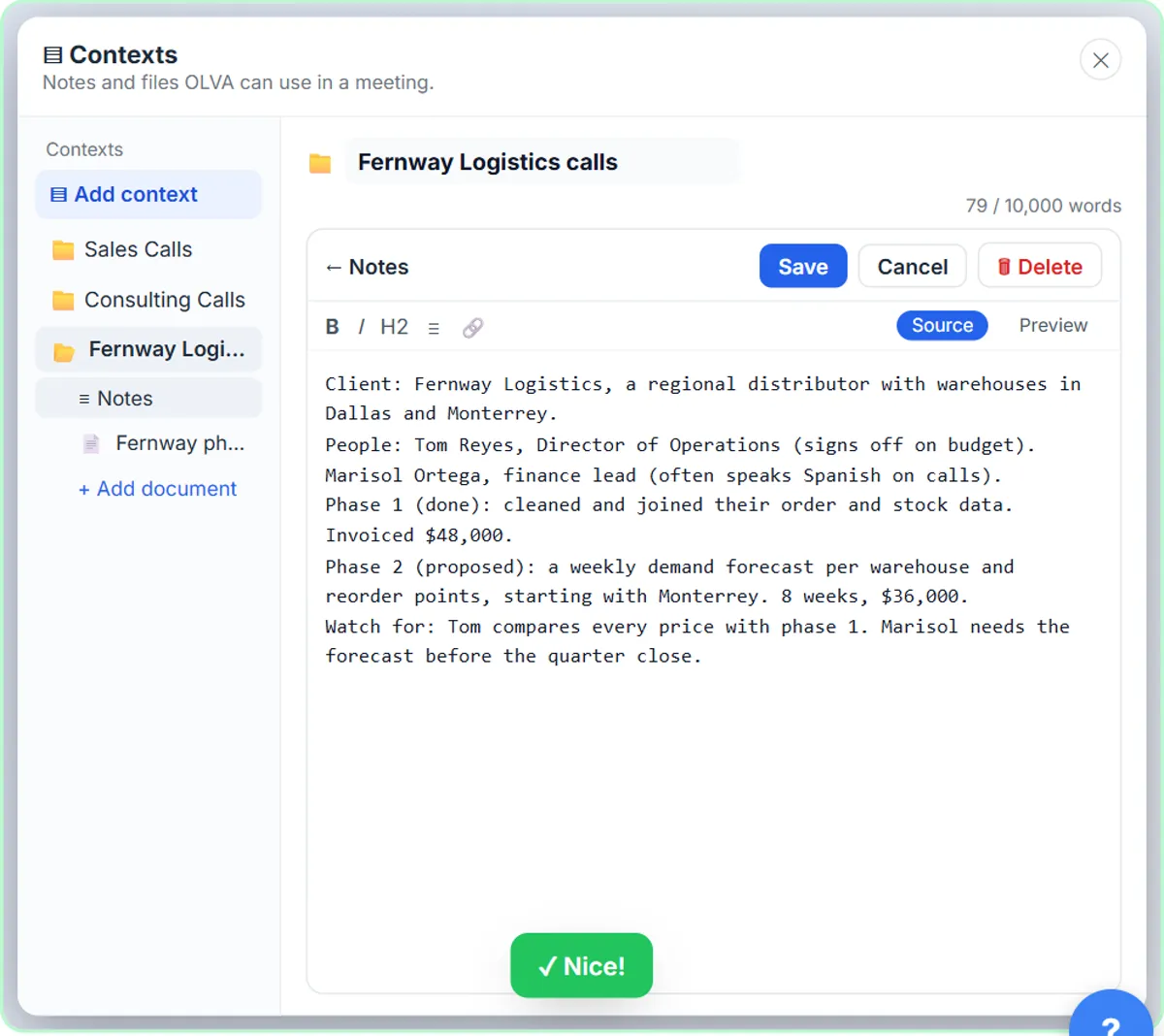 OLVA: A Private AI Assistant on Your Client Calls
Give OLVA your client notes, get private answers and fact checks during a Zoom call, then turn the meeting into minutes, a follow-up email and a PowerPoint deck.
Free · Live ~9 min Intermediate
All 7 modules in AI Automation for Consulting & Agencies
Same business, other tools
Harbor Lane Studio shows up in these modules too, built with different tools.
Upload the bank statement and the books, let ChatGPT match every row and list the exceptions, then check the answer and paste a reconciliation summary into the…
Free · Live ~12 min Beginner
◷Collect Overdue Invoices Faster using ChatGPTUpload your aging report, have ChatGPT build this week’s chase list (oldest and biggest first, disputes held back), check it against the file, then draft a friendly…
Free · Live ~12 min Beginner
Terms in this lesson
Plain-English definitions, each with an example from a free lesson.