Updated . Built against the tool’s current screens and checked step by step. How we check this lesson
Litescrape is a third-party search-results API, an alternative to SerpApi for Google, Bing, DuckDuckGo and Maps data at a flat price per request. In this free lesson you use a practice copy of n8n to move a weekly competitor-price workflow from SerpApi to Litescrape. You change the HTTP Request node's URL to Litescrape's Google Shopping endpoint, remove the two query parameters it no longer needs, put the API key in a Bearer Auth credential, test the call, and check that the Google Sheet still fills in.
At a glance
| Question | Answer |
|---|---|
| What you build | Switch a weekly n8n competitor-price workflow from SerpApi to Litescrape's Google Shopping API: change the HTTP Request URL, move the key into a Bearer Auth credential, test it and check the sheet. |
| Tools | n8n |
| Time | About 7 minutes, 16 steps in 3 parts |
| Level | Intermediate, no coding needed |
| Cost | Free |
| Ways to learn it | Practice it step by step |
The 3 parts, in short
- Point the request at Litescrape: Open the HTTP Request node, Change the URL, Remove engine, Remove api_key.
- Send the key in a header: Open Authentication, Generic Credential Type, Open Generic Auth Type, Bearer Auth, and 4 more steps.
- Test it: Execute step, Close the node, Execute workflow, Check the sheet.
Start here first: Find and Use n8n Templates (module 1 of n8n Automation Toolkit)
In the course: Part 9 · n8n Automation Toolkit (Module 43 of the full course)
Part of: Business Automations with n8n (step 7 of 7)
Part of: AI Apps Worth Knowing (step 5 of 8). Next up: CoHear: AI Meeting Notes from a Team Training Session
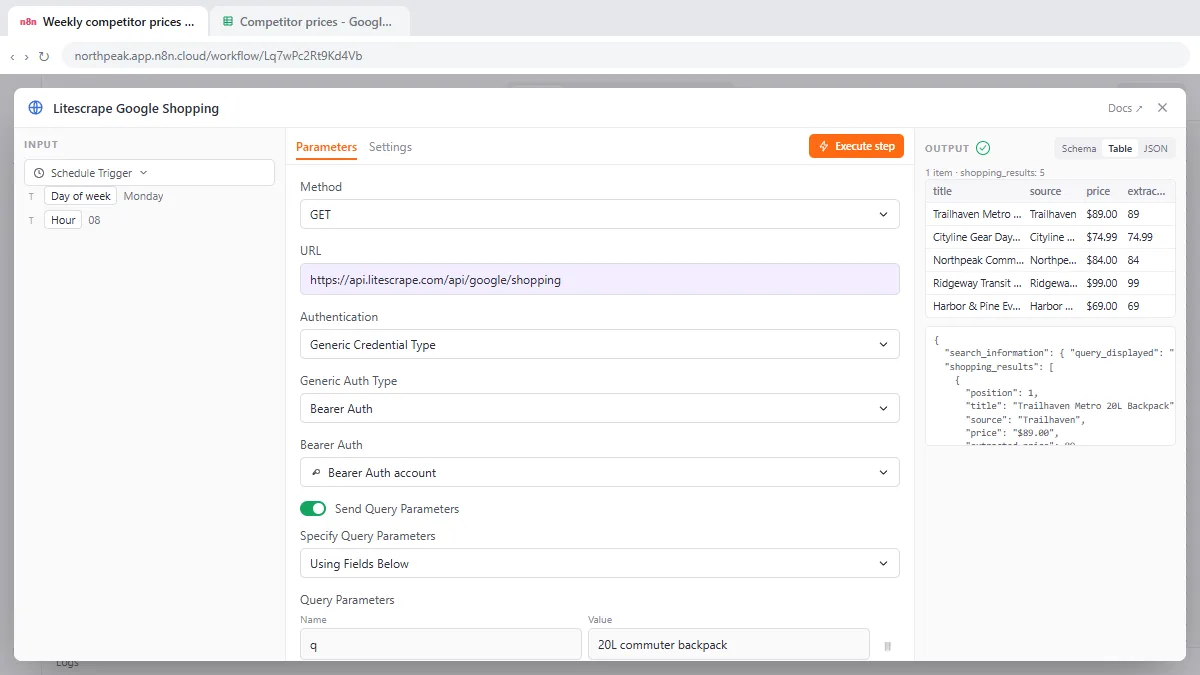
What you will do: move one workflow to a cheaper search API
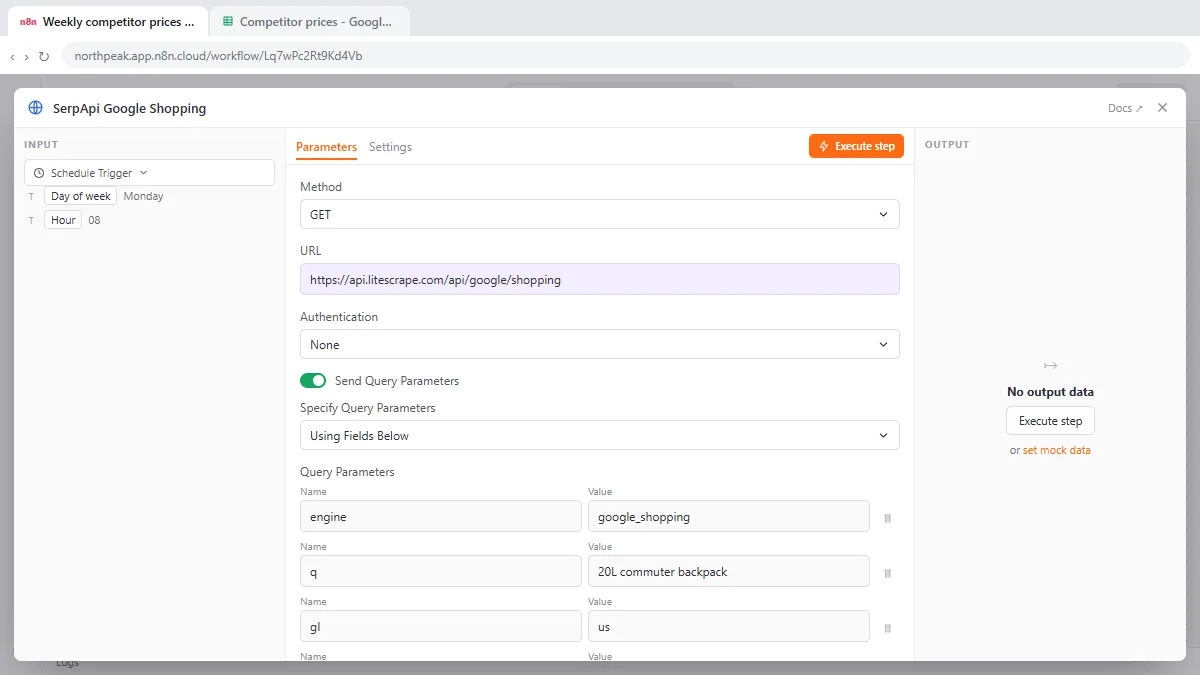
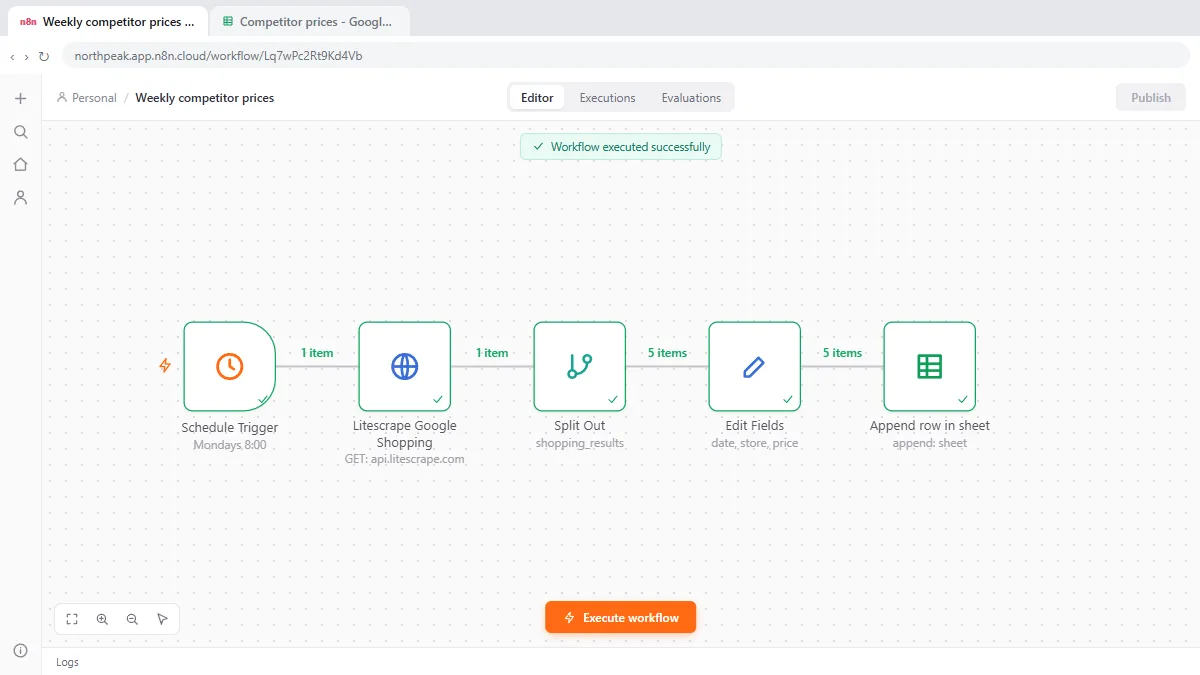
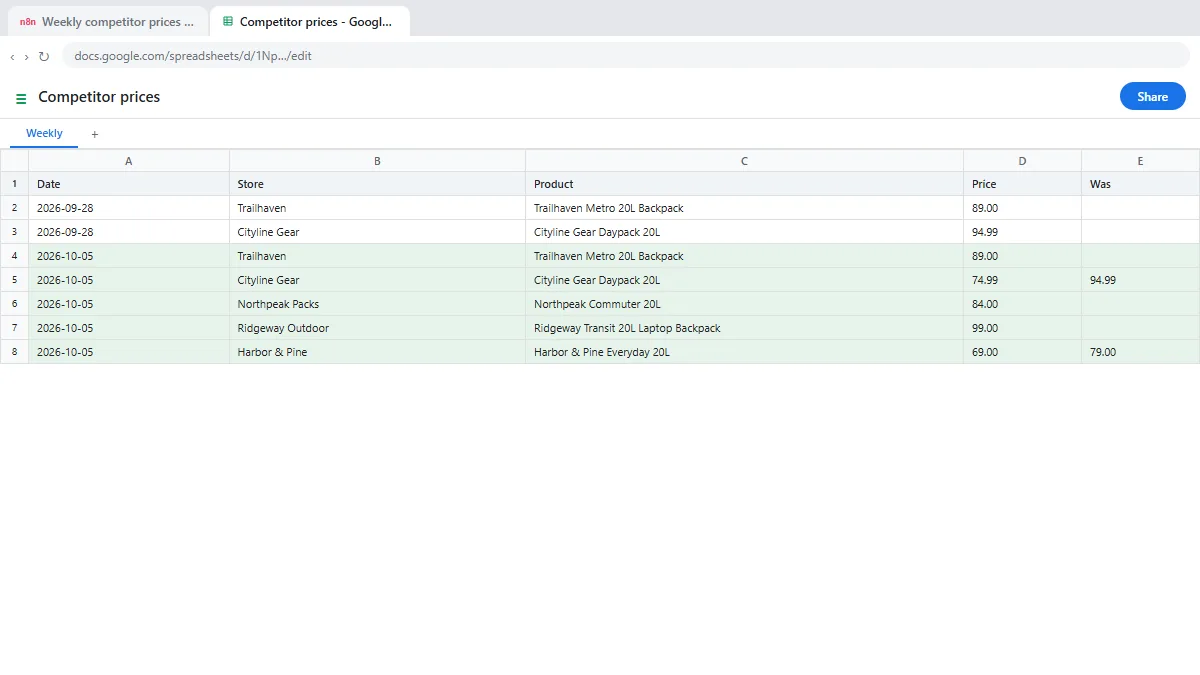
You run e-commerce at Northpeak Packs, a made-up backpack brand. Every Monday at 8:00 an n8n workflow searches Google Shopping for "20L commuter backpack", splits out the results, keeps the date, store, product and price, and appends them to a Competitor prices Google Sheet. The search goes through SerpApi, and you want to try Litescrape instead without rebuilding anything.
In the practice copy you open the HTTP Request node and paste the new URL, https://api.litescrape.com/api/google/shopping. You delete the engine and api_key query parameters and keep q, gl, hl and num. You set Authentication to Generic Credential Type, choose Bearer Auth, create a credential and paste the key into Bearer Token. Then you execute the step, check the output, run the whole workflow and open the sheet.
Who this is for
People who already use n8n with SerpApi or another search API, for price checks, lead lists, SEO rank tracking or market research, and want to cut the cost. You should know your way around an n8n workflow. The lesson is a practice copy, so no request is sent and you need no n8n, Litescrape or SerpApi account to take it.
How Litescrape compares with SerpApi in an n8n workflow
Both return Google results as JSON. SerpApi uses one address, serpapi.com/search.json, with an engine parameter such as google_shopping and the key as api_key in the URL. Litescrape uses one address per search type, such as /api/google/search, /api/google/shopping or /api/google/maps on api.litescrape.com, and takes the key only in an Authorization: Bearer header. Litescrape's docs say to keep the key on the server and never in the URL.
Many parameter and field names match. For Google Shopping, Litescrape takes q, gl, hl and num, and returns shopping_results with position, title, source, price and extracted_price, plus old_price when a product is marked down. In the lesson that is why the Split Out, Edit Fields and Google Sheets nodes keep working unchanged. Check the fields your own workflow reads against Litescrape's docs before you switch.
Step 1: change the URL and the query parameters
Open the HTTP Request node. Replace the URL with the Litescrape endpoint for the search you run, here Google Shopping. Under Query Parameters, delete engine, because the URL already says which search it is, and delete api_key, because the key moves to a header. Leave q, gl, hl and num as they are.
Step 2: send the key in a Bearer Auth credential
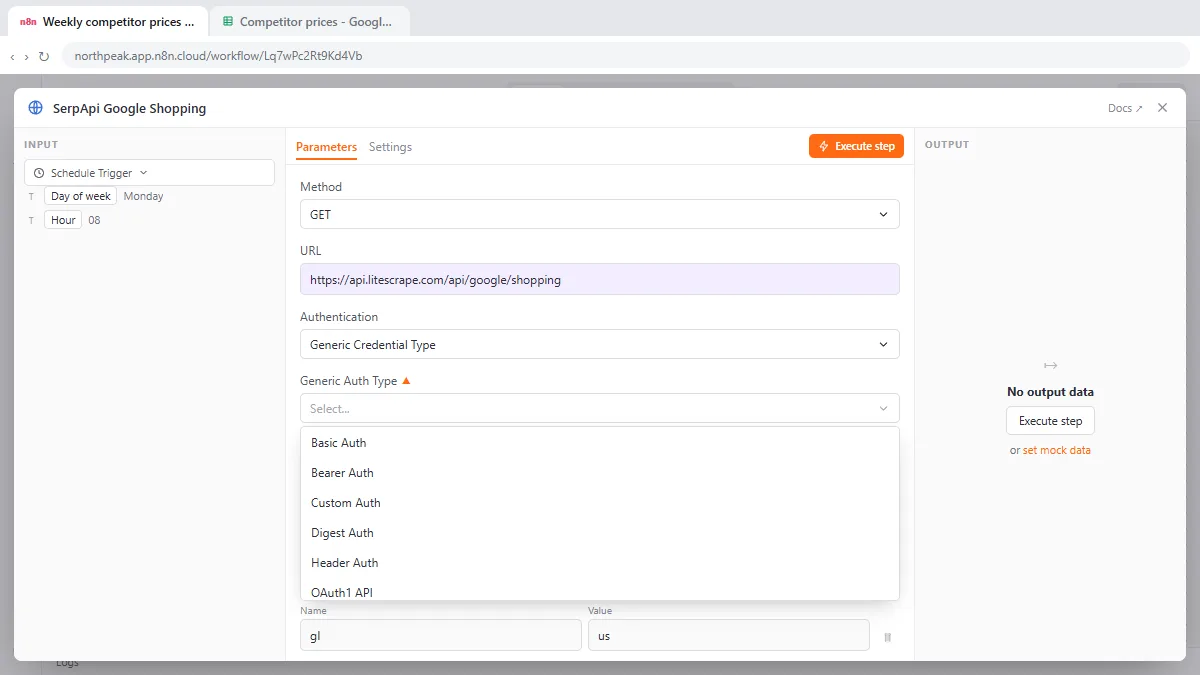
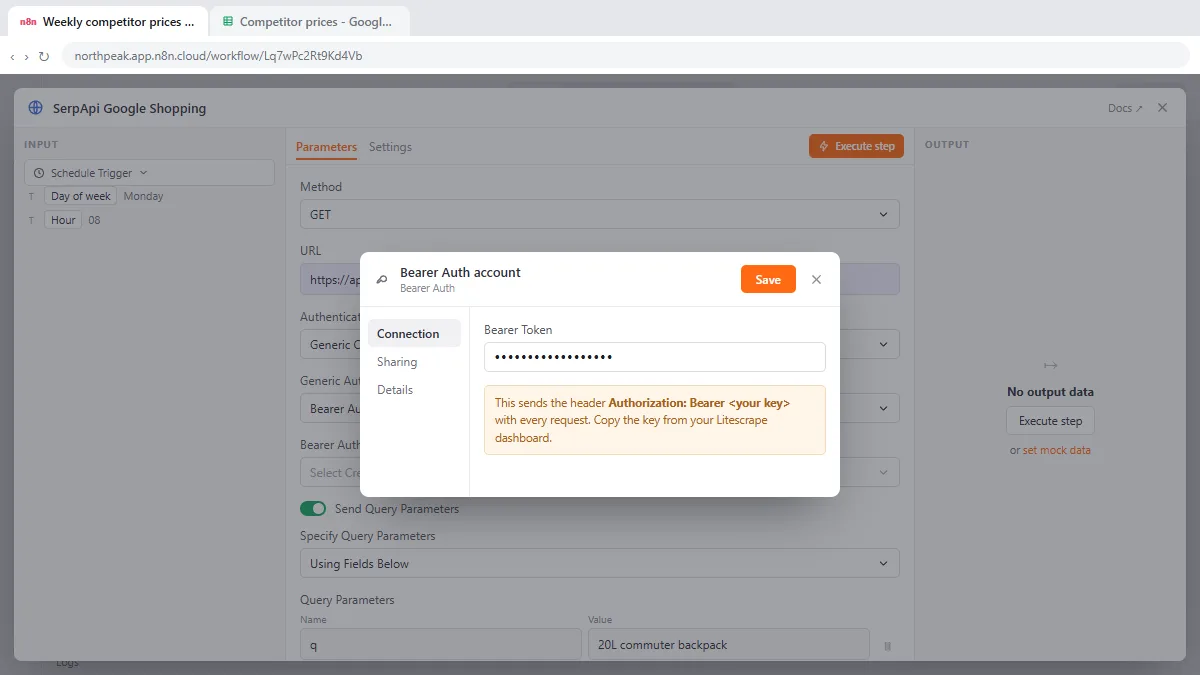
Set Authentication to Generic Credential Type and Generic Auth Type to Bearer Auth. In the Bearer Auth drop-down choose Create new credential, paste your Litescrape key into Bearer Token and save. n8n stores the key encrypted and sends Authorization: Bearer with your key on every request. Header Auth with the name Authorization and the value Bearer plus your key does the same job.
Step 3: test the step, then the whole workflow
Execute step sends one request. In the output, shopping_results should list products with title, source, price and extracted_price. Close the node, click Execute workflow and open the sheet: the new rows should look exactly like last week's. Run both APIs side by side for a week or two before you switch for good, since results can differ by location, device and time.
Mistakes to avoid
- Leaving the key in the URL. Put it in a credential so it never shows in the workflow, the logs or an exported JSON file.
- Keeping the engine parameter. Litescrape picks the search type from the URL path.
- Assuming every field matches. Compare the fields your later nodes read with Litescrape's response docs.
- Switching without a side-by-side test. Compare a week of results from both before you cancel the old plan.
Cost and limits
Litescrape charges a flat $0.15 per 1,000 requests, prepaid from $10, with credits that last six months; failed requests are not charged, and there are 5 free calls to try it. A weekly check of one search uses about 52 requests a year. You can check the remaining balance with GET /api/keys/status without using a call. Check litescrape.com/pricing for current prices and compare them with your current SerpApi plan, since both can change. Respect each search engine's terms and your own company's data rules.
Links
- Litescrape (litescrape.com): the search-results API this lesson uses. It is a separate product with its own account and prepaid credits.
- Litescrape Google Shopping API docs: the endpoint, parameters (q, gl, hl, num, sort_by, min_price, max_price) and response fields.
- Litescrape API playground: try any request on a free key with 5 calls and copy the exact call.
- n8n HTTP Request credentials: Bearer auth, Header auth and the other generic credential types.
Try it yourself, free
Reading the steps is a start. Doing them is how it sticks. The interactive module walks you through every click in a practice copy of n8n, checks each step, and never touches your real accounts.
Start “Litescrape in n8n: Swap SerpApi for a Cheaper Search API”Step by step: Litescrape in n8n: Swap SerpApi for a Cheaper Search API
All 16 steps of the interactive module, in order. In the module you watch each one, then do it yourself in a practice copy that checks your work.
1. Point the request at Litescrape
- Open the HTTP Request node. Every Monday this workflow looks up "20L commuter backpack" on Google Shopping through SerpApi and logs competitor prices in a sheet. Double-click the HTTP Request node.
You run e-commerce at Northpeak Packs. Every Monday, this workflow checks competitor prices on Google Shopping, and logs them in a sheet. It calls Serp API. You'll switch it to Litescrape, a cheaper search results API.
- Change the URL. Replace the SerpApi address in URL with the Litescrape Google Shopping endpoint. Paste in the URL.
First, the address. With Serp API, every search goes to the same web address. Litescrape has one for each search type. This one is Google Shopping.
- Remove engine. Under Query Parameters, click the trash icon on engine. The URL already says Google Shopping.
The query parameters can mostly stay. q, gl, h l, and num have the same names in Litescrape. But engine isn't needed, because the URL already says Google Shopping. Delete it.
- Remove api_key. Click the trash icon on api_key. Litescrape wants the key in a header, never in the URL.
Now delete api key. Litescrape wants the key in a header, never in the web address.
2. Send the key in a header
- Open Authentication. Scroll up to Authentication and open it.
Next, the key.
- Generic Credential Type. Choose Generic Credential Type.
That's for any service that n8n has no built-in node for.
- Open Generic Auth Type. Open Generic Auth Type.
- Bearer Auth. Choose Bearer Auth. It sends the header Authorization: Bearer followed by your key, which is what Litescrape asks for.
It sends your key in the Authorization header, as a bearer token. That's exactly what Litescrape asks for.
- Open the credential list. Open Bearer Auth, the credential drop-down.
- Create a new credential. Click + Create new credential.
- Paste your key. Paste your Litescrape API key into Bearer Token. Here it's a placeholder: Paste in the key.
In real life, you copy it from your Litescrape dashboard. Here, it's a placeholder.
- Save the credential. Click Save.
n8n stores the key encrypted, and it never shows up in the workflow.
3. Test it
- Execute step. Click Execute step to send one test request.
- Close the node. The results come back in shopping_results, with title, source, price and extracted_price, the same field names the next nodes already use. Close the node.
Look at the output. Shopping results, with title, source, price, and extracted price. Those are the same field names as before, so the rest of the workflow keeps working. Close the node.
- Execute workflow. Click Execute workflow to run the whole thing once.
Run the whole thing once.
- Check the sheet. Click the Competitor prices tab at the top.
This week's prices are in, with the store and the old price when something's on sale. Same sheet, same columns, a cheaper API.
Screenshots
Frequently asked questions
- How does the interactive lesson work?
- Each step is shown to you first (Watch). Then you do it yourself in a practice copy that checks every click (Your turn). If you get stuck, press Do it for me. No request is sent and no n8n, Litescrape or Google account is used.
- Is Litescrape part of Stepthrough?
- No. Litescrape is a separate, third-party product from litescrape.com. This lesson is free and follows Litescrape's public docs. To use it for real you need a Litescrape API key from its dashboard.
- Does Litescrape have an n8n node?
- You call it from n8n's HTTP Request node, as in this lesson: a GET request to the endpoint for your search type with the key in a Bearer Auth credential. Litescrape also offers an MCP server and Python and TypeScript SDKs.
- Can Litescrape replace SerpApi for Google Maps and Google Search too?
- Litescrape lists endpoints for Google Search, Google Maps, Google Local, Google Shopping, AI Overview, Bing, DuckDuckGo, Yelp, Tripadvisor and app stores. Change the URL to the matching endpoint and check the parameter and field names in its docs.
- Where do I put the Litescrape API key in n8n?
- In a credential, not in the URL. Set Authentication to Generic Credential Type, Generic Auth Type to Bearer Auth, and paste the key into Bearer Token.
More in n8n Automation Toolkit
All 4 modules in n8n Automation Toolkit
More n8n tutorials
 n8n AI Agent Tutorial: Save Social Media Ideas to Google Sheets
Build an AI agent for BrightPath Marketing that generates social media post ideas and saves them to Google Sheets — chat trigger, AI Agent, system prompt, model…
Free · Live ~12 min
 Lovable + n8n: Build a Web App with an AI Backend
Build a contact form in Lovable and connect it to an n8n workflow — webhook trigger, AI Agent, Google Sheets, Gmail, and a Respond node that ties it all together.
Free · Live ~15 min
 AI Receipt Extractor: Receipts to Google Sheets with n8n
Drop a photo of a receipt into an n8n chat. An AI agent reads it, pulls out the date, vendor and amount, picks a category, and adds a row to Google Sheets.
Free · Live ~12 min
 AI Email Responder: Draft Gmail Replies Automatically with n8n
Build an n8n agent that watches your Gmail, reads each new customer email, and writes a reply as a draft in the same thread, ready for you to check and send.
Free · Live ~12 min
 Daily Job Alerts: Email Each Tech Their Jobs from Google Sheets with n8n
Every morning at 7, n8n reads a plumbing company's jobs sheet, skips anything not assigned yet, and emails each job to the tech it's assigned to — customer, address…
Free · Live ~10 min
 Gmail AI Triage: Auto-Label Every Email and Draft Replies
Build an n8n workflow that reads each new email, sorts it as a lead, a client or an invoice with a Text Classifier, adds the matching Gmail label, and drafts a reply to…
Free · Live ~14 min
Terms in this lesson
Plain-English definitions, each with an example from a free lesson.