Updated . Built against the tool’s current screens and checked step by step. How we check this lesson
Items and expressions are where most n8n beginners get stuck. In this free lesson you pin five fake overdue invoices on a manual trigger with set mock data, read them as Schema, Table and JSON, and then write one reminder line, one email field and one rounded late fee that work for every invoice, all in a practice copy of the n8n editor. You also learn the two gotchas: a Number field mangles a typed formula until you switch it to Expression, and 760 * 0.02 shows as 15.200000000000001 until you add .round(2).
At a glance
| Question | Answer |
|---|---|
| What you build | See how n8n holds data: pin five fake invoices, read them as items, Table and JSON, then write one reminder per invoice and a late fee with drag-and-drop expressions. |
| Tools | n8n |
| Time | About 9 minutes, 28 steps in 4 parts |
| Level | Beginner, no coding needed |
| Cost | Free |
| Ways to learn it | Practice it step by step |
The 4 parts, in short
- Get some data in: Add the first step, Start it by hand, Open the trigger, Set mock data, and 2 more steps.
- One item per record: Table view, JSON view, Close the trigger.
- Expressions: Add a step, Search for Edit, Pick Edit Fields, Add a field, and 6 more steps.
- Drop, calculate, run: Drop a whole field, Add one more field, Name it, Change the type, and 5 more steps.
Start here first: n8n: What Is n8n? Build Your First Workflow (module 1 of n8n Automation Toolkit)
In the course: Part 9 · n8n Automation Toolkit (Module 72 of the full course)
Part of: n8n for Beginners: Your First Automations (step 2 of 9). Next up: n8n: Execute Step, Execute Workflow and Publish
The five invoices (fake)
Paste these into set mock data to follow along in your own n8n. The email addresses use .example domains.
| client | invoice | amount | days_late |
|---|---|---|---|
| Lakeside Dental | INV-1042 | 480 | 12 |
| Northpoint Realty | INV-1045 | 1250 | 34 |
| Brightline Studio | INV-1047 | 300 | 5 |
| Cedar & Vine Law | INV-1051 | 2100 | 48 |
| Harbor Lane Marketing | INV-1053 | 760 | 19 |
Items: one per record
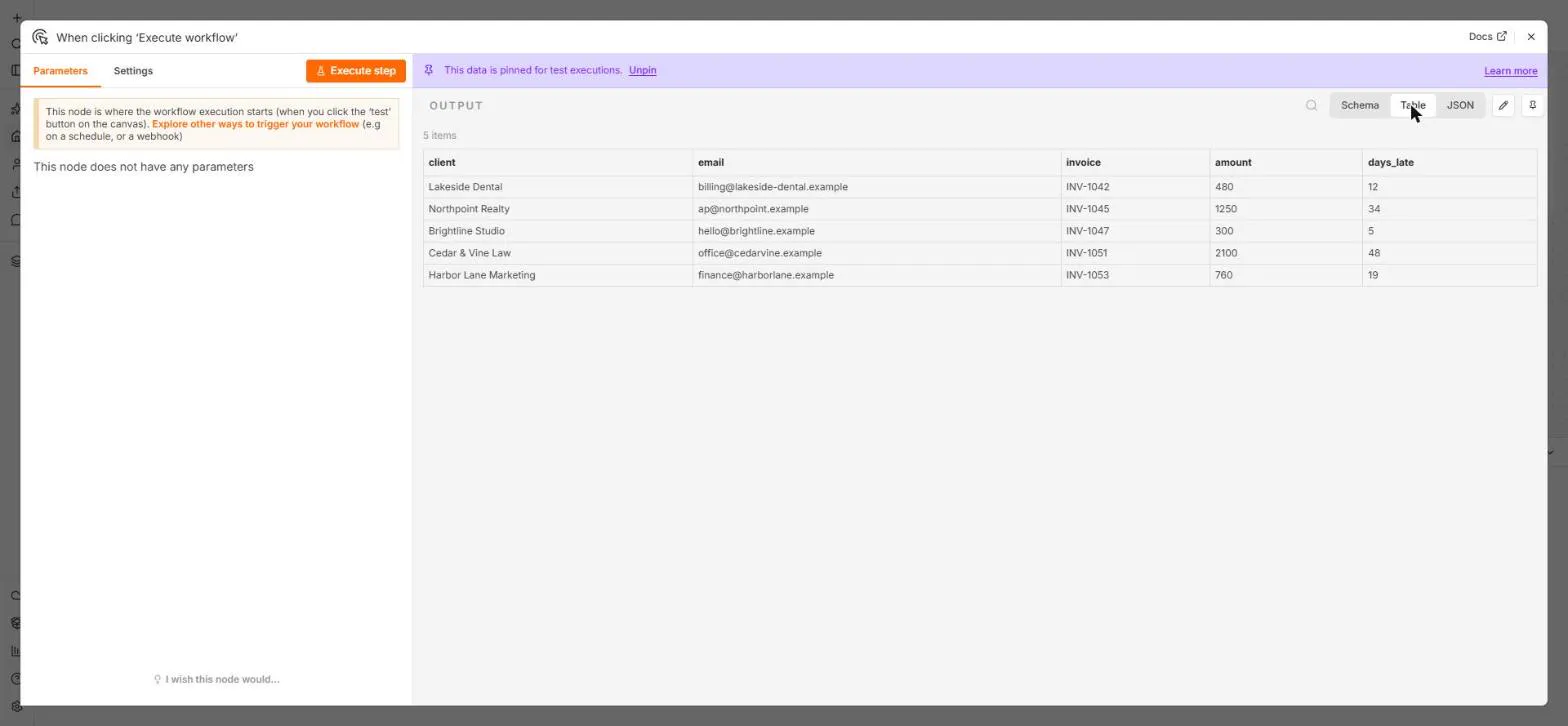
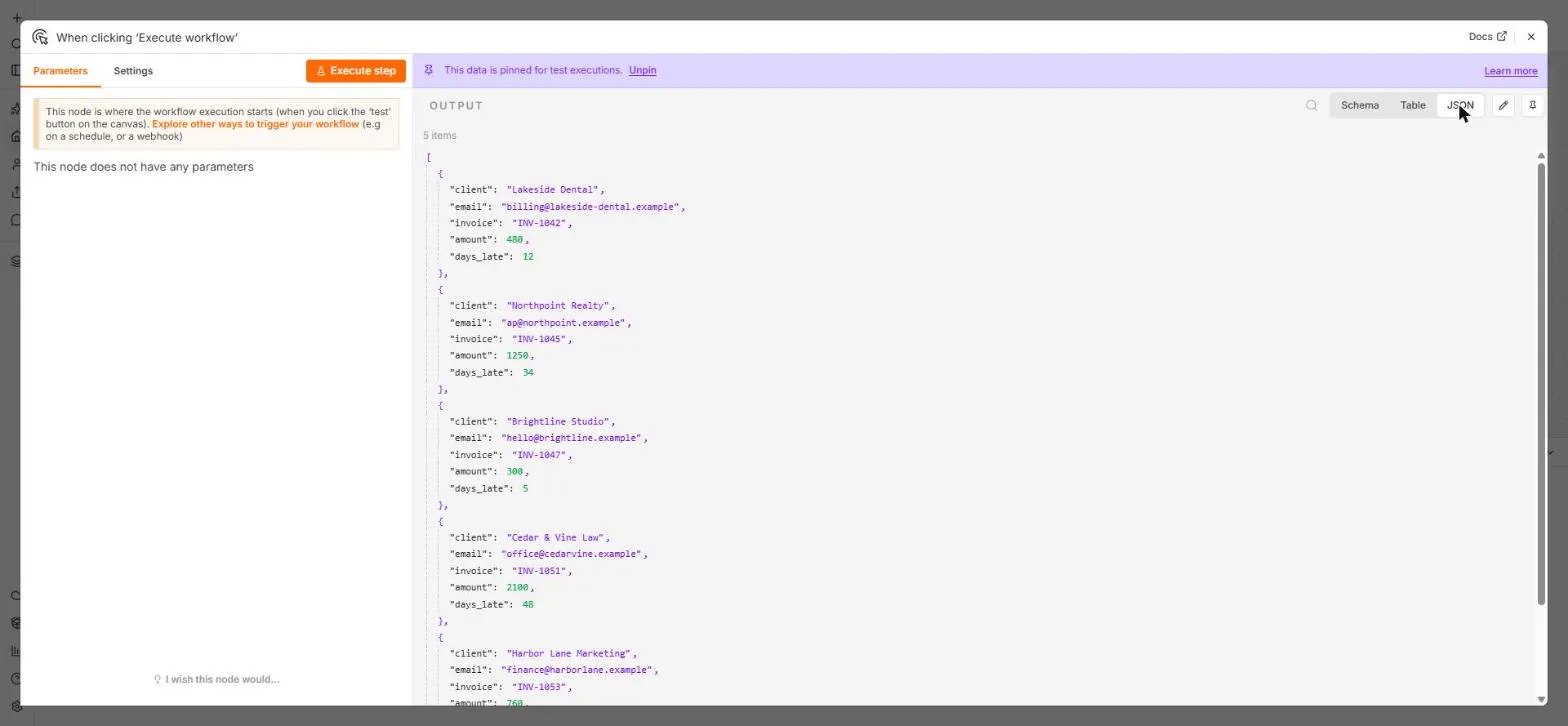
n8n passes a list of items between nodes. Each item is one record with named fields, and most nodes run once per item: 5 invoices in, 5 results out. Switch the OUTPUT between Schema, Table and JSON to read the same items three ways.
Pinned test data
Open a trigger and click set mock data, paste a JSON list and click Save. The banner says This data is pinned for test executions, and test runs reuse it instead of calling the real app.
Expressions by dragging
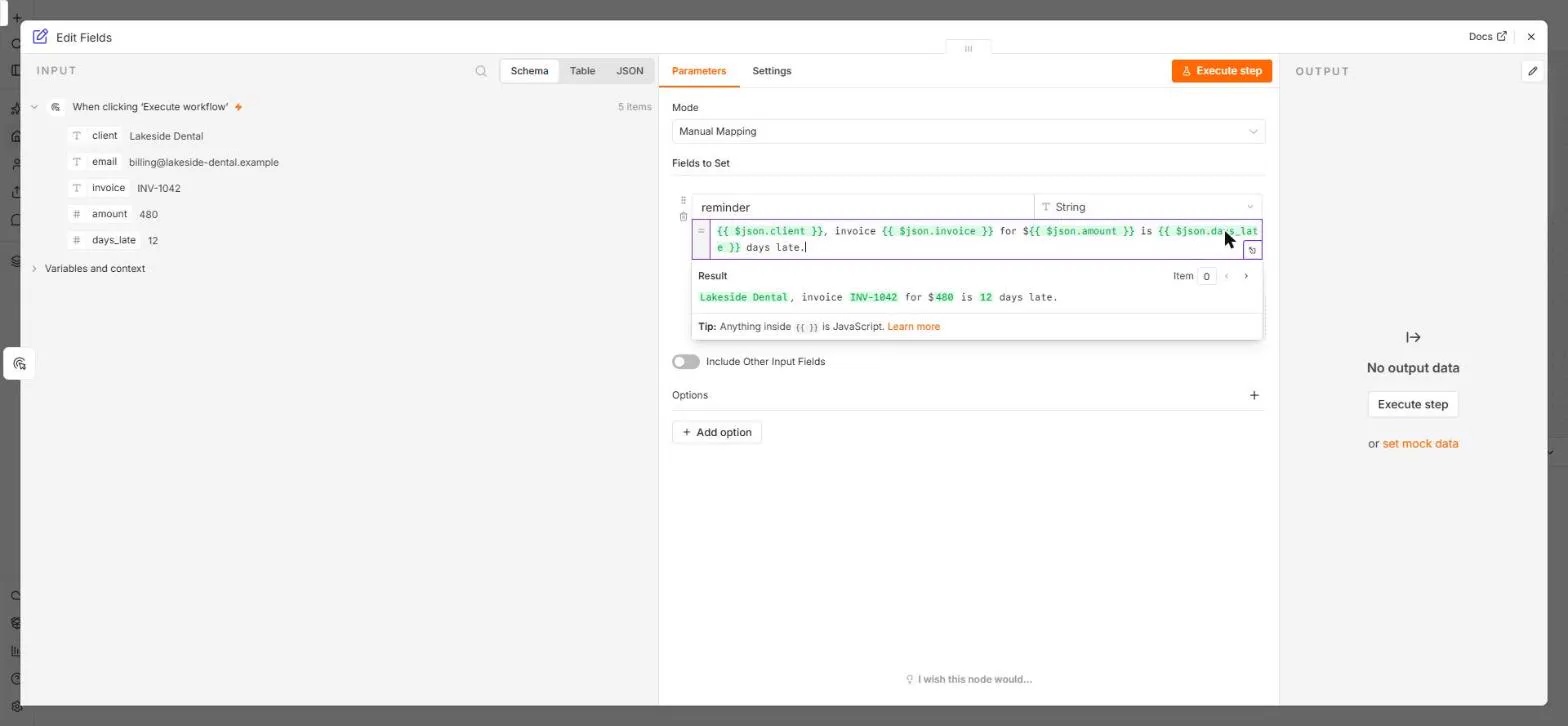
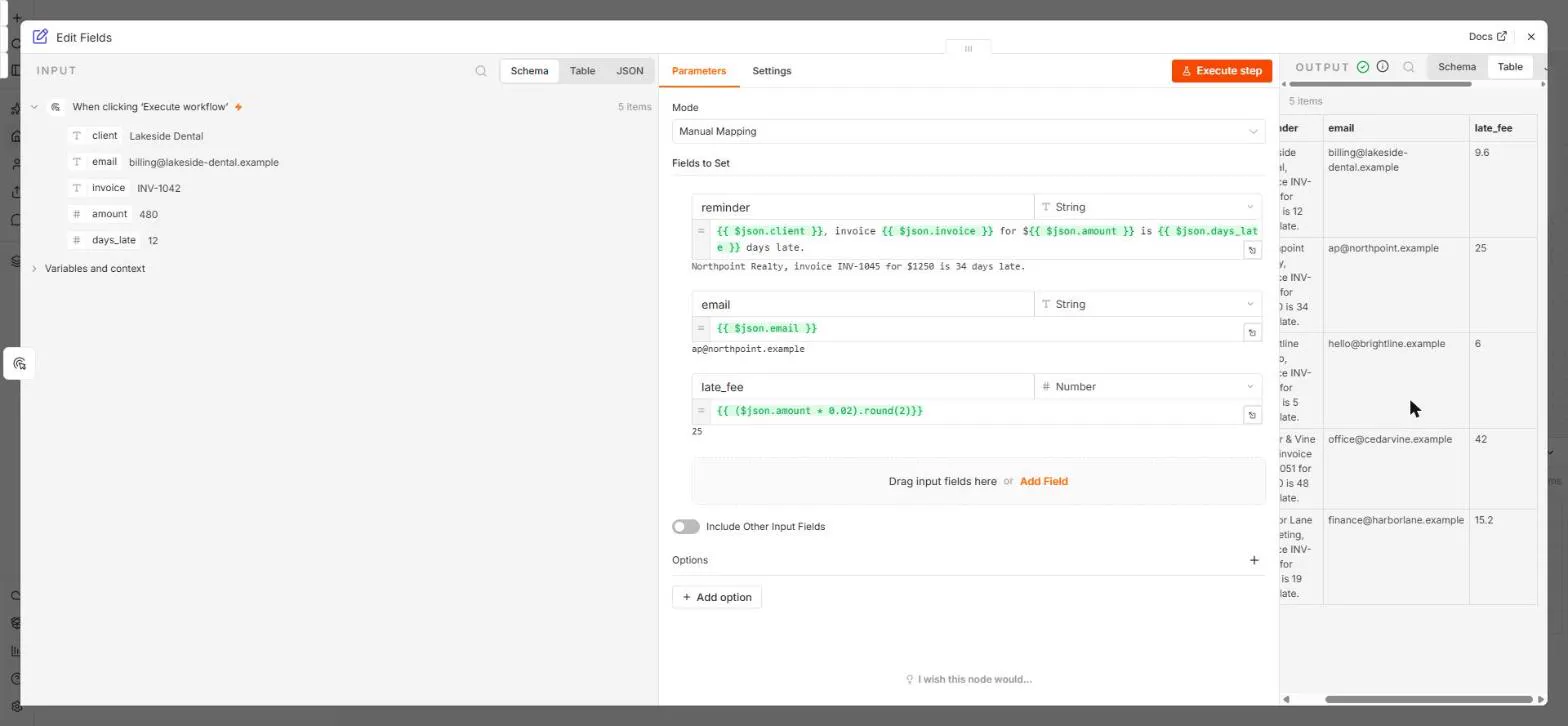
In Edit Fields (Set), click Add Field and drag a field from INPUT onto the value: n8n writes {{ $json.client }}, this item's client. The Result line shows Item 0; click › to preview the next item. Drag a field onto Drag input fields here to create a whole new field in one go.
Calculations and types
Anything inside {{ }} is JavaScript, so {{ ($json.amount * 0.02).round(2) }} calculates a 2% late fee rounded to cents. If the field type is Number, switch the value to Expression before typing, or the field strips everything that is not a digit.
Links
- n8n (affiliate link): the workflow tool this lesson teaches (free trial, no credit card).
- n8n docs: Expressions: the full expression reference.
Disclosure: links marked "affiliate link" are partner links. If you sign up through one, Stepthrough may earn a commission at no extra cost to you. The lesson is free either way and does not depend on it.
Try it yourself, free
Reading the steps is a start. Doing them is how it sticks. The interactive module walks you through every click in a practice copy of n8n, checks each step, and never touches your real accounts.
Start “n8n: Items, JSON and Expressions, Explained by Doing”Step by step: n8n: Items, JSON and Expressions, Explained by Doing
All 28 steps of the interactive module, in order. In the module you watch each one, then do it yourself in a practice copy that checks your work.
1. Get some data in
- Add the first step. Clearview Bookkeeping has five overdue invoices and writes every reminder by hand. Before you automate that, you need to see how n8n holds data. This is an empty workflow. Click Add first step....
Clearview Bookkeeping has five overdue invoices, and writes every reminder by hand. Before you automate that, you need to see how n8n holds data.
- Start it by hand. Click Trigger manually. While you learn, a button is the easiest start.
While you learn, a button is the easiest way to start.
- Open the trigger. The trigger is on the canvas as When clicking 'Execute workflow'. Open it (double-click; here, click).
The trigger sits on the canvas.
- Set mock data. It has no parameters, and the OUTPUT says No trigger output. Instead of connecting a real system, give it test data: click set mock data.
It has no settings, and no output yet. Instead of connecting a real system, give it some test data.
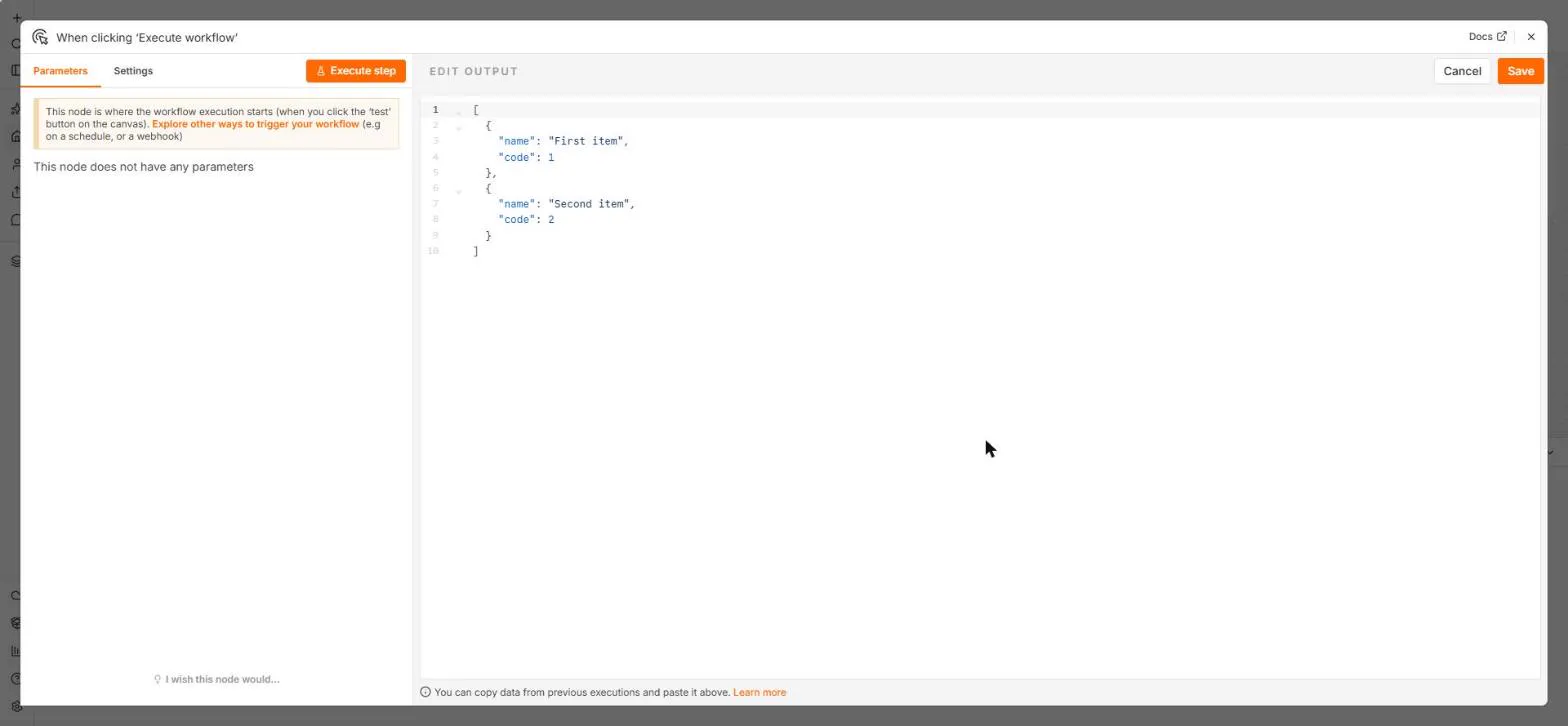
- Paste the invoices. The EDIT OUTPUT box holds an example. Replace it with the five invoices: a list in square brackets, one pair of curly brackets per invoice.
The edit output box holds an example. Replace it with the five invoices. It's JSON. A list in square brackets, with one set of curly brackets for each invoice.
[{"client":"Lakeside Dental","email":"billing@lakeside-dental.example","invoice":"INV-1042","amount":480,"days_late":12},{"client":"Northpoint Realty","email":"ap@northpoint.example","invoice":"INV-1045","amount":1250,"days_late":34},{"client":"Brightline Studio","email":"hello@brightline.example","invoice":"INV-1047","amount":300,"days_late":5},{"client":"Cedar & Vine Law","email":"office@cedarvine.example","invoice":"INV-1051","amount":2100,"days_late":48},{"client":"Harbor Lane Marketing","email":"finance@harborlane.example","invoice":"INV-1053","amount":760,"days_late":19}] - Save it. Click Save.
2. One item per record
- Table view. A purple banner says This data is pinned for test executions, and the OUTPUT says 5 items. Schema shows one item's fields. Click Table.
A banner says, this data is pinned for test executions. The output says five items. One item for each invoice. Schema shows the fields of one item.
- JSON view. Five rows, one per invoice. Text fields have a T, numbers a #. Click JSON to see the raw data.
Five rows. One per invoice.
- Close the trigger. Same data, written as JSON. Every app n8n talks to sends data like this. Close the node.
Same data, written as JSON. Almost every app sends data to n8n like this. Close the node.
3. Expressions
- Add a step. A pin on the trigger means it uses the pinned data. Click the + after it.
The pin on the trigger means it's using your test data.
- Search for Edit. Type Edit.
- Pick Edit Fields. Click Edit Fields (Set).
- Add a field. The INPUT shows 5 items and the fields of the first one. Click Add Field.
The input shows five items, and the fields of the first one.
- Name it. In name, type reminder.
Name it reminder.
- Drag in the client. Drag client onto value (here, click it). n8n writes {{ $json.client }}: *this item's client*.
Here, click it. n8n writes, dollar json dot client. It means, this item's client.
- Type a word. At the end, type is (with a space each side).
At the end, type is.
- Drag in the days. Drag days_late to the end (here, click it).
- Finish the sentence. Type days late.
- Check the next item. The Result shows Lakeside Dental is 12 days late, for Item 0. Click › next to it to preview item 1.
The result shows Lakeside Dental is twelve days late. That's item zero.
4. Drop, calculate, run
- Drop a whole field. Item 1 reads Northpoint Realty is 34 days late: one expression, a different answer per item. Now drag email onto Drag input fields here (here, click it).
Northpoint Realty is thirty four days late. One expression, a different answer for every item. Here, click it.
- Add one more field. n8n made a field named email with {{ $json.email }} in one go. Click Add Field for a late fee.
n8n made a whole field, called email, in one go. Now a late fee.
- Name it. Type late_fee.
Name it late fee, with an underscore.
- Change the type. A fee is a number. Click the type box (it says String).
A fee is a number. It says String.
- Number. Choose Number.
- Switch to Expression. A Number box only takes digits, so a typed {{ }} gets mangled. Point at the value and click Expression.
Careful here. A number box only takes digits. If you type curly brackets into it, they get mangled. Point at the value, and click Expression first.
- Calculate the fee. Paste the formula: 2% of the amount, rounded to cents. Without .round(2), 760 × 0.02 shows as 15.200000000000001.
Two percent of the amount, rounded to cents. Without the round, seven sixty times point oh two shows up as fifteen point two, with a long tail of zeros and a one.
- Run it. Click Execute step.
- Five in, five out. 5 items in, 5 items out: each invoice got its own reminder, email and late fee. Close the node.
Five items in. Five items out. Each invoice got its own reminder, email and late fee, from one node. Close the node.
Screenshots
Frequently asked questions
- What is an item in n8n?
- One record, such as one invoice or one form submission, with named fields. Nodes pass lists of items to each other and usually run once per item.
- What does $json mean in an n8n expression?
- $json is the current item's data, so {{ $json.client }} is this item's client field.
- How do I test n8n without connecting an app?
- Open the trigger, click set mock data, paste JSON and save it. Test runs use the pinned data.
- Why does my n8n number have so many decimals?
- Computers store decimals in binary, so 760 * 0.02 becomes 15.200000000000001. Add .round(2) to the expression.
More in n8n Automation Toolkit
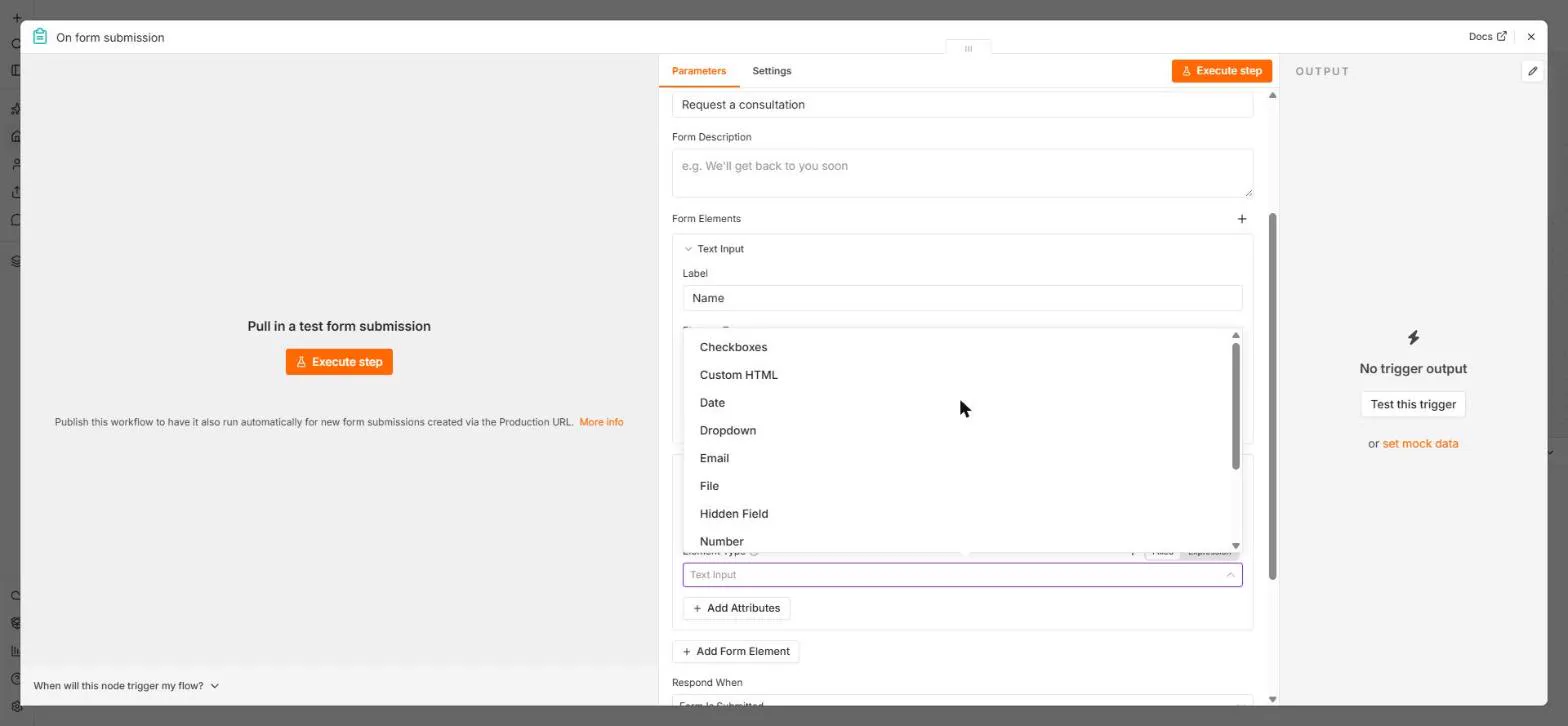 n8n: Send Form Answers Straight to Google Sheets
Build a consultation request form in n8n (required fields, email, dropdown), test it, and add every answer as a new row in Google Sheets. No webhook, no form tool to…
Free · Live ~10 min Beginner
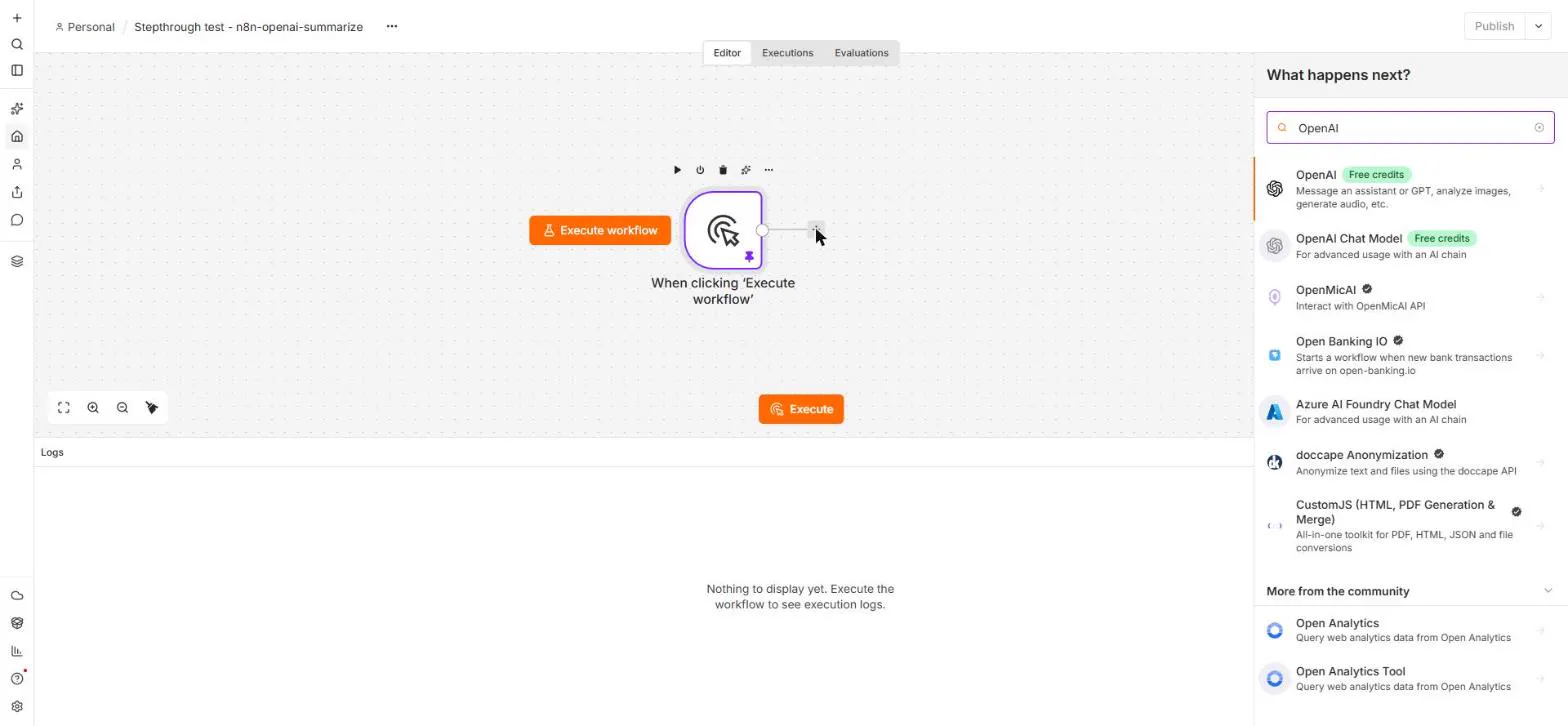 n8n: Summarize Customer Emails with OpenAI
Your first AI step in n8n: send each customer email to OpenAI with one prompt and get a one-line summary plus the next step. No agent needed, about a cent of API use.
Free · Live ~9 min Beginner
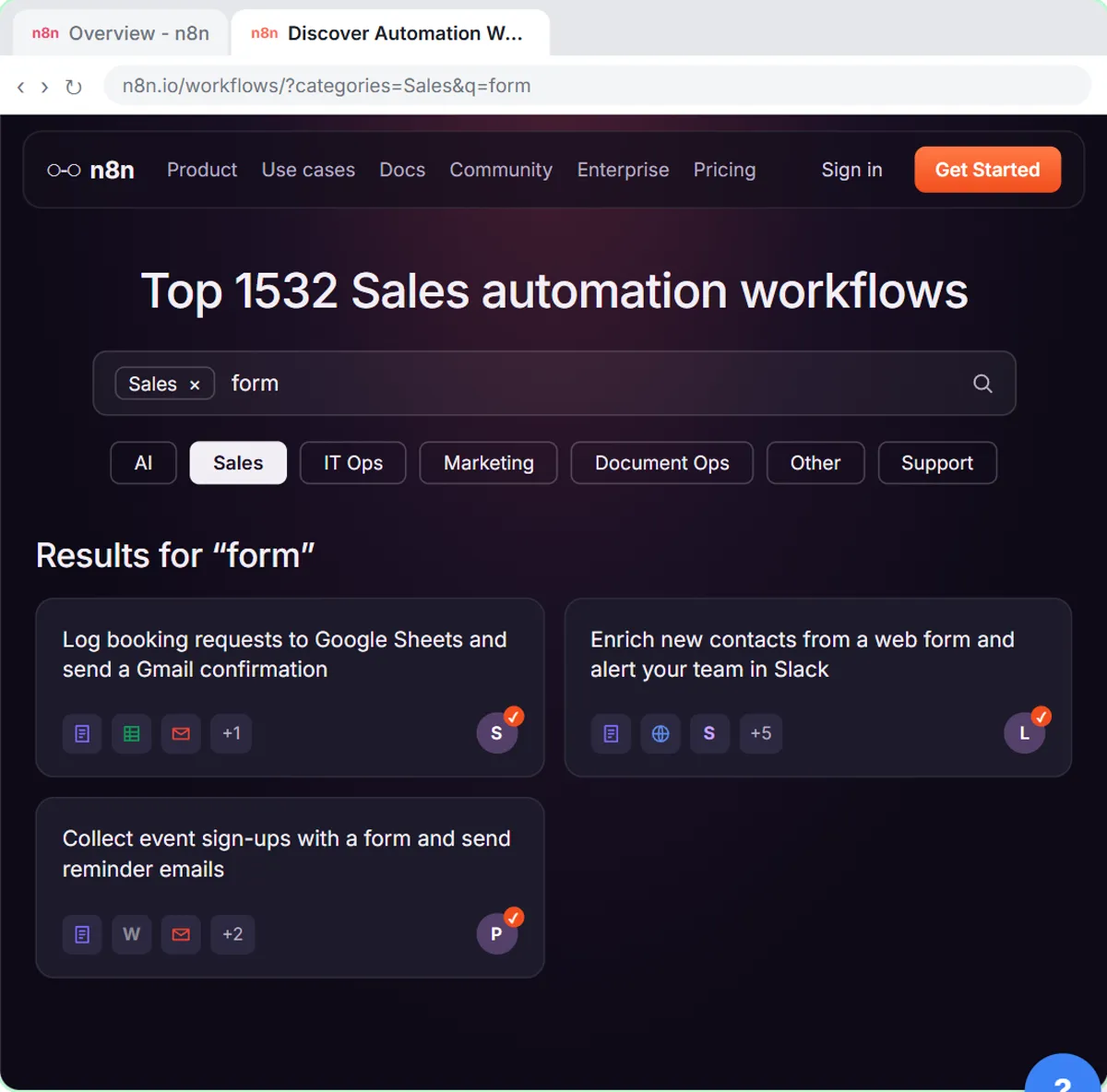 Find and Use n8n Templates
Skip the blank canvas. Find a ready-made workflow in the n8n template gallery, import it into your workspace, connect Google Sheets and Gmail, test it with a real form…
Free · Live ~9 min Beginner
 Litescrape in n8n: Swap SerpApi for a Cheaper Search API
Switch a weekly n8n competitor-price workflow from SerpApi to Litescrape's Google Shopping API: change the HTTP Request URL, move the key into a Bearer Auth credential…
Free · Live ~7 min Advanced
◷n8n: Execute Step, Execute Workflow and PublishLearn the buttons in today's n8n editor: run one node with Execute step, pin test data, run everything with Execute workflow, then Publish and copy the Production URL.
Free · Live ~6 min Beginner
 Webhooks and Forms in n8n: Capture Data from Anywhere
Stop losing quote requests between inboxes. Build a form n8n hosts for you, catch entries from your own website with a webhook, and save every request to one Google…
Free · Live ~12 min Intermediate
All 18 modules in n8n Automation Toolkit
More n8n tutorials
 n8n AI Agent Tutorial: Save Social Media Ideas to Google Sheets
Build an AI agent for BrightPath Marketing that generates social media post ideas and saves them to Google Sheets — chat trigger, AI Agent, system prompt, model…
Free · Live ~12 min Intermediate
 Lovable + n8n: Build a Web App with an AI Backend
Build a contact form in Lovable and connect it to an n8n workflow — webhook trigger, AI Agent, Google Sheets, Gmail, and a Respond node that ties it all together.
Free · Live ~15 min Advanced
 AI Receipt Extractor: Receipts to Google Sheets with n8n
Drop a photo of a receipt into an n8n chat. An AI agent reads it, pulls out the date, vendor and amount, picks a category, and adds a row to Google Sheets.
Free · Live ~12 min Intermediate
 n8n AI Email Responder: Draft Gmail Replies Automatically
Build an n8n agent that watches your Gmail, reads each new customer email, and writes a reply as a draft in the same thread, ready for you to check and send.
Free · Live ~12 min Intermediate
 Daily Job Alerts: Email Each Tech Their Jobs from Google Sheets with n8n
Every morning at 7, n8n reads a plumbing company's jobs sheet, skips anything not assigned yet, and emails each job to the tech it's assigned to — customer, address…
Free · Live ~10 min Intermediate
 Gmail AI Triage: Auto-Label Every Email and Draft Replies
Build an n8n workflow that reads each new email, sorts it as a lead, a client or an invoice with a Text Classifier, adds the matching Gmail label, and drafts a reply to…
Free · Live ~18 min Advanced
Free cheat sheet
Print it or save the PDF: the key steps and checks from this lesson on one page, free.
All free printable cheat sheets
Terms in this lesson
Plain-English definitions, each with an example from a free lesson.