Updated . Built against the tool’s current screens and checked step by step. How we check this lesson
The n8n template gallery holds thousands of free, ready-made workflows, and most people never use it well. They copy a template, see a canvas full of red warnings and give up. In this free n8n templates tutorial you find the right template, import it straight into your own workspace, connect the accounts it needs on the Set up template screen, point it at your own spreadsheet, run a real test and publish it.
At a glance
| Question | Answer |
|---|---|
| What you build | Skip the blank canvas. Find a ready-made workflow in the n8n template gallery, import it into your workspace, connect Google Sheets and Gmail, test it with a real form entry and publish it. |
| Tools | n8n |
| Time | About 9 minutes, 41 steps in 6 parts |
| Level | Beginner, no coding needed |
| Cost | Free |
| Ways to learn it | Practice it step by step, watch the video |
The 6 parts, in short
- Open the gallery: Open Templates.
- Find a template: Pick a category, Narrow it down, Open the template.
- Import it: Use for free, Import into your workspace.
- Set up credentials: The sheet it writes to, Four column headers, Back to n8n, Connect Google Sheets, and 12 more steps.
- Finish the setup: Know the other way in, Open the Sheets step, Choose your spreadsheet, Pick the booking sheet, and 6 more steps.
- First test run: Run it once, Fill in the form, Your email, Pet's name, and 5 more steps.
Start here first: n8n: What Is n8n? Build Your First Workflow (module 1 of n8n Automation Toolkit)
In the course: Part 9 · n8n Automation Toolkit (Module 69 of the full course)
Part of: Business Automations with n8n (step 1 of 22). Next up: AI Receipt Extractor: Receipts to Google Sheets with n8n
Part of: n8n Jump Start (step 2 of 23). Next up: n8n: Execute Step, Execute Workflow and Publish
Part of: n8n for Beginners: Your First Automations (step 9 of 12). Next up: n8n: Talk to Your Google Sheets with ChatGPT, from Zero (Free Credits or API Key, Google, Sheet, Chat)
Find and Use n8n Templates: video walkthrough
The whole lesson in 3:32, narrated step by step.
Simulated practice environment. Recorded in Stepthrough’s simulated practice environment, not the live tool. Practice it yourself free at learn.ynteractive.com.
Chapters
Click a chapter to jump the video there.
- 0:00 Intro: what you'll build
- 0:13 Find a template
- 0:49 Import it
- 1:07 Set up credentials
- 2:05 Finish the setup
- 2:59 First test run
Now do it yourself, free
Watching is the warm-up. The interactive lesson puts you in a practice copy of n8n: you do every step yourself, it checks your work, and “Do it for me” finishes any step you get stuck on. Nothing touches your real accounts.
Practice “Find and Use n8n Templates” step by stepFull transcript
Intro: what you'll build
0:00 Don't start from a blank canvas. A booking workflow for Hillside Pet Grooming from a free template. You'll find it in the n8n gallery. Connect Google Sheets and Gmail, then test booking and publish it. Let's build it.
Find a template
0:13 Here's the n8n workspace for Hillside Pet Grooming, and it's still empty. Before you build anything from scratch, check whether someone already has. In the sidebar, click Templates.
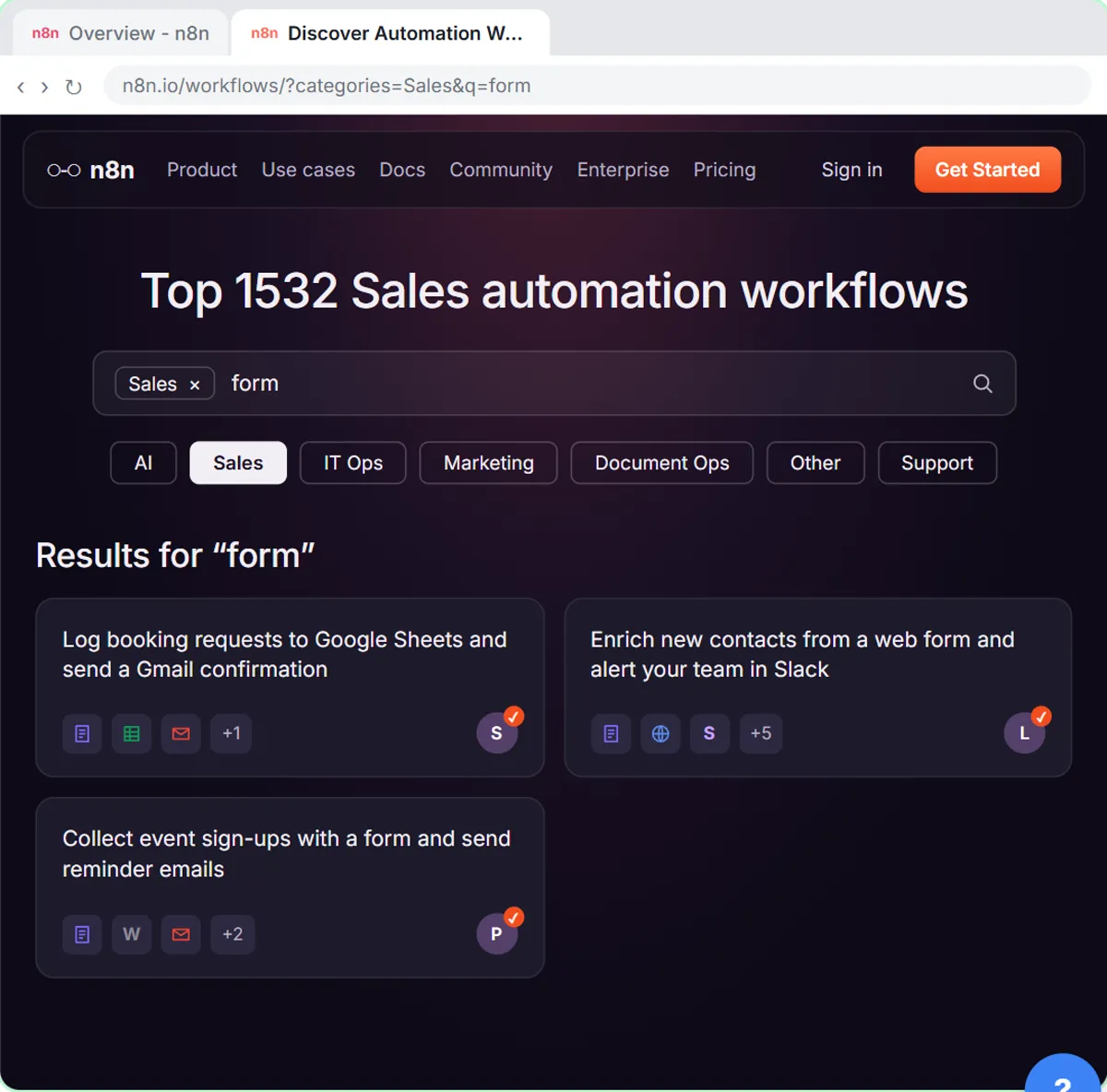
0:22 That opens the n8n template gallery in a new tab. Thousands of free workflows, sorted into categories like AI, Sales, IT Ops and Marketing. Booking requests are really sales leads, so click Sales.
0:35 Now narrow it down. Hillside takes bookings through a form, so type form in the search box and press Enter.
0:41 This one fits: it logs every booking request to a Google Sheet and sends a confirmation from Gmail. Click it to open the template page.
Import it
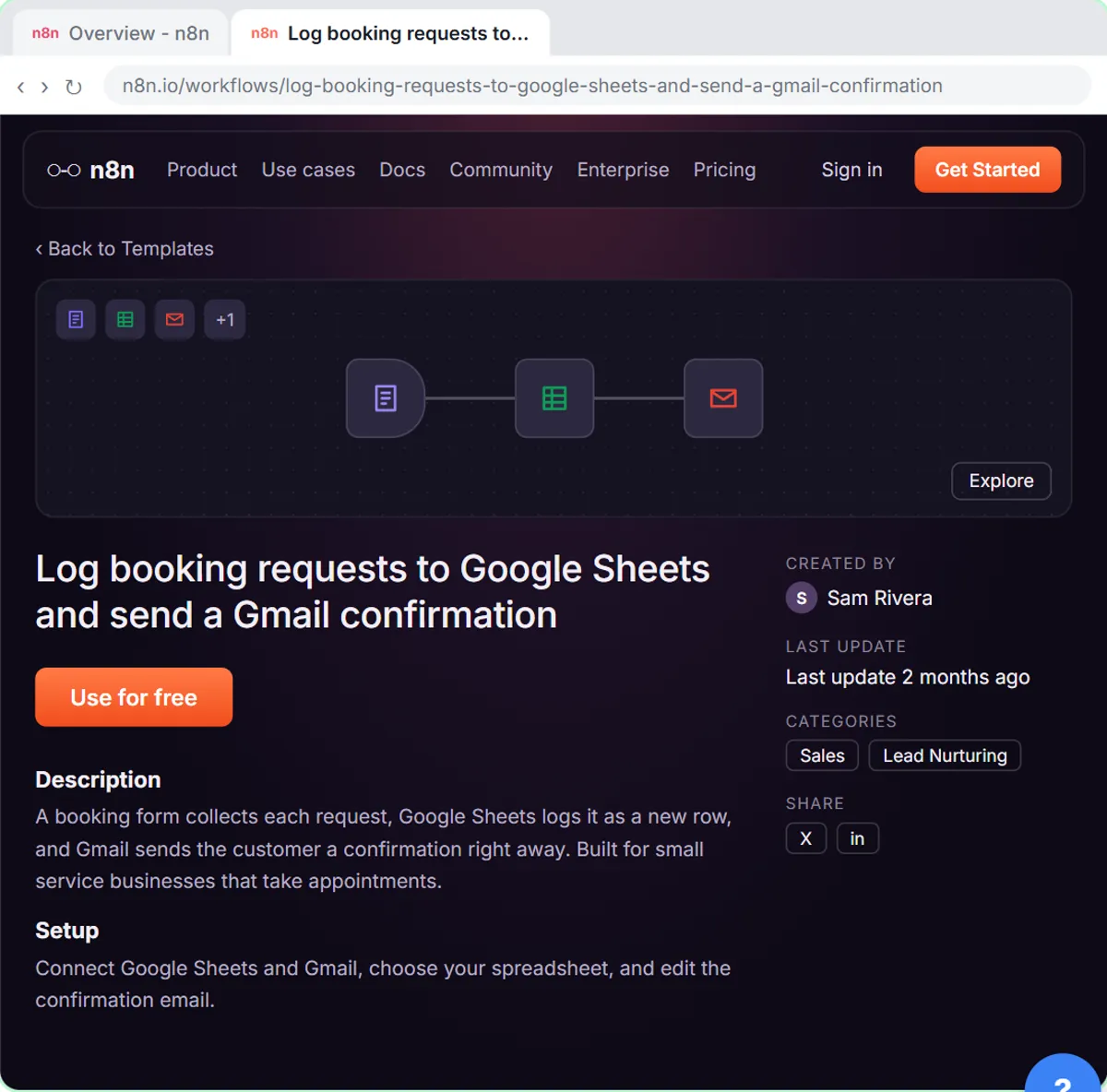
0:49 The template page shows a preview of the workflow, who made it, and a description of what it does and what you need. Click Use for free.
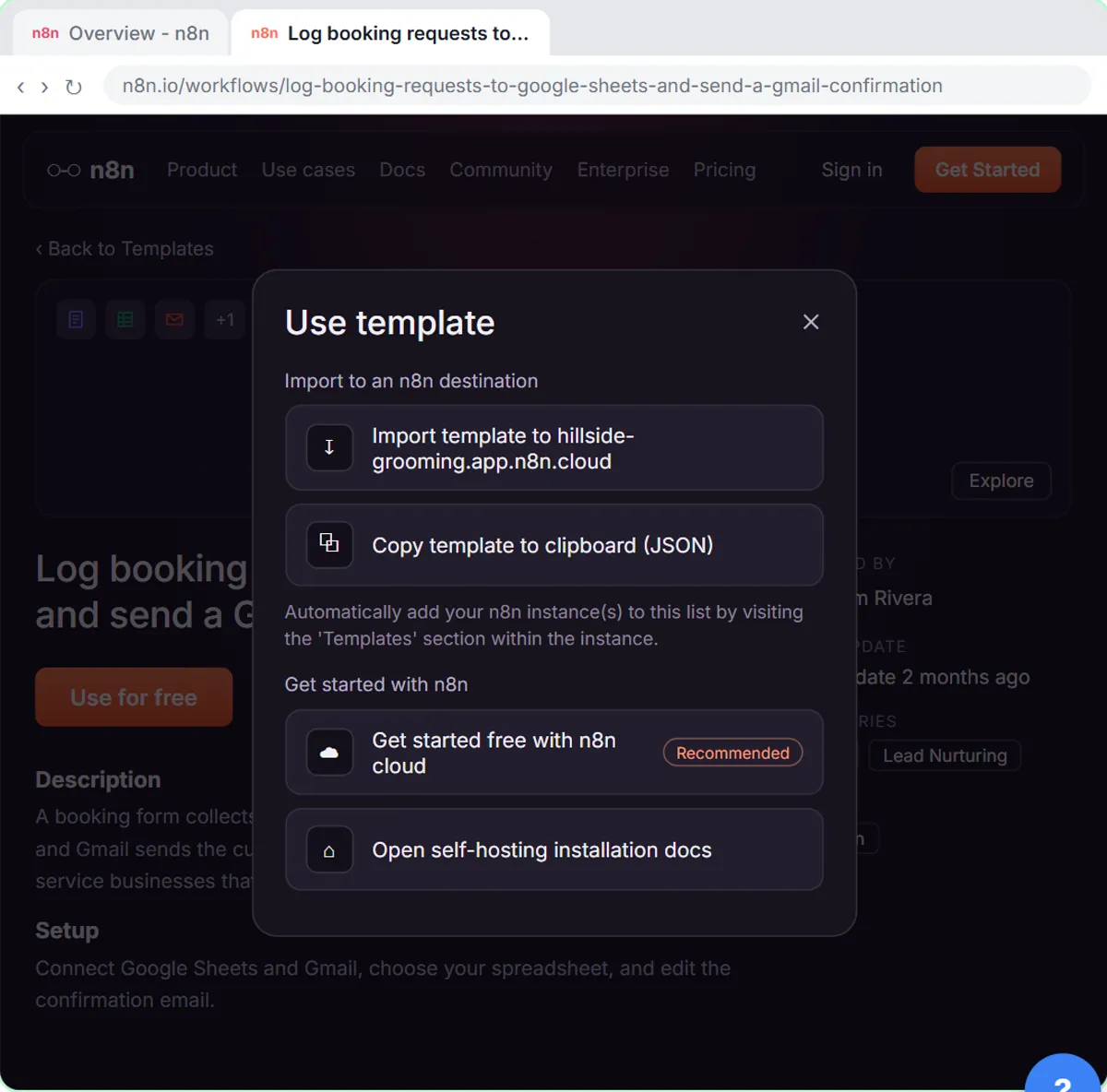
0:55 Because you came here from your own workspace, n8n lists it right here. Click Import template to your workspace. The Copy template to clipboard option works anywhere too: you'd paste it straight onto an empty canvas.
Set up credentials
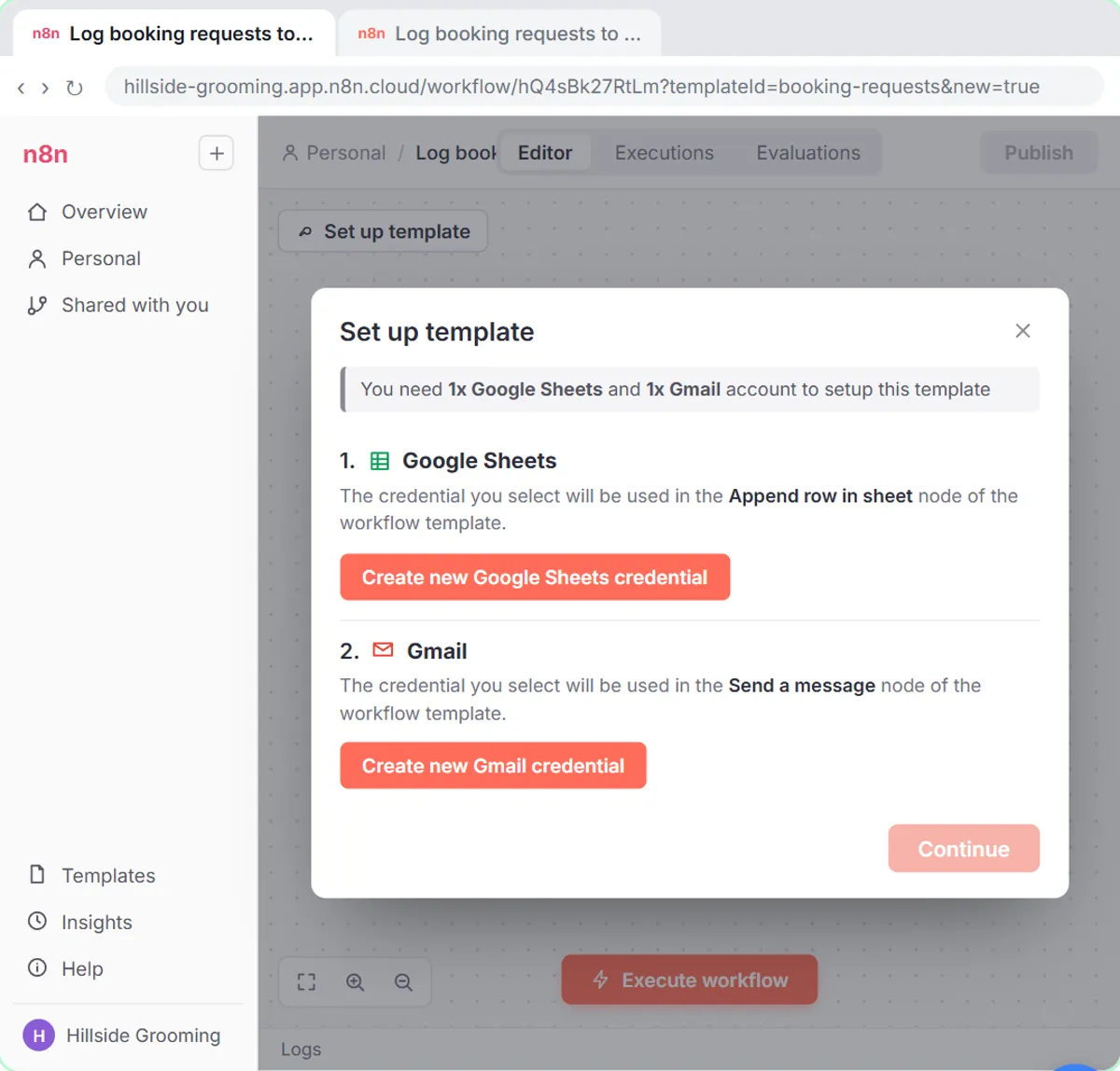
1:07 Back in n8n, the workflow is already on your canvas, and a Set up template window lists every account it needs. Two here: Google Sheets and Gmail. Click Create new Google Sheets credential.
1:17 On n8n Cloud you don't need any Google developer setup. Just click Sign in with Google.
1:22 Pick the Google account your business uses. Here that's the Hillside Grooming account.
1:26 Google shows exactly what n8n will be allowed to do. Tick Select all, so the workflow can add rows to your sheet.
1:32 Click Continue, and Google hands the connection back to n8n.
1:36 Account connected. n8n saves the credential for you, so you can use it in any workflow from now on. Close this window.
1:43 Google Sheets is done. Now Gmail. Click Create new Gmail credential.
1:47 Same as before. Click Sign in with Google.
1:49 Pick the Hillside Grooming account again.
1:52 This time the permissions are for Gmail, so the workflow can send the confirmation email. Tick Select all.
1:57 And Continue.
1:58 Connected. Close the window.
2:00 Both accounts are connected. Click Continue, and n8n puts them into the right steps for you.
Finish the setup
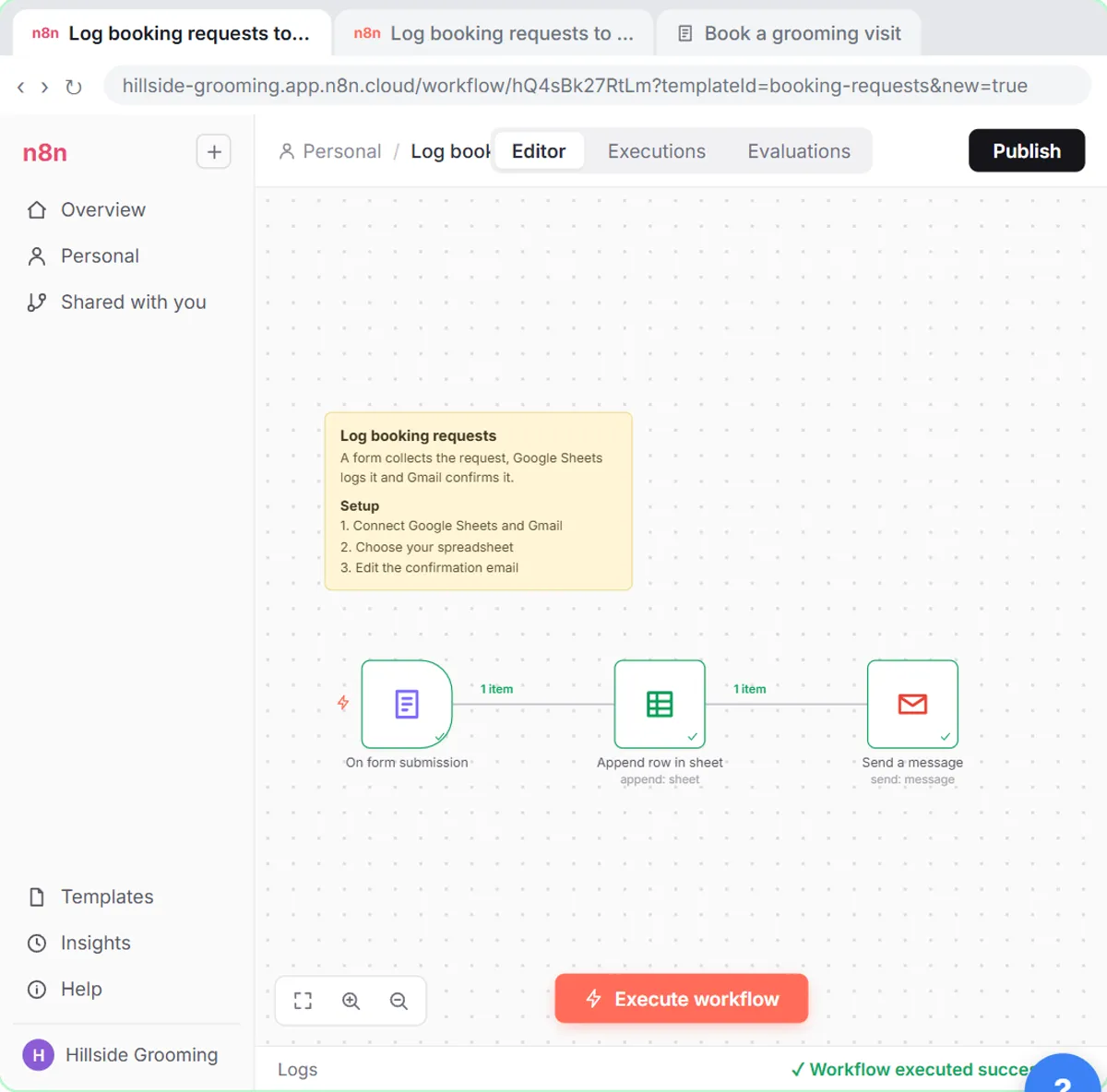
2:05 There's the whole workflow: a form, a Google Sheets step and a Gmail step, plus a sticky note from the creator. Quick detour: click the three dots at the top.
2:13 This menu has Import from URL and Import from File, for when someone sends you a workflow file. Good to know. Now open the Google Sheets step. The warning means it still needs your spreadsheet.
2:24 Your Google Sheets credential is already filled in. The template can't know which spreadsheet is yours, so click the Document dropdown.
2:31 Pick the Hillside Booking Requests sheet.
2:33 Then the Sheet dropdown, for the tab inside it.
2:36 Sheet1. The template already maps the columns: name, email, pet name and the time it came in. Your sheet just needs those headers in its first row.
2:44 Close the node.
2:45 Last bit of set-up: make the email sound like you. Open the Gmail step.
2:49 It already sends to the email address from the form. Swap in Hillside's own message. The parts in double curly braces pull in the customer's name and their pet's name.
2:58 Close it.
First test run
2:59 No more warnings. Time for a test run. Click Execute workflow.
3:03 n8n opens the booking form in a new tab and waits. Pretend you're a customer. Type a name.
3:08 An email. In the real thing, use your own, so you get the confirmation.
3:12 And the pet's name.
3:14 Submit.
3:15 Now head back to the n8n tab to see what happened.
3:18 Every step ran and has a green check: the request went into the sheet and the confirmation went out. Click Publish, and it runs for every real booking from now on.
3:26 Simple as that. We show you and you do it. Sign up below to learn AI automation for free.
Watch the 30-second version
3 short videos from this lesson. Watch, then do it yourself in the free practice copy.
 0:27
Don't build it from scratch
Don't build it from scratch. A grooming business needed a booking form that saves every request to a spreadsheet and emails the customer back. They started from a free n8n template instead: import it, connect Google…
Transcript
Don't build it from scratch. A grooming business needed a booking form that saves every request to a spreadsheet and emails the customer back. They started from a free n8n template instead: import it, connect Google, test it, publish.
 0:34
A template does half the work for you
Skip the blank canvas. Find a ready-made workflow in the n8n template gallery, import it, connect Google Sheets and Gmail, test it with a real form entry and publish it. Build it yourself, free, one click at a time…
Transcript
Skip the blank canvas. Find a ready-made workflow in the n8n template gallery, import it, connect Google Sheets and Gmail, test it with a real form entry and publish it. Build it yourself, free, one click at a time: learn.ynteractive.com
 0:33
Thousands of free workflows, ready to use
Skip the blank canvas. Find a ready-made workflow in the n8n template gallery, import it, connect Google Sheets and Gmail, test it with a real form entry and publish it. Build it yourself, free, one click at a time…
Transcript
Skip the blank canvas. Find a ready-made workflow in the n8n template gallery, import it, connect Google Sheets and Gmail, test it with a real form entry and publish it. Build it yourself, free, one click at a time: learn.ynteractive.com
The sheet it writes to
The template logs each booking request in a Google Sheet. This is the made-up Hillside Booking Requests sheet before the test: the four headers the template maps, in row 1, and no rows. After the test booking, row 2 holds the name, email, pet name and the time it came in. Your sheet needs the same headers, spelled the same way.
| Name | Pet name | Submitted |
|---|
Download the sheet template (CSV) To use it, open Google Sheets and choose File, Import, Upload. It has the four headers and no rows.
What you will build
You will set up a booking workflow for Hillside Pet Grooming, a small grooming shop. Customers fill in a short form with their name, email and pet's name. Each request is added as a new row in a Google Sheet, and the customer gets a friendly confirmation email from Gmail right away.
You do not build any of it from scratch. The whole workflow comes from a template: a form trigger, a Google Sheets step and a Gmail step, plus a sticky note from the creator explaining the setup. Your job is the part every template leaves to you: connecting your own accounts, choosing your own spreadsheet and making the email sound like your business.
Who this n8n templates tutorial is for
This module is for small business owners, office managers and anyone new to n8n who wants a working automation today instead of after a weekend of tutorials. You do not need to know how to code, and you do not need an n8n account to practice.
It is also the starting point of the n8n Automation Toolkit section. Knowing how to start from a template makes every later module in the section faster.
What you need before you do it for real
- An n8n account. n8n Cloud has a free trial; sign up at n8n.io.
- A Google account, because the template connects to Google Sheets and Gmail through a Sign in with Google button.
- A Google Sheet for the bookings, with four column headings in row 1: Name, Email, Pet name and Submitted. Create it first, so it shows up in the Document list.
- An email address of your own to use in the test form, so the confirmation lands in your inbox.
Three ways to import an n8n template
The quickest way is the one in this lesson: open Templates from inside your workspace first, and the Use template window on the website lists your instance, so one click imports the workflow and opens the Set up template window. This works for n8n Cloud and for self-hosted n8n.
The second way is Copy template to clipboard (JSON). Copy it, open an empty workflow in n8n and paste with Ctrl+V or Cmd+V. The nodes appear on the canvas and you connect each account by opening the nodes that show warnings.
The third way is for workflow files you get from someone else. In the editor, open the three-dot workflow menu and choose Import from File for a .json file on your computer, or Import from URL for a link to the JSON.
Why templates still need you
A template is someone else's workflow, so it cannot know your accounts or your data. Credentials are never shared with a template, which is why n8n asks you to connect Google Sheets and Gmail yourself. On n8n Cloud that is a Sign in with Google button. On self-hosted n8n you may need to set up your own Google OAuth app first.
The same goes for anything specific to the creator: their spreadsheet, their email wording, their labels. Before you publish, open each step that shows a warning, swap in your own choices and run one test. It is much cheaper to catch a mistake in a test than after your customers start filling in the form.
How the interactive lesson works
Every step is shown first on the left, in the Watch panel, with a short voice-over. Then you do it yourself on the right, in Your turn, on a practice copy of n8n and the template gallery. Each click is checked, so you know right away if you picked the right button. If you get stuck, press Do it for me and the step is done for you. Nothing touches a real account, no email is sent and nothing is published, so you can make mistakes freely, then go build it for real.
Try it yourself, free
Reading the steps is a start. Doing them is how it sticks. The interactive module walks you through every click in a practice copy of n8n, checks each step, and never touches your real accounts.
Start “Find and Use n8n Templates”Step by step: Find and Use n8n Templates
All 41 steps of the interactive module, in order. In the module you watch each one, then do it yourself in a practice copy that checks your work.
1. Open the gallery
- Open Templates. You're in your n8n workspace. In the left sidebar, click Templates.
Here's the n8n workspace for Hillside Pet Grooming, and it's still empty. Before you build anything from scratch, check whether someone already has. In the sidebar, click Templates.
2. Find a template
- Pick a category. This is the template gallery on n8n.io. Click the Sales category.
That opens the n8n template gallery in a new tab. Thousands of free workflows, sorted into categories like AI, Sales, IT Ops and Marketing. Booking requests are really sales leads, so click Sales.
- Narrow it down. Type form in the search box and press Enter.
Now narrow it down. Hillside takes bookings through a form, so type form in the search box and press Enter.
- Open the template. Click Log booking requests to Google Sheets and send a Gmail confirmation.
This one fits: it logs every booking request to a Google Sheet and sends a confirmation from Gmail.
3. Import it
- Use for free. The page shows the workflow, who made it and what it needs. Click Use for free.
The template page shows a preview of the workflow, who made it, and a description of what it does and what you need.
- Import into your workspace. Click Import template to hillside-grooming.app.n8n.cloud.
Because you came here from your own workspace, n8n lists it right here. The Copy template to clipboard option works anywhere too: you'd paste it straight onto an empty canvas.
4. Set up credentials
- The sheet it writes to. The template logs every booking in a Google Sheet, so look at that sheet before you connect anything. Hillside already made one. Switch to the Hillside Booking Requests tab.
Before you connect anything, look at where the bookings will go. The template logs every request in a Google Sheet, and Hillside already made one. Switch to the Hillside Booking Requests tab.
- Four column headers. Row 1 has the four headers the template fills in: Name, Email, Pet name and Submitted. No bookings yet. Your sheet needs the same headers, spelled the same way. Click the header row.
Row one has the four headers the template fills in. Name, email, pet name, and submitted. No bookings yet. Your own sheet needs the same headers, spelled the same way.
- Back to n8n. Switch back to the n8n tab to connect the accounts.
Now switch back to the n eight n tab, to connect the accounts.
- Connect Google Sheets. n8n opened the workflow with a Set up template window listing every account it needs. Under 1. Google Sheets, click Create new Google Sheets credential.
Back in n8n, the workflow is already on your canvas, and a Set up template window lists every account it needs. Two here: Google Sheets and Gmail.
- Sign in with Google. n8n Cloud handles the Google setup for you. Click Sign in with Google.
On n8n Cloud you don't need any Google developer setup.
- Choose your account. Pick the Google account the business uses.
Pick the Google account your business uses. Here that's the Hillside Grooming account.
- Allow access. Google lists what n8n will be allowed to do in Google Sheets. Tick Select all.
Google shows exactly what n8n will be allowed to do. Tick Select all, so the workflow can add rows to your sheet.
- Continue. Click Continue to hand the connection back to n8n.
- Close the credential. It says Account connected, and n8n saved the credential. Close the window with the ×.
Account connected. n8n saves the credential for you, so you can use it in any workflow from now on. Close this window.
- Connect Gmail. Google Sheets has a green check. Under 2. Gmail, click Create new Gmail credential.
Google Sheets is done. Now Gmail.
- Sign in with Google. n8n Cloud handles the Google setup for you. Click Sign in with Google.
Same as before.
- Choose your account. Pick the Google account the business uses.
Pick the Hillside Grooming account again.
- Allow access. Google lists what n8n will be allowed to do in Gmail. Tick Select all.
This time the permissions are for Gmail, so the workflow can send the confirmation email. Tick Select all.
- Continue. Click Continue to hand the connection back to n8n.
And Continue.
- Close the credential. It says Account connected, and n8n saved the credential. Close the window with the ×.
Connected. Close the window.
- Finish the set-up. Both accounts are connected. Click Continue.
Both accounts are connected.
5. Finish the setup
- Know the other way in. Click the ··· menu at the top, next to the workflow name.
There's the whole workflow: a form, a Google Sheets step and a Gmail step, plus a sticky note from the creator. Quick detour: click the three dots at the top.
- Open the Sheets step. That menu has Import from URL and Import from File for any workflow JSON. Now open the Append row in sheet node.
This menu has Import from URL and Import from File, for when someone sends you a workflow file. Good to know. The warning means it still needs your spreadsheet.
- Choose your spreadsheet. Your credential is already filled in. Click the Document dropdown. For real, make a Google Sheet first with the columns Name, Email, Pet name and Submitted.
Your Google Sheets credential is already filled in. The template can't know which spreadsheet is yours, so click the Document dropdown. When you do this for real, make the Google Sheet first, with four column headings: Name, Email, Pet name, and Submitted.
- Pick the booking sheet. Choose Hillside Booking Requests.
Pick the Hillside Booking Requests sheet.
- Choose the tab. Now click the Sheet dropdown.
Then the Sheet dropdown, for the tab inside it.
- Sheet1. Choose Sheet1.
Sheet1. The template already maps the columns: name, email, pet name and the time it came in. Your sheet just needs those headers in its first row.
- Back to the canvas. Close the node with the ×.
Close the node.
- Open the Gmail step. Open the Send a message node.
Last bit of set-up: make the email sound like you.
- Write your message. Replace the template's message with Hillside's own. It pulls the customer's name and pet name from the form.
It already sends to the email address from the form. Swap in Hillside's own message. The parts in double curly braces pull in the customer's name and their pet's name.
Hi {{ $json.Name }}, Thanks for reaching out to Hillside Pet Grooming! We got your request for {{ $json["Pet name"] }} and will call you within one business day to pick a time. See you soon, The Hillside team - Back to the canvas. Close the node.
Close it.
6. First test run
- Run it once. Every warning is gone. Click Execute at the bottom of the canvas.
No more warnings. Time for a test run.
- Fill in the form. n8n opened the test form. Type a name.
n8n opens the booking form in a new tab and waits. Pretend you're a customer.
- Your email. Type an email address.
An email. In the real thing, use your own, so you get the confirmation.
- Pet's name. Type the pet's name.
And the pet's name.
- Submit. Click Submit.
Submit.
- Check the run. Go back to the n8n tab.
Now head back to the n8n tab to see what happened.
- Check the sheet. Green checks only mean each step ran. Check the real result: switch to the Hillside Booking Requests tab.
Green checks mean each step ran. Now check the real result. Switch to the Hillside Booking Requests tab.
- Row 2 is the booking. Row 2 has the test booking: Jordan Lee, jordan@example.com, Biscuit, and the time it came in. Every real booking adds a row under it. Switch back to the n8n tab.
Row two has the test booking. The name, the email, the pet, and the time it came in. Every real booking adds a row under it. Switch back to the n eight n tab.
- Publish it. Every step has a green check. Click Publish so it runs for every real booking.
Every step ran and has a green check: the request went into the sheet and the confirmation went out.
Screenshots
Frequently asked questions
- Where is the n8n template directory?
- On the n8n website at n8n.io/workflows, also called the template gallery, and under Templates inside your n8n workspace. Search by app or job, open a template and click Use for free to import it.
- Should I use a template or build an n8n agent myself?
- Use a template when one matches your job closely. Build it yourself when you want to understand every node: the n8n sales agent lesson, for example, builds a deal follow-up agent step by step.
- Are n8n templates free?
- The templates in the n8n gallery are free to use. The button on each template page says Use for free. You still need an n8n account to run them, and the apps a template connects to may have their own costs.
- How do I import an n8n template?
- Open Templates from your n8n workspace, pick a template on the website and click Use for free, then Import template to your instance. You can also copy the template JSON and paste it onto a canvas, or use Import from File or Import from URL in the workflow menu.
- Why does my imported template show warnings?
- Templates arrive without credentials and often without the specific files or settings they need. Connect your accounts on the Set up template window, then open each node with a warning and fill in your own choices, like which spreadsheet to use.
- Is this course really free?
- Yes. Stepthrough is completely free, and the practice copy needs no accounts. To build it for real you need your own n8n, Google Sheets and Gmail accounts, and some of those cost money once you use them for real work.
- Can I use n8n templates on self-hosted n8n?
- Yes. Open Templates from your self-hosted instance and the gallery lists it as an import destination, or copy the template JSON and paste it onto your canvas.
More in n8n Automation Toolkit
 n8n: What Is n8n? Build Your First Workflow
What n8n is and how it thinks, then your first workflow: a client inquiry form that catches every request and writes a one-line summary. No code, no accounts to connect.
Free · Live ~8 min Beginner
 AI Workflow Automation for Beginners: Sort Every Client Inquiry and Draft the Reply using n8n
AI workflow automation for beginners: a form catches each client inquiry, an AI step sorts it and drafts the reply, and an If rule flags the urgent ones. Real n8n, free…
Free · Live ~12 min Beginner
 n8n: Items, JSON and Expressions, Explained by Doing
See how n8n holds data: pin five fake invoices, read them as items, Table and JSON, then write one reminder per invoice and a late fee with drag-and-drop expressions.
Free · Live ~9 min Beginner
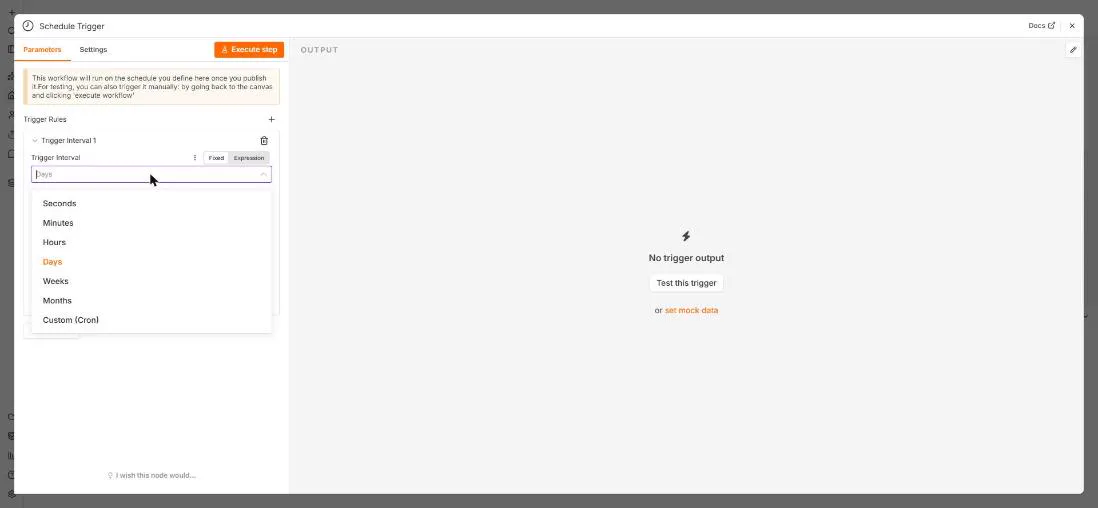 n8n: Run a Workflow on a Schedule (Every Monday at 8am)
Use the n8n Schedule Trigger to run a workflow by itself: every Monday at 8am, a timesheet reminder. Set the interval, test it now, and check the time zone.
Free · Live ~6 min Beginner
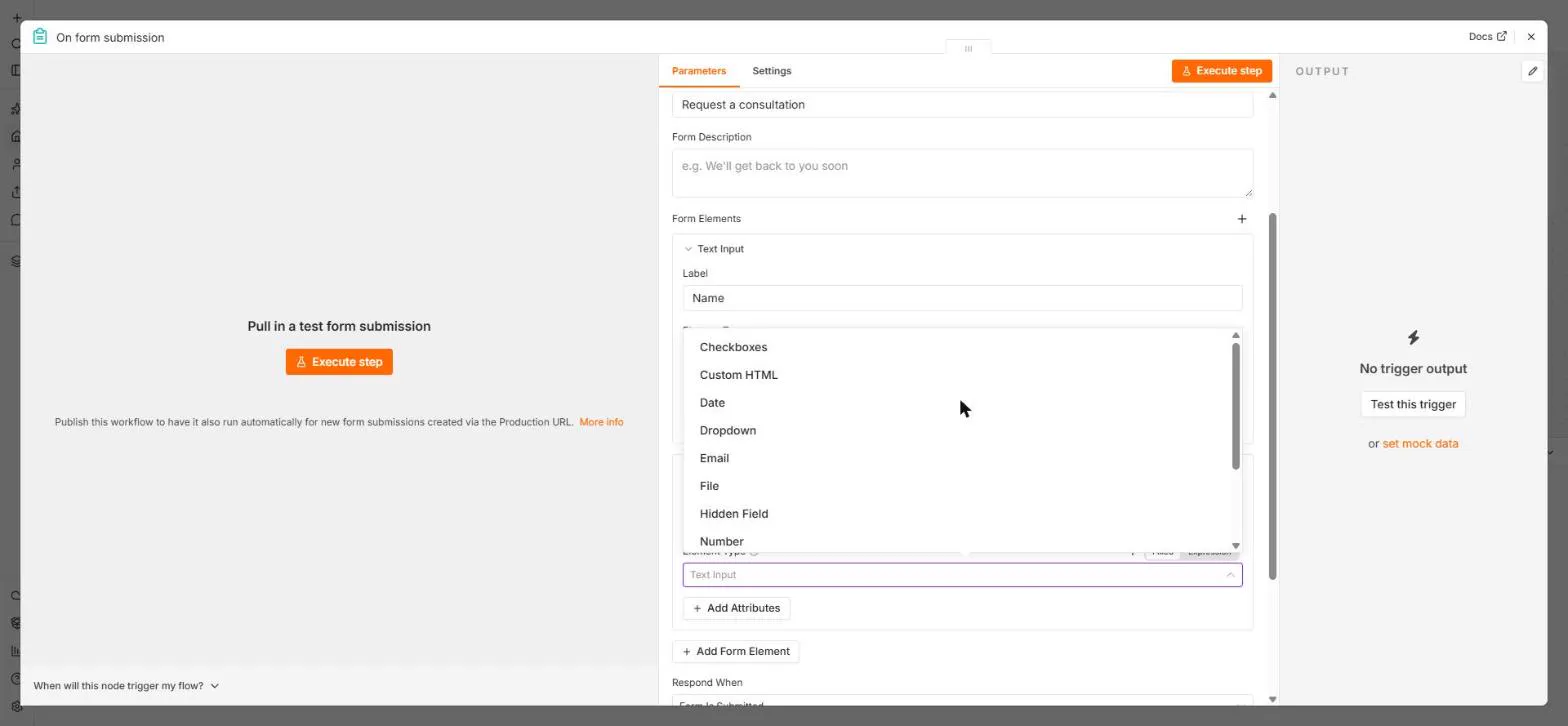 n8n: Send Form Answers Straight to Google Sheets
Build a consultation request form in n8n (required fields, email, dropdown), test it, and add every answer as a new row in Google Sheets. No webhook, no form tool to…
Free · Live ~10 min Beginner
◷n8n: Execute Step, Execute Workflow and PublishLearn the buttons in today's n8n editor: run one node with Execute step, pin test data, run everything with Execute workflow, then Publish and copy the Production URL.
Free · Live ~6 min Beginner
All 25 modules in n8n Automation Toolkit
More n8n tutorials
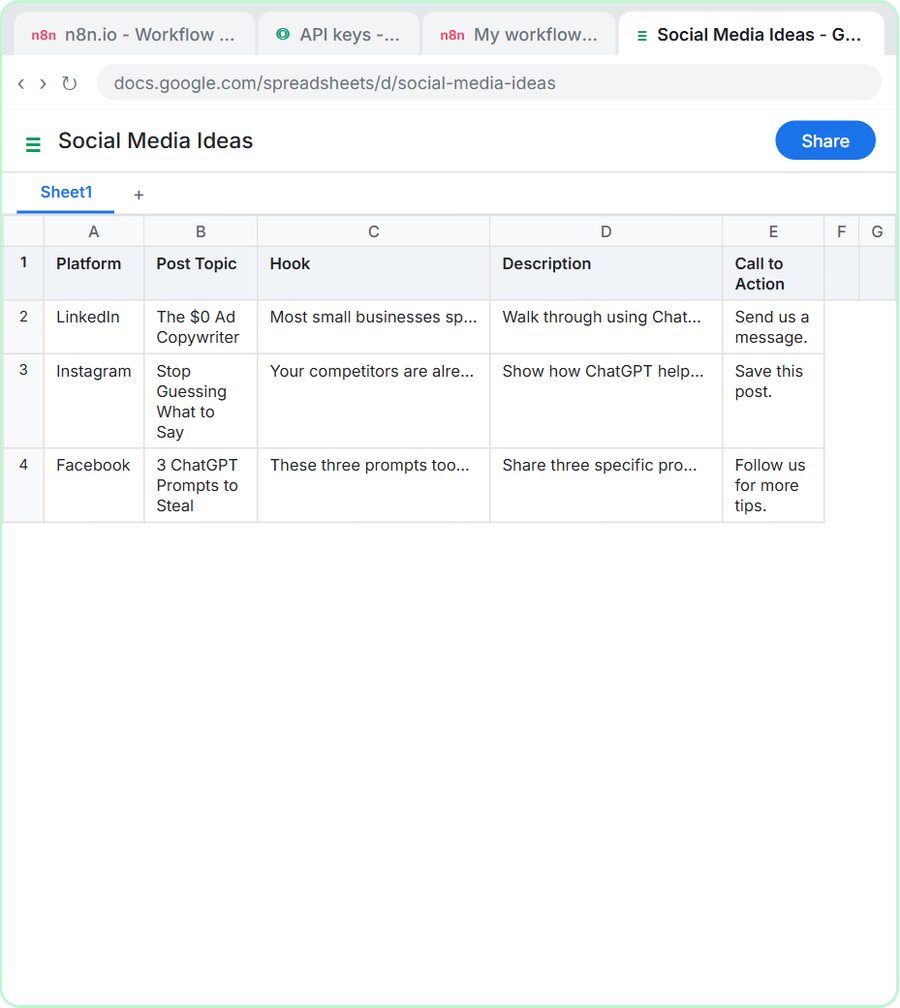 n8n AI Agent Tutorial: Save Social Media Ideas to Google Sheets
Build an AI agent for BrightPath Marketing that generates social media post ideas and saves them to Google Sheets — chat trigger, AI Agent, system prompt, model…
Free · Live ~12 min Intermediate
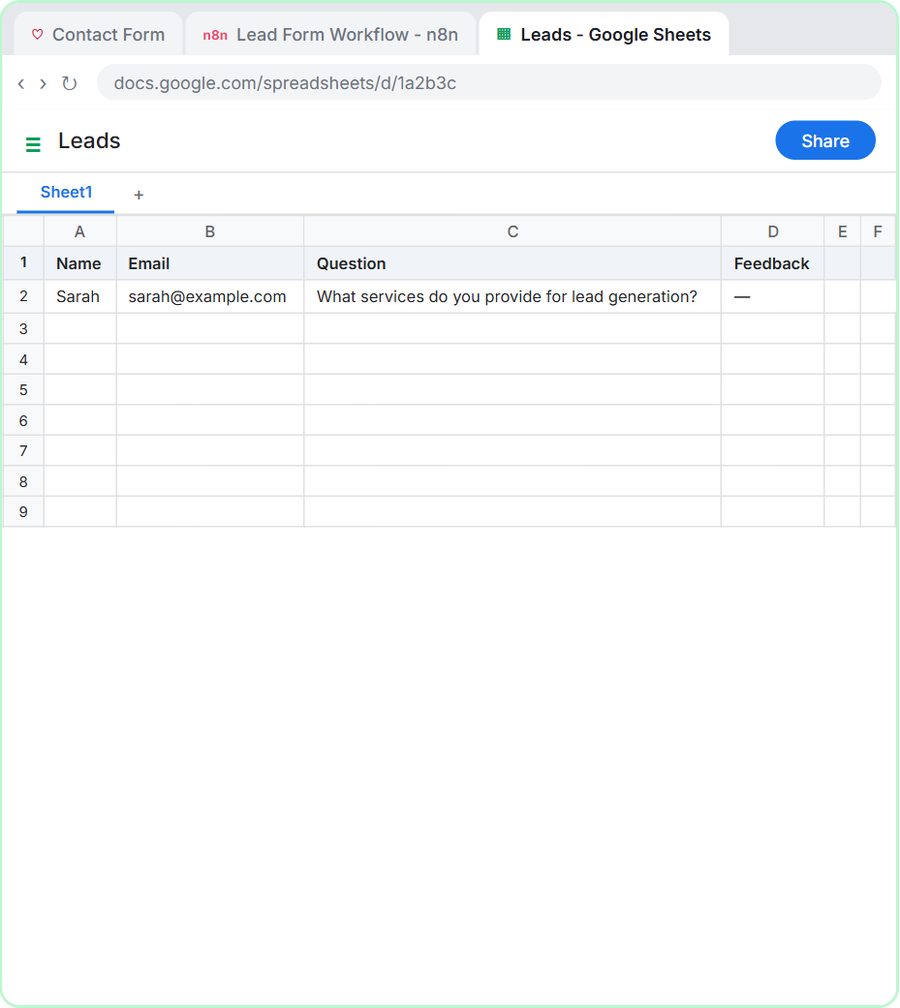 Lovable + n8n: Build a Web App with an AI Backend
Build a contact form in Lovable and connect it to an n8n workflow — webhook trigger, AI Agent, Google Sheets, Gmail, and a Respond node that ties it all together.
Free · Live ~15 min Advanced
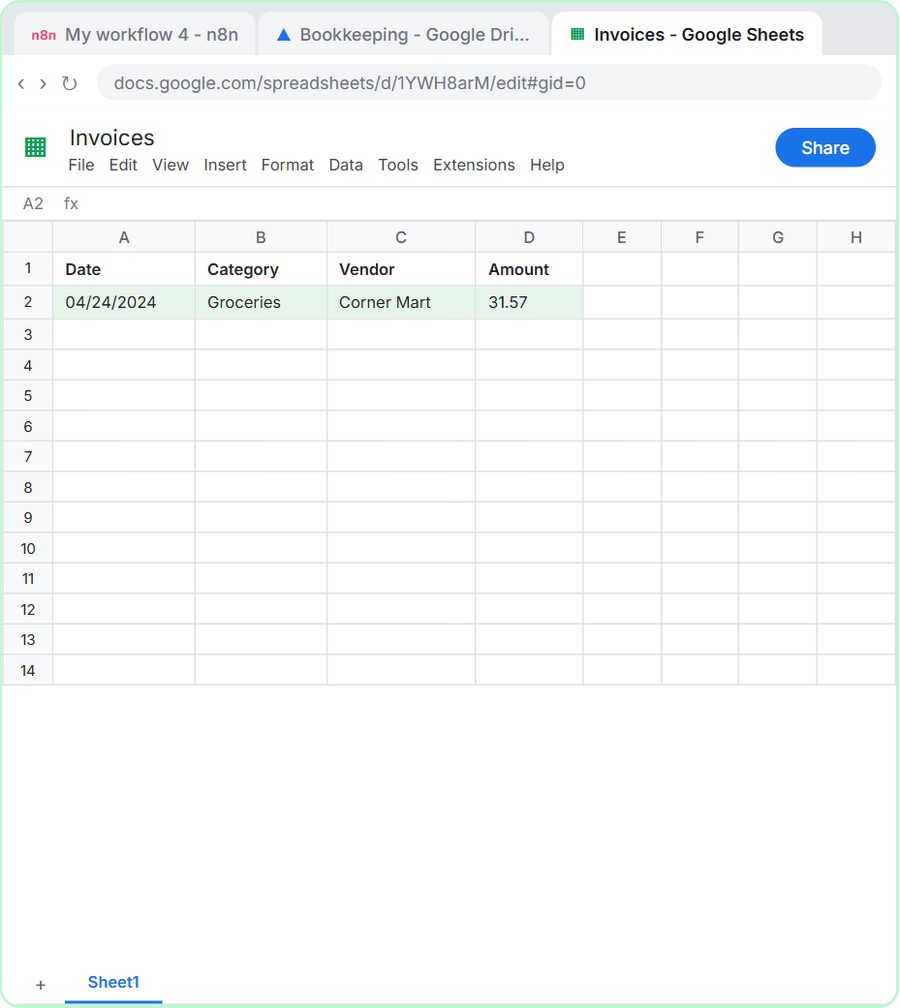 AI Receipt Extractor: Receipts to Google Sheets with n8n
Drop a photo of a receipt into an n8n chat. An AI agent reads it, pulls out the date, vendor and amount, picks a category, and adds a row to Google Sheets.
Free · Live ~12 min Intermediate
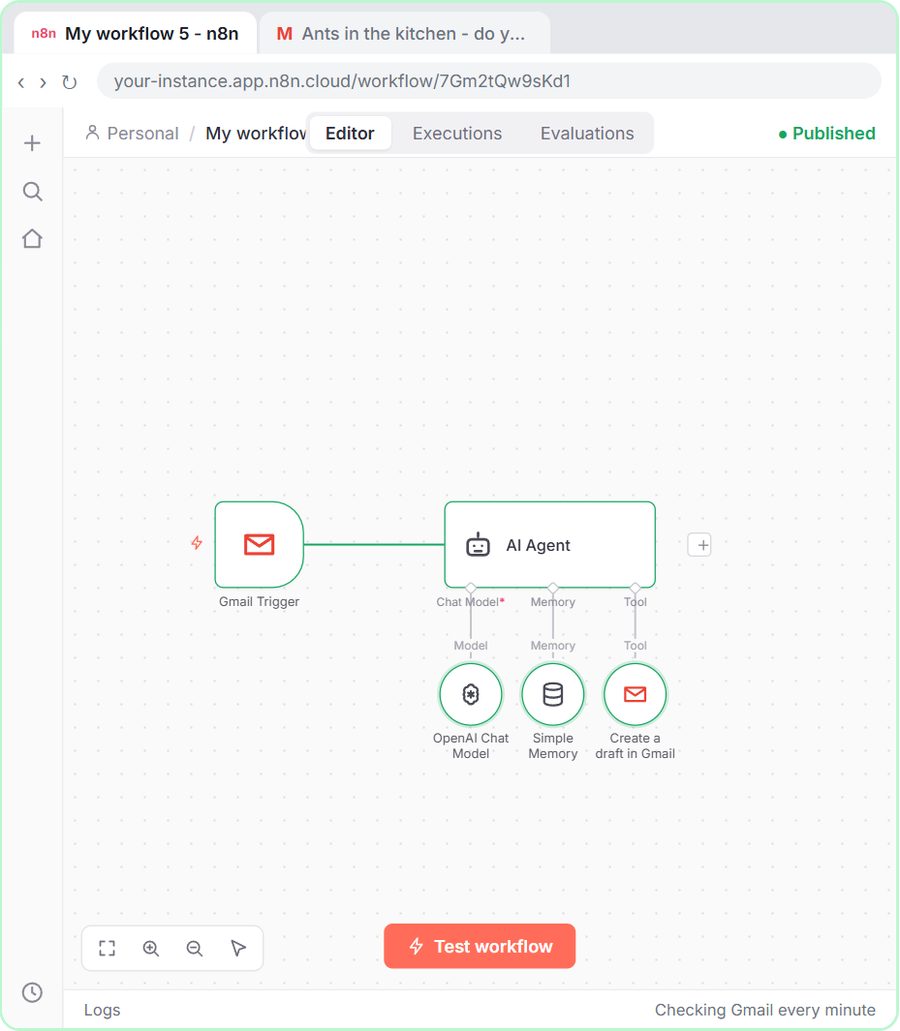 n8n AI Email Responder: Draft Gmail Replies Automatically
Build an n8n agent that watches your Gmail, reads each new customer email, and writes a reply as a draft in the same thread, ready for you to check and send.
Free · Live ~12 min Intermediate
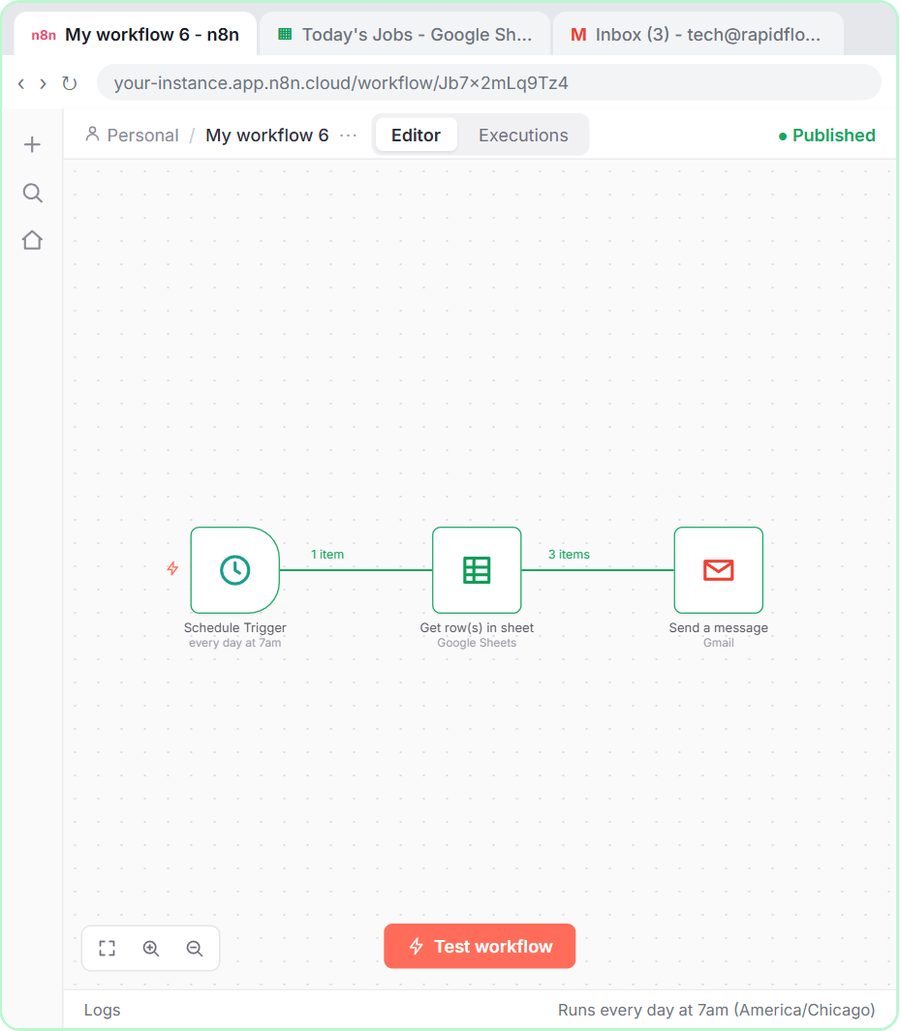 Daily Job Alerts: Email Each Tech Their Jobs from Google Sheets with n8n
Every morning at 7, n8n reads a plumbing company's jobs sheet, skips anything not assigned yet, and emails each job to the tech it's assigned to — customer, address…
Free · Live ~10 min Intermediate
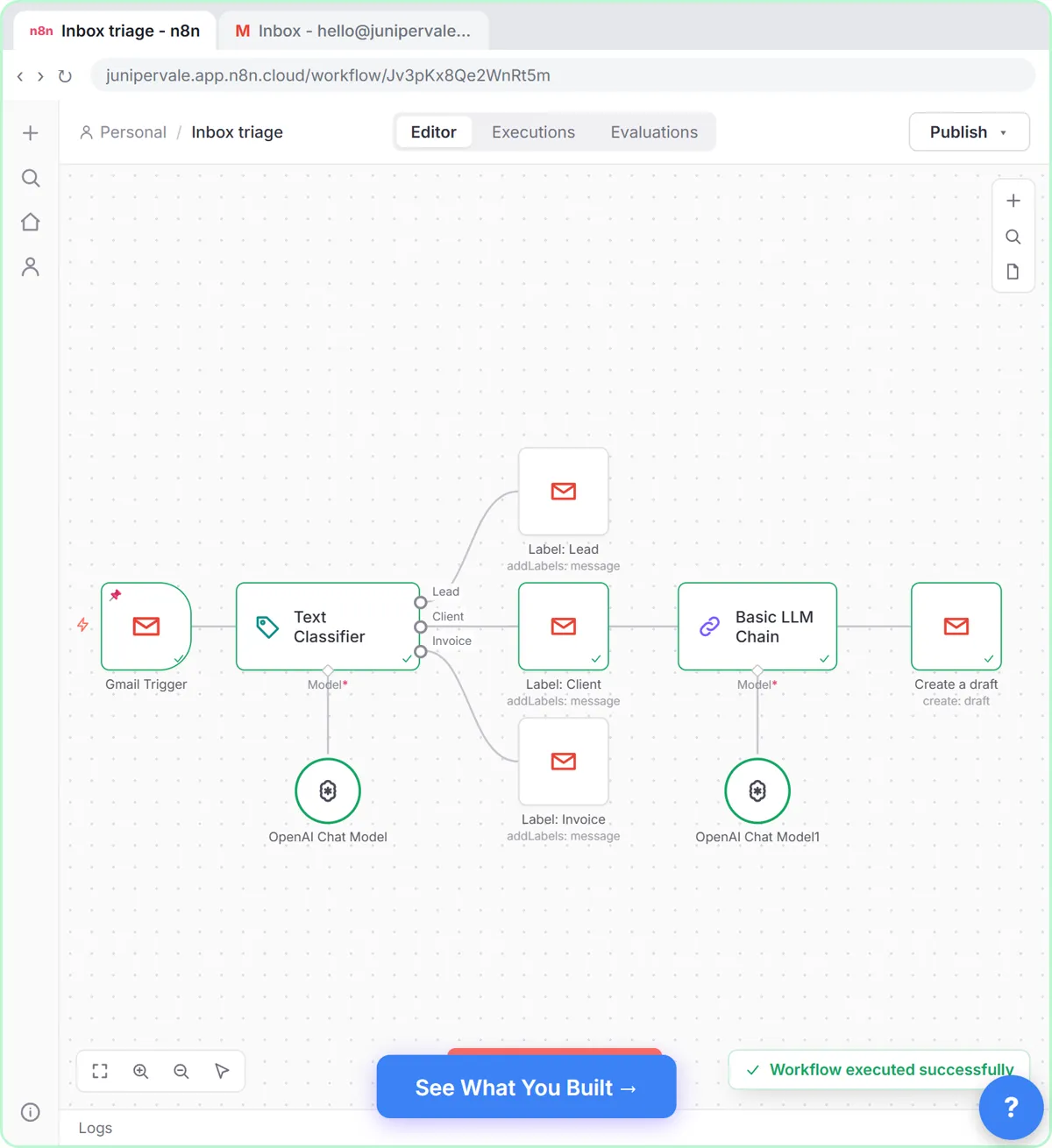 Gmail AI Triage: Auto-Label Every Email and Draft Replies
Build an n8n workflow that reads each new email, sorts it as a lead, a client or an invoice with a Text Classifier, adds the matching Gmail label, and drafts a reply to…
Free · Live ~18 min Advanced
From the blog
n8n Node Warnings and Errors: What the Red Meansn8n node warnings and errors explained: template warnings, the red triangle on an AI Agent, "Error in sub-node", green checks and item counts.
Nov 7, 2026 6 min read
Automatic Confirmation Emails for Form SubmissionsWhat an automatic confirmation email for a form submission should say, fixed vs AI-written confirmations, and how to set one up and test it with n8n.
Oct 28, 2026 6 min read
 What Does Publish Mean in n8n? Test vs Publish, Explained
Publishing an n8n workflow makes it run on its own when its trigger fires. How Publish differs from Execute workflow, and what to check before clicking it.
Oct 27, 2026 5 min read
Visual guides
This lesson’s key ideas as quick visual guides: swipe through the slides, or read the same guide as text.
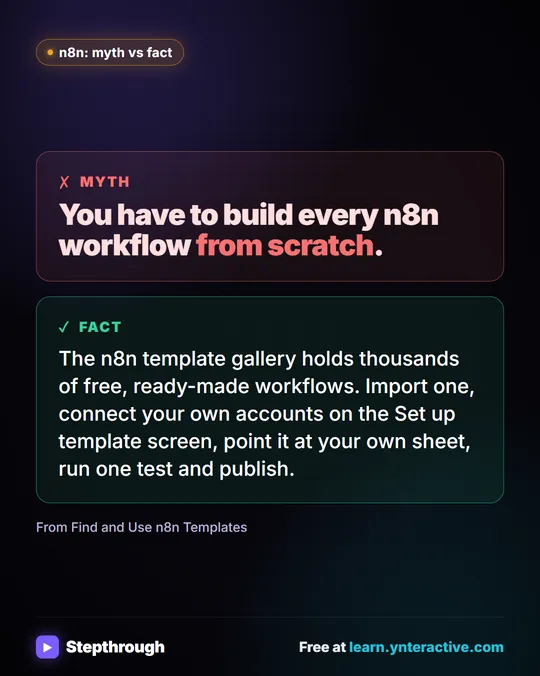 How to use n8n templates without the red warnings
Most people copy an n8n template, see a canvas full of red warnings and give up. The warnings just mean the template can't know your accounts or your data.
Myth vs fact One graphic
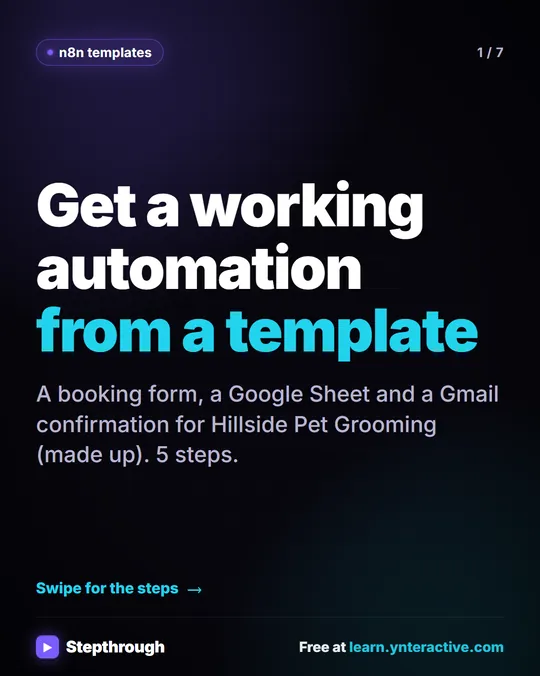 5 Steps to Find, Import and Run an n8n Template
A visual guide: find an n8n template, import it, connect your own Google Sheets and Gmail accounts, make it yours and run a test.
Step-by-step guide 7 slides
Free cheat sheets
Print it or save the PDF: the key steps and checks from this lesson on one page, free.
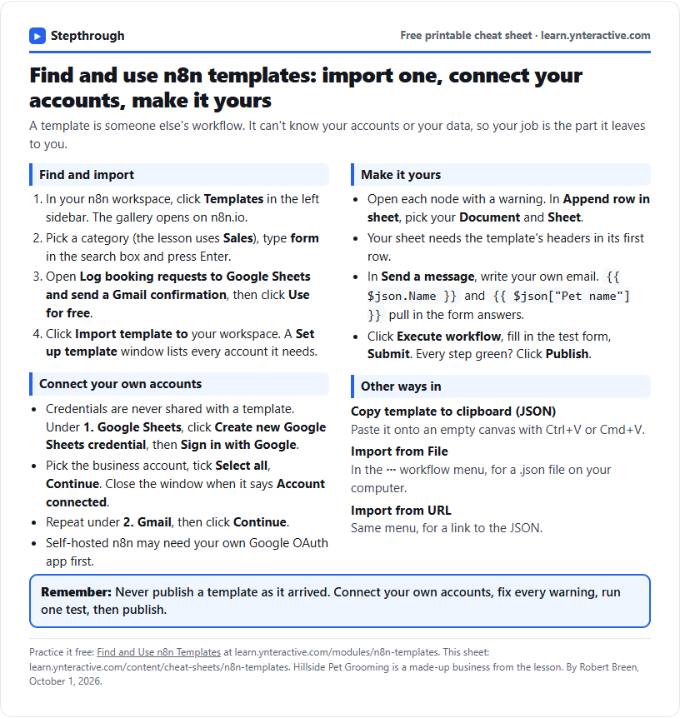 n8n Templates Cheat Sheet: Find, Import, Set Up
A free one-page cheat sheet for n8n templates: find one in the gallery, import it, connect your own accounts, fix the warnings, test and publish.
Lesson cheat sheet Free PDF
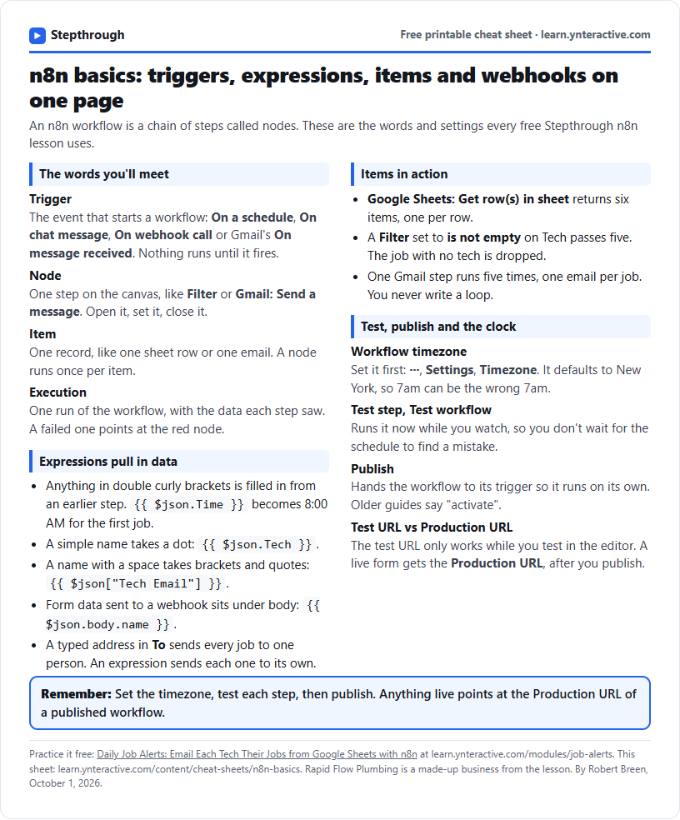 n8n Basics Cheat Sheet: Triggers, Items, Webhooks
A free one-page cheat sheet of n8n basics: triggers, expressions, items, executions, the workflow timezone and webhook test vs production URLs.
Tool cheat sheet Free PDF
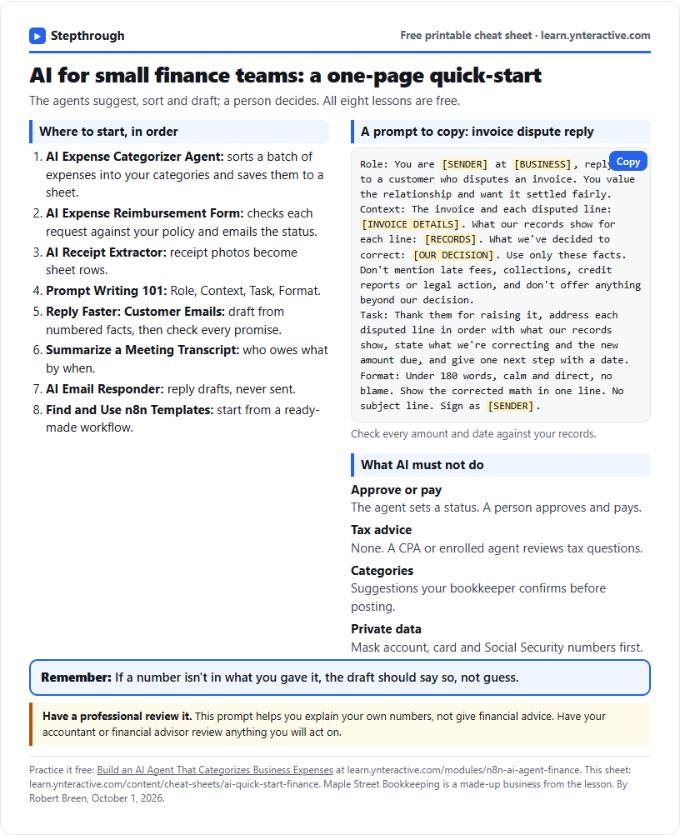 AI Quick-Start for Finance Teams: Cheat Sheet
A free one-page cheat sheet for finance teams: the free AI lessons in order, an invoice dispute prompt and what AI must never approve.
Industry quick-start Free PDF
All free printable cheat sheets
Terms in this lesson
Plain-English definitions, each with an example from a free lesson.
Related prompts
- Automation candidates prompt: Rank your repetitive tasks by which to automate first, using only your own counts and minutes, with a first workflow sketched…
- Customer intake form questions prompt: Design the questions for a booking or intake form: only what you need to do the job, each with a field type, help text and a…
- Appointment reschedule reply prompt: A ChatGPT prompt for replying to a reschedule request with only your real open slots, the right weekday for every date and no…
- Missed appointment follow-up prompt: Reach out after a customer misses an appointment: no blame, your real fee policy stated once, two open times to rebook, and an…
More terms on this topic
More prompts on this topic
- Contract renewal reminder email prompt: Write an internal reminder to the budget owner before a software or vendor contract renews: key dates, cost, what to decide and…
- Near-miss report prompt: Copy this ChatGPT near-miss report prompt: turn a quick description into a short, factual record with what could have gone…
- Performance improvement plan draft prompt: Draft a performance improvement plan from documented facts: the gap, what good looks like, the support offered and check-in…
- Review request text message prompt: A ChatGPT prompt for review request texts that fit in one message: your business name first, the exact link, an opt-out line and…
- Story told in texts and voicemails prompt: A copy-ready prompt that writes a workplace story using only text messages and voicemail transcripts, for training scenarios and…
- Vendor invoice approval request prompt: Ask the right person to approve a vendor invoice with the amount, the match to the order and any problem up front, so the answer…