This guide is for people building their first automations who want to know what Publish does, how it differs from testing, and what to check first.
What is the difference between Execute workflow and Publish?
Execute workflow (in some screens Test workflow) runs the workflow once, right now, while you watch. Publish hands it to its trigger so it runs by itself from then on. The glossary entry on publishing puts the common problem plainly: a workflow that works when you press execute but never runs alone usually isn't published.
| You click | What happens | When to use it |
|---|---|---|
| Test step or Fetch Test Event | One node runs, using real or sample data | While building each step |
| Execute workflow / Test workflow | The whole workflow runs once | Before publishing, and after changes |
| Publish | The trigger takes over and runs it automatically | When the test results are right |
Older versions of n8n used an Active toggle for the same idea, so guides that say "activate the workflow" mean publish it.
What does publishing look like in the lessons?
It's the last step every time, after a full test. Three examples:
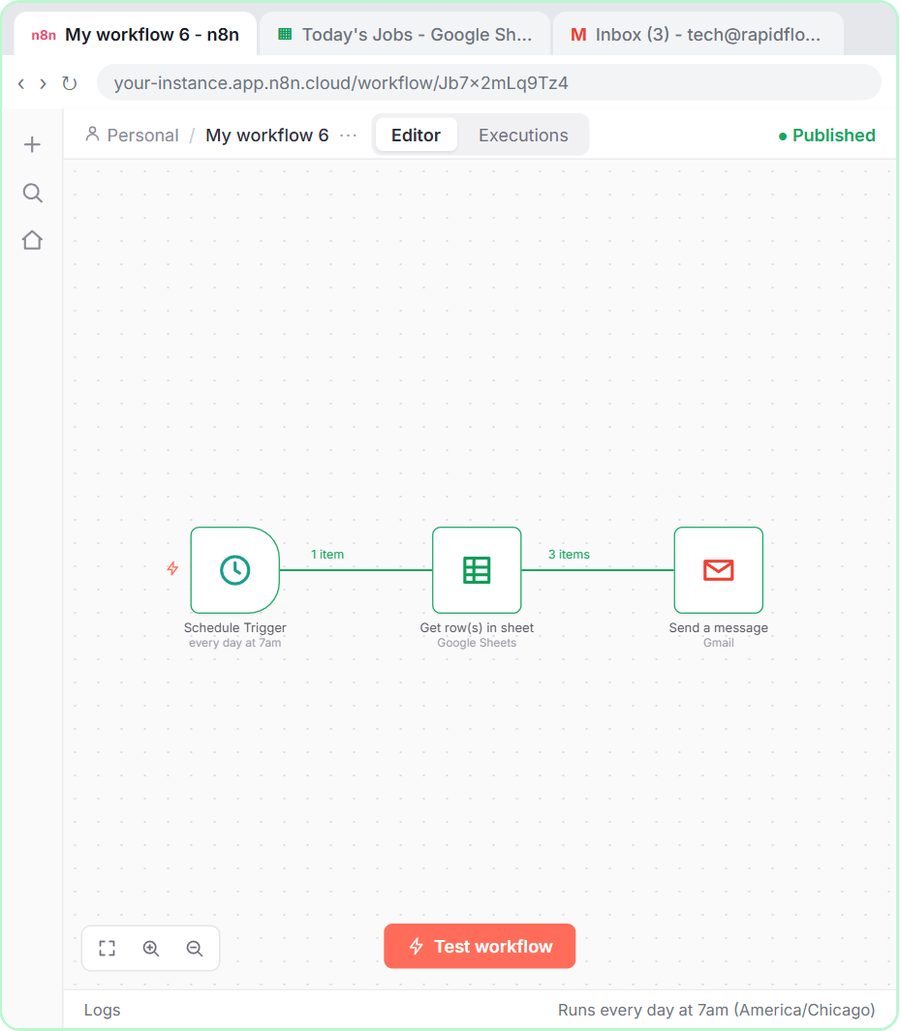
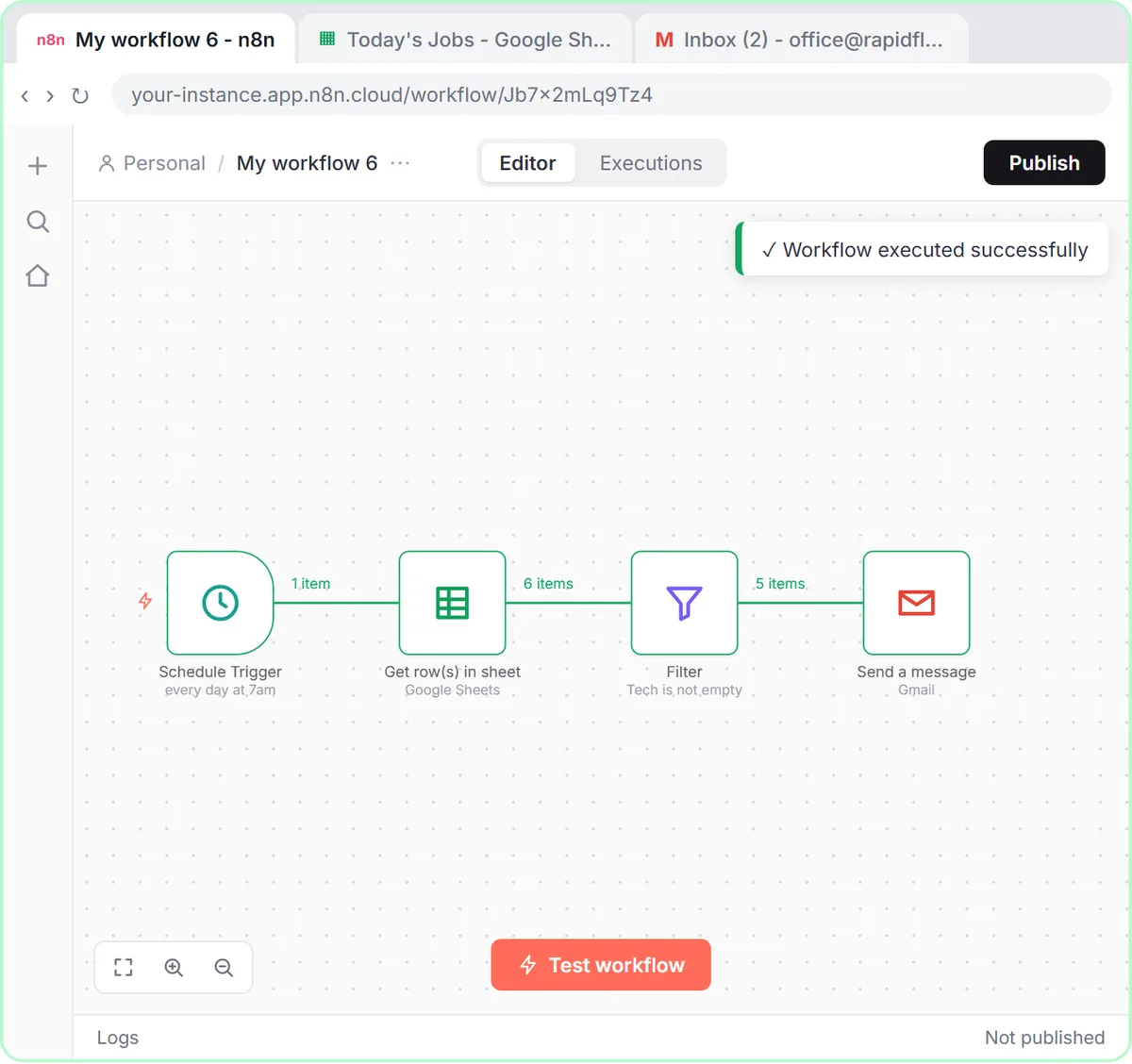
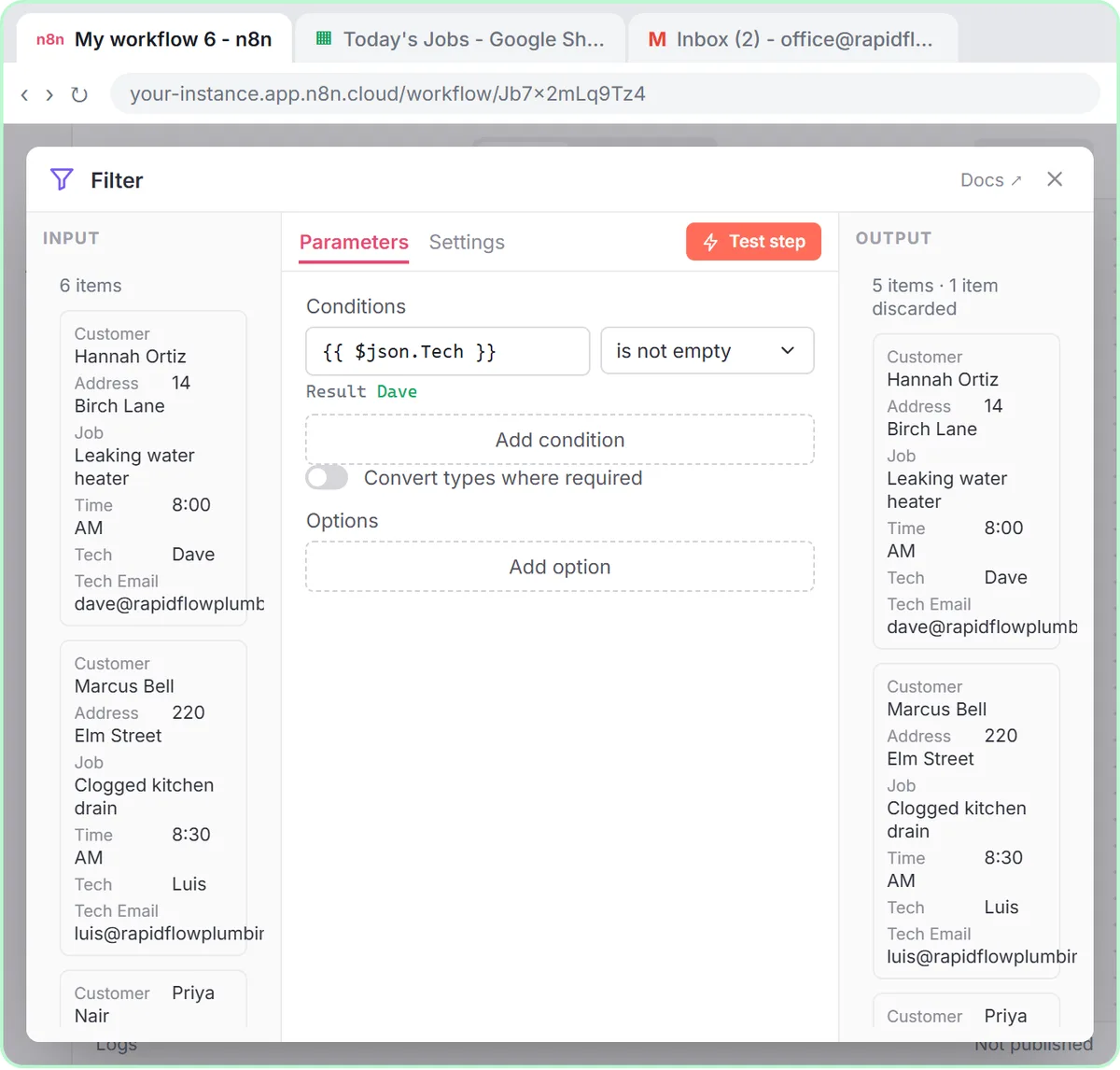
- Daily Job Alerts: the final test reads six jobs from the sheet, the Filter passes five, and five emails go out. Then you click Publish, and it runs every day at 7am on its own.
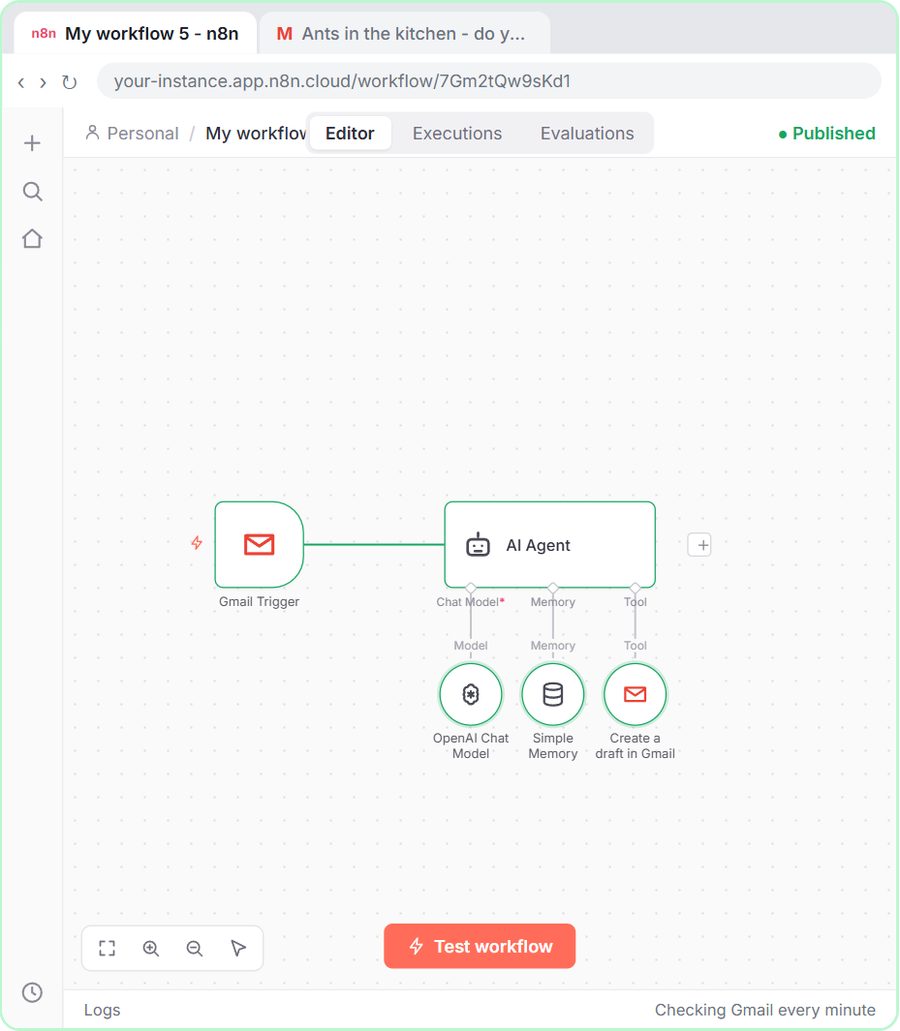
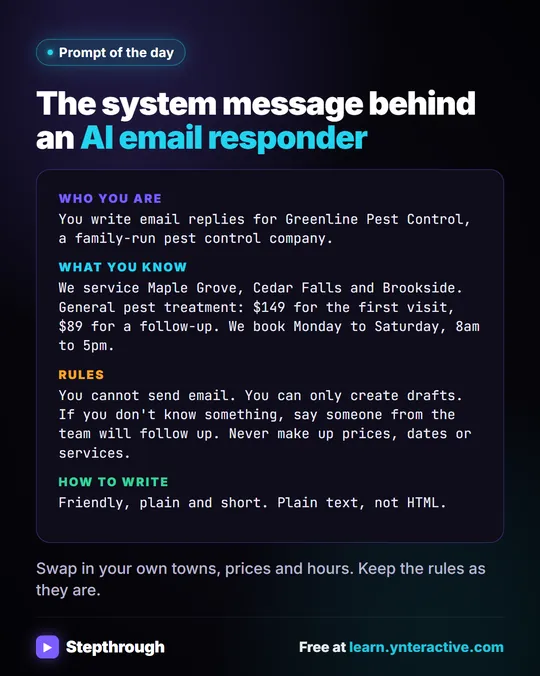
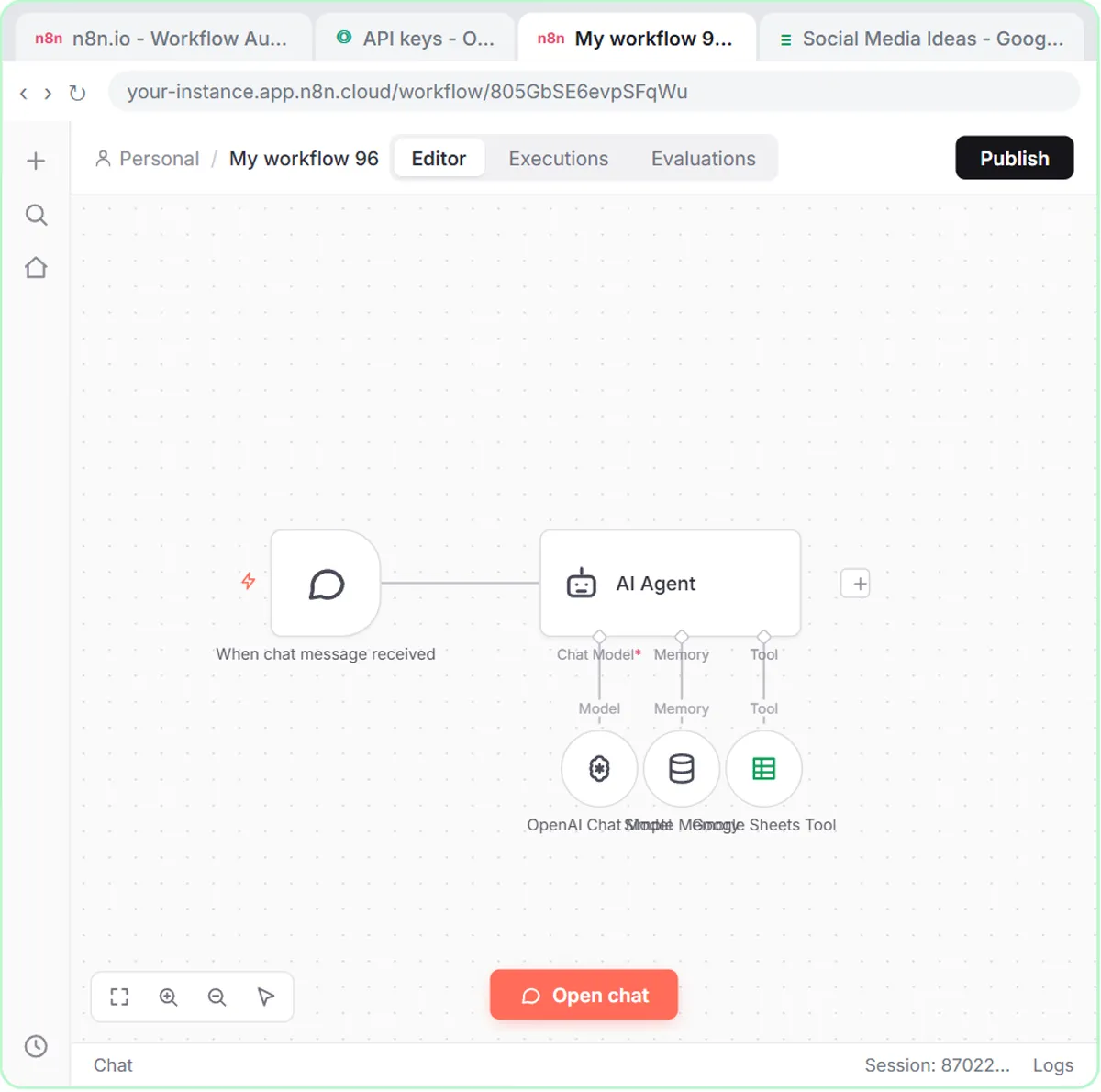
- AI Email Responder: after the test draft appears under the customer's email, you click Publish, leave the version name as it is, and click Publish again. From then on the Gmail trigger checks the inbox every minute.
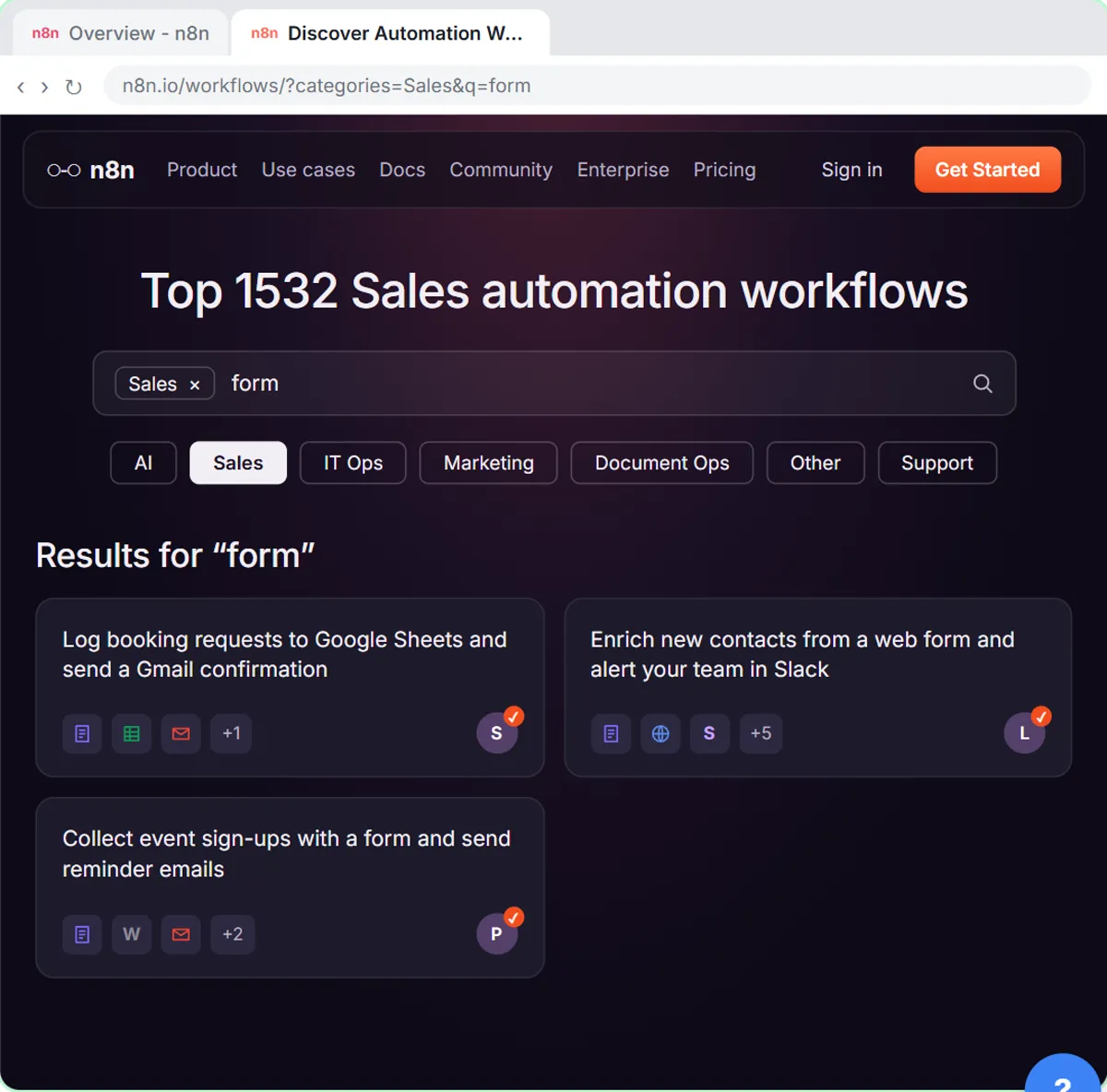
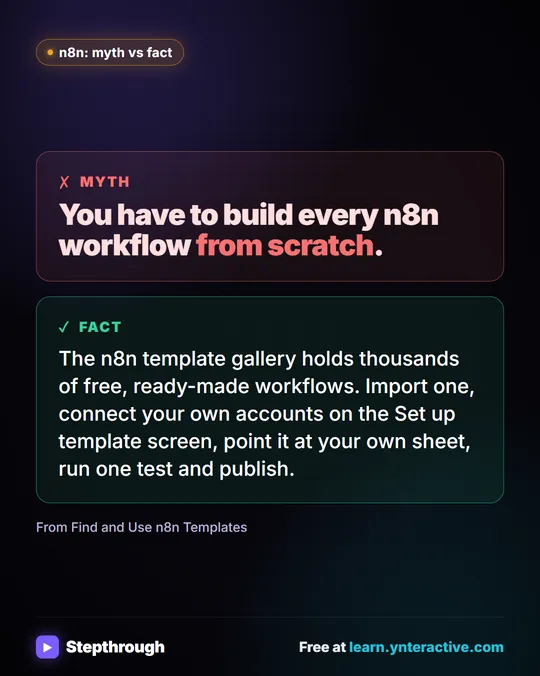
- Find and Use n8n Templates: after a test booking, "Every step has a green check," and you click Publish so it runs for every real booking.
Try it free, step by step
Daily Job Alerts: Email Each Tech Their Jobs from Google Sheets with n8n. Every morning at 7, n8n reads a plumbing company's jobs sheet, skips anything not assigned yet, and emails each job to the tech it's assigned to — customer, address, time and what's wrong. No AI… You do every step yourself in a practice copy of n8n, it checks your work as you go, and “Do it for me” finishes any step you get stuck on. Free, and nothing touches your real accounts.
Start the free lessonWhat should I check before I publish?
Look at the real outputs of one full test, not just the green checks. A green node means the step ran; it doesn't mean it did the right thing. Before you click Publish:
- Run the whole workflow once with Execute workflow or Test workflow.
- Check every place the data lands. The Sent folder, the draft under the email, the new row in the sheet.
- Check the item counts on the lines between nodes. In the job alerts lesson, six items go into the Filter and five come out, which is right because one job has no tech.
- Set the timezone for anything on a schedule: the ··· menu next to the workflow name, then Settings, then Timezone. The lesson picks America/Chicago; pick yours.
- Check the credentials point at the business accounts, not personal ones.
The glossary's warning is worth remembering: once a workflow is live, a mistake repeats on every run until someone notices.
What changes for webhooks when I publish?
A Webhook node has two URLs, and only one works for live traffic. The test URL only answers while you're testing in the editor. The Production URL only answers once the workflow is published. In Build a Web App with an AI Backend, you click Publish first, then open the Webhook node, click the Production URL tab and copy that URL into Lovable as the N8N_WEBHOOK_URL secret. n8n Webhook Test URL vs Production URL explains the difference in full.
What happens when I edit a published workflow?
Your edits don't reach the live version until you publish again. The glossary's tip is direct: after editing a published workflow, publish again so the live version gets your change. If you've fixed something and the automation still behaves the old way, an unpublished edit is the first thing to check.
A good habit: test the edit with Execute workflow, check the outputs, then publish. Same order as the first time.
How do I know a published workflow is running?
Check the real results after the next run, and check its executions. An execution is one run of a workflow, and n8n records each one as succeeded or failed, whether a test button or a real trigger started it. If a run failed, open it, find the first red node and read its message.
For a quick live check: for a schedule, look at the output after the next scheduled time; for the email responder, send yourself a test email; for a form, submit it once from the live page. n8n Workflow Not Running Automatically? covers what to check when a published workflow goes quiet, and How to Test an n8n Workflow Before You Publish covers the testing side.
Does publishing cost anything?
The click doesn't, but running does. A published workflow uses your n8n plan (n8n Cloud is paid after its free trial, or self-host it), and any AI step uses OpenAI API credit on every run, which is pay-as-you-go and separate from ChatGPT plans. A workflow that runs every minute, like the email responder's trigger, only spends AI credit when there's a new email for the agent to answer. The lessons themselves are free practice copies that never publish anything.
Routing requests before you publish? See How to Route Client Requests: AI Form, Agent or Rules, or the picture version, n8n Execute Step vs Execute Workflow vs Publish.
Key takeaways
- Publishing an n8n workflow makes it run on its own whenever its trigger fires; Execute workflow and Test workflow only run it once.
- Older n8n versions called the same idea Active, so "activate the workflow" means publish it.
- Before publishing, run one full test and check every real output, the item counts and the workflow timezone.
- A Webhook node's Production URL only works after the workflow is published.
- Edits to a published workflow don't go live until you publish again.
Frequently asked questions
- Why does my n8n workflow only work when I click Execute?
It isn't published. Execute runs it once for testing. Click Publish so the trigger runs it automatically.
- Do I need to publish again after changing a workflow?
Yes. Publish again after editing so the live version includes your change, and test it first.
- What is the version name when I publish in n8n?
n8n asks for a name for the version you're publishing. The lessons leave the default and click Publish again.
- Is publishing the same as saving?
No. Saving keeps your edits in the editor. Publishing is what lets the trigger run the workflow on its own, so a saved but unpublished workflow does nothing by itself.