Testing is the difference between "I think it works" and "I watched it work." A workflow that runs at 7am, or every time a customer emails, will repeat any mistake every time it runs, so a few minutes of checking before you publish saves a lot of cleanup.
Why test an n8n workflow before publishing?
A published n8n workflow runs on its own, so you want to see its output while you're watching, not after a customer or a tech does. Until you click Publish, the workflow only runs when you press a button.
The lessons put it plainly. In the email lesson, right before publishing: "Right now it only runs when you press execute." In the job email lesson, before the schedule ever fires: "Don't wait for seven a m to find out if it works."
How do you test a single step in n8n?
Open the node and click Test step. n8n runs that one step right now and shows what came out.
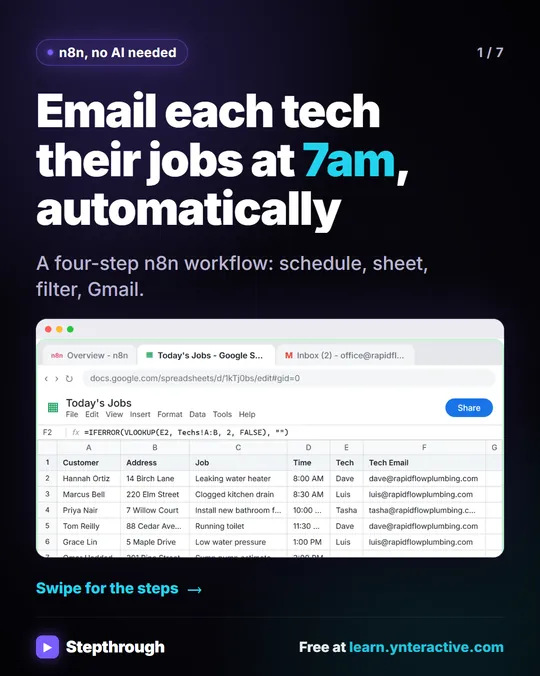
In the job email lesson, the Google Sheets: Get row(s) in sheet node reads a sheet called Today's Jobs for a made-up company, Rapid Flow Plumbing. Clicking Test step returns six items, one for each row, "with the column names as labels." That tells you three things at once: the credential works, you picked the right document and tab, and the column names are what you expect.
Test steps in order, from the trigger forward. Each step's output becomes the next step's input, so a working Sheets step gives the Filter real rows to test against.
What do the item counts tell you?
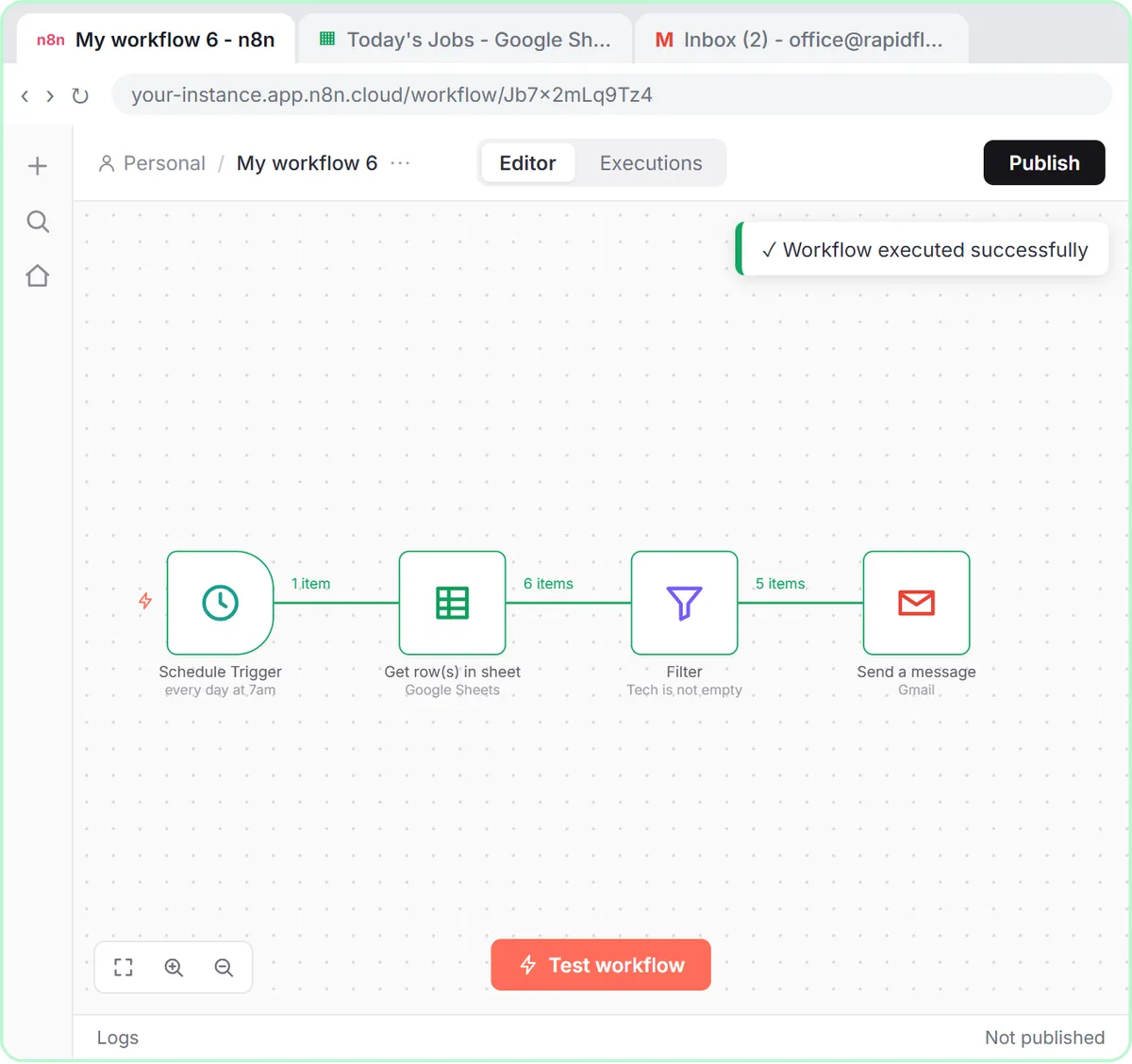
The numbers on the lines between nodes show how many items each step received and passed on. Reading them is the fastest way to spot a step that dropped or duplicated data.
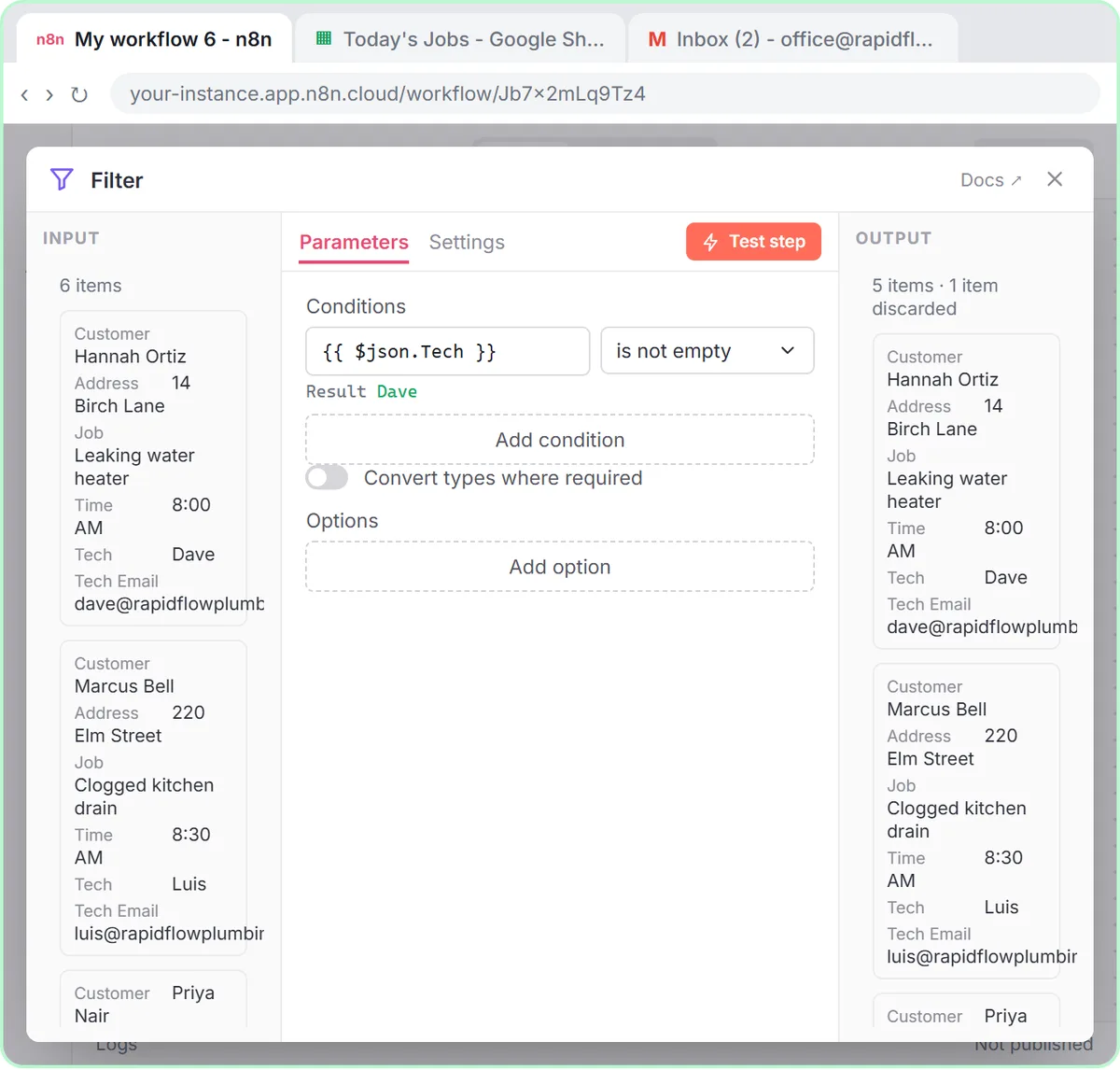
The job email lesson's Filter keeps jobs where {{ $json.Tech }} is not empty. After Test step, the Filter shows six items in on the left and five out on the right: the sump pump estimate with no tech assigned was dropped, which is exactly what should happen.
Then, when you run the whole workflow, the Gmail step shows five, because it runs once for every item it receives. If you expected five and see zero, the filter condition is wrong. If you see six, the unassigned job slipped through.
How do you run the whole workflow as a test?
Click Test workflow (the job email lesson) or Execute workflow (the template and email lessons) at the bottom of the canvas. Every node runs in order, and each one shows a green check or a red error.
Different triggers need different test inputs:
| Trigger | How you test it in the lessons |
|---|---|
| On a schedule | Click Test workflow; it runs now, not at 7am |
| Gmail: On message received | Click Fetch Test Event to pull in the newest email |
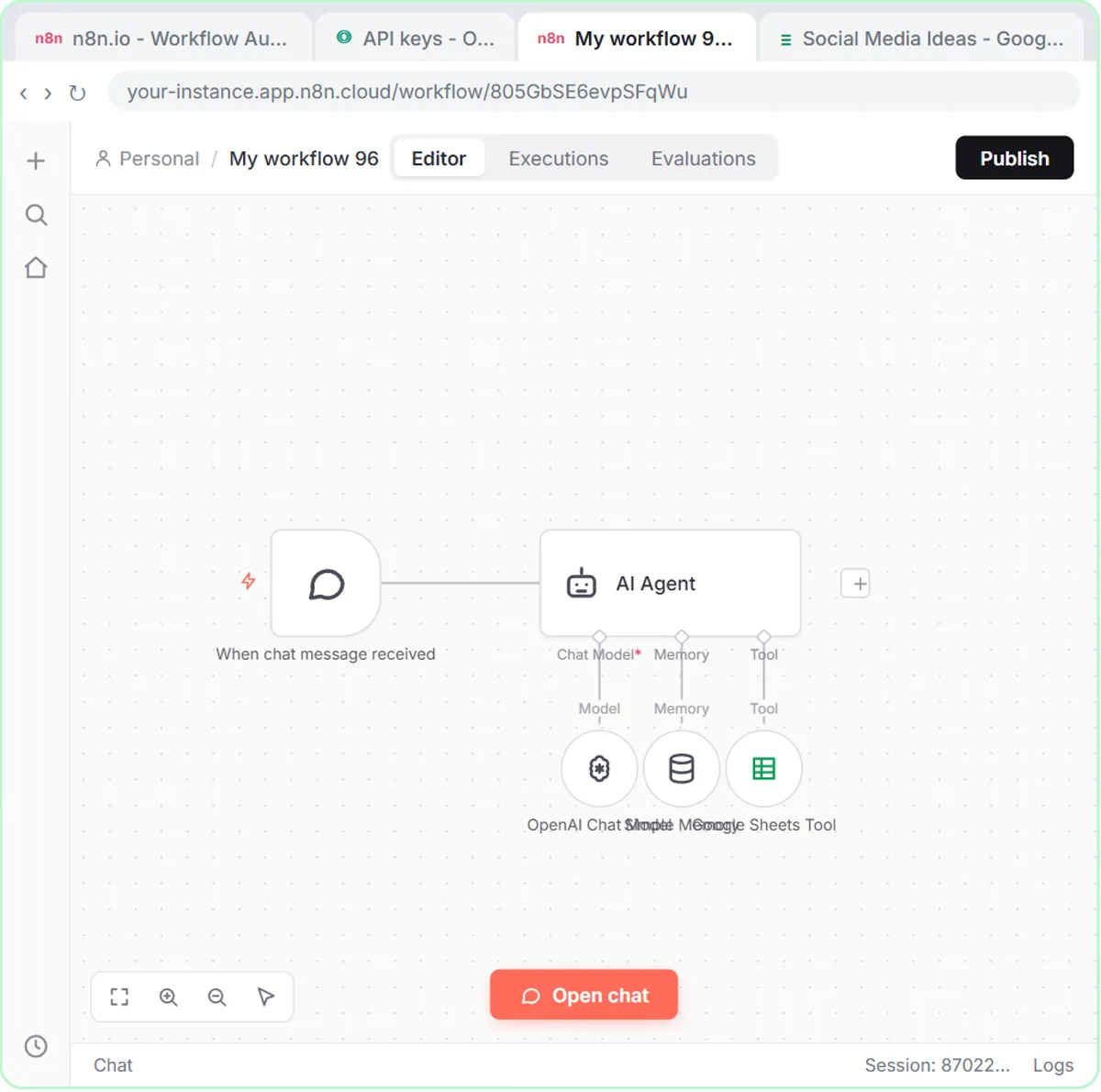
| On chat message | Click Open chat and type a message |
| Form trigger (template) | Execute workflow opens the test form; fill it in and click Submit |
| On webhook call | Open your form's preview and submit a test entry |
In the email lesson, Fetch Test Event shows the email as data: From, Subject, snippet and a threadId. Seeing those fields before you write any expressions means you know exactly what you can use.
Try it free, step by step
Daily Job Alerts: Email Each Tech Their Jobs from Google Sheets with n8n. Every morning at 7, n8n reads a plumbing company's jobs sheet, skips anything not assigned yet, and emails each job to the tech it's assigned to — customer, address, time and what's wrong. No AI… You do every step yourself in a practice copy of n8n, it checks your work as you go, and “Do it for me” finishes any step you get stuck on. Free, and nothing touches your real accounts.
Start the free lessonWhat should you check after a test run?
Check the real output, not just the green checks. A green check means the step ran; it doesn't mean it did the right thing.
The lessons always end a test by looking at the result:
- Job emails: open Gmail's Sent folder. Five emails went out: two to Dave, two to Luis and one to Tasha. Open one and confirm it went to Luis's address with his job, address and time.
- Template booking form: the lesson's test booking is Jordan Lee with a pet named Biscuit. Check that a row landed in the Hillside Booking Requests sheet and that the confirmation email went out.
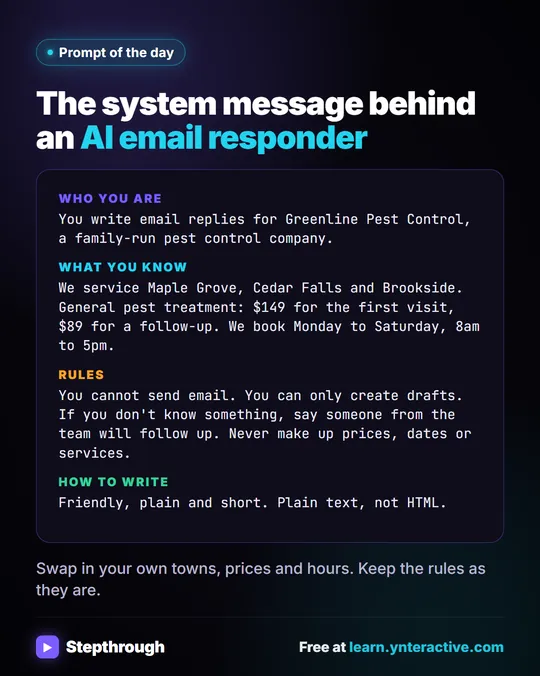
- Email responder: open Gmail and find the draft under the customer's email. In the lesson, it says yes to Maple Grove, quotes $149 for the first visit and asks for an address and two times, and it hasn't been sent.
Read the content like a customer would. Wrong name, wrong price or a blank where a field should be means an expression or an instruction needs fixing.
Who should receive test emails?
Send test emails to yourself, never to real customers or staff. The template lesson says it directly when you fill in the test form: "In the real thing, use your own, so you get the confirmation."
This matters most for workflows that send. The job email workflow's Gmail: Send a message node really sends when you test it. For a first test, point the sheet's Tech Email column (or a copy of the sheet) at addresses you control. The email responder is safer by design: its Gmail tool is set to Draft, so the worst a test can do is write a draft you never send. AI Email Replies Without Auto-Sending explains that setup.
What if a test run fails?
Open the red node first and read its message. Failures in testing are normal, and the lessons build one in on purpose.
In the email lesson, the first Execute workflow fails with "No session ID found" in Simple Memory, because memory looks for a chat session ID and emails don't have one. Setting the session key to {{ $json.threadId }} fixes it, and the second run is all green. Fix "No session ID found" in n8n Simple Memory walks through it. In the template lesson, warnings on the imported nodes disappear once you pick your own spreadsheet; "No more warnings" is your cue to run a test.
When is a workflow ready to publish?
Publish when a full test run is green, the item counts make sense, and you've checked the real output. Then click Publish.
A short pre-publish checklist from the lessons:
- Every step has a green check.
- The counts match what you expect (six rows in, five emails out).
- The real output is right: Sent folder, sheet row or draft.
- Test emails went to you, not to customers.
- Schedule workflows have the right timezone in Settings (the lesson picks America/Chicago; n8n defaults to New York).
After publishing, the job email lesson adds one more rule: the workflow "sends every assigned row, every day, so the office keeps that sheet to today's jobs." Email Each Tech Their Jobs Every Morning with n8n has the full build.
The lessons are free and run in practice copies. Running workflows for real needs n8n (n8n Cloud is paid after a free trial, or self-host n8n); workflows with an AI agent also need an OpenAI API key, which is pay-as-you-go and billed separately from ChatGPT plans. More lessons are on the n8n tool page.
Key takeaways
- In n8n, Test step runs one node now, and Test workflow or Execute workflow runs every node in order.
- The item counts between nodes show what each step received and passed on, such as six rows in and five out of a Filter.
- Each trigger has its own test input: Fetch Test Event for Gmail, Open chat for chat agents and a test form for form triggers.
- A green check only means a step ran, so always check the real output: the Sent folder, the sheet row or the Gmail draft.
- Send test emails to your own address, and publish only after a clean, checked run.
Frequently asked questions
- Does testing an n8n workflow send real emails?
It can. A Gmail Send a message node sends real email during a test run, so point tests at your own address. A Gmail Draft tool only creates drafts.
- What is the difference between Test step and Test workflow?
Test step runs one node. Test workflow, or Execute workflow, runs the whole workflow from the trigger to the last node.
- Do I have to wait for the schedule to test a scheduled workflow?
No. Click Test workflow and it runs right away. The schedule only takes over after you publish.
- Is Rapid Flow Plumbing a real company?
No. Rapid Flow Plumbing, Hillside Pet Grooming and Greenline Pest Control are made-up examples used in the lessons.