Email each tech their jobs at 7am with n8n
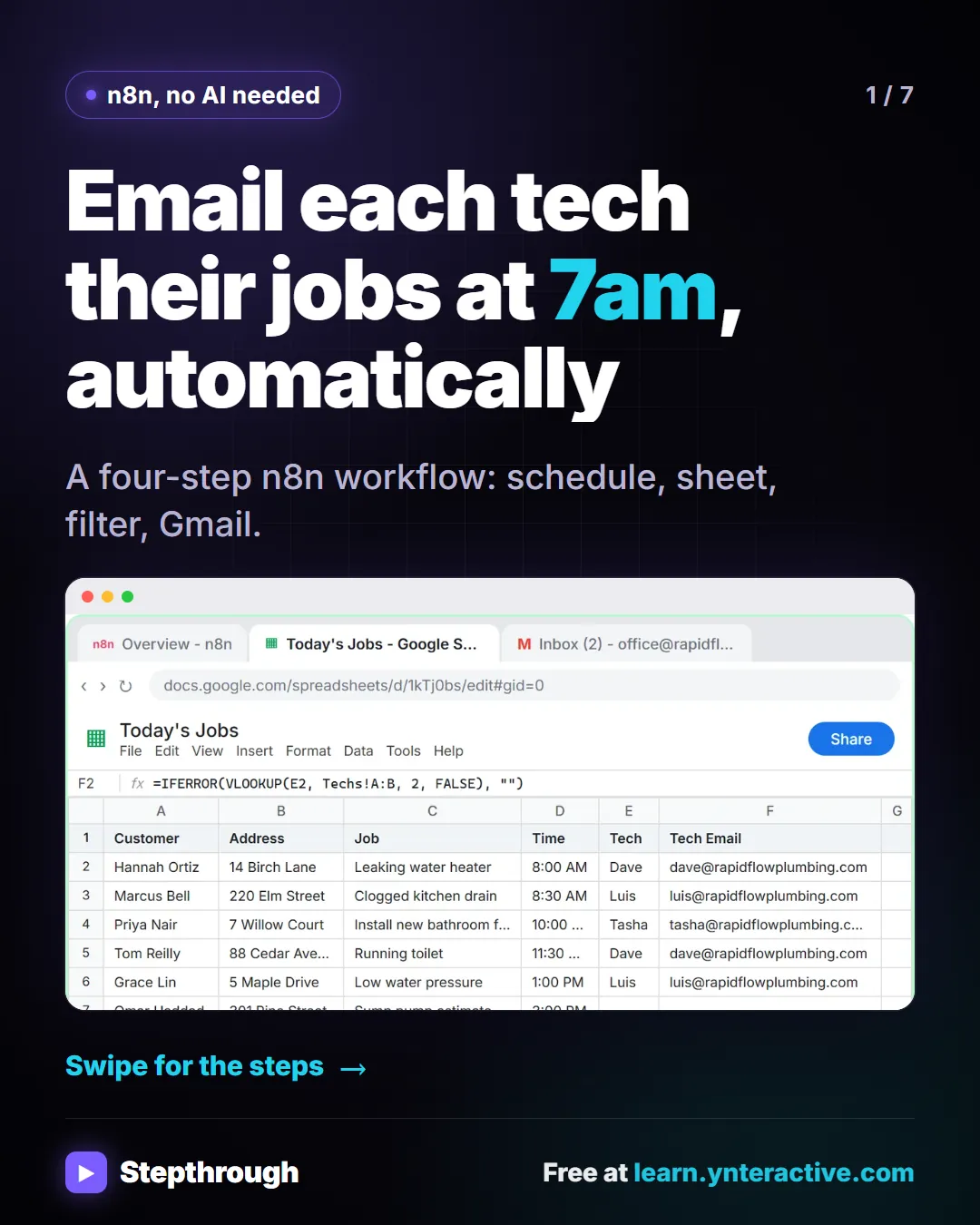
Every morning someone at Rapid Flow Plumbing copies the day's jobs into emails, one tech at a time. Hand it to n8n.
Slide 1 of 7 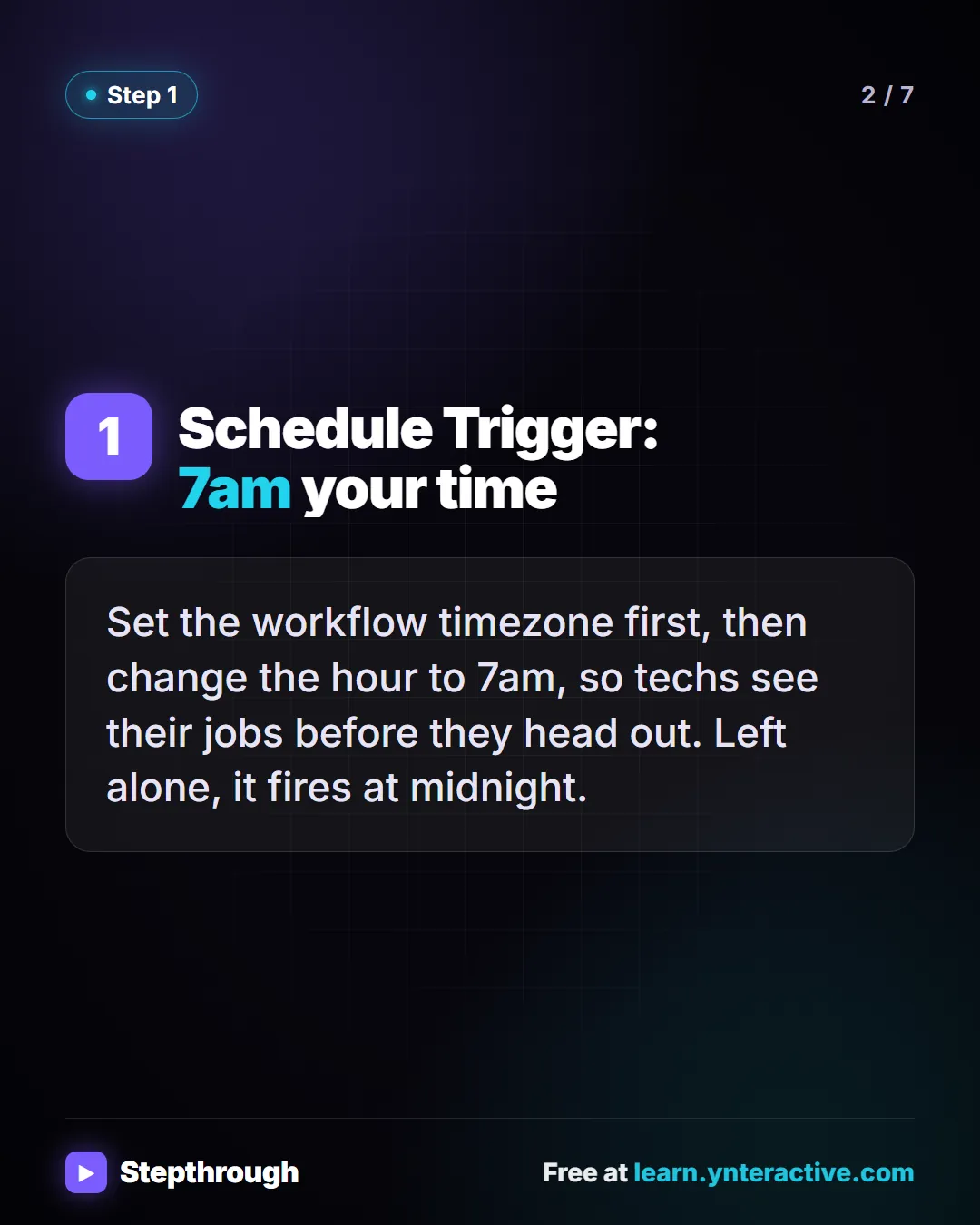
Slide 2 of 7 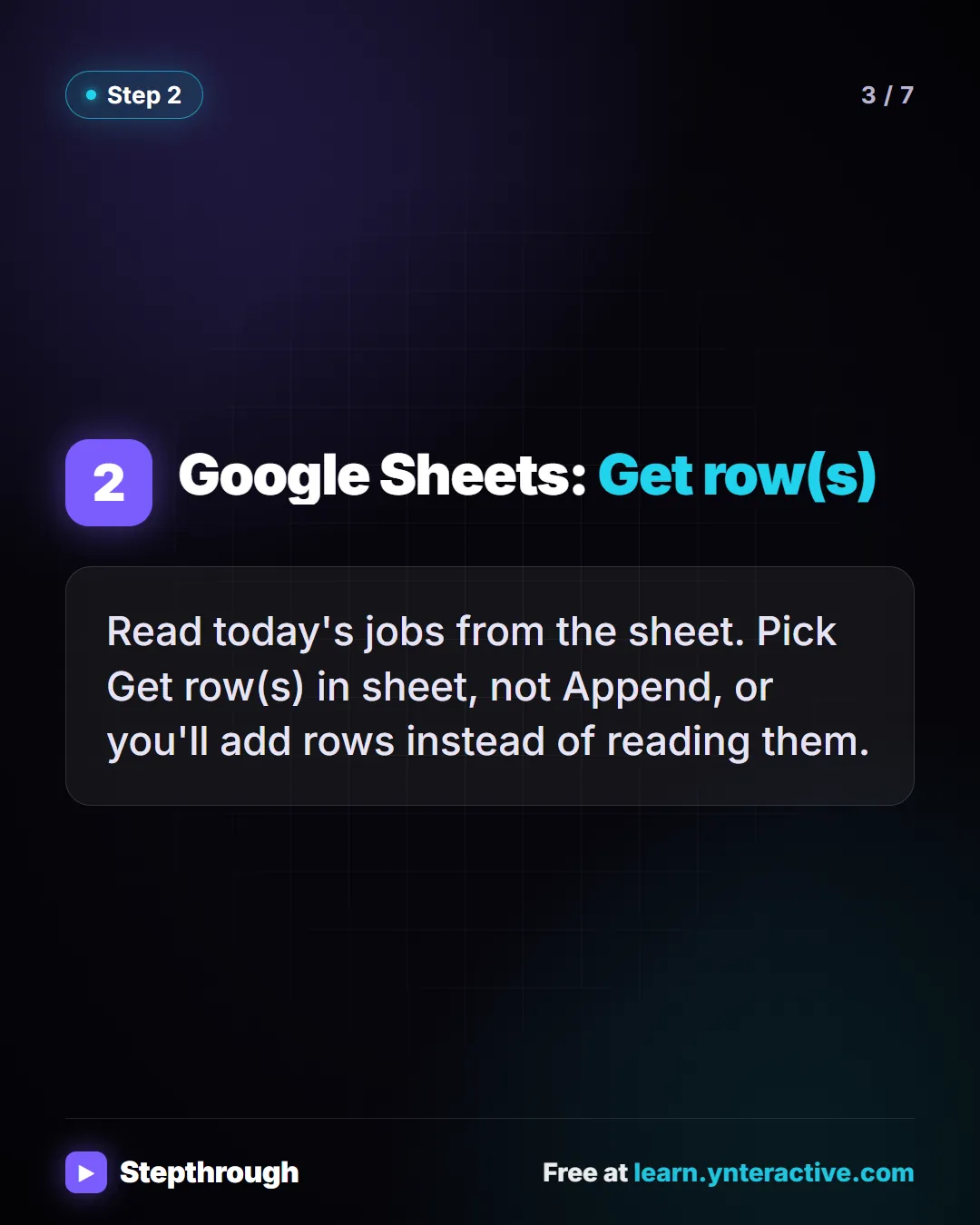
Slide 3 of 7 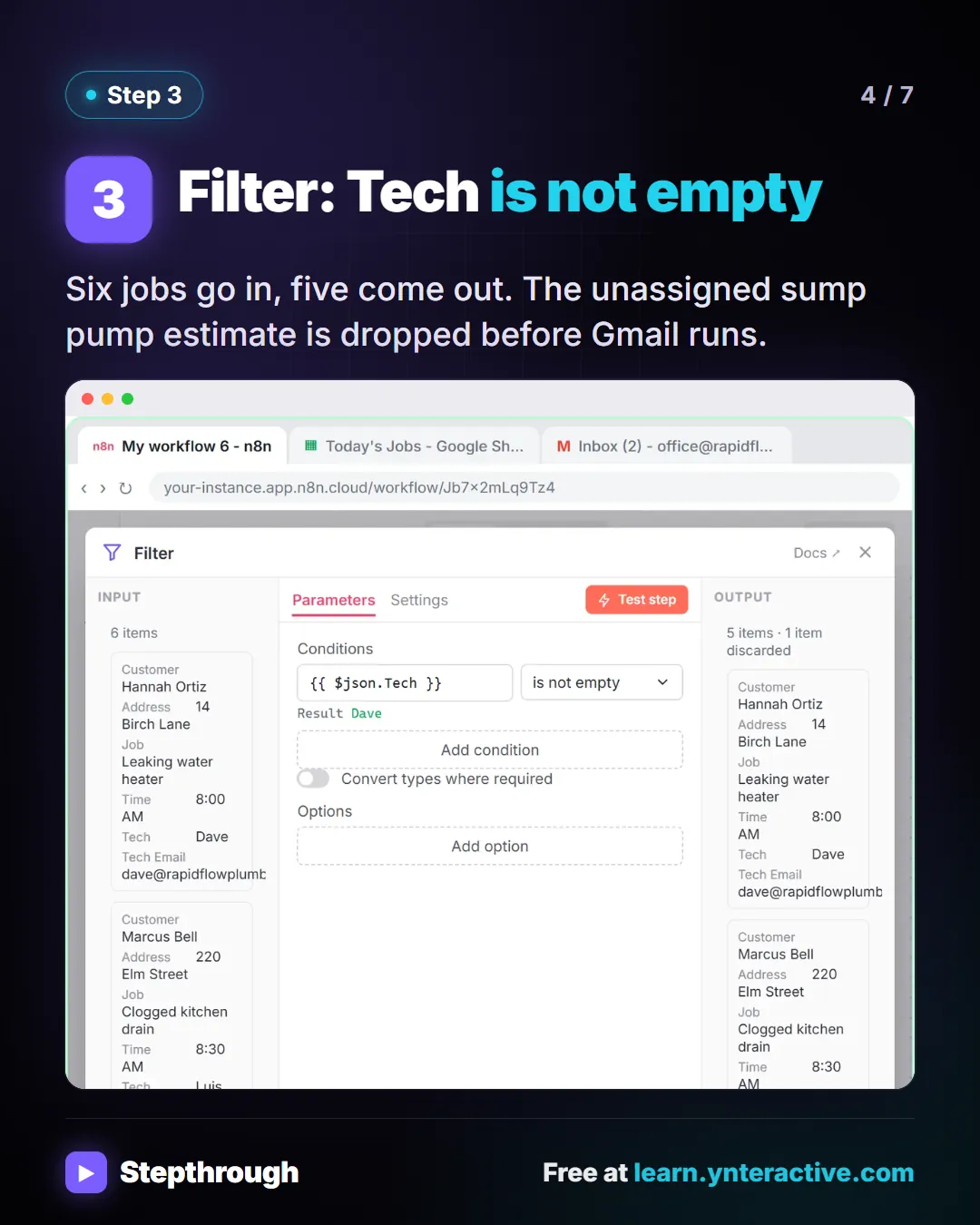
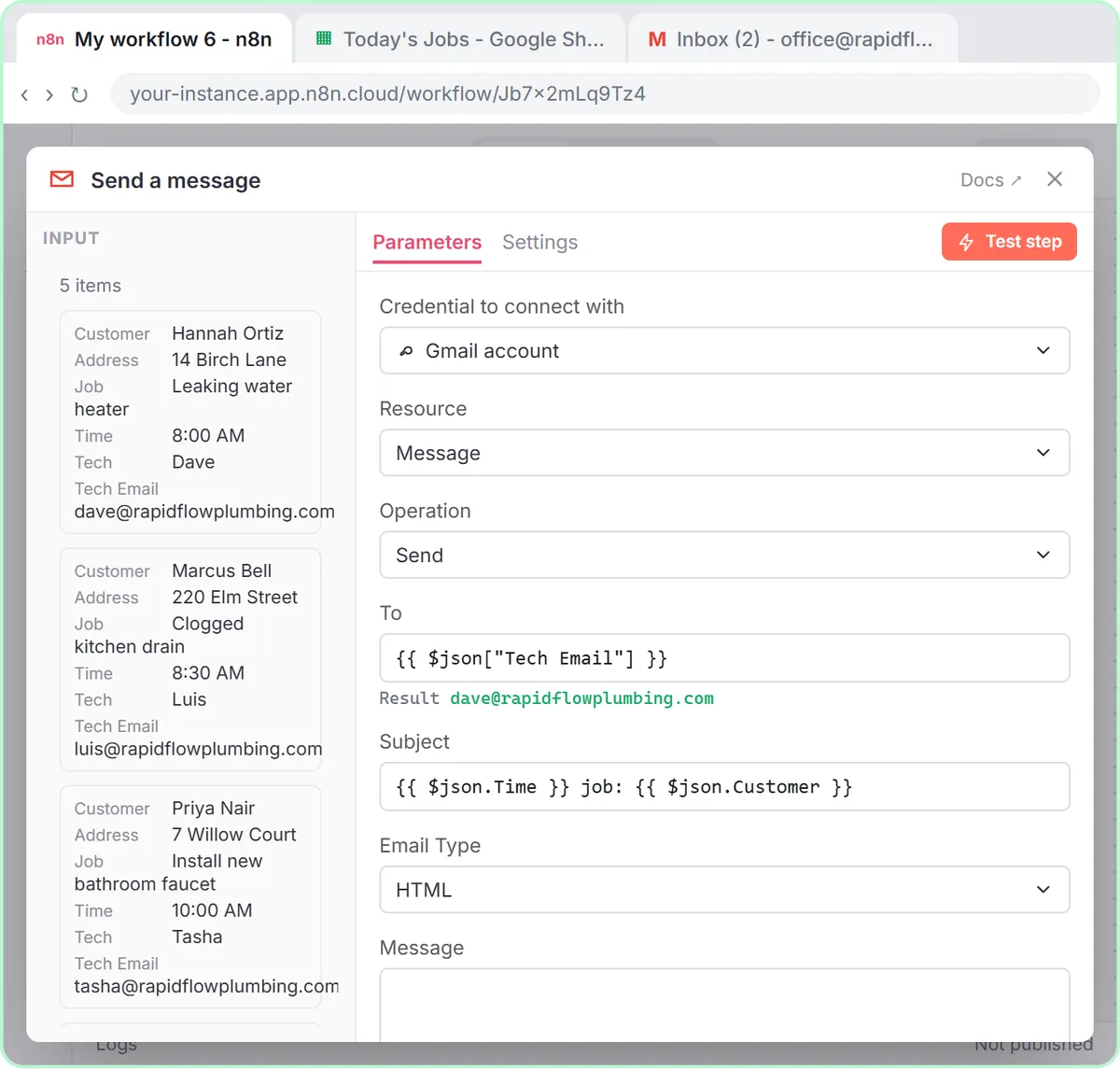
Slide 4 of 7 ![Gmail: send to that row's tech. To is an expression, not a typed address: {{ $json["Tech Email"] }}. The column name has a space, so it goes in brackets and quotes. Stepthrough, free at learn.ynteractive.com.](/content/visual/job-alerts-n8n/05.webp)
Slide 5 of 7 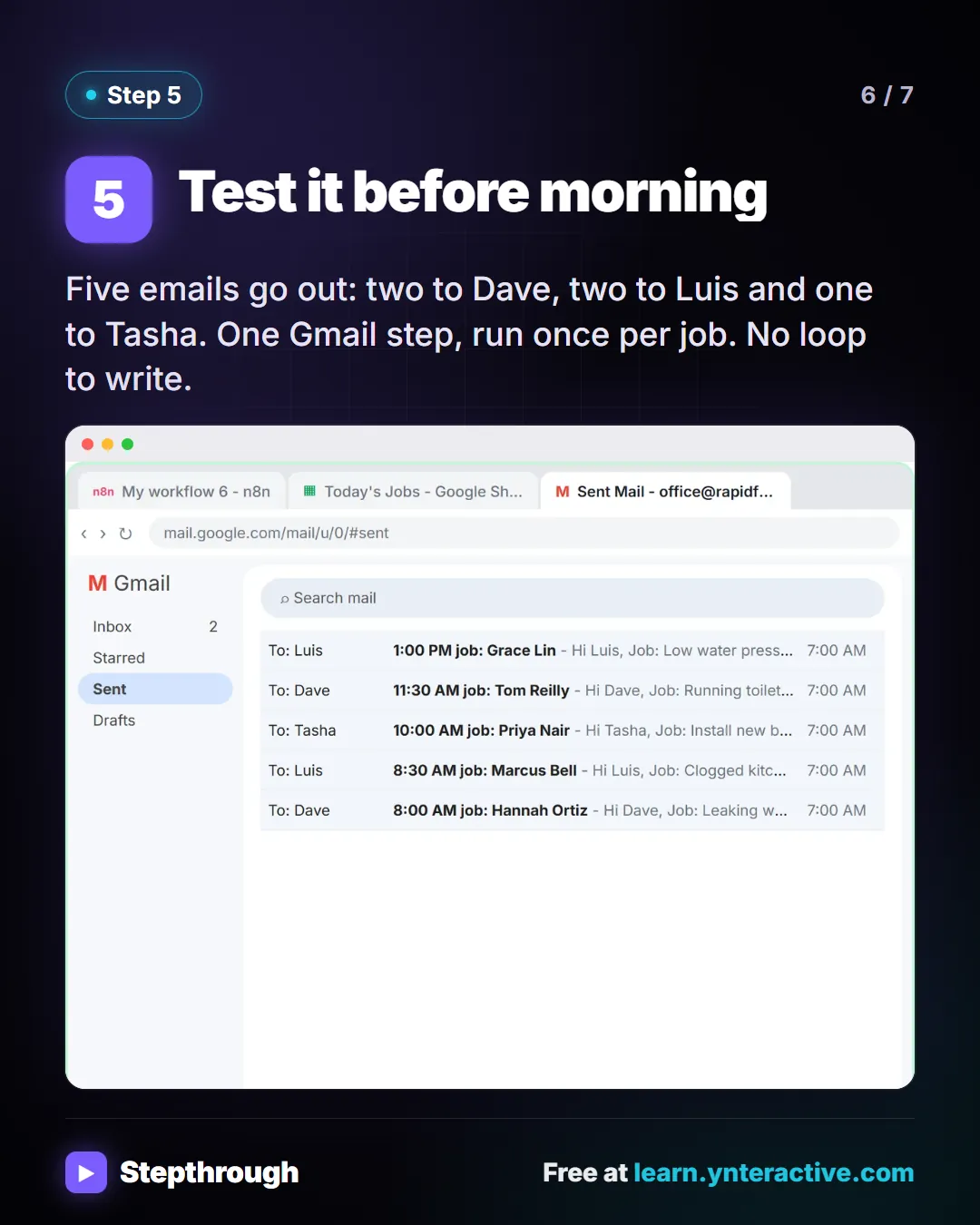
Slide 6 of 7 
Slide 7 of 7
The guide in text
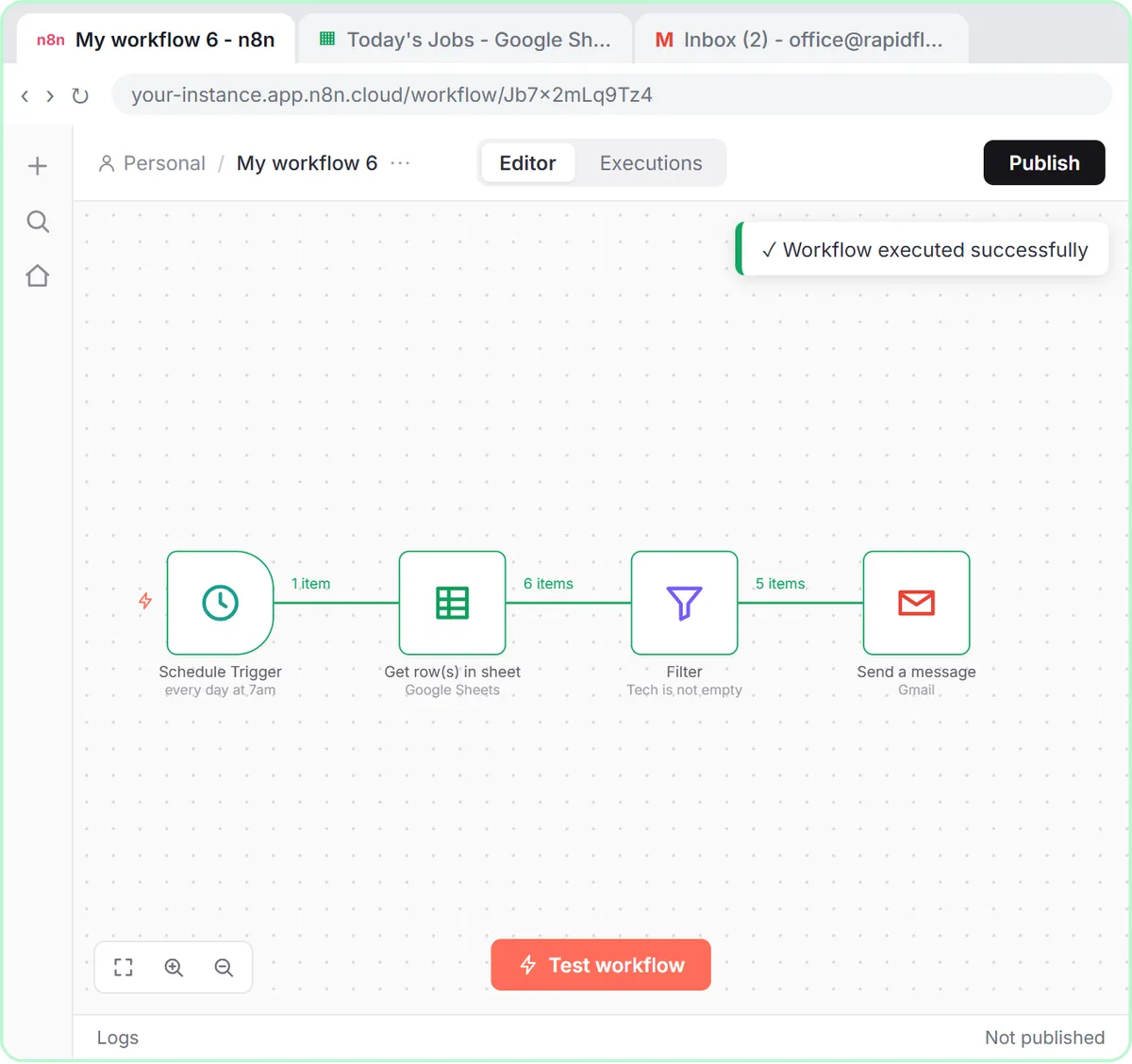
A four-step n8n workflow: schedule, sheet, filter, Gmail.
Step by step
Schedule Trigger: 7am your time
Set the workflow timezone first, then change the hour to 7am, so techs see their jobs before they head out. Left alone, it fires at midnight.
Google Sheets: Get row(s)
Read today's jobs from the sheet. Pick Get row(s) in sheet, not Append, or you'll add rows instead of reading them.
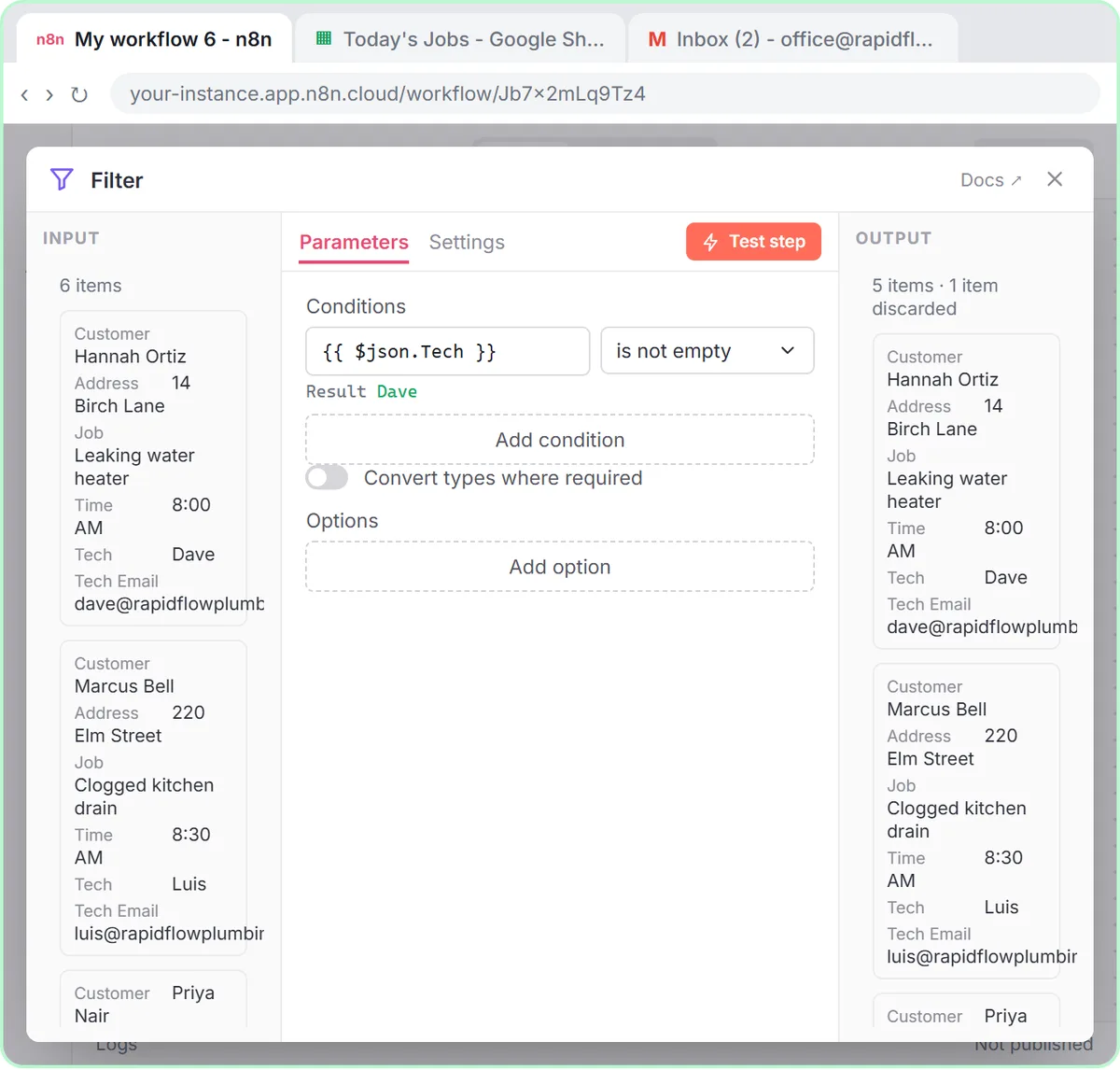
Filter: Tech is not empty
Six jobs go in, five come out. The unassigned sump pump estimate is dropped before Gmail runs.
Gmail: send to that row's tech
To is an expression, not a typed address:
{{ $json["Tech Email"] }}. The column name has a space, so it goes in brackets and quotes.Test it before morning
Five emails go out: two to Dave, two to Luis and one to Tasha. One Gmail step, run once per job. No loop to write.
Businesses and people in the examples are made up. The steps, screens and wording come from the free lesson and the Stepthrough glossary and prompt library.
Do it yourself, free
Daily Job Alerts: Email Each Tech Their Jobs from Google Sheets with n8n. Every morning at 7, n8n reads a plumbing company's jobs sheet, skips anything not assigned yet, and emails each job to the tech it's assigned to — customer, address, time and what's wrong. No AI… You do every step yourself in a practice copy of n8n, it checks your work as you go, and “Do it for me” finishes any step you get stuck on. Free, and nothing touches your real accounts.
Start the free lessonRelated terms
Plain-English definitions, each with an example from a free lesson.
Related prompts
- Appointment reminder text prompt: Write day-before reminder texts for each job on tomorrow's schedule: the time window, who's coming, one prep step and an easy…
- Automation time savings estimate prompt: Estimate what one automation saves from your own numbers only: minutes before and after, setup and upkeep, costs you look up…
- Rental property repair coordination prompt: Coordinate a repair at a rental: a clear email to the owner or property manager about approval and billing, and a short access…
- Tech daily job briefing prompt: Turn today's job schedule and office notes into a short morning briefing for each technician, in time order, with unassigned…
From the blog
 When to Automate a Task with AI: A Simple Checklist
When to automate a task with AI: do it by hand in ChatGPT first, automate fixed daily steps without AI, and use an agent with drafts when judgment repeats.
Oct 9, 2026 7 min read
 How to Test an n8n Workflow Before You Publish
How to test an n8n workflow: test one step, run the whole thing, read the item counts, use test events, check the real output, then publish.
Oct 6, 2026 7 min read
 Mail Merge from Google Sheets to Gmail with n8n
Mail merge from Google Sheets to Gmail with n8n: one personalized email per row, with a filter, safe test sends and the settings that matter.
Oct 1, 2026 6 min read
More visual guides
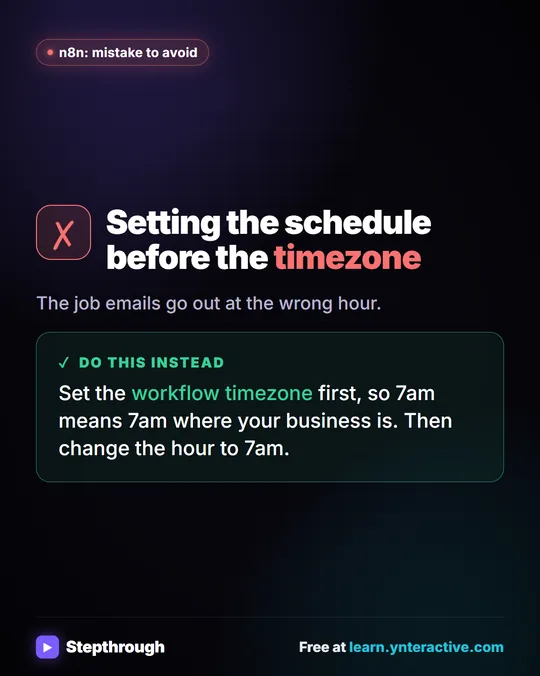 Mistake to Avoid: Scheduling Before Setting the Timezone
A visual tip for n8n schedules: set the workflow timezone before the schedule, so 7am means 7am where your business is.
Mistake to avoid One graphic
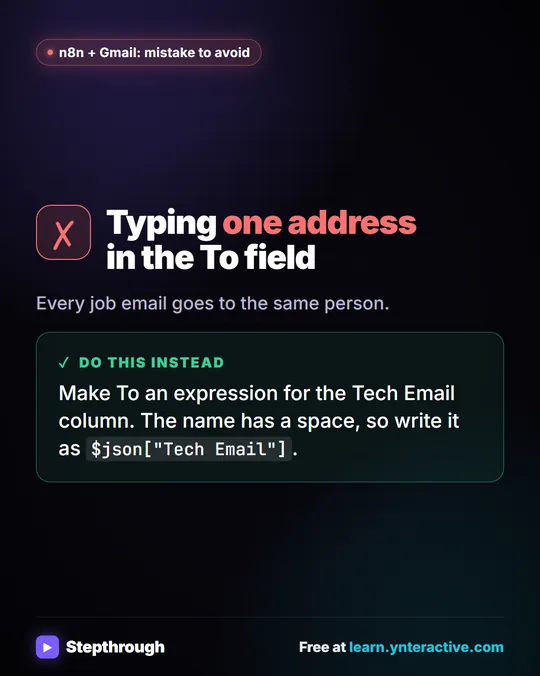 Mistake to Avoid: Sending Every Job Email to One Address
A visual tip for n8n and Gmail: make the To field an expression for the Tech Email column, written in square brackets because of the space.
Mistake to avoid One graphic
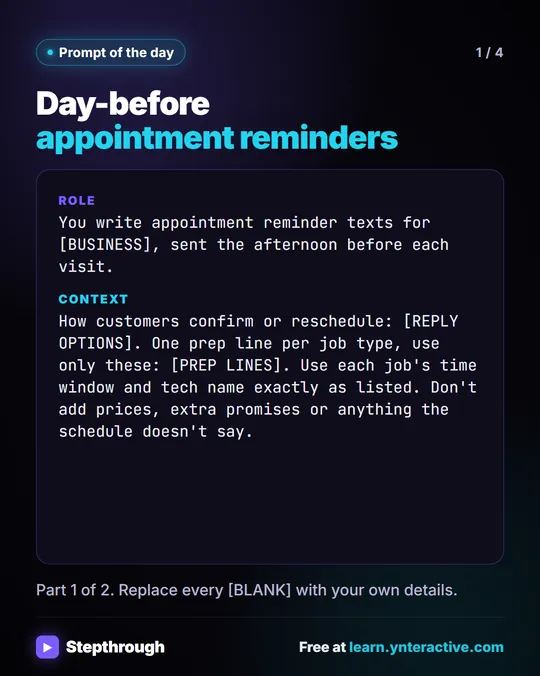 Prompt of the Day: Day-Before Appointment Reminder Texts
A visual prompt card: paste tomorrow's schedule and get one short reminder text per job, with the time window, the tech and one prep step.
Prompt to copy 4 slides