How do you use Google Sheets as a database for automation?
Updated · By Robert Breen
Using Google Sheets as an automation database means treating a spreadsheet as the place a workflow reads its data from and writes its results to. Each tab works as a table, row 1 holds the field names, and every other row is one record.
Why it matters for a small business
For a small business, a spreadsheet is often the best first database. Everyone already knows how to open, read and fix it, you can share it with an accountant or a dispatcher, and n8n can read and write it after a single Google sign-in. The office updates a row, and the next run picks up the change.
It has limits worth knowing before you lean on it. Sheets doesn't enforce types or required fields, so a typo becomes data. Two workflows writing at once can collide. Very large sheets get slow, and anyone with edit access can delete a column your workflow depends on. When the data grows into thousands of linked records, a real database or a CRM is the next step.
In a real lesson: Daily Job Alerts: Email Each Tech Their Jobs from Google Sheets with n8n
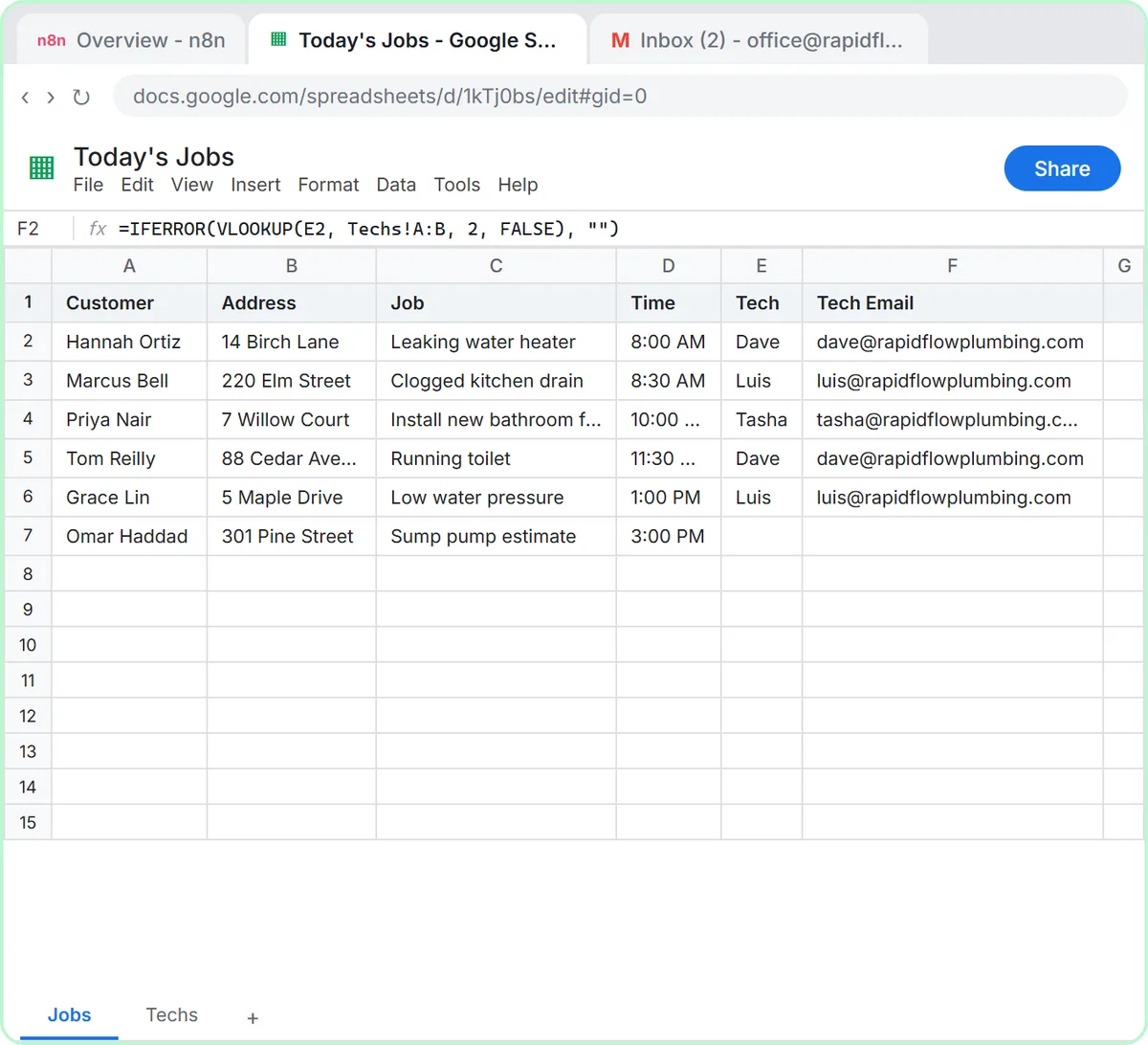
The Daily Job Alerts lesson uses a sheet as the source of truth for Rapid Flow Plumbing, a made-up company. The Today's Jobs spreadsheet has a Jobs tab with Customer, Address, Job, Time, Tech and Tech Email columns, plus a Techs tab listing each tech's address. Tech Email looks the address up from the Techs tab, so the office only types a first name.
In n8n you add Google Sheets: Get row(s) in sheet, reuse the Google Sheets account credential, pick Today's Jobs and the Jobs tab, and click Test step. Six items come out, one per row, labeled with the column names. A Filter then drops the sump pump job that has no tech, and Gmail emails the rest.
The agent lessons use sheets the other way round, as a log the AI writes to, like the Leads sheet in the Lovable + n8n lesson.
Try this lesson free or read the step-by-step guide.
Common confusions
Get row(s) vs Append Row
Get row(s) reads existing rows into the workflow. Append Row adds new ones at the bottom. The job alerts lesson reads; the receipt and lead lessons append.
Google Sheets vs a real database
A database enforces structure, handles many writers at once and scales to millions of records. A sheet is easier to see and edit. Start with a sheet and move when you feel the pain, not before.
Google Sheets vs CSV
A Google Sheet is a live, shared file that n8n reads and writes through Google's API. A CSV is a plain text snapshot you export or import.
Tips
- Put field names in row 1 and never merge header cells.
- Don't rename or reorder columns a live workflow uses without updating the workflow too.
- Keep one kind of record per tab.
- Share the sheet with whoever reviews the data; it's the cheapest dashboard you'll ever have.
Related terms
Where you use it: free lessons
- Daily Job Alerts: Email Each Tech Their Jobs from Google Sheets with n8n (n8n, 10 min)
- AI Receipt Extractor: Receipts to Google Sheets with n8n (n8n, 12 min)
- n8n AI Agent Tutorial: Save Social Media Ideas to Google Sheets (n8n, 12 min)
Prompt templates that use it
Visual guides
Google Sheets (as an automation database) in a few slides, with the same guide written out as text.
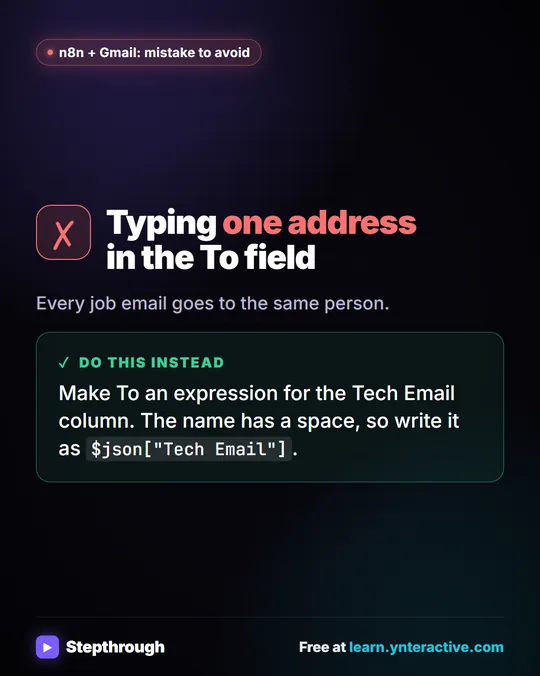 Mistake to Avoid: Sending Every Job Email to One Address
A visual tip for n8n and Gmail: make the To field an expression for the Tech Email column, written in square brackets because of the space.
Mistake to avoid One graphic
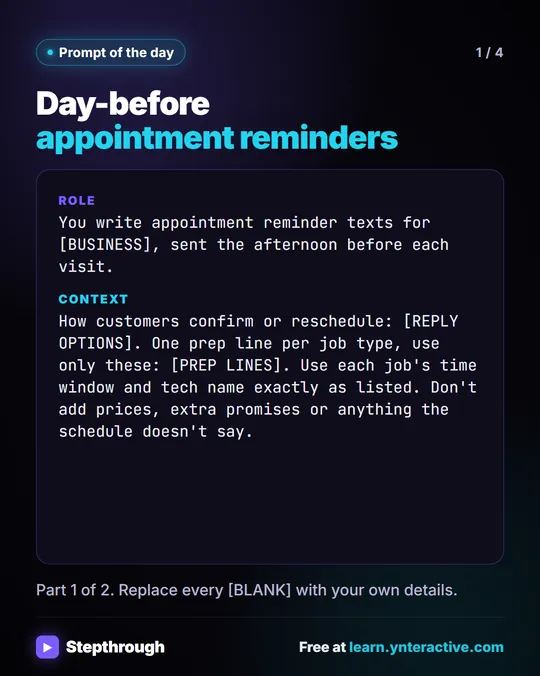 Prompt of the Day: Day-Before Appointment Reminder Texts
A visual prompt card: paste tomorrow's schedule and get one short reminder text per job, with the time window, the tech and one prep step.
Prompt to copy 4 slides
Frequently asked questions
- Is Google Sheets good enough as a database for a small business?
- For logs, job lists and lead lists of modest size, yes. Move to a real database or CRM when you need many people writing at once, strict data rules or very large volumes.
- How does n8n know which column is which?
- It reads the header row. That's why every lesson types the column names into row 1 before connecting the sheet.
- What access does n8n need to my Google Sheets?
- A Google credential, created by signing in with Google and allowing access to your spreadsheets. After that, the same credential works in every workflow.