Updated . Built against the tool’s current screens and checked step by step. How we check this lesson
A beginner Trello automation on real screens: one free rule that marks every card complete the moment it reaches Done, so the board stays true without anyone tidying it. Trello Free.
At a glance
| Question | Answer |
|---|---|
| What you build | A beginner Trello automation on real screens: one free rule that marks every card complete the moment it reaches Done, so the board stays true without anyone tidying it. Trello Free. |
| Tools | Trello |
| Time | About 7 minutes, 13 steps in 4 parts |
| Level | Beginner, no coding needed |
| Cost | Free |
| Ways to learn it | Practice it step by step |
The 4 parts, in short
- Open Automation: Automation, Create automation, Add Trigger.
- The trigger: a card lands in Done: Type the list name, Pick Done, By anyone, Add the trigger.
- The action: mark it complete: Dates actions, Mark complete, Save the rule.
- Test it: Close Automation, Move a card to Done, It marked itself complete.
Start here first: Jira: Plan and Run Your First Sprint (module 1 of Project management)
What you'll build
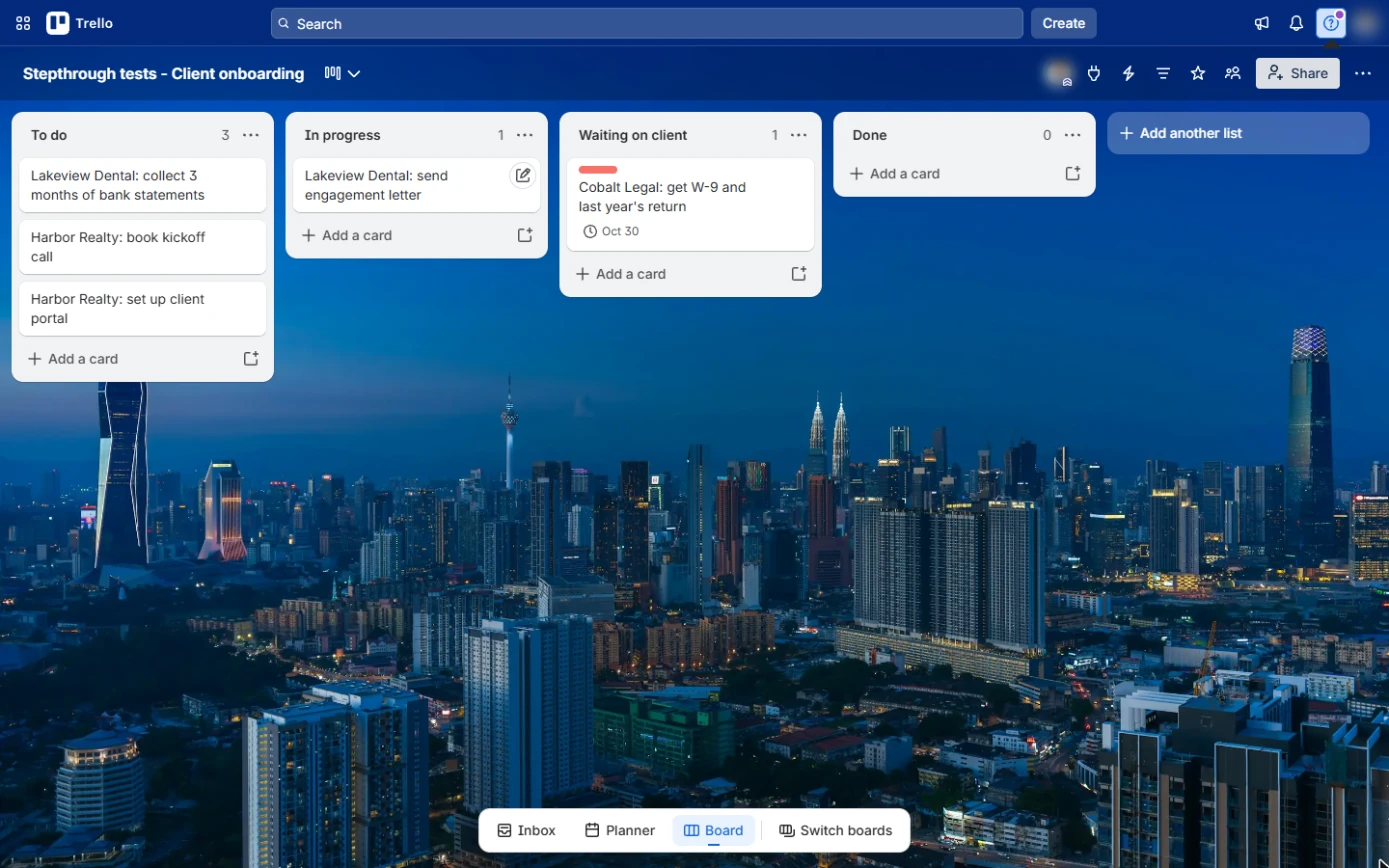
Your team moves finished client tasks to Done but forgets to tick them complete, so due dates keep showing as overdue and the Monday review starts with ten minutes of clean-up. In this lesson you add one automation rule on the free plan: when a card is added to Done by anyone, mark it complete. Then you test it on a real card. Every screen is a real Trello screen.
You created a rule (when a card is added to list Done by anyone, mark the card as complete), saved it and tested it: the Cobalt Legal card ticked itself and its due date turned green. Add your own rules the same way, for example adding a checklist to every new card in To do.
- Tools: Trello
- Time: about 7 minutes, 13 steps in 4 chapters
- Level: beginner, no coding needed
- Price: free
Practice first, then build it for real
Practice copy built from real Trello screens (Free plan, captured 24 October 2026). Nothing here touches your Trello account. The clients and tasks are made up. To build it for real you need your own Trello account, and some services charge once you use them for real work, so check each tool's current pricing.
Try it yourself, free
Reading the steps is a start. Doing them is how it sticks. The interactive module walks you through every click in a practice copy of Trello, checks each step, and never touches your real accounts.
Start “Trello: Mark Work Complete Automatically with a Free Rule”Step by step: Trello: Mark Work Complete Automatically with a Free Rule
All 13 steps of the interactive module, in order. In the module you watch each one, then do it yourself in a practice copy that checks your work.
1. Open Automation
- Automation. Open your Client onboarding board. Click the lightning bolt (Automation) in the board header.
That is Automation.
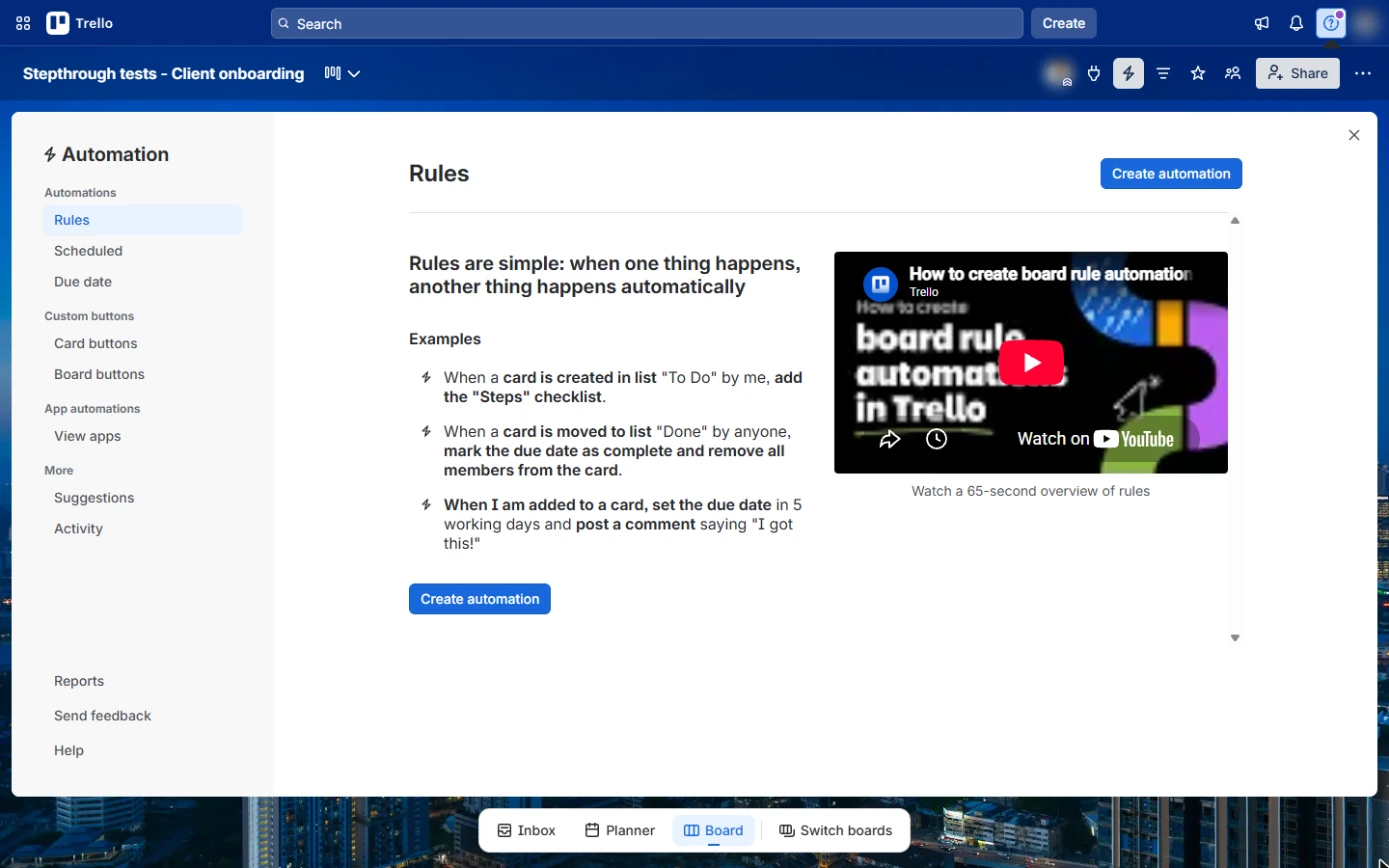
- Create automation. Rules run when something happens on the board. Trello shows examples. Click Create automation.
Rules run when something happens on the board.
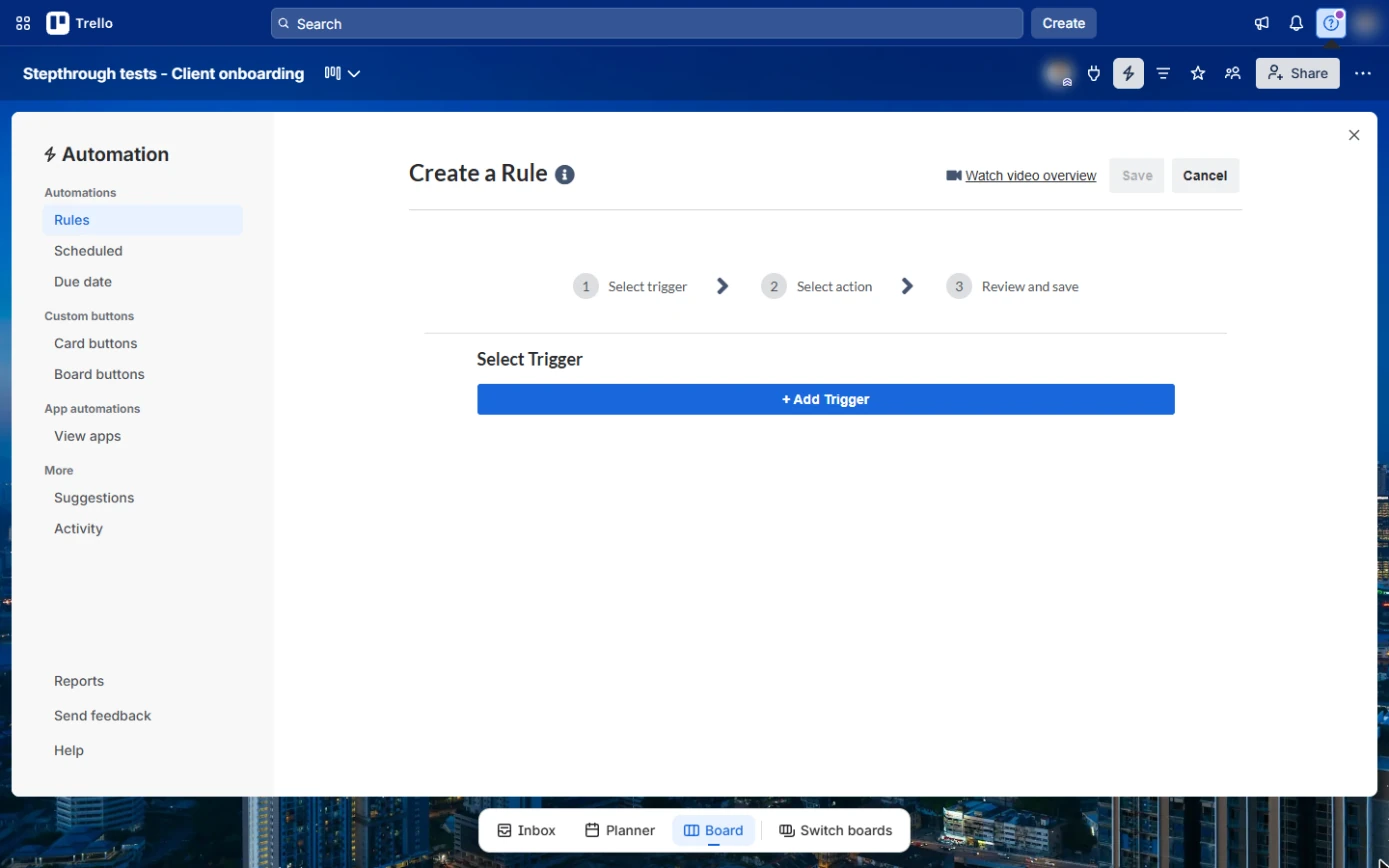
- Add Trigger. A rule has three parts: trigger, action, review and save. Click + Add Trigger.
A rule is a trigger, then an action.
2. The trigger: a card lands in Done
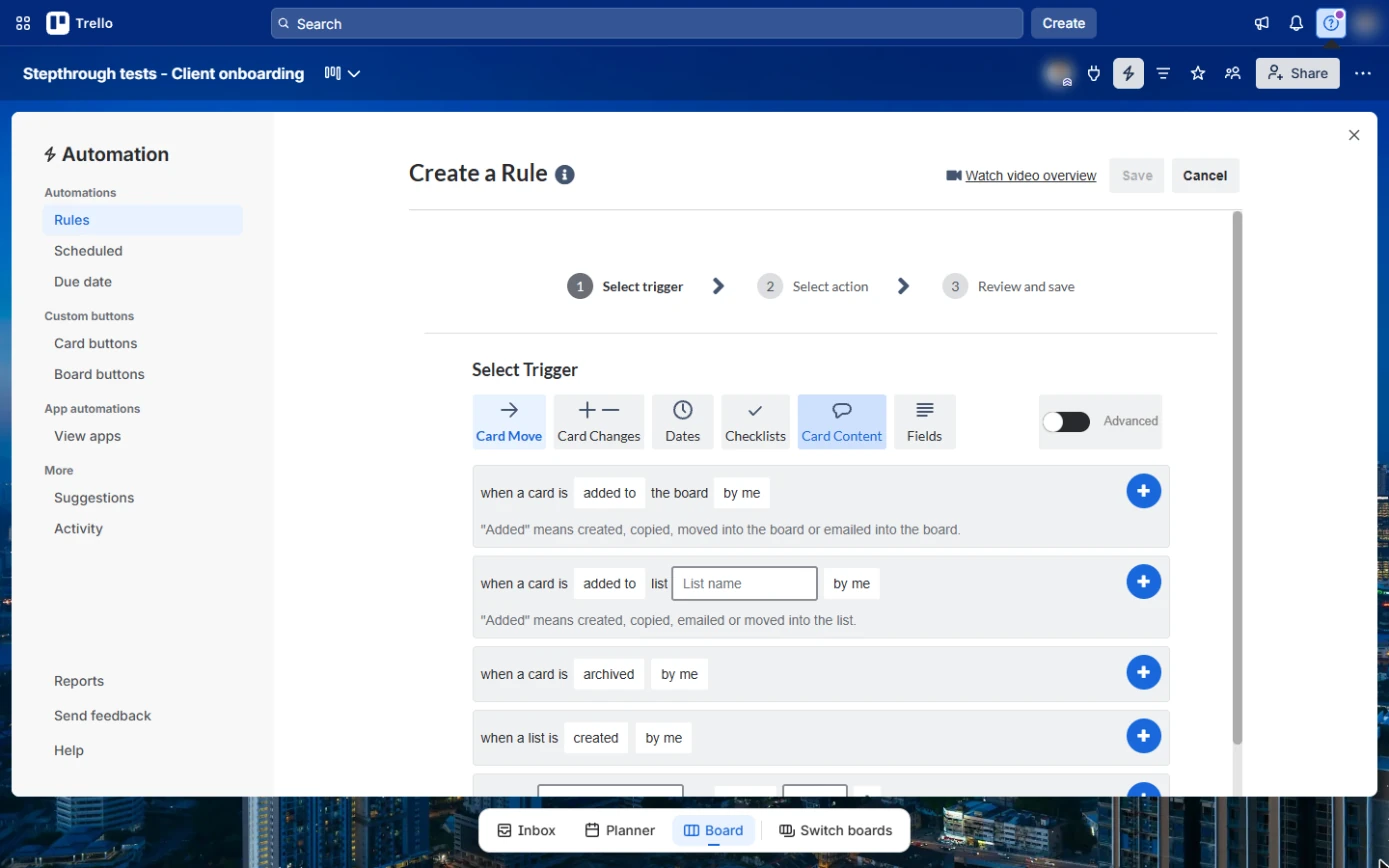
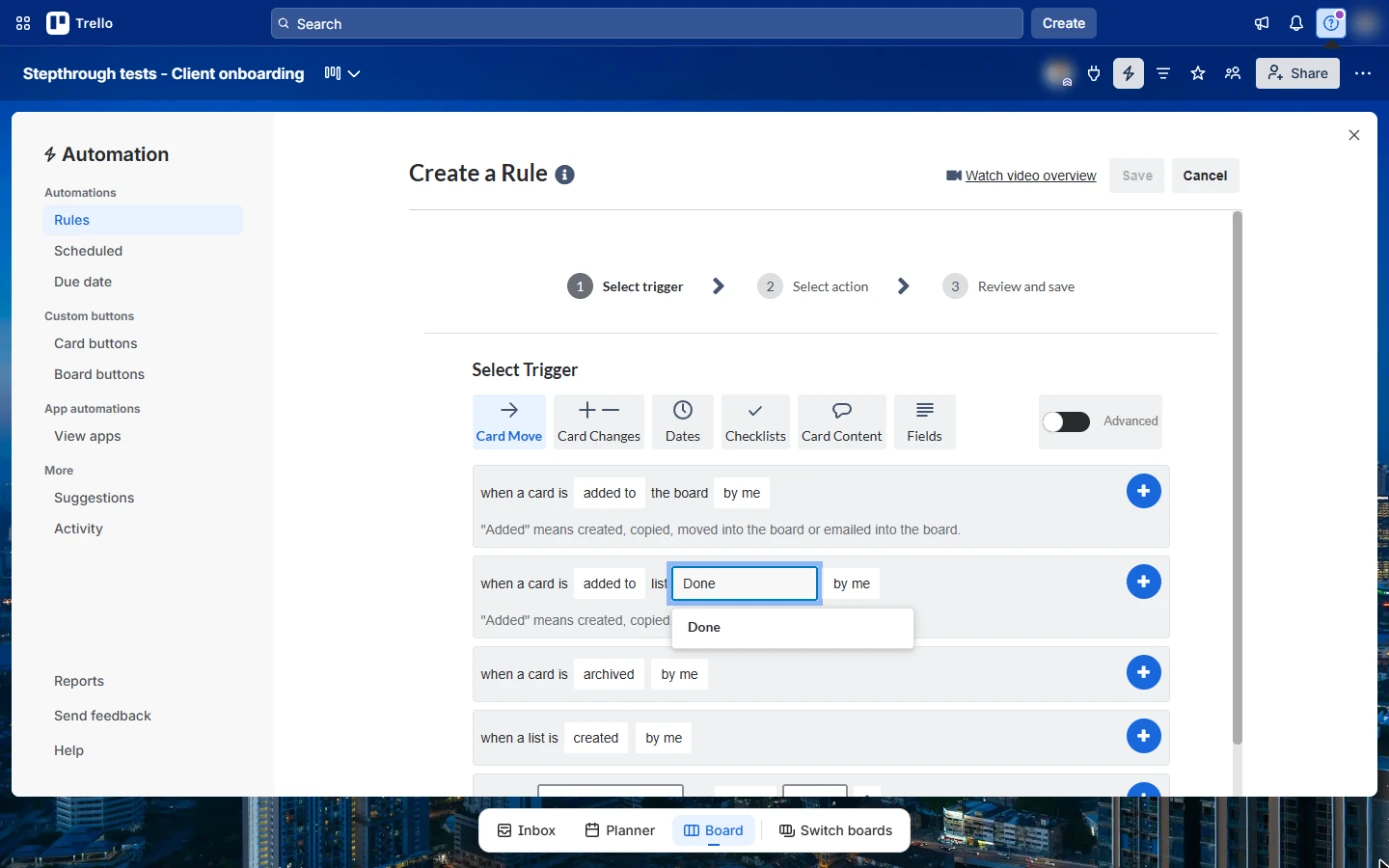
- Type the list name. On the Card Move tab, find "when a card is added to list". Click List name and type Done.
Find when a card is added to list.
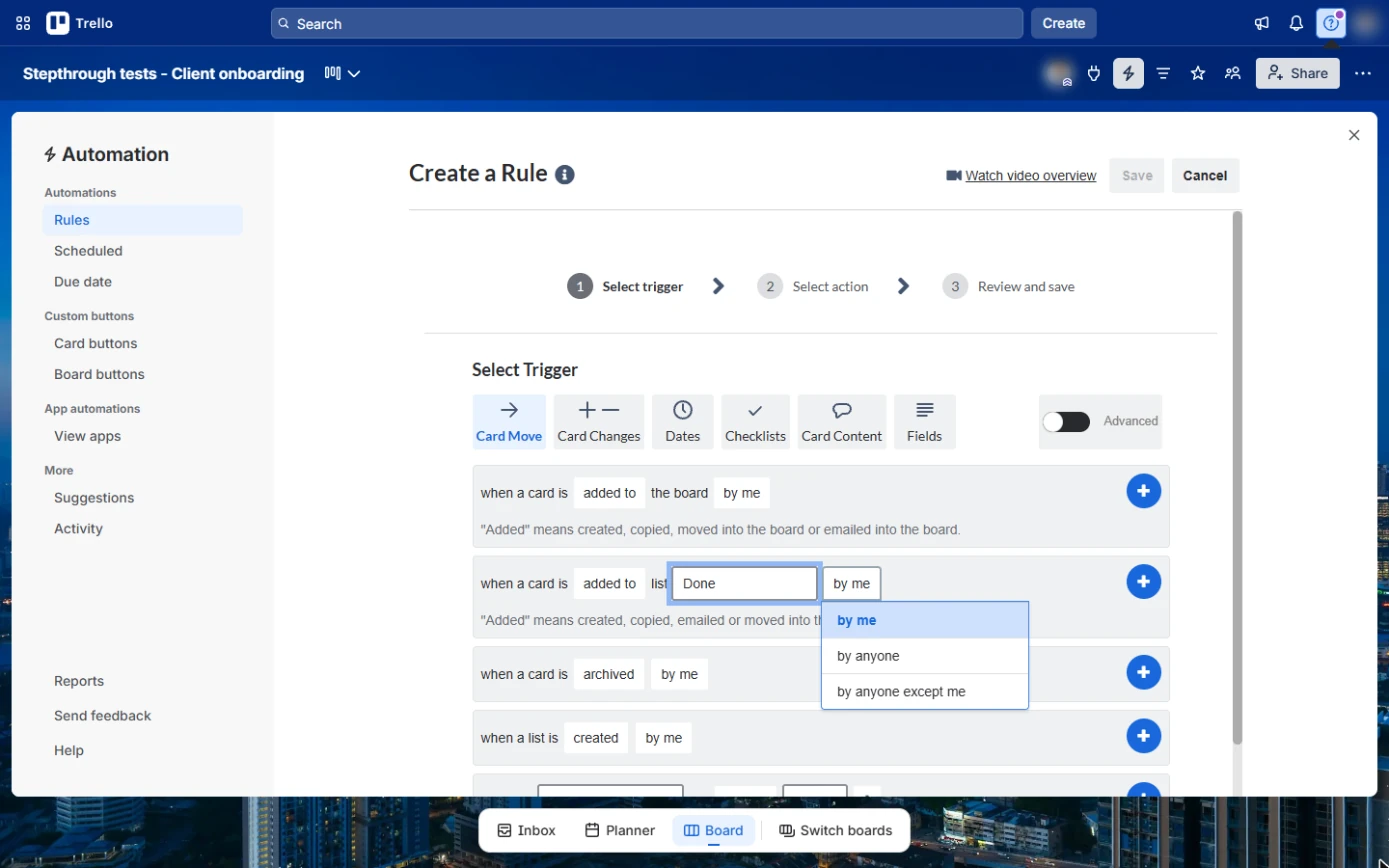
- Pick Done. Click Done in the suggestions, so the rule points at your real list. Then click by me next to it.
Pick Done from the suggestions.
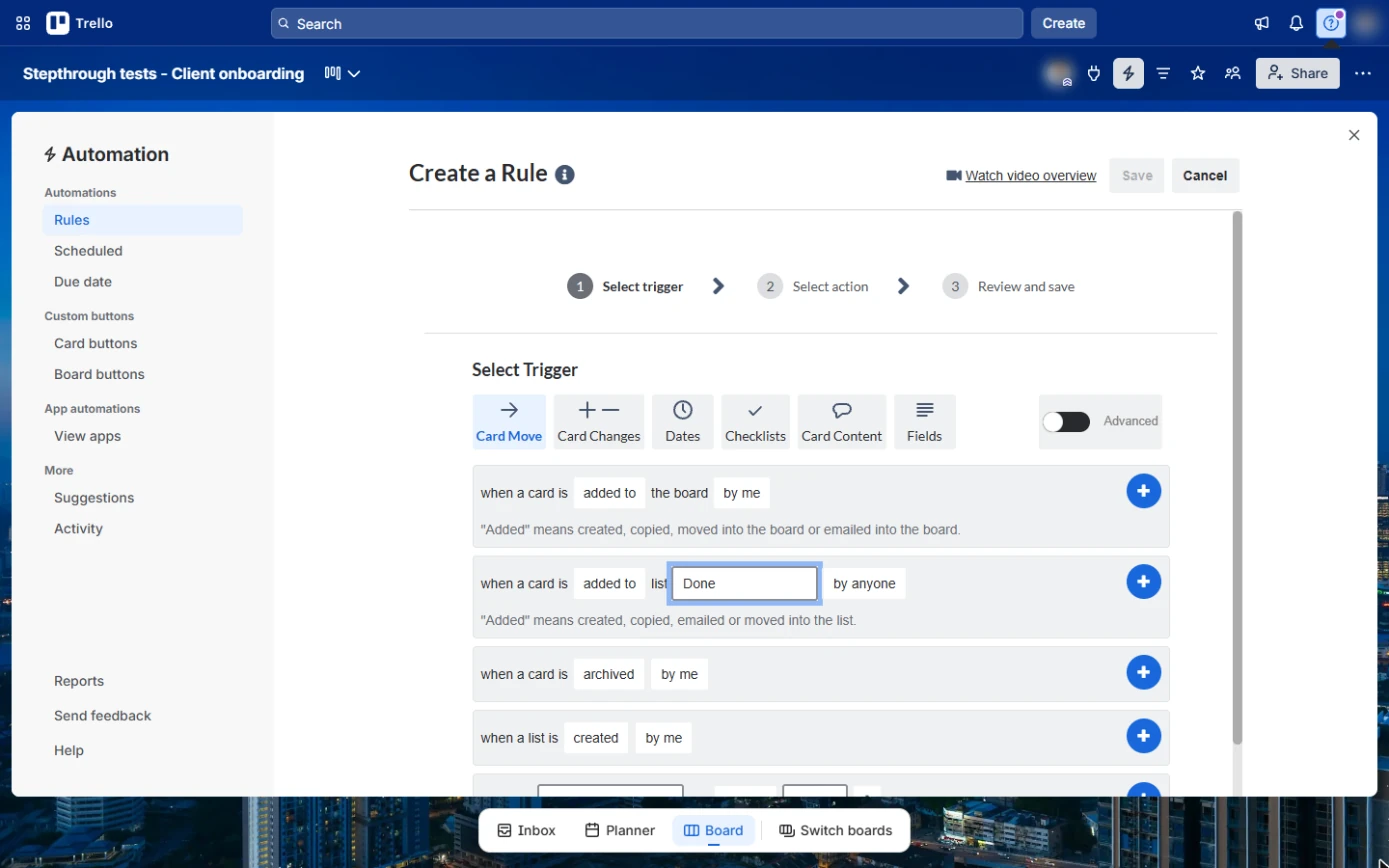
- By anyone. by me would only fire for your moves. Pick by anyone, so it works for the whole team.
Pick by anyone, so it works for the whole team.
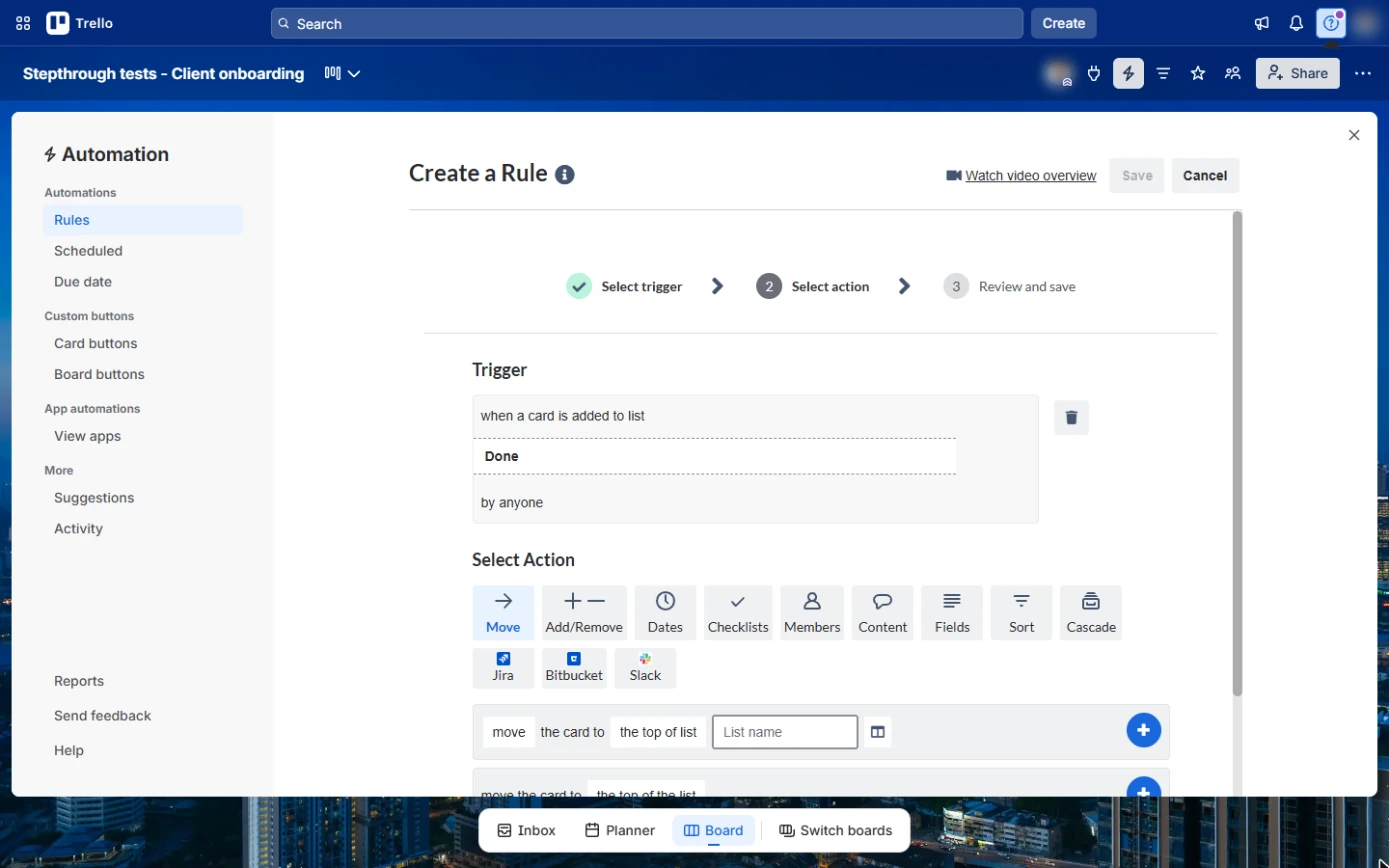
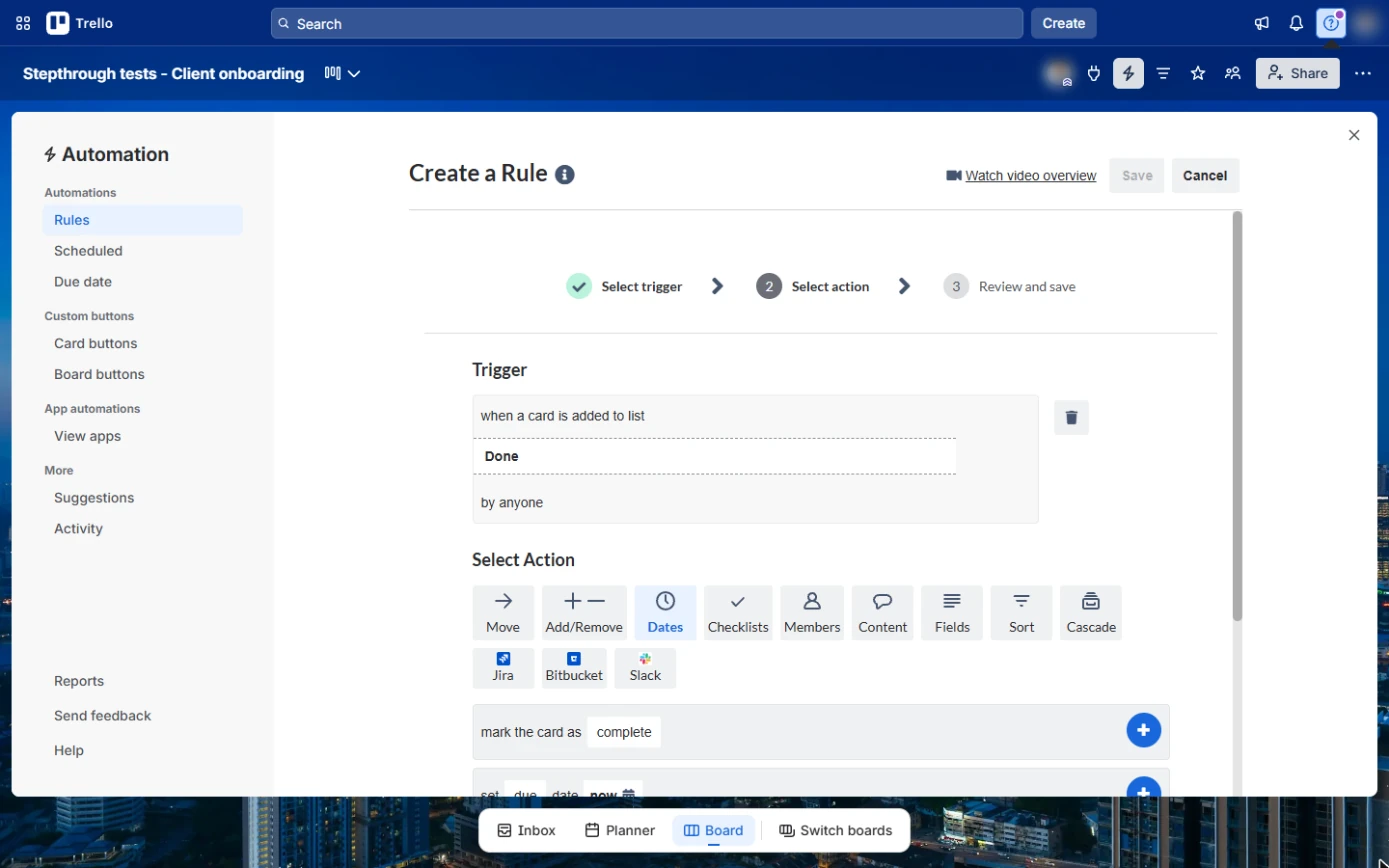
- Add the trigger. The trigger reads: when a card is added to list Done by anyone. Click the blue + on that row.
3. The action: mark it complete
- Dates actions. Now pick what happens. Click the Dates tab.
Now the action.
- Mark complete. The first action is "mark the card as complete". Click its blue +.
Mark the card as complete.
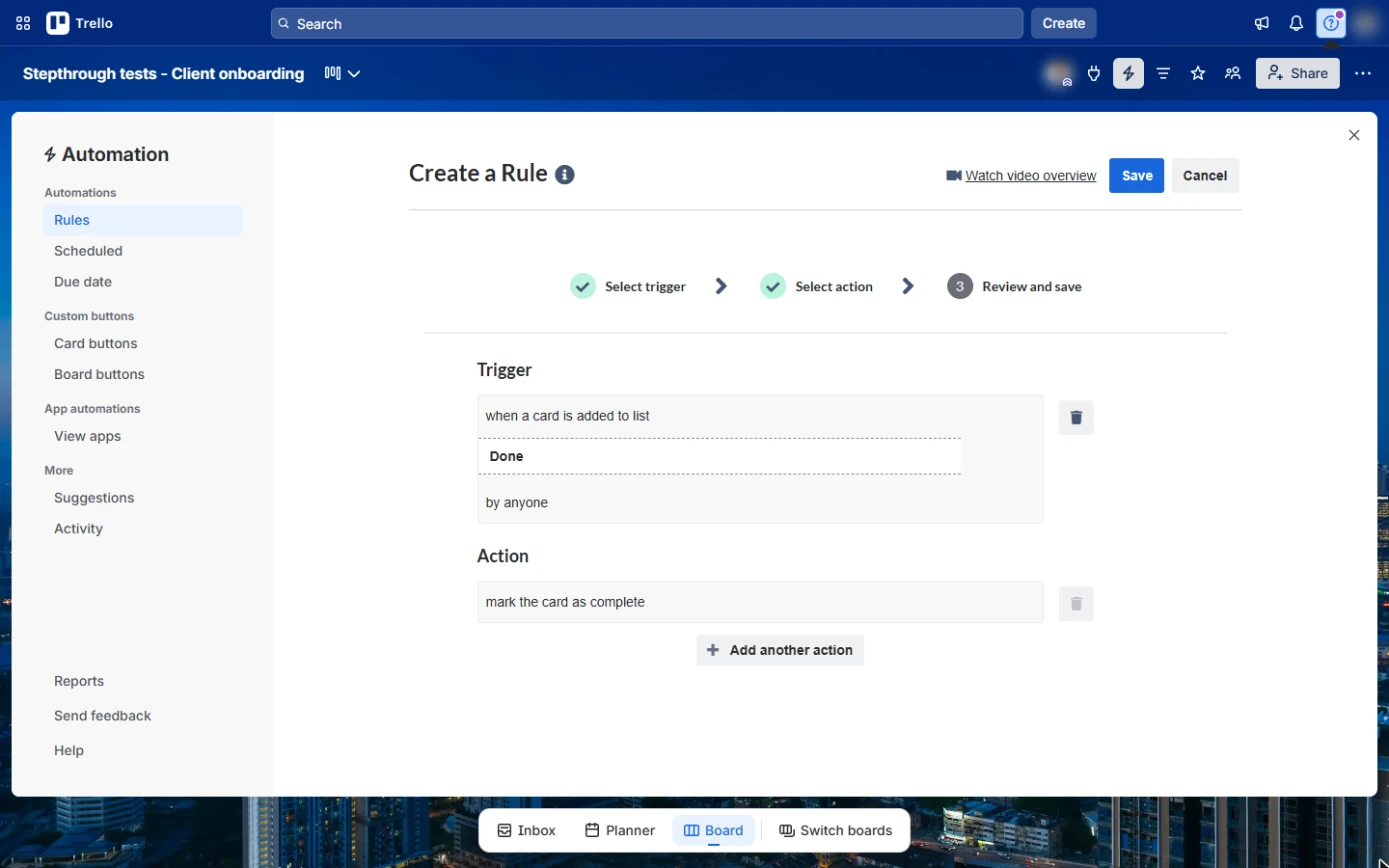
- Save the rule. Review: trigger "when a card is added to list Done by anyone", action "mark the card as complete". Click Save.
Check the trigger and the action.
4. Test it
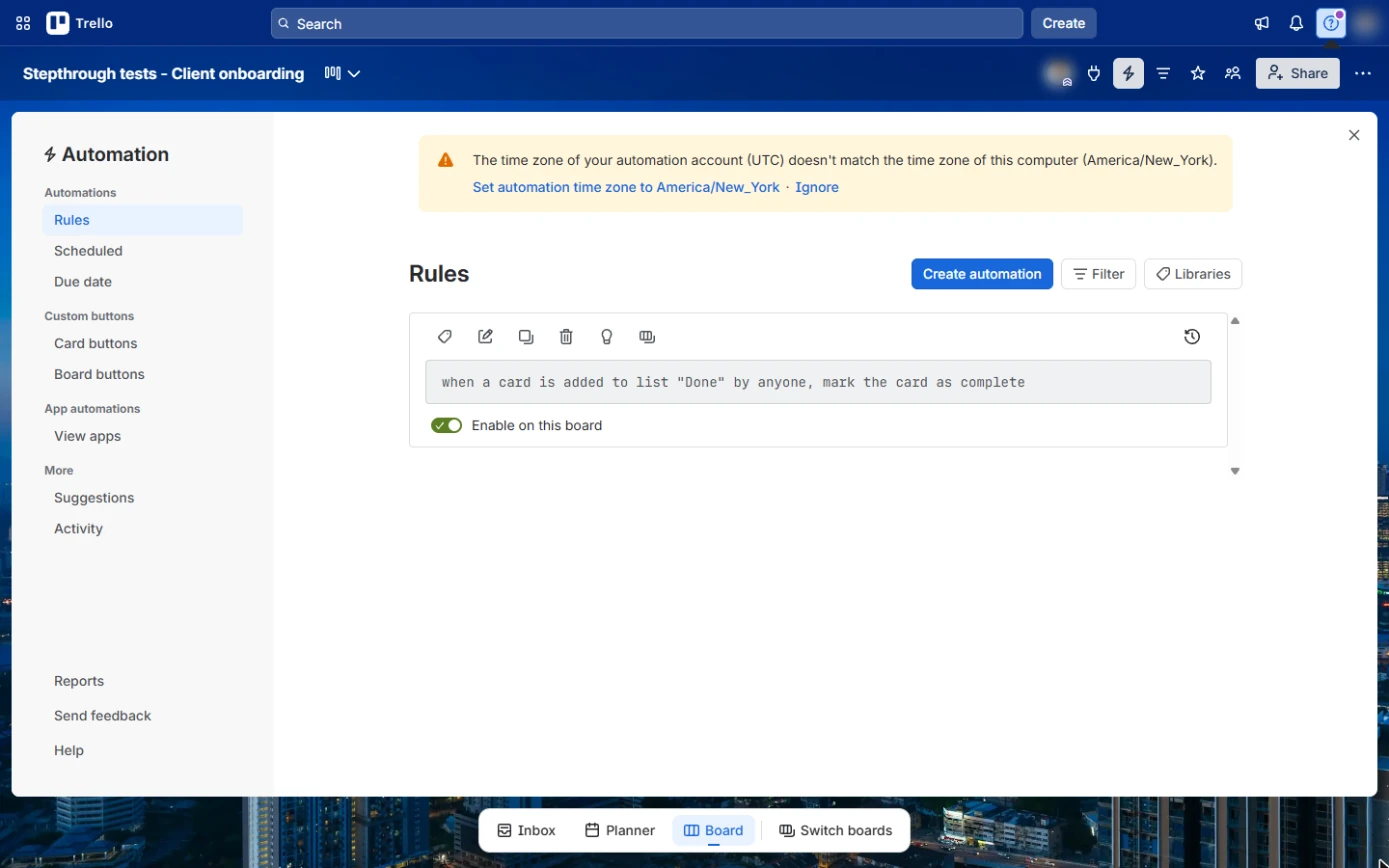
- Close Automation. The rule is on, with Enable on this board switched on. (A time zone notice may appear; you can leave it.) Close the panel with ×.
The rule is on. Close the panel.
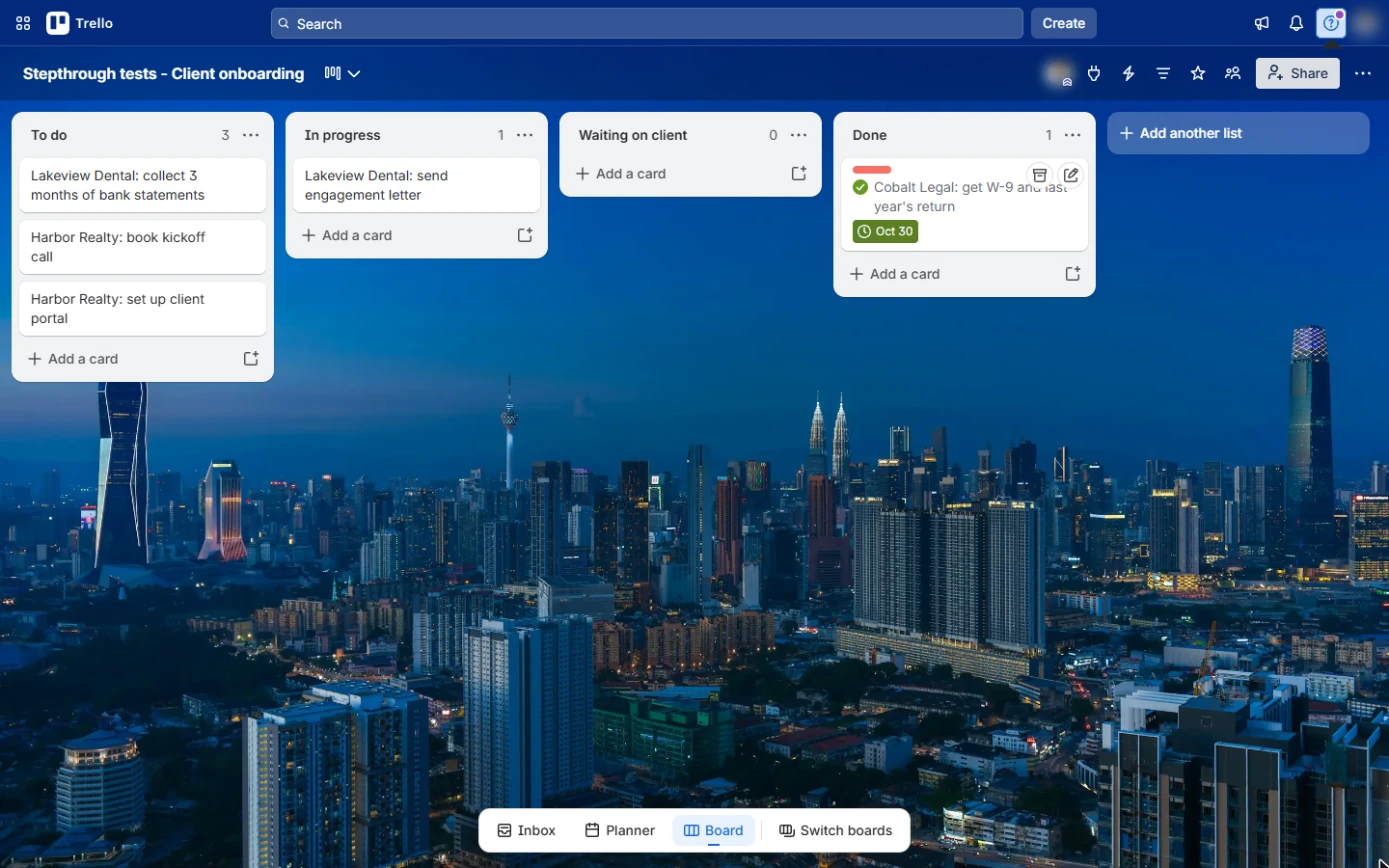
- Move a card to Done. Test it: drag the Cobalt Legal card from Waiting on client to Done.
Test it.
- It marked itself complete. Within a few seconds the card gets a green tick and its due date turns green: complete, without anyone opening it. Click the card to finish.
The card marks itself complete. Nobody had to open it.
Screenshots
More in Project management
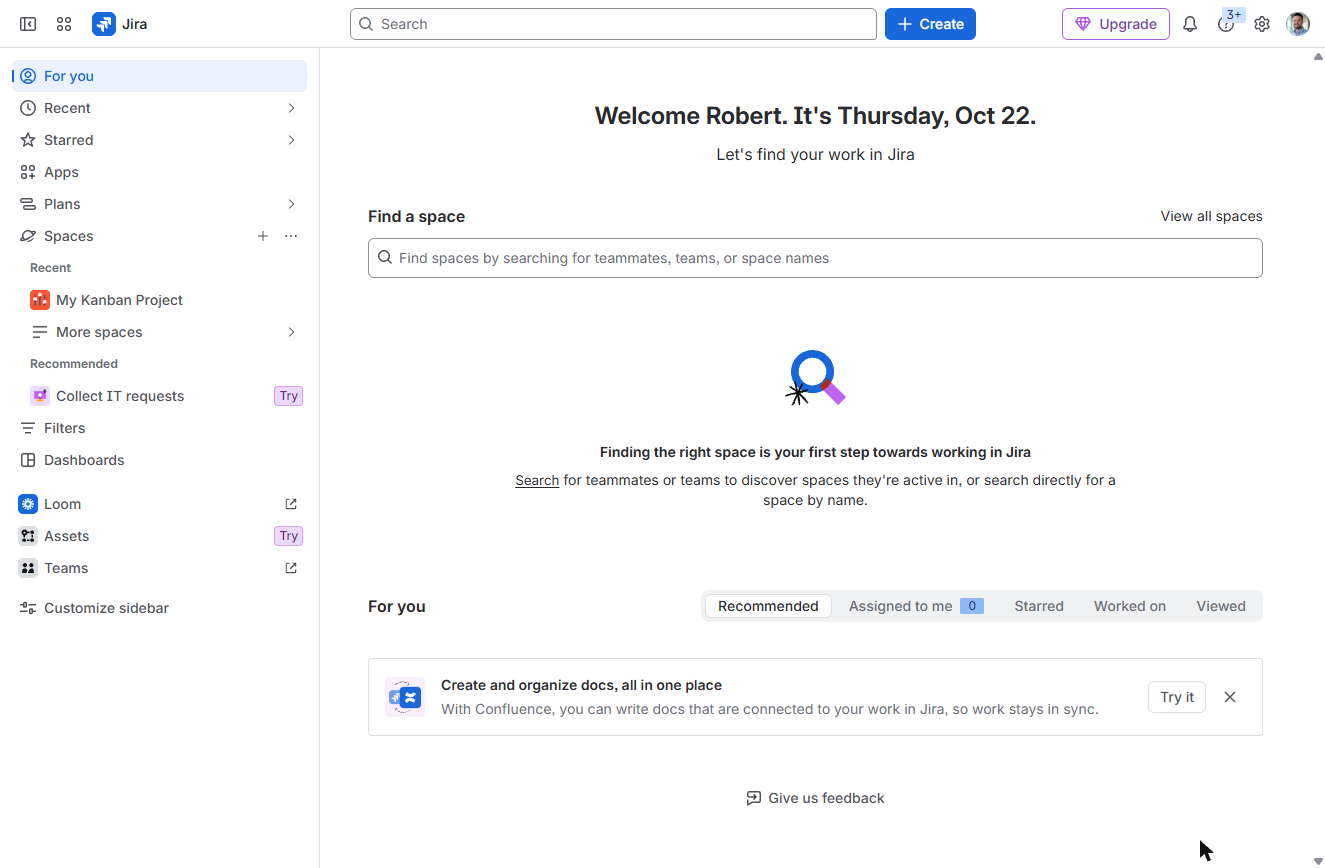 Jira: Plan and Run Your First Sprint
A beginner Jira walkthrough on real screens: create a Scrum space, write a backlog with story points, fill and start a two-week sprint, move cards on the board, read…
Free · Live ~15 min Beginner
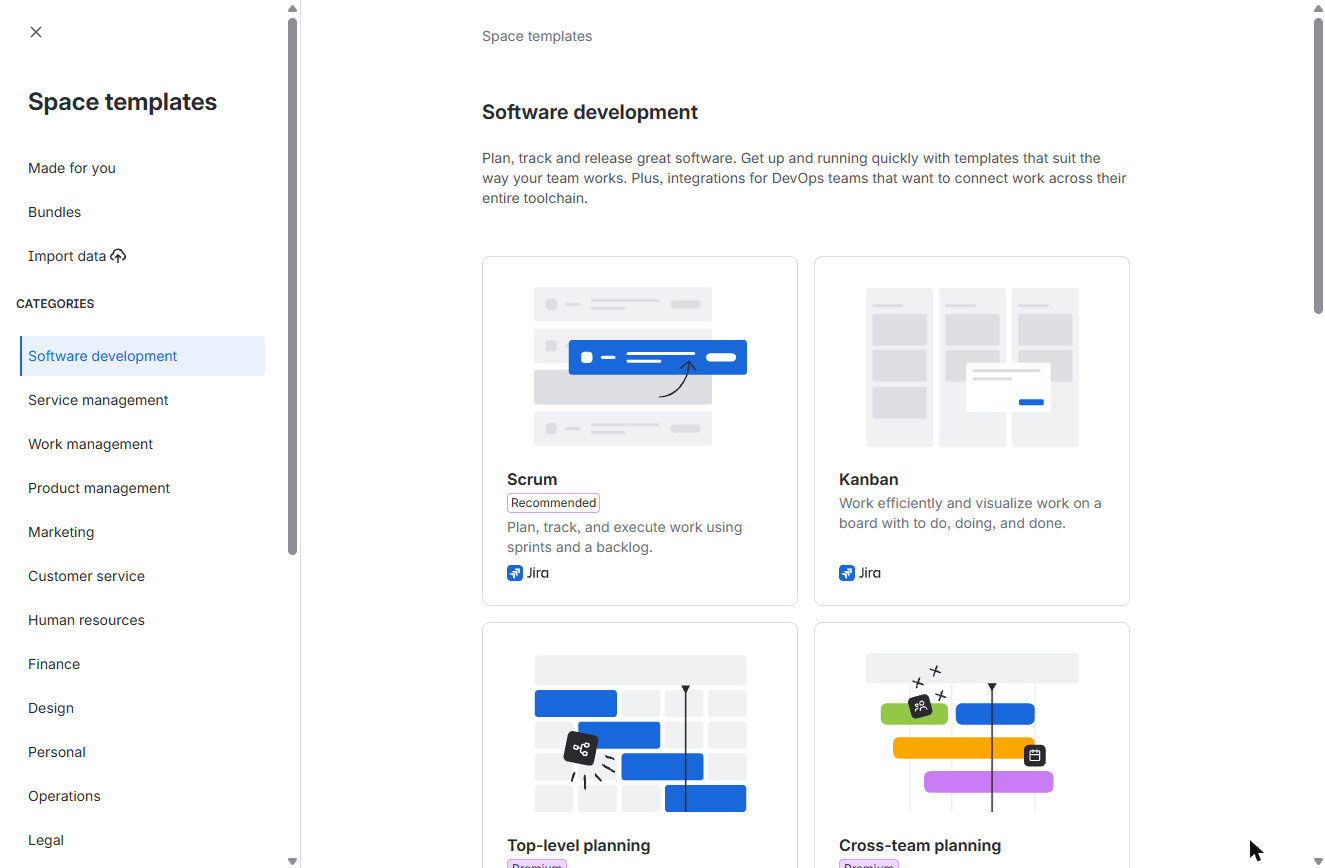 Jira: Kanban Board with WIP Limits and Cycle Time
A beginner Jira walkthrough on real screens: set up a Kanban board whose columns match your support process, cap In Progress with a WIP limit, see what happens when you…
Free · Live ~12 min Beginner
All 4 modules in Project management
Free cheat sheet
Print it or save the PDF: the key steps and checks from this lesson on one page, free.
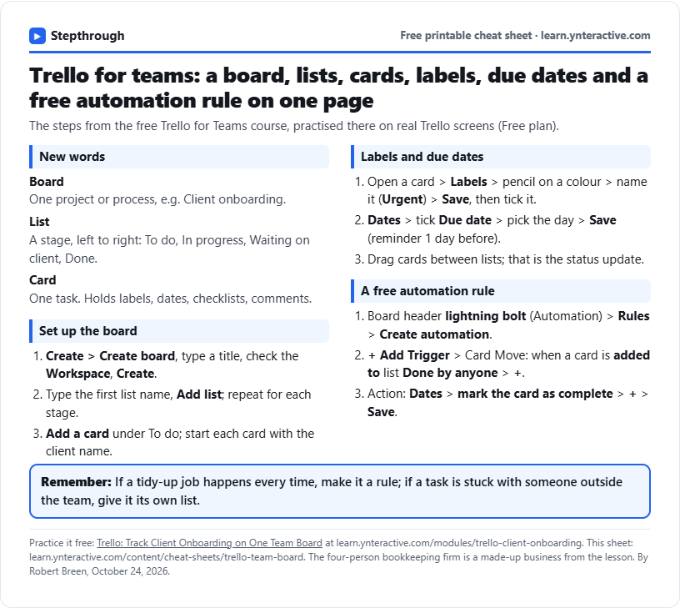
All free printable cheat sheets
Terms in this lesson
Plain-English definitions, each with an example from a free lesson.