Updated . Built against the tool’s current screens and checked step by step. How we check this lesson
A beginner Trello walkthrough on real screens: put every new-client task on one board with lists for each stage, cards for each task, an Urgent label and a due date, so nothing waits in someone's inbox. Trello Free.
At a glance
| Question | Answer |
|---|---|
| What you build | A beginner Trello walkthrough on real screens: put every new-client task on one board with lists for each stage, cards for each task, an Urgent label and a due date, so nothing waits in someone's inbox. Trello Free. |
| Tools | Trello |
| Time | About 10 minutes, 22 steps in 5 parts |
| Level | Beginner, no coding needed |
| Cost | Free |
| Ways to learn it | Practice it step by step |
The 5 parts, in short
- Create the team board: Create a board, Create board, Name the board, Check the Workspace, and 1 more step.
- Lists that match how work moves: Add the first list, Add the other lists.
- One card per task: Add a card, Type the task, Add the rest, Open a card.
- Labels and due dates: Labels, Name the red label, Call it Urgent, Save the label, and 5 more steps.
- Move work across the board: Move the cards, Read the board.
Start here first: Jira: Plan and Run Your First Sprint (module 1 of Project management)
What you'll build
Your four-person bookkeeping firm (made up) onboards three new clients a month. The tasks live in email threads and a spreadsheet, so a client can wait a week for an engagement letter because nobody knew it was theirs. In this lesson you build one Trello board on the free plan: lists for each stage, a card for each task, an Urgent label, a due date, and cards moved to In progress and Waiting on client. Every screen is a real Trello screen.
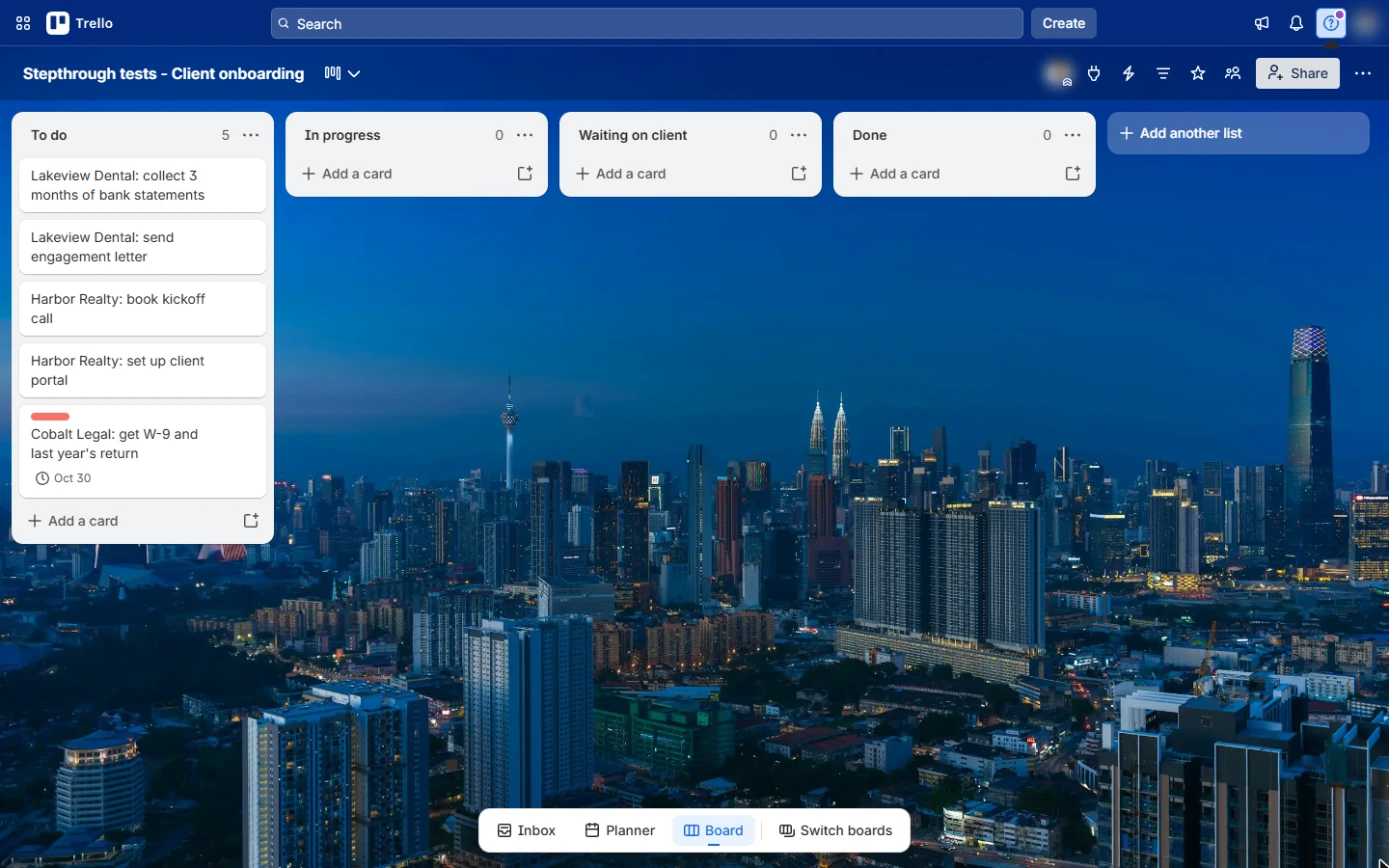
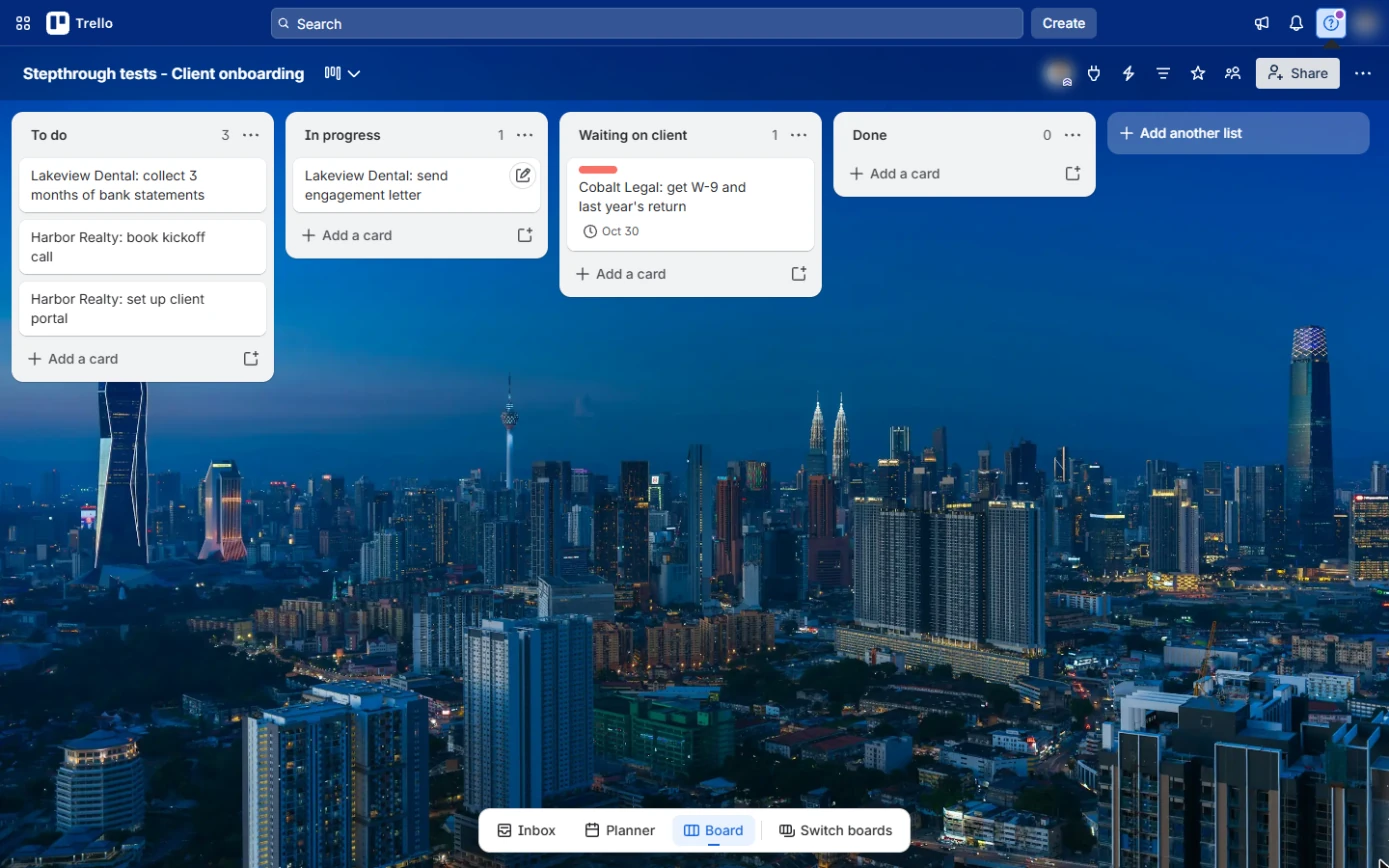
You created a board with To do, In progress, Waiting on client and Done, added five client tasks as cards, made a red Urgent label, put a 30 October due date on the Cobalt Legal card and moved cards along the board. Next, let Trello do the tidying: the second module adds a free automation that marks cards complete when they reach Done.
- Tools: Trello
- Time: about 10 minutes, 22 steps in 5 chapters
- Level: beginner, no coding needed
- Price: free
Practice first, then build it for real
Practice copy built from real Trello screens (Free plan, captured 24 October 2026). Nothing here touches your Trello account. The clients and tasks are made up. To build it for real you need your own Trello account, and some services charge once you use them for real work, so check each tool's current pricing.
Try it yourself, free
Reading the steps is a start. Doing them is how it sticks. The interactive module walks you through every click in a practice copy of Trello, checks each step, and never touches your real accounts.
Start “Trello: Track Client Onboarding on One Team Board”Step by step: Trello: Track Client Onboarding on One Team Board
All 22 steps of the interactive module, in order. In the module you watch each one, then do it yourself in a practice copy that checks your work.
1. Create the team board
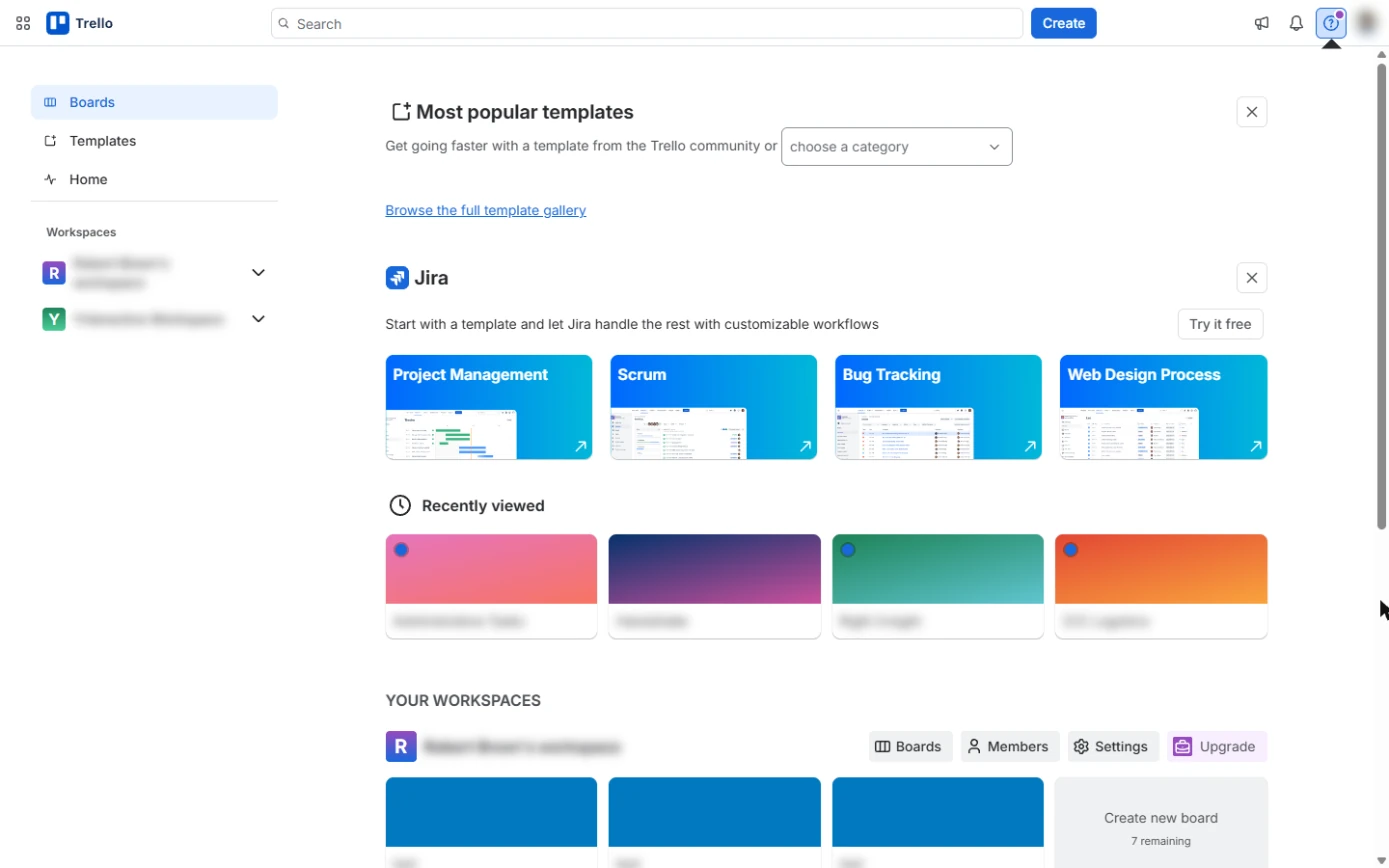
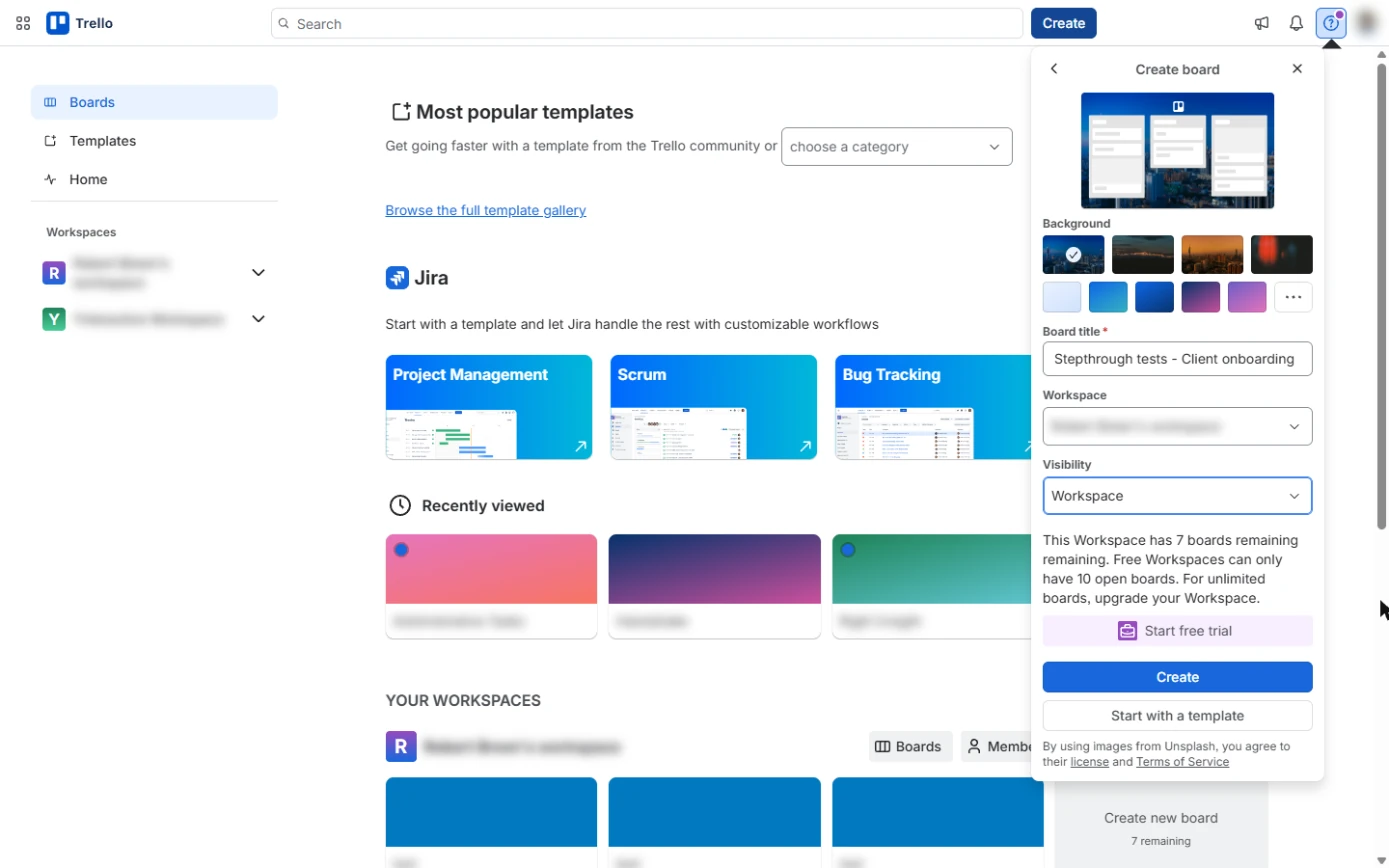
- Create a board. On your Trello Boards page, click Create in the top bar.
This is your Trello boards page.
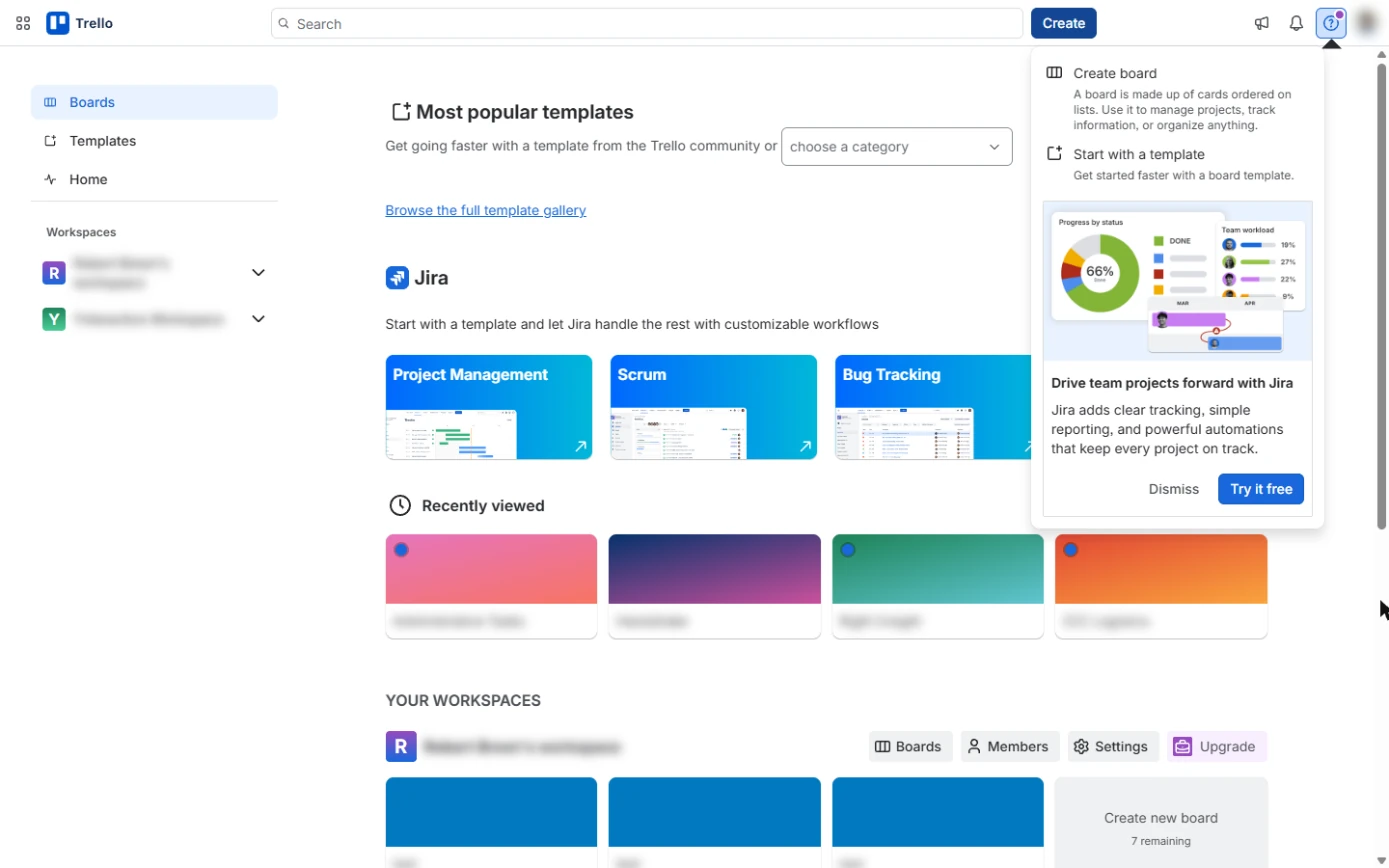
- Create board. Click Create board. (Templates are here too; this lesson starts blank so every part makes sense.)
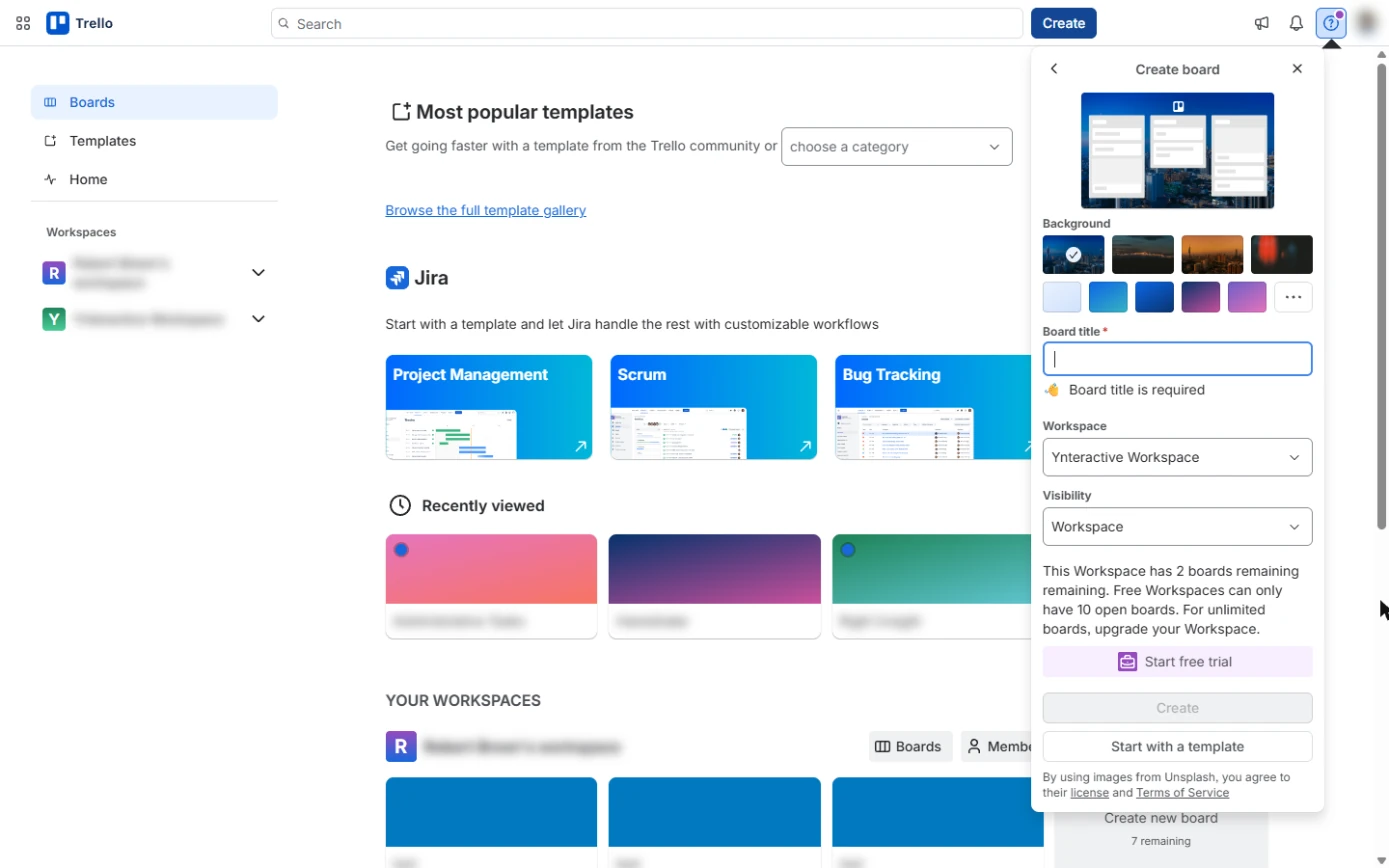
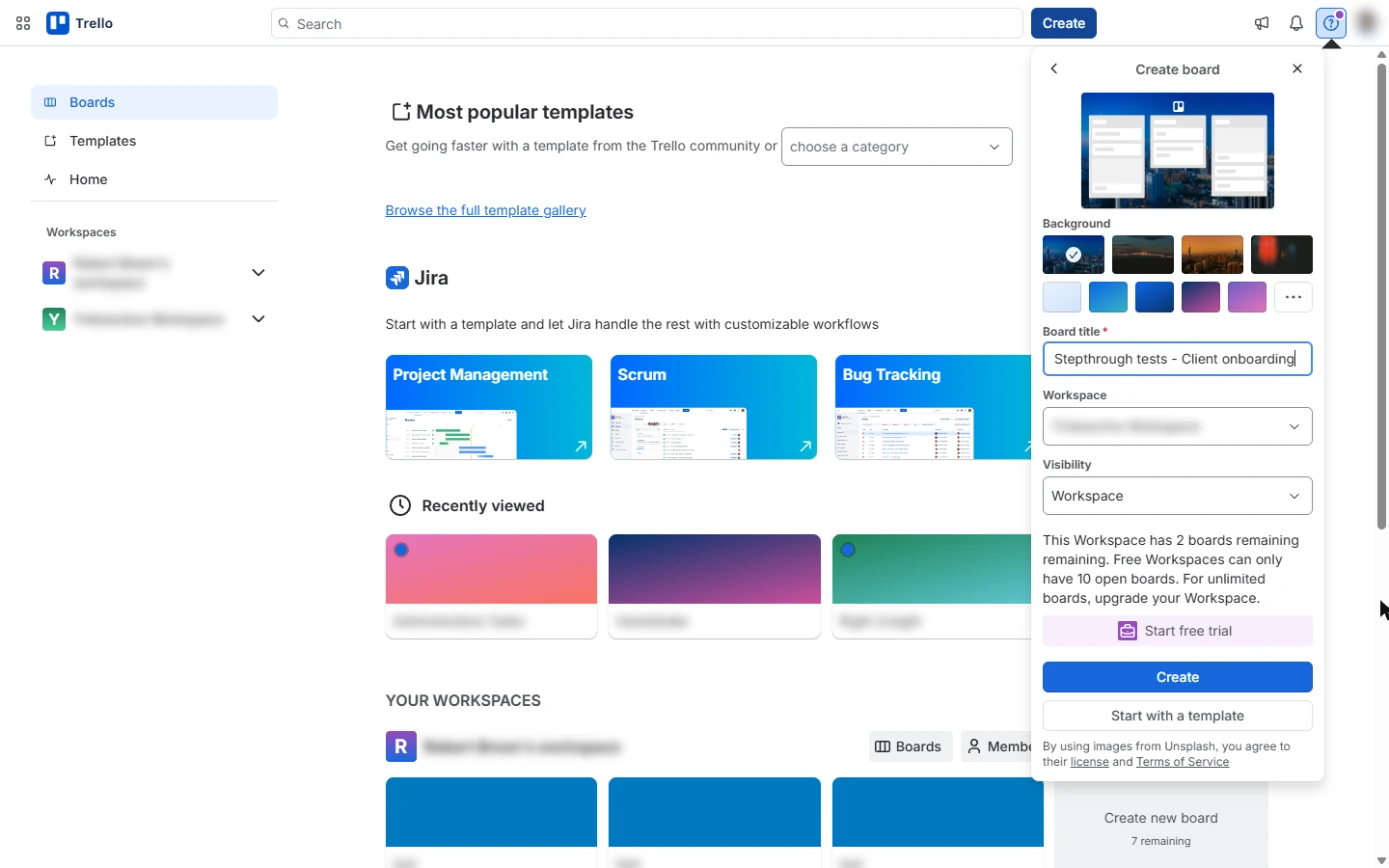
- Name the board. In Board title, type the board name. Ours is Stepthrough tests - Client onboarding; in your own Trello, Client onboarding is enough.
- Check the Workspace. Check Workspace is the one your team uses, and leave Visibility on Workspace so only members can see it.
Check the workspace. Leave visibility on Workspace, so only your team sees it.
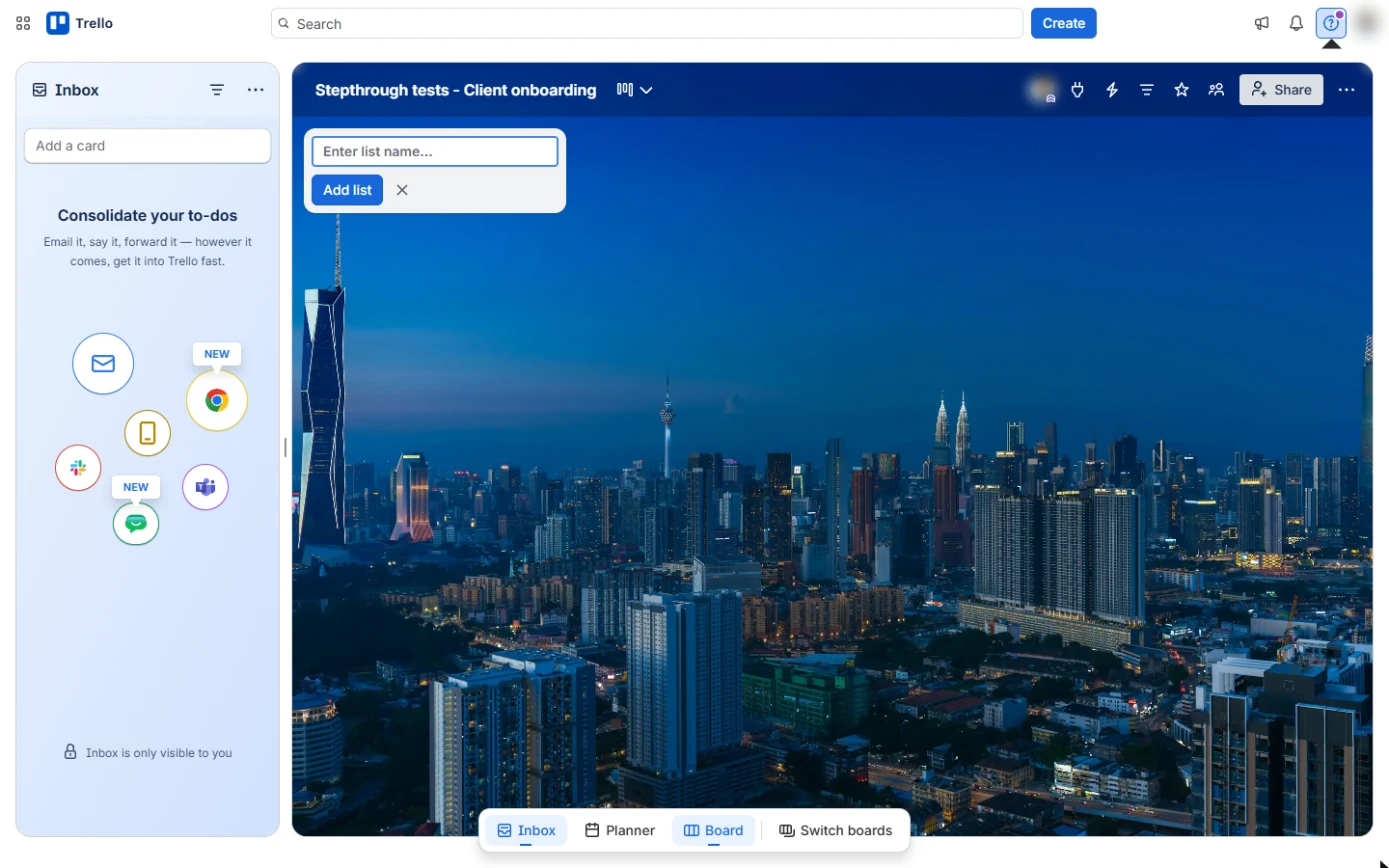
- Create. Click Create. Trello opens the new, empty board.
2. Lists that match how work moves
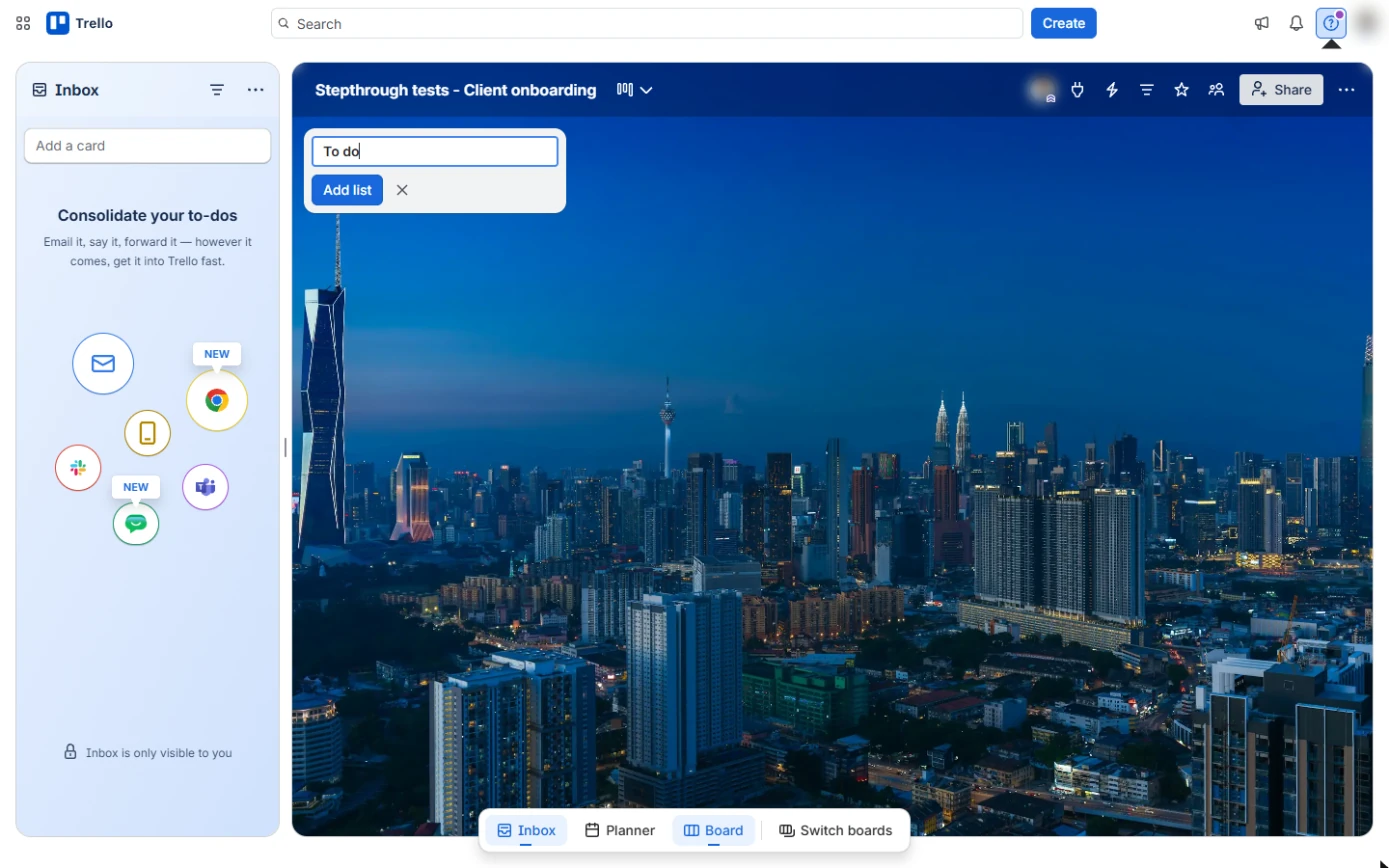
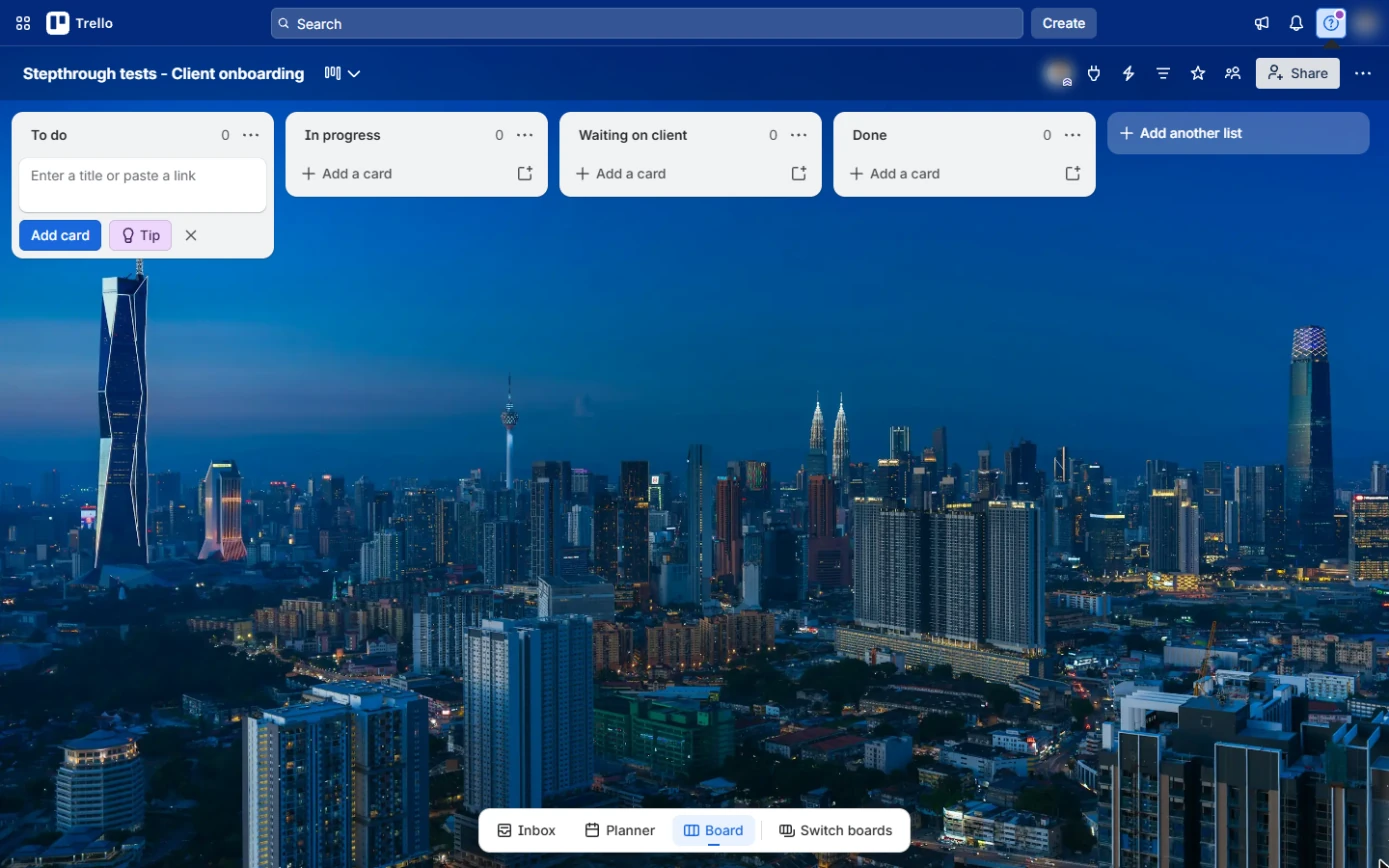
- Add the first list. A new board asks for its first list. Type To do.
Lists are the stages your work moves through.
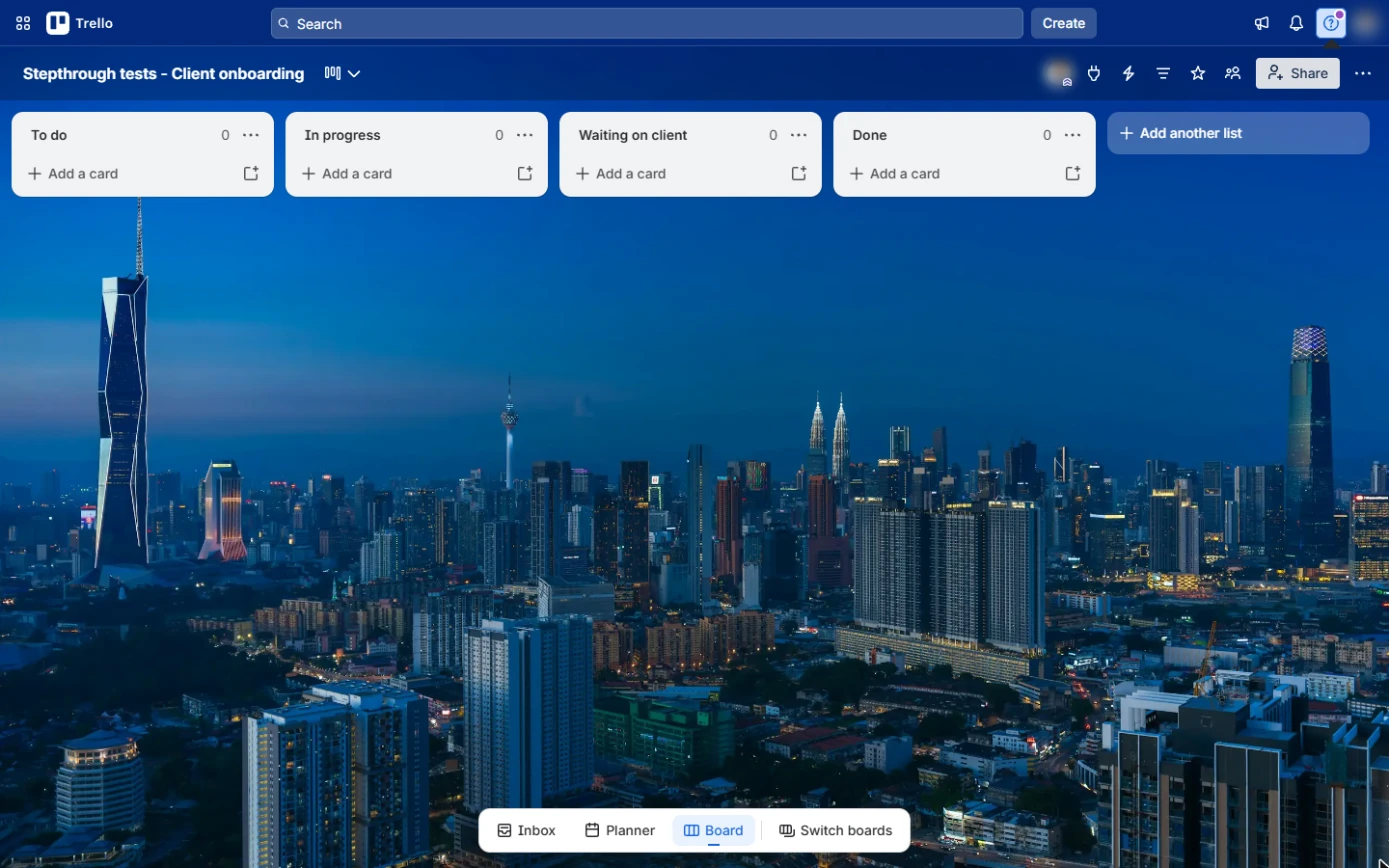
- Add the other lists. Click Add list. The box stays open, so add In progress, Waiting on client and Done the same way, pressing Enter after each.
Then add In progress, Waiting on client, and Done the same way.
3. One card per task
- Add a card. Four lists, left to right. Each onboarding task becomes a card. Click Add a card under To do.
Each task becomes a card.
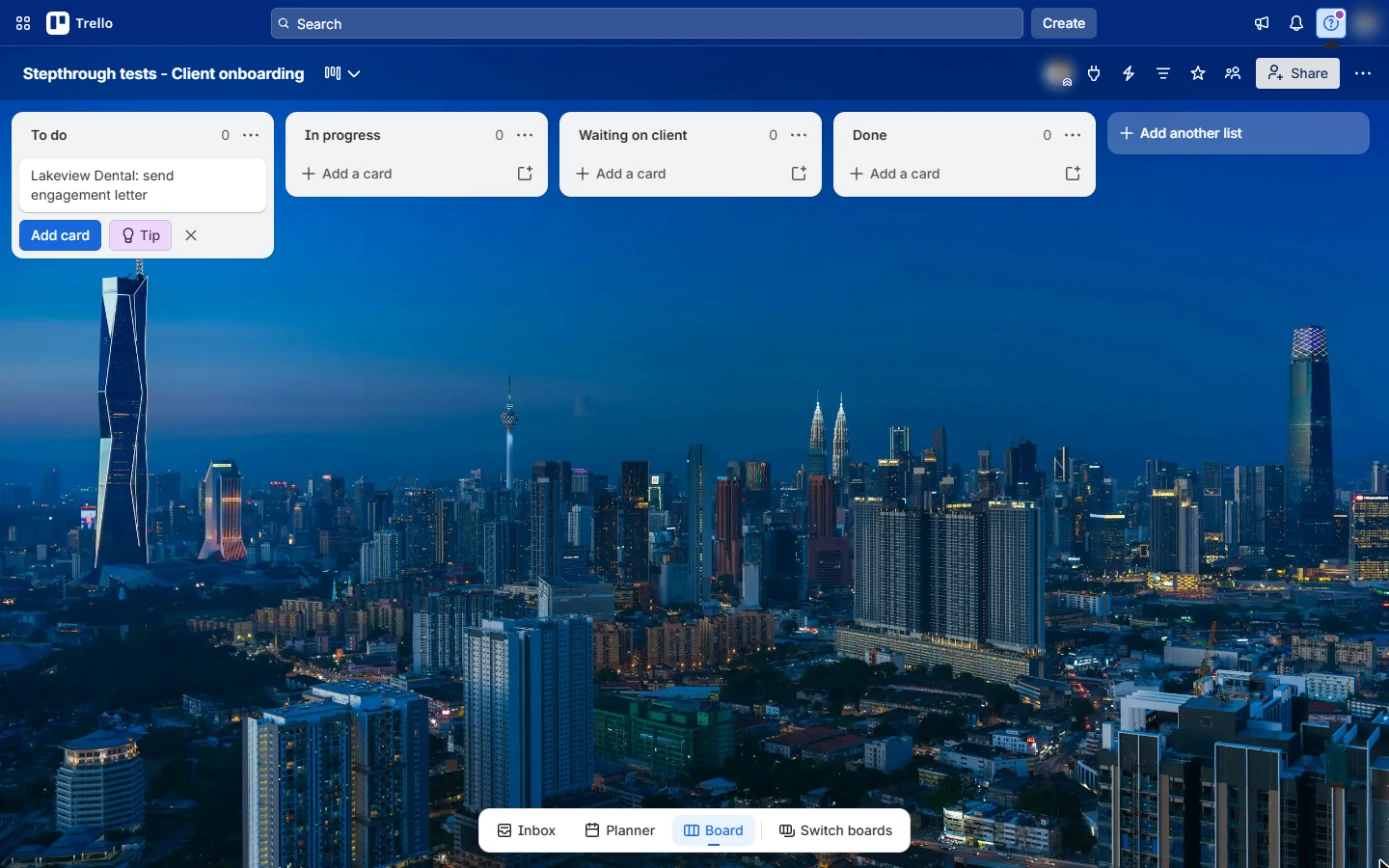
- Type the task. Type Lakeview Dental: send engagement letter. Start with the client name, so the board reads like a client list.
Start with the client name.
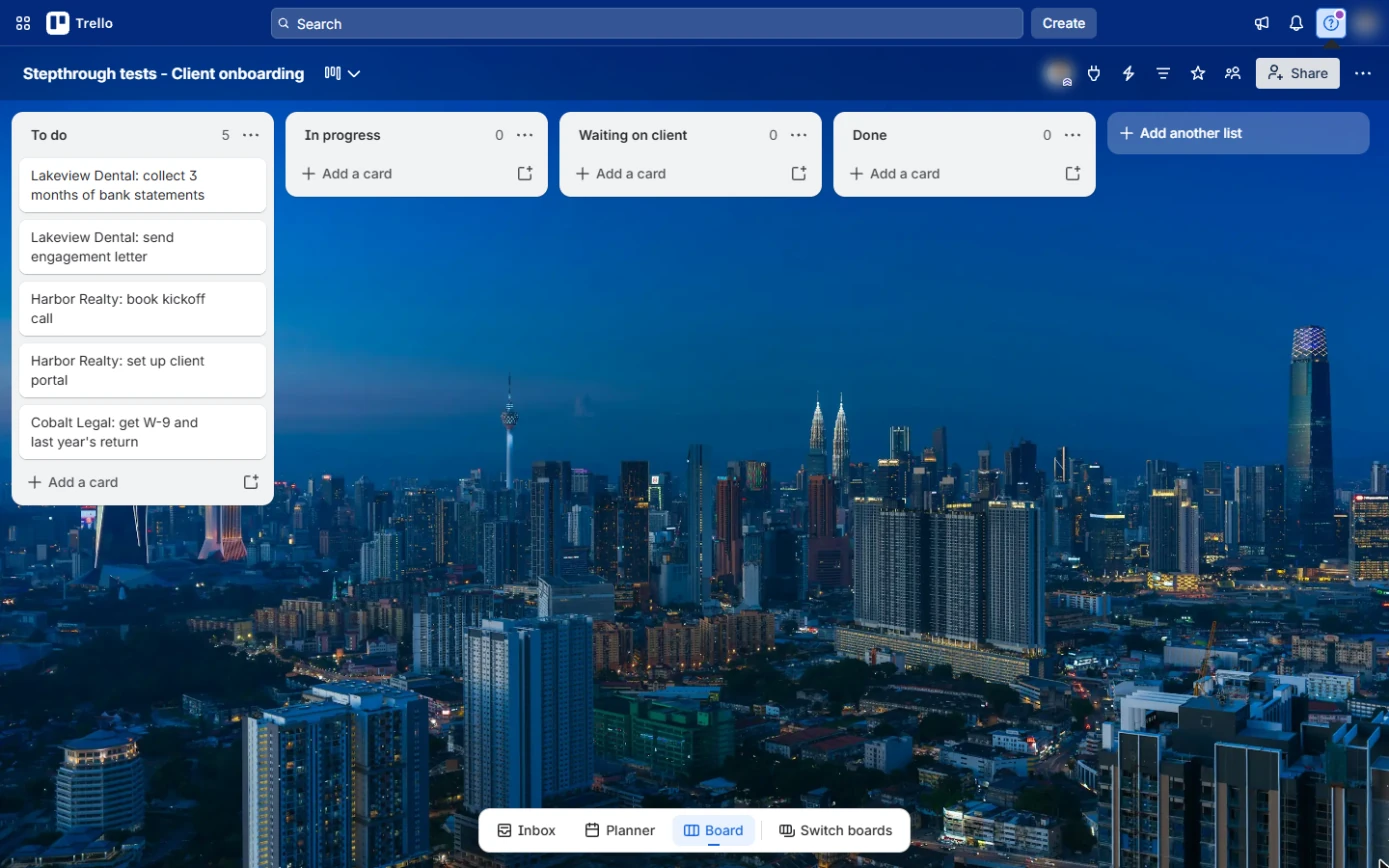
- Add the rest. Click Add card. The box stays open: add Lakeview Dental: collect 3 months of bank statements, Harbor Realty: book kickoff call, Harbor Realty: set up client portal and Cobalt Legal: get W-9 and last year's return.
Then add the other four tasks.
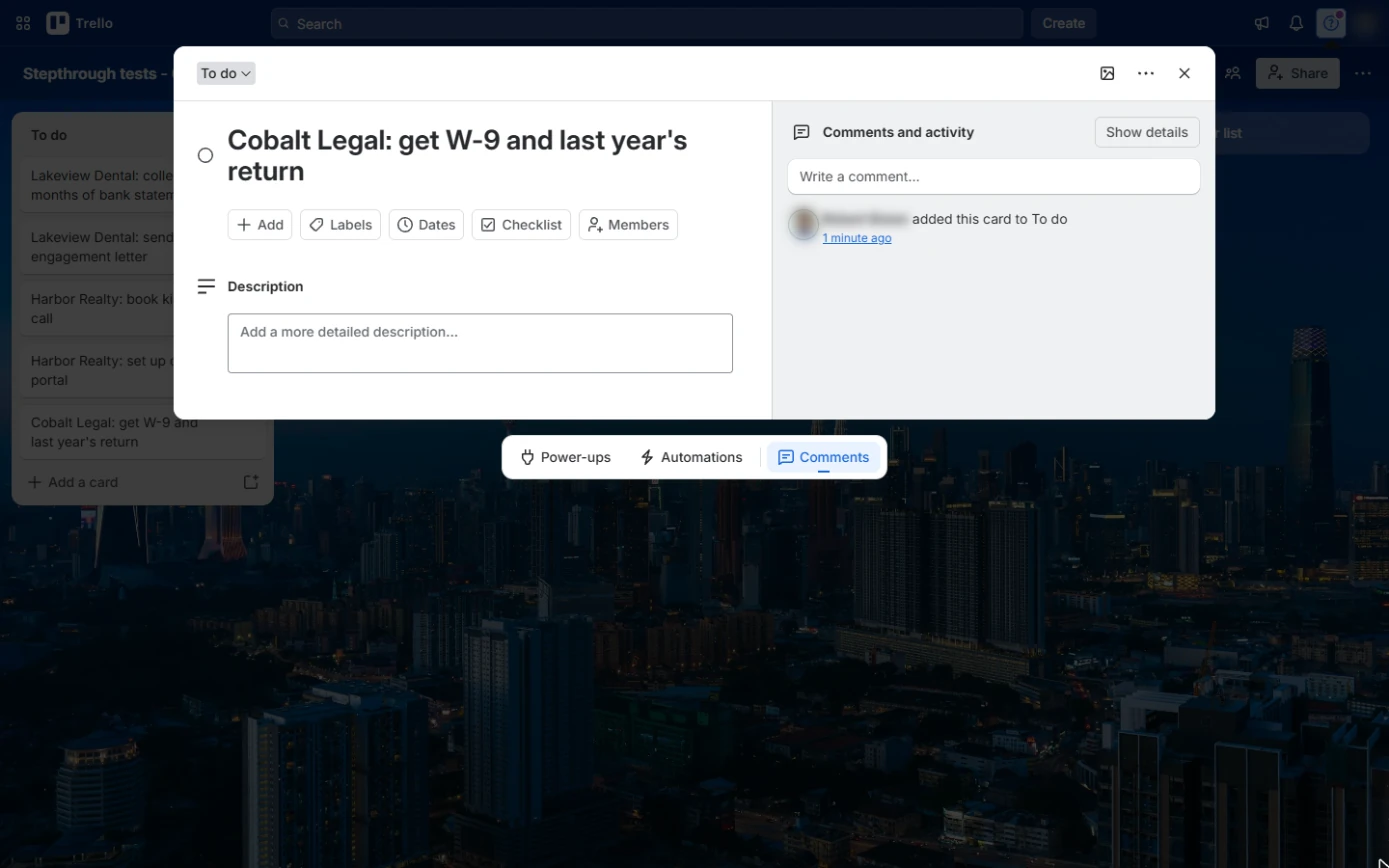
- Open a card. Five tasks for three clients, all in one place. Click the Cobalt Legal card to open it.
Five tasks, three clients, one place.
4. Labels and due dates
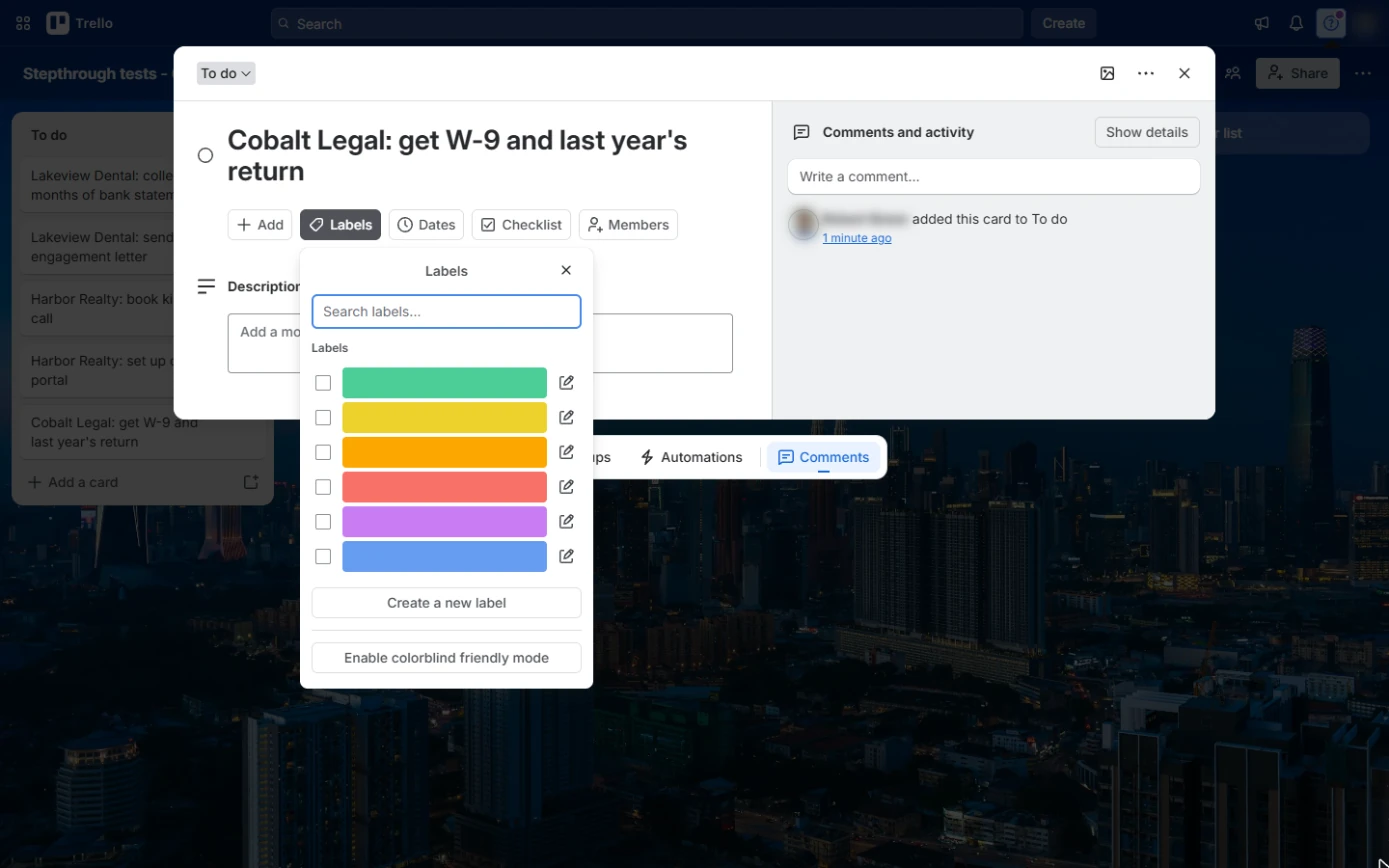
- Labels. A card holds everything about the task: description, checklist, members, dates. Click Labels.
A card holds everything about the task.
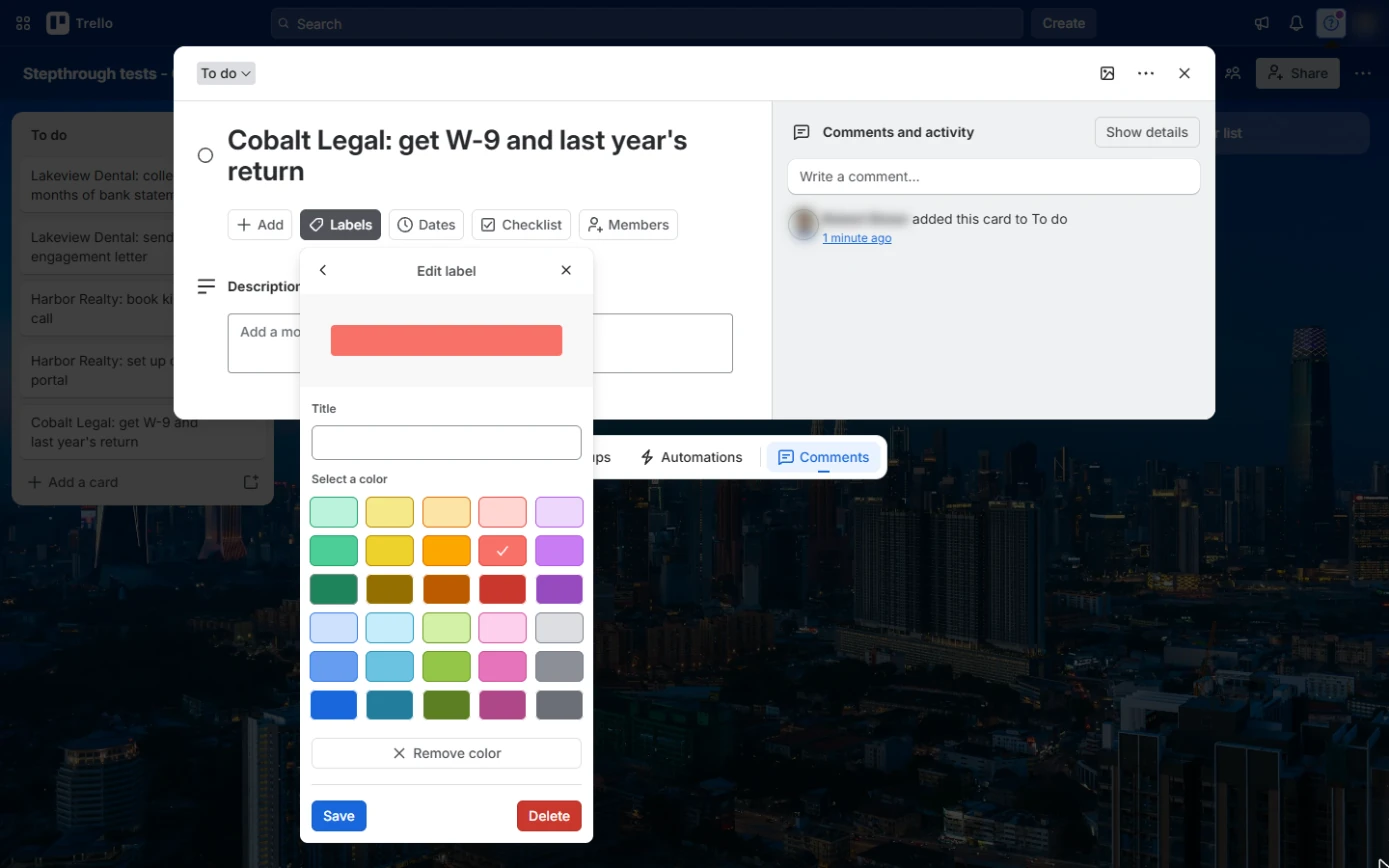
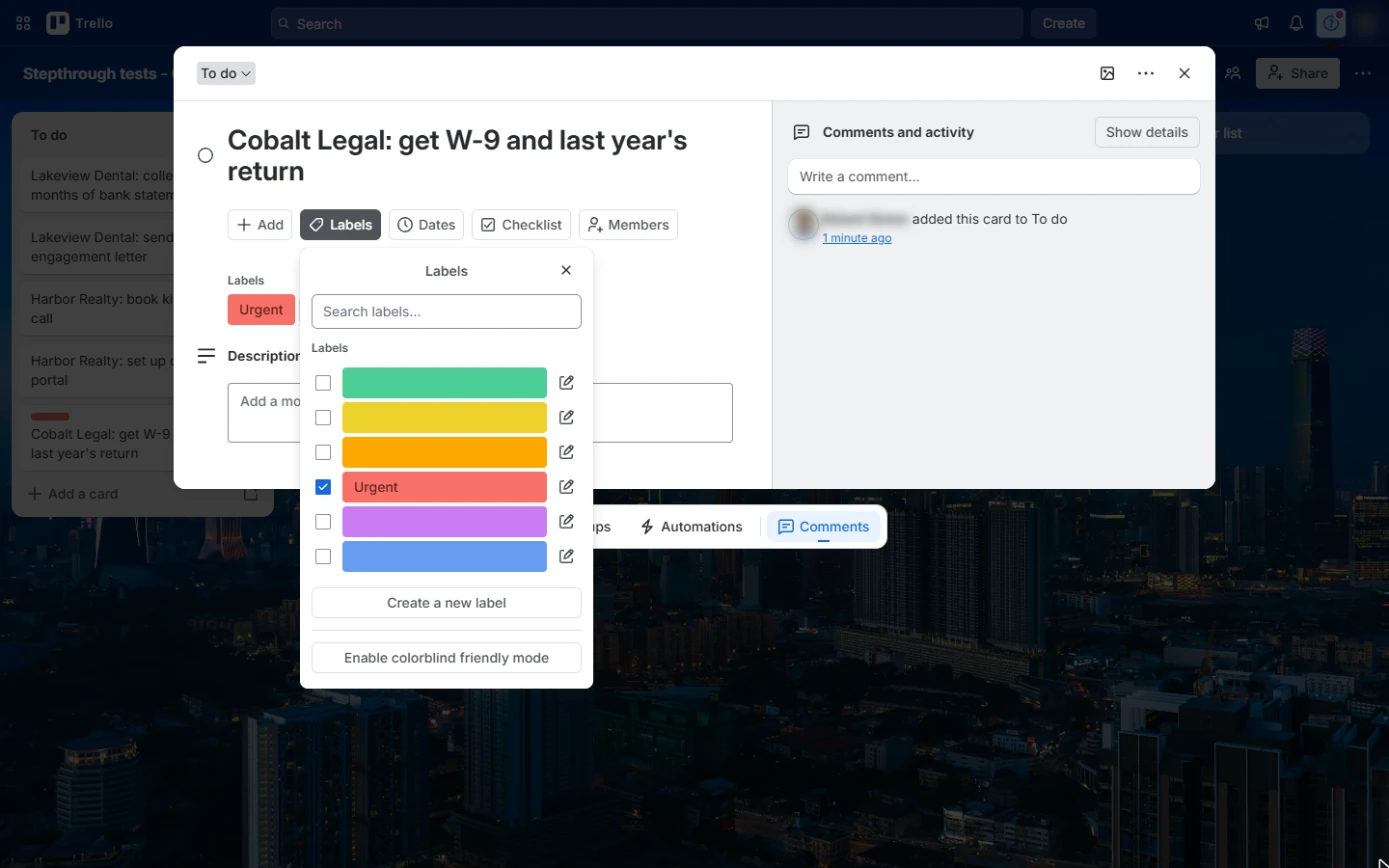
- Name the red label. Trello gives you six coloured labels with no names. Click the pencil next to the red one.
Labels start with colours and no names.
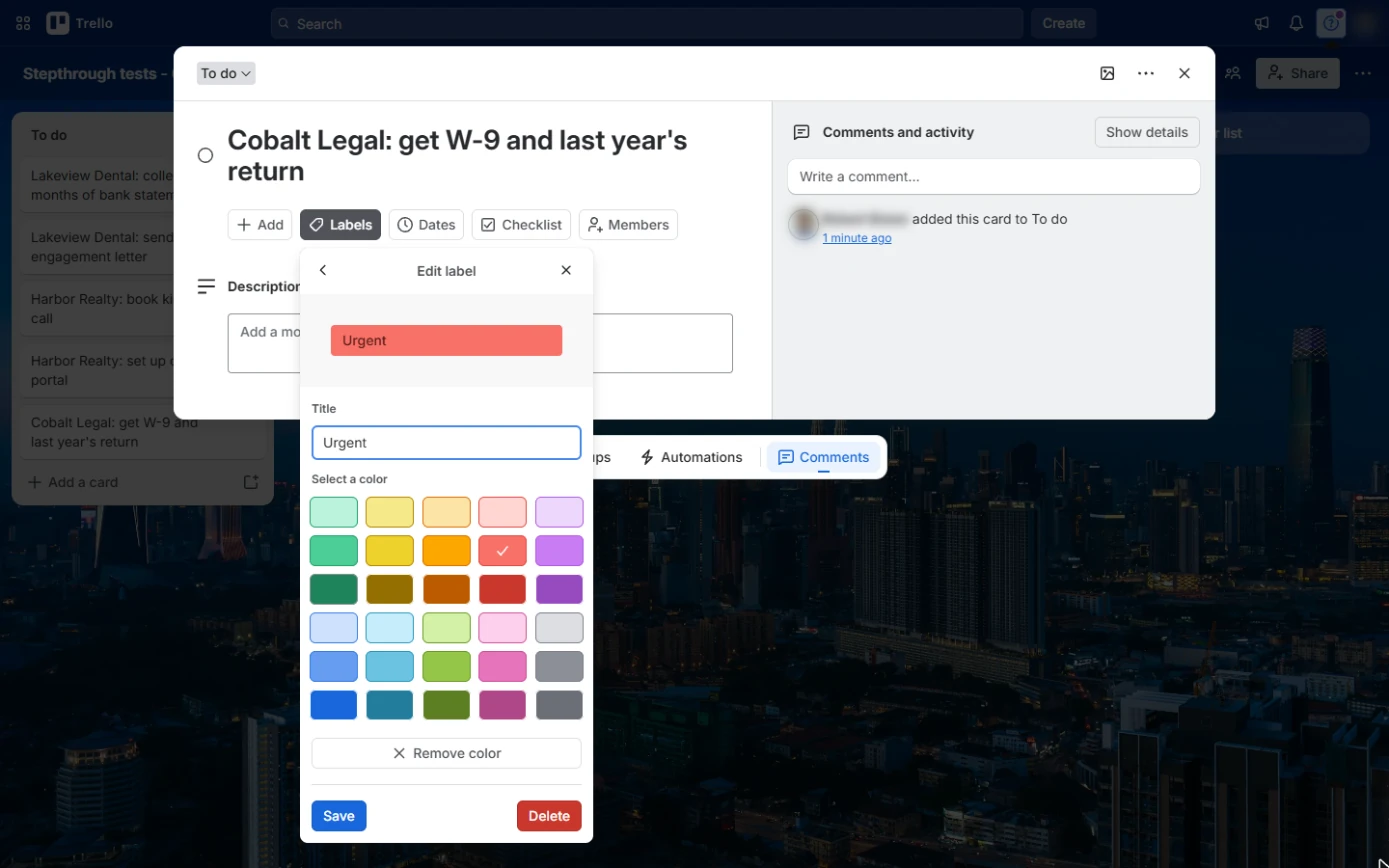
- Call it Urgent. In Title, type Urgent.
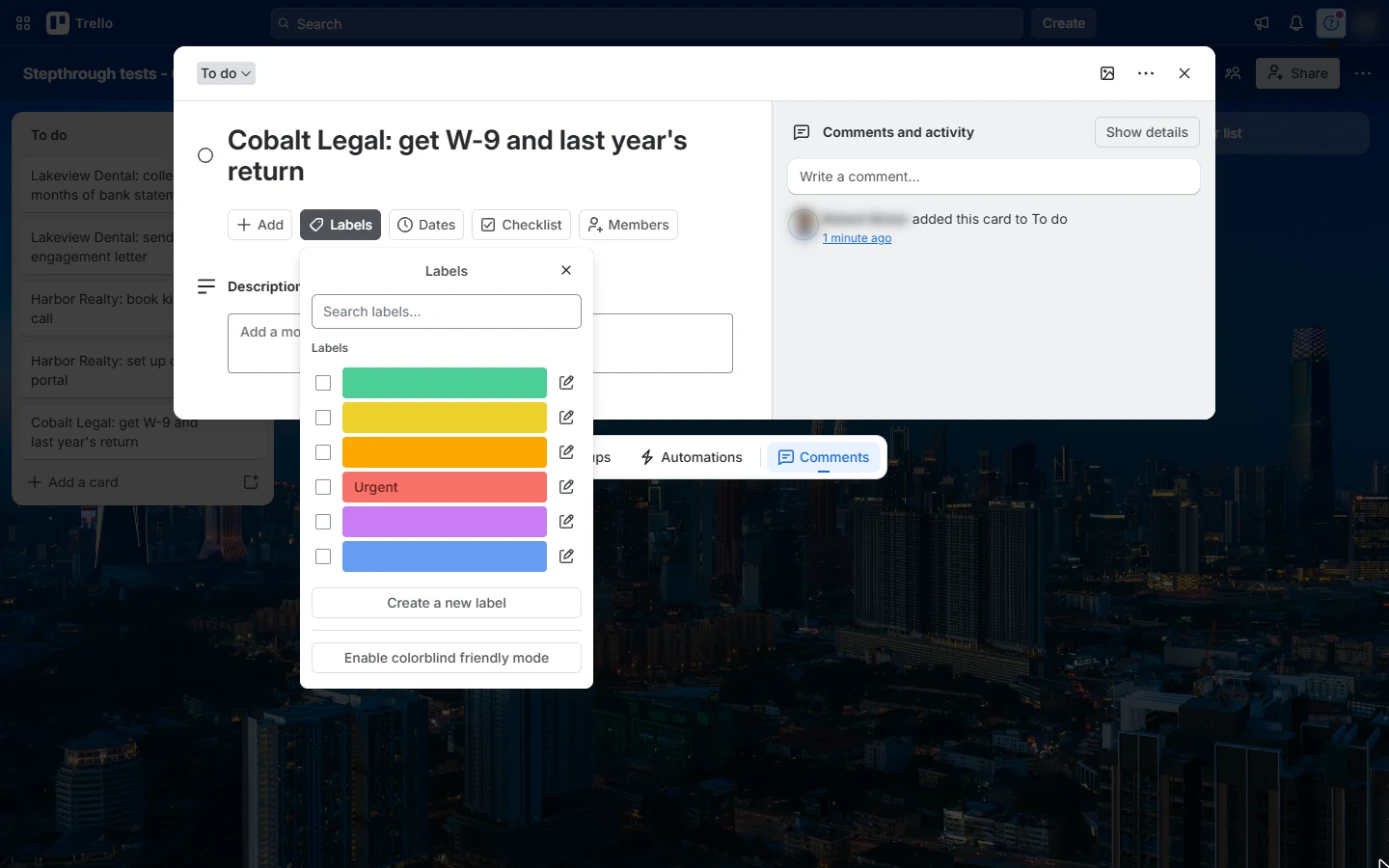
- Save the label. Click Save. Every card on the board can now use the same Urgent label.
- Put it on the card. Tick the box next to Urgent to add it to this card.
Tick the box next to Urgent.
- Close Labels. The red Urgent label is on the card. Close the Labels box with ×.
The label is on the card. Close the Labels box.
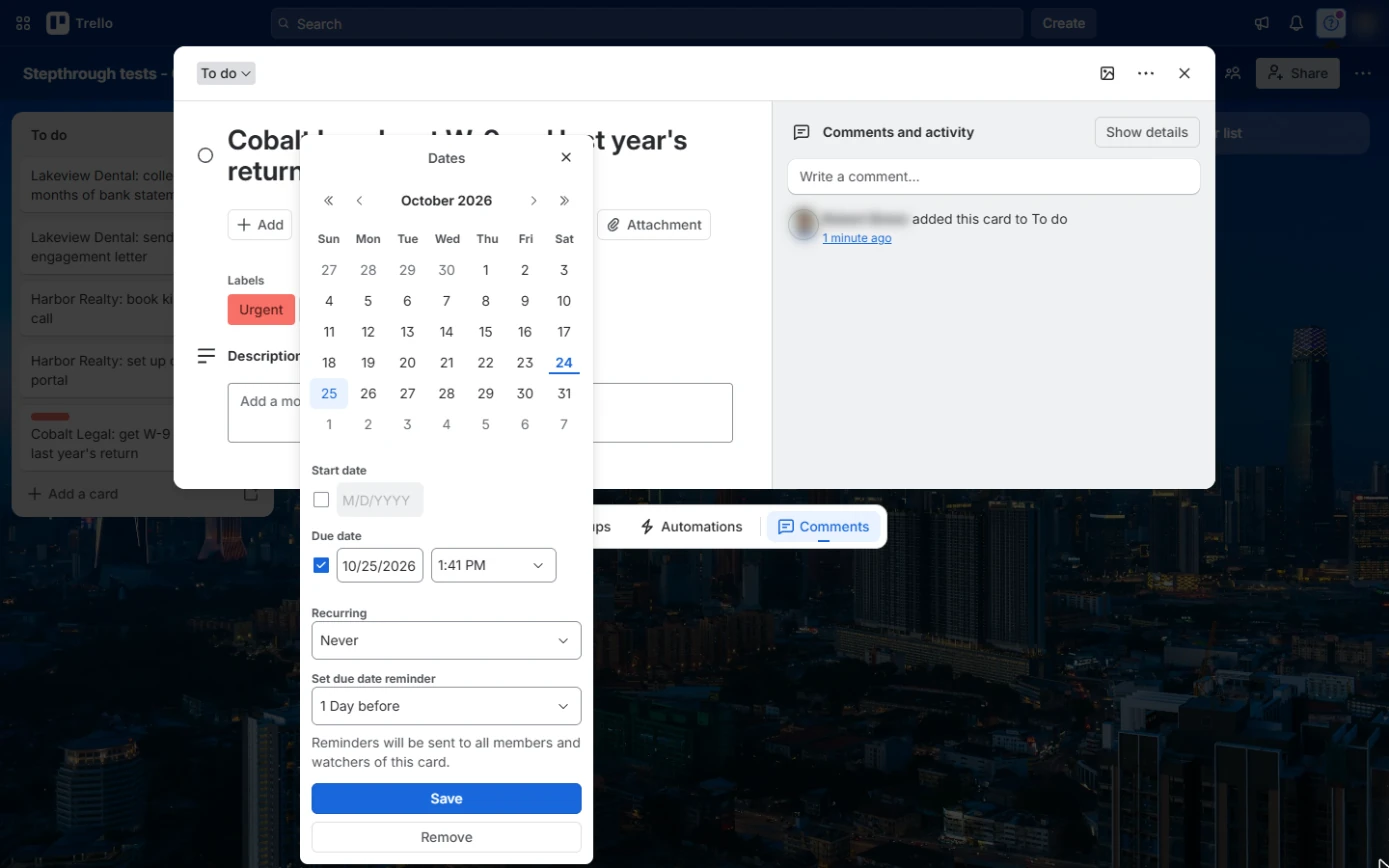
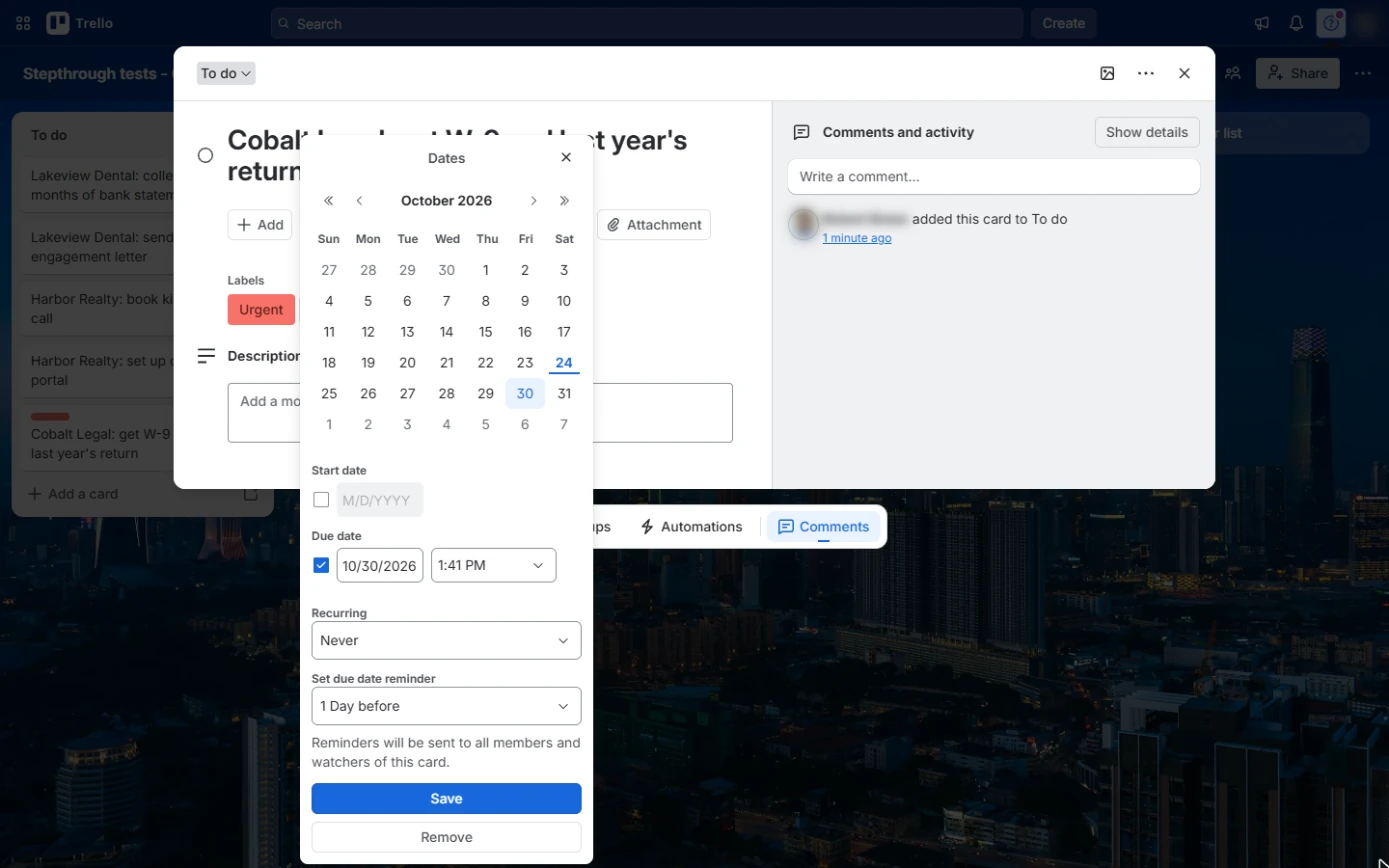
- Pick a due date. Click Dates. Due date is ticked with tomorrow and a 1-day reminder. Click 30 to make the tax documents due on 30 October.
Then pick the thirtieth as the due date.
- Save the date. The due date now reads 10/30/2026. Click Save.
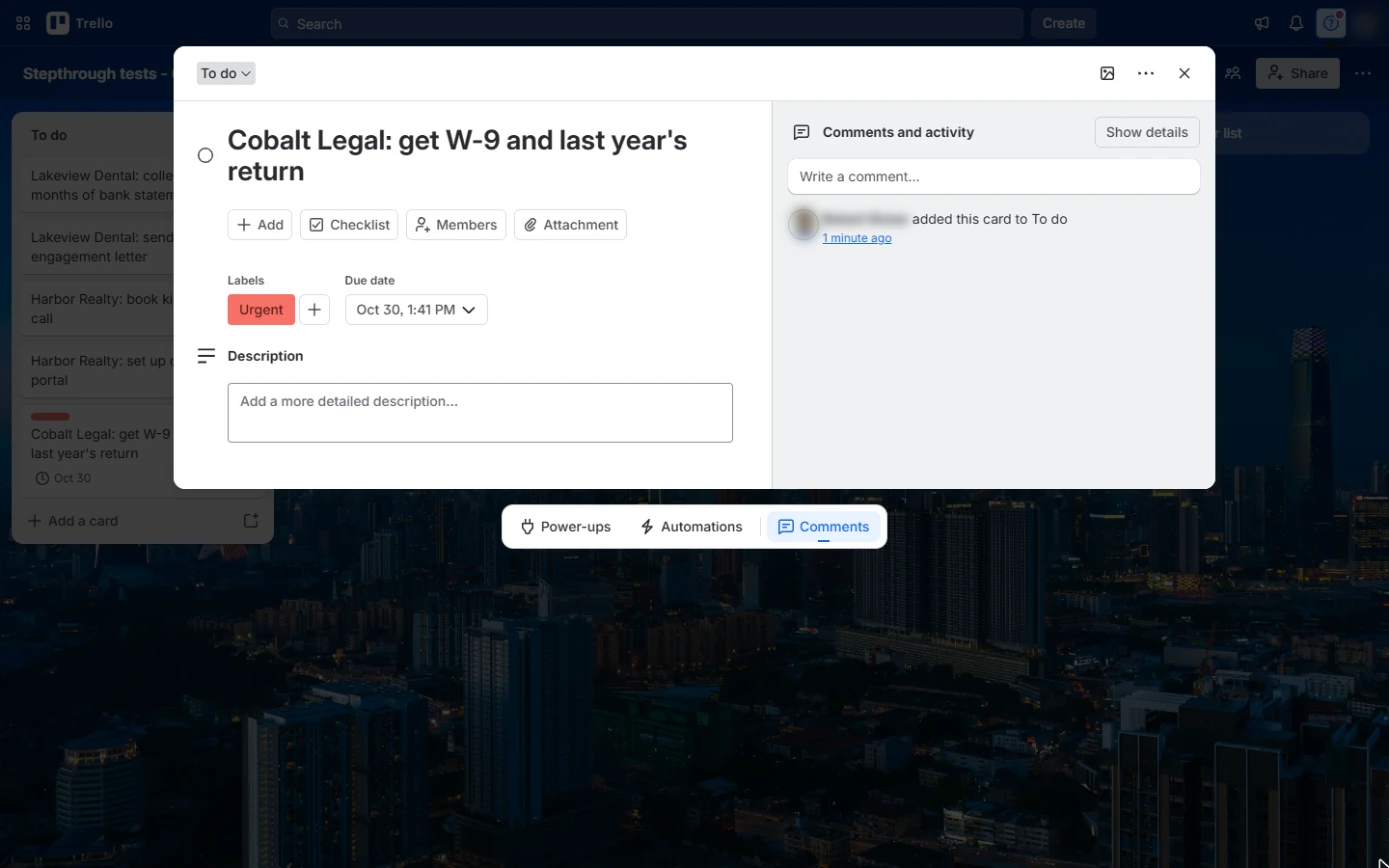
- Close the card. The card shows its Urgent label and Due date. Close the card with × at the top right.
Close the card.
5. Move work across the board
- Move the cards. Drag Cobalt Legal to Waiting on client (you asked them for documents), and drag Lakeview Dental: send engagement letter to In progress.
- Read the board. Now anyone on the team can see what is not started, what is moving and what is stuck with a client, with a red Urgent label and a due date on the one that matters. Click Waiting on client.
Now anyone can see what is waiting on a client, and what is urgent.
Screenshots
More in Project management
All 4 modules in Project management
Free cheat sheet
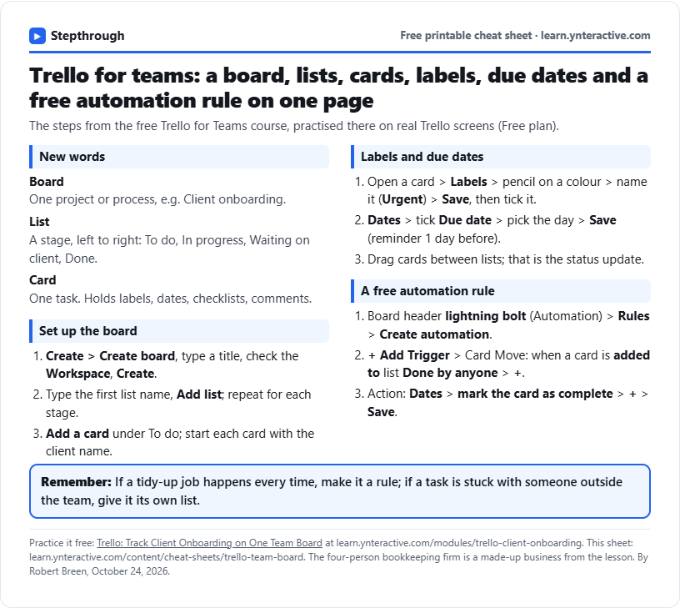
Print it or save the PDF: the key steps and checks from this lesson on one page, free.
All free printable cheat sheets
Terms in this lesson
Plain-English definitions, each with an example from a free lesson.