Updated . Built against the tool’s current screens and checked step by step. How we check this lesson
A beginner Jira walkthrough on real screens: set up a Kanban board whose columns match your support process, cap In Progress with a WIP limit, see what happens when you go over it, and read the cumulative flow diagram. Jira Free.
At a glance
| Question | Answer |
|---|---|
| What you build | A beginner Jira walkthrough on real screens: set up a Kanban board whose columns match your support process, cap In Progress with a WIP limit, see what happens when you go over it, and read the cumulative flow diagram. Jira Free. |
| Tools | Jira |
| Time | About 12 minutes, 22 steps in 5 parts |
| Level | Beginner, no coding needed |
| Cost | Free |
| Ways to learn it | Practice it step by step |
The 5 parts, in short
- Create a Kanban space: Pick Kanban, Use template, Name it and create it.
- Match the columns to your process: Add a column, Name the status, Pick its category, It lands after Done, and 2 more steps.
- Add the requests: Add six requests.
- Set a WIP limit: Open In Progress actions, Set column limit, Maximum 4, Start four requests, and 2 more steps.
- Read the flow: Find the reports, Reports, Add to navigation, More reports, and 2 more steps.
Start here first: Jira: Plan and Run Your First Sprint (module 1 of Project management)
What you'll build
Your 4-person support team has 8 or more requests each and takes about a week to close them. In this lesson you build a Kanban board on Jira’s free plan with a Waiting on customer column, put a limit of 4 on In Progress, go over it to see how Jira warns you, and add the Reports view to read the cumulative flow diagram. Every screen is a real Jira screen.
You created a Kanban space, added a Waiting on customer column and moved it before Done, added six requests, set a maximum of 4 on In Progress and saw the red warning at 5, then added Reports and read the cumulative flow diagram, where the widening In Progress band shows the pile-up. Now set it up on your own Jira site: the lesson page has the checklist.
- Tools: Jira
- Time: about 12 minutes, 22 steps in 5 chapters
- Level: beginner, no coding needed
- Price: free
Practice first, then build it for real
Practice copy built from real Jira Cloud screens (Free plan, captured 22 October 2026). Nothing here touches your Jira site. The Support practice space is practice data. To build it for real you need your own Jira account, and some services charge once you use them for real work, so check each tool's current pricing.
Try it yourself, free
Reading the steps is a start. Doing them is how it sticks. The interactive module walks you through every click in a practice copy of Jira, checks each step, and never touches your real accounts.
Start “Jira: Kanban Board with WIP Limits and Cycle Time”Step by step: Jira: Kanban Board with WIP Limits and Cycle Time
All 22 steps of the interactive module, in order. In the module you watch each one, then do it yourself in a practice copy that checks your work.
1. Create a Kanban space
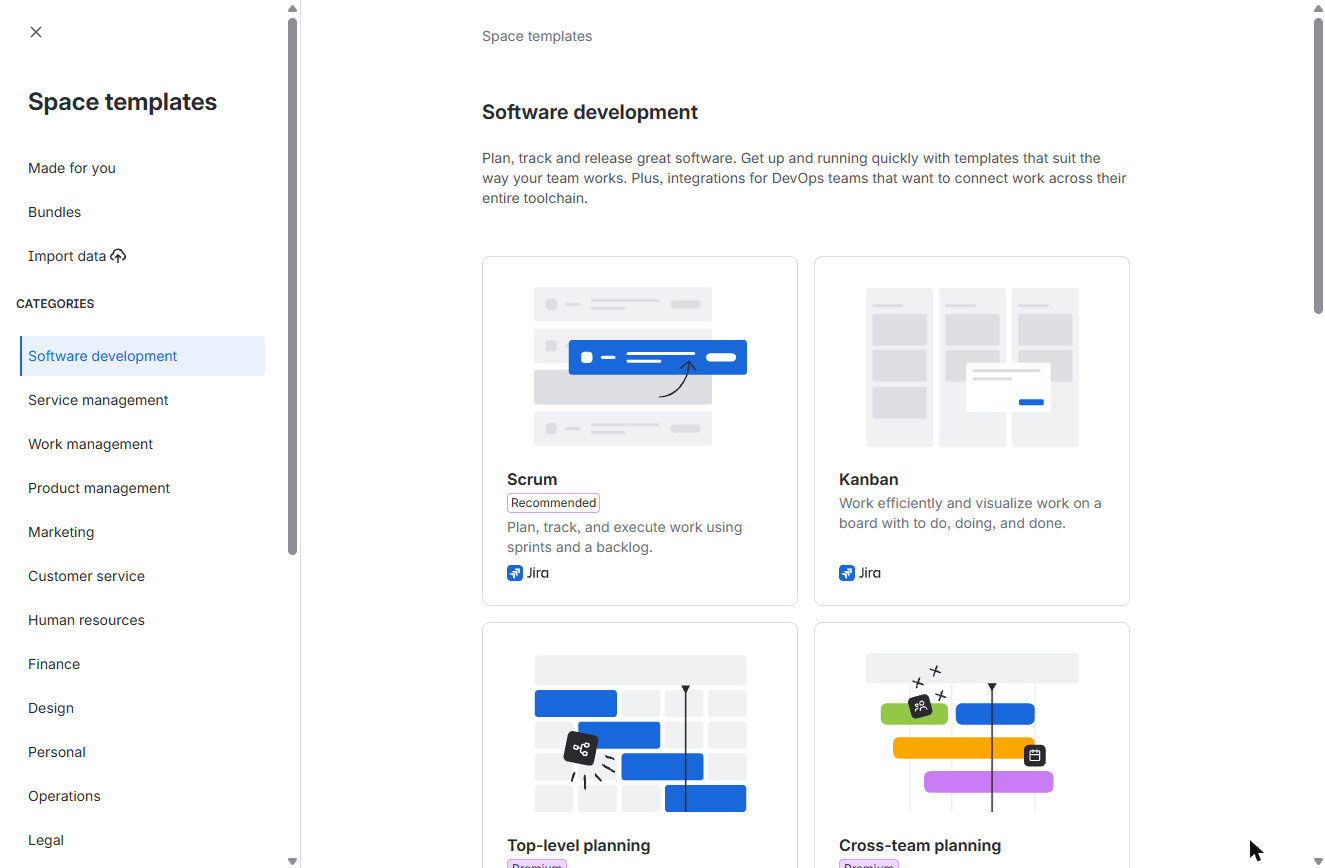
- Pick Kanban. In Jira, click + next to Spaces, then Software development. Click Kanban: a board of to do, doing and done, with no sprints.
Create a space, Software development, then click Kanban.
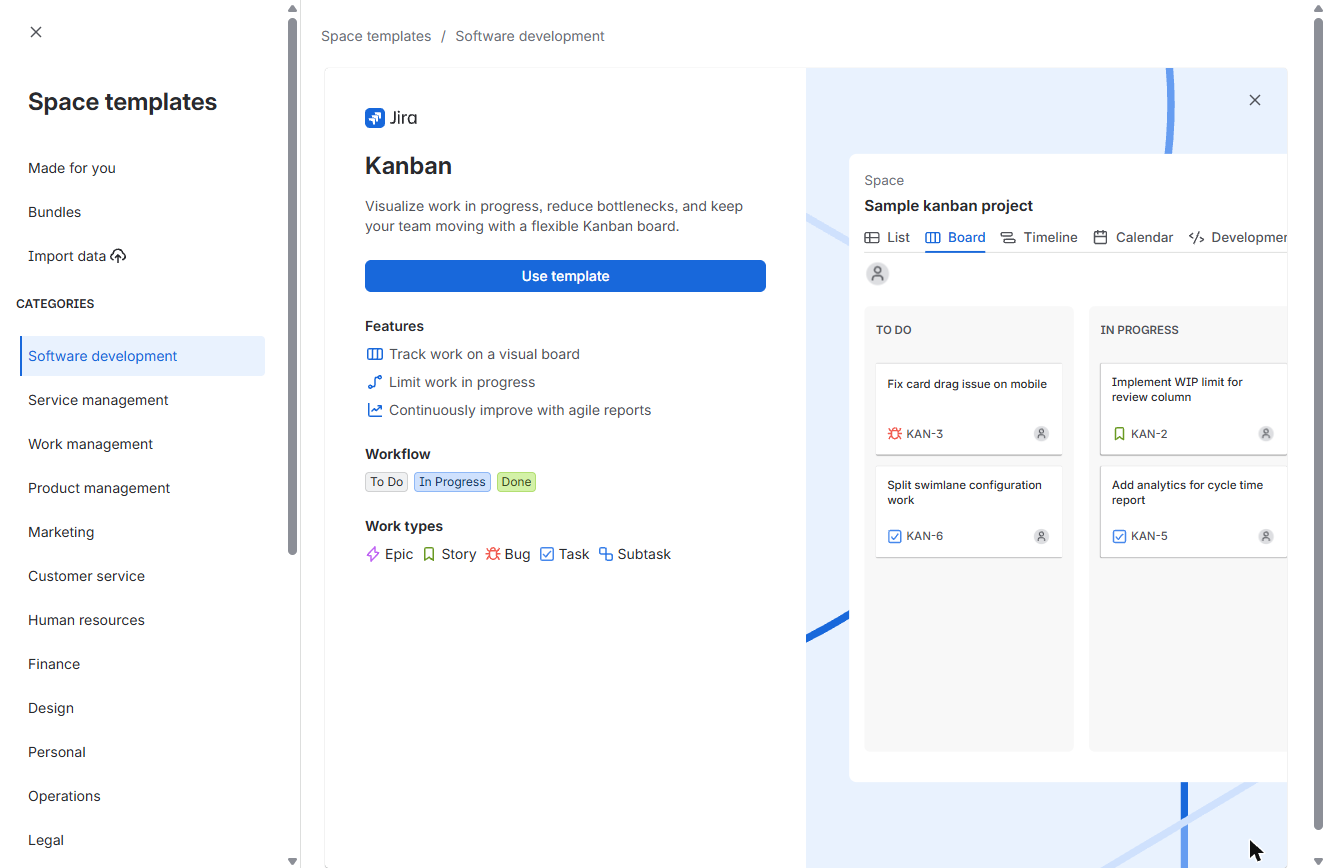
- Use template. The features include Limit work in progress. Click Use template.
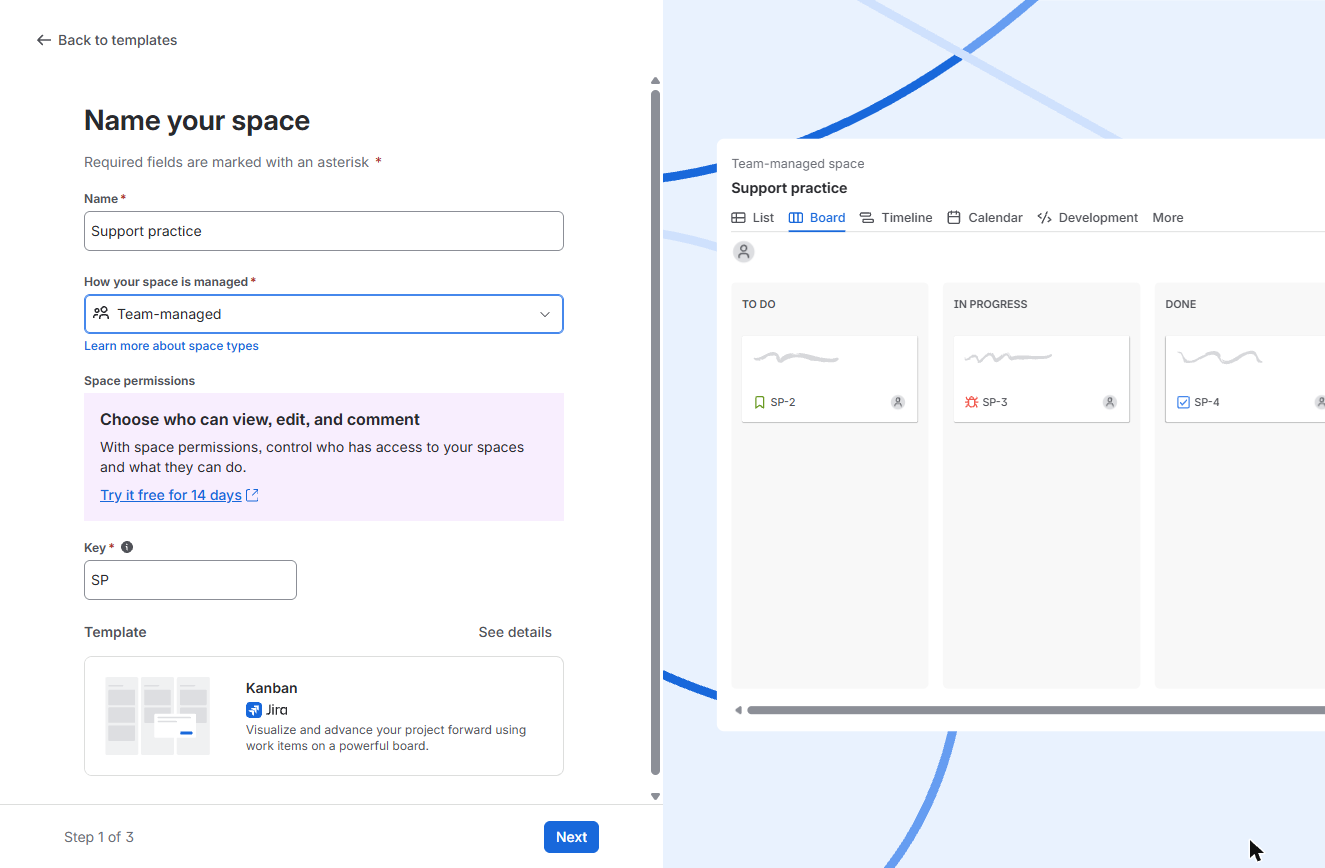
- Name it and create it. Name it Support practice (key SP) and choose Team-managed. Click Next, Next, then I’ll do this later to skip invites.
Name it Support practice, Team-managed. Then Next, Next, and skip the invites.
2. Match the columns to your process
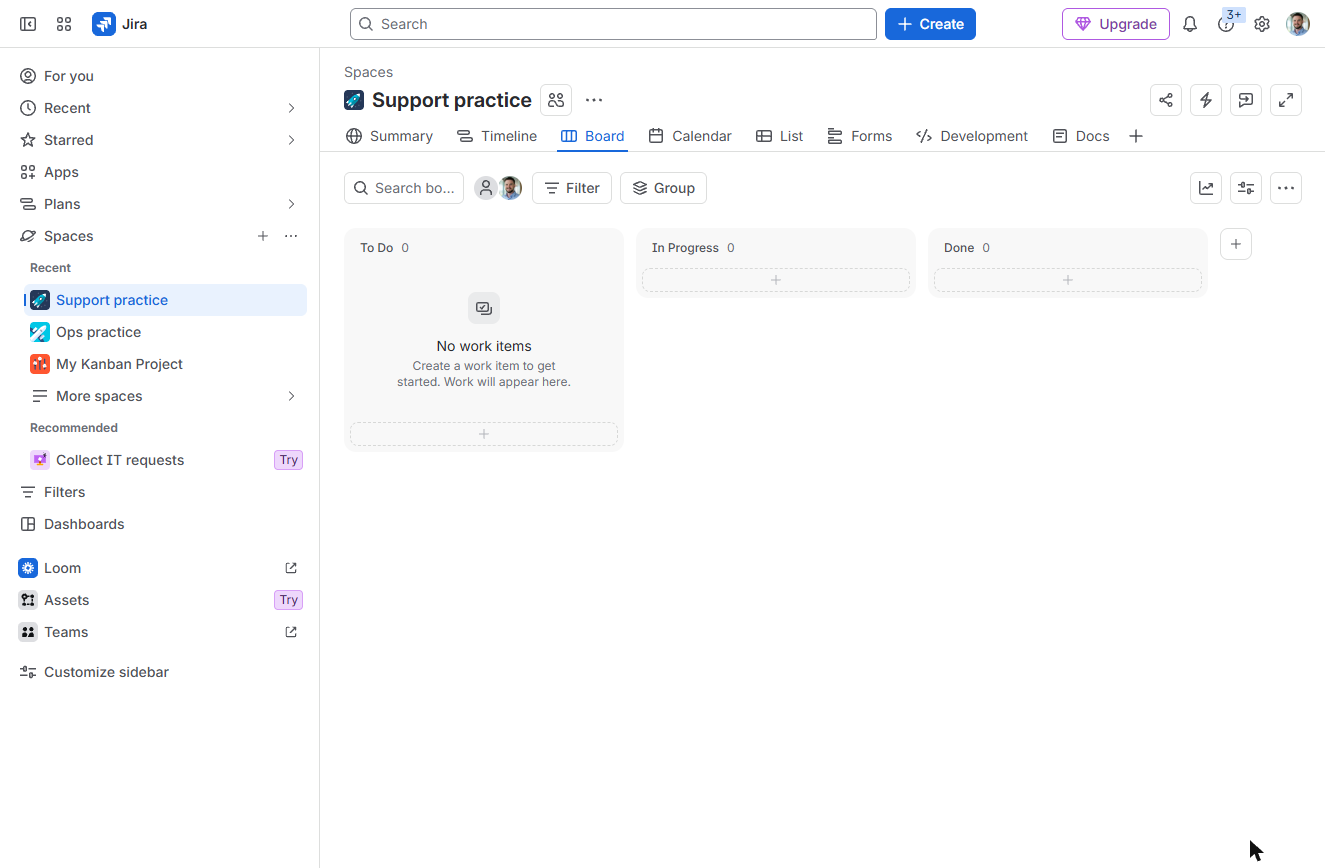
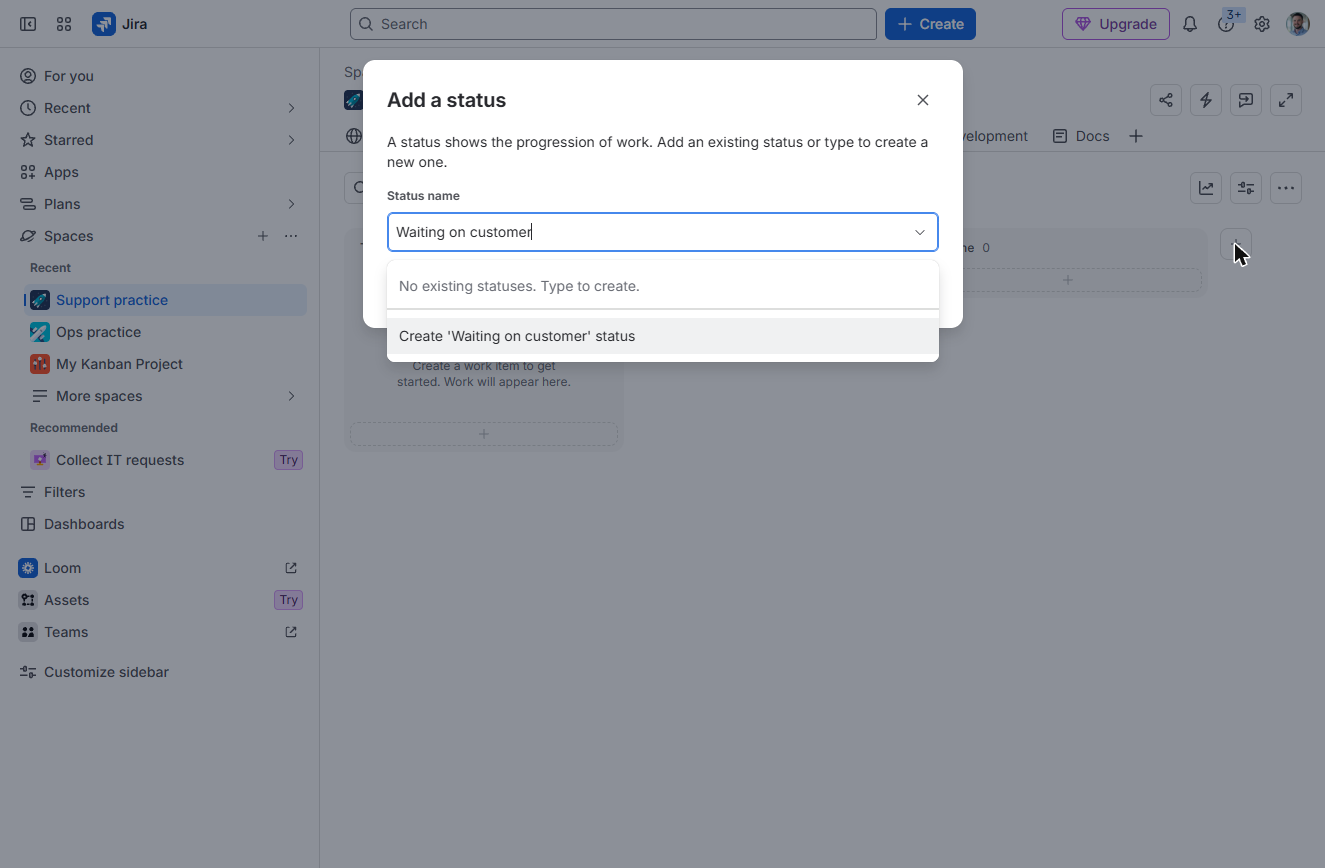
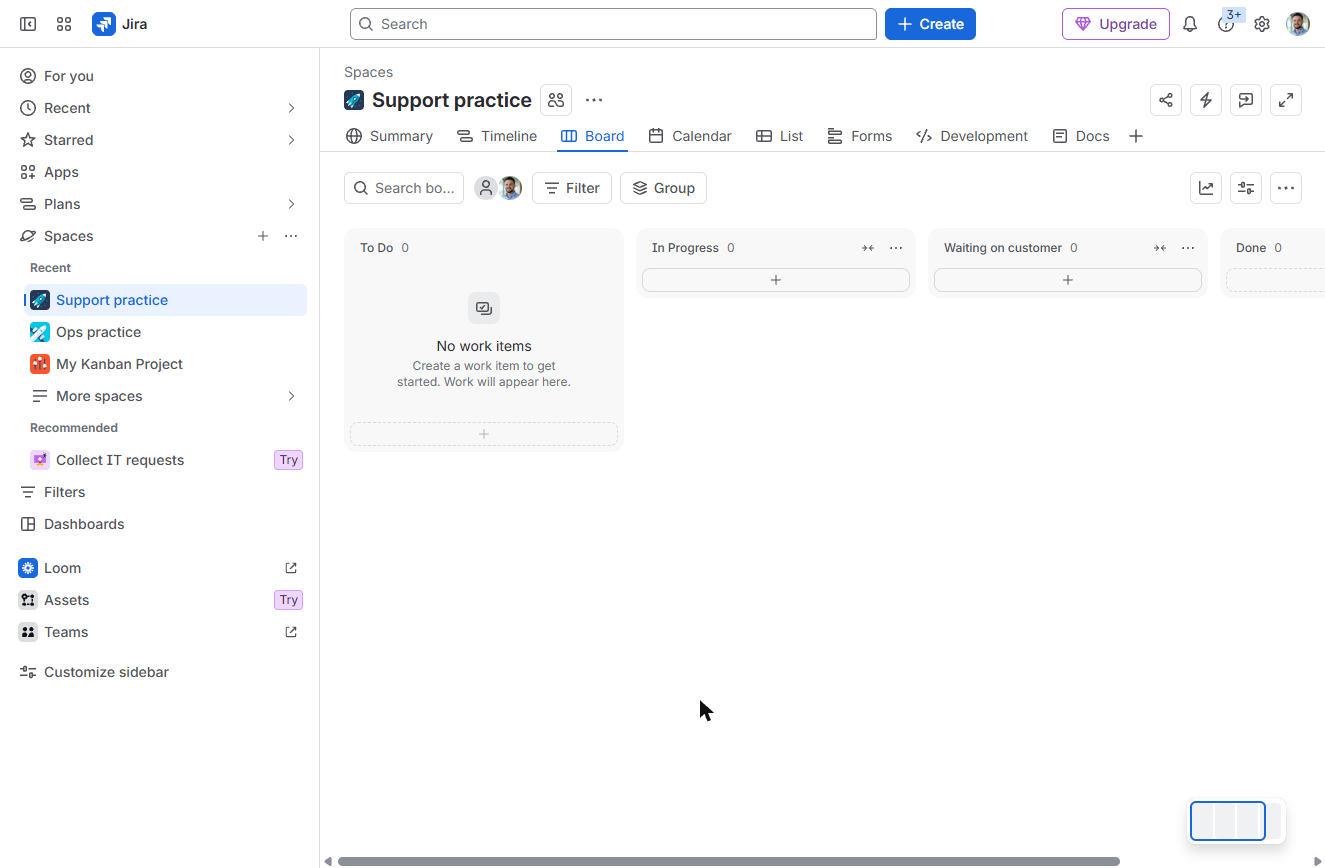
- Add a column. The board starts with To Do, In Progress and Done. Your requests also wait on customers, so add a column: click + after Done.
Your requests also wait on customers.
- Name the status. Type Waiting on customer and click Create ‘Waiting on customer’ status.
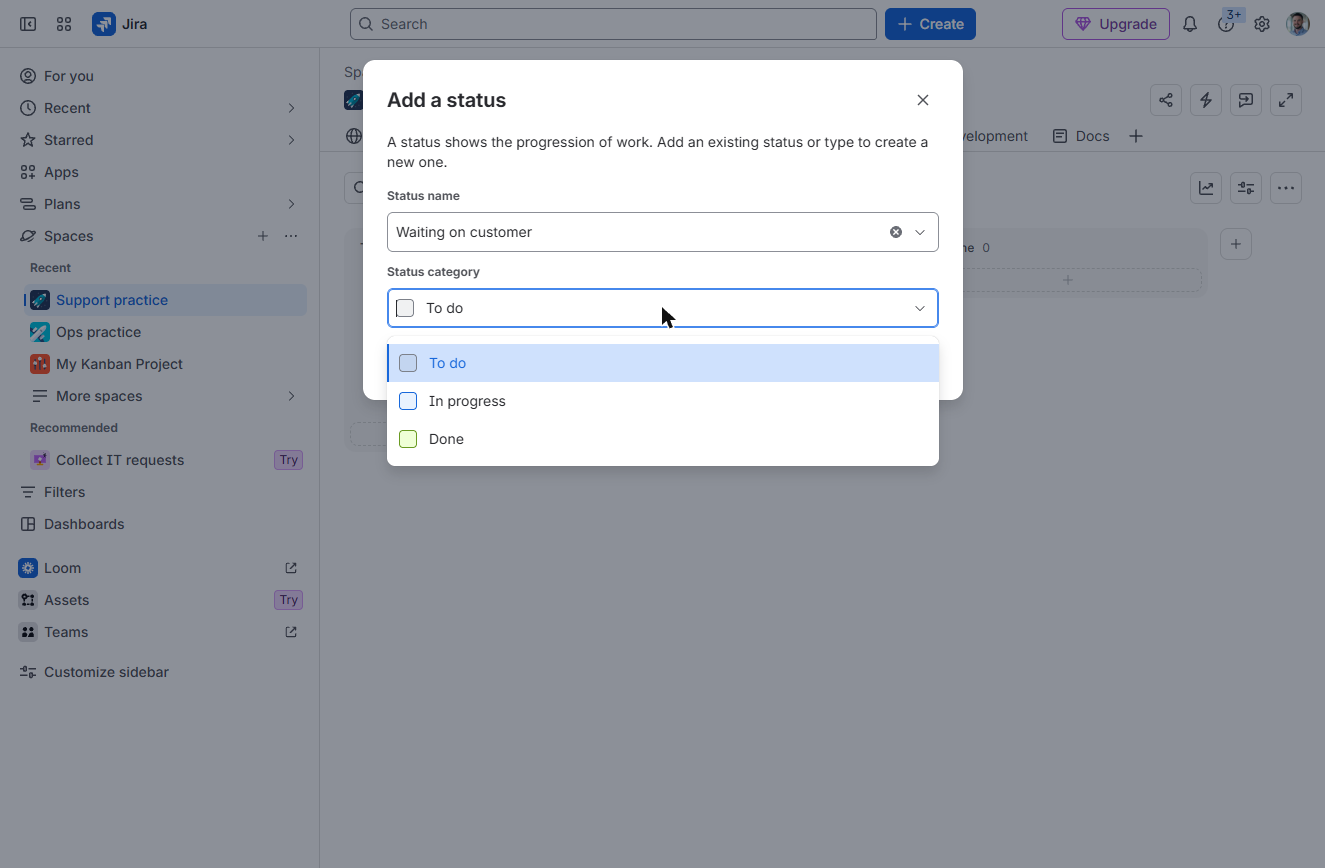
- Pick its category. Under Status category, pick In progress: the request is still open, just not with your team. Then click Submit.
Set the category to In progress. It is still open work. Then Submit.
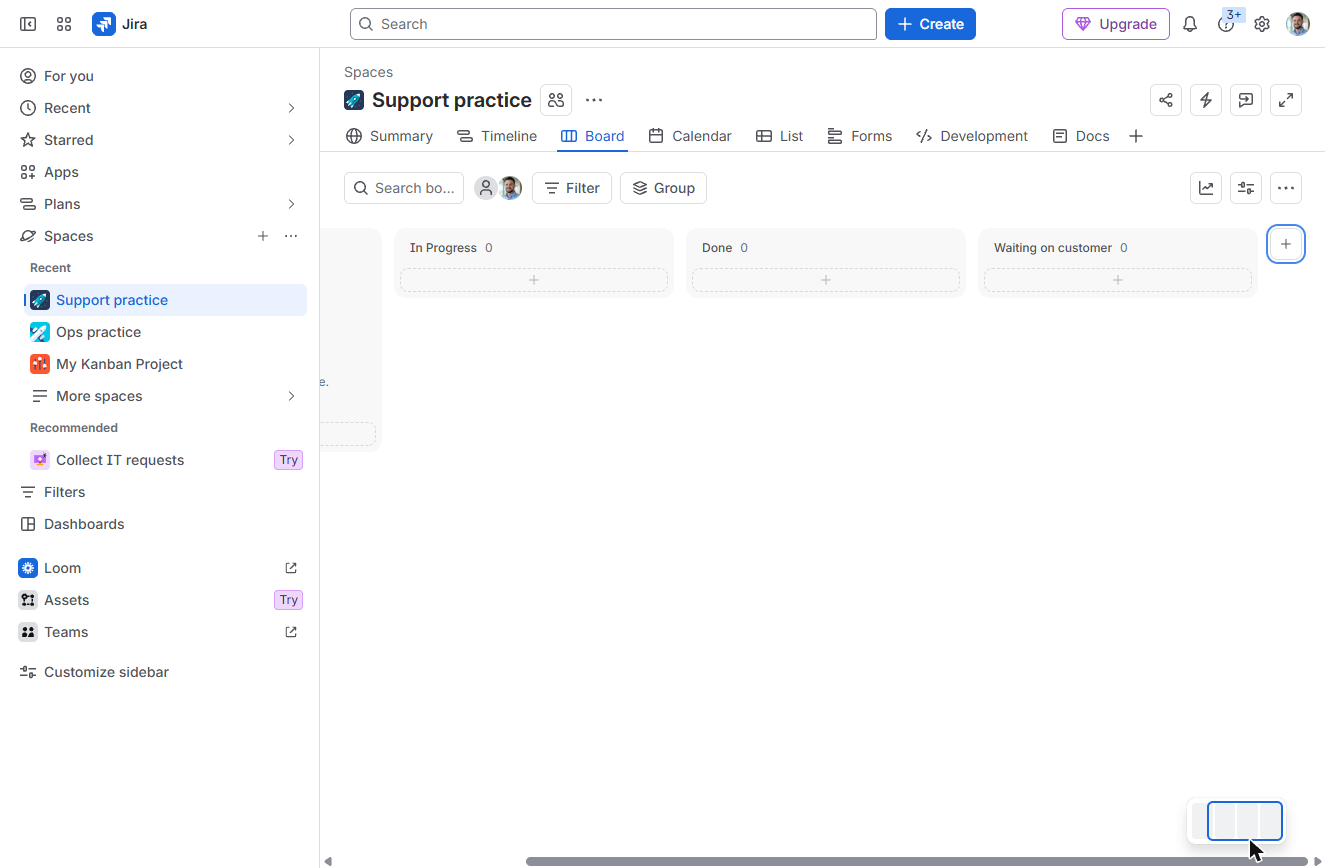
- It lands after Done. The new column appears after Done, which reads wrong. Hover its header and click ••• (More actions).
It lands after Done.
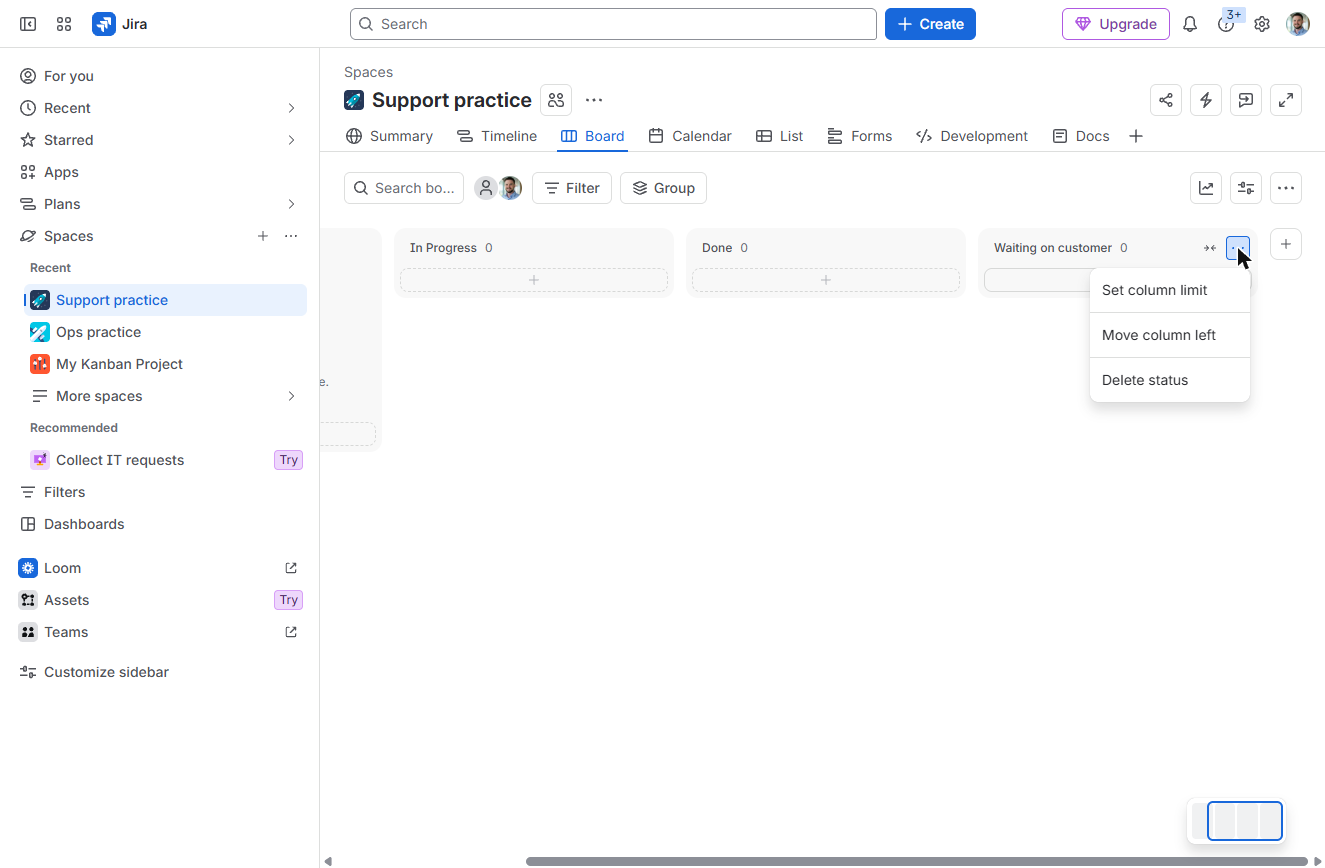
- Move column left. Click Move column left. (Dragging the header works too.)
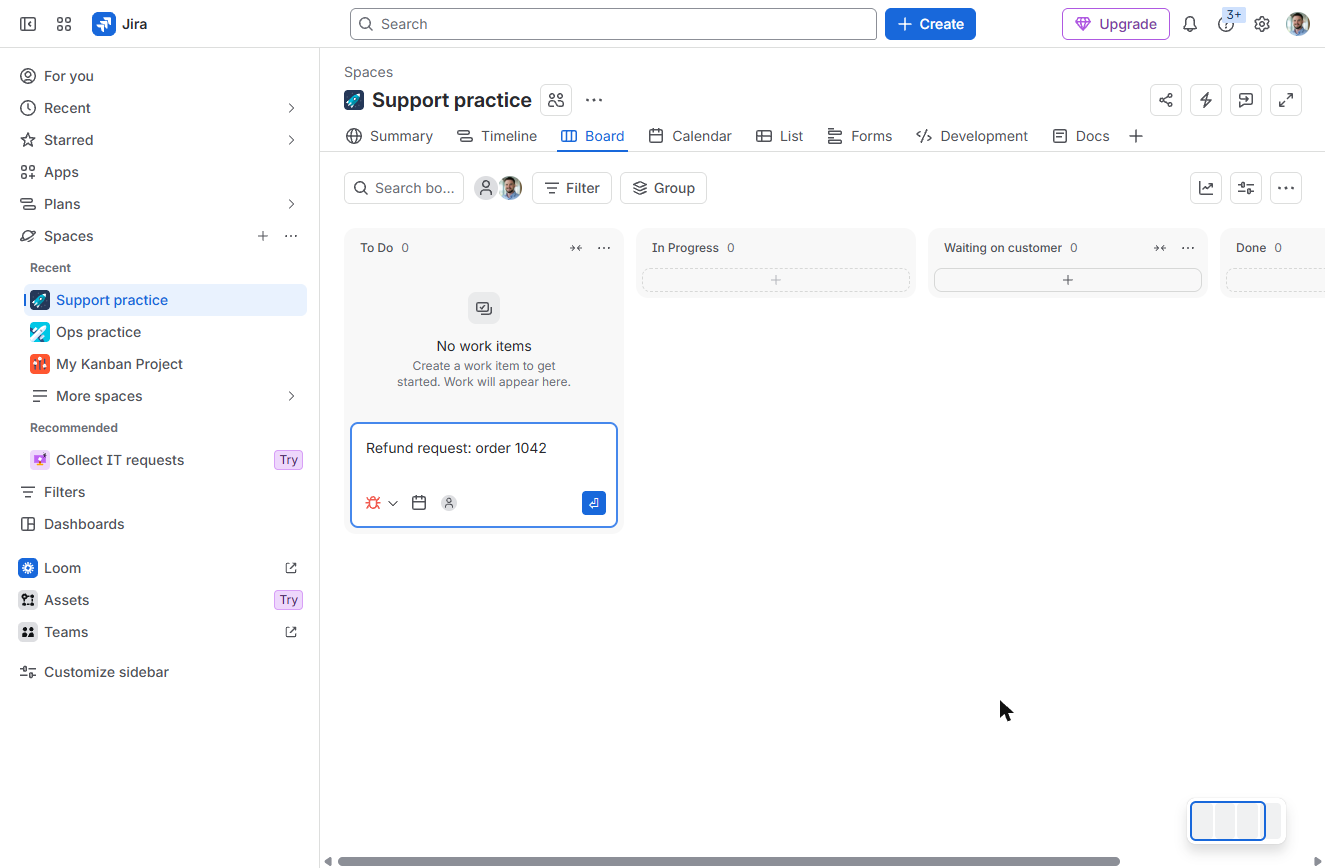
- Create a request. Now the columns read To Do, In Progress, Waiting on customer, Done. Click + at the bottom of To Do to add a request.
Now the columns match the real process.
3. Add the requests
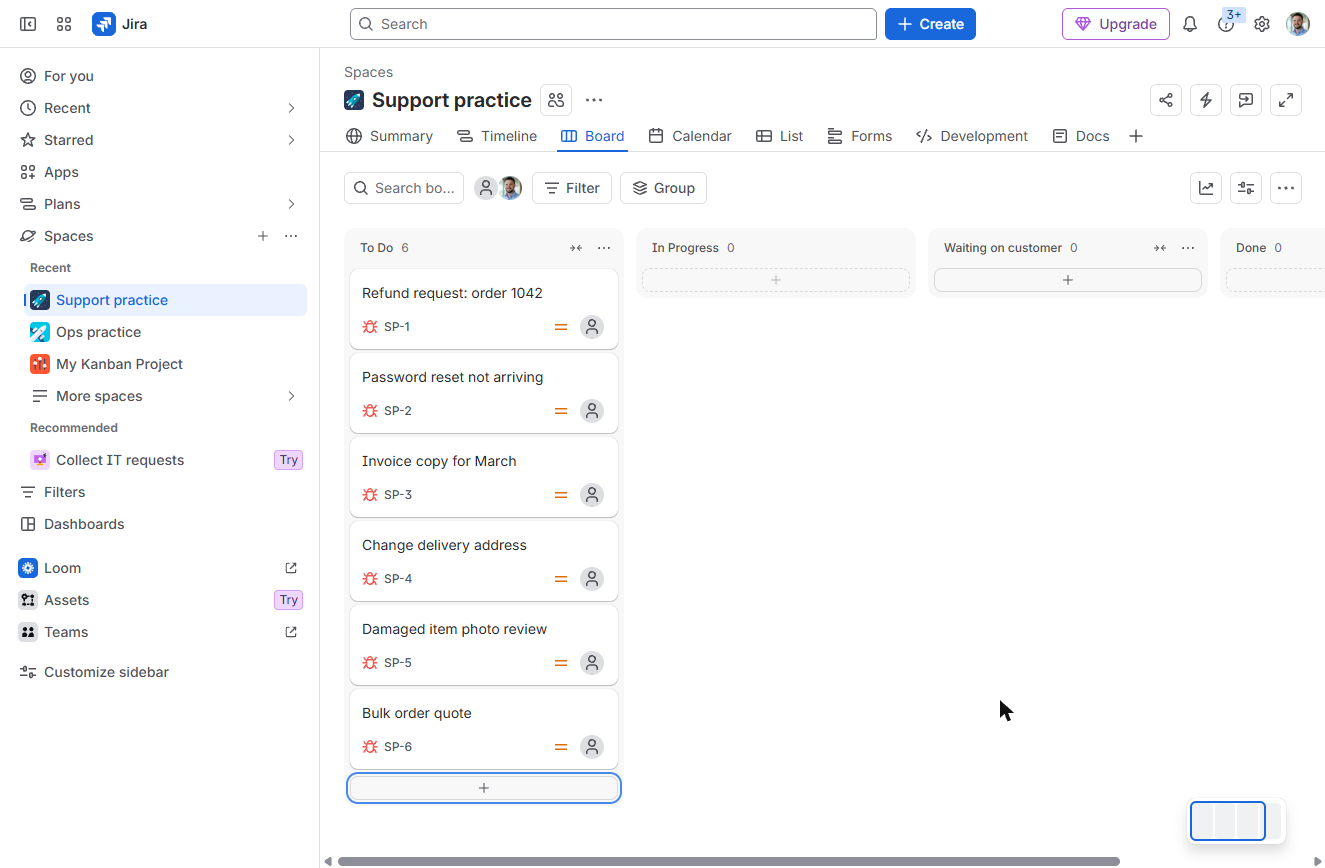
- Add six requests. Type a request, such as "Refund request: order 1042", and press Enter. The box stays open, so add five more.
Then add five more.
4. Set a WIP limit
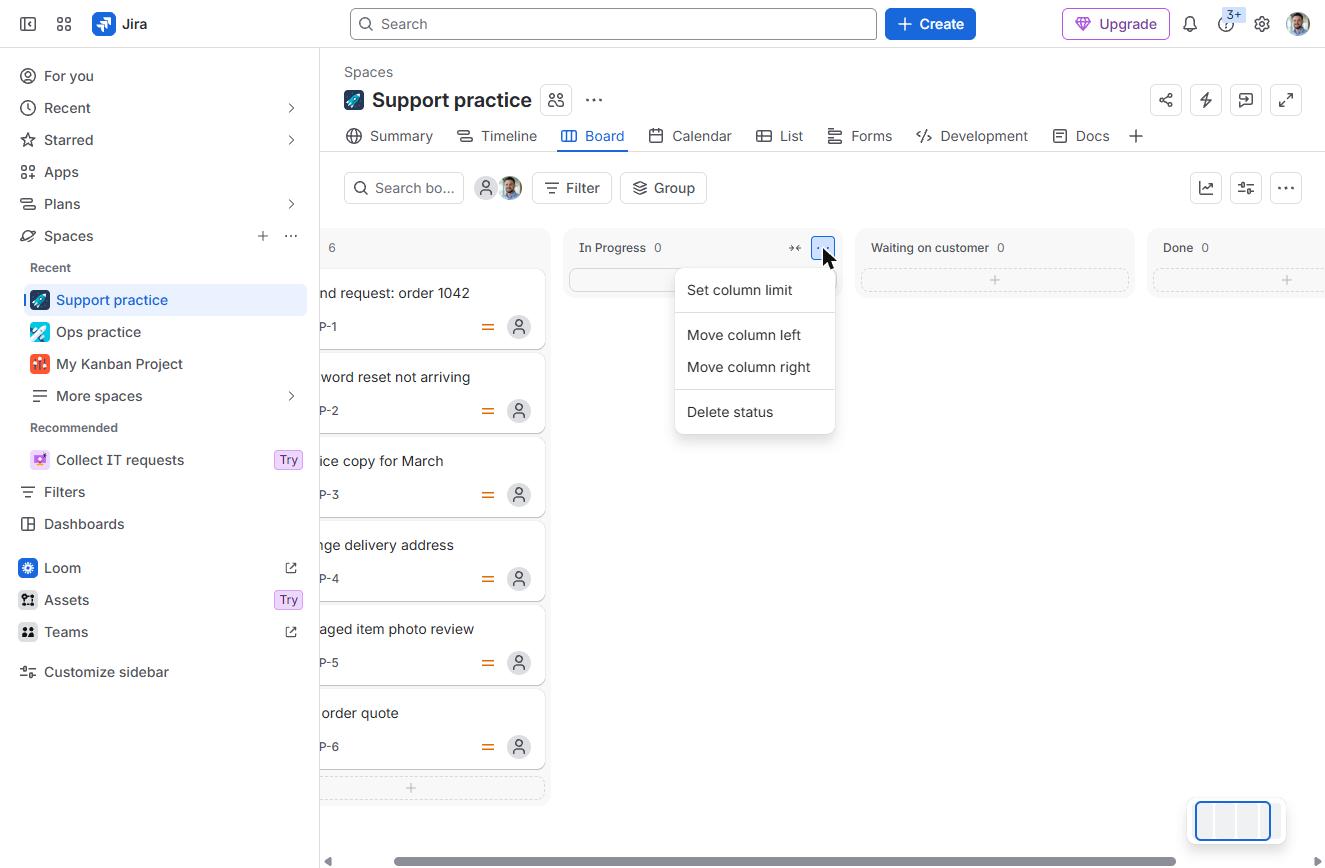
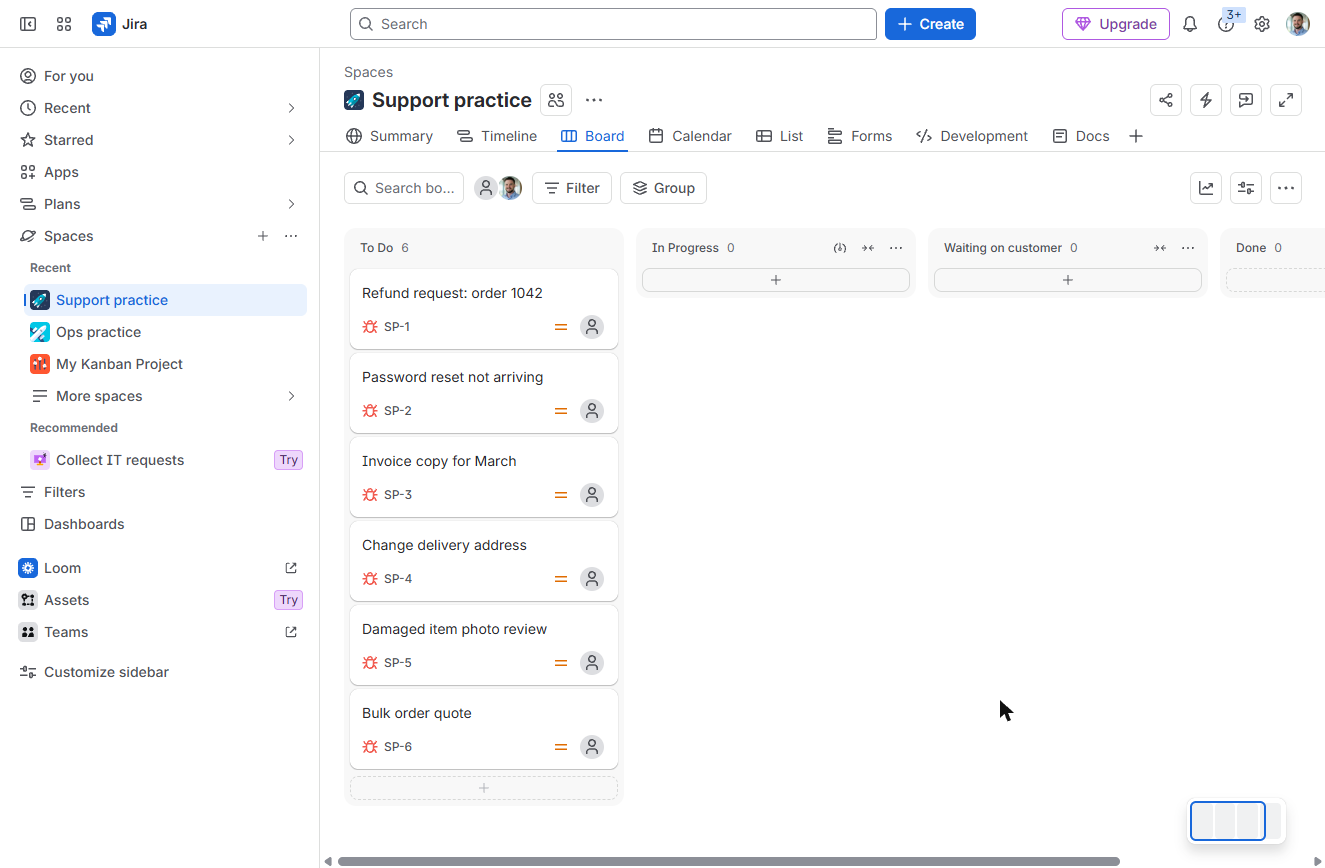
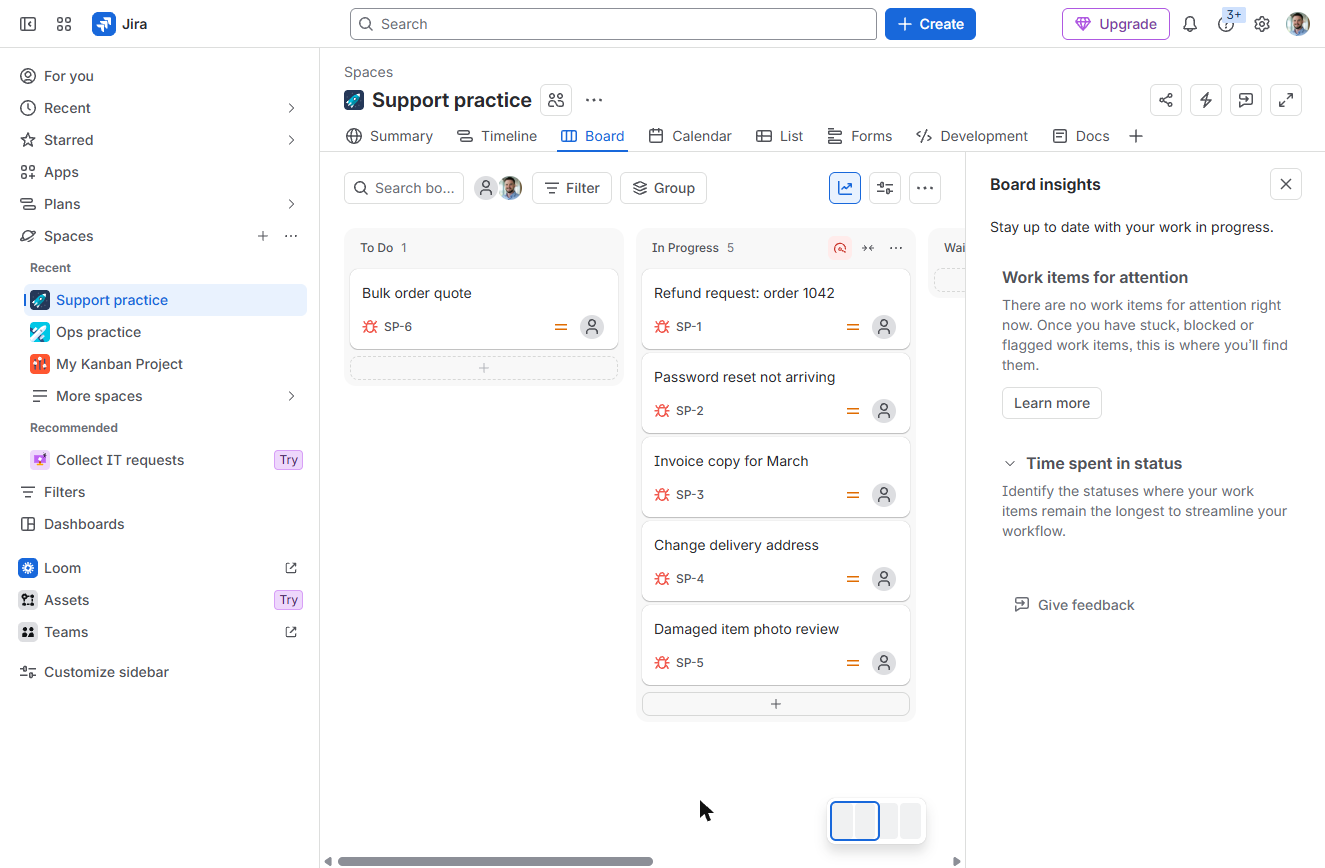
- Open In Progress actions. Six requests in To Do. Your team is 4 people, so In Progress should hold at most 4. Hover the In Progress header and click •••.
Four people, so at most four in progress.
- Set column limit. Click Set column limit.
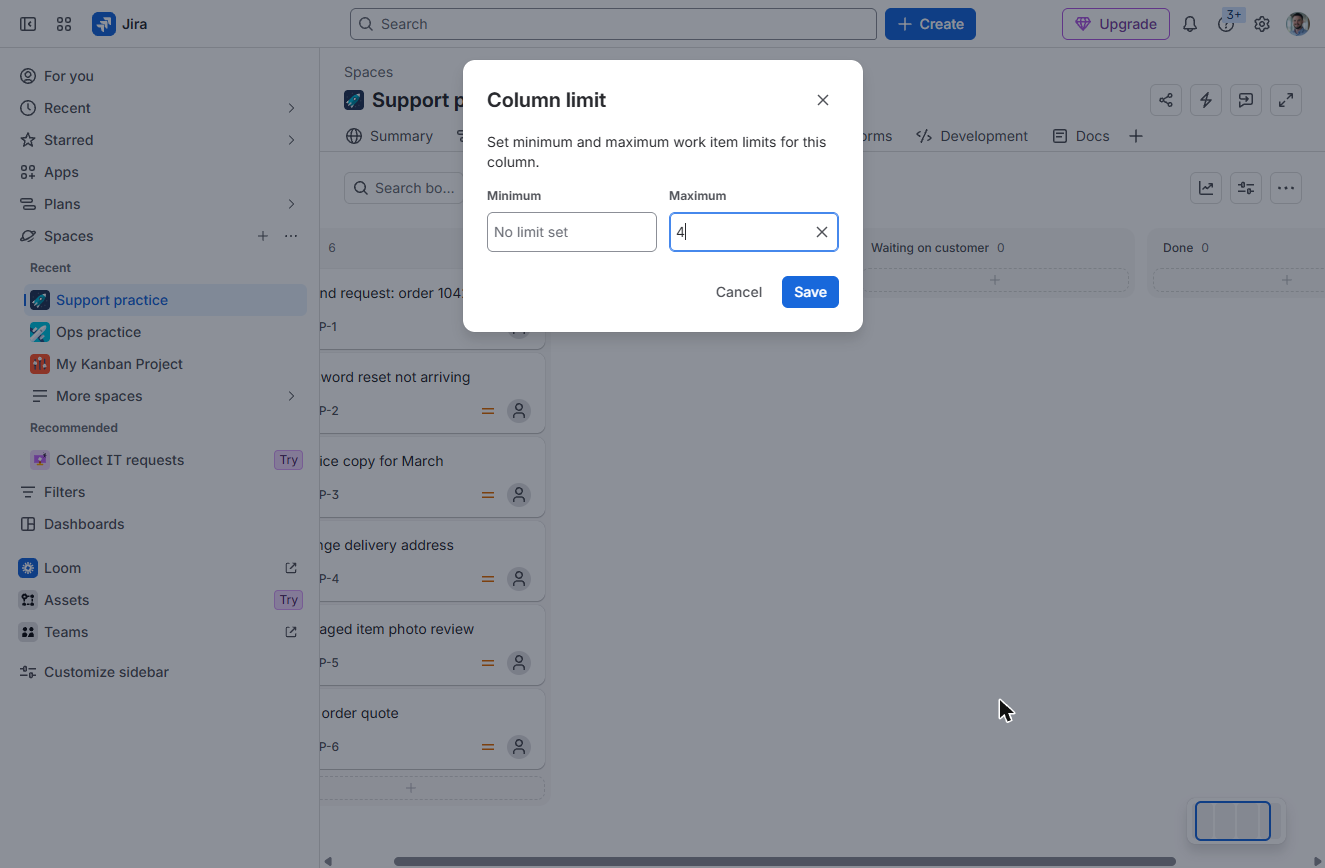
- Maximum 4. The dialog has Minimum and Maximum. Type 4 in Maximum and click Save.
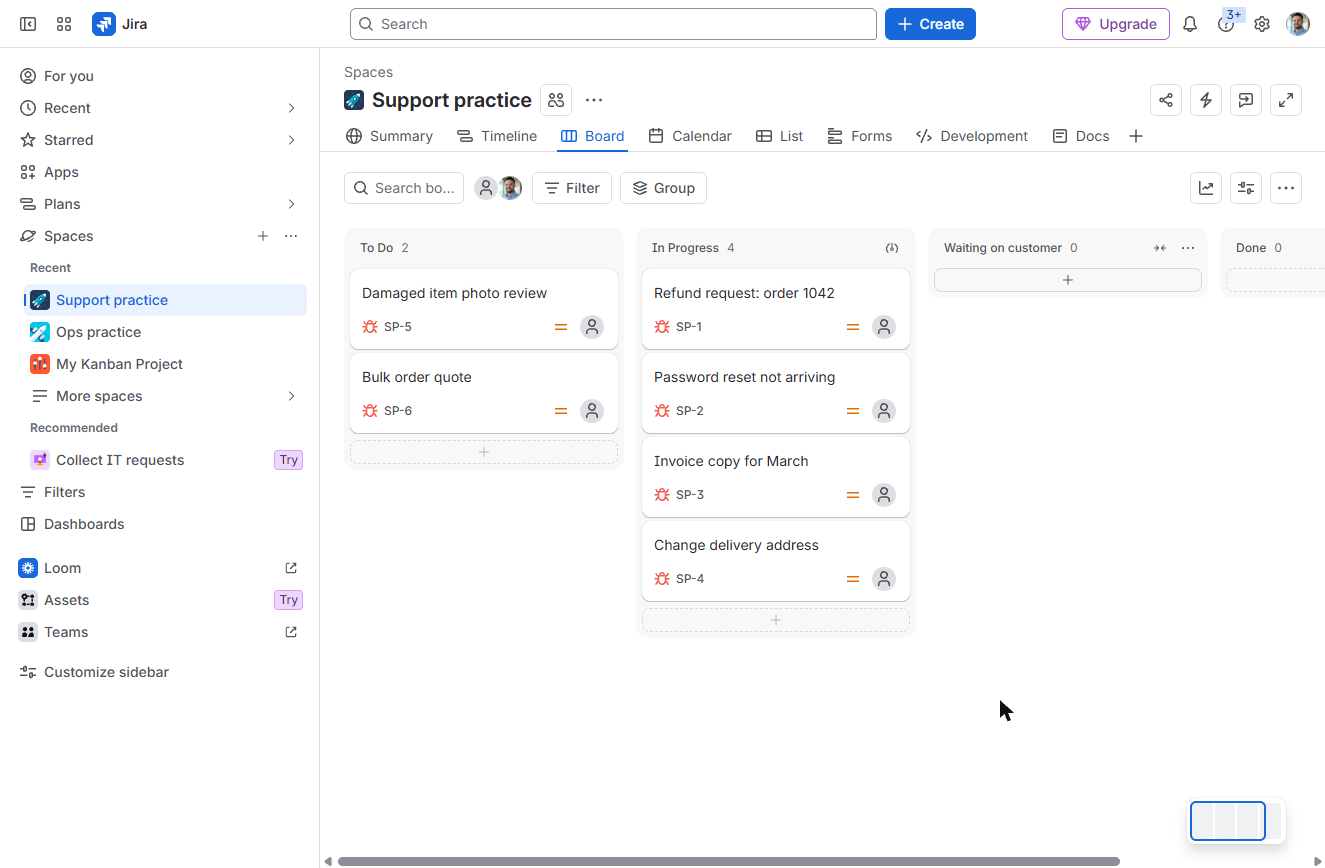
- Start four requests. A small limit icon now sits on the In Progress header. Move four requests into In Progress: drag them, or use each card’s ••• > Change status > In Progress.
Move four requests into In Progress.
- Start one more. In Progress shows 4: at the limit. Now start a fifth one anyway: move SP-5 to In Progress.
Four, at the limit. Now start a fifth one anyway.
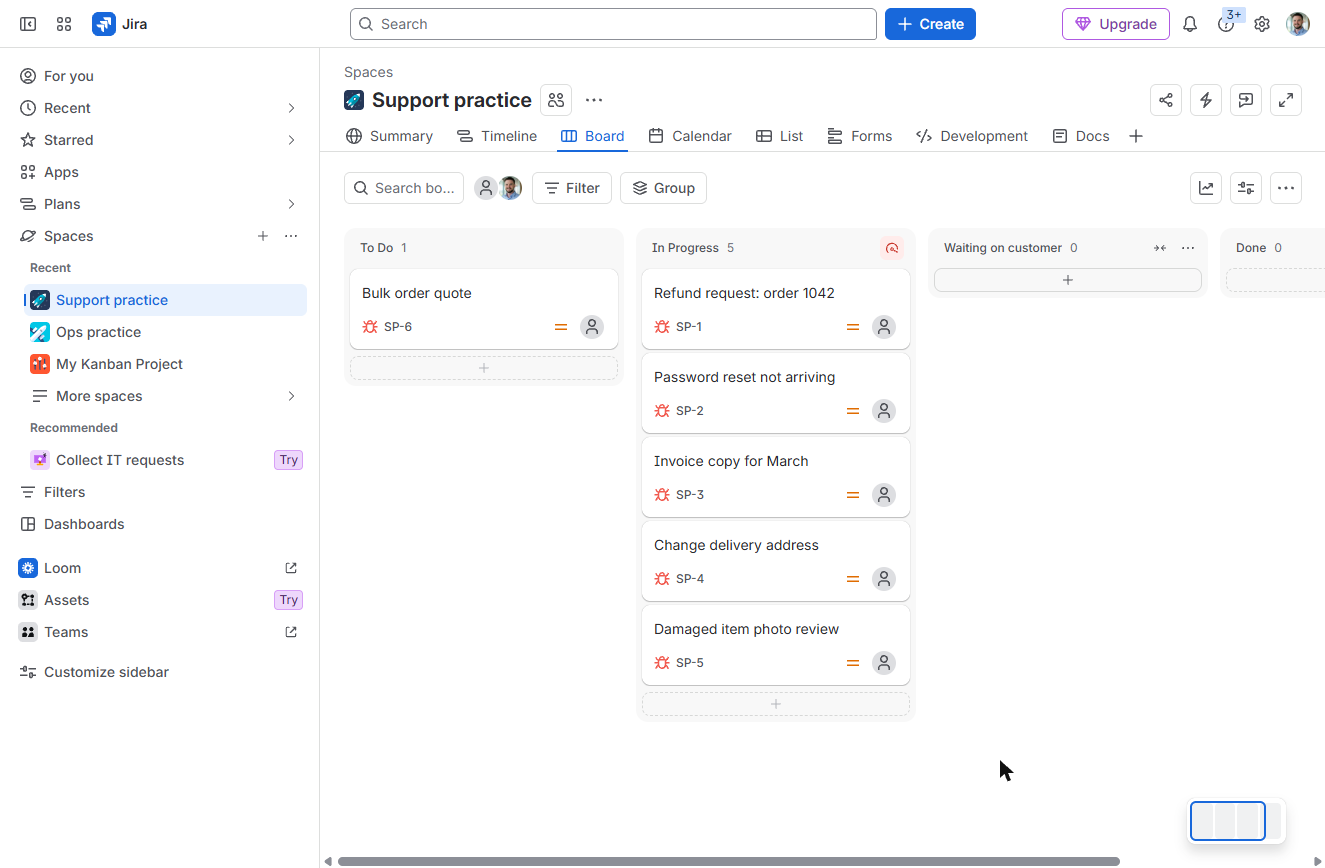
- See the warning. Jira lets you do it: the count says 5 and the limit icon turns red. It warns, it doesn’t block, so the limit is a team agreement the board makes visible. Click the red icon.
Jira doesn’t block you. The limit icon just turns red. The limit is a team agreement.
5. Read the flow
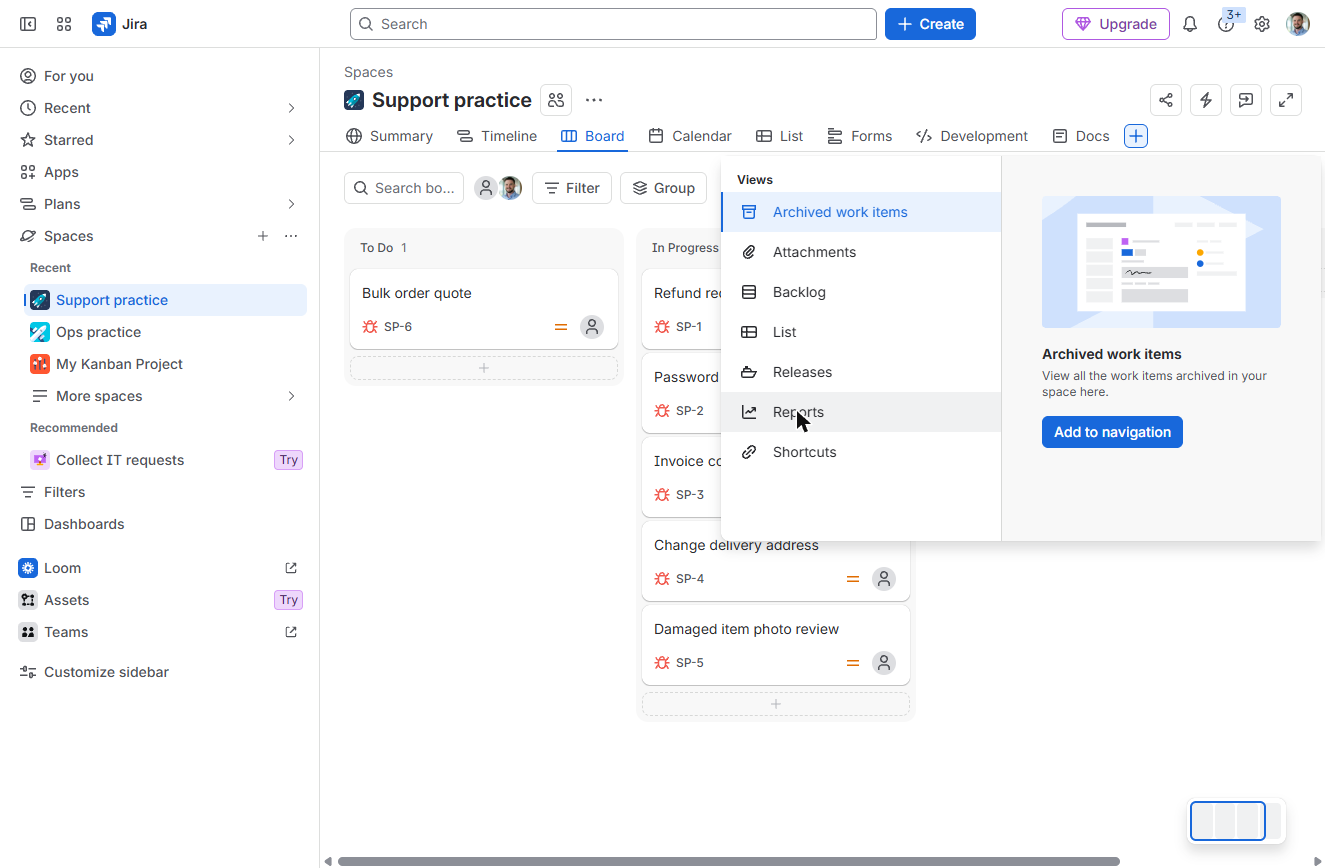
- Find the reports. Board insights (the chart button) shows time spent in status. For the full charts, add the Reports view: click + at the end of the tabs.
For the full charts, add the Reports view.
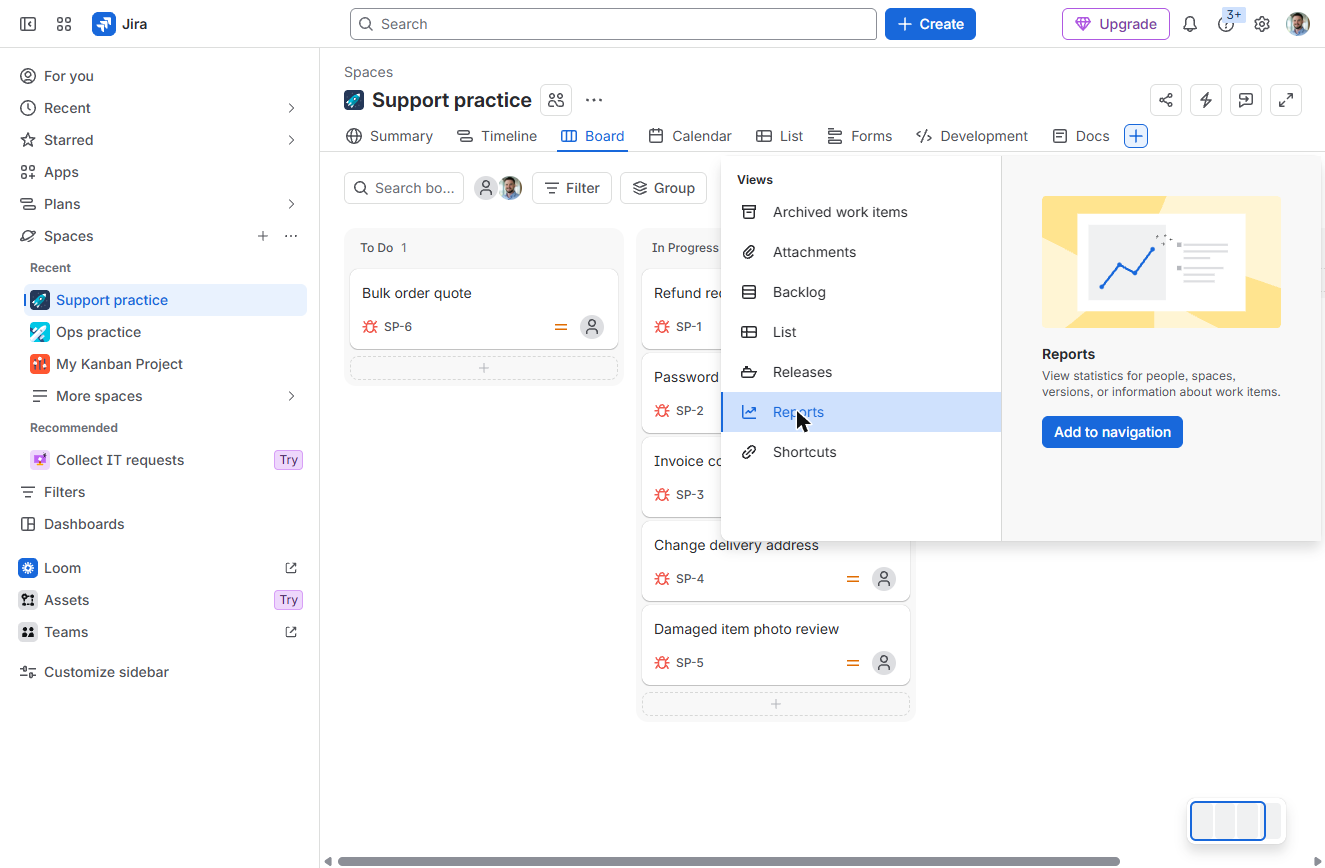
- Reports. Click Reports.
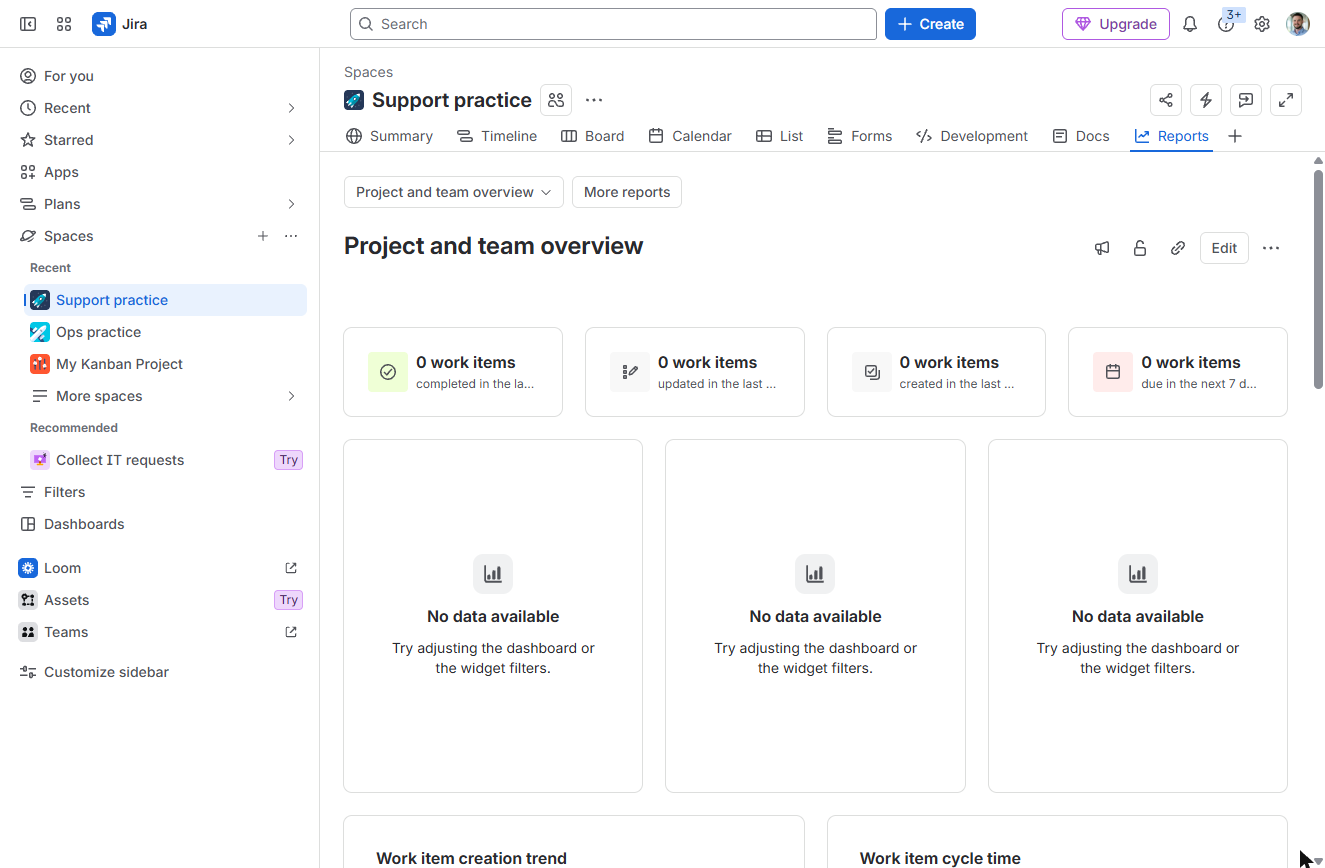
- Add to navigation. Click Add to navigation. Reports becomes a tab.
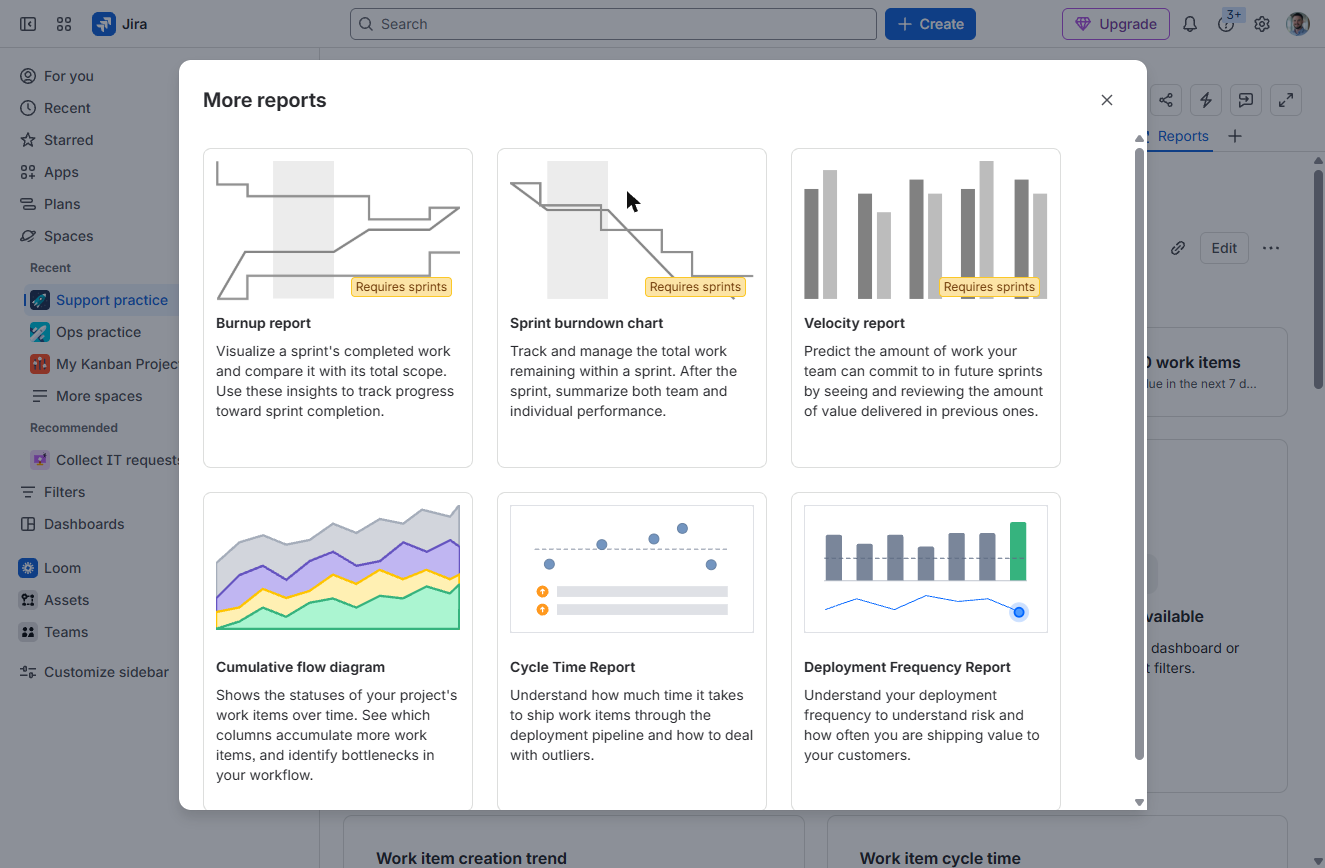
- More reports. The Project and team overview includes a Work item cycle time chart once work reaches Done. Click More reports.
The overview has a cycle time chart.
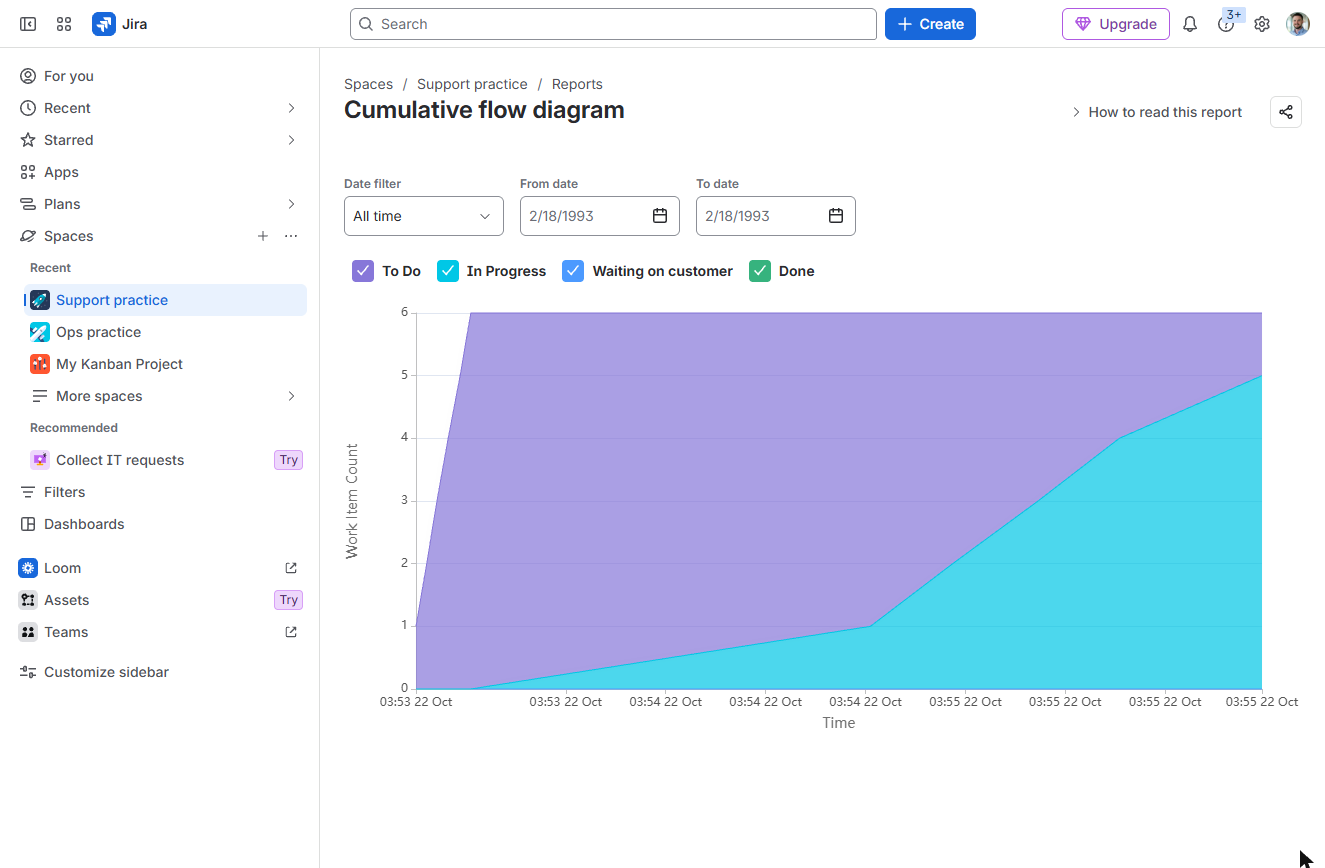
- Cumulative flow diagram. Kanban spaces get the Cumulative flow diagram and a Cycle Time Report (the sprint reports need sprints). Click Cumulative flow diagram.
- Read the bands. One coloured band per column. The In Progress band keeps getting wider: work is piling up there, which is exactly what the WIP limit is for. Click the In Progress band.
A band that keeps getting wider shows where work piles up. Here, In Progress.
Screenshots
More in Project management

All 4 modules in Project management
Free cheat sheet
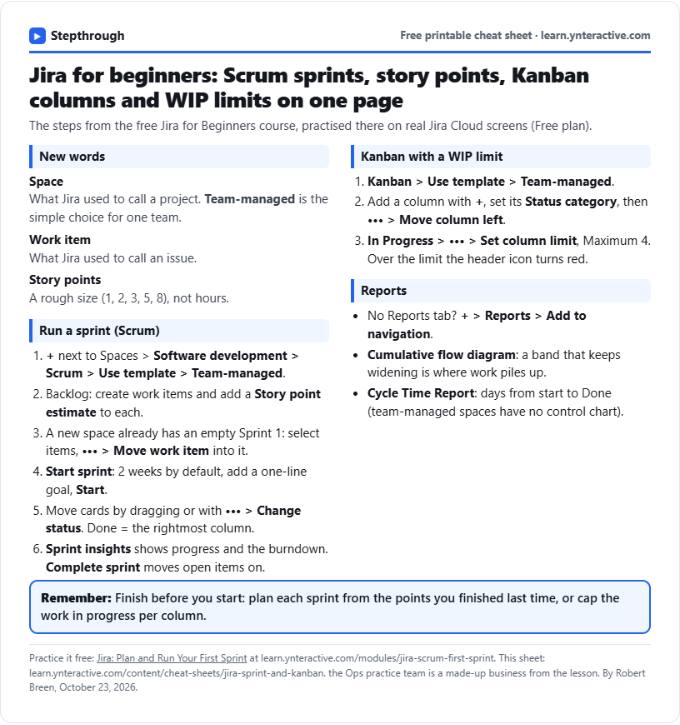
Print it or save the PDF: the key steps and checks from this lesson on one page, free.
All free printable cheat sheets
Terms in this lesson
Plain-English definitions, each with an example from a free lesson.