Updated . Built against the tool’s current screens and checked step by step. How we check this lesson
A beginner Jira walkthrough on real screens: create a Scrum space, write a backlog with story points, fill and start a two-week sprint, move cards on the board, read the burndown and complete the sprint. Jira Free.
At a glance
| Question | Answer |
|---|---|
| What you build | A beginner Jira walkthrough on real screens: create a Scrum space, write a backlog with story points, fill and start a two-week sprint, move cards on the board, read the burndown and complete the sprint. Jira Free. |
| Tools | Jira |
| Time | About 15 minutes, 29 steps in 5 parts |
| Level | Beginner, no coding needed |
| Cost | Free |
| Ways to learn it | Practice it step by step |
The 5 parts, in short
- Create a Scrum space: Create a space, Software development, Pick Scrum, Use template, and 5 more steps.
- Build a small backlog: Create a work item, Write it as a user story, Open the first item, Estimate it.
- Fill and start the sprint: Select the top four, Open More actions, Move to the sprint, Start sprint, and 2 more steps.
- Work the board: Open a card’s actions, Change status, In Progress, Finish three of them, and 1 more step.
- Complete the sprint: Complete sprint, Where open work goes, New sprint, Complete it, and 1 more step.
What you'll build
Your manager wants the team’s work in Jira instead of a spreadsheet, so they can see what is in progress without a status meeting. In this lesson you set up a Scrum space on Jira’s free plan, write six work items with story points, put 18 points into a two-week sprint with a goal, move cards across the board, check the burndown and complete the sprint so unfinished work rolls forward. Every screen is a real Jira screen.
You created a team-managed Scrum space, wrote six work items with story points (22 in all), put the top 18 into OP Sprint 1 with a goal, moved cards across the board, saw 89% done in Sprint insights and completed the sprint, so OP-4 rolled into sprint 2. Your first velocity is 16 points. Now do it on your own Jira site: the lesson page has the checklist.
- Tools: Jira
- Time: about 15 minutes, 29 steps in 5 chapters
- Level: beginner, no coding needed
- Price: free
Practice first, then build it for real
Practice copy built from real Jira Cloud screens (Free plan, captured 22 October 2026). Nothing here touches your Jira site. The Ops practice space is practice data. To build it for real you need your own Jira account, and some services charge once you use them for real work, so check each tool's current pricing.
Try it yourself, free
Reading the steps is a start. Doing them is how it sticks. The interactive module walks you through every click in a practice copy of Jira, checks each step, and never touches your real accounts.
Start “Jira: Plan and Run Your First Sprint”Step by step: Jira: Plan and Run Your First Sprint
All 29 steps of the interactive module, in order. In the module you watch each one, then do it yourself in a practice copy that checks your work.
1. Create a Scrum space
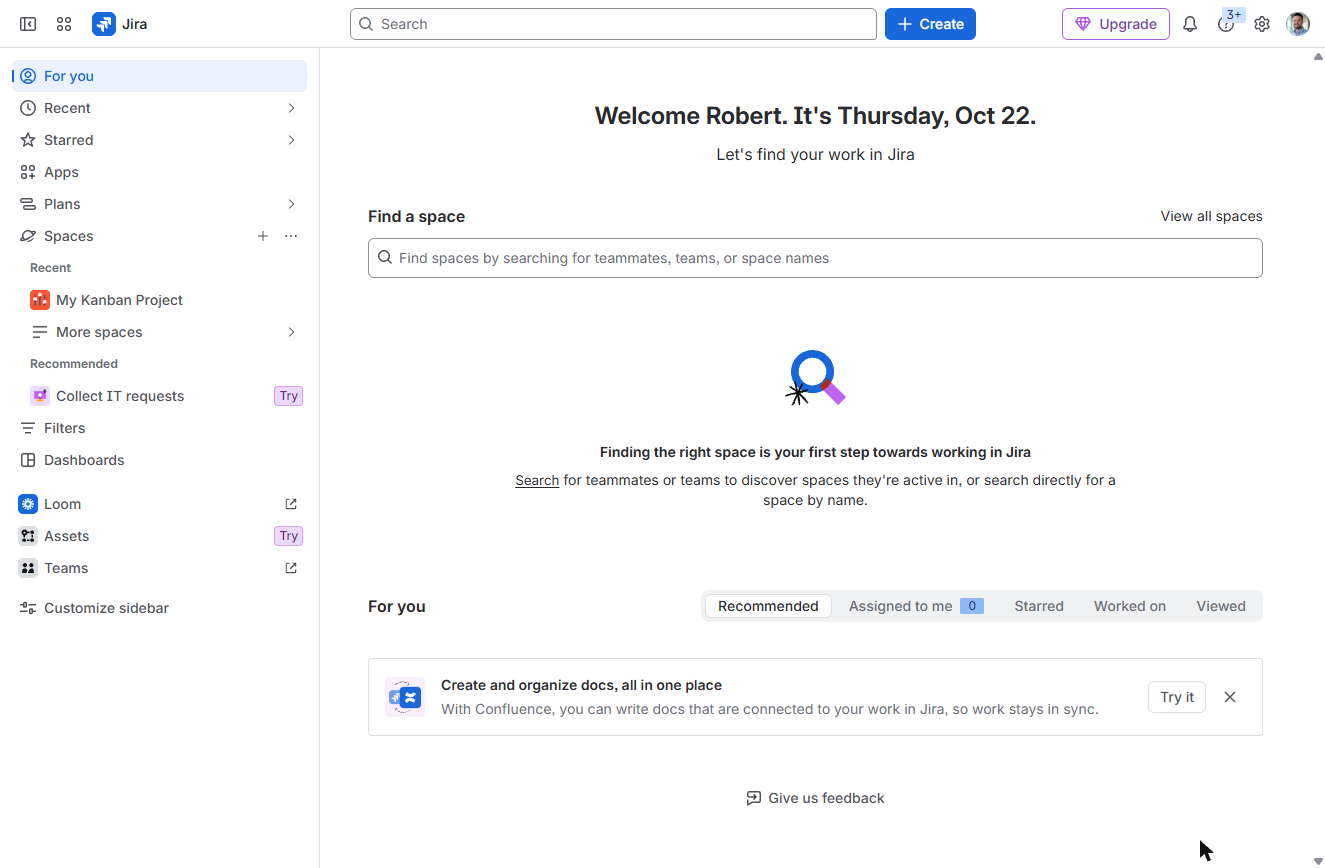
- Create a space. In Jira, next to Spaces in the sidebar, click + (Create space). Atlassian now says space for project and work item for issue.
Next to Spaces in the sidebar, click the plus to create a space.
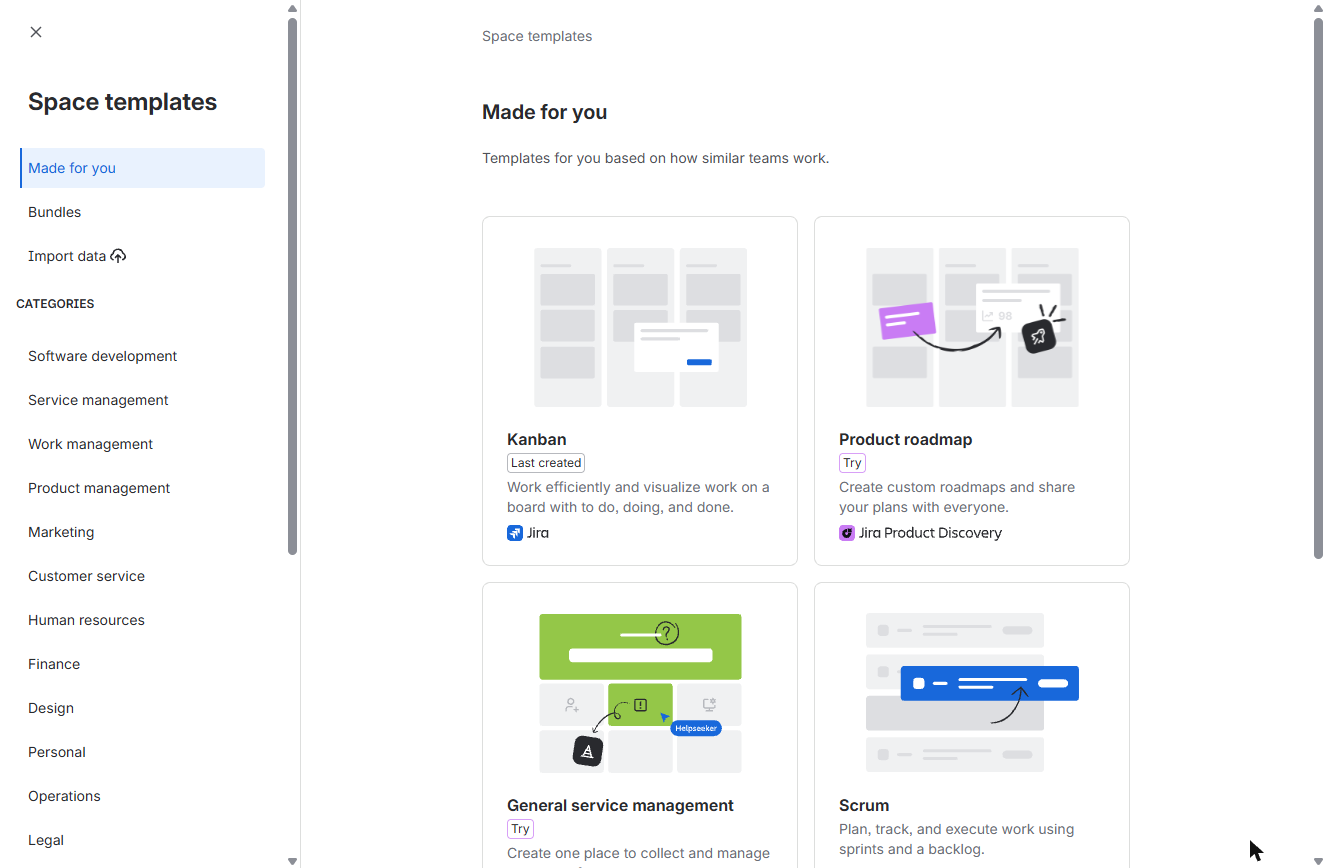
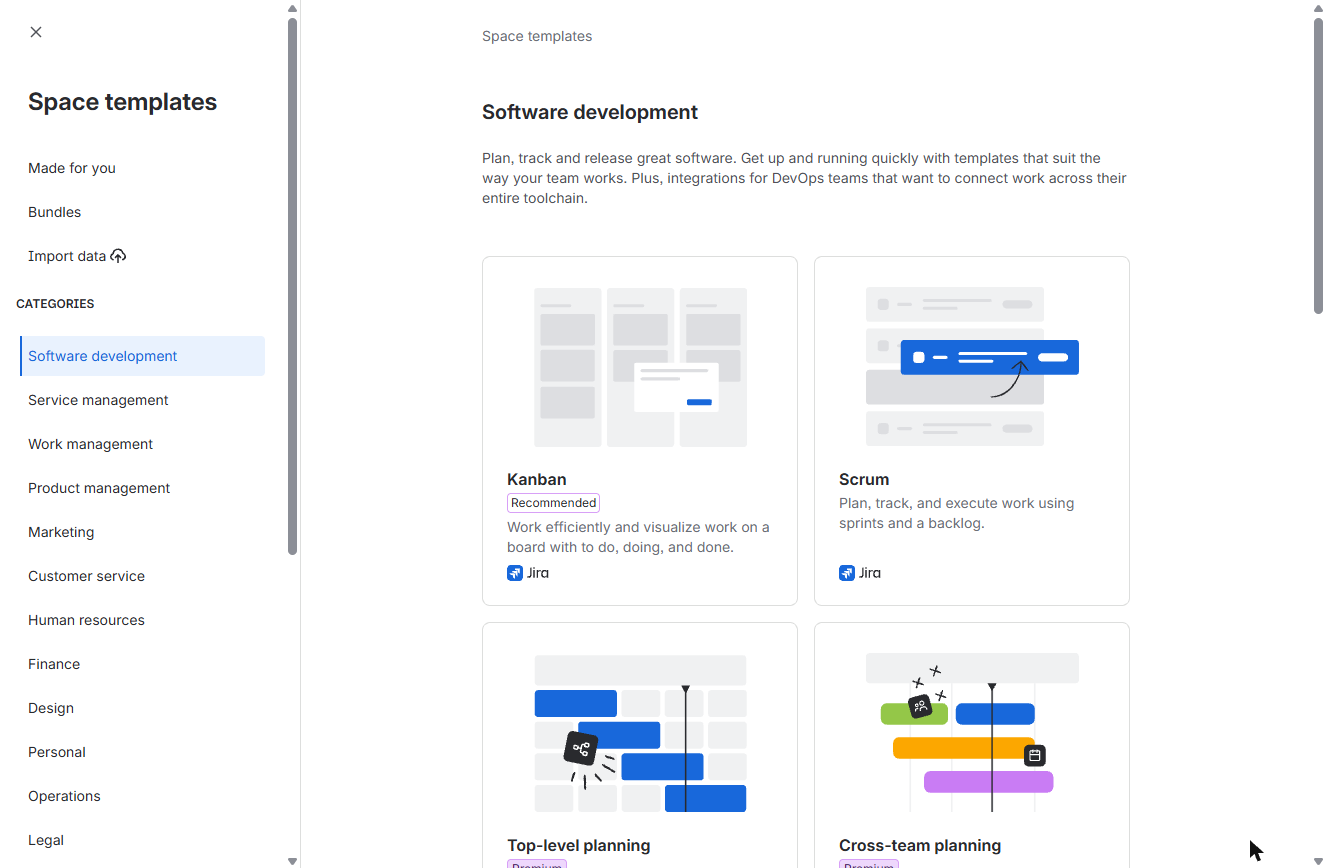
- Software development. The template gallery opens. Under Categories, click Software development.
- Pick Scrum. Click Scrum: sprints and a backlog.
Sprints and a backlog.
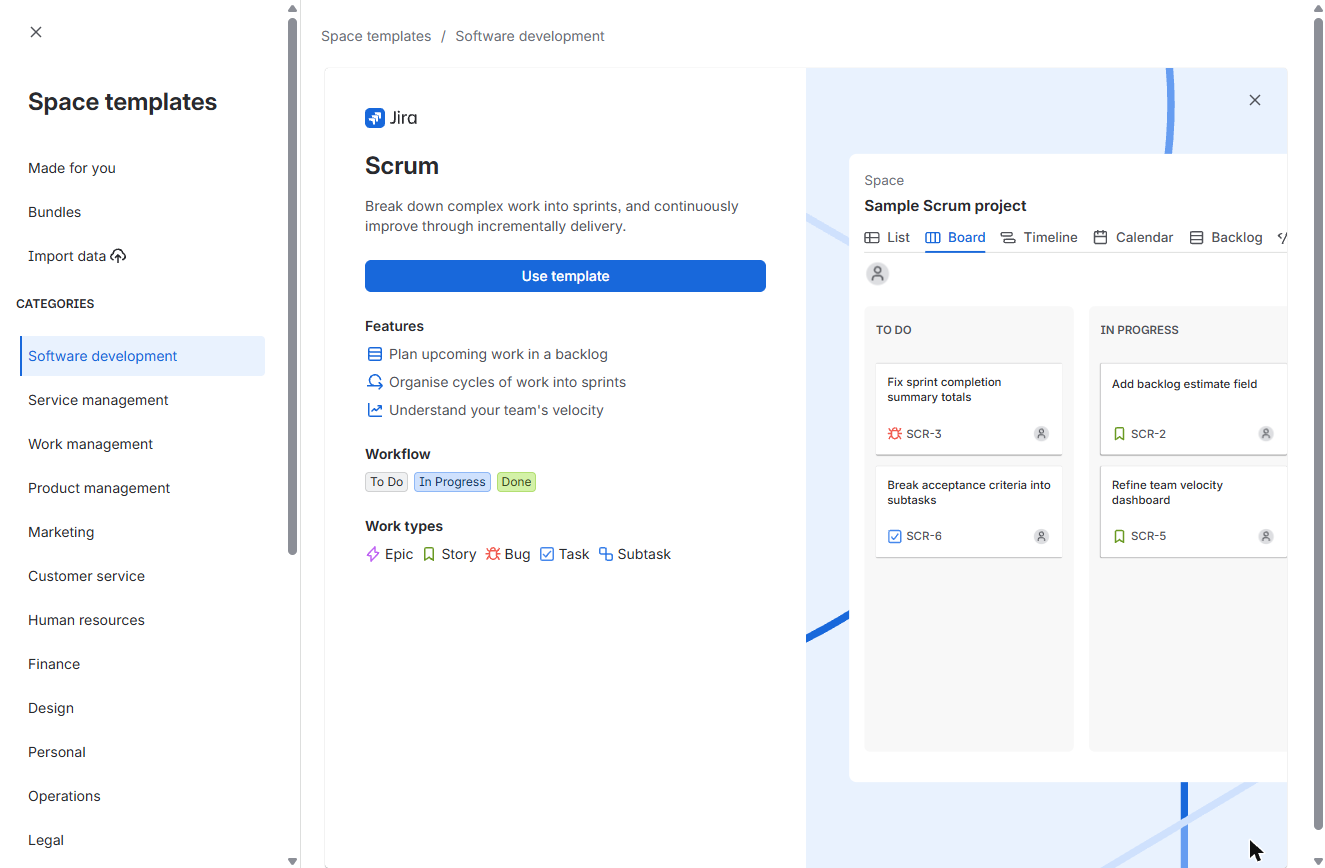
- Use template. The preview shows the workflow (To Do, In Progress, Done) and the work types. Click Use template.
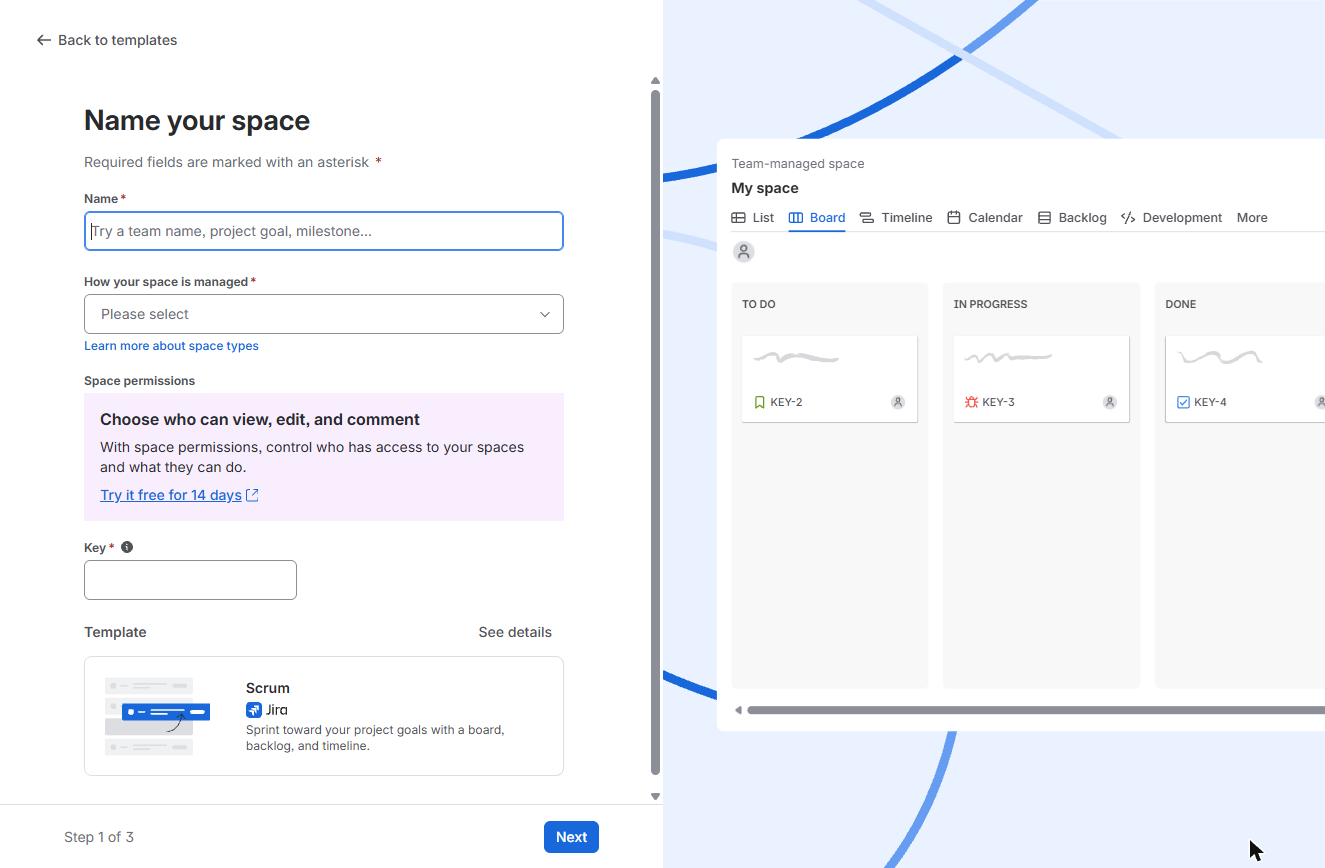
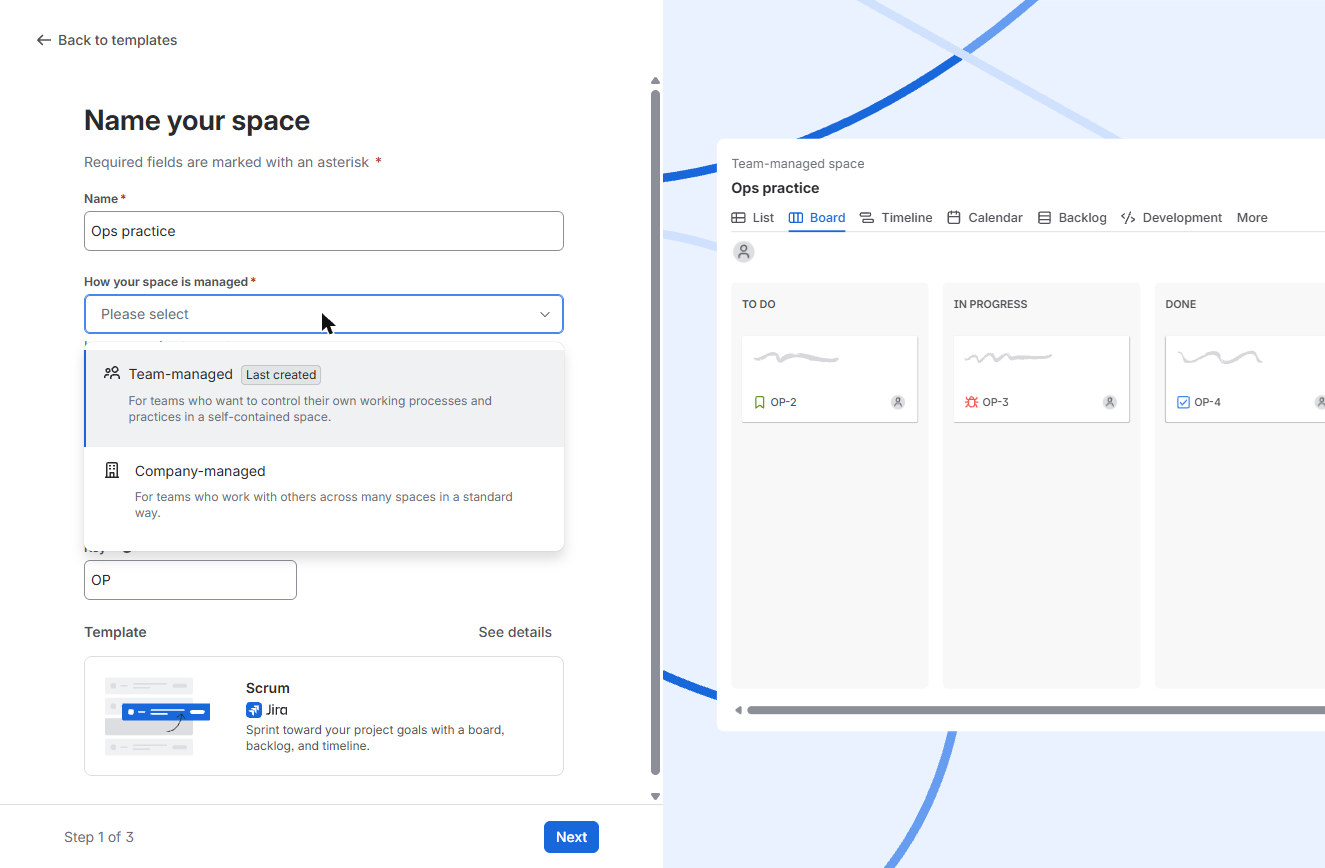
- Name the space. Type Ops practice in Name. Jira suggests a key (here OP) that prefixes every work item. Then open How your space is managed.
Name it Ops practice. Jira suggests a short key.
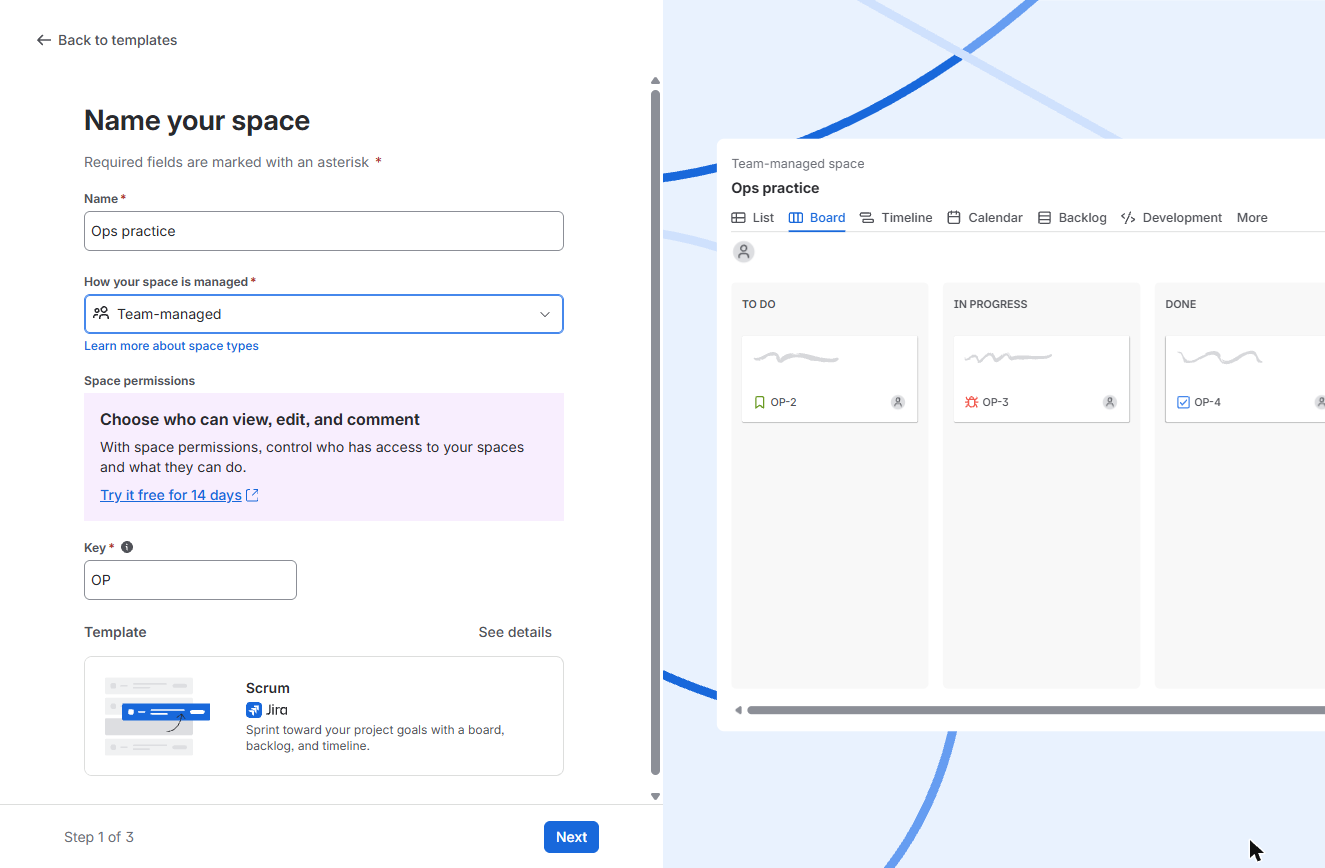
- Team-managed. Pick Team-managed: the simpler type, for one team that runs its own process.
Pick Team-managed. It is the simpler type for one team.
- Next. Click Next.
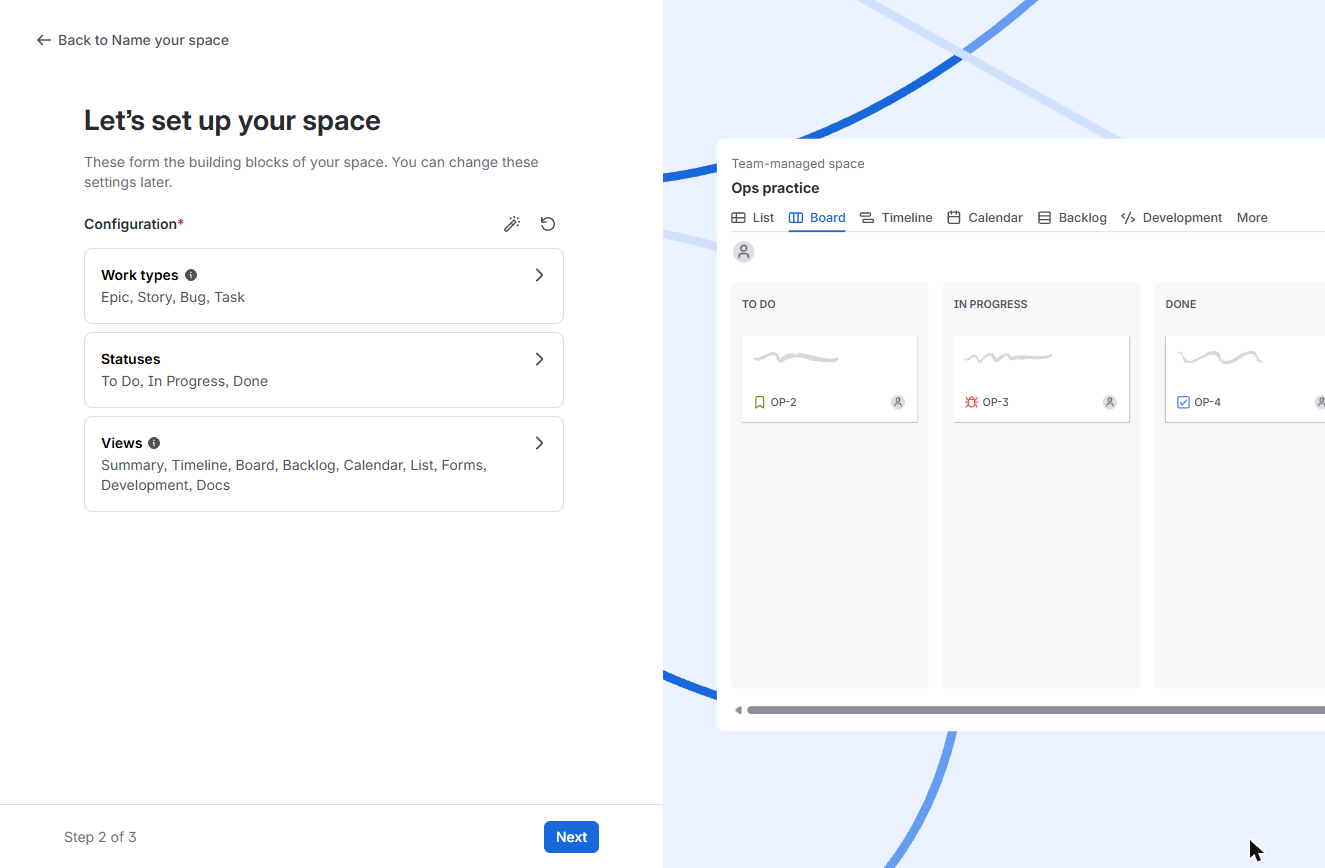
- Keep the defaults. Work types, statuses and views can all be changed later. Click Next.
You can change these later.
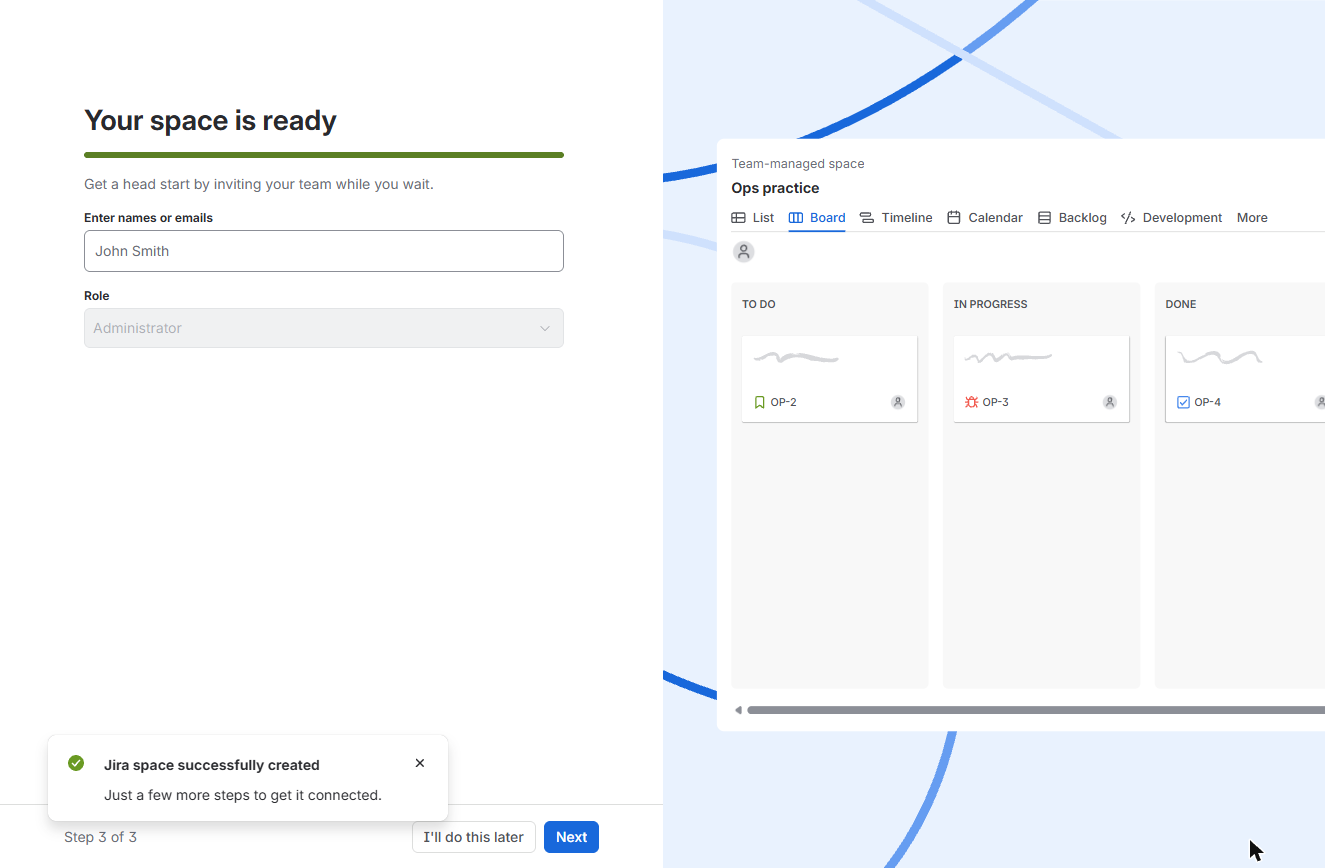
- Skip the invites for now. Your space is ready. You can invite your team now; for practice, click I’ll do this later.
Your space is ready. Skip the invites for now.
2. Build a small backlog
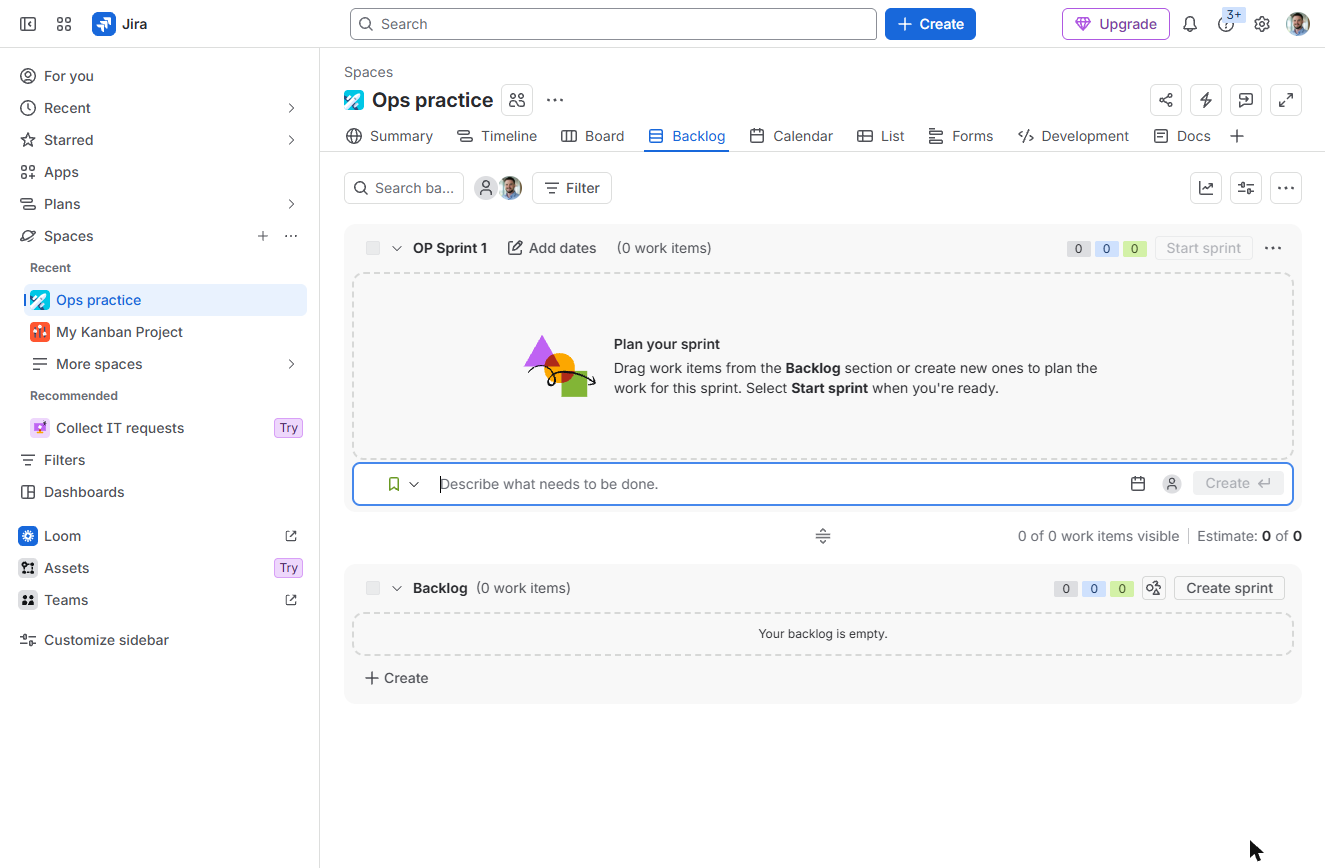
- Create a work item. Jira opens the Backlog, and the new space already has an empty sprint, OP Sprint 1, so you don’t need Create sprint for the first one. Under Backlog, click + Create.
The backlog already has an empty sprint. Under Backlog, click Create.
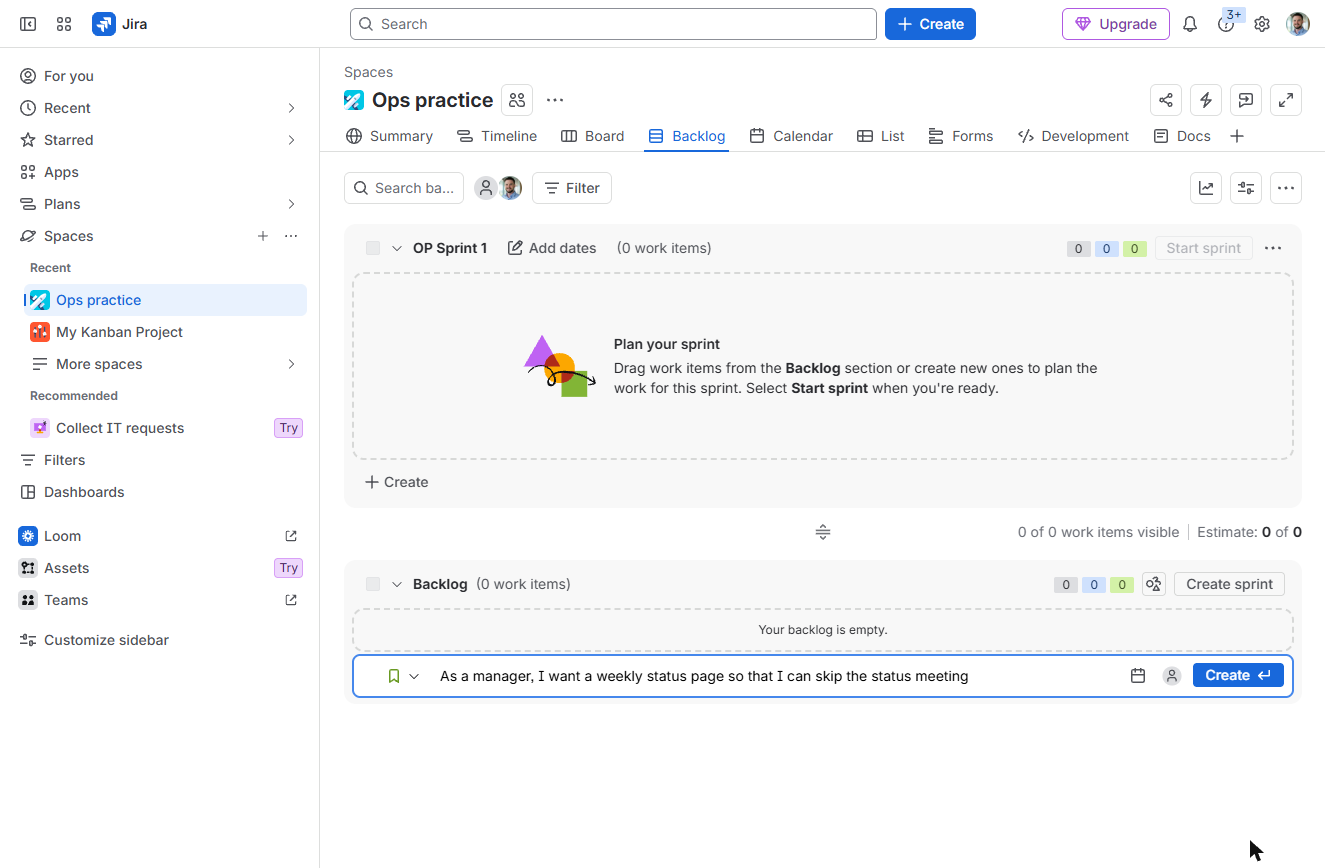
- Write it as a user story. Type the first item as a user story: "As a manager, I want a weekly status page so that I can skip the status meeting", and click Create (or press Enter). The box stays open, so add five more.
Write the first item as a user story, and click Create. Then add five more.
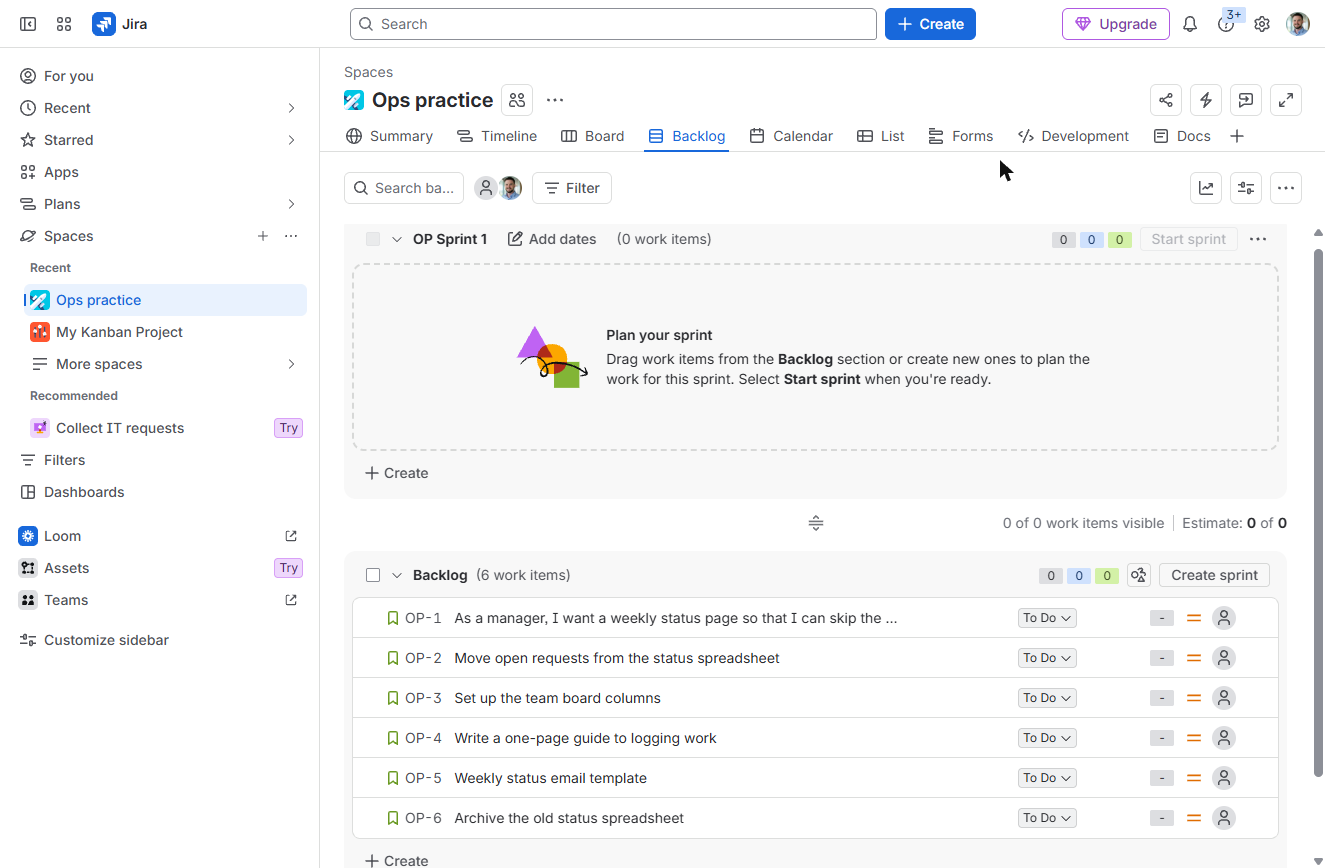
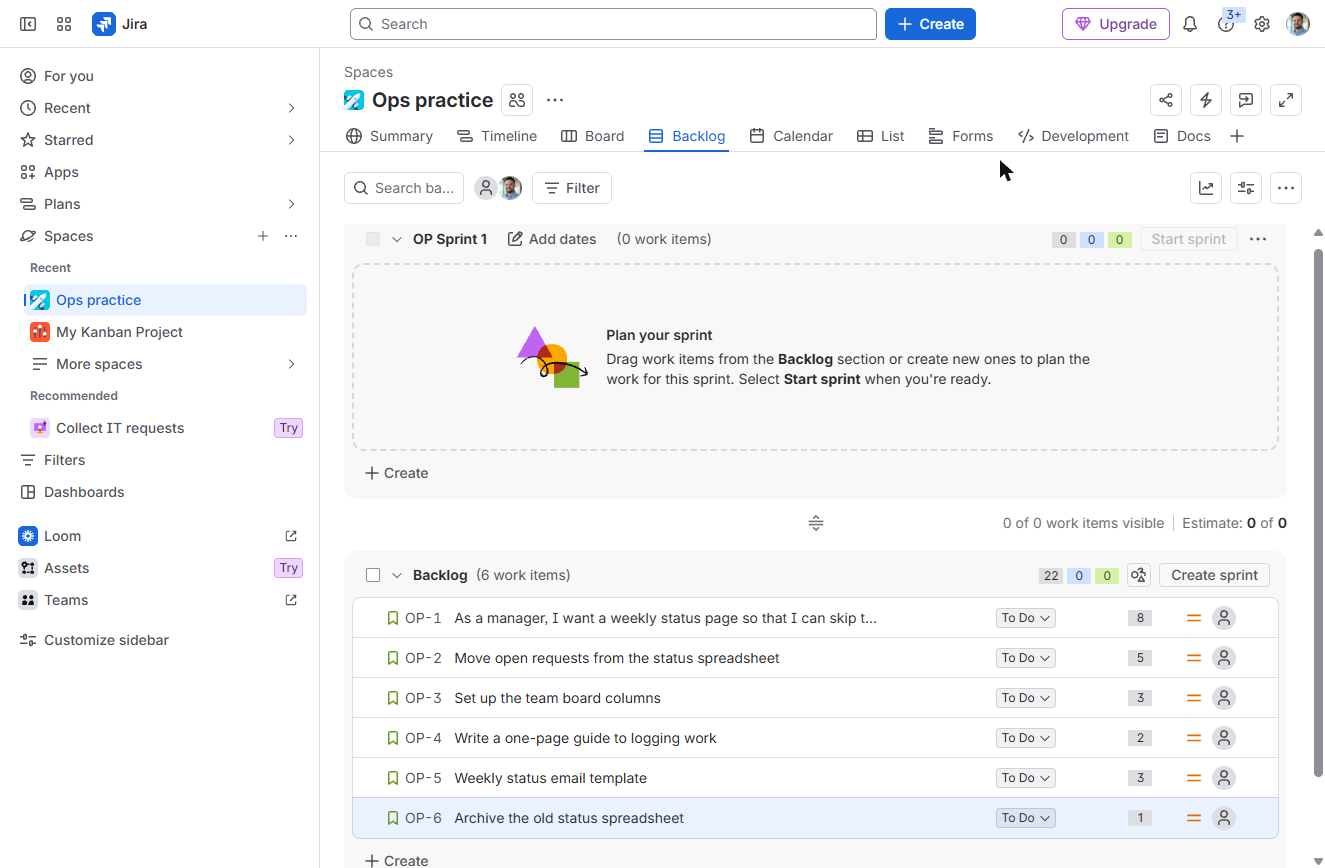
- Open the first item. Six work items, OP-1 to OP-6, most important at the top. Now add story points. Click OP-1 to open it.
Six work items.
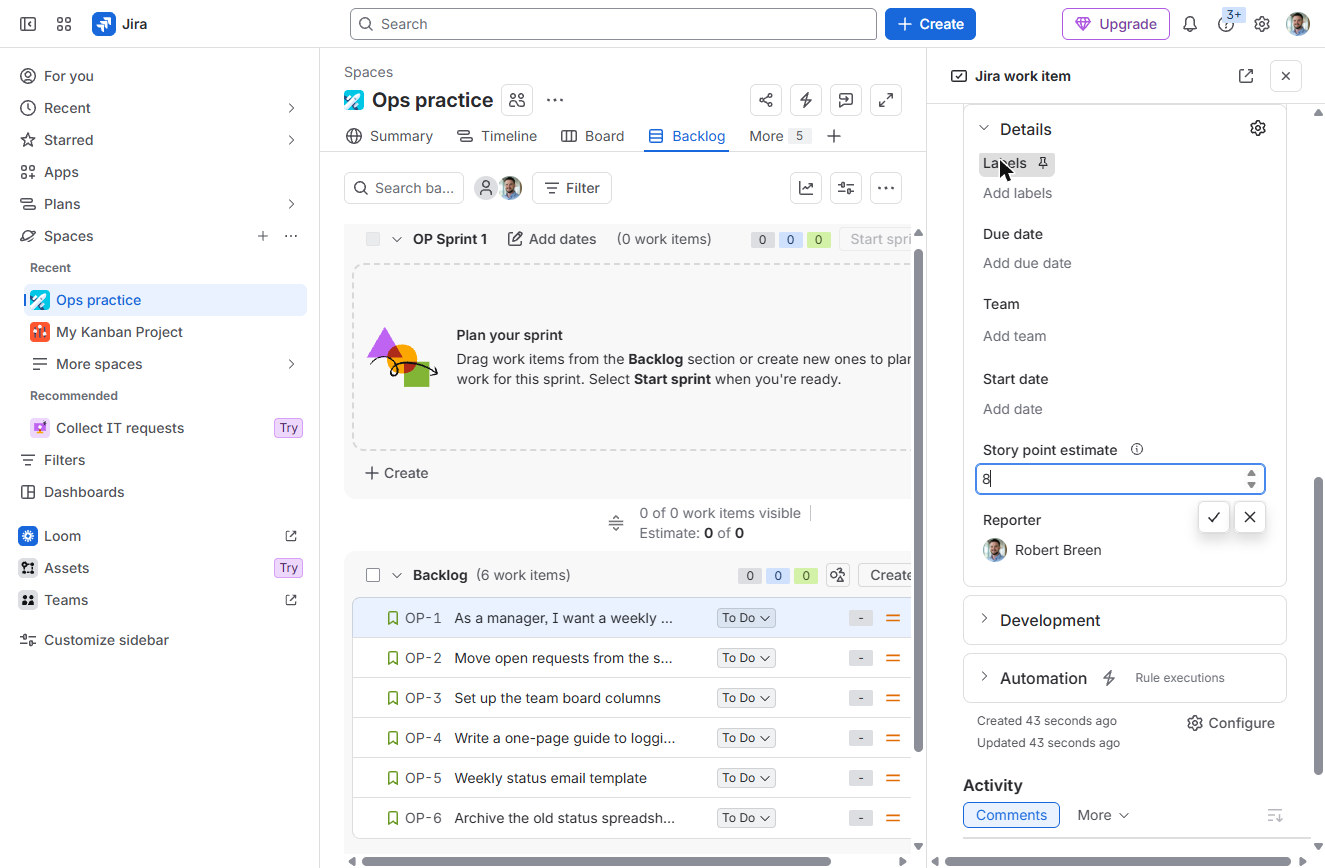
- Estimate it. In Details, click Story point estimate, type 8 and confirm. Do the same for the others: 5, 3, 2, 3 and 1.
In Details, set the story point estimate to eight. Then do the others.
3. Fill and start the sprint
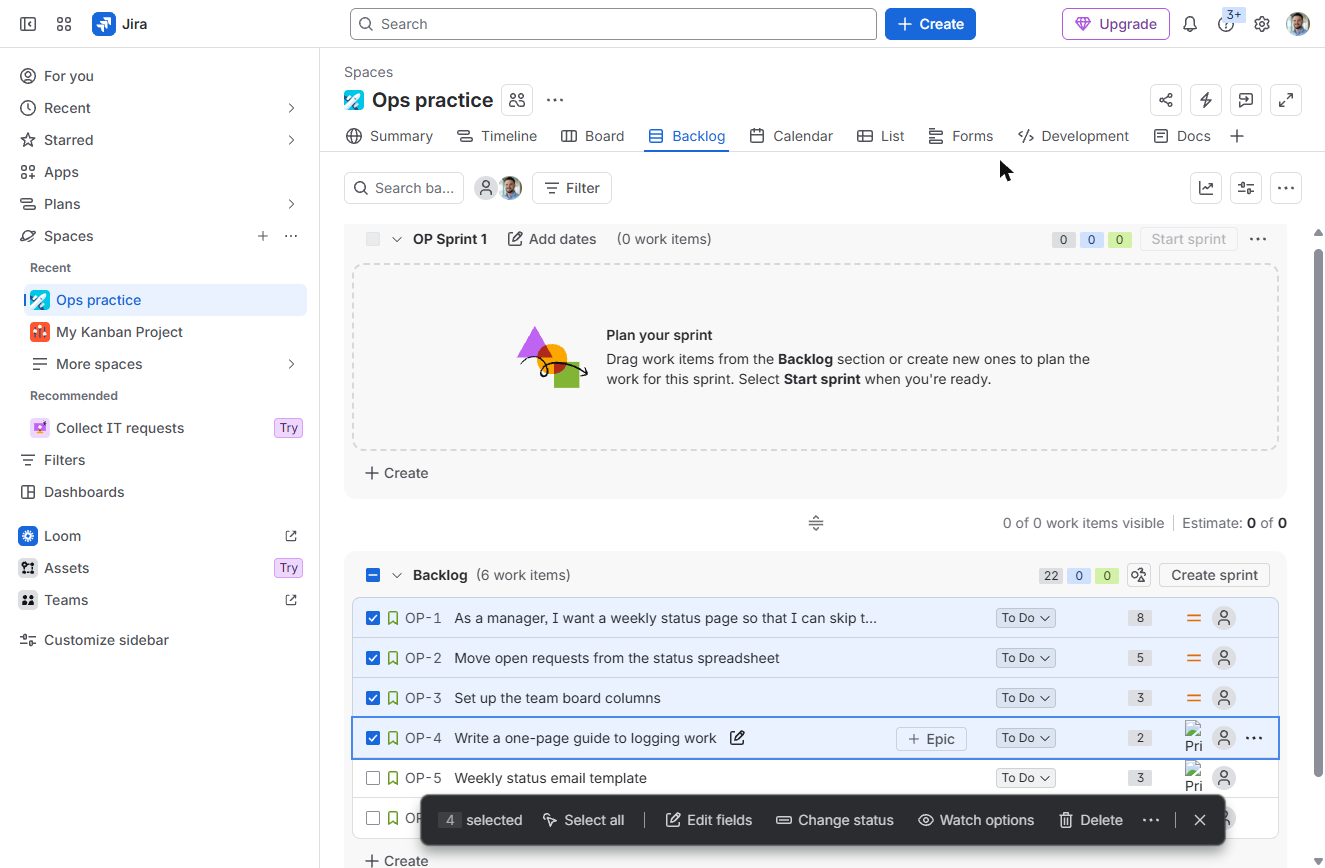
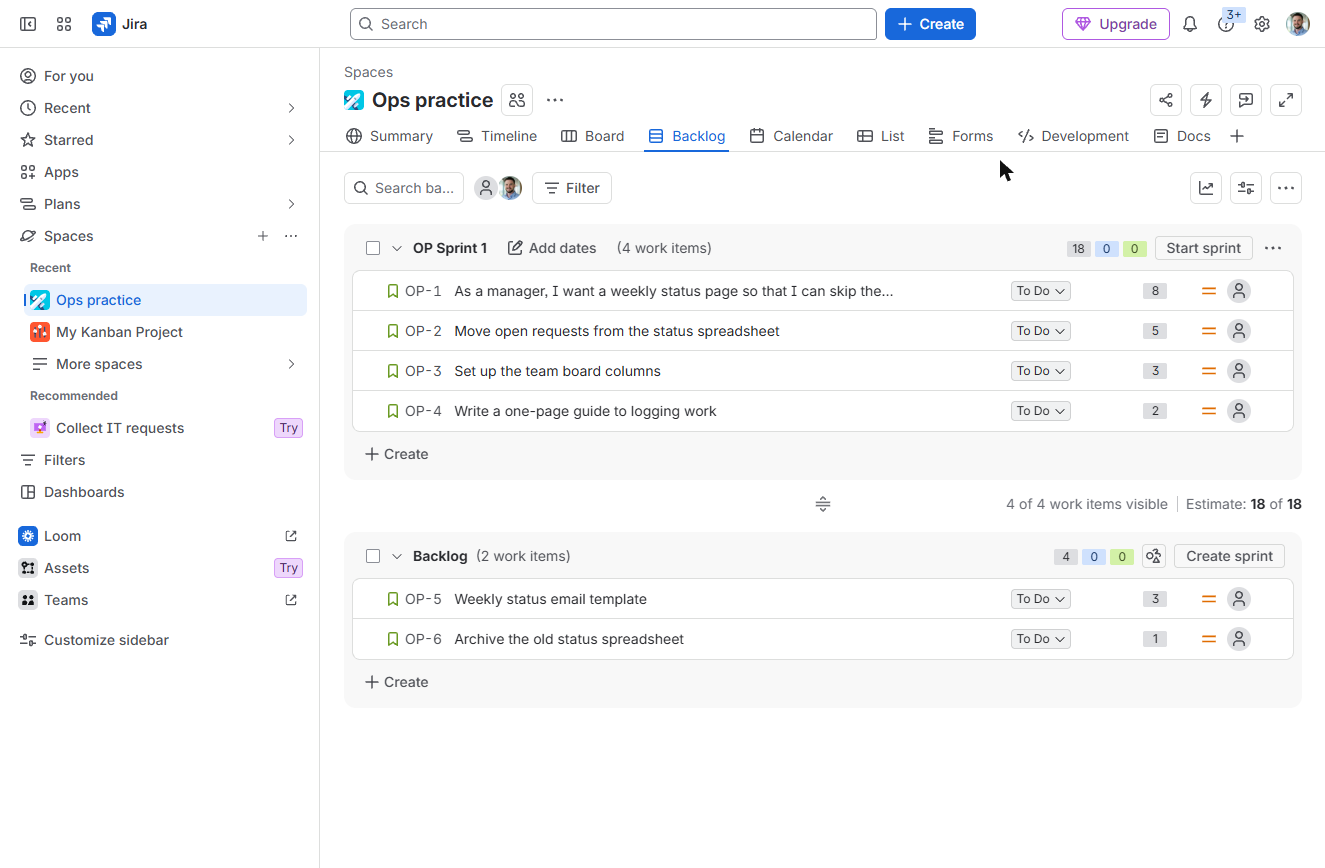
- Select the top four. The backlog now totals 22 points. A first sprint should hold about 70% of what feels possible: the 8, 5, 3 and 2 point items. Ctrl-click OP-1, then Shift-click OP-4.
Twenty-two points in all.
- Open More actions. Four are selected. You can drag them into the sprint, or open the ••• menu on a selected row.
Four selected.
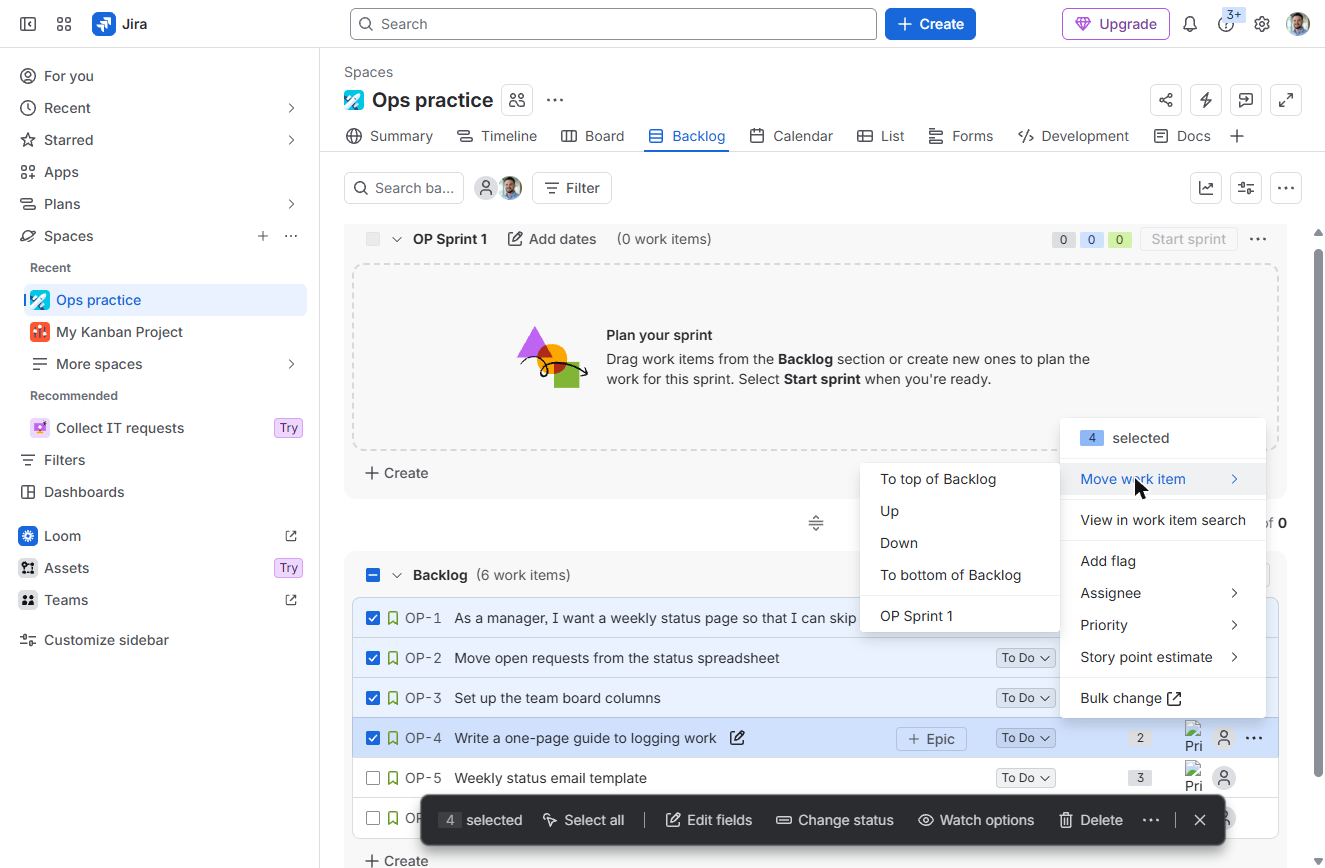
- Move to the sprint. Under Move work item, click OP Sprint 1.
Move work item, then OP Sprint 1.
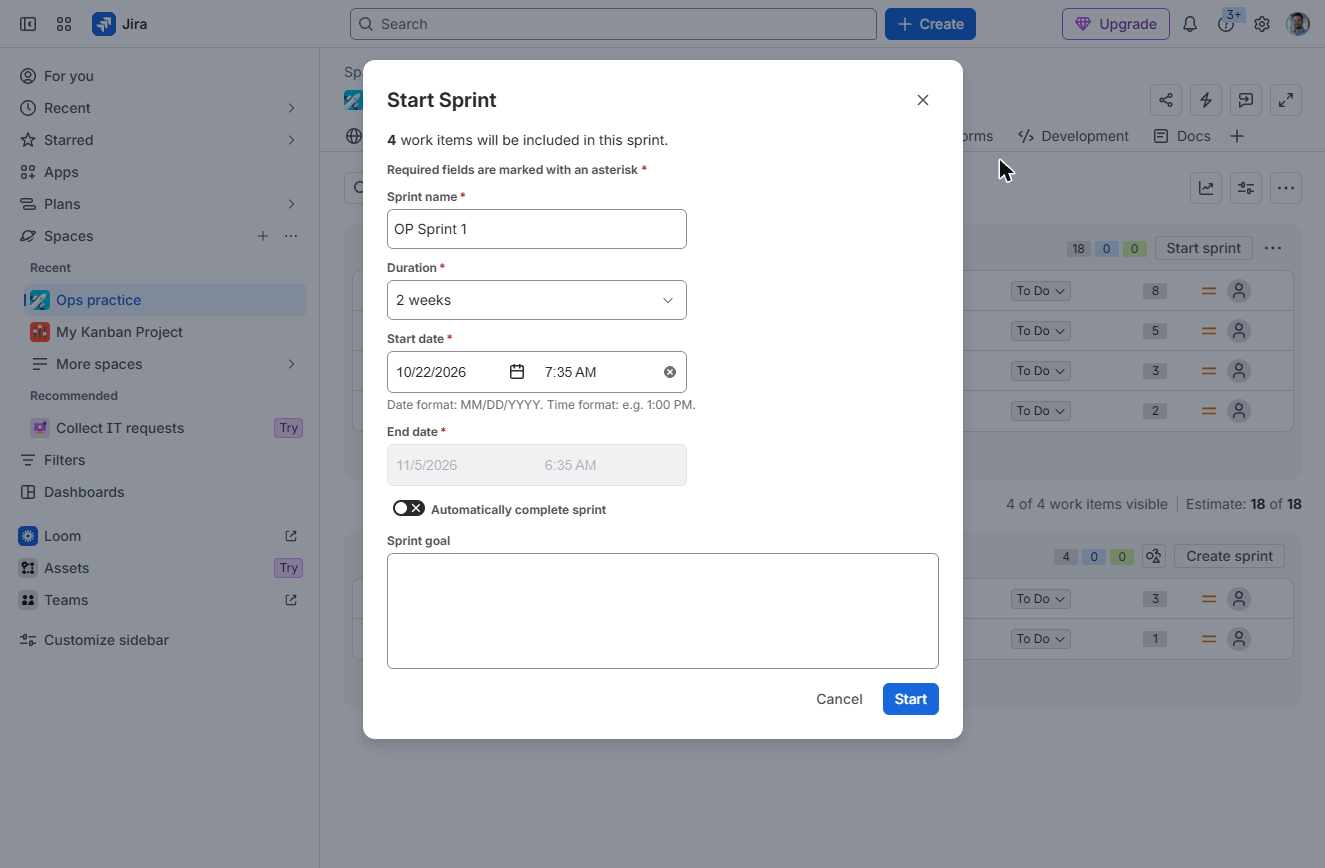
- Start sprint. OP Sprint 1 now has 4 work items and 18 points (Estimate: 18 of 18). Click Start sprint.
Eighteen points in the sprint.
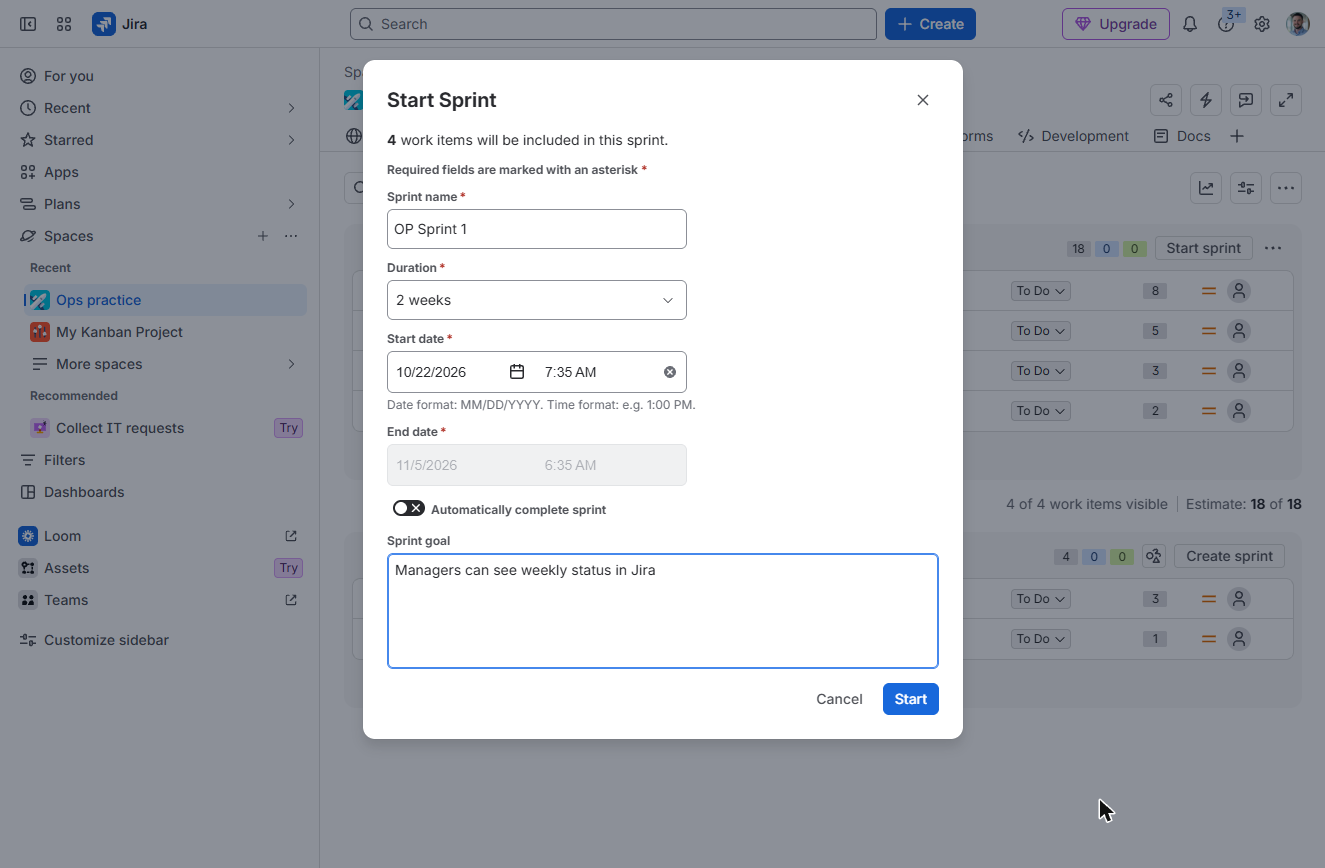
- Set a sprint goal. The duration is already 2 weeks and the dates are filled in. Type a one-line Sprint goal: "Managers can see weekly status in Jira".
Two weeks is already set.
- Start. Click Start.
4. Work the board
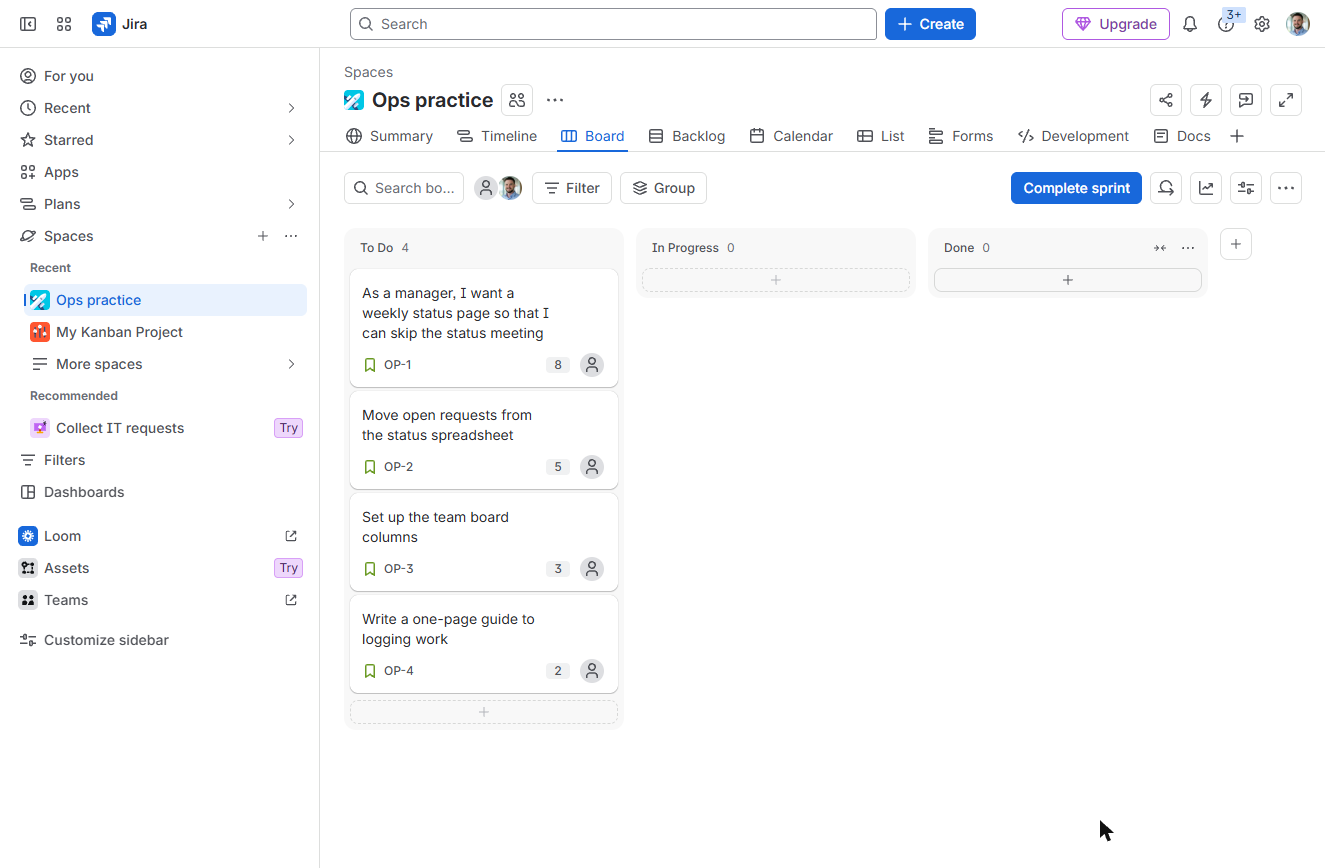
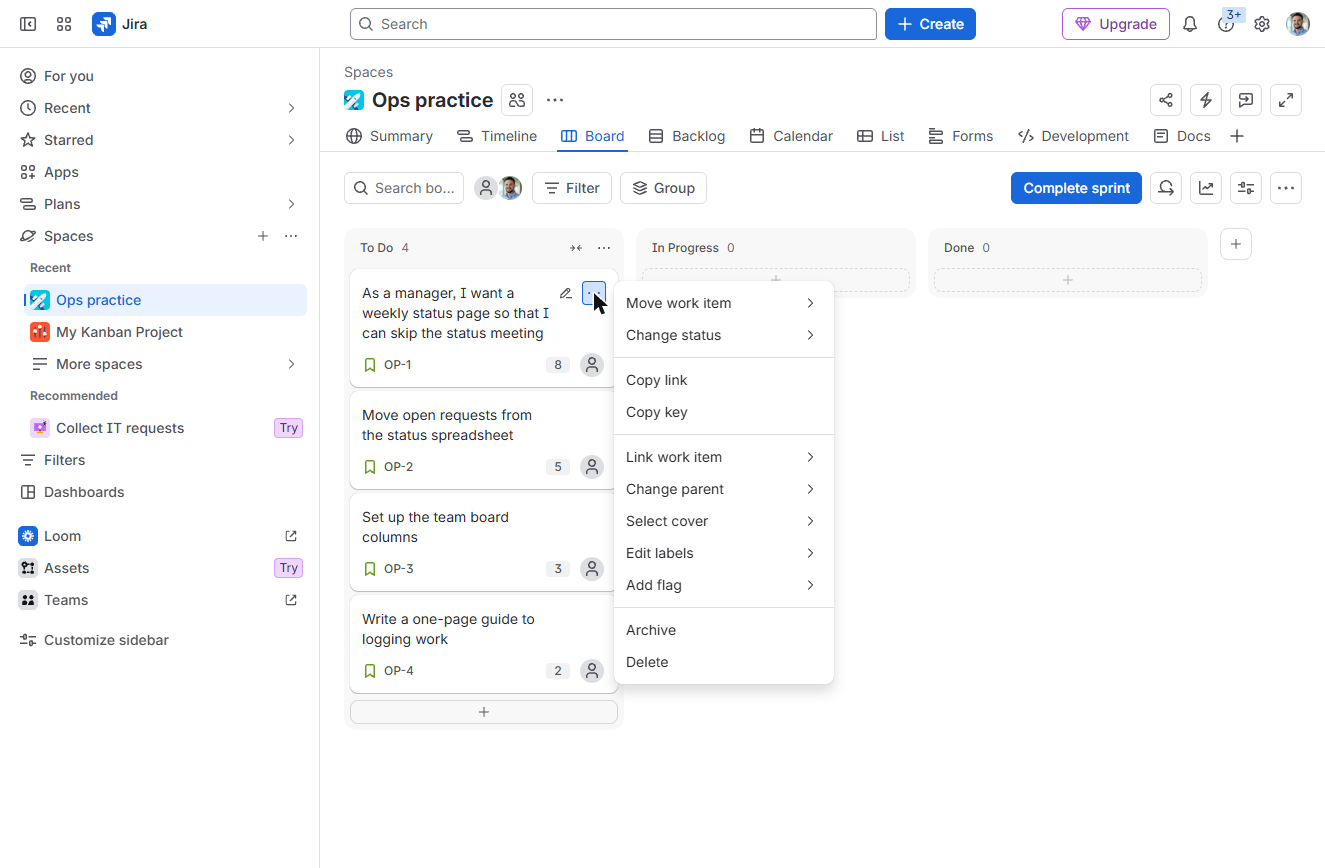
- Open a card’s actions. The sprint’s four cards are in To Do. Move cards as work moves: drag them, or hover a card and click its ••• (Card actions).
Move cards as work moves.
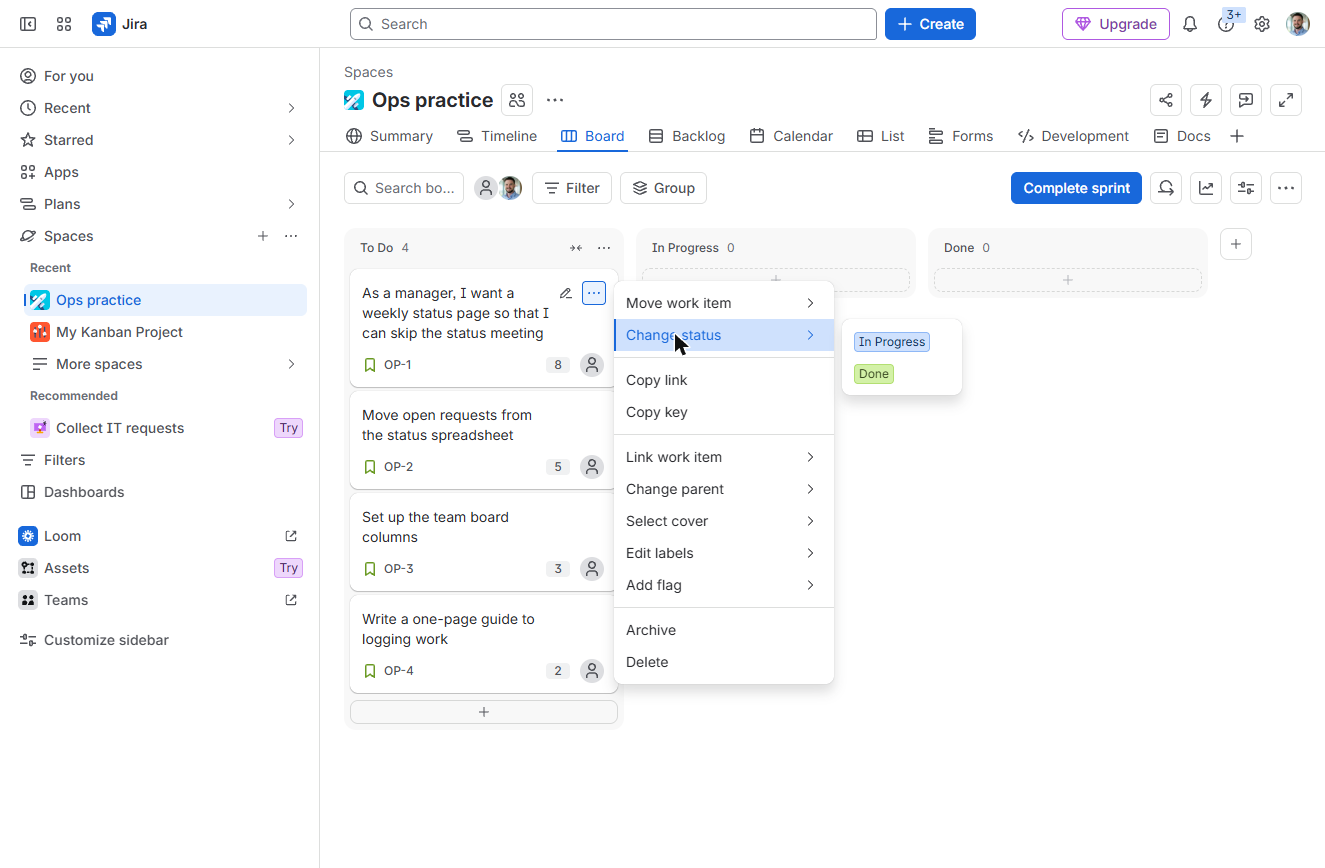
- Change status. Click Change status.
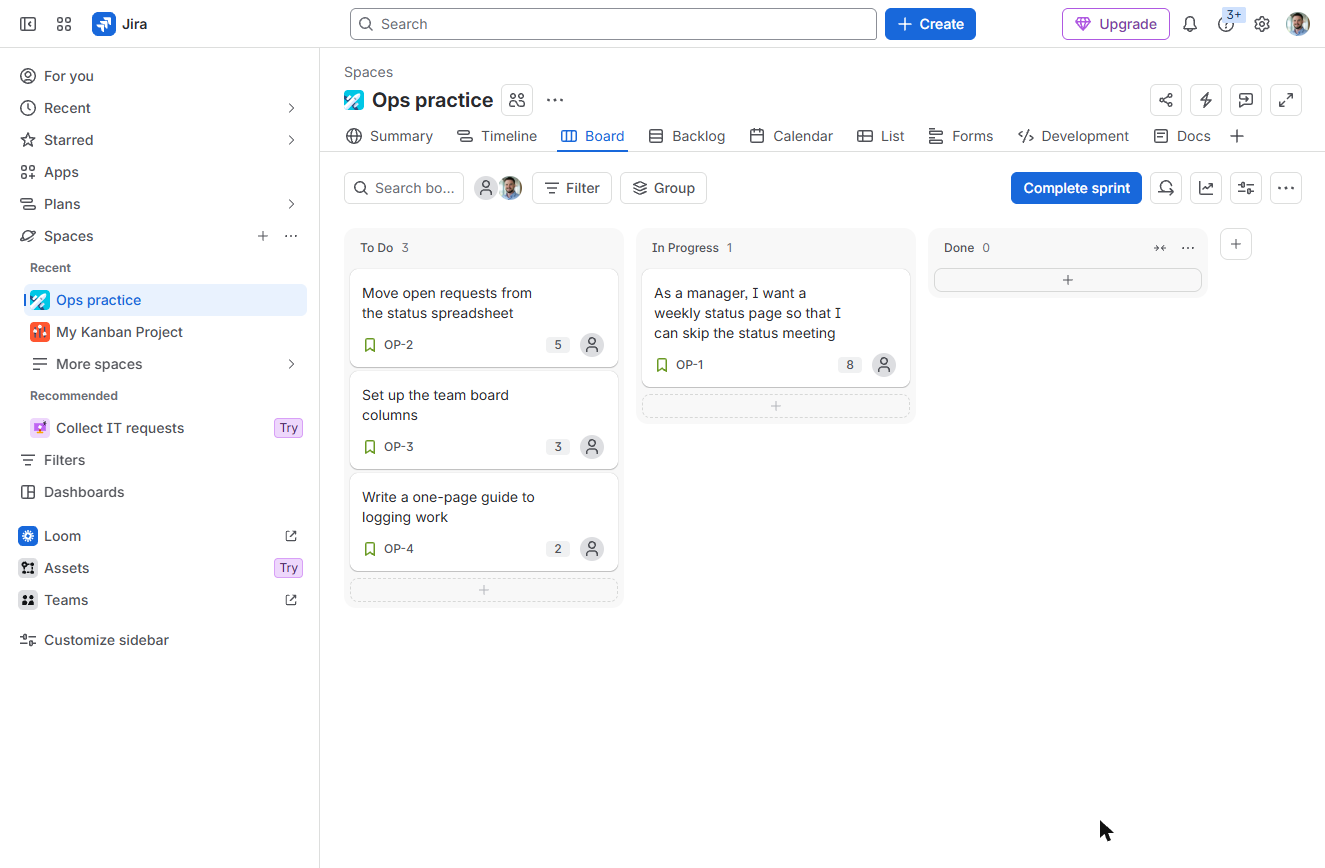
- In Progress. Click In Progress.
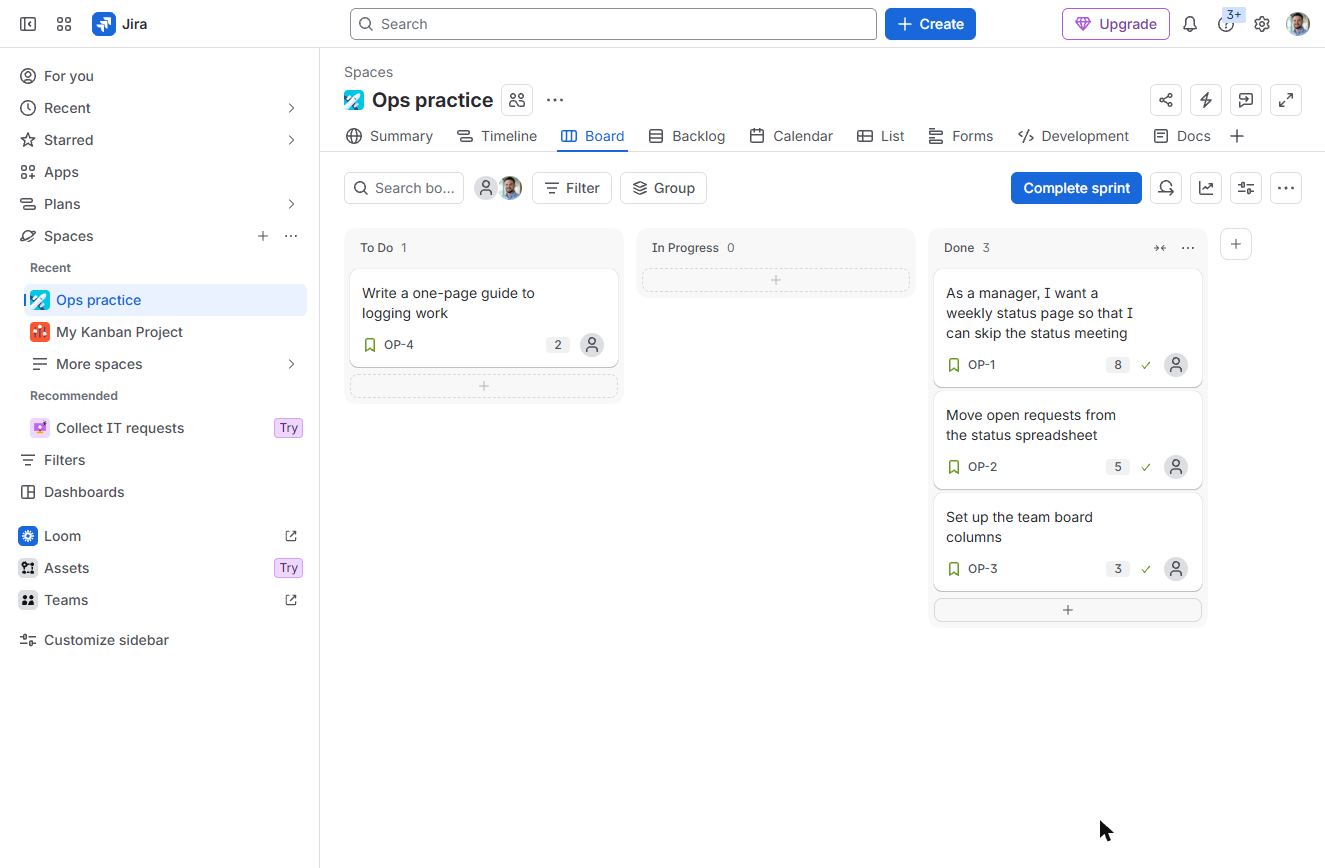
- Finish three of them. OP-1 is in progress. A work item only counts as complete in the board’s last column. Move OP-1, OP-2 and OP-3 to Done; leave OP-4 unfinished. Click the OP-1 card.
Only the last column counts as done. Move three cards to Done, and leave the last one.
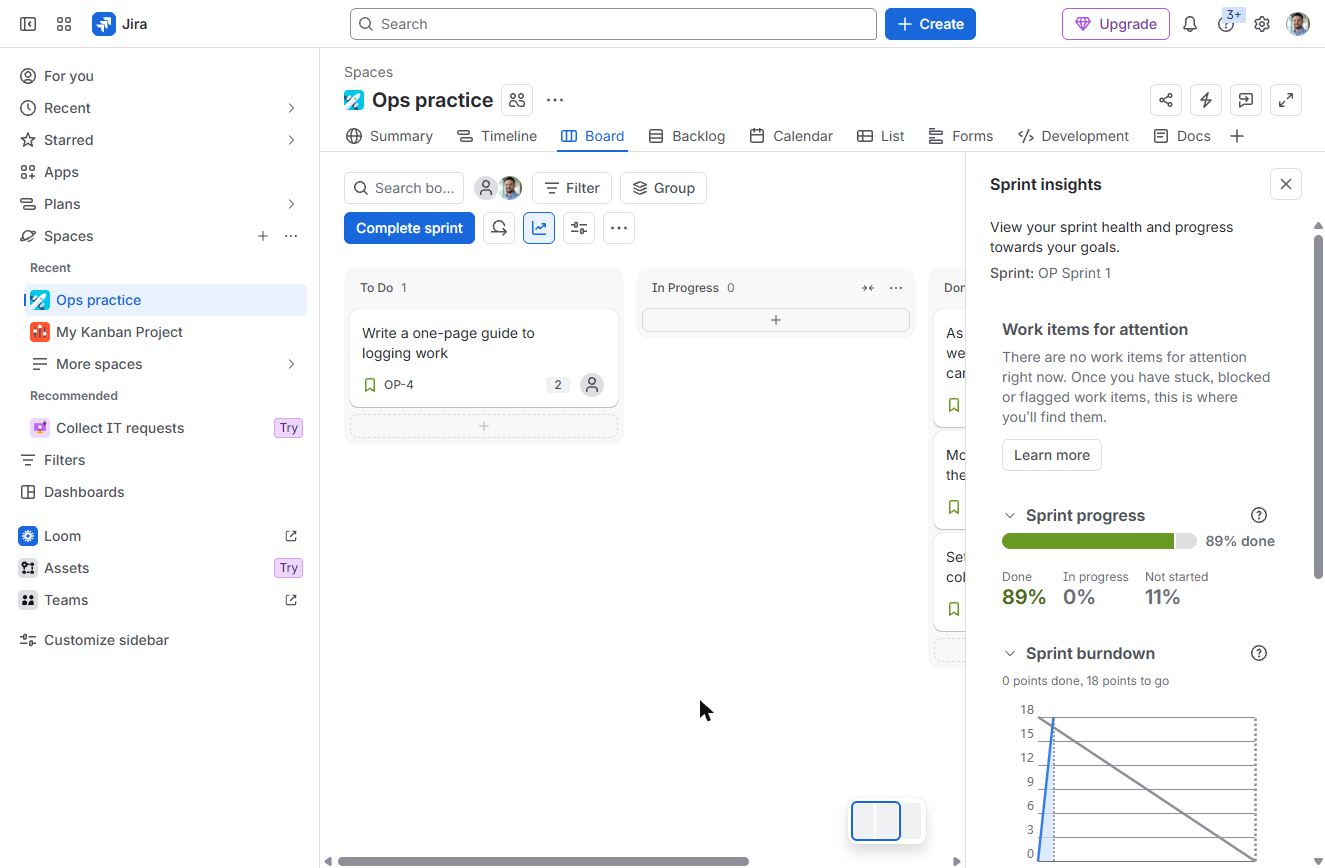
- Check the burndown. Three cards are Done, OP-4 is still in To Do. Click the Sprint insights chart button.
5. Complete the sprint
- Complete sprint. Sprint progress: 89% done, 16 of 18 points, and the Sprint burndown: the grey ideal line falls 1.8 points a day over 10 working days. On the last day, click Complete sprint.
Eighty-nine percent done. Sixteen of eighteen points.
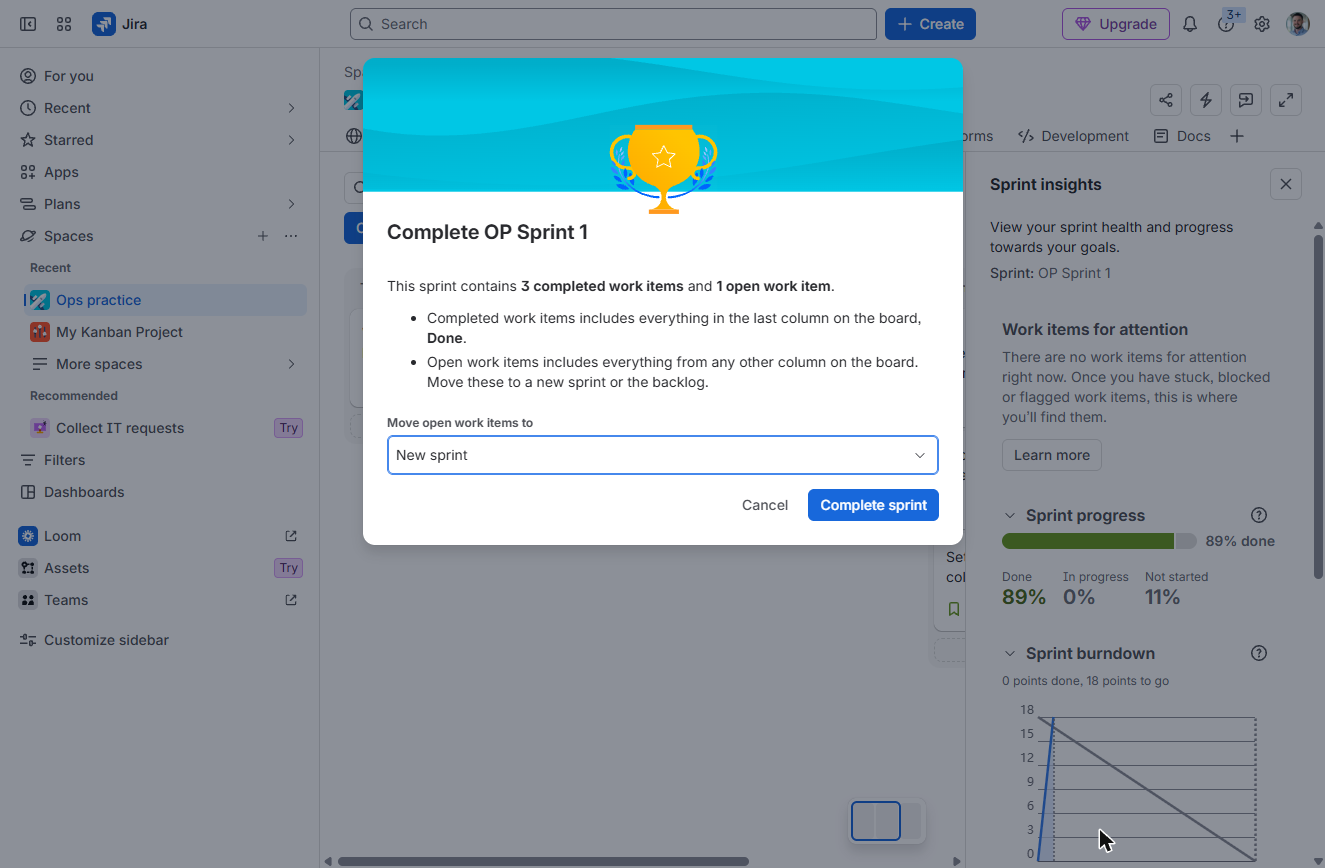
- Where open work goes. "This sprint contains 3 completed work items and 1 open work item." Open the Move open work items to list.
Three done, one open.
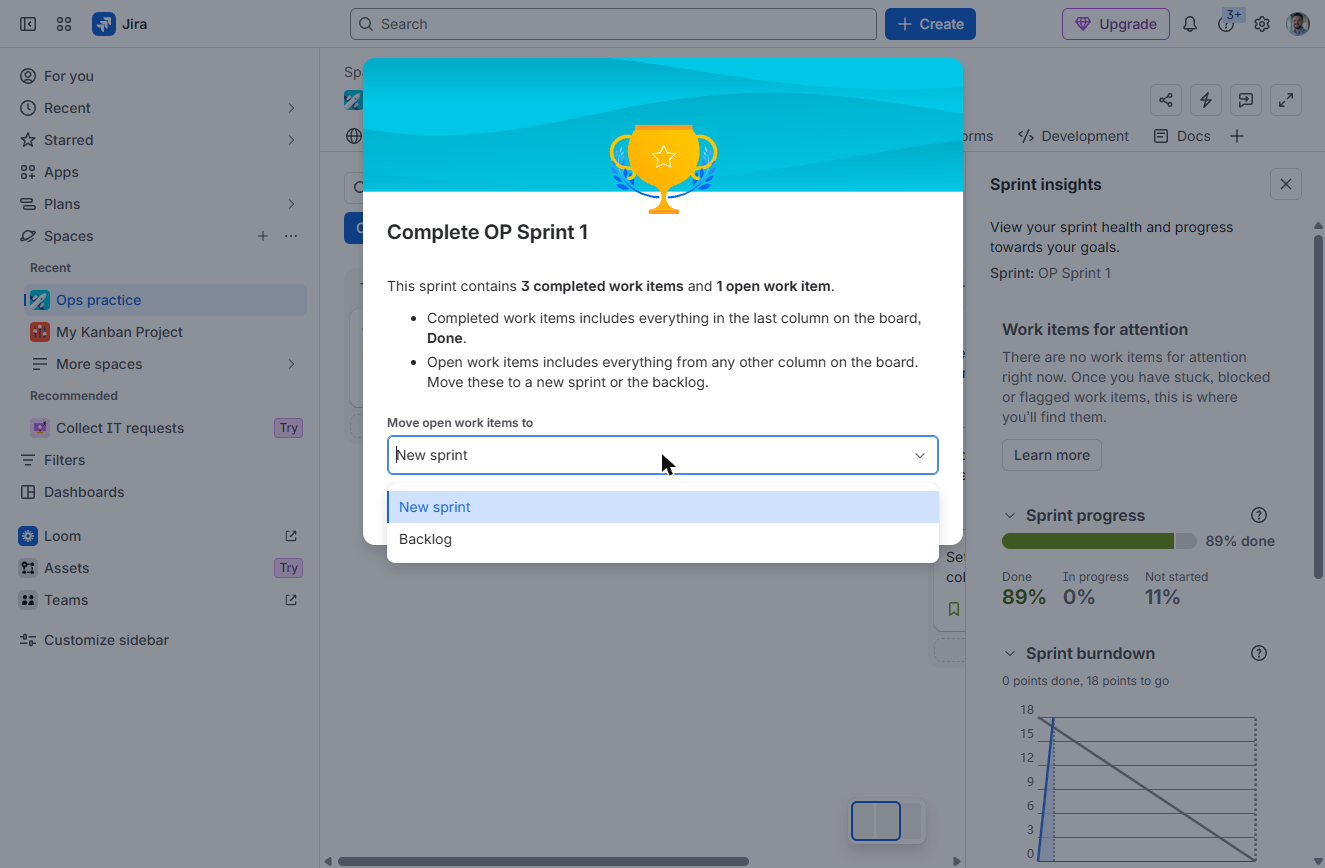
- New sprint. Pick New sprint (or Backlog). Anything still important belongs in the next sprint.
Pick New sprint.
- Complete it. Click Complete sprint.
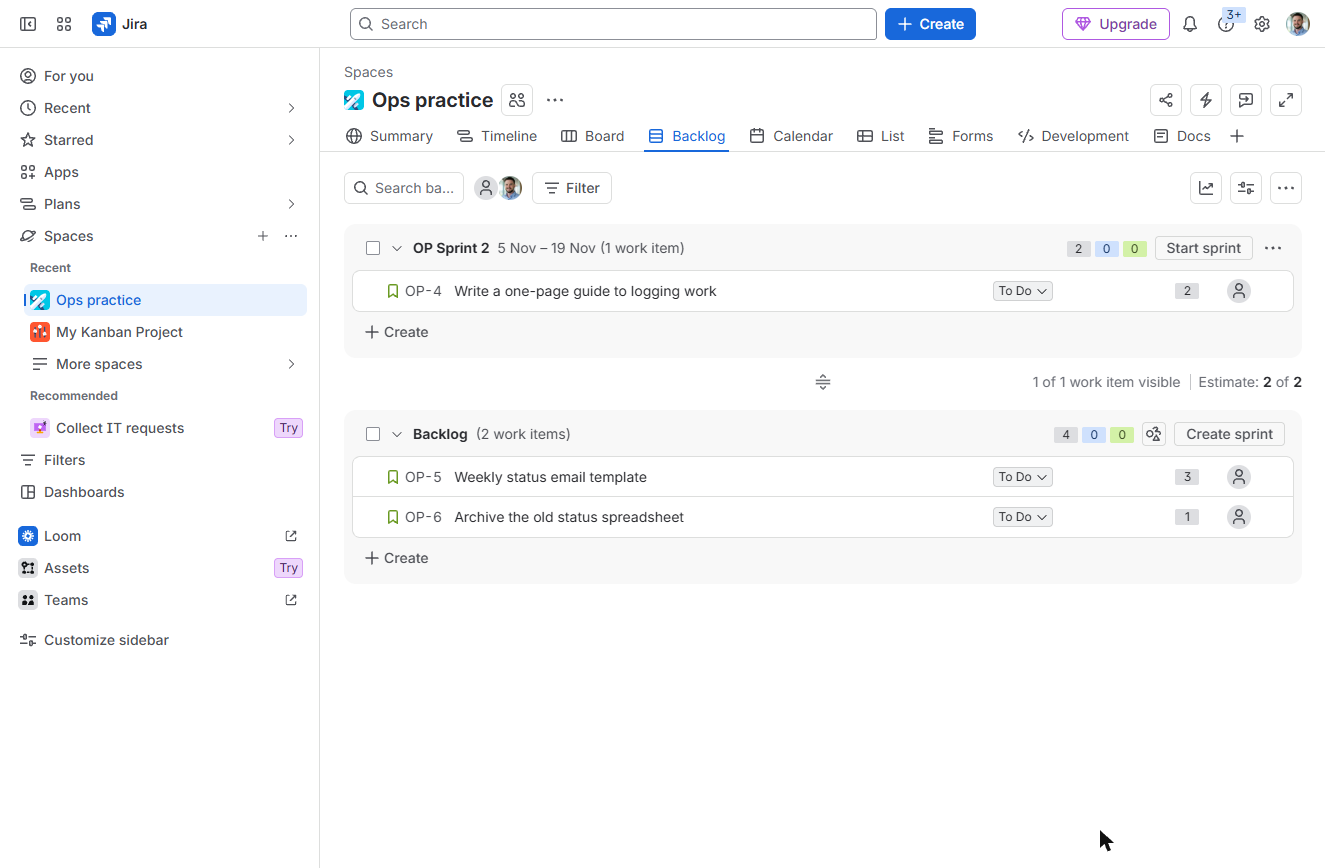
- Plan sprint 2. OP-4 rolled into OP Sprint 2 automatically. 16 points is your first velocity: plan sprint 2 around it, after a short retrospective.
The unfinished item rolled into sprint two. Sixteen points is your first velocity.
Screenshots
More in Project management
 Trello: Track Client Onboarding on One Team Board
A beginner Trello walkthrough on real screens: put every new-client task on one board with lists for each stage, cards for each task, an Urgent label and a due date, so…
Free · Live ~10 min Beginner
 Trello: Mark Work Complete Automatically with a Free Rule
A beginner Trello automation on real screens: one free rule that marks every card complete the moment it reaches Done, so the board stays true without anyone tidying…
Free · Live ~7 min Beginner
All 4 modules in Project management
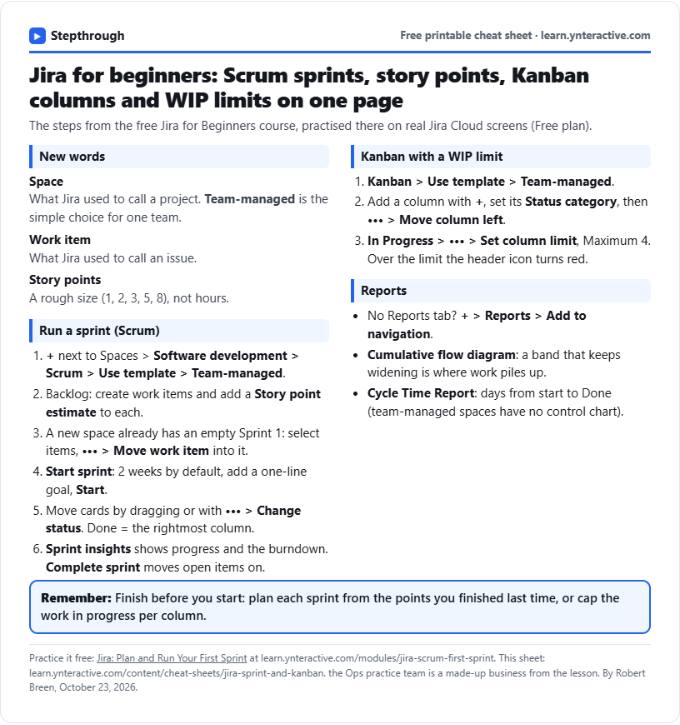
Free cheat sheet
Print it or save the PDF: the key steps and checks from this lesson on one page, free.
All free printable cheat sheets
Terms in this lesson
Plain-English definitions, each with an example from a free lesson.