Updated . Built against the tool’s current screens and checked step by step. How we check this lesson
A small business records a 5-minute webinar or tips video, then needs short clips for TikTok, Reels, Shorts and LinkedIn. Cutting them by hand takes hours. Opus Clip (opus.pro) finds the best moments, adds captions, makes the clips vertical and ranks them with a virality score. In this free business-case lesson you use a practice copy built from real Opus Clip screenshots, captured October 2026 in my free account with my own AI tips video: upload the video, tell Opus Clip which moments to look for, pick a caption style and 9:16, then read the 12 ranked clips and check the top one before you post. Clips and scores differ per video. This is my own lesson, not an official Opus Clip course.
At a glance
| Question | Answer |
|---|---|
| What you build | A business case for any small team that records webinars or tips videos: upload one video, tell Opus Clip what to look for, pick captions and 9:16, and get ranked, captioned vertical clips in minutes, then check each one before you post. |
| Tools | Opus Clip |
| Time | About 10 minutes, 24 steps in 7 parts |
| Level | Beginner, no coding needed |
| Cost | Free |
| Ways to learn it | Practice it step by step |
The 7 parts, in short
- One video, a week of shorts: Start with one video, Compare the time, Meet Opus Clip.
- Upload your video: Check your credits, Click Upload, Read the credit cost, Tell it what to look for.
- Pick captions and shape: Pick a caption style, Choose 9:16, Click Get clips in 1 click.
- Let it find the clips: Watch it process, See the credits used, Open the project.
- Read the ranked clips: See what it found, Read the Auto headline note, Read the virality score, Find the buttons, and 2 more steps.
- Check a clip before you post: Read the clip title, Read the scene analysis, Read the transcript.
- What it costs: What this gives you, Check the pricing.
Part of: AI for Marketing Teams (step 10 of 28)
Part of: AI Apps Worth Knowing (step 38 of 42)
Part of: AI Video & Audio for Marketing (step 3 of 8)
The business case: one video, a week of shorts
Most small businesses already have good video: a webinar, a client Q&A, a 5-minute tips video. Few people watch 5 minutes on a phone, though. Social feeds want short, captioned, vertical clips, and each one is a chance to be seen.
Here is the arithmetic, using example numbers you should replace with your own. Say a bookkeeping firm records a 5-minute "3 tax-season tips" video. By hand, watching it back, picking 4 or 5 moments, cutting each one, adding captions and turning it vertical takes about 2 hours. With Opus Clip, it is an upload, about 5 minutes of processing and about 20 minutes reviewing the clips, so about 25 minutes. That saves about 1.5 hours per video.
We ran Opus Clip on my own 4:55 AI tips video in October 2026. It returned 12 clips that matched our prompt, and the top one scored 99 out of 100. Your video will give different clips and scores.
Who this is for, and what you need
Owners, marketers and assistants who record webinars, tips or client videos and want social clips without a video editor. To follow along you need nothing: the lesson is a practice copy built from real screenshots. To do it for real you need an Opus Clip account and a video. The free plan is enough to try it.
A note on screens: these were captured in a narrow browser window, so Opus Clip shows its narrow layout. Editing a clip needs a desktop-width window, so the editor is not covered here.
Step 1: upload your video and check the credits
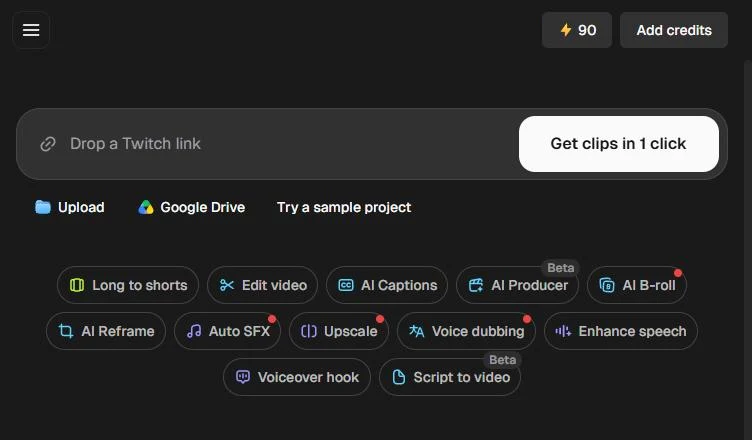
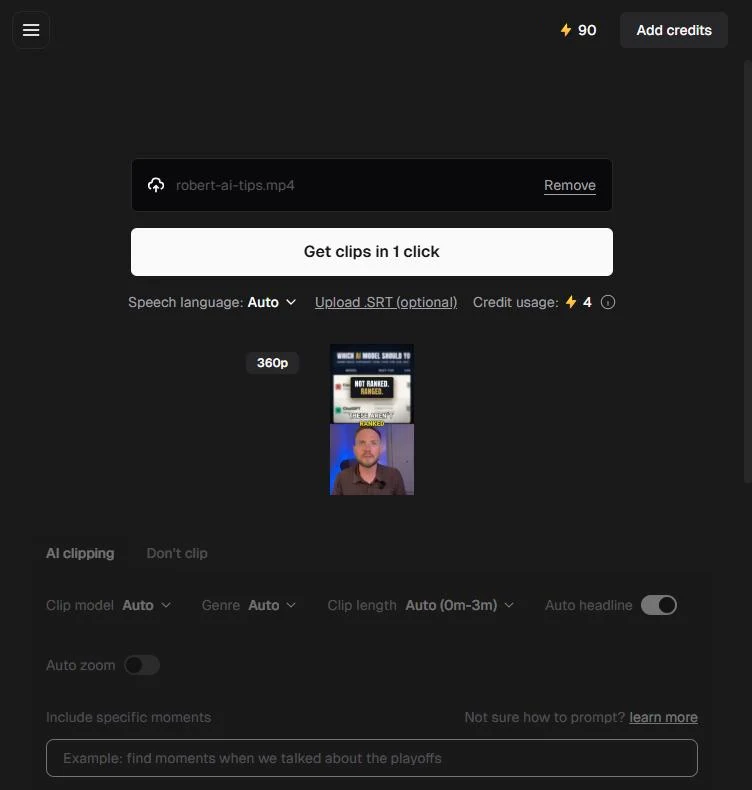
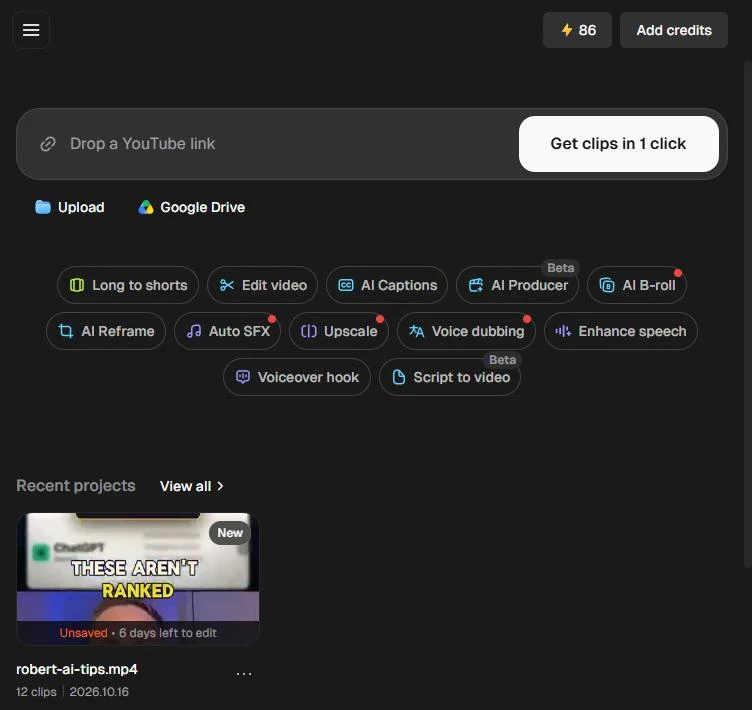
The Opus Clip dashboard shows your credits at the top right. My free account showed 90. You can paste a link, pick a file from Google Drive, or click Upload. After the upload, the screen shows the file name, a Get clips in 1 click button and Credit usage. Our 4:55 video cost 4 credits.
Step 2: tell it which moments to find
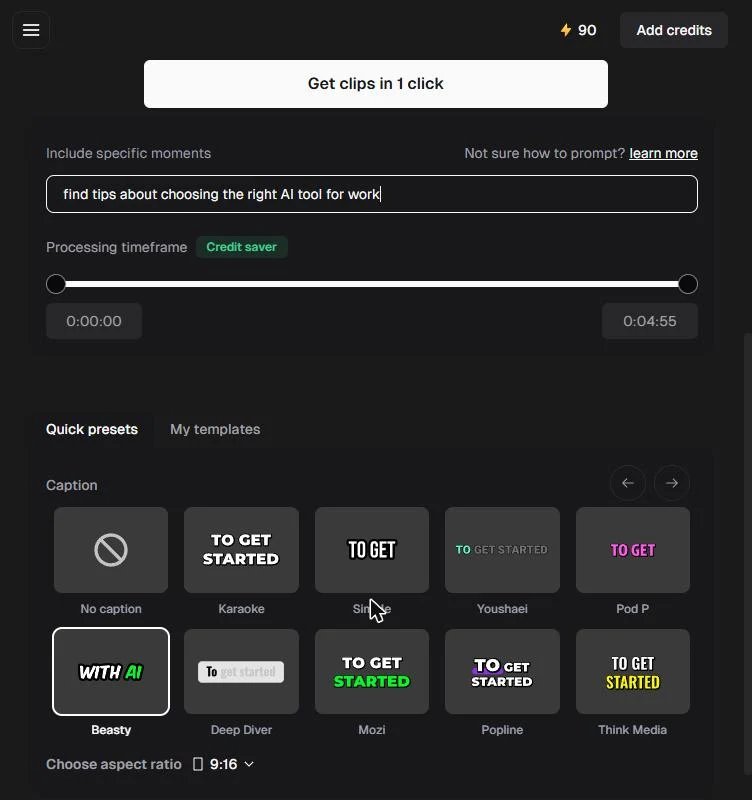
Include specific moments lets you tell the AI what you want. Leave it empty and Opus Clip picks for you. We typed "find tips about choosing the right AI tool for work". Processing timeframe lets you clip only part of the video, which the screen marks as a credit saver.
Step 3: pick captions and 9:16
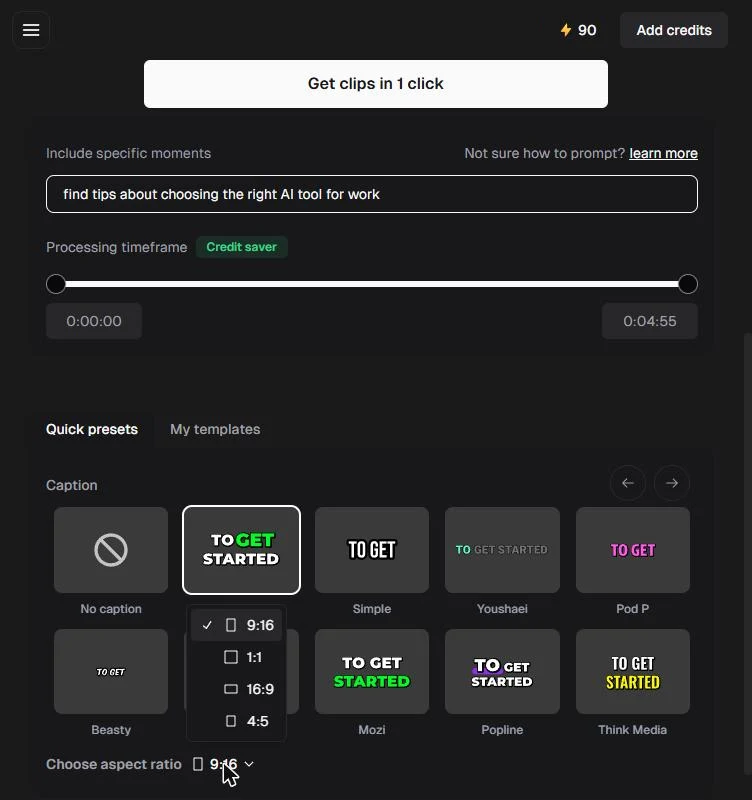
Under Quick presets, Caption shows the styles, such as No caption, Karaoke, Simple, Beasty and Mozi. We picked Karaoke, which highlights each word as it is spoken. Choose aspect ratio offers 9:16, 1:1, 16:9 and 4:5. 9:16 is the tall shape for TikTok, Reels and Shorts. Then click Get clips in 1 click.
Step 4: read the ranked clips
A note at the top says your project is processing, with a percentage and an estimate. Ours started at 4% with an ETA of 5 minutes, and the credits went from 90 to 86. When it finished, the project showed 12 clips.
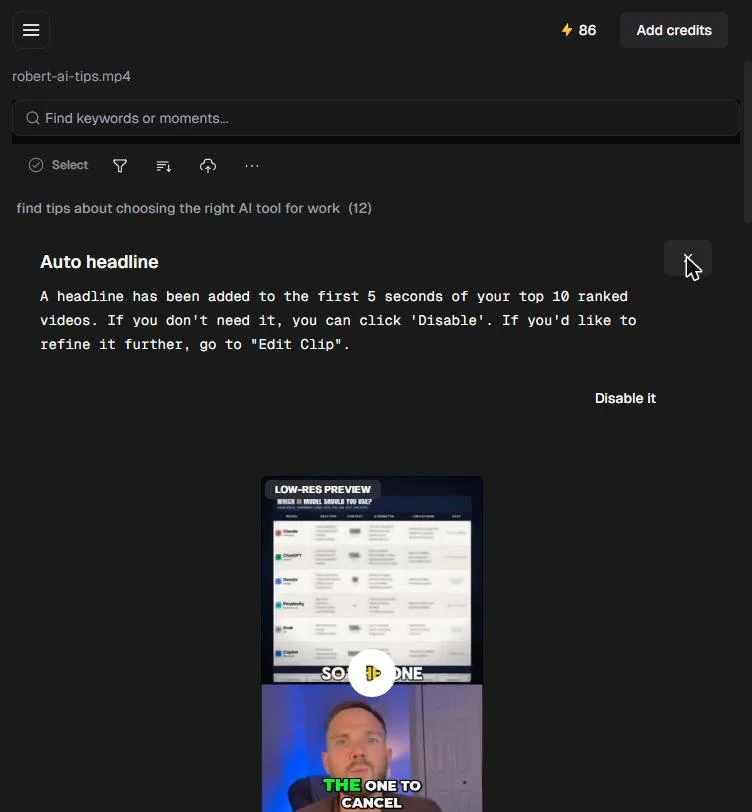
Inside, the list is headed by your prompt and the clip count. An Auto headline note says a headline was added to the first 5 seconds of the top 10 ranked clips, with a Disable it option. Clips are ranked best first, each with a score out of 100. Our top clip scored 99. The score is Opus Clip's guess, not a promise of views.
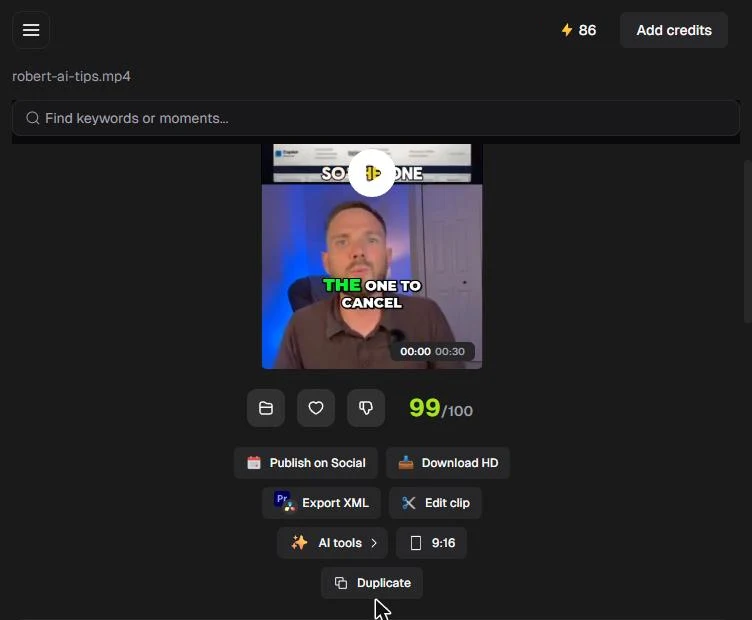
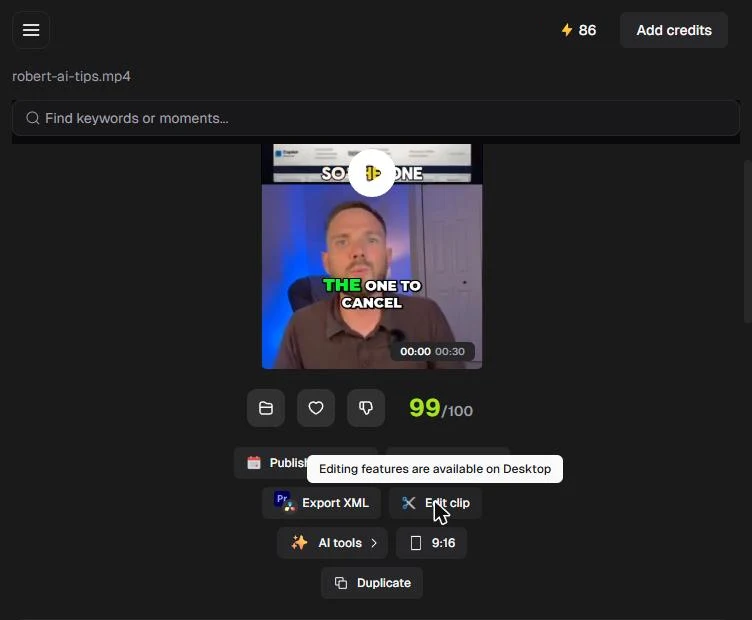
Under each clip are Publish on Social, Download HD, Export XML (for Premiere Pro), Edit clip, AI tools and the aspect ratio. In a narrow window, Edit clip says "Editing features are available on Desktop", so widen the window to edit.
Step 5: check a clip before you post
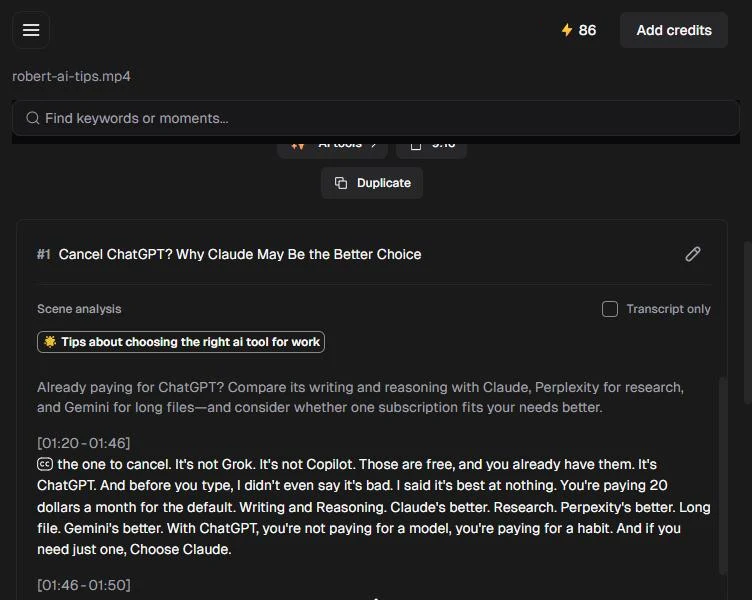
Each clip gets a title Opus Clip wrote, which you can change with the pencil. Ours was "Cancel ChatGPT? Why Claude May Be the Better Choice". Scene analysis tags the clip with your prompt and sums it up in one sentence. The transcript shows the words in the clip with the time in the video, 01:20 to 01:46 for ours. Read it to fix caption typos and to make sure the clip does not take a sentence out of context.
Mistakes to avoid
- Posting the top clip without watching it. The score is a guess, so check every clip yourself.
- Skipping the transcript. Auto captions can misspell names and products.
- Posting someone else's face or words without permission.
- Trying to edit in a narrow window. The editor needs a desktop-width browser window.
- Treating the example numbers in this lesson as yours. Time your own videos.
Links
- Opus Clip: the AI clipping tool this lesson teaches.
- Opus Clip pricing: current plans. Free is $0 with no credit card required, Starter is $15 a month, Pro is $29 a month and Business is custom; on Free, animated caption templates carry a watermark (read 17 October 2026).
Try it yourself, free
Reading the steps is a start. Doing them is how it sticks. The interactive module walks you through every click in a practice copy of Opus Clip, checks each step, and never touches your real accounts.
Start “Opus Clip: Turn One Video into Ranked Social Clips”Step by step: Opus Clip: Turn One Video into Ranked Social Clips
All 24 steps of the interactive module, in order. In the module you watch each one, then do it yourself in a practice copy that checks your work.
1. One video, a week of shorts
- Start with one video. Say a small firm, Brightline Bookkeeping, records a 5-minute "3 tax-season tips" video for its clients. The video is good, but nobody shares a 5-minute video. Social feeds want short, captioned, vertical clips. Click the video.
A small business records a five minute tips video. Social feeds want short, captioned, vertical clips.
- Compare the time. By hand: watch it back, pick 4 or 5 moments, cut each one, add captions and turn it vertical. That is about 2 hours. With Opus Clip: upload, about 5 minutes of processing, then about 20 minutes reviewing the clips, so about 25 minutes. That saves about 1.5 hours per video. These are example numbers, so time your own. Click the time saved.
By hand, that is about two hours of cutting. With Opus Clip, about twenty five minutes. Those are example numbers.
- Meet Opus Clip. Opus Clip (opus.pro) turns one long video into short clips, adds captions, makes them vertical, and ranks them with a virality score. The next screens are real screenshots of my free Opus Clip account, captured October 2026 in a narrow window. Click the Opus Clip card.
Opus Clip turns one video into ranked, captioned, vertical clips. Here are the real screens.
2. Upload your video
- Check your credits. This is the Opus Clip dashboard. The top right shows your credits. My free account showed 90. Processing a video uses credits, so check them before you start. Click the credits.
The top right shows your credits. My free account had ninety.
- Click Upload. You can paste a link, pick a file from Google Drive, or upload from your computer. Click Upload and choose your video. We uploaded robert-ai-tips.mp4, my own 4 minute 55 second AI tips video.
We used my own AI tips video.
- Read the credit cost. The file shows at the top, with Get clips in 1 click below it. Next to it, Credit usage says 4: this video costs 4 credits to process. Speech language is set to Auto. Click Credit usage.
Credit usage shows what this video will cost. Ours was four credits.
- Tell it what to look for. Further down, Include specific moments lets you tell the AI which parts you want. Leave it empty and Opus Clip picks for you. Type find tips about choosing the right AI tool for work in the box.
In Include specific moments, tell it what to look for. We typed: find tips about choosing the right AI tool for work.
3. Pick captions and shape
- Pick a caption style. Under Quick presets, Caption shows the styles: No caption, Karaoke, Simple, Beasty, Mozi and more. Karaoke highlights each word as it is spoken. Click Karaoke.
Pick a caption style. We chose Karaoke, which highlights each word as it is spoken.
- Choose 9:16. Choose aspect ratio opens a menu: 9:16, 1:1, 16:9 and 4:5. 9:16 is the tall shape for TikTok, Reels and Shorts. Click 9:16.
For TikTok, Reels and Shorts, choose nine by sixteen.
- Click Get clips in 1 click. That is all the setup. Scroll back up and click Get clips in 1 click.
4. Let it find the clips
- Watch it process. A note at the top says Your first project is currently processing, at 4% (ETA 5m). You can leave the page while it works. (A short welcome survey also opened, which we cropped out.) Click the note.
It starts processing. Ours said about five minutes.
- See the credits used. The credits went from 90 to 86, the 4 credits the upload screen promised. Click the credits.
The credits dropped from ninety to eighty six. That is the four credits it said.
- Open the project. Under Recent projects, robert-ai-tips.mp4 now shows 12 clips. Click the project.
When it is done, the project shows twelve clips.
5. Read the ranked clips
- See what it found. The list is headed by your prompt and a count: find tips about choosing the right AI tool for work (12). Twelve clips matched what we asked for. Your video will give different clips. Click the heading.
Twelve clips matched our prompt. Your video will give different clips.
- Read the Auto headline note. Auto headline says a headline was added to the first 5 seconds of your top 10 ranked clips. You can click Disable it, or change it later. Click the note.
Opus Clip also added a headline to the start of the top ten clips. You can turn that off.
- Read the virality score. Clips are ranked best first. Our top clip scored 99/100. The score is Opus Clip's guess at how well a clip could do, not a promise. Scores differ per video. Click the score.
Our top clip scored ninety nine out of a hundred. It is a guess, not a promise.
- Find the buttons. Under each clip: Publish on Social and Download HD, then Export XML, Edit clip, AI tools and 9:16. Download HD saves the clip, and Export XML is for editing it in Premiere Pro. We did not publish or download in this test. Click Publish on Social and Download HD.
Under each clip you can publish, download, export or edit it.
- Click Edit clip. Click Edit clip.
- Use a desktop-width window. In a narrow window, Opus Clip says Editing features are available on Desktop. The editor needs a desktop-width browser window, so this lesson skips the editor steps. Click the message.
In a narrow window, the editor will not open. Use a full width desktop window to edit.
6. Check a clip before you post
- Read the clip title. Scroll down. Clip #1 has a title Opus Clip wrote: Cancel ChatGPT? Why Claude May Be the Better Choice. The pencil lets you change it. Click the title.
Each clip gets a title. You can edit it with the pencil.
- Read the scene analysis. Scene analysis tags the clip Tips about choosing the right ai tool for work, your prompt, and sums it up in a sentence. Check that the summary matches what was really said. Click Scene analysis.
Scene analysis shows why it picked the clip, tied back to your prompt.
- Read the transcript. The transcript shows the words in the clip, with the time in the video: [01:20 - 01:46]. Read it before you post, to fix caption typos and to make sure the clip does not take a sentence out of context. Click the transcript.
Read the transcript before you post. Fix typos and make sure nothing is out of context.
7. What it costs
- What this gives you. Click What this gives you.
Here is what you get, and what we did not test.
- Check the pricing. On opus.pro/pricing (read 17 October 2026): Free is $0 with no credit card, Starter is $15 a month, Pro is $29 a month, and Business is custom. On Free, caption templates carry a watermark. My free account showed 90 credits, and this video used 4. Click the pricing card.
There is a free plan. Starter is fifteen dollars a month, and Pro is twenty nine. Check opus dot pro slash pricing.
Screenshots

Frequently asked questions
- Is this an official Opus Clip course?
- No. This is my own lesson. Opus Clip is a separate, third-party product from opus.pro, and the screens are real Opus Clip screenshots captured October 2026 in my free account, with my own video.
- What does Opus Clip cost?
- From opus.pro/pricing on 17 October 2026: Free is $0 with no credit card required, Starter is $15 a month, Pro is $29 a month and Business is custom. On Free, animated caption templates carry a watermark, and watermark-free export starts with Starter. My free account showed 90 credits, and processing a 4:55 video used 4. Check the page for current plans.
- Can I tell Opus Clip which moments to pick?
- Yes. Type what you want in Include specific moments before you click Get clips in 1 click, for example "find tips about choosing the right AI tool for work". Leave it empty and Opus Clip picks for you.
- Why can't I open the editor?
- In a narrow browser window, Edit clip shows "Editing features are available on Desktop". Make the window desktop-width and try again.
- Will my clips look like these?
- No. The 12 clips, the 99/100 score and the titles here come from my own video. Your video will get its own clips, titles and scores.
Terms in this lesson
Plain-English definitions, each with an example from a free lesson.