Updated . Built against the tool’s current screens and checked step by step. How we check this lesson
A beginner Google Sheets walkthrough on real screens: freeze the header, make Status a drop-down, total each status with SUMIF, highlight finished-but-unbilled jobs and save a filter view for each crew. Free Google account.
At a glance
| Question | Answer |
|---|---|
| What you build | A beginner Google Sheets walkthrough on real screens: freeze the header, make Status a drop-down, total each status with SUMIF, highlight finished-but-unbilled jobs and save a filter view for each crew. Free Google account. |
| Tools | Google Sheets |
| Time | About 15 minutes, 36 steps in 7 parts |
| Level | Beginner, no coding needed |
| Cost | Free |
| Ways to learn it | Practice it step by step |
The 7 parts, in short
- Name the sheet and add the jobs: Rename the spreadsheet, Name it Jobs, October, Paste the eight jobs.
- Freeze the header row: Select row 1, Open the View menu, Point at Freeze, Freeze 1 row.
- Make Status a drop-down: Use the Name box, Select D2:D100, Open the Data menu, Data validation, and 5 more steps.
- Totals by status with SUMIF: Label the totals, Type the SUMIF, Enter it and copy it down, Read the totals.
- Highlight done-but-not-billed: Select the job rows, Open the Format menu, Conditional formatting, Change the condition, and 5 more steps.
- A filter view for each crew: Open the Data menu again, Create filter view, Read the tip, Filter Crew, then save, and 1 more step.
- Share it safely: Open Share, Check general access.
What you'll build
Maria (made up) runs a six-person cleaning company. Jobs get finished every day, but invoices go out late because nobody can see which jobs are done and not billed. In this lesson you build her tracker in Google Sheets: eight jobs, a Status drop-down, SUMIF totals for each status, a yellow highlight on every job that is done but not invoiced, and a filter view for Crew A. Every screen is a real Google Sheets screen.
You froze the header, made Status a drop-down, totalled each status with SUMIF (Done: $435 finished but not billed), turned those rows yellow with a custom formula, saved a Crew A filter view and checked that sharing is Restricted. Now build it in your own Google account: the lesson page has the checklist.
- Tools: Google Sheets
- Time: about 15 minutes, 36 steps in 7 chapters
- Level: beginner, no coding needed
- Price: free
Practice first, then build it for real
Practice copy built from real Google Sheets screens (free Google account, captured 22 October 2026). Nothing here touches your Google account. The cleaning company and the jobs are made up. To build it for real you need your own Google Sheets account, and some services charge once you use them for real work, so check each tool's current pricing.
Try it yourself, free
Reading the steps is a start. Doing them is how it sticks. The interactive module walks you through every click in a practice copy of Google Sheets, checks each step, and never touches your real accounts.
Start “Google Sheets: Build a Job Tracker That Totals Itself”Step by step: Google Sheets: Build a Job Tracker That Totals Itself
All 36 steps of the interactive module, in order. In the module you watch each one, then do it yourself in a practice copy that checks your work.
1. Name the sheet and add the jobs
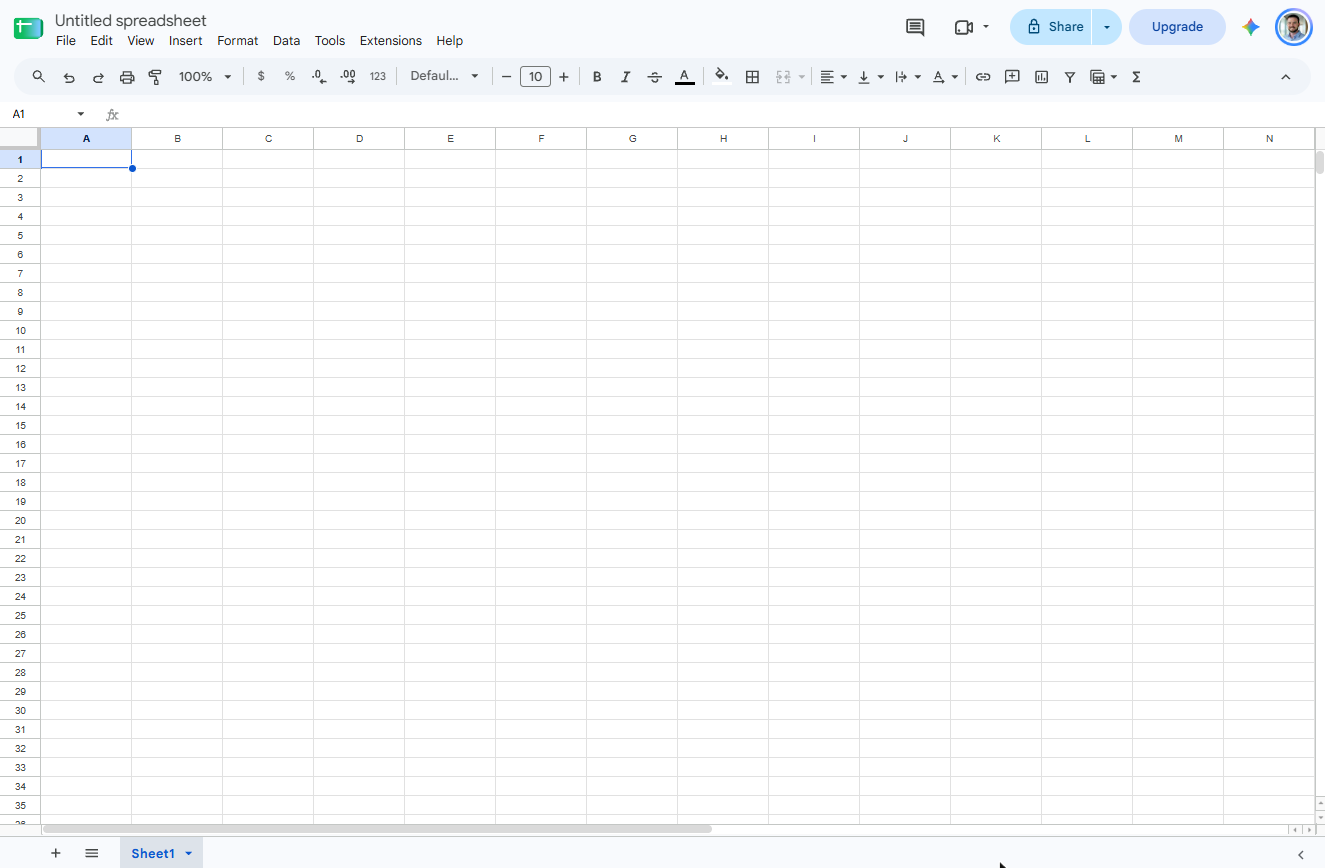
- Rename the spreadsheet. You opened a blank sheet (type sheets.new in the address bar). Sheets saves as you go, but "Untitled spreadsheet" is hard to find later. Click the title.
This is a new, blank Google Sheet.
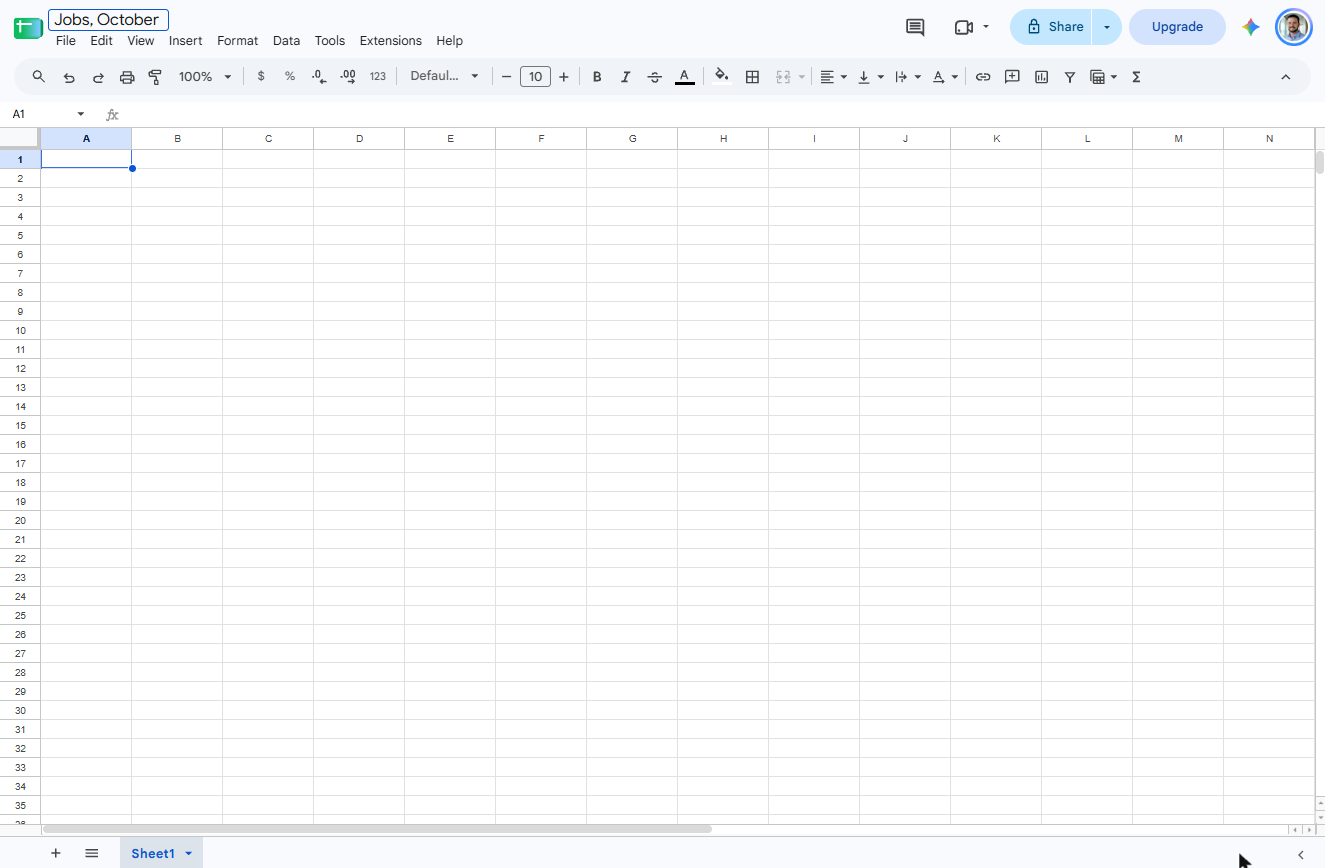
- Name it Jobs, October. Type Jobs, October and press Enter.
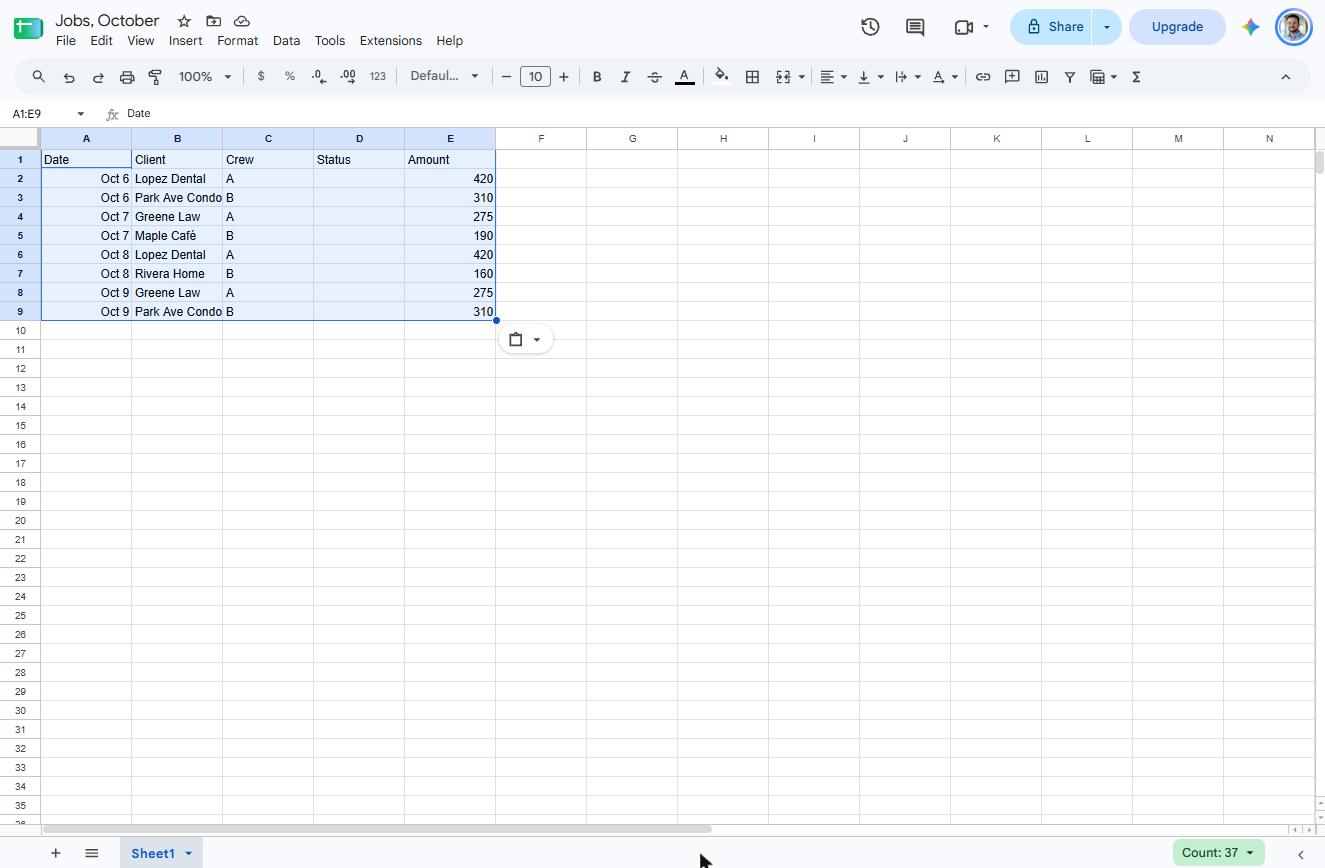
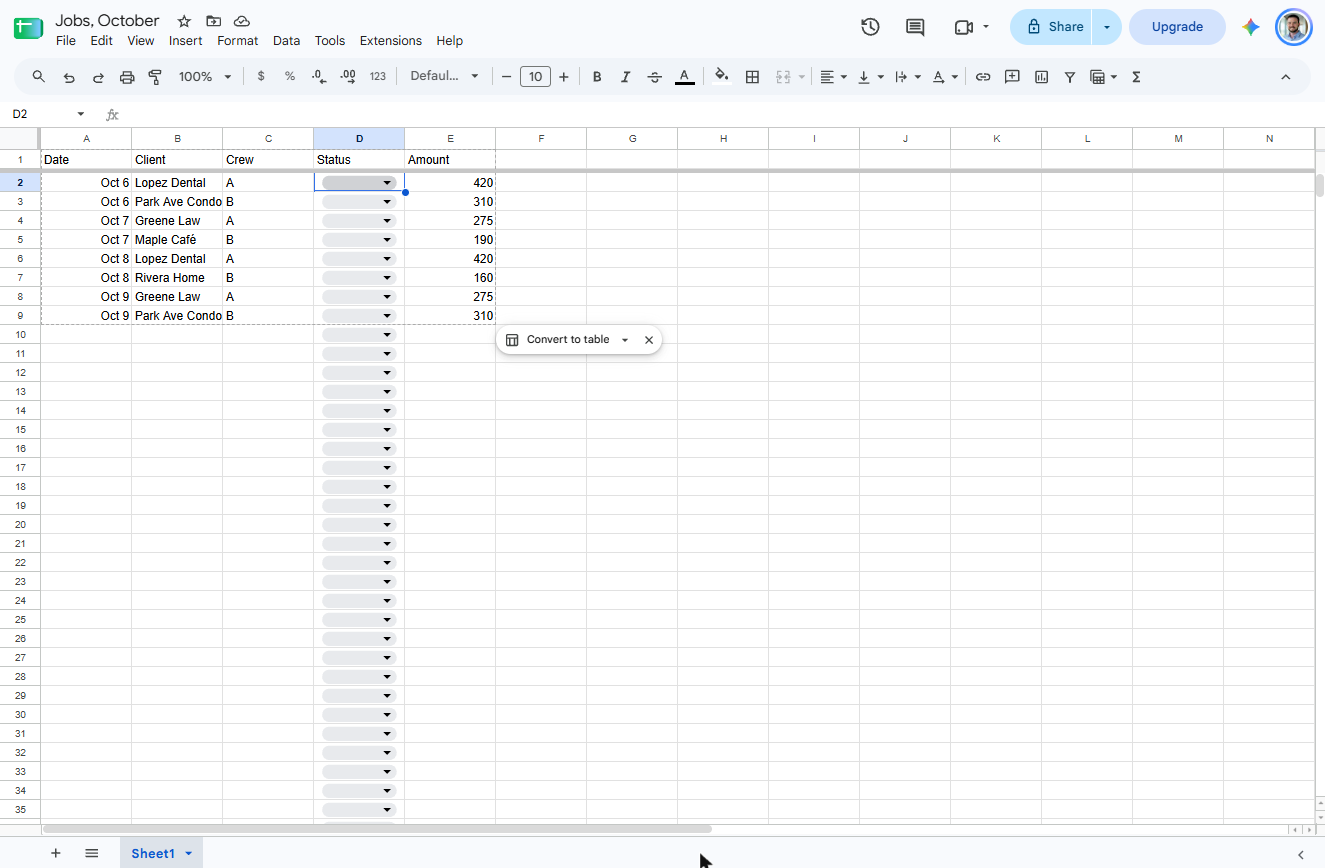
- Paste the eight jobs. Click cell A1 and paste the job list: headers in row 1, eight jobs in rows 2 to 9. Leave Status blank for now. Sheets splits the tab-separated text into columns.
Leave Status blank for now.
Date	Client	Crew	Status	Amount
Oct 6	Lopez Dental	A		420
Oct 6	Park Ave Condo	B		310
Oct 7	Greene Law	A		275
Oct 7	Maple Café	B		190
Oct 8	Lopez Dental	A		420
Oct 8	Rivera Home	B		160
Oct 9	Greene Law	A		275
Oct 9	Park Ave Condo	B		310
2. Freeze the header row
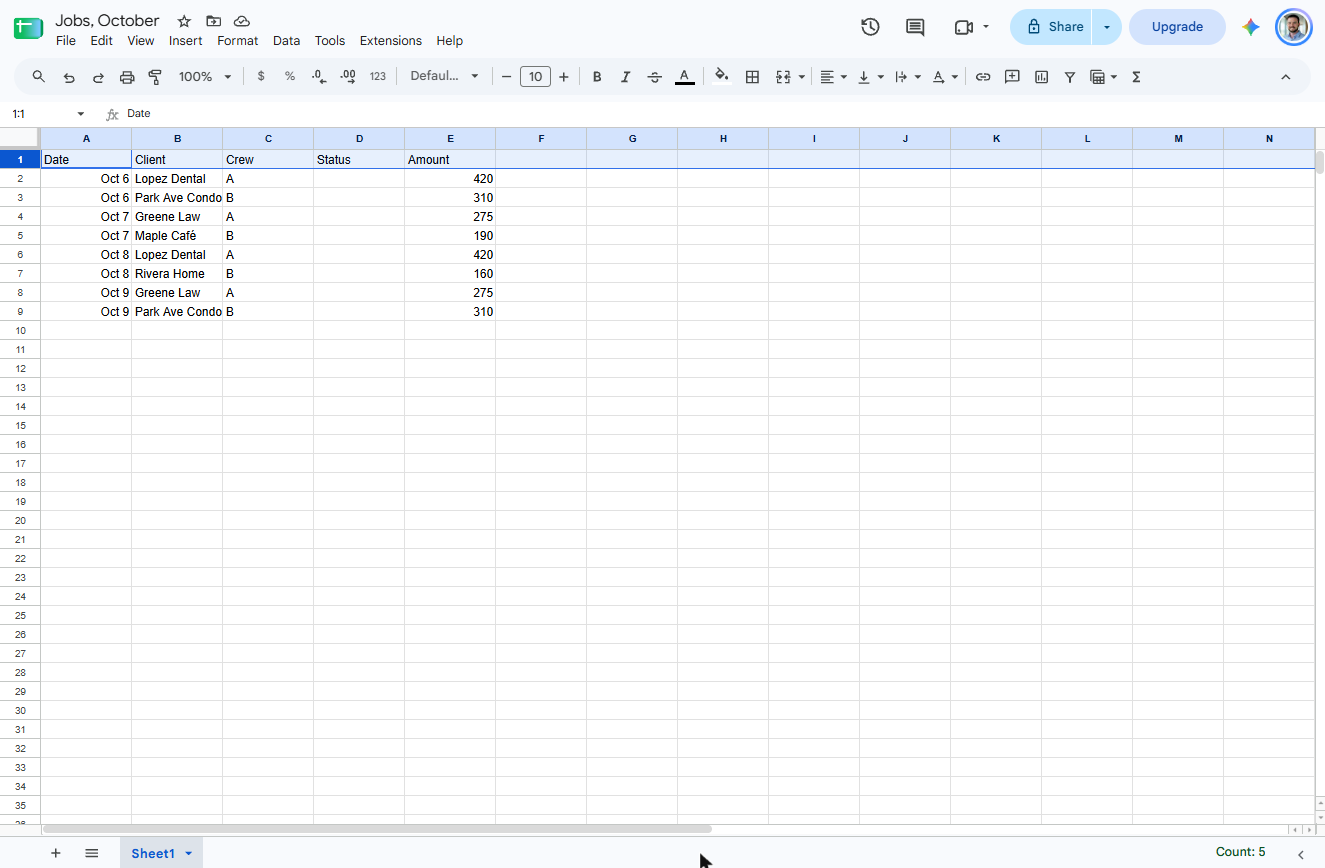
- Select row 1. Click the row number 1 to select the header row.
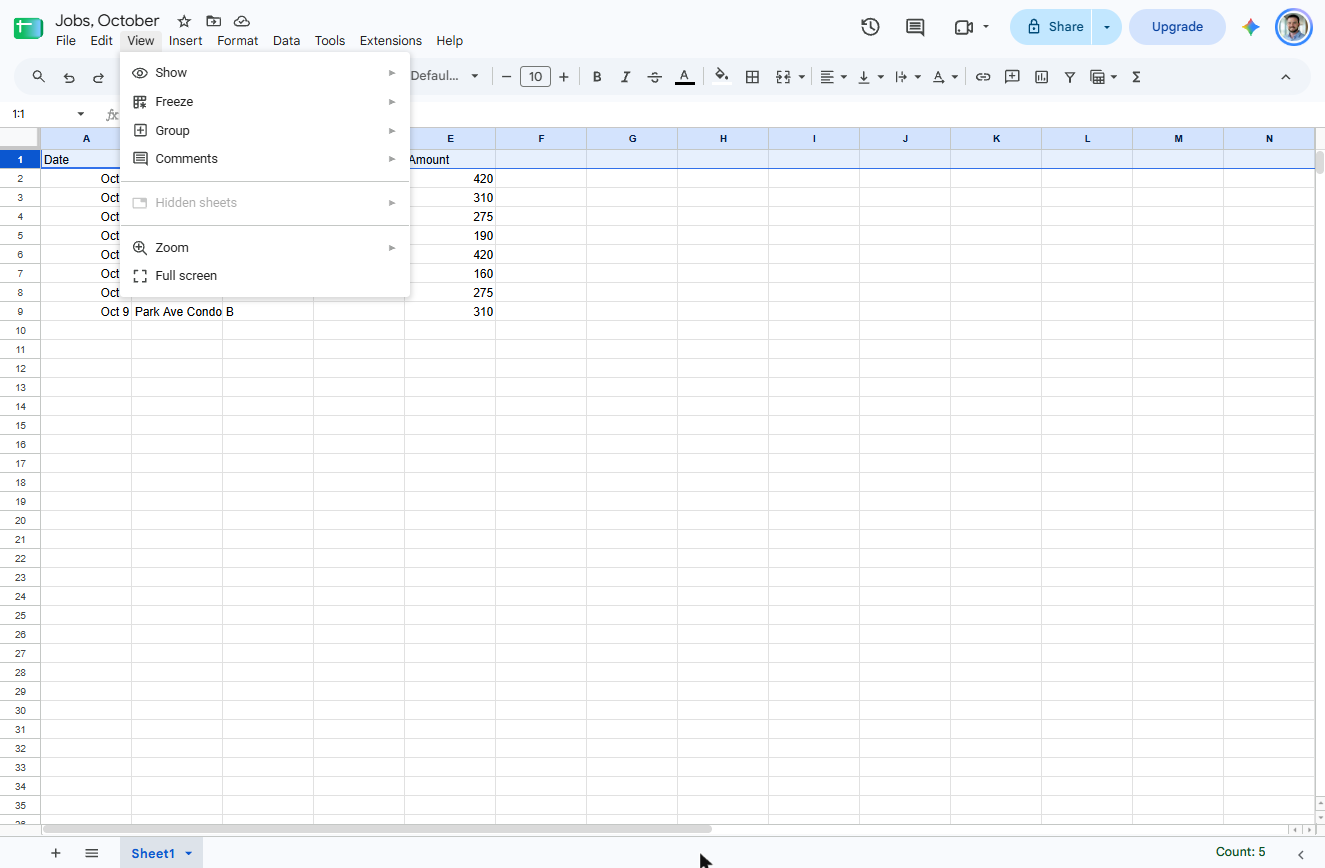
- Open the View menu. Click View.
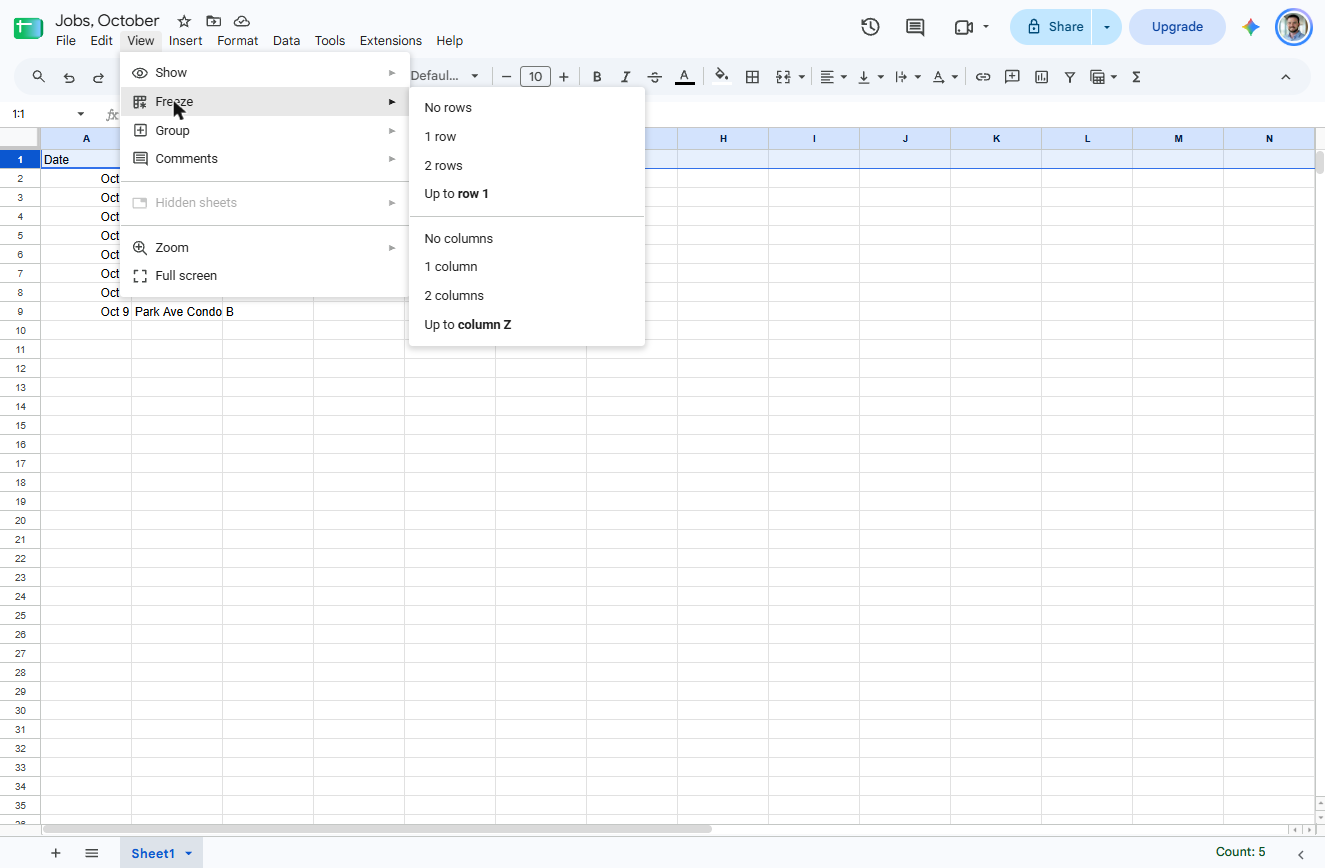
- Point at Freeze. Click Freeze.
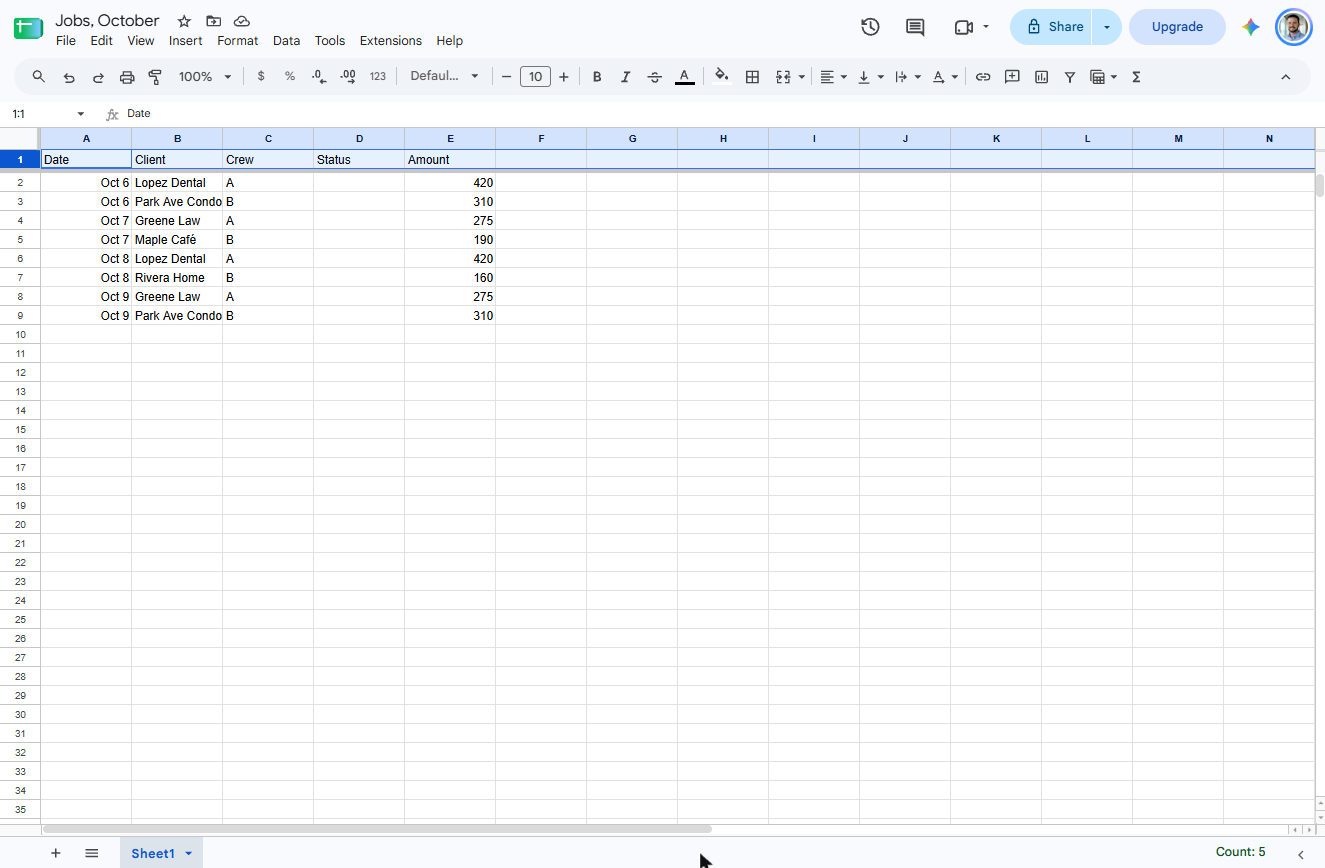
- Freeze 1 row. Click 1 row. A thick grey line now sits under the headers, and they stay put when you scroll.
The headers now stay put when you scroll.
3. Make Status a drop-down
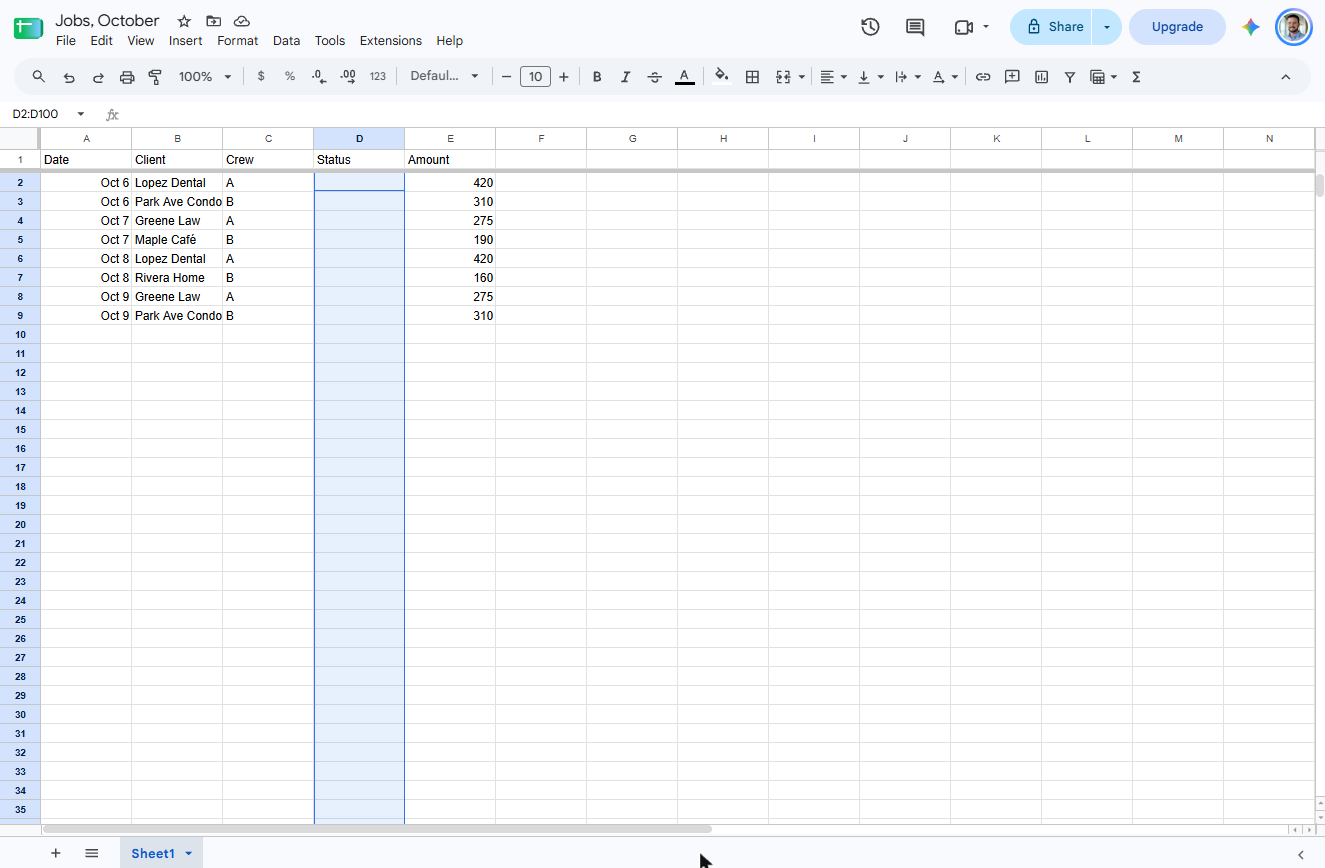
- Use the Name box. To select the Status cells under the header, click the Name box at the top left (it says 1:1).
- Select D2:D100. Type D2:D100 and press Enter. That selects the Status cells for up to 99 jobs.
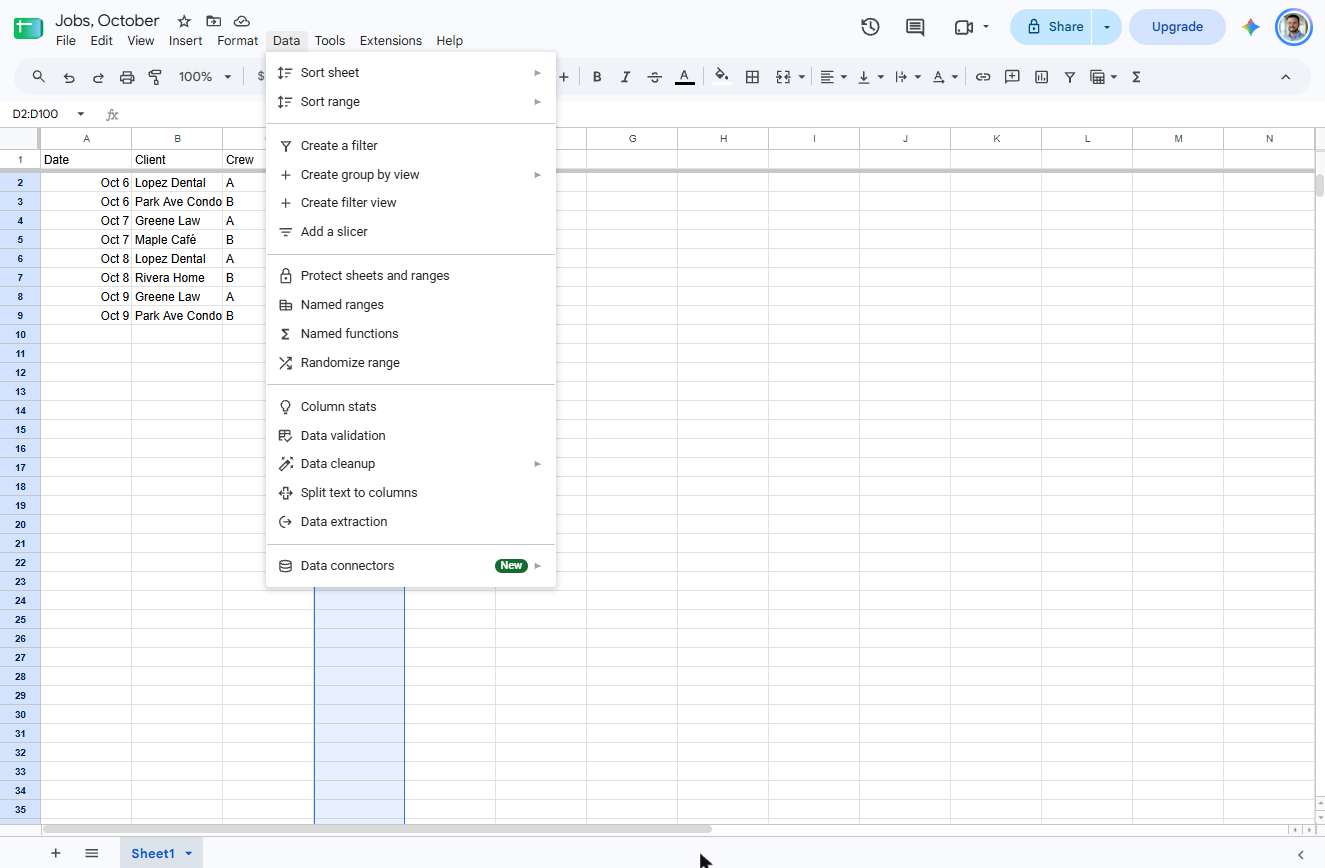
- Open the Data menu. Click Data.
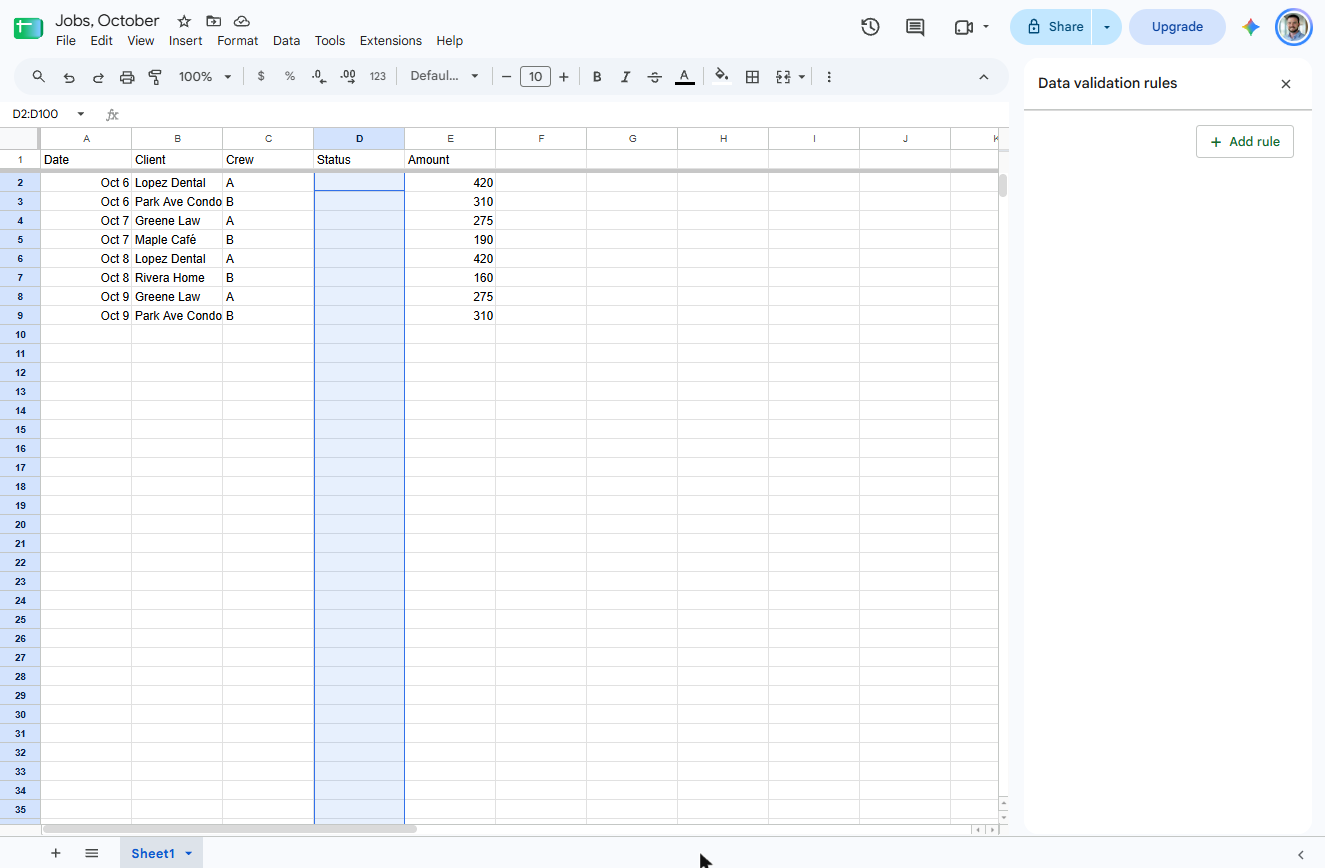
- Data validation. Click Data validation. A panel opens on the right.
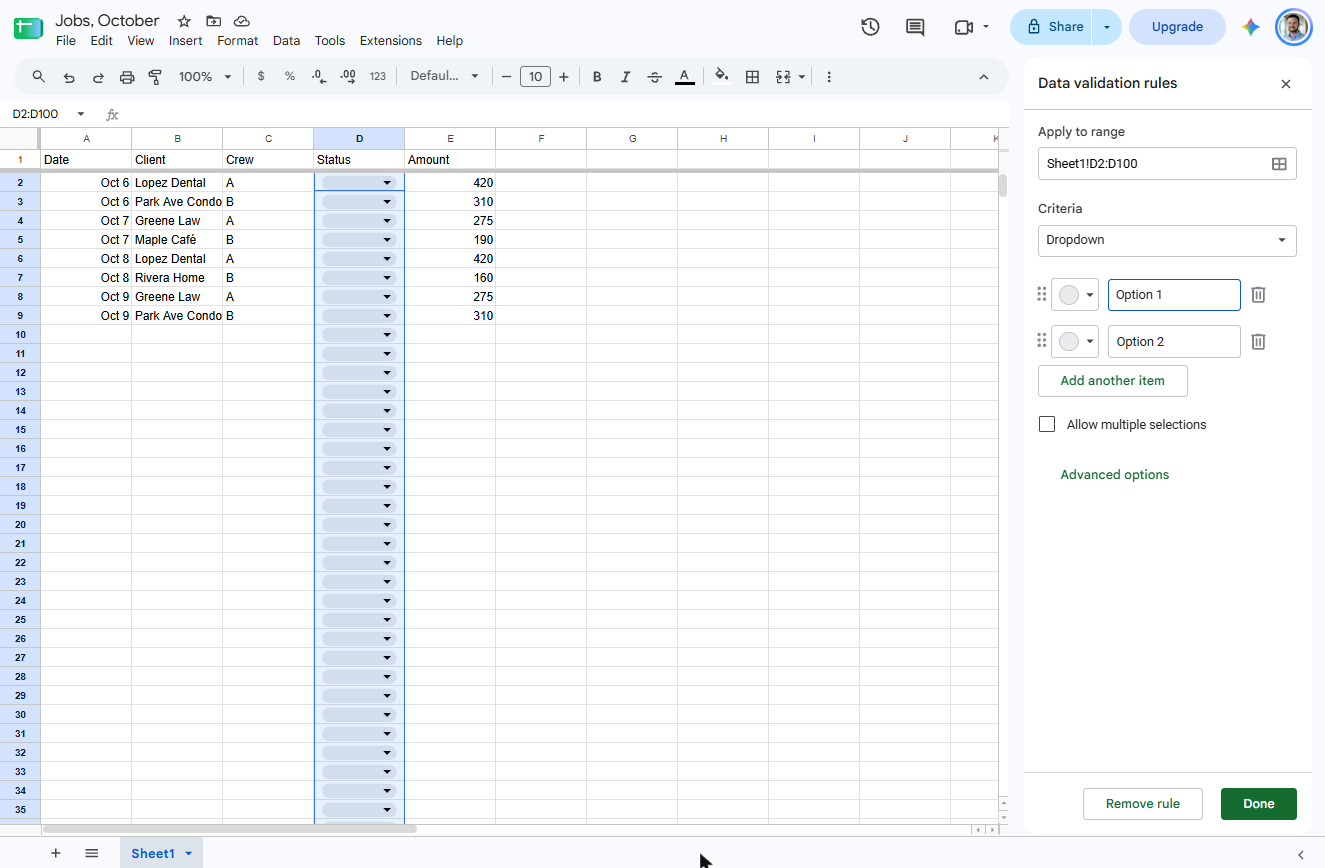
- Add a rule. Click + Add rule. It applies to Sheet1!D2:D100 and the criteria already say Dropdown.
The criteria already say Dropdown.
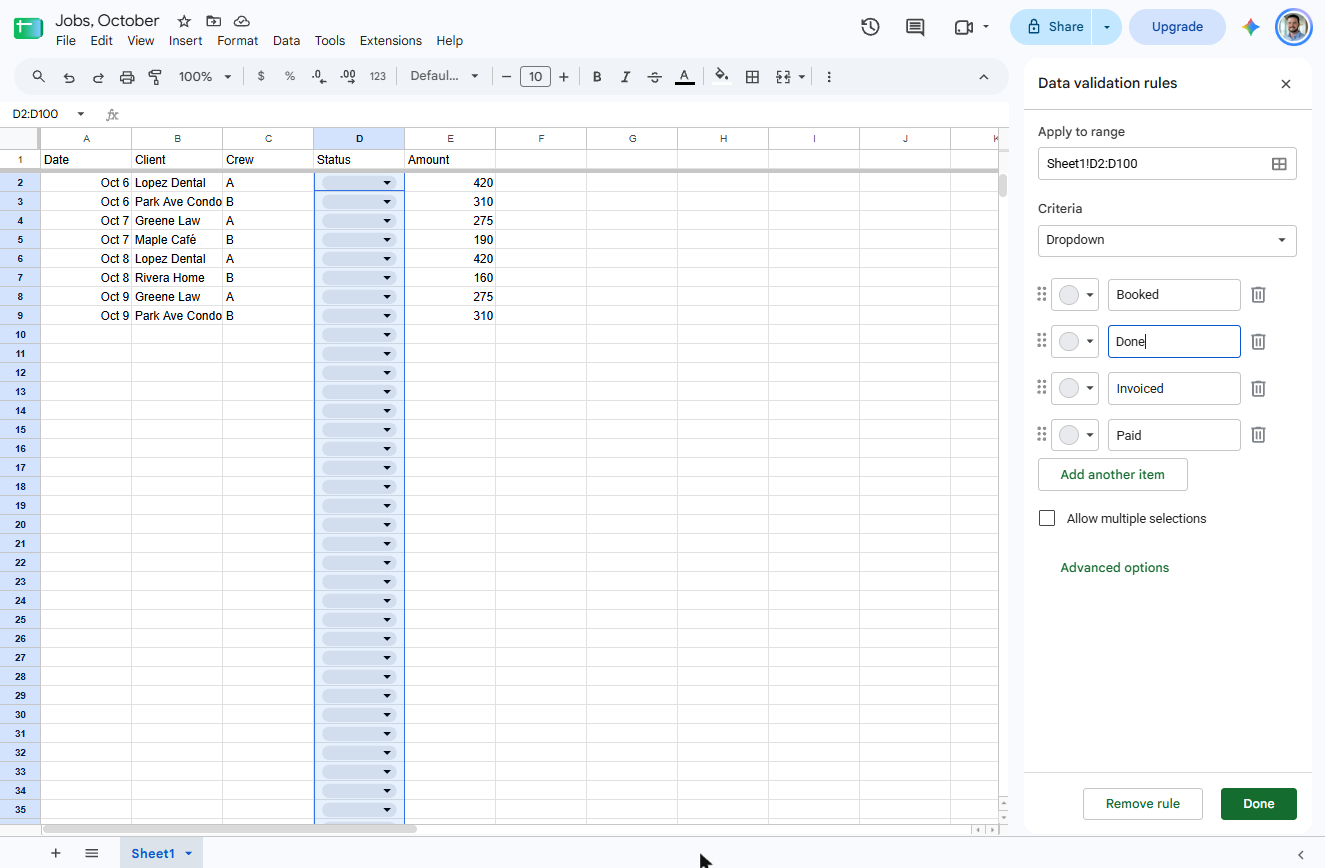
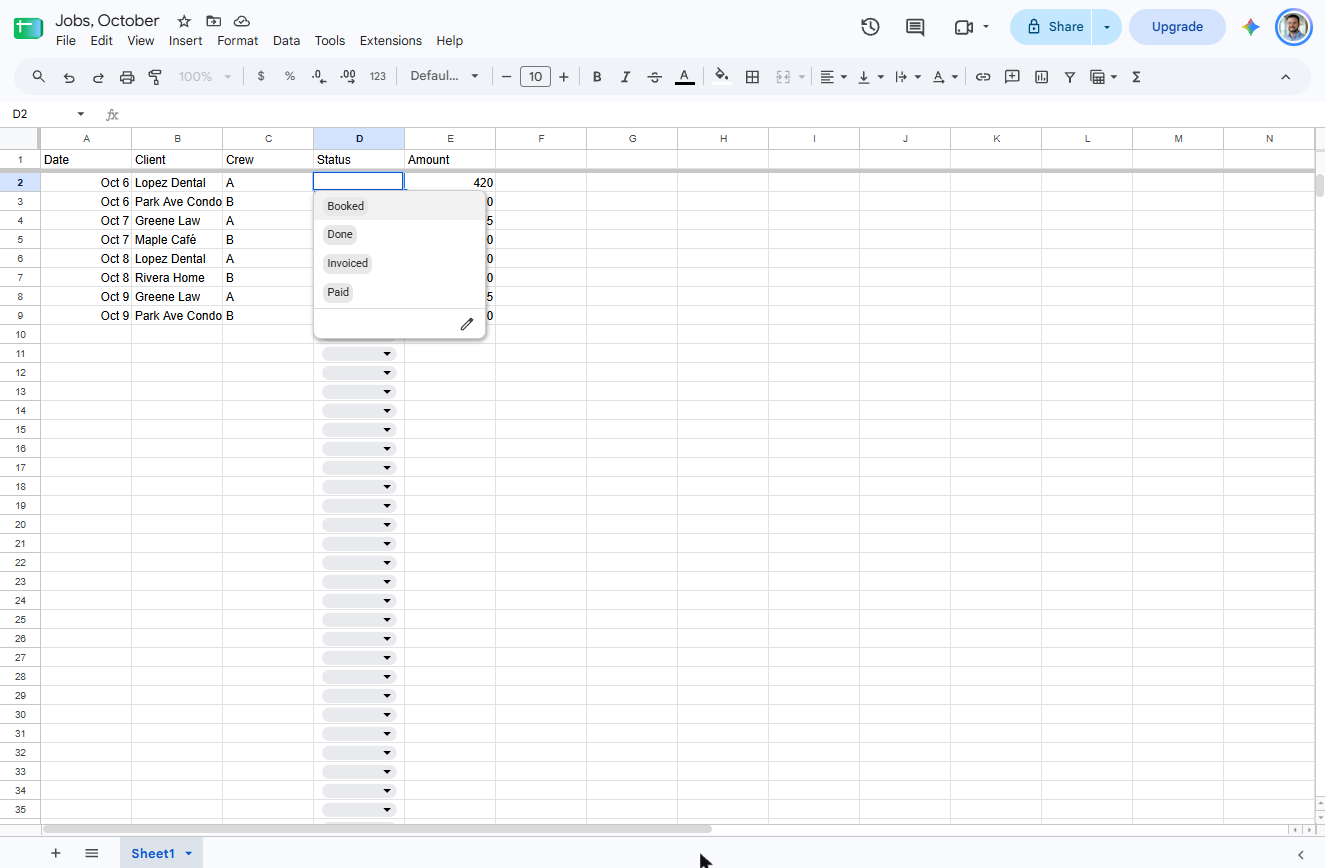
- Type the four options. The boxes say Option 1 and Option 2, and that is real text: select it before you type, or you get "Option 1Booked". Type Booked, then Done in the second box, then click Add another item for Invoiced and Paid.
Booked, Done, Invoiced and Paid.
- Save the rule. All four options are in. Click Done.
- Open a drop-down. Every Status cell now has a drop-down chip. Click the arrow in D2.
Every Status cell now has a drop-down.
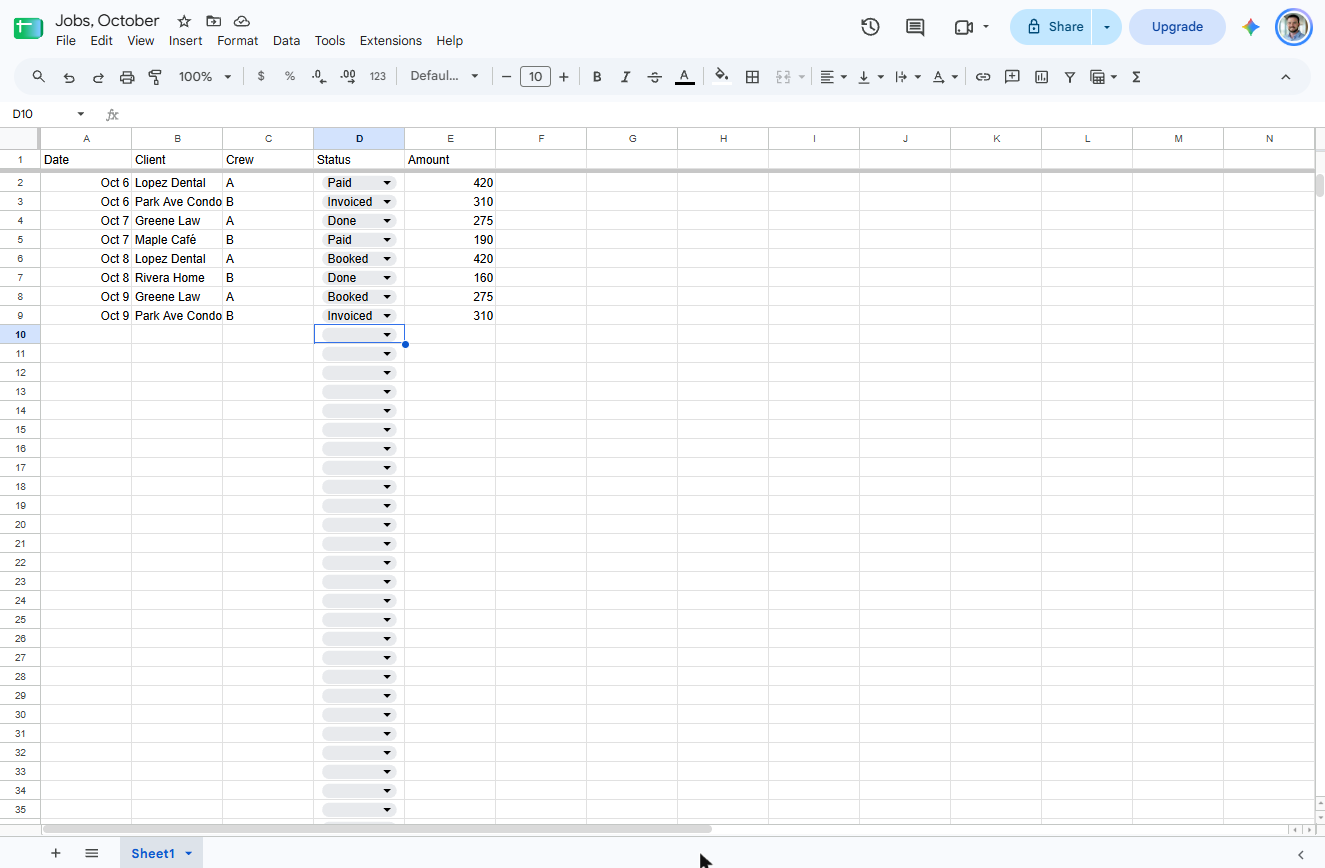
- Pick Paid. Lopez Dental on Oct 6 is paid. Click Paid. Then fill the rest the same way: Invoiced, Done, Paid, Booked, Done, Booked, Invoiced.
Pick Paid. Then fill in the rest the same way.
4. Totals by status with SUMIF
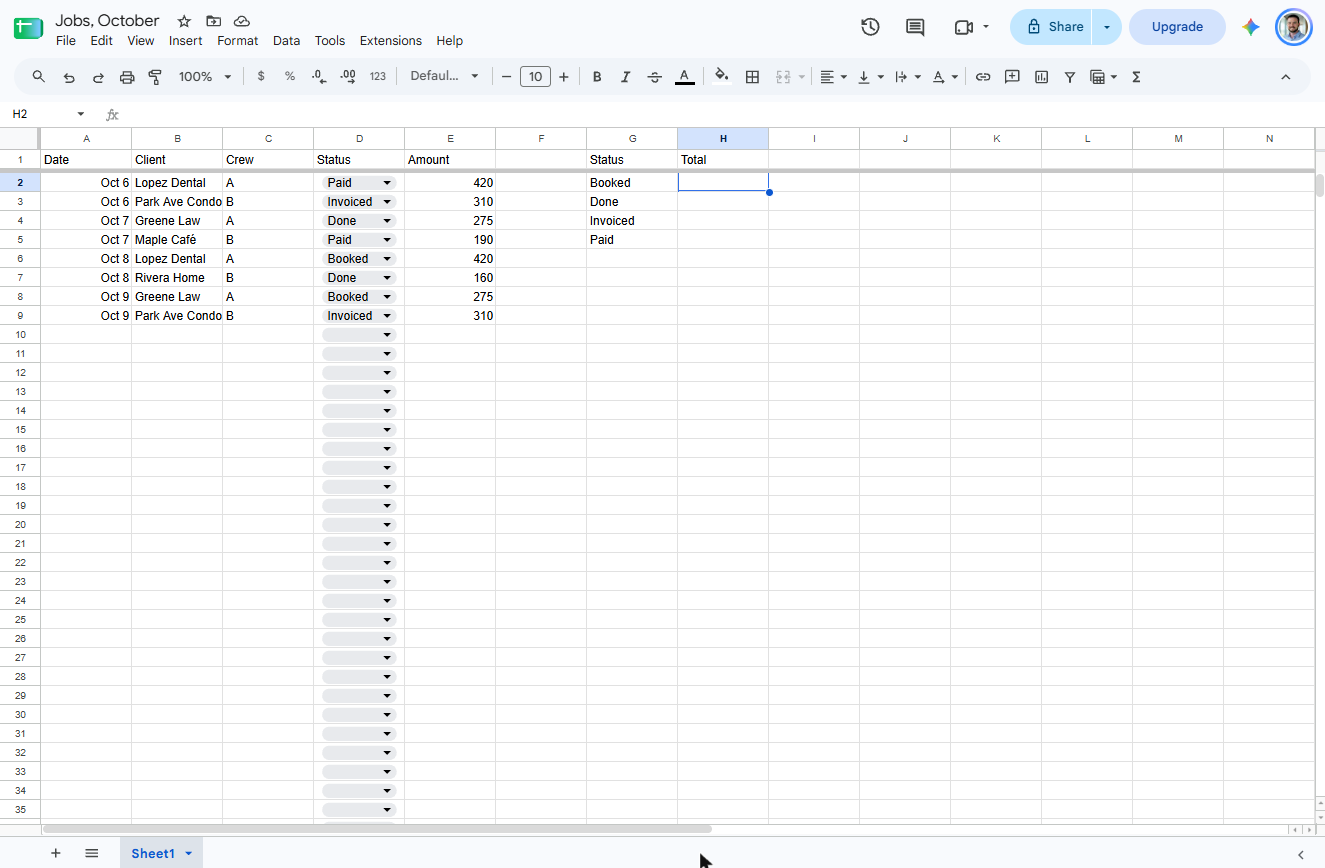
- Label the totals. Off to the side, in G1 type Status and in H1 Total. In G2 to G5 type Booked, Done, Invoiced and Paid, spelled exactly like the drop-down.
In G1 type Status, and in H1, Total. Then the four statuses underneath.
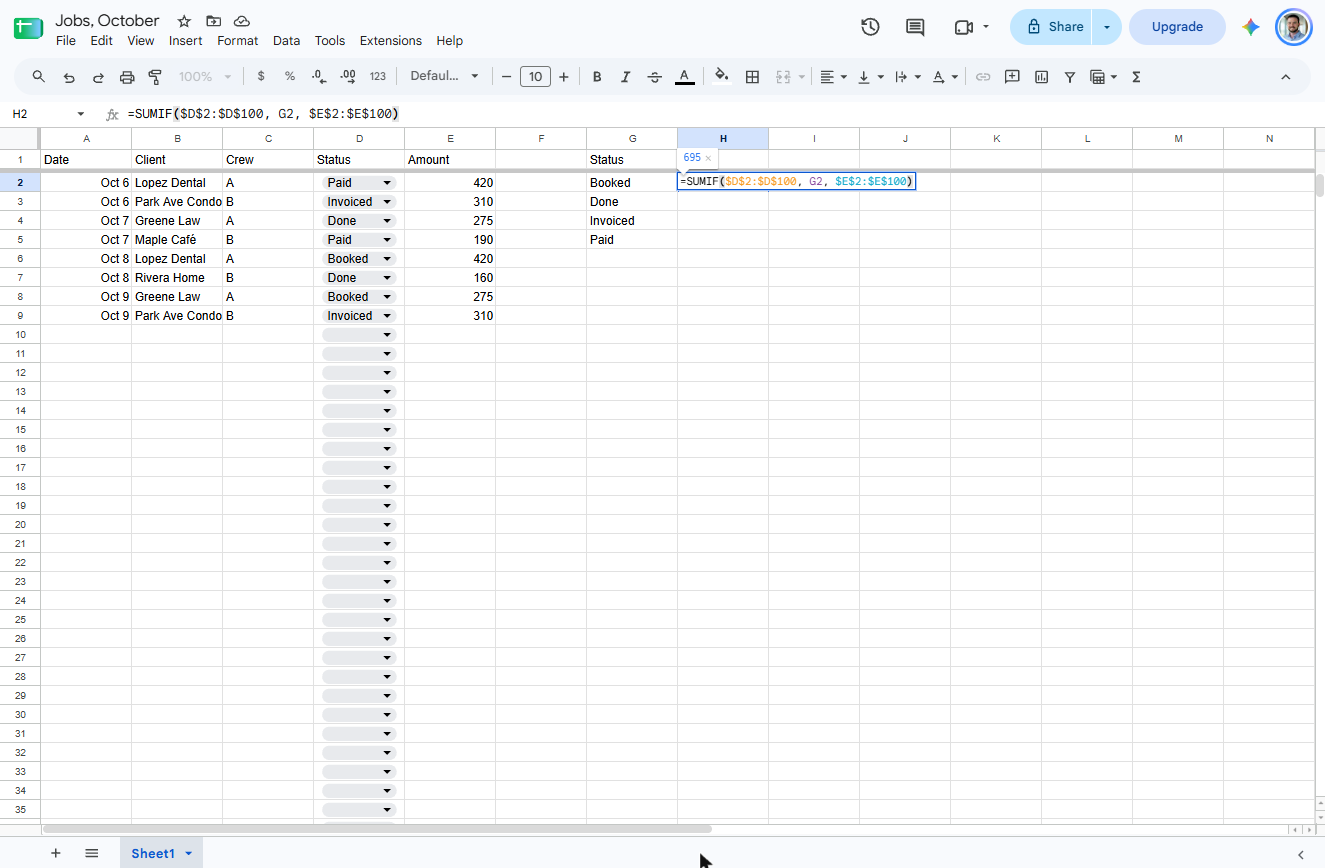
- Type the SUMIF. Click H2 and type the formula. It reads: add up column E wherever column D matches the status in G2. The dollar signs keep the ranges fixed when you copy it down.
In H2, type the SUMIF formula. Add up the amounts wherever the status matches G2.
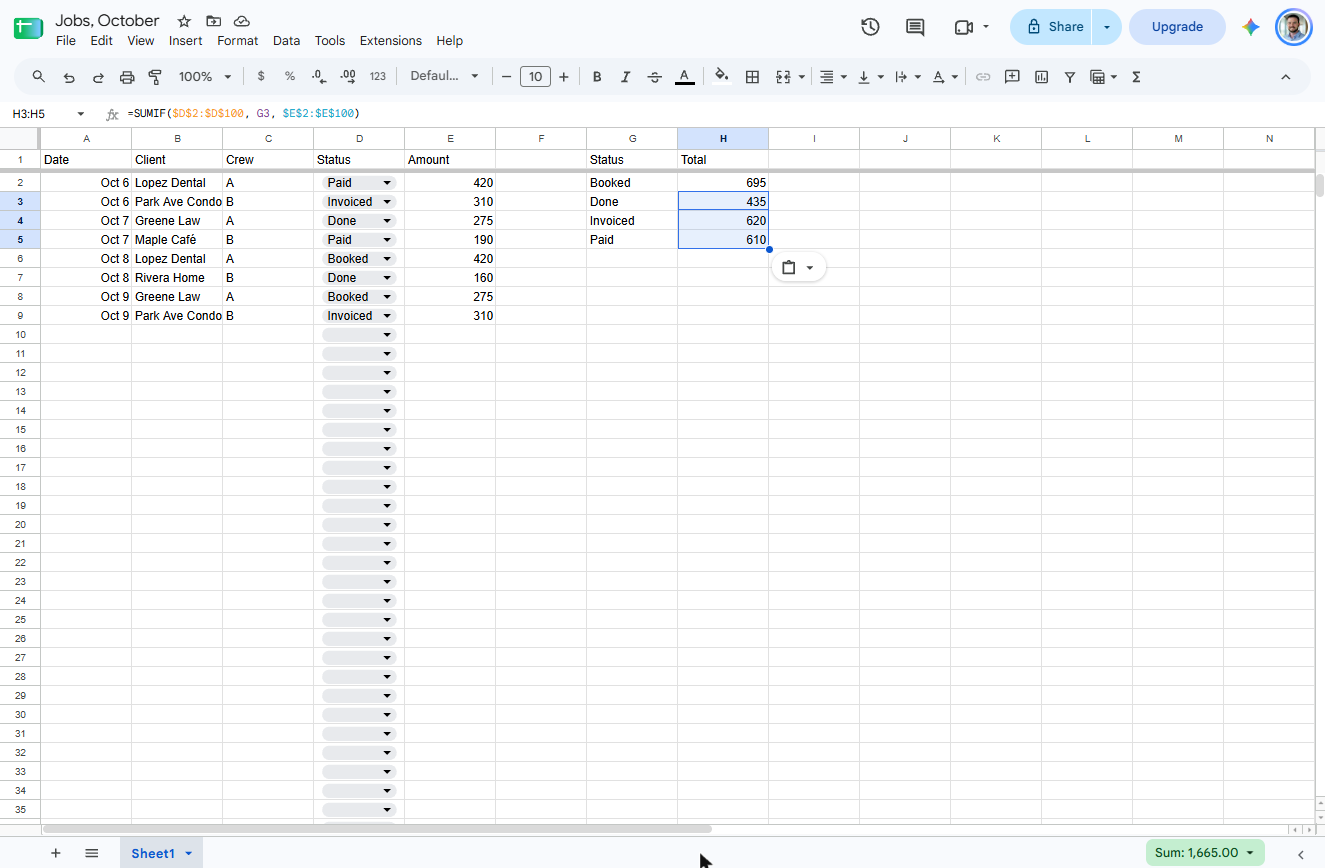
- Enter it and copy it down. Sheets already previews 695. Press Enter, then copy H2 and paste it into H3:H5.
It already shows six ninety five.
- Read the totals. Booked $695, Done $435, Invoiced $620, Paid $610: $2,360 in all. The $435 of Done is work finished but not billed yet. Click 435.
Done is four hundred thirty five dollars. That is finished work nobody has billed.
5. Highlight done-but-not-billed
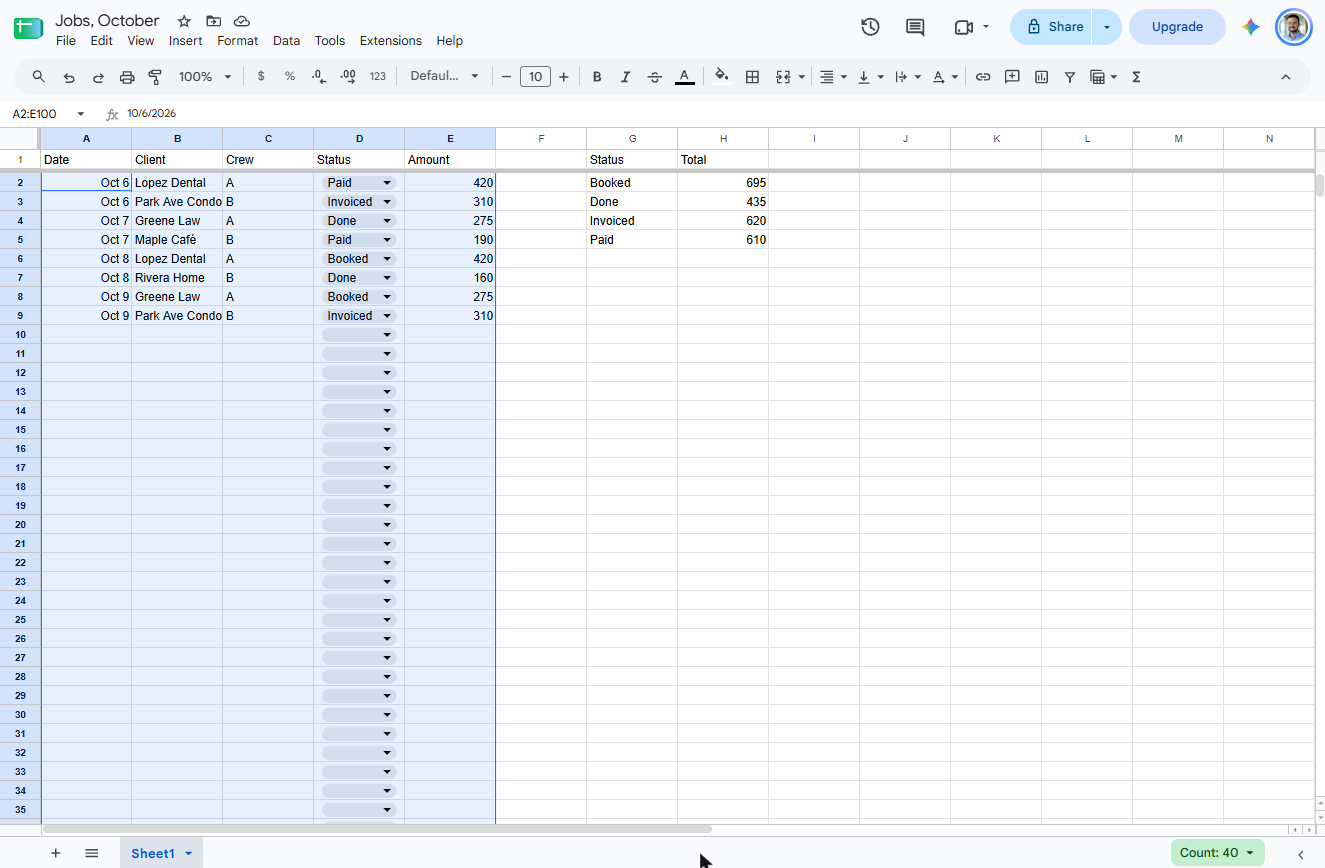
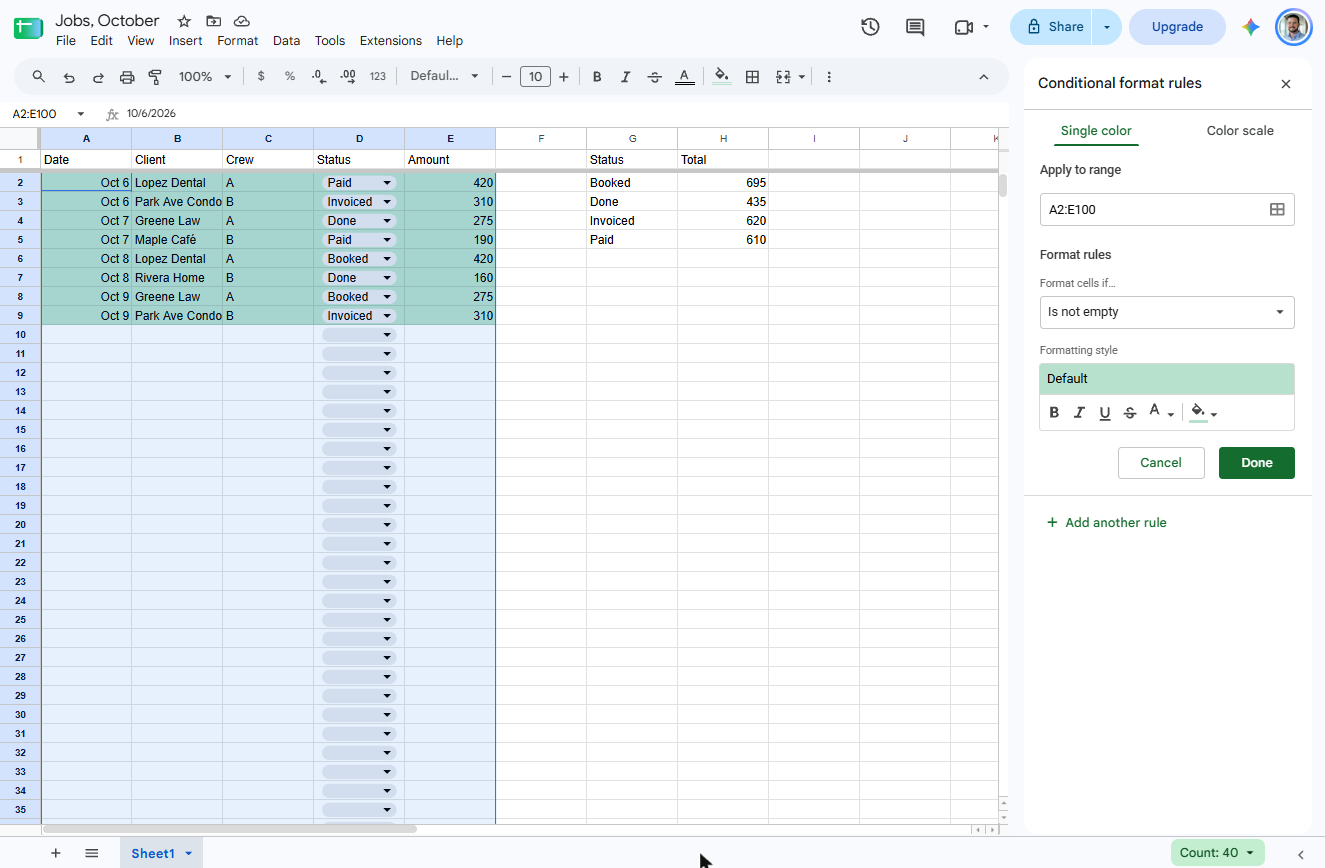
- Select the job rows. In the Name box, type A2:E100 and press Enter, so the colour rule covers whole rows.
In the Name box, type A2 colon E100.
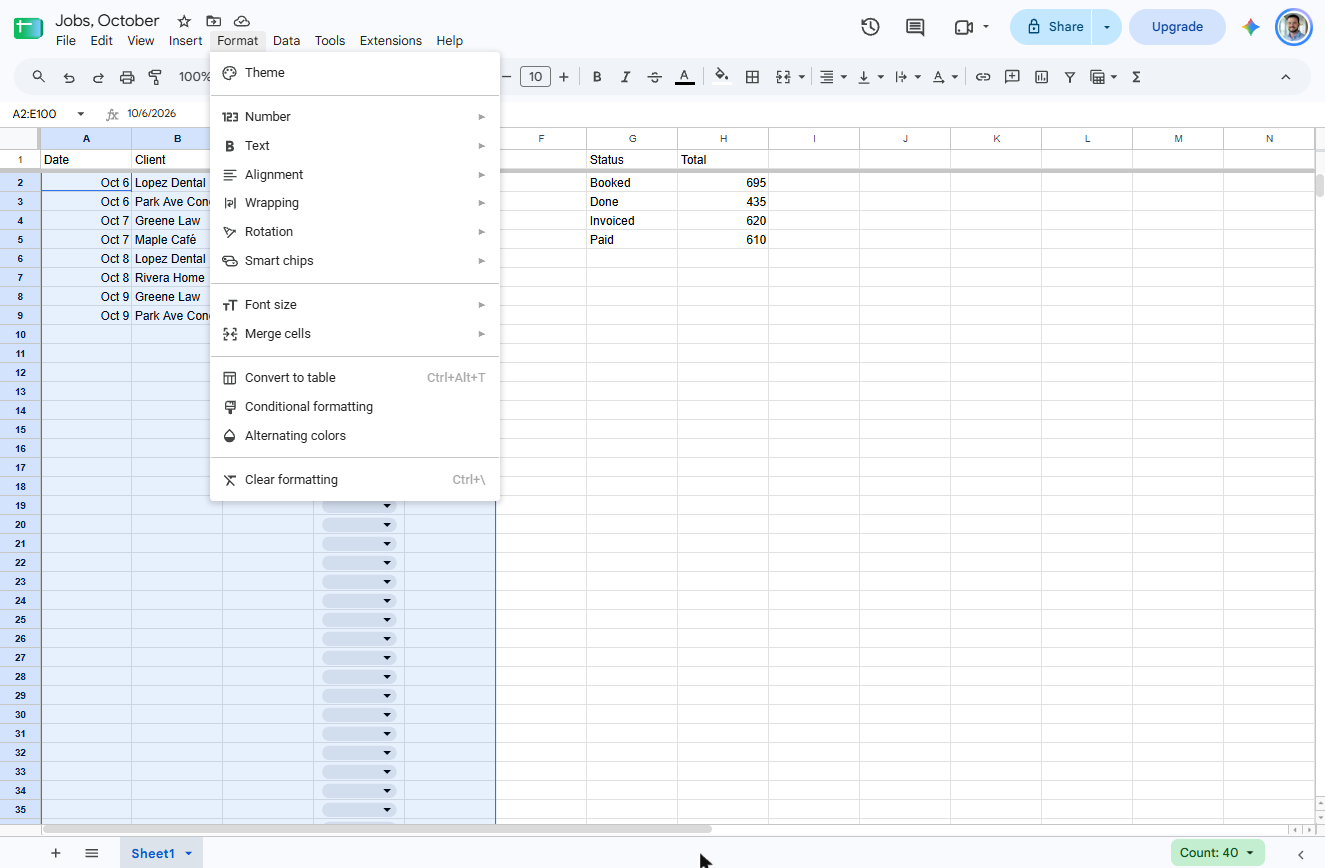
- Open the Format menu. Click Format.
- Conditional formatting. Click Conditional formatting.
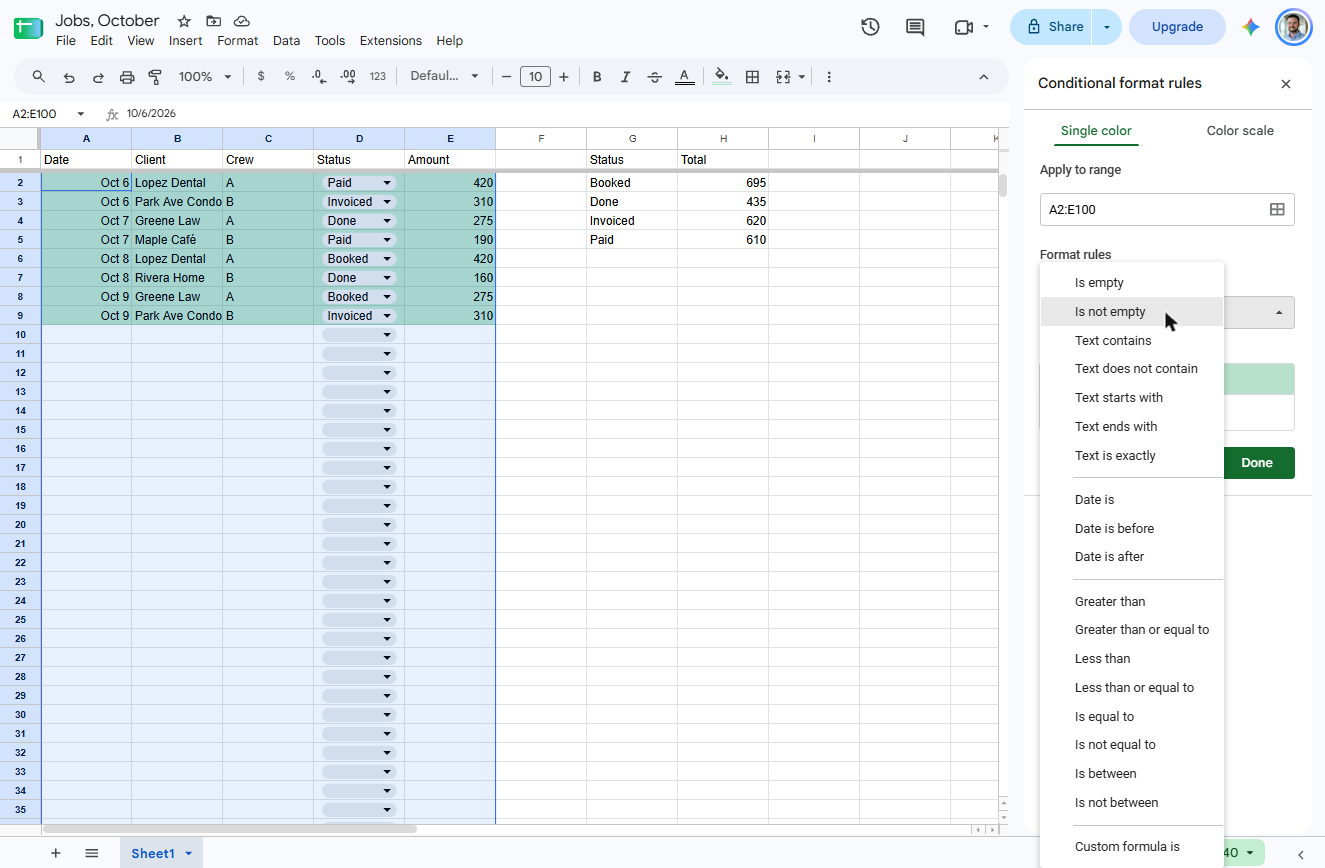
- Change the condition. Sheets guessed Is not empty and paints every row green. Click that box to change it.
It guessed Is not empty.
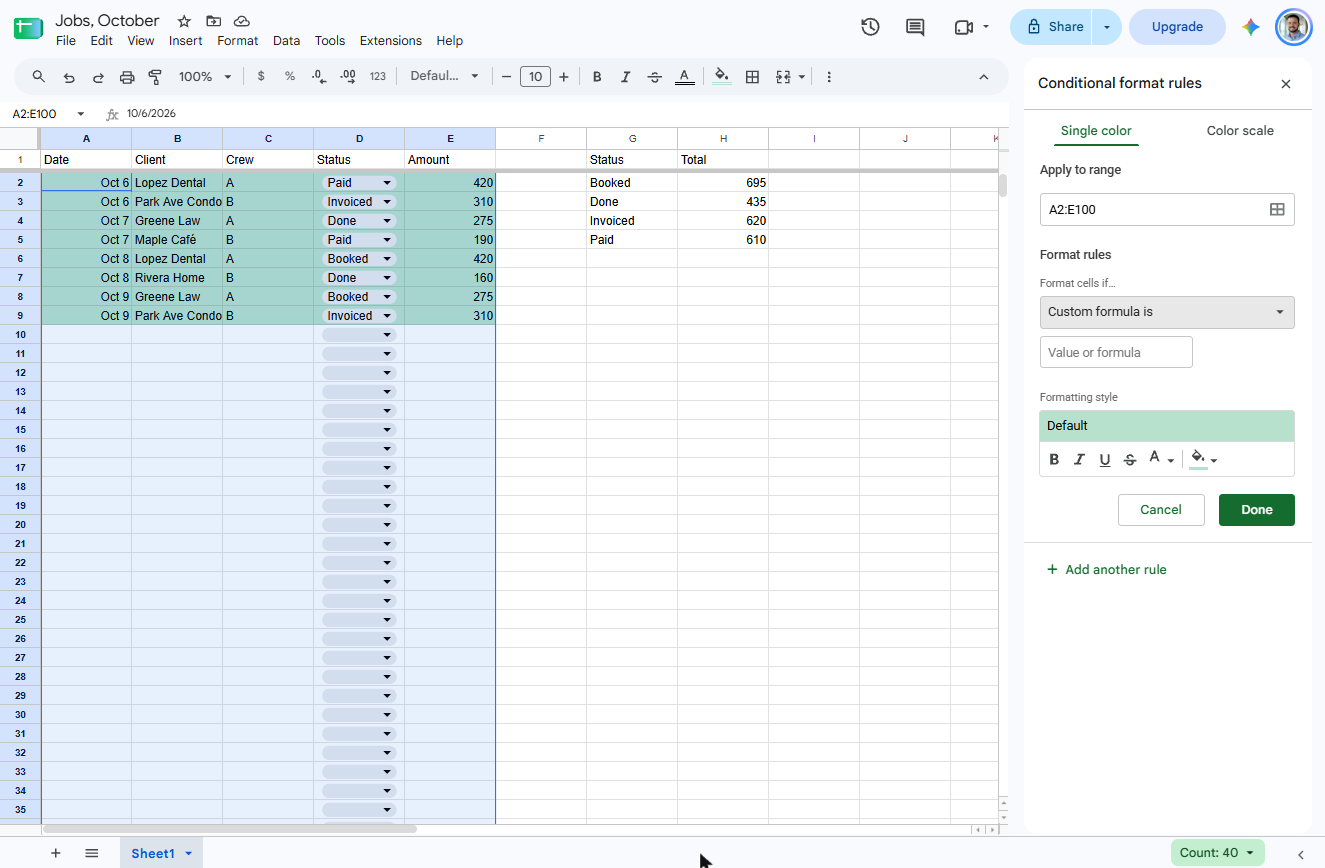
- Custom formula is. At the bottom of the list, click Custom formula is.
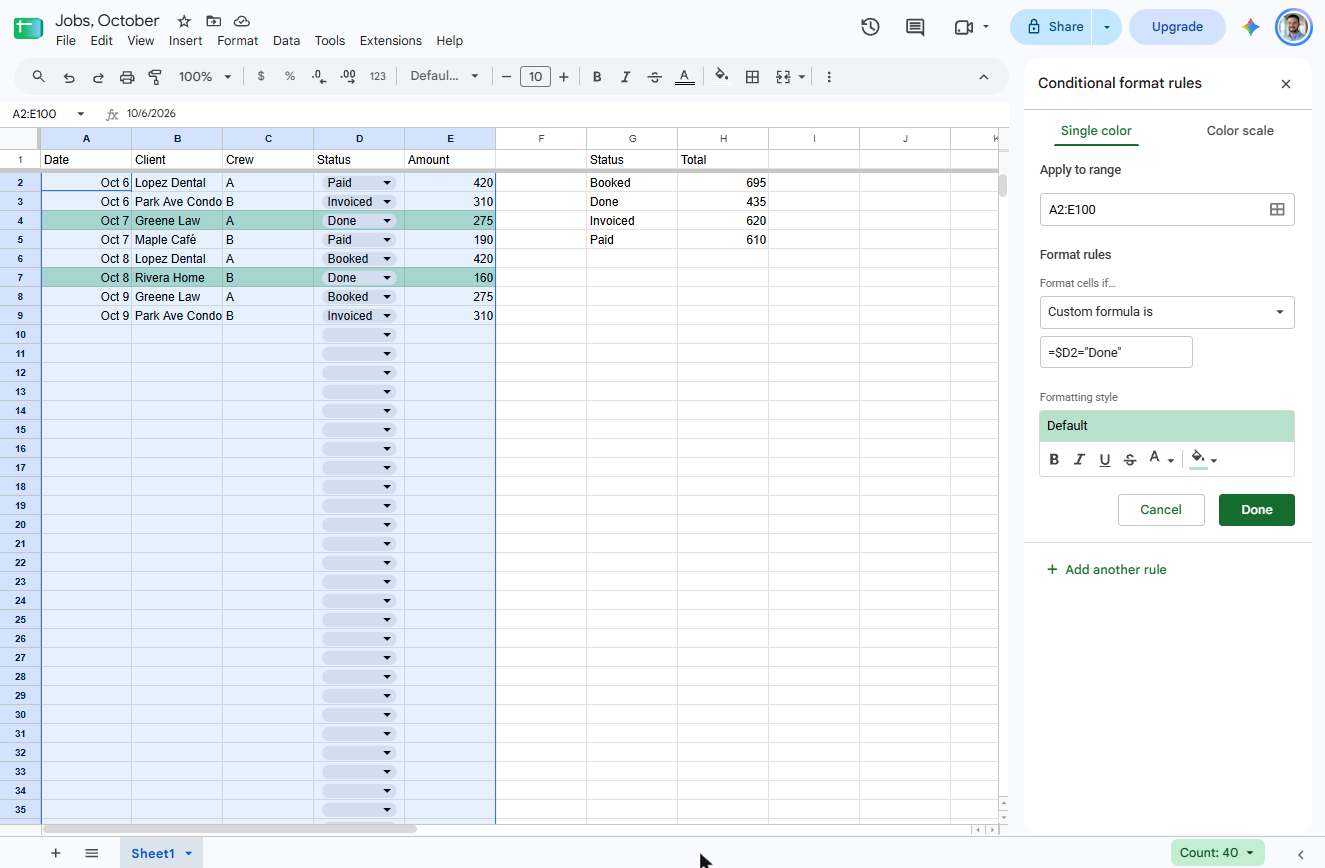
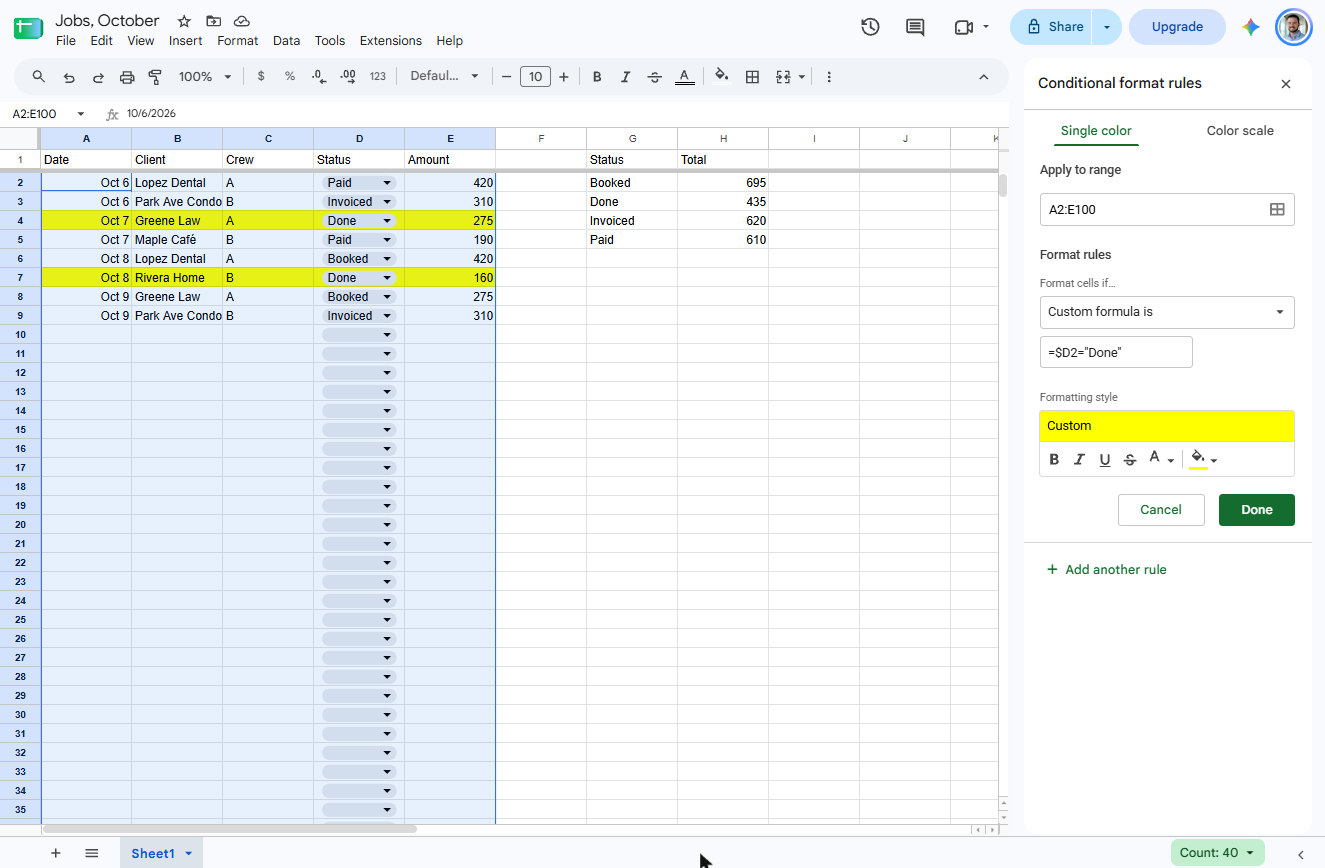
- Type the rule. Type =$D2="Done". The $ before D locks the Status column, so each row checks its own status. Greene Law and Rivera Home light up at once.
Equals, dollar D2, equals Done in quotes.
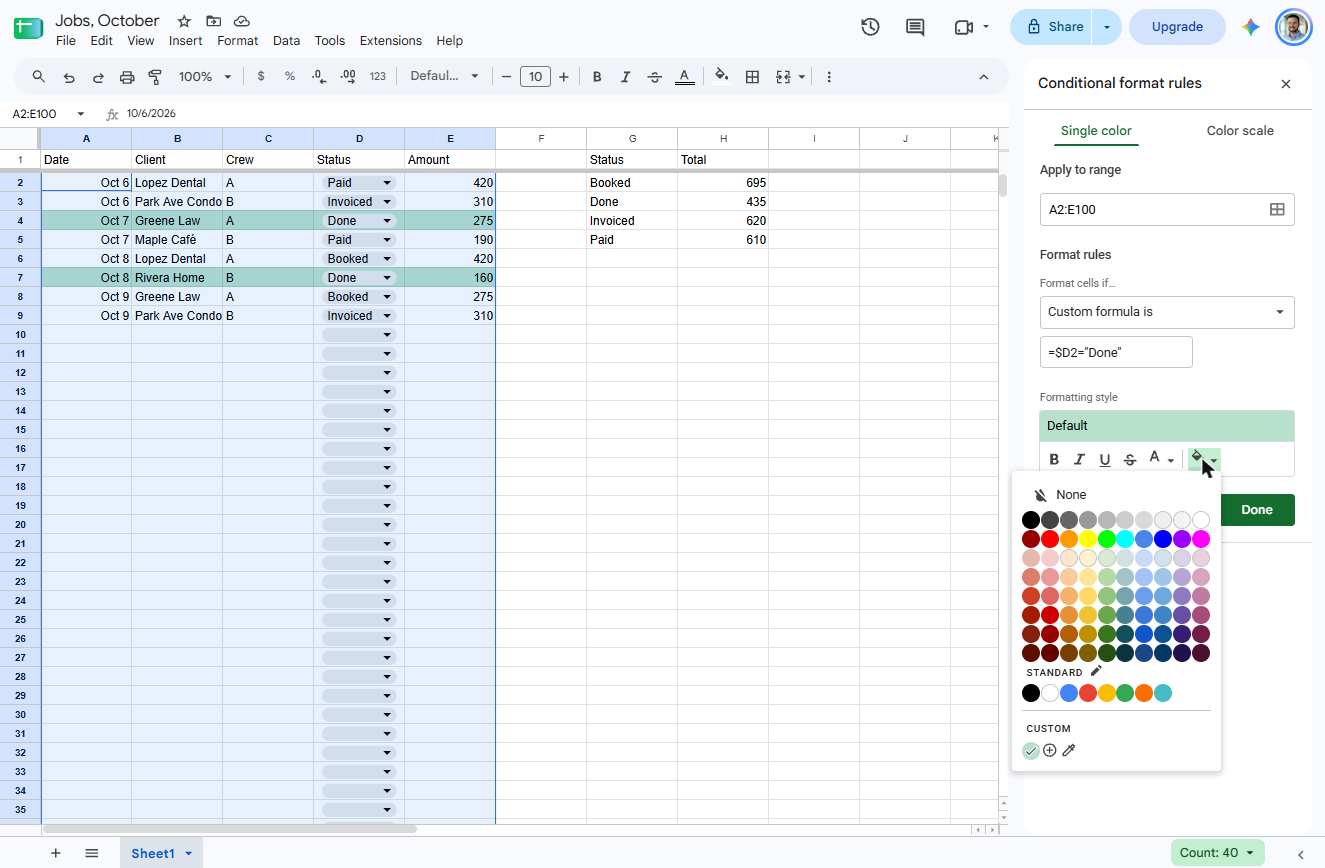
- Pick a fill colour. Click the fill colour bucket under Formatting style.
- Choose yellow. Click yellow.
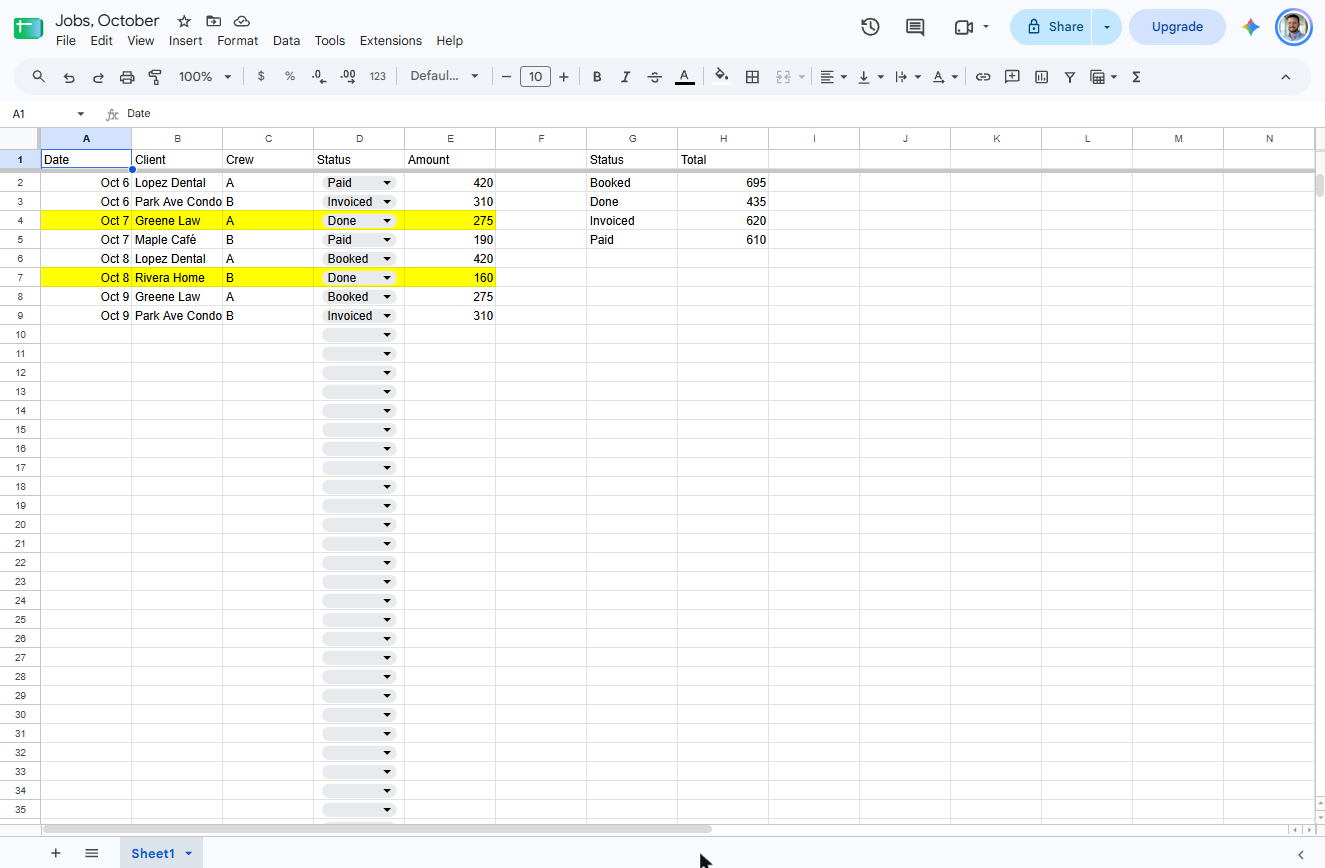
- Save the rule. The two Done rows are yellow. Click Done.
6. A filter view for each crew
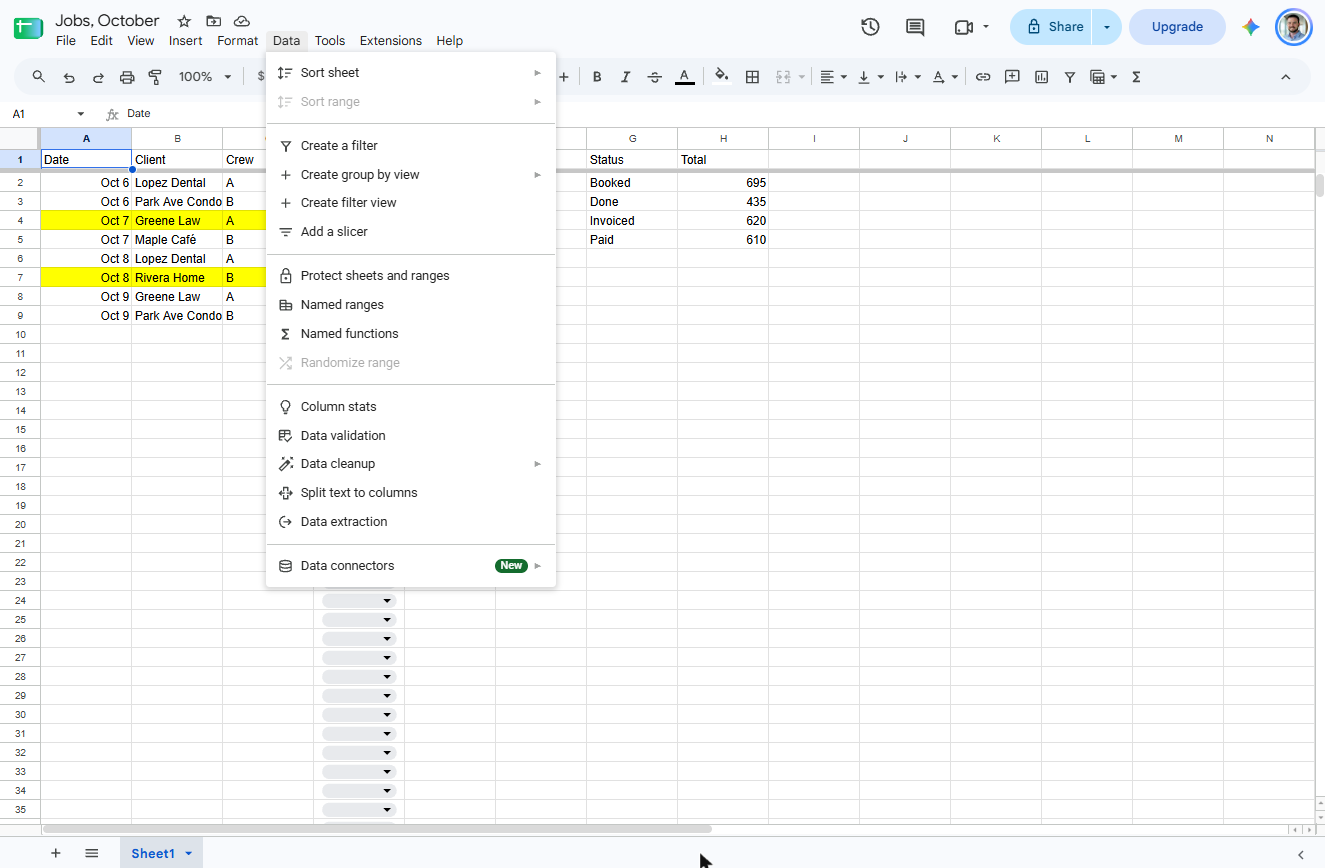
- Open the Data menu again. Close the panel and click any cell in the table. Now click Data.
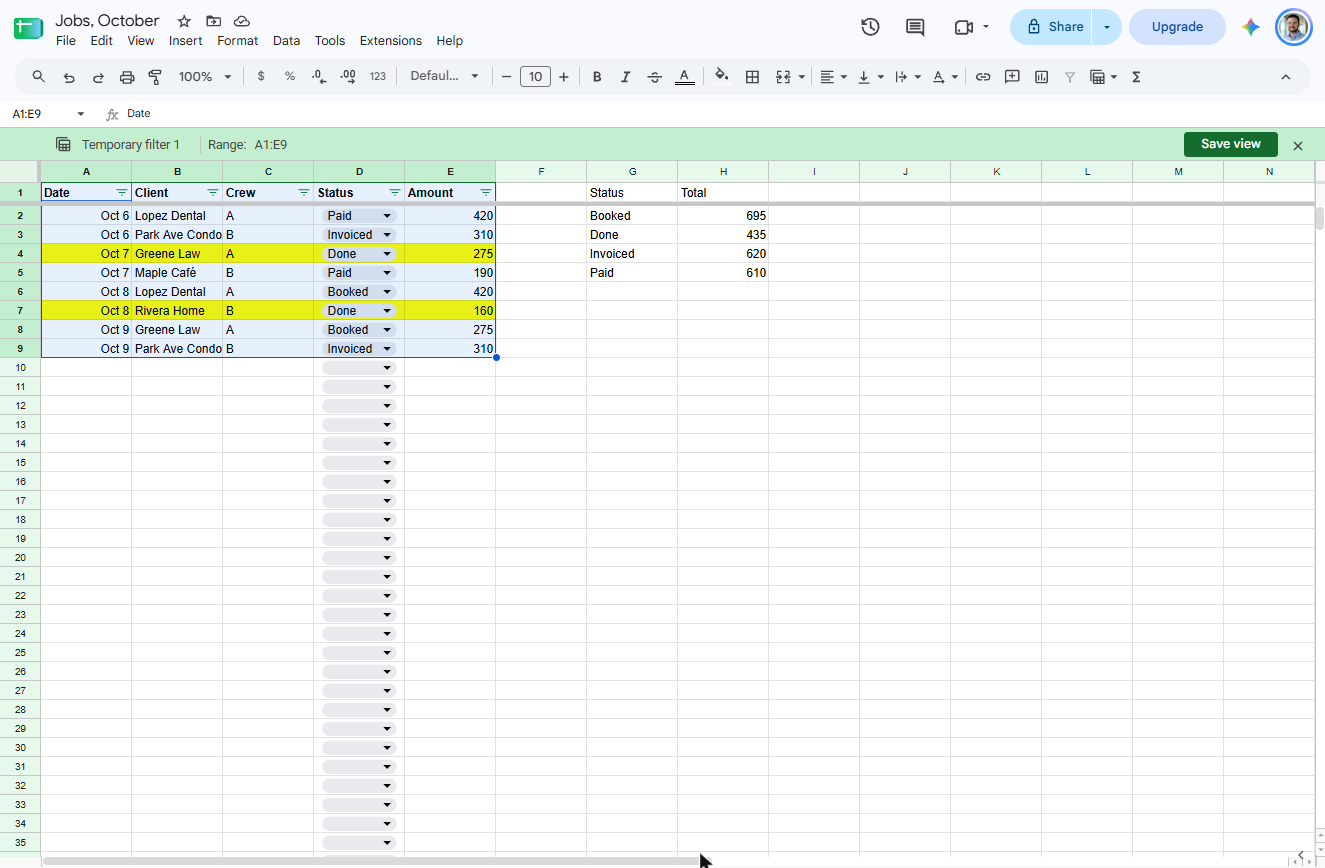
- Create filter view. Click Create filter view. (Older guides say Data > Filter views > Create new filter view; it is now one item.)
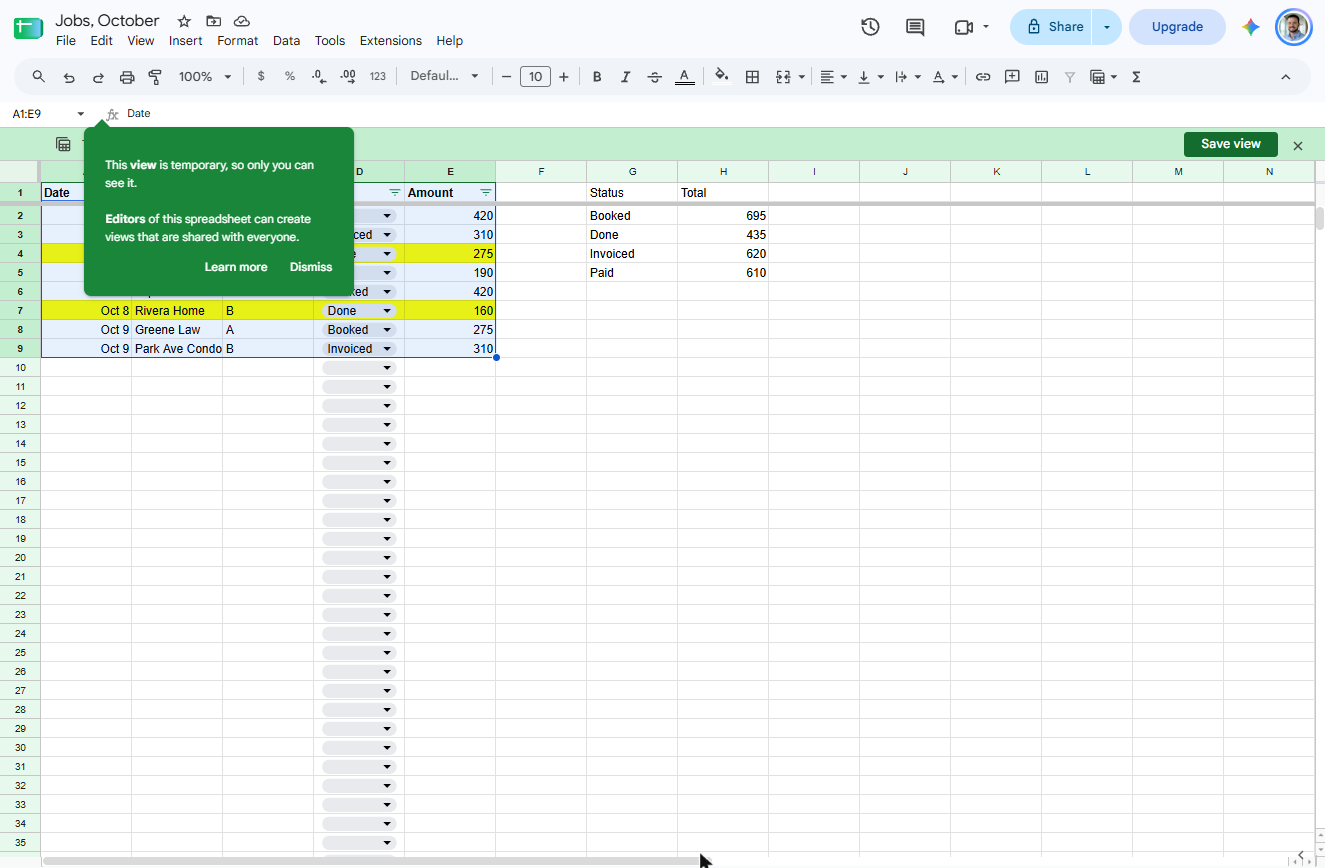
- Read the tip. The new view is temporary and only you see it until you save it. Click Dismiss.
This view is temporary until you save it.
- Filter Crew, then save. Each header now has a filter icon. In your own sheet, click the icon on Crew, untick B and click OK. Then click Save view.
Filter Crew to A.
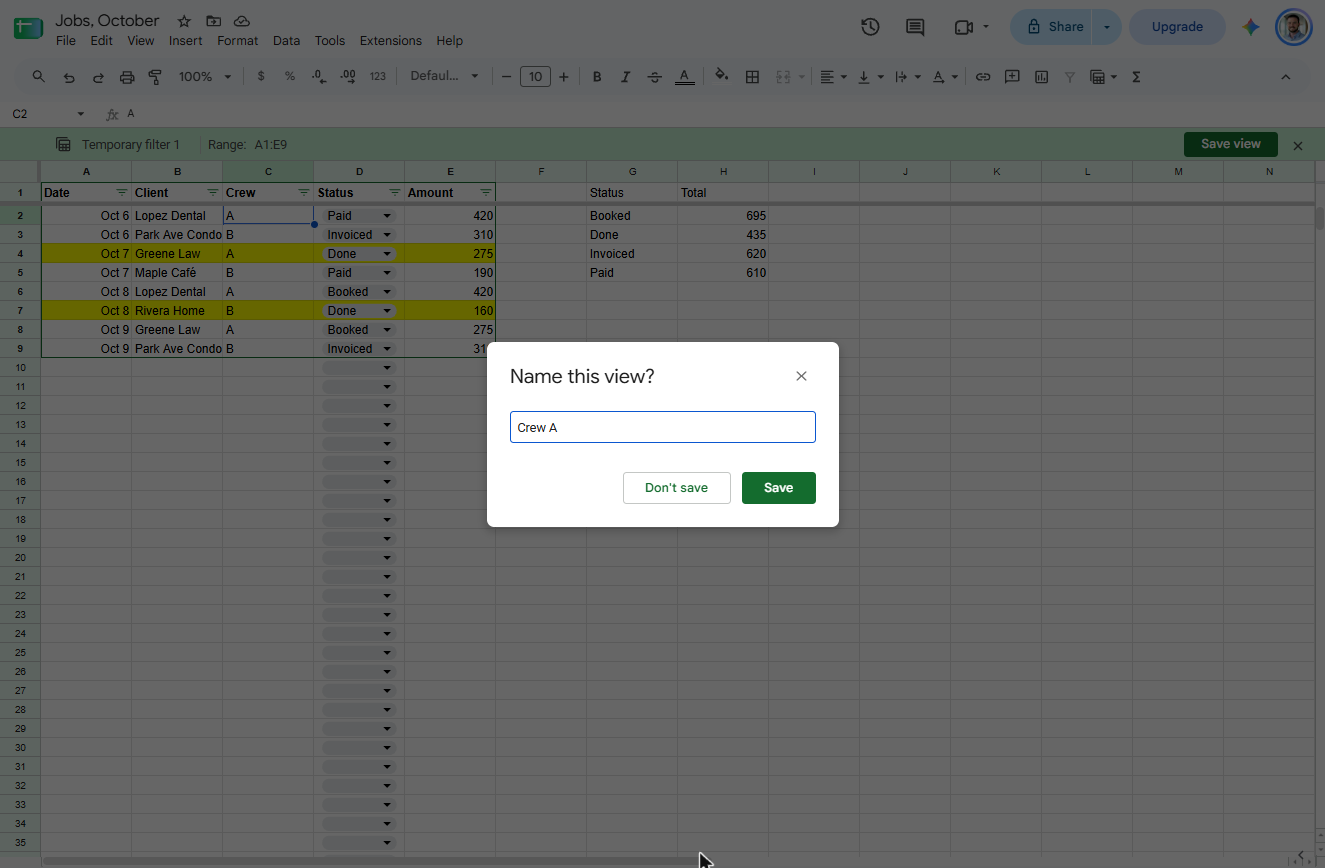
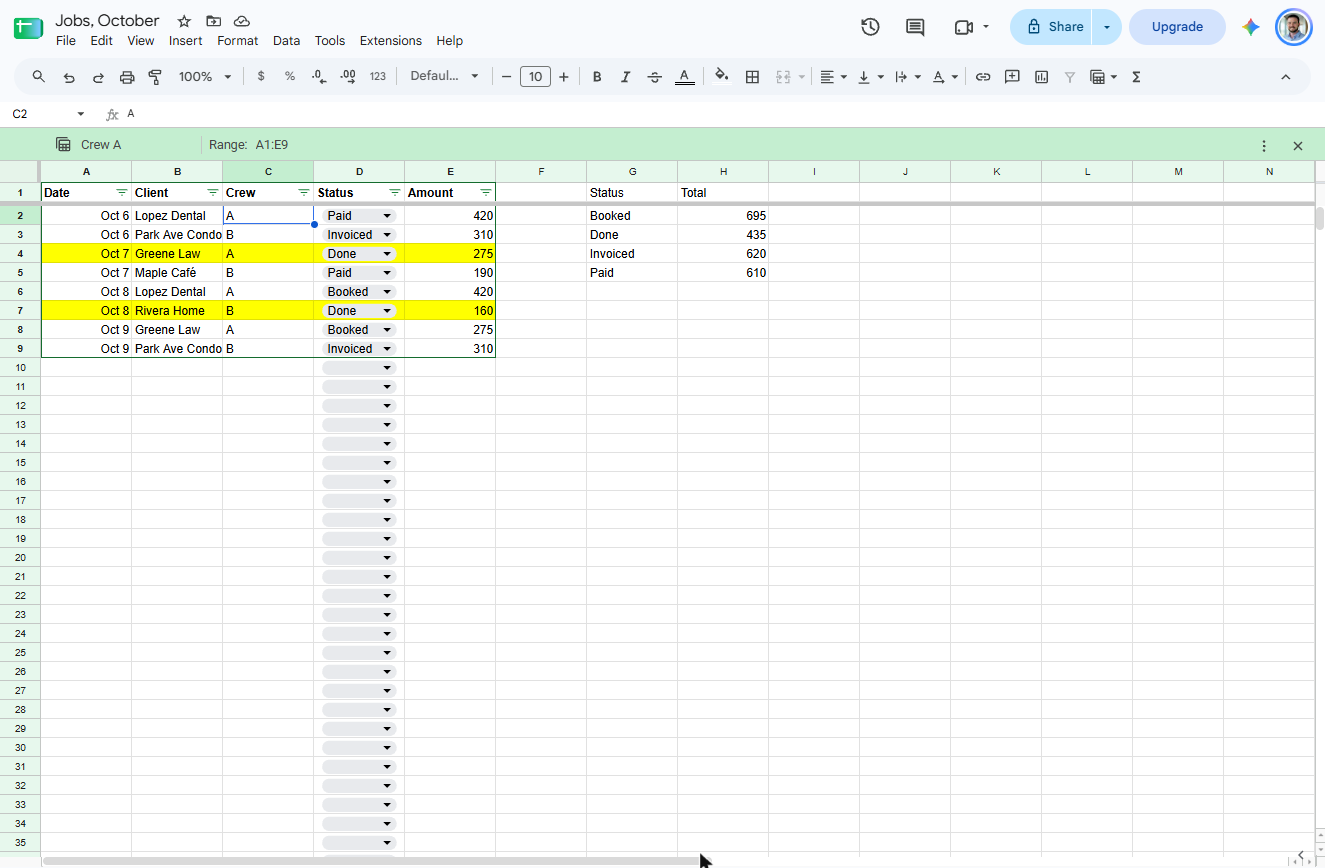
- Name it Crew A. Type Crew A over "Filter 1" and click Save. Crew A can open this view without changing what anyone else sees.
Name it Crew A, and click Save.
7. Share it safely
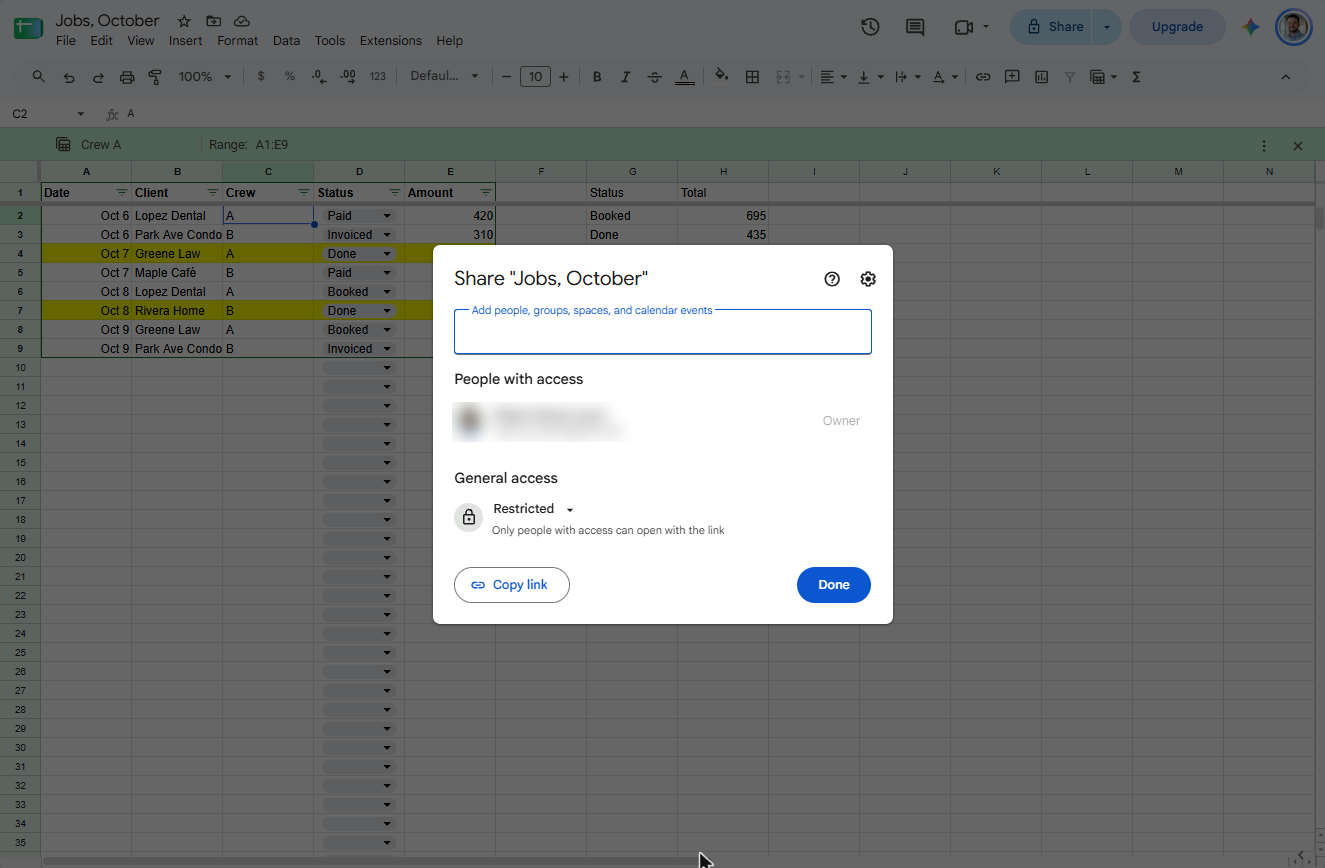
- Open Share. Click Share.
- Check general access. Add your bookkeeper by email as an Editor (we did not send an invite here). Then check General access: it should say Restricted, so only people you added can open the link. Click Restricted.
Add your bookkeeper as an editor. Then check that general access says Restricted.
Screenshots
Free cheat sheet
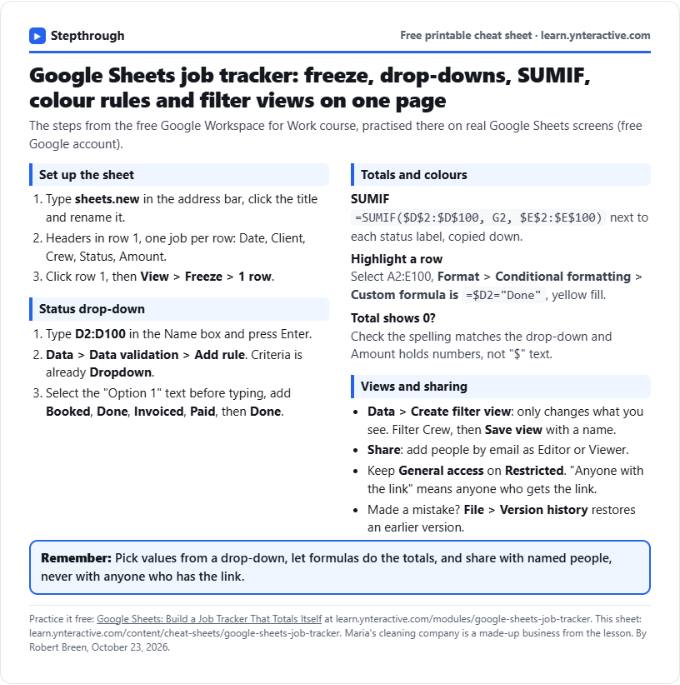
Print it or save the PDF: the key steps and checks from this lesson on one page, free.
All free printable cheat sheets
Terms in this lesson
Plain-English definitions, each with an example from a free lesson.