What is a header row in a spreadsheet?
Updated · By Robert Breen
A header row is the first row of a spreadsheet, where each cell names the column below it, like Customer, Service or Status. Tools like n8n read the header row to learn what columns exist, so those names become the labels your automation fills in.
Why it matters for a small business
To a person, a sheet with no headers is just untidy. To an automation, it is unreadable. n8n treats the header row as the field names for every row: when it reads a sheet, each row comes out as an item labeled with those names, and when it writes, it lists the headers as the places a value can go. Rename a header and any step pointing at the old name quietly stops working.
With an AI agent, headers do even more. When you let the model fill the columns, the header names are a large part of how it decides what goes where. A clear header like "Follow-Up Message" tells it what to put there; "Col C" tells it nothing. Plain, specific headers are the cheapest instruction you'll ever write.
In a real lesson: Build an AI Customer Follow-Up Agent for Plumbers
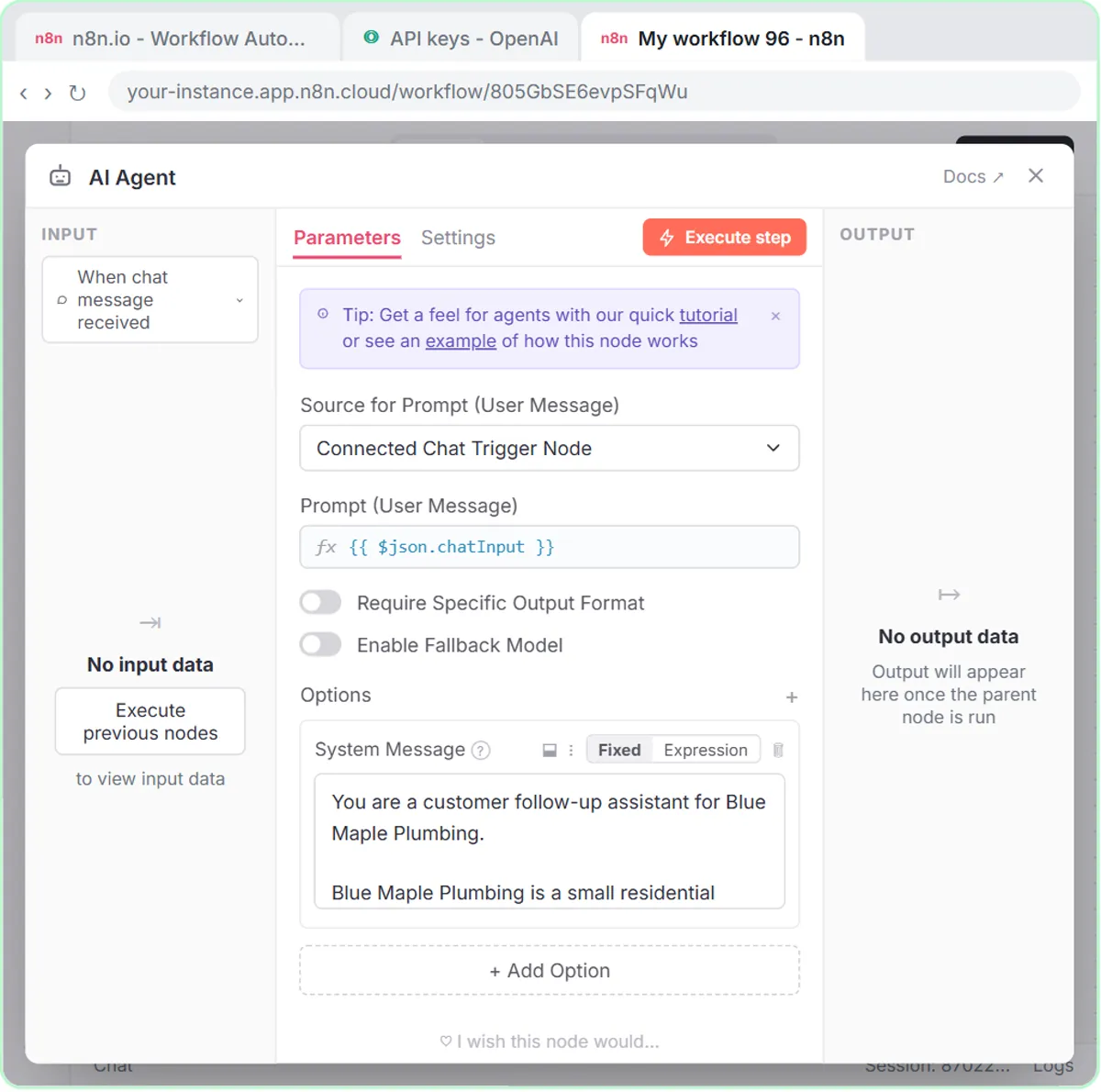
In the AI Customer Follow-Up Agent lesson, you build an agent for Blue Maple Plumbing, a made-up plumbing company, that writes follow-up texts after service calls. Before configuring the Google Sheets tool, you create a spreadsheet called Customer Follow-Ups and type the headers: Customer in A1, Service in B1, Follow-Up Message in C1, Next Step in D1 and Status in E1.
The voice-over stresses that these must match what the system prompt tells the agent to return: Customer, Service, Follow-Up Message, Next Step and Status. Back in n8n, you pick the sheet and the five headers appear under Values to Send, each with a ✦ button. After you click them all, the voice-over sums it up: the agent reads your column headers and figures out what goes where.
When you ask the agent to write follow-ups for Linda, Tom and Maria and then say "Yes, save those messages to the sheet", each message becomes a row under those headers.
Try this lesson free or read the step-by-step guide.
Common confusions
Header row vs field mapping
The header row defines which columns exist. Field mapping decides which value goes into each one. You need the headers first; the mapping is built on them.
Header row vs frozen row
Freezing row 1 in Google Sheets only keeps it visible while you scroll. What makes it a header for n8n is that it holds the column names, frozen or not.
Tips
- Type headers before you connect the sheet in n8n, or the node has nothing to list.
- Keep header names stable once a workflow uses them; add new columns instead of renaming old ones.
- Match the header names to the labels in your prompt or form, word for word.
- Avoid merged cells and blank columns in the header row.
Related terms
Where you use it: free lessons
- Build an AI Customer Follow-Up Agent for Plumbers (n8n, 12 min)
- AI Receipt Extractor: Receipts to Google Sheets with n8n (n8n, 12 min)
- Find and Use n8n Templates (n8n, 9 min)
Frequently asked questions
- Does the header row have to be row 1?
- By default, n8n's Google Sheets node treats the first row as the header row. Keeping your headers in row 1, with data starting in row 2, avoids surprises.
- Can column headers have spaces?
- Yes, but in n8n expressions you then write them with square brackets and quotes, like
$json["Tech Email"]. Short names without spaces are easier.