Updated . Built against the tool’s current screens and checked step by step. How we check this lesson
Most people open Claude, type one short question and get a generic answer back. In this free, interactive Claude tutorial for beginners you do a real small business task in your very first chat instead: you check the model picker, attach a customer's complaint email with the + menu, write a prompt with a role, context, a task and a format, read Claude's reply with a careful eye, ask for changes in a follow-up, and then star and rename the chat so you can find it again.
At a glance
| Question | Answer |
|---|---|
| What you build | Pick a model, attach a customer's complaint email with the + menu, write a four-part prompt, read Claude's reply, ask a follow-up, then star and rename the chat. |
| Tools | Claude |
| Time | About 7 minutes, 21 steps in 6 parts |
| Level | Beginner, no coding needed |
| Cost | Free |
| Ways to learn it | Practice it step by step |
The 6 parts, in short
- Pick a model: Open the model picker, Look at the models, Keep Medium effort.
- Attach a file: Open the + menu, Add a file, Pick the complaint email, Open it.
- Write a great first prompt: Click the message box, Write a four-part prompt, Send it.
- Read the reply: Peek at Claude's thinking, Copy the email.
- Ask a follow-up: Click the reply box, Ask for changes, Send it, Copy the new version.
- Keep it organized: Open the chat's menu, Star the chat, Open the menu again, Rename it, and 1 more step.
In the course: Part 4 · Claude for Everyday Work (Module 19 of the full course)
What you will do
You play the office manager at Bright Path Landscaping, a made-up landscaping company. A customer, Linda, has emailed to say that pavers on her new patio have sunk by the back steps and that the crew left debris behind her garage. She also asks for a partial refund. Your job is to answer her well, quickly, and without promising anything you have not decided.
By the end of the module Claude has drafted a warm, plain reply that explains the free warranty fix and asks which day works, flagged the refund question for you instead of guessing, and rewritten the email after your follow-up. The chat is starred and renamed, so it sits at the top of your sidebar.
Who this Claude tutorial is for
This module is for owners, office managers and anyone new to Claude who wants to use it for everyday work: customer emails, quotes, notices and replies. You do not need to know anything about AI, and you do not need a Claude account to practice. It is the first module in the Claude for Everyday Work course, and the habits it teaches carry into every later module.
Which Claude model should you use?
The model picker lists a few models, each with a one-line description. The top models are built for your toughest and most complex work, Sonnet is described as the most efficient for everyday tasks, and Haiku is the fastest for quick answers. For customer emails, summaries and most small business writing, the everyday model is the right choice, and you can switch at any point in a chat. Version numbers change as Anthropic releases new models, and the Free plan shows fewer choices than paid plans.
Effort controls how hard Claude thinks before it answers. Higher effort gives more thorough answers but takes longer and uses more of your usage limit, so leave it on the default unless a task is truly hard.
Why a four-part prompt works
A one-line request makes Claude guess who you are, what happened and what a good answer looks like. A prompt with a role, context, a task and a format removes the guessing. In this module the context also includes a real file: attaching the customer's email means Claude works from her exact words, not your summary. That is why the reply names the real problems, and why Claude can point out the refund request you still need to decide on.
Reading the reply matters as much as writing the prompt. Claude can make mistakes, so check names, dates, prices and promises before you send anything. Then use follow-ups to adjust: shorter, friendlier, a different offer. The chat keeps the file and everything you said, so you never start over.
How to use this in your business
Try the same pattern on your next real message: a complaint, a quote request, a late payment reminder or a note to your crew. Attach the email or document, give Claude your role and the facts it cannot know, say exactly what you want back and how long it should be, and ask it to list anything you should check. Star the chats you reuse and give them names you will recognize. When you find yourself pasting the same background into every chat, the next module, Claude Projects, keeps it all in one place.
How the interactive lesson works
Each step shows you what to do on the left and lets you do it yourself on the right, in a practice copy of Claude.ai. Nothing connects to a real Claude account and no email is sent, so you can click around safely. A voiceover explains each step, and long prompts go in with one Paste button. When you finish, you can do the same thing at claude.ai in a few minutes.
Try it yourself, free
Reading the steps is a start. Doing them is how it sticks. The interactive module walks you through every click in a practice copy of Claude, checks each step, and never touches your real accounts.
Start “Your First Chat with Claude: Models, Files and a Great First Prompt”Step by step: Your First Chat with Claude: Models, Files and a Great First Prompt
All 21 steps of the interactive module, in order. In the module you watch each one, then do it yourself in a practice copy that checks your work.
1. Pick a model
- Open the model picker. This is Claude's home screen, where every new chat starts. At the bottom right of the message box is the model picker. Click Sonnet 5 Medium.
This is Claude's home screen, where every new chat starts. Before you type, look at the bottom right of the message box. That's the model picker. It shows which model you're using and its effort level.
- Look at the models. The top models are for the hardest work, Sonnet is for everyday tasks, and Haiku is the fastest. Names change with new versions, and the Free plan shows fewer. Click Effort.
Claude comes in a few models. The ones at the top are for the hardest, most complex work. Sonnet is the everyday model, and it's the right pick for most small business tasks. Haiku is the fastest, for quick answers. The version numbers change as new models come out, and the Free plan shows fewer.
- Keep Medium effort. Effort is how hard Claude thinks before it answers. Higher effort takes longer and uses more of your limit. Click Medium to keep the default.
Effort is how hard Claude thinks before it answers. Higher effort takes longer and uses more of your usage limit. Medium is the default, and it's plenty for everyday work.
2. Attach a file
- Open the + menu. Now give Claude something to work with: a customer's complaint email. Click the + at the bottom left of the message box.
Now let's give Claude something to work with: an email from an unhappy customer.
- Add a file. The + menu adds things to a chat: files, a screenshot, a project, skills, connectors, plugins, Research and Web search. Click Add files or photos.
The plus menu is where you add things to a chat: files, a screenshot, a project, skills, connectors and plugins, plus Research and Web search.
- Pick the complaint email. Your computer's file window opens. Click Linda Carver complaint.pdf.
Your computer's file window opens.
- Open it. Click Open.
3. Write a great first prompt
- Click the message box. The file sits in the message box, ready to send. Claude can read PDFs, Word files, spreadsheets, text files and images. Click the message box.
The file now sits in the message box, ready to send. Claude can read PDFs, Word files, spreadsheets, text files and images.
- Write a four-part prompt. A great prompt has four parts: Role (who Claude is), Context (what happened), Task (what you want) and Format (how it should look). Paste in the prompt.
A great first prompt has four parts. A role: who Claude should be. Context: what's going on. The task: what you want. And the format: how the answer should look.
You are the office manager at Bright Path Landscaping, a small landscaping company. The attached email is from Linda Carver. She's upset that some pavers on her new patio have sunk by the back steps and that our crew left debris behind. Our patios come with a one-year workmanship warranty, so we'll fix it for free, and we can send a crew next week. Write a reply to Linda that apologizes without making excuses, explains the free fix and asks which day works for her. Keep it under 150 words, warm and plain, with a subject line. Then list anything in her email I should check before I send it.
- Send it. Role: office manager. Context: the email, the warranty, next week. Task: the reply and a checklist. Format: under 150 words, warm, with a subject line. Click the send arrow.
Read it over. The role is office manager. The context is Linda's email, the warranty, and next week's schedule. The task is a reply and a short checklist. And the format is under a hundred and fifty words, warm, with a subject line.
4. Read the reply
- Peek at Claude's thinking. Claude read Linda's email and wrote a reply. The line above it sums up how it thought it through. Click Weighing the warranty and drafting an apology to Linda. (Claude writes this line itself, so yours will differ.)
Claude read Linda's email and your prompt, and wrote a reply. The short line above it sums up how Claude thought it through.
- Copy the email. Claude put the email in its own box and listed what to check, like Linda's refund request. Always read the reply before you use it. Click the copy button on the email box. (A real reply is worded differently every time.)
Claude noticed that Linda asked for a partial refund, and flagged it for you instead of promising one. The email is in its own box, and below it is a short list of things to check. Always read a reply before you use it.
5. Ask a follow-up
- Click the reply box. The first answer is rarely the last. Keep the chat going and ask for changes. Click the reply box.
The first answer is rarely the last. Keep the chat going and ask for changes, just like you would with a coworker.
- Ask for changes. Ask for a shorter version, two times to pick from, and a 10% credit, which answers her refund request. Paste in the follow-up.
Ask for a shorter version with two mornings to pick from, and a ten percent credit. That answers her refund request.
- Send it. Click the send arrow.
- Copy the new version. Claude kept what worked and made only the changes you asked for. Click the copy button on the new email box.
Claude kept everything that worked and made only the changes you asked for. Copy this version with the copy button on the new email box.
6. Keep it organized
- Open the chat's menu. Claude named the chat for you. It's under Recents in the sidebar. Click the three dots next to it (on the real site they appear when you hover over the chat).
Last, make this chat easy to find again. Claude already named it for you, and it's under Recents in the sidebar.
- Star the chat. Click Star.
- Open the menu again. Starred chats get their own section at the top of the list. Click the three dots again.
Starred chats get their own section at the top of the list, so you can jump back in any time.
- Rename it. Click Rename.
- Type a new name. Type Carver patio fix (or any name you will recognize later) and press Enter.
Frequently asked questions
- How do I attach a file in Claude?
- Click the + button at the bottom left of the message box and choose Add files or photos, then pick the file. You can also drag and drop files into the chat or paste images. Claude reads PDFs, Word documents, text files, spreadsheets and images.
- How do I change the model in Claude?
- Click the model name at the bottom right of the message box to open the model picker, then choose a model. More models lists older ones. You can change the model at any point in a conversation, and it applies from Claude's next response.
- What should a good first prompt include?
- Four parts: a role (who Claude should be), context (what is going on and any facts it cannot know), the task (exactly what you want) and the format (length, tone and layout). Attach any file the answer depends on.
- How do I star or rename a chat in Claude?
- Hover over the chat in the sidebar, click the three dots, and choose Star or Rename. Starred chats appear in their own Starred section above Recents. When renaming, type the new name and press Enter.
- Is this course really free?
- Yes. Stepthrough is completely free, and the practice copy needs no accounts. To do it for real you need your own Claude account. Attaching files, prompts, follow-ups, starring and renaming all work on Claude's Free plan; paid plans add more models and higher usage limits.
More in Claude for Everyday Work
 Claude Artifacts: Build a Price Calculator You Can Try, Change and Share
Have Claude build an interactive lawn price calculator, try it in the artifact panel, ask for a change, and share it with a link.
Free · Live ~7 min
 Claude Research: Get a Cited Competitor Price Scan, Then Check It
Turn on Research, have Claude check what nearby competitors charge, read the cited report, check a source and ask a follow-up.
Free · Live ~7 min
 Connect Claude to Google Drive, Gmail and Google Calendar
Connect Google Drive, Gmail and Google Calendar to Claude, then find your price sheet, summarize a customer's email thread and check your week, approving each tool as…
Free · Live ~8 min
 Check a Contract for Red Flags with Claude
Upload a vendor contract, get it in plain English, find the risky clauses with the exact words quoted, draft questions for the vendor, and save the review as a project…
Free · Live ~11 min
All 6 modules in Claude for Everyday Work
More Claude tutorials
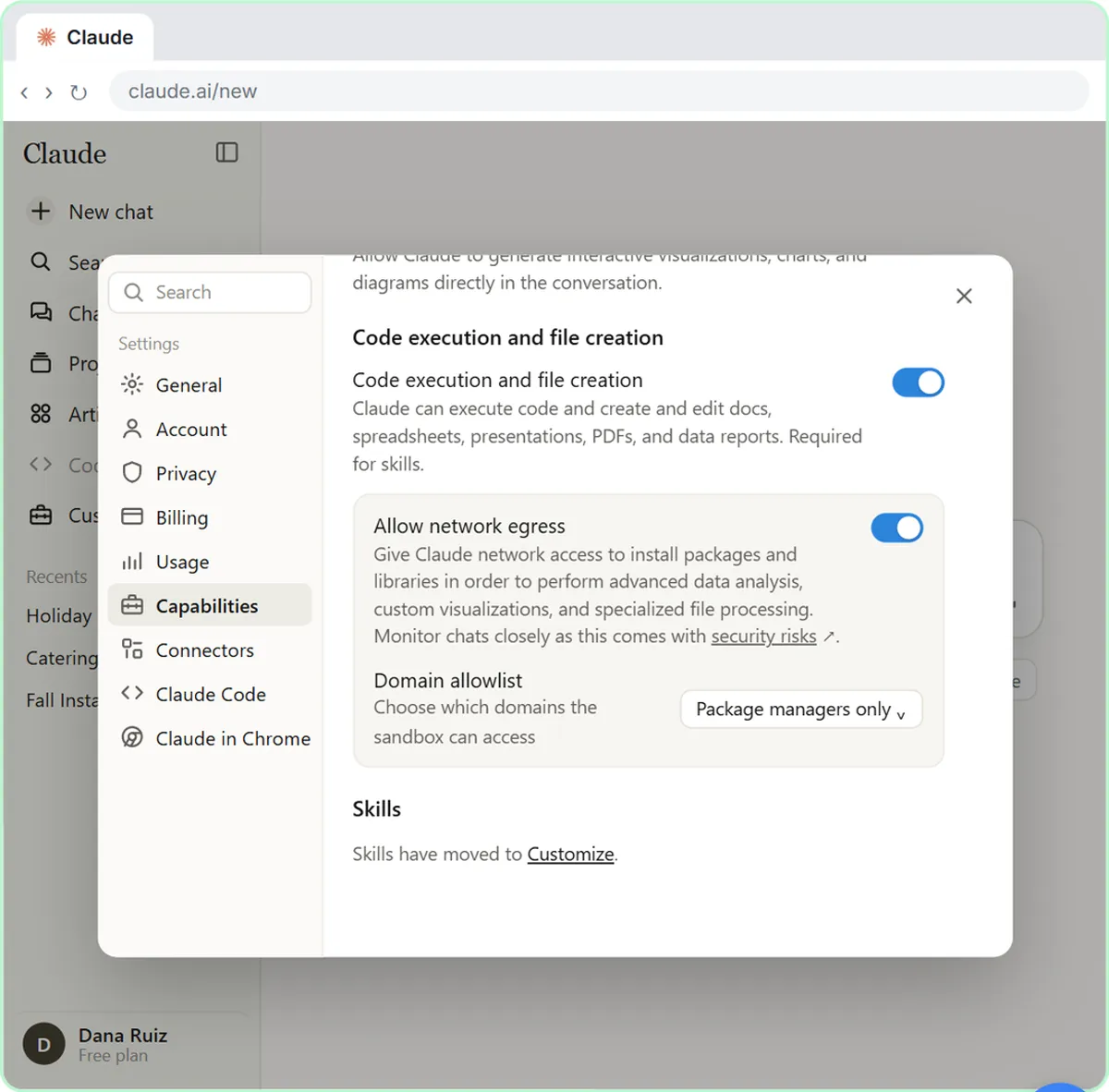 What Are Claude Skills? Turn One On and Watch It Work
Learn what a Claude skill is, switch on the setting skills need, turn on an example skill in Customize, and watch Claude use its Excel and Word skills on its own.
Free · Live ~7 min
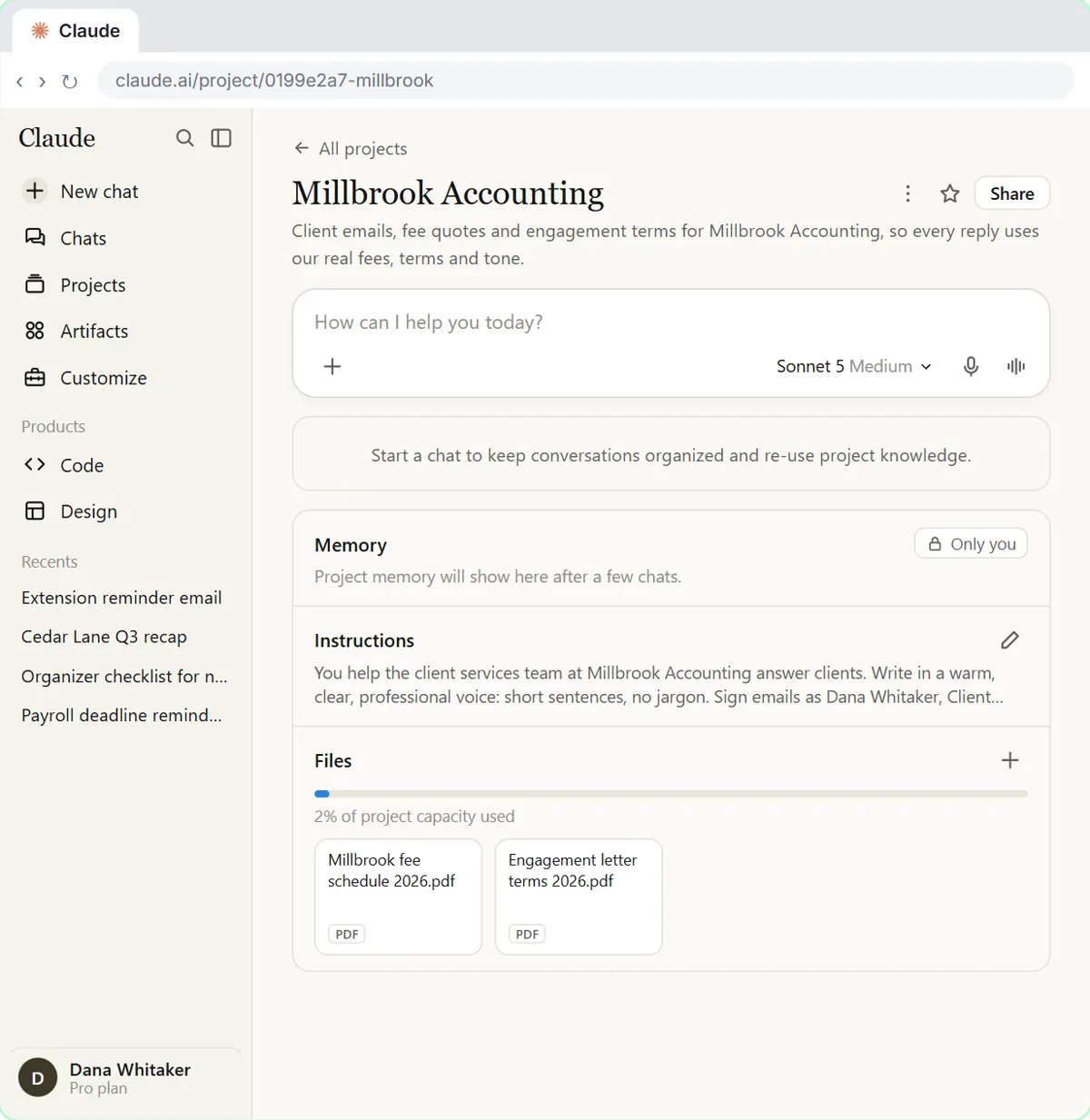 A Claude Project for Your Accounting Firm: Fee Schedule, Engagement Terms and Tone
Create a Claude project for your accounting firm, give it your tone and client policies, add your fee schedule and engagement letter terms as project knowledge, and get…
Free · Live ~9 min
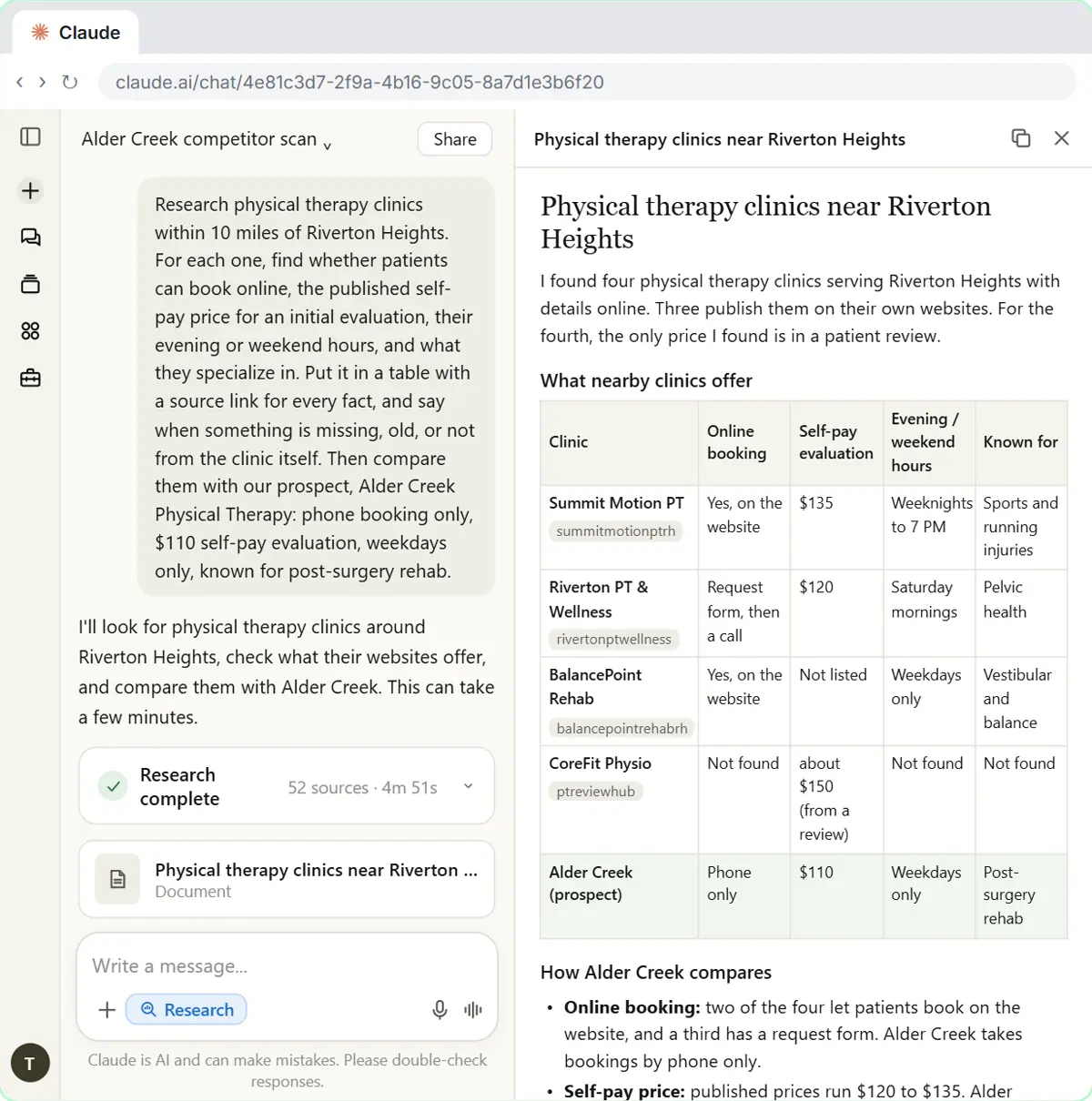 Research a Prospect's Market with Claude Research Before a Pitch (Consultants & Agencies)
Turn on Research before a pitch, have Claude check what a prospect's competitors offer online, read the cited report, check a source and turn it into talking points for…
Free · Live ~7 min
Terms in this lesson
Plain-English definitions, each with an example from a free lesson.