Updated . Built against the tool’s current screens and checked step by step. How we check this lesson
Claude's built-in skills already know how to make spreadsheets and Word files. A custom skill teaches Claude your way of doing something: your layout, your prices, your rules. In this free, interactive tutorial you upload a small business's quote-writing skill to Claude, check that it's switched on, look inside its SKILL.md file, and then ask for a customer quote in plain words and watch Claude use the skill by itself.
At a glance
| Question | Answer |
|---|---|
| What you build | Upload your own skill to Claude as a .zip, check that it’s switched on, see what’s inside its SKILL.md, and watch Claude use it to write a landscaping quote your way. |
| Tools | Claude |
| Time | About 6 minutes, 17 steps in 4 parts |
| Level | Beginner, no coding needed |
| Cost | Free |
| Ways to learn it | Practice it step by step |
The 4 parts, in short
- Open your skills: Open Customize, Open Yours, Open the + Add menu, Choose Upload skill.
- Upload the skill: Click the upload box, Pick the zip file, Open it, Check the preview, then upload.
- Check it’s on: See the SKILL.md.
- See Claude use it: Start a new chat, Click the message box, Ask for a quote, Send it, and 4 more steps.
Start here first: What Are Claude Skills? Turn One On and Watch It Work (module 1 of Claude Skills)
In the course: Part 4 · Claude for Everyday Work (Module 30 of the full course)
Part of: Give AI Your Company Knowledge (step 4 of 5). Next up: Give Your Voice Agent Knowledge: A Price List and FAQ in ElevenLabs
What a custom skill is
A skill is a folder. At minimum it holds one file, SKILL.md, which starts with a short block of settings (called YAML frontmatter) between two lines of dashes. Two fields are required: name, a short name for the skill, and description, which says what the skill does and when Claude should use it. Anthropic's help center puts the limits at 64 characters for the name and 200 characters for the description.
Below that block are your instructions in plain Markdown: the steps, the format, the rules. A skill can also carry extra files, such as a price list or reference notes, and even scripts. Claude reads only the name and description until a request matches, then opens the rest. That is why the description matters so much: it is how Claude decides when to reach for your skill.
Why it matters for a small business
Most small businesses have a few documents they write over and over: quotes, estimates, job summaries, welcome emails. Without a skill, you paste the same instructions into every chat, and the results still drift. With a skill, you write your way down once, upload it, and every quote comes out with the same layout, the same prices and the same terms.
In the lesson, a made-up company, Maple Row Landscaping, has a skill called quote-writer. Its SKILL.md says to write every quote as a Word document, lists the layout from the header to the sign-off, sets the deposit terms, and tells Claude to take prices only from the skill's prices.md file and never to guess a price.
How to upload a skill in Claude
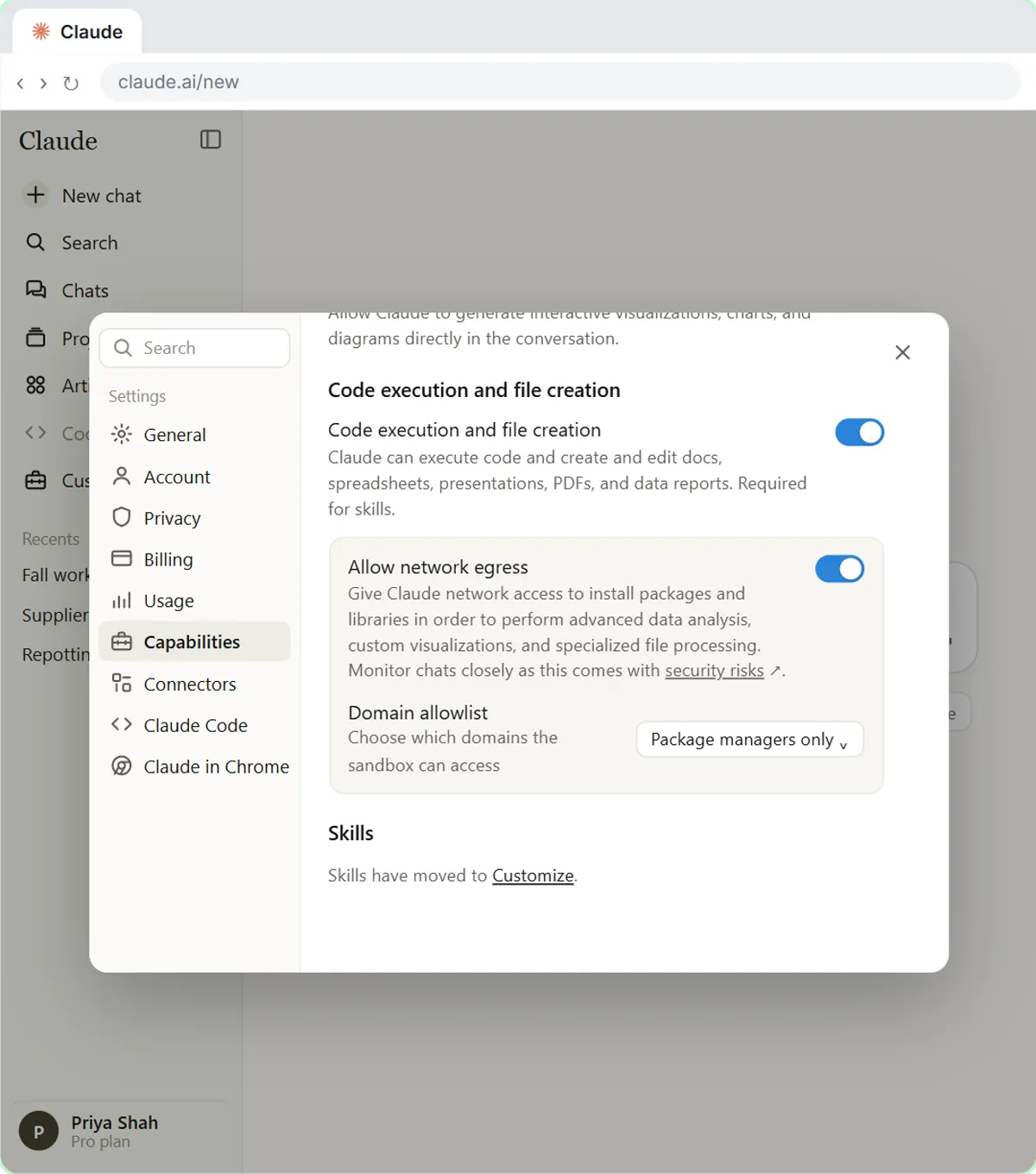
First, package the skill. Name the folder the same as the skill, then make a ZIP file of the folder, so the zip contains the folder itself rather than loose files. Skills also need Code execution and file creation switched on in Settings, Capabilities (the first module of this course covers that).
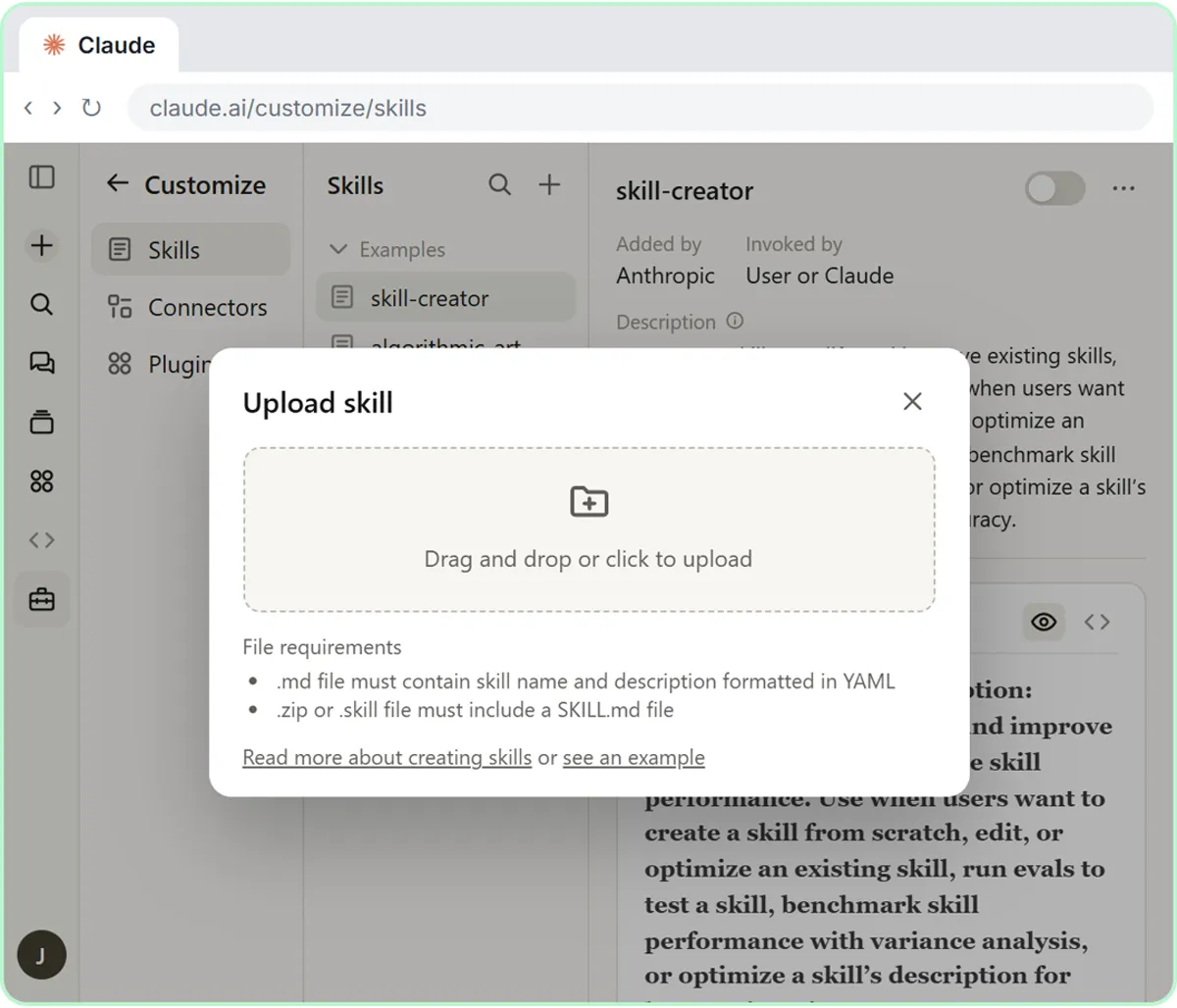
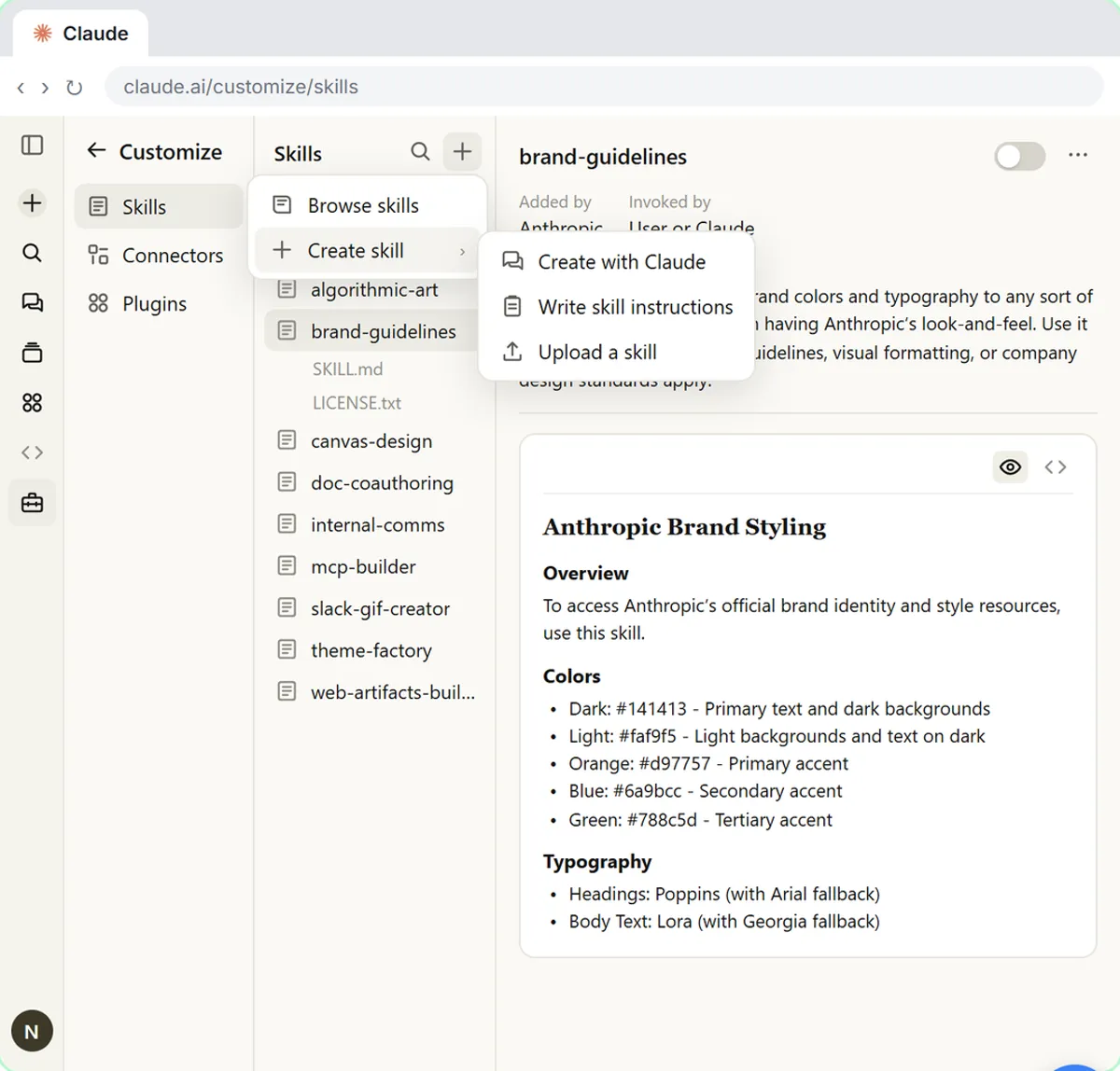
In Claude, click Customize in the left sidebar. It opens on Skills, with Yours and Discover tabs at the top (Discover is a store of ready-made skills). Click Yours, then the black Add button at the top right. The menu offers three ways in: Upload skill, Create a skill and Create with Claude. Choose Upload skill. The Upload a skill page lists its file requirements: an .md file must contain the skill name and description formatted in YAML, and a .zip or .skill file must include a SKILL.md file. Drag your zip onto the box, or click the box and pick the file from your computer. Under Preview, Claude shows the skill's name and description from your SKILL.md, and a security scan runs when you upload. Click Upload.
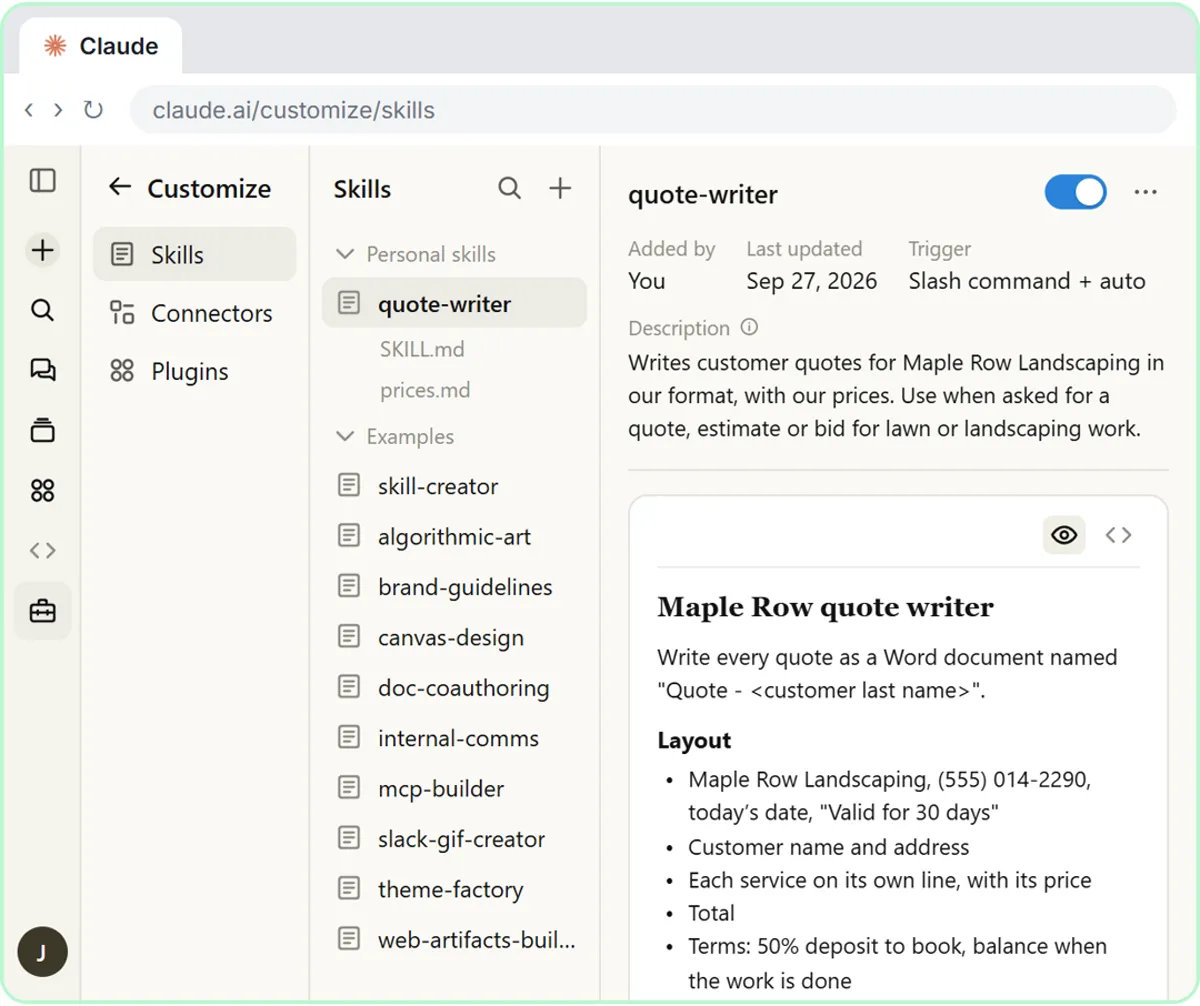
Claude adds the skill and shows a short notice, Uploaded quote-writer. You land on the skill's own page, marked New. In your list it sits under Created by you.
Check that it's on
The skill's page opens with the switch at the top right already on. That switch is the one that matters: when it's on, Claude can use the skill by itself when a request fits, and you can switch it off at any time without deleting it. The Overview tab shows the description and who created it.
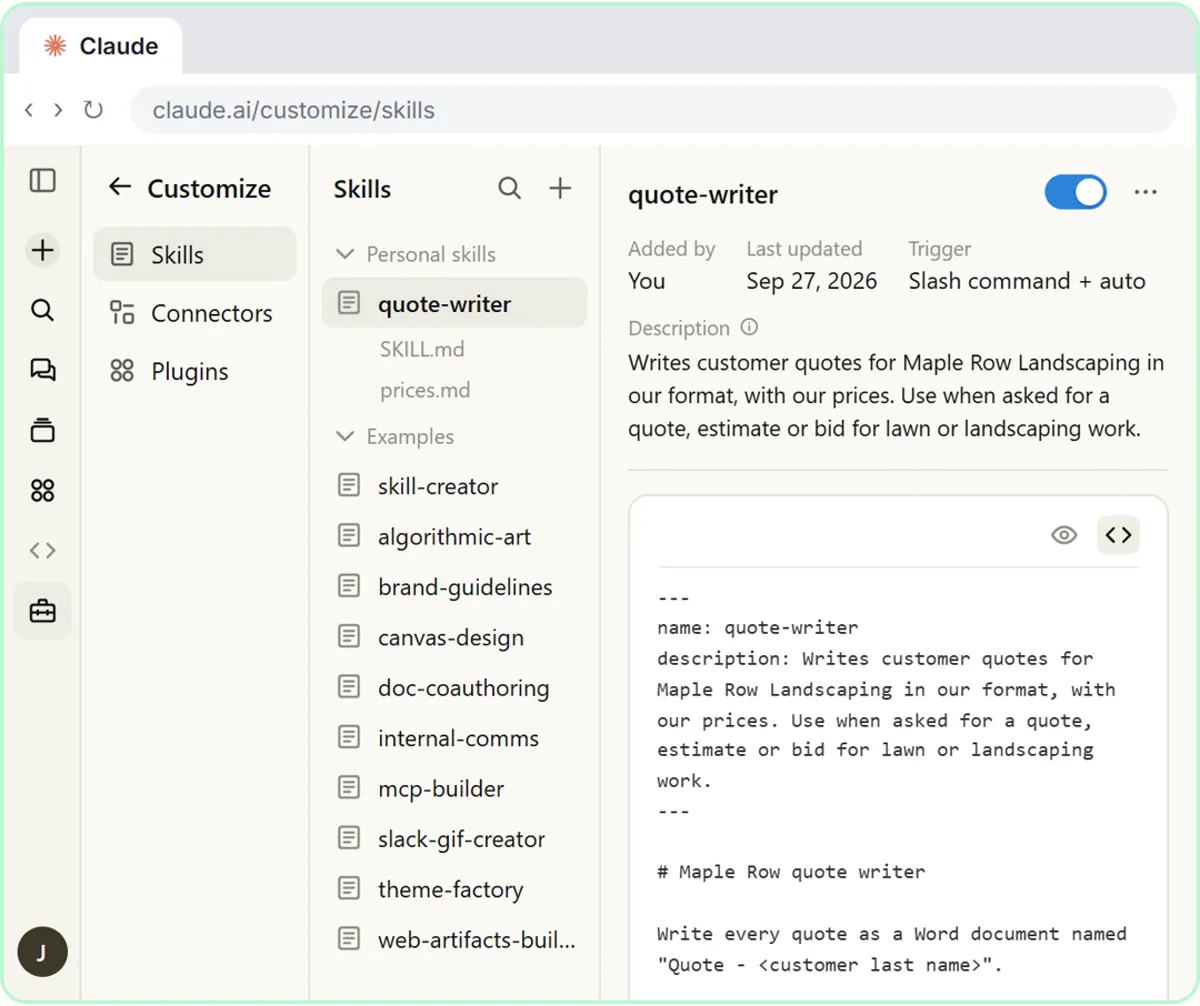
The Contents tab lists SKILL.md and your other files, and shows the instructions. The code button switches to the raw file, where you can see the name and description at the top. If Claude ever skips your skill when you expected it to use it, the description is the first thing to improve: say plainly what the skill is for and the words people use when they need it.
See Claude use it
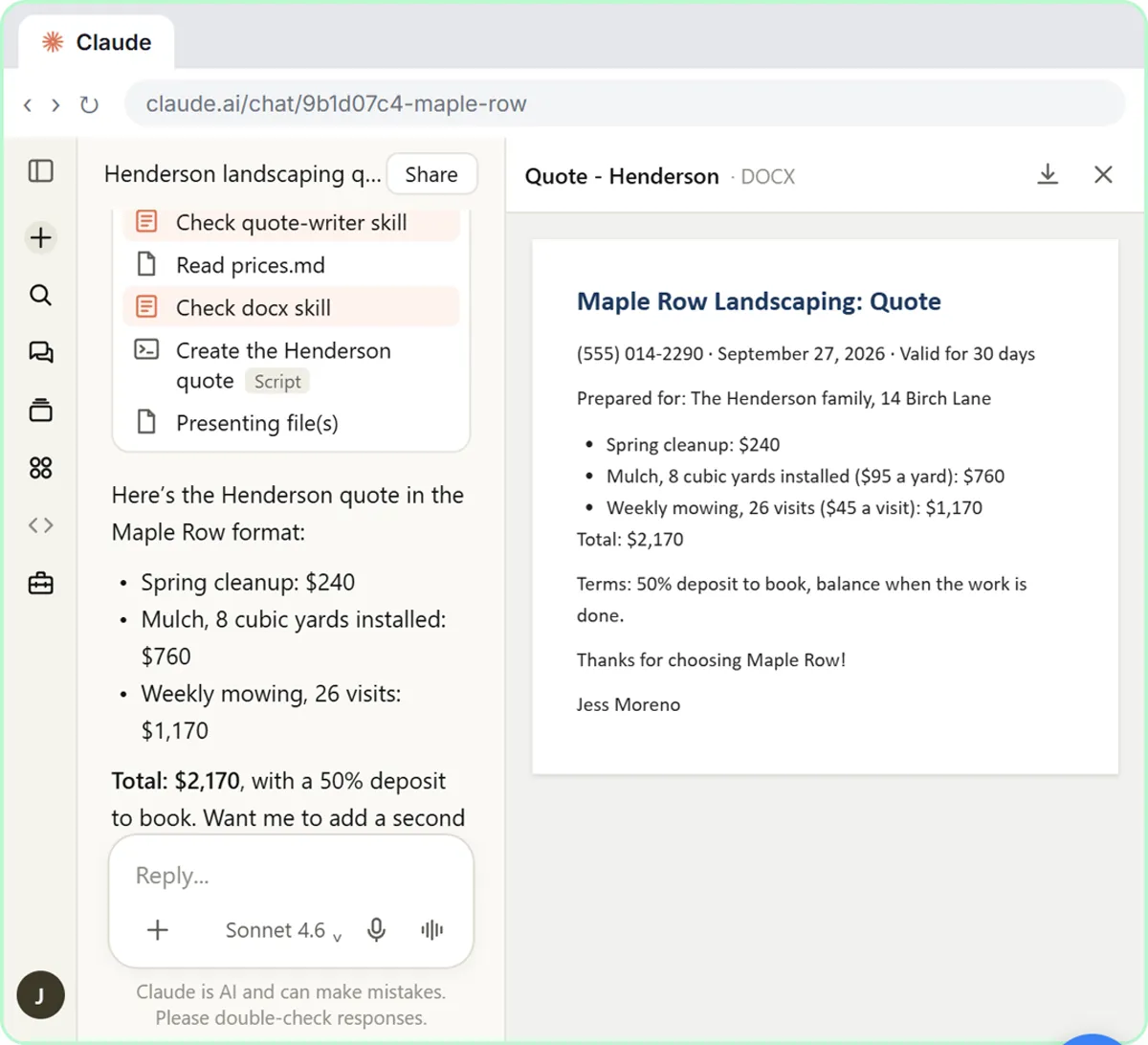
Start a new chat and ask the way you normally would. In the lesson the prompt is a quote for the Henderson family: a spring cleanup, eight cubic yards of mulch installed, and weekly mowing for 26 weeks. The prompt never mentions the skill.
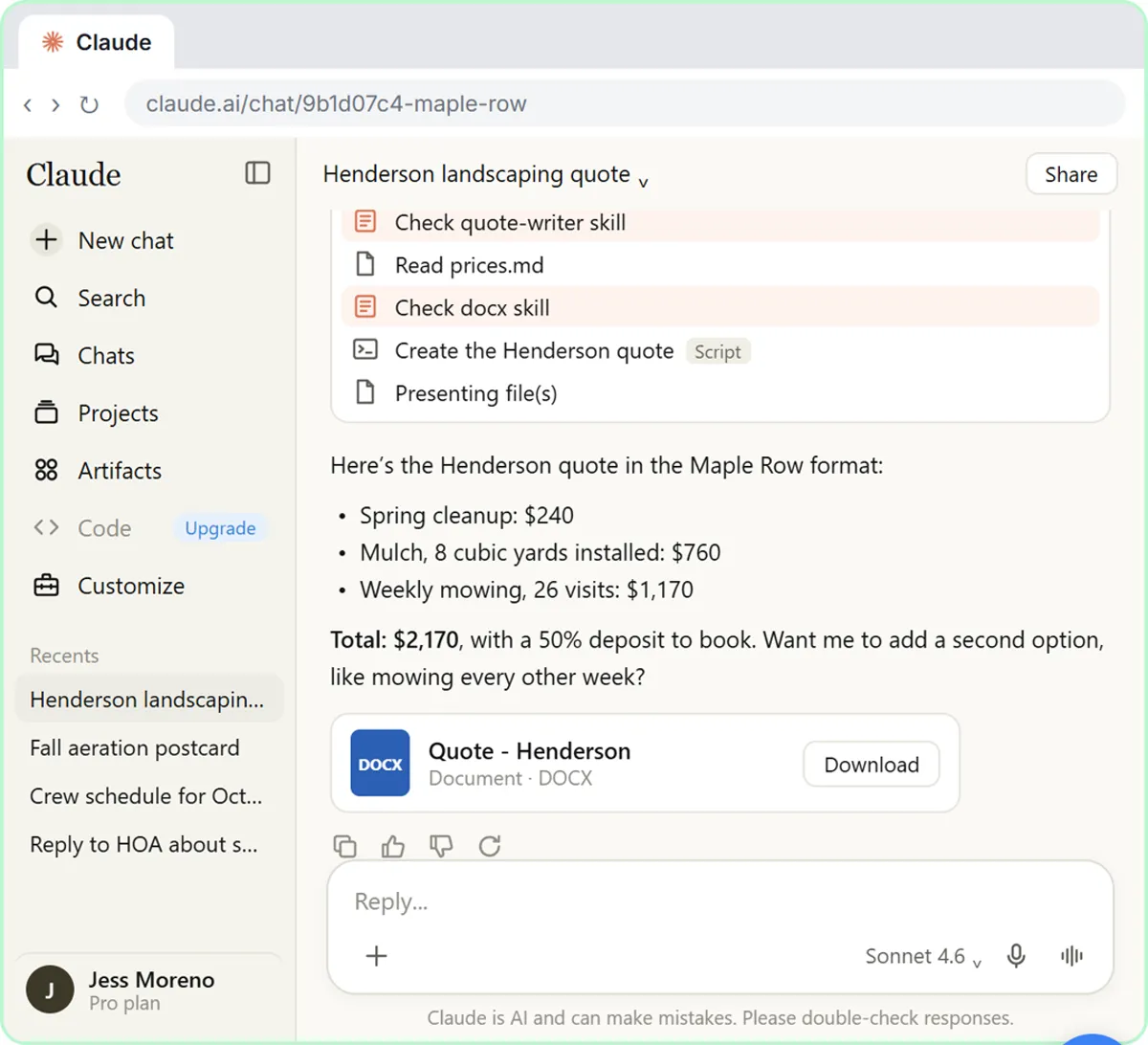
Claude opens the quote-writer skill on its own, reads the price list, uses the built-in Word skill to build the file, and hands back a document named Quote - Henderson. You can open the short work summary above the reply to see the steps, including Loaded skill quote-writer. Claude writes that summary itself, so the exact wording changes from run to run. The quote follows Maple Row's layout, with each price from the price list and a total of $2,170, plus the deposit terms and sign-off from the skill. Download it, and the next quote will come out the same way.
Tips for your own skills
Keep each skill focused on one job; several small skills work better together than one giant one. Include an example of a good result in SKILL.md. Test with a few different prompts that should trigger it. Never put passwords or API keys in a skill, and read any skill you download from the internet before you switch it on. On Team and Enterprise plans you can share a skill with colleagues; otherwise the skills you upload are visible only to you.
Try it yourself, free
Reading the steps is a start. Doing them is how it sticks. The interactive module walks you through every click in a practice copy of Claude, checks each step, and never touches your real accounts.
Start “How to Install a Custom Skill in Claude (Upload a Skill .zip)”Step by step: How to Install a Custom Skill in Claude (Upload a Skill .zip)
All 17 steps of the interactive module, in order. In the module you watch each one, then do it yourself in a practice copy that checks your work.
1. Open your skills
- Open Customize. A custom skill is a folder with a SKILL.md file inside: a name, a description of when to use it, and your instructions. Maple Row Landscaping’s quote-writer skill is zipped and waiting in Downloads. Click Customize in the left sidebar.
In this module you'll add a skill of your own. A custom skill is just a folder with a file called SKILL dot M D inside: a name, a description of when to use it, and your instructions. Maple Row Landscaping has one called quote-writer, zipped and ready in Downloads.
- Open Yours. Customize opens on Skills. Discover is a store of ready-made skills from Anthropic and partners. Yours is where the skills you add will live. Click Yours.
Customize opens right on Skills. The Discover tab is a store of ready-made skills from Anthropic and partners. Yours is where your own skills will live.
- Open the + Add menu. These are the skills you have now. To add one, click the black + Add button at the top right.
- Choose Upload skill. Three ways to add a skill: Upload skill, Create a skill and Create with Claude. You already have a zip file, so click Upload skill.
There are three ways in: upload a skill you already have, write one yourself, or build one by chatting with Claude. You have a zip file ready, so click Upload skill.
2. Upload the skill
- Click the upload box. This is the Upload a skill page. Read the requirements: a .zip or .skill file must include a SKILL.md file (a single .md file works too, if it has the name and description at the top). You can drag your zip onto the box, or click it to browse. Click the box.
This is the Upload a skill page. Look at the requirements: a zip file must include a SKILL dot M D file. You can drag your zip onto the box, or click it to browse.
- Pick the zip file. Your computer’s file window opens on Downloads. Click quote-writer.zip. (Inside it is one folder, quote-writer, holding SKILL.md and a price list.)
Your computer's file window opens on Downloads. Inside it is one folder, quote-writer, with the SKILL dot M D file and a price list.
- Open it. Click Open.
- Check the preview, then upload. The zip is attached. Under Preview, Claude shows the skill’s name and description, read from your SKILL.md. A Security scan runs when you upload. Click Upload.
The zip is attached. Under Preview, Claude shows the skill's name and description, read from your SKILL dot M D file. A security scan runs when you upload.
3. Check it’s on
- See the SKILL.md. A notice says Uploaded quote-writer, and you land on the skill’s own page, marked New. The switch at the top right is already on, so Claude can use the skill by itself whenever a request fits. The Contents tab lists SKILL.md and your price list. Click the </> button to see the raw SKILL.md file.
Done. A notice says Uploaded quote-writer, and you land on the skill's own page. The switch at the top right is already on, and that's what lets Claude use the skill by itself whenever a request fits. The Contents tab lists the SKILL dot M D file and your price list.
4. See Claude use it
- Start a new chat. Between the dashed lines are the two fields every skill needs: name and description. Claude reads the description to decide when to use the skill. Below are Maple Row’s instructions. Click + New at the top of the left sidebar for a new chat.
Between the dashed lines at the top are the two things every skill needs: a name, and a description. Claude reads the description to decide when to use the skill: here, any quote, estimate or bid. Below it are Maple Row's own rules: the layout, the terms, and never guess a price.
- Click the message box. Ask the way you normally would. You don’t need to name the skill. Click the message box.
Ask for a quote the way you normally would. You don't need to mention the skill.
- Ask for a quote. Paste in the prompt to ask for a quote for the Henderson family.
Ask for a quote for the Henderson family: a spring cleanup, eight yards of mulch, and weekly mowing.
- Send it. Click the send arrow.
- Open Claude's work details. Click Shared a file, read 2 files, ran a command above the reply. (Claude writes this line itself, so on a real run the wording changes a little.)
Claude gets to work.
- Open the quote. Look for Loaded skill quote-writer: Claude picked your skill on its own. Then it loaded the built-in docx skill to make the Word file. Click the file card. (Real Claude often opens the quote on the right by itself, so you may already see it.)
Look for the line Loaded skill quote-writer. Claude found your skill by itself, then loaded the built-in Word skill to make the file.
- Close the preview. Maple Row’s layout, prices from the price list, their terms and sign-off: all from the skill. Close the preview with the X.
There it is, in Maple Row's layout. Every price comes from their price list, the total adds up, and the terms and sign-off are theirs. You never typed any of that. Close the preview with the X.
- Download the quote. Click Download to save the quote.
From now on, every quote comes out the same way.
Screenshots
Frequently asked questions
- How do I add a custom skill to Claude?
- Zip your skill folder (it must contain a SKILL.md file). In Claude, open Customize, click Yours, then Add, then Upload skill, and drop in the zip. The skill appears under Created by you with its switch on.
- What goes in a SKILL.md file?
- A short YAML block at the top with a name and a description of what the skill does and when to use it, then your instructions in Markdown. You can add other files, like a price list or examples, in the same folder.
- Do I have to tell Claude to use my skill?
- No. When the skill is on and your request matches its description, Claude uses it by itself. You can also call a skill directly by typing a slash and its name.
- Can other people see my custom skills?
- Not unless you share them. Sharing skills with colleagues is available on Team and Enterprise plans.
- Is this course really free?
- Yes. Stepthrough is completely free, and the practice copy needs no accounts. To do it for real you need your own Claude account. Skills work on Claude's Free, Pro, Max, Team and Enterprise plans.
More in Claude Skills
 Make Every Claude Document On-Brand with a Brand Guidelines Skill
Build a brand skill for a small flower shop by chatting with Claude: colors, fonts, logo placement and voice. Then ask for a proposal and a social post and watch both…
Free · Live ~7 min Beginner
 Claude's Excel Skill: Turn a Messy Export into a Clean Workbook
Upload a messy sales export to Claude and get back a clean Excel workbook with a Data tab, a Summary tab built with formulas, and a chart, thanks to Claude's built-in…
Free · Live ~8 min Intermediate
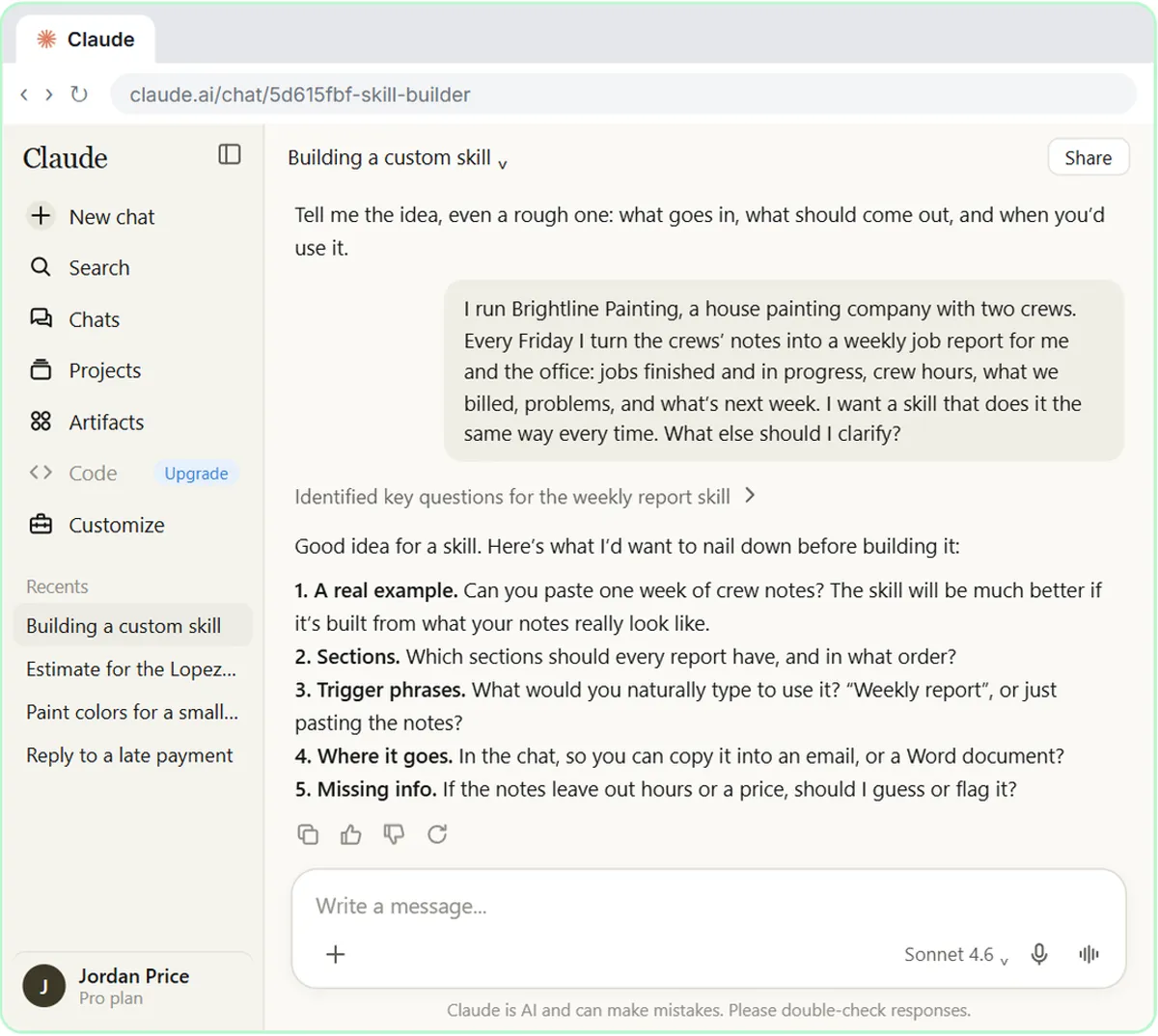 Build Your Own Claude Skill with the Skill Creator: A Weekly Report Template
Turn a report you make every week into a skill. Claude’s skill creator interviews you, drafts the skill, tests it and packages it. Then you use it on a real week…
Free · Live ~8 min Intermediate
All 6 modules in Claude Skills
More Claude tutorials
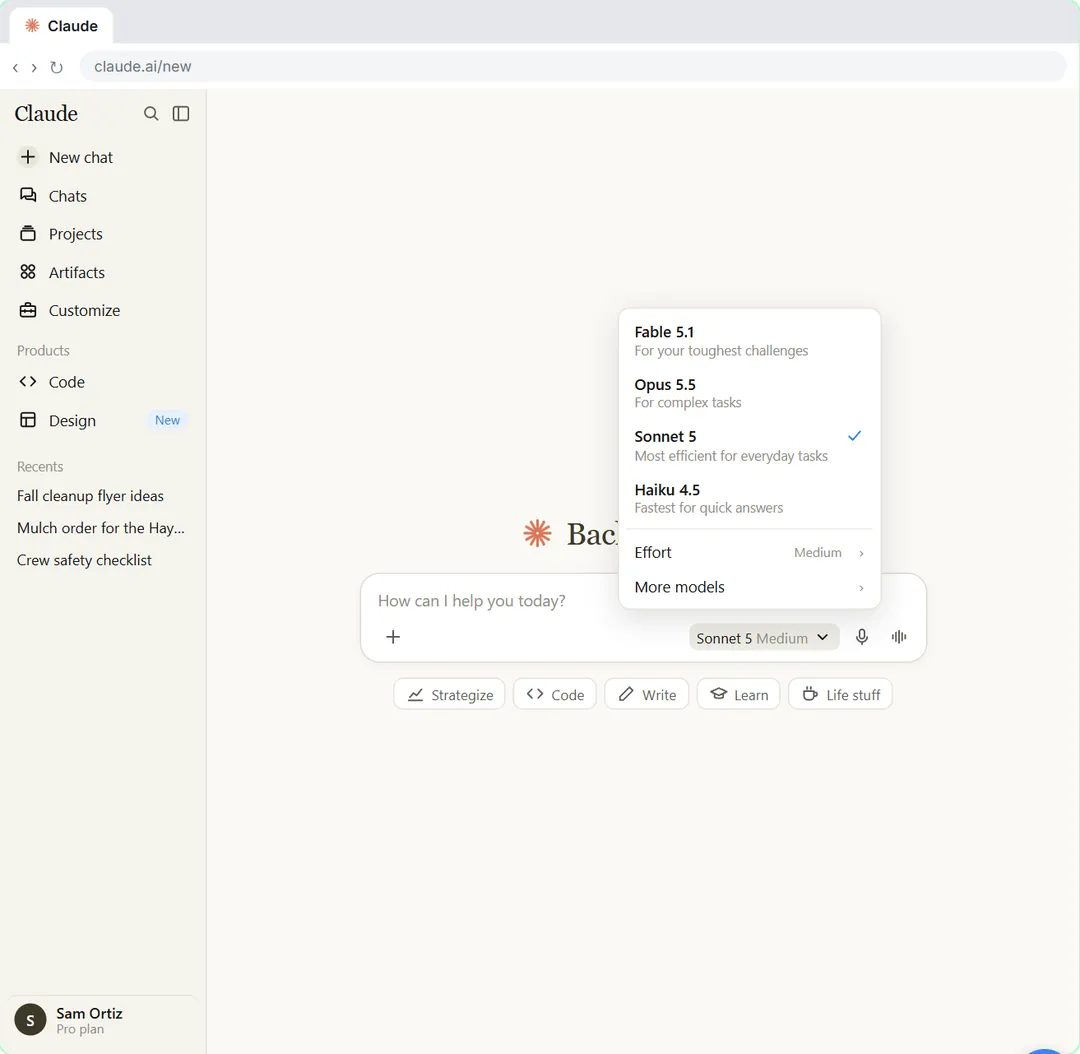 Your First Chat with Claude: Models, Files and a Great First Prompt
Pick a model, attach a customer's complaint email with the + menu, write a four-part prompt, read Claude's reply, ask a follow-up, then pin and rename the chat.
Free · Live ~7 min Beginner
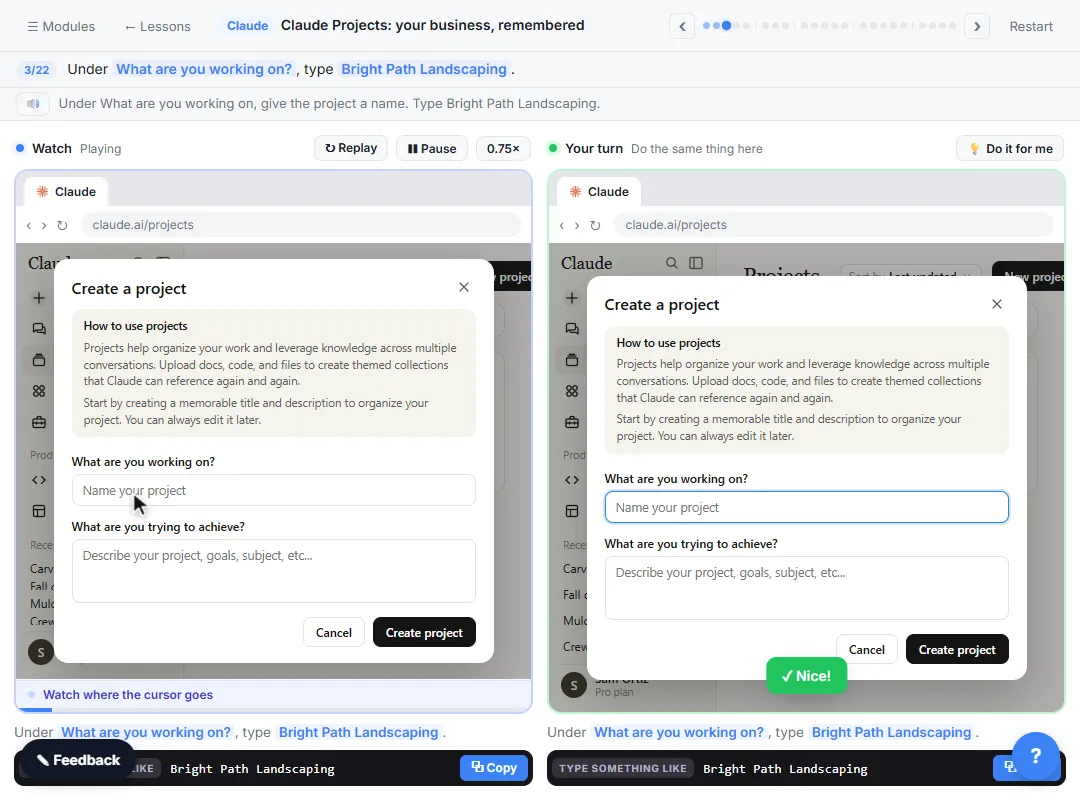 Claude Projects for Your Business: Instructions, Knowledge and Quotes
Create a project for your business, give it instructions for tone and policies, add your price sheet and warranty as project knowledge, and get a customer quote that…
Free · Live ~8 min Beginner
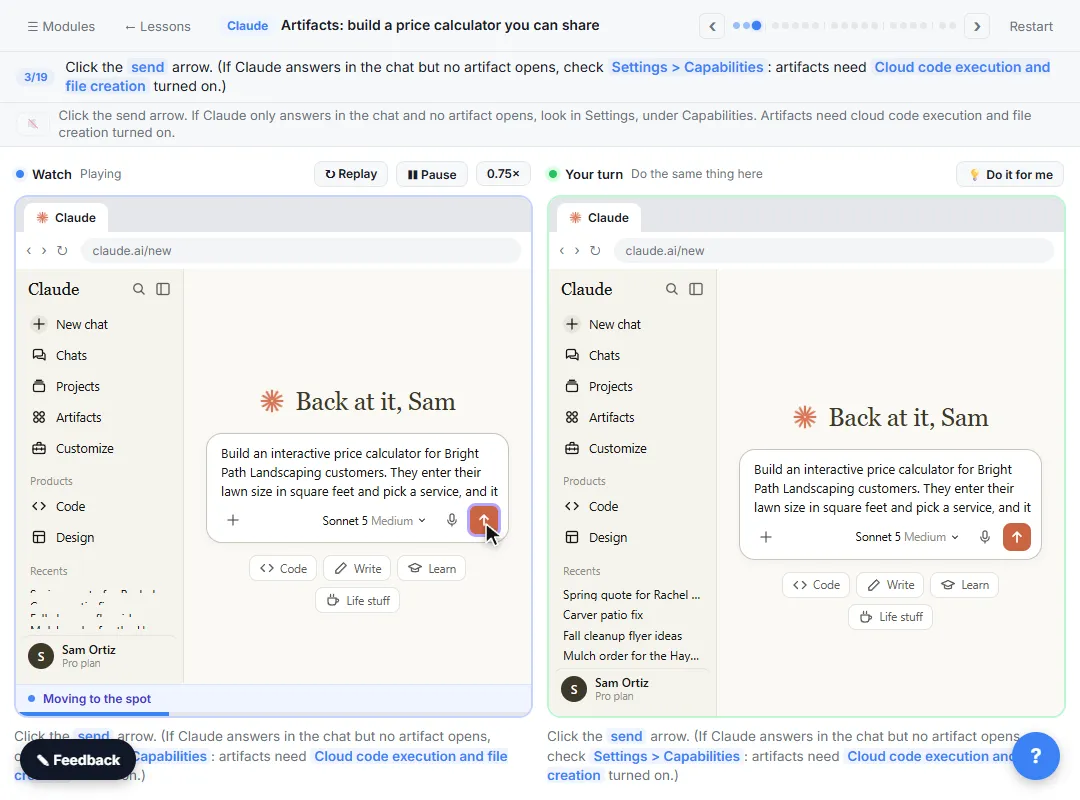 Claude Artifacts: Build a Price Calculator You Can Try, Change and Share
Have Claude build an interactive lawn price calculator, try it in the artifact panel, ask for a change, and share it with a link.
Free · Live ~7 min Beginner
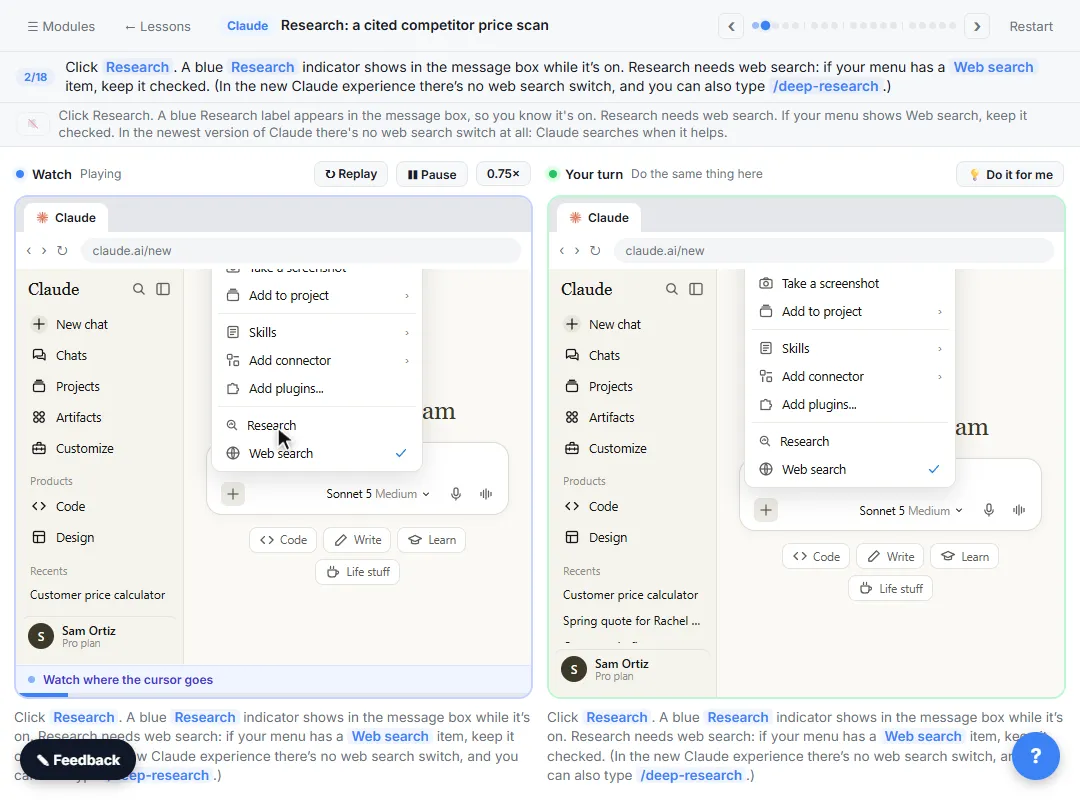 Claude Research: Get a Cited Competitor Price Scan, Then Check It
Turn on Research, have Claude check what nearby competitors charge, read the cited report, check a source and ask a follow-up.
Free · Live ~7 min Beginner
 Connect Claude to Google Drive, Gmail and Google Calendar
Connect Google Drive, Gmail and Google Calendar to Claude, then find your price sheet, summarize a customer's email thread and check your week, approving each tool as…
Free · Live ~8 min Intermediate
 Check a Contract for Red Flags with Claude
Upload a vendor contract, get it in plain English, find the risky clauses with the exact words quoted, draft questions for the vendor, and save the review as a project…
Free · Live ~11 min Beginner
Terms in this lesson
Plain-English definitions, each with an example from a free lesson.