Updated . Built against the tool’s current screens and checked step by step. How we check this lesson
Claude Code, Anthropic's AI helper that runs in your terminal, can use skills just like the Claude app. A skill is a folder with a SKILL.md file inside: a name, a description of when to use it, and the steps Claude should follow. In this free, interactive tutorial you read a real-looking SKILL.md, learn where Claude Code keeps skills for one project and for all your projects, add Anthropic's skills marketplace, install its Excel, Word, PowerPoint and PDF skills, check that they are on, and then ask for a report in plain words and watch Claude pick the right skills by itself.
At a glance
| Question | Answer |
|---|---|
| What you build | See what a SKILL.md looks like, learn where Claude Code keeps skills, install Anthropic's document skills from a plugin marketplace, and watch Claude use them on its own. |
| Tools | Claude Code |
| Time | About 7 minutes, 22 steps in 6 parts |
| Level | Advanced |
| Cost | Free |
| Ways to learn it | Practice it step by step |
The 6 parts, in short
- Look inside a skill: Click the terminal, Print the SKILL.md, Read the name and description.
- Where skills live: Start Claude Code, List your skills, Spot the project skill, Close the list.
- Add a marketplace: Add Anthropic’s skills marketplace, Note the marketplace name.
- Install the plugin: Install document-skills, Check what it adds, Install it for you, Reload plugins.
- Check it is there: Open the plugin manager, Open the Installed tab, Go back, List your skills again, and 1 more step.
- Use it: Ask for the report, Let Claude create the script, Let Claude run it, Your report is ready.
Start here first: What Are Claude Skills? Turn One On and Watch It Work (module 1 of Claude Skills)
In the course: Part 4 · Claude for Everyday Work (Module 31 of the full course)
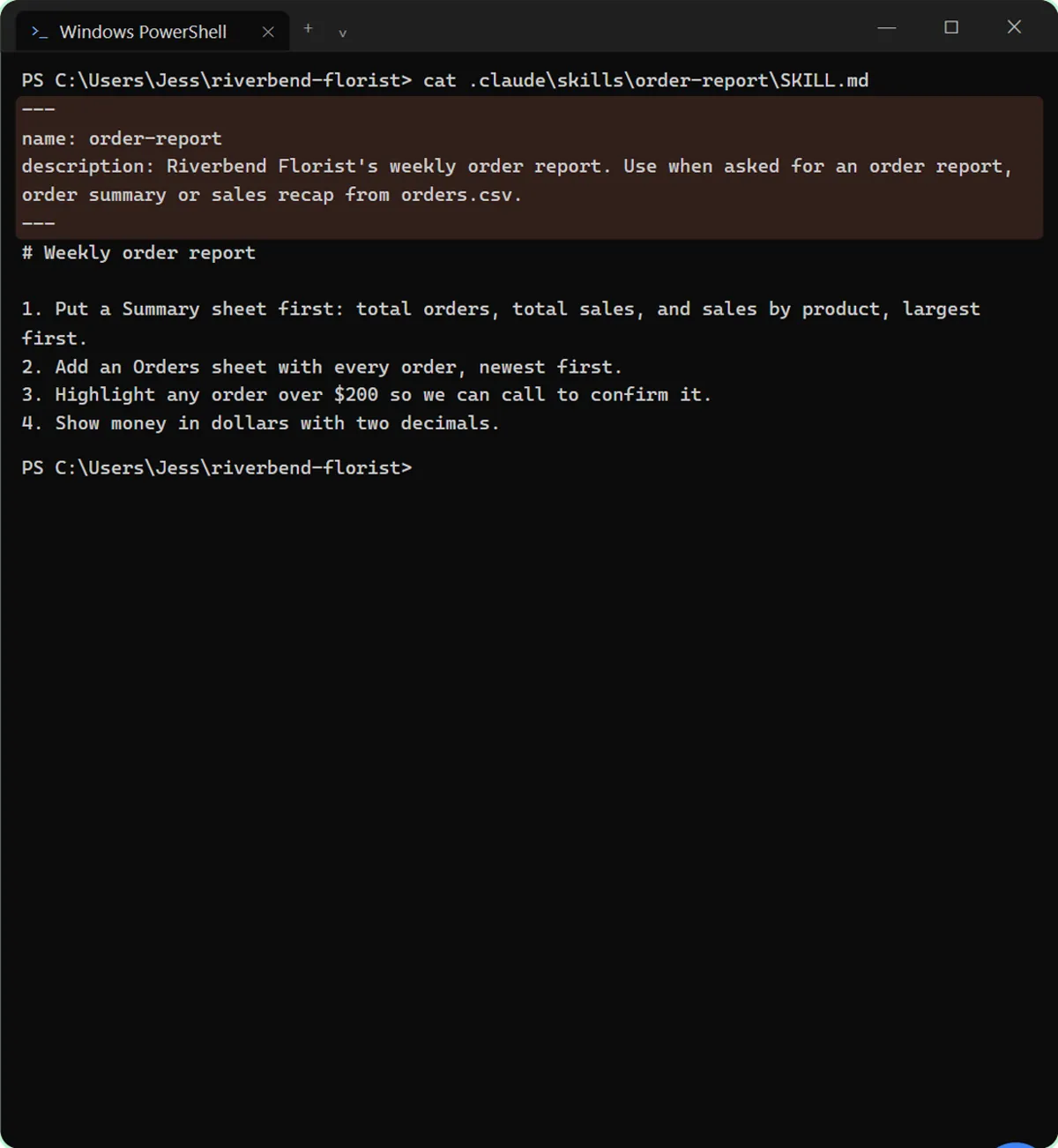
What a skill looks like
Every skill is a folder named after the skill, with a file called SKILL.md in it. The file starts with a short block between two lines of three dashes. That block holds the skill's name and its description. Below it are plain instructions.
The description is the part that matters most. Claude Code reads the descriptions of all your skills, and when a request matches one, it loads that skill's full instructions. Anthropic's own template asks for exactly these two fields: a name in lowercase with hyphens, and a description that says what the skill does and when to use it.
Where Claude Code keeps skills
Where you save a skill decides where it works. A project skill lives in the project's own .claude/skills folder, for example .claude/skills/order-report/SKILL.md, and loads for anyone who opens Claude Code in that folder. A personal skill lives in .claude/skills in your home folder, which is ~/.claude/skills on a Mac and C:\Users\<you>\.claude\skills on Windows, and it loads in every project on your computer. Skills that come from a plugin live inside the plugin and show up with the plugin's name in front, like document-skills:xlsx.
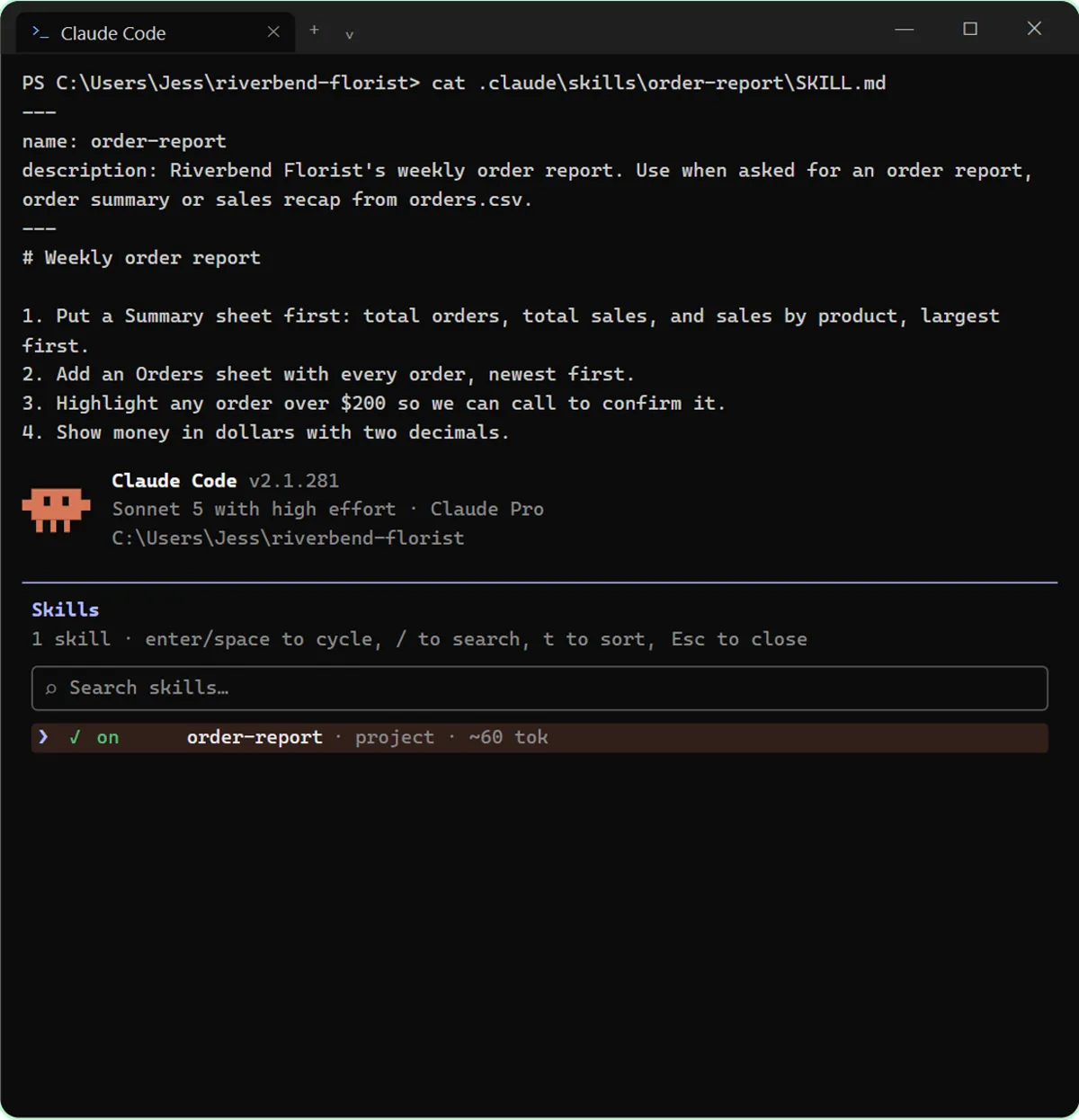
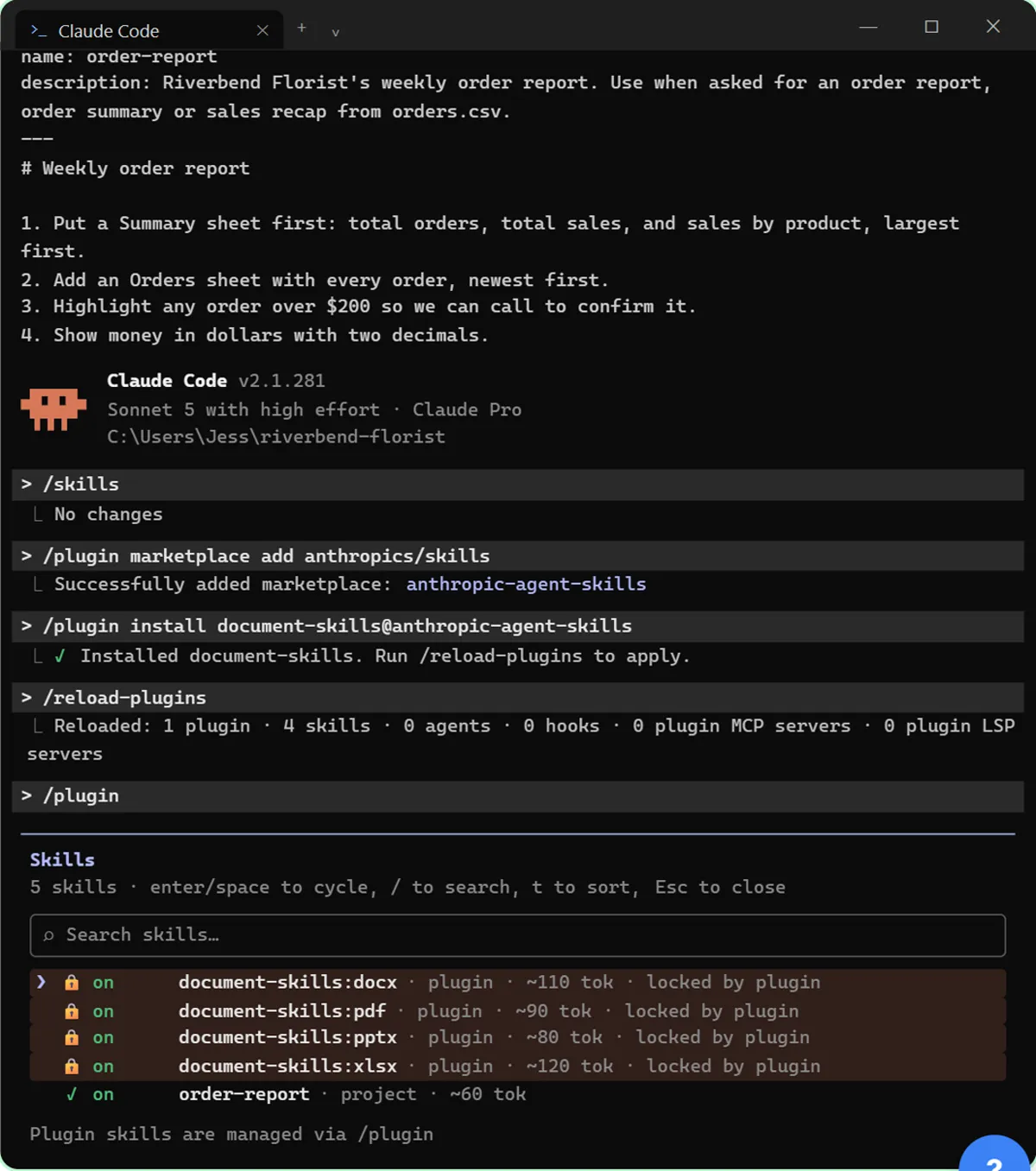
To see what is loaded, type /skills in Claude Code. The list shows each skill, whether it is on, where it came from (user, project or plugin). When there are none, it says No skills found and reminds you of the two folders. Claude Code watches these folders, so a skill you add or edit shows up without a restart; if you had to create the skills folder itself during a session, run /reload-skills.
Plugins, marketplaces and install scopes
Skills that other people write usually reach Claude Code inside a plugin, and plugins are listed in marketplaces. A marketplace is a catalog you add once. Anthropic's official marketplace is added for you the first time you run Claude Code, and Anthropic's GitHub repository anthropics/skills is a second marketplace with two main plugins: document-skills, with the Excel, Word, PowerPoint and PDF skills, and example-skills, with skills like skill-creator, brand-guidelines and internal-comms.
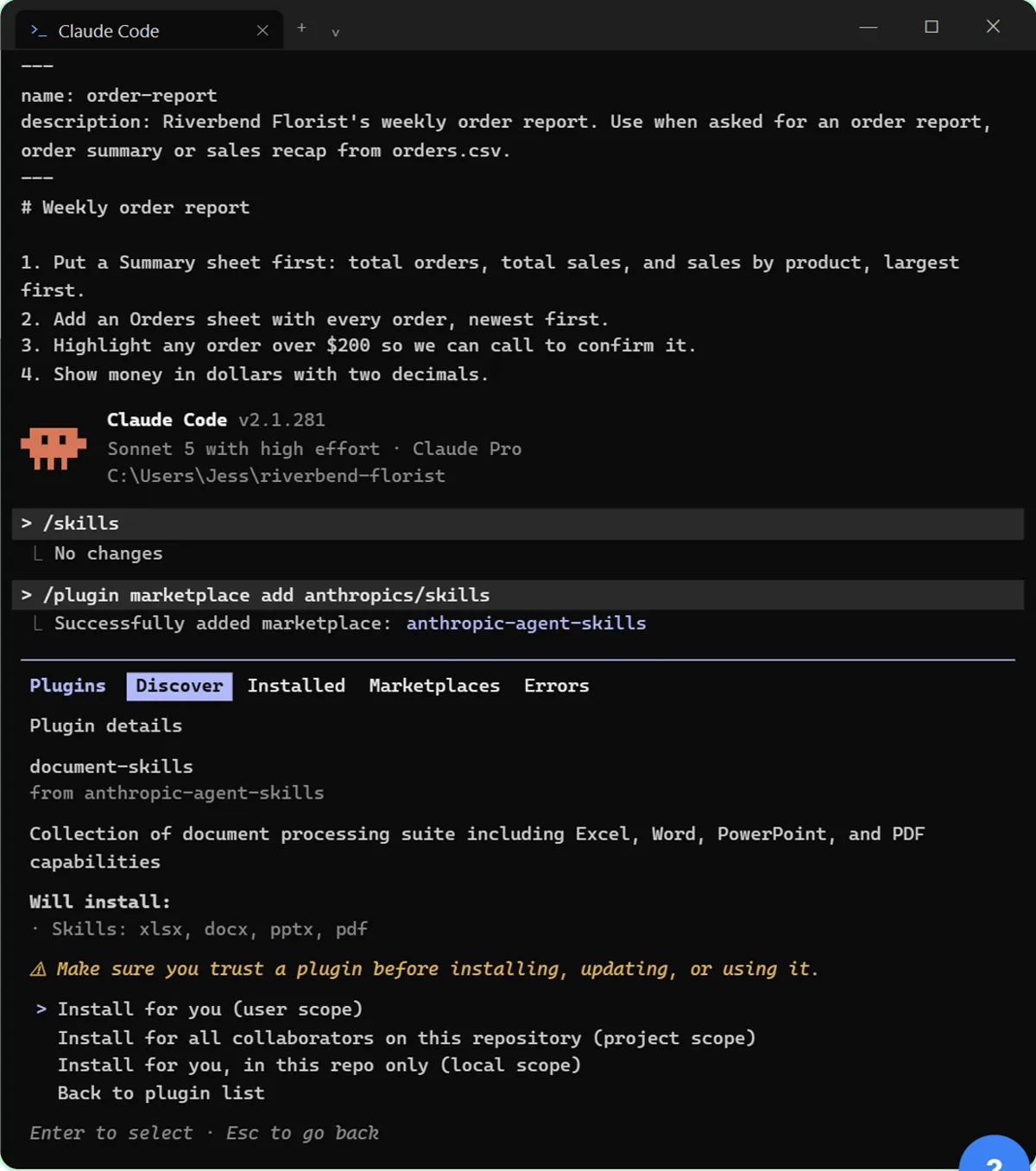
When you install, you pick a scope. Install for you (user scope) turns the plugin on in every project on your computer. Install for all collaborators on this repository (project scope) records it in the project's settings so your team gets it too. Install for you, in this repo only (local scope) keeps it to you in that one project. Plugins can include scripts and connections to other services, so read the details screen and only install from sources you trust.
How to use this in your business
Start small. Install the one plugin that matches work you already do every week, such as document-skills if you produce spreadsheets, Word documents or PDFs. Then write one project skill for a report or document your business makes the same way every time, and let Claude Code combine the two.
To turn a plugin off or remove it later, open /plugin, go to the Installed tab and disable or uninstall it there.
How the interactive lesson works
Each step shows you what to do on the left and lets you do it yourself on the right, in a practice copy of Windows Terminal running Claude Code. Nothing is installed on your computer, no commands run and no Claude account is needed. A voiceover explains each step, short commands are typed by you, and long ones go in with one Paste button. When you finish, you can do the same thing in your own Claude Code in a few minutes.
Try it yourself, free
Reading the steps is a start. Doing them is how it sticks. The interactive module walks you through every click in a practice copy of Claude Code, checks each step, and never touches your real accounts.
Start “Install Skills in Claude Code: the Skills Folder and a Plugin Marketplace”Step by step: Install Skills in Claude Code: the Skills Folder and a Plugin Marketplace
All 22 steps of the interactive module, in order. In the module you watch each one, then do it yourself in a practice copy that checks your work.
1. Look inside a skill
- Click the terminal. A skill is a folder with a SKILL.md file inside. This project folder already has one. Click the terminal to start.
In this module, you'll add skills to Claude Code, Anthropic's AI helper that works right in your terminal. A skill is just a folder with a file called skill dot M D inside, and Claude reads it when a task calls for it. This florist's project folder already has one.
- Print the SKILL.md. Paste in the command to run cat .claude\skills\order-report\SKILL.md. It prints the skill file from the project's .claude\skills\order-report folder.
Let's look inside that skill. This command prints its skill dot M D file, from the project's dot claude, skills, order report folder.
- Read the name and description. Between the --- lines are the name and the description. The description tells Claude when to use the skill; the steps below it are what Claude follows. Click the highlighted block.
Every skill file starts like this. Between the dashed lines are a name and a description. The description tells Claude when to use the skill, so it's worth writing well. Below that are the steps Claude follows.
2. Where skills live
- Start Claude Code. Type claude and press Enter to start Claude Code in this folder.
Now start Claude Code in this folder.
- List your skills. Type /skills and press Enter.
Claude Code is running.
- Spot the project skill. order-report is marked project: it lives in this project's .claude/skills folder. Personal skills, for every project, go in ~/.claude/skills in your home folder (on Windows, C:\Users\<you>\.claude\skills). Click the order-report row.
There's order report, marked project. Project skills live in the dot claude, skills folder inside a project, so anyone who works in that folder gets them. Skills you want everywhere go in the same folder in your home folder instead. Those are your personal skills.
- Close the list. Press Esc to close the list. Here, click Esc to close.
Close the list with Escape. Here, just click Esc to close.
3. Add a marketplace
- Add Anthropic’s skills marketplace. Skills you install come in plugins, and plugins come from marketplaces. Paste in the command to run /plugin marketplace add anthropics/skills.
Next, let's install skills other people have written. Those come packaged as plugins, and plugins come from marketplaces, which are catalogs you add once. Anthropic's skills repository on GitHub is one of them.
- Note the marketplace name. It was added as anthropic-agent-skills. That is the name you install from. Click the name.
Added. Notice the name it registered under: anthropic agent skills. That's the name you use when you install from it.
4. Install the plugin
- Install document-skills. The plugin document-skills holds Anthropic's Excel, Word, PowerPoint and PDF skills. Paste in the command to run /plugin install document-skills@anthropic-agent-skills.
This marketplace has a plugin called document skills, with Anthropic's Excel, Word, PowerPoint and PDF skills. You install it with slash plugin install, the plugin name, an at sign, and the marketplace name.
- Check what it adds. Nothing installs yet. Plugin details shows where it comes from and what it will install. Only install plugins you trust. Click Will install.
Nothing installs yet. First you see the details: where it's from, what it does, and exactly what it will add. Here, that's four skills. Plugins can run code on your computer, so only install ones from people you trust.
- Install it for you. Pick a scope. Install for you (user scope) makes it available in every project on this computer. Click it.
Install for you, user scope, makes it available in every project on this computer.
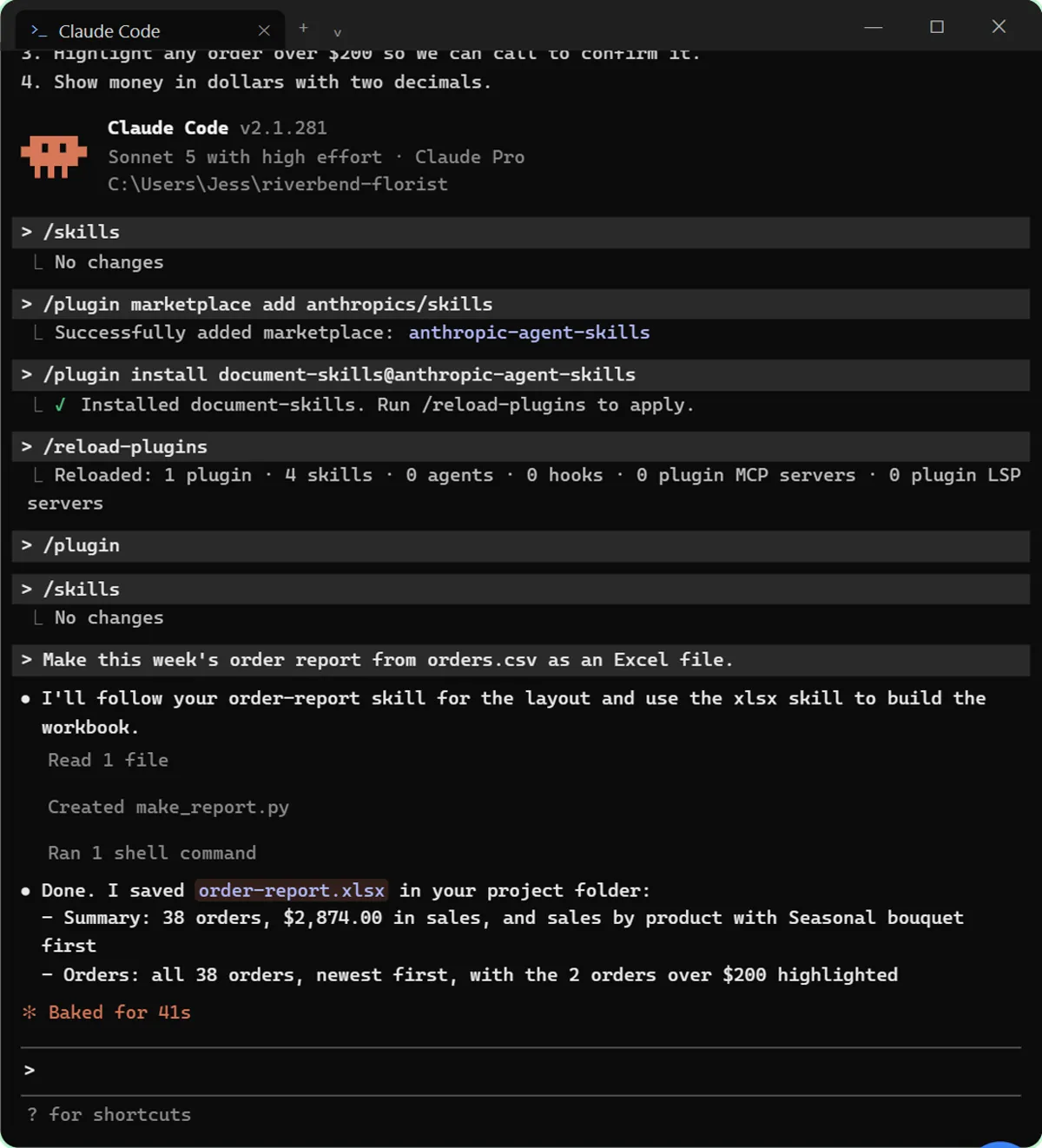
- Reload plugins. Type /reload-plugins and press Enter to switch it on without restarting. (Newer versions may reload for you; running it again is harmless.)
It's installed, and Claude Code says to reload plugins so it takes effect without a restart. Newer versions may do this for you, but running it yourself never hurts.
5. Check it is there
- Open the plugin manager. Type /plugin and press Enter.
Let's make sure it's there.
- Open the Installed tab. Discover lists plugins from the marketplaces you have added. Click the Installed tab.
It opens on Discover, where you can browse plugins from every marketplace you've added.
- Go back. document-skills is listed under User, from anthropic-agent-skills, enabled. Click Esc to go back.
There it is: document skills, from anthropic agent skills, enabled, installed for you.
- List your skills again. Type /skills and press Enter.
- See the new skills. Four new skills: document-skills:docx, pdf, pptx and xlsx, locked on by the plugin. Click Esc to close.
Four new skills, for Word, PDF, PowerPoint and Excel, each named after the plugin first. They're locked on, because you manage them from slash plugin.
6. Use it
- Ask for the report. Ask in plain words, without naming a skill. Paste in the request: Make this week's order report from orders.csv as an Excel file.
Now for the payoff. Ask for this week's order report in plain words, without naming any skill.
- Let Claude create the script. Claude picked order-report for the layout and xlsx to build the file, on its own. It asks before creating a file. Click 1. Yes.
Claude matched your request to two skill descriptions: your order report skill for the layout, and the Excel skill to build the file. Before it creates a file, it asks you.
- Let Claude run it. It also asks before running a command. Click 1. Yes.
And it asks before running a command.
- Your report is ready. The workbook follows the skill: Summary sheet first, then every order, big ones highlighted. Click order-report.xlsx to finish.
Done. The workbook follows your skill: a Summary sheet first, then every order, with the big ones highlighted.
Screenshots
Frequently asked questions
- Where are Claude Code skills stored?
- Personal skills go in ~/.claude/skills/<skill-name>/SKILL.md (C:\Users\<you>\.claude\skills on Windows) and work in every project. Project skills go in .claude/skills/<skill-name>/SKILL.md inside a project and work for anyone using that project. Plugin skills live inside the plugin.
- How do I install Anthropic's skills in Claude Code?
- In Claude Code, run /plugin marketplace add anthropics/skills, then /plugin install document-skills@anthropic-agent-skills (or example-skills@anthropic-agent-skills). Choose a scope on the details screen, and run /reload-plugins if Claude Code asks you to.
- How do I check which skills Claude Code has?
- Type /skills. It lists every skill with its source (user, project or plugin) and whether it is on. The Installed tab in /plugin lists your plugins.
- Do I have to tell Claude Code which skill to use?
- No. Claude reads each skill's description and uses a skill when your request matches it. You can also start a skill yourself by typing a slash and its name, like /order-report.
- Is this course really free?
- Yes. Stepthrough is completely free, and the practice copy needs no accounts. To do it for real you need Claude Code, which works with a paid Claude plan or an Anthropic Console account.
More in Claude Skills
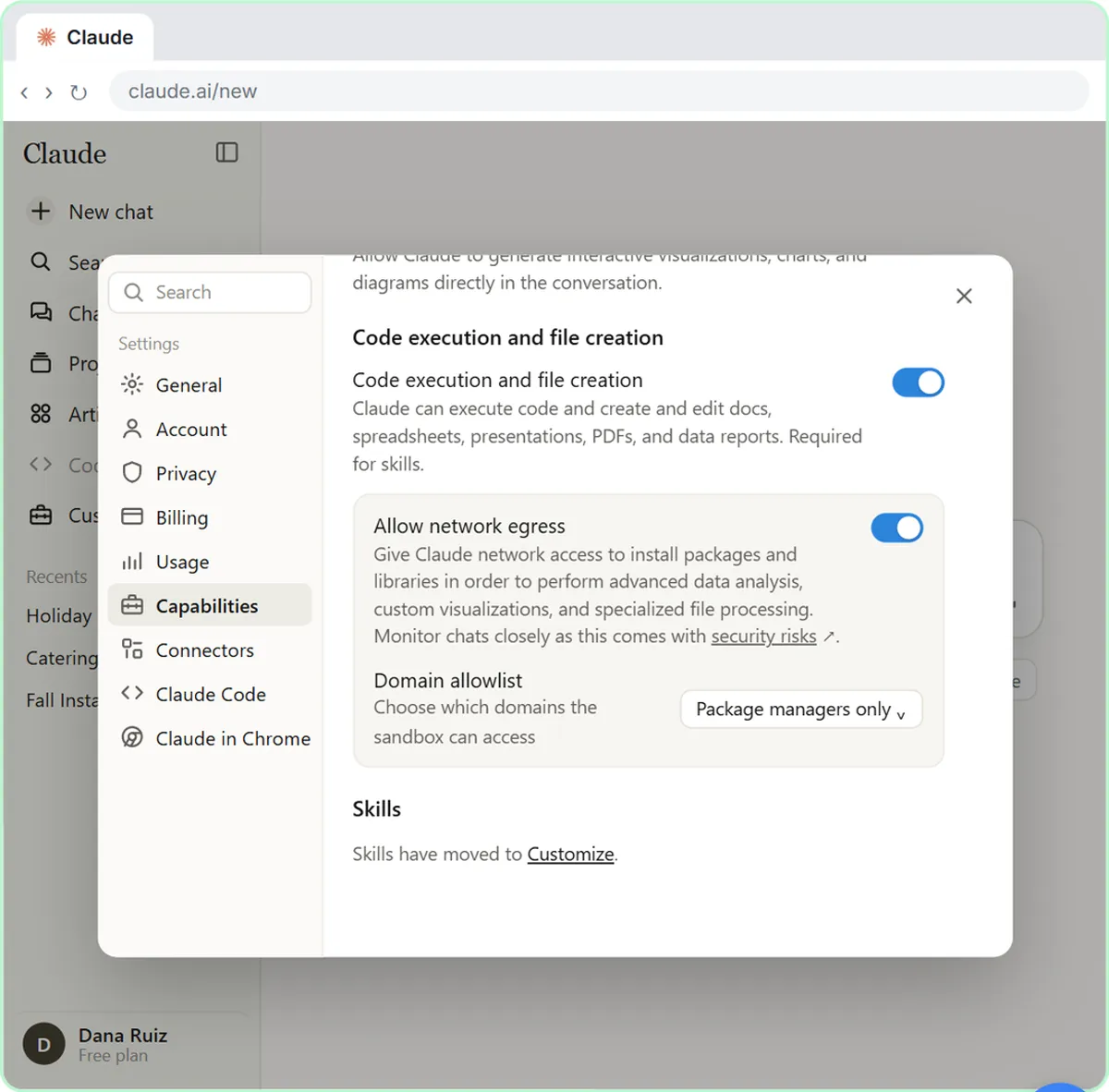 What Are Claude Skills? Turn One On and Watch It Work
Learn what a Claude skill is, switch on the setting skills need, turn on an example skill in Customize, and watch Claude use its Excel and Word skills on its own.
Free · Live ~7 min Beginner
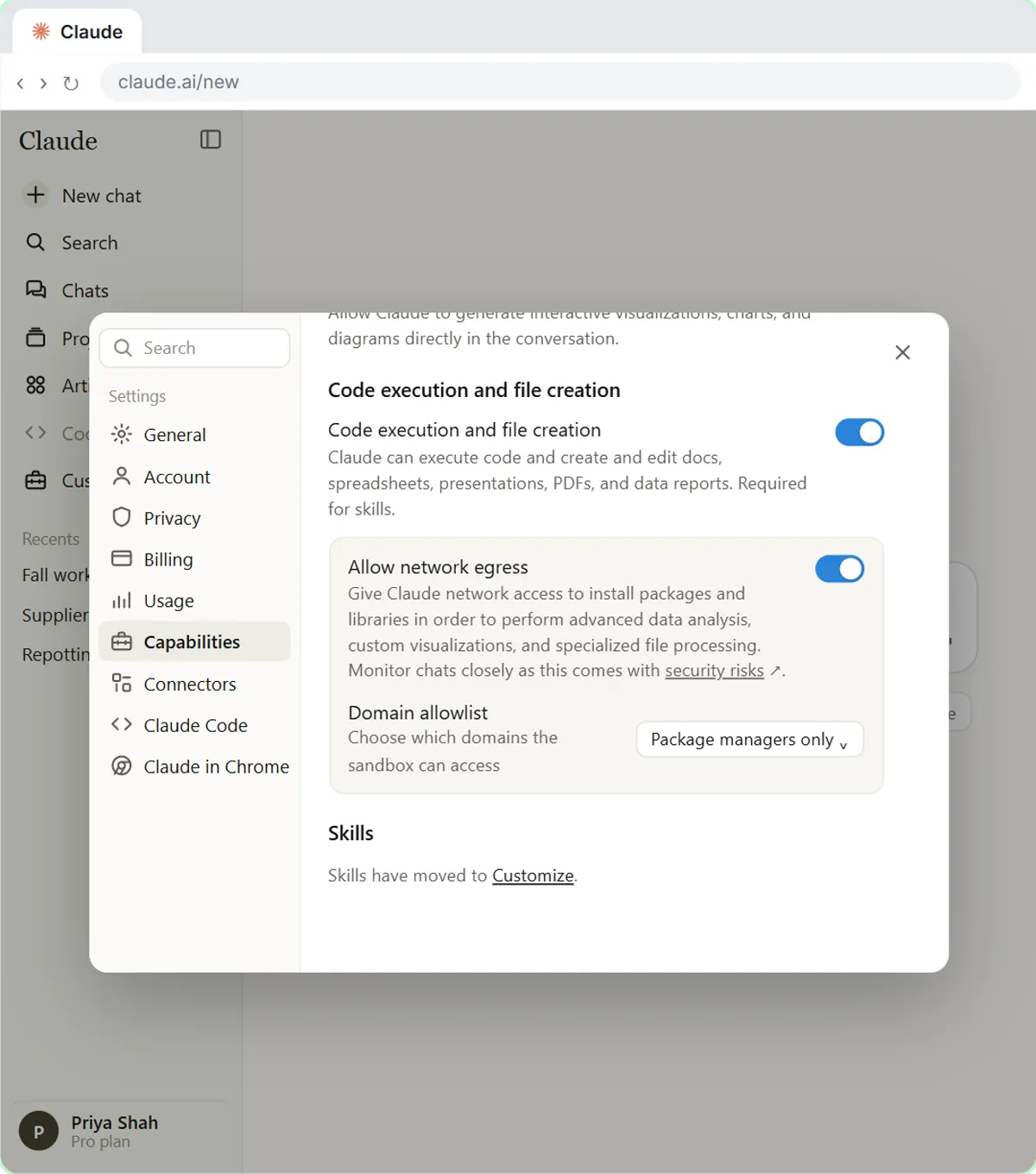 Claude's Excel Skill: Turn a Messy Export into a Clean Workbook
Upload a messy sales export to Claude and get back a clean Excel workbook with a Data tab, a Summary tab built with formulas, and a chart, thanks to Claude's built-in…
Free · Live ~8 min Intermediate
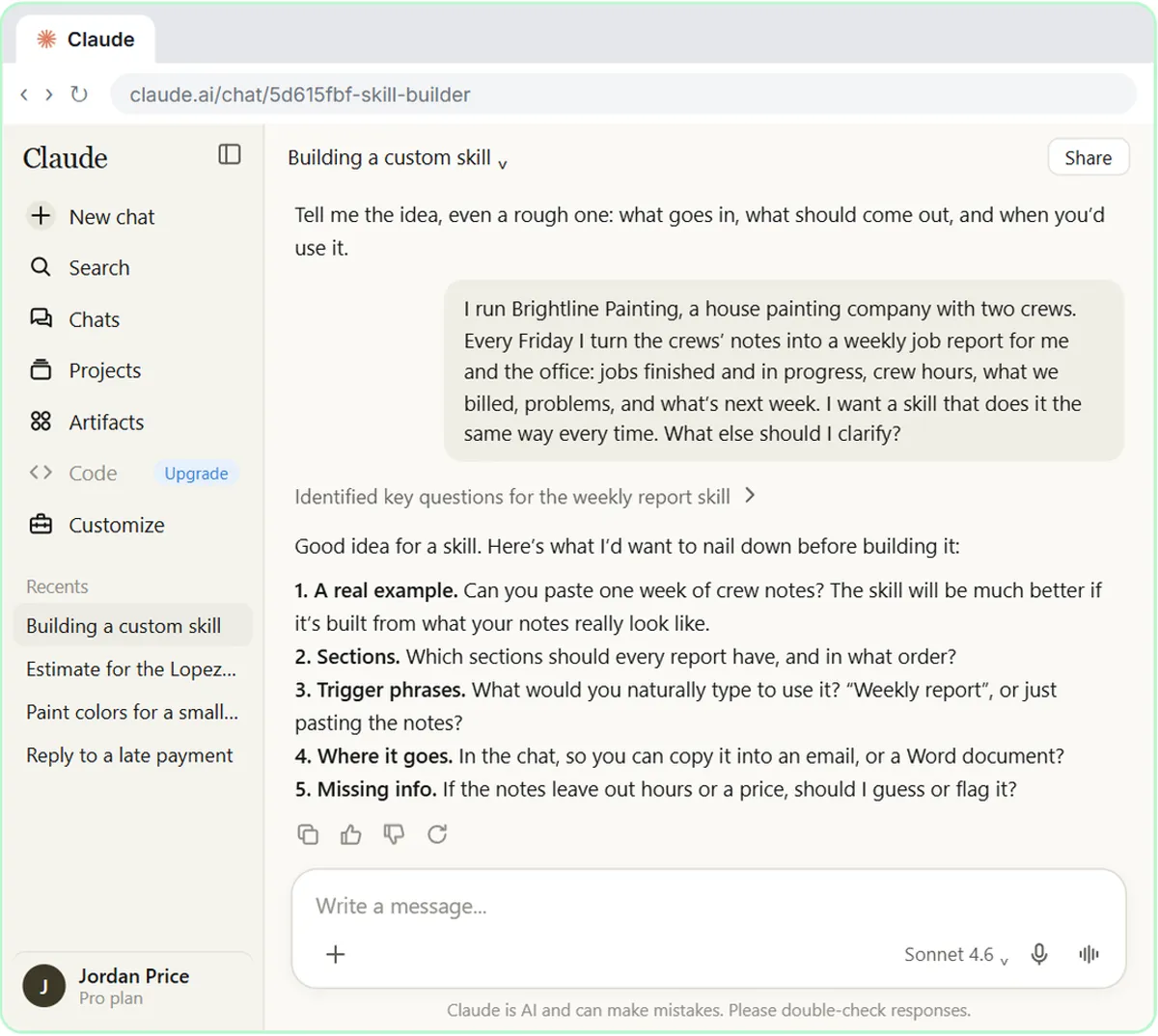 Build Your Own Claude Skill with the Skill Creator: A Weekly Report Template
Turn a report you make every week into a skill. Claude’s skill creator interviews you, drafts the skill, tests it and packages it. Then you use it on a real week…
Free · Live ~8 min Intermediate
All 6 modules in Claude Skills
Terms in this lesson
Plain-English definitions, each with an example from a free lesson.