Updated . Built against the tool’s current screens and checked step by step. How we check this lesson
Claude Skills sound technical, but the idea is simple: a skill is a small folder of instructions that teaches Claude how to do one kind of task well. In this free, interactive tutorial you switch on the one setting skills need, find your skills in Claude's Customize page, turn on an example skill, and then ask for a spreadsheet and a Word document in plain words and watch Claude pick the right skills by itself.
At a glance
| Question | Answer |
|---|---|
| What you build | Learn what a Claude skill is, switch on the setting skills need, turn on an example skill in Customize, and watch Claude use its Excel and Word skills on its own. |
| Tools | Claude |
| Time | About 7 minutes, 22 steps in 3 parts |
| Level | Beginner, no coding needed |
| Cost | Free |
| Ways to learn it | Practice it step by step |
The 3 parts, in short
- Switch on file creation: Open your account menu, Open Settings, Go to Capabilities, Turn on Code execution and file creation, and 1 more step.
- Find your skills: Open Customize, Open Skills, Pick an example skill, Turn the skill on, and 1 more step.
- Watch a skill kick in: Start a new chat, Click the message box, Ask for an Excel file, Send it, and 8 more steps.
In the course: Part 4 · Claude for Everyday Work (Module 25 of the full course)
Part of: AI Agents 101 (step 2 of 3). Next up: Your First Voice Agent in ElevenLabs: An After-Hours Receptionist
What a Claude skill is
Anthropic describes skills as folders of instructions, scripts and resources that Claude loads when a task needs them. Each skill has a name and a short description. Claude reads the descriptions, and when your request matches one, it opens that skill and follows it. When nothing matches, the skill stays out of the way, so it does not clutter every conversation.
There are a few kinds. Anthropic's built-in skills handle Excel spreadsheets, Word documents, PowerPoint presentations and PDFs. Anthropic also ships example skills you can switch on, such as skill-creator, brand-guidelines and internal-comms. And you can add custom skills of your own, which is the next module in this course.
Why skills matter for a small business
Without skills, you explain the same process to an AI over and over: how your reports are laid out, how your staff updates sound, what a finished spreadsheet should look like. A skill writes that down once. Claude then applies it every time the task comes up, in any chat, without you pasting instructions again.
Skills are also different from projects and custom instructions. A project holds background knowledge for the chats inside it, and custom instructions apply to every conversation. A skill is a procedure for one kind of task, and it only loads when that task comes up.
How to tell when Claude used a skill
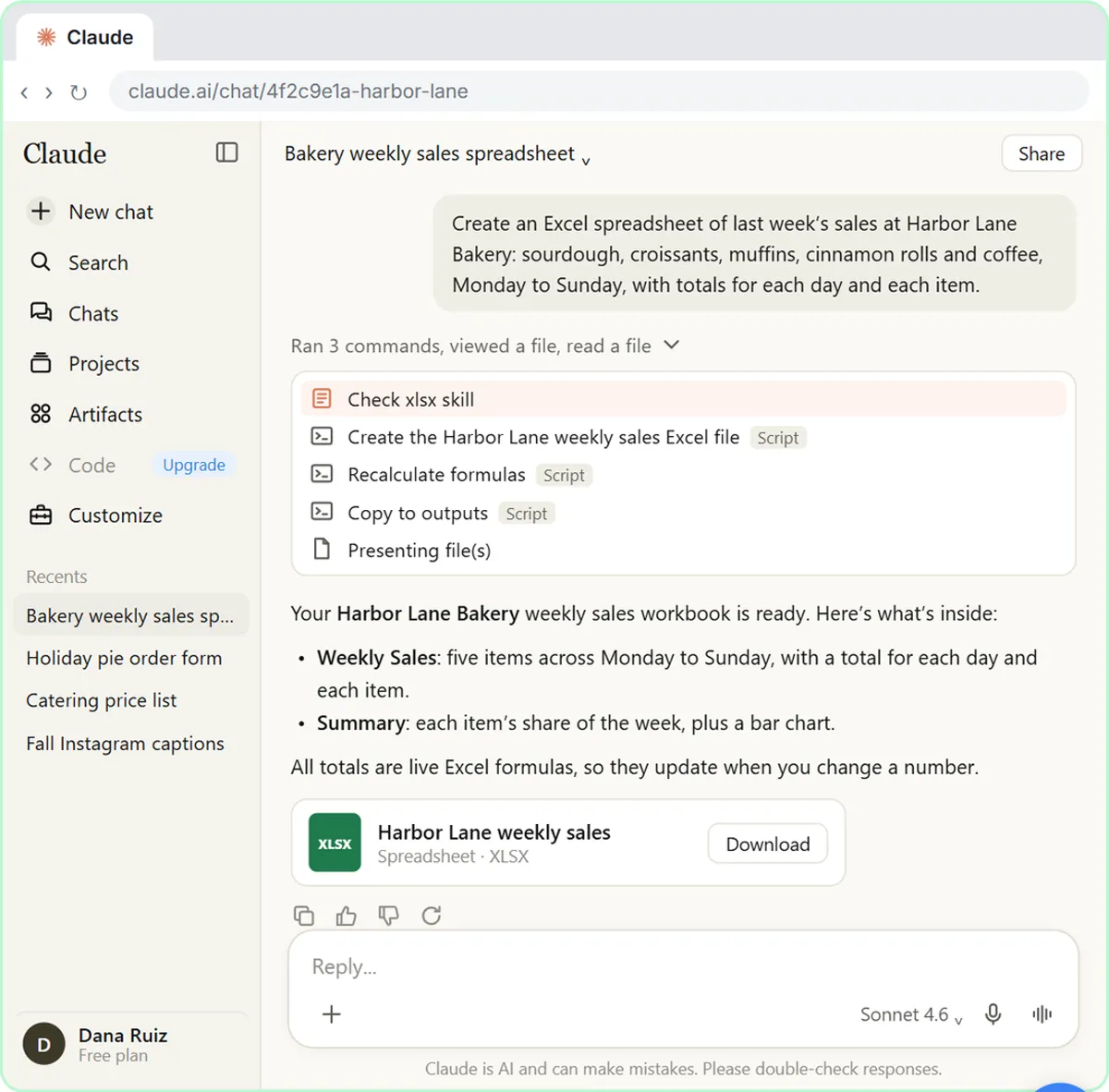
Claude shows a one-line summary of its work above a reply, such as how many commands it ran and files it viewed. Click that line and the list opens, with each skill Claude read shown as a step, like "Check xlsx skill." Claude writes these lines itself, so the exact wording changes from chat to chat, and Claude decides which skills fit your request, so a real run may pick slightly differently.
How to use this in your business
Once file creation is on, try the requests you already make every week: a sales summary as a spreadsheet, a staff memo as a Word document, a price sheet as a PDF, a short slide deck for a meeting. You do not need to name a skill. Ask for the file you want, check the result, and ask Claude to change anything that is off.
Then look through the example skills in Customize and switch on the ones that match your work. internal-comms is a good start for anyone who writes team updates, newsletters or FAQs. Later modules in this course cover adding your own skill, Claude Code skills and building a skill with the skill creator.
How the interactive lesson works
Each step shows you what to do on the left and lets you do it yourself on the right, in a practice copy of Claude.ai. Nothing connects to a real Claude account and no settings change anywhere, so you can click around safely. A voiceover explains each step, and long prompts go in with one Paste button. When you finish, you can do the same thing in your own Claude account in a few minutes.
Try it yourself, free
Reading the steps is a start. Doing them is how it sticks. The interactive module walks you through every click in a practice copy of Claude, checks each step, and never touches your real accounts.
Start “What Are Claude Skills? Turn One On and Watch It Work”Step by step: What Are Claude Skills? Turn One On and Watch It Work
All 22 steps of the interactive module, in order. In the module you watch each one, then do it yourself in a practice copy that checks your work.
1. Switch on file creation
- Open your account menu. A skill is a folder of instructions that teaches Claude one kind of task. Skills need one setting first. Click your initial, D, at the bottom left.
A Claude skill is a small folder of instructions that teaches Claude how to do one kind of task well, like building a spreadsheet or writing a staff update. Claude only loads a skill when your request needs it. Skills need one setting first, so click your initial at the bottom left.
- Open Settings. Click Settings.
This is your account menu.
- Go to Capabilities. Settings opens on General. Click Capabilities on the left.
Settings opens on General.
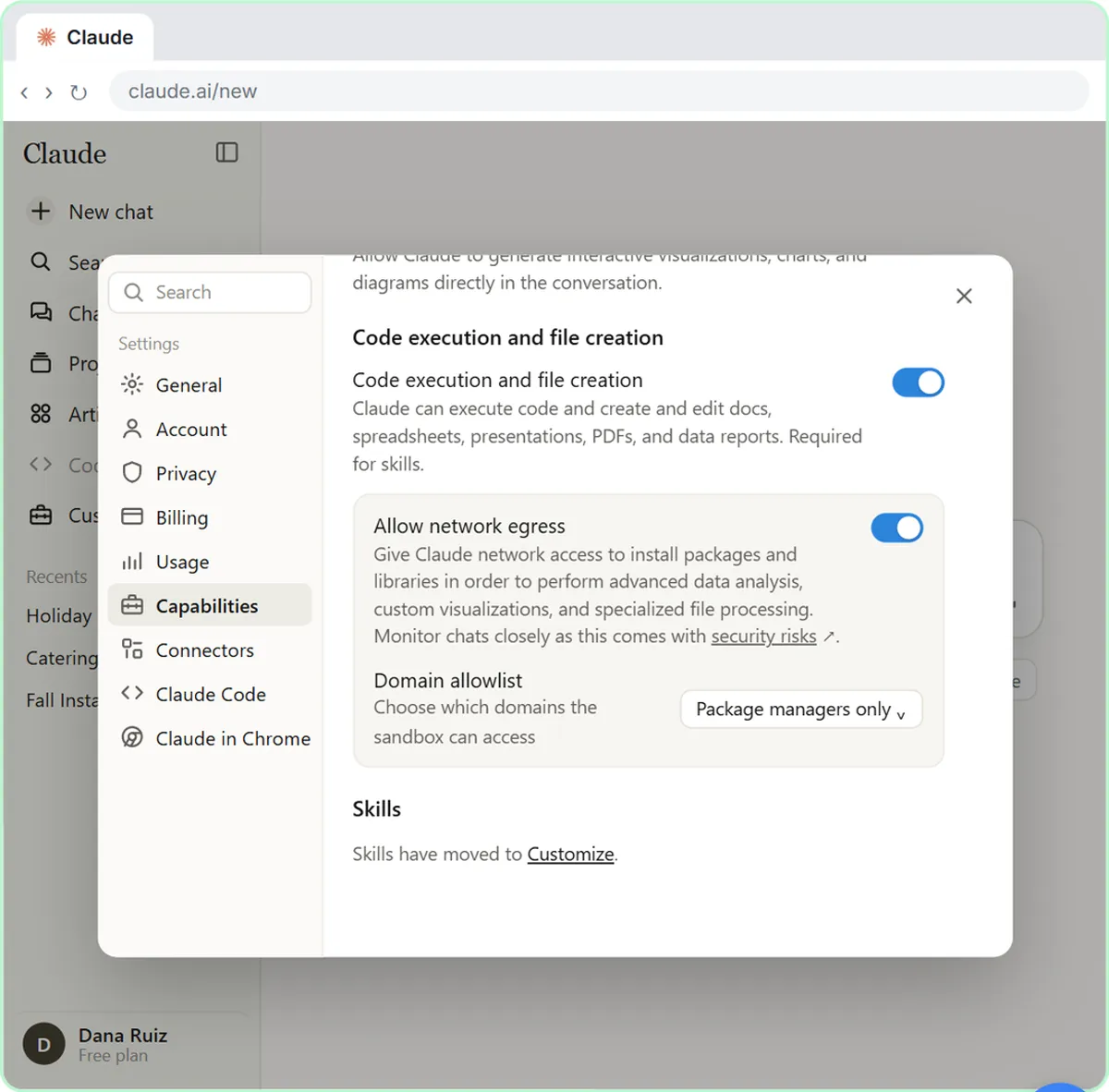
- Turn on Code execution and file creation. Find Code execution and file creation (the switch may be called Cloud code execution and file creation). Its description ends with "Required for skills." Turn the switch on (if yours is already on, leave it).
Its description ends with: Required for skills. This one switch also powers Anthropic's built-in skills for Excel, Word, PowerPoint and PDF files. Turn it on. If yours is already on, just leave it.
- Close Settings. Below it, the Skills section says "Skills have moved to Customize." Close Settings with the X at the top right.
Right below, the Skills section says: Skills have moved to Customize. That is where you see and switch on your skills. Close Settings with the X at the top right.
2. Find your skills
- Open Customize. Click Customize in the left sidebar.
- Open Skills. Customize is where you manage the context and tools you give Claude. Click Skills. (On some accounts Customize already opens on Skills, with Yours and Discover at the top.)
Customize is where you manage the context and tools you give Claude.
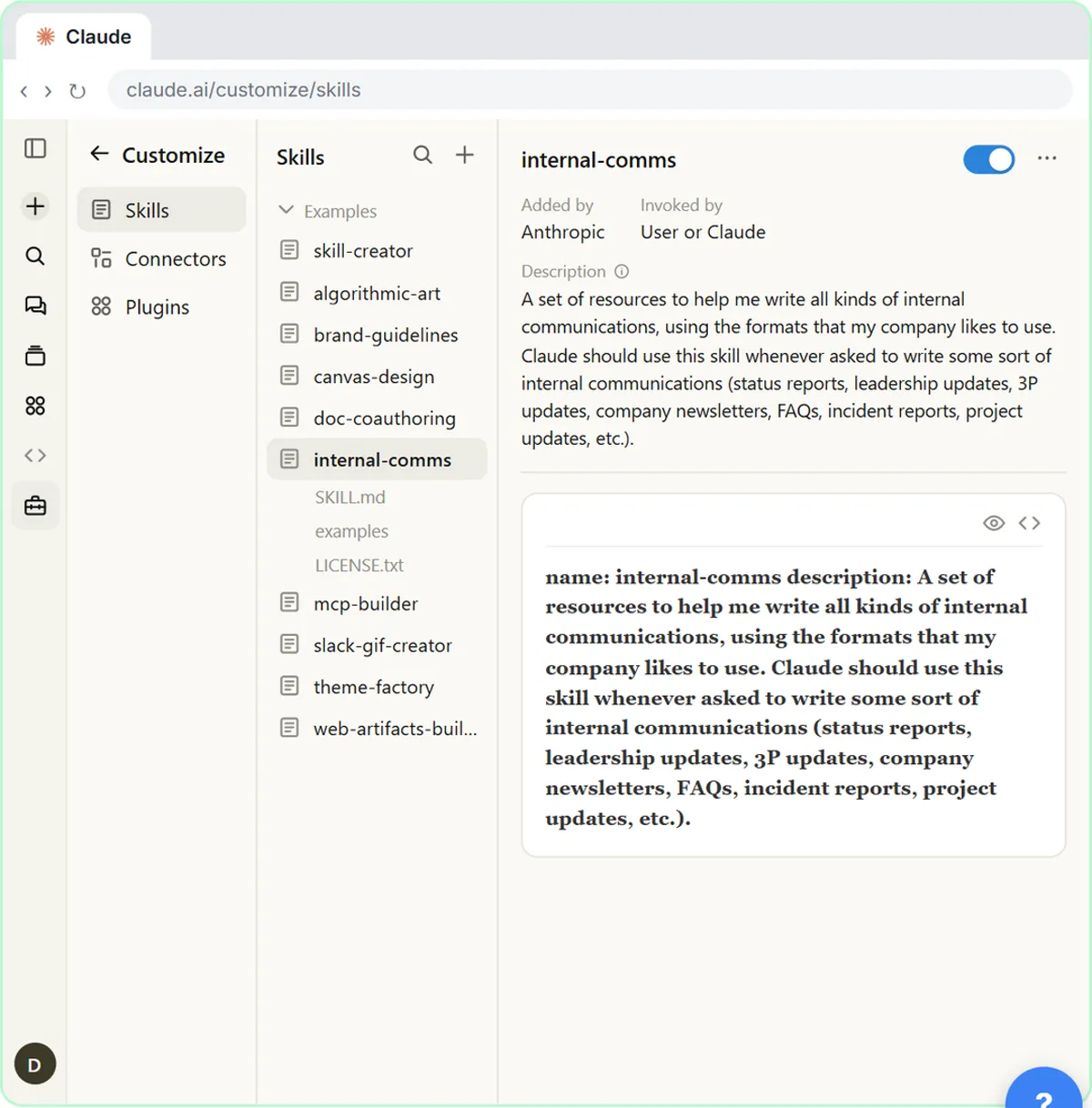
- Pick an example skill. These are Anthropic's example skills. They stay off until you turn them on. Click internal-comms. (If you see Yours and Discover instead, click Discover, type internal-comms in Search and click it.)
These are Anthropic's example skills, like skill-creator and brand-guidelines. They stay off until you turn them on.
- Turn the skill on. Read the Description: it tells Claude when to use the skill (internal communications like status reports, newsletters and FAQs). Turn on the switch at the top right. (In the Discover layout it is an Add button instead.)
Each skill shows who added it, whether you or Claude can start it, and a description. The description is how Claude knows when to reach for it: internal-comms is for internal communications, like status reports, newsletters and F A Qs. Turn it on with the switch at the top right.
- See where new skills come from. Click the + button at the top of the Skills list. (In the Discover layout it is + Add at the top right.)
One more thing worth knowing.
3. Watch a skill kick in
- Start a new chat. Browse skills opens a directory of skills to add, and Create skill lets you write or upload your own (next module). In the Discover layout, the menu says Upload skill, Create a skill and Create with Claude, and browsing is the Discover tab. Now click + New at the top of the left sidebar for a new chat.
Browse skills opens a directory of skills you can add, and Create skill lets you write or upload your own. That's the next module. For now, let's watch skills at work.
- Click the message box. You don't have to pick a skill. Just ask, and Claude chooses. Click the message box.
Here's the best part: you don't have to pick a skill. Just ask for what you want, and Claude chooses the right one.
- Ask for an Excel file. Paste in the prompt to ask for a real spreadsheet.
Let's ask for a real Excel file: last week's sales at Harbor Lane Bakery, with totals.
Create an Excel spreadsheet of last week’s sales at Harbor Lane Bakery: sourdough, croissants, muffins, cinnamon rolls and coffee, Monday to Sunday, with totals for each day and each item.
- Send it. Click the send arrow.
- Open Claude's work details. In the reply is a short grey line about what Claude did. Click Ran 3 commands, viewed a file, read a file. (Claude writes this line itself, so on a real run it is worded differently, like "Shared a file, and 4 more steps".)
Claude worked for a moment and made a file. In its reply is a short grey line about what it did.
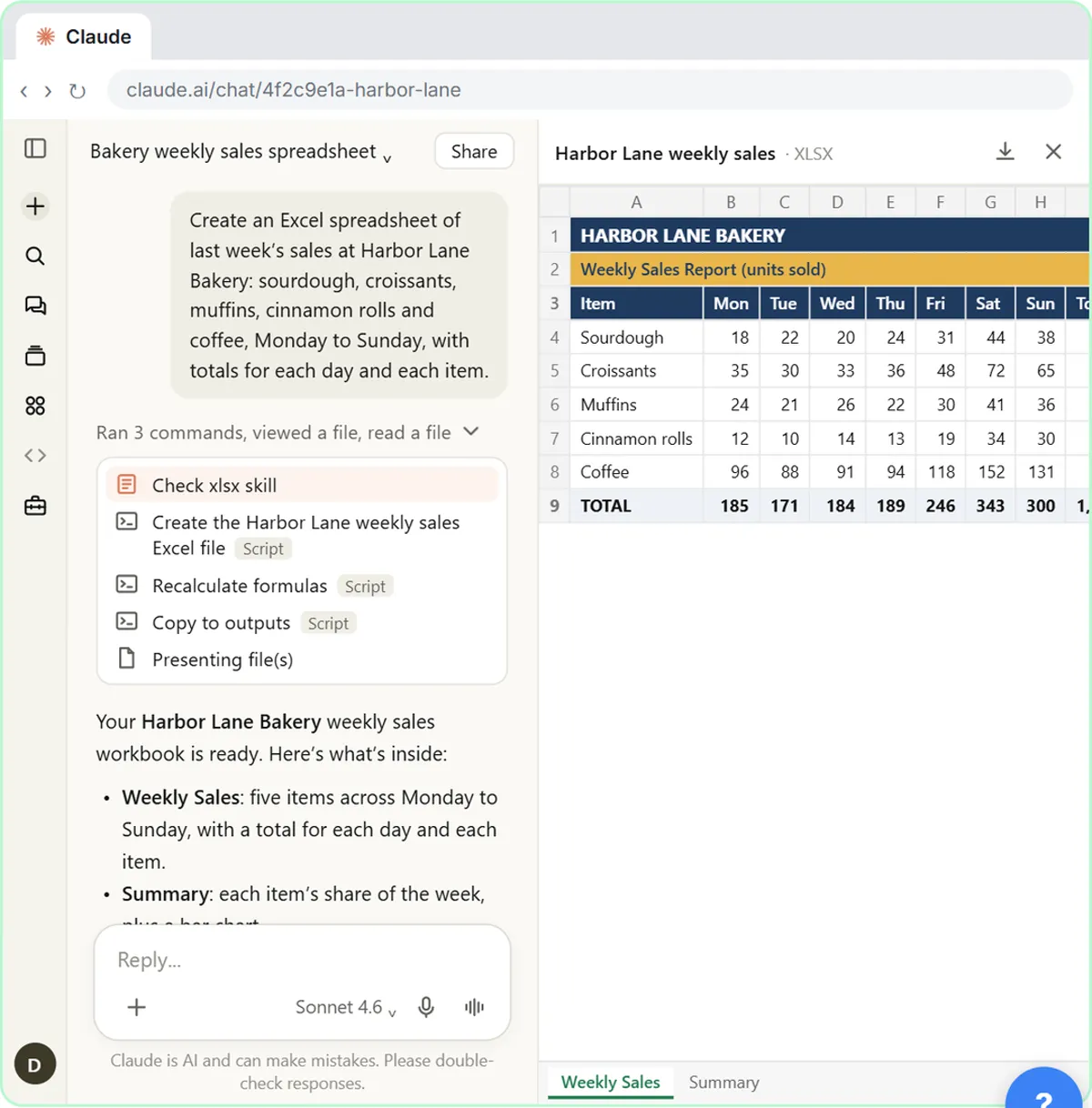
- Open the spreadsheet. Find Loaded skill xlsx in the list: the built-in Excel skill kicked in on its own. Click the file card to open the spreadsheet. (Real Claude often opens it on the right by itself.)
Look for the line that says Loaded skill, x l s x. That's Anthropic's built-in Excel skill, and it kicked in on its own.
- Close the preview. A real workbook with live formulas for every total. Close the preview with the X.
A real workbook, with a formula behind every total. You could download it and open it in Excel right now. Close the preview with the X.
- Click the reply box. Now try a Word document. Click the reply box.
Now let's try a Word document.
- Ask for a Word document. Paste in the prompt to ask for a staff update as a Word document.
Ask for a short staff update about new Sunday hours, as a Word document.
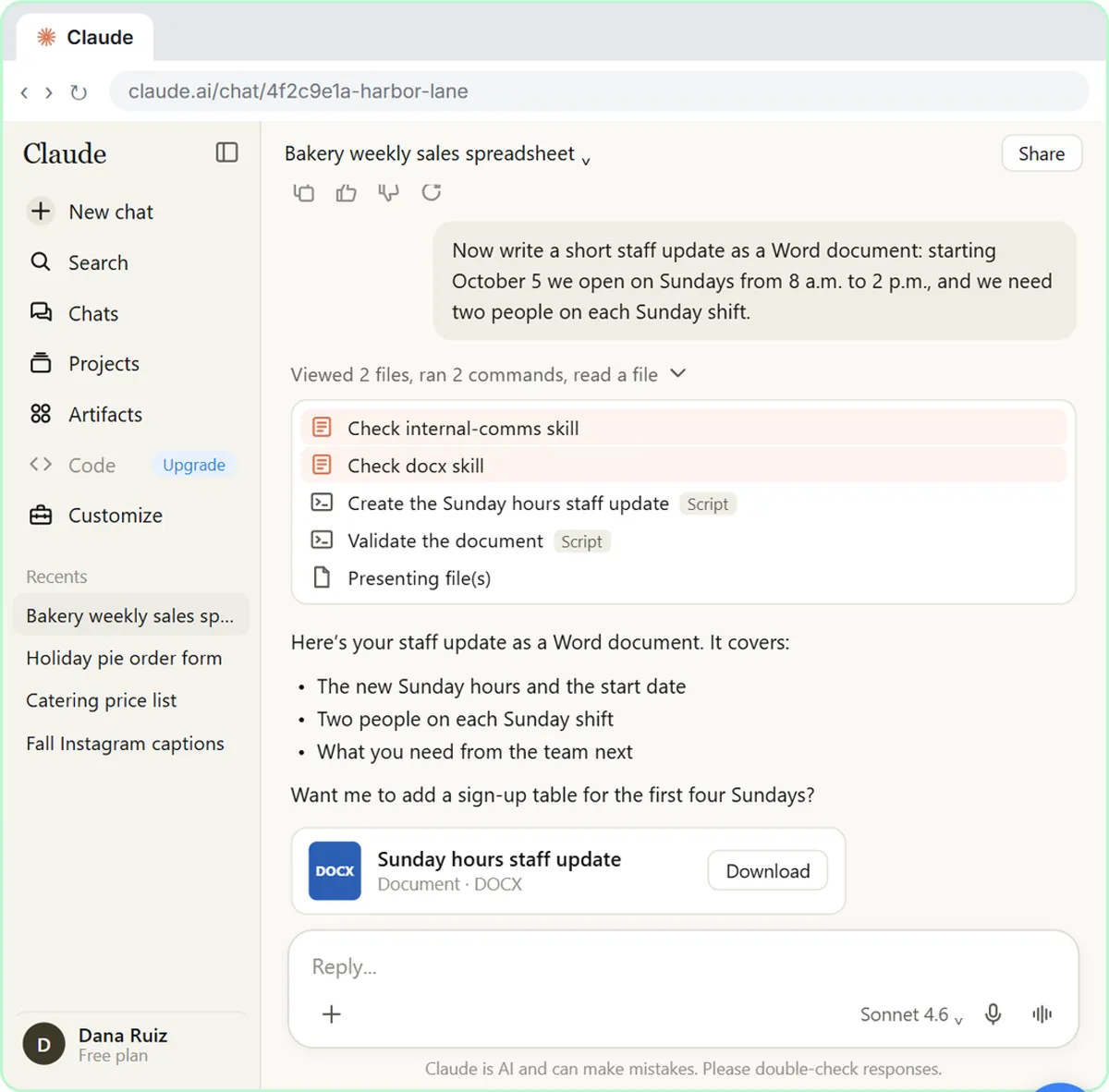
Now write a short staff update as a Word document: starting October 11 we open on Sundays from 8 a.m. to 2 p.m., and we need two people on each Sunday shift.
- Send it. Click the send arrow.
- See which skills Claude used. Click Viewed 2 files, ran 2 commands, read a file in the new reply. (Real Claude may show Loaded skill as its own line at the top.)
- Download the document. Two skills this time: internal-comms, the example skill you turned on, and docx, the built-in Word skill. Claude picks skills itself, so a real run may differ a little. Click Download.
Two skills this time: internal-comms, the example skill you just turned on, and D O C X, the built-in Word skill. You asked in plain words, and Claude picked both.
Screenshots
Frequently asked questions
- What are Claude Skills?
- Skills are folders of instructions, scripts and resources that teach Claude how to do a specific kind of task. Claude loads a skill only when your request needs it, based on the skill's description.
- How do I turn on skills in Claude?
- On a Free, Pro or Max plan, go to Settings, then Capabilities, and make sure Code execution and file creation is on. Then open Customize in the left sidebar and click Skills to switch individual skills on or off. On Team and Enterprise plans, an owner manages the skills settings in Organization settings.
- Do I have to tell Claude which skill to use?
- No. Anthropic's built-in skills for Excel, Word, PowerPoint and PDF are used automatically when relevant, and skills you turn on can be started by you or by Claude. Just ask for what you want.
- Where did the Skills section in Settings go?
- Skills moved from Settings, Capabilities to their own page. Settings now says "Skills have moved to Customize," and you find them under Customize, then Skills.
- Is this course really free?
- Yes. Stepthrough is completely free, and the practice copy needs no accounts. To do it for real you need your own Claude account. Skills work on Claude's Free, Pro, Max, Team and Enterprise plans.
More Claude tutorials
Pick a model, attach a customer's complaint email with the + menu, write a four-part prompt, read Claude's reply, ask a follow-up, then star and rename the chat.
Free · Live ~7 min
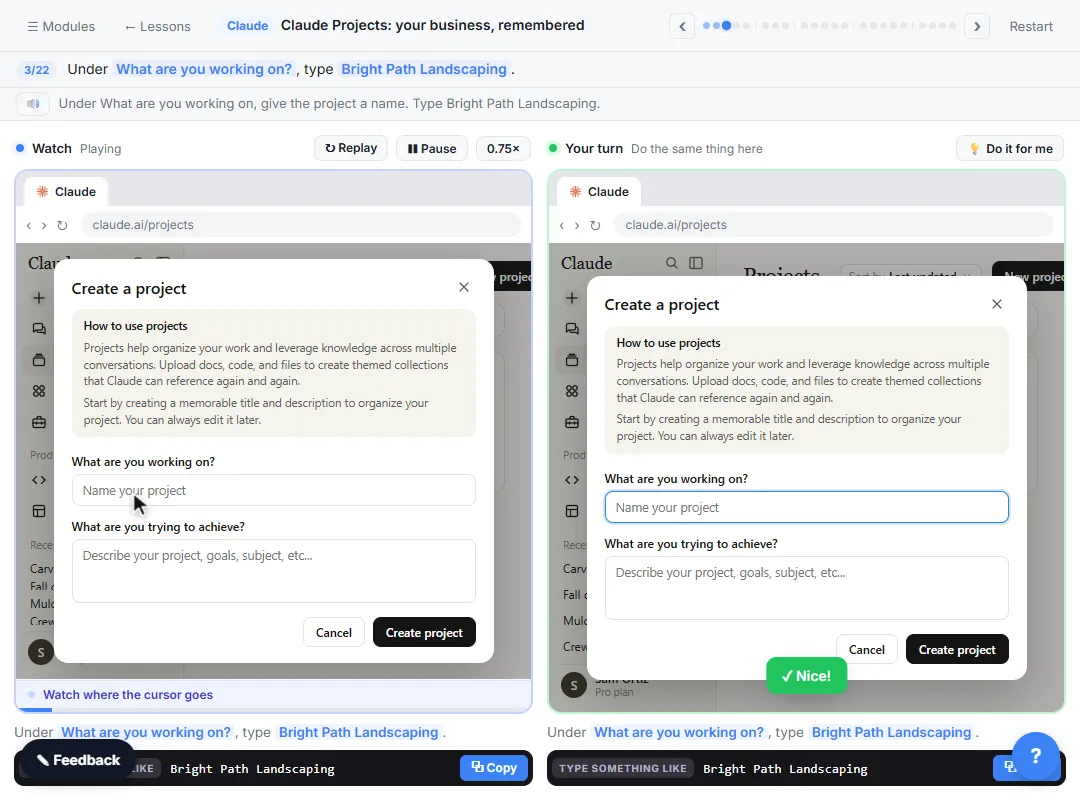 Claude Projects for Your Business: Instructions, Knowledge and Quotes
Create a project for your business, give it instructions for tone and policies, add your price sheet and warranty as project knowledge, and get a customer quote that…
Free · Live ~8 min
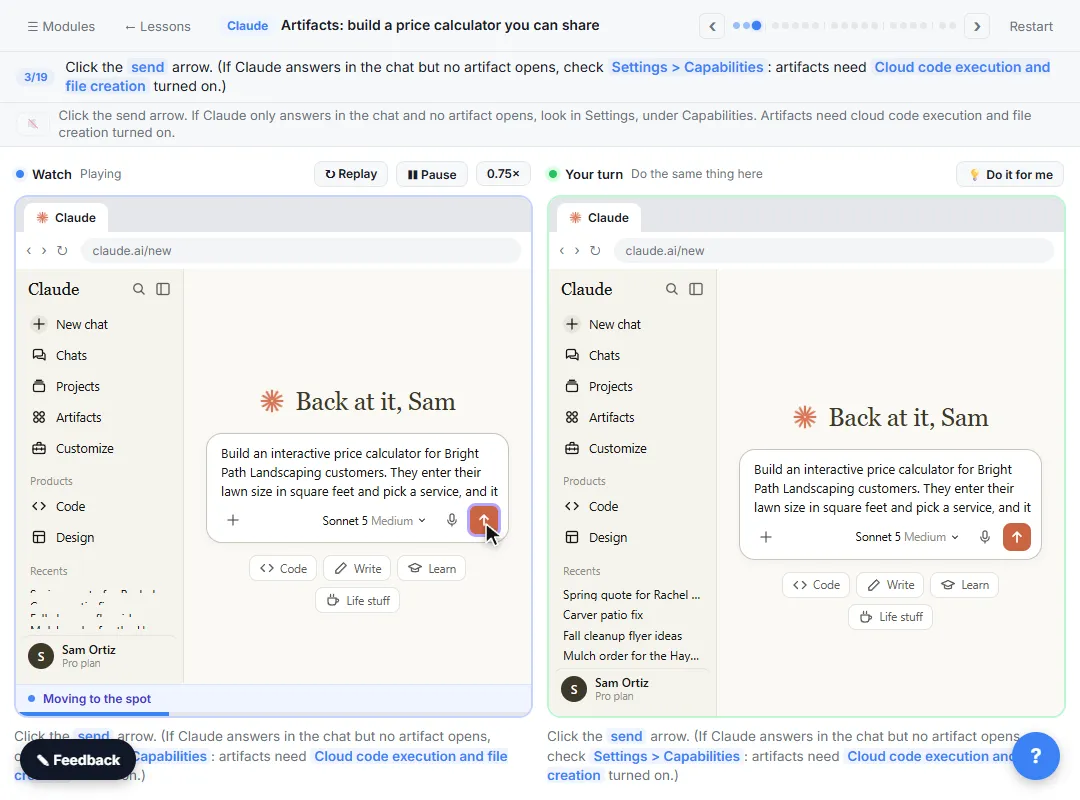 Claude Artifacts: Build a Price Calculator You Can Try, Change and Share
Have Claude build an interactive lawn price calculator, try it in the artifact panel, ask for a change, and share it with a link.
Free · Live ~7 min
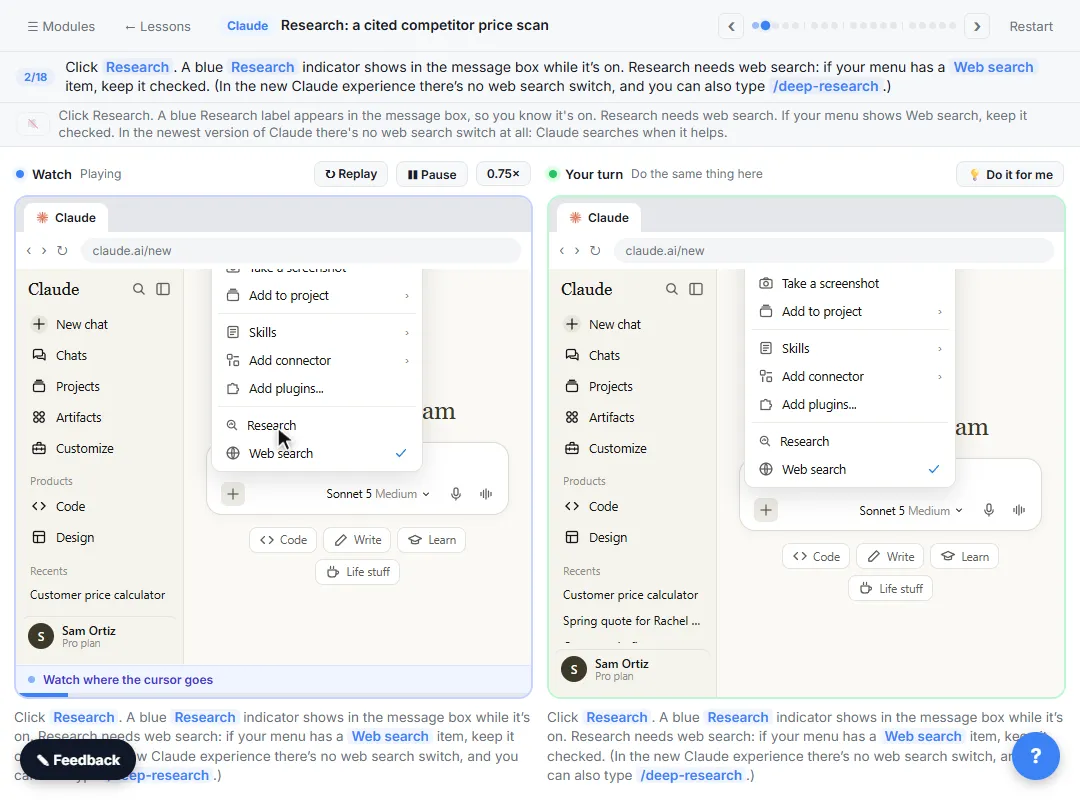 Claude Research: Get a Cited Competitor Price Scan, Then Check It
Turn on Research, have Claude check what nearby competitors charge, read the cited report, check a source and ask a follow-up.
Free · Live ~7 min
 Connect Claude to Google Drive, Gmail and Google Calendar
Connect Google Drive, Gmail and Google Calendar to Claude, then find your price sheet, summarize a customer's email thread and check your week, approving each tool as…
Free · Live ~8 min
 Check a Contract for Red Flags with Claude
Upload a vendor contract, get it in plain English, find the risky clauses with the exact words quoted, draft questions for the vendor, and save the review as a project…
Free · Live ~11 min
Terms in this lesson
Plain-English definitions, each with an example from a free lesson.