Updated . Built against the tool’s current screens and checked step by step. How we check this lesson
If you paste the same price list, policies and "please keep it friendly" into every Claude chat, a project will save you that work. In this free, interactive Claude Projects tutorial you set one up for a small business: you create the project, write project instructions for your tone and office policies, upload your price sheet and warranty policy as project knowledge, and then start a chat inside the project that writes a correct customer quote without you explaining anything. Finally you improve the instructions once, so every future chat picks up the change.
At a glance
| Question | Answer |
|---|---|
| What you build | Create a project for your business, give it instructions for tone and policies, add your price sheet and warranty as project knowledge, and get a customer quote that uses all of it. |
| Tools | Claude |
| Time | About 8 minutes, 22 steps in 5 parts |
| Level | Beginner, no coding needed |
| Cost | Free |
| Ways to learn it | Practice it step by step |
The 5 parts, in short
- Create the project: Open Projects, Start a new project, Name it, Describe it, and 1 more step.
- Set the instructions: Add instructions, Write your tone and policies, Save them.
- Add project knowledge: Add files, Upload from your computer, Pick the price sheet, Add the warranty policy, and 1 more step.
- Get a quote: Start a chat in the project, Ask for a quote, Send it, See where the numbers came from, and 1 more step.
- Improve it as you go: Go back to the project, Edit the instructions, Add a rule, Save the change.
Start here first: Your First Chat with Claude: Models, Files and a Great First Prompt (module 1 of Claude for Everyday Work)
In the course: Part 4 · Claude for Everyday Work (Module 20 of the full course)
Part of: Give AI Your Company Knowledge (step 2 of 4). Next up: NotebookLM (Now Gemini Notebook): Cited Answers and a Briefing from Your Docs
What you will do
You are the office manager at Bright Path Landscaping, a made-up landscaping company. Customers email every week asking what a cleanup, some mulch or a few new shrubs will cost, and what happens if a plant dies. The answers always come from the same two documents, a price sheet and a warranty policy, and they should always sound the same: warm, plain and never pushy.
By the end of the module you have a project called Bright Path Landscaping with instructions, two knowledge files and its first chat. A customer's request turns into a quote with the right prices, the right warranty, your 30-day quote rule and your 25% deposit, and Claude points out the one detail the customer left out instead of guessing.
Who this Claude tutorial is for
This module is for owners, office managers and anyone who uses Claude for the same kind of work again and again: quotes, customer emails, policies, proposals. It follows Your first chat with Claude in the Claude for Everyday Work course, but you can take it on its own. You do not need a Claude account to practice, and you do not need to know anything about AI.
Project instructions vs. project knowledge
These two parts do different jobs, and mixing them up is the most common reason a project feels no smarter than a normal chat. Project instructions tell Claude how to behave in every chat in the project: who it is helping, the tone to use, the format you want and the rules it must follow. They work alongside the instructions in your own profile, but they only apply inside this project.
Project knowledge is the facts Claude should work from: price lists, policies, service descriptions, templates and examples of your best work. A simple test is whether a sentence would still make sense if nobody had asked anything yet. "Mulch is $95 a yard" is a fact, so it goes in a file. "Always mention the warranty" is an order, so it goes in the instructions.
Files you attach inside one chat stay in that chat. Only files added to the project's Context are shared by every chat in the project.
Project memory, capacity and plans
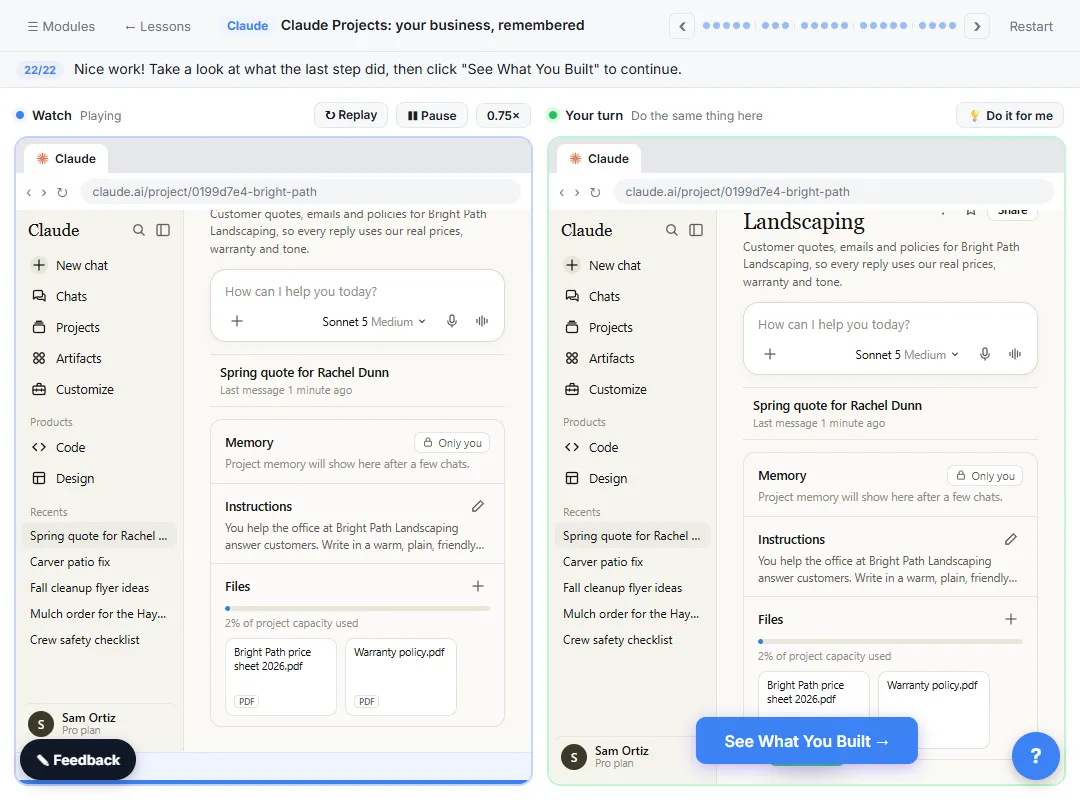
Each project also has its own memory. After a few chats, the Memory section on the project page fills in with what Claude has learned about this work. It stays separate from your other projects and your chats outside projects, and only you can see it.
Projects are available on every Claude plan, and the Free plan allows up to five. Context shows how many files the project holds. On paid plans, when a project's knowledge grows large, Claude switches to searching it, so a project can hold much more. On Team and Enterprise plans you can share a project with coworkers and choose whether they can view it or edit it.
Anthropic has also started testing a redesigned projects experience with some Pro and Max users, built around one conversation that runs several tasks at once. Existing projects keep working as they do today, and the ideas in this module, clear instructions plus the right knowledge, apply either way.
How to use this in your business
Pick the job you re-explain most often, such as quotes, customer replies or job write-ups, and give it one project. Upload only the documents that job needs and keep them current: delete last year's price sheet when this year's goes in, so Claude never picks the wrong one. Write short, specific instructions, and when a reply keeps missing something, fix the instructions rather than correcting that one chat. And always read a quote before you send it, because Claude can still make mistakes.
How the interactive lesson works
Each step shows you what to do on the left and lets you do it yourself on the right, in a practice copy of Claude.ai. Nothing connects to a real Claude account, nothing is uploaded and no email is sent, so you can click around safely. A voiceover explains each step, and the long instructions and customer email go in with one Paste button. When you finish, you can set up the same project at claude.ai in about ten minutes.
Try it yourself, free
Reading the steps is a start. Doing them is how it sticks. The interactive module walks you through every click in a practice copy of Claude, checks each step, and never touches your real accounts.
Start “Claude Projects for Your Business: Instructions, Knowledge and Quotes”Step by step: Claude Projects for Your Business: Instructions, Knowledge and Quotes
All 22 steps of the interactive module, in order. In the module you watch each one, then do it yourself in a practice copy that checks your work.
1. Create the project
- Open Projects. Right now Claude starts every chat knowing nothing about your business. A project fixes that. Click Projects in the sidebar.
Right now, every new chat starts from scratch, so you'd have to explain your prices and policies every time. A project fixes that.
- Start a new project. This page lists all your projects. You may see an example project from Anthropic here. Click New project at the top right.
This page lists all your projects. You might also see an example project from Anthropic here.
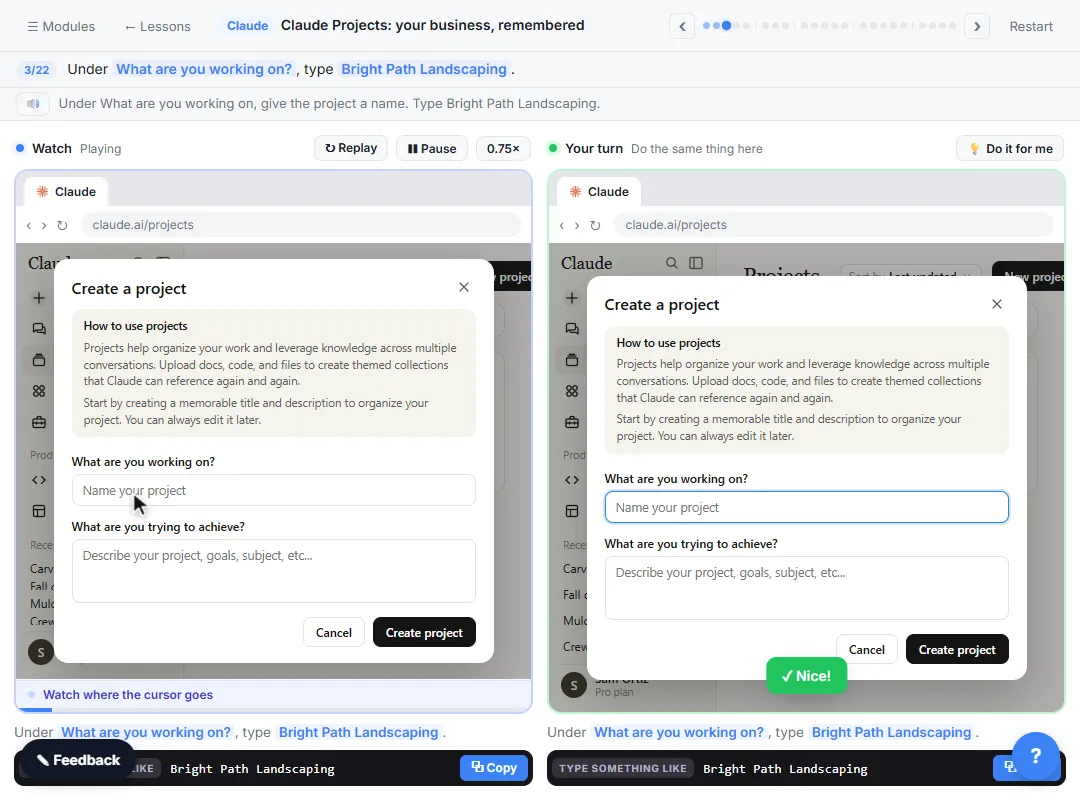
- Name it. Under What are you working on?, type Bright Path Landscaping.
Under What are you working on, give the project a name.
- Describe it. Under What are you trying to achieve?, say what the project is for. Paste in the description.
Under What are you trying to achieve, say what the project is for. The description shows under the project's name, so it's easy to tell your projects apart.
- Create it. Click Create project.
2. Set the instructions
- Add instructions. This is the project's page. Next to the message box are Instructions, Context, Memory and Scheduled (in a narrow window they sit below it). Instructions tell Claude how to behave in every chat here. Click Add next to Instructions.
This is your project's page. Next to the message box are Instructions, Context, Memory and Scheduled. Instructions tell Claude how to behave in every chat in this project: your tone, and your rules.
- Write your tone and policies. Say who Claude is helping, the tone you want, and your policies: quote only from the price sheet, 30-day quotes, a 25% deposit, always mention the warranty. Paste in the instructions.
Write down how your office talks to customers, and the rules you always follow. Quote only from the price sheet, quotes are good for thirty days, a twenty five percent deposit books a job, and always mention the warranty.
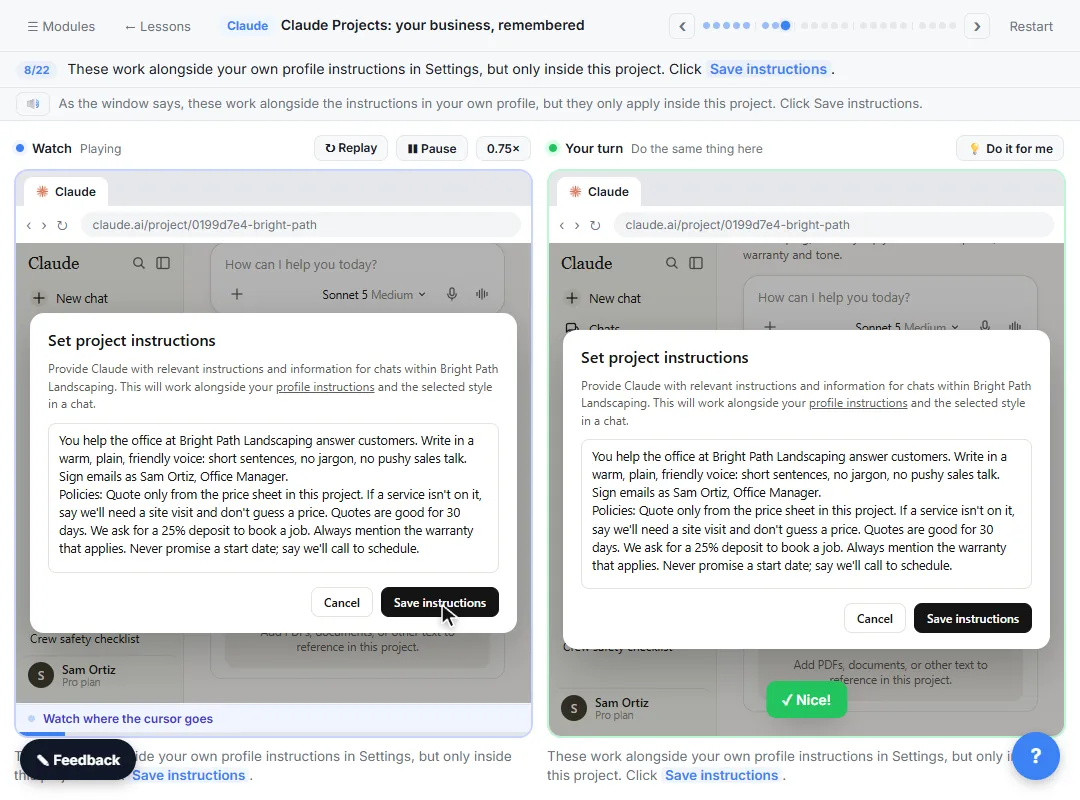
You help the office at Bright Path Landscaping answer customers. Write in a warm, plain, friendly voice: short sentences, no jargon, no pushy sales talk. Sign emails as Sam Ortiz, Office Manager.
Policies: Quote only from the price sheet in this project. If a service isn't on it, say we'll need a site visit and don't guess a price. Quotes are good for 30 days. We ask for a 25% deposit to book a job. Always mention the warranty that applies. Never promise a start date; say we'll call to schedule.
- Save them. These work alongside your own profile instructions in Settings, but only inside this project. Click Save instructions.
As the window says, these work alongside the instructions in your own profile, but they only apply inside this project.
3. Add project knowledge
- Add files. Now the facts Claude should work from: your project knowledge, under Context. Click Add next to Context.
Now give Claude the facts it should work from. That's your project knowledge. Instructions are how Claude should act, and context is what it should know.
- Upload from your computer. You can upload files, add text you paste in, or connect GitHub or Google Drive. Point at Upload from device, then click Files.
You can upload files, paste in text, or connect GitHub or Google Drive. Point at Upload from device, then click Files.
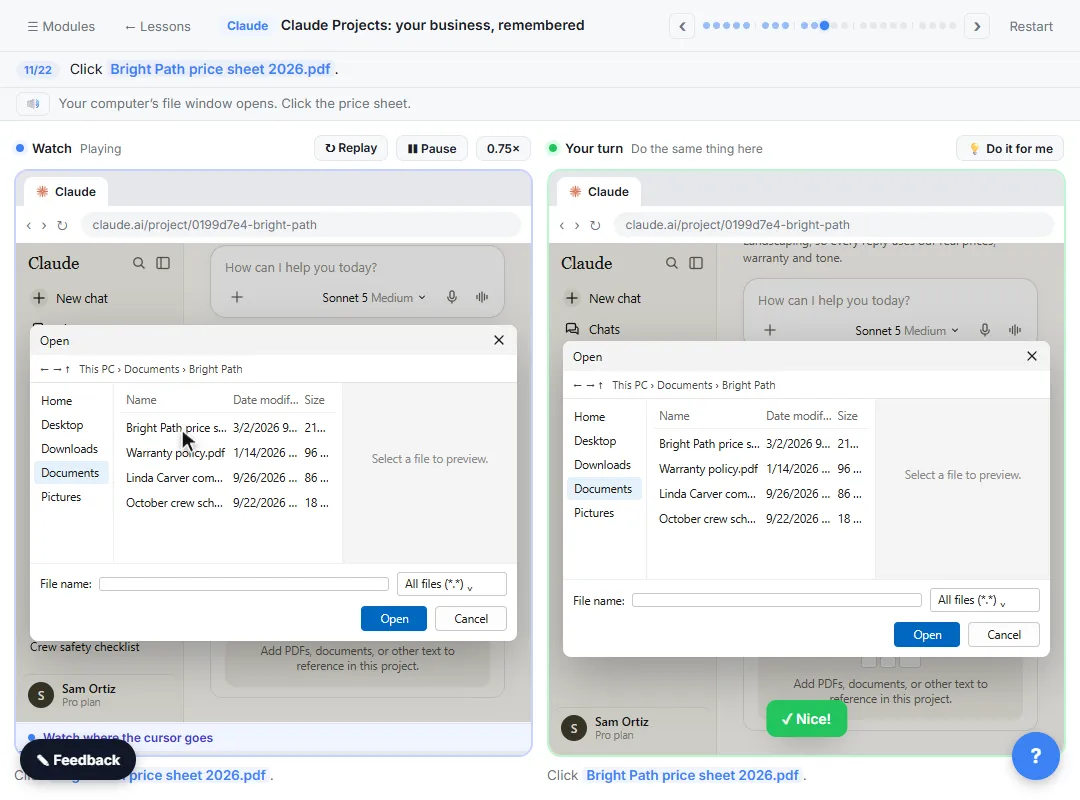
- Pick the price sheet. Click Bright Path price sheet 2026.pdf.
Your computer’s file window opens.
- Add the warranty policy. Hold Ctrl (Cmd on a Mac) and click Warranty policy.pdf to select it too.
Hold Control, or Command on a Mac, and click the warranty policy, so both files are selected.
- Upload them. Click Open.
4. Get a quote
- Start a chat in the project. Both files are now project knowledge: Context says 2 files. Every chat in this project can use them. Click the message box at the top.
Both files are now in the project. Context says two files. Every chat you start here can use them, so you never attach them again.
- Ask for a quote. Paste in a customer’s email and ask for a reply with a quote. Notice you don’t mention prices, the warranty or your tone. Paste in the request.
A customer wants a price. Notice you don't mention prices, the warranty or your tone. The project already knows.
A customer, Rachel Dunn, emailed: "Hi! Could you give us a price for a spring cleanup, 6 yards of mulch in our front beds, and 4 new boxwood shrubs? And what happens if a shrub dies?" Write my reply with a quote.
- Send it. Click the send arrow.
- See where the numbers came from. The top bar shows the project name, then the chat. Click Pricing the job from the price sheet and warranty policy to see how Claude worked it out. (Claude writes this line itself, so yours will differ.)
Look at the top: this chat lives inside your project.
- Check the quote and copy it. The prices match your price sheet, the shrub answer comes from your warranty policy, and the 30 days and 25% deposit come from your instructions. Check the math, then click the copy button on the email box.
Every price came from your price sheet, the answer about shrubs came from your warranty policy, and the thirty days and the deposit came from your instructions. Claude also flagged the shrub size, because Rachel didn't say. Check the math, then click the copy button on the email box.
5. Improve it as you go
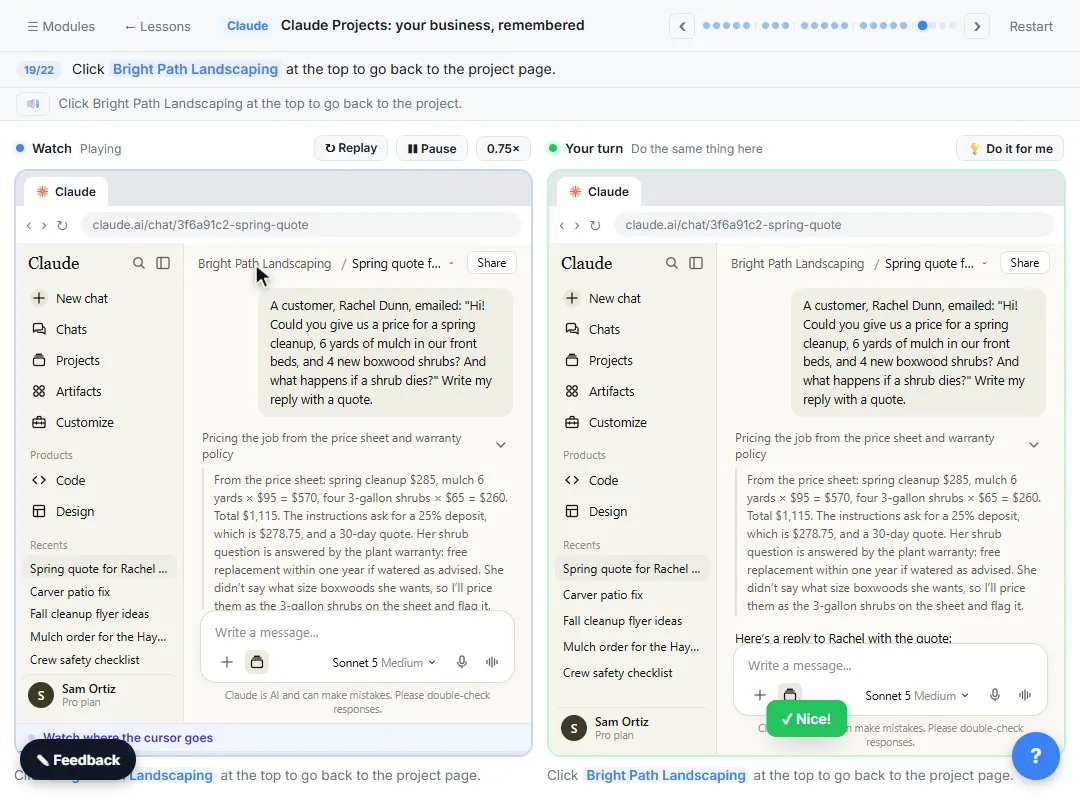
- Go back to the project. Click Bright Path Landscaping at the top to go back to the project page.
- Edit the instructions. The chat is saved in the project. After a few chats, Memory (click View) fills in with what Claude learns about this work, for this project only. When a reply misses something, fix the instructions rather than the chat. Click Edit next to Instructions.
Your chat is saved in the project. After a few chats, the Memory section fills in with what Claude has learned about this work. It stays in this project, and only you can see it. When a reply keeps missing something, don't just fix that one chat. Fix the instructions.
- Add a rule. Add one line at the end: every customer email ends with the office phone number. Paste in the new rule.
Add one more rule at the end: every customer email ends with the office phone number.
- Save the change. Click Save instructions. Every new chat in the project follows the new rule.
From now on, every new chat in this project follows the new rule, and you never have to say it again.
Screenshots
Frequently asked questions
- How do I create a project in Claude?
- Click Projects in the sidebar, then New project. Type a name under What are you working on? and a description under What are you trying to achieve?, then click Create project. You can edit the name and description later from the project's menu.
- How do I add files to a Claude project?
- On the project page, click Add next to Context, point at Upload from device and choose Files, or drag files onto the page. You can also add pasted text with Add text content, or connect GitHub or Google Drive. Files added here are available in every chat in the project.
- What are Claude project instructions?
- Instructions you set once for a project, such as tone, format and rules, that Claude follows in every chat inside that project. Click Add next to Instructions, type them, and click Save instructions. Use the pencil to change them later.
- Does a Claude project remember past chats?
- Yes. Each project has its own memory that builds up after a few chats and stays separate from your other projects. Memory needs to be turned on in your settings, and on Team and Enterprise plans an owner has to enable it.
- Can I share a Claude project with my team?
- On Team and Enterprise plans, yes: share it with specific people or your whole organization, with Can view or Can edit permissions. Individual chats in a shared project stay private unless you share them.
- Is this course really free?
- Yes. Stepthrough is completely free, and the practice copy needs no accounts. To do it for real you need your own Claude account. Projects work on the Free plan (up to five projects); paid plans hold more knowledge and add more models and higher usage limits.
More in Claude for Everyday Work
 Claude Research: Get a Cited Competitor Price Scan, Then Check It
Turn on Research, have Claude check what nearby competitors charge, read the cited report, check a source and ask a follow-up.
Free · Live ~7 min
 Connect Claude to Google Drive, Gmail and Google Calendar
Connect Google Drive, Gmail and Google Calendar to Claude, then find your price sheet, summarize a customer's email thread and check your week, approving each tool as…
Free · Live ~8 min
 Check a Contract for Red Flags with Claude
Upload a vendor contract, get it in plain English, find the risky clauses with the exact words quoted, draft questions for the vendor, and save the review as a project…
Free · Live ~11 min
All 6 modules in Claude for Everyday Work
More Claude tutorials
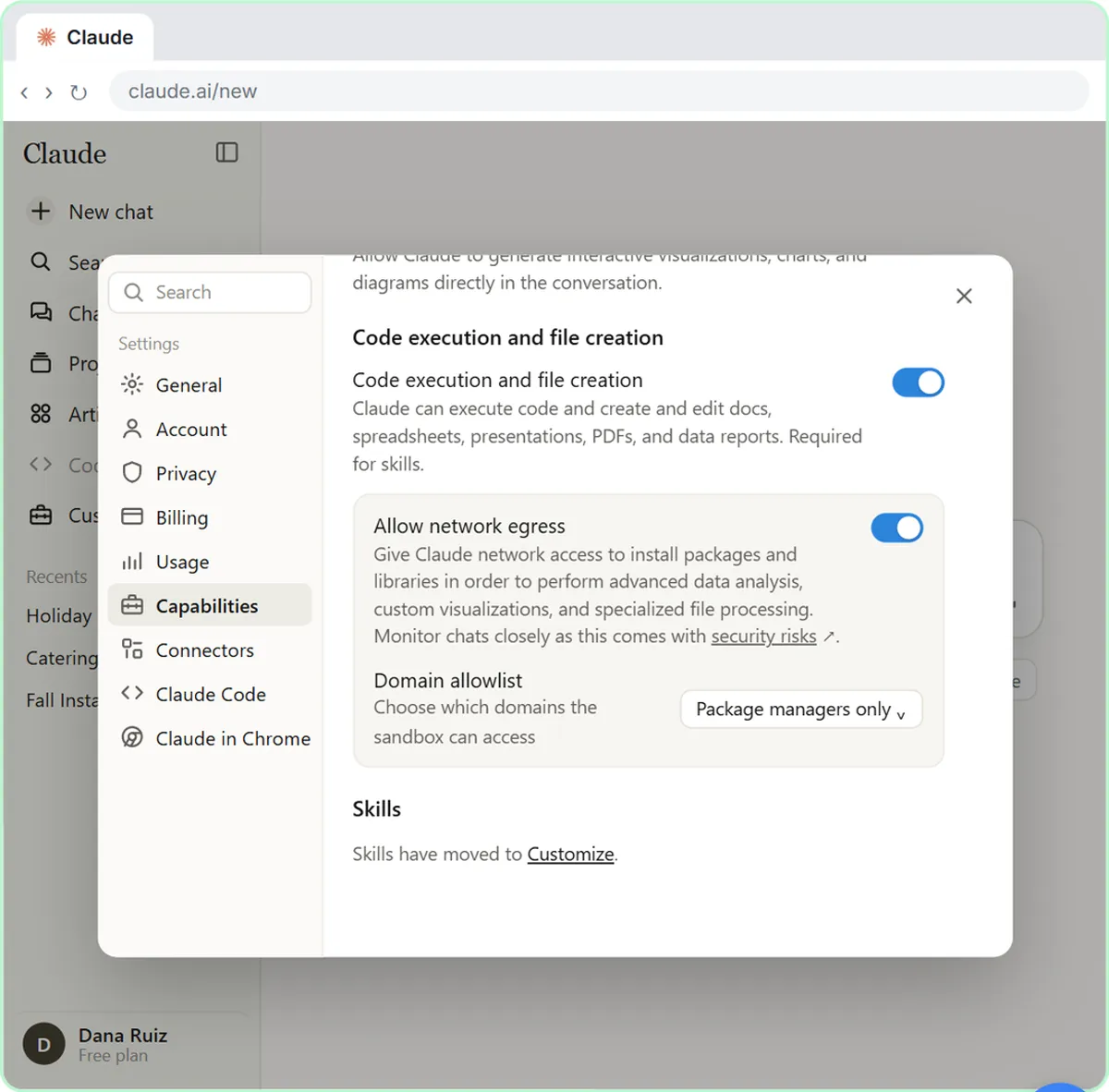 What Are Claude Skills? Turn One On and Watch It Work
Learn what a Claude skill is, switch on the setting skills need, turn on an example skill in Customize, and watch Claude use its Excel and Word skills on its own.
Free · Live ~7 min
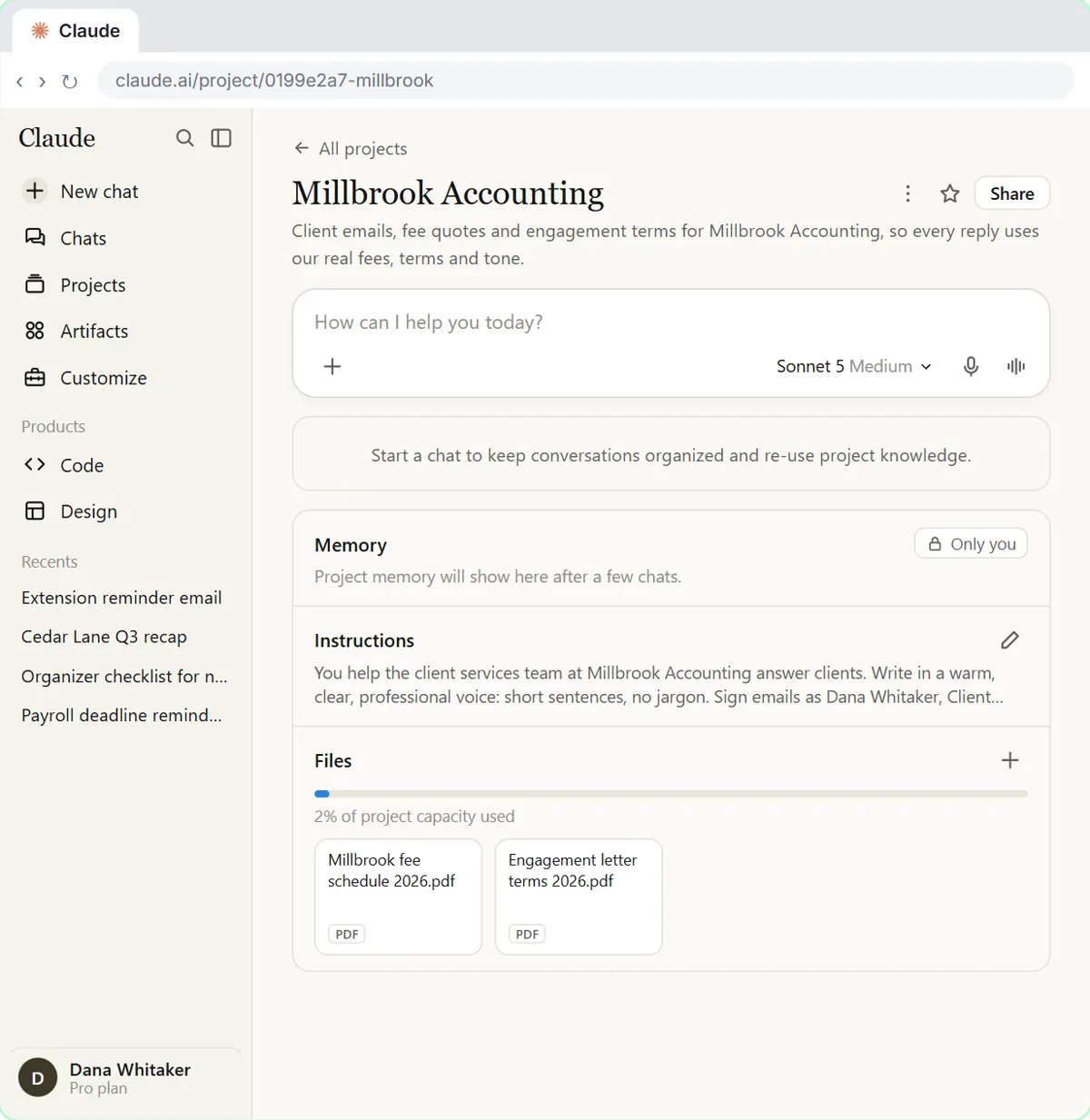 A Claude Project for Your Accounting Firm: Fee Schedule, Engagement Terms and Tone
Create a Claude project for your accounting firm, give it your tone and client policies, add your fee schedule and engagement letter terms as project knowledge, and get…
Free · Live ~9 min
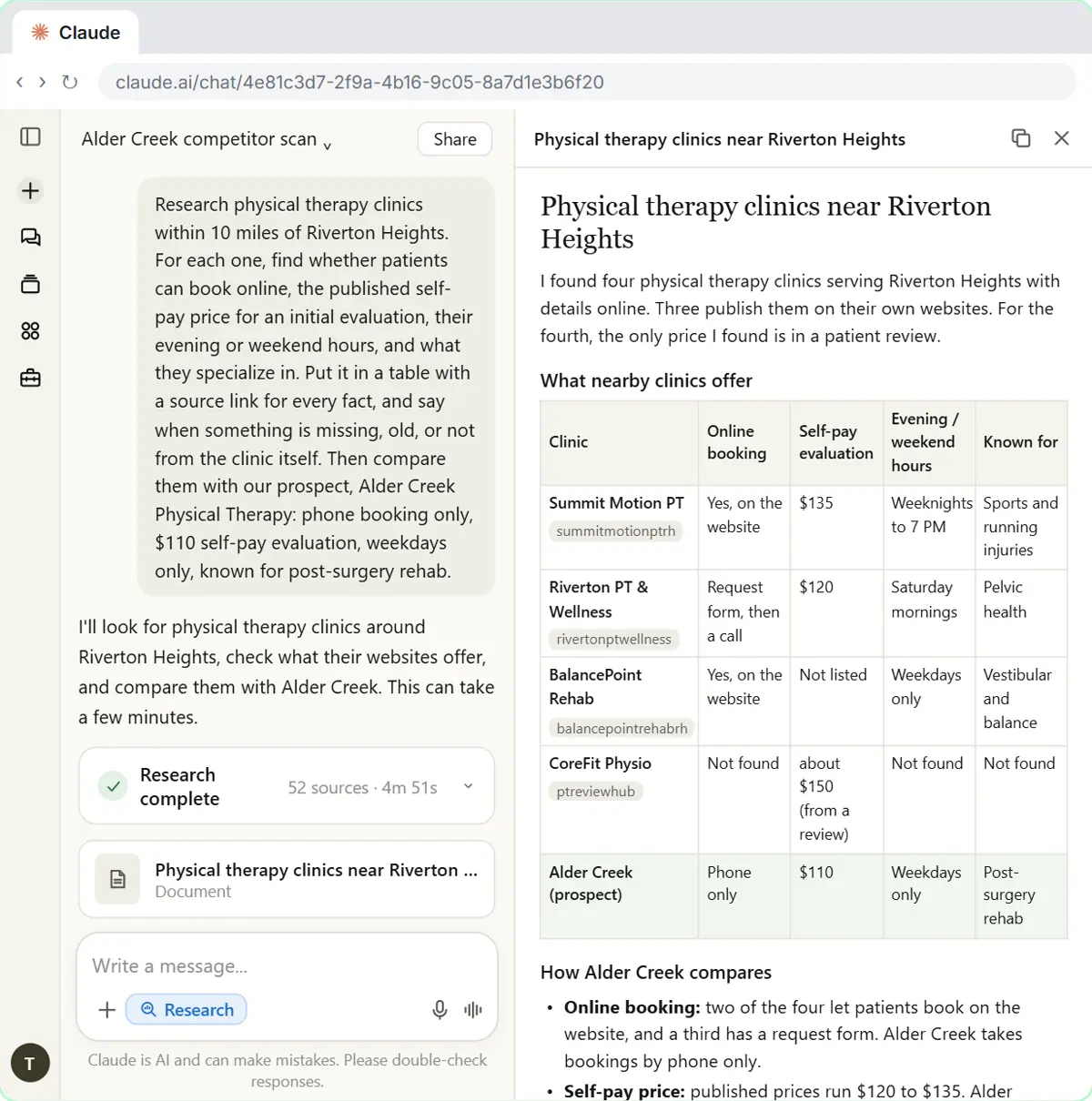 Research a Prospect's Market with Claude Research Before a Pitch (Consultants & Agencies)
Turn on Research before a pitch, have Claude check what a prospect's competitors offer online, read the cited report, check a source and turn it into talking points for…
Free · Live ~7 min
Terms in this lesson
Plain-English definitions, each with an example from a free lesson.