Updated . Built against the tool’s current screens and checked step by step. How we check this lesson
Some work you do the same way every week: a Friday job report, a quote, a site visit summary. A skill writes the process down once. In this free, interactive tutorial you turn a small painting company's weekly job report into a skill without writing it yourself. Claude's skill creator interviews you, drafts the skill from a real week of notes, tests it and packages it. Then you save it, run it on this week's notes, ask Claude to improve it once, and see the better report.
At a glance
| Question | Answer |
|---|---|
| What you build | Turn a report you make every week into a skill. Claude’s skill creator interviews you, drafts the skill, tests it and packages it. Then you use it on a real week, improve it once, and see the better report. |
| Tools | Claude |
| Time | About 8 minutes, 36 steps in 7 parts |
| Level | Intermediate |
| Cost | Free |
| Ways to learn it | Practice it step by step |
The 7 parts, in short
- Start the skill creator: Open Customize, Open Yours, Open the + Add menu, Choose Create with Claude.
- Let Claude interview you: Send the first message, Click the message box, Describe the skill, Send it, and 3 more steps.
- Test the draft: Read the draft, Say yes to the test, Send it, Check the test report, and 2 more steps.
- Review and save it: Open the skill, Save the skill, Go to your skill.
- Use it on a real week: Look inside the skill, Try it in a chat, Add this week’s notes, Send it.
- Refine it once: Go back to the builder chat, Click the message box, Ask for the change, Send it, and 2 more steps.
- See the better report: Start a new chat, Click the message box, Ask for the report, Send it, and 2 more steps.
Start here first: What Are Claude Skills? Turn One On and Watch It Work (module 1 of Claude Skills)
In the course: Part 4 · Claude for Everyday Work (Module 34 of the full course)
What the skill creator is, and why use it
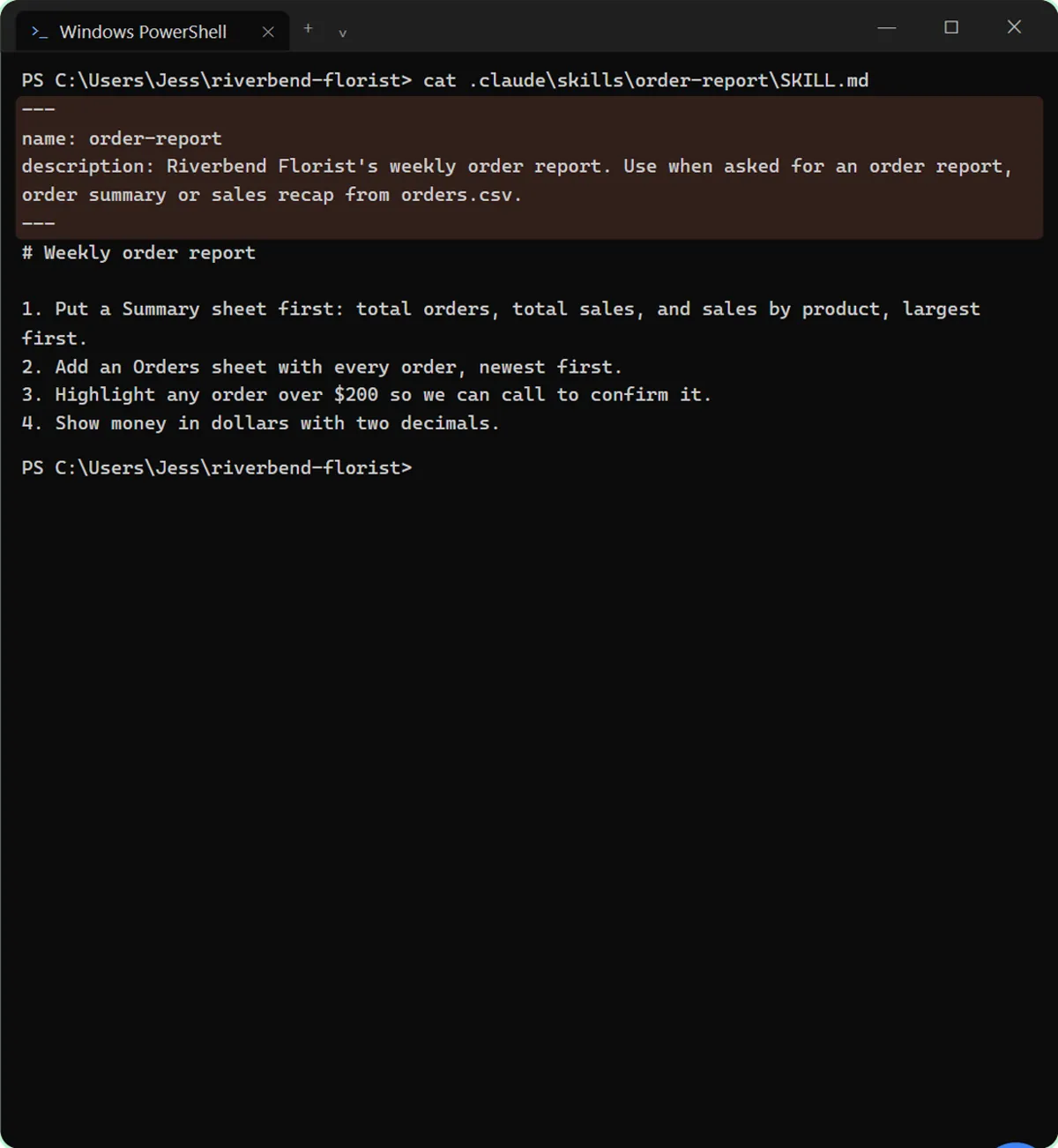
A Claude skill is a folder with a SKILL.md file inside. The top of the file, called the frontmatter, holds a short name and a description of when Claude should use the skill. The rest, the body, holds the instructions: the steps, the layout, the rules and an example. A skill can also carry extra files, such as a reference example.
The skill creator is itself a skill, published by Anthropic, whose job is to build other skills. It follows a simple loop: figure out what the skill should do, write a draft, test it on realistic requests, review the results with you, and improve it. When you choose Create with Claude, Claude uses the skill creator for you, so you describe your process in plain words and it does the writing.
Start the skill creator
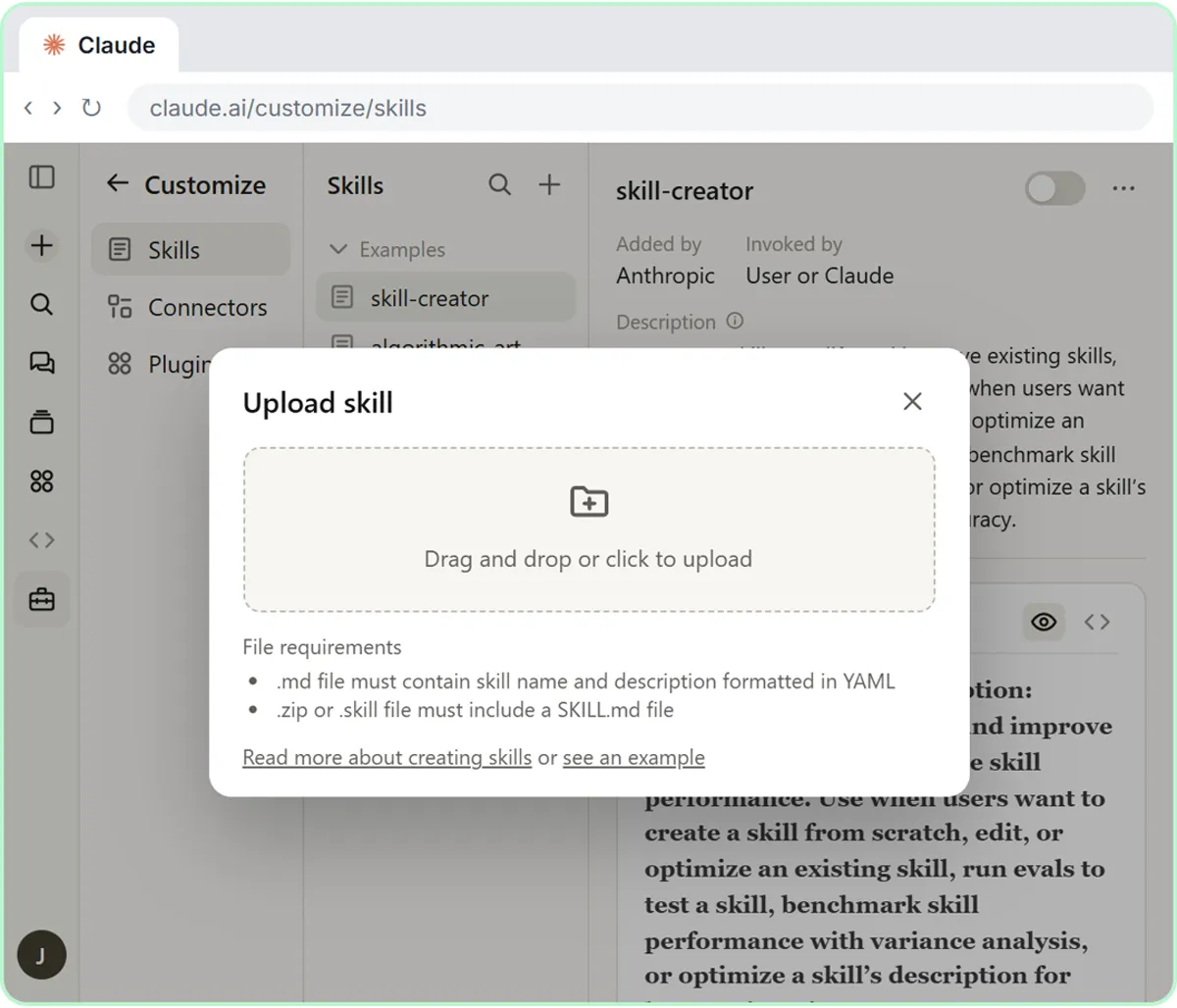
In Claude, click Customize in the left sidebar. It opens on Skills, with Yours and Discover tabs; Yours includes skill-creator under From Anthropic & Partners. Click the black Add button at the top right. You get three ways in: Upload skill (for a .zip, covered in module 2 of this course), Create a skill (a form for writing the skill yourself) and Create with Claude. Choose Create with Claude.
A new chat opens with the first message already in the box: let's create a skill together using your skill-creator skill, and first ask me what the skill should do. Send it. Claude loads the skill creator and asks what the skill should do.
Let Claude interview you
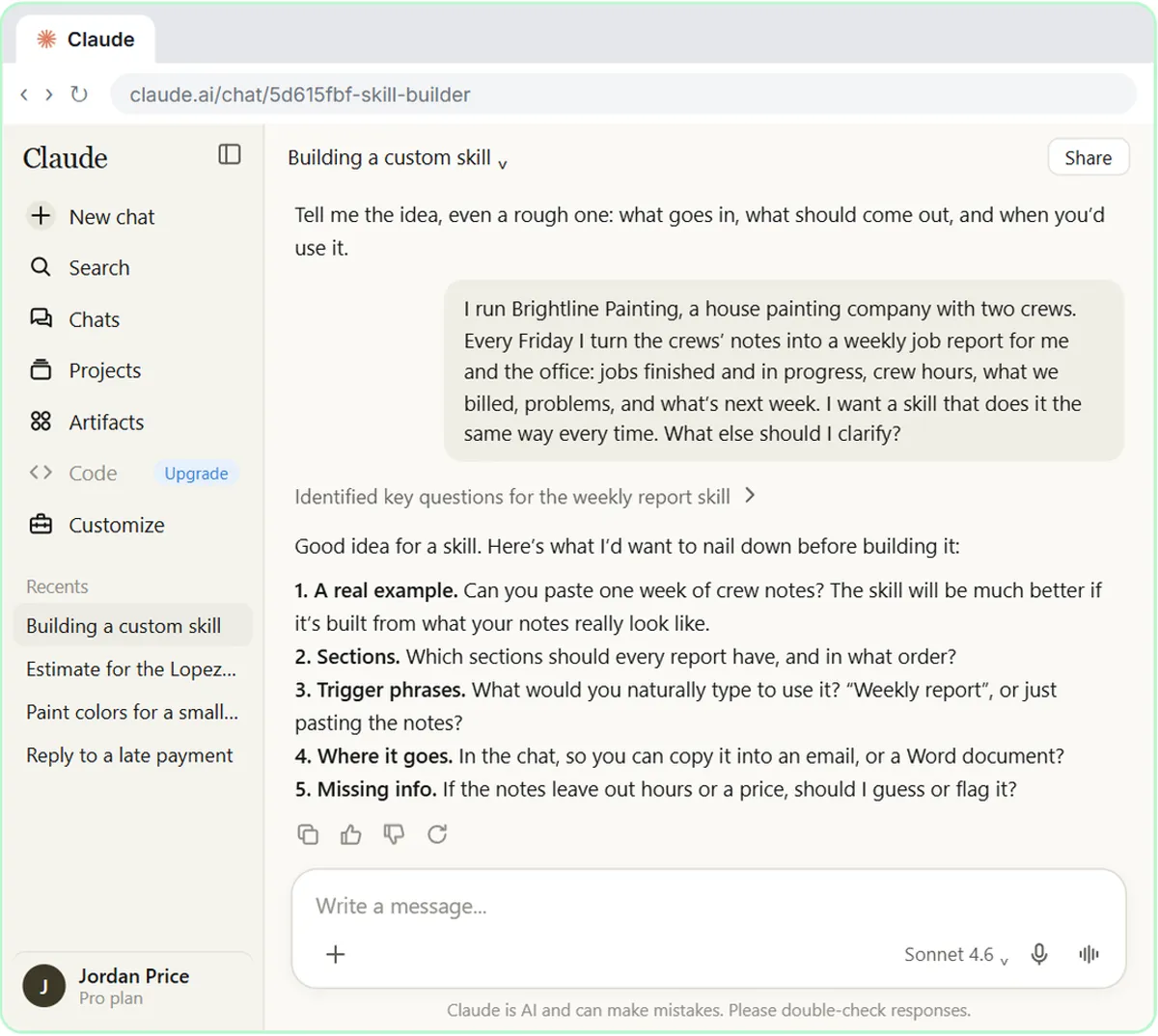
Describe the job you want done, not just the topic. In the lesson, the made-up Brightline Painting explains that every Friday it turns two crews' notes into a weekly job report covering jobs finished and in progress, crew hours, what was billed, problems and next week, and that it should come out the same way every time. The message ends with "What else should I clarify?", which tells Claude to ask questions instead of guessing.
Claude comes back with the questions it needs answered: a real example, which sections and in what order, the trigger phrases you'd type to use it, whether the report goes in the chat or a document, and what to do when information is missing. A real run asks its own questions, so answer the ones you get. The most useful answer is a real example: one week of crew notes, as messy as they really are. The lesson also adds one firm rule: never guess, mark gaps with [CHECK].
Test the draft before you save it
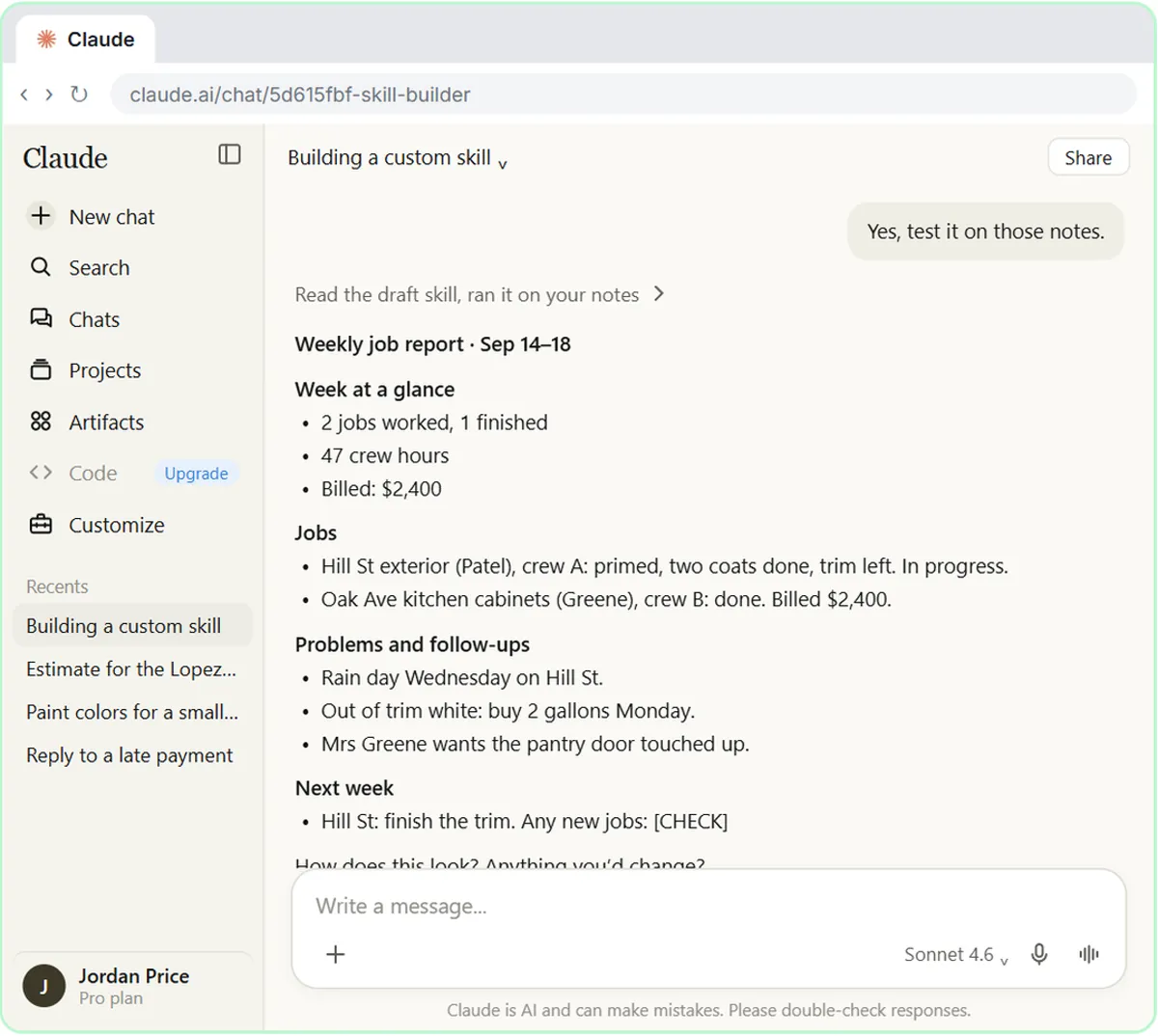
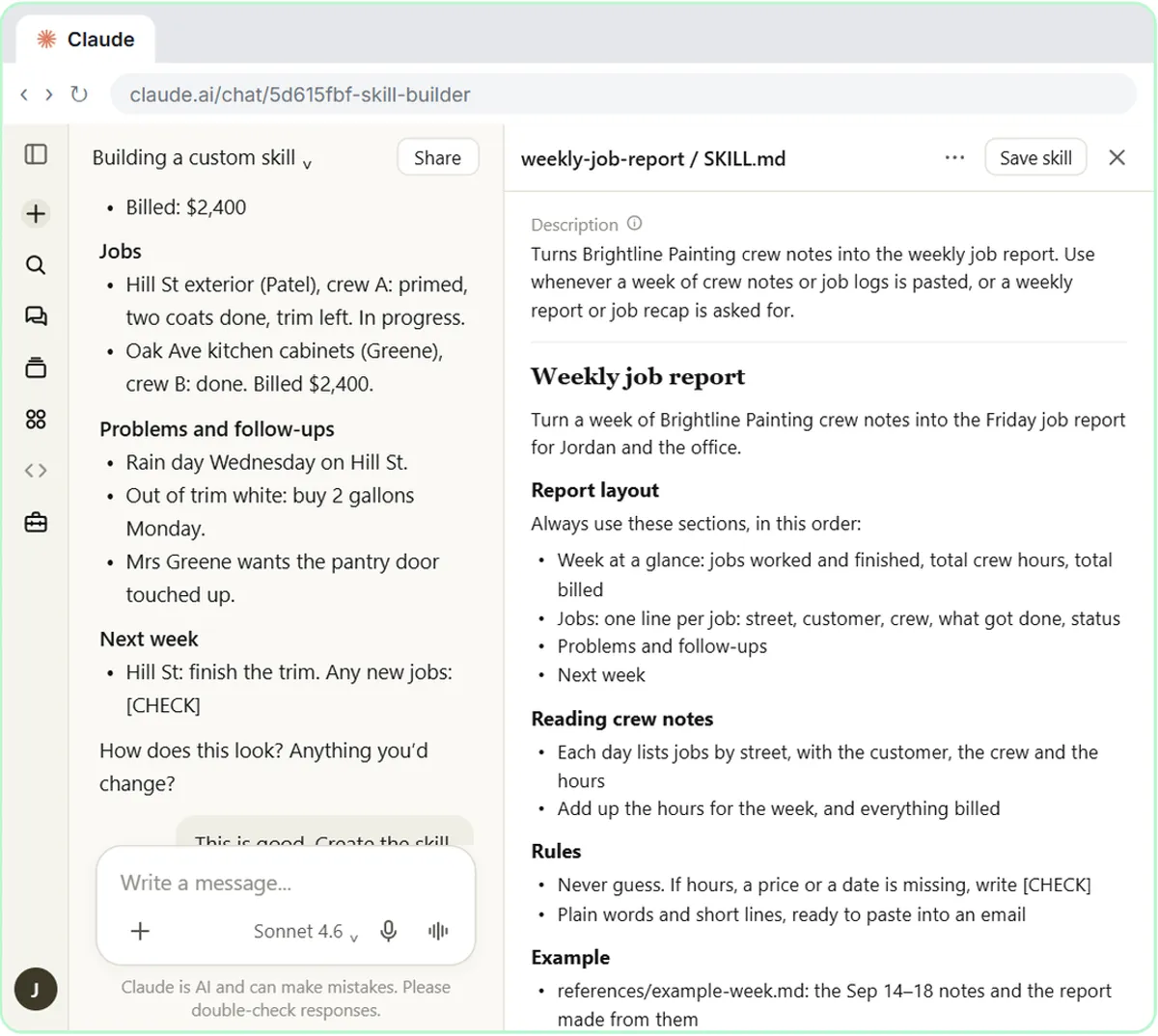
Claude drafts the skill in two parts: the frontmatter, with a description that says when to use it, and the body, with the sections, how to read crew notes, the [CHECK] rule and the example week. Then it offers to test it. Say yes, and it runs the draft on the notes you gave it.
Check the test report the way you'd check anyone's work. In the lesson the hours add up to 47, the $2,400 invoice is right, and the next job, which the notes never mention, is marked [CHECK] rather than invented. If something were wrong, you'd tell Claude now. When it's right, reply "This is good. Create the skill."
Why the description matters most
Claude packages the skill and shows it as a card. Click it to open the SKILL.md next to the chat, and read the description first. Claude doesn't read every skill all the time. It keeps only the names and descriptions in mind and opens a skill's instructions when a request matches. So the description has to say what the skill does and when to use it: here, whenever a week of crew notes is pasted or a weekly report is asked for. Anthropic's help center limits the description to 200 characters, and the skill creator's own guidance is to make it a little pushy, because Claude tends to under-use skills.
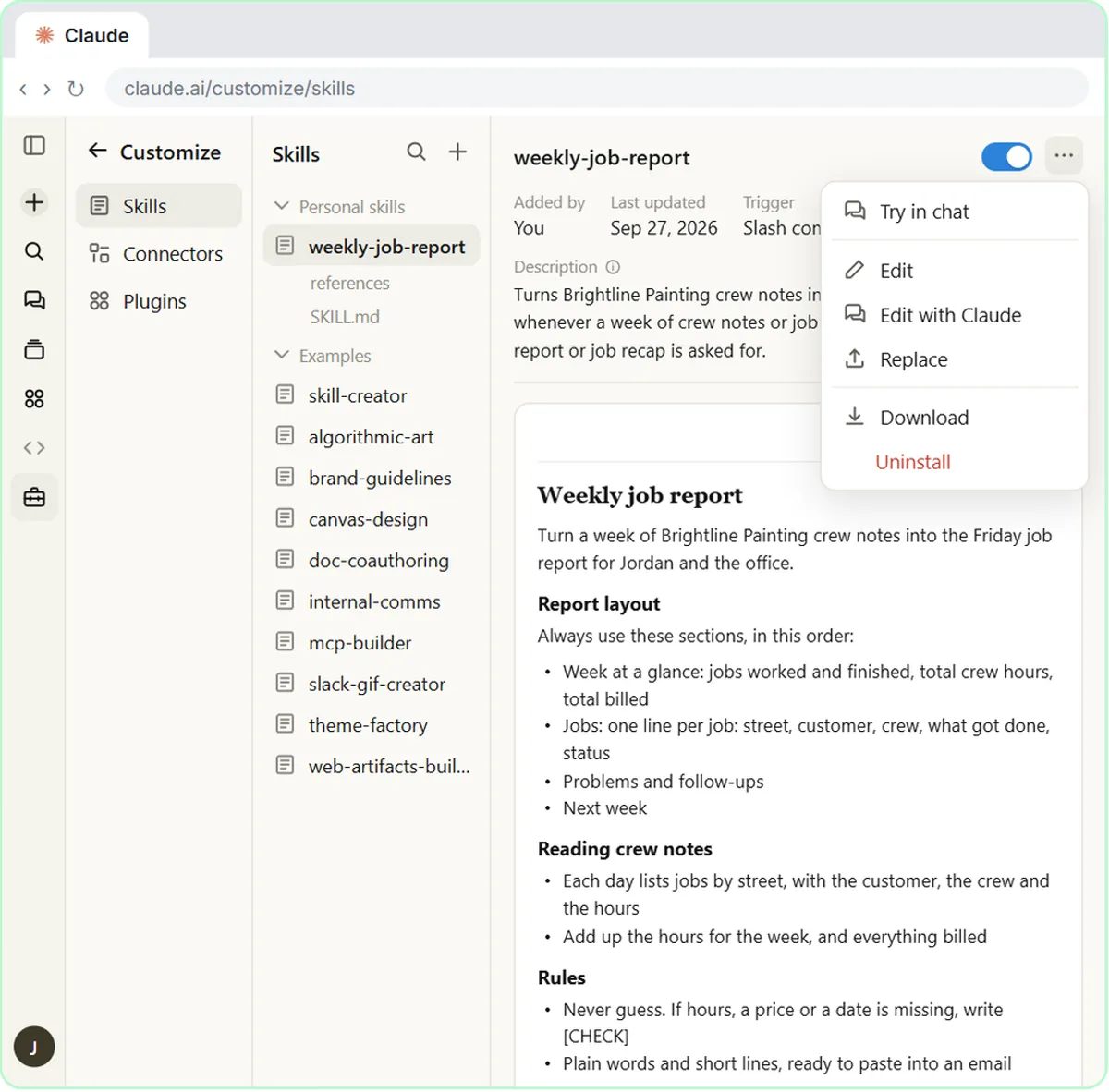
Click Save skill. A notice at the bottom right says Skill saved, and Manage opens the skill in the Settings window, marked New, with its switch on. The Overview tab shows the description and the Contents tab lists its files. With the switch on, Claude can pick the skill by itself.
Use it on a real week
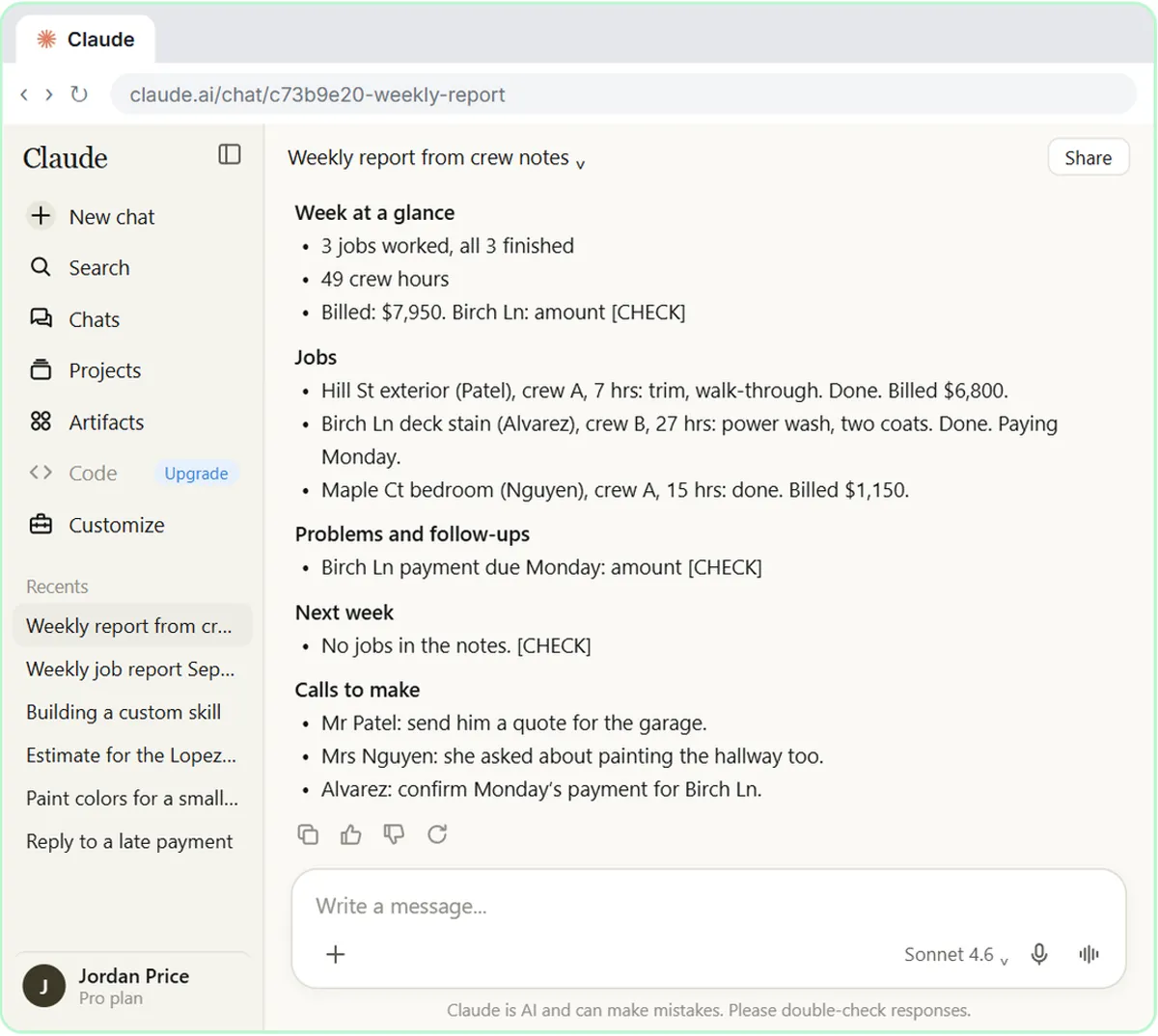
Click the black Try in chat button at the top right of the skill. A new chat opens with the slash command, /weekly-job-report, and a request already in the message box. Paste this week's crew notes after it and send. The report comes back in the four sections, with the totals added up and a missing invoice amount marked [CHECK].
Refine it once, then see the better report
Reading it, you want two changes: crew hours on each job, and the people to phone in their own list instead of buried in follow-ups. Go back to the chat where you built it (Claude names it, for example Weekly job report skill) under Recents, where Claude has the whole conversation, and ask in plain words: update the skill so every job shows its crew hours and every report ends with a Calls to make list. Claude edits the SKILL.md and shows a new card. The card's button now reads Update followed by the skill name, and your saved skill doesn't change until you click it. Click Update; the skill is replaced straight away, with an Updated notice and an Undo link.
Now test it without the slash command. In a new chat, paste the same notes and ask, plainly, for the weekly report. The work details above the reply show Claude reading the weekly-job-report skill by itself, proof the description does its job. The report now shows crew hours on every job and ends with Calls to make. If Claude ever skips your skill, type a slash and pick it.
Tips for your own process skill
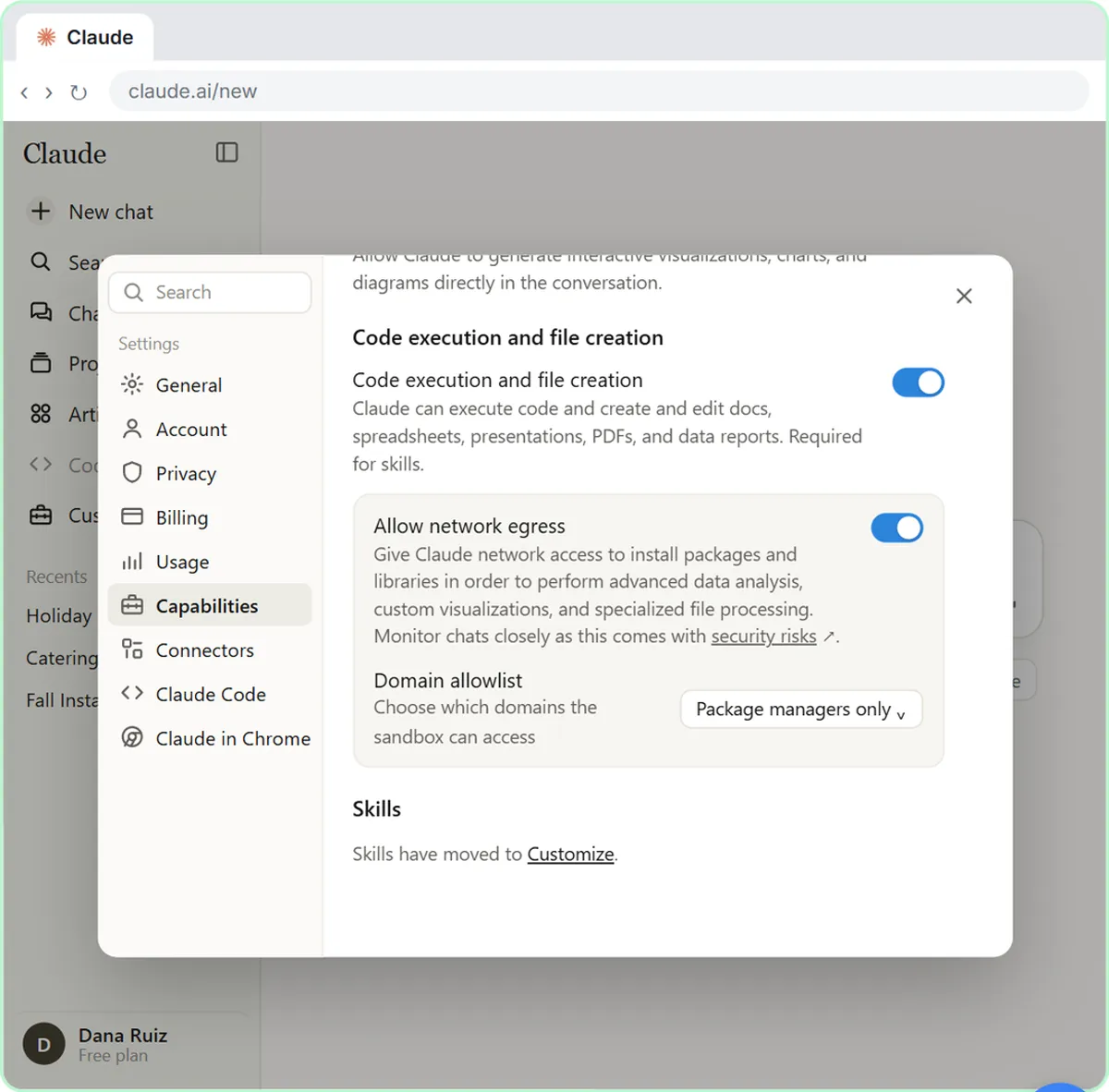
Keep each skill to one job. Give the skill creator a real example and a clear rule for missing information. Test it before saving, then keep improving it whenever the output isn't quite right. Skills need Code execution and file creation switched on in Settings, Capabilities, and they work on Claude's Free, Pro, Max, Team and Enterprise plans.
Try it yourself, free
Reading the steps is a start. Doing them is how it sticks. The interactive module walks you through every click in a practice copy of Claude, checks each step, and never touches your real accounts.
Start “Build Your Own Claude Skill with the Skill Creator: A Weekly Report Template”Step by step: Build Your Own Claude Skill with the Skill Creator: A Weekly Report Template
All 36 steps of the interactive module, in order. In the module you watch each one, then do it yourself in a practice copy that checks your work.
1. Start the skill creator
- Open Customize. You run Brightline Painting. Every Friday you turn the crews’ notes into a job report. As a skill, it comes out the same way every week. Claude’s skill creator builds it with you: it interviews you, drafts the skill, tests it and packages it. Click Customize in the left sidebar.
Say you run Brightline Painting, and every Friday you turn your crews' notes into a weekly job report. Made into a skill, that report comes out the same way every single week. You don't have to write the skill yourself. Claude's skill creator interviews you, drafts it, tests it, and packages it.
- Open Yours. Customize opens on Skills. Discover is a store of ready-made skills; Yours lists the skills you can use. Click Yours.
Customize opens right on Skills. Discover is a store of ready-made skills. Yours lists the skills you can use.
- Open the + Add menu. That’s skill-creator, under From Anthropic & Partners: the skill that builds skills. Create with Claude uses it for you. Click the black + Add button at the top right.
That's the skill creator, under From Anthropic and Partners. It's the skill that builds other skills, and Claude uses it for you in a moment.
- Choose Create with Claude. Three ways in: Upload skill (a .zip, Module 2), Create a skill (a form where you write the skill yourself) and Create with Claude (by chatting). Click Create with Claude.
There are three ways in. Upload skill takes a zip file, like in module two. Create a skill is a form where you write it yourself.
2. Let Claude interview you
- Send the first message. A new chat opens with the first message already in the box: create a skill together using the skill-creator skill. It waits for you to send it. Click the send arrow.
A new chat opens, and the first message is written for you: let's create a skill together using your skill creator skill. It waits in the box until you send it.
- Click the message box. Claude loads the skill-creator skill, then asks what yours should do. Click the message box.
Claude reads that skill, then asks what yours should do.
- Describe the skill. Paste in the your idea: who you are, what the report covers, and that it should come out the same way every time. It ends with What else should I clarify?, so Claude asks instead of guessing.
Describe the job you want done, not just the topic. And end with: what else should I clarify? That tells Claude to ask you questions instead of guessing.
I run Brightline Painting, a house painting company with two crews. Every Friday I turn the crews’ notes into a weekly job report for me and the office: jobs finished and in progress, crew hours, what we billed, problems, and what’s next week. I want a skill that does it the same way every time. What else should I clarify?
- Send it. Click the send arrow.
- Answer the questions. This is the interview: a real example, the sections, trigger phrases (what you’d type to use it), where the report goes, and what to do about missing info. A real run asks its own questions; answer the ones you get. Click the message box.
This is the interview. Claude wants a real example, the sections you want, the words you'd type to use it, where the report goes, and what to do when something's missing. On a real run the questions will be different, so answer the ones you get.
- Give your answers. Paste in the your answers: one real week of crew notes, your four sections, your trigger phrases, in the chat, and never guess: mark it [CHECK].
The most useful one is the first: a real week of crew notes, just as messy as they really are. Claude builds the skill from what your notes actually look like.
1. Last week’s notes: Mon: Hill St exterior (Patel), crew A, 8 hrs, primed the north side. Tue: Hill St 9 hrs, first coat done. Oak Ave kitchen cabinets (Greene), crew B, 7 hrs. Wed: rain, Hill St off. Oak Ave 8 hrs, done, billed $2,400. Thu: Hill St 9 hrs, second coat. Mrs Greene wants the pantry door touched up. Fri: Hill St 6 hrs, trim left. Out of trim white, need 2 gallons Monday.
2. Week at a glance, Jobs, Problems and follow-ups, Next week.
3. "Weekly report", or when I paste crew notes.
4. In the chat.
5. Never guess. Mark it [CHECK].
- Send them. Click the send arrow.
3. Test the draft
- Read the draft. Claude drafts the skill in two parts. The frontmatter is the name and a description of when to use it. The body is the instructions: your sections, how to read the notes, your [CHECK] rule. Then it offers a test. (Real Claude often runs the test on your notes by itself and shows the report; if so, just check it.) Click the message box.
Claude has drafted your skill in two parts. The frontmatter is the name, plus a description of when to use it. The body is the instructions: your sections, how to read the notes, and your never guess rule. Before you save anything, test it.
- Say yes to the test. Paste in the reply to say yes.
Tell Claude yes, test it on those notes.
- Send it. Click the send arrow.
- Check the test report. Check it like anyone’s work: 47 crew hours (8 + 9 + 9 + 6 on Hill St, 7 + 8 on Oak Ave), $2,400 billed, and the unknown next job marked [CHECK], not guessed. If something’s off, say so now. It’s right, so click the message box.
Check the test report like you'd check anyone's work. Forty seven crew hours adds up. Two thousand four hundred dollars billed is right. And the next job, which your notes don't mention, is marked check instead of guessed. If anything were off, you'd tell Claude now. It looks right, so click the message box.
- Tell Claude to create it. Paste in the reply: This is good. Create the skill. (That line also works whenever Claude keeps asking questions and you’re ready.)
That line also works any time Claude keeps asking questions and you're ready.
- Send it. Click the send arrow.
4. Review and save it
- Open the skill. Claude packages the skill and shows it as a card. Click the weekly-job-report card to read it.
Claude packages your skill and hands it back as a card.
- Save the skill. Read the Description first. Claude keeps only skill names and descriptions in mind, and opens a skill when a request matches, so the description must say when to use it: pasted crew notes, or a weekly report. Below it: your sections and rules. Click Save skill at the top right of the file.
Read the description first, because it matters most. Claude doesn't read every skill all the time. It keeps just the names and descriptions in mind, and opens a skill when your request matches. So this one says when to use it: when you paste crew notes, or ask for a weekly report. Below it are your sections and rules.
- Go to your skill. A notice at the bottom right says Skill saved. Click Manage.
A notice says Skill saved.
5. Use it on a real week
- Look inside the skill. Manage opens your skill in the Settings window, marked New, with its switch on: Claude can pick it by itself, and you can switch it off any time. Overview shows the description. Click the Contents tab to see its files.
Manage opens your skill in the Settings window, with its switch on. That means Claude can pick it by itself, and you can switch it off any time. Overview shows the description.
- Try it in a chat. Click Try in chat, the black button at the top right.
- Add this week’s notes. A new chat opens with /weekly-job-report and a request already in the box: a slash and the skill’s name is the surest way to use a skill. Paste in the notes to add this week’s crew notes after it.
A new chat opens with slash weekly job report and a request already in the message box. A slash and the skill's name is the surest way to use a skill.
Mon: Hill St trim, crew A, 7 hrs. Walk-through with Mr Patel, he’s happy, wants a quote for the garage. Birch Ln deck stain (Alvarez), crew B, 8 hrs, power washed. Tue: Birch Ln 8 hrs, first coat. Hill St done, billed $6,800. Wed: Birch Ln 6 hrs, second coat. Maple Ct bedroom (Nguyen), crew A, 7 hrs. Mrs Nguyen asked if we can do the hallway too. Thu: Maple Ct 8 hrs, done, billed $1,150. Fri: Birch Ln 5 hrs, done. Alvarez paying Monday.
- Send it. Click the send arrow.
6. Refine it once
- Go back to the builder chat. Right sections, right totals. But you want two changes: crew hours on each job, and the people to phone in their own list, not buried in follow-ups. Change it in the chat where you built it, where Claude has all the context: click Weekly job report skill under Recents (Claude named the chat itself).
Right sections, and the totals add up. But reading it, you want two changes: the crew hours on each job, and a list of who to call, instead of calls buried in the follow ups. Make changes in the chat where you built the skill, so Claude has all the context. Claude named the chat itself.
- Click the message box. Click the message box.
- Ask for the change. Paste in the update: Update the skill so… and the two changes, in plain words.
Just say what to change, in plain words: update the skill so every job shows its crew hours, and every report ends with a list of calls to make.
- Send it. Click the send arrow.
- Open the new version. Claude edits the SKILL.md and shows a new card, with an Update weekly-job-report button instead of Save skill. Your saved skill doesn’t change until you click it. Click the card to read the new version.
Claude edits the skill and hands you a new card, and the button now says Update, because you already have this skill. Your saved skill doesn't change until you click it.
- Update the skill. The new version has the crew hours and the Calls to make list. Click Update weekly-job-report at the top right of the file. It updates straight away, with an Updated notice and an Undo link: there is no question to answer.
The new version has the crew hours and the calls to make list. It updates straight away, with a notice and an undo link, so there's no question to answer.
7. See the better report
- Start a new chat. Skill saved. Now test it the other way: a normal request, no slash command. That shows whether the description does its job. Click + New at the top of the left sidebar.
Skill saved. Now test it the other way in: a normal request, with no slash command. That shows whether your description does its job.
- Click the message box. Click the message box.
- Ask for the report. Paste in the request: the same crew notes, with a plain Can you do the weekly report?
It's the same crew notes, with a plain question: can you do the weekly report?
Here are this week’s crew notes. Can you do the weekly report? Mon: Hill St trim, crew A, 7 hrs. Walk-through with Mr Patel, he’s happy, wants a quote for the garage. Birch Ln deck stain (Alvarez), crew B, 8 hrs, power washed. Tue: Birch Ln 8 hrs, first coat. Hill St done, billed $6,800. Wed: Birch Ln 6 hrs, second coat. Maple Ct bedroom (Nguyen), crew A, 7 hrs. Mrs Nguyen asked if we can do the hallway too. Thu: Maple Ct 8 hrs, done, billed $1,150. Fri: Birch Ln 5 hrs, done. Alvarez paying Monday.
- Send it. Click the send arrow.
- Open Claude's work details. Click Built the weekly report from the crew notes above the reply. (Claude writes this line itself, so the wording changes from run to run.)
- Copy the report. First line: Loaded skill weekly-job-report. No slash needed: the description did its job. (If Claude ever skips it, type / and pick it.) In the report: crew hours on every job (7, 27, 15) and Calls to make at the end. Click Copy under the report.
The first line says Claude loaded your weekly job report skill, with no slash command. Your description did its job. If it ever doesn't, type a slash and pick the skill. Now look at the report: crew hours on every job, and calls to make at the end.
Screenshots
Frequently asked questions
- What is the Claude skill creator?
- It's a skill from Anthropic that builds other skills. Choose Create with Claude in Customize, Skills and Claude uses it to interview you, draft the SKILL.md, test it and package it.
- Do I need to know how to code to make a Claude skill?
- No. With Create with Claude you describe your process in plain words and answer Claude's questions. A simple process skill is just instructions in Markdown.
- Why does the skill description matter so much?
- Claude keeps only skill names and descriptions in mind and opens a skill when a request matches its description. If the description doesn't say when to use the skill, Claude won't pick it by itself.
- How do I update a skill I made?
- Ask Claude for the change in the chat where you built it, then click Update on the new card. The skill is replaced straight away, and an Undo link appears in the notice.
- Is this course really free?
- Yes. Stepthrough is completely free, and the practice copy needs no accounts. To do it for real you need your own Claude account.
More in Claude Skills
 What Are Claude Skills? Turn One On and Watch It Work
Learn what a Claude skill is, switch on the setting skills need, turn on an example skill in Customize, and watch Claude use its Excel and Word skills on its own.
Free · Live ~7 min Beginner
 How to Install a Custom Skill in Claude (Upload a Skill .zip)
Upload your own skill to Claude as a .zip, check that it’s switched on, see what’s inside its SKILL.md, and watch Claude use it to write a landscaping quote your way.
Free · Live ~6 min Beginner
 Install Skills in Claude Code: the Skills Folder and a Plugin Marketplace
See what a SKILL.md looks like, learn where Claude Code keeps skills, install Anthropic's document skills from a plugin marketplace, and watch Claude use them on its own.
Free · Live ~7 min Advanced
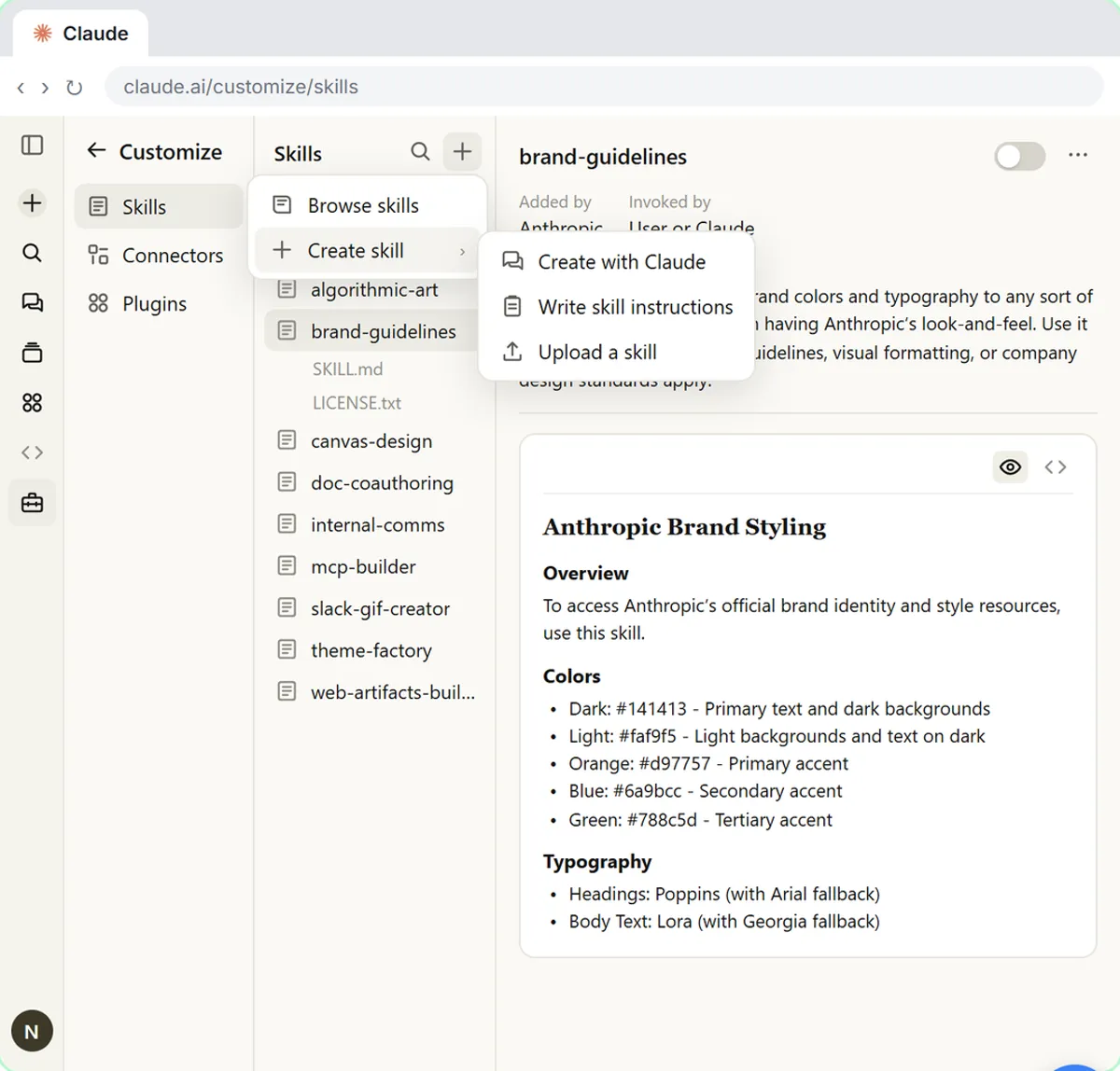 Make Every Claude Document On-Brand with a Brand Guidelines Skill
Build a brand skill for a small flower shop by chatting with Claude: colors, fonts, logo placement and voice. Then ask for a proposal and a social post and watch both…
Free · Live ~7 min Beginner
All 6 modules in Claude Skills
More Claude tutorials
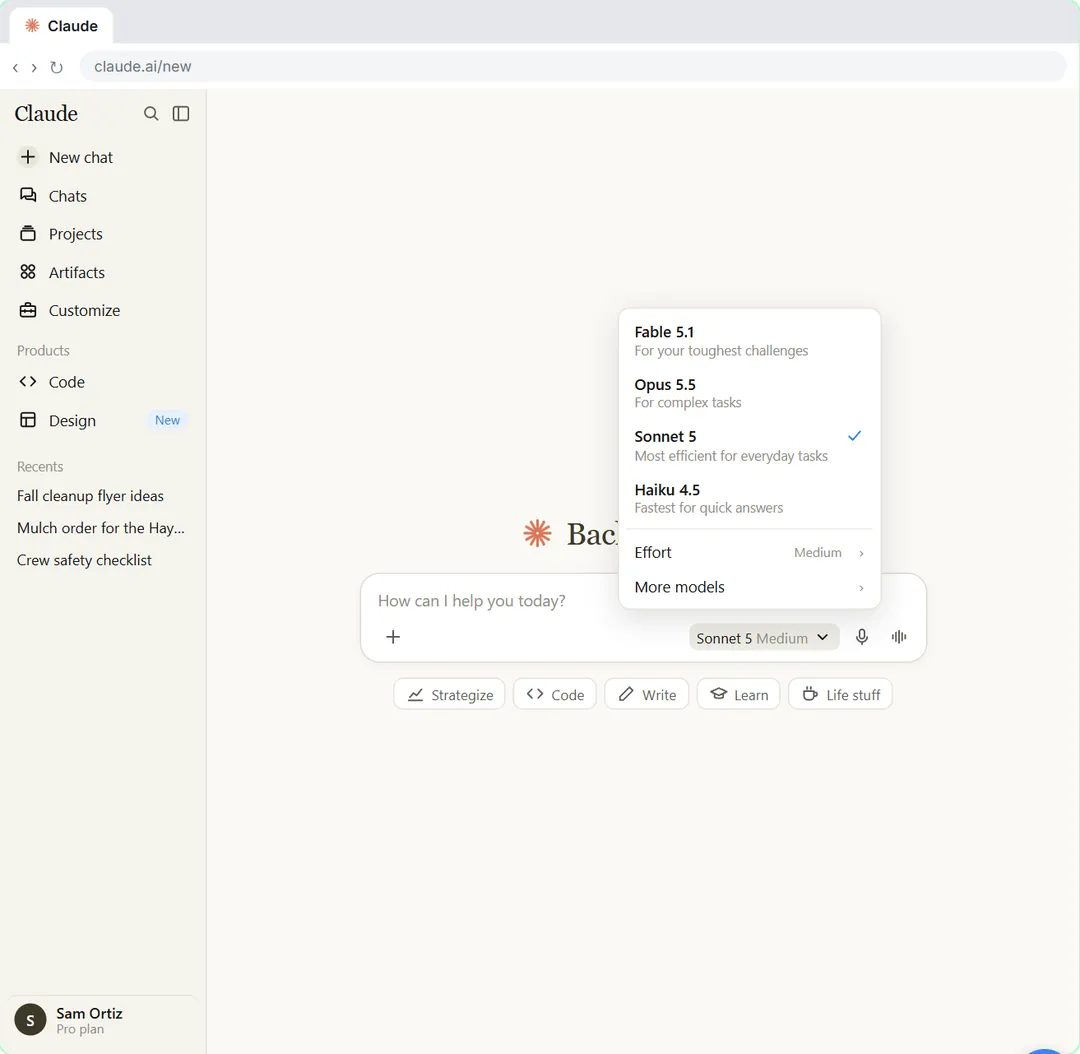 Your First Chat with Claude: Models, Files and a Great First Prompt
Pick a model, attach a customer's complaint email with the + menu, write a four-part prompt, read Claude's reply, ask a follow-up, then pin and rename the chat.
Free · Live ~7 min Beginner
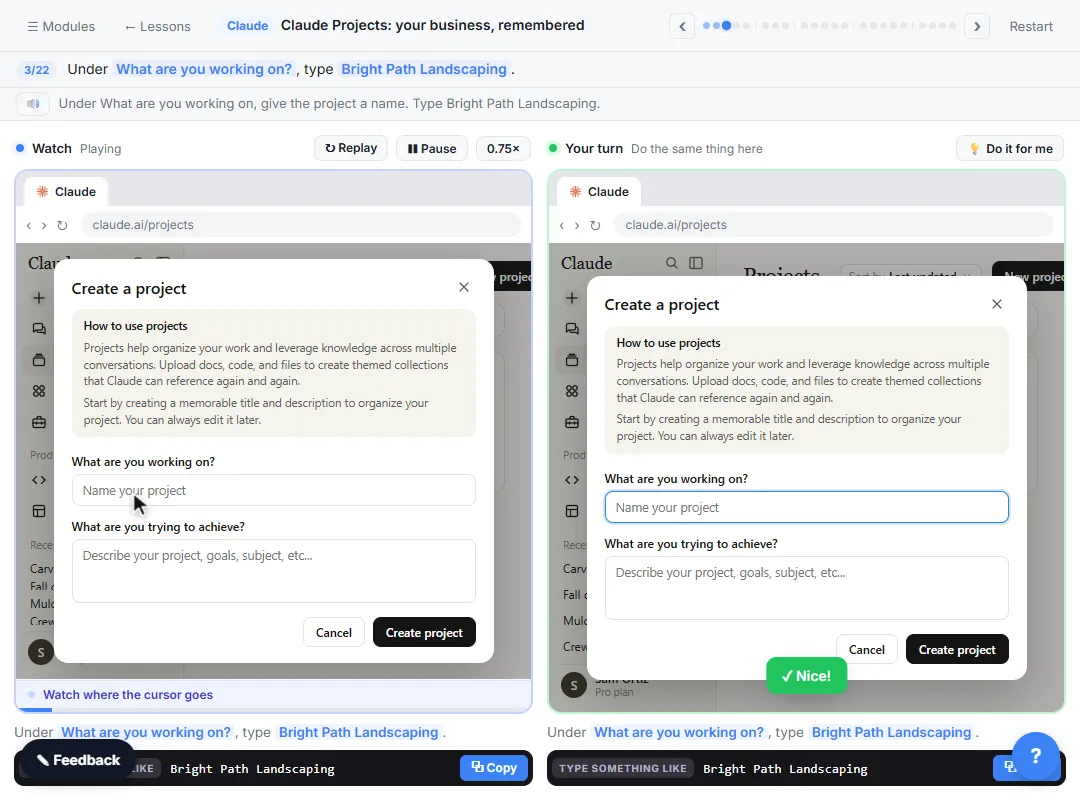 Claude Projects for Your Business: Instructions, Knowledge and Quotes
Create a project for your business, give it instructions for tone and policies, add your price sheet and warranty as project knowledge, and get a customer quote that…
Free · Live ~8 min Beginner
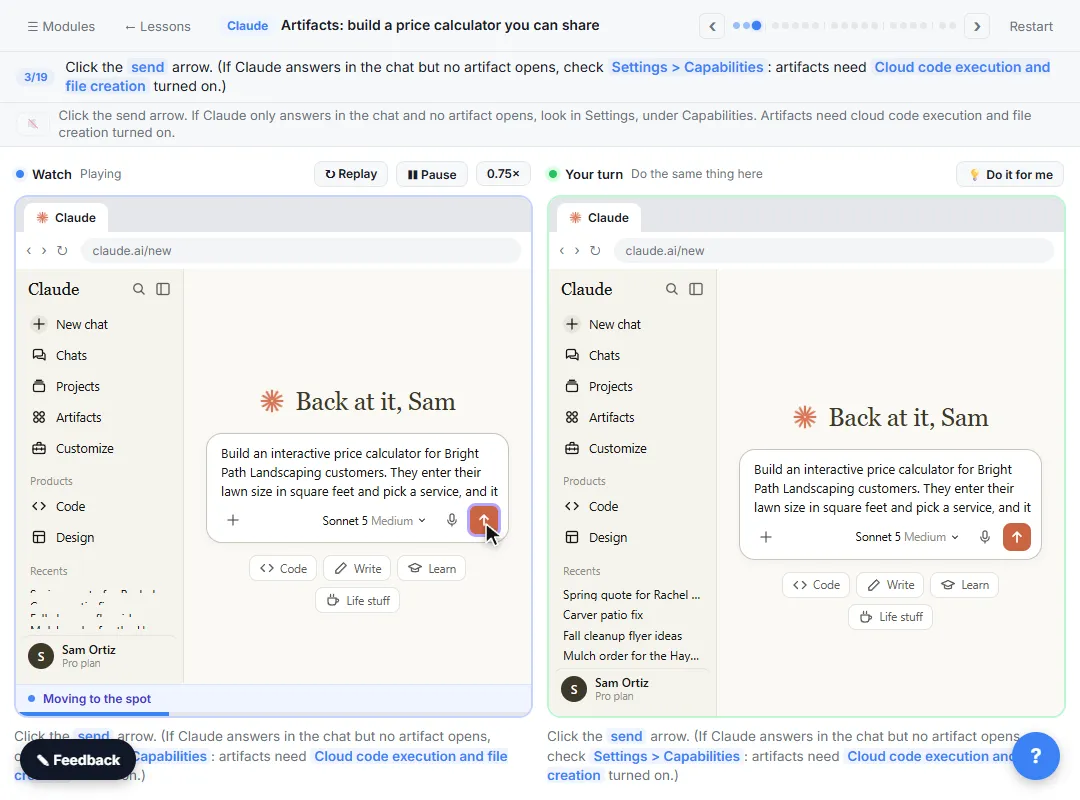 Claude Artifacts: Build a Price Calculator You Can Try, Change and Share
Have Claude build an interactive lawn price calculator, try it in the artifact panel, ask for a change, and share it with a link.
Free · Live ~7 min Beginner
 Claude Research: Get a Cited Competitor Price Scan, Then Check It
Turn on Research, have Claude check what nearby competitors charge, read the cited report, check a source and ask a follow-up.
Free · Live ~7 min Beginner
 Connect Claude to Google Drive, Gmail and Google Calendar
Connect Google Drive, Gmail and Google Calendar to Claude, then find your price sheet, summarize a customer's email thread and check your week, approving each tool as…
Free · Live ~8 min Intermediate
 Check a Contract for Red Flags with Claude
Upload a vendor contract, get it in plain English, find the risky clauses with the exact words quoted, draft questions for the vendor, and save the review as a project…
Free · Live ~11 min Beginner
Terms in this lesson
Plain-English definitions, each with an example from a free lesson.