Updated . Built against the tool’s current screens and checked step by step. How we check this lesson
Most small offices sign vendor contracts nobody has read closely: IT support, copier leases, software, cleaning. In this free lesson you upload a three-year managed IT agreement to Claude, get a plain-English summary, have Claude list the risky clauses with the exact words and clause numbers, turn them into questions for the vendor, and save the whole review as a Claude Project so the next contract gets the same careful read in one line. It's a first read, not legal advice.
At a glance
| Question | Answer |
|---|---|
| What you build | Upload a vendor contract, get it in plain English, find the risky clauses with the exact words quoted, draft questions for the vendor, and save the review as a project for the next one. |
| Tools | Claude |
| Time | About 11 minutes, 34 steps in 6 parts |
| Level | Intermediate, no coding needed |
| Cost | Free |
| Ways to learn it | Practice it step by step, watch the video, read the guide with screenshots |
The 6 parts, in short
- Upload the contract: Open the + menu, Add the file, Pick the contract, Upload it.
- Get the plain-English version: Click the message box, Ask for a plain-English summary, Send it, See how Claude read it.
- Find the red flags: Read the summary, Ask for the risky clauses, Send it, Copy the list, and 2 more steps.
- Ask the vendor: Notice what’s missing, Ask for questions to send, Send it, Copy the email.
- Save it as a project: Open Projects, Start a new project, Name it, Describe it, and 4 more steps.
- Review the next contract: Add the next contract, Add the file, Pick the lease, Upload it, and 4 more steps.
Start here first: Your First Chat with Claude: Models, Files and a Great First Prompt (module 1 of Claude for Everyday Work)
In the course: Part 4 · Claude for Everyday Work (Module 24 of the full course)
Check a Contract for Red Flags with Claude: step-by-step guide with screenshots
About the screenshots. They come from Stepthrough’s simulated practice environment (a practice copy of Claude), not the live tool, so no real account appears. The buttons and labels match the real screens the lesson was built against. Practice it yourself free at learn.ynteractive.com.
- Tools: Claude
- Time: about 11 minutes, 34 steps in 6 parts
- Level: beginner, no coding needed
Part 1: Upload the contract
Step 1: Open the + menu
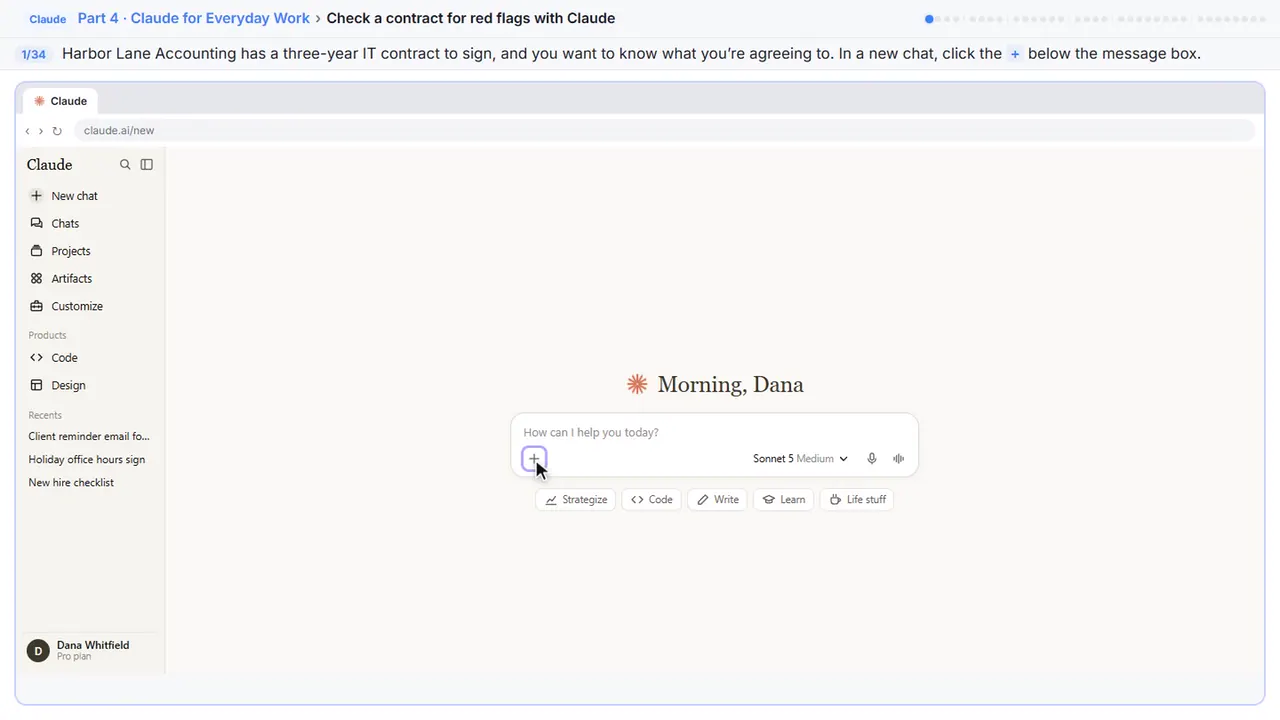
Harbor Lane Accounting has a three year IT contract on the desk, and you want to know what you're signing. In a new chat, click the plus button at the bottom left of the message box.
Step 2: Add the file
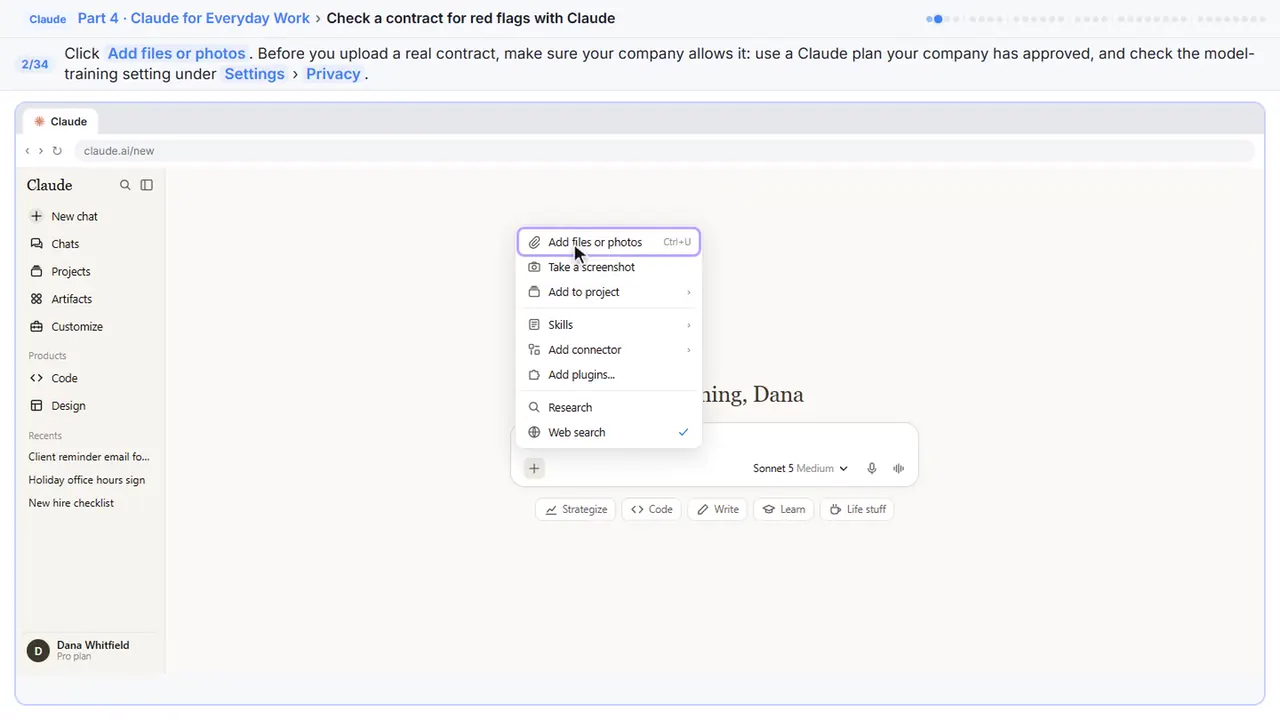
One word of caution first: before you upload a real contract, make sure your company is okay with it. Use a plan your company has approved, and check your privacy settings.
Step 3: Pick the contract
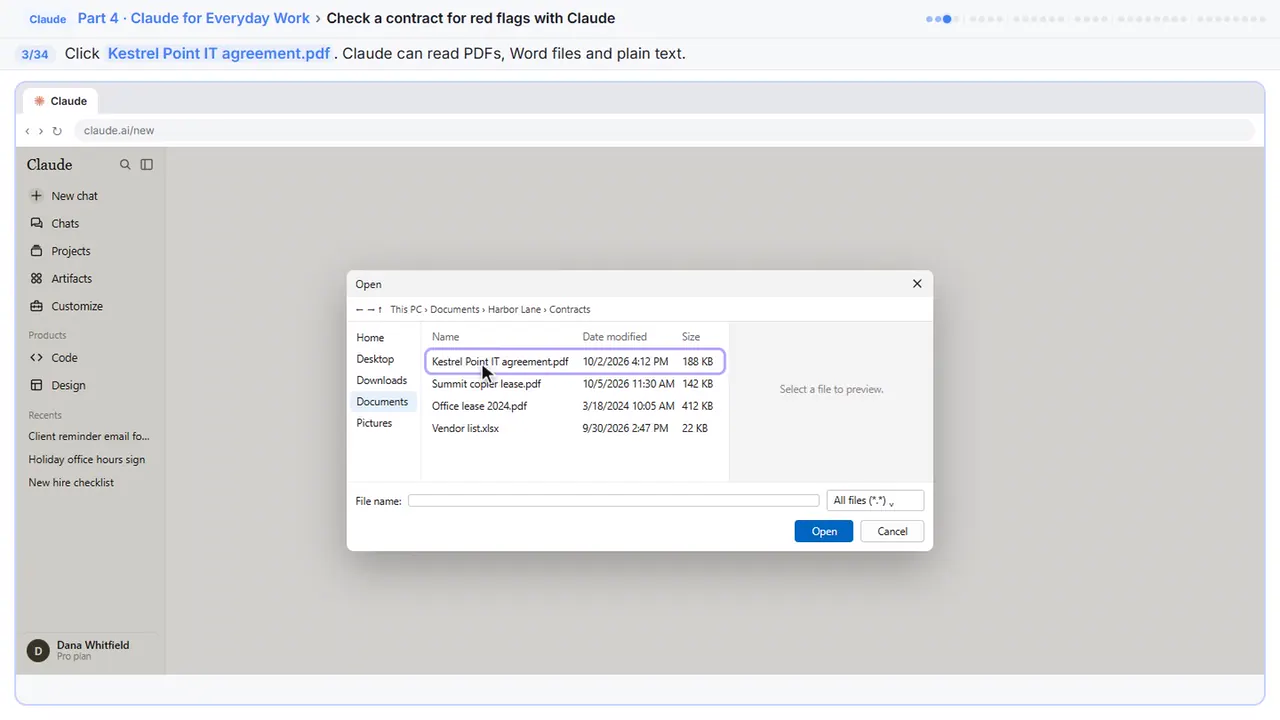
Your computer's file window opens.
Step 4: Upload it
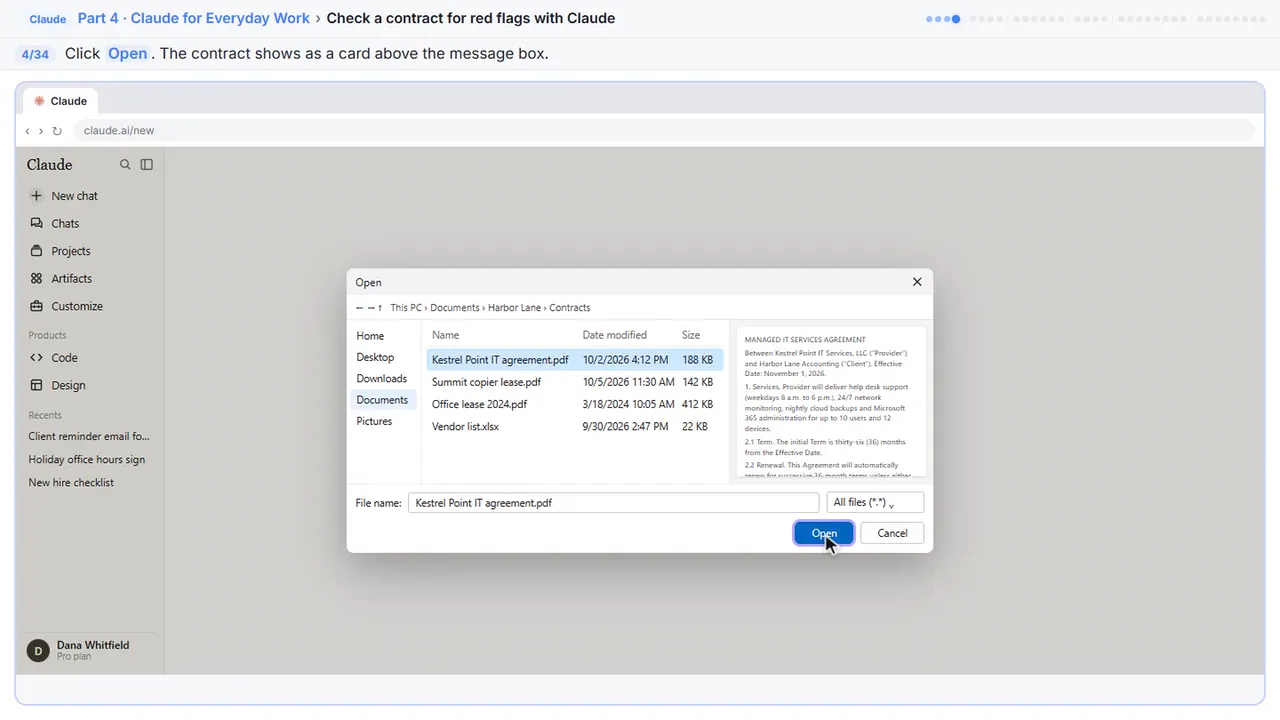
The contract shows up as a card above the message box.
Part 2: Get the plain-English version
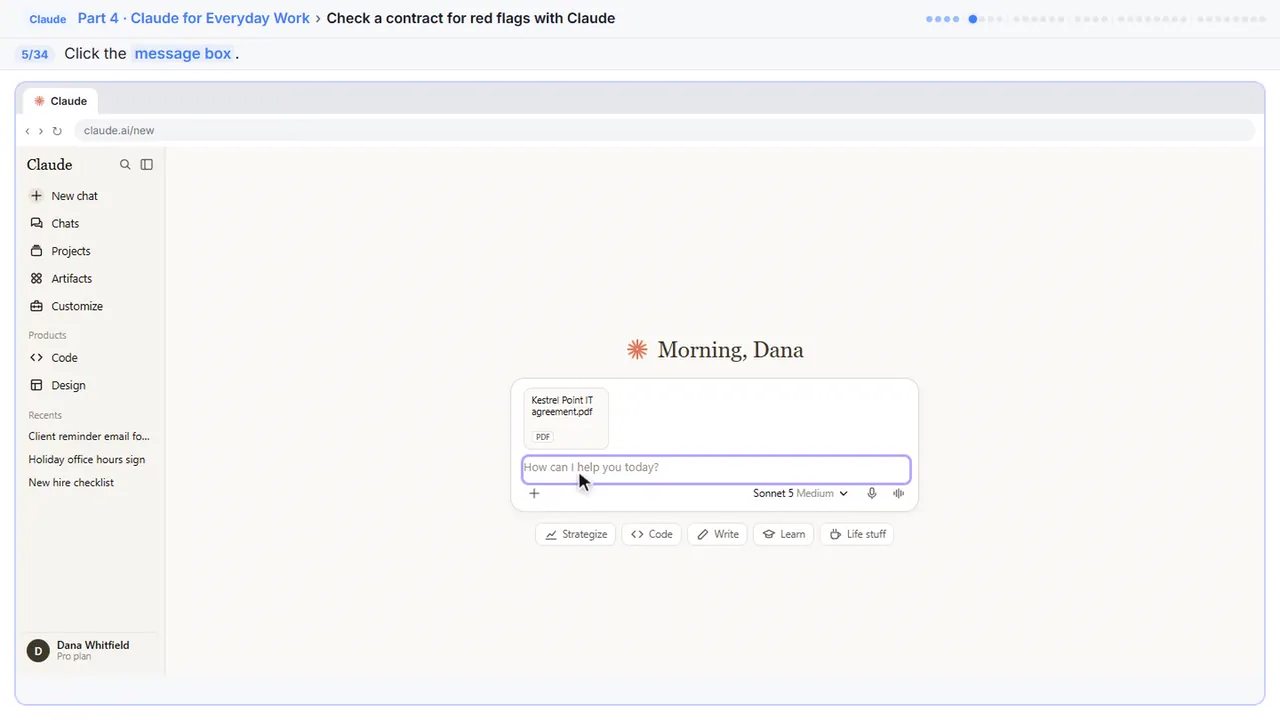
Step 5: Click the message box
Step 6: Ask for a plain-English summary
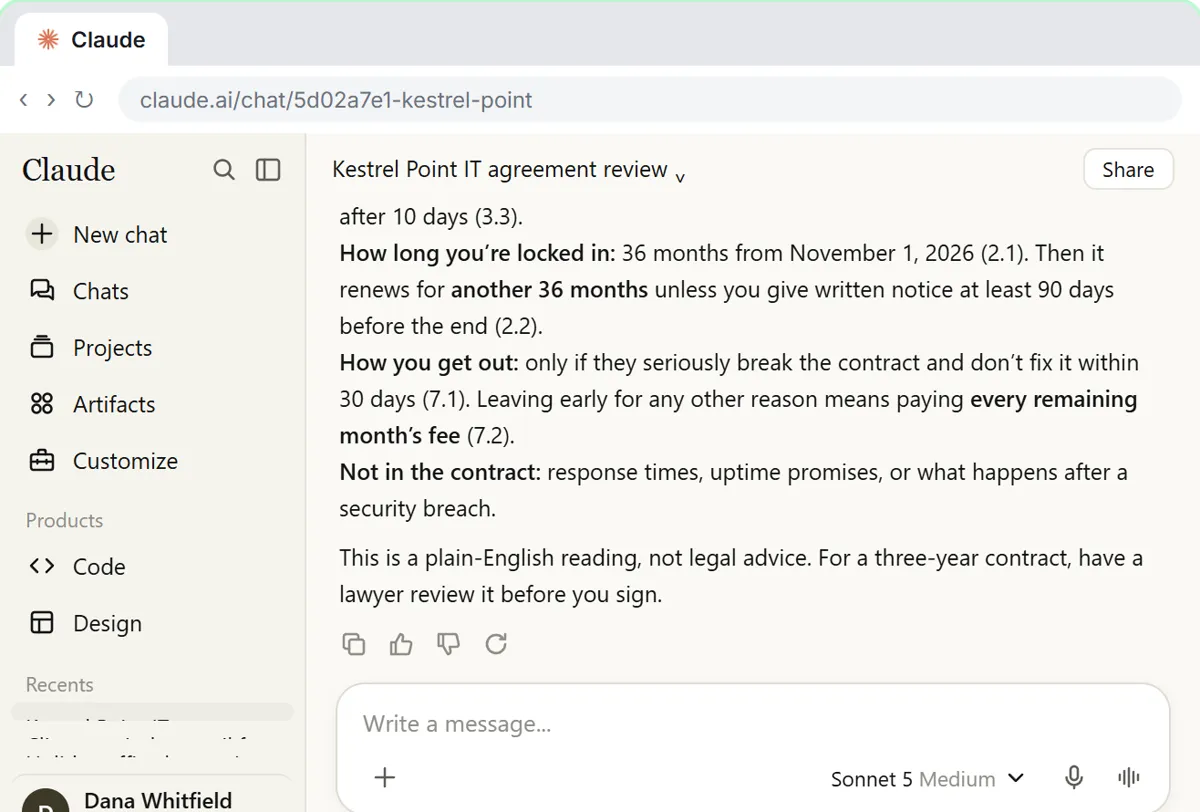
Tell Claude who you are and which side you're on. Then ask for a short summary: what you get, what you pay, how long you're locked in, and how you get out. Asking for clause numbers lets you check every answer.
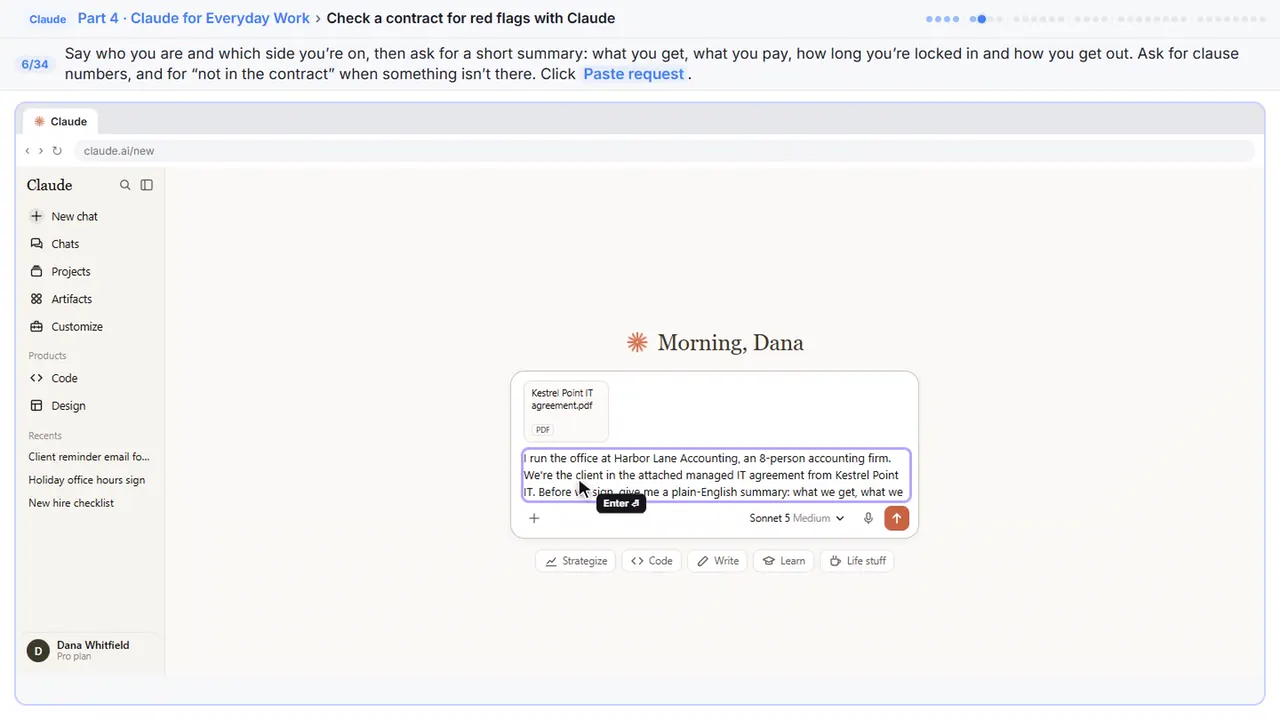
I run the office at Harbor Lane Accounting, an 8-person accounting firm. We're the client in the attached managed IT agreement from Kestrel Point IT. Before we sign, give me a plain-English summary: what we get, what we pay, how long we're locked in, and how we get out. Keep it short. Only use what's in this contract, give clause numbers, and say "not in the contract" if something isn't there.
Step 7: Send it
Step 8: See how Claude read it
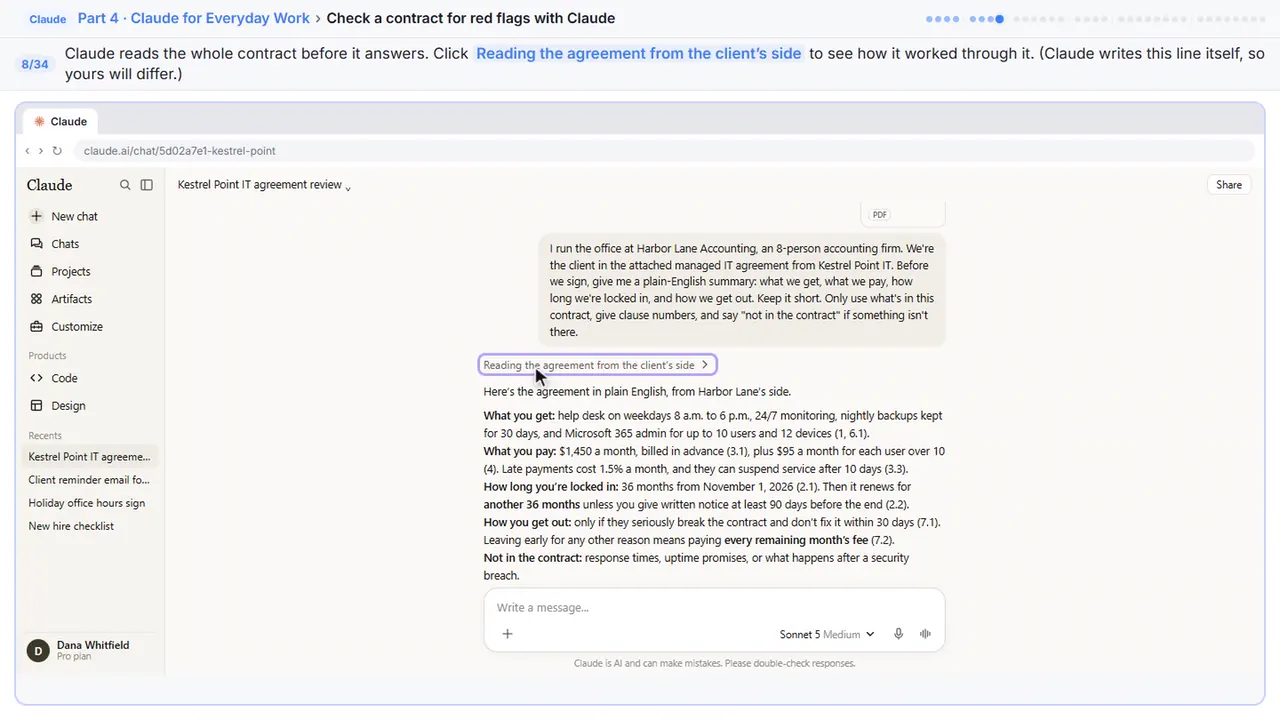
Claude reads the whole contract before it answers.
Part 3: Find the red flags
Step 9: Read the summary
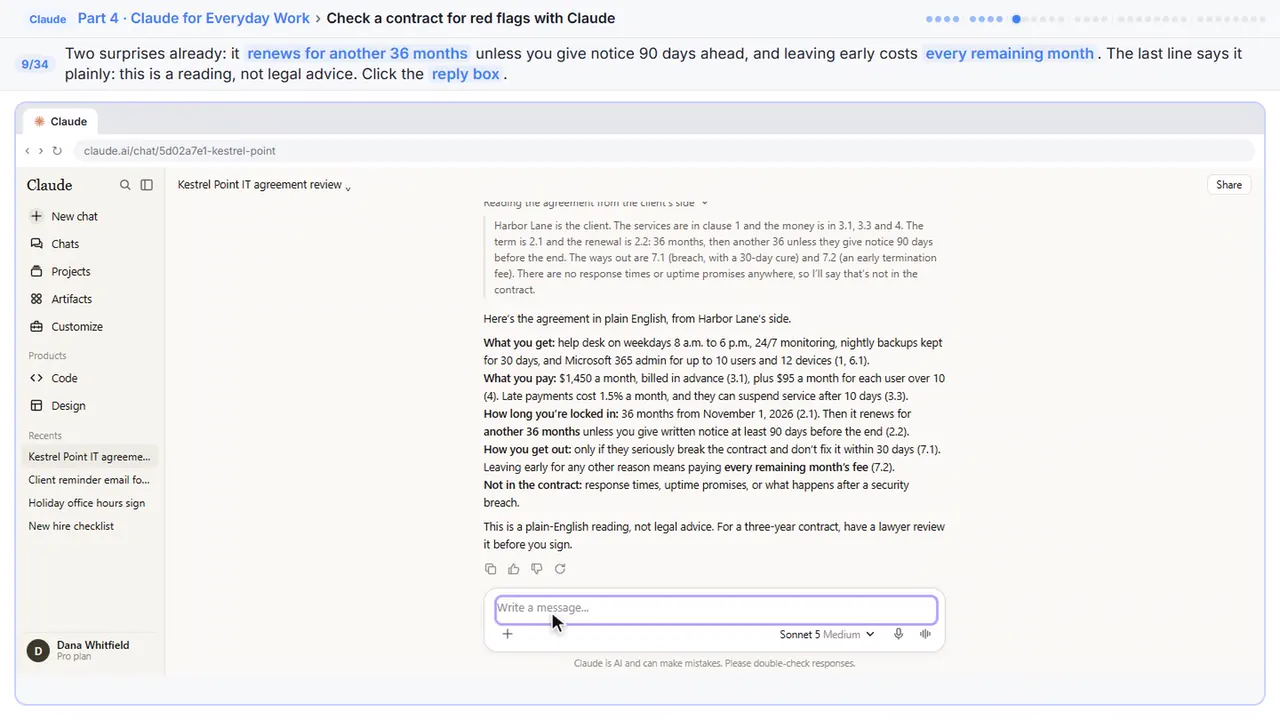
The summary already shows two surprises. The contract renews for another three years unless you give notice in time, and leaving early means paying every remaining month. And notice the last line: this is a reading, not legal advice.
Step 10: Ask for the risky clauses
Now ask for the red flags, most serious first. Have Claude quote the exact words with the clause number, and name the usual suspects: auto renewal, price increases, termination fees, limits on liability, and indemnity.
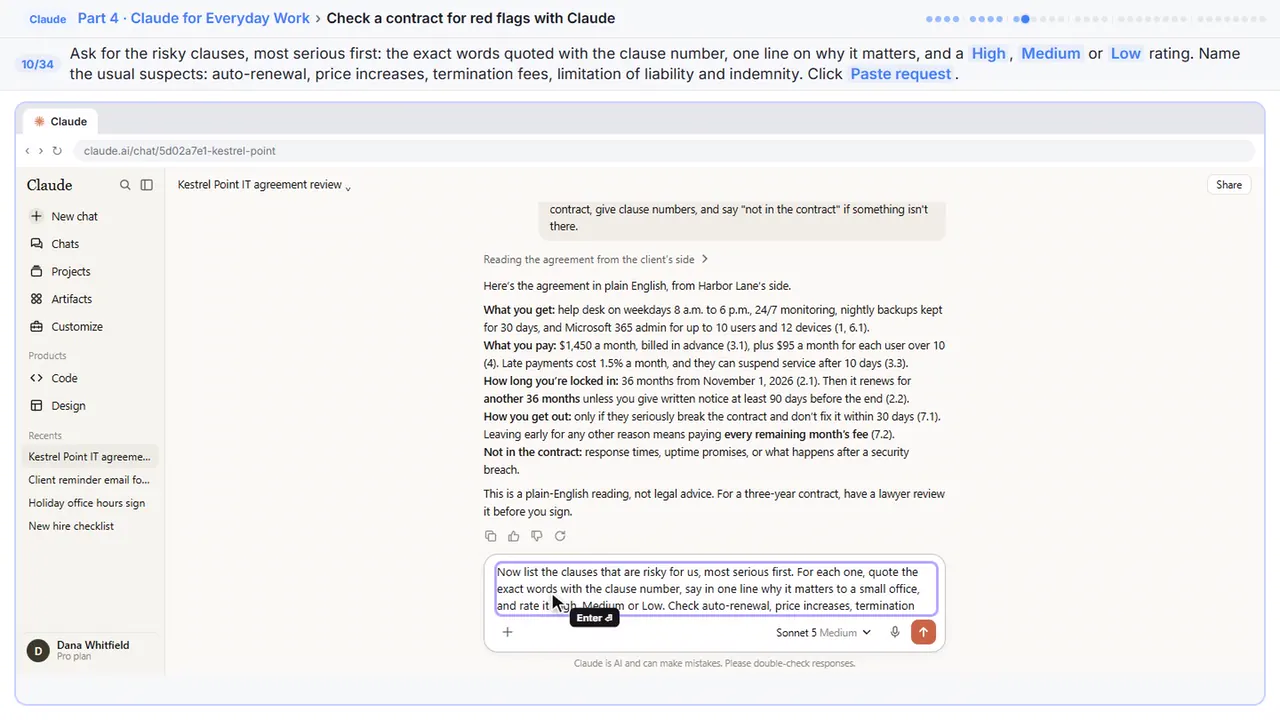
Now list the clauses that are risky for us, most serious first. For each one, quote the exact words with the clause number, say in one line why it matters to a small office, and rate it High, Medium or Low. Check auto-renewal, price increases, termination fees, limitation of liability, indemnity, and anything that’s missing.
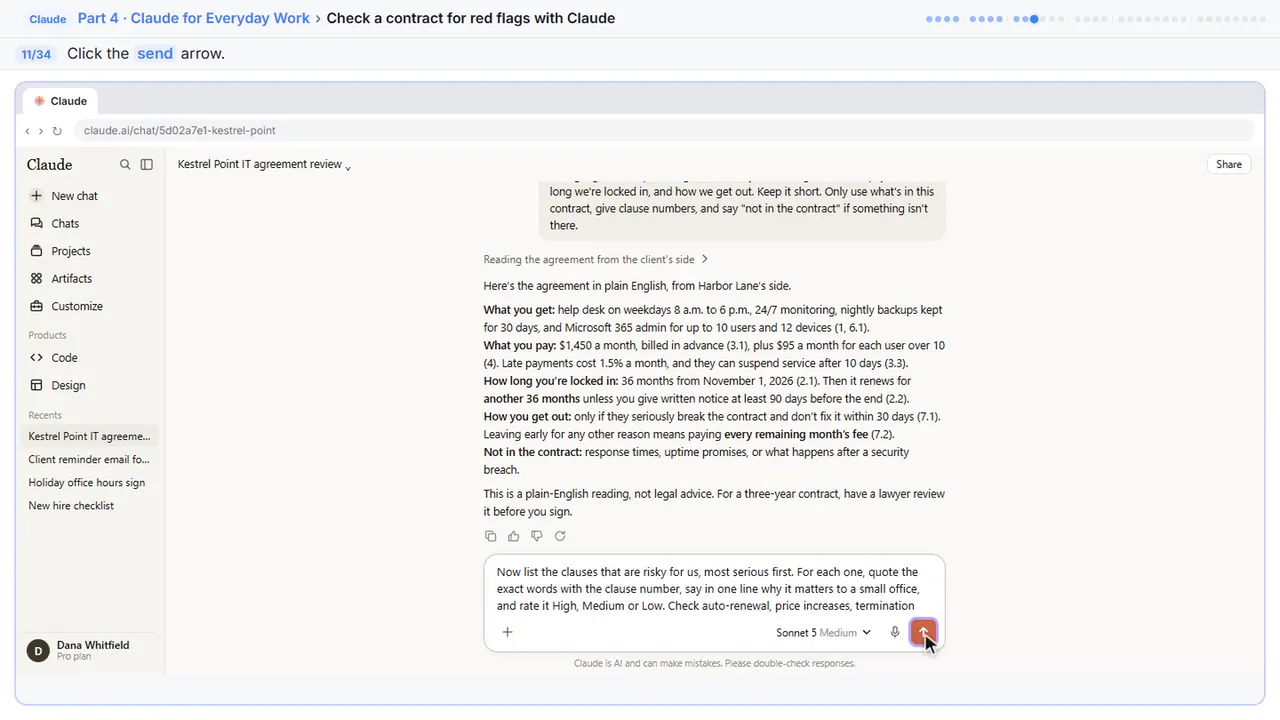
Step 11: Send it
Step 12: Copy the list
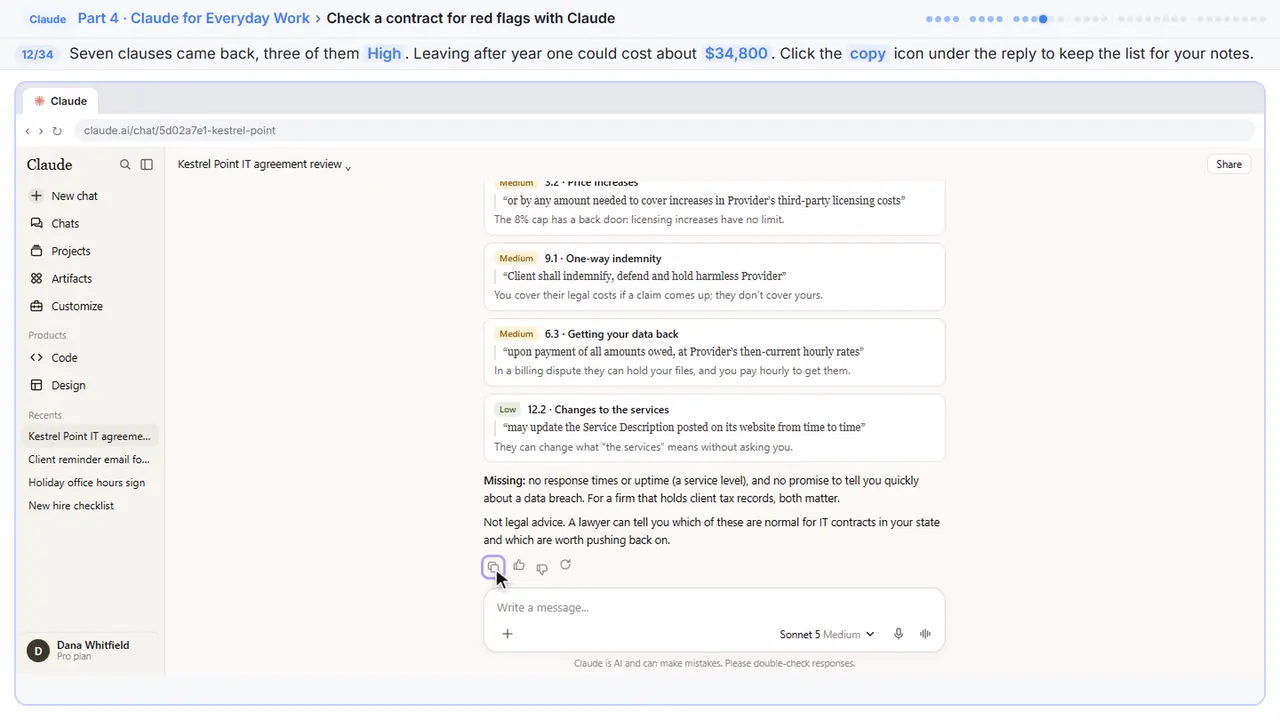
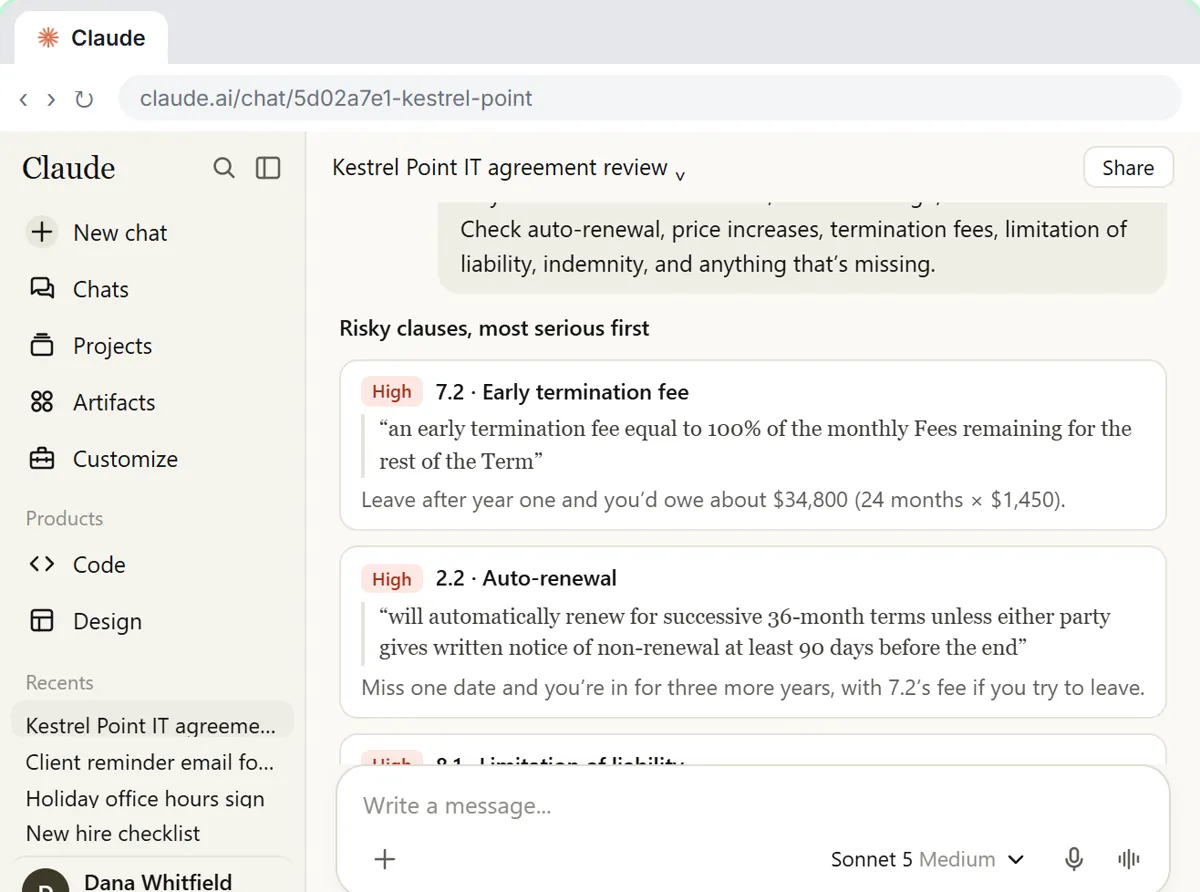
Seven clauses came back, three of them rated high. Leaving after the first year could cost about thirty four thousand dollars.
Step 13: Check a quote against the contract
Never take a quote on trust, though.
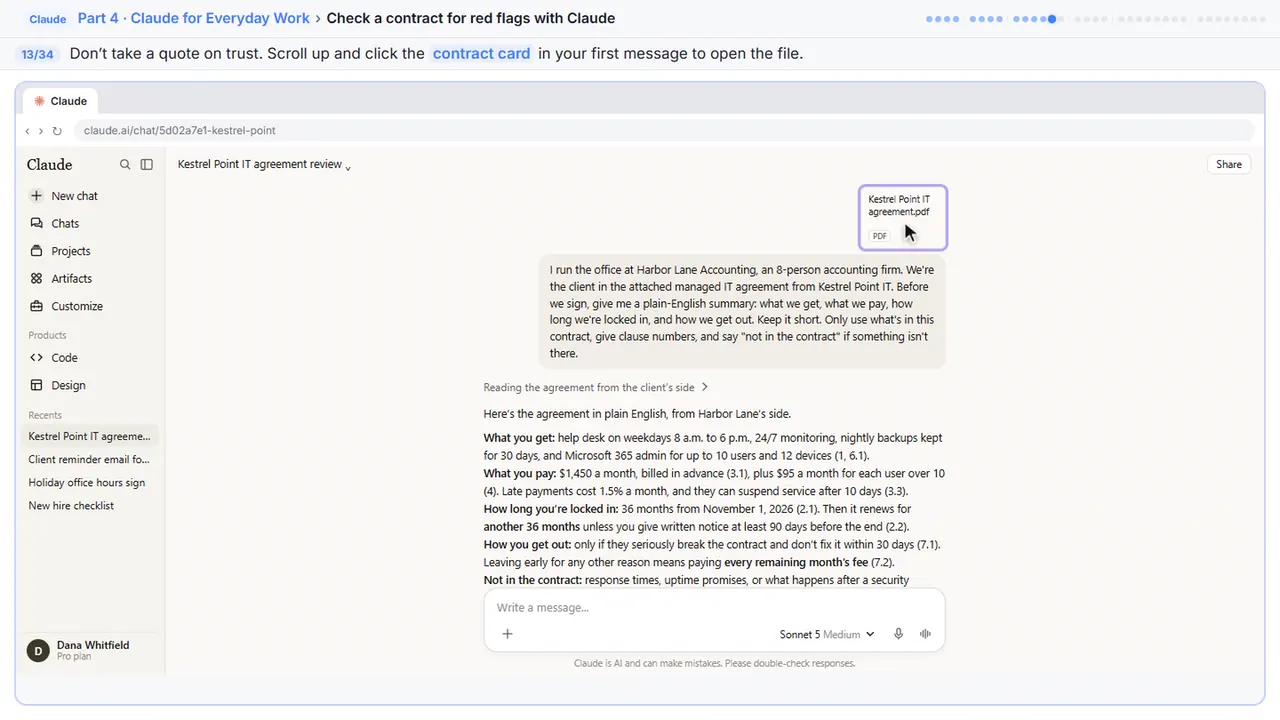
Step 14: Close the file
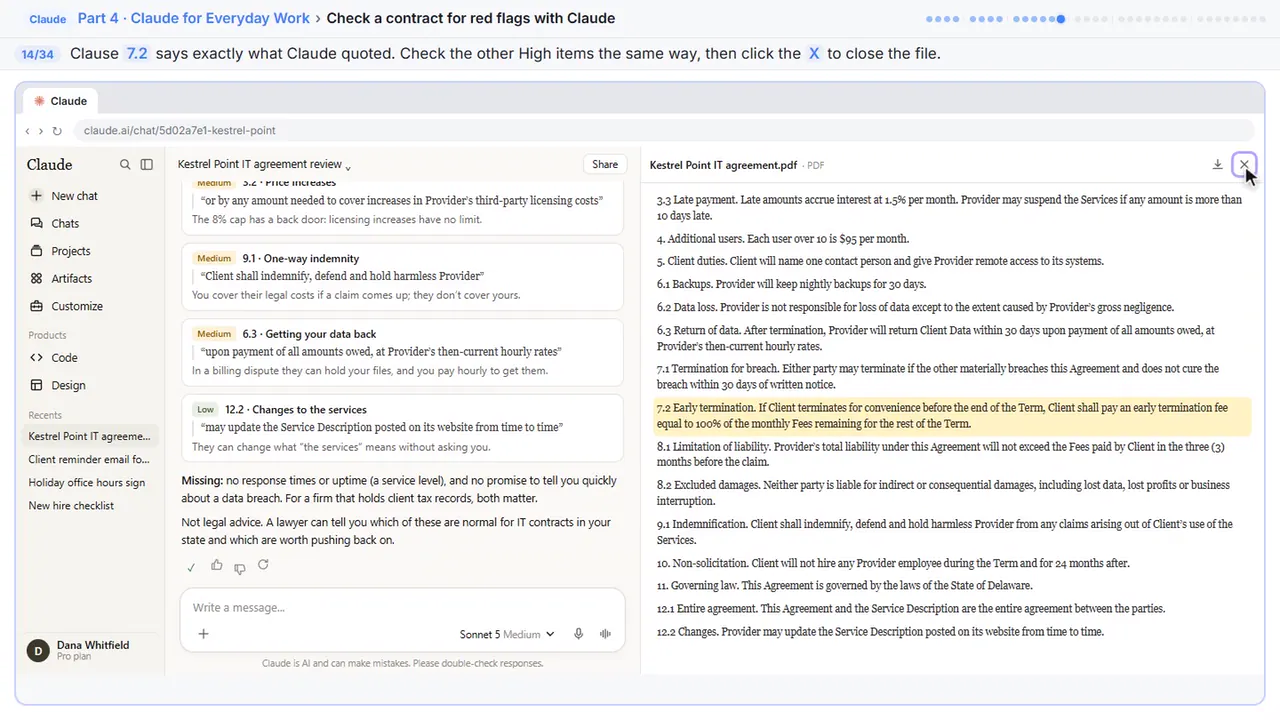
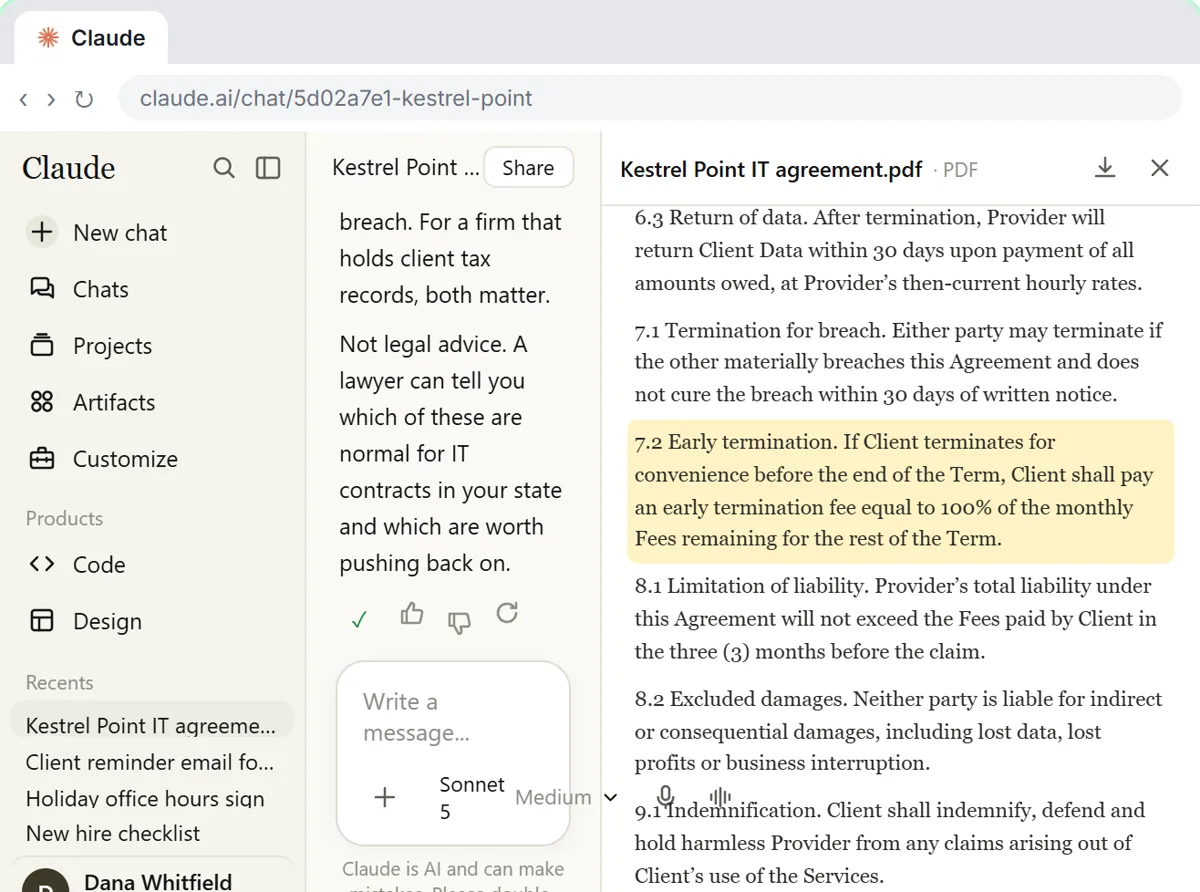
Clause seven point two says exactly what Claude quoted. Check the other high items the same way, then close the file.
Part 4: Ask the vendor
Step 15: Notice what’s missing
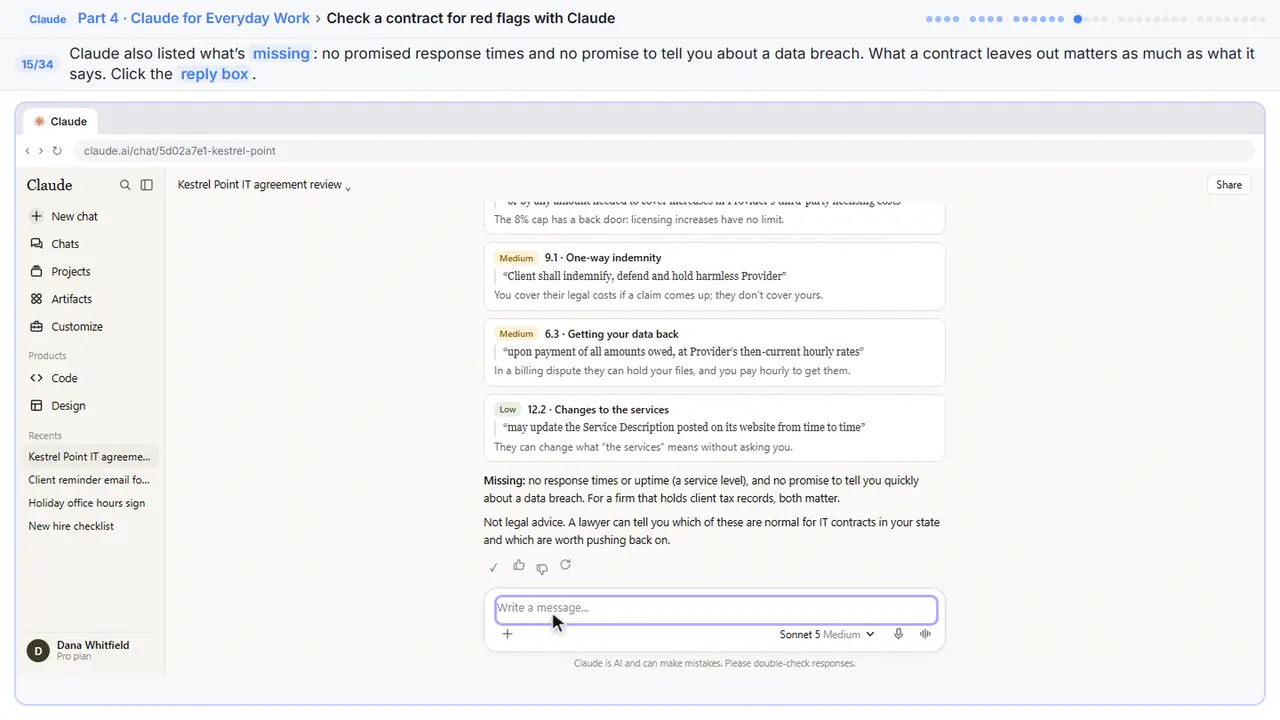
Claude also caught what's missing: no promised response times, and no promise to tell you about a data breach. What a contract leaves out matters as much as what it says.
Step 16: Ask for questions to send
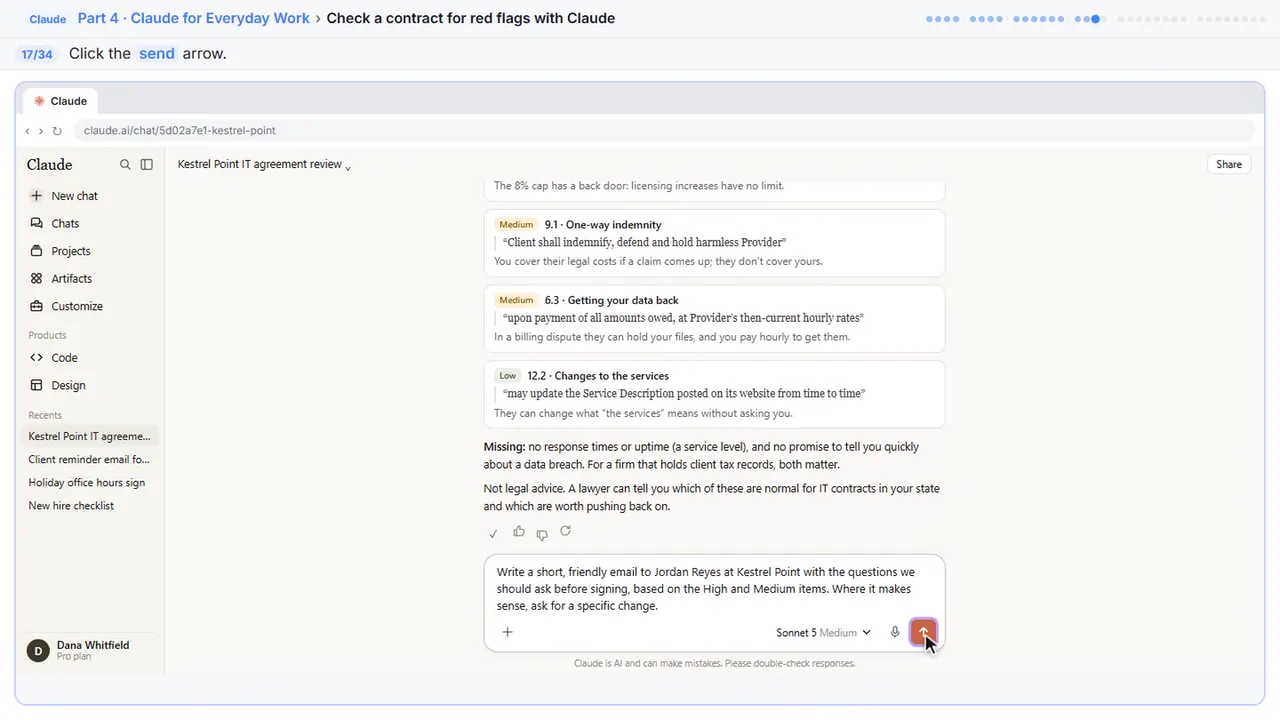
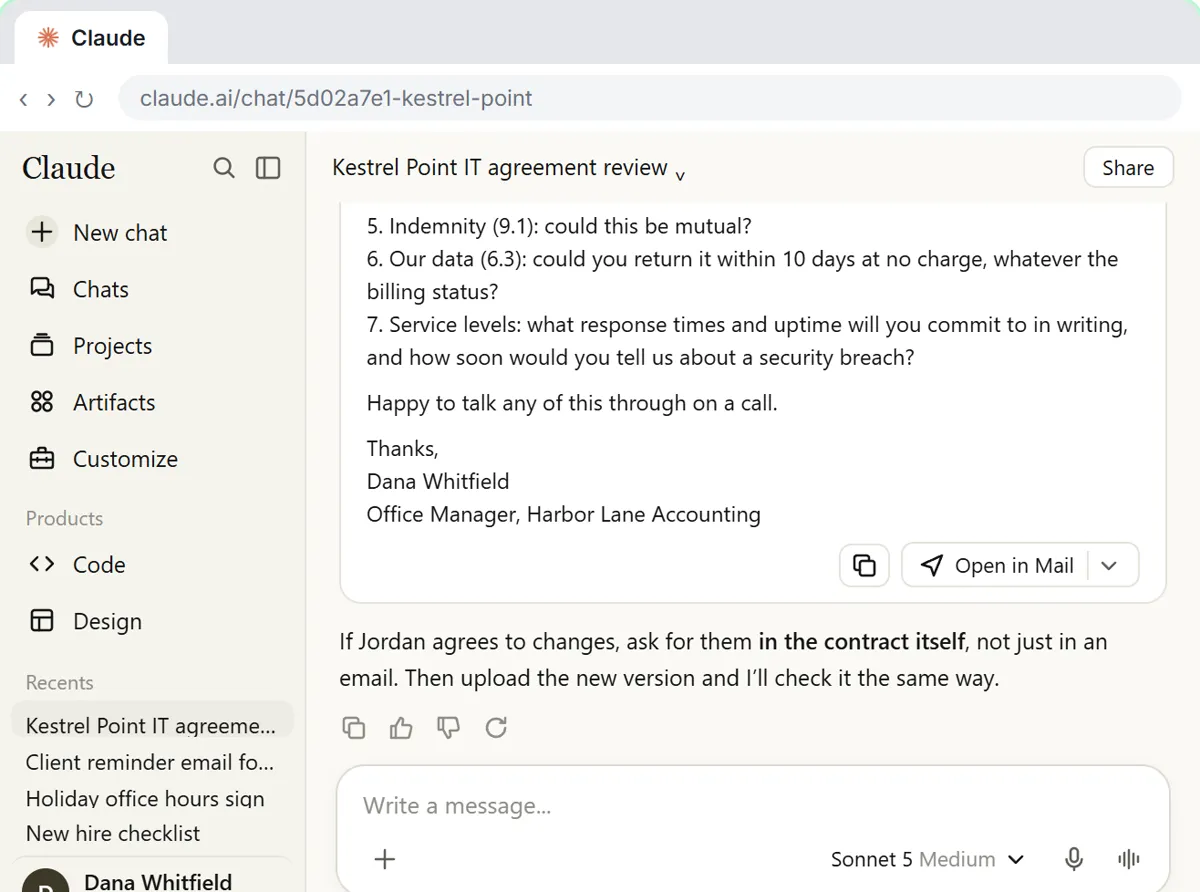
Ask Claude to turn the high and medium items into a short, friendly email to the vendor, with a specific change for each one.
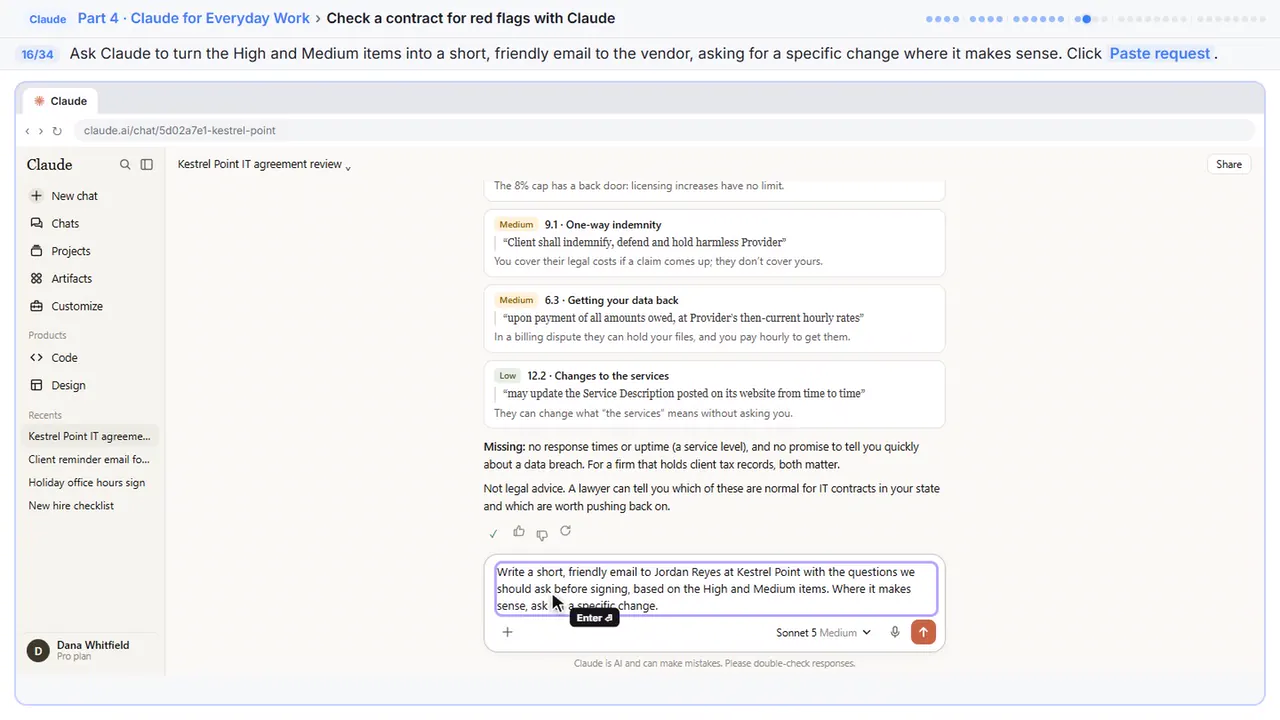
Write a short, friendly email to Jordan Reyes at Kestrel Point with the questions we should ask before signing, based on the High and Medium items. Where it makes sense, ask for a specific change.
Step 17: Send it
Step 18: Copy the email
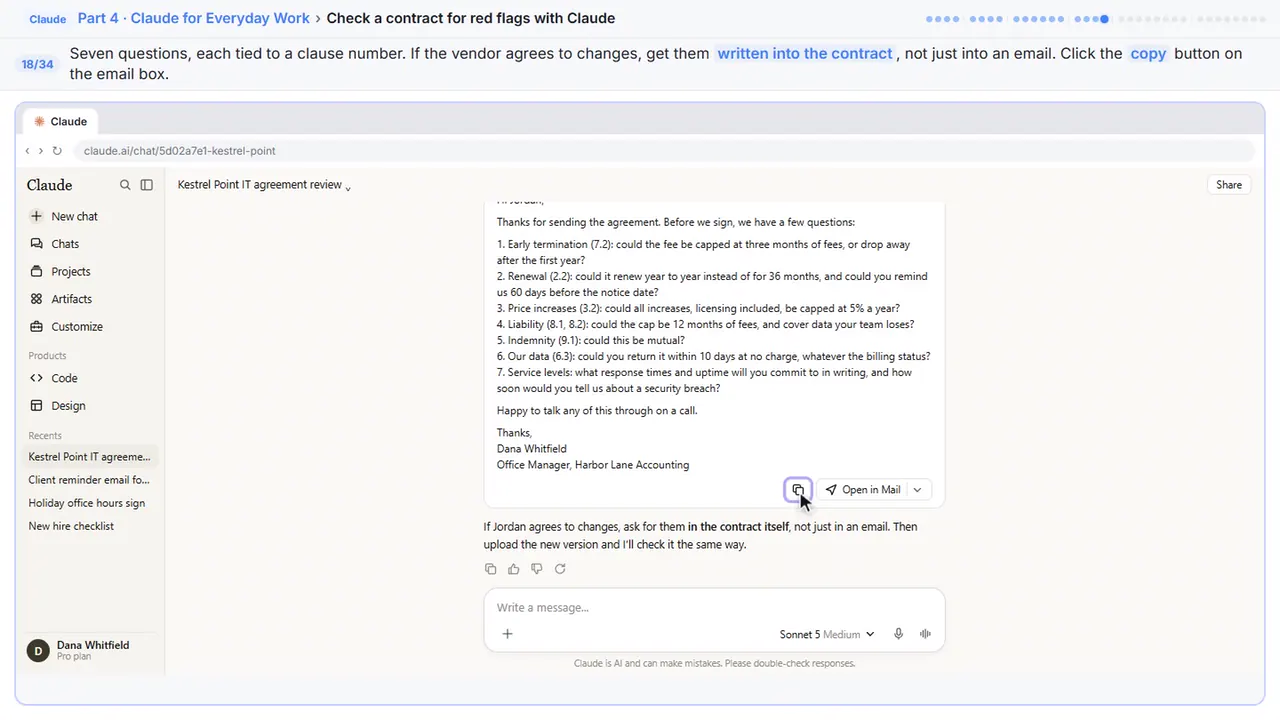
Seven clear questions, each with its clause number. If the vendor agrees to changes, get them written into the contract, not just into an email.
Part 5: Save it as a project
Step 19: Open Projects
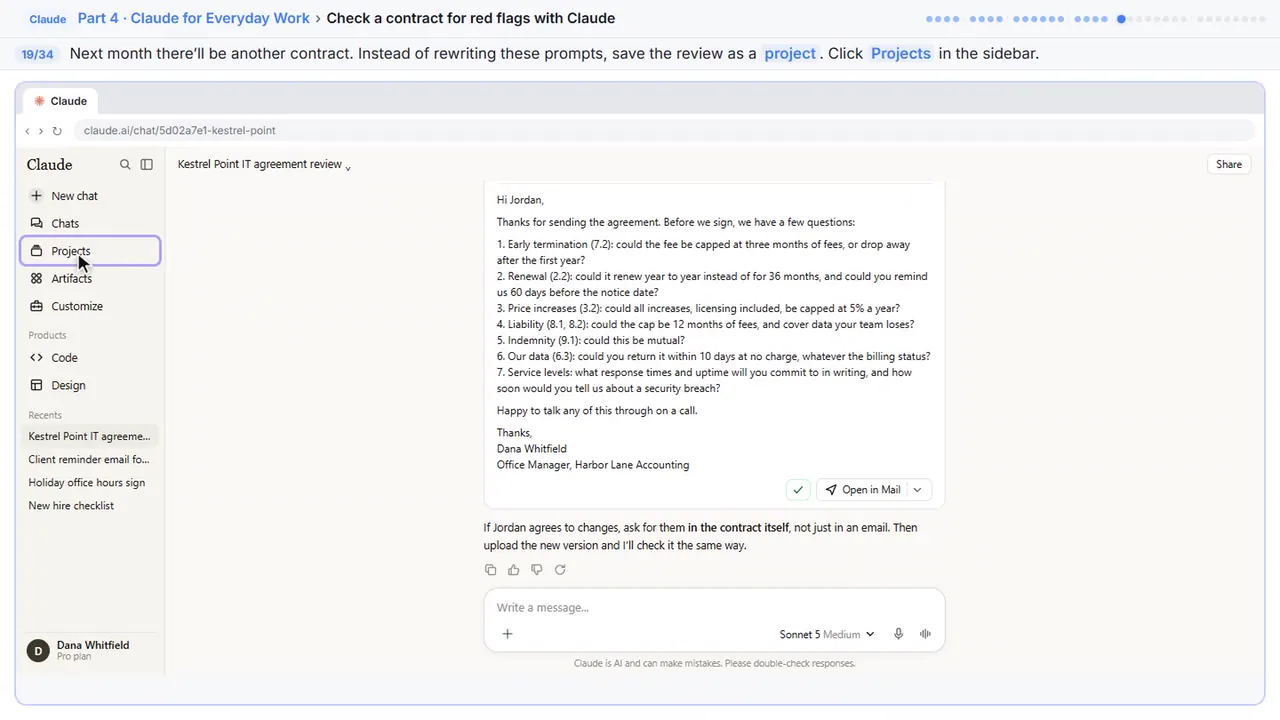
Next month there'll be another contract, and you'll want the same careful review. Save it as a project, so you never rewrite these prompts.
Step 20: Start a new project
Step 21: Name it
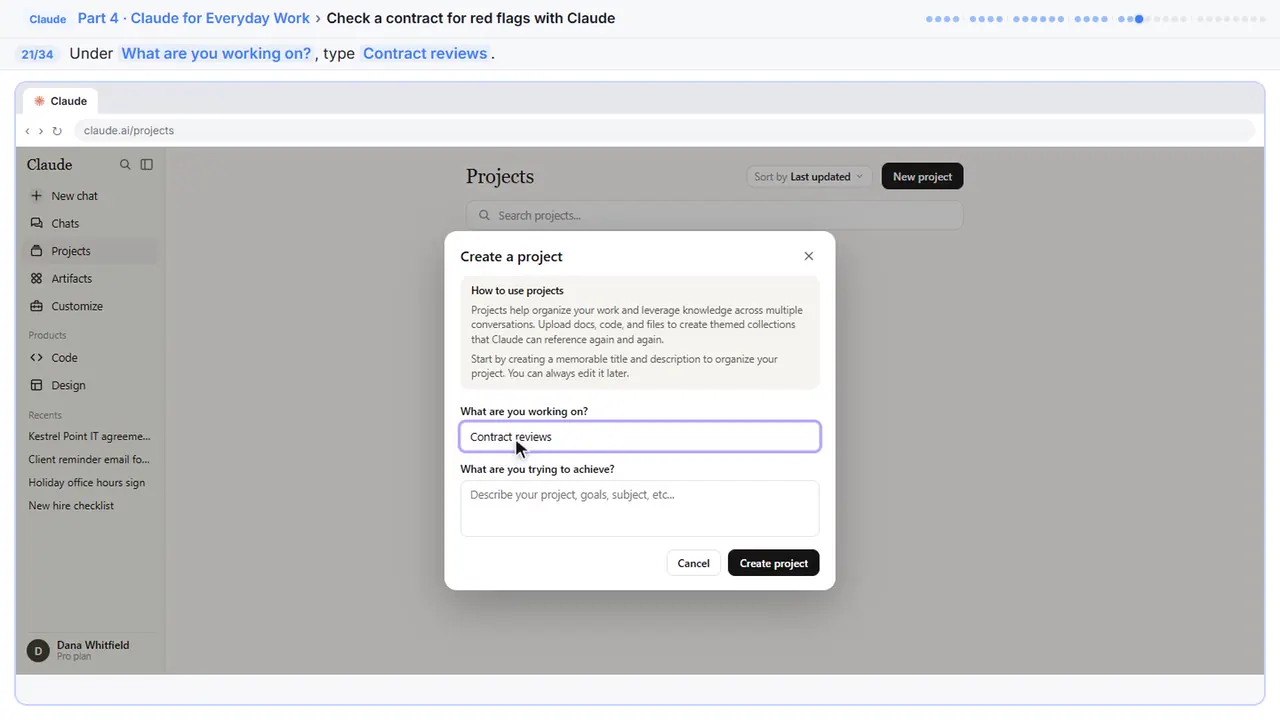
Step 22: Describe it
Under What are you trying to achieve, say what the project is for.
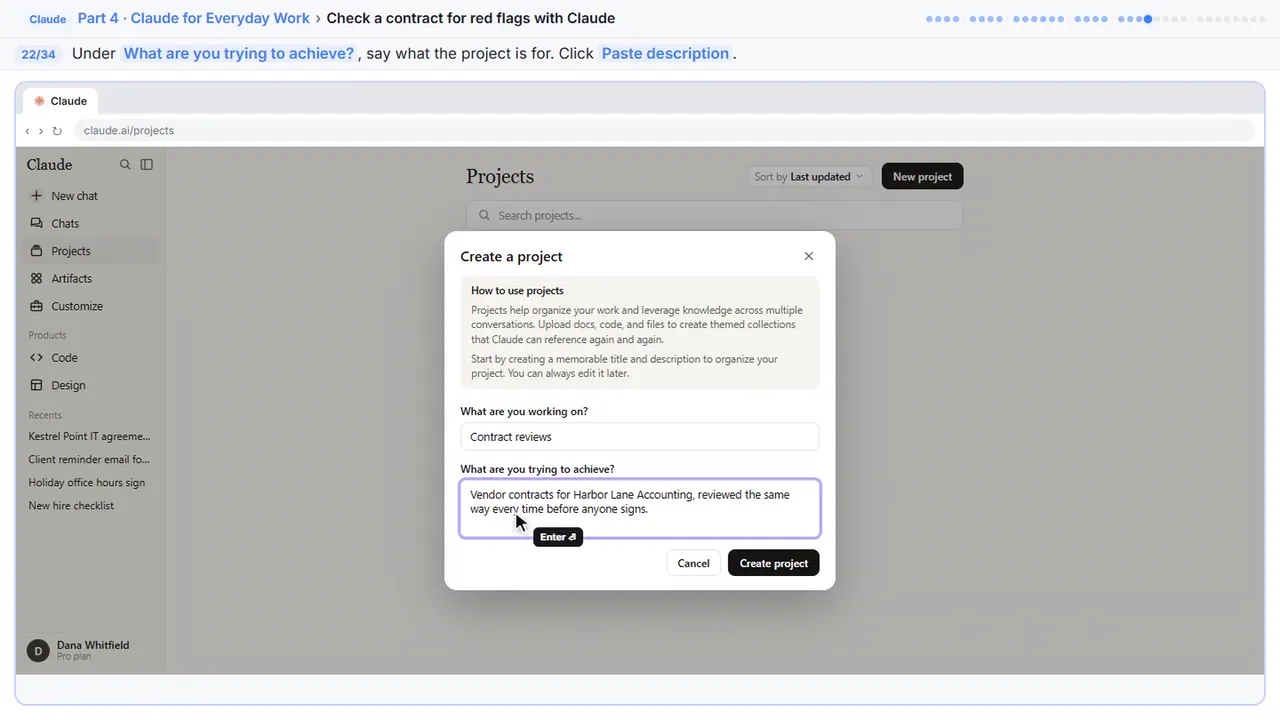
Step 23: Create it
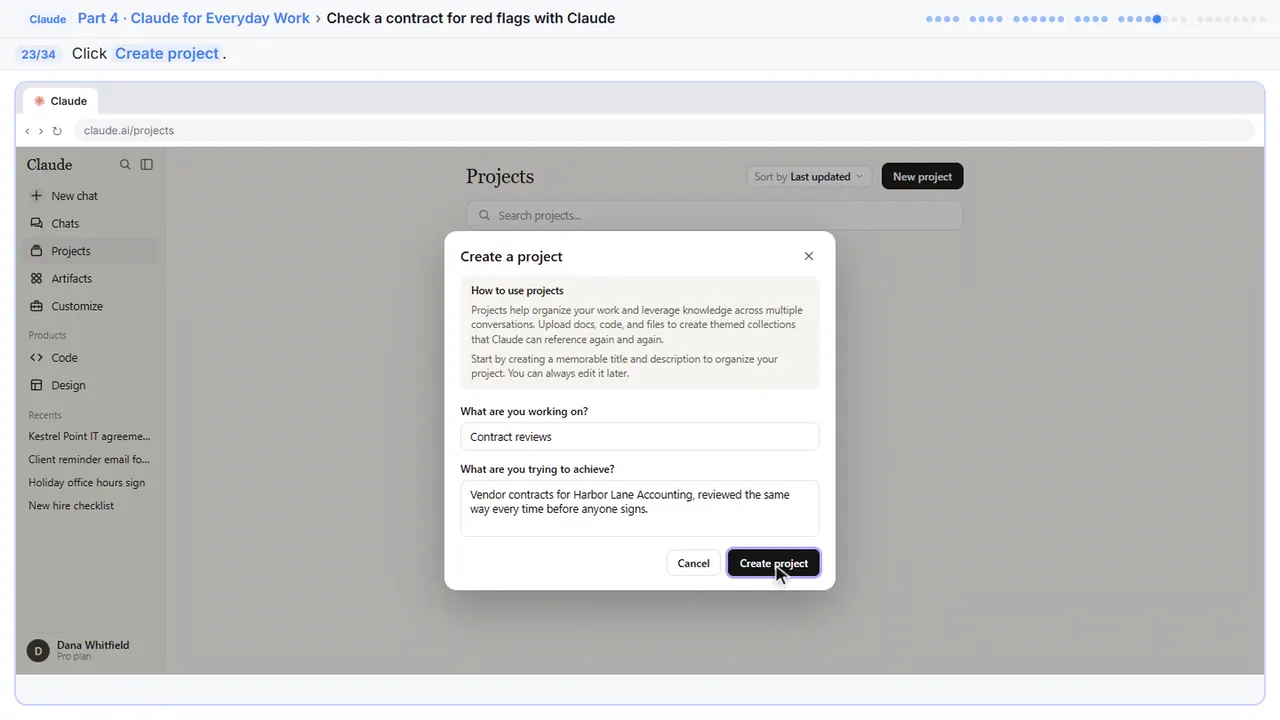
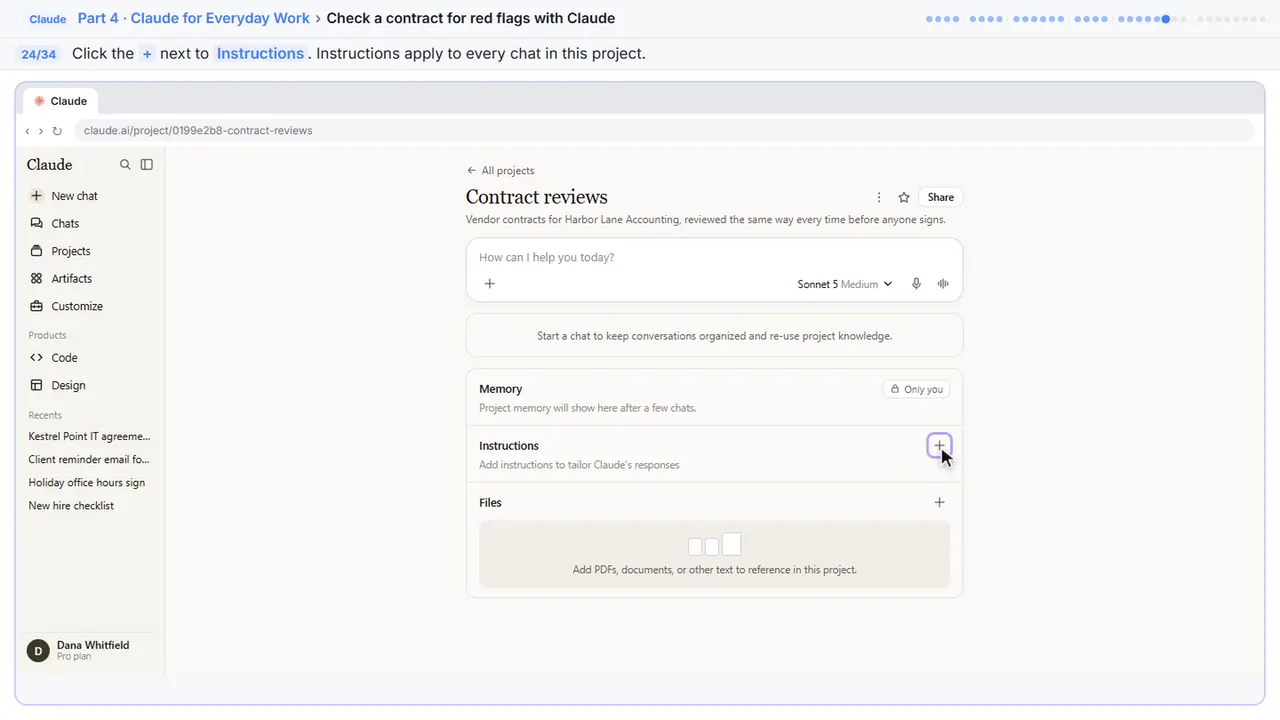
Step 24: Add instructions
Whatever you write here applies to every chat in this project.
Step 25: Write your review once
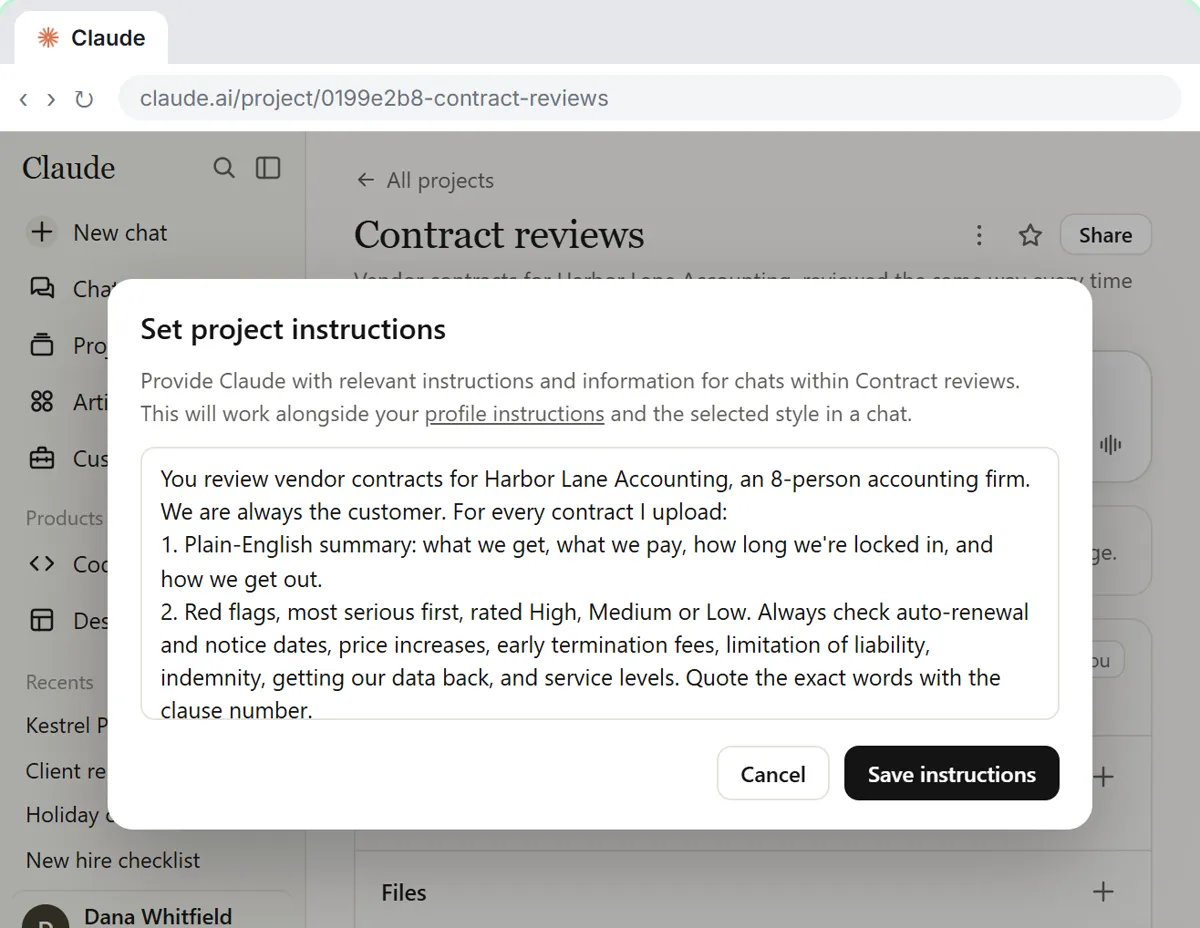
Put your whole review here: who you are, the four parts you want every time, the clauses to always check, and a rule to never guess. It also ends every review with a reminder to have a lawyer look at anything important.
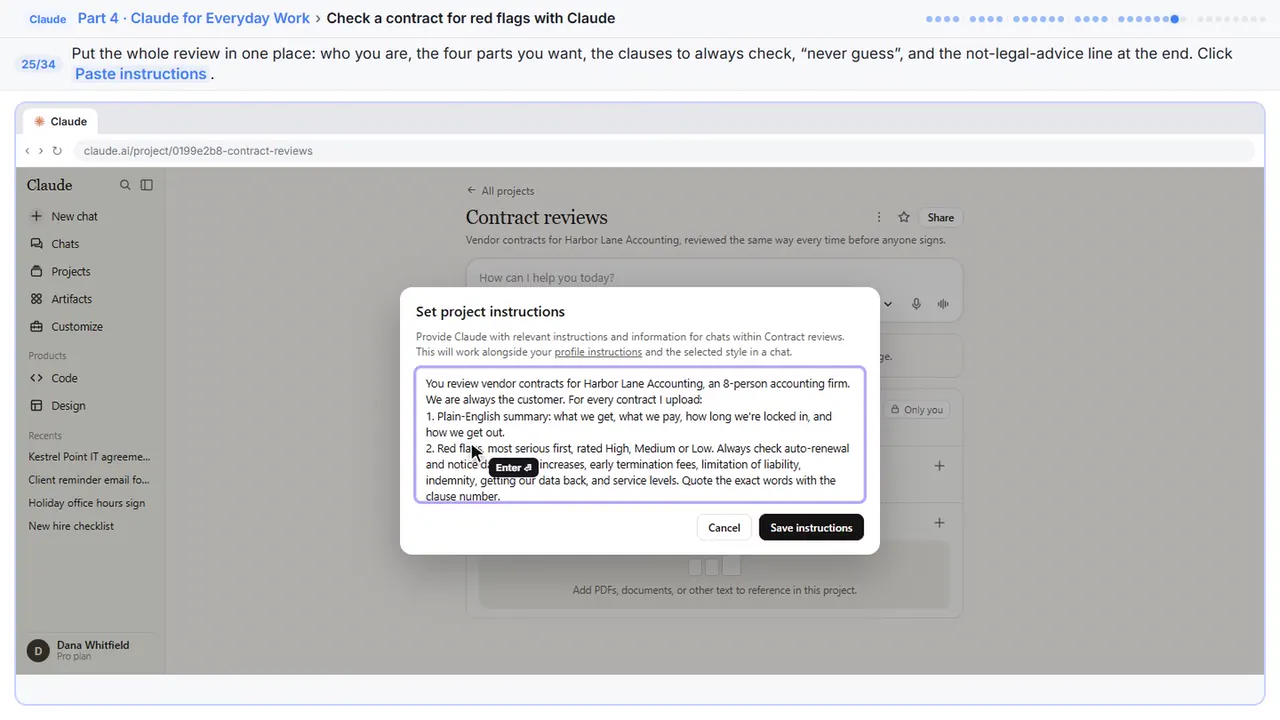
You review vendor contracts for Harbor Lane Accounting, an 8-person accounting firm. We are always the customer. For every contract I upload:
1. Plain-English summary: what we get, what we pay, how long we're locked in, and how we get out.
2. Red flags, most serious first, rated High, Medium or Low. Always check auto-renewal and notice dates, price increases, early termination fees, limitation of liability, indemnity, getting our data back, and service levels. Quote the exact words with the clause number.
3. What's missing that a small office would expect.
4. Questions to ask the vendor, as a short email I can send.
Only use what's in the contract. If something isn't there, say "not in the contract". Never guess.
End every review with: "This is not legal advice. Have a lawyer review anything important before signing."
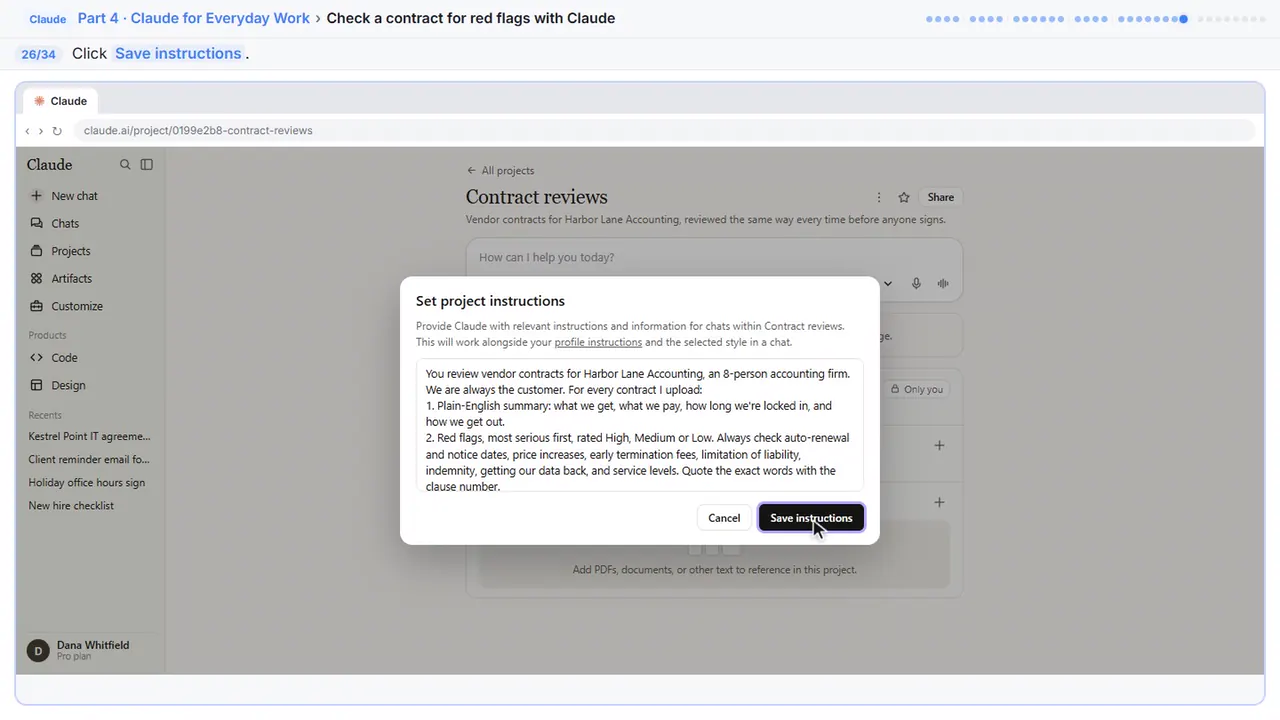
Step 26: Save them
Part 6: Review the next contract
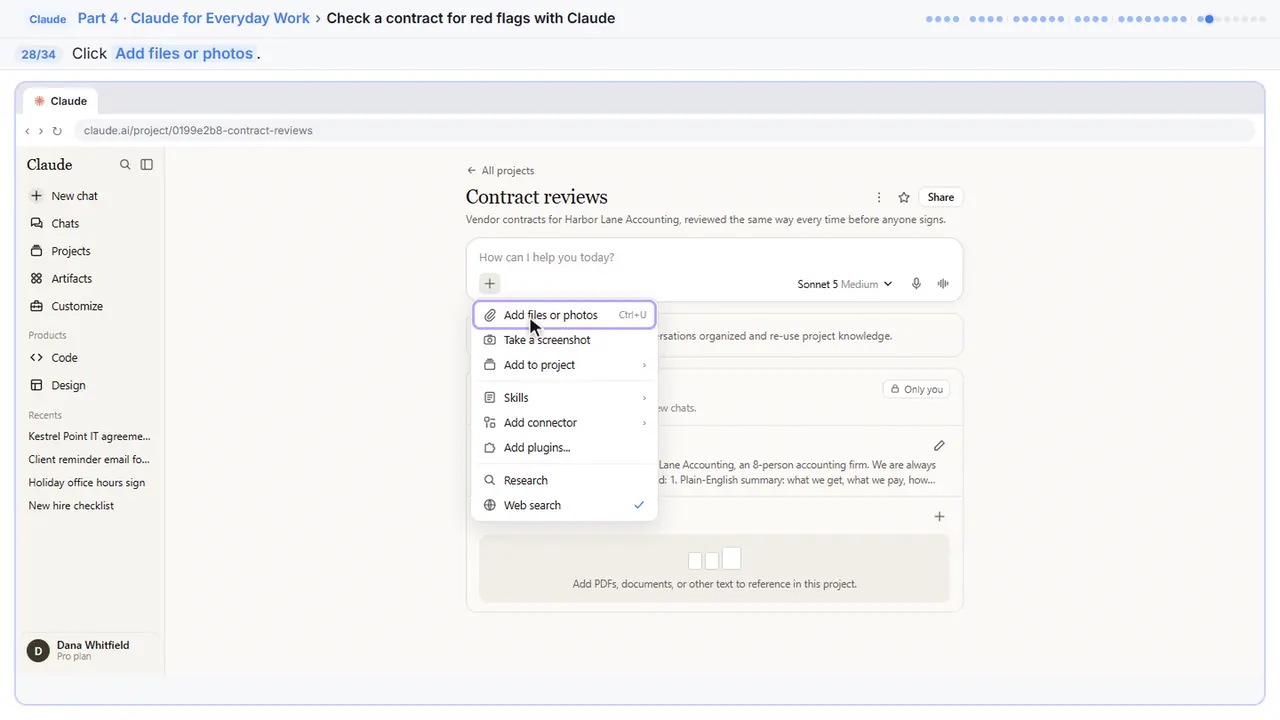
Step 27: Add the next contract
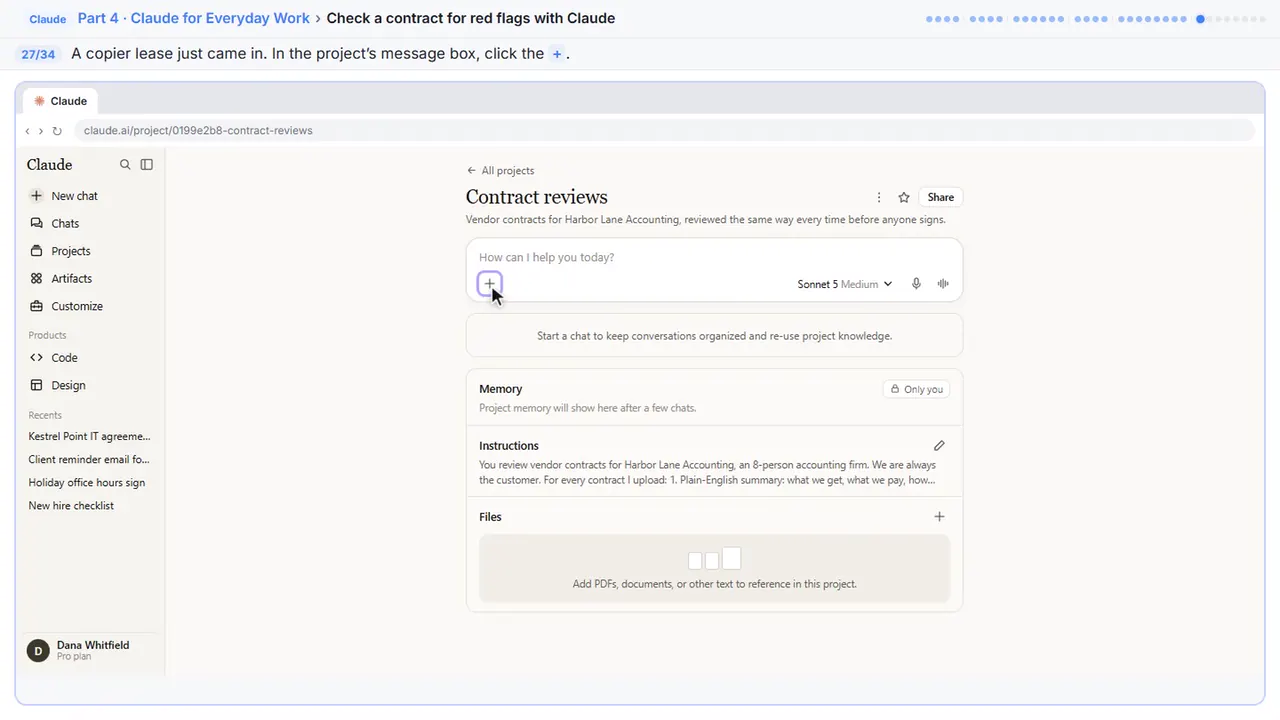
Now the lease for the office copier just came in, from Summit. In the project's message box, click the plus button.
Step 28: Add the file
Step 29: Pick the lease
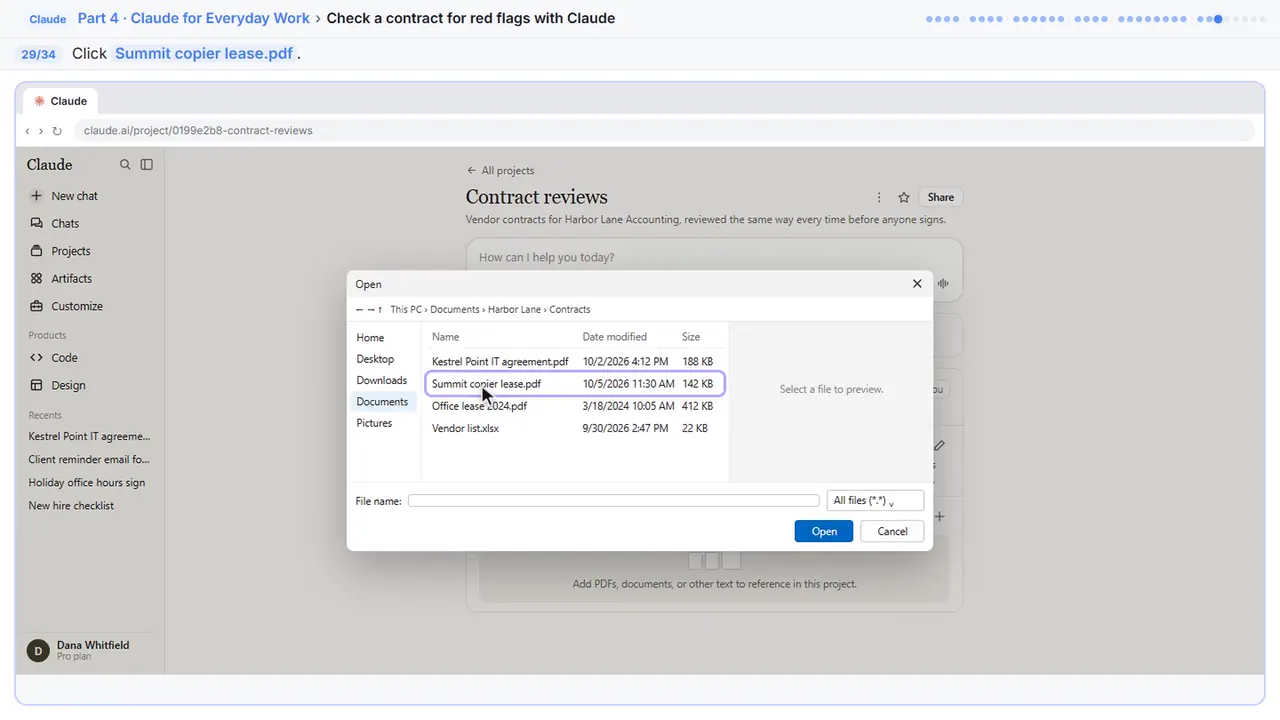
Step 30: Upload it
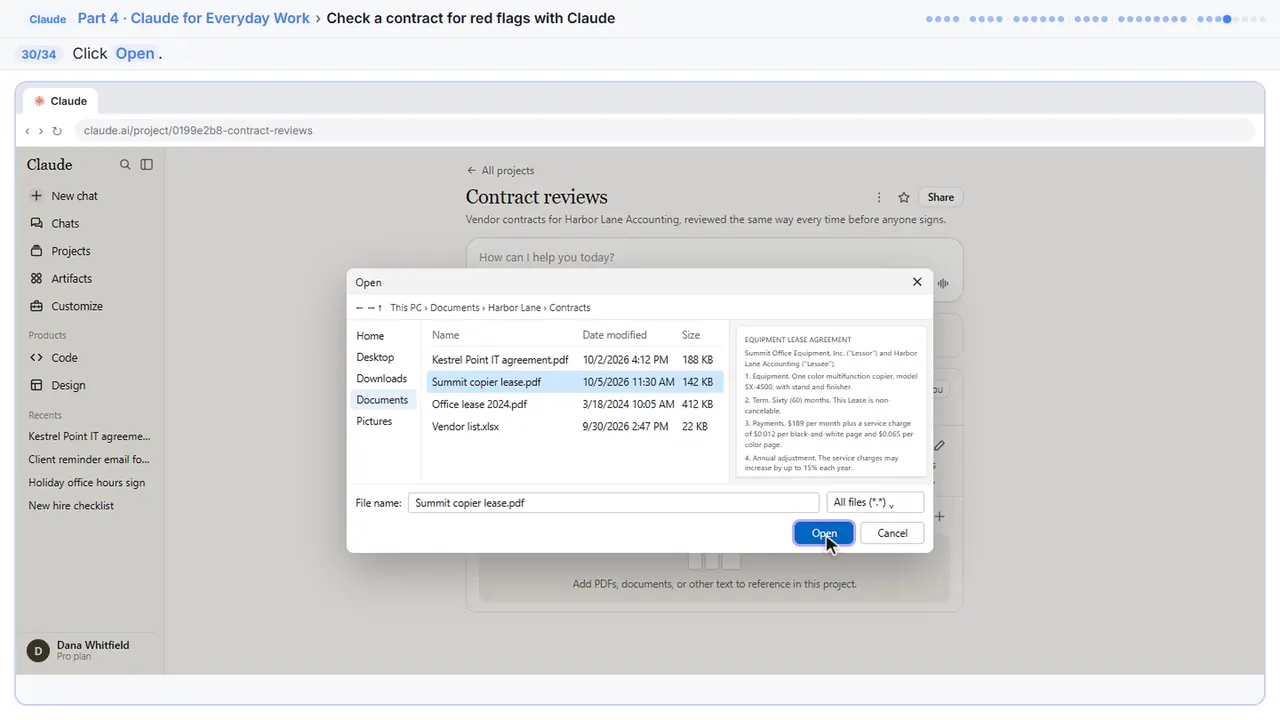
Step 31: Click the message box
A file you attach in a chat stays with that chat. It doesn't become one of the project's files, so each contract gets its own chat.
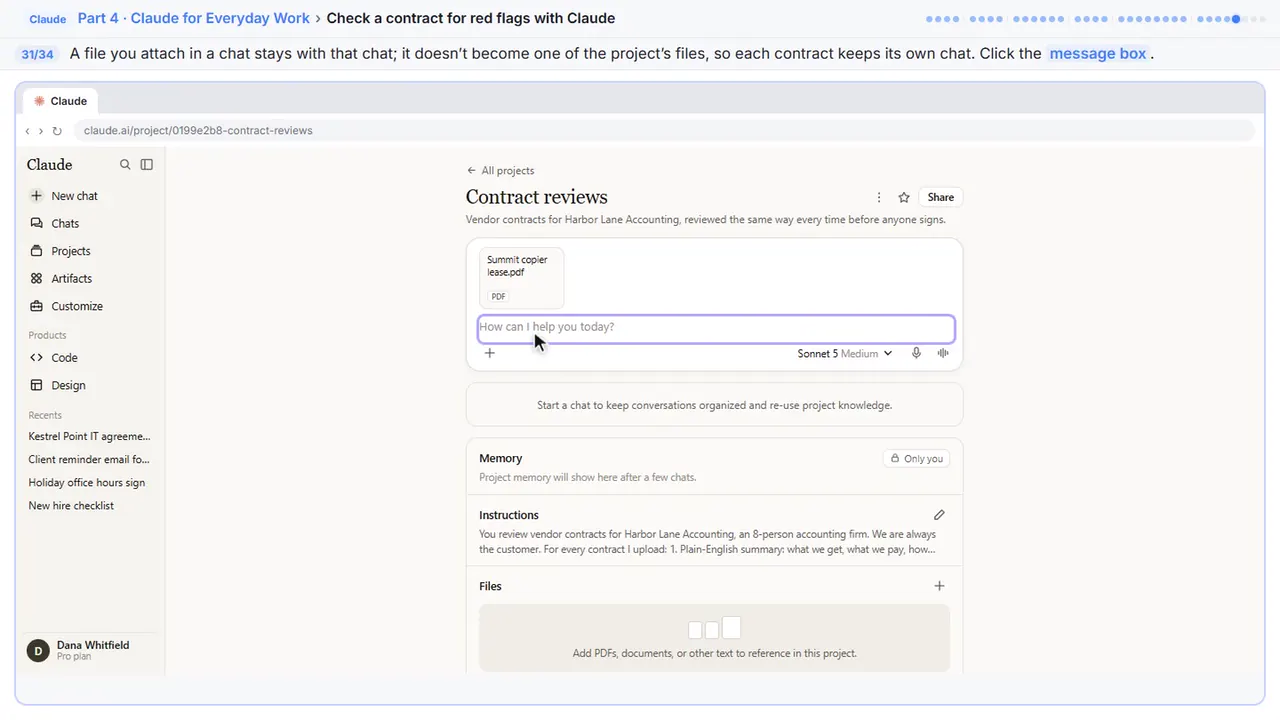
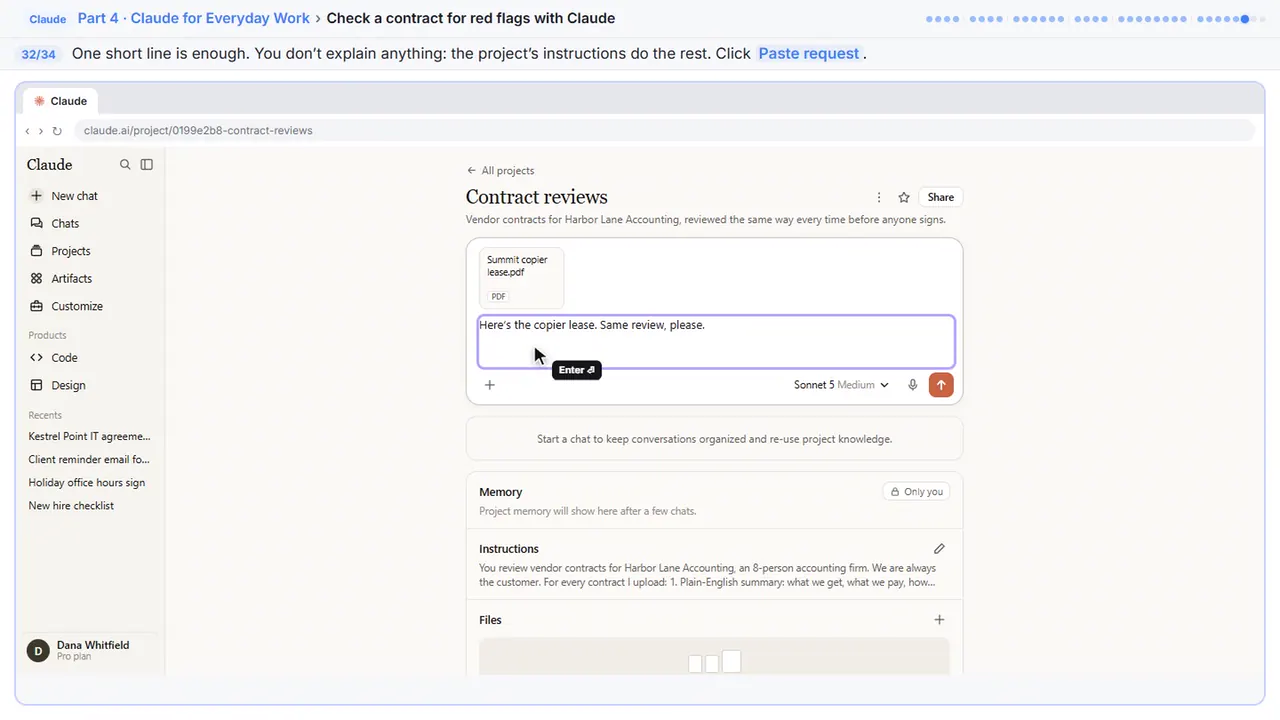
Step 32: Ask for the same review
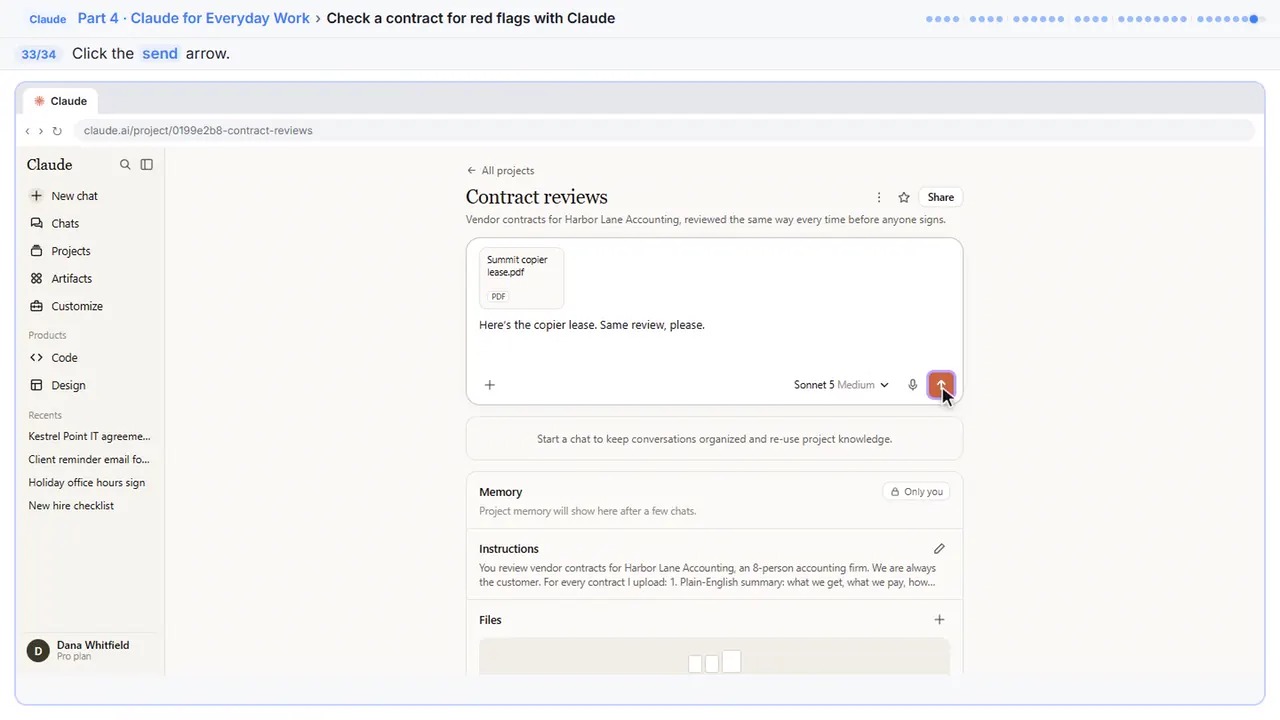
Ask for the same review in one short line. You don't have to explain a thing. The project's instructions do the rest.
Step 33: Send it
Step 34: See your instructions at work
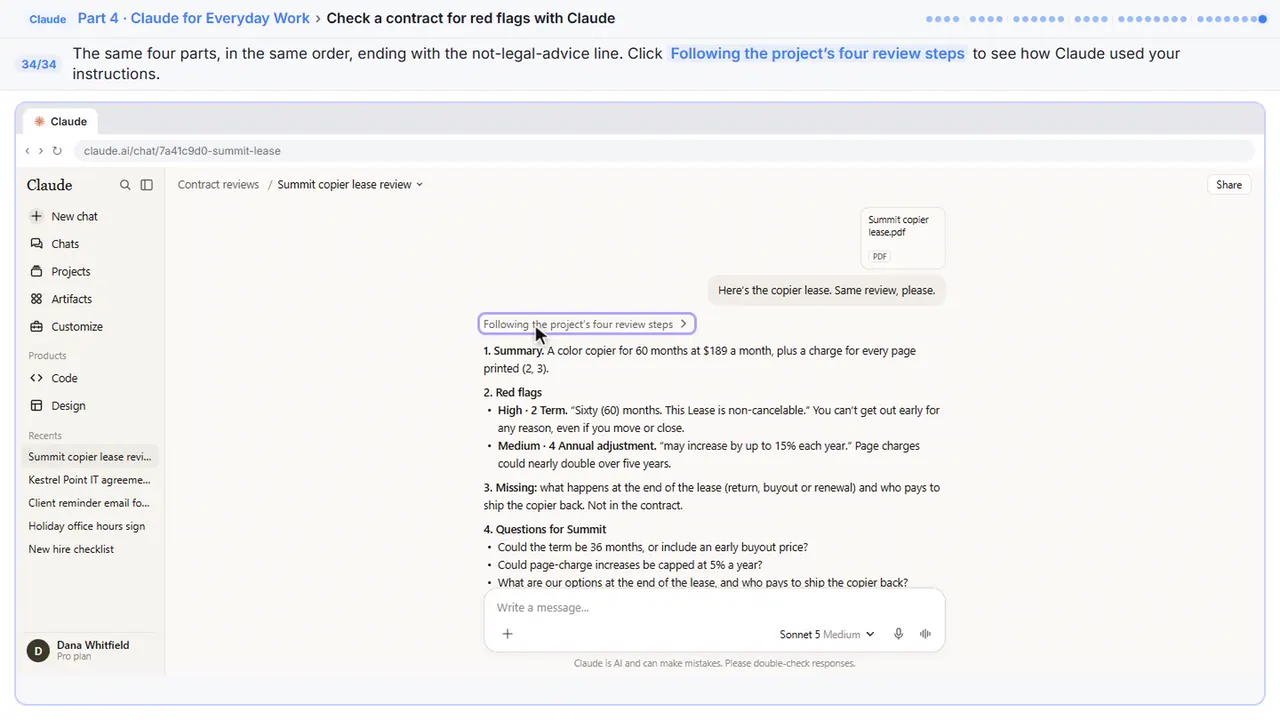
Same four parts, same order, same reminder at the end.
Now do it yourself, free
Reading the steps is a start. Doing them is how it sticks. The interactive lesson puts you in a practice copy of Claude: you do every step yourself, it checks your work, and “Do it for me” finishes any step you get stuck on. Nothing touches your real accounts.
Practice “Check a Contract for Red Flags with Claude” step by stepCheck a Contract for Red Flags with Claude: video walkthrough
The whole lesson in 3:30, narrated step by step.
Simulated practice environment. Recorded in Stepthrough’s simulated practice environment, not the live tool. Practice it yourself free at learn.ynteractive.com.
Chapters
Click a chapter to jump the video there.
- 0:00 Upload the contract
- 0:28 Get the plain-English version
- 0:49 Find the red flags
- 1:39 Ask the vendor
- 2:08 Save it as a project
- 2:48 Review the next contract
Now do it yourself, free
Watching is the warm-up. The interactive lesson puts you in a practice copy of Claude: you do every step yourself, it checks your work, and “Do it for me” finishes any step you get stuck on. Nothing touches your real accounts.
Practice “Check a Contract for Red Flags with Claude” step by stepFull transcript
Upload the contract
0:00 Harbor Lane Accounting has a three year IT contract on the desk, and you want to know what you're signing. In a new chat, click the plus button below the message box.
0:08 Click Add files or photos. One word of caution first: before you upload a real contract, make sure your company is okay with it. Use a plan your company has approved, and check your privacy settings.
0:19 Your computer's file window opens. Click the Kestrel Point IT agreement.
0:24 Click Open. The contract shows up as a card above the message box.
Get the plain-English version
0:28 Now click in the message box.
0:30 Tell Claude who you are and which side you're on. Then ask for a short summary: what you get, what you pay, how long you're locked in, and how you get out. Asking for clause numbers lets you check every answer. Click Paste request.
0:41 Click the send arrow.
0:42 Claude reads the whole contract before it answers. Click the line above the reply to see how it worked through it.
Find the red flags
0:48 The summary already shows two surprises. The contract renews for another three years unless you give notice in time, and leaving early means paying every remaining month. And notice the last line: this is a reading, not legal advice. Click the reply box.
1:02 Now ask for the red flags, most serious first. Have Claude quote the exact words with the clause number, and name the usual suspects: auto renewal, price increases, termination fees, limits on liability, and indemnity. Click Paste request.
1:17 Click the send arrow.
1:19 Seven clauses came back, three of them rated high. Leaving after the first year could cost about thirty four thousand dollars. Click the copy icon under the reply to keep the list.
1:27 Never take a quote on trust, though. Scroll up and click the contract in your first message to open it.
1:33 Clause seven point two says exactly what Claude quoted. Check the other high items the same way, then close the file.
Ask the vendor
1:39 Claude also caught what's missing: no promised response times, and no promise to tell you about a data breach. What a contract leaves out matters as much as what it says. Click the reply box.
1:49 Ask Claude to turn the high and medium items into a short, friendly email to the vendor, with a specific change for each one. Click Paste request.
1:57 Click the send arrow.
1:59 Seven clear questions, each with its clause number. If the vendor agrees to changes, get them written into the contract, not just into an email. Click the copy button on the email.
Save it as a project
2:07 Next month there'll be another contract, and you'll want the same careful review. Save it as a project, so you never rewrite these prompts. Click Projects in the sidebar.
2:16 Click New project at the top right.
2:18 Under What are you working on, type Contract reviews.
2:22 Under What are you trying to achieve, say what the project is for. Click Paste description.
2:26 Click Create project.
2:28 Click the plus next to Instructions. Whatever you write here applies to every chat in this project.
2:34 Put your whole review here: who you are, the four parts you want every time, the clauses to always check, and a rule to never guess. It also ends every review with a reminder to have a lawyer look at anything important. Click Paste instructions.
2:46 Click Save instructions.
Review the next contract
2:48 Now the lease for the office copier just came in, from Summit. In the project's message box, click the plus button.
2:54 Click Add files or photos.
2:56 Click the Summit copier lease.
2:58 Click Open.
2:59 A file you attach in a chat stays with that chat. It doesn't become one of the project's files, so each contract gets its own chat. Click the message box.
3:07 Ask for the same review in one short line. You don't have to explain a thing. The project's instructions do the rest. Click Paste request.
3:15 Click the send arrow.
3:16 Same four parts, same order, same reminder at the end. Click the line above the reply to see how Claude followed your project's instructions.
3:23 Simple as that. We show you and you do it. Sign up below to learn AI automation for free.
What you will build
You run the office at Harbor Lane Accounting, a made-up eight-person accounting firm. Kestrel Point IT Services, also made up, has sent a managed IT agreement: $1,450 a month for 36 months. You upload the PDF to a new Claude chat and ask, from the client's side, what you get, what you pay, how long you're locked in and how you get out.
Then you ask for the red flags, most serious first, each with the exact words quoted, the clause number, one line on why it matters and a High, Medium or Low rating. Claude finds seven: an early termination fee equal to every remaining month (about $34,800 if you leave after year one), a 36-month auto-renewal with a 90-day notice window, a liability cap of three months' fees, a price increase clause with an uncapped back door, a one-way indemnity, data you only get back after paying, and a vendor right to change the services on its website. It also points out what's missing: no response times, no uptime promise and no breach notice.
You open the contract next to the chat and check a quote against the original, have Claude write a short, friendly email of questions to the vendor, and finally create a project called Contract reviews whose instructions hold the whole review. When a copier lease arrives, you attach it in the project and type one line, and the same four-part review comes back.
Why the clause numbers matter
AI can misread or overstate a contract, so the review is only useful if you can check it. Asking for the exact words and the clause number turns every claim into something you can verify in seconds: open the contract, find 7.2, and read it yourself. Asking Claude to say "not in the contract" when something is missing keeps it from filling gaps with what contracts usually say.
The missing items deserve as much attention as the bad ones. A managed IT contract with no response times means slow help is not a breach. A firm holding client tax records needs a promise to hear about a data breach quickly.
Why save it as a project
A Claude Project keeps instructions that apply to every chat inside it. Put your whole review there once: who you are, that you're always the customer, the four parts you want, the clauses to always check, never guess, and a closing reminder that it isn't legal advice. Then every contract gets the same review, whoever on the team runs it, and you never rewrite the prompt.
A file you attach inside a project chat stays with that chat; it doesn't become one of the project's files. That's what you want here: each contract gets its own chat. If you have a standard checklist or your own contract terms, add them to the project's files so every review compares against them.
Gotchas worth knowing
- Check before you upload. Only upload contracts your company allows on your Claude plan. On Free, Pro and Max plans, look at the model-training setting under Settings, Privacy. Team and Enterprise plans have their own data terms, so ask whoever manages Claude at work.
- Claude doesn't know what's normal in your state or industry right now. When it calls a clause unusual, treat that as a question for your lawyer, not a fact.
- Get changes in writing. If the vendor agrees to cap a fee or shorten a renewal, make sure the signed contract says so, not just an email.
- Put the notice date in your calendar the day you sign. Auto-renewals catch people because nobody remembers the 90-day window three years later.
- Scanned PDFs can lose clause numbers or small print. If quotes look garbled, upload a text-based PDF or Word file instead.
What you need
- A Claude account. Uploading files and Projects work on the Free plan (up to five projects); paid plans allow more usage and larger projects.
- The contract as a PDF, Word or text file.
- A lawyer for anything large, long or unusual. Claude's review helps you ask better questions; it doesn't replace legal advice.
Try it yourself, free
Reading the steps is a start. Doing them is how it sticks. The interactive module walks you through every click in a practice copy of Claude, checks each step, and never touches your real accounts.
Start “Check a Contract for Red Flags with Claude”Screenshots
Frequently asked questions
- How does the interactive lesson work?
- Each step is shown to you first on the left (Watch). Then you do it yourself in a practice copy on the right (Your turn), and every click is checked. If you get stuck, press Do it for me. It is a practice copy, so no real accounts are touched.
- Is this free?
- Stepthrough is completely free. Doing it for real needs a Claude account; the Free plan can upload files and create a few projects.
- Is Claude's contract review legal advice?
- No. It's a plain-English first read that helps you spot what to ask about. Have a lawyer review anything important, especially long commitments, large amounts, or terms Claude flags as High.
- Is it safe to upload a contract to Claude?
- Follow your company's rules first. Use a plan your company has approved for work documents, and check the privacy and model-training settings for your plan. Don't upload confidential contracts to a personal account.
- Which clauses should I always check?
- Auto-renewal and the notice date, price increases, early termination fees, limitation of liability, indemnity, how you get your data or equipment back, and service levels such as response times.
- Does this work for other contracts?
- Yes. The same project reviews software subscriptions, equipment leases, cleaning or marketing agreements. Add any extra checks for a contract type to the project's instructions.
More in Claude for Everyday Work
Pick a model, attach a customer's complaint email with the + menu, write a four-part prompt, read Claude's reply, ask a follow-up, then star and rename the chat.
Free · Live ~7 min
 Claude Projects for Your Business: Instructions, Knowledge and Quotes
Create a project for your business, give it instructions for tone and policies, add your price sheet and warranty as project knowledge, and get a customer quote that…
Free · Live ~8 min
 Claude Artifacts: Build a Price Calculator You Can Try, Change and Share
Have Claude build an interactive lawn price calculator, try it in the artifact panel, ask for a change, and share it with a link.
Free · Live ~7 min
 Claude Research: Get a Cited Competitor Price Scan, Then Check It
Turn on Research, have Claude check what nearby competitors charge, read the cited report, check a source and ask a follow-up.
Free · Live ~7 min
All 6 modules in Claude for Everyday Work
More Claude tutorials
 What Are Claude Skills? Turn One On and Watch It Work
Learn what a Claude skill is, switch on the setting skills need, turn on an example skill in Customize, and watch Claude use its Excel and Word skills on its own.
Free · Live ~7 min
 A Claude Project for Your Accounting Firm: Fee Schedule, Engagement Terms and Tone
Create a Claude project for your accounting firm, give it your tone and client policies, add your fee schedule and engagement letter terms as project knowledge, and get…
Free · Live ~9 min
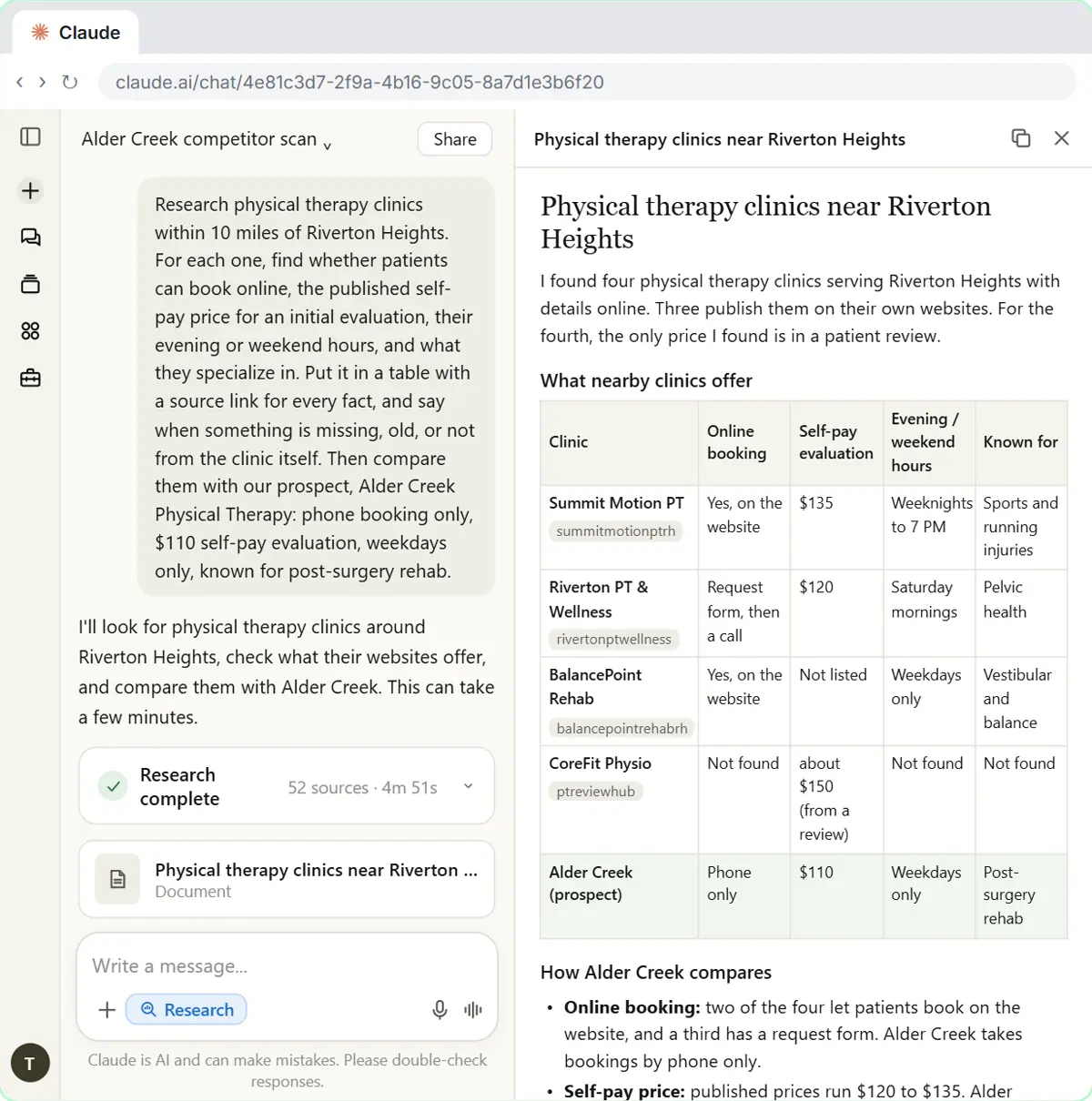 Research a Prospect's Market with Claude Research Before a Pitch (Consultants & Agencies)
Turn on Research before a pitch, have Claude check what a prospect's competitors offer online, read the cited report, check a source and turn it into talking points for…
Free · Live ~7 min
Same business, other tools
Harbor Lane Accounting shows up in these modules too, built with different tools.
Terms in this lesson
Plain-English definitions, each with an example from a free lesson.