Updated . Built against the tool’s current screens and checked step by step. How we check this lesson
Claude is much more useful when it can look things up for you. In this free, interactive tutorial you connect Claude to Google Drive, Gmail and Google Calendar from Customize > Connectors, sign in with Google and read what Claude is asking for, and then ask three everyday questions in one chat: find a price sheet in Drive, summarize a customer's email thread, and tell you what your week looks like. Along the way you approve each tool as Claude asks, open the lines that show exactly what Claude did, and learn where to change those permissions later.
At a glance
| Question | Answer |
|---|---|
| What you build | Connect Google Drive, Gmail and Google Calendar to Claude, then find your price sheet, summarize a customer's email thread and check your week, approving each tool as Claude asks. |
| Tools | Claude |
| Time | About 8 minutes, 38 steps in 7 parts |
| Level | Beginner, no coding needed |
| Cost | Free |
| Ways to learn it | Practice it step by step |
The 7 parts, in short
- Open Connectors: Open Customize, Open Connectors, Open Discover, Search for Google.
- Connect Google Drive: Open Google Drive, Connect Google Drive, Choose your Google account, Allow access.
- Connect Gmail and Calendar: Open Gmail, Connect Gmail, Choose your account, Allow access, and 5 more steps.
- Find a file in Drive: Start a new chat, Open the + menu, Open Connectors, Check the switches, and 4 more steps.
- Summarize an email thread: Click the message box, Ask for a thread summary, Send it, Allow the email search.
- Check your week: Click the message box, Ask about your week, Send it, Always allow calendar reads.
- Control what Claude can do: Open Customize, Open Connectors, Open Google Calendar, Look at Tool permissions, and 1 more step.
Start here first: Your First Chat with Claude: Models, Files and a Great First Prompt (module 1 of Claude for Everyday Work)
In the course: Part 4 · Claude for Everyday Work (Module 23 of the full course)
What you will do
You run the office at Bright Path Landscaping, a made-up landscaping company. Your prices live in a Google Sheet, customers write to you in Gmail, and the crew schedule lives in Google Calendar. Instead of digging through all three, you connect them to Claude once and then just ask.
By the end of the module Claude has pulled two prices from your price sheet with a link back to the file, summarized a four-email thread with a customer named Dana and listed what she is still waiting on, and laid out your week while flagging the day that is too full. You finish on the connector's settings page, where each tool can be set to Always allow, Needs approval or Blocked.
How to connect Google Drive, Gmail and Calendar to Claude
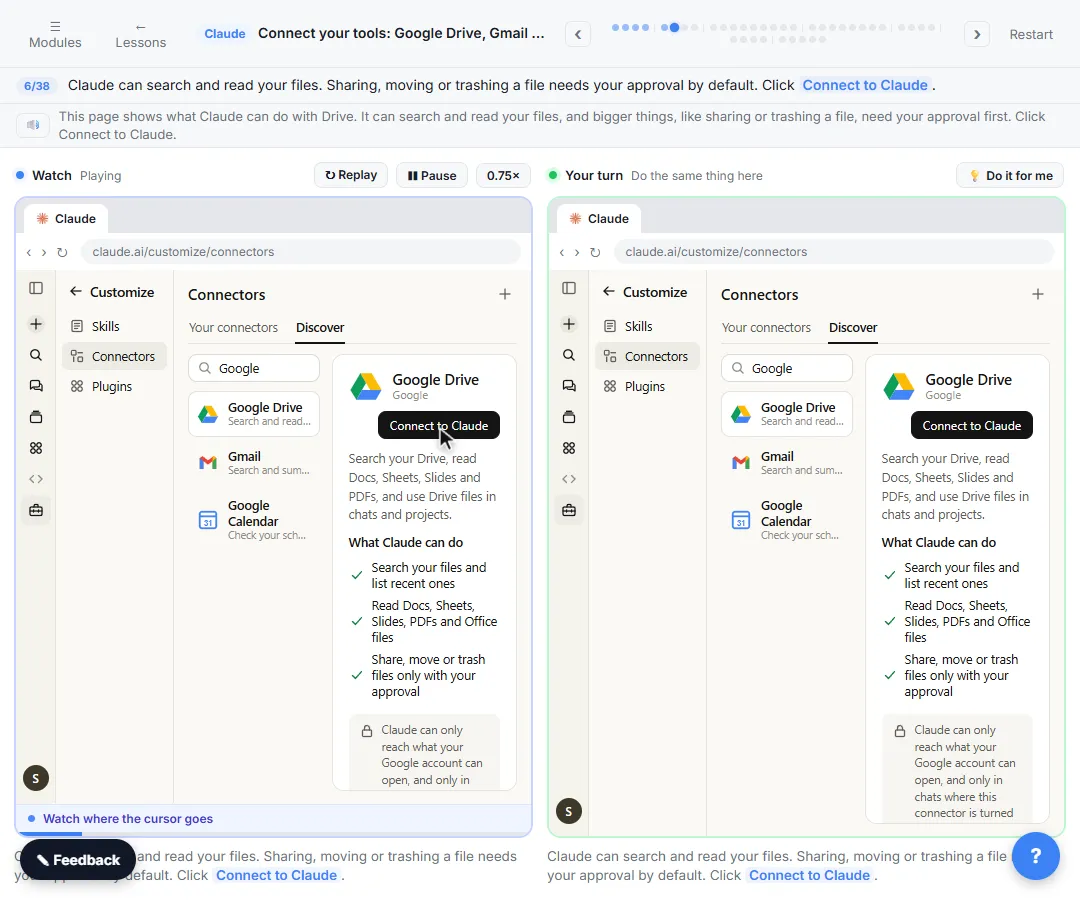
In claude.ai or the Claude desktop app, click Customize in the sidebar, then Connectors. Customize is the page that holds your skills, connectors and plugins. Open the Discover tab, type Google in Search connectors, and click Google Drive to open its page. The page explains what the connector can do. Click Connect to Claude.
Google's sign-in opens in the same browser tab. Choose the Google account you use for work, read the list of what Claude is asking for, and click Continue. You land back in Claude with the connector marked Connected. Repeat the same steps for Gmail and Google Calendar, then open Your connectors to see all three in one list.
On Team and Enterprise plans, an Owner or Primary Owner has to add a connector for the organization first, and then each person connects their own Google account. If your company uses Google Workspace, your Google admin may also need to allow Claude before anyone can sign in.
Using connectors in a chat
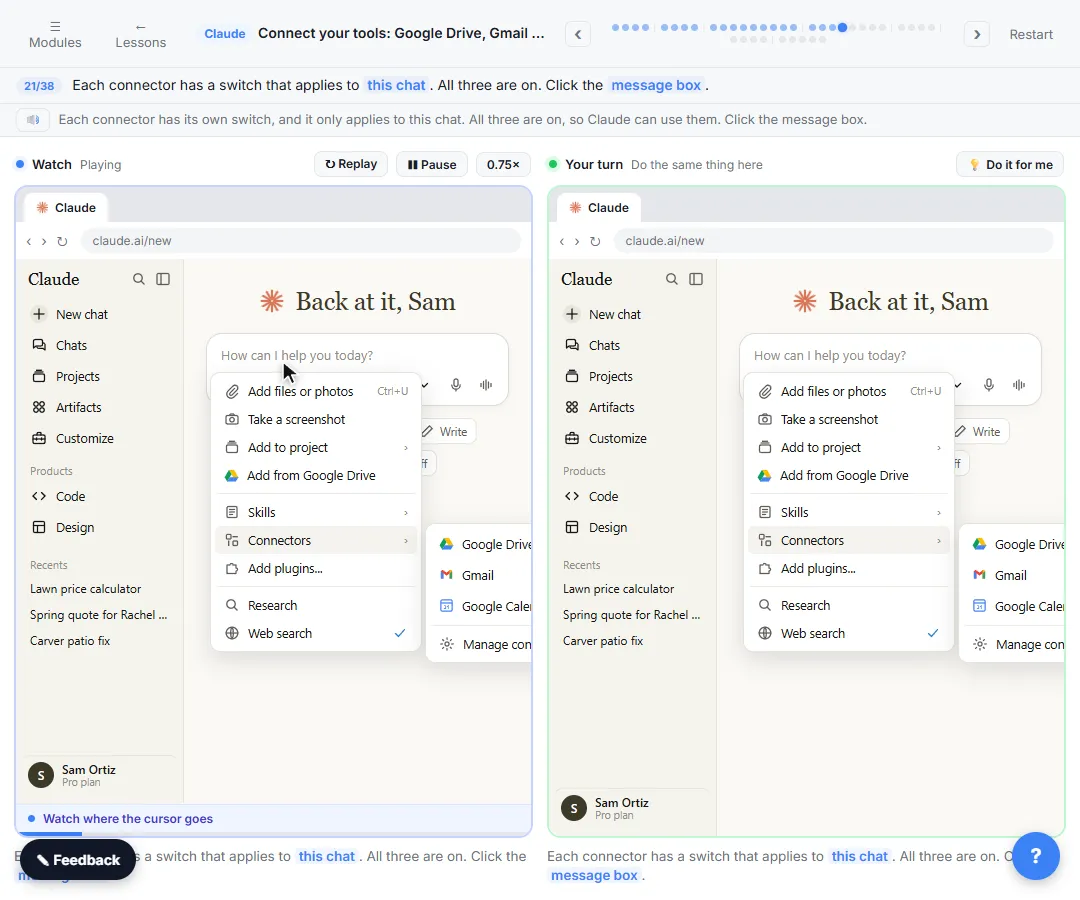
Start a new chat and click the + button in the message box, then Connectors. Every connector you have added has its own switch, and the switch only applies to that chat, so you can leave Gmail off in a chat where you don't want Claude reading email. The + menu also has Add from Google Drive, for when you want to attach one specific file yourself.
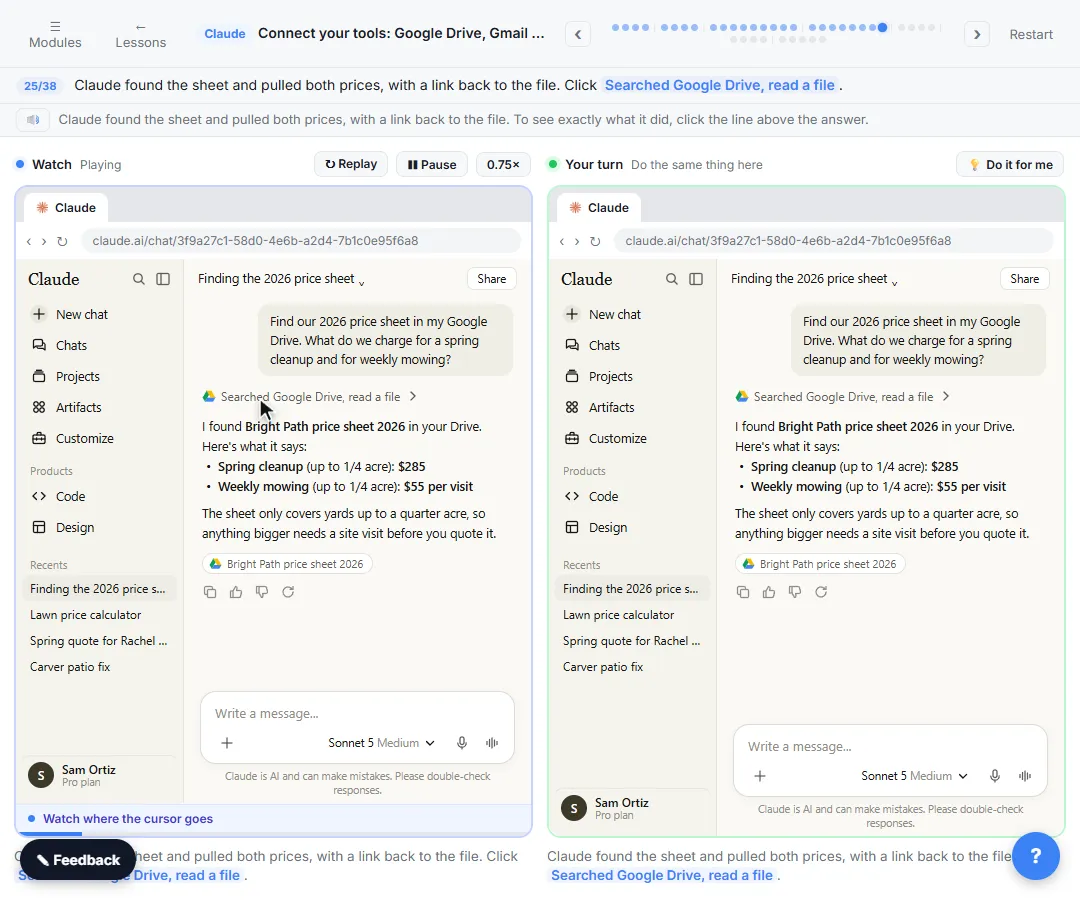
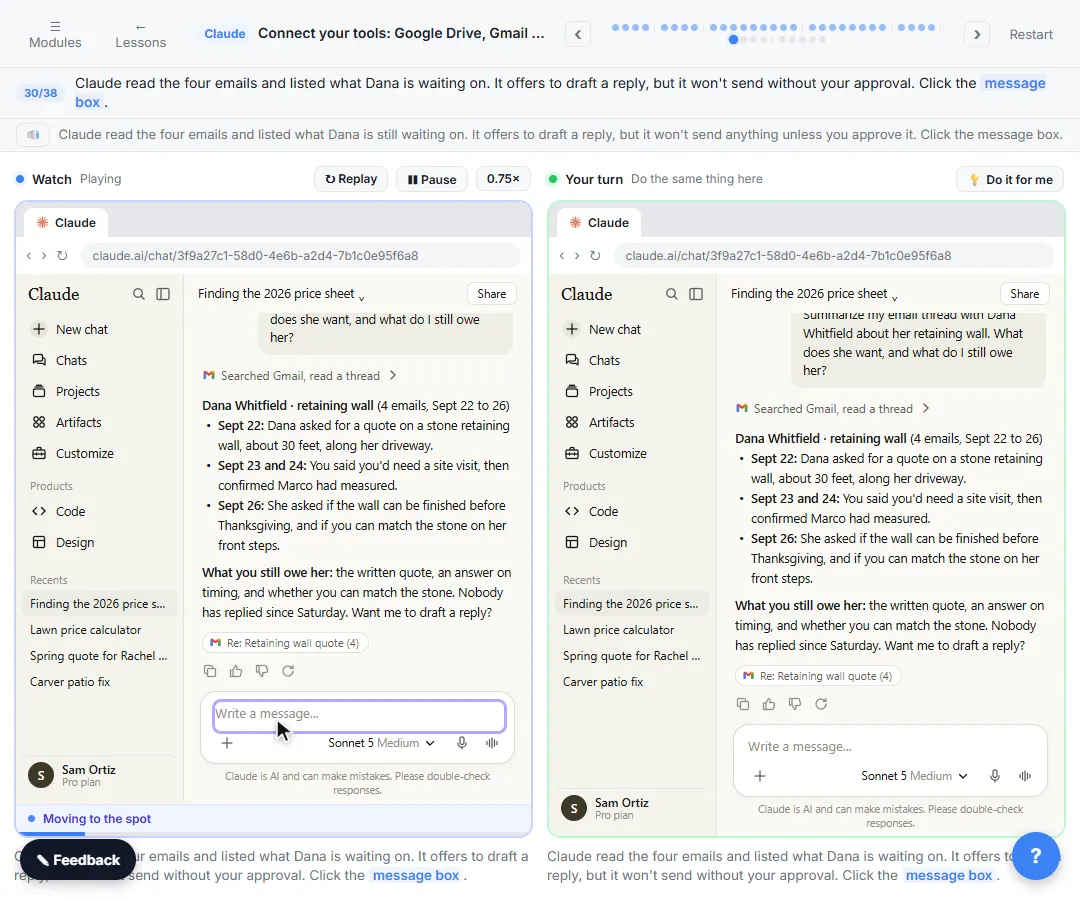
Then ask in plain words. "Find our 2026 price sheet in my Google Drive. What do we charge for a spring cleanup and for weekly mowing?" Claude searches Drive, reads the file and answers with the prices and a citation that links back to the sheet. "Summarize my email thread with Dana Whitfield about her retaining wall" gets you the thread in three bullets and a list of what you still owe her. "What's on my calendar this week? Flag any day that looks too full" lays out Monday to Friday and points at the overloaded day.
Above each answer is a short line that summarizes what Claude did. Click it to see every tool call, such as a Drive search and then reading one file. It is the quickest way to check where an answer came from.
What Claude can see, and when it asks first
Claude can only reach what the Google account you connected can open, and only in chats where the connector's switch is on. Anthropic's help center says Claude looks at your data only when a request calls for it and retrieves the minimum it needs.
Claude can ask for your approval before it uses a connector's tool. Allow once lets that one call through. Always allow skips the question for that tool from now on. By default, actions with real consequences, like sending or forwarding an email, sharing or trashing a Drive file, or creating and changing calendar events, need your approval. You can change any tool later under Customize > Connectors: open the connector, and under Tool permissions set each tool to Always allow, Needs approval or Blocked. Disconnect signs Claude out of Google entirely.
How to use this in your business
Start with read-only questions you ask every day: what does a customer want, what did we quote them, what is on tomorrow's schedule, where is last year's contract. Keep approvals on for anything that sends, shares or changes something, and turn on Always allow only for low-risk reads you use often, like listing your calendar. Check names, dates and prices before you act on an answer, just as you would with a colleague's summary.
How the interactive lesson works
Each step shows you what to do on the left and lets you do it yourself on the right, in a practice copy of Claude and Google sign-in. Nothing connects to a real Claude or Google account and no email, file or calendar is read, so you can click around safely. A voiceover explains each step, and long questions go in with one Paste button. When you finish, you can connect your real accounts at claude.ai in a few minutes.
Try it yourself, free
Reading the steps is a start. Doing them is how it sticks. The interactive module walks you through every click in a practice copy of Claude, checks each step, and never touches your real accounts.
Start “Connect Claude to Google Drive, Gmail and Google Calendar”Step by step: Connect Claude to Google Drive, Gmail and Google Calendar
All 38 steps of the interactive module, in order. In the module you watch each one, then do it yourself in a practice copy that checks your work.
1. Open Connectors
- Open Customize. Back at Bright Path Landscaping. Connectors let Claude look things up in the apps you already use. In the sidebar, click Customize.
Welcome back to Bright Path Landscaping. In this module you'll connect Claude to Google Drive, Gmail and Google Calendar, so it can look things up for you. In the sidebar, click Customize.
- Open Connectors. Customize holds your skills, connectors and plugins. Click Connectors.
Customize is where your skills, connectors and plugins live.
- Open Discover. Yours is empty for now. Click Discover to browse the directory.
Yours is empty for now.
- Search for Google. Type Google in Search and press Enter.
2. Connect Google Drive
- Open Google Drive. Click Google Drive.
- Connect Google Drive. Claude can search and read your files. Sharing, moving or trashing a file needs your approval by default. Click Connect to Claude.
This page shows what Claude can do with Drive. It can search and read your files, and bigger things, like sharing or trashing a file, need your approval first.
- Choose your Google account. Google's sign-in opens in the same tab. Click the account you use for work.
Google's sign-in page opens. Pick the Google account you use for work.
- Allow access. Google lists what Claude is asking for. Claude can only reach what this account can open, and it only looks when a request needs it. Click Continue.
Google shows exactly what Claude is asking for. Claude can only reach what this account can open, and it only looks when a request needs it.
3. Connect Gmail and Calendar
- Open Gmail. Back in Claude, Google Drive shows Connected. Now click Gmail.
You're back in Claude, and Google Drive shows Connected. Now do the same for Gmail.
- Connect Gmail. Claude can search your email and draft replies. By default it asks before it sends, replies or forwards. Click Connect to Claude.
Claude can search your email and draft replies. By default, it asks before it sends, replies or forwards anything.
- Choose your account. Click your account.
Pick your account again.
- Allow access. Read the list, then click Continue.
Read what it's asking for, then click Continue.
- Open Google Calendar. One more. Click Google Calendar.
One more.
- Connect Google Calendar. Claude can check your schedule and find open time. By default, creating or changing events asks for your approval. Click Connect to Claude.
Claude can check your schedule and find open time. By default, creating or changing events asks for your approval first.
- Choose your account. Click your account.
- Allow access. Click Continue.
- See your connectors. All three are connected. Click Yours.
All three are connected.
4. Find a file in Drive
- Start a new chat. Here they are. On Team and Enterprise plans, an Owner has to add a connector for the organization first. Click New chat.
Here they are, all connected. On a Team or Enterprise plan, an owner has to add a connector for the organization first.
- Open the + menu. Click the + in the message box.
- Open Connectors. Upload or add files is for attaching one file yourself. Click Connectors.
Upload or add files is for attaching one file yourself. For your connected apps, click Connectors.
- Check the switches. Each connector has a switch that applies to this chat. All three are on. Click the message box.
Each connector has its own switch, and it only applies to this chat. All three are on, so Claude can use them.
- Ask Claude to find a file. Ask Claude to find the price sheet in Drive and pull two prices. Paste in the question.
Ask Claude to find your price sheet in Drive and pull two prices from it.
- Send it. Click the send arrow.
Send it.
- Allow the search. Claude asks before it uses Search files. Allow once lets this one through; Always allow stops asking for this tool. (If your read-only tools are already set to Always allow, Claude just goes ahead.) Click Allow once.
Before it searches, Claude asks for your OK. Allow once lets this one search through. Always allow skips the question for this tool from now on.
- See what Claude did. Claude found the sheet and pulled both prices, with a link back to the file. Click Used Google Drive above the answer.
Claude found the sheet and pulled both prices, with a link back to the file. To see exactly what it did, click the line above the answer.
5. Summarize an email thread
- Click the message box. Each line is one tool call: a search, then reading that one file. Now try Gmail. Click the message box.
Each line is one step Claude took in your Drive: a search, then reading that one file. Now let's try Gmail.
- Ask for a thread summary. Ask for a summary of a customer thread and what you still owe her. Paste in the question.
Ask for a summary of a customer thread, and what you still owe her.
- Send it. Click the send arrow.
Send it.
- Allow the email search. This time Claude asks to use Search email from Gmail. Click Allow once.
This time Claude asks to search your email.
6. Check your week
- Click the message box. Claude read the four emails and listed what Dana is waiting on. It offers to draft a reply, but it won't send without your approval. Click the message box.
Claude read the four emails and listed what Dana is still waiting on. It offers to draft a reply, but it won't send anything unless you approve it.
- Ask about your week. Ask what's on your calendar this week. Paste in the question.
Now ask what's on your calendar this week.
- Send it. Click the send arrow.
Send it.
- Always allow calendar reads. Reading your calendar is low-risk and you'll ask often, so this time click Always allow.
Reading your calendar is low-risk, and you'll ask this a lot. So this time, click Always allow.
7. Control what Claude can do
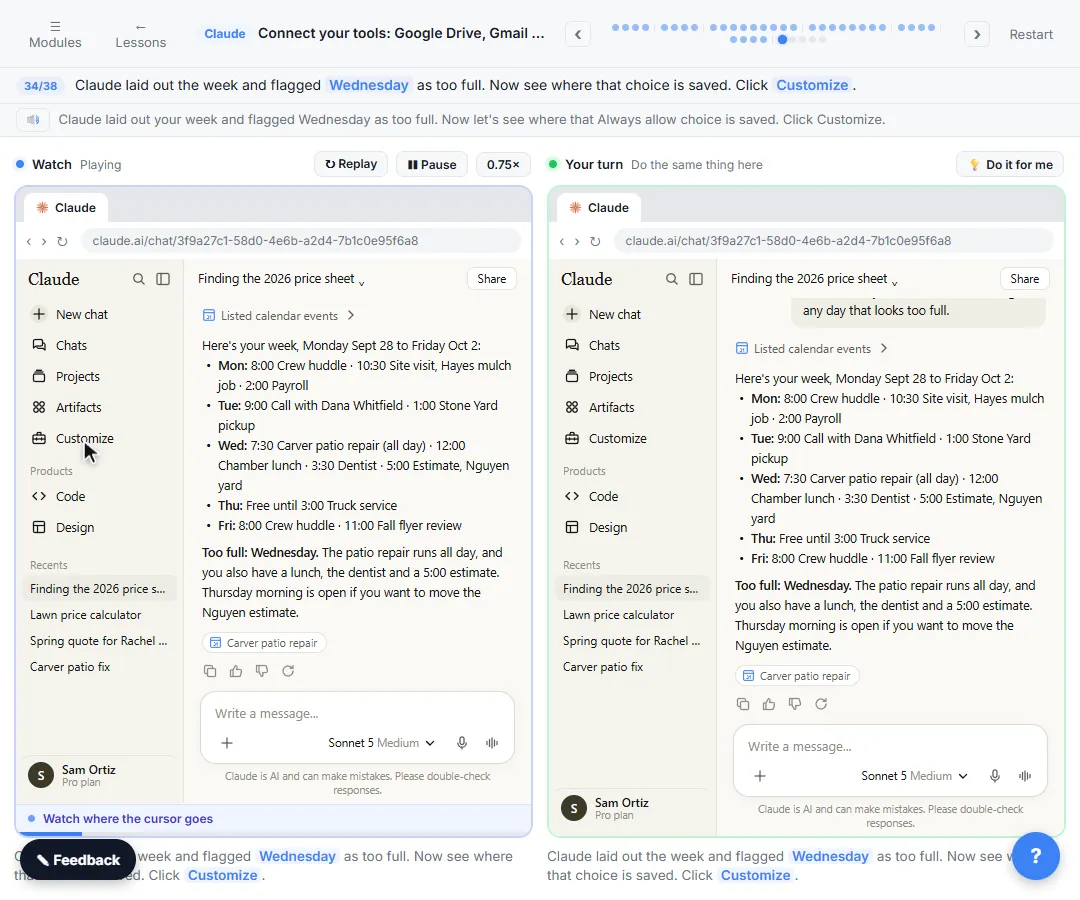
- Open Customize. Claude laid out the week and flagged Wednesday as too full. Now see where that choice is saved. Click Customize.
Claude laid out your week and flagged Wednesday as too full. Now let's see where that Always allow choice is saved.
- Open Connectors. Click Connectors.
- Open Google Calendar. In Yours, click Google Calendar.
- Look at Tool permissions. Tool permissions sets each tool to Always allow, Needs approval or Blocked. List events says Always allow from your click. Click it.
Tool permissions is where you decide, tool by tool, whether Claude can go ahead, must ask first, or is blocked. List events now says Always allow, from your click in the chat.
- Ask me first. On the List events row, choose Needs approval to have Claude ask again. Disconnect at the top signs Claude out of Google.
If you'd rather Claude ask every time, choose Needs approval. And if you ever want to cut it off completely, Disconnect is right at the top.
Screenshots
Frequently asked questions
- How do I connect Gmail to Claude?
- Go to Customize > Connectors in claude.ai, open Discover, find Gmail and click Connect to Claude. Sign in with your Google account, review what Claude asks for and continue. Then turn Gmail on in a chat from the + menu under Connectors.
- Which Claude plans include the Google Drive, Gmail and Calendar connectors?
- Anthropic's help center lists the Google Workspace connectors as available for all users of Claude and Claude Desktop. On Team and Enterprise plans an Owner has to enable them for the organization before members can connect.
- Can Claude send emails or change my calendar without asking?
- Not by default. Sending, replying to or forwarding email, sharing or trashing Drive files, and creating or changing events ask for your approval first. You control each tool under Customize > Connectors > Tool permissions.
- Can Claude see all of my Google Drive?
- Claude can reach only what your connected Google account can open, only in chats where the Drive connector is on, and it searches only when your request needs it. You can turn the connector off in any chat or disconnect it at any time.
- Is this course really free?
- Yes. Stepthrough is completely free, and the practice copy needs no accounts. To do it for real you need your own Claude account and a Google account.
More in Claude for Everyday Work
Pick a model, attach a customer's complaint email with the + menu, write a four-part prompt, read Claude's reply, ask a follow-up, then star and rename the chat.
Free · Live ~7 min
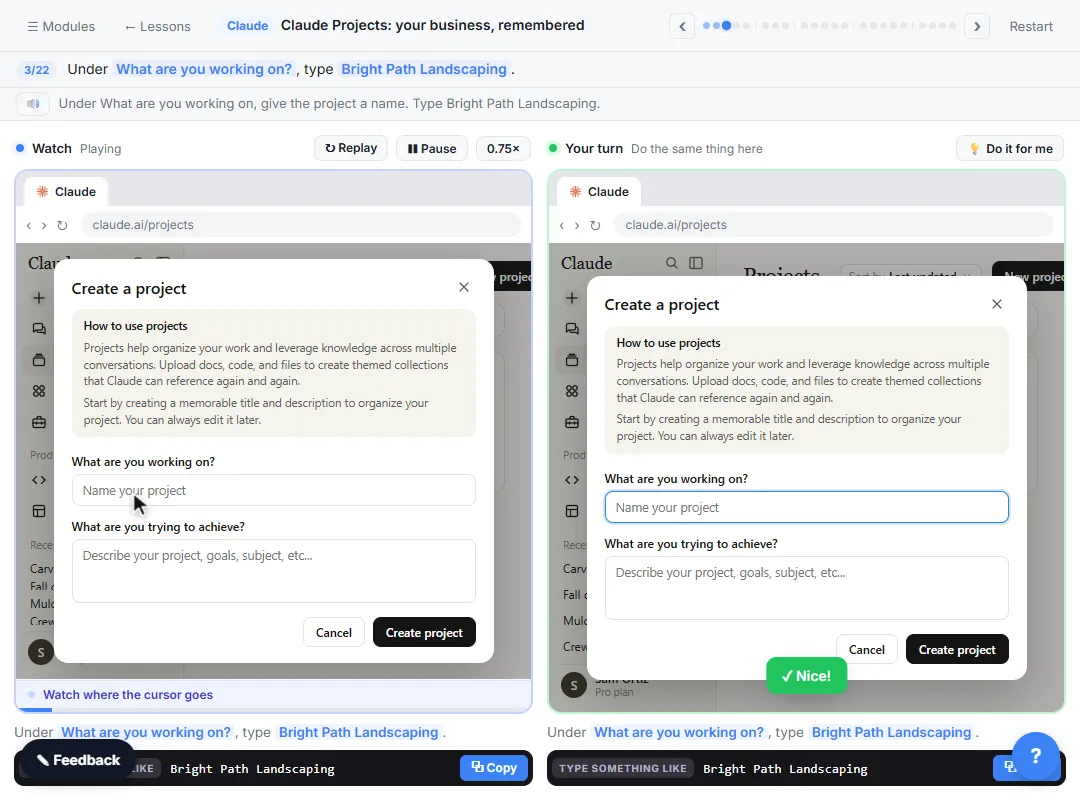 Claude Projects for Your Business: Instructions, Knowledge and Quotes
Create a project for your business, give it instructions for tone and policies, add your price sheet and warranty as project knowledge, and get a customer quote that…
Free · Live ~8 min
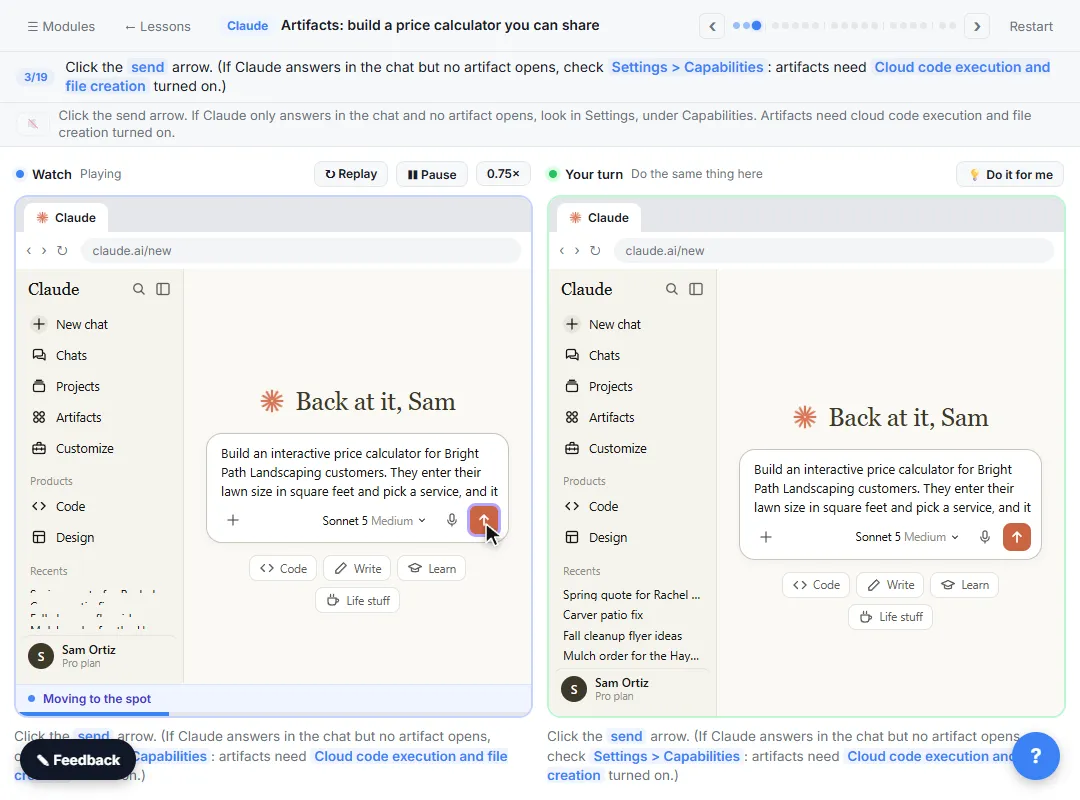 Claude Artifacts: Build a Price Calculator You Can Try, Change and Share
Have Claude build an interactive lawn price calculator, try it in the artifact panel, ask for a change, and share it with a link.
Free · Live ~7 min
All 6 modules in Claude for Everyday Work
More Claude tutorials
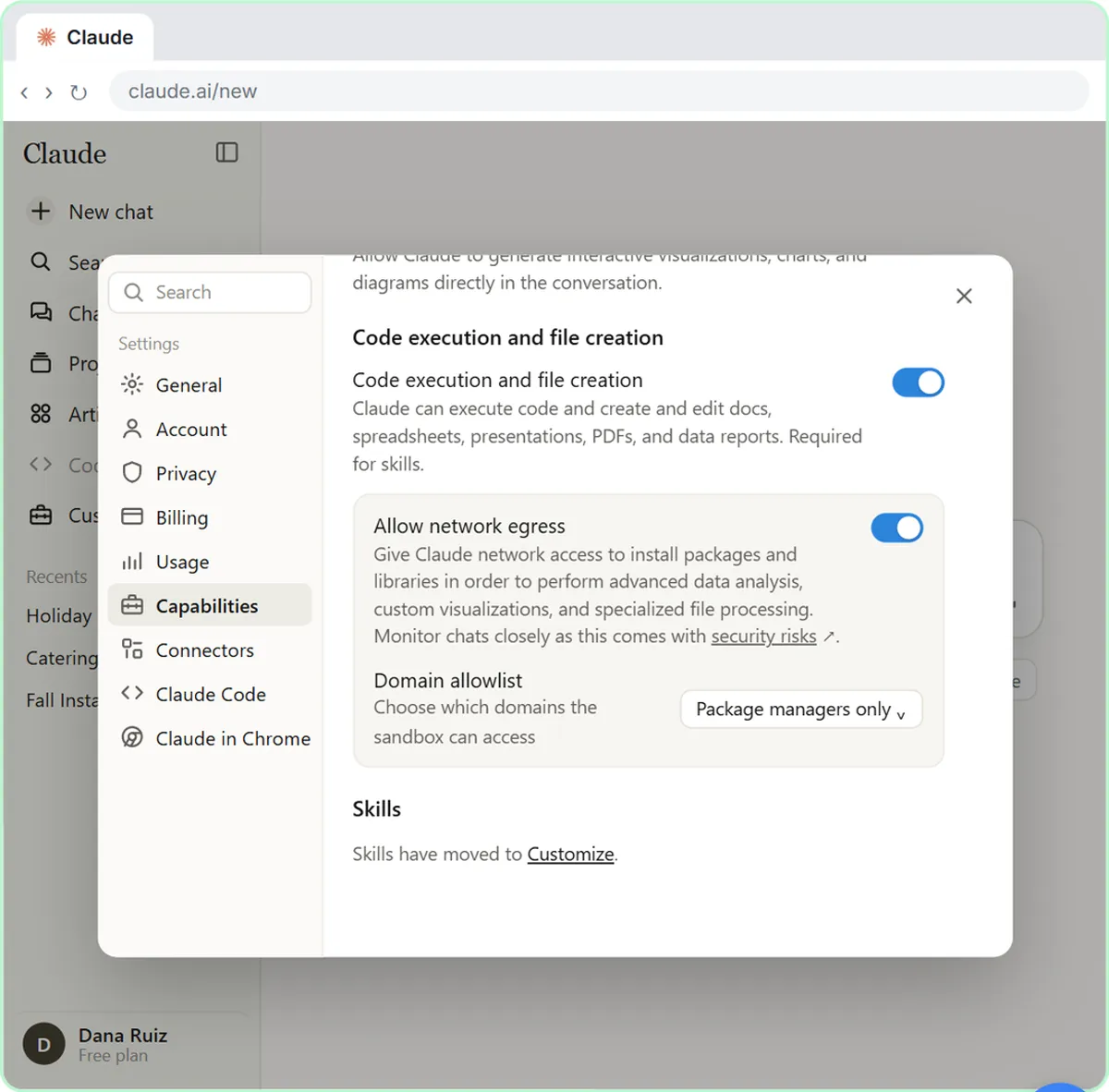 What Are Claude Skills? Turn One On and Watch It Work
Learn what a Claude skill is, switch on the setting skills need, turn on an example skill in Customize, and watch Claude use its Excel and Word skills on its own.
Free · Live ~7 min
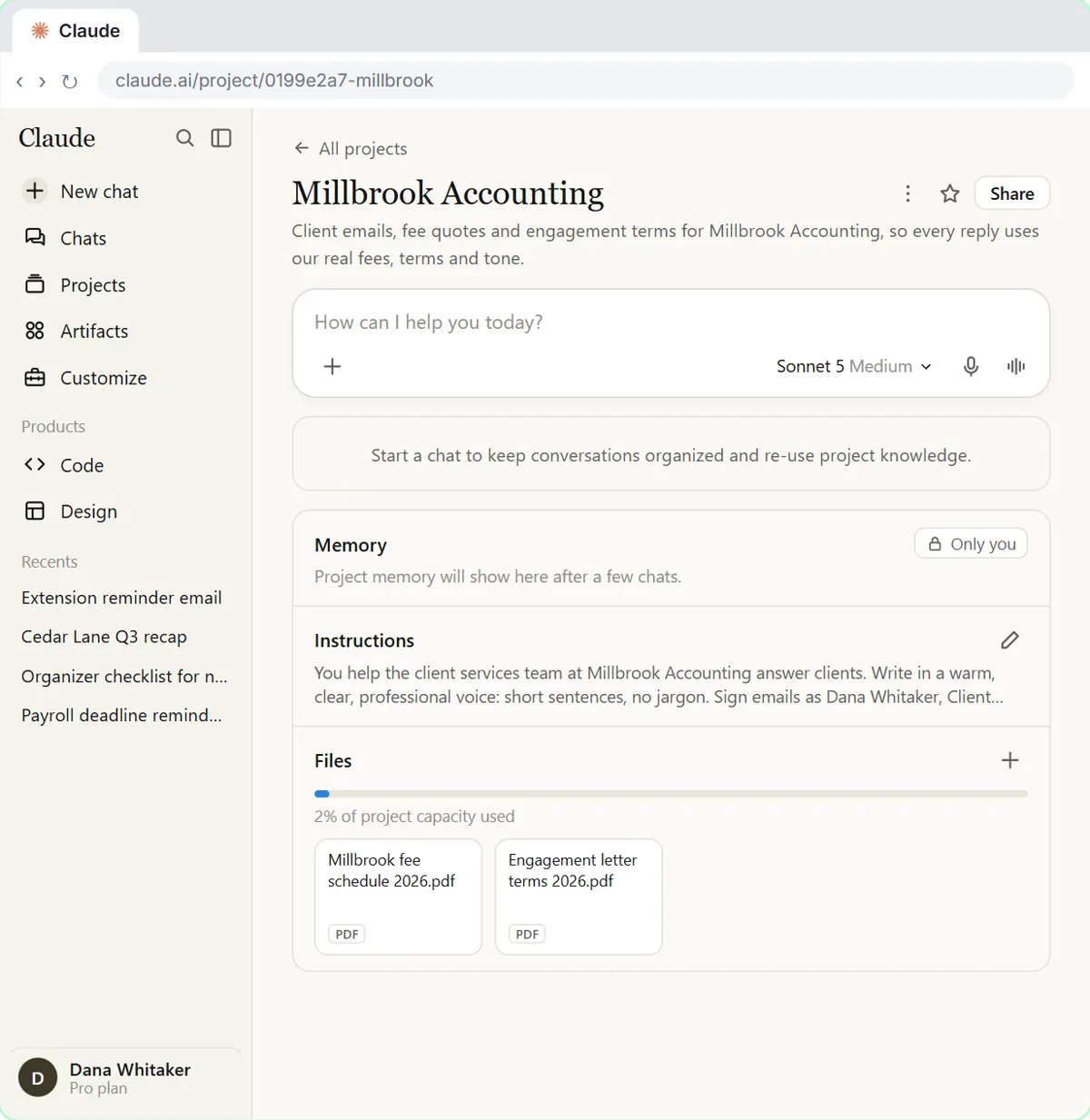 A Claude Project for Your Accounting Firm: Fee Schedule, Engagement Terms and Tone
Create a Claude project for your accounting firm, give it your tone and client policies, add your fee schedule and engagement letter terms as project knowledge, and get…
Free · Live ~9 min
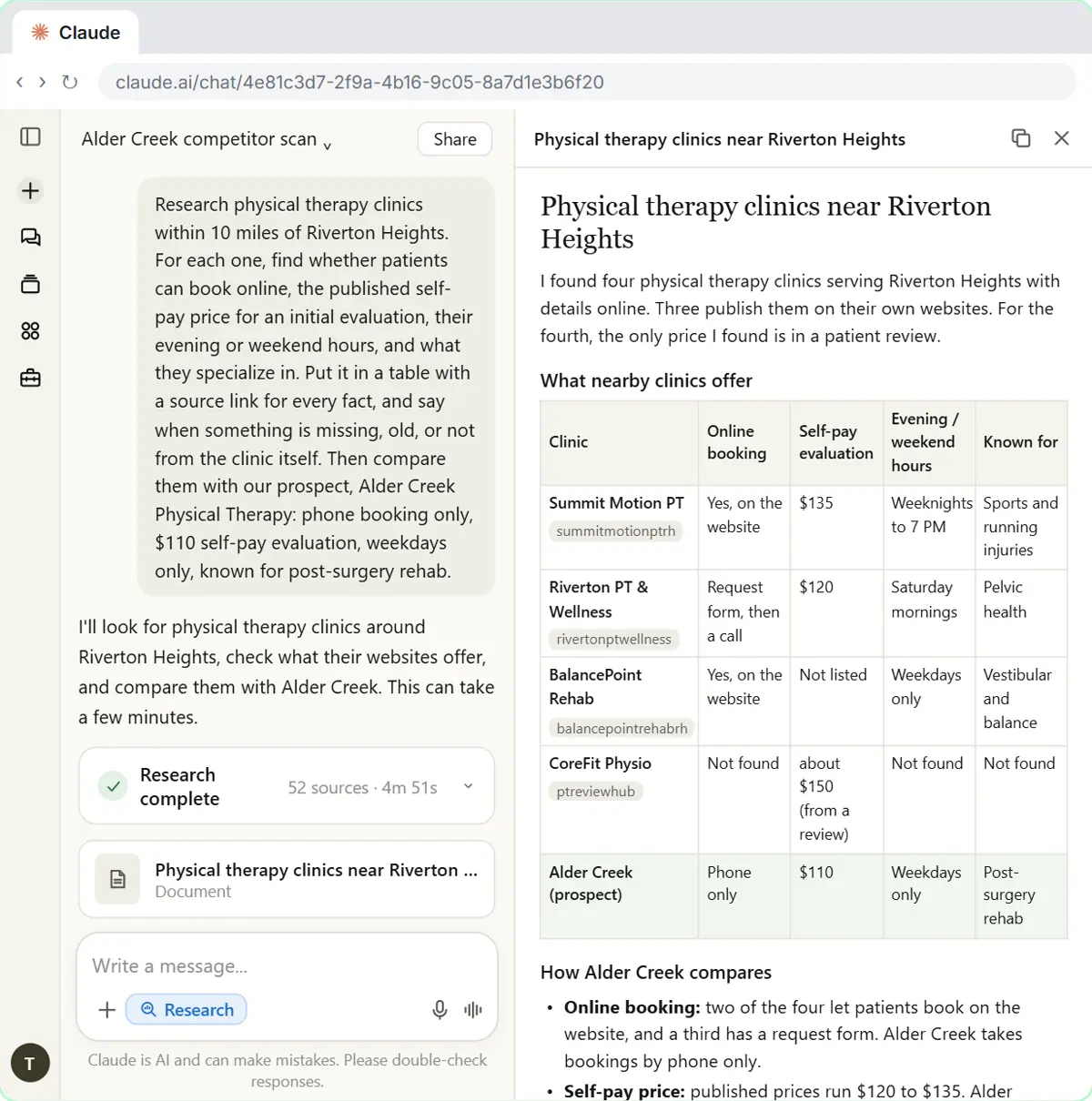 Research a Prospect's Market with Claude Research Before a Pitch (Consultants & Agencies)
Turn on Research before a pitch, have Claude check what a prospect's competitors offer online, read the cited report, check a source and turn it into talking points for…
Free · Live ~7 min
Terms in this lesson
Plain-English definitions, each with an example from a free lesson.