Updated . Built against the tool’s current screens and checked step by step. How we check this lesson
Small offices take requests for supplies, IT and repairs by email, chat and sticky notes, and some get lost. Floot is an app builder that works inside the AI assistant you already use: you add the Floot connector to Claude, ChatGPT or Cursor, describe the app in plain English, and Floot builds it with a database and a live preview. In this free lesson you use a practice copy built from real screens: you build an office request tracker from one Claude prompt, test it as a staff member and as the office manager, then ask for a change, check it and get a layout problem fixed.
At a glance
| Question | Answer |
|---|---|
| What you build | Office requests get lost in email and sticky notes. Use the Floot connector in Claude to build a real request tracker from one prompt, test it as staff and as the office manager, then change it by chat and fix what the change broke. |
| Tools | Floot |
| Time | About 12 minutes, 26 steps in 4 parts |
| Level | Intermediate |
| Cost | Free |
| Ways to learn it | Practice it step by step |
The 4 parts, in short
- Ask Claude to build it with Floot: Open the + menu, Open Connectors, Check that Floot is on, Describe the app, and 3 more steps.
- Submit a request as staff: Answer Floot's welcome questions, Start a new request, Give it a title, Open Priority, and 4 more steps.
- Work the queue as office manager: Filter to New, Start the scanner request, Check In progress, Mark it done, and 1 more step.
- Change it, check it, fix it: Ask for a change, Open the preview again, Spot the problem, Describe what you see, and 2 more steps.
Start here first: Build an AI Vendor Follow-Up Agent in n8n (module 1 of AI Automation for Operations)
Part of: AI Apps Worth Knowing (step 129 of 140). Next up: Tally: Build a New Hire Form That Only Asks Remote Staff for a Shipping Address
Part of: AI Back Office for Small Business (step 22 of 22)
The business case: requests lost in the inbox
Picture the office manager at Harbor Lane Accounting, a made-up 12-person firm. Toner, a jammed printer, a cold meeting room, a monitor for a new hire: requests arrive in email threads, chat messages and sticky notes. Nobody can see what is open, urgent ones wait behind easy ones, and the same request gets asked three times.
A small internal app fixes that: staff submit a request with a priority, and the office manager works one queue from New to In progress to Done. Off-the-shelf help-desk software is more than a 12-person office needs, and building one used to need a developer.
Who this is for, and what you need
Office managers, operations leads and practice administrators at small firms. You need a Claude account (or ChatGPT or Cursor) with the Floot connector added and switched on, and a Floot account. The Free plan gives 100 building actions a day and preview links; publishing and hosting are on paid plans.
How Floot works inside Claude
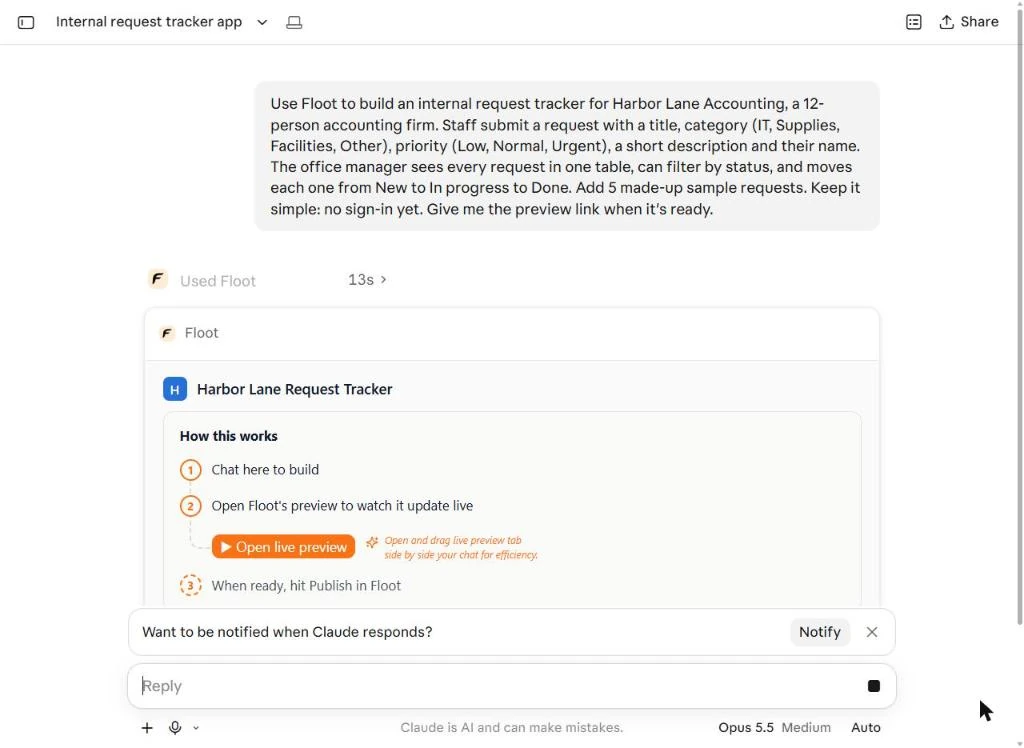
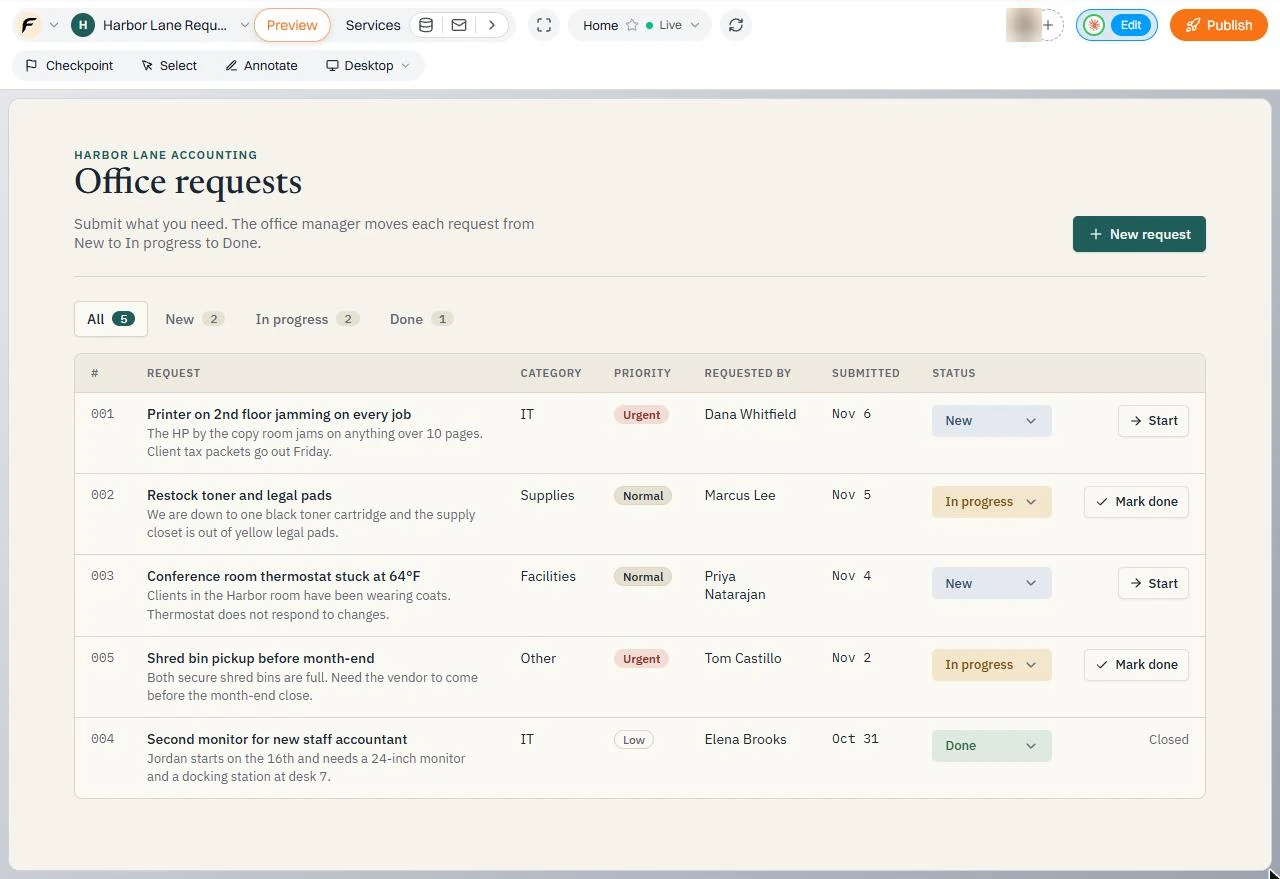
Floot is a connector: Claude calls Floot's tools to create the project, write the database and pages, and run checks, and each call uses one of your daily building actions. The first prompt produced a project card with How this works (chat here to build, open Floot's preview, publish when ready) and a working app with five sample requests in about two and a half minutes.
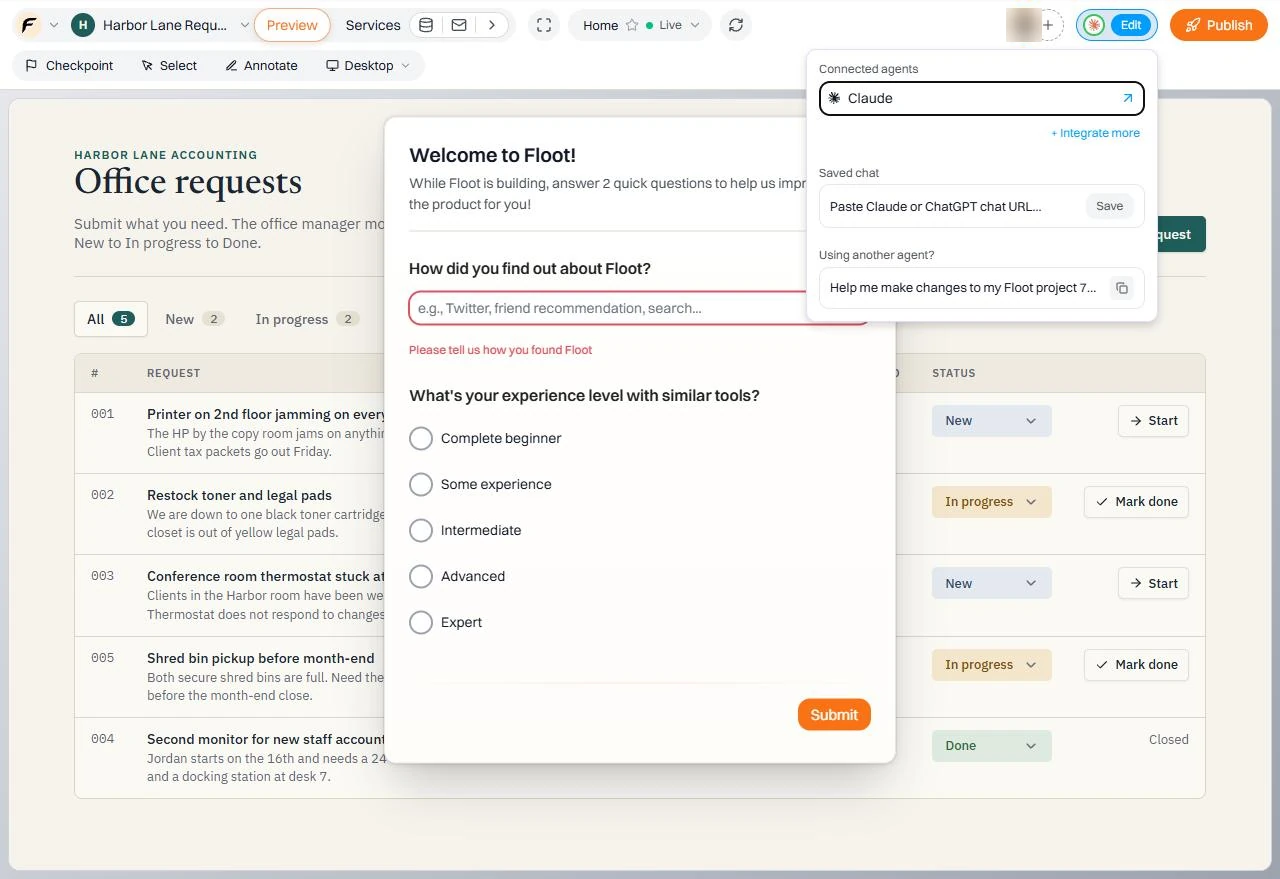
The live preview at floot.com shows the app with a toolbar for Preview, Services, Checkpoint, Select, Annotate and a device size. The first time you open a preview, Floot asks two short questions. The preview link updates on its own after every change, and Claude's preview link expires after 7 days.
Always check after a change
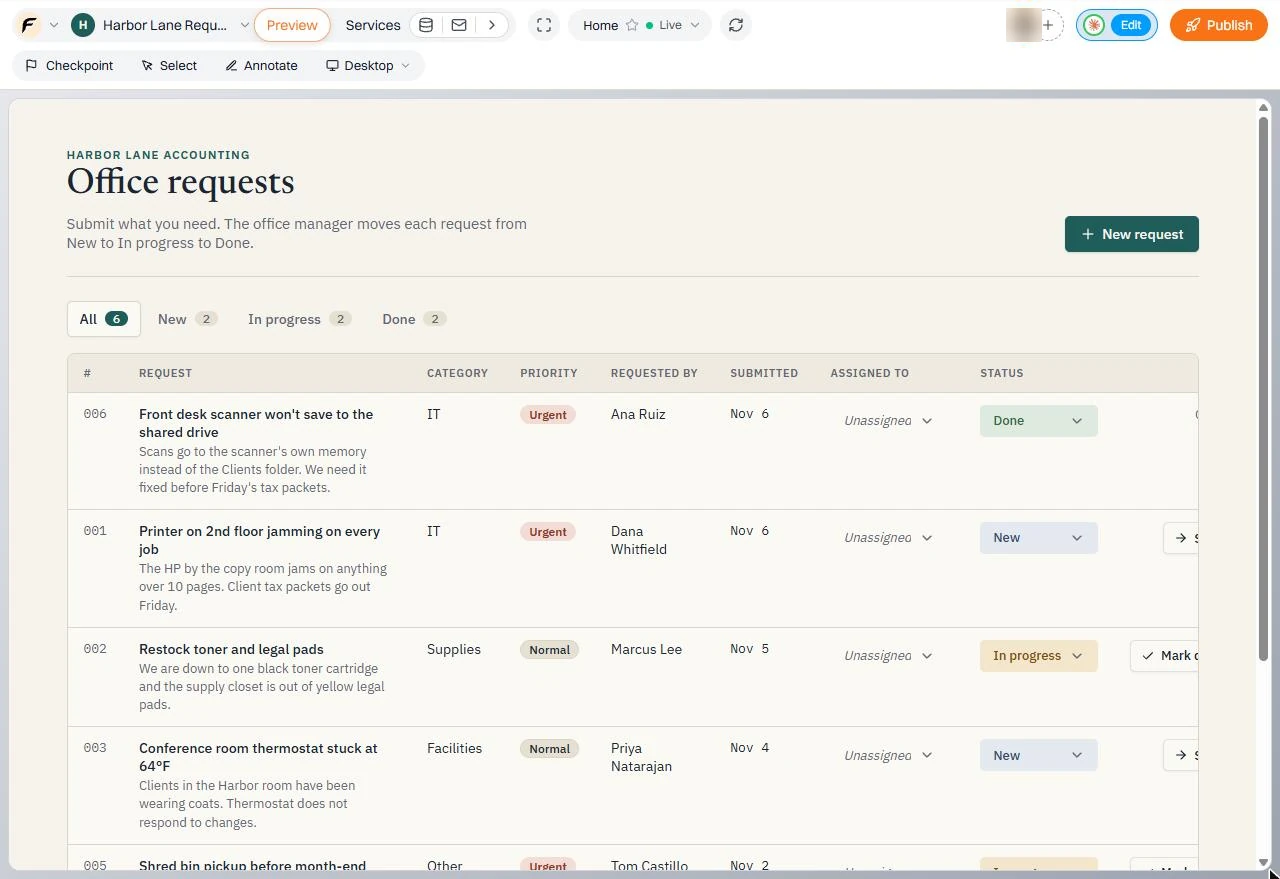
When we asked for an Assigned to column, Claude said nothing else in the app changed. The preview showed otherwise: the table had become too wide for a 1280-pixel laptop screen, so the Start and Mark done buttons were cut off. Describing exactly what we saw fixed it in one message. Claude also said it could not check the screen itself and asked us to look.
Keep real client data out of the app until it has a sign-in or is published privately. Our prompt said no sign-in yet, which is fine for a test with made-up requests.
What this saves you
- One queue instead of requests scattered across email, chat and sticky notes.
- Urgent requests marked and seen first, with counts on every status tab.
- No developer for a small internal tool: changes are a chat message.
- What it does not do: it does not test itself for you. Open the preview and click through after every change.
What we checked in a real account
Every step was done in Robert's real claude.ai account with the Floot connector and a Floot Free plan account on 6 November 2026: the prompt, the project card, the live preview, submitting a request, Start, Mark done, the status tabs and counts, the Assigned to change and the layout fix. We did not publish the app (the Free plan has no hosting), and we could not test choosing a name in the Assigned to dropdown because it is a native browser menu our test browser could not operate.
Links
- Floot: the app builder this lesson teaches. It has its own account and plans; our test account was on the Free plan.
- Floot docs: Build from Claude and ChatGPT: how to add the Floot connector to your AI assistant.
Try it yourself, free
Reading the steps is a start. Doing them is how it sticks. The interactive module walks you through every click in a practice copy of Floot, checks each step, and never touches your real accounts.
Start “Floot: Build an Office Request Tracker from a Claude Chat”Step by step: Floot: Build an Office Request Tracker from a Claude Chat
All 26 steps of the interactive module, in order. In the module you watch each one, then do it yourself in a practice copy that checks your work.
1. Ask Claude to build it with Floot
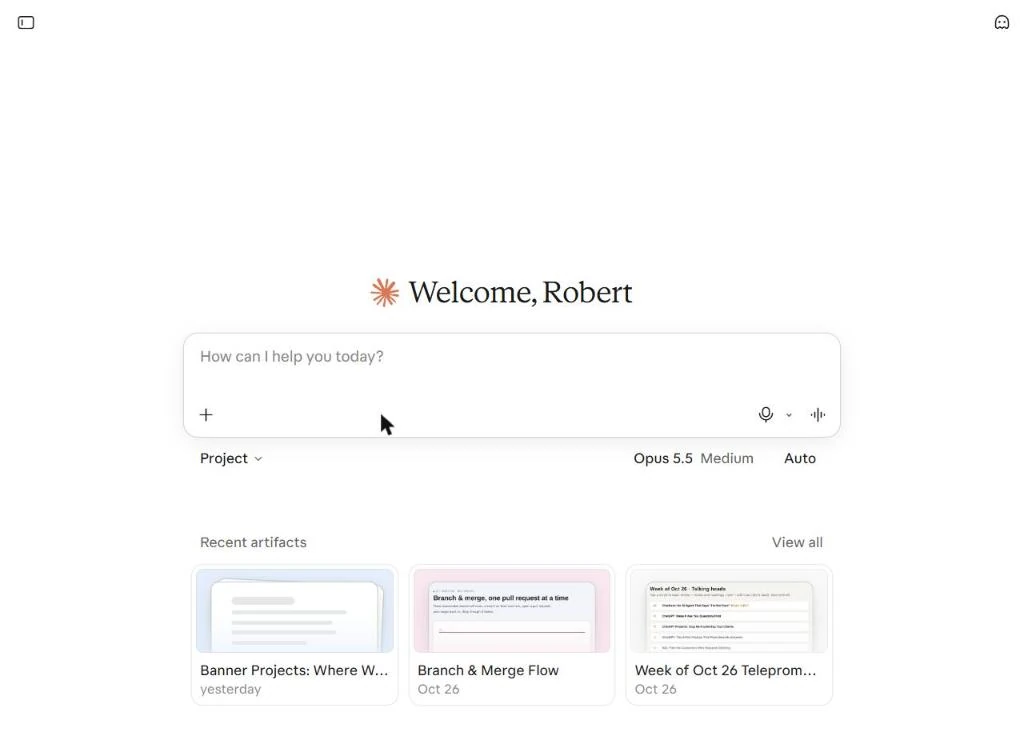
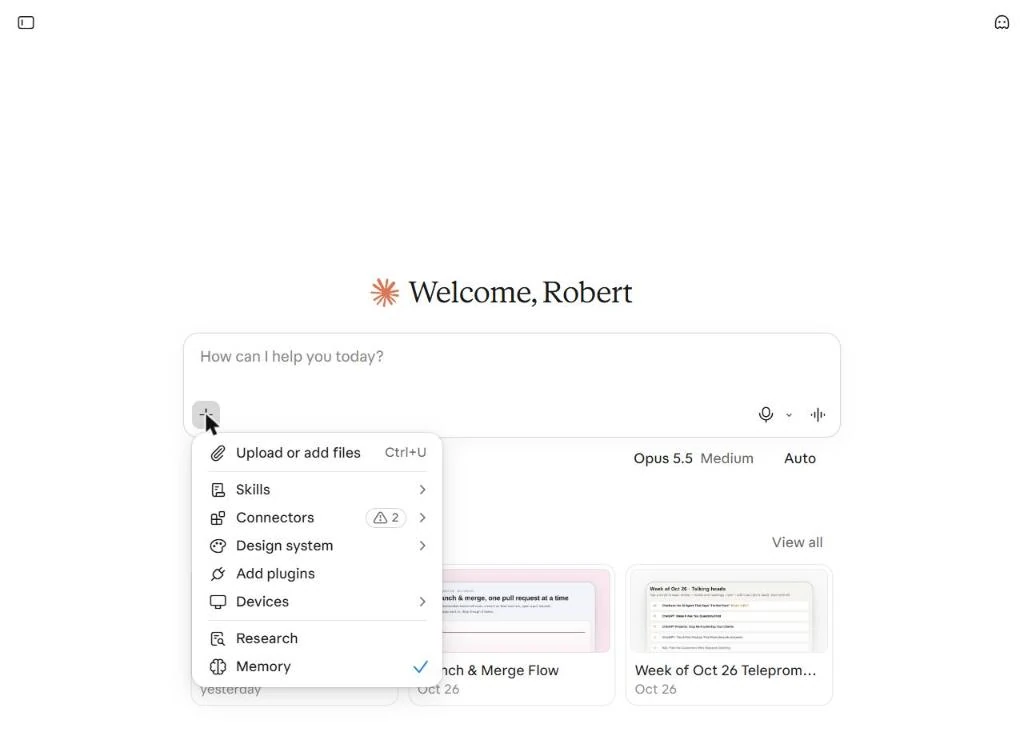
- Open the + menu. You are the office manager at Harbor Lane Accounting, a made-up 12-person firm. Requests for toner, a broken printer or a cold meeting room arrive by email, sticky note and hallway chat, and some get lost. You will build a small request tracker without writing code: Floot builds and hosts the app, and you drive it from a normal Claude chat. This is a new chat in Claude. Click the + button.
Requests arrive by email, sticky note and hallway chat, and some get lost. You will build a tracker from a normal Claude chat, and Floot builds the app.
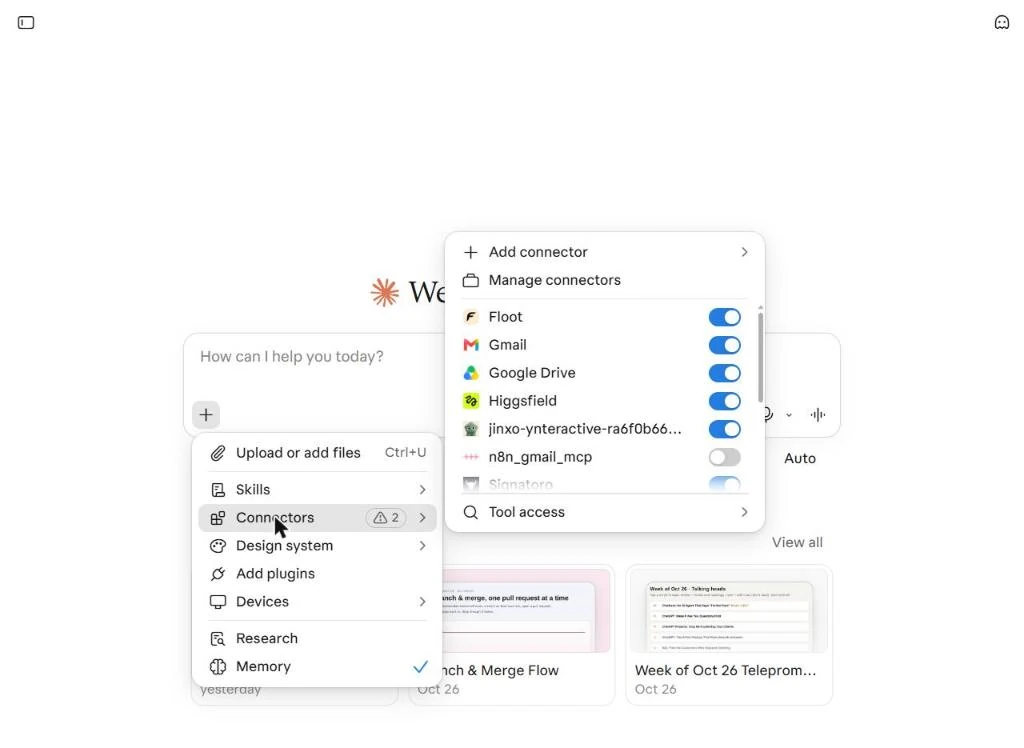
- Open Connectors. Floot works in Claude as a connector. Click Connectors.
Floot works in Claude as a connector.
- Check that Floot is on. Your connectors are listed with a switch each. Floot must be on (blue). If Floot is not in the list, add it once from Add connector and sign in to Floot; that is a one-time setup. Click the Floot row.
Floot must be switched on. If it is not in the list, add it once from Add connector.
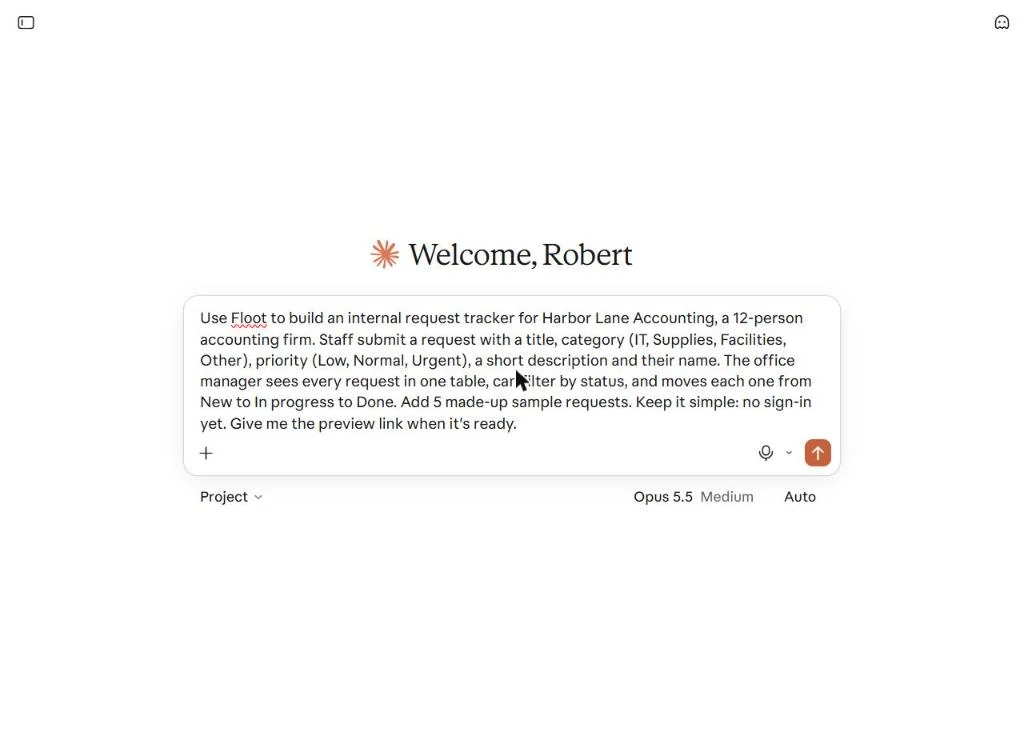
- Describe the app. Describe the app like you would to a developer: who uses it, the fields, the statuses and what the manager does. Start with Use Floot to so Claude uses the connector, ask for sample data so there is something to click, and ask for the preview link. Paste the prompt.
Describe it like you would to a developer. Who uses it, the fields, the statuses, and what the manager does. Start with: use Floot to.
Use Floot to build an internal request tracker for Harbor Lane Accounting, a 12-person accounting firm. Staff submit a request with a title, category (IT, Supplies, Facilities, Other), priority (Low, Normal, Urgent), a short description and their name. The office manager sees every request in one table, can filter by status, and moves each one from New to In progress to Done. Add 5 made-up sample requests. Keep it simple: no sign-in yet. Give me the preview link when it's ready.
- Send it. Click the send arrow.
- Open the live preview. Claude used Floot right away: a Harbor Lane Request Tracker card appears with *How this works*: chat here to build, open Floot's preview, and publish when ready. Claude keeps working while you look; in our test the whole app, with its database and five sample requests, was ready in about two and a half minutes. Click Open live preview.
Floot made the project card. Chat here, watch the preview, publish when ready. Our app was ready in about two and a half minutes.
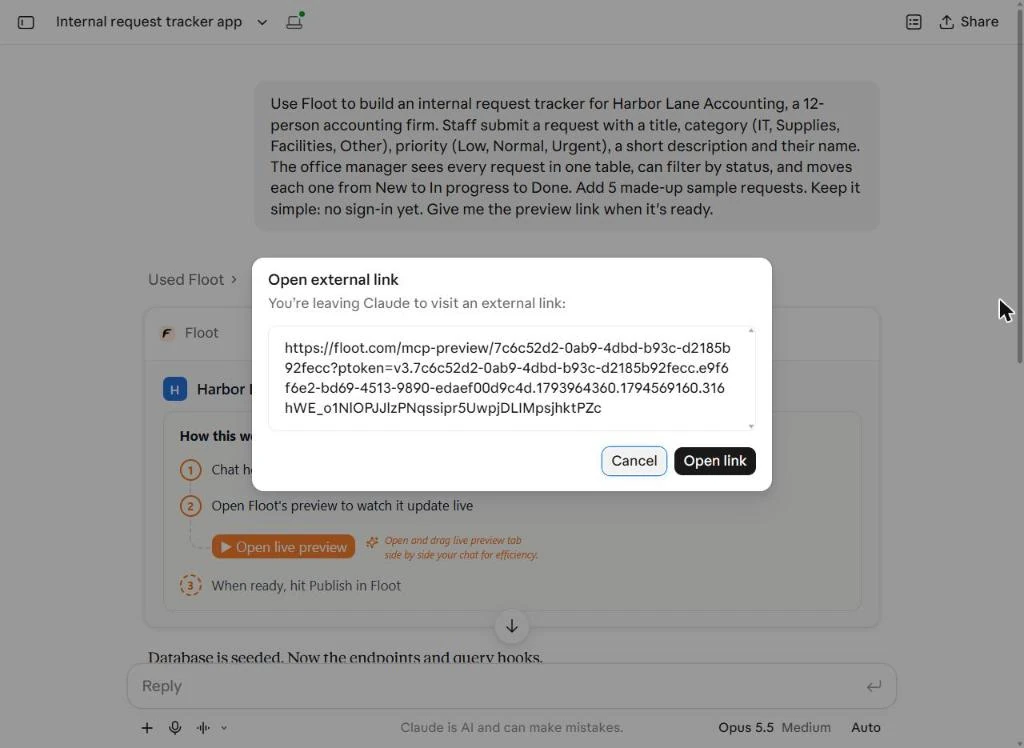
- Open the link. Claude asks before it sends you to another site. The link goes to floot.com/mcp-preview. Click Open link.
Claude checks before it opens another site.
2. Submit a request as staff
- Answer Floot's welcome questions. The first time you open a preview, Floot shows Welcome to Floot! with two quick questions: how you found Floot and your experience level. Behind it you can already see the app: Office requests, the five sample requests and the status tabs. Answer both and click Submit.
The first time, Floot asks two quick questions. Behind them you can see your app already. Answer both and click Submit.
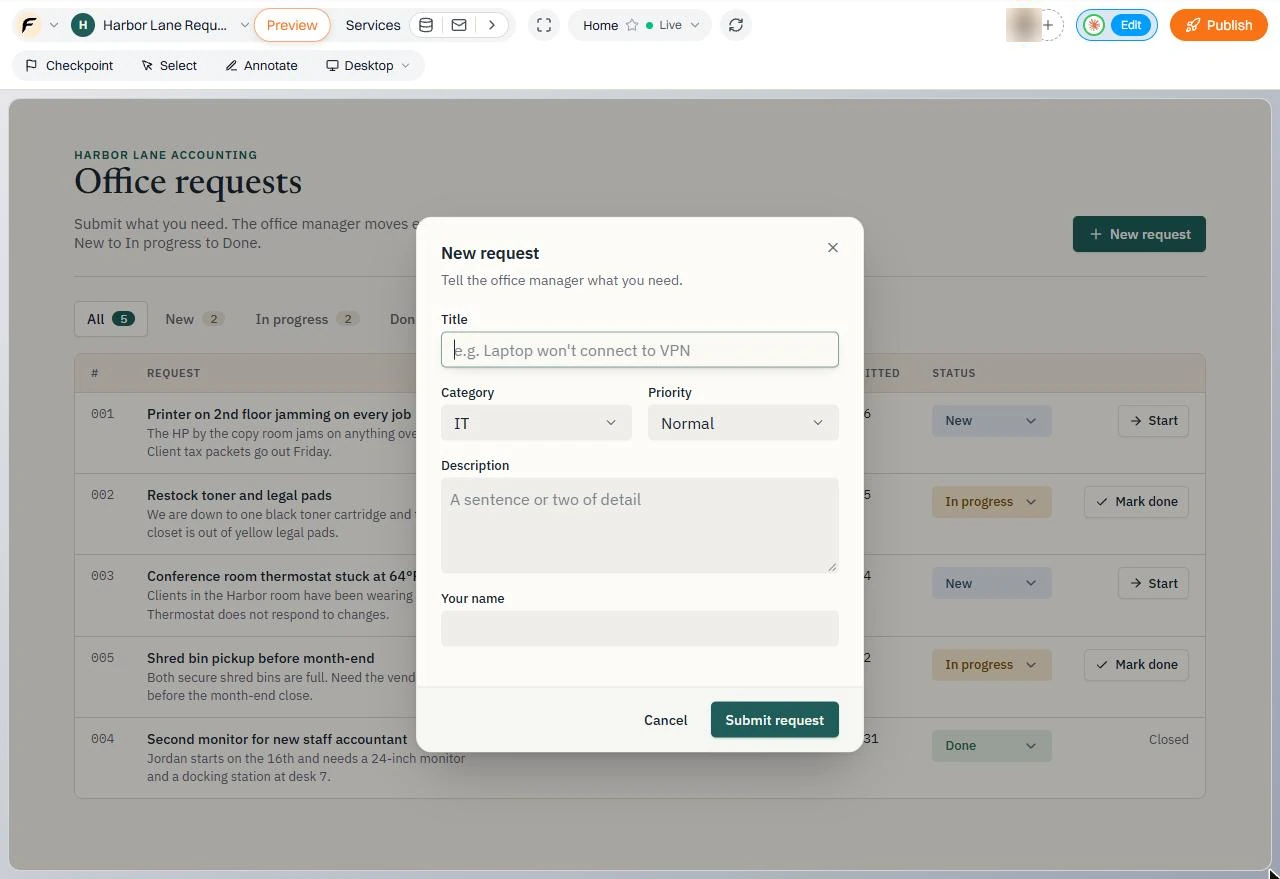
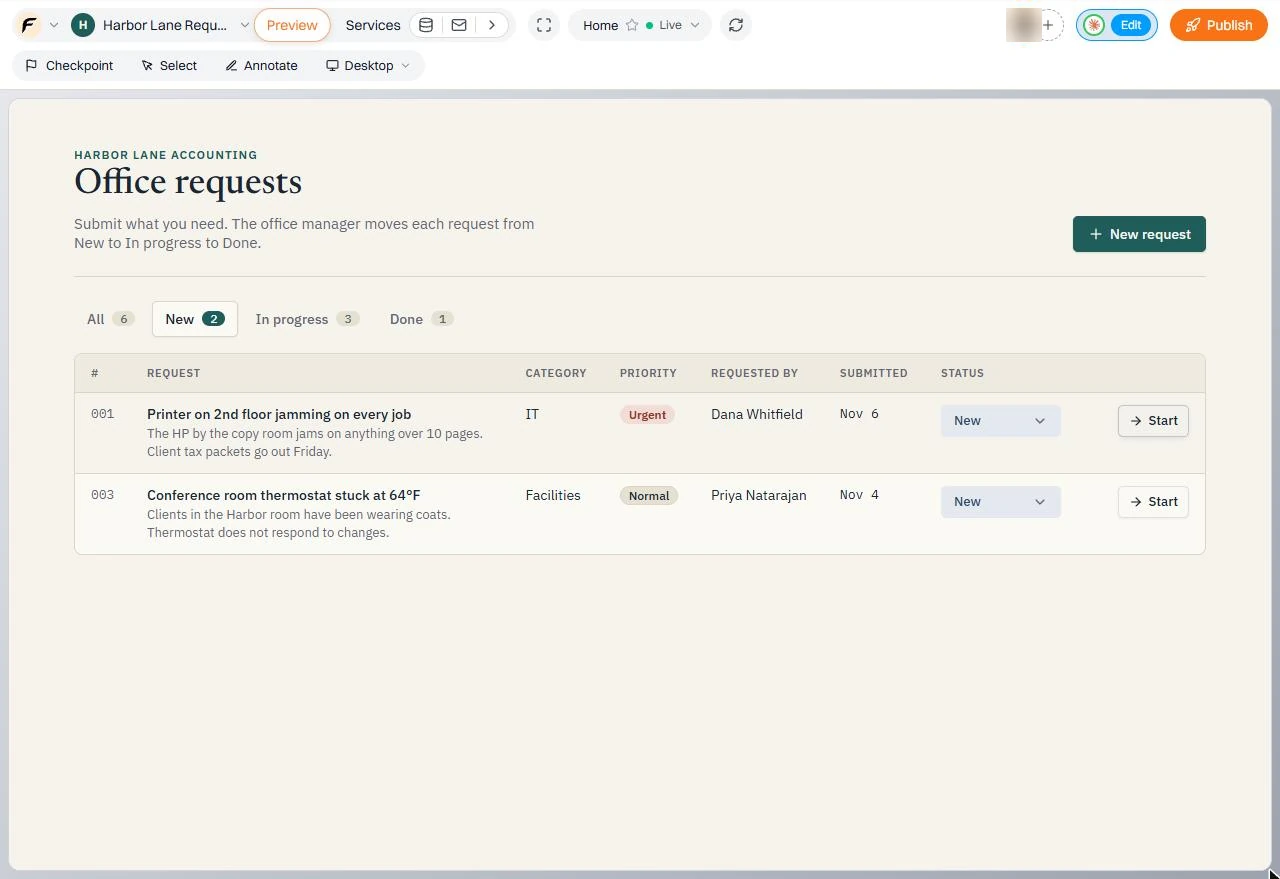
- Start a new request. This is your app. The tabs show All 5, New 2, In progress 2, Done 1, and each row has a status and a Start or Mark done button. Now play a staff member. Click New request.
This is your app, with counts on every tab and a button on every row. Now play a staff member.
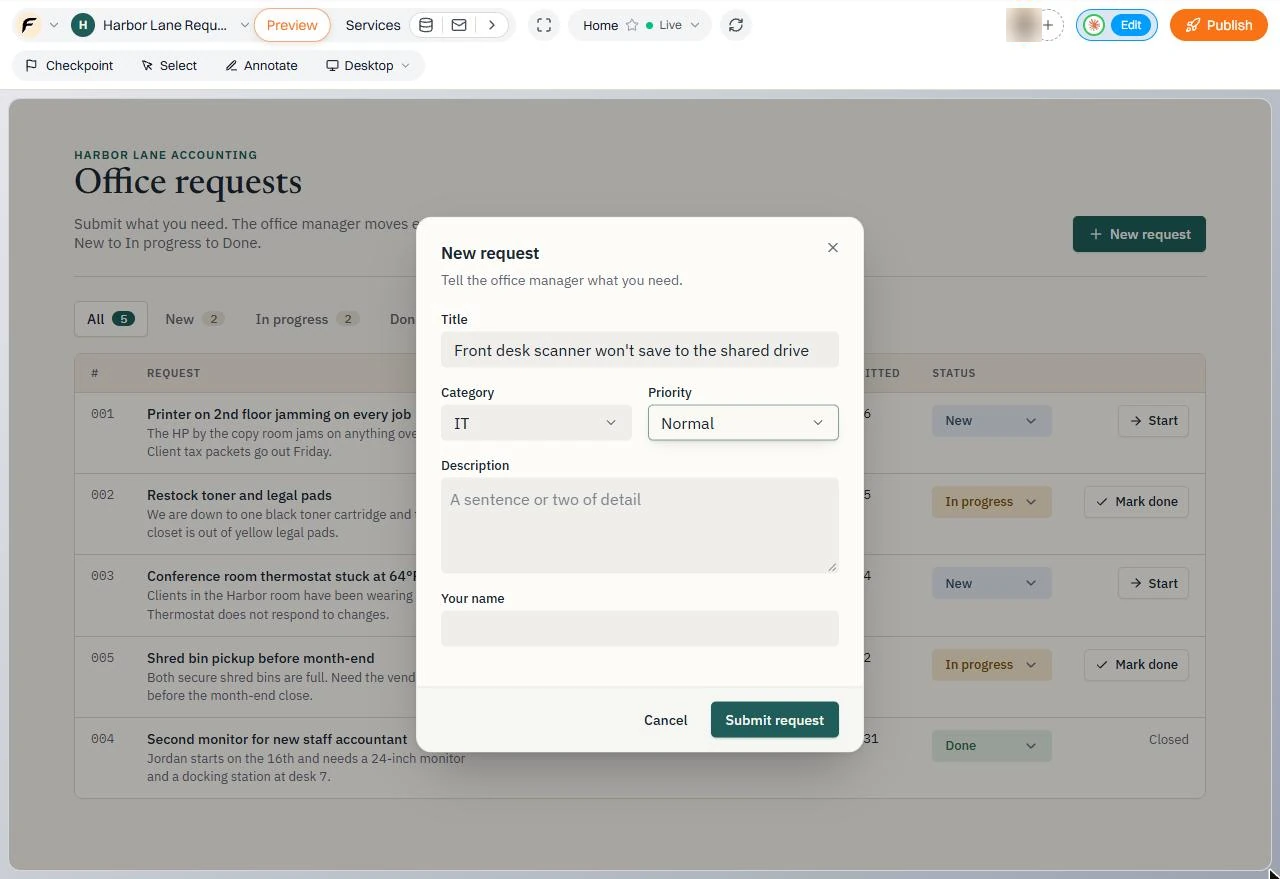
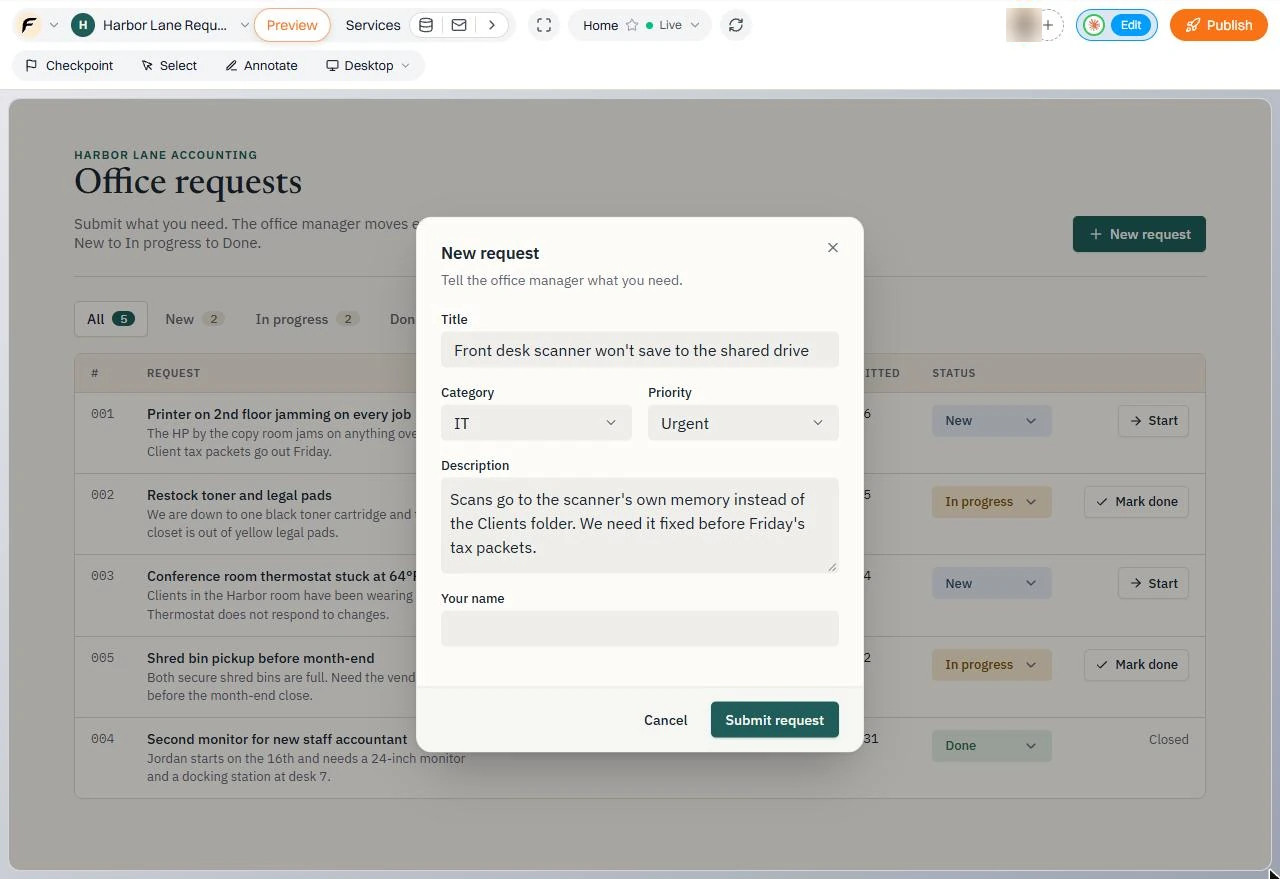
- Give it a title. The form has every field you asked for. Category is already IT. Paste the title.
The form has every field you asked for.
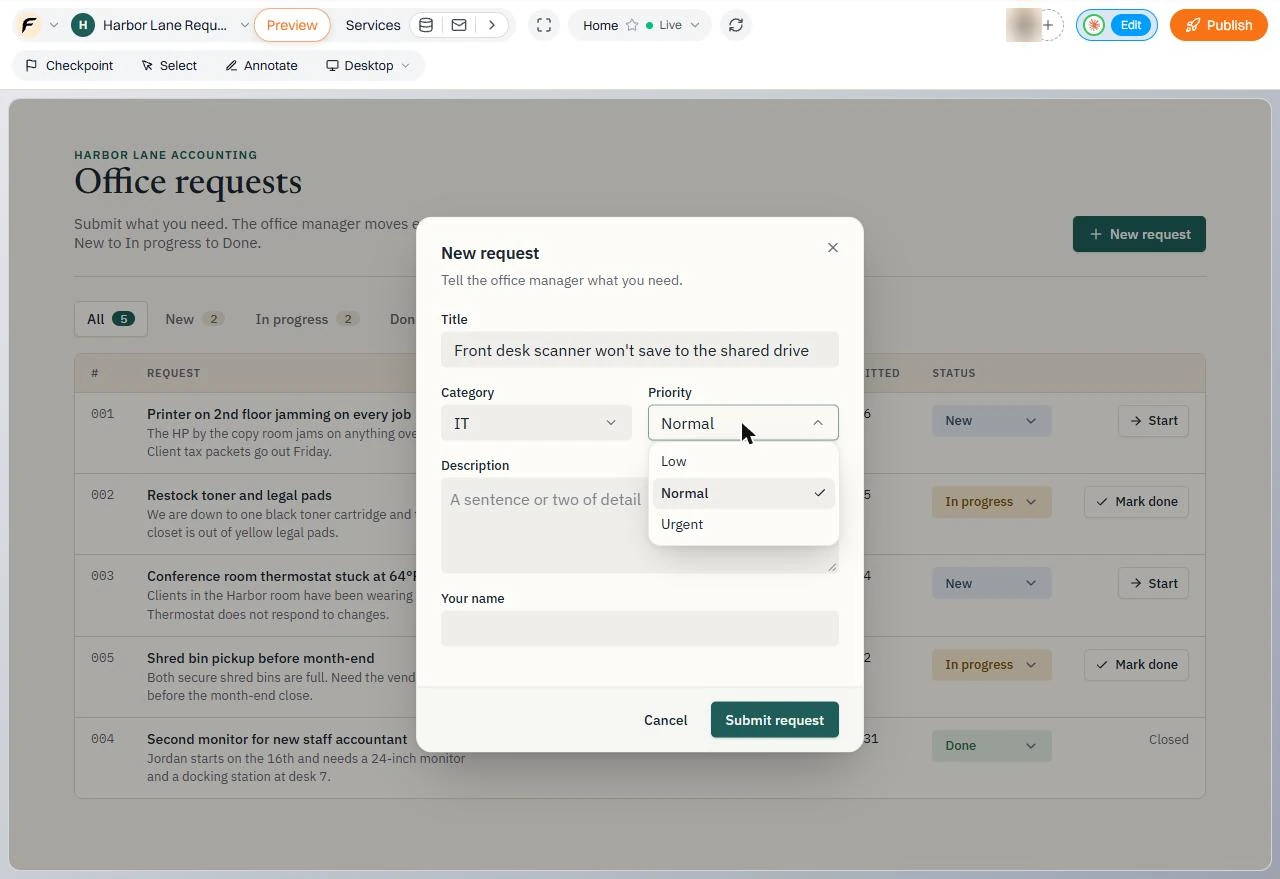
- Open Priority. The scanner blocks Friday's client packets, so it is urgent. Click the Priority box (it says Normal).
The scanner blocks Friday's packets, so it is urgent.
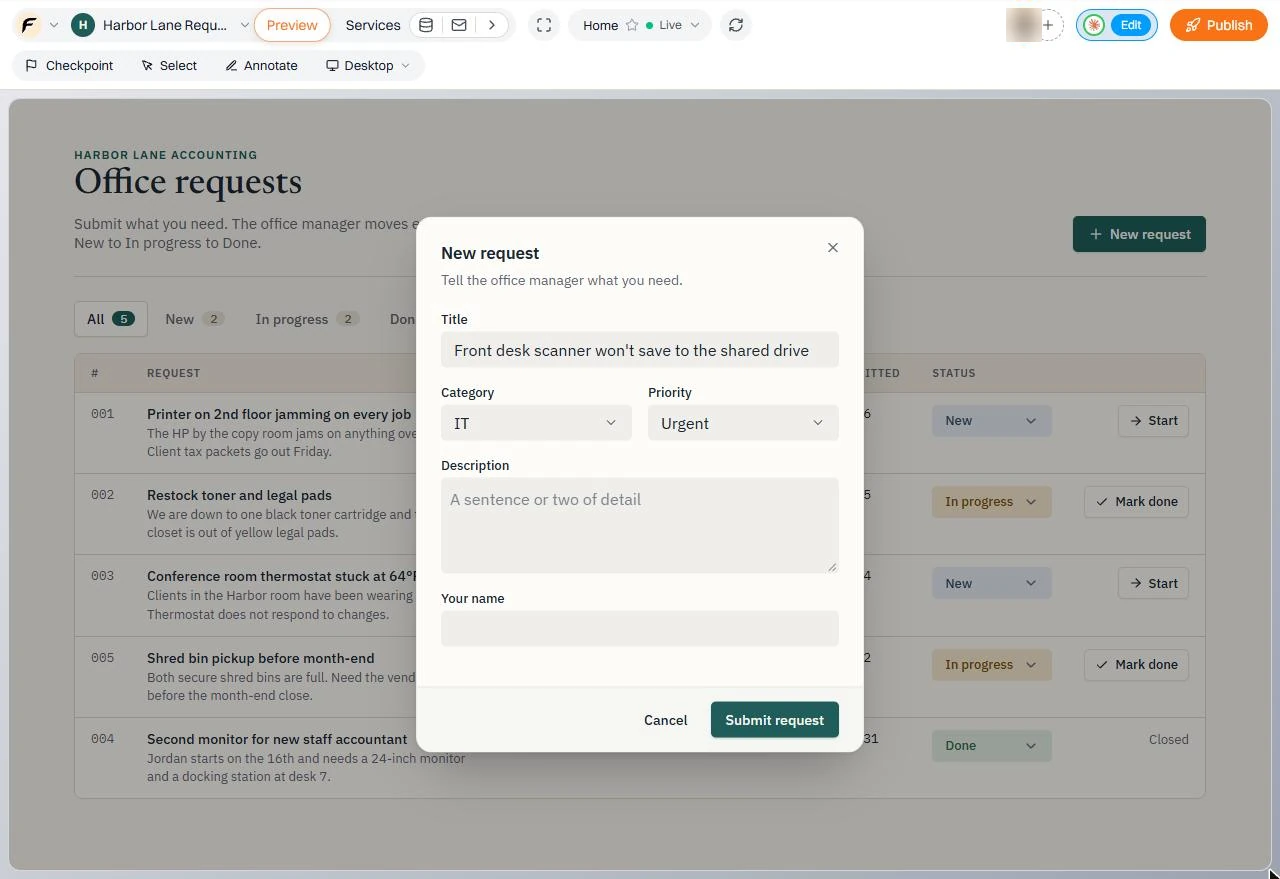
- Pick Urgent. Click Urgent.
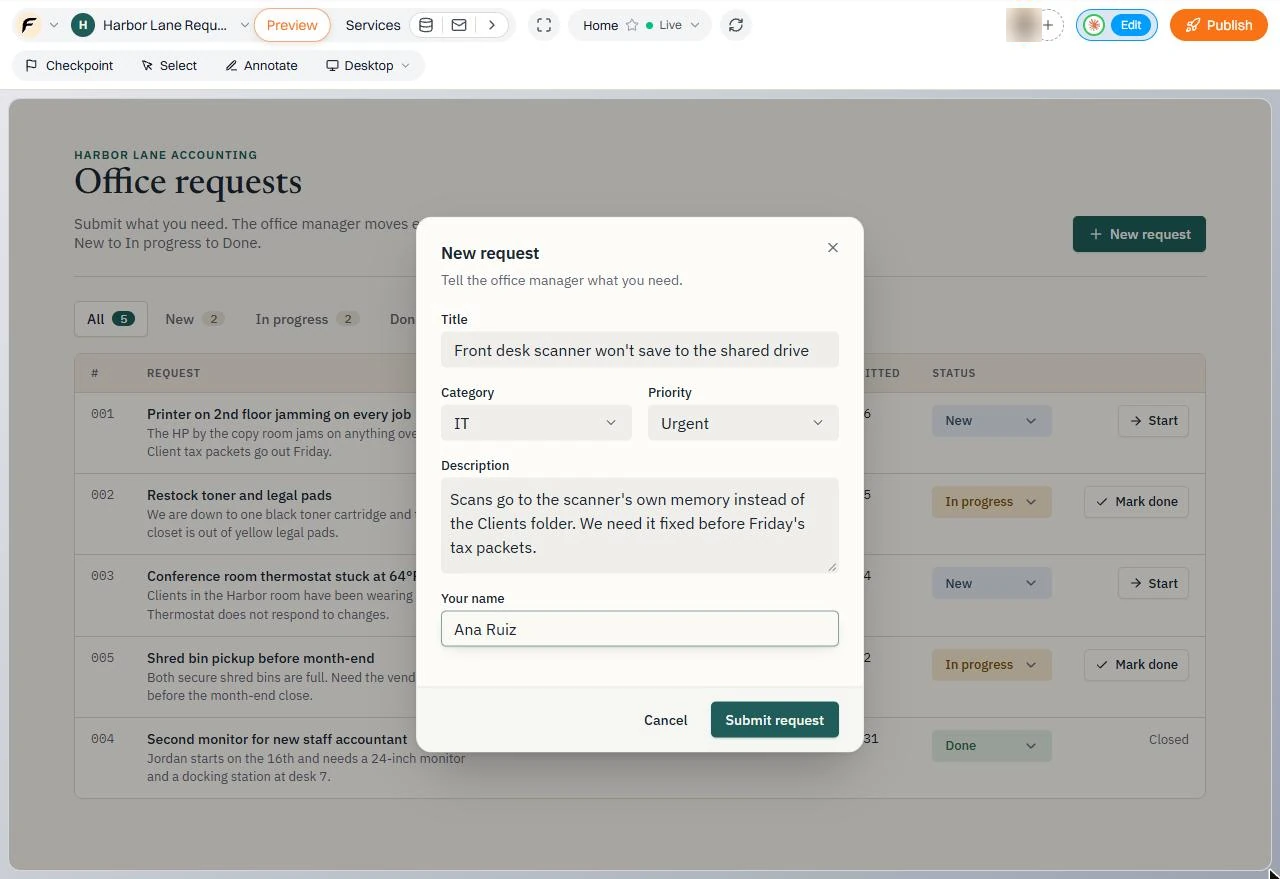
- Describe the problem. One or two sentences: what is wrong and by when it matters. Paste the description.
What is wrong, and by when it matters.
- Add your name. Type your name, so the office manager knows who to ask.
- Submit the request. Click Submit request.
3. Work the queue as office manager
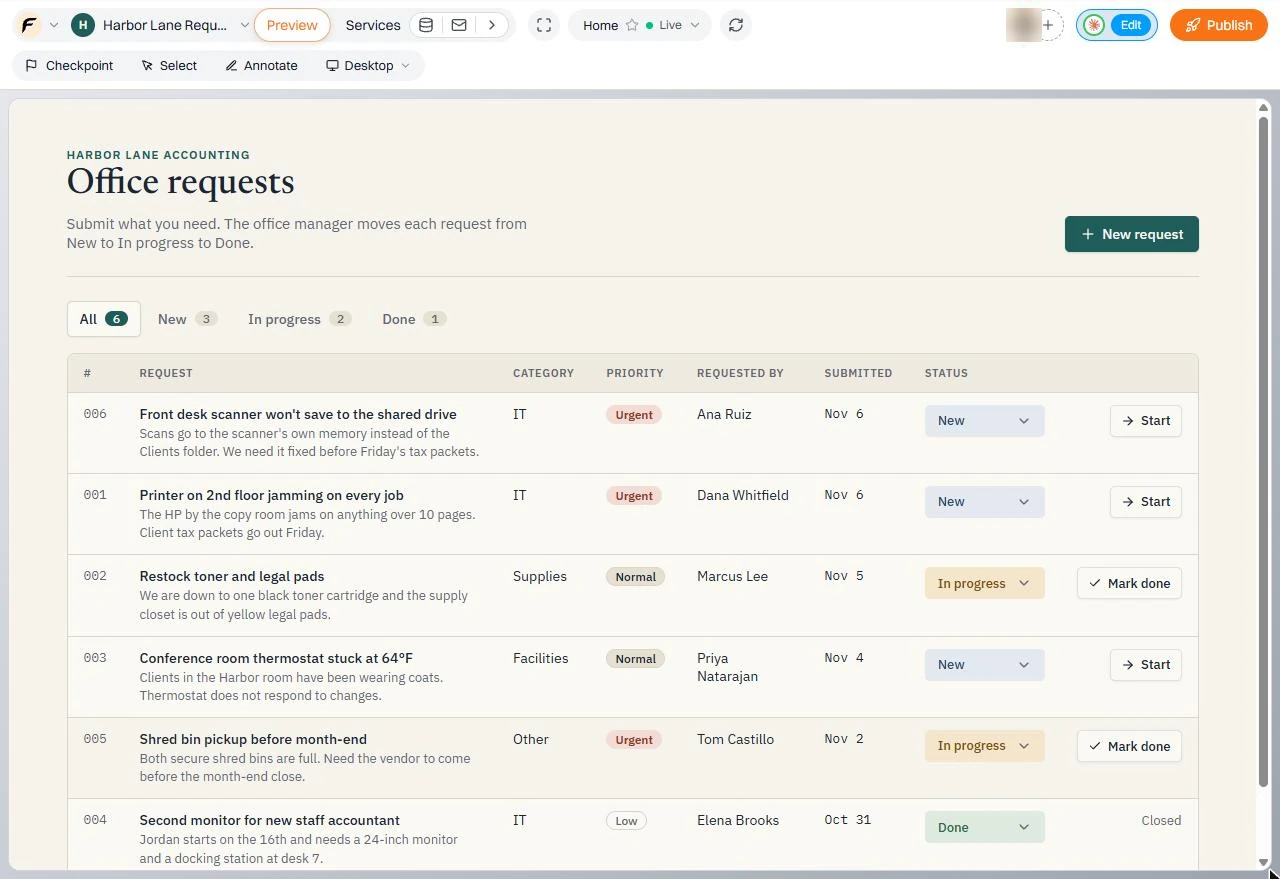
- Filter to New. Request 006 is at the top with an Urgent badge, Ana Ruiz and Nov 6. All went from 5 to 6 and New from 2 to 3. Now you are the office manager. Click the New tab.
Request six is at the top, marked urgent, and the counts went up. Now you are the office manager.
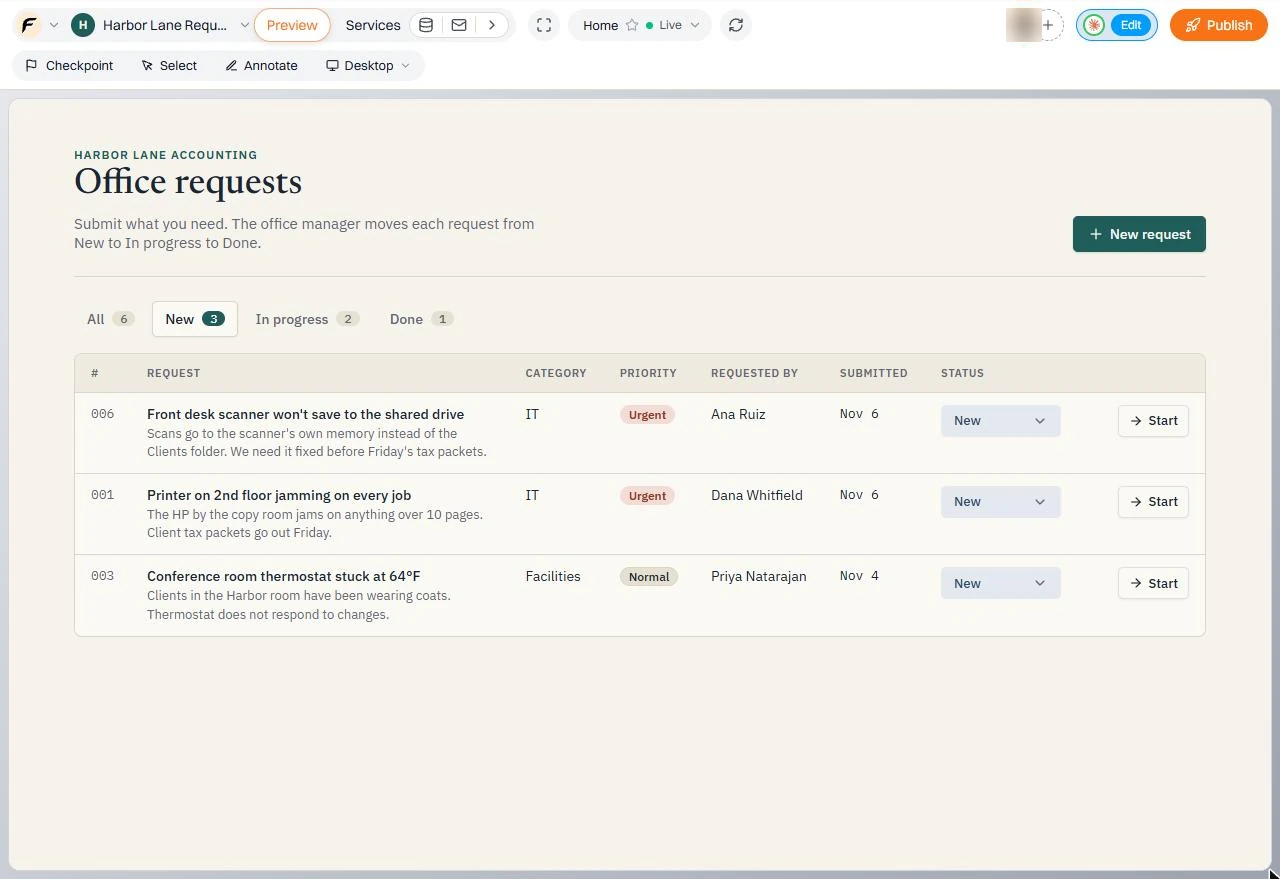
- Start the scanner request. Only the three New requests show. The scanner is urgent, so take it first. Click Start on row 006.
Only new requests show. The scanner is urgent, so take it first.
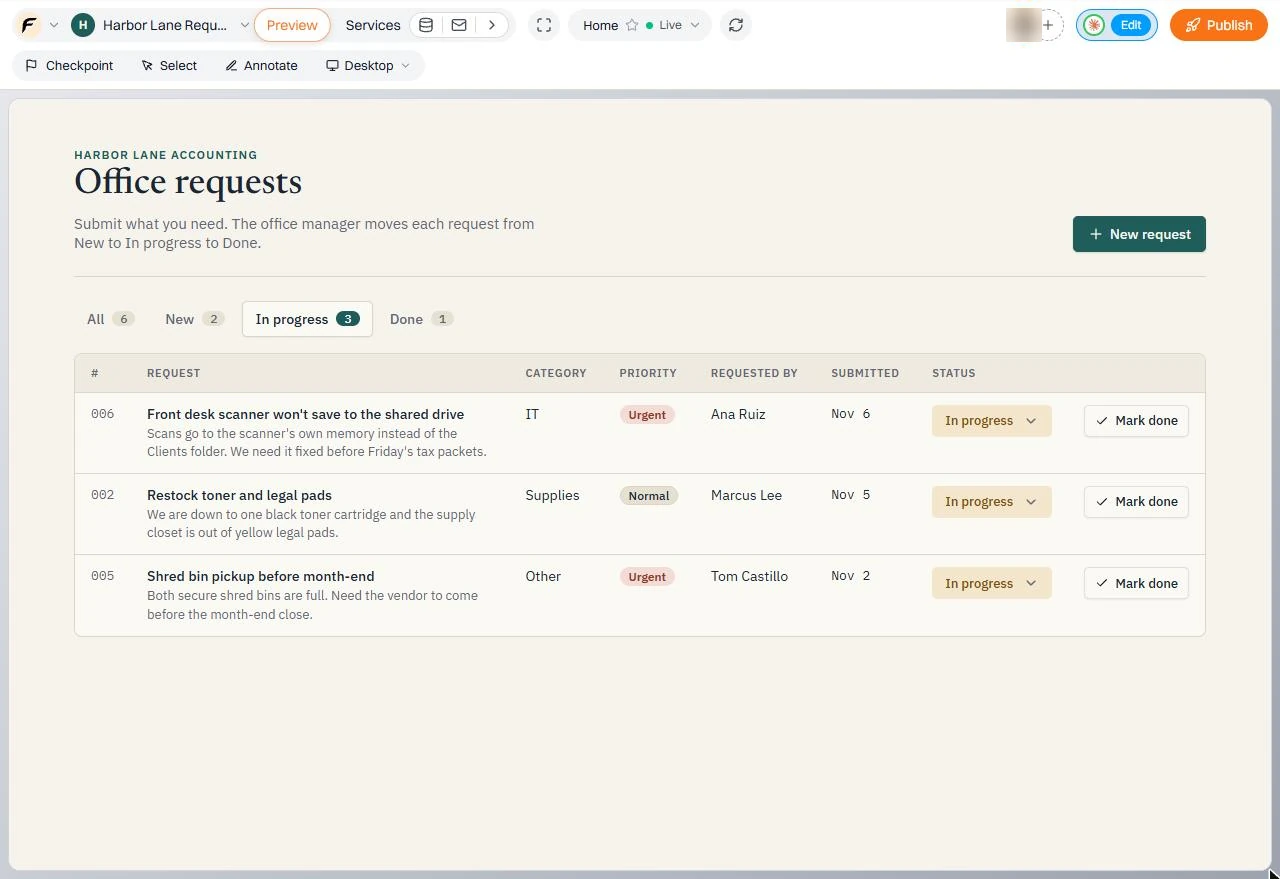
- Check In progress. Row 006 left the New list: New is now 2 and In progress is 3. Click the In progress tab.
Row six left the New list.
- Mark it done. The scanner request is here with the status In progress and a Mark done button. When the scanner saves to the shared drive again, click Mark done on row 006, then open the Done tab.
There it is, in progress. When it is fixed, click Mark done, then open the Done tab.
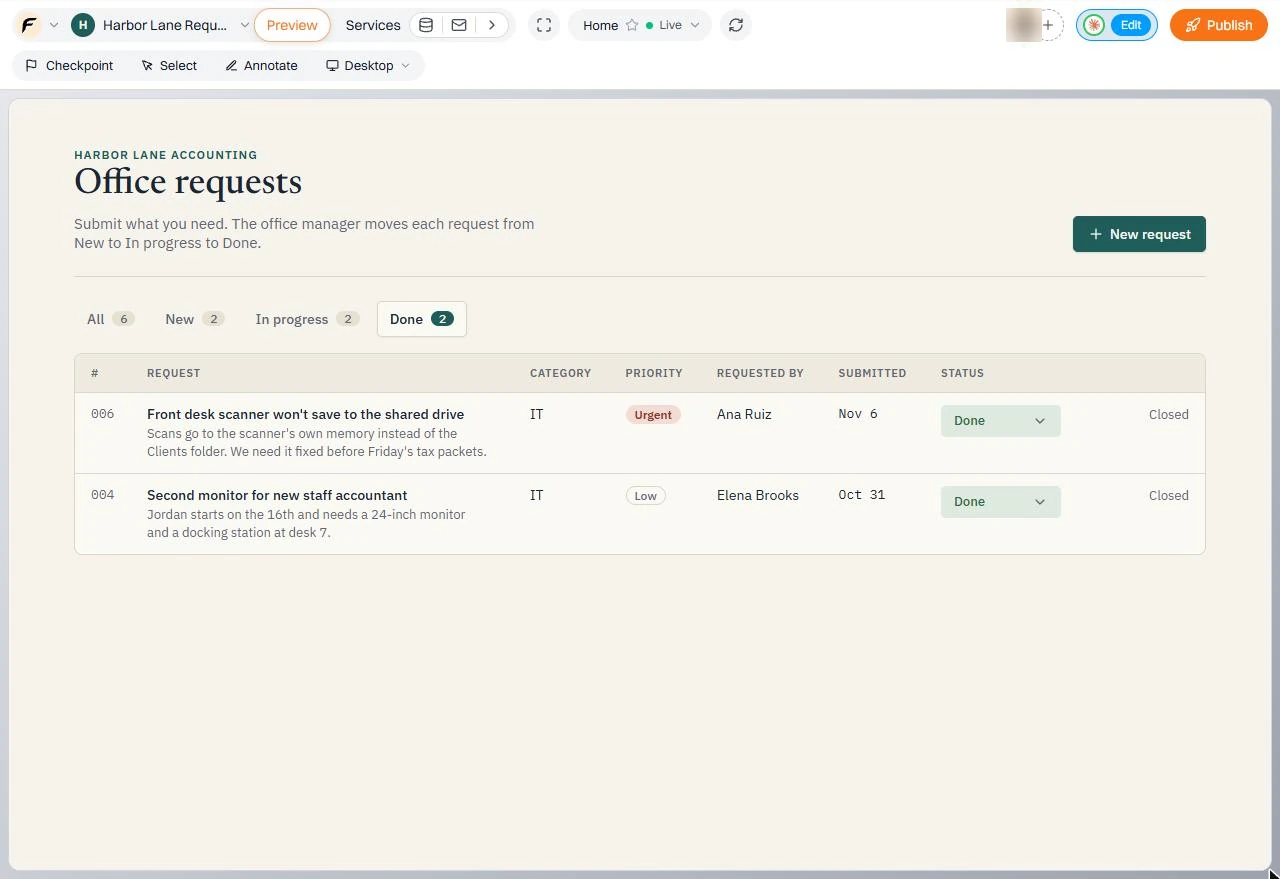
- See it closed. Row 006 is in Done with Closed where the button was, next to the earlier monitor request. The counts now read New 2, In progress 2, Done 2. That is the whole loop: submit, start, done, with nothing lost in an inbox. Click Closed.
Row six is done and closed. That is the whole loop. Submit, start, done, and nothing is lost.
4. Change it, check it, fix it
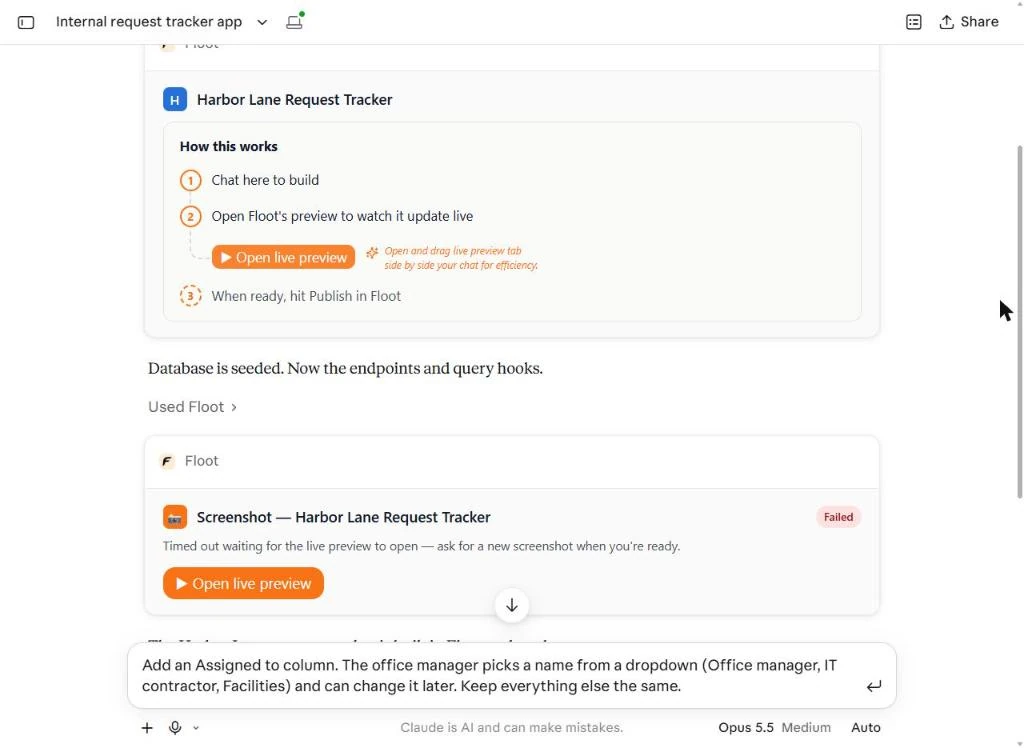
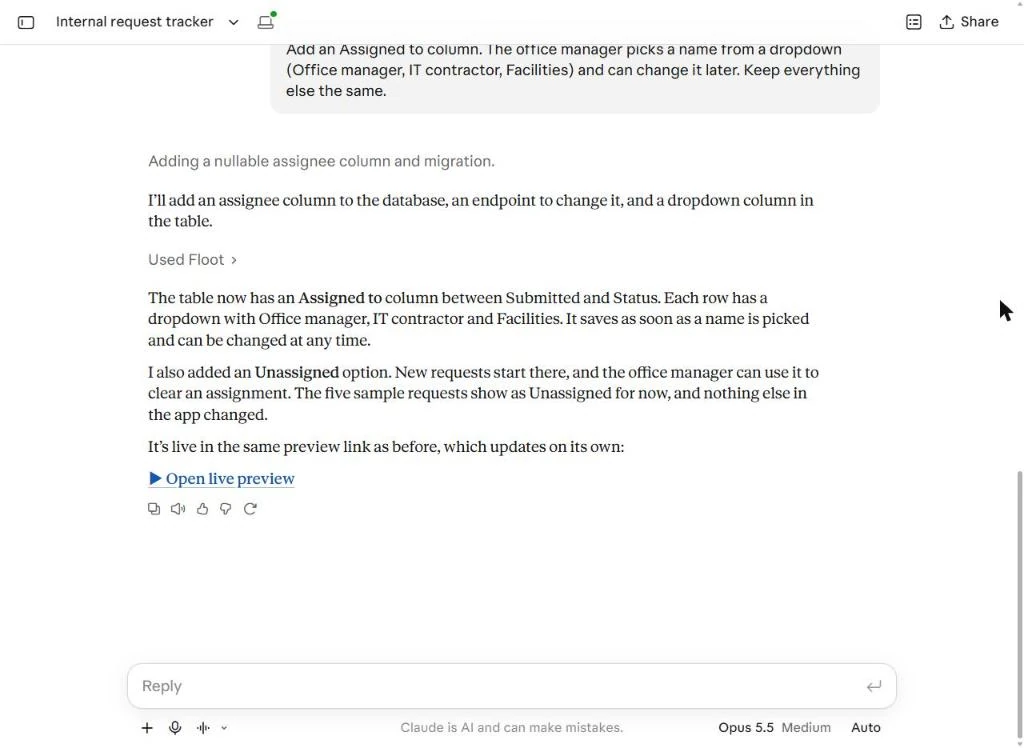
- Ask for a change. Back in the same Claude chat, ask for the next thing the office needs: who is handling each request. We typed: *Add an Assigned to column. The office manager picks a name from a dropdown (Office manager, IT contractor, Facilities) and can change it later. Keep everything else the same.* Click the send arrow.
Back in the same chat, ask for the next thing you need. Who is handling each request.
- Open the preview again. Claude added an Assigned to column with the three names plus Unassigned for new requests, and says *nothing else in the app changed*. The same preview link updates on its own. Click Open live preview.
Claude added the column, and says nothing else changed. The same preview link updates on its own.
- Spot the problem. Always check before you trust *nothing else changed*. The new column made the table too wide for a laptop screen: the Start and Mark done buttons are cut off at the right edge and Unassigned is clipped. Click the cut-off button.
Always check. The table is now too wide. The Start and Mark done buttons are cut off.
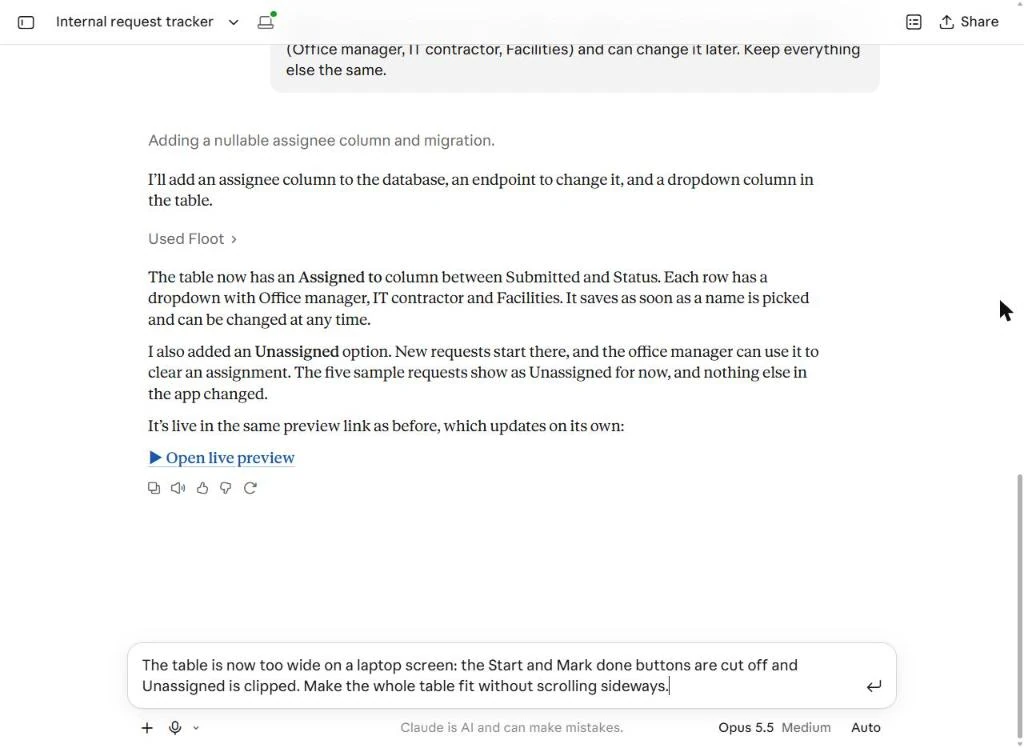
- Describe what you see. Tell Claude exactly what you saw, the way you would tell a colleague. We typed: *The table is now too wide on a laptop screen: the Start and Mark done buttons are cut off and Unassigned is clipped. Make the whole table fit without scrolling sideways.* Click send.
Tell Claude exactly what you saw, like you would tell a colleague.
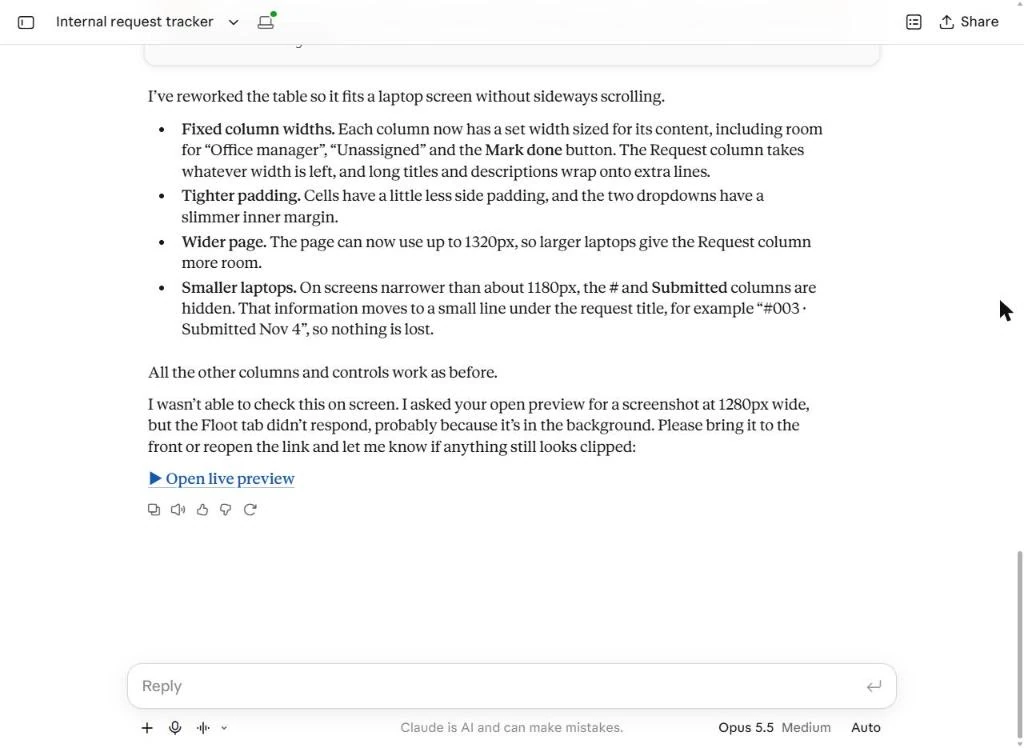
- Check the fix. Claude set fixed column widths, tightened the padding and, on narrower screens, moves the number and date under the title. It also says it could not check the screen itself, and asks you to look. Click Open live preview.
Claude fixed the widths, and asks you to look, because it could not check the screen itself.
- Confirm every button fits. Every row now shows its Start or Mark done button, and Assigned to reads Unassigned in full. The preview is set to Responsive 1280 x 800, a laptop screen. Your tracker works. To share it with staff, ask Claude to publish it; Floot can publish privately so only invited people can open it, and publishing needs hosting, which the Free plan does not include (we did not publish). Click Mark done on row 002 to finish.
Every button fits now. Your tracker works. To share it with staff, ask Claude to publish it, privately if you like. Publishing needs a paid plan.
Screenshots
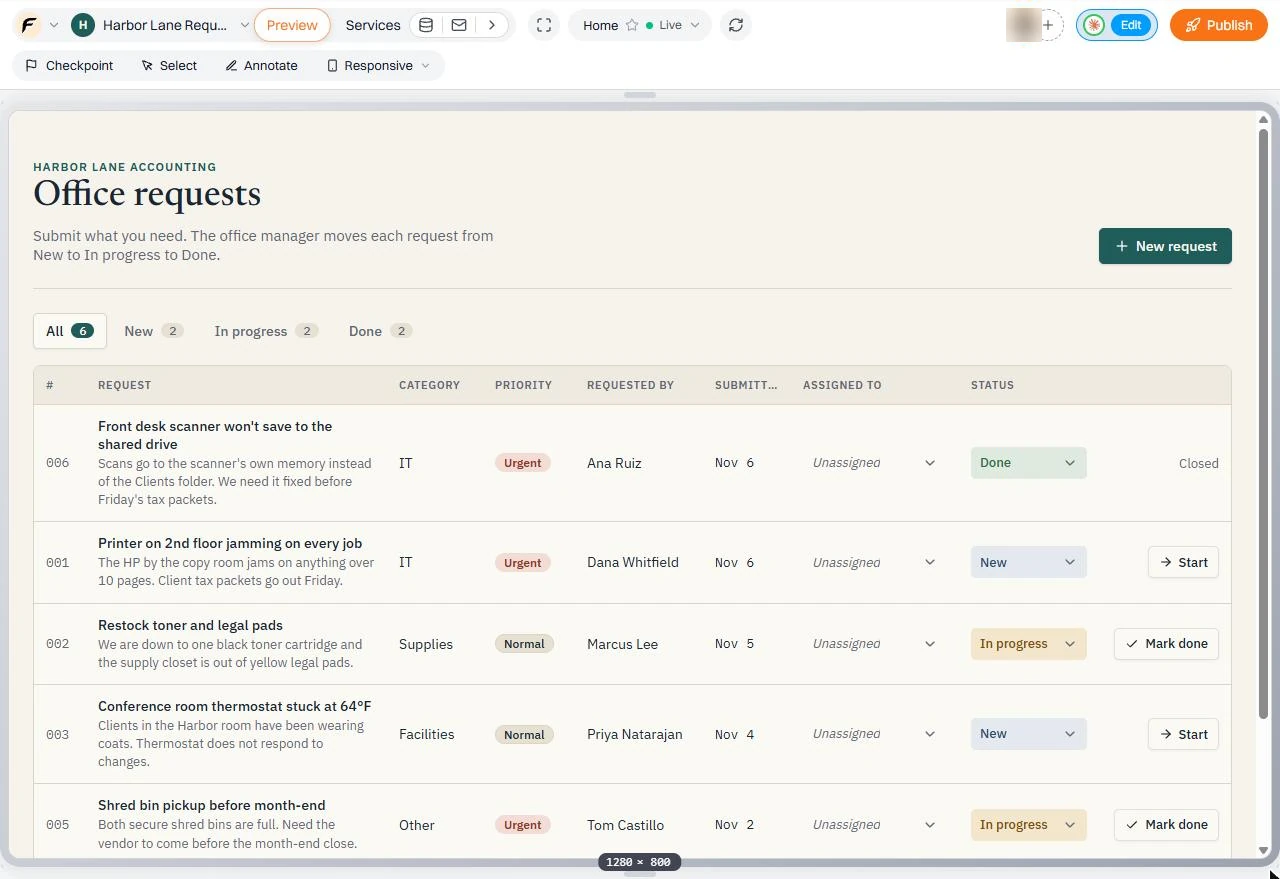
Frequently asked questions
- What is Floot?
- Floot is an app builder that works inside your AI assistant. You add the Floot connector to Claude, ChatGPT or Cursor, describe the app, and Floot builds it with a database and a live preview, then hosts it when you publish.
- Can Claude build a web app with a database?
- With the Floot connector, yes. In our test one Claude prompt produced a request tracker with a database, a form, status tabs and five sample records in about two and a half minutes.
- Is Floot free?
- Floot has a Free plan with 100 building actions a day and preview links. Publishing with hosting, custom domains and more actions are on paid plans. Check floot.com for current plans.
- How do I change a Floot app after it is built?
- Keep chatting in the same Claude conversation. Describe the change or the problem you see, and the same preview link updates. Check the preview after every change.
- Is this lesson free, and was it tested in the real apps?
- The lesson is free and the practice copy needs no account. Every step was done in real Claude and Floot accounts; the app was not published.
More in AI Automation for Operations
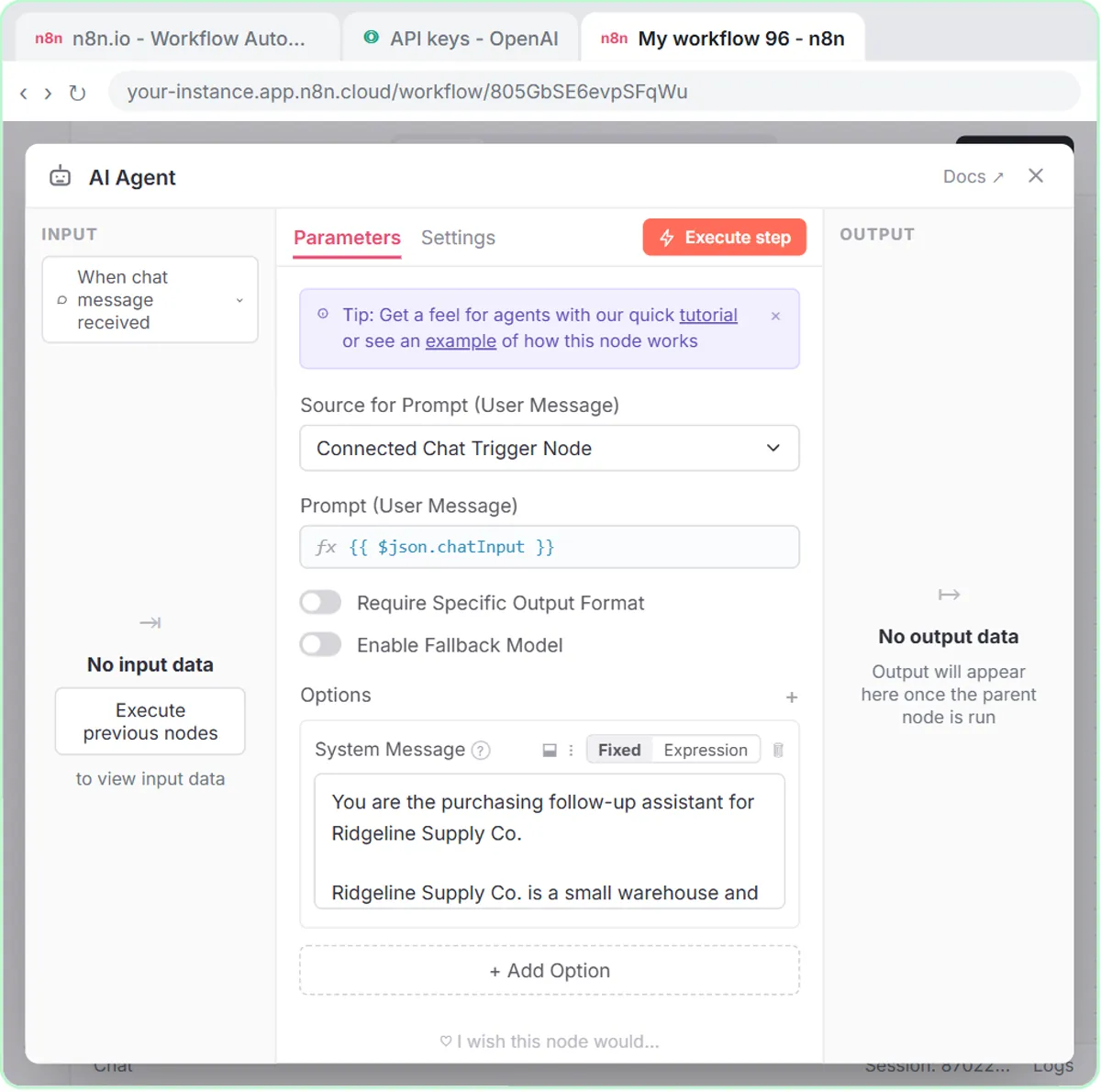 Build an AI Vendor Follow-Up Agent in n8n
Build an AI agent for Ridgeline Supply Co. that writes follow-up messages for late or pending purchase orders and saves them to Google Sheets — chat trigger, AI Agent…
Free · Live ~12 min Intermediate
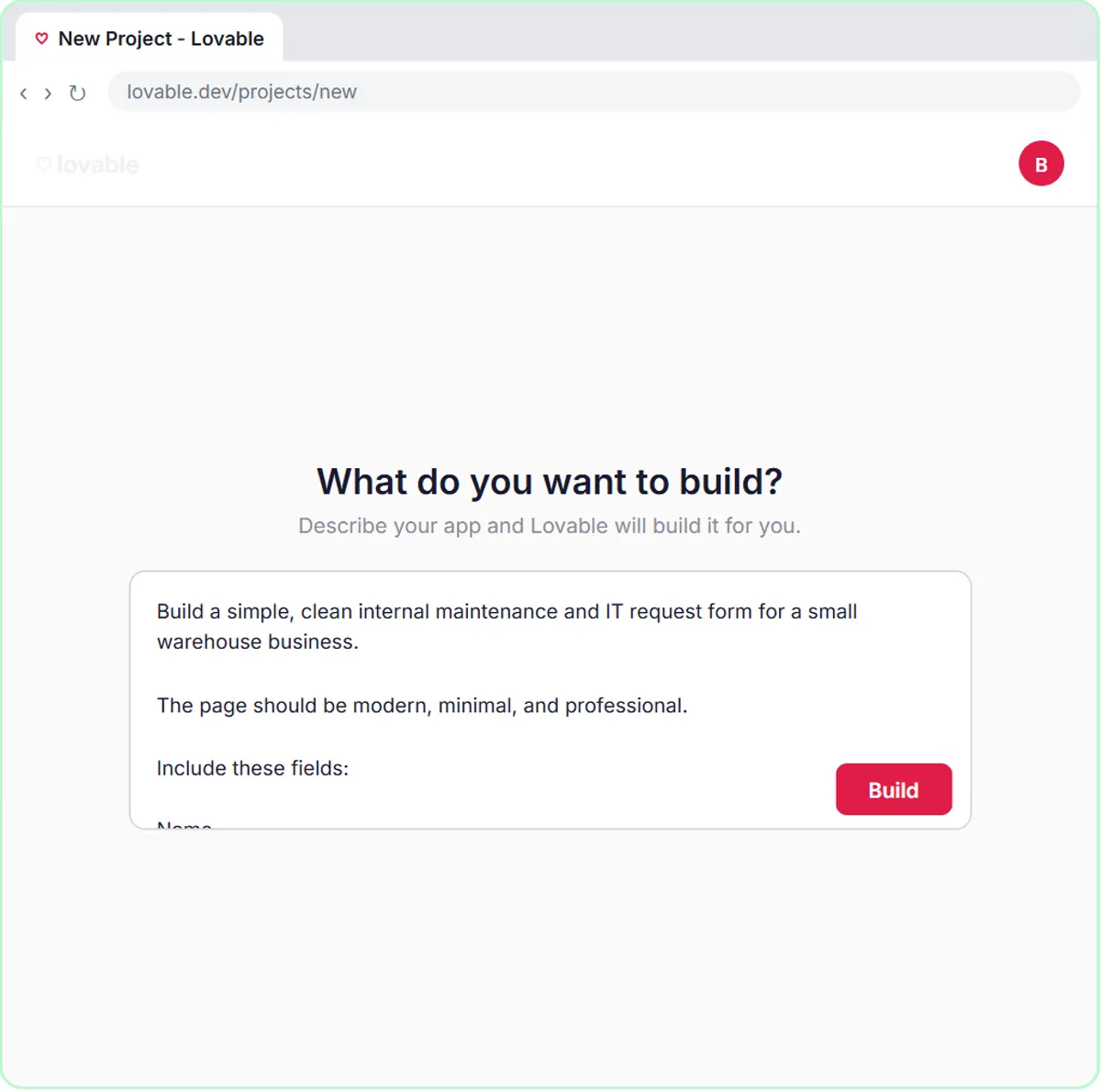 Build an AI Maintenance and IT Request Form
Build an internal maintenance and IT request form in Lovable for Ridgeline Supply Co. and connect it to n8n — the AI agent sets the priority, assigns a team, saves the…
Free · Live ~15 min Advanced
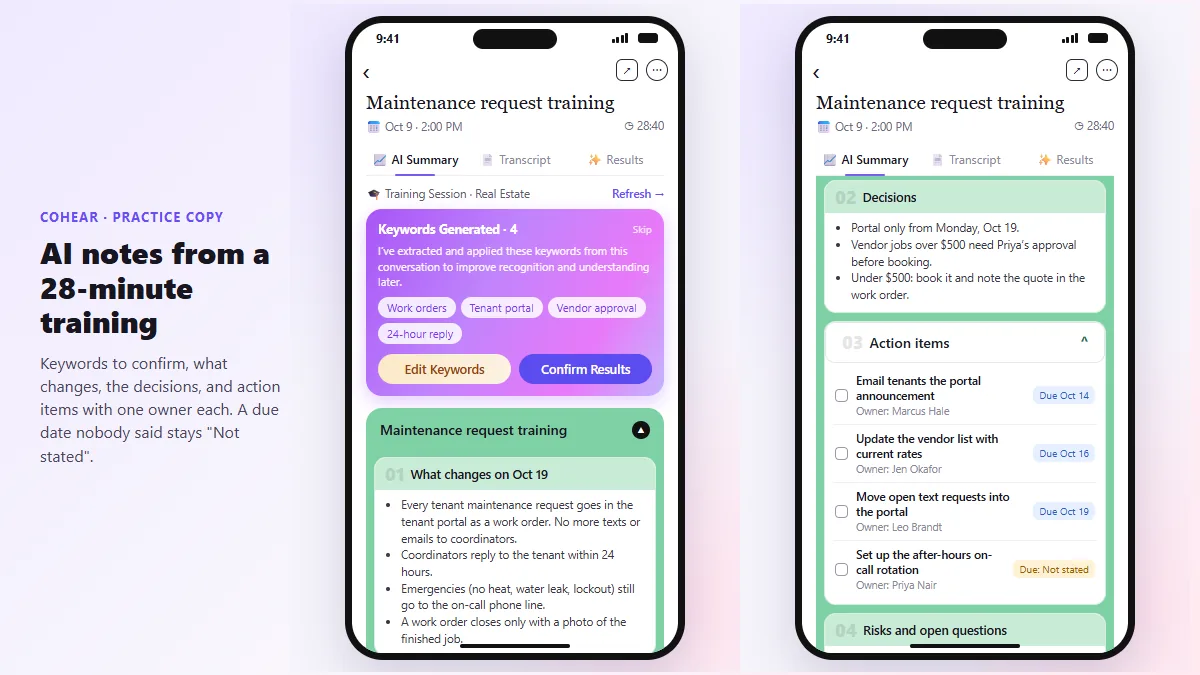 CoHear: AI Meeting Notes from a Team Training Session
Record a team training session on your iPhone with CoHear, check the AI notes and action items against the transcript, make a one-page handout and share it behind a…
Free · Live ~8 min Intermediate
 A Presentation from Your Notes in 5 Minutes (Gamma)
Paste rough meeting notes into Gamma, pick a theme, fix one slide by chatting with its AI, and export the deck to PowerPoint and PDF.
Free · Live ~9 min Intermediate
◷Airia for Beginners: What an AI Agent Is Made OfA five-minute map of Airia before you build: the four parts of an agent (model and instructions, data sources, Playground, Publish), three office jobs that suit one…
Free · Live ~5 min Beginner
◷Foxit for Beginners: Workspace, AI Assistant and PDF Editor ExplainedA five-minute map of Foxit before you use it: Foxit Workspace, the PDF AI Assistant and PDF Editor, which one fits a contract review, a revised contract, a flat form or…
Free · Live ~5 min Beginner
All 33 modules in AI Automation for Operations
Same business, other tools
Harbor Lane Accounting shows up in these modules too, built with different tools.
 Check a Contract for Red Flags with Claude
Upload a vendor contract, get it in plain English, find the risky clauses with the exact words quoted, draft questions for the vendor, and save the review as a project…
Free · Live ~11 min Beginner
 An AI Resume Screener, with a Fairness Step (Recruiting & HR)
Have n8n read each applicant’s PDF resume, score it against the job’s must-haves with the evidence quoted, and rank it in Google Sheets, while a person makes every…
Free · Live ~14 min Advanced
Terms in this lesson
Plain-English definitions, each with an example from a free lesson.