Updated . Built against the tool’s current screens and checked step by step. How we check this lesson
Foxit has PDF Editor, a free PDF Reader, two kinds of AI (Foxit Workspace and the PDF AI Assistant), Local AI and a separate signing service, Foxit eSign. Picking the wrong one wastes time and AI credits. This short module is the map: what each part does, which fits four contract and form jobs, and what Foxit itself says to check. It is a free, five-minute module of explainer cards, the first module of the Foxit Jump Start. This is my own lesson, not an official Foxit course.
At a glance
| Question | Answer |
|---|---|
| What you build | A five-minute map of Foxit before you use it: Foxit Workspace, the PDF AI Assistant and PDF Editor, which one fits a contract review, a revised contract, a flat form or a multi-signer agreement, and what to check first. |
| Tools | Foxit |
| Time | About 5 minutes, 12 steps in 3 parts |
| Level | Beginner, no coding needed |
| Cost | Free |
| Ways to learn it | Practice it step by step |
The 3 parts, in short
- What Foxit does: Open the Workspace card, Open the AI Assistant card, Open the PDF Editor card.
- Which tool for which job: Open the jobs sheet, Match the contract review, Match the revised contract, Match the flat form, and 1 more step.
- Before you trust it: Open the checks sheet, Read the accuracy check, Read the documents check, Read the credits check.
Part of: AI Apps Worth Knowing (step 59 of 77)
Part of: AI Back Office for Small Business (step 15 of 21)
What you will do
Three explainer sheets: what Foxit does, which tool for which job, and three checks before you trust Foxit AI.
Every fact on the cards comes from the tool’s own website, read 20 October 2026. The cards show no app screens; the next modules in the course use real ones.
Workspace for a project, AI Assistant for one file
Foxit Workspace works across the files of one project and answers with citations that point back to the source. The PDF AI Assistant works on the document in front of you inside PDF Editor and PDF Reader. Local AI keeps chat, summaries and translation on your device.
PDF Editor for the everyday jobs
Compare marks every change between two versions, Fill & Sign fills and signs a flat form, OCR makes scans searchable, and Protect adds a password.
Review before you rely
Foxit says users should review AI-generated output before relying on it, and that it does not use customer documents, prompts or outputs to train AI unless the customer allows it.
Try it in Foxit
- Pick the job: a contract review, a revised version, a form or a multi-signer agreement.
- For a review, open Foxit Workspace, create a project and add the PDF.
- For a revised contract, open PDF Editor and run Compare.
- For a flat form, use Fill & Sign.
- Check your AI credit balance before a long file.
Try it yourself, free
Reading the steps is a start. Doing them is how it sticks. The interactive module walks you through every click in a practice copy of Foxit, checks each step, and never touches your real accounts.
Start “Foxit for Beginners: Workspace, AI Assistant and PDF Editor Explained”Step by step: Foxit for Beginners: Workspace, AI Assistant and PDF Editor Explained
All 12 steps of the interactive module, in order. In the module you watch each one, then do it yourself in a practice copy that checks your work.
1. What Foxit does
- Open the Workspace card. Click the Foxit Workspace card.
Start with Foxit Workspace. It's Foxit's AI for a project. You add the files, ask questions, and the answers come with citations that point to the exact place in the source. It runs on AI credits, so check your balance before a long file.
- Open the AI Assistant card. Click the PDF AI Assistant card.
Next, the PDF AI Assistant. It works on the one document you have open, inside PDF Editor and PDF Reader. Chat with it, summarize it, translate it. For documents that can't leave your computer, Foxit has Local AI.
- Open the PDF Editor card. Click the Foxit PDF Editor card.
And Foxit PDF Editor, for everyday PDF work on desktop and the web. Compare two versions, fill and sign a form, make a scan searchable, add a password. Fill and Sign is for your own signature. Collecting other people's is Foxit eSign, a separate product.
2. Which tool for which job
- Open the jobs sheet. Click the Which tool for which job tab.
Now let's match Foxit's tools to real office jobs.
- Match the contract review. Click the A contract to sign this week card.
A contract to sign this week. Use Foxit Workspace for a summary, a table of the renewal and exit terms, and a citation for each. That's the next module.
- Match the revised contract. Click the Version 2, "just small cleanups" card.
Version two, just small cleanups. Use Compare in PDF Editor. It marks every change between the two files, so nothing gets missed.
- Match the flat form. Click the A flat form that must come back signed card.
A flat form that has to come back signed. Fill and Sign in PDF Editor lets you type on the lines, tick the boxes and sign it. No printer.
- Match the agreement to sign. Click the An agreement three people must sign card.
An agreement three people have to sign. That's Foxit eSign. Foxit says signers can sign from a browser or phone without an account. Whether it's enforceable can depend on the document and where you are, so check your firm's rules.
3. Before you trust it
- Open the checks sheet. Click the Before you trust it tab.
Last tab. Three checks before you rely on it.
- Read the accuracy check. Click the Accuracy card.
Accuracy. Foxit says to review AI output before you rely on it.
- Read the documents check. Click the Your documents card.
Your documents. Foxit says it doesn't train AI on your documents, prompts or answers unless you allow it. Local AI keeps chat and summaries on your device. Workspace runs in the cloud. Follow your firm's data rules.
- Read the credits check. Click the Credits and versions card.
Credits and versions. Workspace runs on AI credits, and the one-time PDF Editor 14 license doesn't include the AI features. Check your balance and your plan on foxit dot com. That's the map. Next, you'll review a real contract with Foxit Workspace.
Frequently asked questions
- What is Foxit used for?
- Foxit makes PDF software: PDF Editor for editing, comparing, filling and signing PDFs, a free PDF Reader, Foxit AI (Workspace and the PDF AI Assistant) for summaries and questions with citations, and Foxit eSign for collecting signatures.
- What is the difference between Foxit Workspace and the PDF AI Assistant?
- Foxit describes Workspace as AI for projects that span documents, and the PDF AI Assistant as AI for the document in front of you, built into PDF Editor and PDF Reader.
- Is this an official Foxit course?
- No. This is my own lesson. Foxit is a separate, third-party company. Facts come from foxit.com, read 20 October 2026.
More in AI Automation for Operations
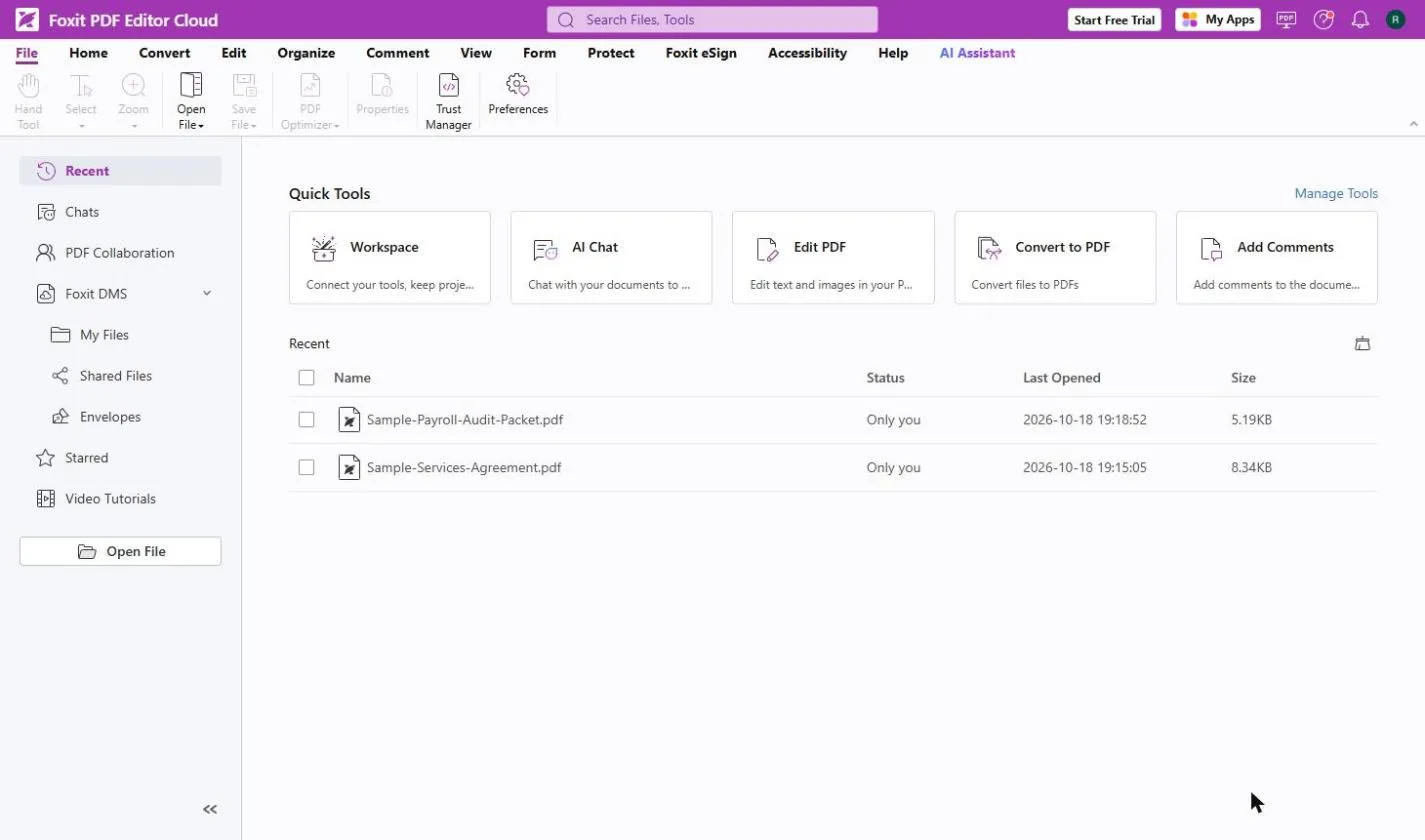 Foxit PDF Editor: Catch Every Change in a Revised Contract
A vendor sends "version 2, just small cleanups". Compare both PDFs in Foxit PDF Editor, see every changed fee, date and clause, and reply with a list.
Free · Live ~8 min Beginner
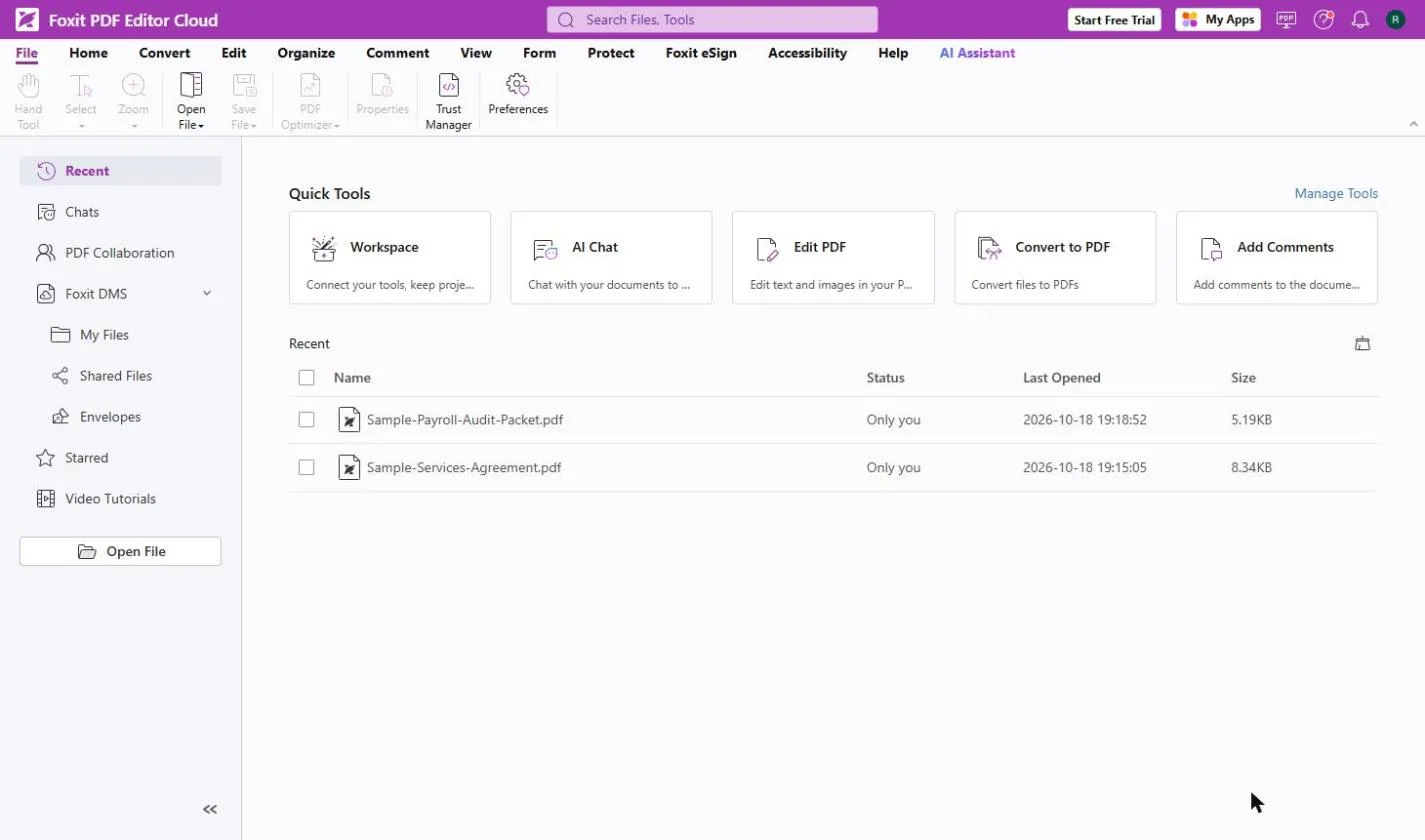 Foxit PDF Editor: Fill and Sign a Form without Printing
A client will not pay until their vendor form comes back signed. Fill in a flat PDF, tick the boxes, sign and date it in Foxit PDF Editor, no printer.
Free · Live ~8 min Beginner
All 24 modules in AI Automation for Operations
Terms in this lesson
Plain-English definitions, each with an example from a free lesson.