Updated . Built against the tool’s current screens and checked step by step. How we check this lesson
New clients, landlords, banks and HR all send PDF forms that must come back signed, and most of them are flat: lines and boxes you cannot type into. The paper way is print, write, sign, scan and email, which is slow at the desk and impossible on the road. In this free lesson I fill in a client's New Vendor Setup Form in Foxit PDF Editor with Fill & Sign: text on each line, check marks in the boxes, a typed signature, today's date, and a download to send back. The whole form takes a few minutes in the browser.
At a glance
| Question | Answer |
|---|---|
| What you build | A client will not pay until their vendor form comes back signed. Fill in a flat PDF, tick the boxes, sign and date it in Foxit PDF Editor, no printer. |
| Tools | Foxit |
| Time | About 8 minutes, 25 steps in 6 parts |
| Level | Beginner, no coding needed |
| Cost | Free |
| Ways to learn it | Practice it step by step |
The 6 parts, in short
- What a paper form costs: Read the client email, Count the paper way, Open Foxit PDF Editor.
- Open the form: Open the form, Start Fill & Sign.
- Fill in the blanks: Pick Add Text, Type the business name, Fill in the address, Type the ZIP code, and 3 more steps.
- Make your signature: Create a signature, Type your name, Decide on Save signature online, Click OK.
- Sign and date it: Pick your signature, Place it on the line, Open Predefined Text, Pick today's date, and 2 more steps.
- Send it back: Download the signed form, What this saves you, Send it back.
Start here first: AI Contract Review in 10 Minutes using Foxit AI (module 1 of AI Automation for Operations)
Part of: AI for Accounting & Bookkeeping Firms (step 27 of 28)
Part of: AI for Operations Teams (step 12 of 28)
Part of: AI for Finance Teams (step 9 of 17)
Part of: AI Apps Worth Knowing (step 4 of 42)
Part of: AI Back Office for Small Business (step 11 of 11)
The business case: a form between you and your first payment
Picture the operations manager at a small marketing agency. A new client's accounts payable team sends a welcome email: before they can pay your first invoice, please complete, sign and return the attached vendor form, plus a W-9. The form is a flat PDF. Nobody can pay you until it is back.
The paper way takes about 15 minutes when the printer and scanner both work (an example estimate), and it waits for days when you are travelling or the scanner is down. In this sample the invoice waiting on that form is $4,800. Forms like this are small jobs, but they stall cash.
What changes with Fill & Sign: you open the PDF in Foxit PDF Editor, click where each answer goes and type, drop check marks in the boxes, make a signature once, place it, add the date and download the signed copy. Foxit's own site describes it this way: non-interactive forms can be completed with the Fill & Sign tools, with no printing or scanning.
The example: Lakeview Dental Partners' vendor form
Lakeview Dental Partners, Bright Path Marketing and Jordan Ellis are made up. The form has four sections: business information with a business-type checkbox row, a billing contact, how you want to be paid (ACH or paper check, plus your payment terms) and a certification with signature, date, printed name and title. It asks for no tax or bank numbers: those go through a W-9 and the client's vendor portal.
Download the sample and follow along in your own Foxit account: Sample-New-Vendor-Setup-Form.pdf. It is a plain one-page PDF with made-up companies, so it is safe to upload anywhere.
Who this lesson is for
Office managers, operations and finance staff, freelancers and small-business owners who get sent forms to fill in and sign: vendor setup forms, client intake forms, HR paperwork, lease and bank forms. No Foxit account is needed to practise; the lesson is a practice copy built from real Foxit screens. For contracts, see AI contract review using Foxit AI and comparing two versions of a contract in Foxit.
What happened in the real run
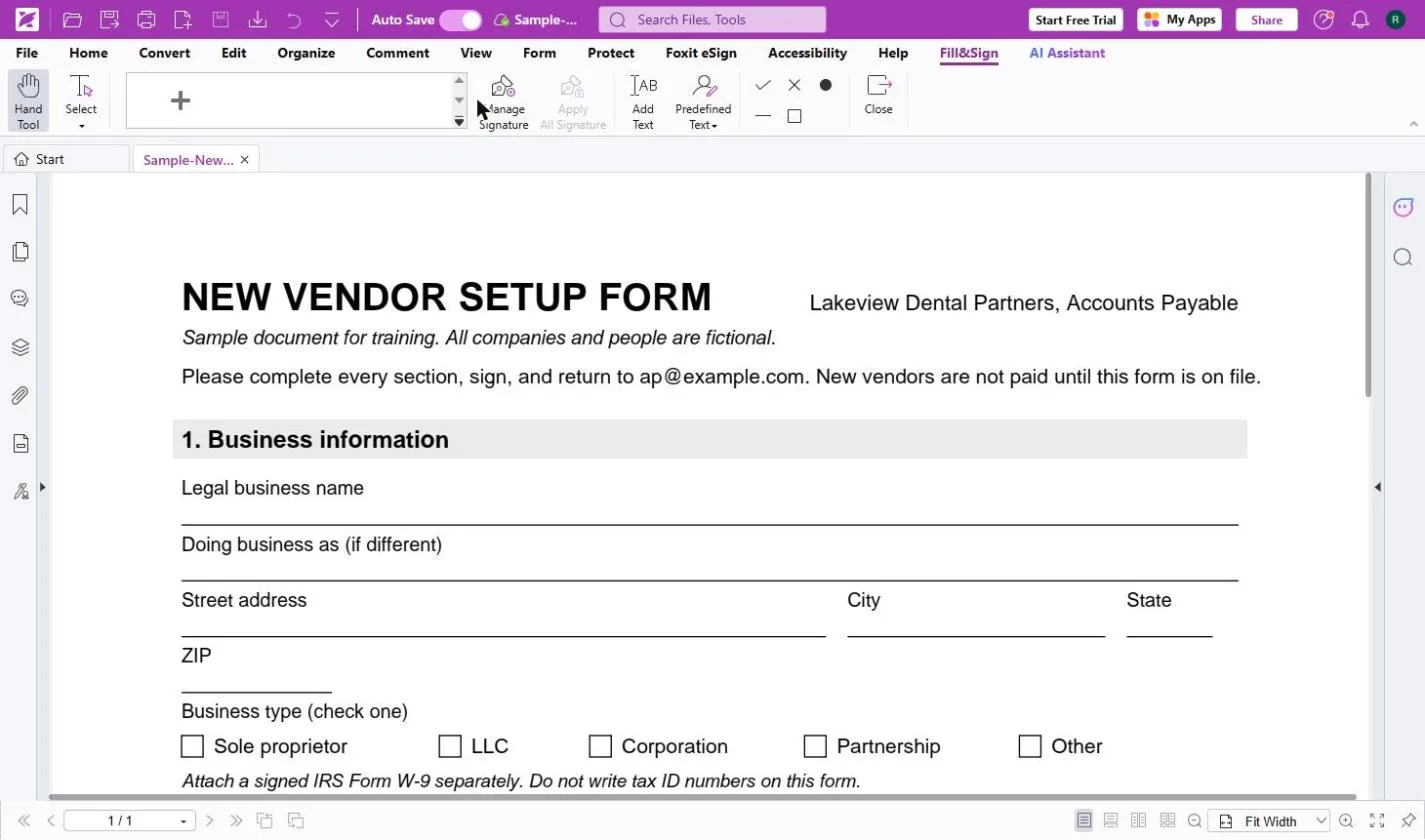
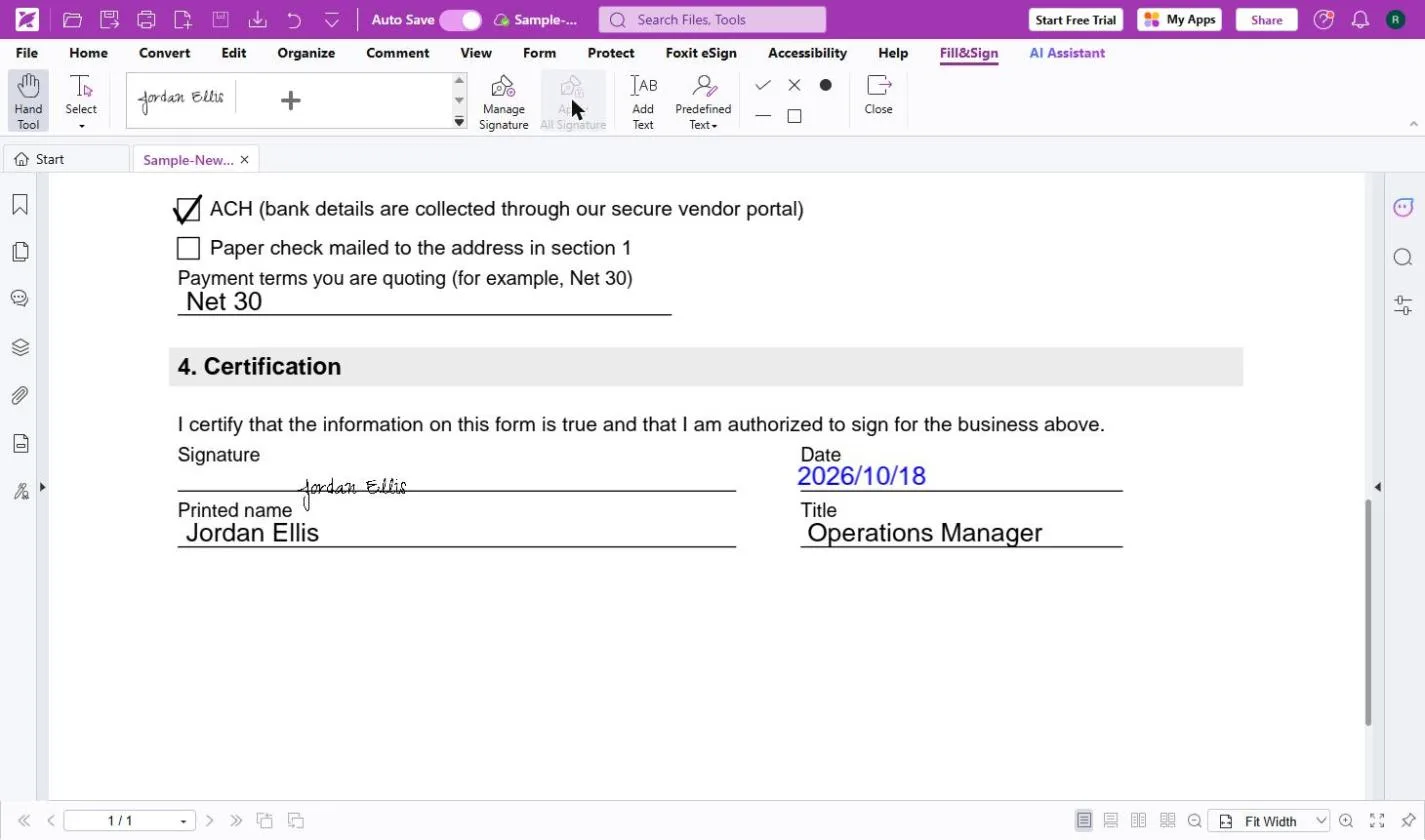
In the real run (Foxit PDF Editor Cloud, 18 October 2026), Fill & Sign opened its own tab with the signature tray, Manage Signature, Apply All Signature, Add Text, Predefined Text, and check, cross, dot, line and box marks. Add Text stays on after each box, and if a box is still open for editing your first click on the next line only closes it, so you click once more. Predefined Text offered the account name and today's date. After Apply All Signature the button greyed out.
Save signature online is ticked by default in Create Signature. I unticked it, so no signature was stored in the account. On your own computer, leaving it ticked saves you a step on the next form.
A quick signature or a certified one
Foxit's site separates two kinds of signing: quick ink signatures, which is what you place in this lesson, and legally binding digital certificate signatures. A placed signature is what most vendor and client forms ask for. If a document needs a certificate signature, check what the other side requires before you send it.
Collecting signatures from other people is a different job. Foxit eSign handles request-signature, signing order and audit trails, and foxit.com says PDF Editor+ includes 150 eSign envelopes per user each year. This lesson does not cover eSign and we did not test it.
What this saves you
About 4 minutes in the browser instead of about 15 with a printer and scanner (example estimates), from anywhere you can open a browser. The bigger win is cash: a form that goes back the same day is not the reason an invoice waits a week.
Next business case: when a contract comes back as "version 2", compare it with the version you agreed before you sign that too.
Gotchas worth knowing
- Read the form's own instructions. This one says not to write tax ID numbers on it; never type bank or tax numbers into a form that says to send them another way.
- Check the business name matches your W-9 exactly. Accounts payable teams reject forms over small mismatches.
- On a shared or client computer, untick Save signature online, and close Foxit when you are done.
- Foxit keeps the filled form in your Foxit files as you work (Auto Save was on in my run). Only upload documents your company allows in a cloud tool.
- On my account, which shows a Start Free Trial button, Fill & Sign worked. Combine Files and marking redactions asked for the PDF Editor+ trial instead. What your account can do depends on your plan.
What you need
- Foxit PDF Editor. PDF Editor is $129.99 per user per year and PDF Editor+ is $159.99, on Windows, macOS and the web (PDF Editor+ adds iOS and Android), and every plan starts with a 14-day free trial with no credit card (foxit.com, October 2026).
- The form as a PDF. The sample on this page works.
- About 4 minutes.
Links
- Foxit PDF Editor (affiliate link): the PDF editor this lesson uses. Every plan starts with a 14-day free trial with no credit card.
Disclosure: links marked "affiliate link" are partner links. If you sign up through one, Stepthrough may earn a commission at no extra cost to you. The lesson is free either way and does not depend on it.
Try it yourself, free
Reading the steps is a start. Doing them is how it sticks. The interactive module walks you through every click in a practice copy of Foxit, checks each step, and never touches your real accounts.
Start “Foxit PDF Editor: Fill and Sign a Form without Printing”Step by step: Foxit PDF Editor: Fill and Sign a Form without Printing
All 25 steps of the interactive module, in order. In the module you watch each one, then do it yourself in a practice copy that checks your work.
1. What a paper form costs
- Read the client email. You're Jordan Ellis, operations manager at Bright Path Marketing. A new client, Lakeview Dental Partners, can't pay your first invoice ($4,800) until you return their New Vendor Setup Form, signed. It is a flat PDF: no boxes to type in. Click the email.
A new client will not pay your first invoice until you send back their vendor form, signed.
- Count the paper way. Print it, fill it in by hand, sign, scan, email: about 15 minutes when the printer works, and days when you're on the road. Every day the form waits, the $4,800 waits too. Click the total.
Print, sign, scan and email takes a while, and every day it waits, your invoice waits too.
- Open Foxit PDF Editor. Foxit PDF Editor has Fill & Sign: type on any PDF, tick boxes and add a signature, with no printer. The next screens are real Foxit PDF Editor Cloud screenshots from my account, captured October 2026. Click the Foxit card.
Foxit PDF Editor lets you type on the form and sign it, no printer needed. Let us open it.
2. Open the form
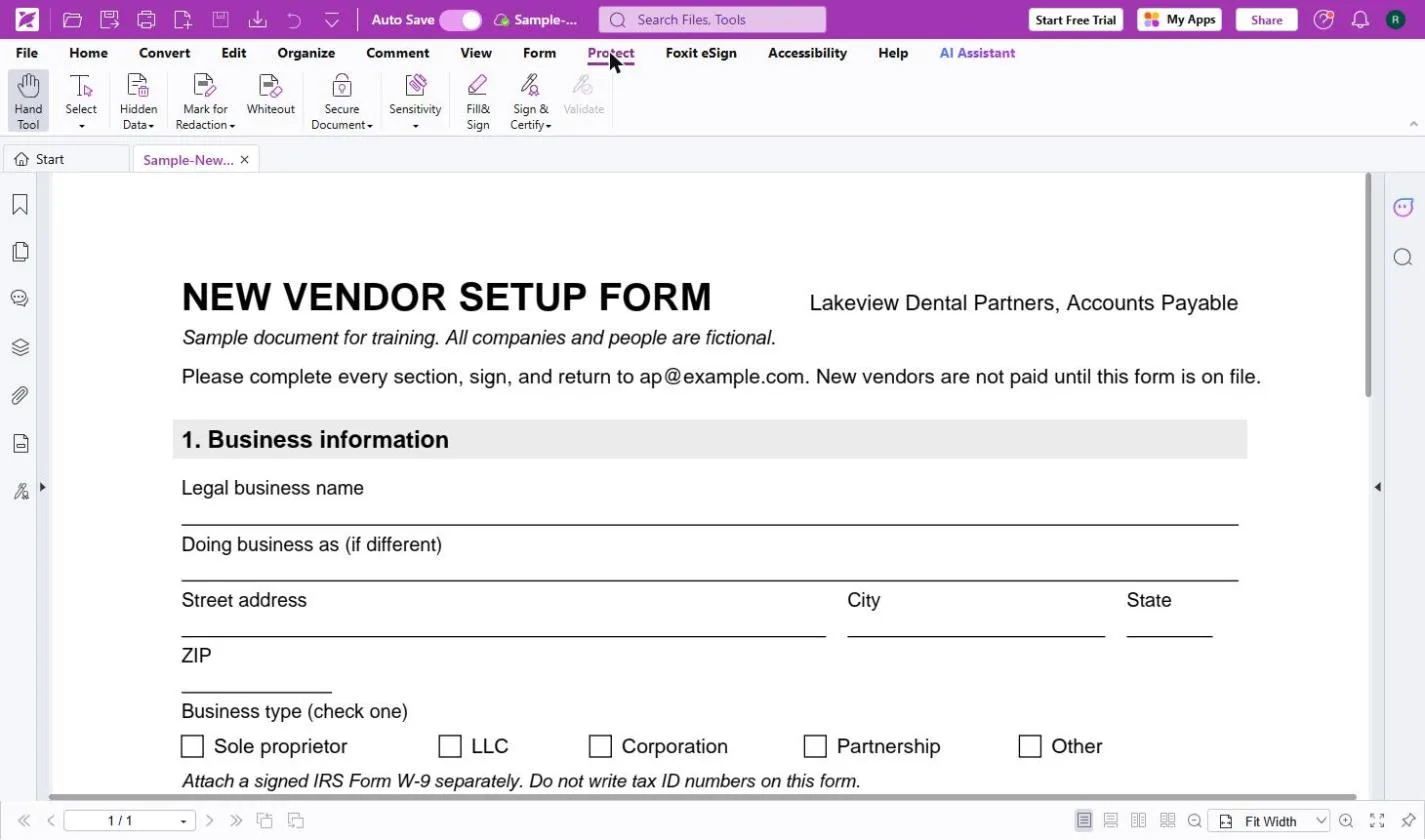
- Open the form. This is Foxit PDF Editor Cloud in the browser, at pdfonline.foxit.com. Click Open File and pick Sample-New-Vendor-Setup-Form.pdf, the sample from this lesson's page.
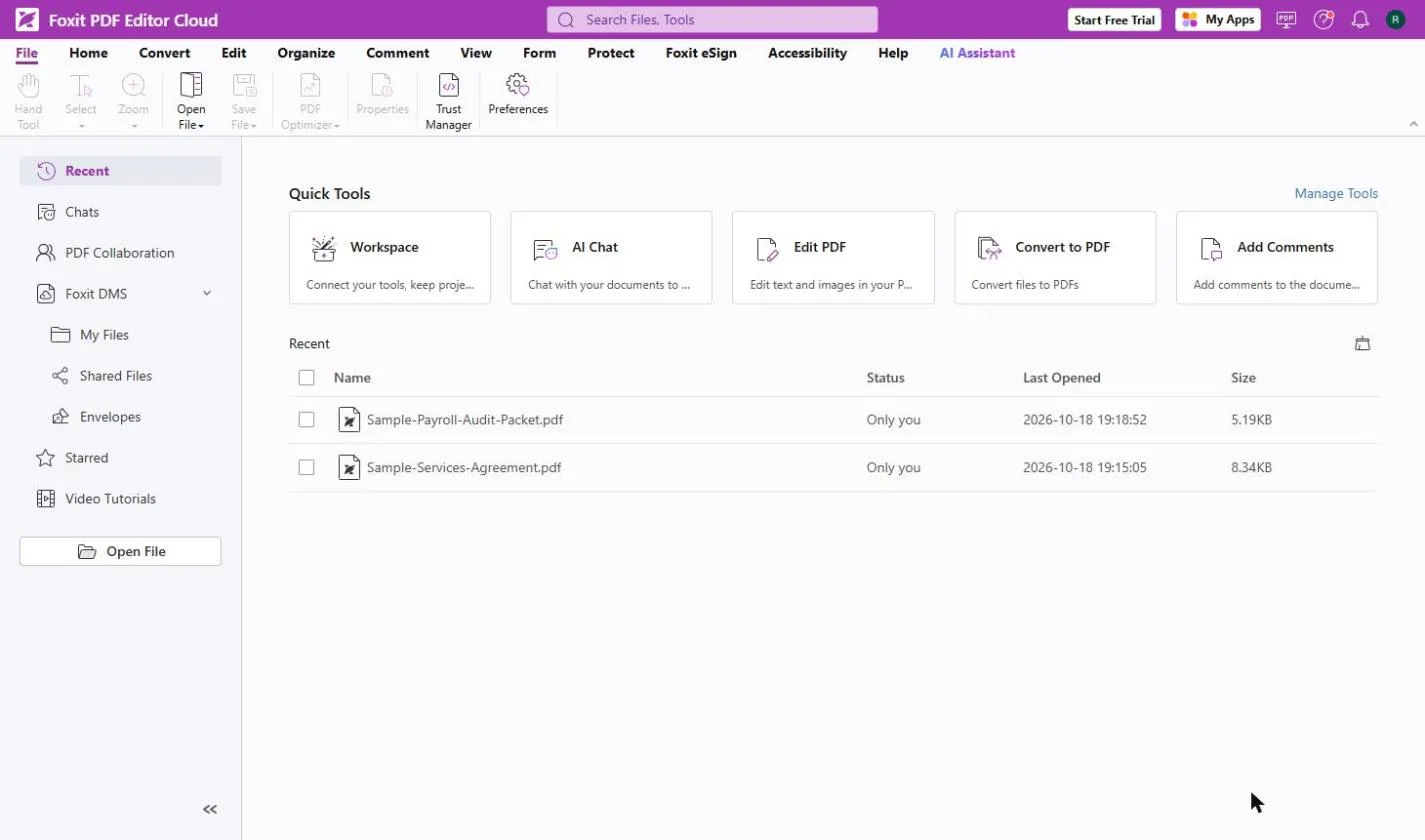
- Start Fill & Sign. The form is open on the Protect tab. Click Fill & Sign.
On the Protect tab, click Fill and Sign.
3. Fill in the blanks
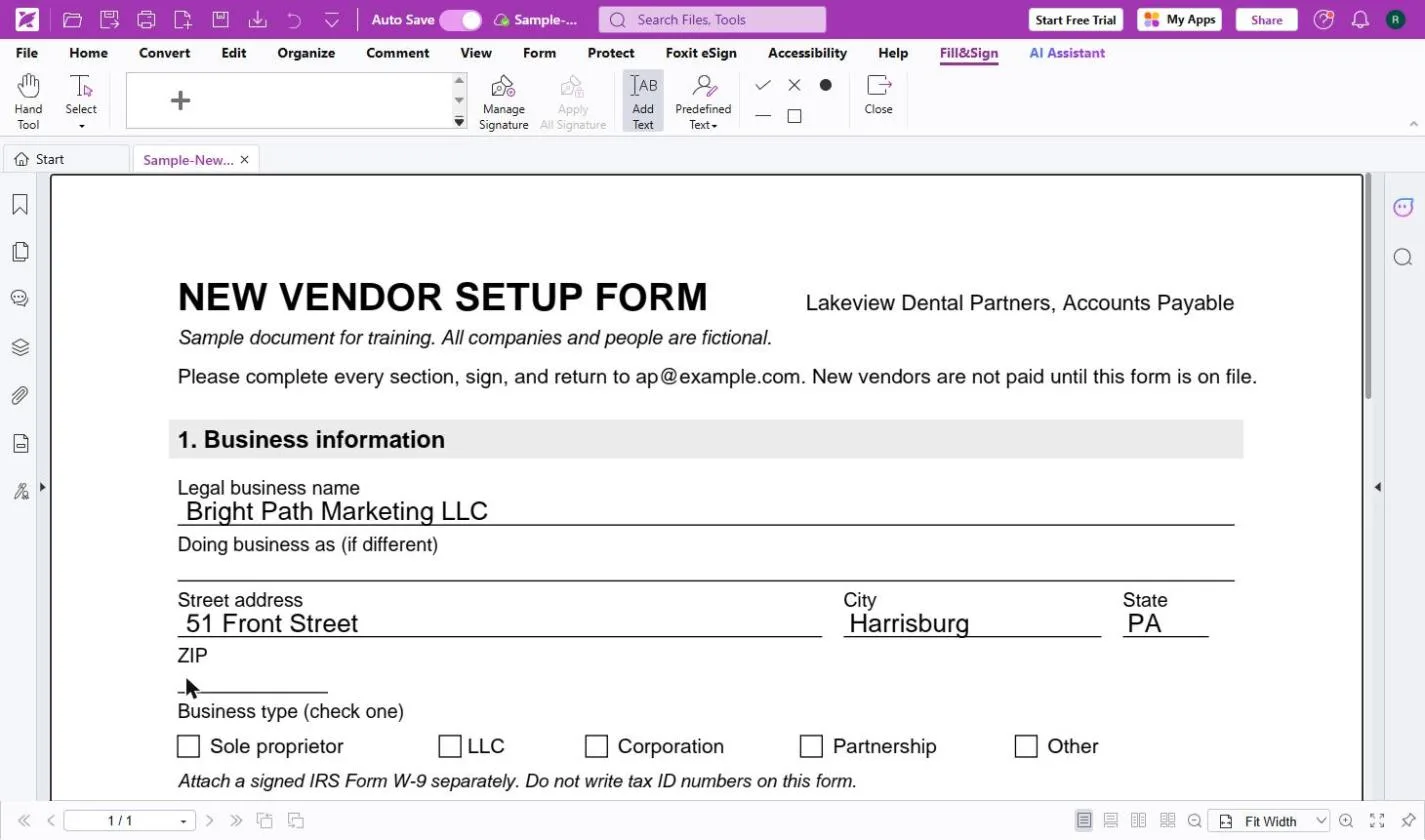
- Pick Add Text. A Fill&Sign tab opens with your signatures on the left, then Add Text, Predefined Text, and marks like a check, a cross and a dot. Click Add Text. It stays on, so you can click one line after another.
It stays on, so you can fill one line after another.
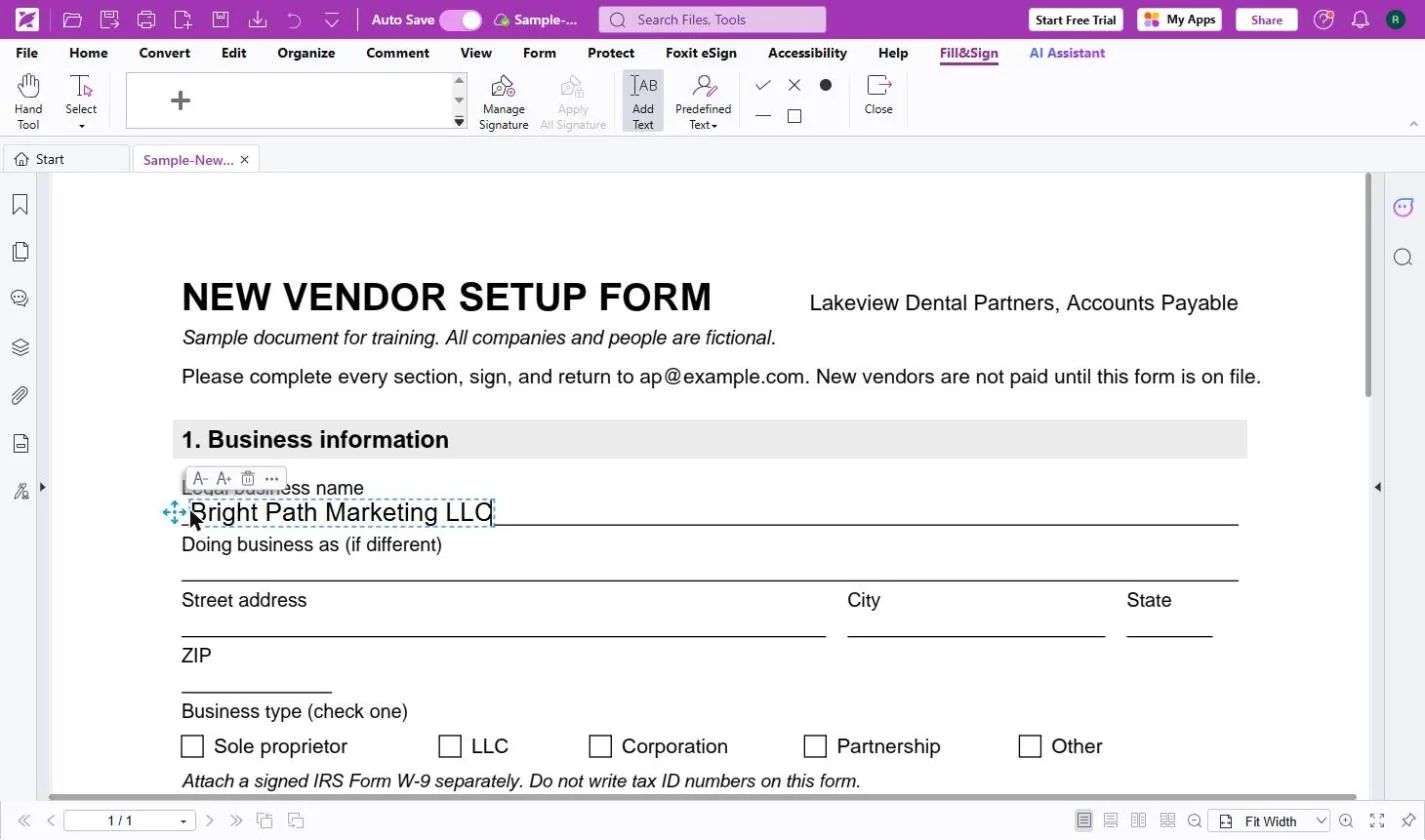
- Type the business name. Click just above the Legal business name line and type Bright Path Marketing LLC.
- Fill in the address. Click the Street address line and type 51 Front Street. Do the same for City (Harrisburg) and State (PA). If a box is still open for editing, your first click just closes it, so click the next line once more.
If a box is still open, the first click just closes it.
- Type the ZIP code. Click the ZIP line and type 17101.
Now the ZIP code.
- Pick the check mark. For tick boxes, click the check mark in the toolbar.
For tick boxes, pick the check mark in the toolbar.
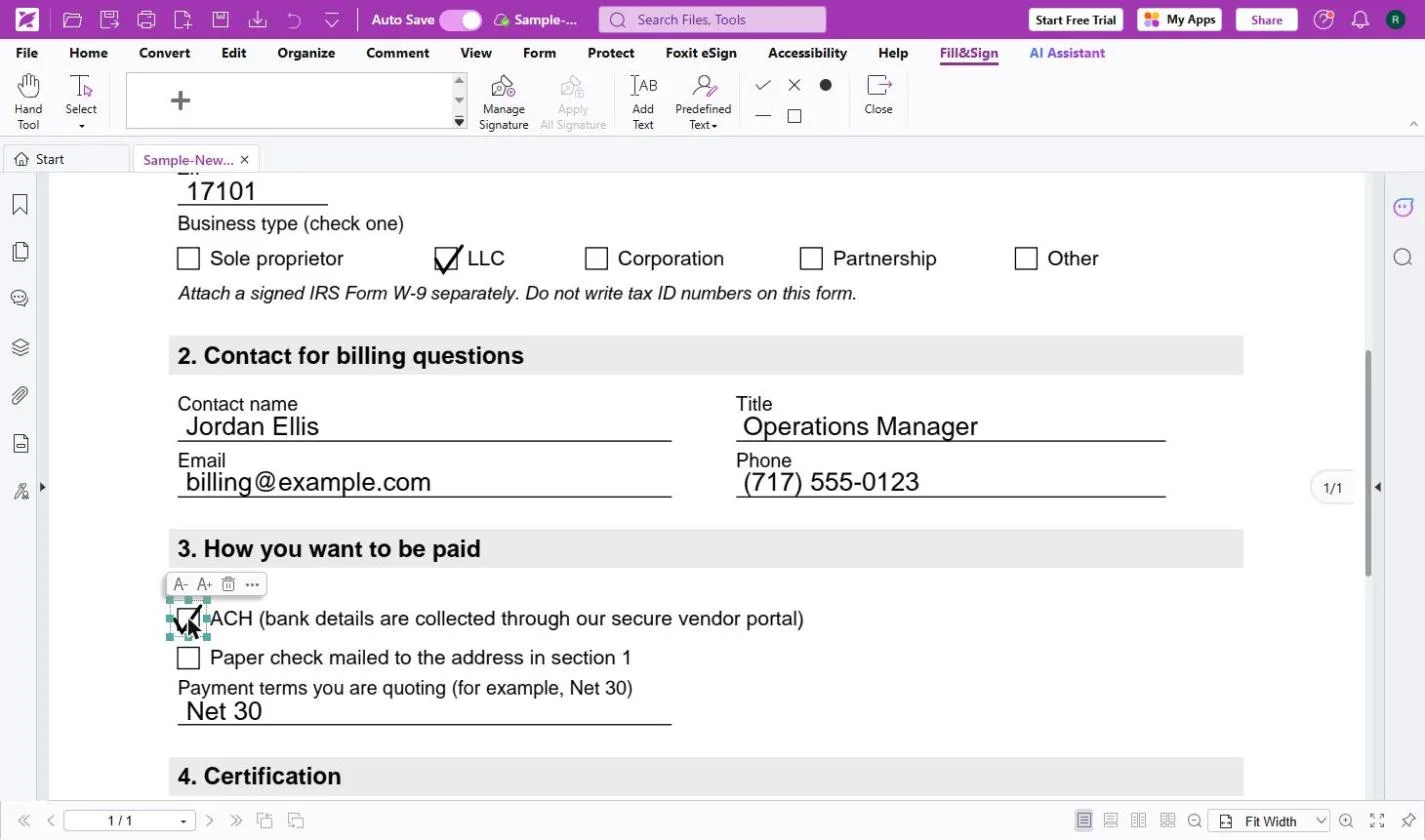
- Tick LLC. Under Business type, click the LLC box. A check mark lands in it.
- Fill sections 2 and 3. Sections 2 and 3 work the same way. Here they are filled in: contact Jordan Ellis, Operations Manager, billing@example.com, (717) 555-0123, a check in the ACH box and Net 30 for payment terms. Click sections 2 and 3.
Sections two and three work the same way: text on the lines, a check in the ACH box.
4. Make your signature
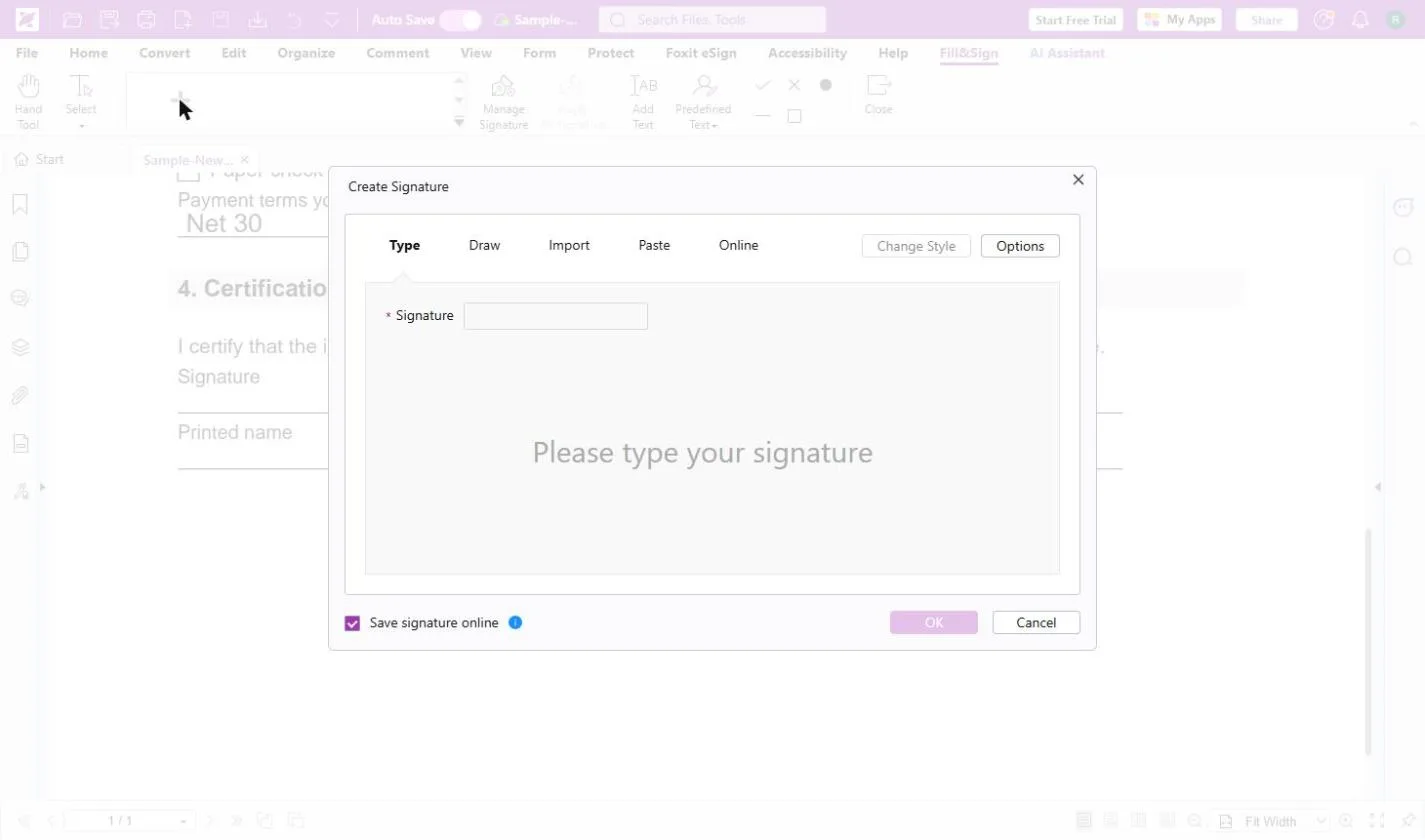
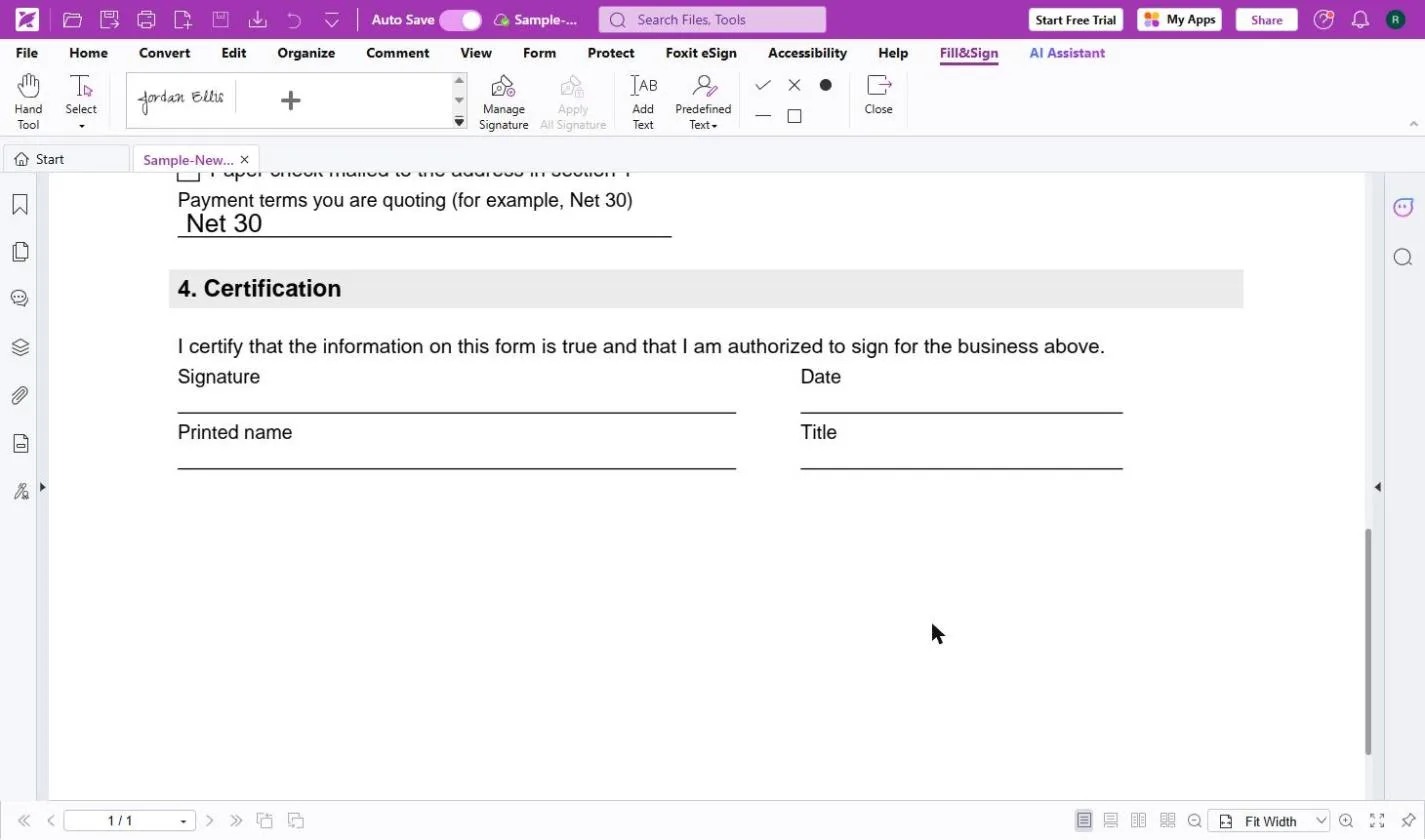
- Create a signature. Scroll down to 4. Certification. In the signature area of the toolbar, click +.
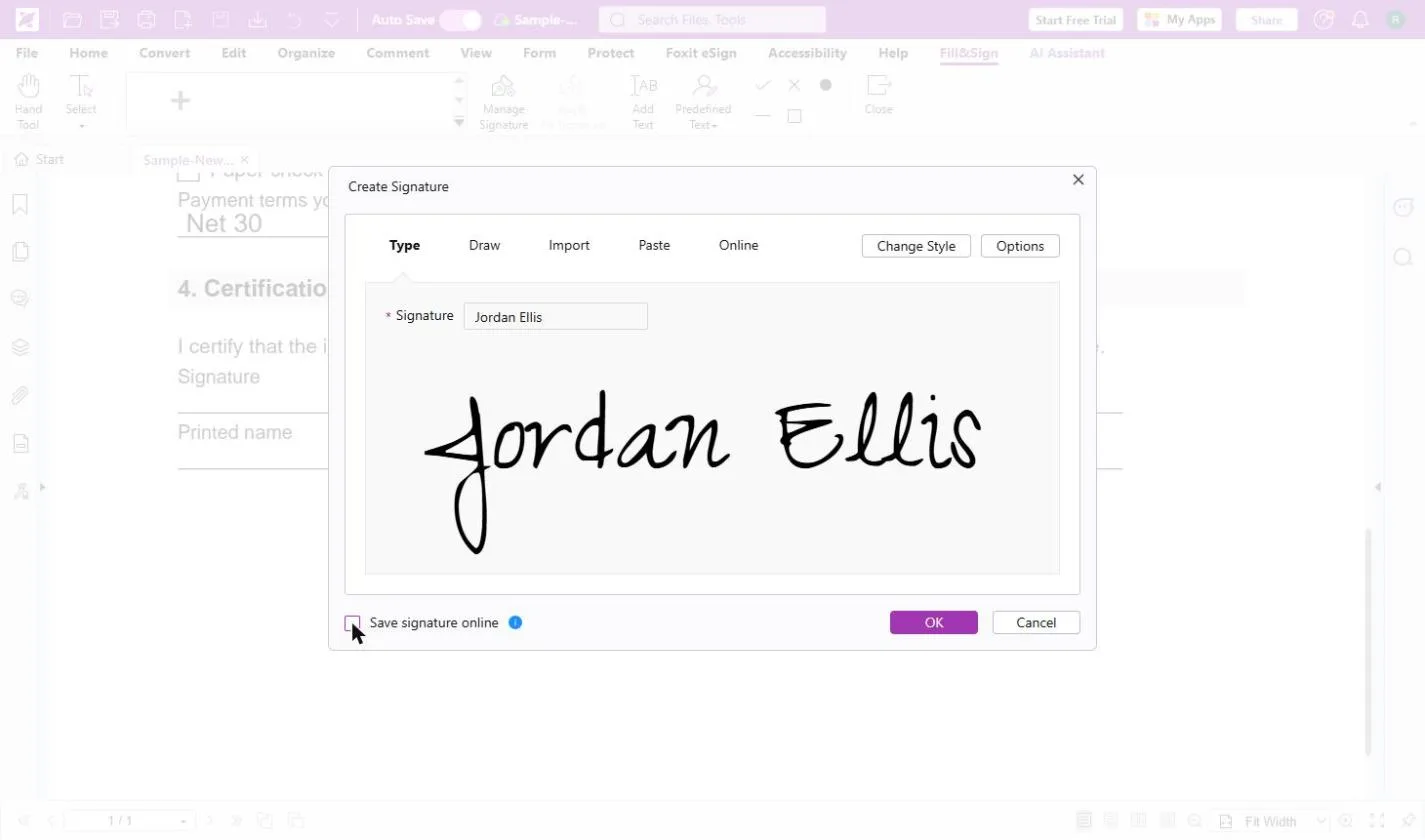
- Type your name. Create Signature opens on Type. You can also Draw, Import an image, Paste or use Online. In Signature, type Jordan Ellis.
- Decide on Save signature online. Foxit shows your name in a handwriting style (Change Style picks another). Save signature online is ticked by default, which keeps it in your Foxit account for next time. On a shared computer, untick it. Here I unticked it. Click Save signature online.
Save signature online keeps it for next time. On a shared computer, untick it.
- Click OK. Click OK.
5. Sign and date it
- Pick your signature. Your signature now sits in the toolbar. Click it.
Your signature is in the toolbar now.
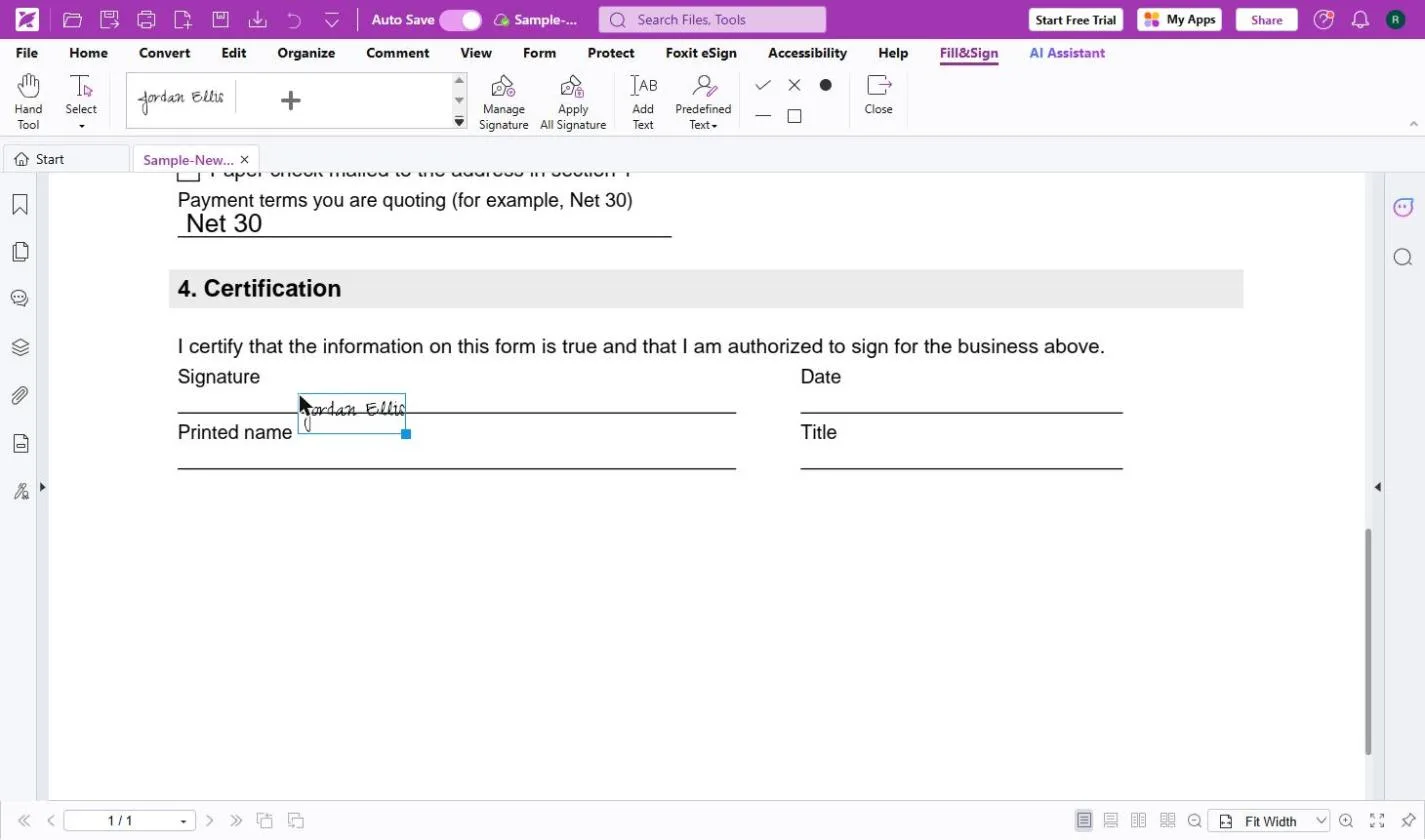
- Place it on the line. Click the Signature line. The signature lands where you click; drag the corner to resize it.
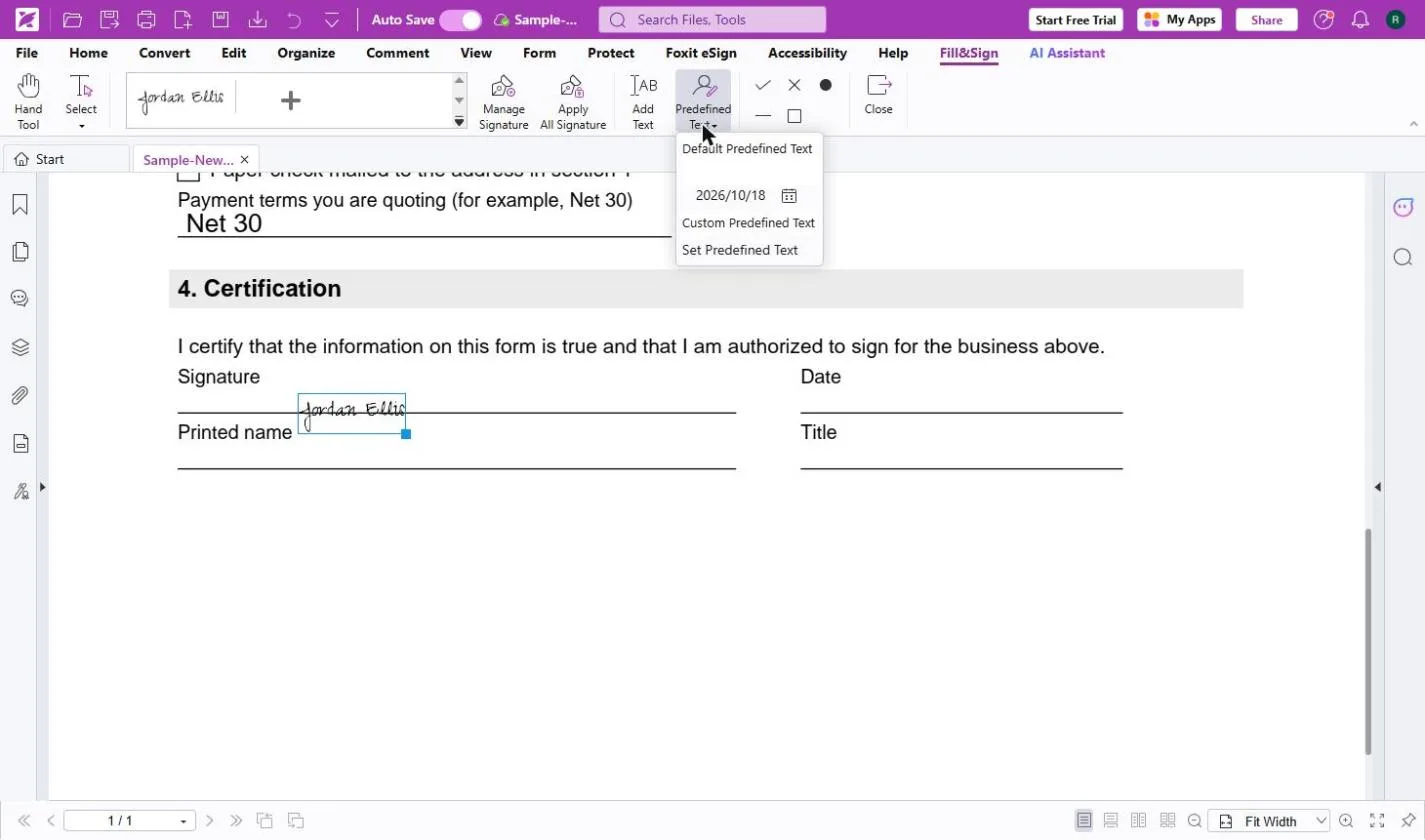
- Open Predefined Text. For the date, click the arrow under Predefined Text. It offers your account name and today's date, ready to drop in.
For the date, open Predefined Text.
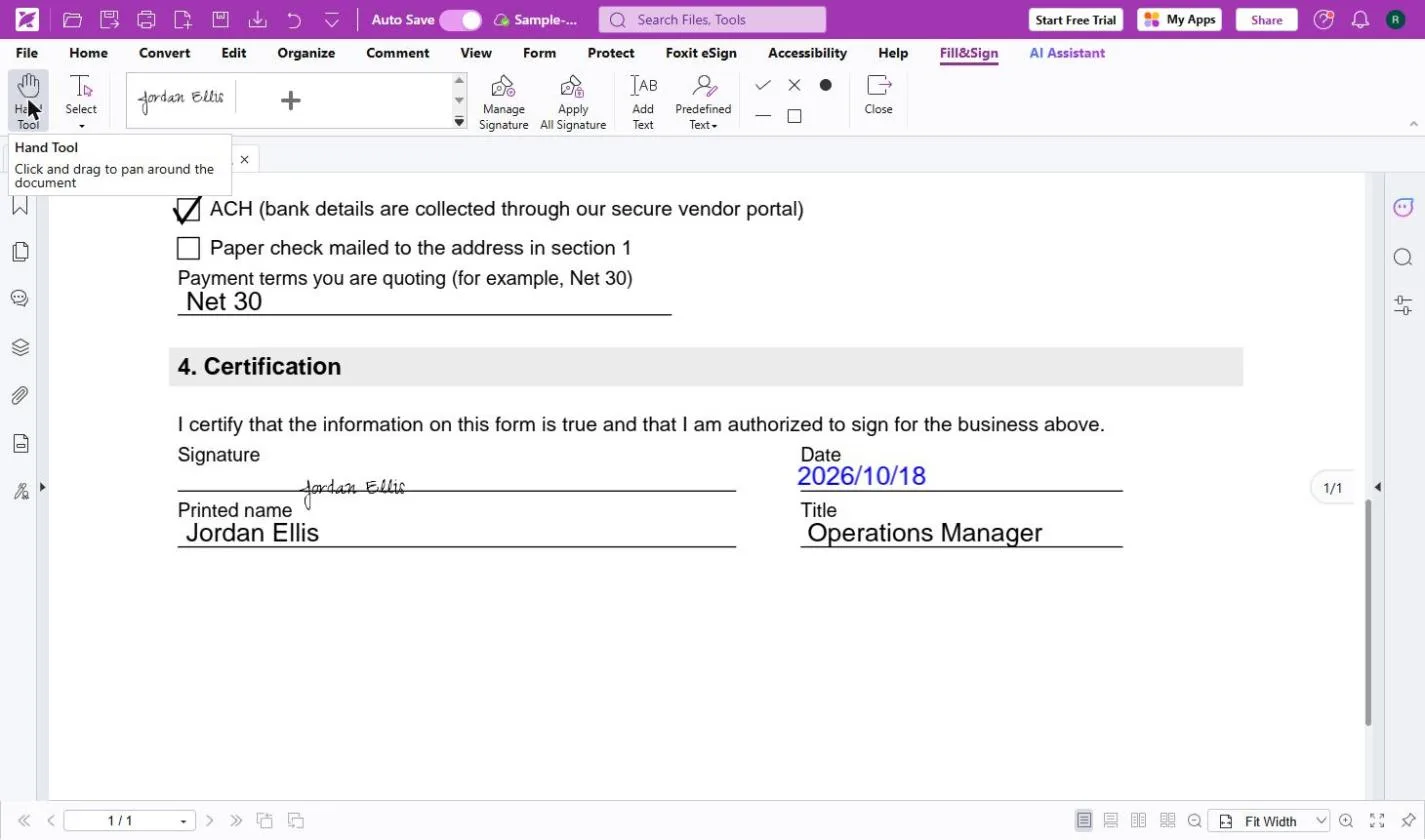
- Pick today's date. Click today's date, then click the Date line. Use Add Text for Printed name and Title, the same as before.
Pick today's date, click the date line, then type your name and title.
- Check the certification. Read it once: signature, date, printed name and title are all there. Click 4. Certification.
Read it over once before it goes out.
- Apply the signature. Click Apply All Signature. Foxit fixes the signature into the page, and the button greys out.
6. Send it back
- Download the signed form. Foxit saves your work in your Foxit files as you go (Auto Save is on). Click Download File in the top bar to save a copy you can attach to your reply.
- What this saves you. Click What this saves you.
Here is what you saved.
- Send it back. Reply to the client with the signed form attached, and the W-9 as a separate file. Click the reply.
Send it back today, with the W-9 as a separate file.
Screenshots
Frequently asked questions
- How does the interactive lesson work?
- Each step is shown to you first on the left (Watch). Then you do it yourself in a practice copy on the right (Your turn), and every click is checked. If you get stuck, press Do it for me. It is a practice copy, so no real accounts are touched.
- Is this lesson free?
- Yes. Stepthrough is free. Foxit PDF Editor is a paid product with a 14-day free trial and no credit card needed to start, according to foxit.com.
- How do I fill in a PDF form that has no fields?
- In Foxit PDF Editor, open the PDF, go to the Protect tab and click Fill & Sign. Click Add Text, then click each line and type. Use the check mark tool for tick boxes. It works on flat forms that have no fillable fields.
- How do I add a signature to a PDF in Foxit?
- In Fill & Sign, click + to create a signature by typing, drawing, importing an image, pasting or using Online. Click OK, click the signature in the toolbar, then click the signature line. Click Apply All Signature when you are done.
- Is a Fill & Sign signature legally binding?
- Foxit's site describes Fill & Sign signatures as quick ink signatures and separates them from legally binding digital certificate signatures. Most vendor forms accept a placed signature; if a document needs more, check with the other side or a lawyer.
More in AI Automation for Operations
All 16 modules in AI Automation for Operations
Terms in this lesson
Plain-English definitions, each with an example from a free lesson.