Updated . Built against the tool’s current screens and checked step by step. How we check this lesson
CoHear is a third-party AI note-taker for iPhone. It records a meeting in the room (or imports an audio file), writes a transcript with speakers, and turns it into notes, decisions, risks and action items. In this free lesson you use a practice copy of it to record a team training session for a made-up property management company. You tell the room before you record, tell CoHear it was a training session, check the action items and one rule against the exact line in the transcript, then make a one-page quick reference and share it behind a password.
At a glance
| Question | Answer |
|---|---|
| What you build | Record a team training session on your iPhone with CoHear, check the AI notes and action items against the transcript, make a one-page handout and share it behind a password. |
| Tools | CoHear |
| Time | About 8 minutes, 20 steps in 6 parts |
| Level | Intermediate |
| Cost | Free |
| Ways to learn it | Practice it step by step, read the guide with screenshots |
The 6 parts, in short
- Tell CoHear your work: Pick your role, Continue.
- Record the training: Start a recording, Tell the room first, Peek at the transcript, Stop at the end.
- Name it and pick the meeting type: Name the recording, Confirm your industry, Pick the meeting type, Make the notes.
- Check the notes: Confirm the keywords, Open the action items, Check the transcript, Play the exact line.
- Make a one-page handout: Open Results, Choose a one-page visual, Create it.
- Share it with a password: Open sharing, Add a password, Share it.
Start here first: Build an AI Vendor Follow-Up Agent in n8n (module 1 of AI Automation for Operations)
In the course: Part 13 · AI Apps Worth Knowing (Module 188 of the full course)
Part of: AI for Real Estate (step 10 of 18). Next up: How to Connect n8n to Slack and Gmail to Answer Every Web Lead in 60 Seconds
Part of: AI for Operations Teams (step 17 of 44). Next up: Fellow: Turn a Client Meeting into Notes, Action Items and a Follow-Up Email
Part of: AI Apps Worth Knowing (step 27 of 182). Next up: The Prompter AI: Prove a Better Prompt Works on Your Own Meeting Notes
Part of: AI for Meetings (step 9 of 20). Next up: Speak AI: Turn Customer Interviews into Themes and Quotes
Part of: Turn Talk Into Work: Voice and Meetings AI (step 5 of 9). Next up: OLVA: A Private AI Assistant on Your Client Calls
CoHear: AI Meeting Notes from a Team Training Session: step-by-step guide with screenshots
About the screenshots. They come from Stepthrough’s simulated practice environment (a practice copy of CoHear), not the live tool, so no real account appears. The buttons and labels match the real screens the lesson was built against. Practice it yourself free at learn.ynteractive.com.
- Tools: CoHear
- Time: about 8 minutes, 20 steps in 6 parts
- Level: intermediate
Part 1: Tell CoHear your work
Step 1: Pick your role
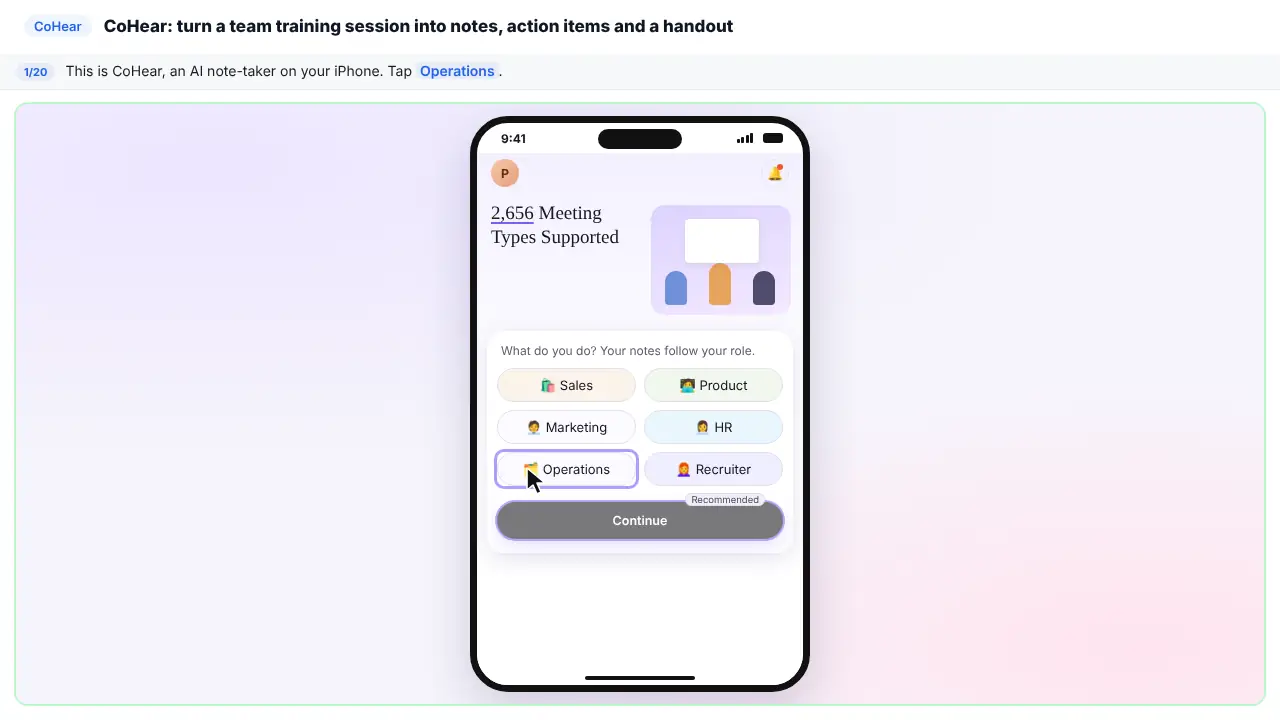
This is CoHear. It's an AI note-taker that runs on your iPhone. It records a meeting in the room, and turns it into notes. First, tell it what you do.
Step 2: Continue
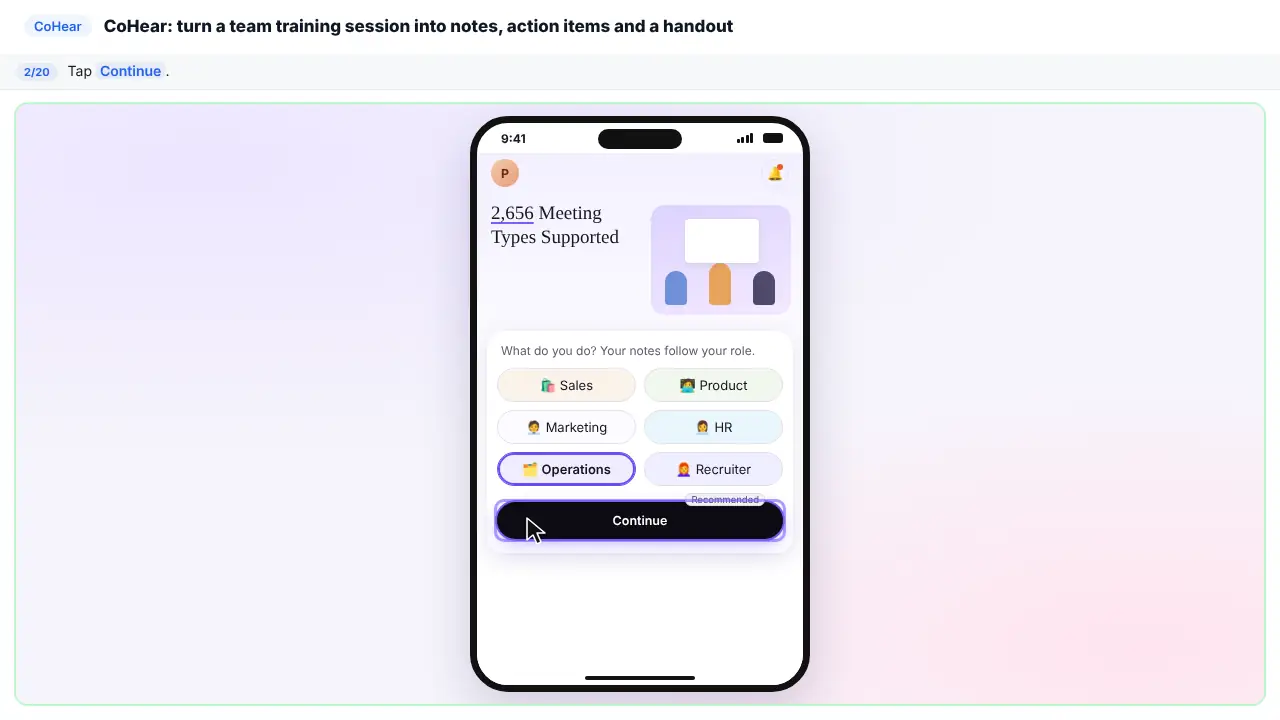
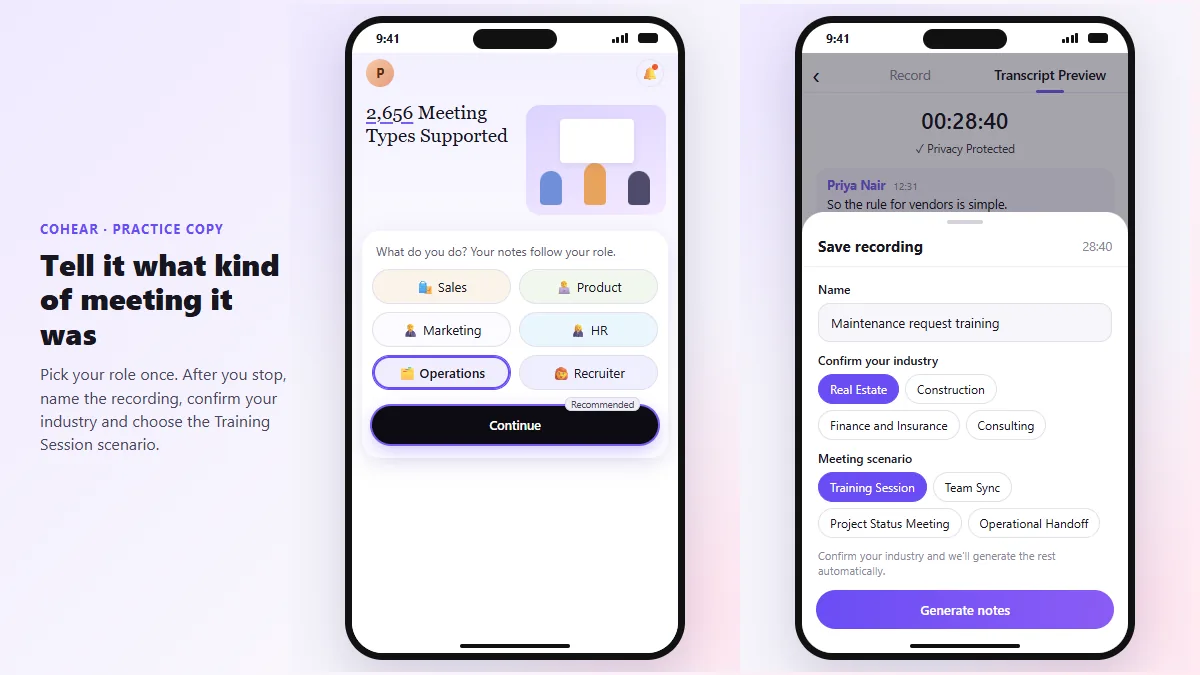
Your role changes what the notes look for. An operations manager needs owners, dates and risks.
Part 2: Record the training
Step 3: Start a recording
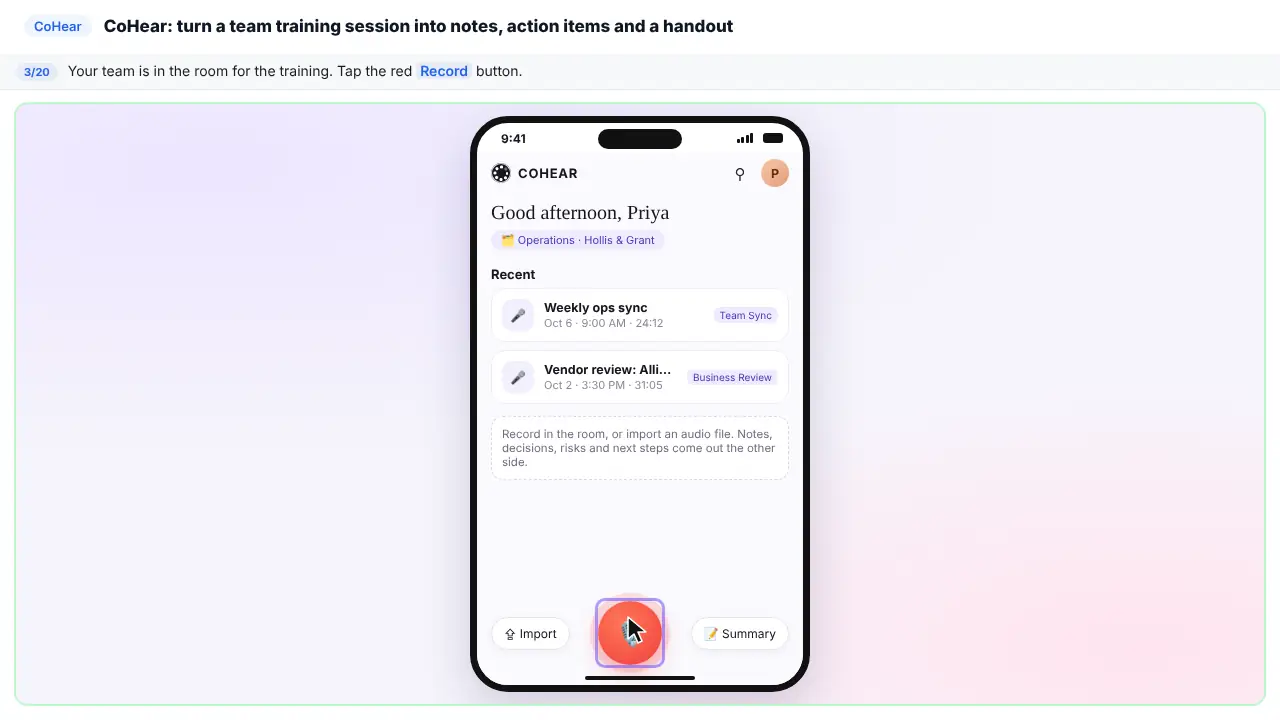
You're Priya, the operations manager at Hollis and Grant Property Management. Six coordinators are in the room, for training on the new maintenance request process.
Step 4: Tell the room first
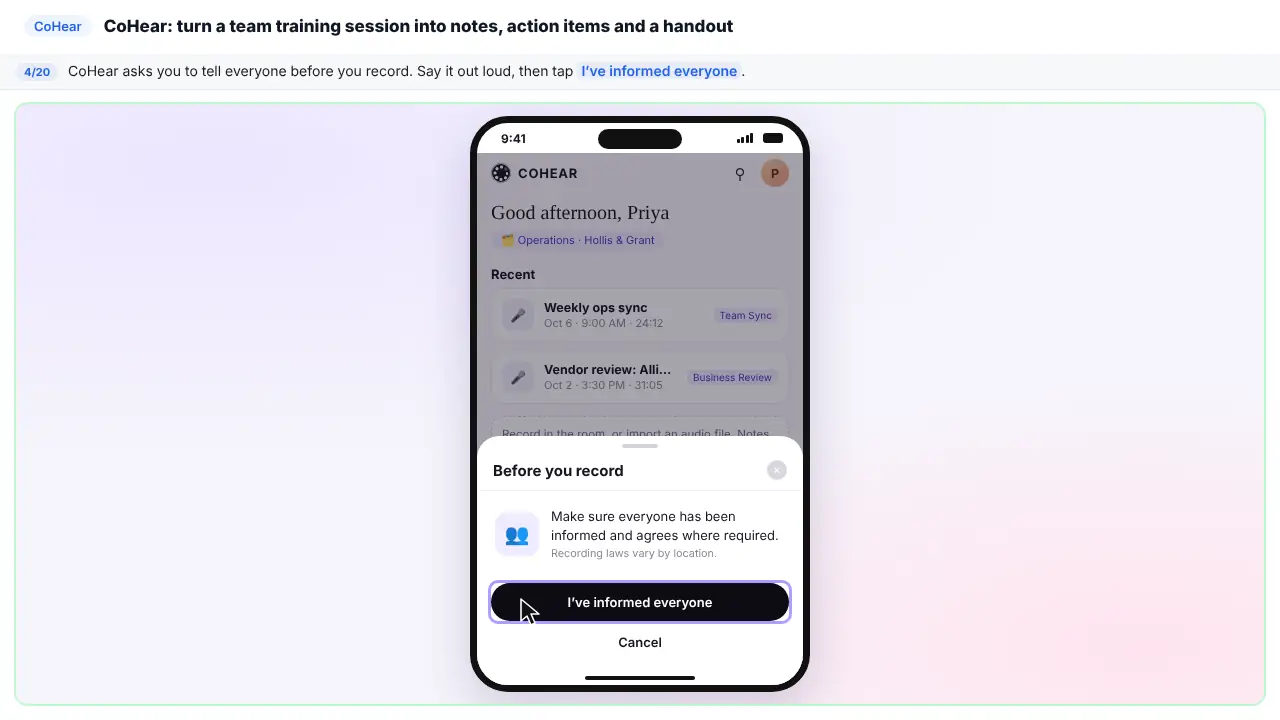
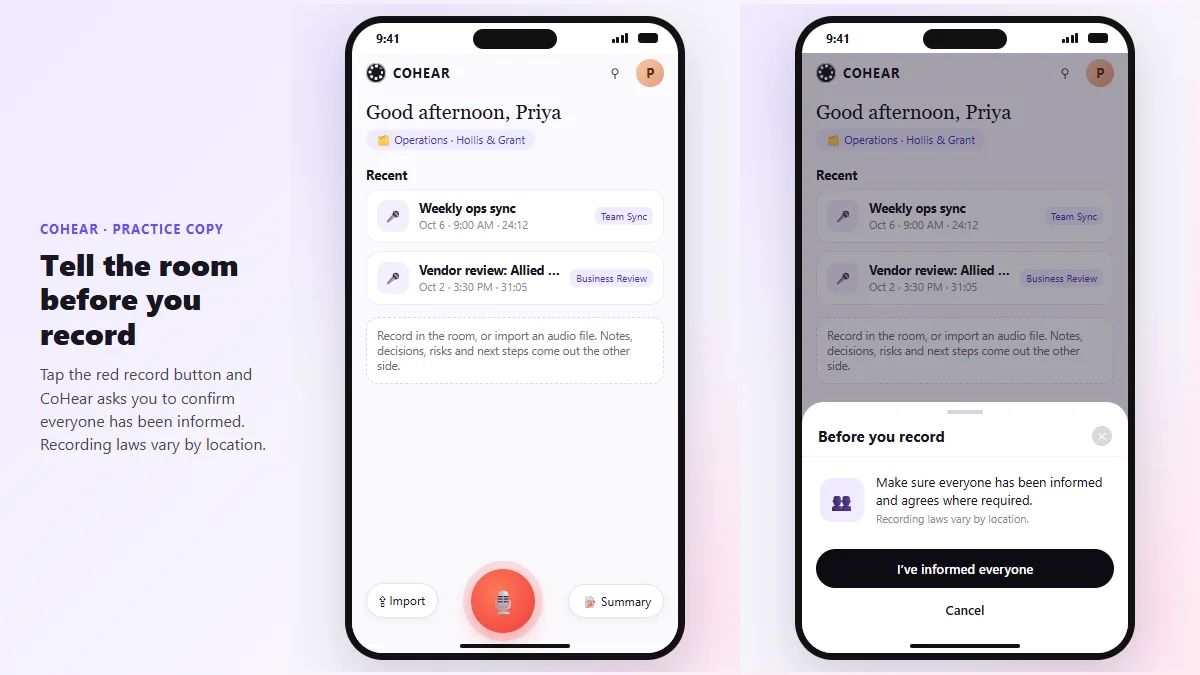
Before it records, CoHear asks you to tell everyone. Recording laws vary by place. So say it out loud, and let people say no.
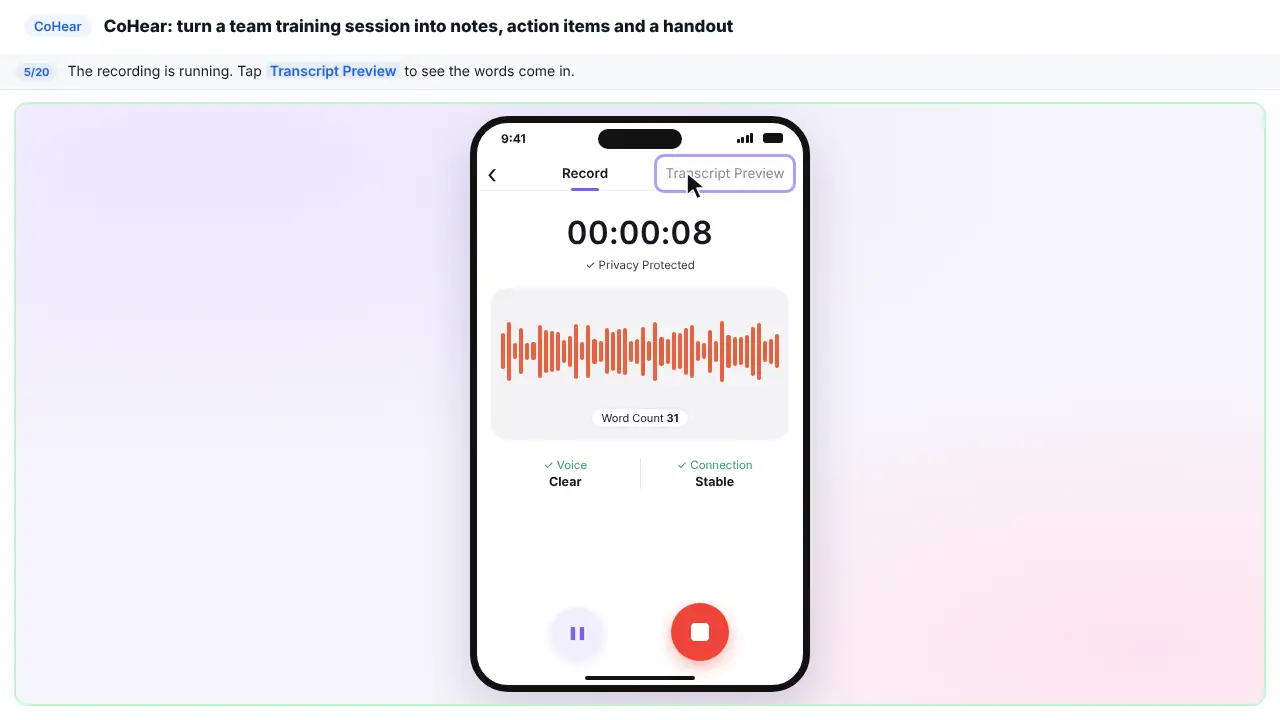
Step 5: Peek at the transcript
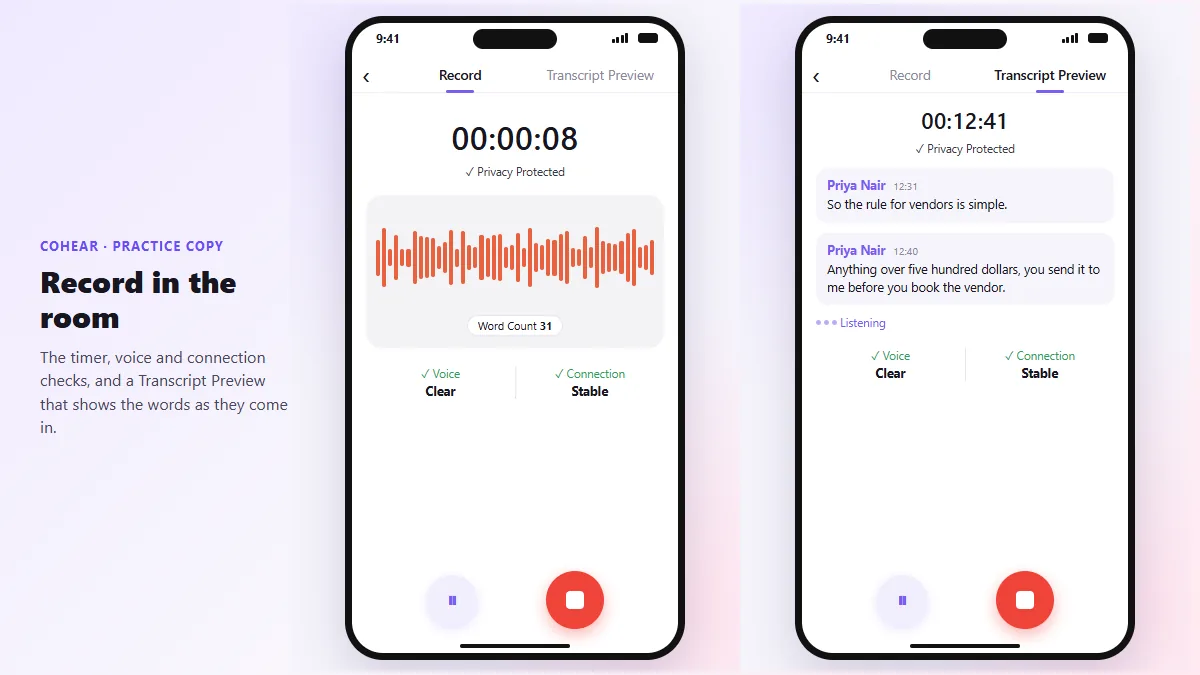
It's recording. The timer runs, and the voice and connection checks are green.
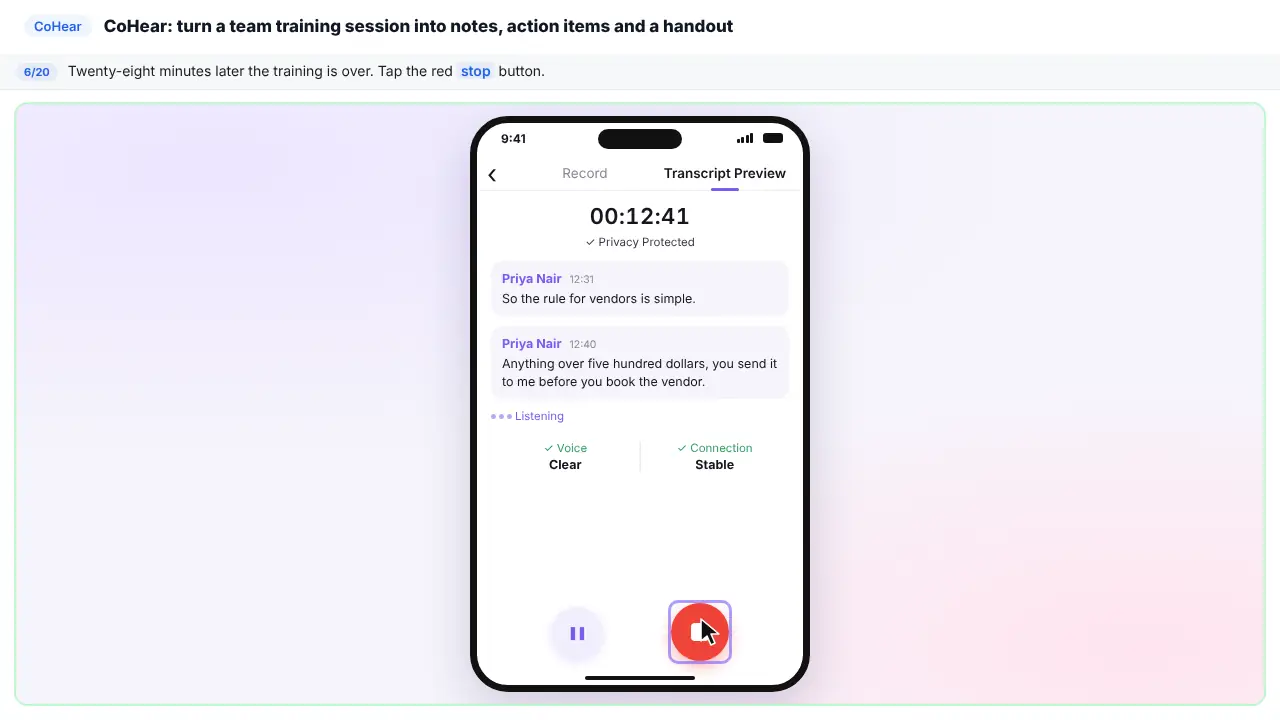
Step 6: Stop at the end
Twenty eight minutes later, the training is done.
Part 3: Name it and pick the meeting type
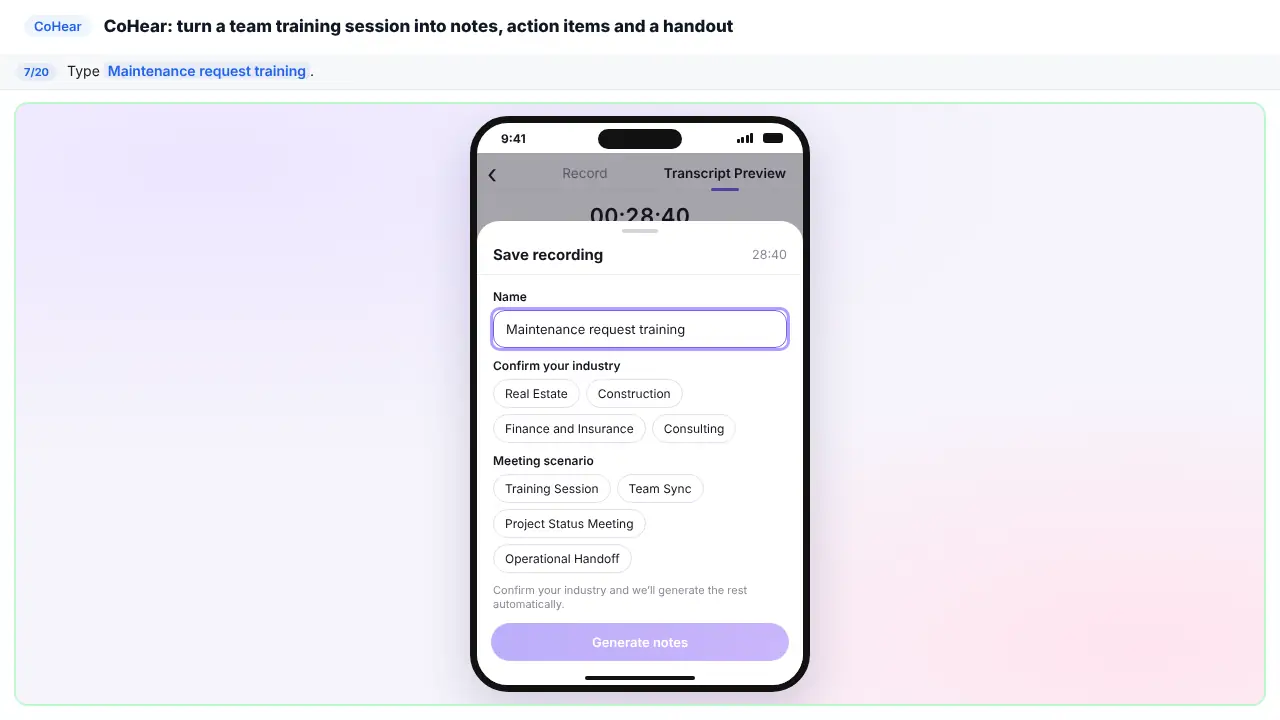
Step 7: Name the recording
Give it a name you'll find later.
Step 8: Confirm your industry
Now confirm your industry. CoHear uses it to pick the right words and checks.
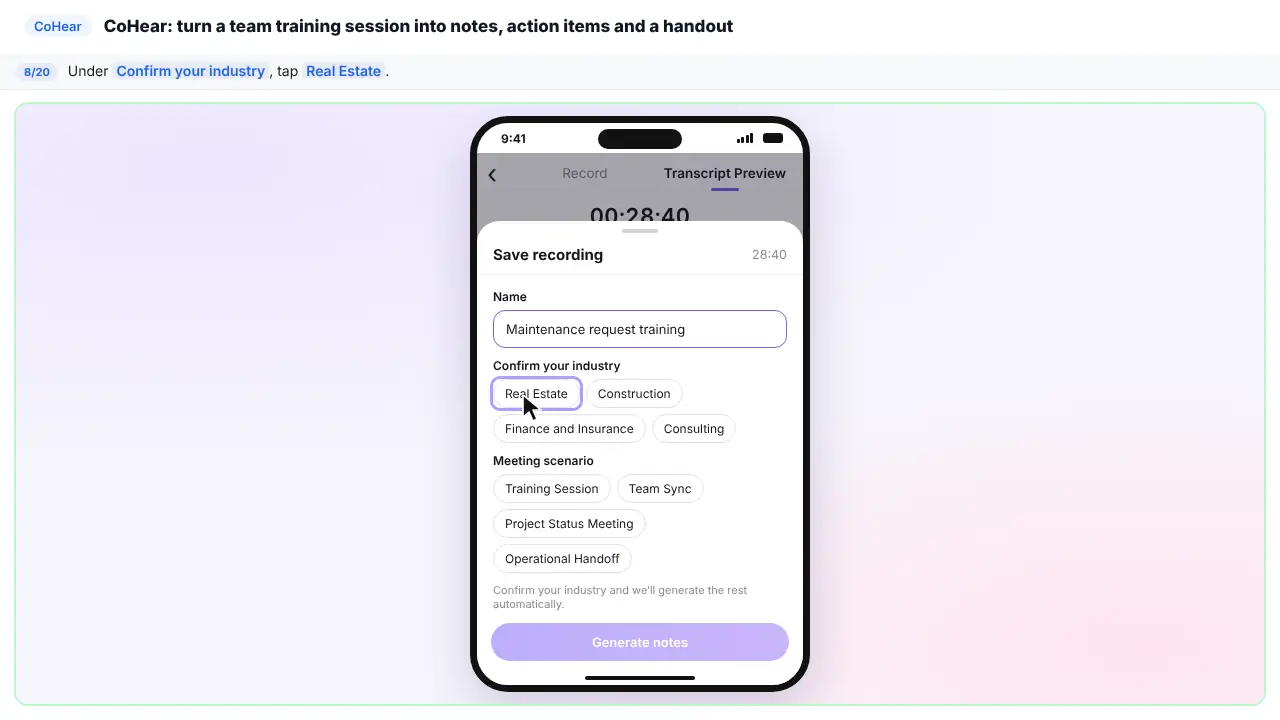
Step 9: Pick the meeting type
Then pick the kind of meeting. A training session needs the new rules, who does what, and the questions nobody answered.
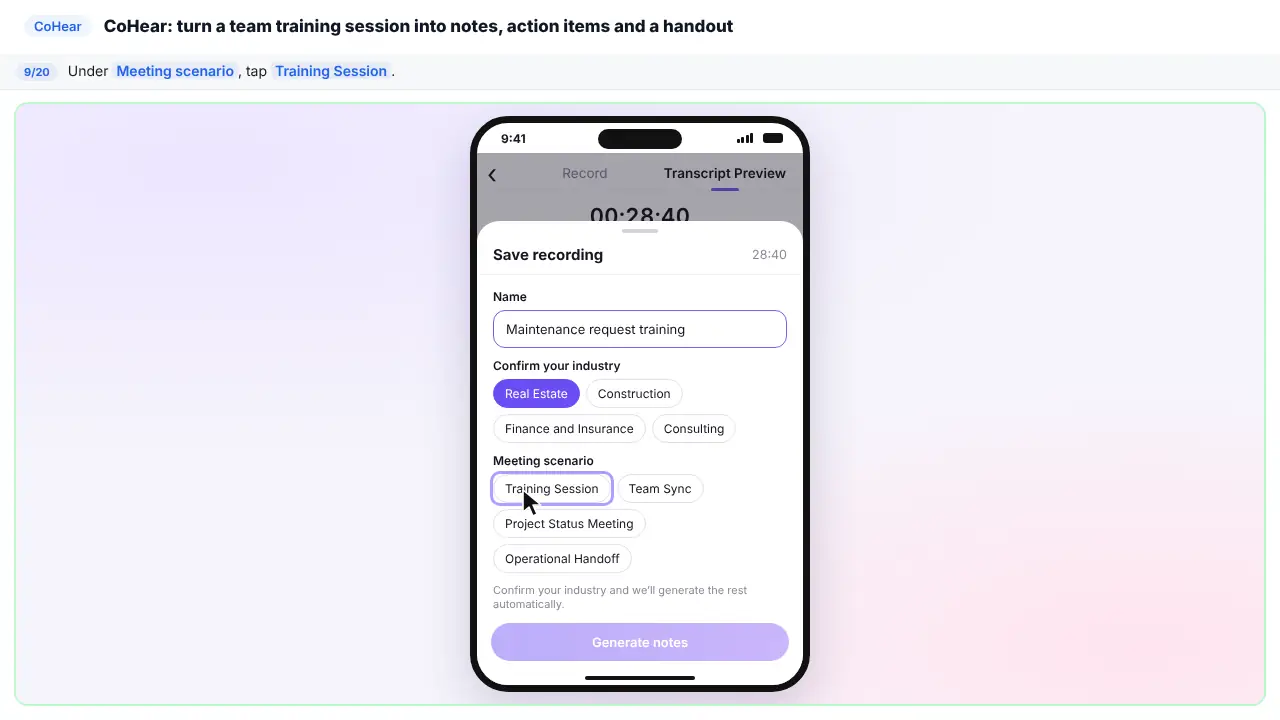
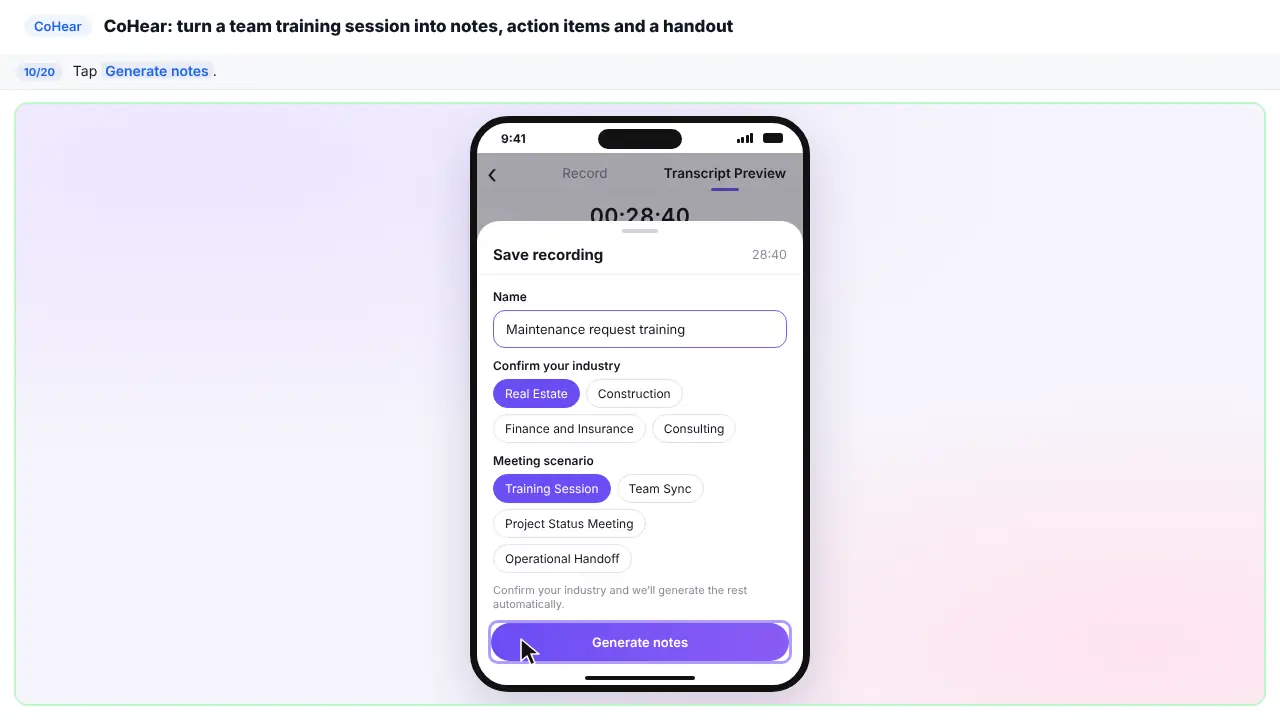
Step 10: Make the notes
Part 4: Check the notes
Step 11: Confirm the keywords
CoHear pulls out the key words first. Work orders, tenant portal, vendor approval, and the twenty four hour reply. They're right.
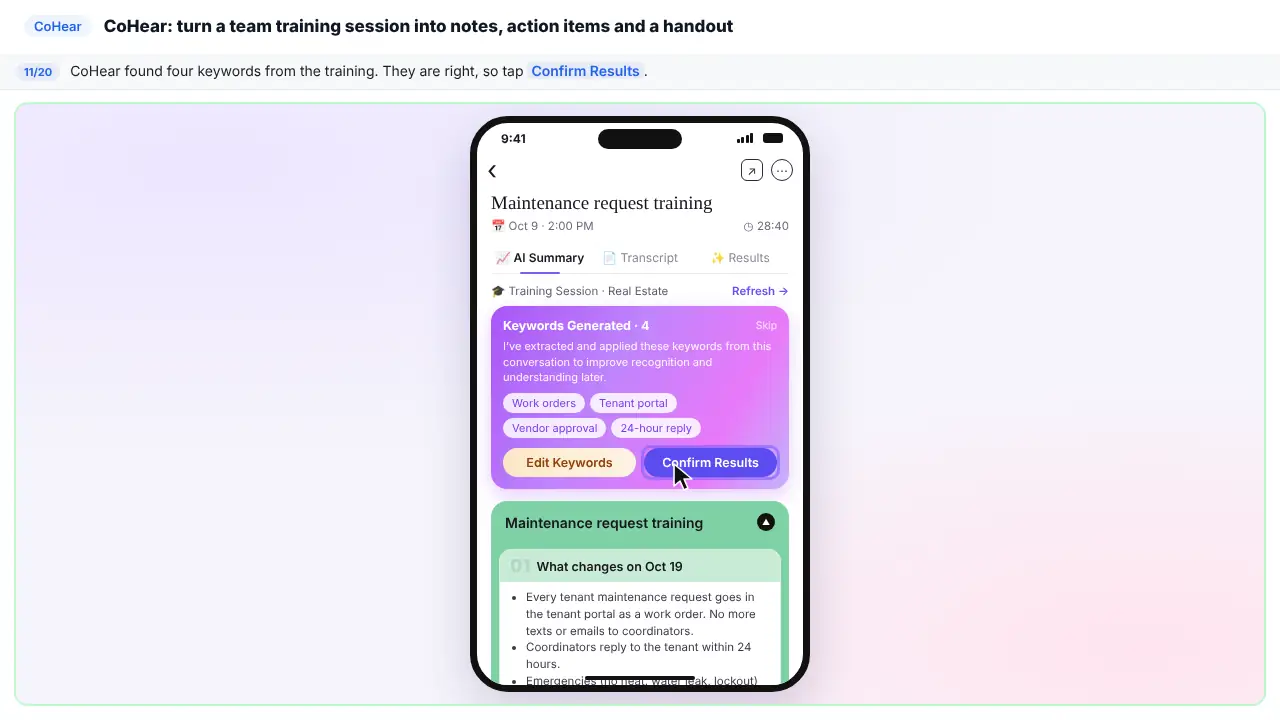
Step 12: Open the action items
Read what changes, and what was decided.
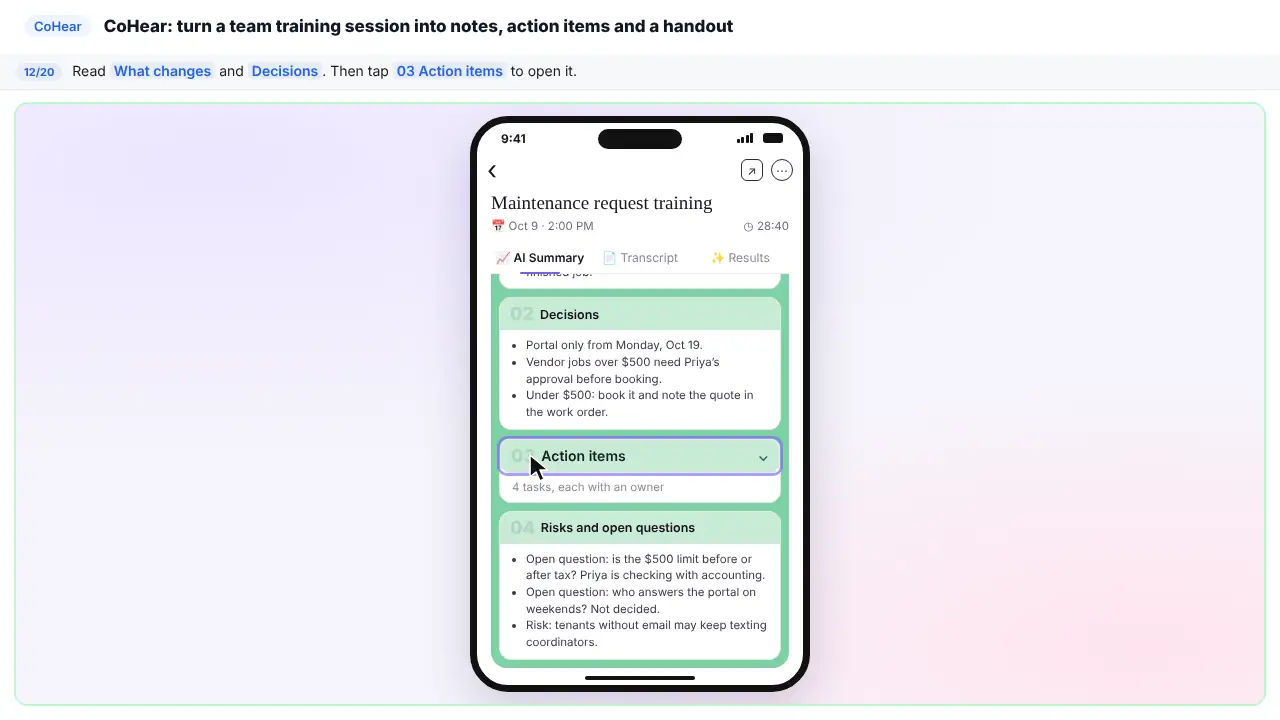
Step 13: Check the transcript
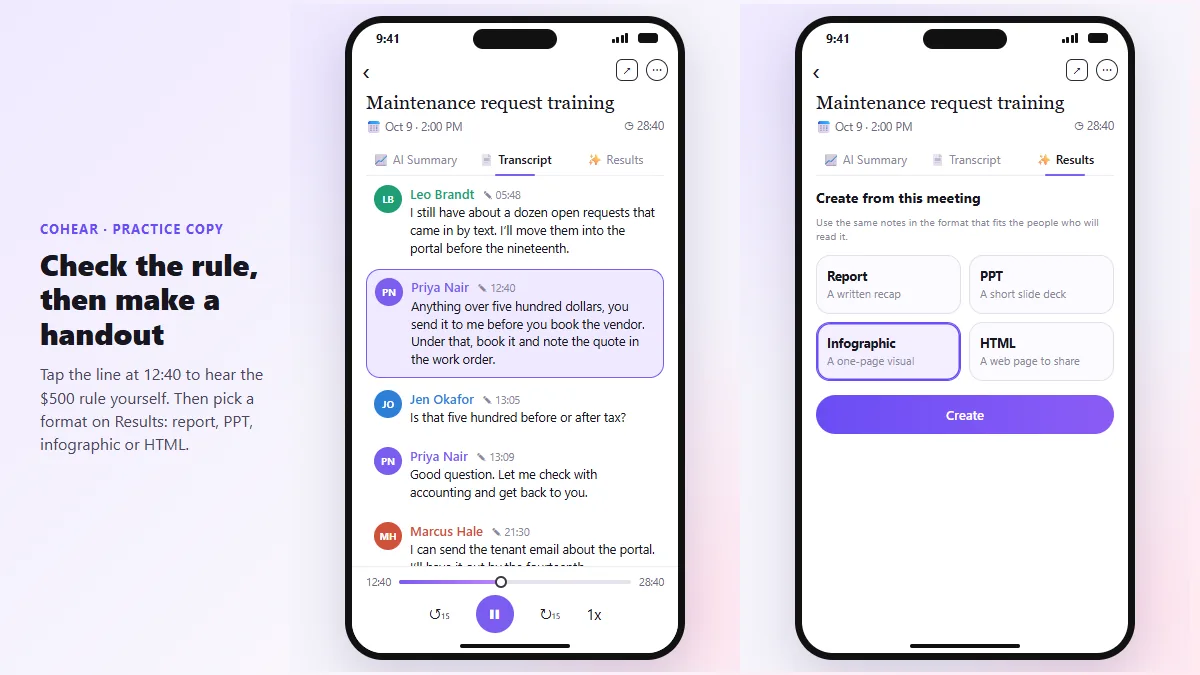
Every task has one owner. One due date says, not stated. Nobody said a date, so CoHear didn't make one up. You'll set it yourself. Now, before you share the five hundred dollar rule, check it.
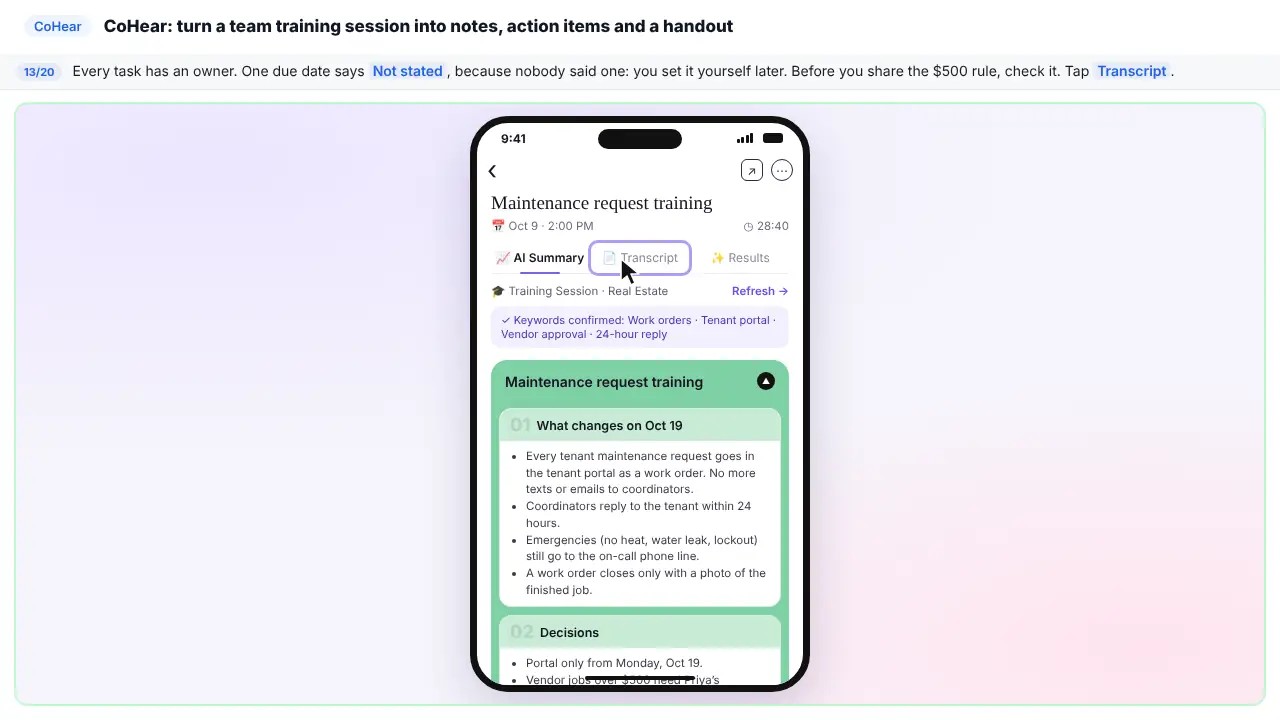
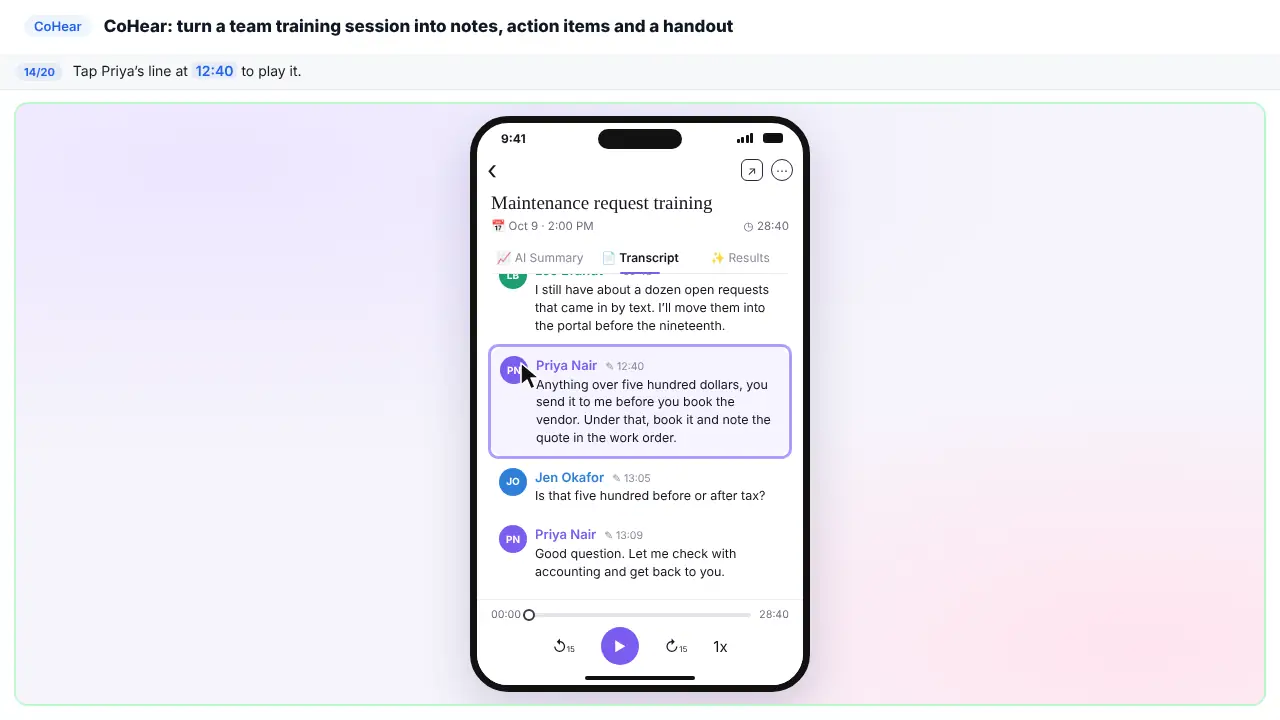
Step 14: Play the exact line
Here is every speaker, with a time. It plays the audio from that point. Over five hundred dollars needs approval. The notes got it right.
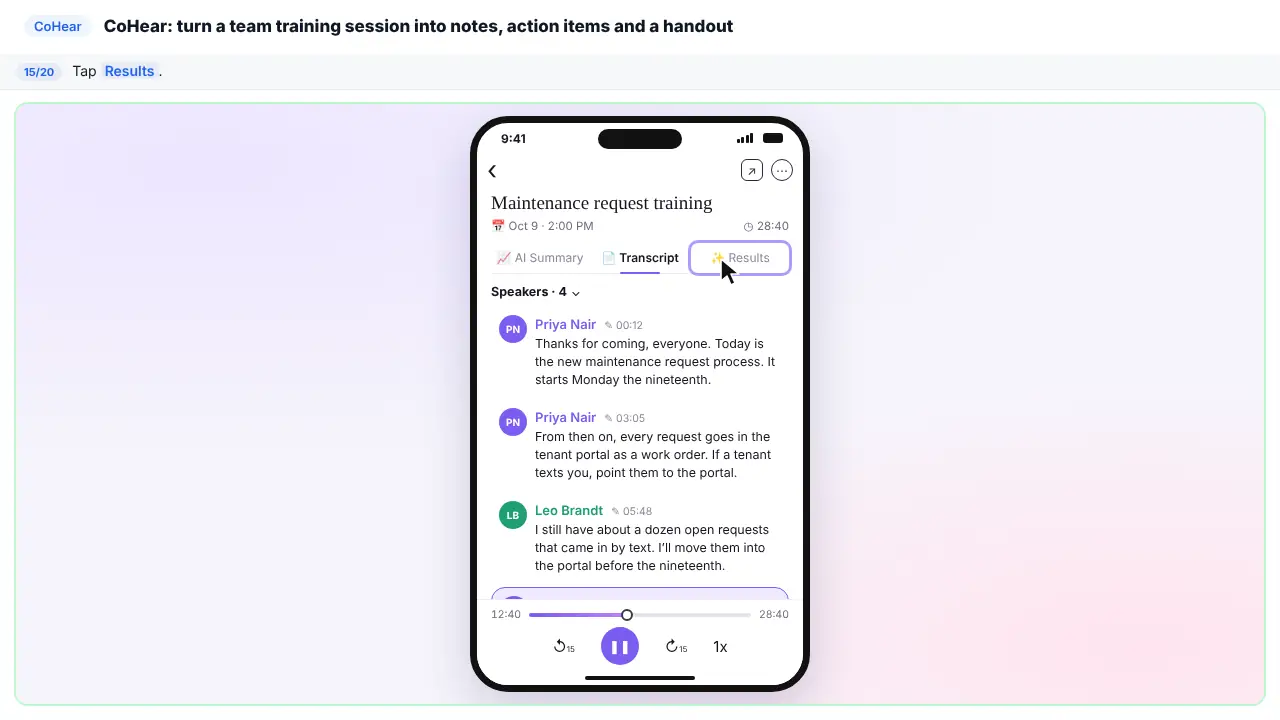
Part 5: Make a one-page handout
Step 15: Open Results
Your team won't read twenty eight minutes of notes. Give them one page.
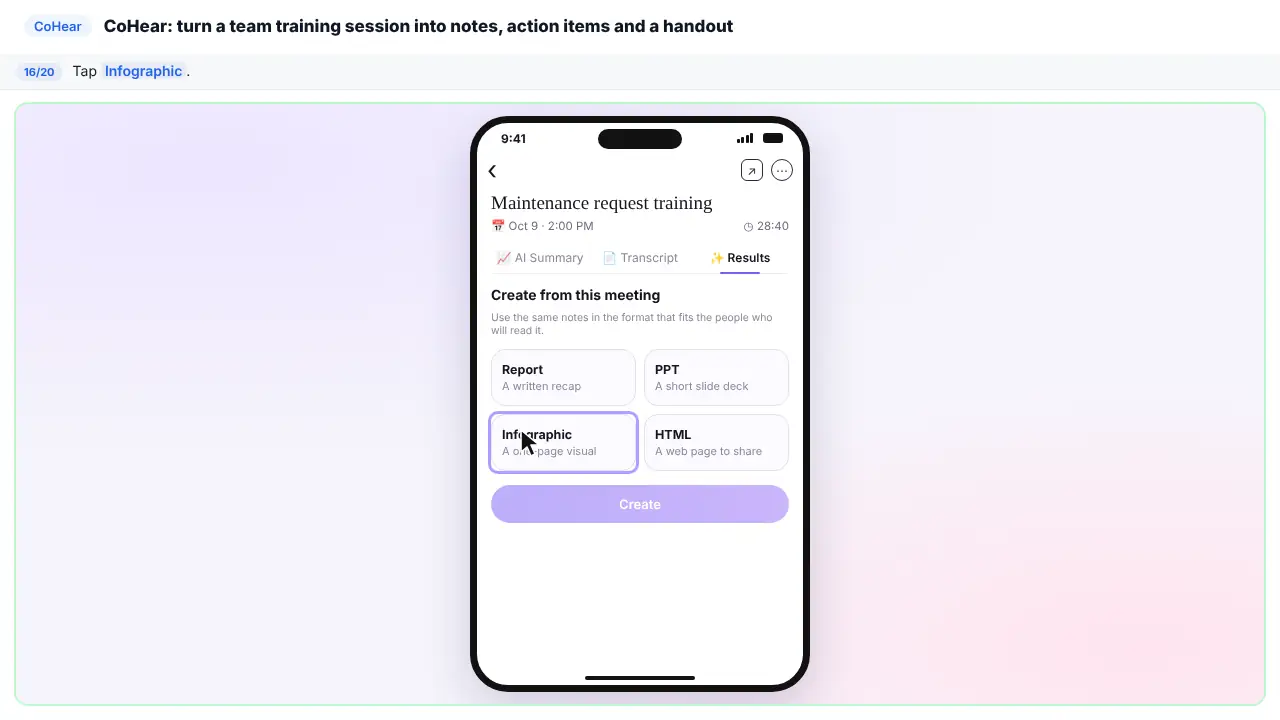
Step 16: Choose a one-page visual
Pick the format that fits the reader. A report, a slide deck, an infographic, or a web page.
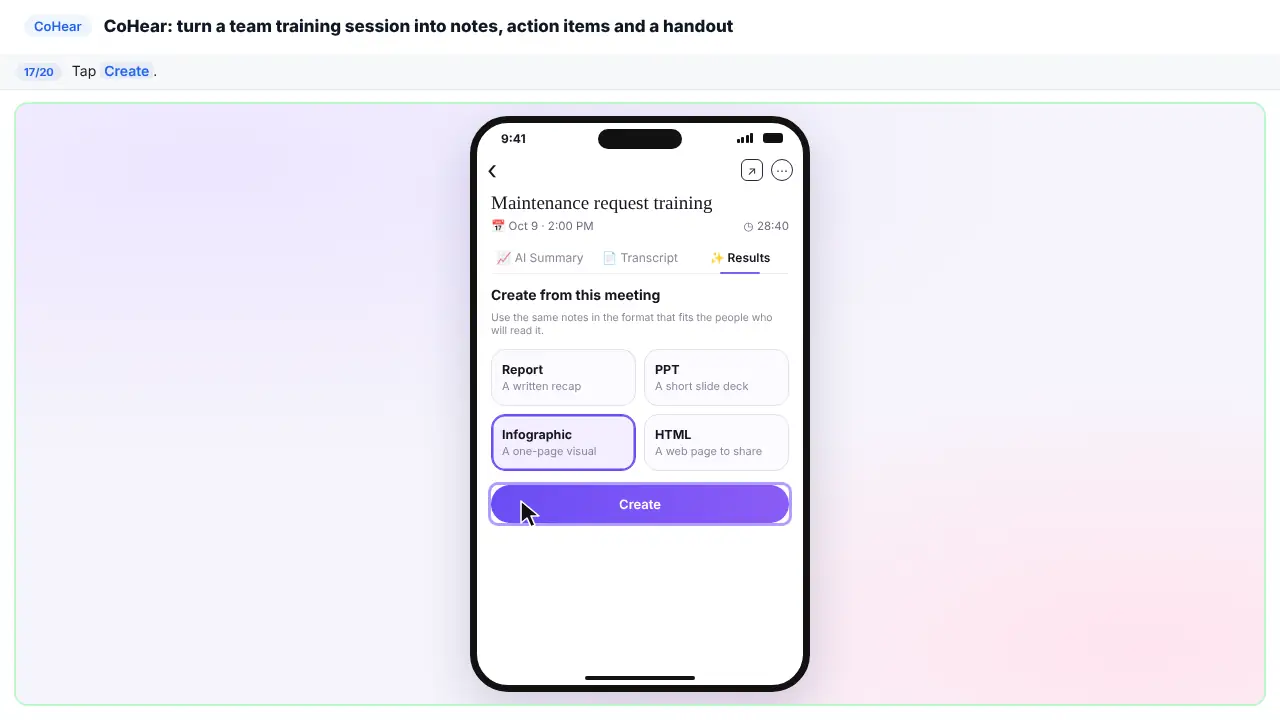
Step 17: Create it
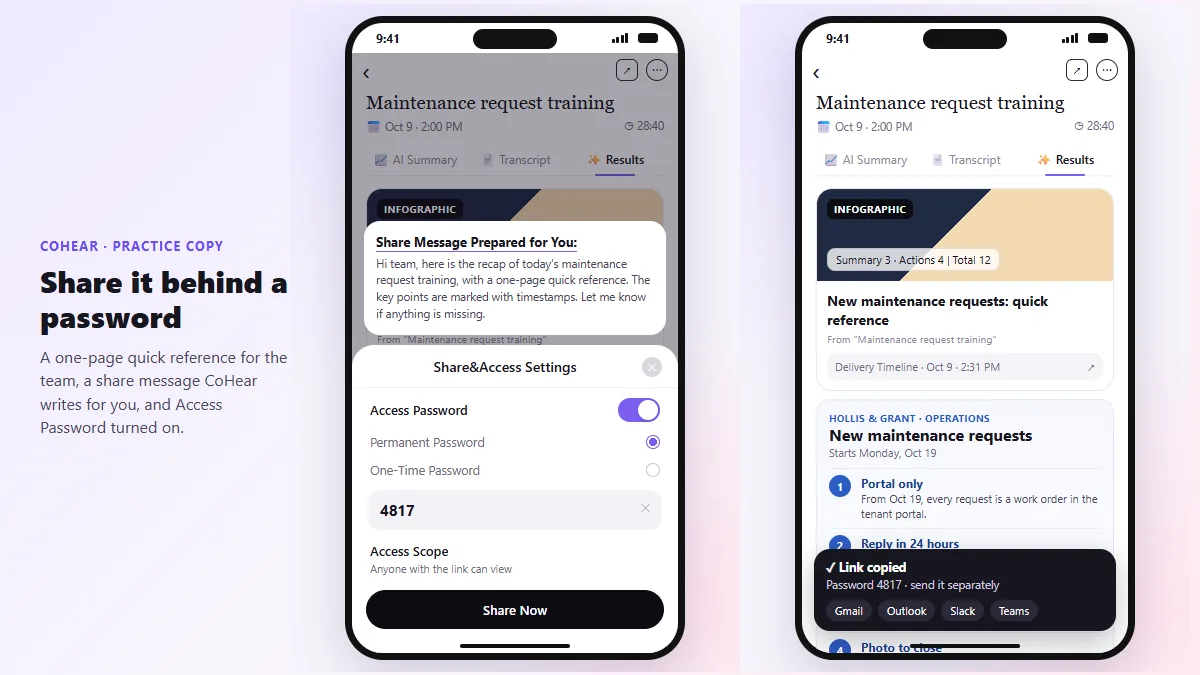
CoHear builds a quick reference from the same notes. Portal only, reply in twenty four hours, the five hundred dollar rule, and a photo to close.
Part 6: Share it with a password
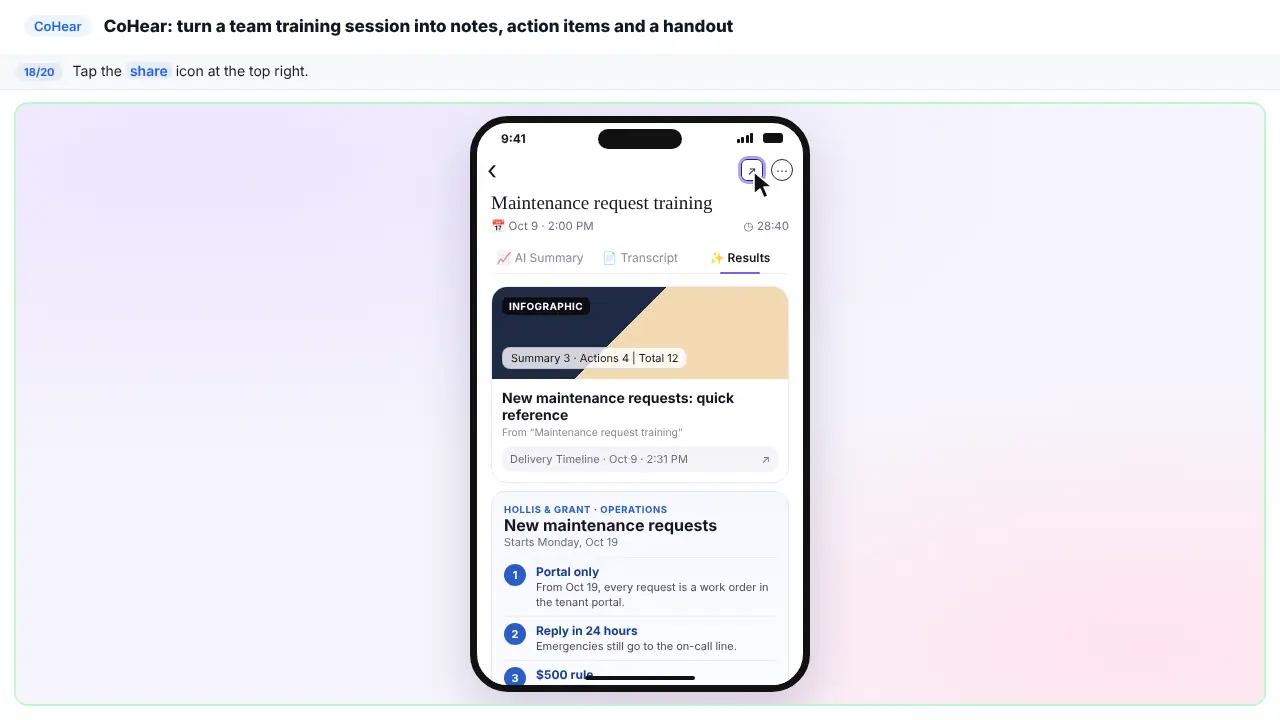
Step 18: Open sharing
Now send it to the team.
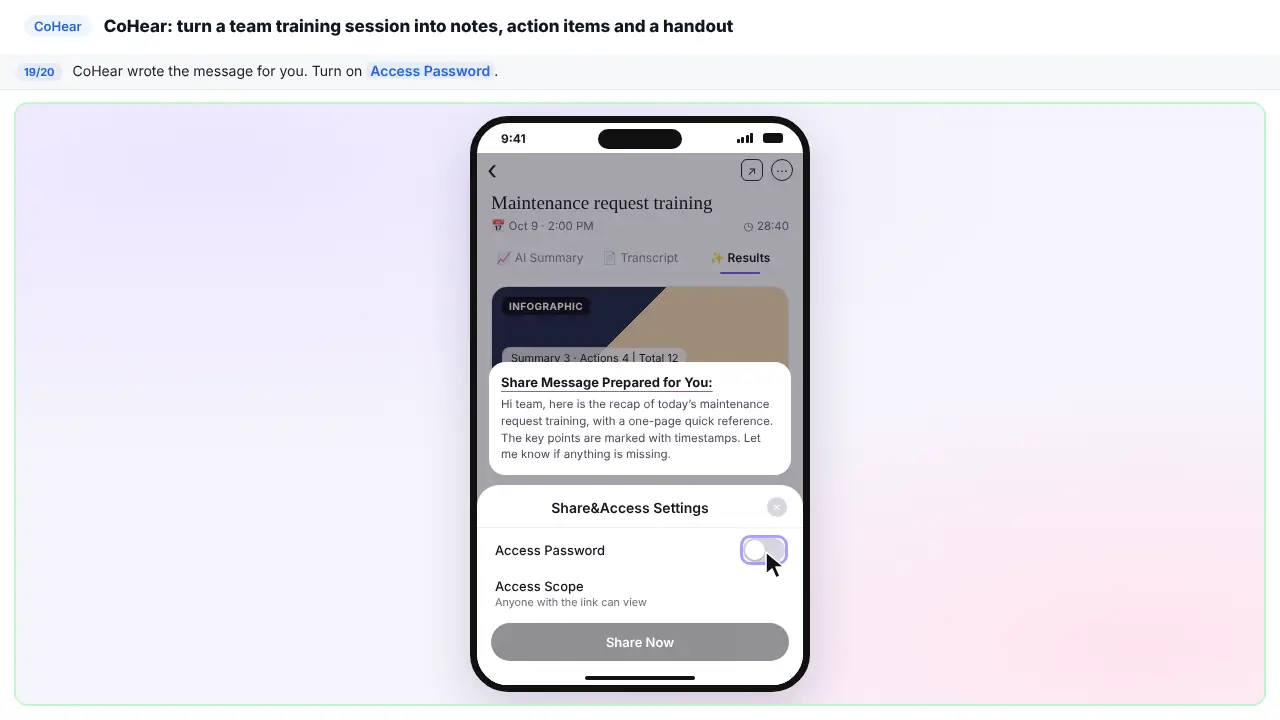
Step 19: Add a password
CoHear wrote the message for you. Your notes are private until you share them. Anyone with the link could open this one, so add a password. Turn on Access Password.
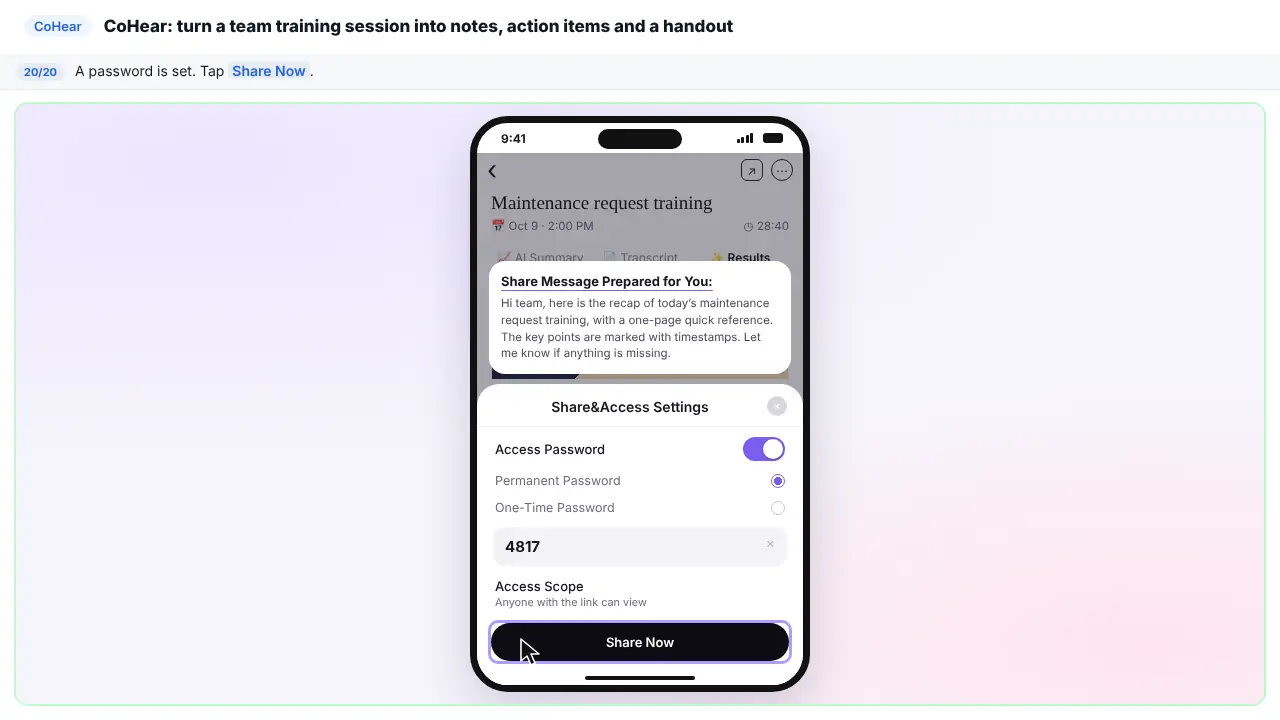
Step 20: Share it
Send the link in your team chat, and the password separately. Next week, set the missing due date, and get the answer on tax from accounting.
Part of these free courses: AI Apps Worth Knowing, AI for Meetings, Turn Talk Into Work: Voice and Meetings AI
Now do it yourself, free
Reading the steps is a start. Doing them is how it sticks. The interactive lesson puts you in a practice copy of CoHear: you do every step yourself, it checks your work, and “Do it for me” finishes any step you get stuck on. Nothing touches your real accounts.
Practice “CoHear: AI Meeting Notes from a Team Training Session” step by step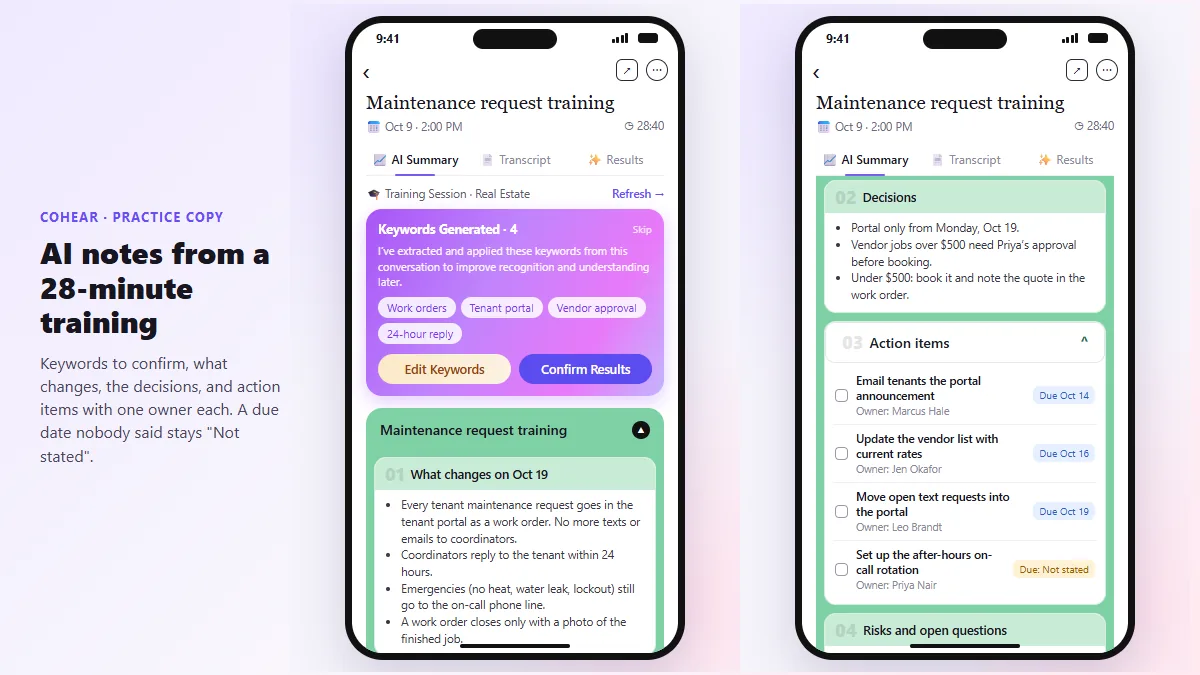
What you will do: one training session, start to finish
You are Priya Nair, the operations manager at Hollis & Grant Property Management, a made-up company. You are training six property coordinators on a new maintenance request process: from October 19 every request goes through the tenant portal, coordinators reply within 24 hours, vendor jobs over $500 need your approval, and a work order closes only with a photo. You want notes the team can act on, without anyone taking notes during the session.
In the practice copy you pick Operations as your role, tap the red record button, confirm on the Before you record sheet that everyone has been told, and watch the Transcript Preview fill in. When the session ends you stop the recording, name it, confirm your industry (Real Estate) and pick the Training Session scenario. Then you confirm the keywords CoHear found, open the action items, play the transcript line where the $500 rule was said, create a one-page infographic on the Results tab, and share it with Access Password turned on.
Who this is for
Operations managers, office managers, team leads and trainers who run in-person meetings, onboarding sessions or process trainings and then spend an hour writing the recap. You do not need any AI experience. The lesson is a practice copy, so nothing is recorded, no minutes are used, and you do not need a CoHear account or an iPhone to take it.
How CoHear works
CoHear is an iPhone app. You record a conversation in the app, with the recording status visible the whole time, or import an audio file. The recording screen shows a timer, a Privacy Protected note, a waveform with a word count, and Voice and Connection checks; a Transcript Preview tab shows the words as they arrive. Before recording, CoHear asks you to make sure everyone has been informed and agrees where required, because recording laws vary by location.
Each recording becomes a meeting record with three tabs. AI Summary holds the notes: the keywords it picked up (which you can edit or confirm), then key points, decisions, risks and action items. Transcript shows every line with the speaker and a timestamp, and plays the audio from any line. Results is where you turn the notes into a report, a PPT deck, an infographic or an HTML page.
CoHear adapts the notes to your context. Its site lists 22 industries, 267 occupation mappings and 63 meeting scenarios, from Sales Discovery Call and Candidate Interview to Team Sync, Operational Handoff and Training Session. When several meetings are about the same work, topic analysis groups them into one workstream with its progress, risks and open loops.
Step 1: record with consent, then say what kind of meeting it was
Tell the room before you start, and let people say no. In the lesson the Before you record sheet only moves on when you tap I've informed everyone. After you stop, the scenario matters: a training session should come back as the new rules, who does what by when, and the questions nobody answered, not as a sales recap.
Step 2: check the action items and one rule against the transcript
Read the action items first. Each one in the lesson has a single owner, and one due date says Not stated because nobody said a date. CoHear's own pages say it keeps missing facts flagged instead of filling them in, so that gap is yours to close.
Then check the one rule people will act on. On the Transcript tab, tap the line at 12:40 and the audio plays from that point: anything over five hundred dollars goes to Priya before the vendor is booked. The notes got it right. The next line shows an open question too: is the $500 before or after tax? That stays open until accounting answers.
Step 3: make a one-page handout and share it with a password
Your coordinators will not read 28 minutes of notes. On the Results tab, choose Infographic and tap Create. The lesson's quick reference has four rows (portal only, reply in 24 hours, the $500 rule, photo to close) and a short to-do list with owners and dates.
Meeting results start private to your account. When you tap the share icon, CoHear prepares a share message and opens Share&Access Settings. Turn on Access Password before you tap Share Now, then send the link in one place and the password in another.
Mistakes to avoid
- Recording without telling people. Say it at the start, every time, and check the consent rules where you work.
- Sending the notes unread. Fix the owners and dates, and leave open questions marked as open.
- Trusting a number you did not check. Play the transcript line behind any amount, date or rule before it goes in a handout.
- Sharing the full transcript when the team needs one page. Pick the format that fits the reader.
- Sharing a link with no password when the notes include anything internal.
Plans, data and what to check
CoHear's free plan includes 400 recording minutes a month, 3 file imports and recordings up to 2 hours; paid plans add more and include credits for generated deliverables. Check cohear.work/pricing for current limits, since they change. CoHear says recordings and results start private, AI data processing needs your authorization in the app, and model training is off unless you separately allow it. Before you record client or staff meetings at work, check what your company's AI and data policy allows.
Links
- CoHear (cohear.work): the app this lesson teaches. It is a separate product with its own account and plans.
- CoHear product overview: recording and import, single-meeting and topic analysis, and the share formats.
- CoHear on the App Store: the iPhone app (iOS 17 or later).
Try it yourself, free
Reading the steps is a start. Doing them is how it sticks. The interactive module walks you through every click in a practice copy of CoHear, checks each step, and never touches your real accounts.
Start “CoHear: AI Meeting Notes from a Team Training Session”Screenshots
Frequently asked questions
- How does the interactive lesson work?
- Each step is shown to you first (Watch). Then you do it yourself in a practice copy that checks every tap (Your turn). If you get stuck, press Do it for me. It is a practice copy, so nothing is recorded and no CoHear account is touched.
- Is CoHear part of Stepthrough?
- No. CoHear is a separate, third-party product from cohear.work. This lesson is free and teaches the steps as shown on cohear.work and on CoHear's App Store page. To use it for real you need the iPhone app and your own CoHear account; check cohear.work for its current plans.
- Does CoHear join my Zoom or Teams call as a bot?
- No. CoHear records on your iPhone, so it suits meetings in a room, or you can import an audio file from a call you already recorded. Either way, tell everyone before you record.
- What happens when the AI doesn't know an owner or a date?
- It is left as Not stated instead of guessed. In the lesson one action item has no due date because nobody said one, and you set it yourself after the meeting.
- Can I share CoHear notes with people who don't use the app?
- Yes. You share a link to the result, choose what to include, and can add a permanent or one-time password. The lesson shares a one-page infographic with a password turned on.
More in AI Automation for Operations
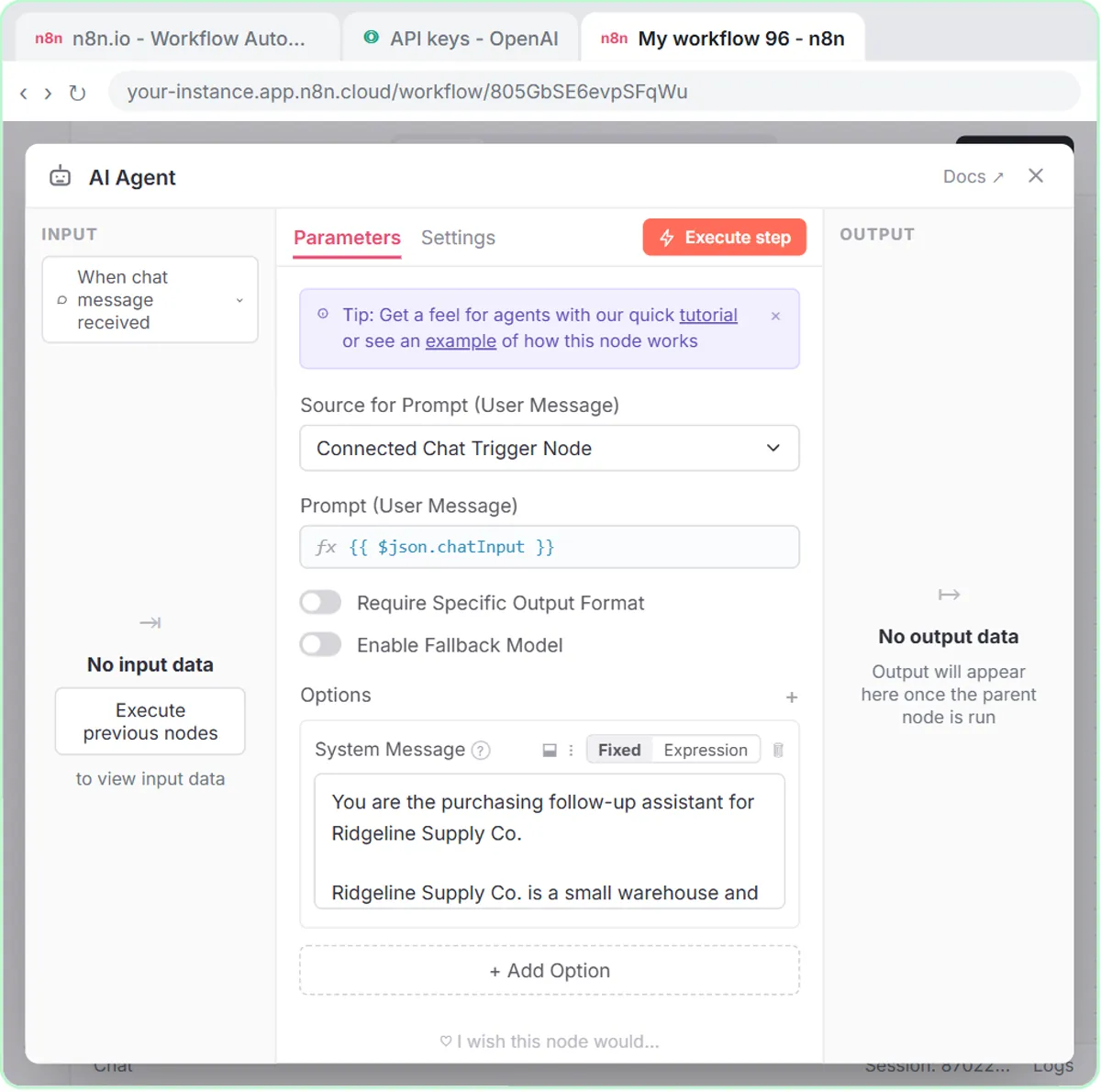 Build an AI Vendor Follow-Up Agent in n8n
Build an AI agent for Ridgeline Supply Co. that writes follow-up messages for late or pending purchase orders and saves them to Google Sheets — chat trigger, AI Agent…
Free · Live ~12 min Intermediate
◷Airia for Beginners: What an AI Agent Is Made OfA five-minute map of Airia before you build: the four parts of an agent (model and instructions, data sources, Playground, Publish), three office jobs that suit one…
Free · Live ~5 min Beginner
◷How to Use Foxit: Workspace, AI Assistant and PDF Editor for BeginnersA five-minute map of Foxit before you use it: Foxit Workspace, the PDF AI Assistant and PDF Editor, which one fits a contract review, a revised contract, a flat form or…
Free · Live ~5 min Beginner
◷AI Contract Review in 10 Minutes using Foxit AISkimmed contracts hide auto-renewals, late fees and liability caps. Upload one to Foxit Workspace, get a plain-English summary and every renewal and exit date, check…
Free · Live ~10 min Beginner
 Answer Employee Policy Questions Instantly Using Airia
HR answers the same time-off and benefits questions all day. Give Airia your handbook, build a no-code agent that answers from it, test it, then share it with your team.
Free · Live ~10 min Intermediate
◷Smallpdf for Beginners: Which Tool for Which PDF JobA five-minute map of Smallpdf before you use it: the AI PDF tools, Fill & Sign and the everyday tools, which one fits a long proposal, a scan or a file to share, and…
Free · Live ~5 min Beginner
All 38 modules in AI Automation for Operations
From the blog
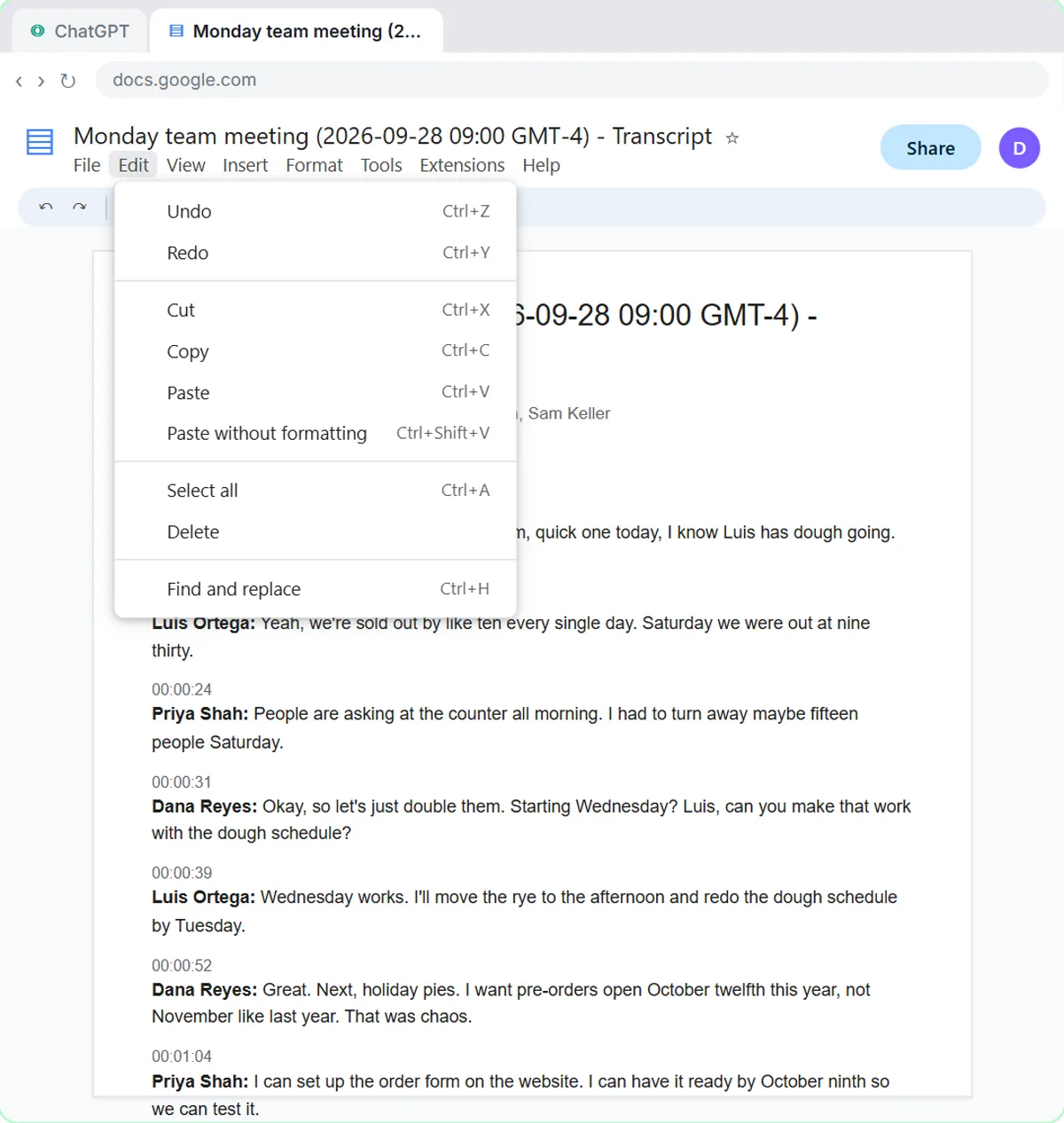 How to Get a Transcript of a Meeting
How to get a transcript of a meeting from Google Meet, Zoom or Teams, clean it up, and turn it into action items with AI, without leaking private details.
Oct 12, 2026 4 min read
Zoom Transcript to Action Items with ChatGPTTurn a Zoom meeting transcript into action items with ChatGPT: enable the audio transcript, download the VTT file, and ask for a task-owner-date table.
Oct 12, 2026 3 min read
Terms in this lesson
Plain-English definitions, each with an example from a free lesson.
More prompts on this topic
- Statement of work draft prompt: Turn agreed project terms into a first-draft statement of work: scope, deliverables, timeline, fees and client duties. Gaps get…