Updated . Built against the tool’s current screens and checked step by step. How we check this lesson
Every HR team has the same inbox: how many vacation days do I get, when does my health plan start, who approves time off. The answers are already written down in the employee handbook, but someone still has to find them and type them out, all day. This free lesson shows how a 60-person company's HR manager hands the handbook to an AI agent built in Airia, a no-code platform for AI agents. You upload the handbook as a data source, write the agent's instructions, check that it answers from the handbook and says "I can't find that" when it should. A closing note then points you to Publish for sharing it with the team.
At a glance
| Question | Answer |
|---|---|
| What you build | HR answers the same time-off and benefits questions all day. Give Airia your handbook, build a no-code agent that answers from it, test it, then share it with your team. |
| Tools | Airia |
| Time | About 10 minutes, 27 steps in 4 parts |
| Level | Intermediate |
| Cost | Free |
| Ways to learn it | Practice it step by step |
The 4 parts, in short
- Load the handbook once, stop retyping it: Open Build, Open Data Sources, Add Data Source, Find File Upload, and 8 more steps.
- Build the agent that answers for you: Back to Agents, Add a New Agent, Rename the agent, Name it, and 5 more steps.
- Prove it before employees see it: Open the Playground, Ask a real question, Send it, Ask something it should not know, and 1 more step.
- Share it with your team: When you are happy, publish.
Start here first: Build an AI Vendor Follow-Up Agent in n8n (module 1 of AI Automation for Operations)
Part of: AI for Marketing Teams (step 10 of 11). Next up: Onboard New Clients Without the Back-and-Forth Using Airia
Part of: AI for Operations Teams (step 5 of 7). Next up: ChatGPT: Turn Rough Notes into a One-Page SOP in an Editable Document
Part of: AI Apps Worth Knowing (step 16 of 17). Next up: Onboard New Clients Without the Back-and-Forth Using Airia
The problem: the answer is in the handbook, and HR still types it
Picture Maya, the HR manager at Northwind Partners, a made-up 60-person company. Every day she gets the same handful of questions: how many vacation days in the first year, do unused days roll over, when does health coverage start, how do I request time off. None of them are hard. All of them are answered in the employee handbook.
Here is the arithmetic of an example day: 20 handbook questions at about 3 minutes each is an hour of HR time, five hours a week, spent retyping paragraphs that already exist. Worse, the answer changes depending on who types it and how rushed they are. After this lesson, employees ask an agent that answers only from the handbook, names the section it used, and sends them to HR when the handbook is silent. HR keeps the judgment calls and drops the lookups.
What you will build
In the practice copy of Airia you work in the Default Project. You add a File Upload data source called Northwind Employee Handbook, with a description that tells the AI what is inside and when to use it, save it, then open it and use Add Files to upload the handbook. Airia shows Pending, then Ready, once it has read the file. Then you add a new agent in the builder, name it HR Policy Agent, open the AI Model step, paste instructions, switch on Use Data Sources and pick the handbook from the Data Stores list.
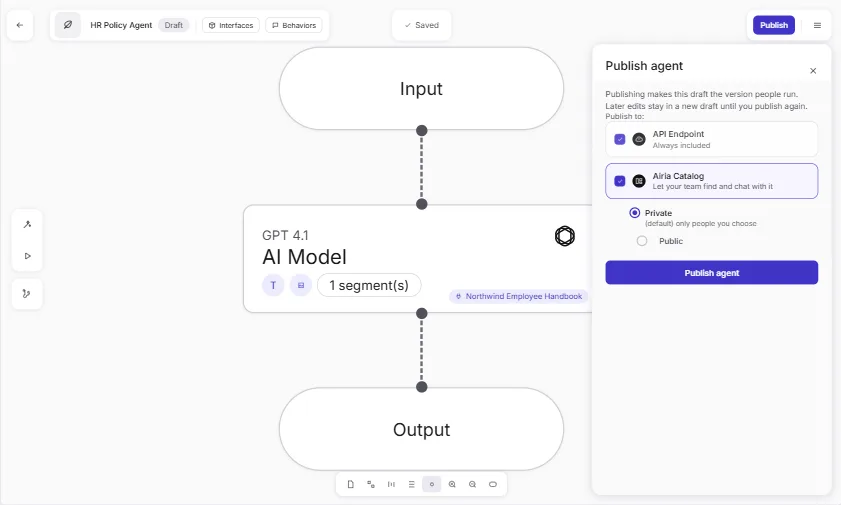
You test it in the Playground with two questions: one the handbook answers (vacation days in the first year, answered with the handbook section named) and one it does not (gym memberships), where the correct reply is that it cannot find it and the employee should email HR. These are the answers a real Airia agent gave when we ran this exact build. The lesson ends with a closing note: when you are happy with the answers, click Publish to share the agent with your team through the Airia Catalog or an API.
How Airia works, in plain words
Airia organizes work into projects. A project holds the models, data sources and agents that belong together. An agent is built on a canvas with three steps: Input (the employee's question), an AI Model step (the model that writes the answer, and where you put its instructions), and Output.
A data source is how you give the agent your own documents. File Upload is the quickest connector for a first try; Airia's library also lists connectors for tools such as Box, Dropbox and Confluence. When you add files to a data source, Airia reads them and builds a search index, so the agent can look up the right passage instead of guessing; the file shows Pending, then Ready. In the AI Model step, the Knowledge section has a Use Data Sources switch that lets the model search the sources you pick.
The Playground is a test chat inside the builder. It runs your current draft, so you can fix the instructions and try again before anyone else sees the agent. When you are happy with the answers, the Publish button shares the agent with your team through the Airia Catalog or an API.
The two tests that matter
Test the question the handbook answers: the reply should be short, correct, and name the section. Then test the question it should not be able to answer. An agent that confidently invents a gym reimbursement policy is worse than no agent. The instructions in the lesson tell it to use only the handbook and to say "I can't find that in the handbook. Please email [email protected]" when the answer is not there.
Mistakes to avoid
- Uploading an old handbook. The agent is only as current as its source, so replace the file when the policy changes.
- Skipping the data source description. Airia says a precise description helps the AI choose the right source and retrieve better.
- Testing only the easy question. Always try one the handbook does not cover.
- Putting personal or legal decisions in the agent. Keep it to published policy and send anything about one person's situation to HR.
- Publishing to everyone before you have checked who should have access.
What this saves you
The agent takes the repeat questions off HR's plate, gives every employee the same answer with the section named, and works whenever someone asks, not only when HR is at their desk. Your next business case with the same pattern: an IT help desk agent that answers from your setup guides, or a new-hire onboarding agent that answers from your first-week checklist. The second Airia lesson, a client-onboarding assistant, shows the same builder without a data source.
Plans, limits and what to check
Airia is a separate product with its own account, plans, pricing and limits on how many agents you can create; check airia.com for current terms. Everything up to and including the Publish panel was walked through live in a real Airia account: adding the data source, uploading a file, the AI Model panel, the Data Stores picker and the Playground (we tested with a plain-text handbook). Publishing itself is a closing note in the lesson and was not run. Before you put employee data or real HR policy into any AI tool, check what your company's AI and data policy allows.
Links
- Airia (airia.com): the platform this lesson teaches. It is a separate product with its own account, plans and agent limits.
- Airia docs: build and publish an agent: the official quick start: projects, models, data sources, the builder, the Playground and publishing.
- Try Airia (affiliate link): the sign-up page for the platform this lesson teaches.
Disclosure: links marked "affiliate link" are partner links. If you sign up through one, Stepthrough may earn a commission at no extra cost to you. The lesson is free either way and does not depend on it.
Try it yourself, free
Reading the steps is a start. Doing them is how it sticks. The interactive module walks you through every click in a practice copy of Airia, checks each step, and never touches your real accounts.
Start “Answer Employee Policy Questions Instantly Using Airia”Step by step: Answer Employee Policy Questions Instantly Using Airia
All 27 steps of the interactive module, in order. In the module you watch each one, then do it yourself in a practice copy that checks your work.
1. Load the handbook once, stop retyping it
- Open Build. You are Maya, the HR manager at Northwind Partners. In the left menu, click Build.
You're Maya, the HR manager at Northwind Partners. Sixty people work there. And every day, they ask you the same questions. How many vacation days do I get? When does my health plan start? The answers are all in the handbook. So we'll hand the handbook to an AI agent, using Airia. In the left menu, click Build.
- Open Data Sources. This is the Default Project. Click the Data Sources tab.
This is a project. It keeps your agents and their files in one place. That's where the handbook goes.
- Add Data Source. Click Add Data Source.
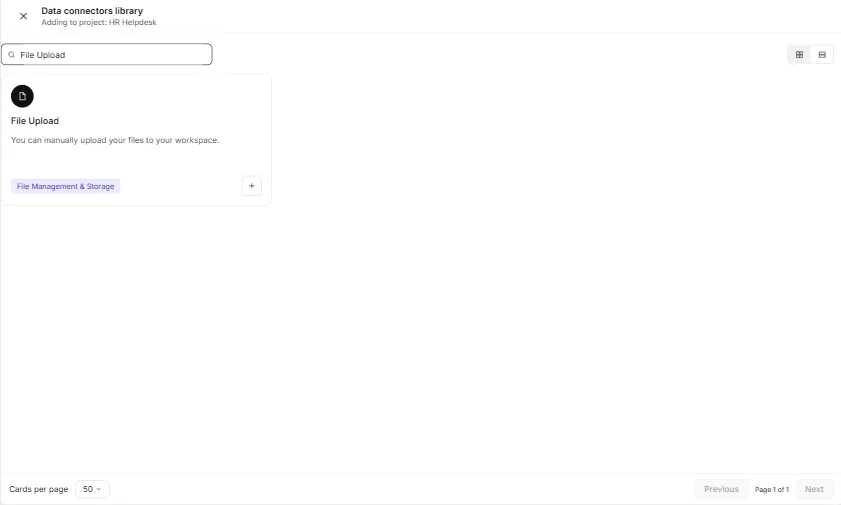
- Find File Upload. This is the Data connectors library. Search for File Upload.
Airia can read files from Box, Dropbox, Confluence and more. We just have one handbook file, so we'll upload it by hand. In the search box, type File Upload.
- Pick File Upload. Click the + on the File Upload card.
- Name the data source. Type Northwind Employee Handbook.
Give it a clear name. The AI reads this name when it decides where to look.
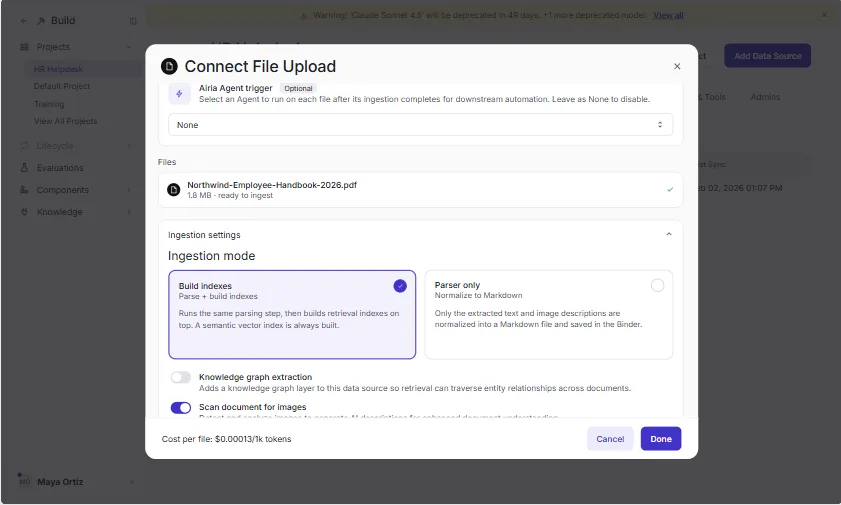
- Describe what is inside. Paste in the description. It tells the AI what this data source holds and when to use it.
Next, a description. Airia says the more precise it is, the better the answers. Say what's inside, and when to use it.
Northwind Partners Employee Handbook (2026): time off, sick leave, holidays, benefits, remote work and expenses. Use it to answer any employee question about company policy.
- Save with Done. Leave the other settings as they are. Click Done.
The other settings are fine as they are. This is just the container. The file comes next.
- Open the data source. A green message says the data source was created. It shows 0 files. Click its name.
A message says the data source was created. It has zero files so far.
- Add Files. It is empty. Click Add Files.
It's empty.
- Choose the handbook. Click Browse Files and pick your handbook. It can be a PDF, a Word file or plain text.
A PDF, a Word file or plain text all work.
- Upload it. The file is listed. Click Upload. It shows Pending for a few seconds, then Ready.
The file is listed. It says Pending for a few seconds. Then it says Ready. That means Airia has read it, and built a search index.
2. Build the agent that answers for you
- Back to Agents. The handbook shows Ready. Click the Agents tab.
Your handbook is Ready.
- Add a New Agent. Click Add a New Agent.
- Rename the agent. The builder opens with three steps: Input, AI Model and Output. The agent starts as Untitled Agent (1). Click the name at the top left.
The builder opens with three steps. Input, where the question comes in. AI Model, which writes the answer. And Output. The agent is called Untitled Agent one. First, a name.
- Name it. Type HR Policy Agent.
- Open the AI Model step. Click the AI Model step.
This is where you tell the agent how to behave.
- Write the instructions. Paste in the instructions. They say who the agent is, where to look, and what to do when it does not know.
These are the agent's instructions. Read them. Only use the handbook. Name the section. And if it's not in there, say so, and send them to HR. That last part is what keeps it honest.
You are the HR Policy Agent for Northwind Partners. Answer employee questions about time off, benefits and workplace policies using ONLY the Northwind Employee Handbook data source. Reply in plain words, in three sentences or fewer, and name the handbook section you used. If the handbook does not cover the question, say: "I can't find that in the handbook. Please email [email protected]." Never guess. Never give legal advice. Never share one employee's personal details.
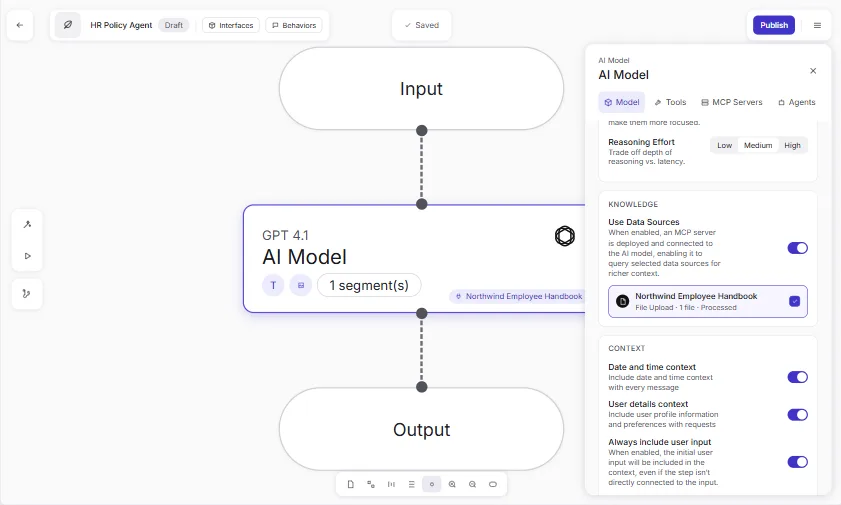
- Turn on Use Data Sources. Scroll to Knowledge and switch on Use Data Sources.
Now connect the handbook. Under Knowledge, switch on Use Data Sources.
- Open the data store list. Under Data Stores, click Select data stores.
A Data Stores box appears.
- Pick the handbook. Click Northwind Employee Handbook. It now says 1 datasource selected.
It says one datasource selected. The agent can now search it whenever it needs to. Airia saves your changes by itself.
3. Prove it before employees see it
- Open the Playground. Click the Playground button on the left.
Time to test it, before anyone else sees it.
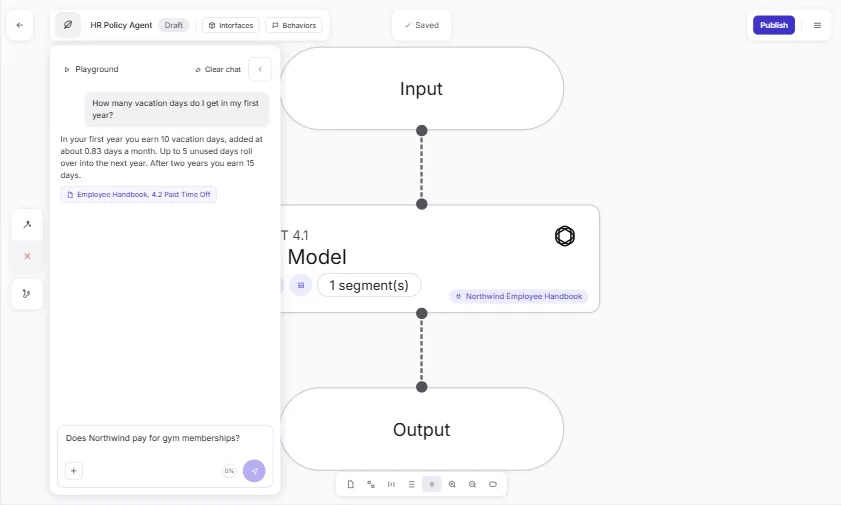
- Ask a real question. Type the question an employee would ask: How many vacation days do I get in my first year?
Ask it what a new hire would ask.
- Send it. Click the send arrow.
- Ask something it should not know. It named the handbook section it used. Now ask something that is not in the handbook: Does Northwind pay for gym memberships?
It answered from the handbook, and it named the section. Now the other test. Ask something the handbook doesn't cover.
- Send it. Click send. A good agent says it does not know, instead of making something up.
A good agent says I don't know. It doesn't make something up. This one sends the person to HR. Test it this way before you publish.
4. Share it with your team
- When you are happy, publish. When you're happy with the answers, click Publish to share the agent with your team through the Airia Catalog or an API.
Screenshots
Frequently asked questions
- How does the interactive lesson work?
- Each step is shown to you first (Watch). Then you do it yourself in a practice copy that checks every click (Your turn). If you get stuck, press Do it for me. It is a practice copy, so nothing is uploaded and no Airia account is touched.
- Is Airia part of Stepthrough?
- No. Airia is a separate, third-party product. This lesson is free and teaches the steps as they appear in Airia's app and docs. To use it for real you need your own Airia account; check airia.com for current plans and limits.
- Will the agent make up an answer if the handbook does not cover the question?
- It can if you do not tell it not to. The lesson's instructions say to use only the handbook and to reply that it cannot find the answer, with HR's email, when it is not there. You test that behaviour in the Playground before publishing.
- Do I need to code anything?
- No. You upload a file, write the instructions in plain English and switch on a setting. The builder is a canvas with three steps.
- Which file types can I upload?
- Airia's quick start suggests File Upload as the simplest connector and lists PDF, DOCX and TXT. We uploaded a plain-text handbook and it reached Ready in under a minute. The form says it works for files up to 50MB.
More in AI Automation for Operations
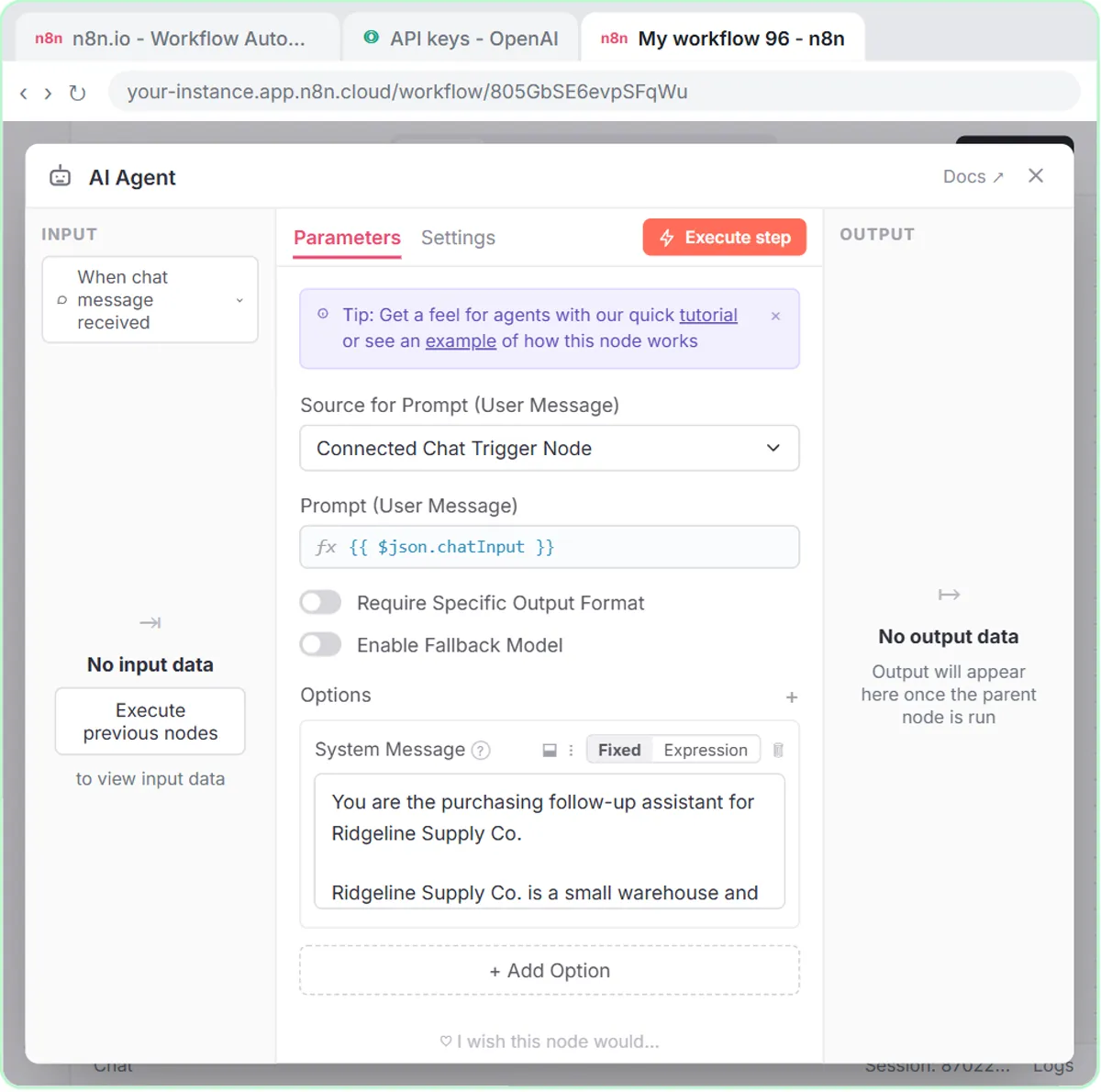 Build an AI Vendor Follow-Up Agent in n8n
Build an AI agent for Ridgeline Supply Co. that writes follow-up messages for late or pending purchase orders and saves them to Google Sheets — chat trigger, AI Agent…
Free · Live ~12 min Intermediate
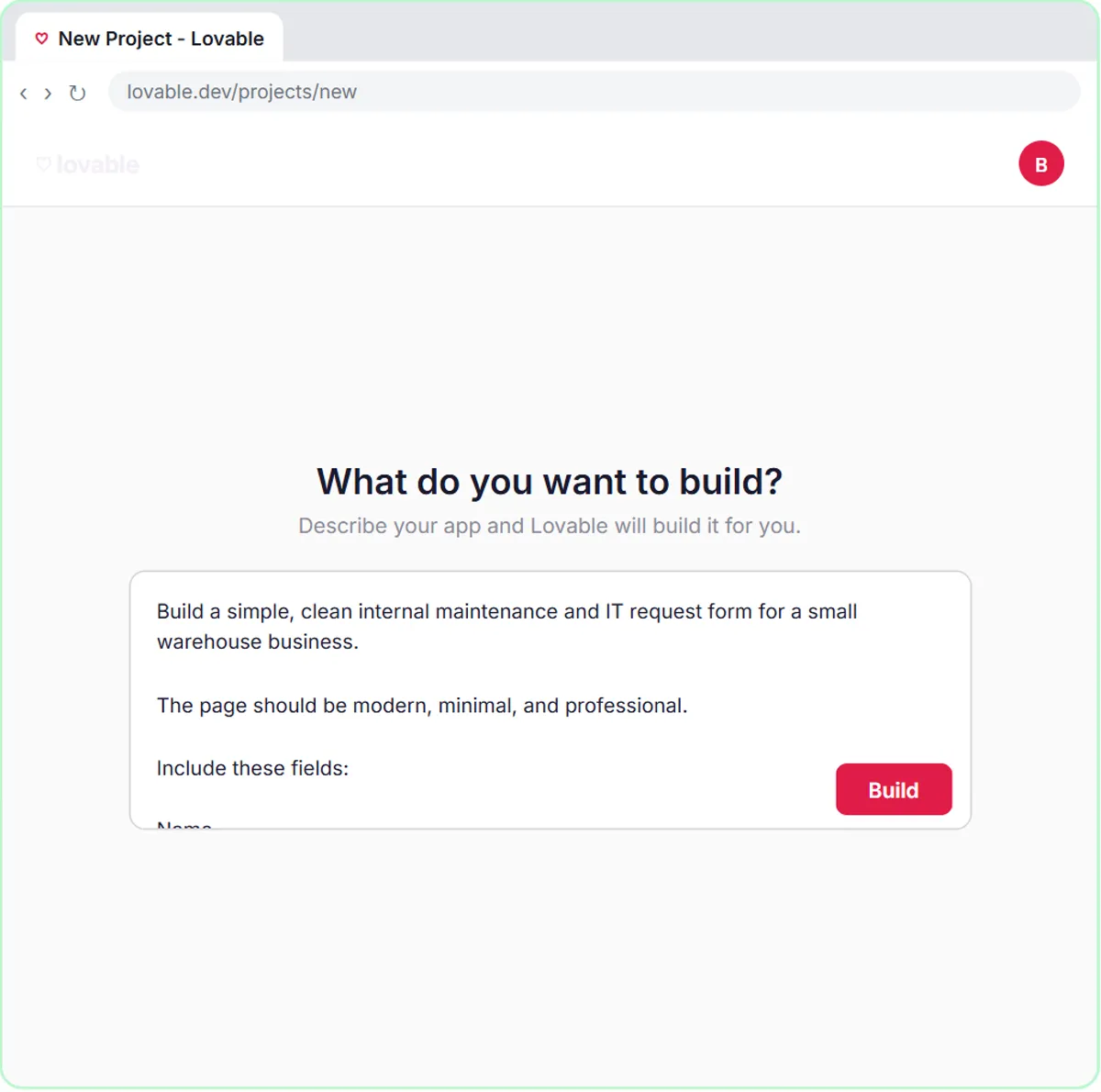 Build an AI Maintenance and IT Request Form
Build an internal maintenance and IT request form in Lovable for Ridgeline Supply Co. and connect it to n8n — the AI agent sets the priority, assigns a team, saves the…
Free · Live ~15 min Advanced
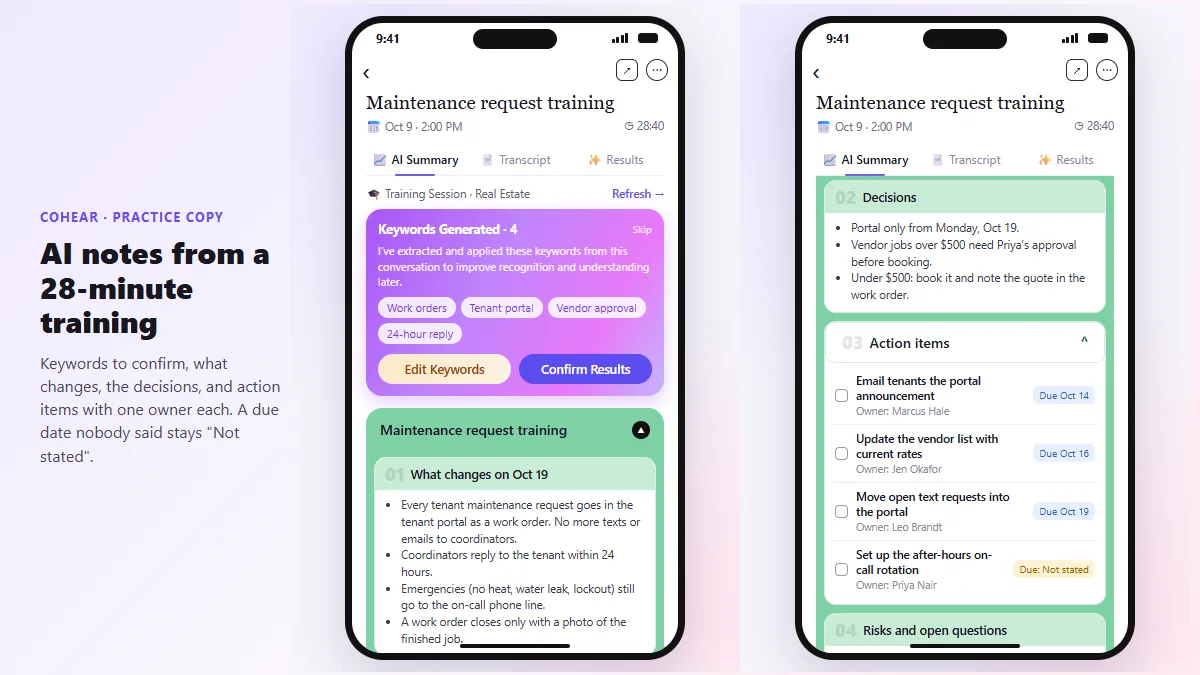 CoHear: AI Meeting Notes from a Team Training Session
Record a team training session on your iPhone with CoHear, check the AI notes and action items against the transcript, make a one-page handout and share it behind a…
Free · Live ~8 min Intermediate
◷Meeting to Action: Recap, Tracker Rows and a Kickoff Deck (ChatGPT, n8n, Gamma)Turn rough meeting notes into a checked recap in ChatGPT, four action-item rows in a Google Sheet through n8n, and a five-slide kickoff deck in Gamma.
Free · Live ~14 min Intermediate
All 7 modules in AI Automation for Operations
Terms in this lesson
Plain-English definitions, each with an example from a free lesson.