What is a file upload in ChatGPT and other AI chats?
Updated · By Robert Breen
A file upload is attaching a document, spreadsheet, PDF or photo to a message in an AI chat, so the assistant reads the file itself instead of text you copied out of it. In ChatGPT, you do it with the + button next to the message box or by dragging a file onto the chat.
Why it matters for a small business
Copying and pasting works, but it is fiddly. Long documents get cut off when you select them, tables lose their layout, and photos can't be pasted as text at all. Uploading hands the assistant the whole file in one step, which is faster and keeps more of the original intact.
Uploading also changes the privacy question, not just the convenience. A pasted excerpt contains only what you chose to copy; an uploaded file contains everything in it, including the parts you forgot about. Before uploading client documents, check what is inside, remove what the job doesn't need, and check your plan's data controls and your company's rules for AI tools.
In a real lesson: Summarize a Meeting Transcript with ChatGPT
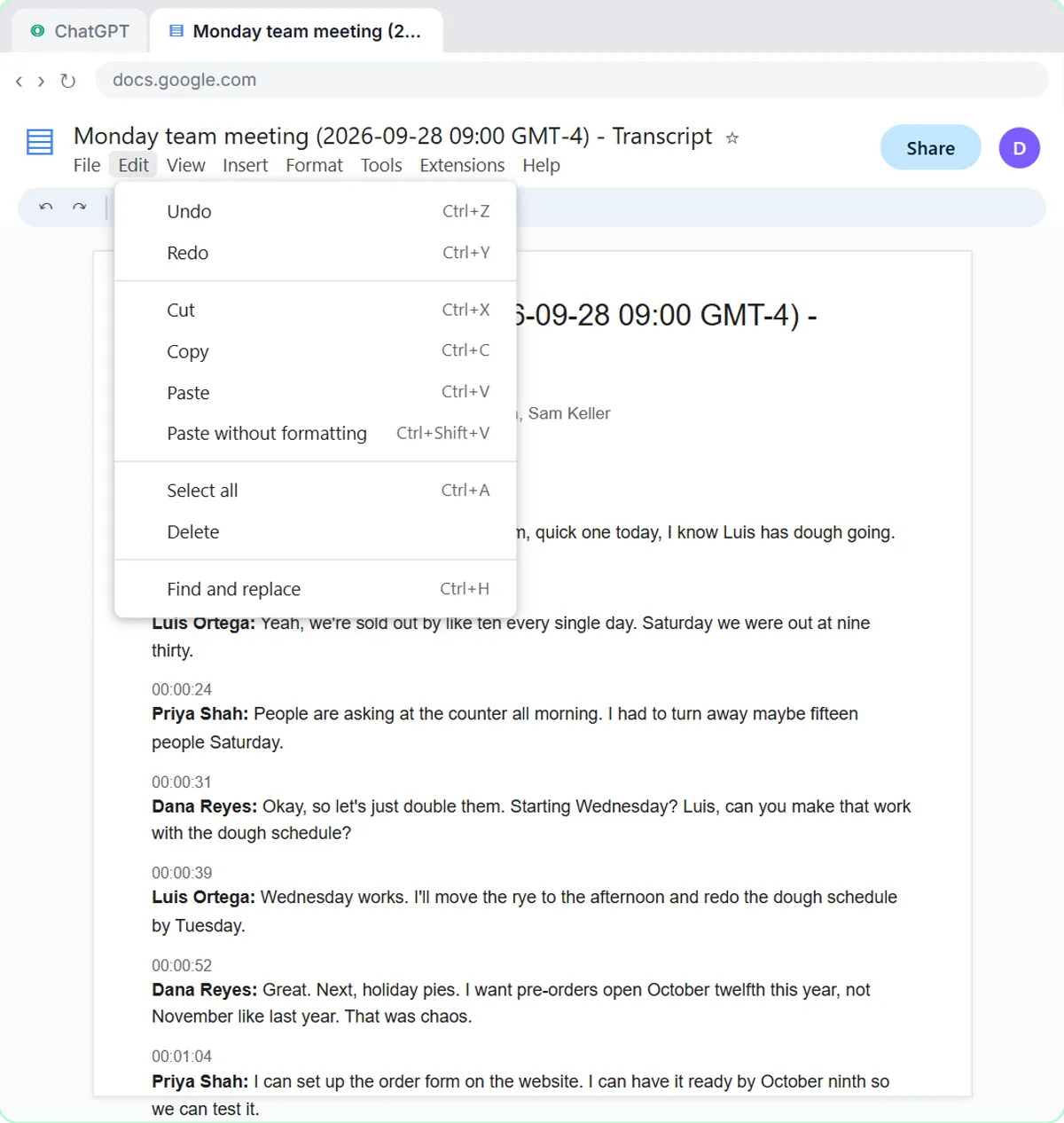
The Summarize a Meeting Transcript lesson ends with a chapter called "Or upload the file". You have just summarized the Monday team meeting at Harbor Street Bakery, a made-up bakery, by pasting the transcript. The lesson then shows the faster way, for when the transcript arrives as a file someone emailed you.
You click New chat, then the + button on the left of the message box, then Add photos & files, pick Monday team meeting - Transcript.docx and click Open. The file attaches to the message box, and the voice-over adds that you can also drag a file onto the chat.
You send a one-line request with it: summarize the transcript with decisions, action items with owner and due date, and open questions, writing "Not stated" when an owner or date isn't said. The lesson's closing advice still applies: always check the owners and dates before you send the recap. The AI Receipt Extractor does the same thing inside n8n, where you click the paperclip in the chat and attach receipt.png.
Try this lesson free or read the step-by-step guide.
Common confusions
File upload vs pasting text
Pasting sends exactly the text you selected. Uploading sends the whole file, so it is quicker but may include more than you meant to share.
File upload vs knowledge files
An upload is for one conversation. Files you add to a project or assistant setup are reused across many chats. Upload for one-off jobs.
Tips
- Open the file first and remove anything private the task doesn't need.
- Say what the file is in your message: "This is the transcript of Monday's team meeting".
- For photos of receipts or documents, use a clear, well-lit image; blurry numbers get misread.
- Check your plan's upload limits and data controls before sharing client files.
Related terms
Where you use it: free lessons
- Summarize a Meeting Transcript with ChatGPT (ChatGPT, 9 min)
- Turn a Client Meeting into Action Items and a Follow-Up Email (Accounting Firms) (ChatGPT, 9 min)
- Turn an Interview Debrief into a Scorecard and a Candidate Follow-Up (Recruiting & HR) (ChatGPT, 9 min)
More free tutorials
Frequently asked questions
- How do I upload a file to ChatGPT?
- Click the + button next to the message box, choose Add photos & files, pick the file and click Open. You can also drag the file onto the chat. Then type your request and send.
- Is it safe to upload client documents to ChatGPT?
- It depends on your plan's data controls and your company's policy. Remove names, account numbers and other private details the task doesn't need, and use a business plan that doesn't train on your data if your work requires it.