Summarize a Meeting Transcript with ChatGPT
Updated . Built against the tool’s current screens and checked step by step. How we check this lesson
A meeting transcript is useful for about five minutes, and then nobody reads it again. In this free, interactive lesson you hand a real-looking transcript to ChatGPT with one clear request and get back what people actually need: a short summary, the decisions, an action items table with an owner and a due date for every task, the open questions, and a follow-up email ready to send.
In the course: Part 3 · ChatGPT for Everyday Work (Module 5 of the full course)
Part of: ChatGPT Jump Start (step 2 of 4). Next up: Reply Faster: Turn a Messy Customer Email Thread into a Clear, Friendly Reply
Watch it in 22 seconds
3 mistakes: meeting notes with ChatGPT
Three mistakes people make turning meetings into notes with ChatGPT. One: pasting the transcript with no request. Two: pressing Enter for a new line (use Shift+Enter). Three: letting it guess the dates.
What you will build
You work with the transcript of a Monday team meeting at Harbor Street Bakery, a made-up small bakery. Four people talk about pumpkin rolls that sell out by ten, when to open holiday pie pre-orders, a catering request from the local library, an oven that is making a clicking noise, and a van lease that is about to run out. It rambles the way real meetings do, with a few ums and decisions made half way through a sentence.
By the end you have a clean recap: a three-sentence summary, three decisions, four action items in a table, two open questions and a short recap email to the team. You also learn a second way in, uploading the transcript file straight into ChatGPT, so you never have to open it and copy it.
Who this lesson is for
This is for owners, office managers, team leads and anyone who ends up writing the notes after a meeting. If you use Google Meet, Zoom or Teams with transcripts turned on, you already have the raw material. You do not need any technical skills, and you do not need a ChatGPT account to practice here.
It is the second module in the ChatGPT for Everyday Work course. If you have not done Prompt Writing 101 yet, it helps, because the request you paste here uses the same idea: tell ChatGPT exactly what you want back and in what shape.
Why this request works
If you paste a transcript and type "summarize this," you get a paragraph that sounds fine and helps nobody. People do not need a retelling of the meeting. They need to know what was decided and what they personally have to do by when. Asking for named sections and a table forces ChatGPT to sort the conversation into those buckets.
The "Not stated" rule is the most important line. Without it, ChatGPT tends to fill gaps with guesses that look plausible, like a Friday deadline nobody agreed to. With it, the gaps show up clearly in the table, and you fill them in yourself. That is also why the lesson makes you check the answer before you send anything: the AI does the sorting, you stay responsible for the facts.
How to use this in your business
Save the request somewhere you can reach it, like a note or a Google Doc of prompts. After your next meeting, paste it into a new ChatGPT chat, then paste or upload the transcript underneath. Change the sections to fit your team: a sales team might add "next step with each customer," a trades business might add "jobs to schedule." Ask for the follow-up email in the same chat, read it, and send it from your own email.
The same pattern works on anything long: a customer email thread, a supplier contract, a board packet or a long voicemail transcript. Tell ChatGPT the sections you want, tell it not to guess, and check the parts that matter. Before you paste anything with private customer or staff details, check your company's rules on AI tools, and remove what does not need to be there.
How the interactive lesson works
Every step is shown first on the left, in the Watch panel, with a short voice-over. Then you do it yourself on the right, in Your turn, on a practice copy of Google Docs and ChatGPT. Each click is checked, so you know right away if you picked the right button. Long texts go in with one Paste button, and if you get stuck, Do it for me finishes the step. Nothing touches a real account and no file leaves your computer, so you can practice freely, then do it for real with your own meeting.
Try it yourself, free
Reading the steps is a start. Doing them is how it sticks. The interactive module walks you through every click in a practice copy of ChatGPT, checks each step, and never touches your real accounts.
Start “Summarize a Meeting Transcript with ChatGPT”Step by step: Summarize a Meeting Transcript with ChatGPT
All 24 steps of the interactive module, in order. In the module you watch each one, then do it yourself in a practice copy that checks your work.
1. Copy the transcript
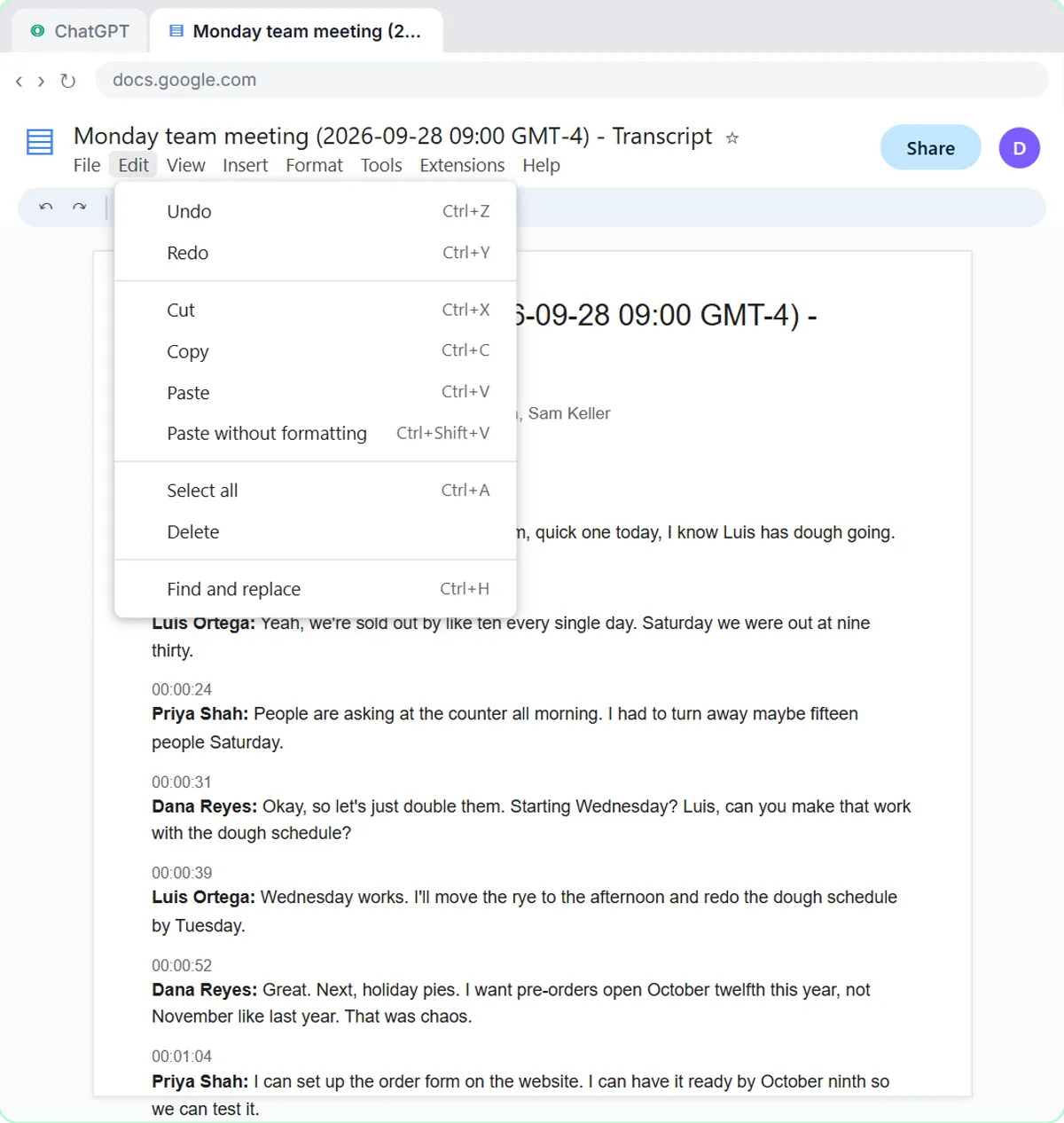
- Open the Edit menu. This is the transcript Google Meet saved after Monday's team meeting. Click Edit in the menu bar.
Here's the transcript from Monday's team meeting at Harbor Street Bakery. Google Meet saved it as a Google Doc: four people, lots of back and forth, and a few ums. Let's copy the whole thing.
- Select all. Click Select all.
On a keyboard, that's Control A.
- Open the Edit menu again. The whole transcript is highlighted. Click Edit again.
The whole transcript is highlighted.
- Copy it. Click Copy.
That's Control C. The transcript is now on your clipboard.
2. Ask for a summary
- Switch to ChatGPT. Click the ChatGPT tab at the top.
Now switch over to ChatGPT.
- Click the message box. Click the message box.
Before you paste the transcript, tell ChatGPT what you want out of it. Otherwise you'll just get a vague recap.
- Paste your request. Paste in the request. It asks for four things: a short summary, the decisions, an action items table with owner and due date, and open questions.
Here's the request. It asks for four things: a three sentence summary, the decisions, a table of action items with an owner and a due date, and any open questions. The last line matters most: only use what's in the transcript, and write not stated when something is missing. That stops ChatGPT from guessing.
You're my operations assistant. Below is the transcript of today's team meeting at Harbor Street Bakery. Give me:
1. A three-sentence summary
2. The decisions we made
3. The action items as a table: task, owner, due date
4. Open questions
Only use what's in the transcript. If an owner or date isn't said, write "Not stated".
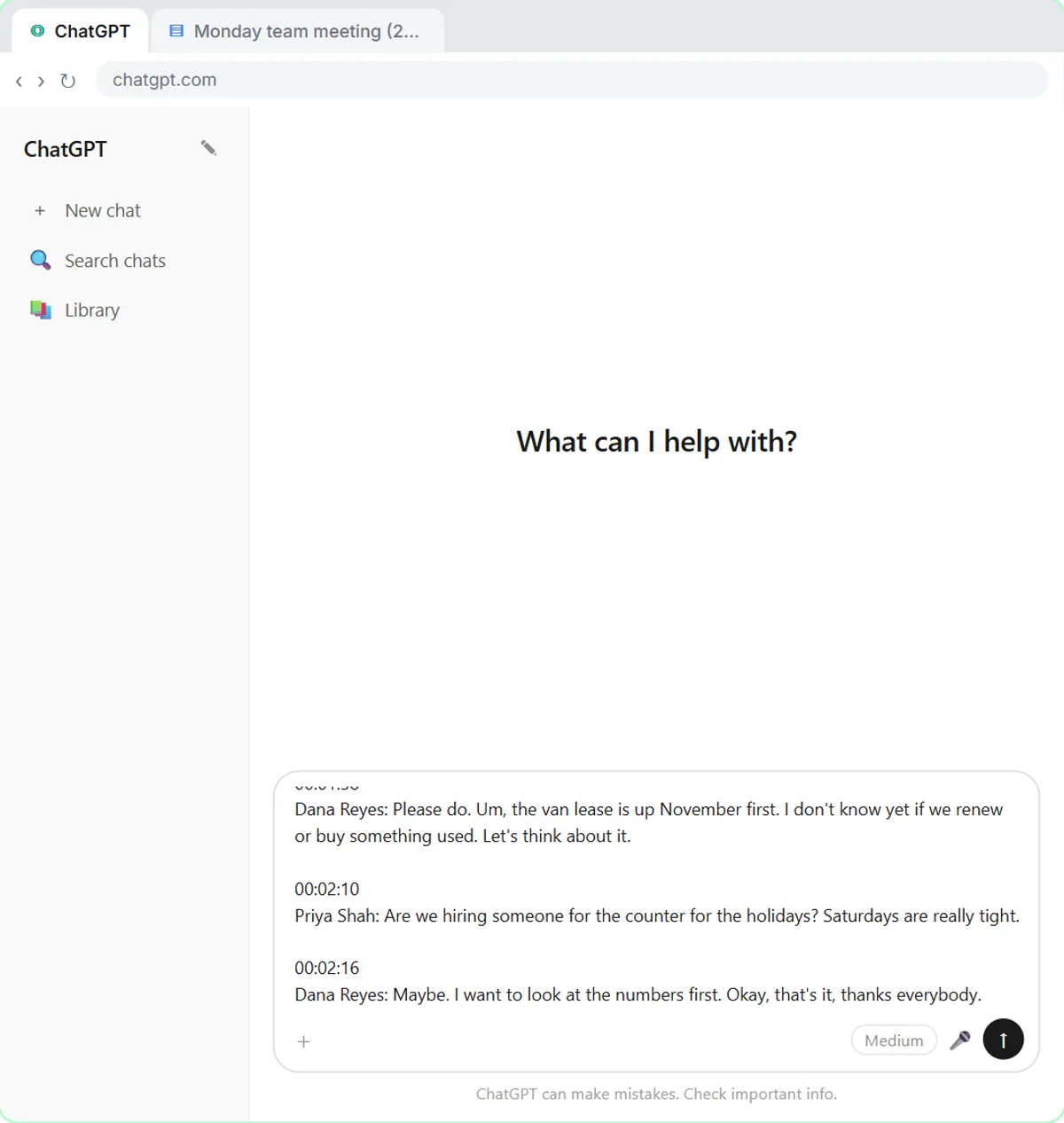
- Paste the transcript. Now paste the transcript under the request. Paste in the transcript. (In real ChatGPT, press Shift+Enter for a new line first, then Ctrl+V. Plain Enter would send the message.)
In real ChatGPT, press Shift and Enter to start a new line first, because Enter on its own sends the message. Then Control V to paste.
00:00:04
Dana Reyes: Okay, I think everyone's here. Um, quick one today, I know Luis has dough going. So first thing, pumpkin rolls.

00:00:15
Luis Ortega: Yeah, we're sold out by like ten every single day. Saturday we were out at nine thirty.

00:00:24
Priya Shah: People are asking at the counter all morning. I had to turn away maybe fifteen people Saturday.

00:00:31
Dana Reyes: Okay, so let's just double them. Starting Wednesday? Luis, can you make that work with the dough schedule?

00:00:39
Luis Ortega: Wednesday works. I'll move the rye to the afternoon and redo the dough schedule by Tuesday.

00:00:52
Dana Reyes: Great. Next, holiday pies. I want pre-orders open October twelfth this year, not November like last year. That was chaos.

00:01:04
Priya Shah: I can set up the order form on the website. I can have it ready by October ninth so we can test it.

00:01:12
Luis Ortega: Can we cap it though? Last year we did ninety pies on the Wednesday and I didn't go home.

00:01:20
Dana Reyes: Yes. Sixty pies a day, max, for Thanksgiving week. When a day's full, the form closes that day.

00:01:33
Sam Keller: Catering thing. Oakwood Library wants breakfast for eighty people on October twentieth. Pastries, coffee, fruit.

00:01:42
Dana Reyes: Oh nice. Sam, can you put a quote together for them?

00:01:46
Sam Keller: Yep, I'll do the quote.

00:01:51
Luis Ortega: Also oven two is making that clicking noise again. I'll call the repair company.

00:01:58
Dana Reyes: Please do. Um, the van lease is up November first. I don't know yet if we renew or buy something used. Let's think about it.

00:02:10
Priya Shah: Are we hiring someone for the counter for the holidays? Saturdays are really tight.

00:02:16
Dana Reyes: Maybe. I want to look at the numbers first. Okay, that's it, thanks everybody.
- Send it. Click Send.
Request on top, transcript below.
3. Check the details
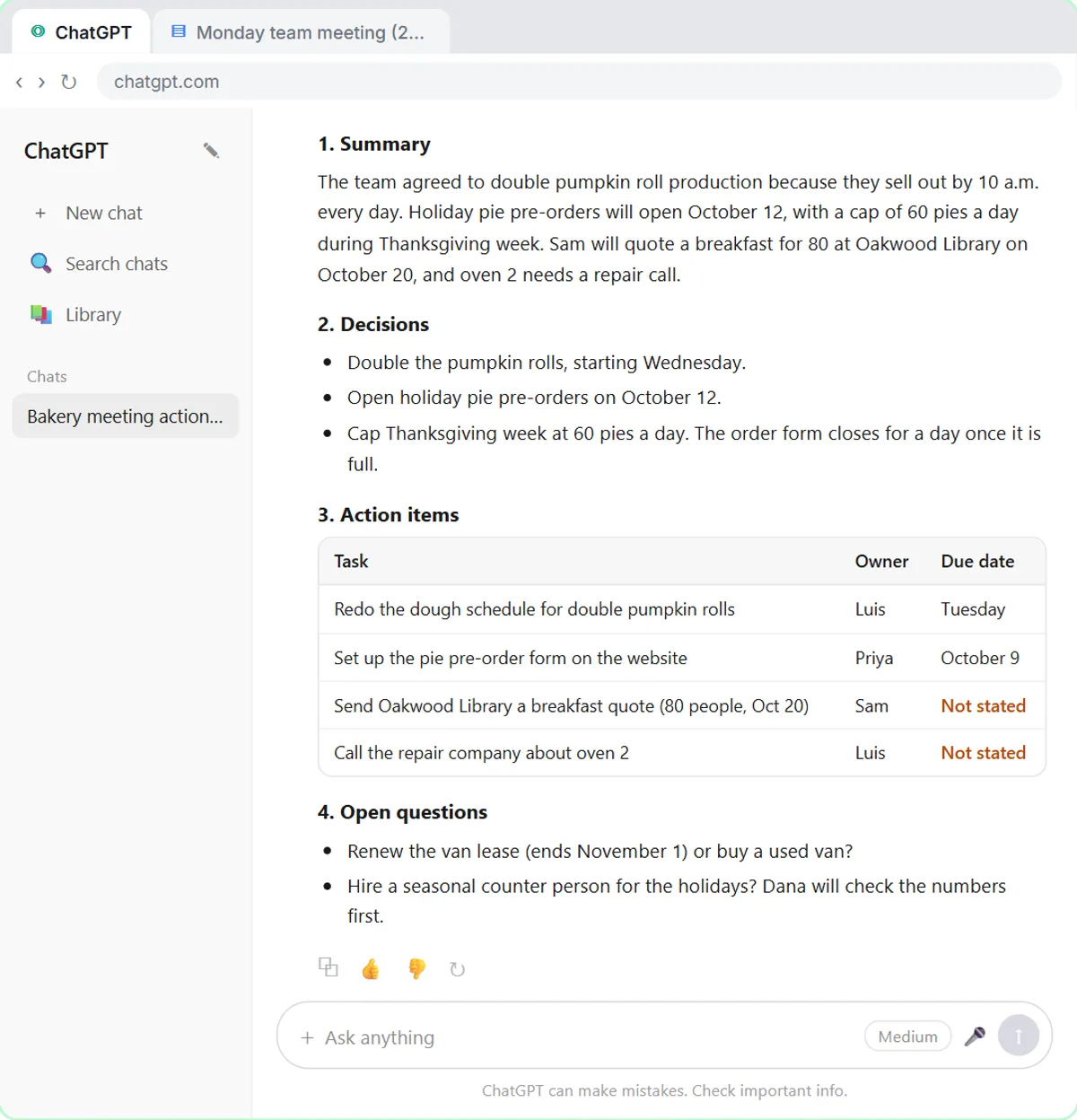
- Check the action items. Read the summary and decisions. Then click the action items table: two due dates say Not stated.
A rambling meeting, boiled down to a summary, three decisions, four action items and two open questions. Now check it before you send it anywhere. Look at the action items table. Two due dates say not stated. That's right: nobody said when the library quote or the oven call would happen.
- Click the message box. You know the missing dates. Click the message box to tell ChatGPT.
You were in the meeting, so you can fill in the gaps.
- Fill in the gaps. Type the missing dates (or Paste in the dates): The library quote is due Wednesday, and Luis will call about the oven today.
Tell it the missing dates: the library quote is due Wednesday, and Luis will call about the oven today.
- Send it. Click Send.
4. Write the follow-up
- Click the message box. Every action item has an owner and a date now. Click the message box.
Now every task has an owner and a date. Because ChatGPT still has the whole meeting in this chat, you don't need to paste anything again. Just ask for the next thing.
- Ask for the follow-up email. Paste in the request to ask for a short follow-up email to the team.
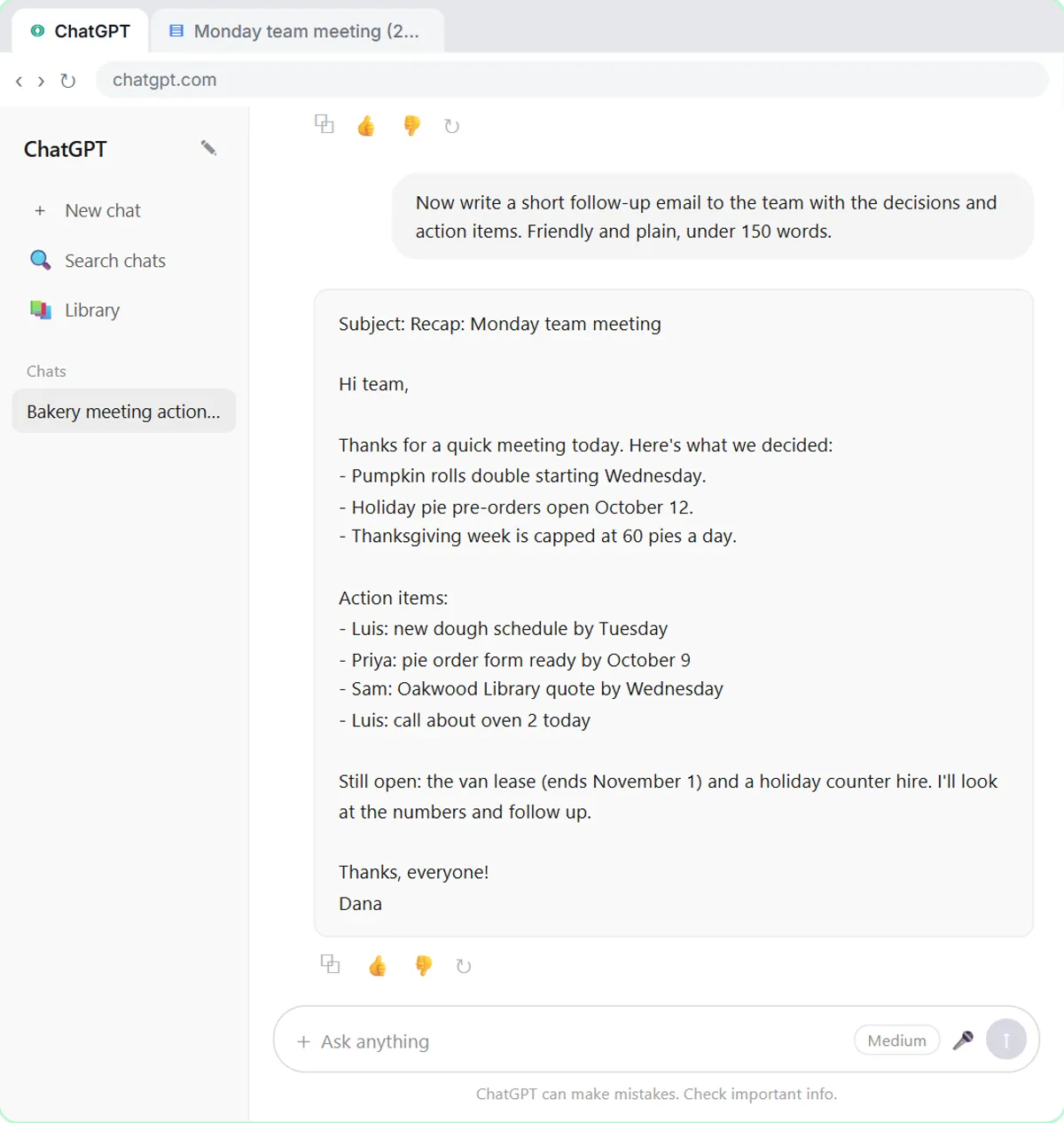
Ask for a short, friendly follow-up email to the team, with the decisions and the action items.
- Send it. Click Send.
- Copy the email. Read the email. Then click the Copy button under it.
There's your recap email: the decisions, who's doing what and by when, and what's still open. Read it once, change anything that doesn't sound like you, then click the copy button under it and paste it into your email.
5. Or upload the file
- Start a new chat. Next time the transcript might be a file. Click New chat.
Sometimes the transcript comes as a file instead, like a Word document someone emailed you. You don't have to open it and copy it. Start a new chat.
- Open the plus menu. Click the + button on the left of the message box.
- Add photos & files. Click Add photos & files.
- Pick the transcript. Click Monday team meeting - Transcript.docx.
Your file browser opens.
- Open it. Click Open.
The file attaches to the message box. You can also just drag a file onto the chat.
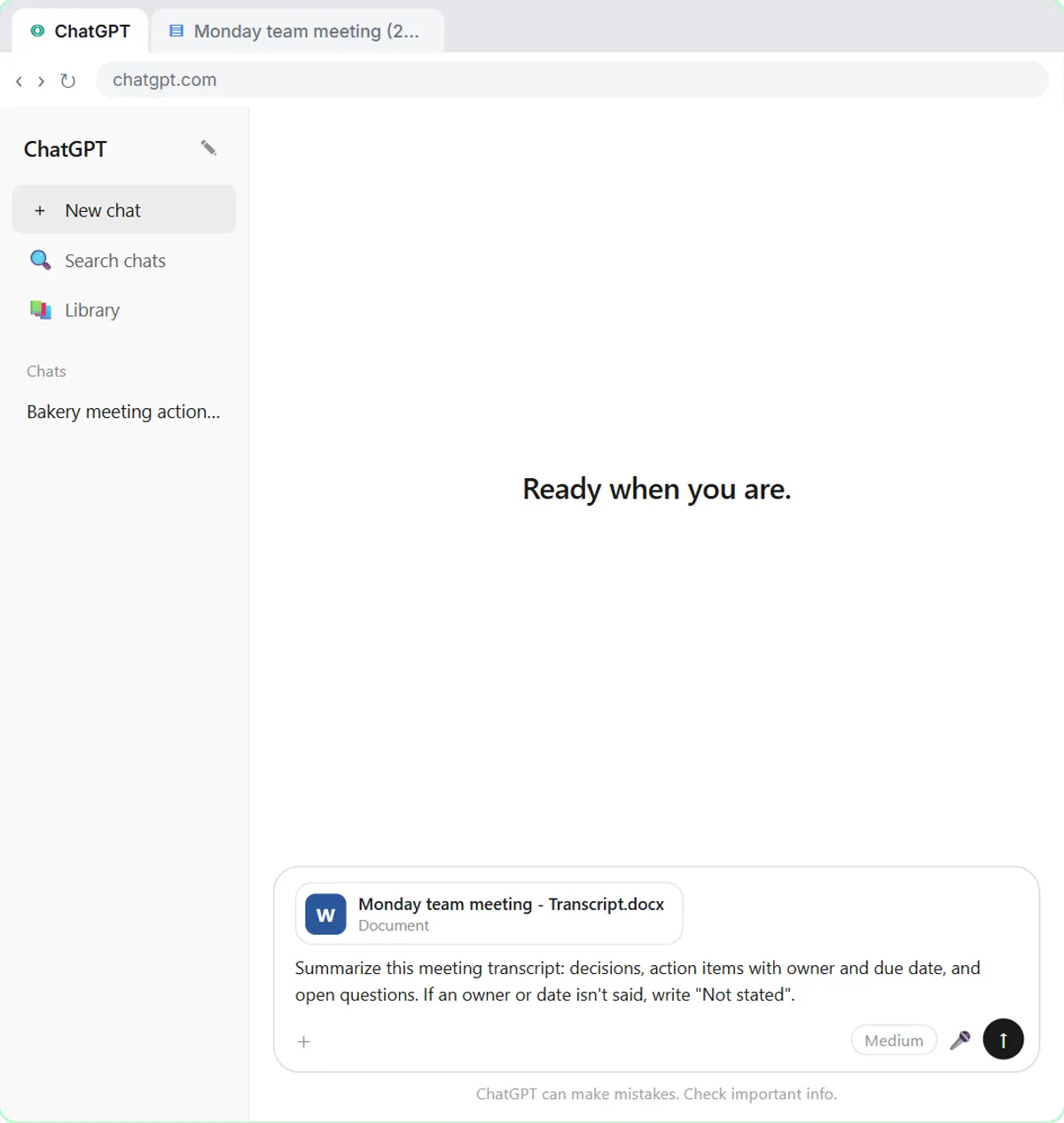
- Ask for the summary. Paste in the request: the same four things, in one line.
Now the same request as before, in one line.
Summarize this meeting transcript: decisions, action items with owner and due date, and open questions. If an owner or date isn't said, write "Not stated".
- Send it. Click Send.
Either way, always check the owners and dates before you send the recap.
Video walkthrough
The whole lesson in 3:00, narrated step by step. Watch it once, then do it yourself in the practice copy.
A messy meeting in, clear next steps out with ChatGPT
Paste a long meeting transcript into ChatGPT and get the decisions, an action items table with owners and due dates, and a follow-up email ready to send.
- 0:00 Intro: what you'll build
- 0:14 Copy the transcript
- 0:37 Ask for a summary
- 1:20 Check the details
- 1:52 Write the follow-up
- 2:20 Or upload the file
More videos from this lesson
Summarize a Meeting Transcript in 76 seconds
Paste a long meeting transcript into ChatGPT and get the decisions, an action items table with owners and due dates, and a follow-up email ready to send.
Transcript
A rambling meeting, boiled down to a summary, three decisions, four action items and two open questions. Now check it before you send it anywhere. Look at the action items table. Two due dates say not stated. That's right: nobody said when the library quote or the oven call would happen. Click the table. You were in the meeting, so you can fill in the gaps. Click the message box. Tell it the missing dates: the library quote is due Wednesday, and Luis will call about the oven today. Type it, or click Paste dates. Click Send, and ChatGPT updates the table. Now every task has an owner and a date. Because ChatGPT still has the whole meeting in this chat, you don't need to paste anything again. Just ask for the next thing. Click the message box. Ask for a short, friendly follow-up email to the team, with the decisions and the action items. Click Paste request. Click Send. There's your recap email: the decisions, who's doing what and by when, and what's still open. Read it once, change anything that doesn't sound like you, then click the copy button under it and paste it into your email. Sometimes the transcript comes as a file instead, like a Word document someone emailed you. You don't have to open it and copy it. Start a new chat. Click the plus button on the left side of the message box.
Summarize a Meeting Transcript: the key steps in under a minute
Paste a long meeting transcript into ChatGPT and get the decisions, an action items table with owners and due dates, and a follow-up email ready to send. The key steps from the free lesson, with captions.
Transcript
Tell it the missing dates: the library quote is due Wednesday, and Luis will call about the oven today. Type it, or click Paste dates. Click Send, and ChatGPT updates the table. Now every task has an owner and a date. Because ChatGPT still has the whole meeting in this chat, you don't need to paste anything again. Just ask for the next thing. Click the message box. Ask for a short, friendly follow-up email to the team, with the decisions and the action items. Click Paste request. Click Send. There's your recap email: the decisions, who's doing what and by when, and what's still open. Read it once, change anything that doesn't sound like you, then click the copy button under it and paste it into your email.
Screenshots
Frequently asked questions
- Can ChatGPT summarize a long meeting transcript?
- Yes. Current ChatGPT models handle long pasted text and uploaded documents well. For a very long meeting, you can also upload the transcript as a file instead of pasting it, which is what the last chapter of this lesson shows.
- Should I paste the transcript or upload the file?
- Either works. Pasting is quick when the transcript is already open, like a Google Doc. Uploading with the plus button and Add photos & files is easier when someone sent you a Word document or a text file.
- How do I stop ChatGPT from making up owners or deadlines?
- Tell it to only use what is in the transcript and to write "Not stated" when something is missing. Then check the action items table before you send the recap, and fill in any gaps yourself.
- Where do I get a meeting transcript?
- Google Meet, Zoom and Microsoft Teams can all create transcripts, depending on your plan and settings. Google Meet saves its transcript as a Google Doc, which is the starting point in this lesson.
- Is this course really free?
- Yes. Stepthrough is completely free, and the practice copy needs no accounts. To do it for real you need your own ChatGPT and Google accounts, and some features cost money on paid plans.
More ChatGPT tutorials
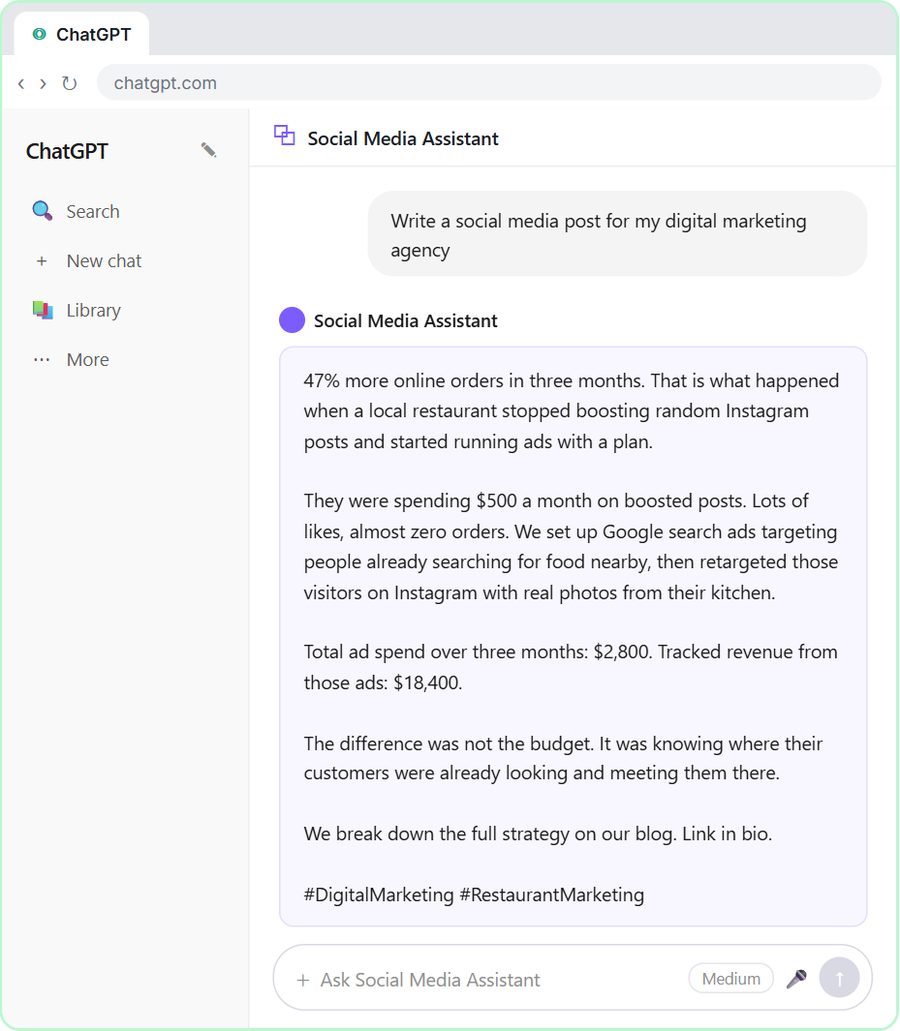 Build a Custom GPT Social Media Assistant
See why generic prompts give generic results, then build a Custom GPT loaded with your brand voice and watch the output transform.
Free · Live ~8 min
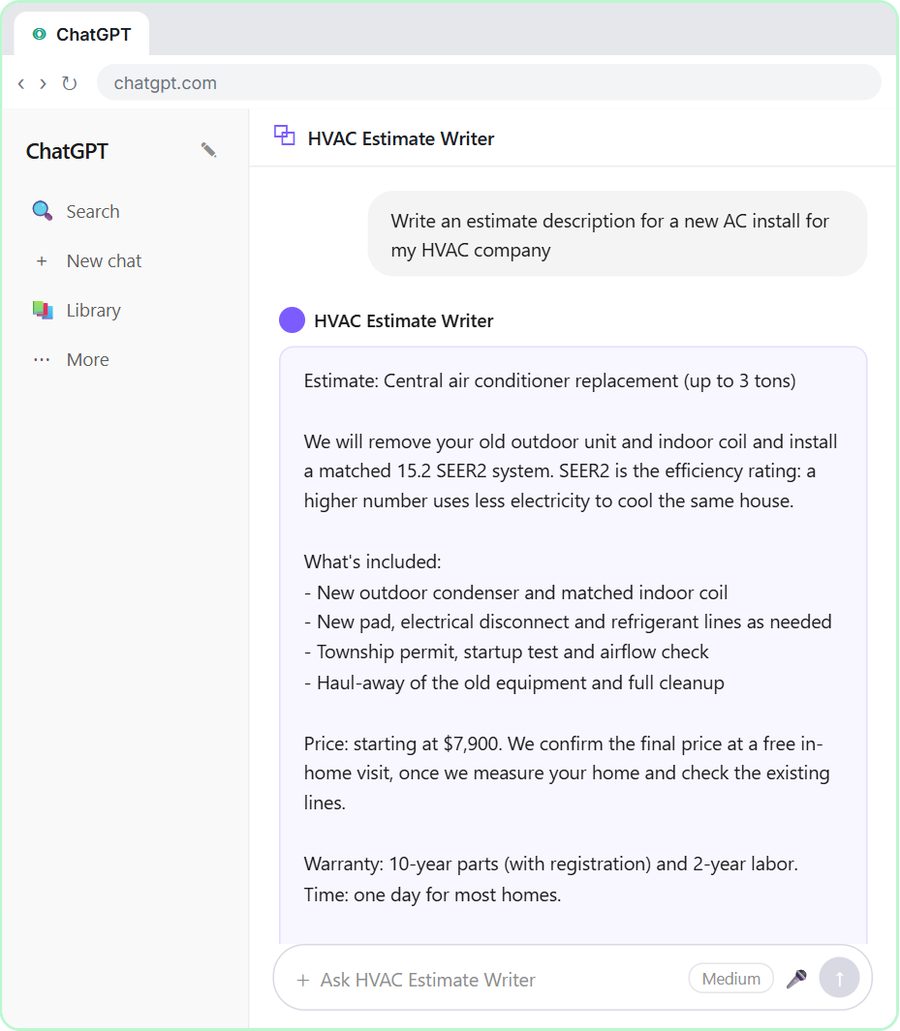 Build an AI Estimate Writer for Your HVAC Company
See why generic prompts give generic results, then build a Custom GPT that knows your HVAC services and pricing and writes clear, professional estimate descriptions for…
Free · Live ~8 min
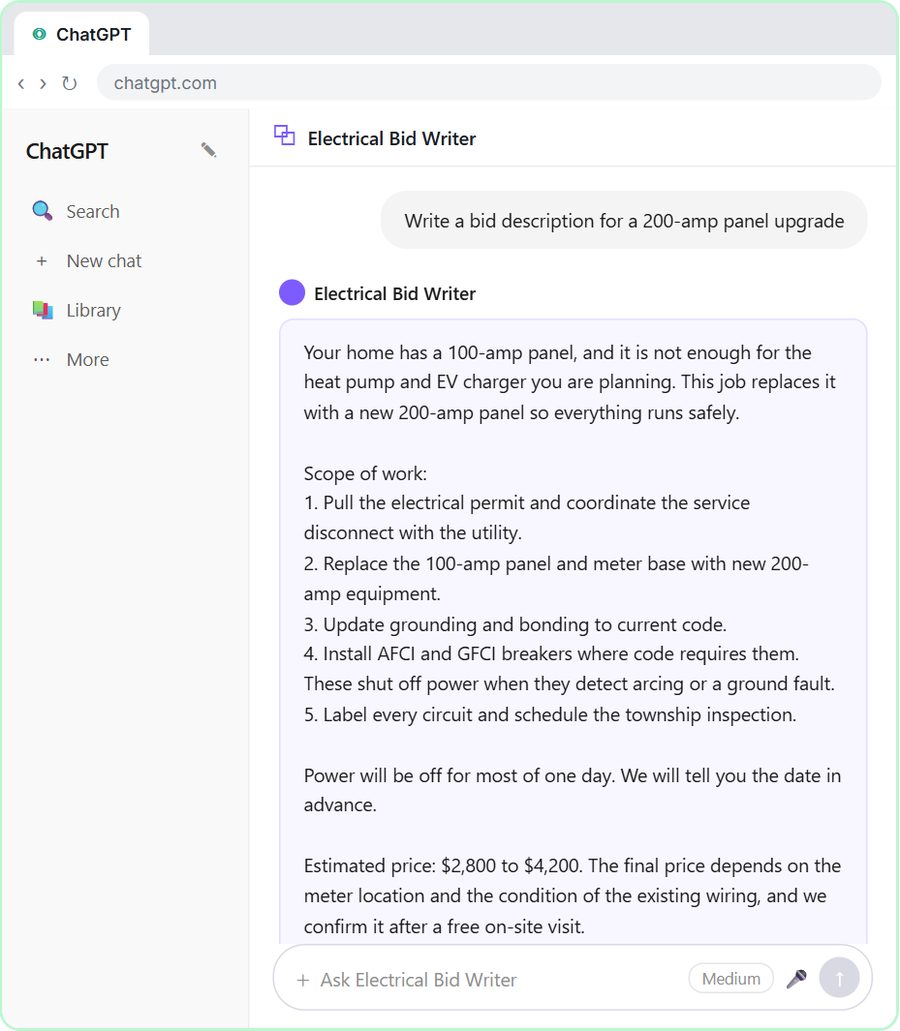 ChatGPT for Electricians: Build an Electrical Bid Writer
See why generic prompts give generic bids, then build a Custom GPT that knows your electrical services and pricing and drafts professional bid descriptions.
Free · Live ~8 min
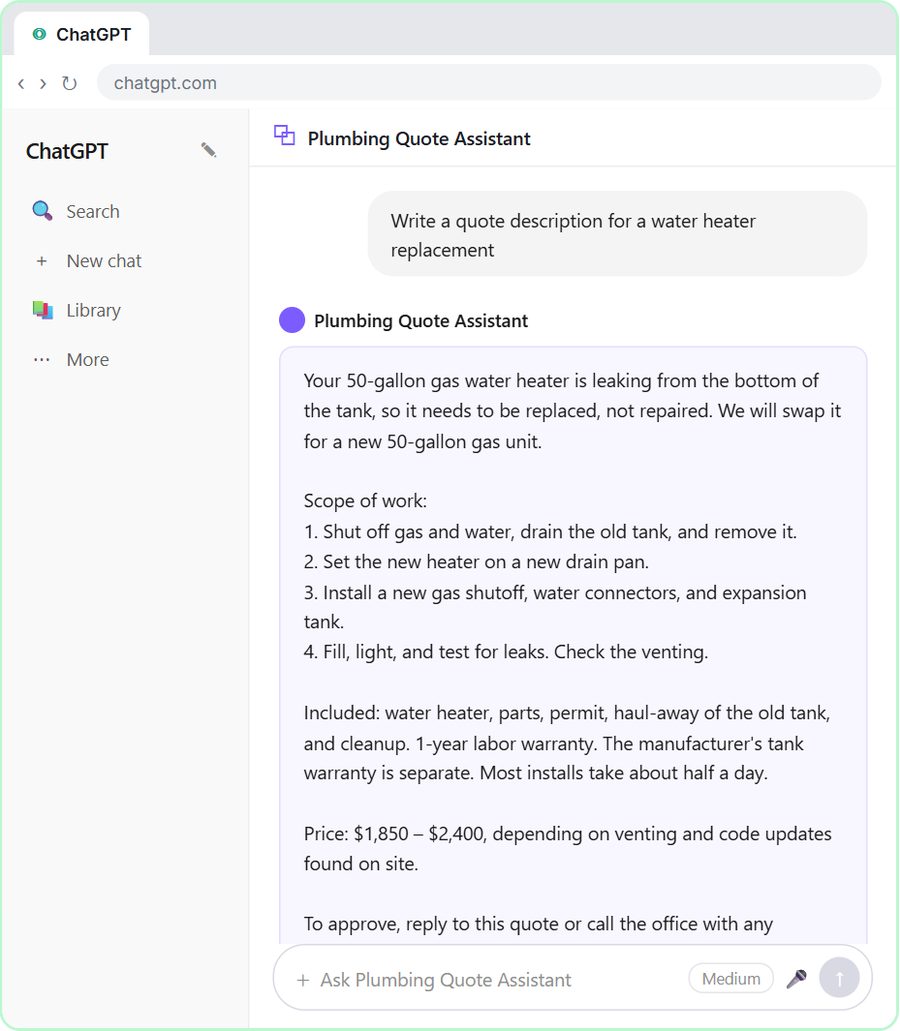 Build a Custom GPT Plumbing Quote Writer
See why generic prompts give generic quotes, then build a Custom GPT loaded with your plumbing services and pricing and watch the quotes transform.
Free · Live ~8 min
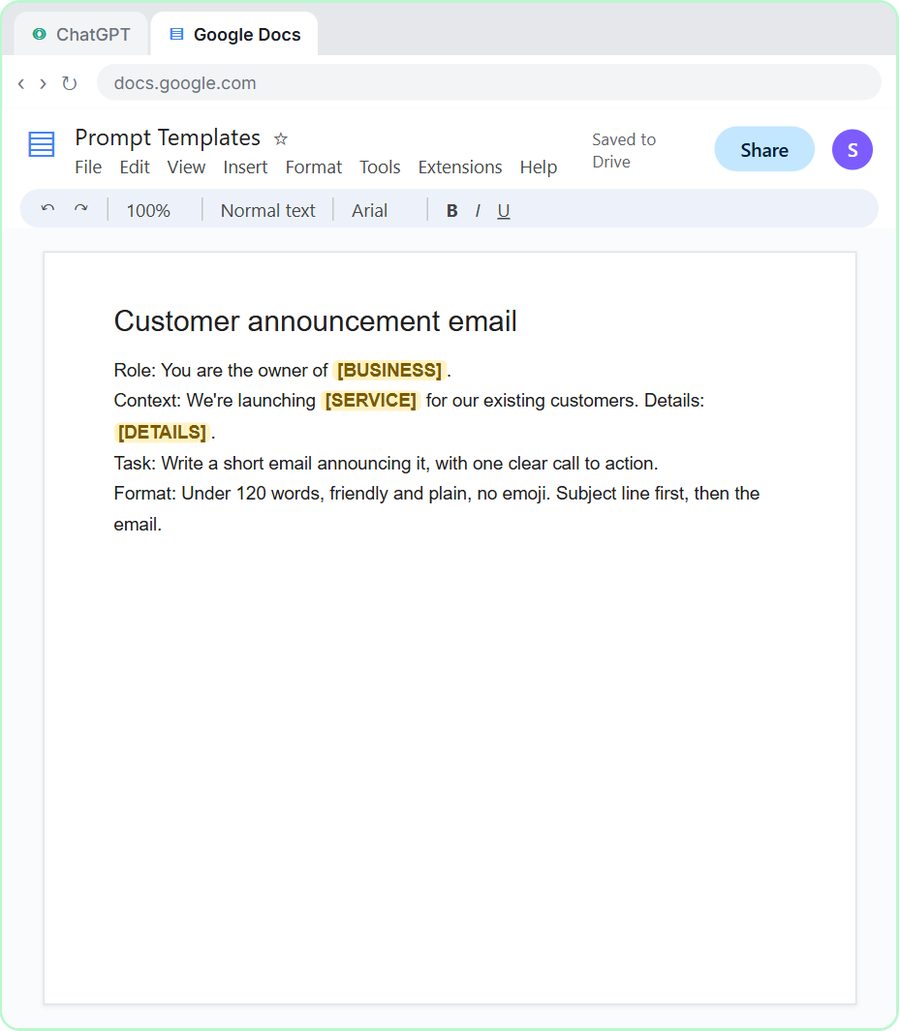 Prompt Writing 101: Role, Context, Task, Format
Ask ChatGPT for the same customer email twice, once vaguely and once with a four-part prompt, and see exactly why structure gets a better answer.
Free · Live ~8 min
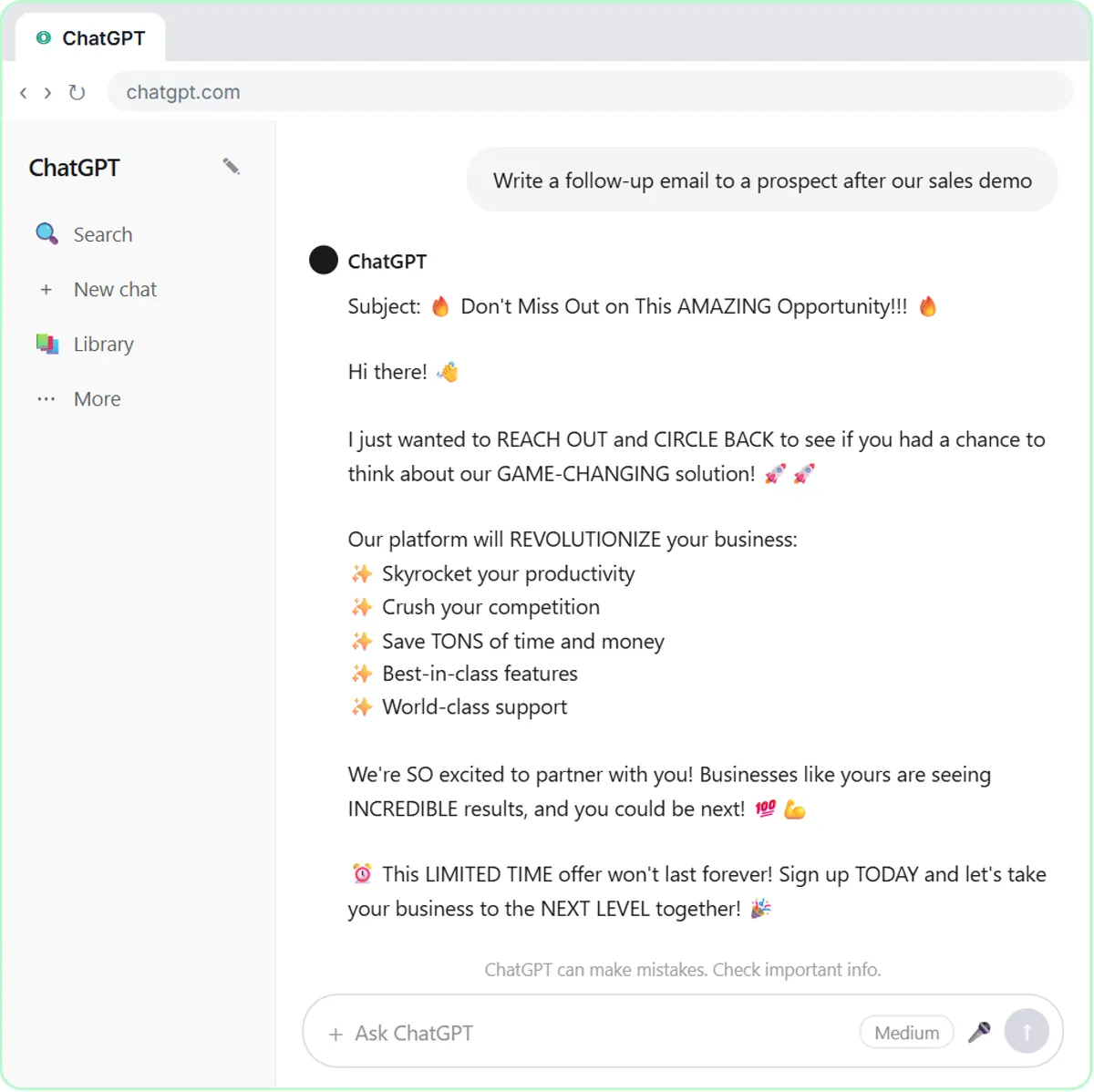 Build a Custom GPT That Writes Sales Follow-Up Emails
See why generic prompts give generic results, then build a Custom GPT that knows your product, pricing and rules and writes short, useful follow-up emails in your voice.
Free · Live ~8 min
From the blog
 AI Training for Employees: A Free Plan for Small Teams
AI training for employees on a small-business budget: one rule set, three shared ChatGPT lessons, then role-based picks, all free in practice copies.
Oct 1, 2026 6 min read
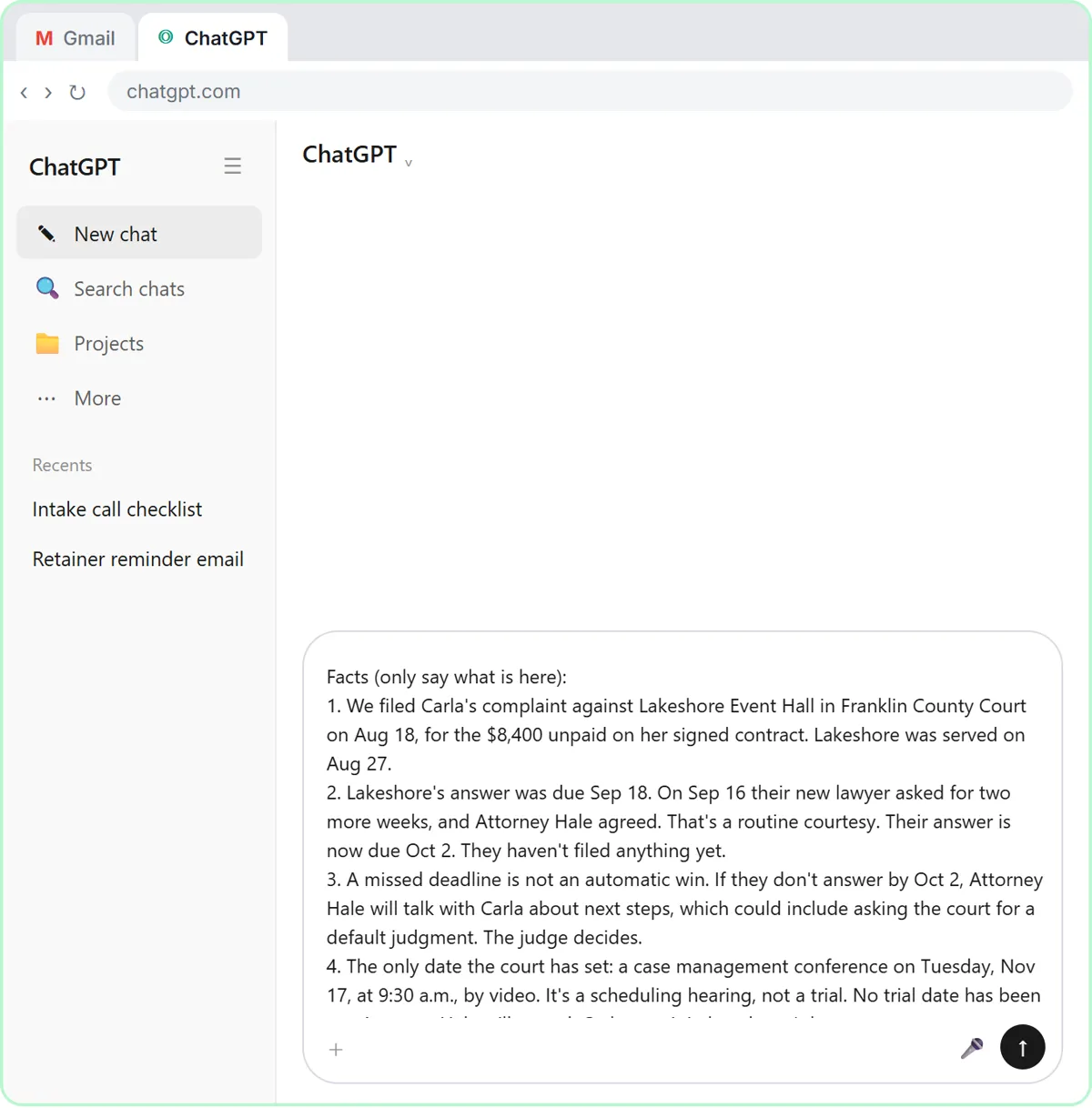 ChatGPT for Paralegals: Client Updates and Case Recaps
ChatGPT for paralegals and legal assistants: draft client updates from a facts list with no predictions, recap case meetings, and know what never to paste.
Oct 1, 2026 6 min read
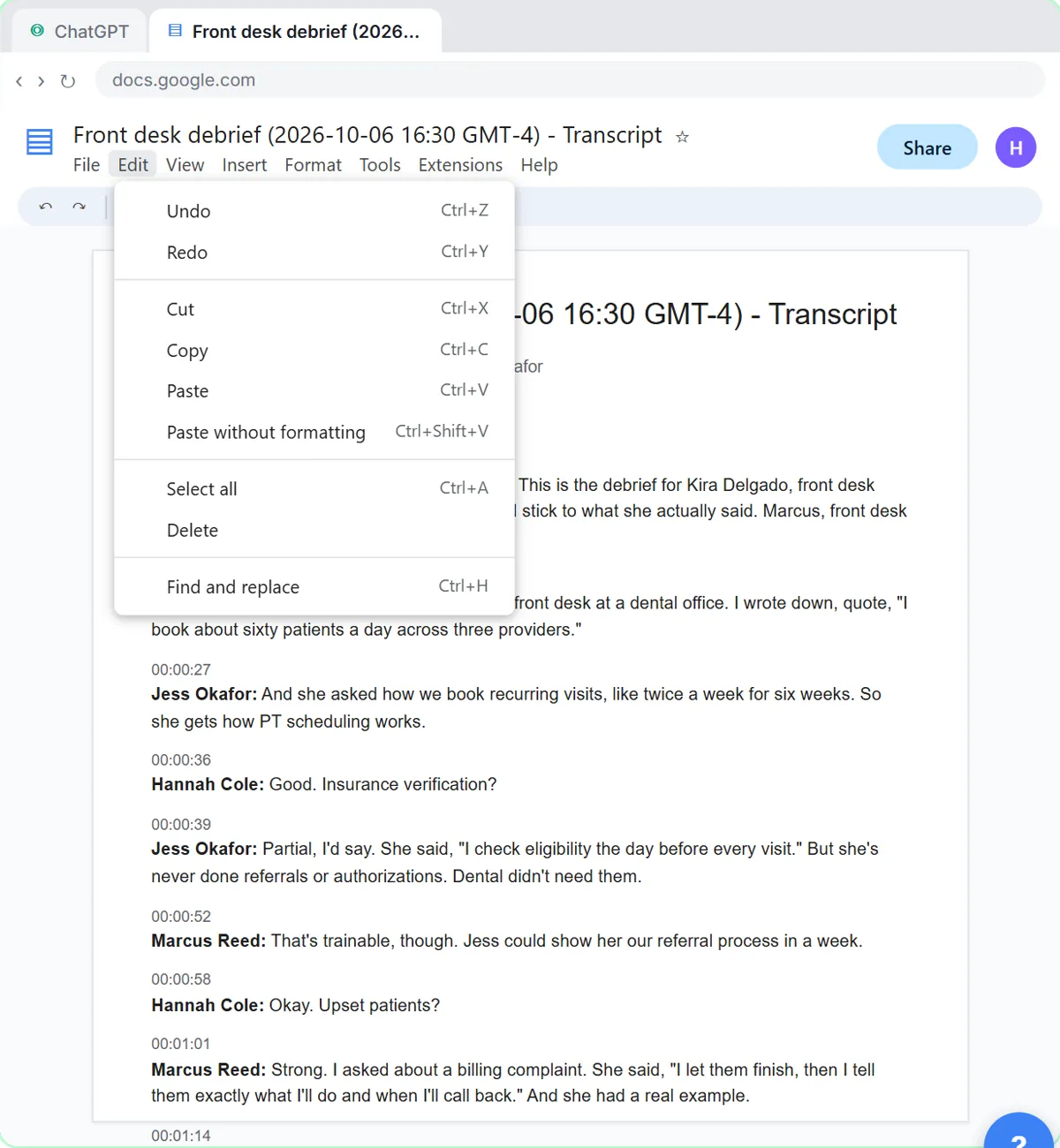 Interview Debrief Template: Run It Fair, Then Score It
An interview debrief template for small teams: a must-have-by-must-have agenda, how to park off-topic comments, and a ChatGPT prompt for the scorecard.
Oct 1, 2026 6 min read
Related terms
Plain-English definitions, each with an example from a free lesson.
Related prompts
- Action items table prompt: Paste a meeting transcript or rough notes and get a table of every task, owner and due date, with "Not stated" wherever nobody…
- Meeting agenda prompt: Turn a list of topics into a timed meeting agenda where every item has an owner, a question to settle and minutes that add up to…
- Project status update prompt: Write an honest project status update: On track, At risk or Off track with the reason, what's done, what's next, blockers and…
- Shift schedule announcement prompt: Announce a new or changed shift schedule clearly: what changes, for whom, from when, a schedule table, what stays the same, and…