Updated . Built against the tool’s current screens and checked step by step. How we check this lesson
If you use ChatGPT for your business, you probably explain the same things over and over: what you sell, what it costs, how you like to sound, how to sign off. A ChatGPT Project ends that. In this free, interactive lesson you create a Project, give it instructions for your brand voice, upload your price list and style guide as sources, and then start fresh chats that already know all of it.
At a glance
| Question | Answer |
|---|---|
| What you build | Set up a ChatGPT Project with your brand voice instructions, your price list and your style guide, so every new chat already knows your business. |
| Tools | ChatGPT |
| Time | About 9 minutes, 24 steps in 5 parts |
| Level | Beginner, no coding needed |
| Cost | Free |
| Ways to learn it | Practice it step by step |
The 5 parts, in short
- Create the project: New project, Name the project, Open the memory setting, Choose Project-only memory, and 1 more step.
- Add instructions: Open the project menu, Project settings, Click Instructions, Paste the instructions, and 1 more step.
- Add your files: Open Sources, Add sources, Pick the price list, Add the brand voice guide, and 1 more step.
- Chat inside the project: Start a chat in the project, Ask for a reply, Send it, Check the reply.
- Come back anytime: Back to the project, Start another chat, Ask for something new, Send it, and 1 more step.
Start here first: Summarize a Meeting Transcript with ChatGPT (module 1 of ChatGPT for Everyday Work)
In the course: Part 3 · ChatGPT for Everyday Work (Module 14 of the full course)
Part of: ChatGPT Jump Start (step 5 of 8). Next up: Replace Your Custom GPT with a ChatGPT Project
Part of: Give AI Your Company Knowledge (step 1 of 4). Next up: Claude Projects for Your Business: Instructions, Knowledge and Quotes
What you will build
You will build a Project called Brightwater Cleaning for a small, made-up house-cleaning company. A Project is a workspace in ChatGPT that keeps related chats, files and instructions together. Anything you start inside it picks up the Project's instructions and can read its files, so you set the context up once instead of pasting it into every chat.
You give the Project three things. First, project-only memory, so its chats stay separate from everything else you use ChatGPT for. Second, instructions that describe the business, a warm and plain voice, a rule to use the price list and never invent a price, and a standard sign-off. Third, two sources: a price list PDF and a brand voice guide. Then you put it to work. A customer asks what a deep clean costs for a three-bedroom house, and you get a friendly reply with the right price and the right sign-off from a two-line request. Later you come back, start a second chat and ask for an About Us paragraph, and it sounds the same without any setup.
Who this ChatGPT Projects tutorial is for
This lesson is for owners, office managers and anyone in a small business who uses ChatGPT for customer replies, social posts, quotes or website copy and is tired of re-explaining the business every time. If you have built a Custom GPT before, a Project will feel familiar: it also has instructions and files. The difference is that a Project also keeps your chats together and keeps growing with your work, and you can share it with a teammate when your plan allows.
Why instructions and sources work better than a long prompt
Project instructions apply to every chat in the project and take priority over your general custom instructions in ChatGPT, so each new chat starts from the same rules. Sources give ChatGPT the facts, like prices and the words you use and avoid, so it does not have to guess. Together they turn a long, repeated prompt into a short request.
The instructions in this lesson also say "never invent a price or a discount." It keeps ChatGPT on your price list. You should still read every reply before it goes to a customer.
Project-only memory, in plain words
When you create a Project you choose its memory. With default memory, the Project can use what ChatGPT remembers from your other chats, and the other way around. With project-only memory, chats in the Project can draw on each other but not on your chats outside it, and your outside chats cannot see the Project. For business or client work, project-only memory keeps things tidy and separate. Shared projects always use project-only memory.
How to use this in your business
Make one Project per business, brand or big client. Write instructions that say who you are, who you are talking to, how you sound and how you sign off. Add the handful of files ChatGPT should always check, such as your price list, service area, FAQ and a short brand voice guide. When something changes, remove the old file from Sources and add the new one, so new chats use the current version. File limits depend on your plan: 5 files per project on Free, 25 on Plus and Go, and 40 on Pro and business plans.
Before you upload anything with private customer or staff details, check your company's rules on AI tools, and leave out what does not need to be there.
How the interactive lesson works
Every step is shown first on the left, in the Watch panel, with a short voice-over. Then you do it yourself on the right, in Your turn, on a practice copy of ChatGPT. Each click is checked, so you know right away if you picked the right button. Long texts go in with one Paste button, and if you get stuck, Do it for me finishes the step. Nothing touches a real account and no file leaves your computer, so you can practice freely, then set up a Project for your own business.
Try it yourself, free
Reading the steps is a start. Doing them is how it sticks. The interactive module walks you through every click in a practice copy of ChatGPT, checks each step, and never touches your real accounts.
Start “ChatGPT Projects: Keep Your Brand Voice, Files and Instructions in One Place”Step by step: ChatGPT Projects: Keep Your Brand Voice, Files and Instructions in One Place
All 24 steps of the interactive module, in order. In the module you watch each one, then do it yourself in a practice copy that checks your work.
1. Create the project
- New project. In the sidebar, under Projects, click New project. (If you already have projects, point to the Projects heading and click the + next to it.)
Every time you ask ChatGPT to write something for Brightwater Cleaning, you end up explaining the business again: the prices, the tone, how to sign off. A Project fixes that. You set it up once, and every chat inside it already knows. In the sidebar, under Projects, click New project. If you already have projects, it's the plus sign next to the Projects heading.
- Name the project. Type the project name: Brightwater Cleaning
Give it a name you'll recognize. Later, on the project page, you can click the folder icon next to the name to pick an icon and a color, if you like.
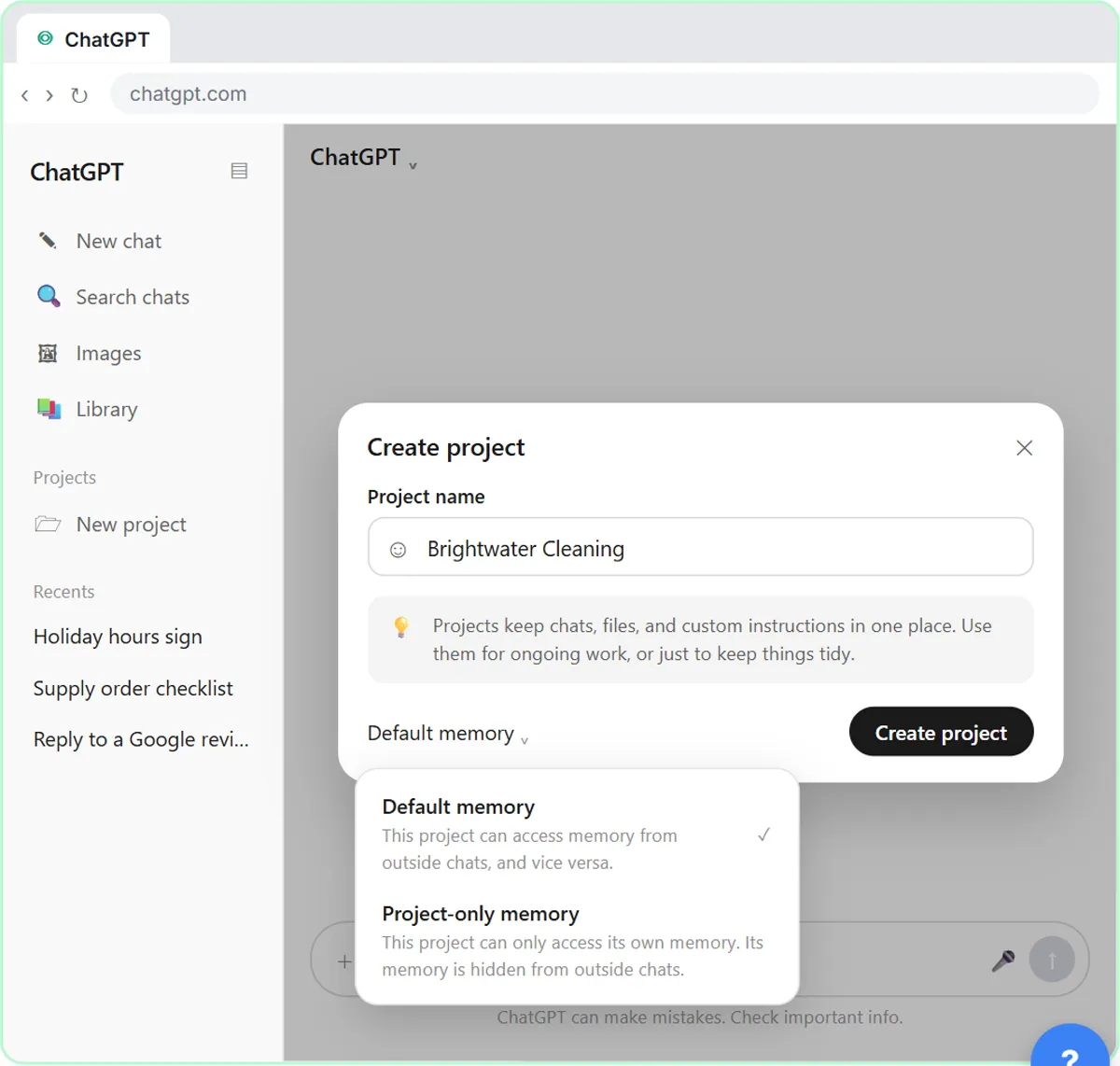
- Open the memory setting. Click Default memory at the bottom of the box. (On some accounts this setting is behind a gear icon at the top of the box instead.)
Before you create it, look at the memory setting in the bottom corner. If you see a gear icon at the top instead, the same setting is in there.
- Choose Project-only memory. Click Project-only memory.
Now chats in this project only draw on each other, not on everything else you've ever asked ChatGPT, and your other chats can't see them. That keeps your business work in its own lane.
- Create the project. Click Create project.
2. Add instructions
- Open the project menu. This is the project page. Click the ⋯ button next to Share.
Here's your new project page: a message box for new chats, and two tabs, Chats and Sources. First, tell the project how to write.
- Project settings. Click Project settings.
- Click Instructions. Click the Instructions box.
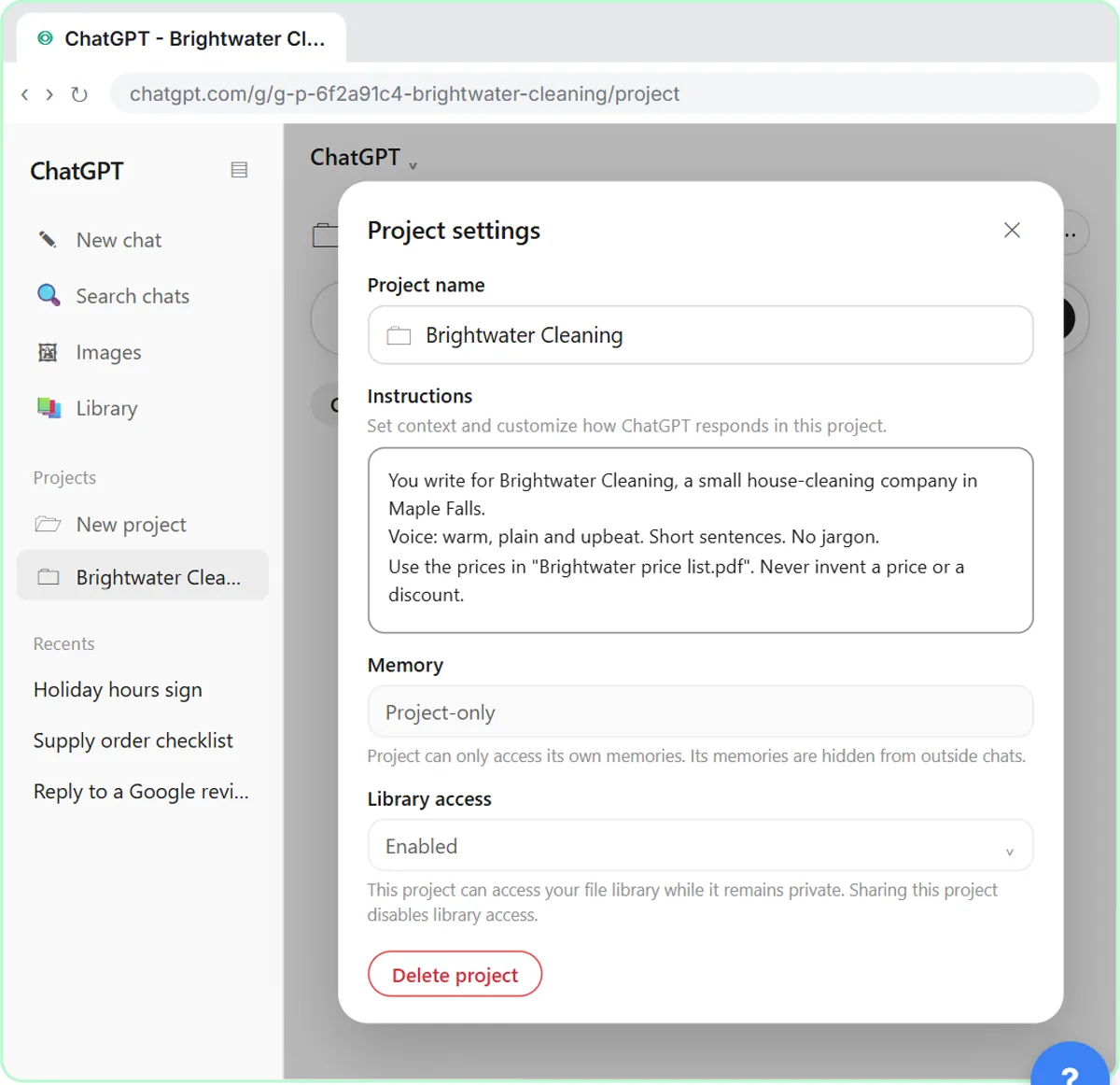
The Instructions box is where your brand voice goes. Whatever you write here applies to every chat in this project, and it takes priority over your general custom instructions.
- Paste the instructions. Paste in the instructions. They cover who you are, the voice, to use the price list, the brand voice guide, and the sign-off.
Here are Brightwater's instructions: who the business is, a warm and plain voice, use the price list and never invent a price, follow the brand voice guide, and sign off as Jess.
You write for Brightwater Cleaning, a small house-cleaning company in Maple Falls.
Voice: warm, plain and upbeat. Short sentences. No jargon.
Use the prices in "Brightwater price list.pdf". Never invent a price or a discount.
Follow "Brightwater brand voice.docx" for the words we use and avoid.
Sign every customer message "Jess at Brightwater Cleaning".
- Close the settings. Click Save at the bottom. (Save and Cancel appear once you change something. The X would close without saving.)
If you close it with the X instead, your instructions are not saved.
3. Add your files
- Open Sources. Click the Sources tab.
Now give the project something to work from.
- Add sources. Click Add sources, then Upload in the box that opens.
Sources are files and notes every chat in this project can read. You can upload PDFs, documents, spreadsheets and images, paste text, or connect Google Drive or Slack.
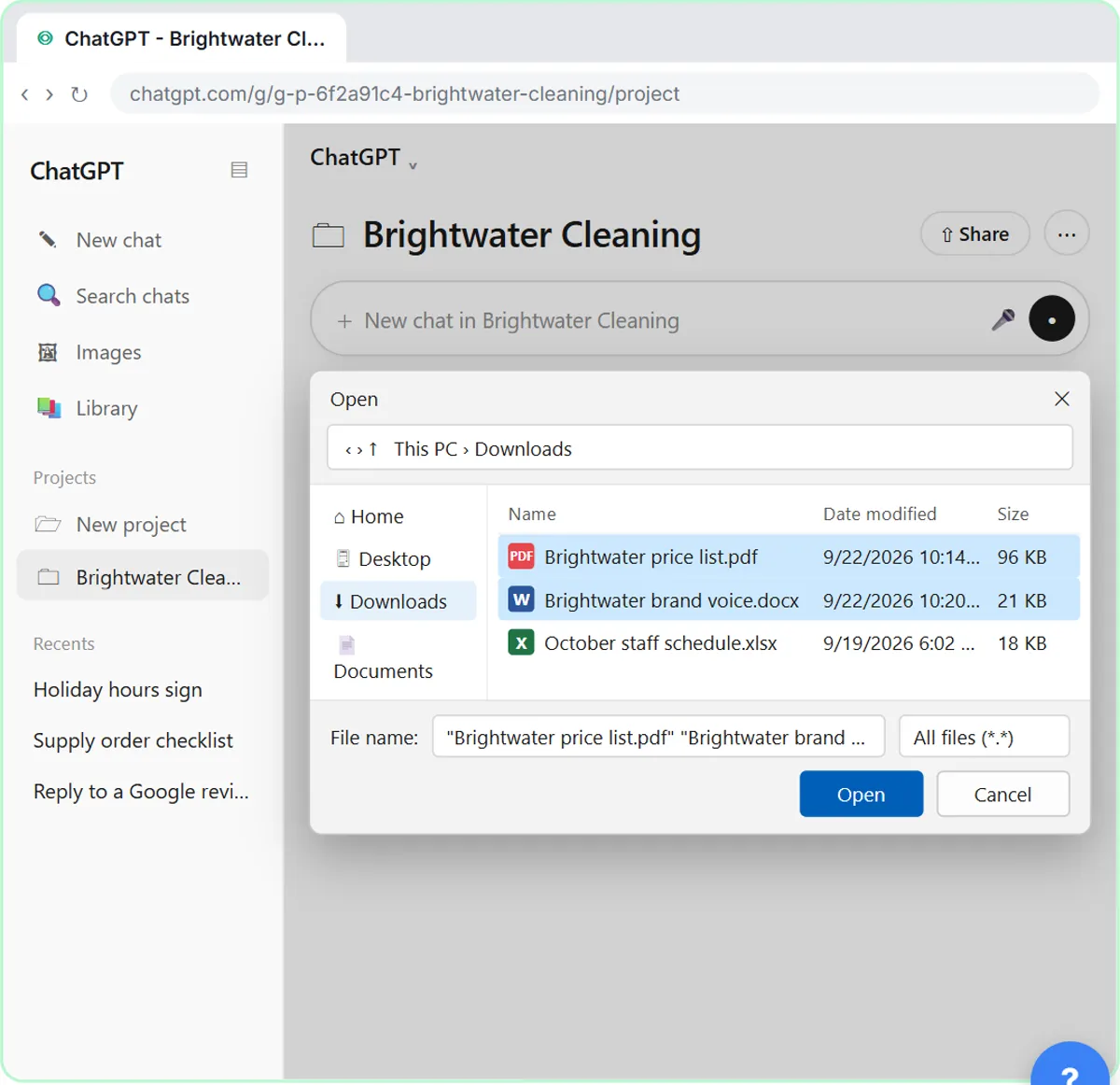
- Pick the price list. Click Brightwater price list.pdf.
Your file browser opens.
- Add the brand voice guide. Hold Ctrl and click Brightwater brand voice.docx to pick it too.
Hold Control and click the brand voice guide, so both files are selected.
- Open them. Click Open, then close the Add sources box with the X.
Both files land in the project's sources. From now on, any chat in this project can use them, so you don't have to upload them again in every chat.
4. Chat inside the project
- Start a chat in the project. Click the New chat in Brightwater Cleaning box.
Now for the payoff. A customer wants a price. Anything you start here lives inside the project.
- Ask for a reply. Paste in the question: the customer wants a price for a 3-bedroom deep clean.
Notice how short the request is. No price, no tone, no sign-off. The project already has all of that.
- Send it. Click Send.
- Check the reply. Read the reply, then click the price line to check it.
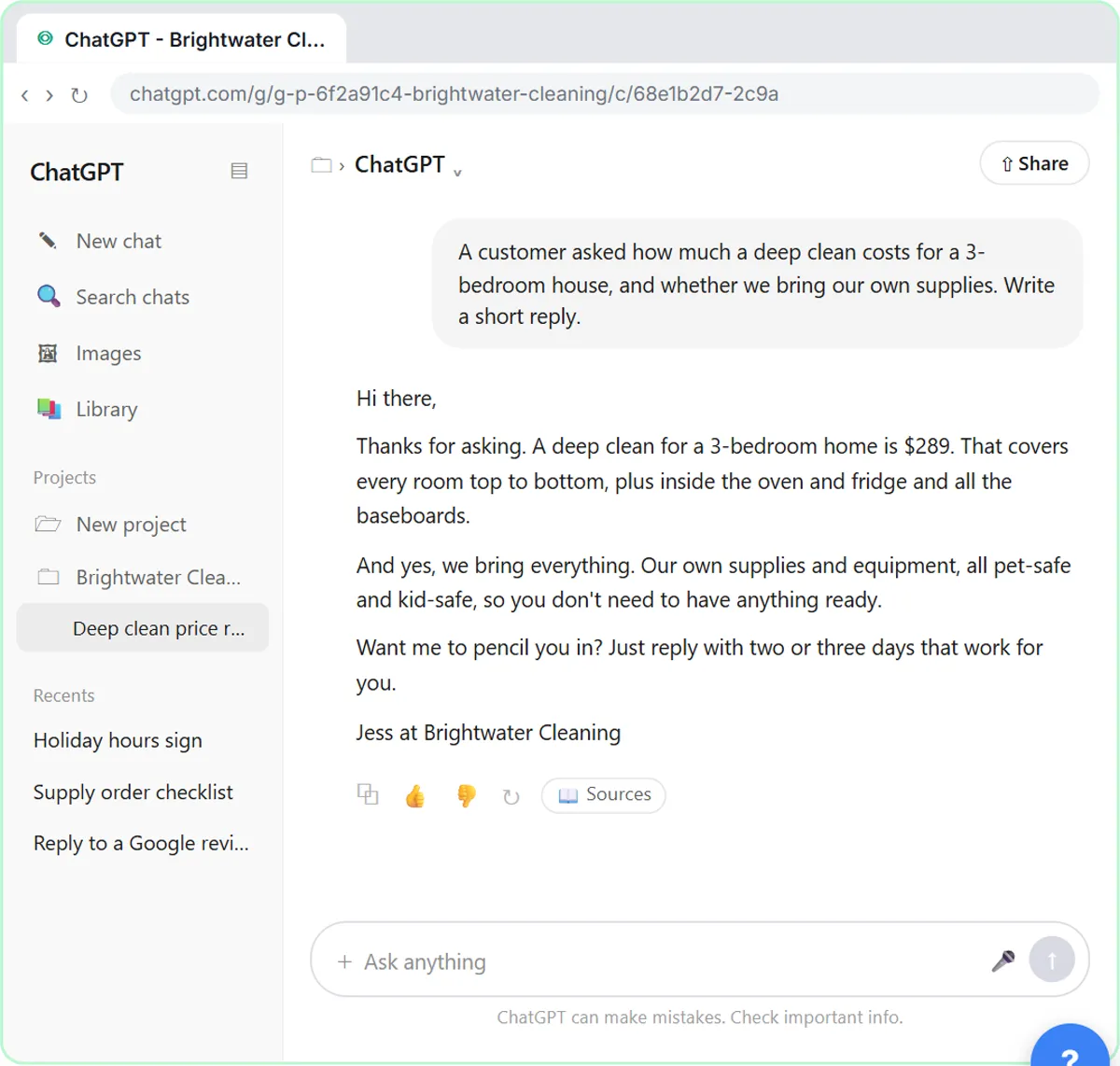
Read the reply. The price, two hundred eighty nine dollars, comes straight from your price list. The tone is warm and plain, and it's signed Jess at Brightwater Cleaning, just like the instructions say. You didn't paste any of that in. Still, check every price before it goes out.
5. Come back anytime
- Back to the project. At the top left of the chat, click Brightwater Cleaning. (Clicking it in the sidebar only opens or closes its list of chats.)
The chat is filed under the project. To go back to the project page, click Brightwater Cleaning at the top left of the chat.
- Start another chat. Your first chat is listed under Chats. Click the New chat in Brightwater Cleaning box again.
Your first chat is listed under Chats. Tomorrow, next month, whenever you come back, start here.
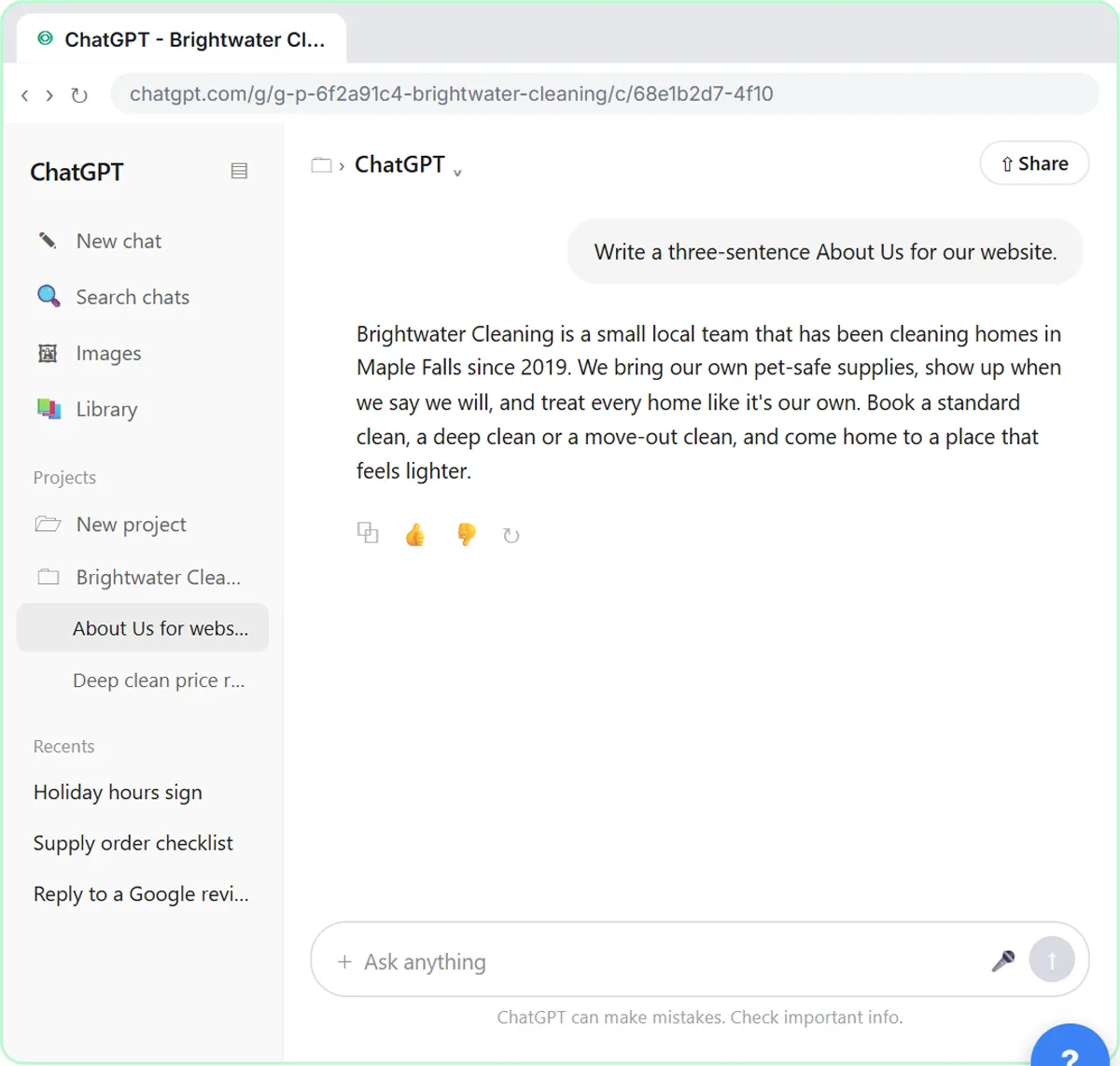
- Ask for something new. Type a new request (or Paste in the request): Write a three-sentence About Us for our website.
Ask for something completely different: a three sentence About Us for your website.
- Send it. Click Send.
- Check the About Us. Read it, then click the answer to finish.
Same voice, a brand new chat, and you didn't explain a thing. That's the whole idea: the instructions and files live in the project, so every chat starts out knowing your business. When your prices change, remove the old file in Sources and add the new one.
Screenshots
Frequently asked questions
- What is a ChatGPT Project?
- A Project is a workspace in ChatGPT that keeps related chats, files and instructions together. Chats inside the Project follow its instructions and can use its files, so you do not have to repeat the same background every time.
- Where do I add project instructions?
- Open the project, click the three-dots menu next to Share, and choose Project settings. The Instructions box is there. Project instructions apply only inside that project and override your general custom instructions.
- How many files can a ChatGPT Project hold?
- It depends on your plan: 5 files per project on Free, 25 on Plus and Go, and 40 on Pro, Business, Enterprise and Edu. You can upload up to 10 files at the same time.
- Should I use a Project or a Custom GPT?
- Use a Project for your own ongoing work, where the chats, files and instructions should stay together and keep growing. A Custom GPT is better when you want to package one reusable assistant for other people to use.
- Is this course really free?
- Yes. Stepthrough is completely free, and the practice copy needs no accounts. To do it for real you need your own ChatGPT account, and some features cost money on paid plans.
More in ChatGPT for Everyday Work
 Summarize a Meeting Transcript with ChatGPT
Paste a long meeting transcript into ChatGPT and get the decisions, an action items table with owners and due dates, and a follow-up email ready to send.
Free · Live ~9 min
 ChatGPT Work: Have ChatGPT Do a Multi-Step Task
Switch ChatGPT to Work, hand it a real job (compare three suppliers into a spreadsheet), approve the sites it opens, skip a login, answer its question, check the file…
Free · Live ~8 min
 Make Images with ChatGPT for Your Business
Turn a short brief and your logo into a sale poster with ChatGPT Images, fix wrong text with a comment pin, make a Story version and get a caption to post.
Free · Live ~7 min
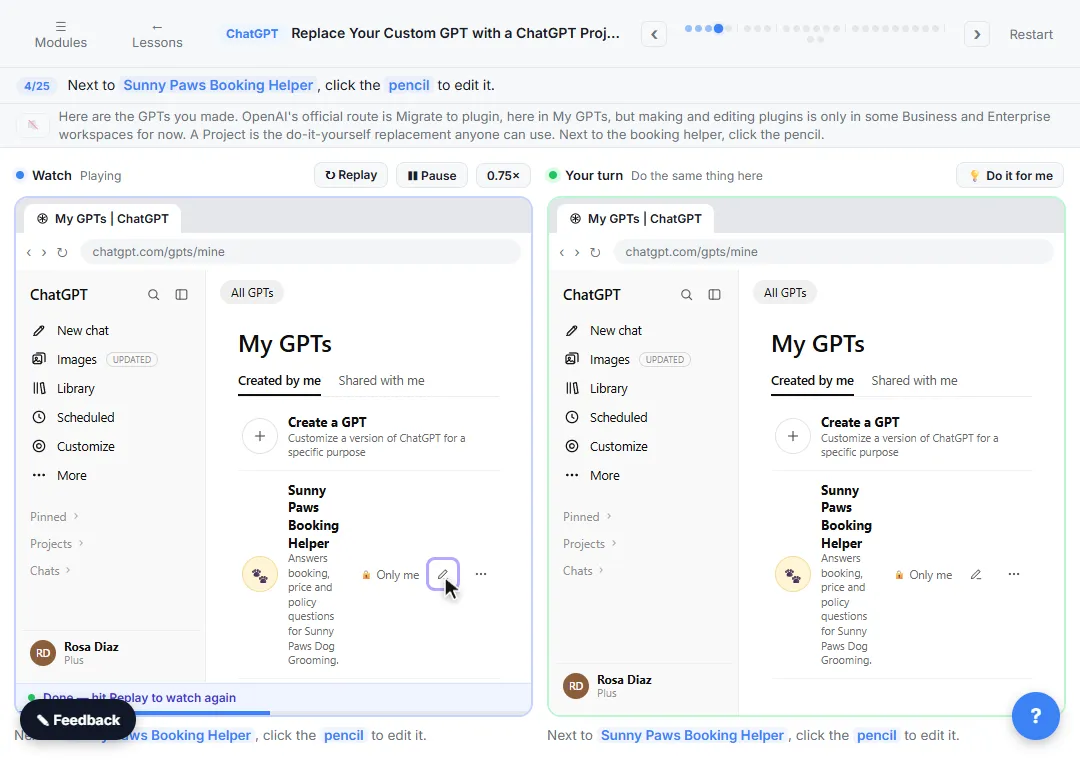 Replace Your Custom GPT with a ChatGPT Project
Custom GPTs retire on December 11, 2026. Copy your GPT's instructions, starters and files, rebuild it as a ChatGPT Project with project-only memory, and test it on a…
Free · Live ~7 min
All 7 modules in ChatGPT for Everyday Work
More ChatGPT tutorials
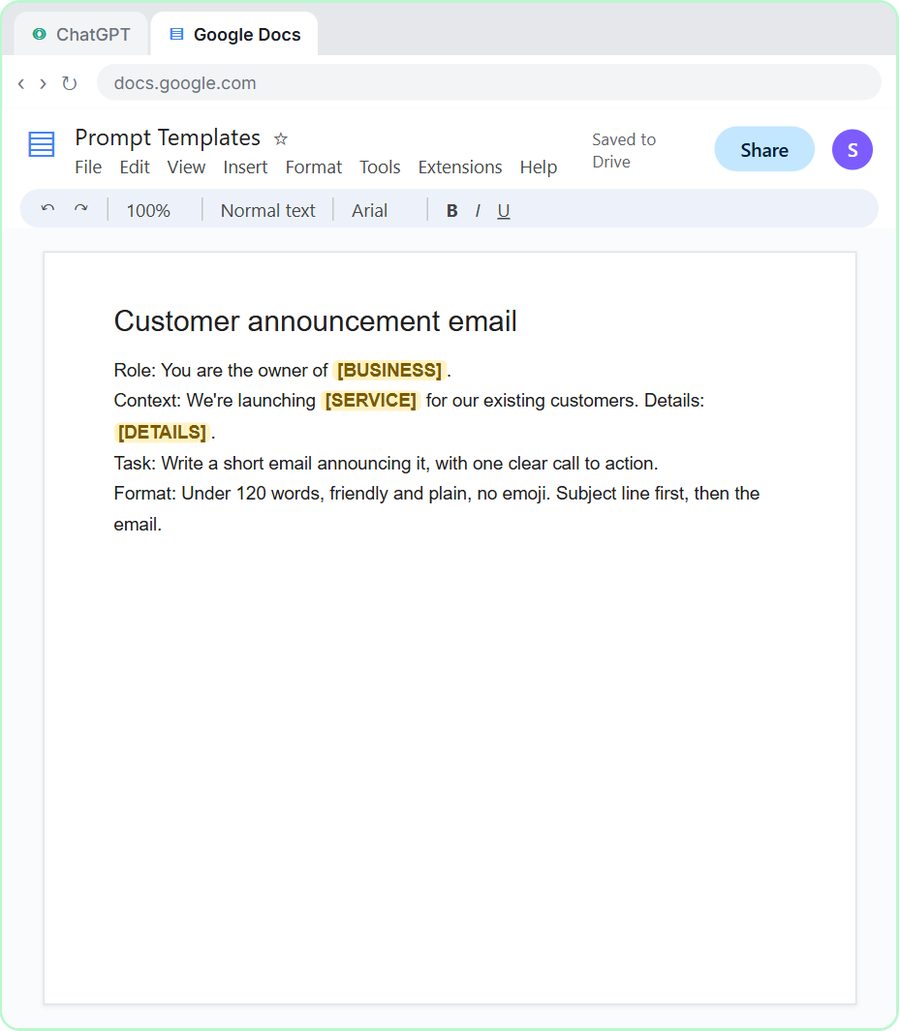 Prompt Writing 101: Role, Context, Task, Format
Ask ChatGPT for the same customer email twice, once vaguely and once with a four-part prompt, and see exactly why structure gets a better answer.
Free · Live ~8 min
 Get Your Business Recommended by ChatGPT
Ask ChatGPT who it recommends in your town, see which pages it trusts, then use it to write an FAQ page and Business Profile copy that answer real customer questions.
Free · Live ~10 min
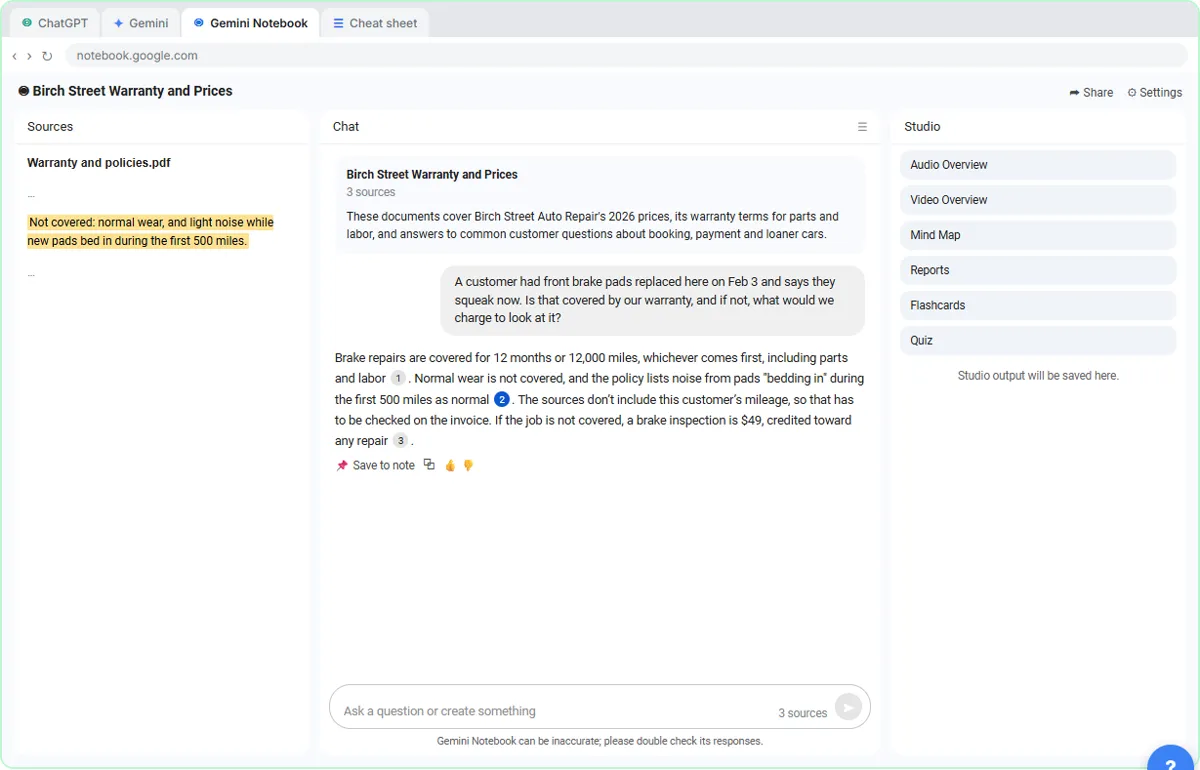 ChatGPT Projects vs Gemini Gems vs Gemini Notebook: Which to Use
Load an auto shop's price list, warranty and FAQ into a ChatGPT Project, a Gemini Gem and Gemini Notebook, ask each the same question, and see which fits which job.
Free · Live ~9 min
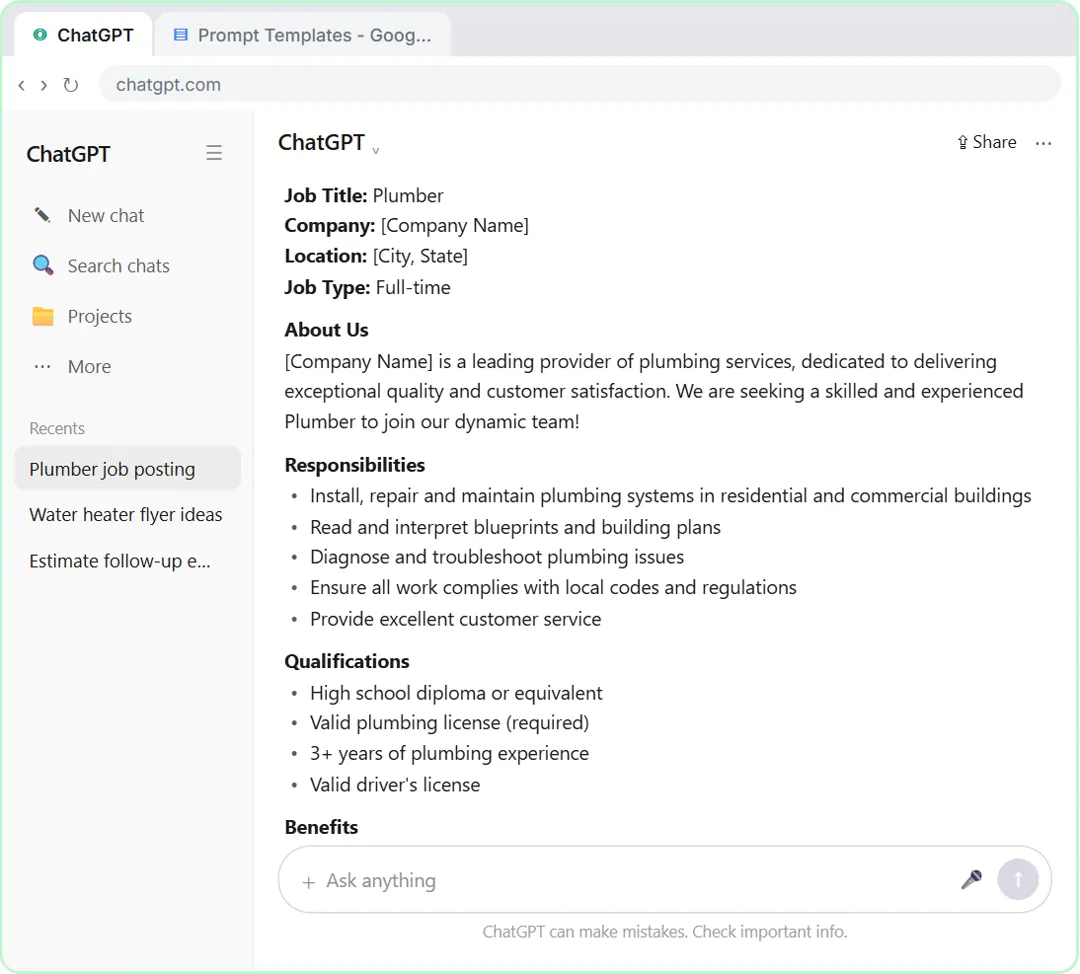 Make ChatGPT Ask You Questions First: The Interview Prompt
Ask for a job posting the quick way, then with the interview prompt: ChatGPT asks what it needs, one question at a time, and writes a posting you can actually use.
Free · Live ~6 min
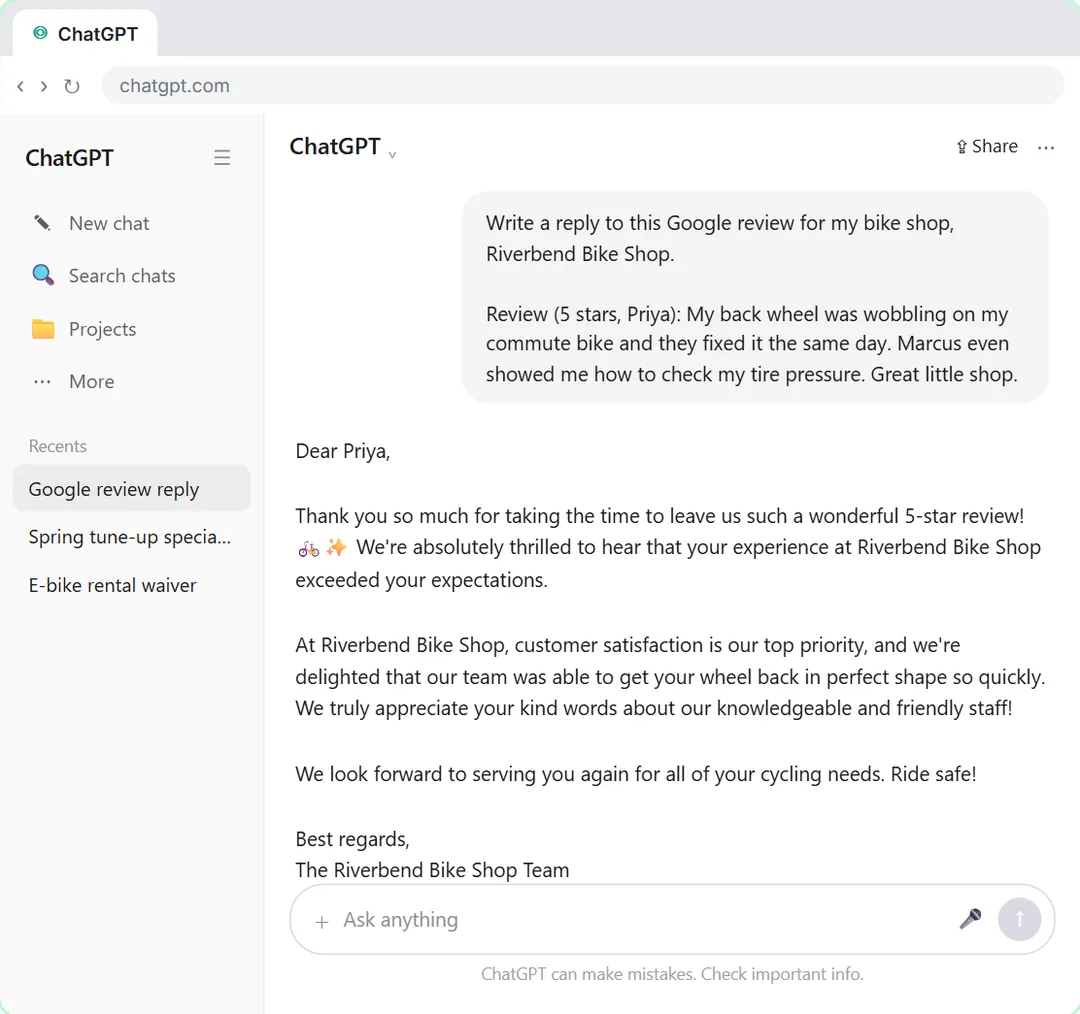 Give Examples: Few-Shot Prompts That Copy Your Style
Paste three of your real past replies into ChatGPT and get new Google review replies that sound like you, not like a template.
Free · Live ~6 min
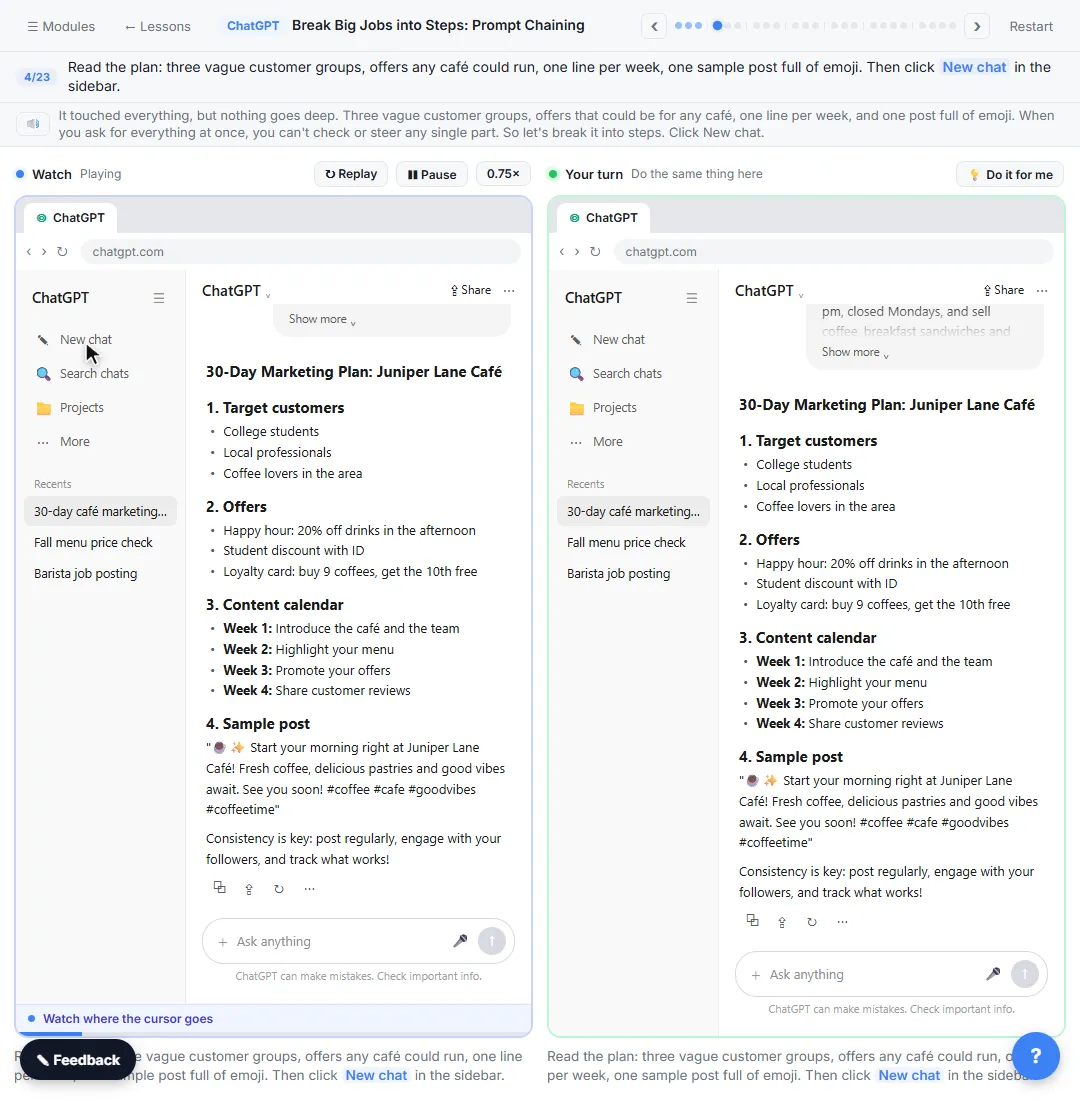 Break Big Jobs into Steps: Prompt Chaining for a Marketing Plan
Ask ChatGPT for a whole marketing plan in one prompt, then build a better one in four small steps: customers, offers, a calendar table and the posts.
Free · Live ~7 min
Terms in this lesson
Plain-English definitions, each with an example from a free lesson.