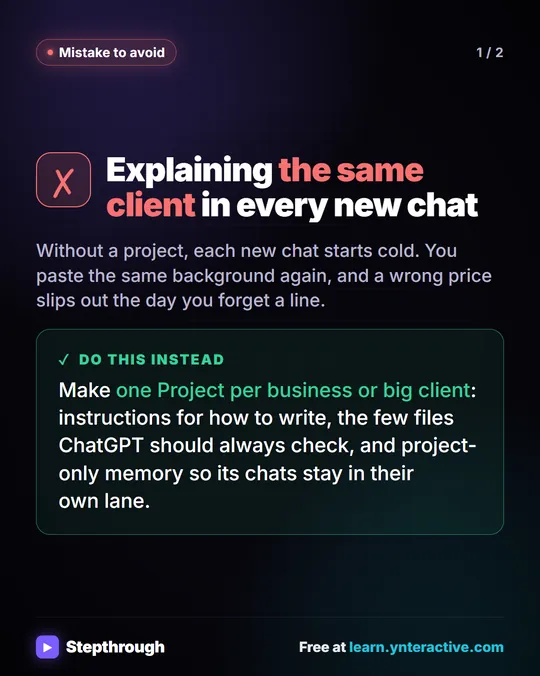
The business problem is a slow leak. A bookkeeper who serves eight clients types the same background into chat after chat: who the client is, how formal to be, which price list is current. The day one line gets left out, a reply goes out with the wrong fee or the wrong tone. Putting each rule in the right place once is how you stop paying that cost every day.
If you want the simpler question of how memory differs from custom instructions, see ChatGPT memory vs custom instructions. This post is about where your work rules should live.
What is the difference between custom instructions and project instructions?
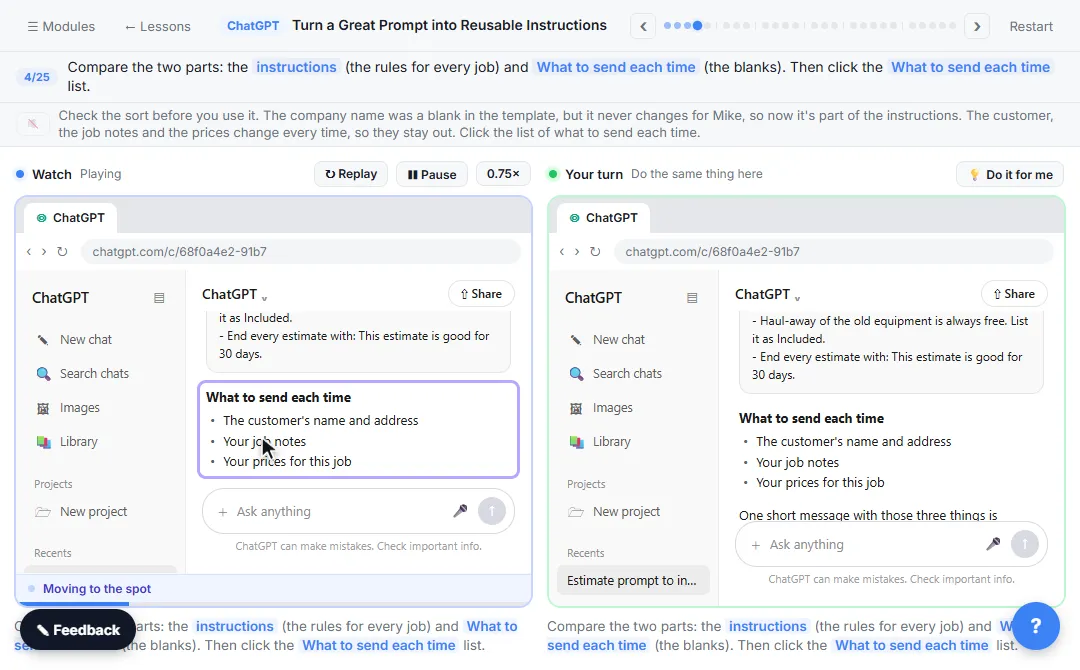
Scope. Custom instructions apply to every chat, from a client email to a lunch recipe. In the Turn a Great Prompt into Reusable Instructions lesson, that is exactly why they are ruled out for a job's rules: applying to every chat is too broad. Project instructions apply only to chats in that one project, which is just right for one client or one recurring job.
| Custom instructions | Project instructions | |
|---|---|---|
| Where | Settings, Personalization | Project page, the ⋯ next to Share, Project settings, Instructions |
| Applies to | Every new chat you start | Only chats inside that project |
| If they disagree | Lose | Win: they take priority over your custom instructions |
| Good for | Your role, how you like answers | One client's tone, files to use, sign-off, rules like "never invent a price" |
What should go in custom instructions?
Things that are true about you in every chat. Your role, that you want plain answers, that you want a question back when a fact is missing. Nothing client-specific. A rule like "sign as Jess at Brightwater Cleaning" belongs to one business, so it does not go here.
Custom instructions are personal. They shape your own chats, not your coworkers'. If the whole team needs the same rules for a client, that is another reason to put them in a project.
What should go in project instructions?
Everything that is true every time you work on that client or job. The lesson's instructions for a made-up cleaning company are a good model, five short lines:
- who the business is
- the voice: warm, plain, short sentences
- use the prices in the price list file, and never invent a price or a discount
- follow the brand voice guide
- how to sign every message
Write them like a note to a new assistant on their first day. Then add the files the instructions point to under the project's Sources tab, so every chat in the project can read them.
How do you add project instructions?
These are the steps taught in the ChatGPT Projects lesson. Menus change, so look for the same names in your account.
- Open the project. Click the ⋯ button next to Share.
- Click Project settings.
- Click the Instructions box and type or paste your rules.
- Click Save at the bottom. Save and Cancel appear once you change something. Closing with the X would not save your instructions.
When a result is off, change one rule in the instructions and every future chat in the project picks it up. Old chats do not change, so start a new chat inside the project to test it.
Where does memory fit?
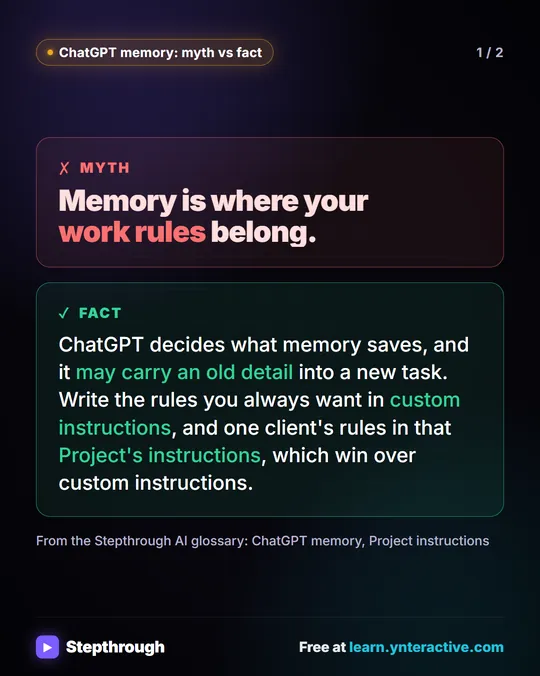
Memory is what ChatGPT carries from one chat to the next, and ChatGPT decides what it keeps. It can be handy for background, but it can carry an old detail into a new task, so it is the wrong home for a rule you need followed every time.
Two habits from the lessons help at work:
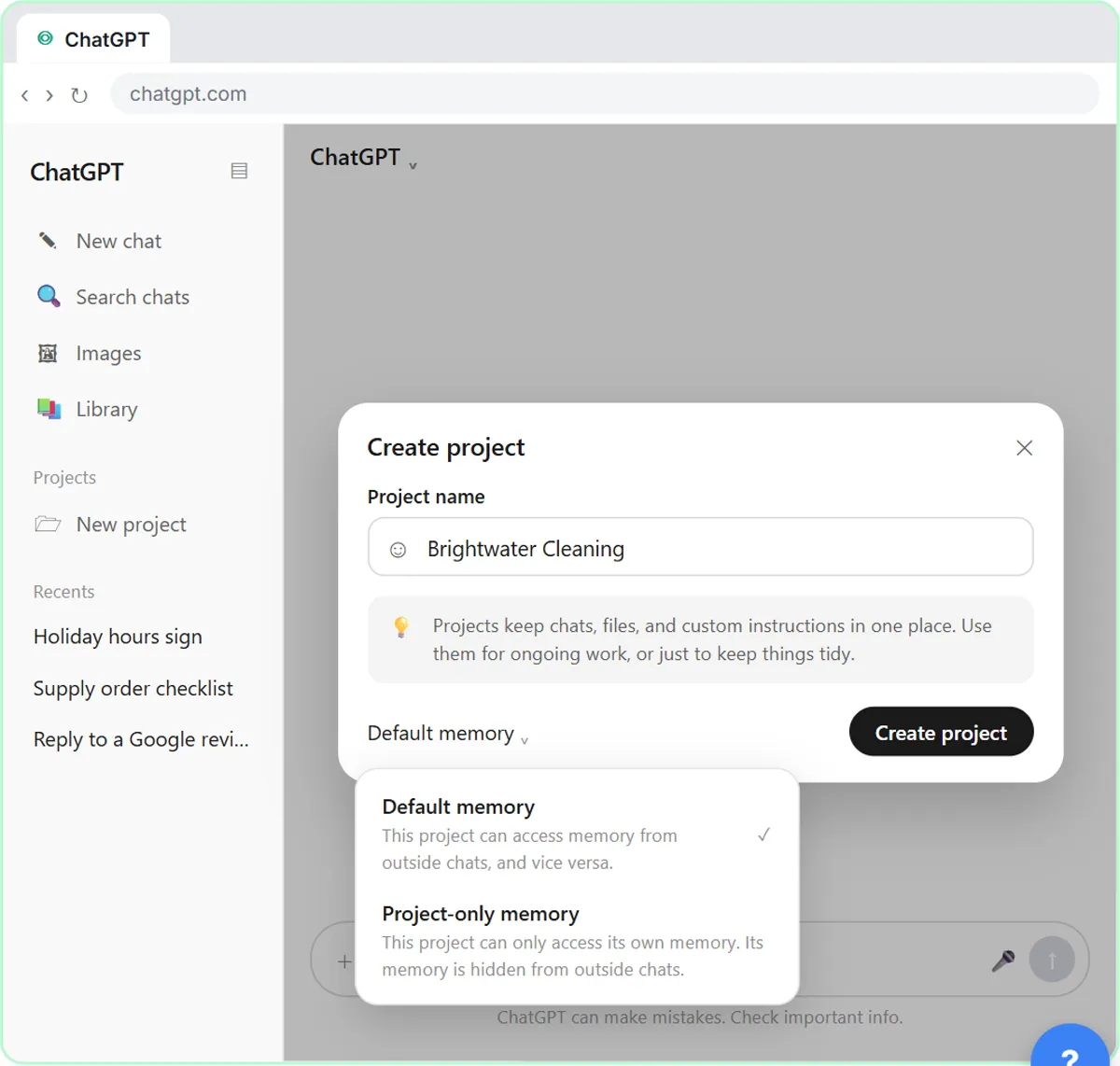
- Turn on project-only memory for client projects. When you create a project, the Default memory setting (or a gear icon, on some accounts) lets you pick Project-only memory. Chats in that project then draw only on each other, and your other chats can't see them.
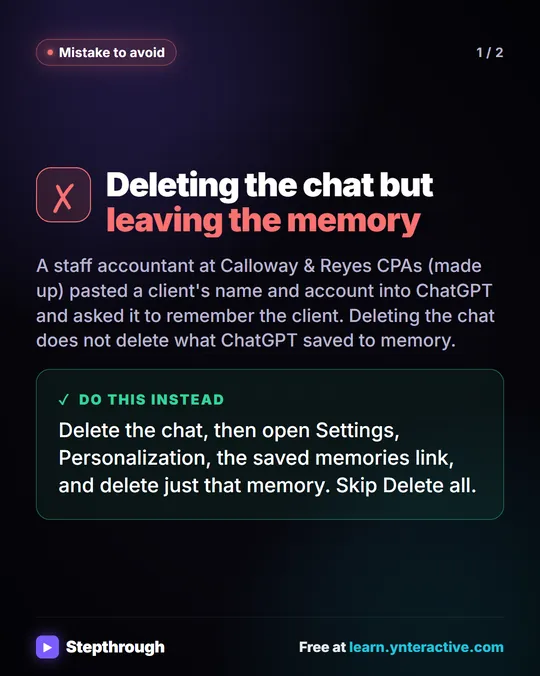
- Check saved memories now and then. Memory lives under Settings, Personalization. The Clear Client Data Out of ChatGPT lesson shows how to open saved memories and delete one client's memory without using Delete all memories.
On a shared work login, the lessons' advice is to turn Enable memory off. And remember that a Temporary Chat ignores memory and custom instructions, so it will not follow your standing rules either.
Try it free, step by step
ChatGPT Projects: Keep Your Brand Voice, Files and Instructions in One Place. Set up a ChatGPT Project with your brand voice instructions, your price list and your style guide, so every new chat already knows your business. You do every step yourself in a practice copy of ChatGPT, it checks your work as you go, and “Do it for me” finishes any step you get stuck on. Free, and nothing touches your real accounts.
Start the free lessonKey takeaways
- Custom instructions are for you and apply to every chat; project instructions are for one client or job and apply only inside that project.
- When they disagree, project instructions win.
- Keep client names, prices and sign-offs out of custom instructions.
- Don't rely on memory for rules; use project-only memory for client projects and check saved memories.
- Edit the project's instructions once when a result is off, then test in a new chat.
Frequently asked questions
- Do project instructions override custom instructions?
Yes. In the lesson, project instructions apply to every chat in the project and take priority over your general custom instructions.
- Where are ChatGPT custom instructions?
In Settings, under Personalization. They apply to every chat you start. Labels can change, so look for the same names in your account.
- Can I put client data in project instructions?
Keep it to rules and firm documents. The glossary entry on project instructions notes they are not a place for secrets or customer data, and the ChatGPT data controls lesson covers the account settings to check.
- Should I just use memory instead of writing instructions?
No. Memory is what ChatGPT chooses to save, and it can keep an old detail or miss a new one. Write the rules down where you can see and edit them.