Updated . Built against the tool’s current screens and checked step by step. How we check this lesson
Someone at your firm pasted a client's name, account number and balance into ChatGPT. Now the client asks what you keep in AI tools. This page shows how to delete ChatGPT history the safe way: delete that one chat, archive the chats you keep, clear the ChatGPT memory it left behind, switch to Temporary Chat for the next sensitive job, and leave Delete all chats alone. Every step matches ChatGPT on a Plus account in October 2026, and the free hands-on lesson lets you practise on a copy first.
At a glance
| Question | Answer |
|---|---|
| What you build | Someone pasted client details into ChatGPT. Delete that one chat, archive what you keep, clear the one memory it left, set safe defaults and start using Temporary Chat. |
| Tools | ChatGPT |
| Time | About 10 minutes, 26 steps in 6 parts |
| Level | Beginner, no coding needed |
| Cost | Free |
| Ways to learn it | Practice it step by step |
The 6 parts, in short
- The business case: Read the partner’s request, Read Morgan’s note.
- Delete the client chat: Open ChatGPT, Find the chat in Recents, Open the chat’s menu, Choose Delete, and 1 more step.
- Archive what you keep: Open the menu on a chat you keep, Archive it, Open your account menu, Open Settings, and 1 more step.
- Clear the memory: Open Personalization, Open your saved memories, Open the client memory’s menu, Delete that one memory, and 1 more step.
- Set safe defaults: Open Data controls, Turn off Improve the model for everyone, Find Export data, See where Delete all chats lives, and 1 more step.
- Temporary Chat next time: Turn on Temporary Chat, Read what it keeps and doesn’t, Open the cleanup checklist, Copy the checklist.
Start here first: Start Here: How Stepthrough Works (module 1 of AI Basics)
In the course: Part 3 · ChatGPT for Everyday Work (Module 17 of the full course)
Part of: AI at Work: Start Here (step 4 of 14). Next up: Roll Out a Team AI Policy in One Afternoon using Claude
Part of: ChatGPT Jump Start (step 4 of 12). Next up: Stop Losing Context: When to Start a New Chat vs Keep Going using ChatGPT
Part of: AI for Accounting & Bookkeeping Firms (step 11 of 24). Next up: Check a Contract for Red Flags with Claude
Part of: AI for Law Firms (step 5 of 12). Next up: Check a Contract for Red Flags with Claude
The business case: client details live in two places
Calloway & Reyes CPAs is a made-up five-person accounting firm. Last Tuesday a staff accountant, Morgan, pasted Dana Okafor's name, the Okafor Family Trust account ending 4417 and a $2,350 balance into ChatGPT to tidy a note, and asked ChatGPT to remember the client. Now the client has asked what the firm keeps in AI tools, and the partner wants it cleaned up before Friday without losing the chats the firm keeps for records.
The details sit in two places: the chat, and ChatGPT's memory. Deleting the chat does not delete the memory, and archiving the chat deletes nothing. A ten-minute cleanup covers both, then a few defaults stop it piling up again. To set those defaults across the team first, see ChatGPT Data Controls.
Step 1: find the chat and delete just that one
Your chats are listed in the left sidebar under Recents, newest first, with names ChatGPT picked for you. The magnifying glass at the top of the sidebar searches them. Open the chat and check it is the right one, then click the three dots (···) at the top right. The menu has Rename, Pin, Plugins, View files in chat, Archive, Delete and Move to project.
Click Delete. ChatGPT asks "Delete chat?" and warns that this will permanently delete the chat and can't be undone. Click Delete chat. That is how to delete one ChatGPT conversation without touching the rest of your history. You can also delete from the ··· that appears when you point at a chat in the sidebar.
Step 2: archive vs delete, and where Archived chats live
Archive is for chats you want out of the sidebar but still need, like a month-end checklist. Point at the chat in the sidebar, click its ···, then Archive. There is no warning because nothing is lost.
Archived chats now have their own page: click your name at the bottom left, then Settings, then Archived chats in the left menu (Data controls also has an Archived chats Manage button). Each archived chat has Unarchive and Delete. The rule for a firm: archive what you keep, delete client details you should not be holding. See archived chats.
Step 3: clear ChatGPT memory, one memory at a time
In Settings, open Personalization. At the top, under ChatGPT memory, Enable memory is the switch for the whole feature: it lets ChatGPT personalize answers based on your chats, files and connected apps. Memory summary shows an overview, and the "saved memories" link opens the list of saved facts.
In Saved memories, point at the memory that names the client, click its ···, then Delete. Only that one goes. The ··· at the top of the list also offers Delete all memories, which wipes the useful ones too, so do not use it for a cleanup. On a login more than one person uses, most firms switch Enable memory off. See ChatGPT memory.
Step 4: set safe defaults in Data controls
In Settings, Data controls, switch off Improve the model for everyone ("Control whether your chats are used for model training") on every account used for client work. Further down, Export data emails you a file of your chats; do that before any cleanup bigger than a chat or two, so the firm keeps a record.
Delete all chats is on the same page. Know where it is and leave it alone: it removes every chat at once, including the ones the firm needs, and it cannot be undone. A cleanup is one chat at a time. The lesson shows the row but never uses it.
Step 5: use ChatGPT Temporary Chat for the next sensitive job
On a new chat, the icon at the top right turns on Temporary Chat (point at it and it says "Turn on temporary chat"). The screen changes to "Temporary chat" with the note "This chat will ignore memory, plugins, and custom instructions, and it won't appear in your history", and the label at the top reads Unpersonalized.
The line at the bottom matters: "For safety, we may keep a copy of this chat for up to 30 days." So a ChatGPT temporary chat leaves nothing to clean up in your sidebar or memory, but it is safer, not secret. Names and account numbers still come out first. See Temporary Chat.
What this saves you
Ten minutes replaces an awkward "we're not sure" when a client, insurer or auditor asks what you keep in AI tools. You can say exactly what you removed and what you changed. Next business case: write a one-page team AI policy, so the whole team follows the same rules.
How the interactive lesson works
Each step is shown in the Watch panel with a short explanation, then you do it yourself in Your turn on a practice copy of ChatGPT. No account is needed and nothing is deleted. The firm, the client and the numbers are made up.
Links
- Cleanup checklist (one page): The eight steps with the exact menu names. Print it or paste it into your handbook.
- OpenAI Help Center: OpenAI's own pages on deleting chats, memory and Temporary Chat. Plans and screens change, so check your own account.
Try it yourself, free
Reading the steps is a start. Doing them is how it sticks. The interactive module walks you through every click in a practice copy of ChatGPT, checks each step, and never touches your real accounts.
Start “Clear Client Data Out of ChatGPT Before It Becomes a Problem: Delete Chats, Clear Memory and Use Temporary Chat”Step by step: Clear Client Data Out of ChatGPT Before It Becomes a Problem: Delete Chats, Clear Memory and Use Temporary Chat
All 26 steps of the interactive module, in order. In the module you watch each one, then do it yourself in a practice copy that checks your work.
1. The business case
- Read the partner’s request. You start in Morgan’s inbox. The tabs at the top switch to ChatGPT and to a checklist later. Click the highlighted request from Elena.
Morgan is a staff accountant at Calloway and Reyes, a five person accounting firm. The partner, Elena, has just written: a client, the Okafor Family Trust, asked what the firm keeps in AI tools. Before Friday, take their details out of ChatGPT, and set it up so client data stops piling up.
- Read Morgan’s note. Click Morgan’s note below the email.
Here's the problem. Last Tuesday Morgan pasted the client's name, an account ending 4417 and a balance into ChatGPT, to tidy a note. And asked it to remember the client. So the details are in two places: a chat, and a memory. Deleting one does not delete the other.
2. Delete the client chat
- Open ChatGPT. Click the ChatGPT tab.
Let's clean it up. In real life, sign in to the account you used for the client work.
- Find the chat in Recents. In the sidebar under Recents, click Tidy Okafor client note.
Your past chats are listed in the sidebar under Recents, newest first. ChatGPT names each chat for you, so look for one that sounds like the client work. If the list is long, the magnifying glass at the top searches your chats.
- Open the chat’s menu. Check it’s the right chat: the client’s name and account are right there. Then click ··· at the top right.
There's the client's name, the account ending and the balance. This is the chat. At the top right, click the three dots.
- Choose Delete. Click Delete, in red.
The menu has Rename, Pin, Archive and Delete. Archive would only hide this chat. The client's details would still be stored.
- Confirm: Delete chat. Read the warning, then click Delete chat.
Read the warning. This will permanently delete the chat, and it can't be undone. That's what you want for client details you shouldn't have pasted.
3. Archive what you keep
- Open the menu on a chat you keep. The client chat is gone from Recents. Now point at Q3 close checklist and click its ···.
The client chat is gone. Now a different case. The Q3 close checklist has no client details, but Elena wants it kept for the records. You just want it out of the way. Point at it in the sidebar and click its three dots.
- Archive it. Click Archive.
There's no warning, because nothing is lost. The chat leaves the sidebar, but it's still stored in your account.
- Open your account menu. At the bottom left, click your name, Morgan.
So where did it go?
- Open Settings. Click Settings.
- Find it in Archived chats. Settings opens on Archived chats. Click the Q3 close checklist row.
Settings opens as a full page, with a long menu on the left. Archived chats is in that menu. Here is the checklist, with Unarchive to bring it back, and Delete. Remember the rule: archive is for chats you keep. If a chat has client details you shouldn't hold, delete it.
4. Clear the memory
- Open Personalization. In the left menu, click Personalization.
Now the memory. Deleting the chat did not delete what ChatGPT remembered from it. Memory lives under Personalization.
- Open your saved memories. Under ChatGPT memory, find the Enable memory switch, then click the saved memories link.
At the top is ChatGPT memory. Enable memory is the main switch. It lets ChatGPT use your chats, files and connected apps to personalize answers. That's the switch for referencing past chats. Leave it for now. To see what it saved, click the saved memories link.
- Open the client memory’s menu. Find the memory about Dana Okafor. Point at it and click its ···.
Here's everything ChatGPT has saved. Two are fine. One is the client's name and balance. Point at that one, and click its three dots.
- Delete that one memory. Click Delete.
Only this one memory goes. Notice the menu at the top of the list also has Delete all memories. Don't use it for a cleanup. You'd lose the useful ones too.
- Close the list. The client memory is gone and the others are still there. Click the ×.
The client memory is gone. The other two are still there. Close the list.
5. Set safe defaults
- Open Data controls. In the left menu, click Data controls.
Now set the defaults, so this doesn't pile up again.
- Turn off Improve the model for everyone. Click the switch next to Improve the model for everyone to turn it off. (Practice copy: nothing really changes.)
First, Improve the model for everyone. On personal plans like Plus, it decides whether your chats can be used to train OpenAI's models. For any account used for client work, turn it off.
- Find Export data. Click Export next to Export data. In this practice copy it only shows a hint.
Further down is Export data. It emails you a file of your chats. If you ever clean up more than one or two chats, export first, so the firm keeps a record.
- See where Delete all chats lives. Click the words Delete all chats (not the red button) to see why you leave it alone.
And just above it, Delete all chats. Know where it is, and leave it alone. It wipes every chat at once, including the ones the firm needs, and it can't be undone. A cleanup is one chat at a time.
- Back to the chat. At the top left, click Back to app.
That's the settings done.
6. Temporary Chat next time
- Turn on Temporary Chat. At the top right, click the Temporary chat icon.
Last, the habit that stops this happening again. Next time you have to work on something with client details, start a temporary chat. It's the icon at the top right.
- Read what it keeps and doesn’t. Read the notice and the line at the bottom. Click the notice when you’re done.
Read it carefully. A temporary chat ignores memory, plugins and custom instructions, and it won't appear in your history. So there's nothing to clean up later. But the line at the bottom says a copy may be kept for up to thirty days, for safety. So it's safer, not secret. Names and account numbers still come out first.
- Open the cleanup checklist. Click the Cleanup checklist tab.
That's the cleanup done.
- Copy the checklist. Read the eight steps, then click Copy checklist.
Eight steps on one page: delete the chat, archive what you keep, clear the memory, memory off on shared logins, training off, export before big cleanups, leave delete all alone, and temporary chat next time. Copy it, and reply to Elena that it's done.
Frequently asked questions
- How do I delete my ChatGPT history?
- Delete chats one at a time: open the chat, click ··· at the top right, then Delete and Delete chat. Settings, Data controls also has Delete all chats, which removes every chat at once and cannot be undone, so export your data first if you might need a record.
- Does archiving a ChatGPT chat delete it?
- No. Archive moves the chat out of the sidebar but keeps it. You find it in Settings, Archived chats, where you can unarchive or delete it.
- How do I clear ChatGPT memory?
- Go to Settings, Personalization and open the saved memories list. Click ··· next to a memory and choose Delete to remove just that one. Switching off Enable memory stops ChatGPT using memory at all.
- If I delete a chat, does ChatGPT forget what it remembered from it?
- Not necessarily. Saved memories are a separate list, so delete the memory too. That is why a cleanup covers both the chat and the memory.
- What is ChatGPT Temporary Chat?
- A chat that ignores memory, plugins and custom instructions and won't appear in your history. Turn it on with the icon at the top right of a new chat. ChatGPT says it may keep a copy for up to 30 days for safety.
- Can I recover a deleted ChatGPT chat?
- No. ChatGPT warns that deleting a chat can't be undone. If you might need it, archive it or export your data before you delete.
More in AI Basics
Try the practice in under two minutes: watch a step, click, type, get unstuck with Do it for me, and finish.
Free · Live ~2 min Beginner
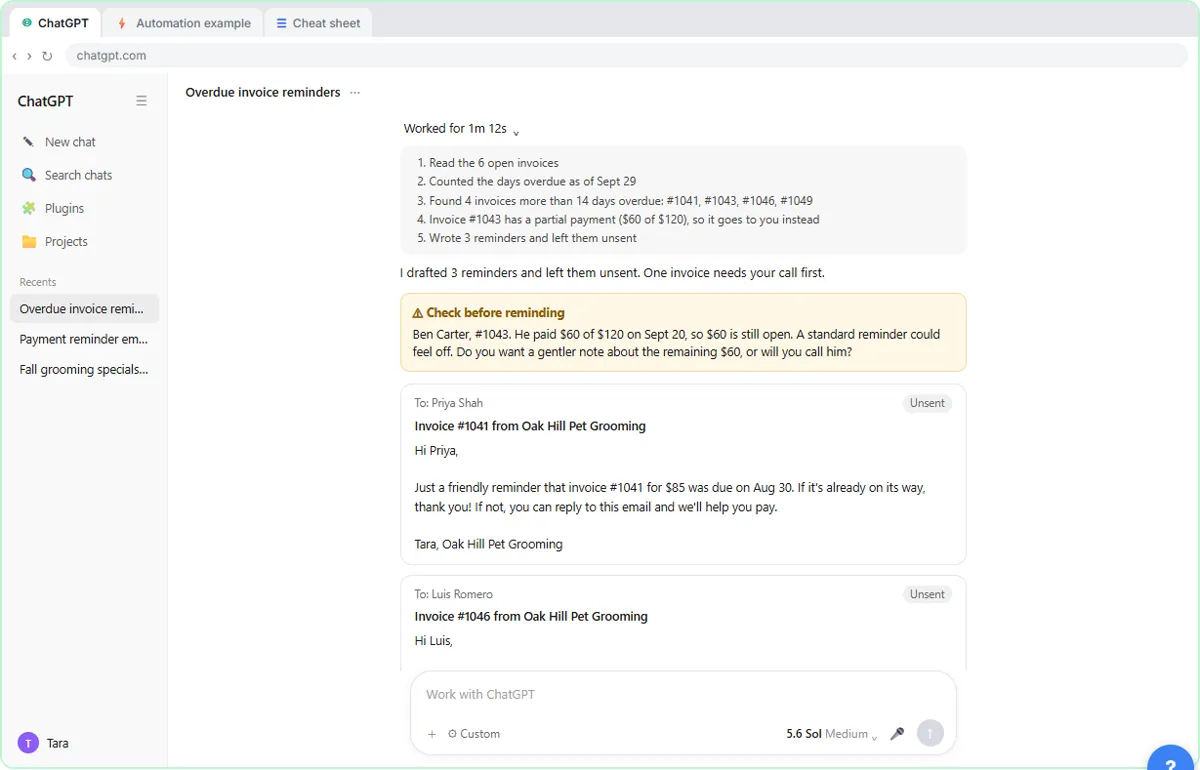 AI Agent vs Chatbot vs Automation: One Job Done Three Ways
Chase six unpaid invoices three ways: a chatbot writes a template, an automation follows a rule, and an AI agent works out the steps and flags the tricky one.
Free · Live ~7 min Beginner
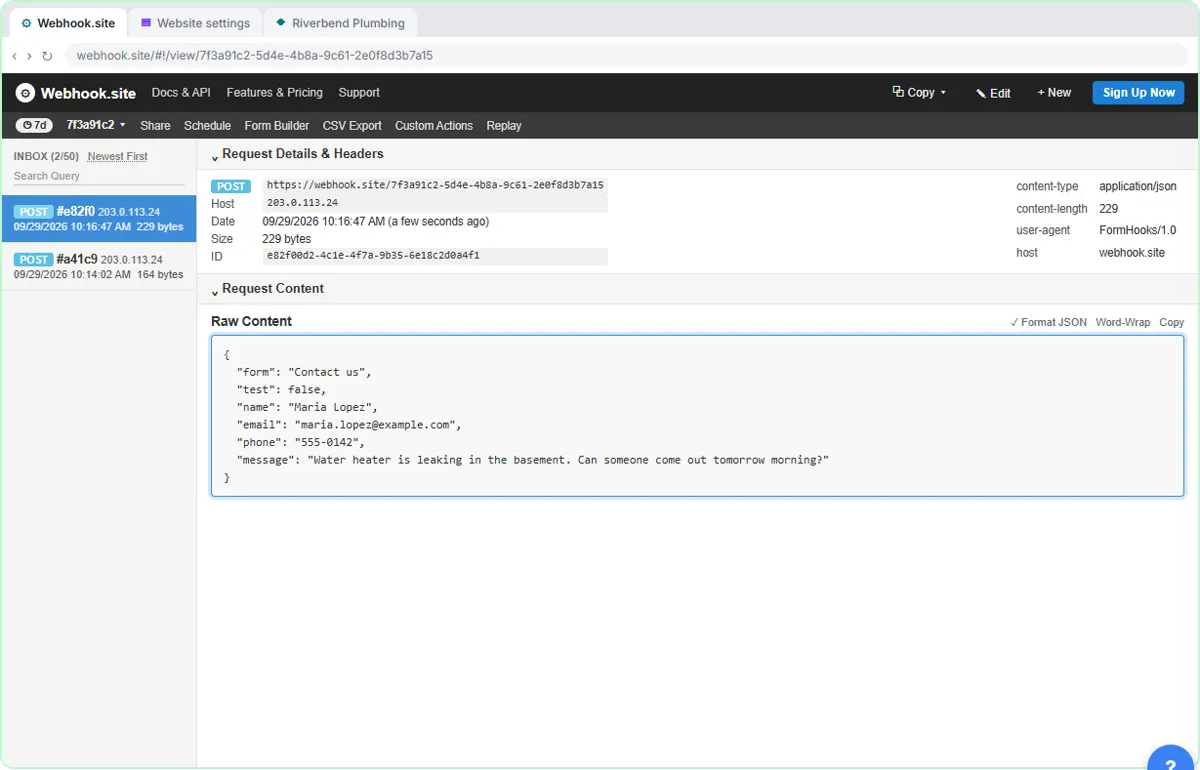 What Is a Webhook? Send a Test and Watch the Data Arrive
Point a plumber's website contact form at a free webhook tester, send a test and a real message, and watch the data arrive the moment it's sent.
Free · Live ~6 min Intermediate
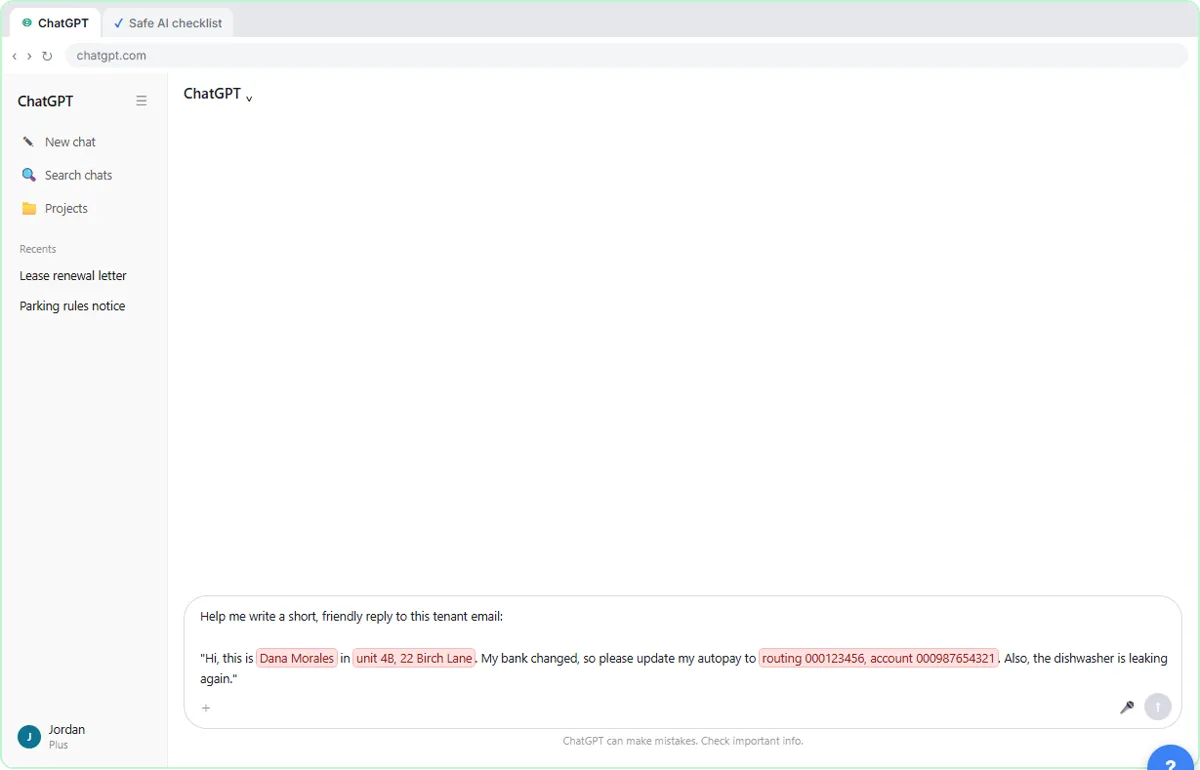 Use AI at Work Without Leaking Client Data using ChatGPT
Turn off model training, strip a tenant's bank details and address out of a prompt, then catch the two promises ChatGPT made up before the reply goes out.
Free · Live ~7 min Beginner
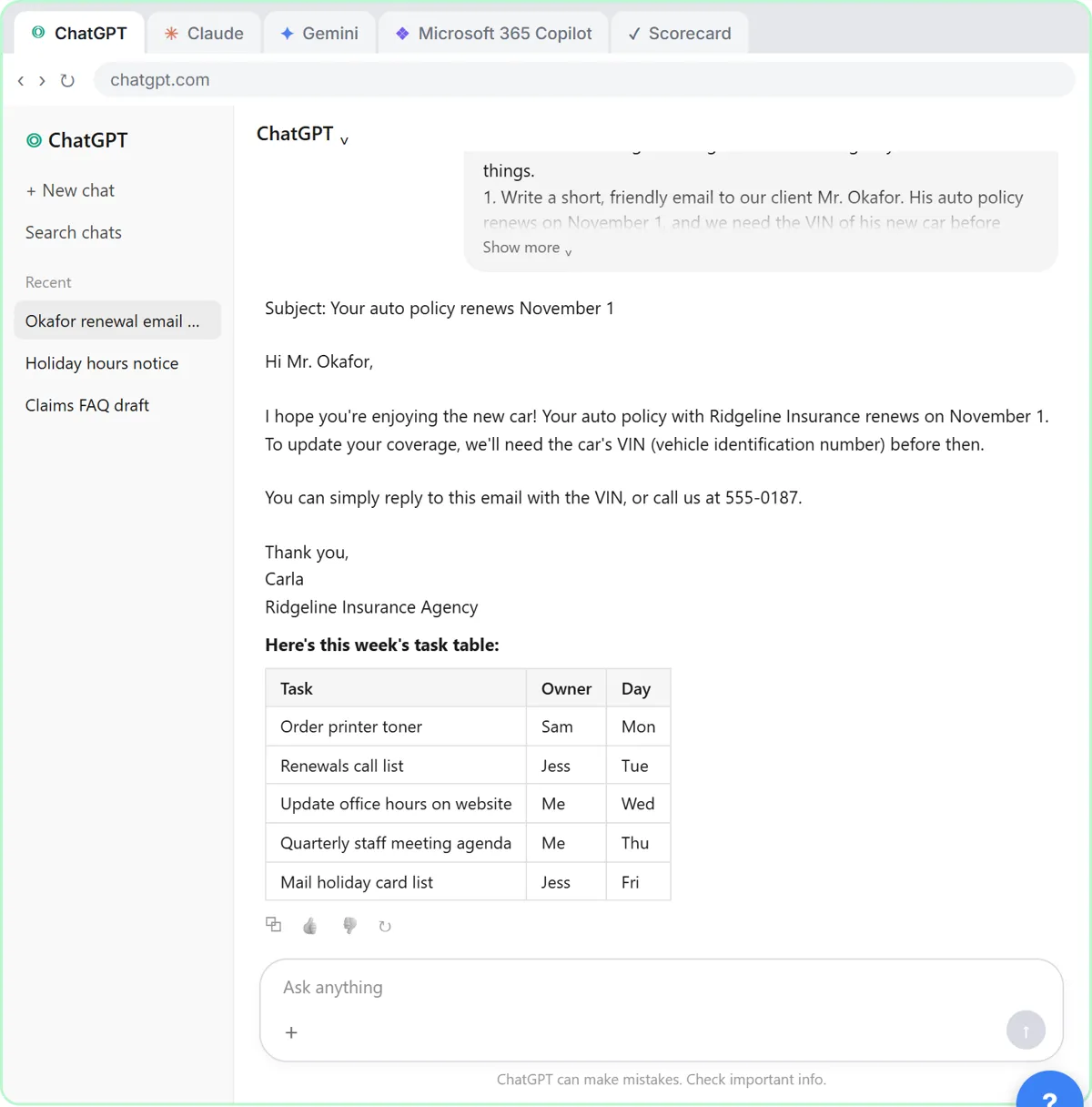 Choose the AI Assistant Your Team Should Use, Tested on ChatGPT, Claude, Gemini and Copilot
Give one real office task to ChatGPT, Claude, Gemini and Microsoft Copilot, check each answer on the facts, and pick the one to use at work.
Free · Live ~8 min Beginner
◷Know What Never Goes into AI: a Four-Level Data Cheat Sheet using ChatGPTSort office data into Public, Internal, Confidential and Restricted, take the Restricted part out by hand, then have ChatGPT redact a client email and catch the mix-up…
Free · Live ~7 min Beginner
More ChatGPT tutorials
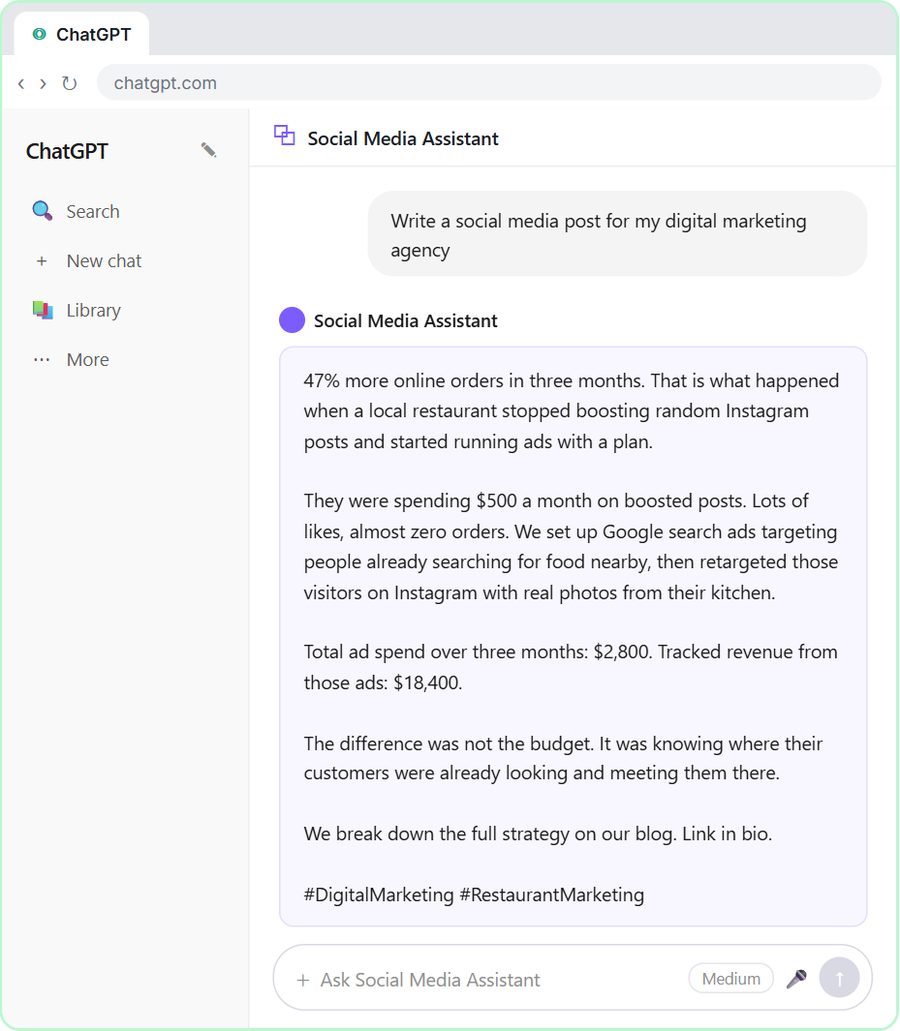 Get On-Brand Social Posts Every Time using a ChatGPT Custom GPT
See why generic prompts give generic results, then build a Custom GPT loaded with your brand voice and watch the output transform.
Free · Live ~8 min Beginner
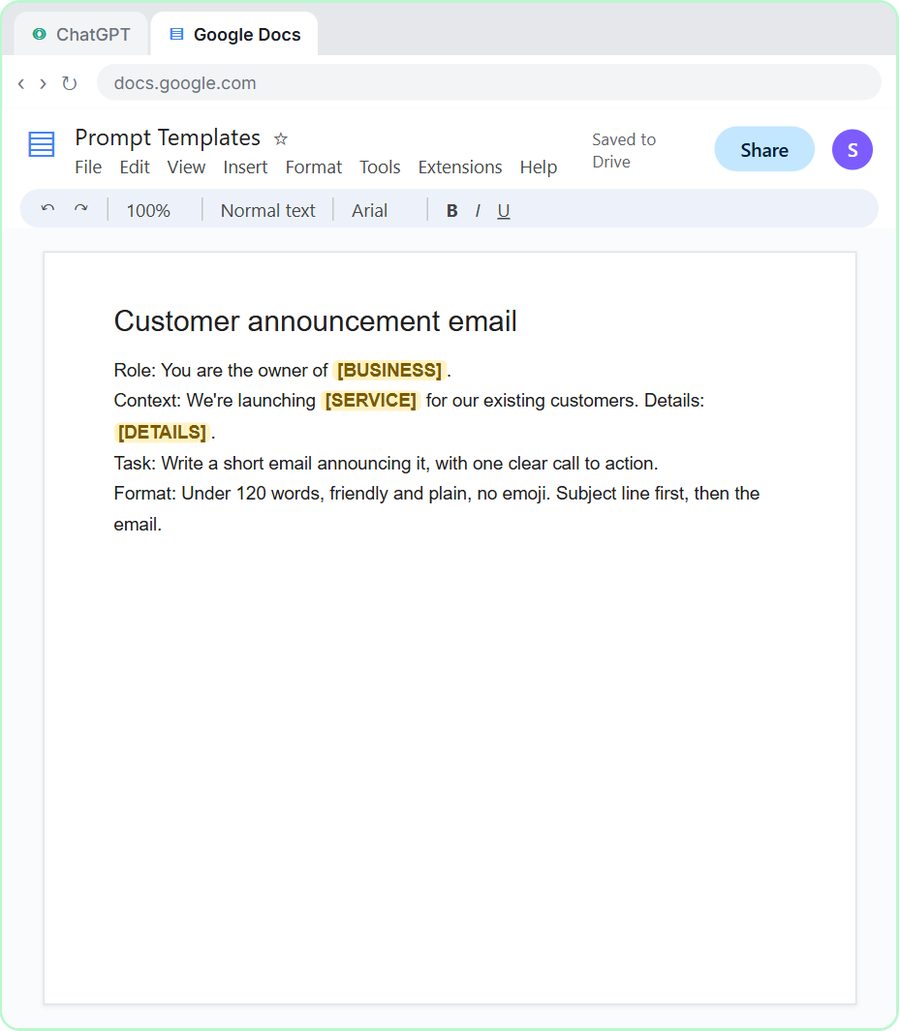 Prompt Writing 101: Role, Context, Task, Format
Ask ChatGPT for the same customer email twice, once vaguely and once with a four-part prompt, and see exactly why structure gets a better answer.
Free · Live ~8 min Beginner
◷Send a Same-Day Follow-up After Every Discovery Call using ChatGPTTurn a discovery call transcript into the decisions, the next steps with owners and dates, deal notes for your CRM, and a follow-up email the prospect gets the same…
Free · Live ~7 min Beginner
◷Hold Your Price When a Prospect Asks for a Discount using ChatGPTA prospect wants 30% off and a free month to sign this week. Give ChatGPT the thread and your pricing rules, catch the discount you can't approve, and send a reply that…
Free · Live ~9 min Beginner
 Get Your Business Recommended by ChatGPT
Ask ChatGPT who it recommends in your town, see which pages it trusts, then use it to write an FAQ page and Business Profile copy that answer real customer questions.
Free · Live ~10 min Intermediate
◷Run a Weekly Ops Review Where Every Task Has an Owner using ChatGPTTurn a weekly operations and vendor review into the decisions, the next steps with owners and dates, the risks to watch and a team recap, without turning a vendor's…
Free · Live ~7 min Beginner
Terms in this lesson
Plain-English definitions, each with an example from a free lesson.