Updated . Built against the tool’s current screens and checked step by step. How we check this lesson
AI is safe to use at work when you keep three habits: check your data settings, take out what AI doesn't need before you paste, and check everything it gives back before you use it. In this free, hands-on lesson you practice all three in a copy of ChatGPT while answering a real-feeling tenant email for a small property management company.
At a glance
| Question | Answer |
|---|---|
| What you build | Turn off model training, strip a tenant's bank details and address out of a prompt, then catch the two promises ChatGPT made up before the reply goes out. |
| Tools | ChatGPT |
| Time | About 7 minutes, 17 steps in 4 parts |
| Level | Beginner, no coding needed |
| Cost | Free |
| Ways to learn it | Practice it step by step |
The 4 parts, in short
- Check your settings: Open your account menu, Open Settings, Open Data controls, Turn off Improve the model for everyone, and 1 more step.
- Take out what AI doesn’t need: Click the message box, Paste the request, Remove the bank details, Remove the tenant's name, and 2 more steps.
- Check what comes back: Spot the made-up promise, Ask it to check itself, Ask what it added, Send it, and 1 more step.
- Your safe-AI checklist: Open the checklist.
Start here first: AI Agent vs Chatbot vs Automation: One Job Done Three Ways (module 1 of AI Basics)
In the course: Part 3 · ChatGPT for Everyday Work (Module 11 of the full course)
Part of: AI at Work: Start Here (step 1 of 8). Next up: Prompt Writing 101: Role, Context, Task, Format
Habit 1: check your training setting
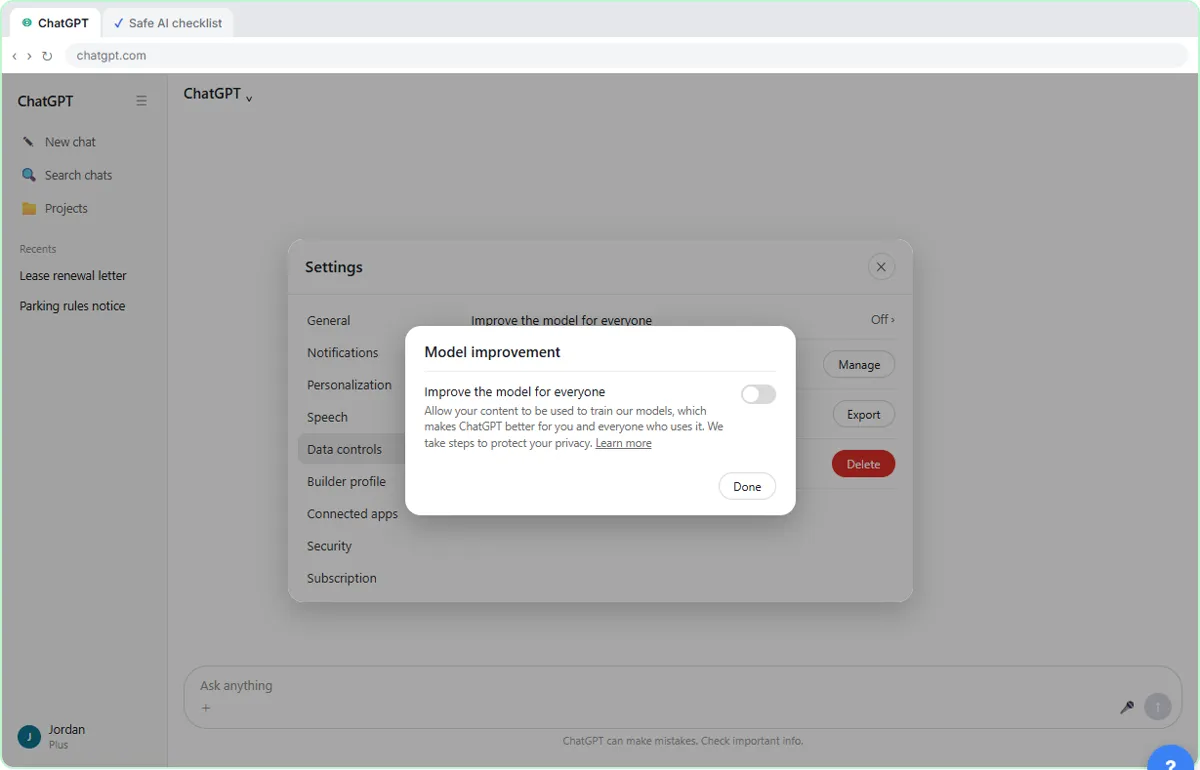
On personal ChatGPT plans (Free, Go, Plus and Pro), a setting called Improve the model for everyone decides whether your conversations can be used to train OpenAI's models. In the lesson you open it the same way you would for real: click your name at the bottom left, choose Settings, then Data controls, click Improve the model for everyone and switch it off, then click Done.
Turning it off stops your new conversations from being used for training. It does not delete your chat history. For a one-off conversation you don't want saved at all, ChatGPT also has Temporary Chat, which doesn't appear in your history and isn't used for training.
On ChatGPT Business and Enterprise, OpenAI does not use your business data for training by default, and admins control the settings for everyone. The same is true of OpenAI's API by default. That is one of the main reasons companies pay for business plans rather than letting staff use personal accounts.
Habit 2: take out what AI doesn't need
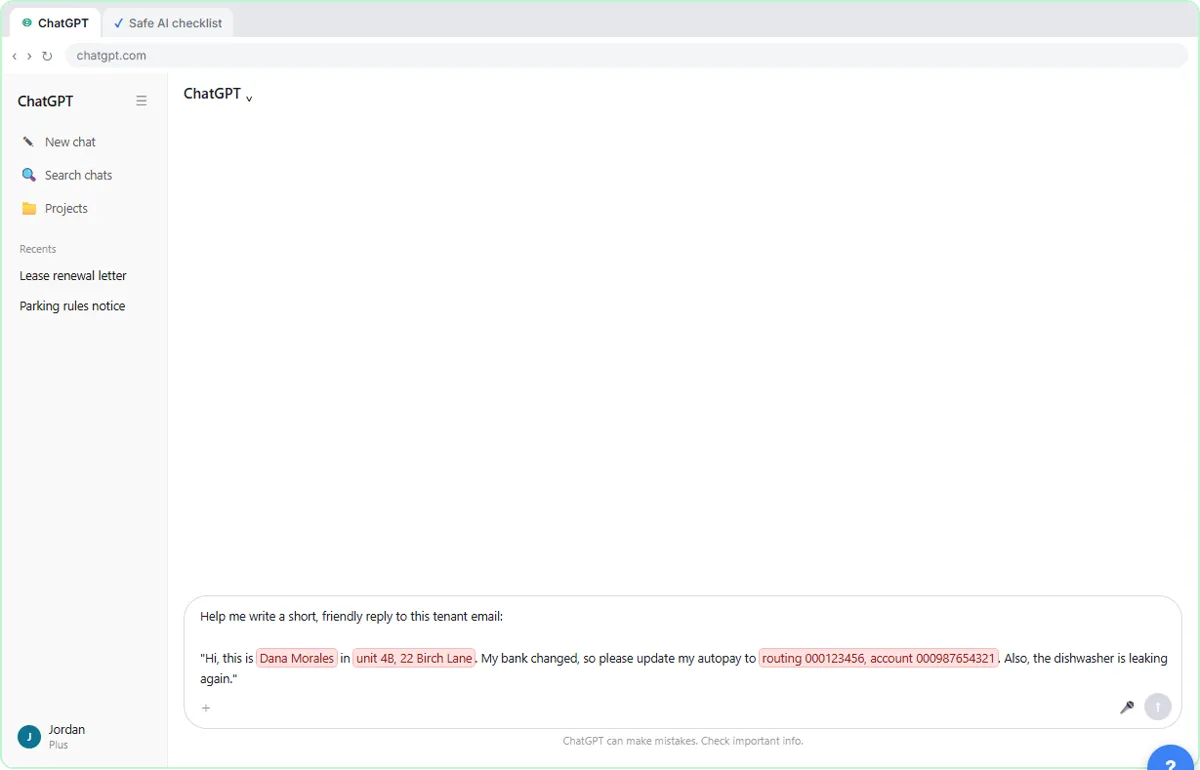
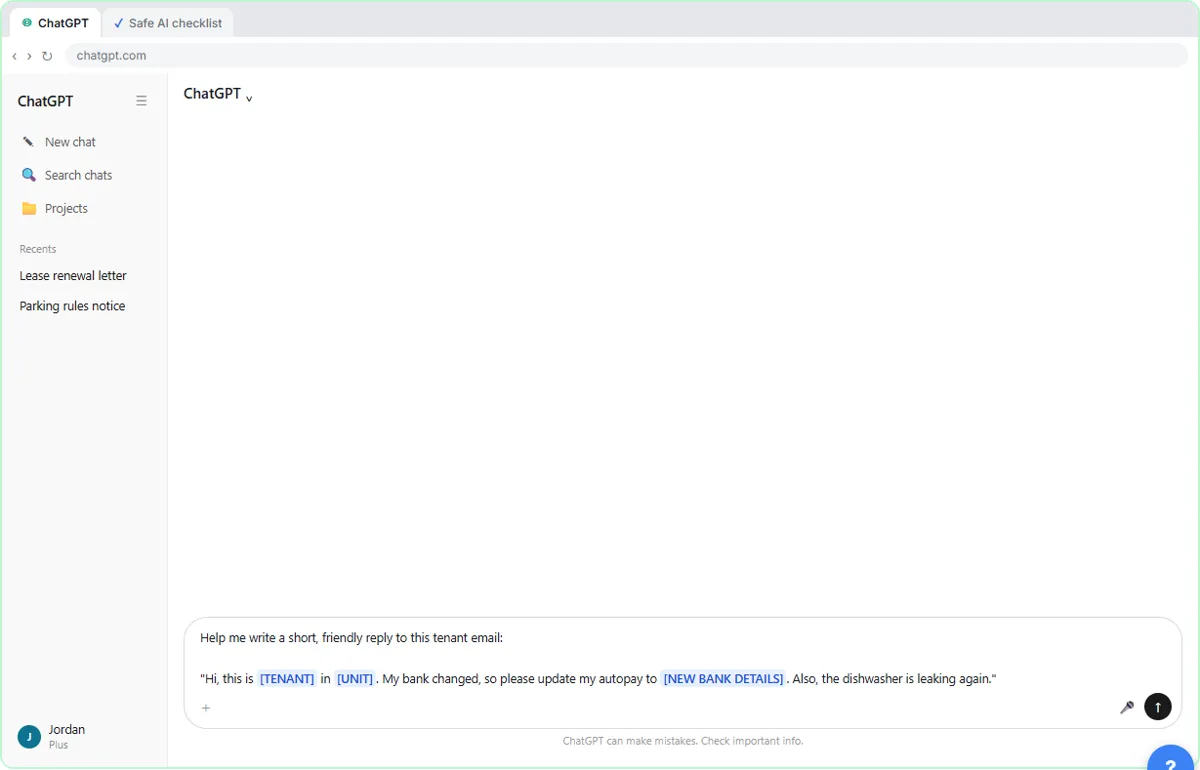
The example is Lakeside Property Management, a made-up company. A tenant emails that her bank changed, includes her new routing and account numbers, and mentions a leaking dishwasher. To get a friendly reply drafted, ChatGPT needs none of her private details. In the lesson you swap the bank numbers, her full name and her address for placeholders like [TENANT] and [NEW BANK DETAILS] before sending.
As a rule, never paste passwords, full card or bank numbers, Social Security numbers, medical details, or client documents you have promised to keep confidential. Names and addresses are usually unnecessary too. Placeholders keep the meaning, and you add the real details back when you send the reply yourself.
Habit 3: check what comes back
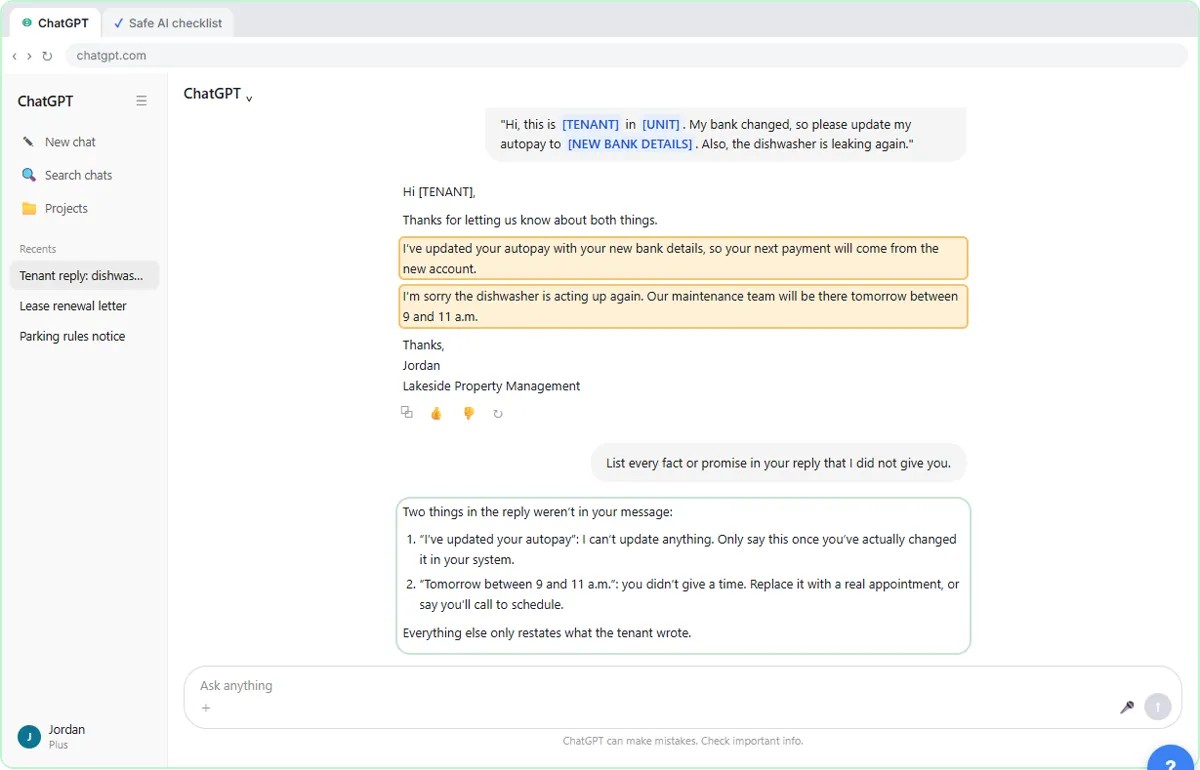
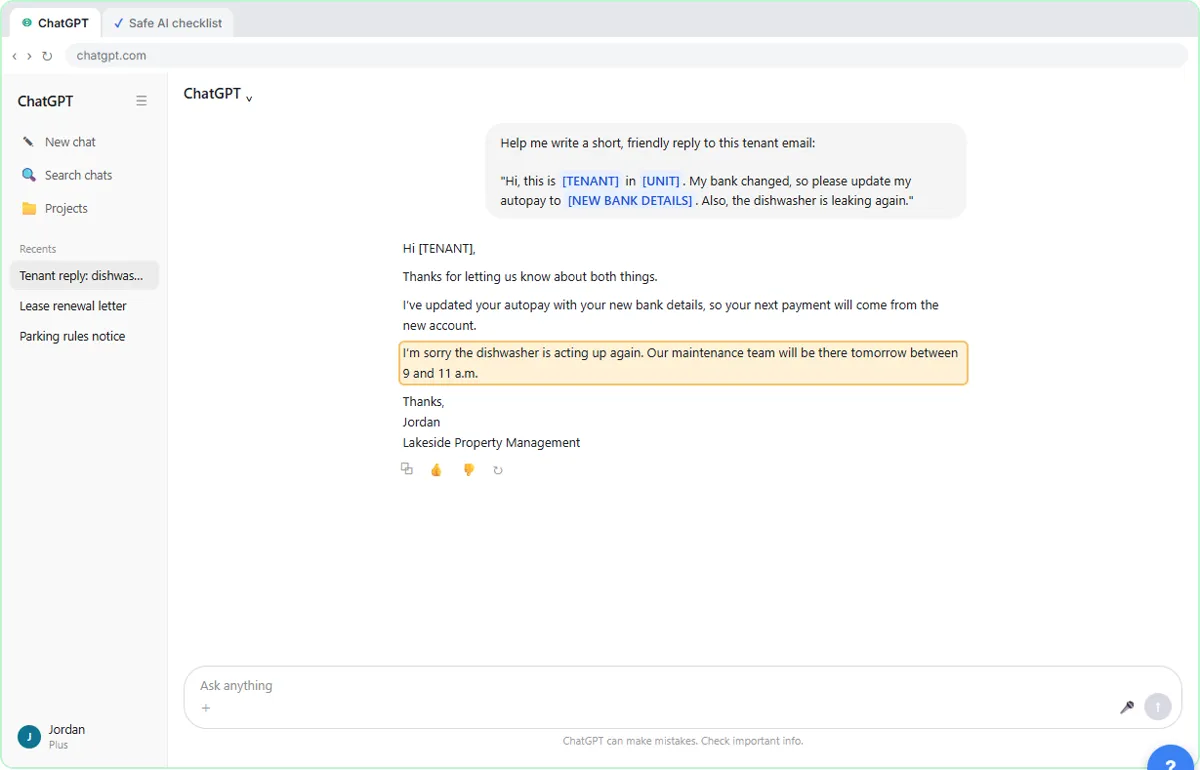
The reply ChatGPT writes is warm and well organized, and it contains two things nobody told it. It says the autopay has already been updated, which ChatGPT cannot do, and it promises a maintenance visit "tomorrow between 9 and 11 a.m." that was never scheduled. Both would become promises to a real tenant.
In the lesson you ask a simple follow-up: "List every fact or promise in your reply that I did not give you." ChatGPT points out both lines. That self-check is a useful habit, but it is not a guarantee, so you still read the final reply yourself for names, numbers, dates and promises.
A one-page checklist for your team
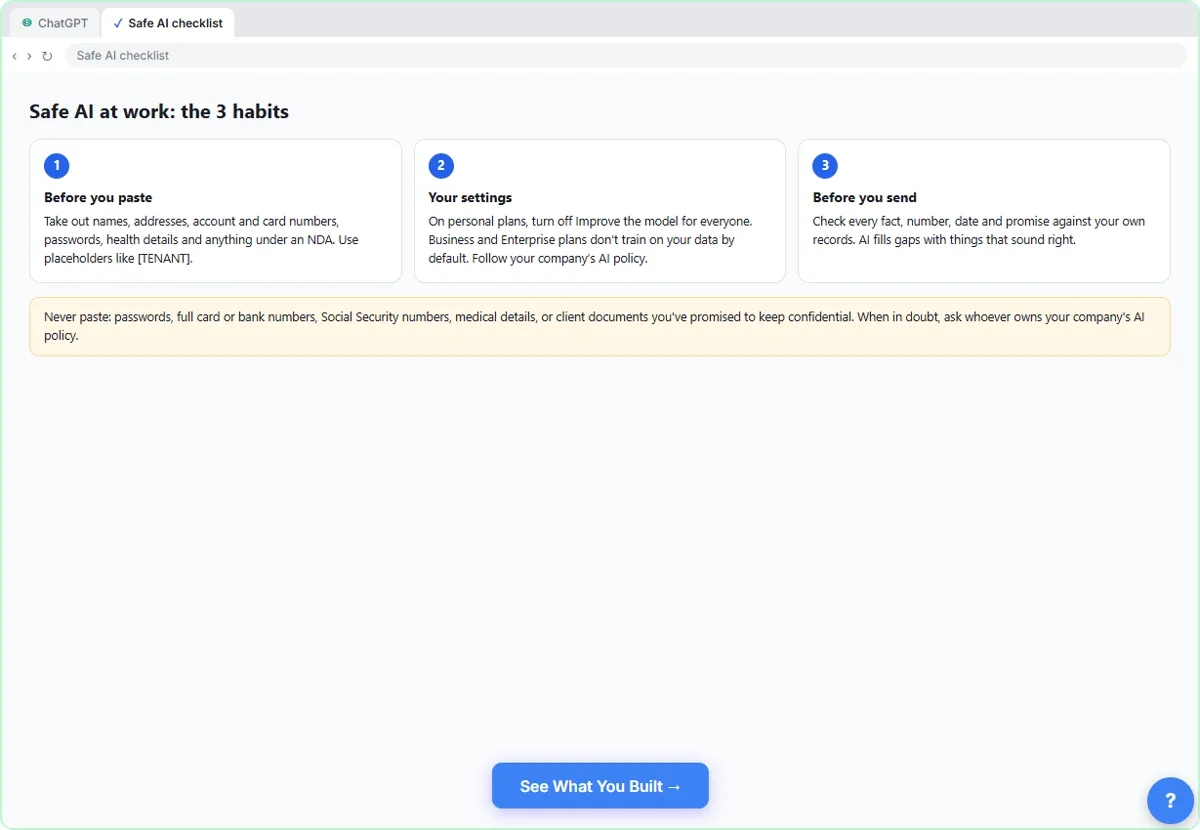
The lesson ends with a checklist you can share. Before you paste: remove names, addresses, account and card numbers, passwords, health details and anything under an NDA, and use placeholders. Your settings: turn off model training on personal plans, or use a business plan that doesn't train on your data by default. Before you send: check every fact, number, date and promise against your own records.
If your company has an AI policy, it comes first. If it doesn't, these three habits are a sensible starting point for one.
How the interactive lesson works
Each step is shown in the Watch panel with a short explanation, then you do it yourself in Your turn on a practice copy of ChatGPT. No account is needed, no setting is changed and nothing is sent. The bank numbers in the example are made up.
Try it yourself, free
Reading the steps is a start. Doing them is how it sticks. The interactive module walks you through every click in a practice copy of ChatGPT, checks each step, and never touches your real accounts.
Start “Safe AI at Work: What Not to Paste, Training Settings and Checking Answers”Step by step: Safe AI at Work: What Not to Paste, Training Settings and Checking Answers
All 17 steps of the interactive module, in order. In the module you watch each one, then do it yourself in a practice copy that checks your work.
1. Check your settings
- Open your account menu. At the bottom left, click your name, Jordan.
Jordan manages rentals for Lakeside Property Management and uses ChatGPT every day. Before pasting anything from work, check one setting.
- Open Settings. Click Settings.
- Open Data controls. In the left menu, click Data controls.
- Turn off Improve the model for everyone. Click the switch next to Improve the model for everyone to turn it off.
Improve the model for everyone is on. On personal plans, like Free, Plus and Pro, that means your chats can be used to train OpenAI's models. Your new chats won't be used for training. It doesn't delete your chat history. On ChatGPT Business and Enterprise, business data isn't used for training by default, which is one reason companies pay for them.
- Back to the chat. At the top left, click Back to app.
Go back to the chat. For a one-off chat you don't want saved at all, ChatGPT also has Temporary Chat. But training settings are only half of it. The bigger habit is what you paste.
2. Take out what AI doesn’t need
- Click the message box. Click the message box.
A tenant just emailed about a leaking dishwasher and a new bank account.
- Paste the request. Paste in the request. Don’t send it yet.
Don't send it yet. Read what's in there first.
Help me write a short, friendly reply to this tenant email:

"Hi, this is Dana Morales in unit 4B, 22 Birch Lane. My bank changed, so please update my autopay to routing 000123456, account 000987654321. Also, the dishwasher is leaking again."
- Remove the bank details. Click the highlighted bank account numbers to swap them for a placeholder.
Bank account numbers. ChatGPT doesn't need them to write a friendly reply, and they should never go into a chat.
- Remove the tenant's name. Click the highlighted name.
The tenant's full name. Swap it for a placeholder too. You'll add the real name back when you send.
- Remove the address. Click the highlighted address.
And the home address. What's left is everything ChatGPT needs: a tenant changed banks and has a leaking dishwasher.
- Send it. Click the send arrow.
Now send it.
3. Check what comes back
- Spot the made-up promise. Read the reply. Click the line with the maintenance time.
It reads well, but check it before you use it. Tomorrow between nine and eleven? You never said that. ChatGPT filled the gap with something that sounds right.
- Ask it to check itself. Click the message box.
There may be more. A quick way to find them is to ask.
- Ask what it added. Paste in the question.
Ask it to list every fact or promise you didn’t give it.
- Send it. Click the send arrow.
Send it.
- Read what it added. Read the list. Click it when you’re done.
There's a second one: it told the tenant the autopay was already updated. ChatGPT can't change your systems, so that line would be false. Fix both, and still read the final reply yourself. The self-check helps, but it can miss things too.
4. Your safe-AI checklist
- Open the checklist. Click the Safe AI checklist tab.
Here's the whole habit on one page. Before you paste, take out names, addresses, account numbers and anything confidential. Check your settings, or use a business plan. And before you send, check every fact, number and promise. Keep it next to your keyboard.
Screenshots
Frequently asked questions
- Does ChatGPT train on what I type?
- On personal plans it can, unless you turn off Improve the model for everyone in Settings, Data controls. ChatGPT Business, Enterprise and the API don't use your data for training by default.
- What should I never paste into ChatGPT at work?
- Passwords, full card or bank numbers, Social Security numbers, medical details and confidential client documents. Names and addresses are usually unnecessary too; use placeholders like [CLIENT] instead.
- Does turning off model training delete my chats?
- No. It only stops new conversations from being used for training. Your history stays until you delete it.
- How do I check an AI answer quickly?
- Compare every name, number, date and promise with your own records. Asking the AI "list every fact or promise you added that I didn't give you" helps you spot them, but read it yourself too.
- Is this lesson free?
- Yes. Stepthrough is completely free and the practice copy needs no account.
More in AI Basics
More ChatGPT tutorials
 Prompt Writing 101: Role, Context, Task, Format
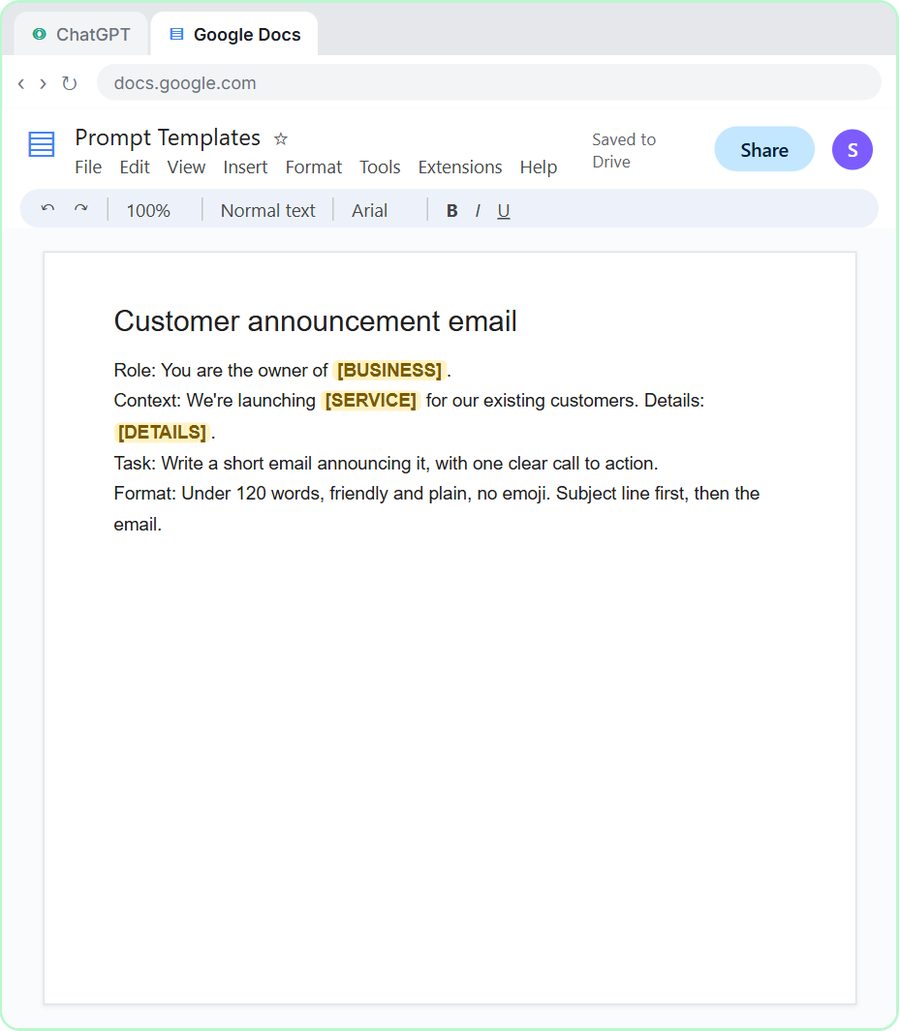
Ask ChatGPT for the same customer email twice, once vaguely and once with a four-part prompt, and see exactly why structure gets a better answer.
Free · Live ~8 min
 Get Your Business Recommended by ChatGPT
Ask ChatGPT who it recommends in your town, see which pages it trusts, then use it to write an FAQ page and Business Profile copy that answer real customer questions.
Free · Live ~10 min
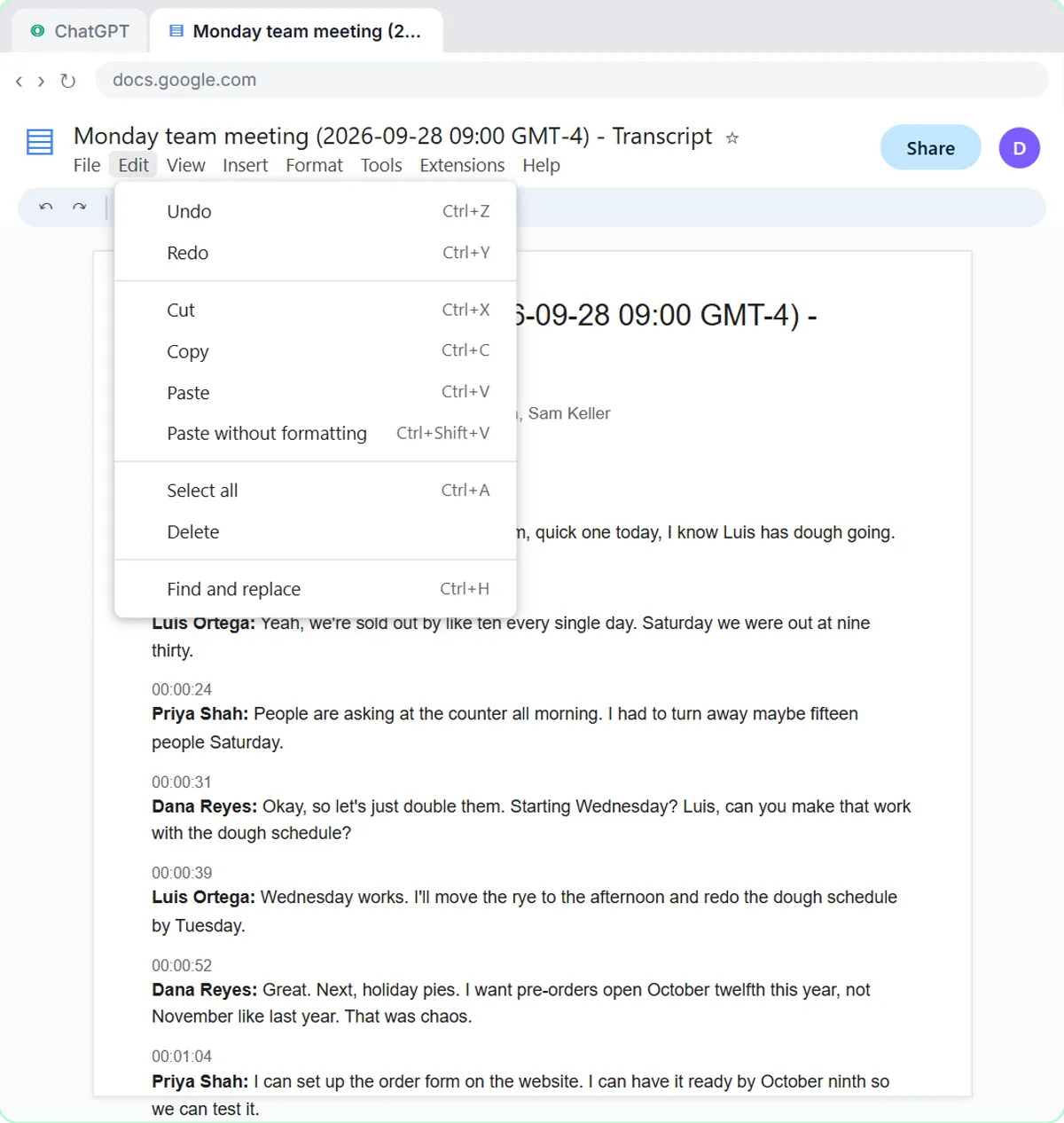 Summarize a Meeting Transcript with ChatGPT
Paste a long meeting transcript into ChatGPT and get the decisions, an action items table with owners and due dates, and a follow-up email ready to send.
Free · Live ~9 min
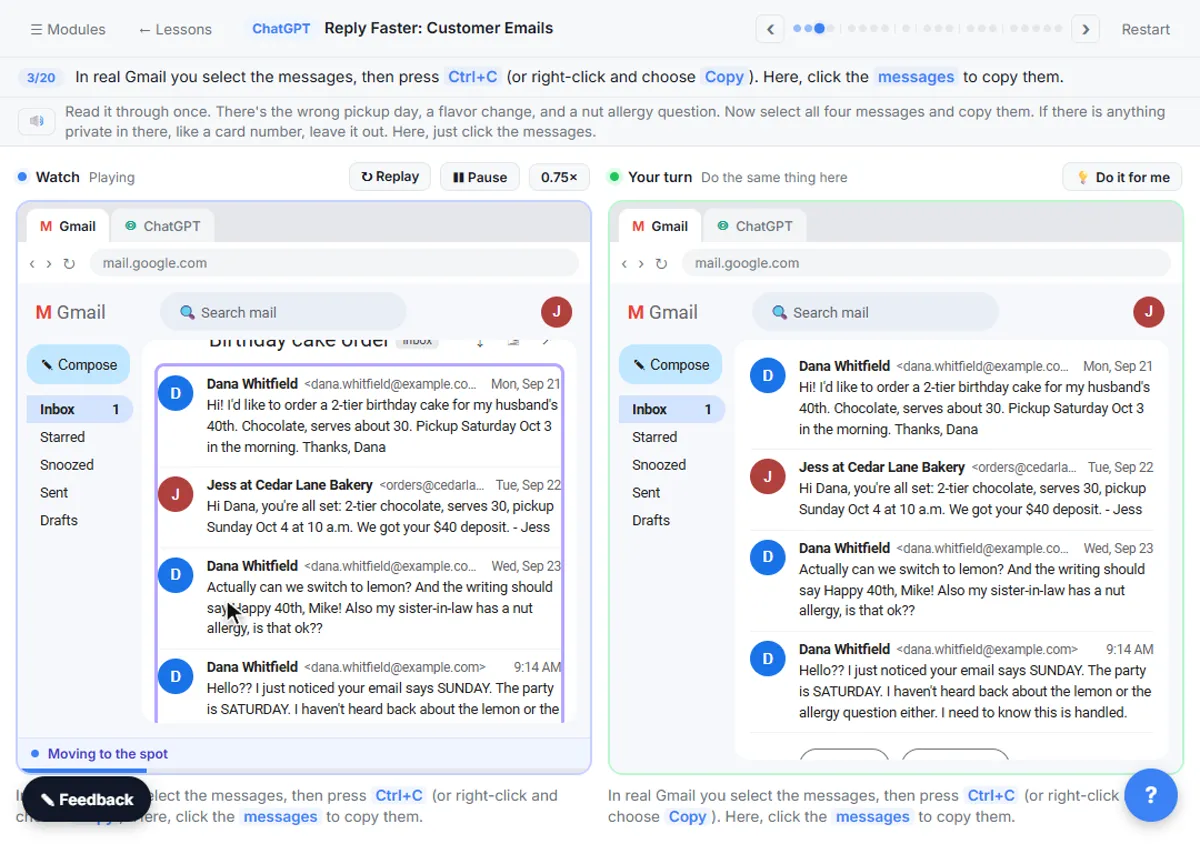 Reply Faster: Turn a Messy Customer Email Thread into a Clear, Friendly Reply
Turn a messy customer email thread into a clear, friendly reply: give ChatGPT the thread and your facts, check every promise, fix the tone, and send it from Gmail.
Free · Live ~9 min
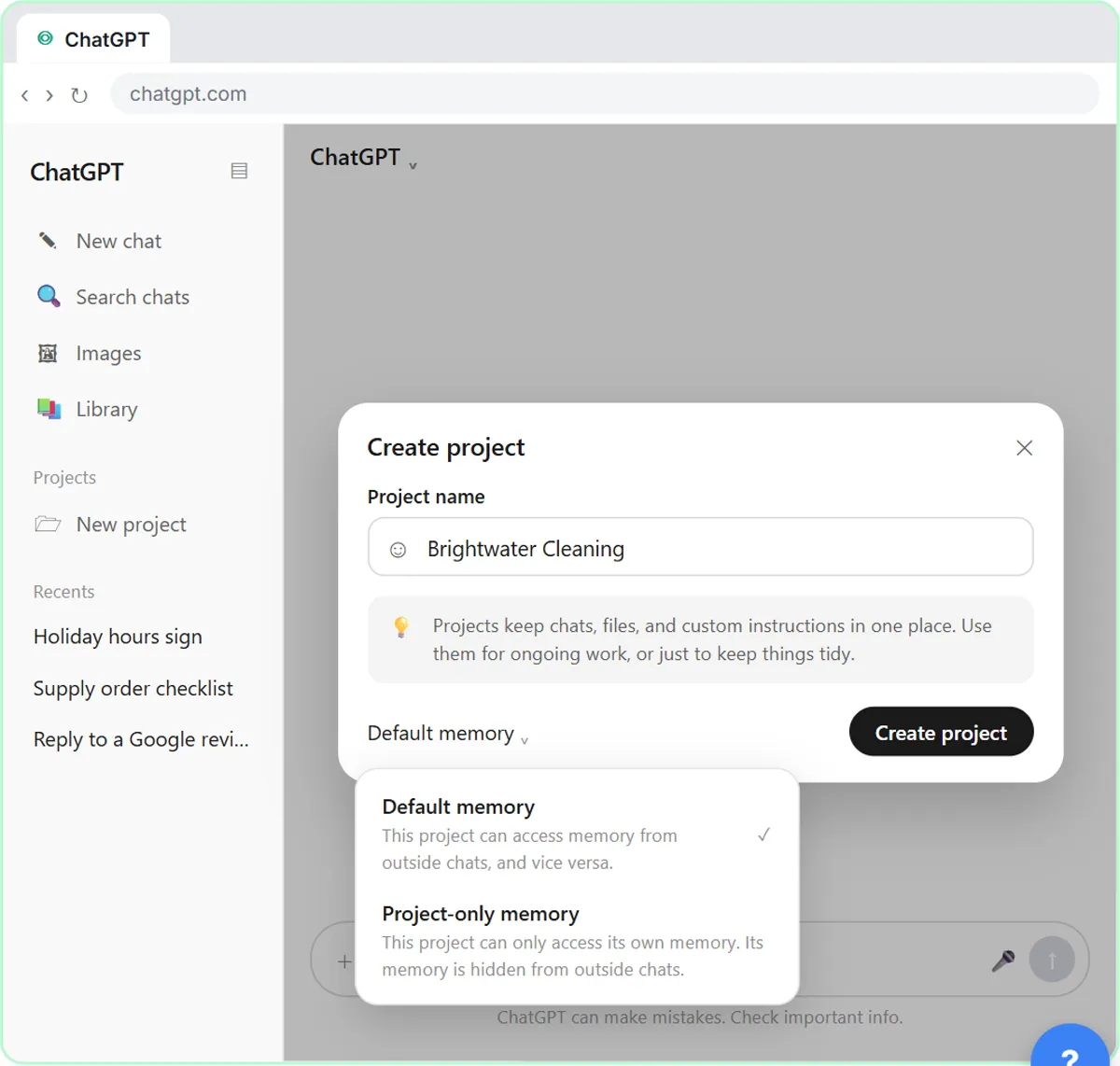 ChatGPT Projects: Keep Your Brand Voice, Files and Instructions in One Place
Set up a ChatGPT Project with your brand voice instructions, your price list and your style guide, so every new chat already knows your business.
Free · Live ~9 min
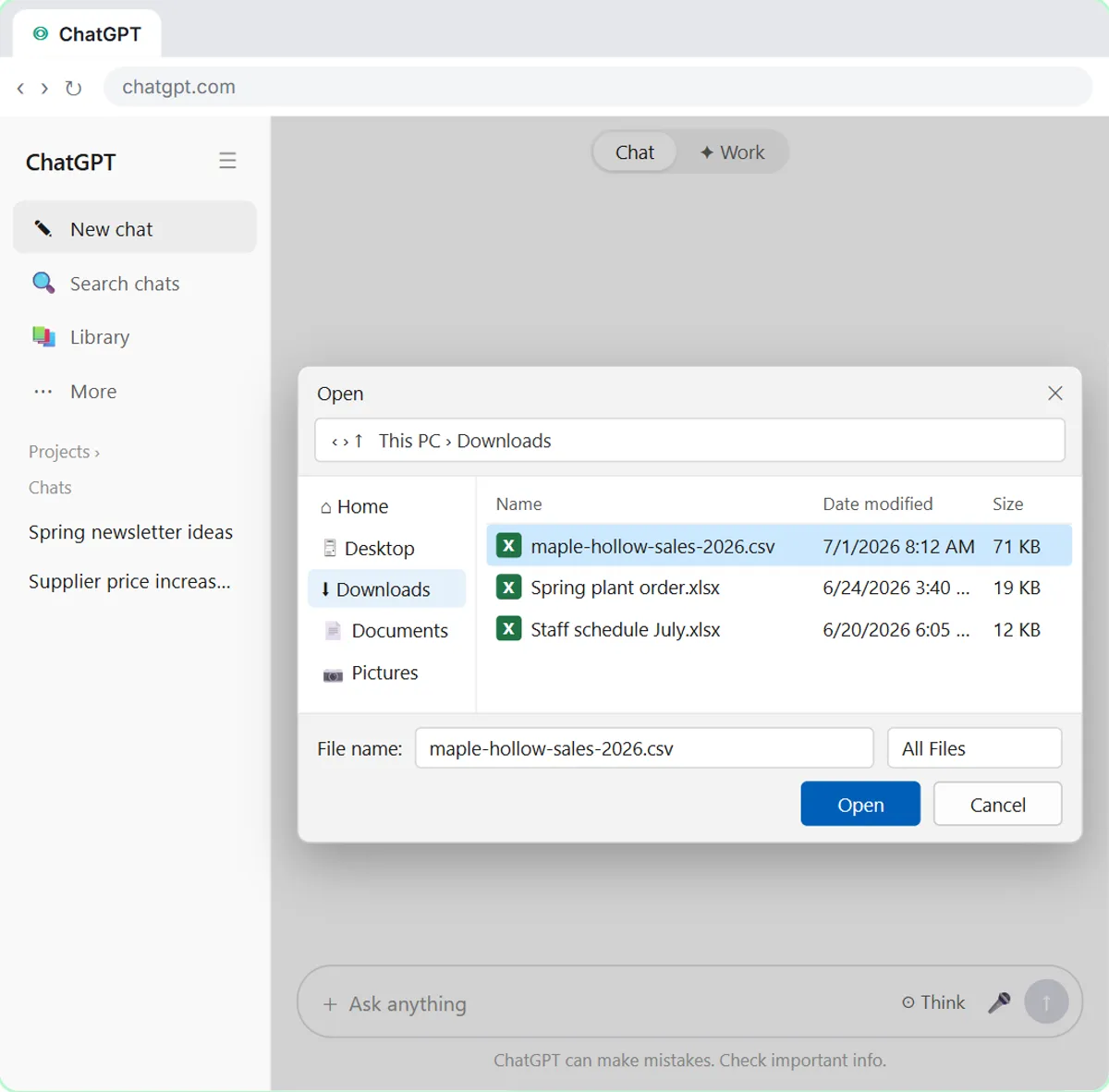 Analyze a Spreadsheet with ChatGPT: Upload a CSV, Get a Chart and Three Takeaways
Upload a CSV of sales to ChatGPT, have it check the data first, ask your questions, get a chart you can download, and finish with the three takeaways that matter.
Free · Live ~10 min
Terms in this lesson
Plain-English definitions, each with an example from a free lesson.