Updated . Built against the tool’s current screens and checked step by step. How we check this lesson
A mid-year review needs more than a P&L printout: the owner wants to know what changed, why, and what to watch. In this free, interactive lesson you upload a client's Profit and Loss Detail export to ChatGPT, make it check the file before it adds anything up, decide yourself how to handle duplicate bank-feed entries and uncategorized rows, and then get a monthly P&L summary, each cost as a percent of sales, a chart for the meeting, and three takeaways, each backed by a number.
At a glance
| Question | Answer |
|---|---|
| What you build | Upload a client's Profit and Loss Detail export to ChatGPT, catch duplicate bank-feed entries and uncategorized rows first, then get a monthly P&L summary, a chart and three takeaways for the client review. |
| Tools | ChatGPT |
| Time | About 11 minutes, 26 steps in 5 parts |
| Level | Beginner, no coding needed |
| Cost | Free |
| Ways to learn it | Practice it step by step |
The 5 parts, in short
- Upload the CSV: Open the plus menu, Add photos & files, Pick the P&L export, Open it.
- Check the data first: Click the message box, Ask it to check the file, Send it, Read the problems it found, and 5 more steps.
- Ask your question: Click the message box, Ask for the P&L summary, Send it.
- Get a chart: Click the message box, Ask for a chart, Send it, Open the chart, and 2 more steps.
- The three takeaways: Click the message box, Ask for the three takeaways, Send it, Copy the takeaways.
Start here first: Analyze a Spreadsheet with ChatGPT: Upload a CSV, Get a Chart and Three Takeaways. This Accounting & Bookkeeping Firms version follows the same build with its own example business, Copper Pot Kitchen.
Part of: AI for Accounting & Bookkeeping Firms (step 3 of 4). Next up: Jotform AI: Build a Client Intake Form from One Prompt
The example: a restaurant's first half of the year
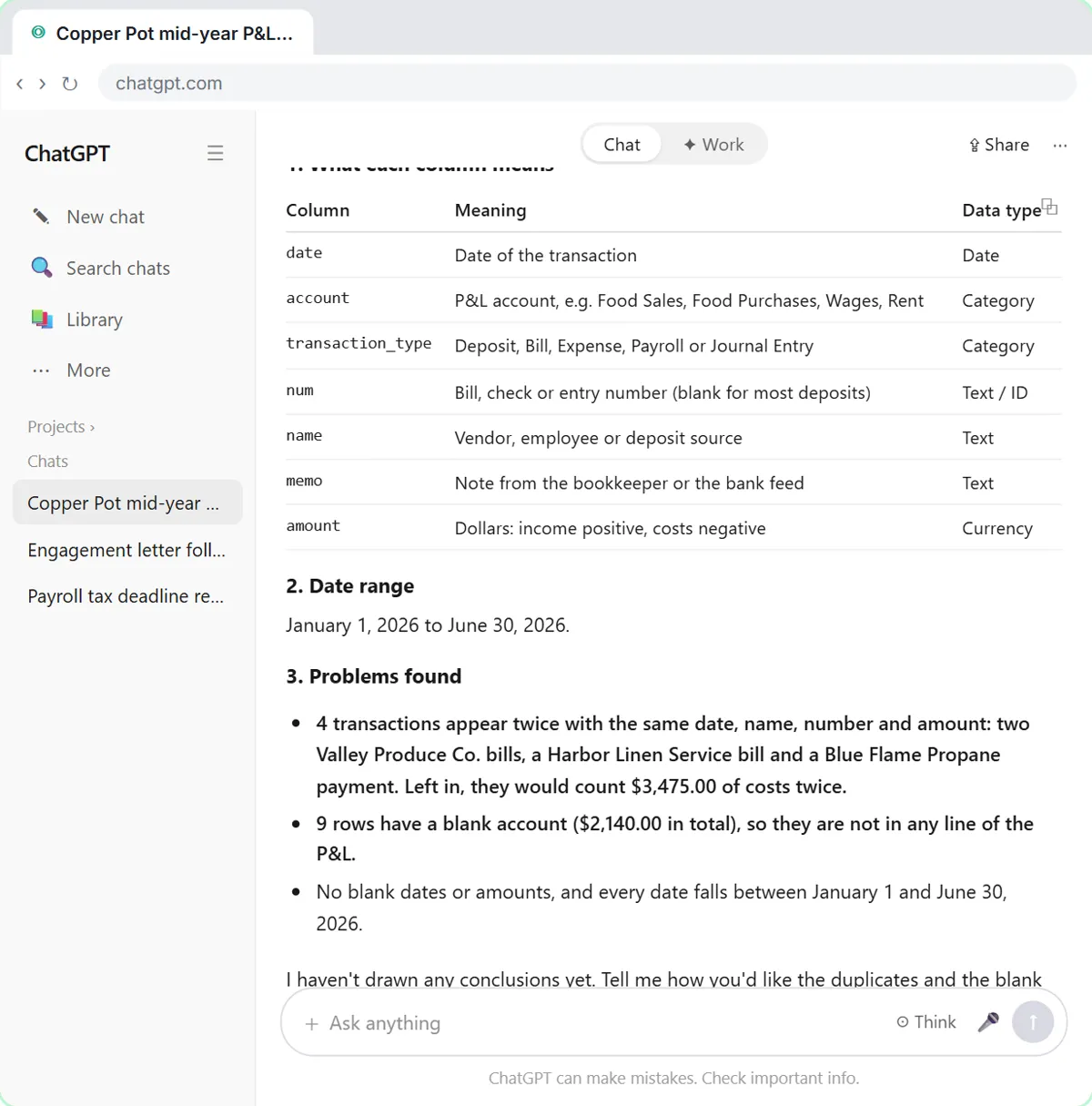
Millbrook Accounting, a made-up small firm, keeps the books for Copper Pot Kitchen, a made-up 60-seat restaurant. The bookkeeper exports six months of transactions, January to June 2026, as a Profit and Loss Detail report in CSV format: 1,862 rows with the date, P&L account, transaction type, number, name, memo and amount. Sales grew from $68,400 in January to $91,300 in June, and the question for the review is whether profit kept up.
The file has the two problems real exports have. Four transactions came in twice from the bank feed (two produce bills, a linen bill and a propane payment), which would count $3,475 of costs twice, and nine card purchases totaling $2,140 were never categorized. ChatGPT finds both before it calculates anything, and you decide what happens to them.
Who this lesson is for
Bookkeepers, staff accountants, CPAs and client advisory staff who prepare monthly or quarterly reviews and want the analysis done faster without losing control of the numbers. It also suits fractional CFOs and firm owners who turn a client's books into talking points. You don't need Excel formulas or any coding, and you don't need a ChatGPT account to practice here.
It is the third module in the AI Automation for Accounting & Bookkeeping Firms block, after the client meeting recap and the reply-faster lessons.
What the numbers show, and why percentages matter
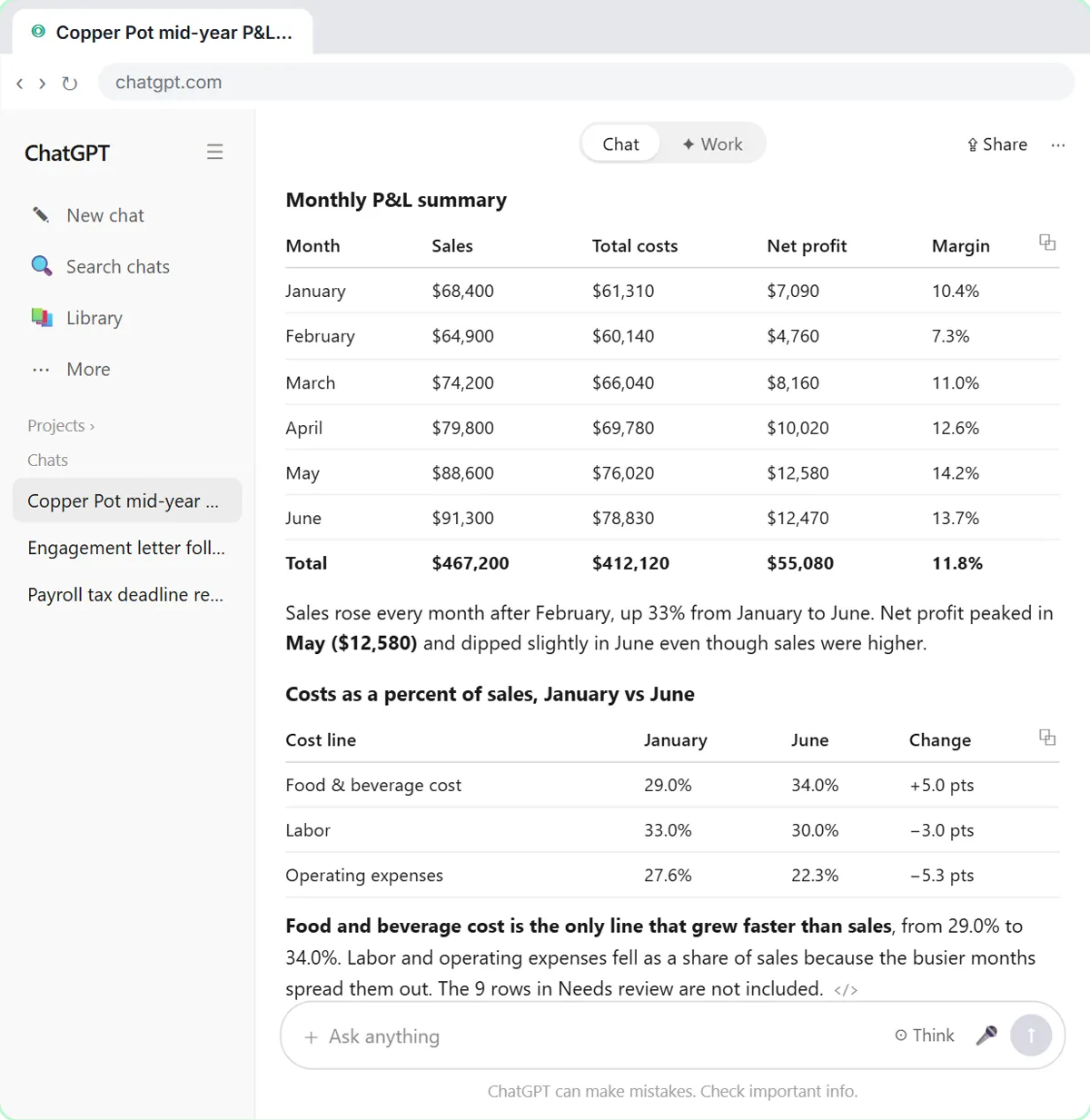
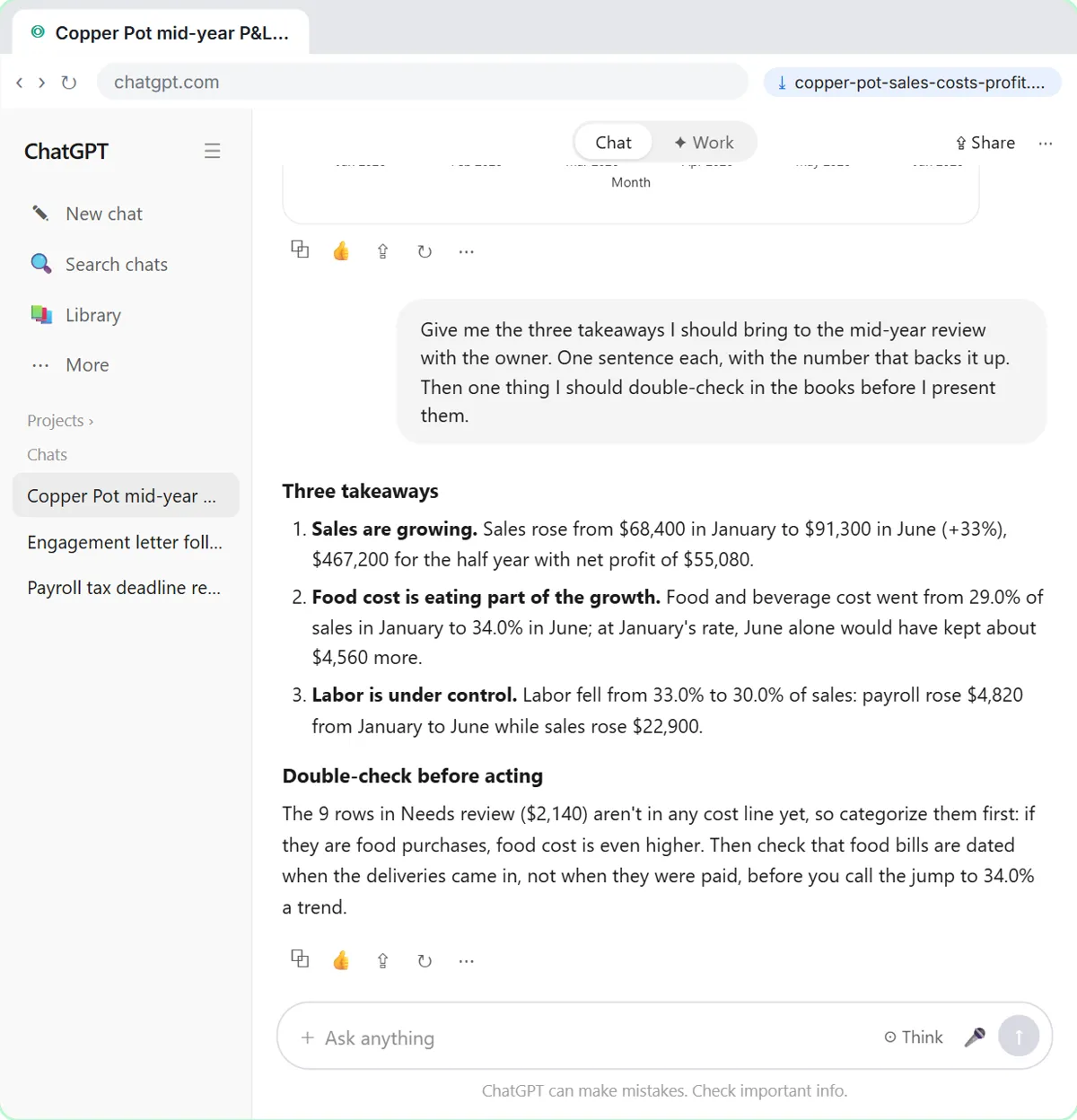
The dollar table looks like good news: sales up 33%, net profit of $55,080 for the half year, and a margin that rose from 10.4% in January to 13.7% in June. The percentage table tells the real story. Food and beverage cost went from 29.0% of sales to 34.0%, the only line that grew faster than sales. At January's rate, June alone would have kept about $4,560 more. Labor went the other way, from 33.0% to 30.0%, because payroll rose $4,820 while sales rose $22,900.
That is the kind of finding an owner can act on: check supplier prices, portion sizes, waste and menu pricing. It is also why the lesson asks for costs as a share of sales rather than only totals. A growing business can hide a margin problem inside bigger numbers.
Gotchas an accountant should watch for
- Check before you analyze. If ChatGPT misreads a column or counts duplicates, every total after that is wrong and still looks confident. Asking for a file check first costs one message.
- Don't let it guess categories. Uncategorized rows stay in Needs review until you look at the receipts. In the example, if the nine card purchases turn out to be food, food cost is even higher than 34%.
- Watch the timing. A jump in food cost can be real, or it can be bills dated when they were paid instead of when the deliveries came in. Confirm the dates before you call it a trend.
- Tie it back. Compare the totals with the P&L in your accounting software before the meeting. For many data questions ChatGPT writes and runs Python code on your file to get the numbers; you can open the code with the code icon, and OpenAI recommends reviewing the code, outputs and assumptions before relying on a result.
- Protect client data. Follow your firm's policy on AI tools, use a business plan such as ChatGPT Business or Enterprise, which OpenAI doesn't use to train its models by default, and remove bank account numbers, card numbers and tax IDs from the export before you upload it.
Ways to use it after the lesson
- Monthly and quarterly client reviews: a one-page summary, a chart and three talking points.
- Budget versus actual: upload both files and ask which lines are furthest off, as a percent.
- Year-end planning: spot the accounts that moved most before you meet about taxes.
- Cleanup jobs: have ChatGPT list likely duplicates and blank accounts across a new client's history before you start reconciling.
Try it yourself, free
Reading the steps is a start. Doing them is how it sticks. The interactive module walks you through every click in a practice copy of ChatGPT, checks each step, and never touches your real accounts.
Start “Analyze a Client's P&L Export with ChatGPT (Accounting & Bookkeeping Firms)”Step by step: Analyze a Client's P&L Export with ChatGPT (Accounting & Bookkeeping Firms)
All 26 steps of the interactive module, in order. In the module you watch each one, then do it yourself in a practice copy that checks your work.
1. Upload the CSV
- Open the plus menu. Copper Pot Kitchen's mid-year review is next week, and you exported its Profit and Loss Detail report as a CSV file. Click the + button on the left of the message box.
Your client Copper Pot Kitchen, a restaurant, has its mid-year review next week. You exported six months of its books from your accounting software as a Profit and Loss Detail report: almost nineteen hundred transactions. Let's hand it to ChatGPT.
- Add photos & files. Click Add photos & files.
- Pick the P&L export. Click copper-pot-pl-detail-jan-jun-2026.csv.
Your file browser opens. An Excel export works the same way.
- Open it. Click Open.
The file sits above the message box, marked Spreadsheet. You can also just drag a file onto the chat.
2. Check the data first
- Click the message box. Don't ask for insights yet. Click the message box.
Here's the mistake most people make: they type analyze this and trust whatever comes back. First, make sure ChatGPT reads the file correctly.
- Ask it to check the file. Paste in the request. It asks what each column means, the row count, the date range and any duplicates or blank cells, with no insights yet.
This request asks ChatGPT to check the file before it analyzes anything: what each column means, how many rows, the date range, and any duplicates or blank cells.
This is the Profit and Loss Detail export for our client Copper Pot Kitchen, a restaurant, from January to June 2026. Before you analyze anything, check the file: tell me what each column means, how many rows there are, the date range, and any problems like duplicates or blank cells. Don't give me any insights yet.
- Send it. Click Send.
- Read the problems it found. Check the columns and row count. Then click Problems found: four transactions appear twice, and 9 rows have no account.
ChatGPT read the file and explained every column, so you know it understood it. Now look at Problems found. Four transactions appear twice, which would count almost thirty-five hundred dollars of costs twice, and nine rows have no account at all.
- Click the message box. Fix those before you ask anything else. Click the message box.
You're the accountant, so you decide how to fix them, not ChatGPT.
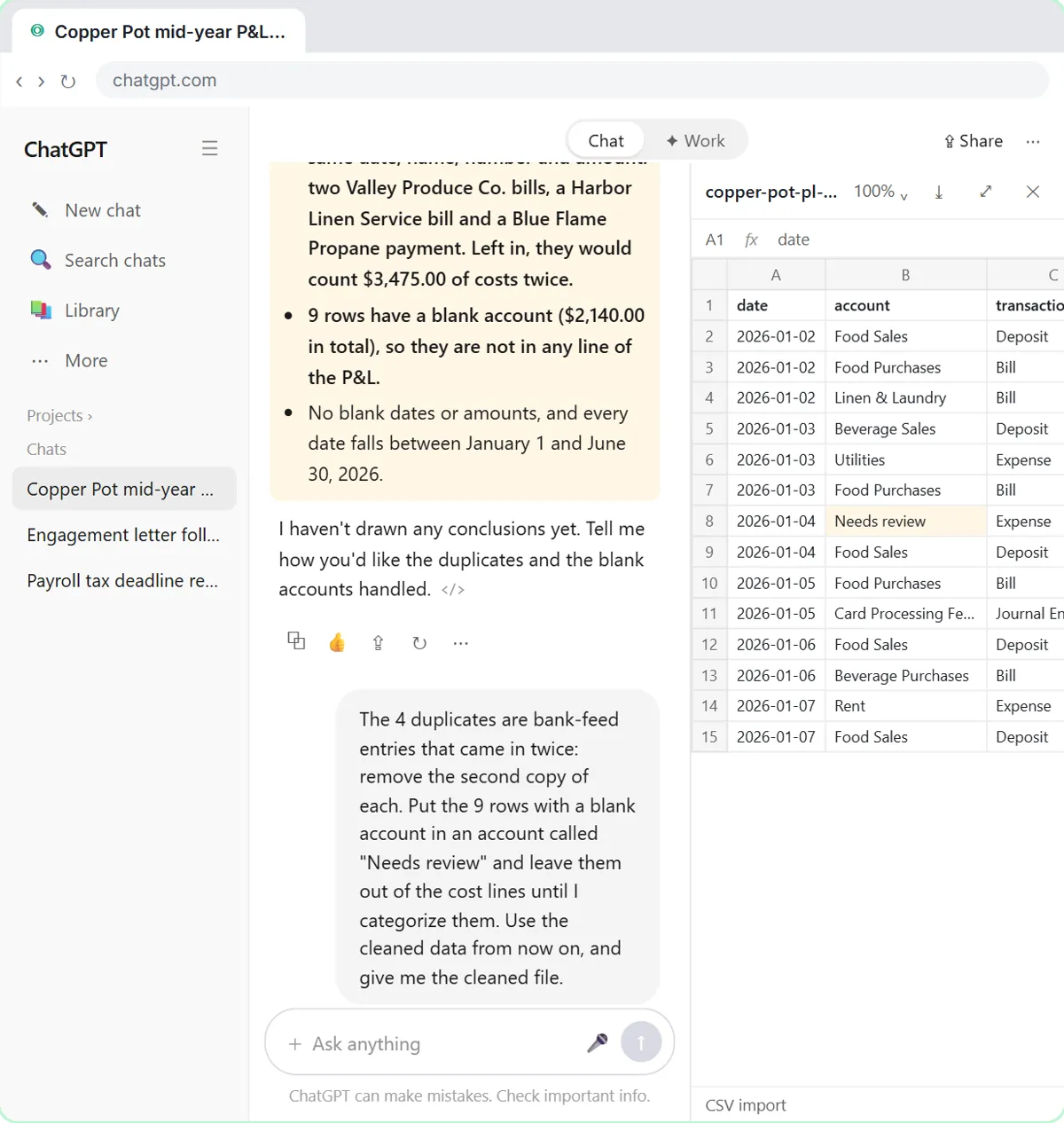
- Tell it how to clean the data. Paste in the fix. It says the 4 duplicates are bank-feed entries to remove, and parks the 9 blank rows in Needs review, outside the cost lines.
Tell it the duplicates are bank-feed entries, so it removes the second copy of each, and to park the nine blank rows in an account called Needs review, outside the costs, until you categorize them yourself.
The 4 duplicates are bank-feed entries that came in twice: remove the second copy of each. Put the 9 rows with a blank account in an account called "Needs review" and leave them out of the cost lines until I categorize them. Use the cleaned data from now on, and give me the cleaned file.
- Send it. Click Send.
- Open the cleaned file. ChatGPT made a new file. Click copper-pot-pl-detail-jan-jun-2026-cleaned.csv to look at it. (It may already be open on the right.)
Eighteen hundred fifty-eight clean rows, and a new file you can keep with the workpapers.
- Close the preview. The rows open in a panel, like a spreadsheet, with a download button at the top. Click the X to close it.
The rows open right next to the chat, like a spreadsheet, and the button at the top downloads it. The uncategorized card purchase now sits in Needs review. Close the panel with the X.
3. Ask your question
- Click the message box. Now ask a real question. Click the message box.
Now the data is clean, ask what you actually want to know.
- Ask for the P&L summary. Paste in the question: sales, total costs, net profit and margin by month, then each cost as a percent of sales in January and June, as tables.
Ask for what the owner will want to see: sales, costs, net profit and margin for each month, then each cost as a percent of sales in January and in June. Percentages show what dollar totals hide.
Build a monthly P&L summary: sales, total costs, net profit and net margin for each month, with a total row. Then show food and beverage cost, labor and operating expenses as a percent of sales in January and in June. Show both as tables.
- Send it. Click Send.
For questions like this, ChatGPT usually writes and runs a little Python code to add up your rows, so the totals are worked out from the file itself.
4. Get a chart
- Click the message box. Sales grew 33%, but food cost went from 29.0% to 34.0% of sales. A chart shows it faster. Click the message box.
Sales grew a third, but food cost grew even faster, from twenty-nine to thirty-four percent of sales. Now let's see it as a picture for the meeting.
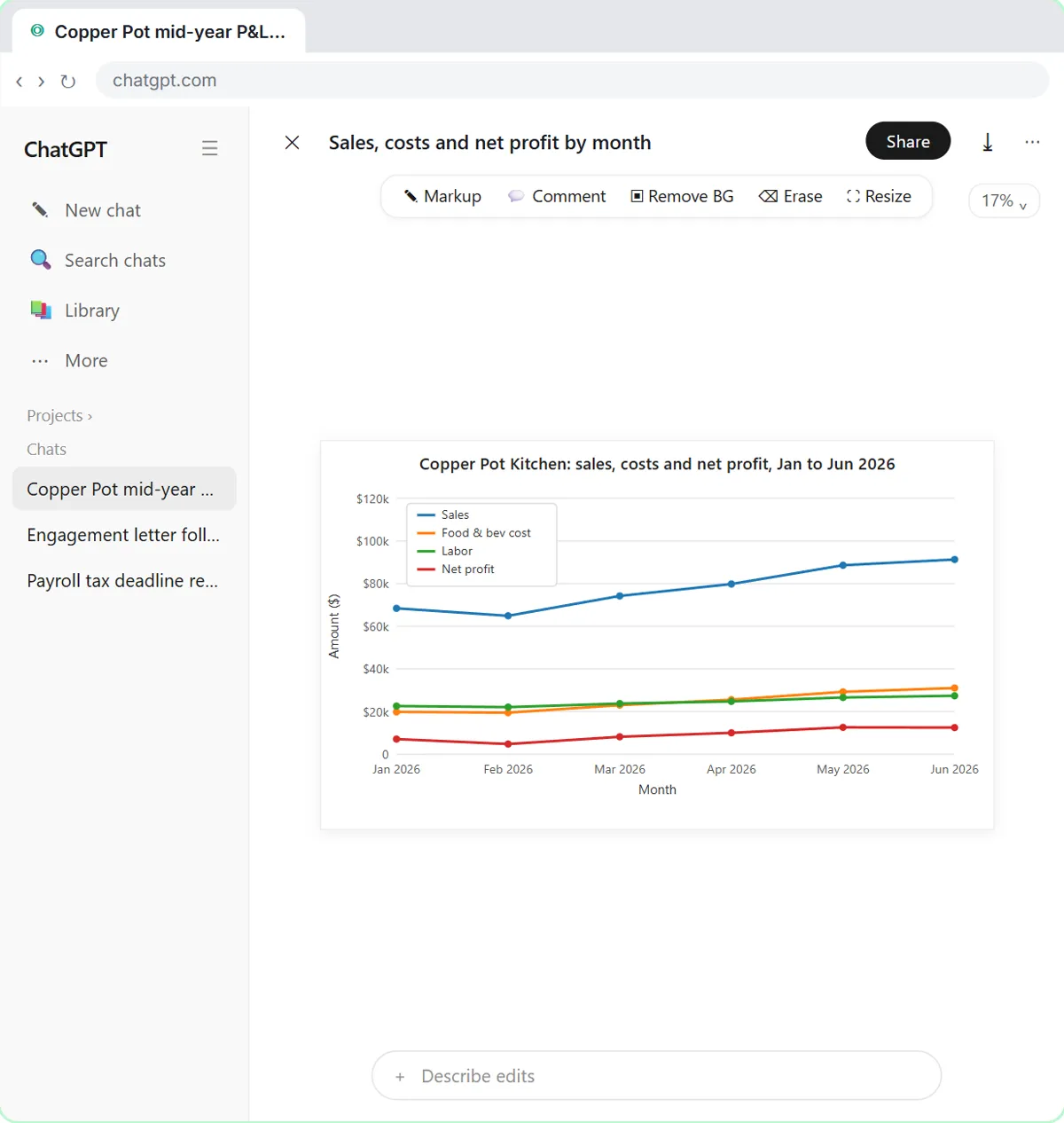
- Ask for a chart. Paste in the request: a line chart by month with sales, food and beverage cost, labor and net profit.
Say which kind of chart you want and what goes on it: a line chart by month with sales, food and beverage cost, labor and net profit, and a clear title.
- Send it. Click Send.
- Open the chart. Click the chart to open it full size. (If you only see a file path like /mnt/data/…png, ask ChatGPT to show the chart in the chat.)
There it is: sales climbing, food cost rising much faster than labor, and net profit flattening out in June.
- Download it. Click the download icon at the top right.
It saves as a picture you can drop into the review deck or the client email.
- Back to the chat. Click the X at the top right.
5. The three takeaways
- Click the message box. Last step: turn it into talking points for the review. Click the message box.
Charts are nice, but what should you actually tell the owner?
- Ask for the three takeaways. Paste in the request: three takeaways for the review, each with its number, plus one thing to double-check in the books.
Ask for three takeaways for the review, one sentence each, with the number that backs each one up. Then ask what to double-check in the books before you present them.
Give me the three takeaways I should bring to the mid-year review with the owner. One sentence each, with the number that backs it up. Then one thing I should double-check in the books before I present them.
- Send it. Click Send.
- Copy the takeaways. Read the three takeaways and the double-check. Then click the Copy button under the answer.
Three takeaways, each with its number, and an honest warning: categorize the nine rows in Needs review, and check that food bills are dated when the deliveries came in before you call thirty-four percent a trend. Tie the totals back to the P and L in your accounting software, then click the copy button and paste them into your meeting notes.
Screenshots
Frequently asked questions
- Can ChatGPT analyze a P&L export from QuickBooks or Xero?
- Yes. Export the report or transaction detail as CSV or Excel and upload it with the plus button and Add photos & files. Ask it to check the columns, row count and date range first, so you know it read the file correctly before it calculates anything.
- Will ChatGPT find duplicate transactions?
- It can list rows that share the same date, name, number and amount, which is how bank-feed duplicates usually show up. Whether they are true duplicates is your call: tell it what to remove, and check the cleaned file.
- Is it safe to upload a client's books to ChatGPT?
- Follow your firm's policy first. Business and Enterprise plans are not used to train OpenAI's models by default. On any plan, remove bank account numbers, card numbers and tax IDs that the analysis doesn't need.
- Should I trust ChatGPT's totals?
- Check them. Ask for tables, compare a total or two with the P&L in your accounting software, and open the code it ran if something looks off. The lesson ends with a double-check for exactly this reason.
- Is this lesson free?
- Yes. Stepthrough is completely free and the practice copy needs no accounts. To do it for real you need your own ChatGPT account; file uploads and data analysis have usage limits that depend on your plan.
More in AI Automation for Accounting & Bookkeeping Firms
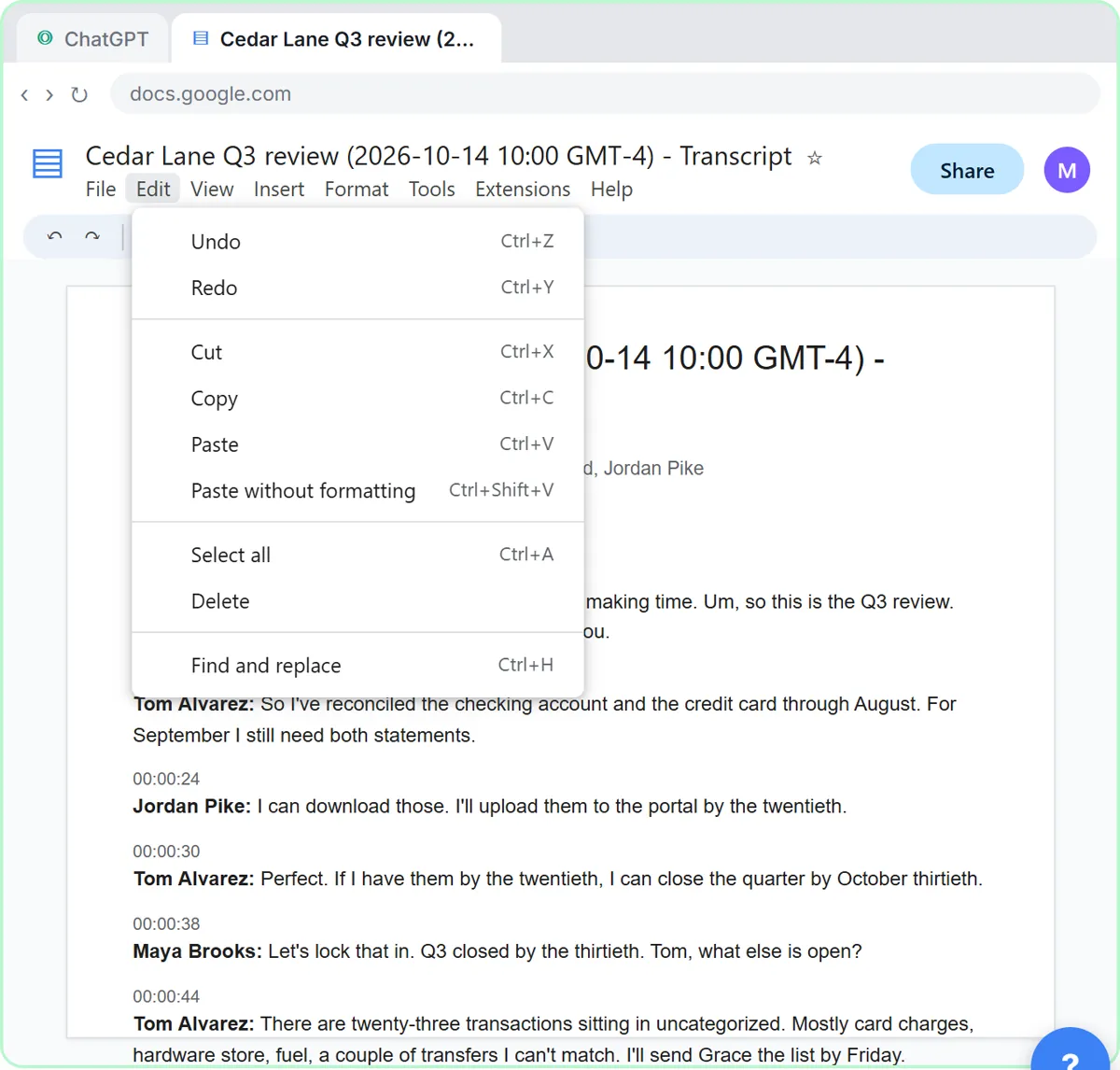 Turn a Client Meeting into Action Items and a Follow-Up Email (Accounting Firms)
Turn the transcript of a client's quarterly review into the decisions, an action items table with owners and due dates, and a follow-up email to the client.
Free · Live ~9 min
◷Jotform AI: Build a Client Intake Form from One PromptDescribe a client intake form to Jotform AI, fix it with Form Copilot, add a show/hide rule in plain words, and copy the link to send to new clients.
Free · Live ~6 min
All 5 modules in AI Automation for Accounting & Bookkeeping Firms
More ChatGPT tutorials
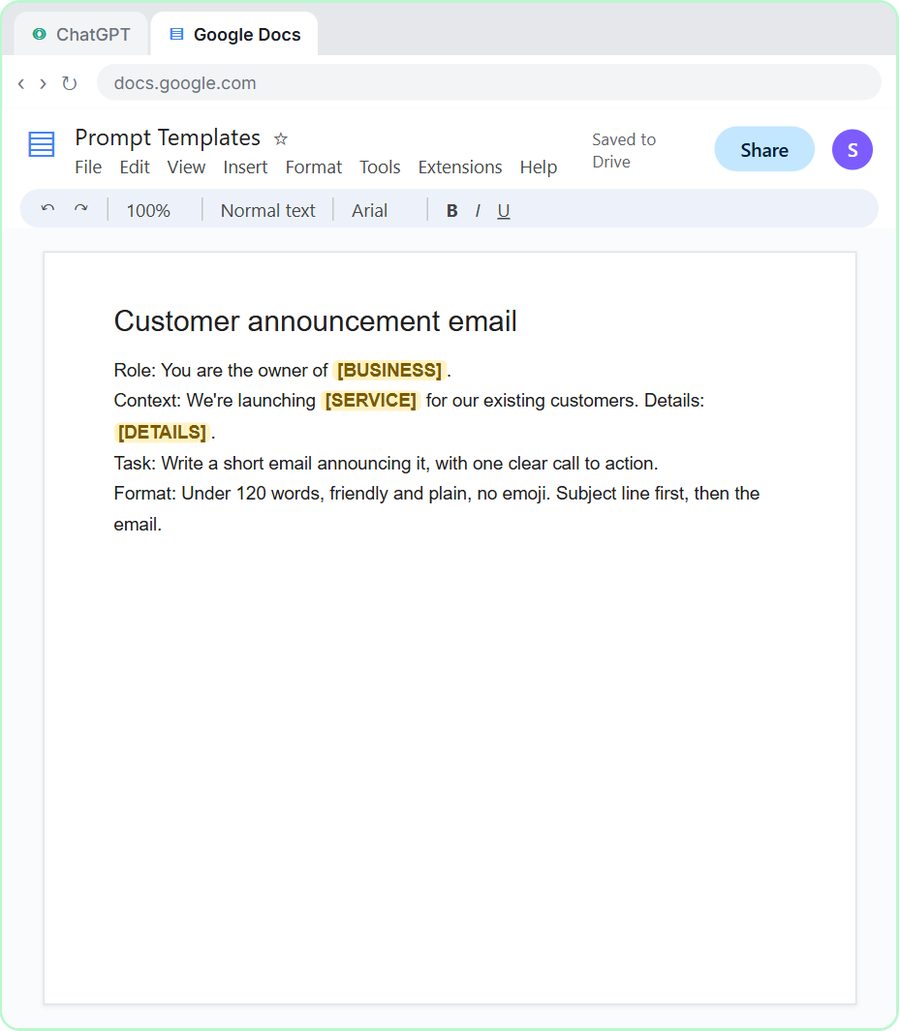 Prompt Writing 101: Role, Context, Task, Format
Ask ChatGPT for the same customer email twice, once vaguely and once with a four-part prompt, and see exactly why structure gets a better answer.
Free · Live ~8 min
 Get Your Business Recommended by ChatGPT
Ask ChatGPT who it recommends in your town, see which pages it trusts, then use it to write an FAQ page and Business Profile copy that answer real customer questions.
Free · Live ~10 min
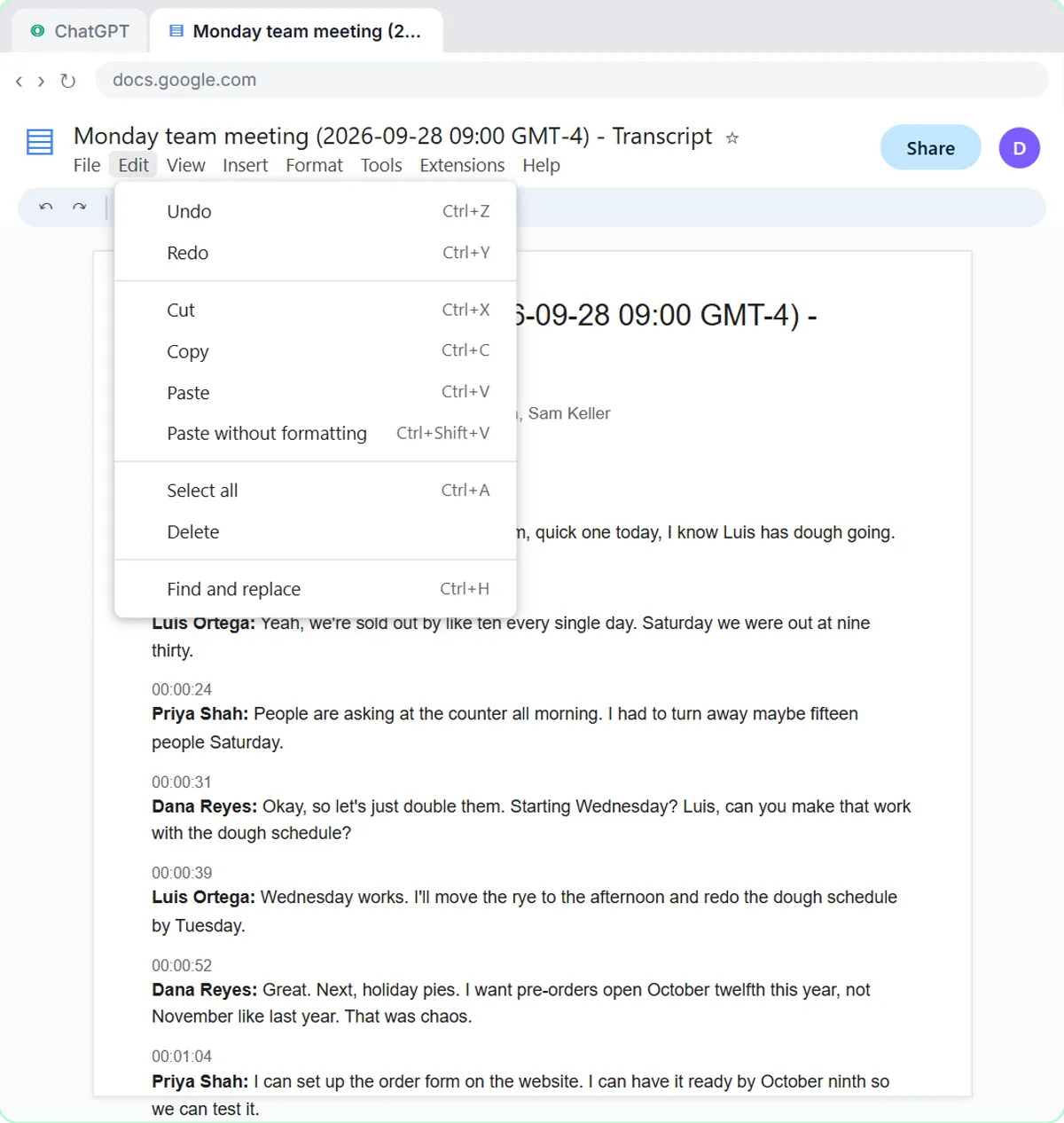 Summarize a Meeting Transcript with ChatGPT
Paste a long meeting transcript into ChatGPT and get the decisions, an action items table with owners and due dates, and a follow-up email ready to send.
Free · Live ~9 min
 Reply Faster: Turn a Messy Customer Email Thread into a Clear, Friendly Reply
Turn a messy customer email thread into a clear, friendly reply: give ChatGPT the thread and your facts, check every promise, fix the tone, and send it from Gmail.
Free · Live ~9 min
 ChatGPT Projects: Keep Your Brand Voice, Files and Instructions in One Place
Set up a ChatGPT Project with your brand voice instructions, your price list and your style guide, so every new chat already knows your business.
Free · Live ~9 min
 ChatGPT Work: Have ChatGPT Do a Multi-Step Task
Switch ChatGPT to Work, hand it a real job (compare three suppliers into a spreadsheet), approve the sites it opens, skip a login, answer its question, check the file…
Free · Live ~8 min
Terms in this lesson
Plain-English definitions, each with an example from a free lesson.