Updated . Built against the tool’s current screens and checked step by step. How we check this lesson
Most small businesses have months of sales sitting in a spreadsheet that nobody has time to read. In this free, interactive lesson you upload a sales CSV to ChatGPT and turn it into answers you can use: a check of the data, monthly totals, the category that grew the most, a chart you can download, and three takeaways, each backed by a number. You also learn the habit that keeps the answers trustworthy: make ChatGPT check the file before it analyzes anything.
At a glance
| Question | Answer |
|---|---|
| What you build | Upload a CSV of sales to ChatGPT, have it check the data first, ask your questions, get a chart you can download, and finish with the three takeaways that matter. |
| Tools | ChatGPT |
| Time | About 10 minutes, 26 steps in 5 parts |
| Level | Beginner, no coding needed |
| Cost | Free |
| Ways to learn it | Practice it step by step |
The 5 parts, in short
- Upload the CSV: Open the plus menu, Add photos & files, Pick the sales file, Open it.
- Check the data first: Click the message box, Ask it to check the file, Send it, Read the problems it found, and 5 more steps.
- Ask your question: Click the message box, Ask your question, Send it.
- Get a chart: Click the message box, Ask for a chart, Send it, Open the chart, and 2 more steps.
- The three takeaways: Click the message box, Ask for the three takeaways, Send it, Copy the takeaways.
Start here first: Summarize a Meeting Transcript with ChatGPT (module 1 of ChatGPT for Everyday Work)
In the course: Part 3 · ChatGPT for Everyday Work (Module 15 of the full course)
Part of: ChatGPT Jump Start (step 4 of 8). Next up: ChatGPT Projects: Keep Your Brand Voice, Files and Instructions in One Place
What you will build
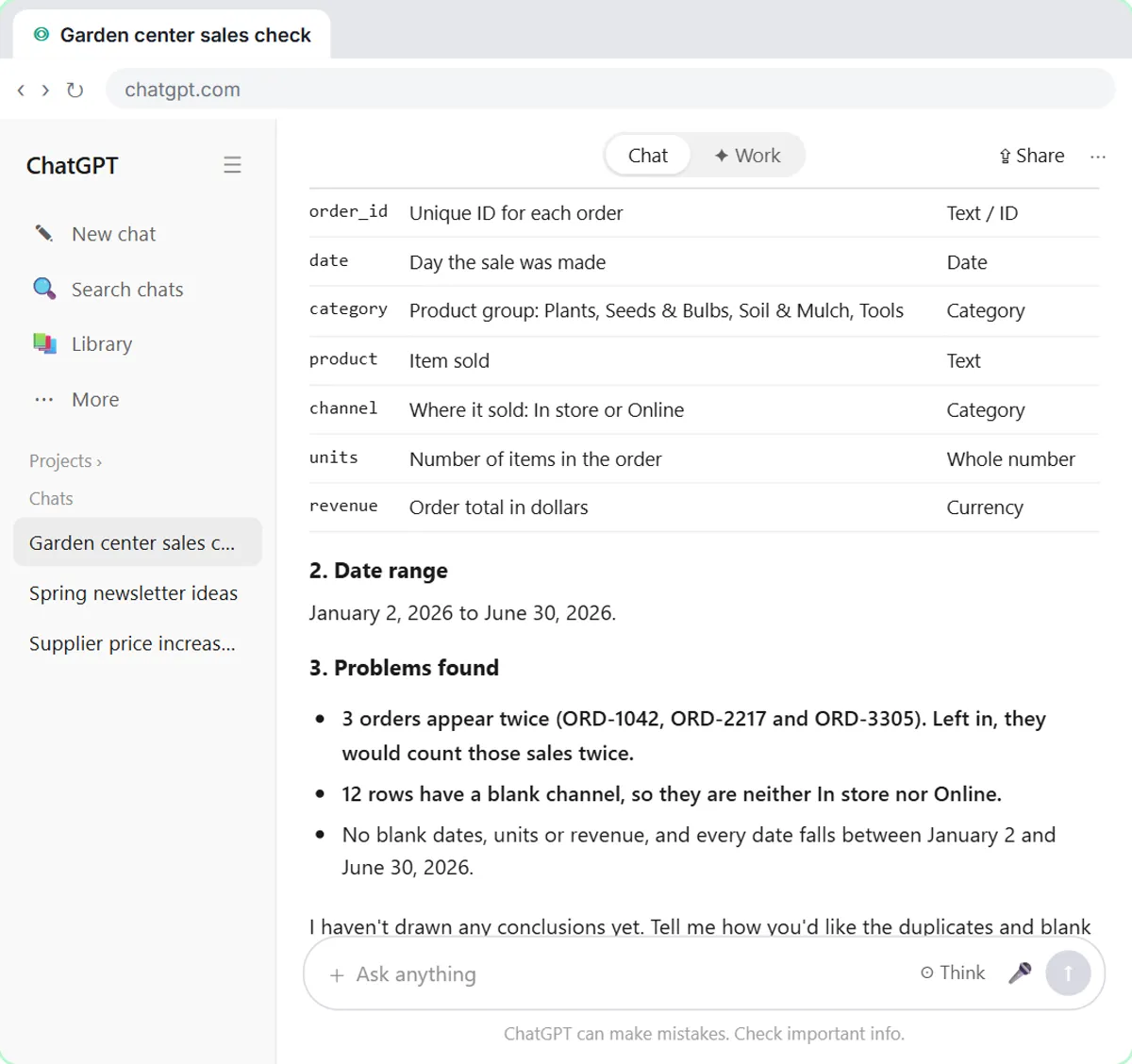
You work with six months of sales from Maple Hollow Garden Center, a made-up garden center. The file is a CSV export of about 1,200 orders, with an order ID, date, category, product, sales channel, units and revenue for each one. Like most real exports, it has a couple of problems hiding in it: three orders appear twice, and twelve rows have no sales channel.
By the end you have a cleaned copy of the file, a table of revenue by month, a table showing how each category grew from January to June, a line chart with one line per category that you download as a picture, and three plain-English takeaways with the numbers behind them, plus one thing to double-check before you act.
Who this lesson is for
This is for owners, managers and office staff who get sales, orders or expense exports and never quite get around to analyzing them. You do not need to know formulas, pivot tables or any code. If you can export a CSV or Excel file from your point-of-sale, online store or accounting software, you have everything you need.
It is the fifth module in the ChatGPT for Everyday Work course. The earlier modules teach you to write clear requests and to check ChatGPT's work. This one applies the same ideas to numbers, where checking matters even more.
Why checking the file first matters
If ChatGPT misreads what one row means, every number after that is wrong, and the answer still looks confident. A duplicate order quietly inflates a month. A blank cell drops sales out of a category. Asking ChatGPT to describe the file before it analyzes anything gives you a chance to catch those problems while they are cheap to fix.
The other habit is asking for numbers you can check. Tables of monthly totals and category changes are easy to compare with your own records, and asking for the number behind each takeaway means you can see exactly where a conclusion came from. For many data questions ChatGPT writes and runs Python code on your file to get the numbers, and OpenAI recommends reviewing the code, outputs and assumptions before you rely on a result. A quick check of one or two totals against your own system is usually enough.
How to use this in your business
Export a few months of sales, orders or expenses as a CSV or Excel file with clear column names in the first row and one record per row. Remove anything private your business rules say should not be shared, like customer names or card details. Start a new chat, attach the file, and paste the same check-the-file request from this lesson before you ask anything else.
Then ask the questions you actually care about: which products slowed down, which days are busiest, which customers order most, how online compares with in-store. Ask for a table first, then a chart of whatever surprised you, then the takeaways. Save your best requests somewhere handy so next month's report takes minutes, and always compare a total or two against your own records before you change orders, staffing or prices.
How the interactive lesson works
Every step is shown first on the left, in the Watch panel, with a short voice-over. Then you do it yourself on the right, in Your turn, on a practice copy of ChatGPT. Each click is checked, so you know right away if you picked the right button. Long requests go in with one Paste button, and if you get stuck, Do it for me finishes the step. Nothing touches a real account and no file leaves your computer, so you can practice freely, then do it for real with your own export.
Try it yourself, free
Reading the steps is a start. Doing them is how it sticks. The interactive module walks you through every click in a practice copy of ChatGPT, checks each step, and never touches your real accounts.
Start “Analyze a Spreadsheet with ChatGPT: Upload a CSV, Get a Chart and Three Takeaways”Step by step: Analyze a Spreadsheet with ChatGPT: Upload a CSV, Get a Chart and Three Takeaways
All 26 steps of the interactive module, in order. In the module you watch each one, then do it yourself in a practice copy that checks your work.
1. Upload the CSV
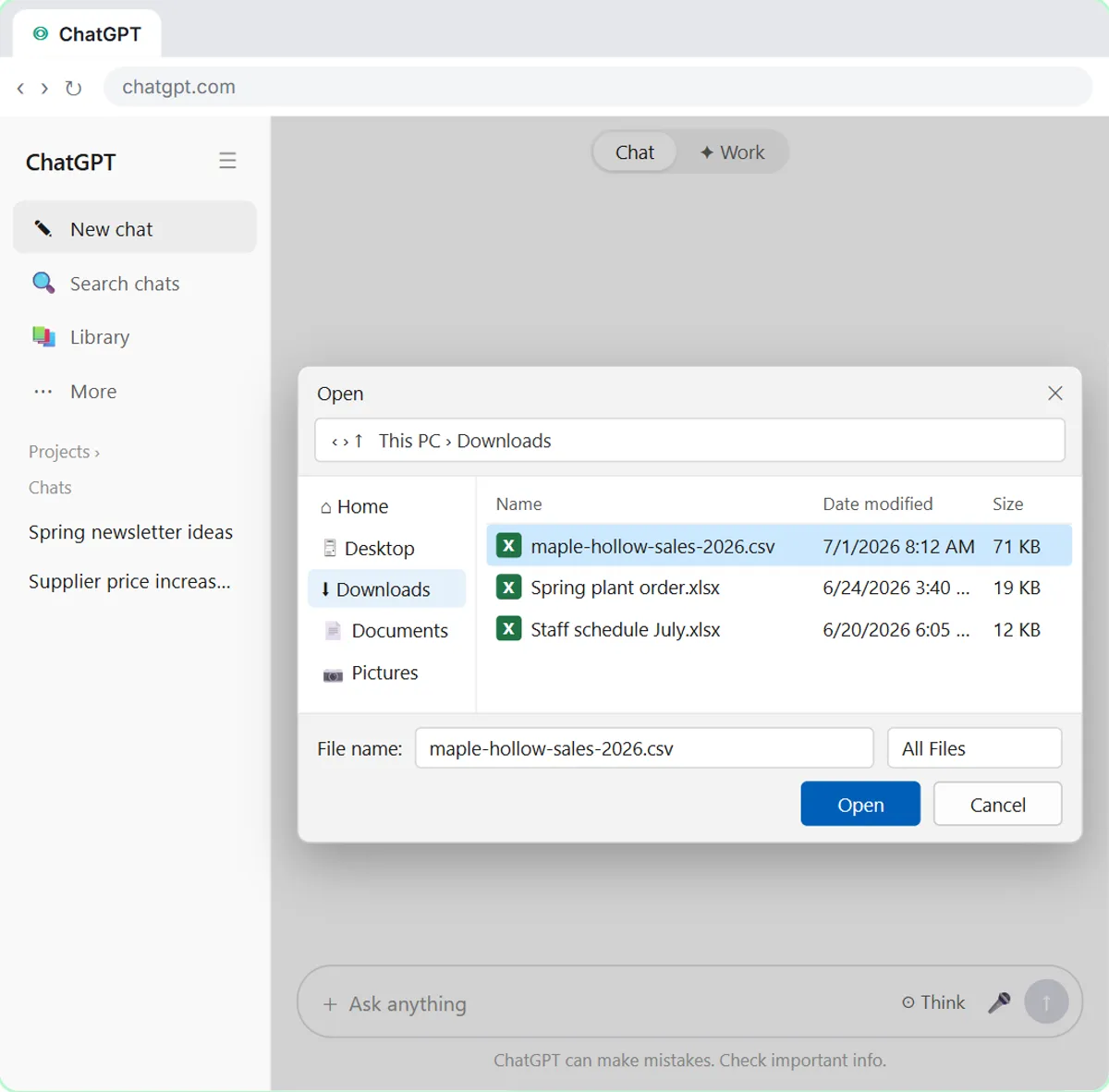
- Open the plus menu. Maple Hollow Garden Center exported six months of sales as a CSV file. Click the + button on the left of the message box.
Maple Hollow Garden Center exported six months of sales from its register as a CSV file: about twelve hundred orders. Nobody has time to scroll through that, so let's hand it to ChatGPT.
- Add photos & files. Click Add photos & files.
- Pick the sales file. Click maple-hollow-sales-2026.csv.
Your file browser opens. An Excel file works the same way.
- Open it. Click Open.
The file sits above the message box, marked Spreadsheet. You can also just drag a file onto the chat.
2. Check the data first
- Click the message box. Don't ask for insights yet. Click the message box.
Here's the mistake most people make: they type analyze this and trust whatever comes back. First, make sure ChatGPT reads the file correctly.
- Ask it to check the file. Paste in the request. It asks what each column means, the row count, the date range and any duplicates or blank cells, with no insights yet.
This request asks ChatGPT to check the file before it analyzes anything: what each column means, how many rows, the date range, and any duplicates or blank cells.
This is our garden center's sales from January to June 2026. Before you analyze anything, check the file: tell me what each column means, how many rows there are, the date range, and any problems like duplicates or blank cells. Don't give me any insights yet.
- Send it. Click Send.
- Read the problems it found. Check the columns and row count. Then click Problems found: three orders appear twice, and 12 rows have no channel.
ChatGPT read the file and explained every column, so you know it understood it. Now look at Problems found. Three orders appear twice, which would count those sales twice, and twelve rows have no channel.
- Click the message box. Fix those before you ask anything else. Click the message box.
You decide how to fix them, not ChatGPT.
- Tell it how to clean the data. Type it, or Paste in the fix: Remove the duplicate orders and label the blank channels "Unknown". Use the cleaned data from now on, and give me the cleaned file.
Tell it to remove the duplicates, label the blank channels Unknown, and give you the cleaned file.
- Send it. Click Send.
- Open the cleaned file. ChatGPT made a new file. Click maple-hollow-sales-2026-cleaned.csv to look at it. (It may already be open on the right.)
Twelve hundred forty-five clean rows, and a new file you can keep.
- Close the preview. The rows open in a panel, like a spreadsheet, with a download button at the top. Click the X to close it.
The rows open right next to the chat, like a spreadsheet, and the button at the top downloads it. The blank channels now say Unknown. Close the panel with the X.
3. Ask your question
- Click the message box. Now ask a real question. Click the message box.
Now the data is clean, ask what you actually want to know.
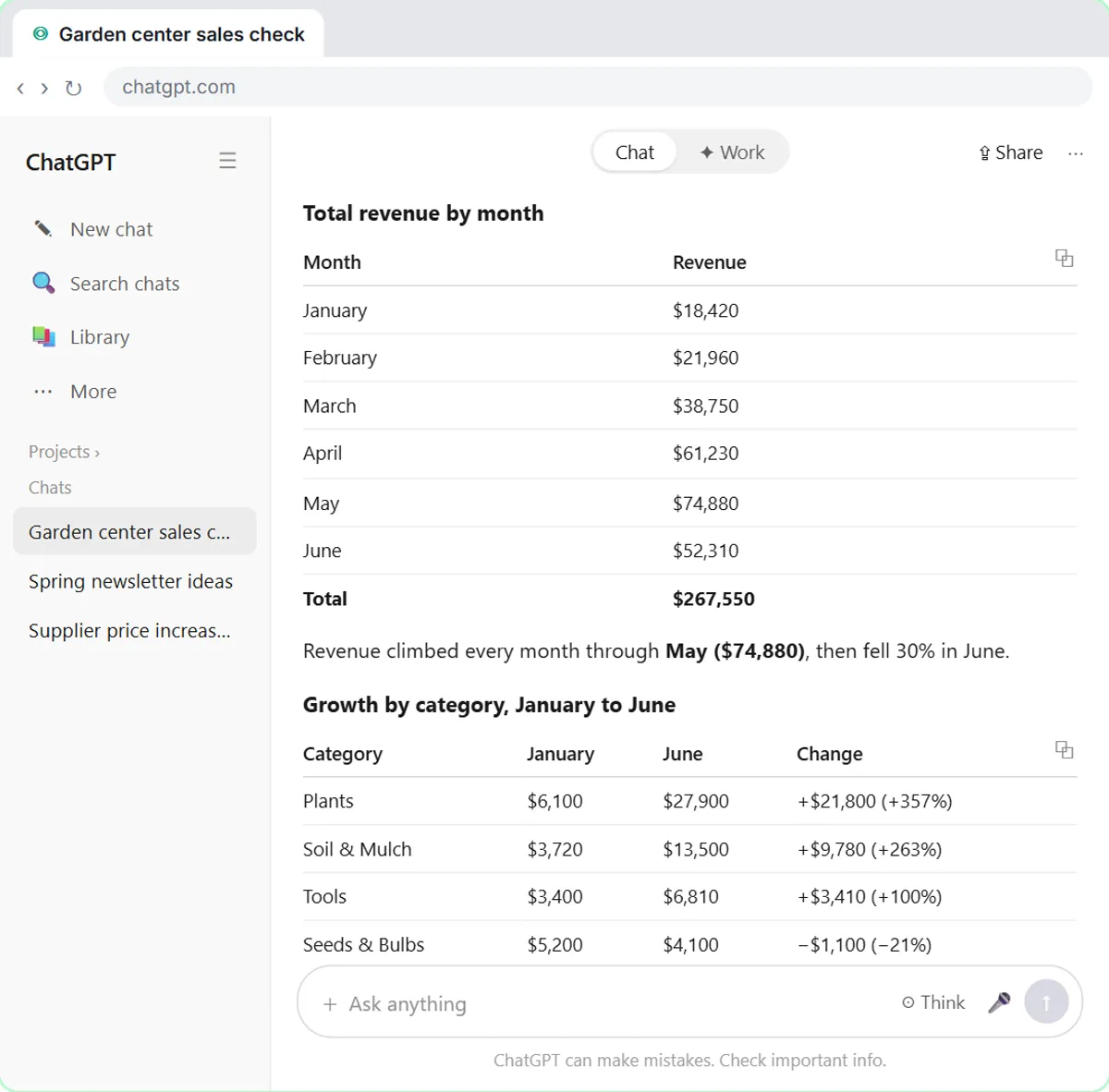
- Ask your question. Paste in the question: total revenue each month, and which category grew the most, as tables.
Ask plainly: what was revenue each month, and which category grew the most from January to June. Asking for tables makes the numbers easy to check.
- Send it. Click Send.
For questions like this, ChatGPT usually writes and runs a little Python code to add up your rows, so the totals are worked out from the file itself.
4. Get a chart
- Click the message box. May was the peak and Plants grew the most. A chart shows it faster. Click the message box.
May was the best month, and plants grew the most. Now let's see it as a picture.
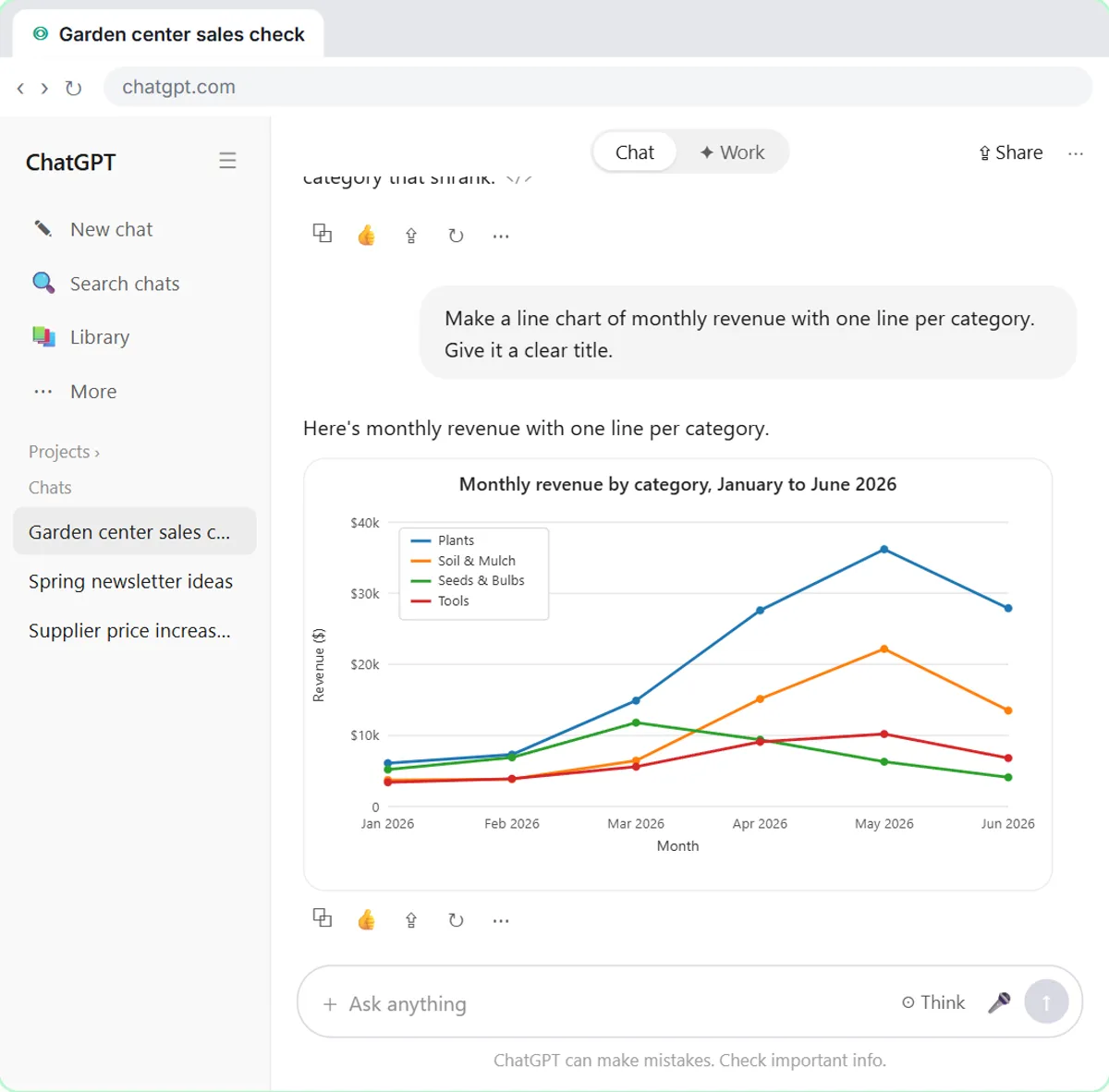
- Ask for a chart. Paste in the request: a line chart of monthly revenue, one line per category.
Say which kind of chart you want and what goes on it: a line chart of monthly revenue, one line per category, with a clear title.
- Send it. Click Send.
- Open the chart. Click the chart to open it full size. (If you only see a file path like /mnt/data/…png, ask ChatGPT to show the chart in the chat.)
There it is: plants climbing all spring, and seeds and bulbs peaking in March.
- Download it. Click the download icon at the top right.
It saves as a picture you can drop into an email or a slide.
- Back to the chat. Click the X at the top right.
5. The three takeaways
- Click the message box. Last step: turn it into something you can act on. Click the message box.
Charts are nice, but what should you actually do?
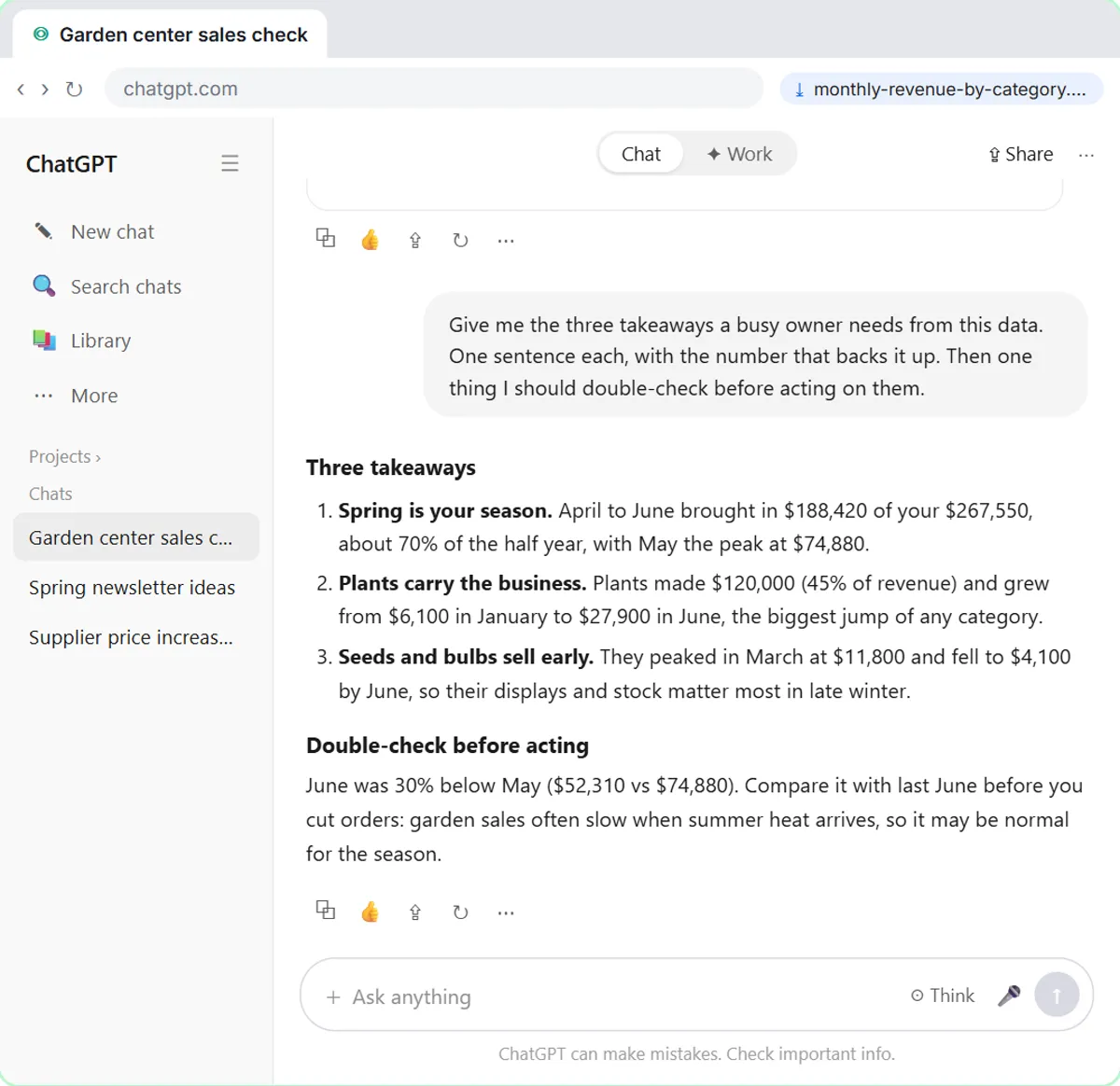
- Ask for the three takeaways. Paste in the request: three takeaways, each with its number, plus one thing to double-check.
Ask for three takeaways, one sentence each, with the number that backs each one up. Then ask what to double-check before you act.
Give me the three takeaways a busy owner needs from this data. One sentence each, with the number that backs it up. Then one thing I should double-check before acting on them.
- Send it. Click Send.
- Copy the takeaways. Read the three takeaways and the double-check. Then click the Copy button under the answer.
Three takeaways, each with its number, and one honest warning: June dropped thirty percent, so compare it with last June before you cut any orders. Check a total or two against your own records, then click the copy button and paste it wherever your team will read it.
Screenshots
Frequently asked questions
- Can ChatGPT analyze a CSV or Excel file?
- Yes. You can attach spreadsheets such as .csv, .xls and .xlsx files with the plus button and Add photos & files, or by dragging the file onto the chat. ChatGPT can summarize the data, answer questions about it, make tables and create charts. Available file types and limits can vary by plan.
- How do I get a chart from my spreadsheet in ChatGPT?
- Upload the file and ask for the chart you want, for example "a line chart of monthly revenue with one line per category." Saying the chart type and what goes on it gets better results than just asking for a chart. You can open the chart full size and download it as an image.
- Can I trust the numbers ChatGPT gives me?
- Treat them as a fast first draft. Ask ChatGPT to check the file for problems before it analyzes it, ask for tables you can verify, and compare a total or two with your own records before you act on anything important.
- How should I prepare my spreadsheet before uploading it?
- Put clear column names in the first row, keep one record per row, and avoid several unrelated tables on one sheet or blank rows that split the data. Remove private details you do not need for the analysis.
- Is this course really free?
- Yes. Stepthrough is completely free, and the practice copy needs no accounts. To do it for real you need your own ChatGPT account, and some features and usage limits depend on your plan.
More in ChatGPT for Everyday Work
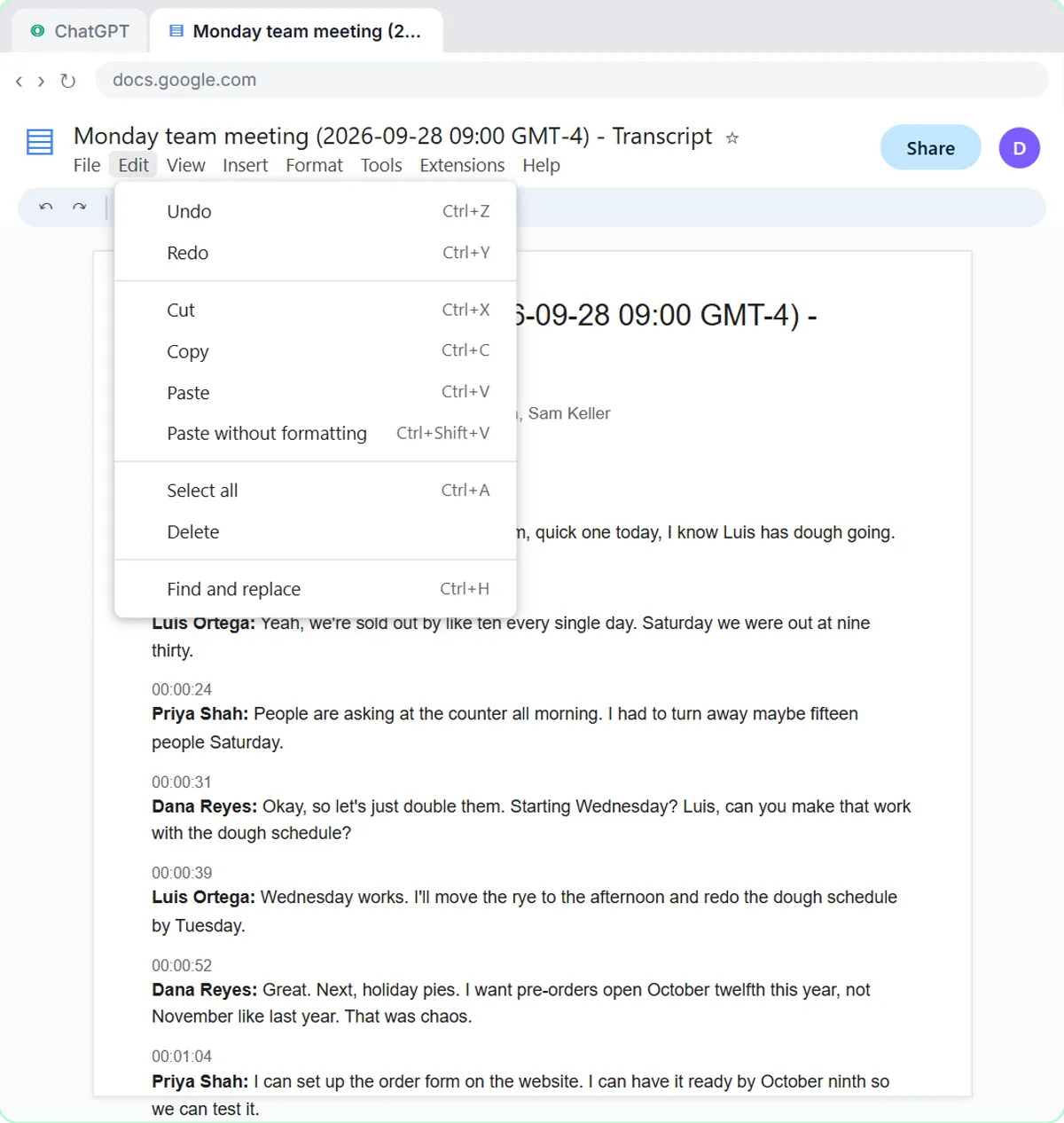 Summarize a Meeting Transcript with ChatGPT
Paste a long meeting transcript into ChatGPT and get the decisions, an action items table with owners and due dates, and a follow-up email ready to send.
Free · Live ~9 min
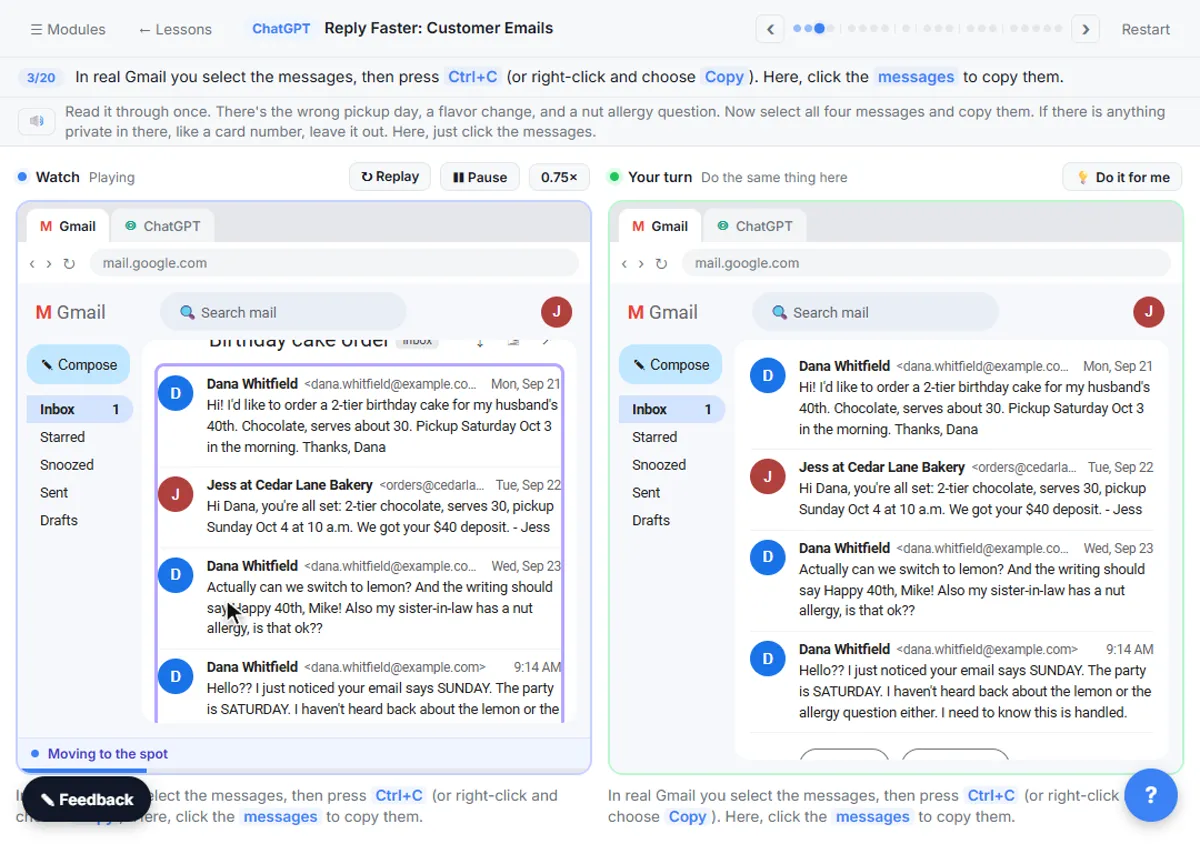 Reply Faster: Turn a Messy Customer Email Thread into a Clear, Friendly Reply
Turn a messy customer email thread into a clear, friendly reply: give ChatGPT the thread and your facts, check every promise, fix the tone, and send it from Gmail.
Free · Live ~9 min
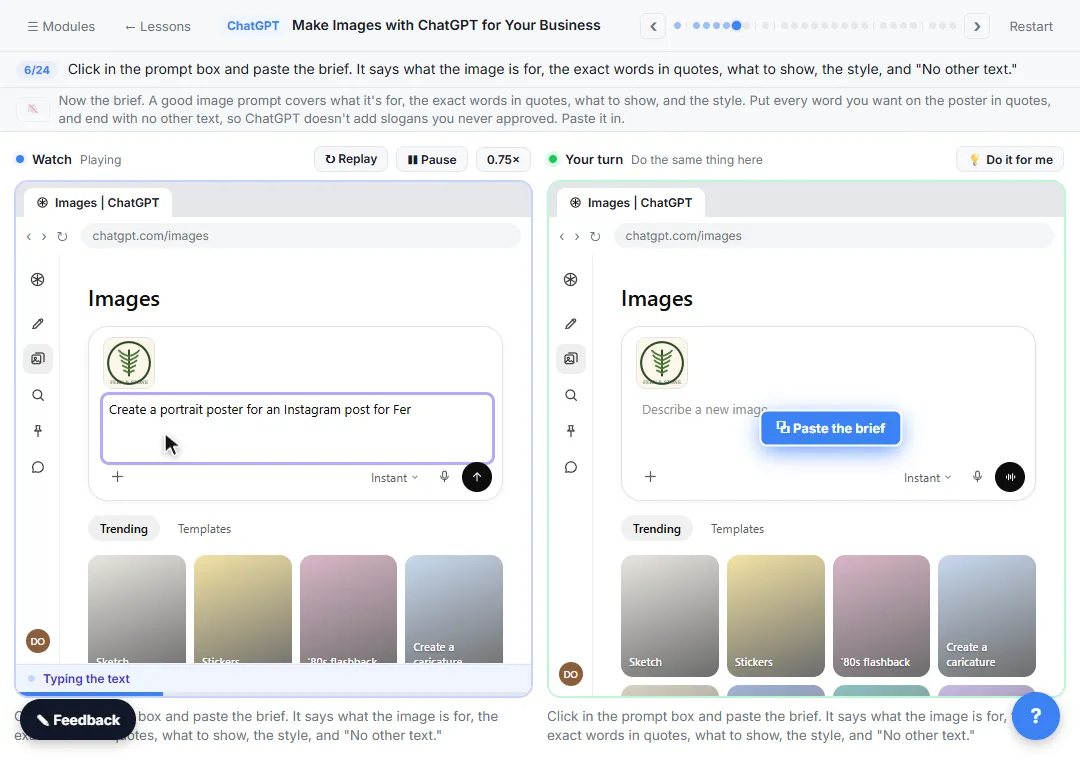 Make Images with ChatGPT for Your Business
Turn a short brief and your logo into a sale poster with ChatGPT Images, fix wrong text with a comment pin, make a Story version and get a caption to post.
Free · Live ~7 min
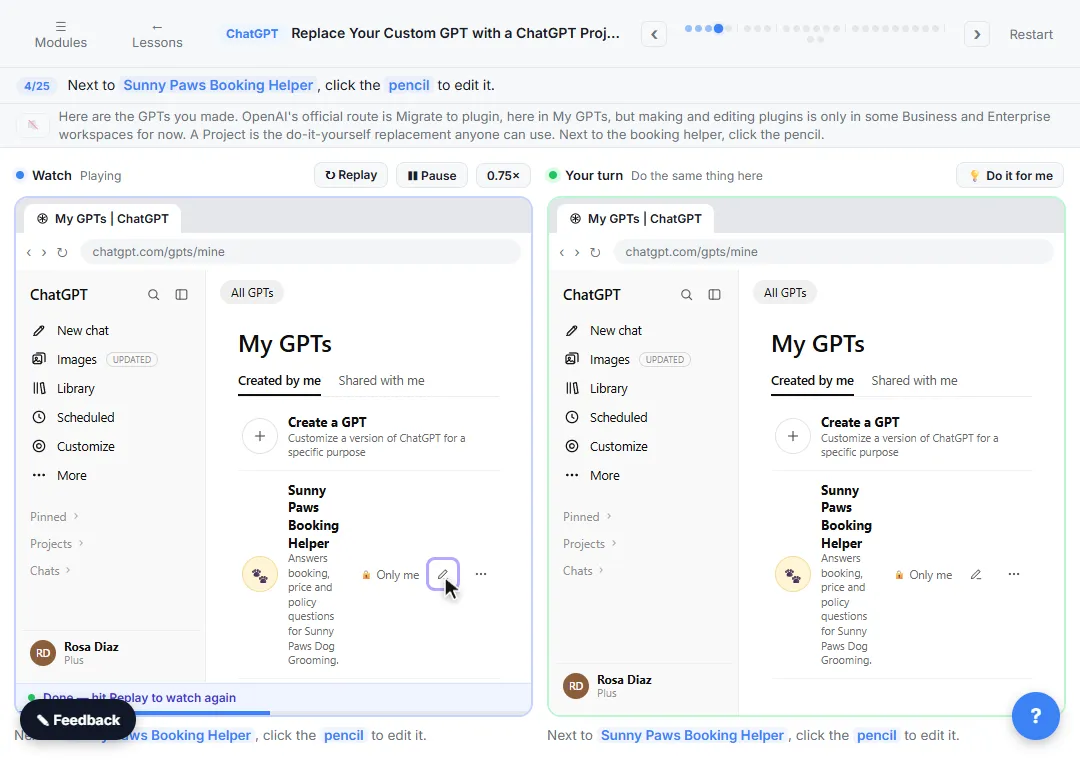 Replace Your Custom GPT with a ChatGPT Project
Custom GPTs retire on December 11, 2026. Copy your GPT's instructions, starters and files, rebuild it as a ChatGPT Project with project-only memory, and test it on a…
Free · Live ~7 min
All 7 modules in ChatGPT for Everyday Work
More ChatGPT tutorials
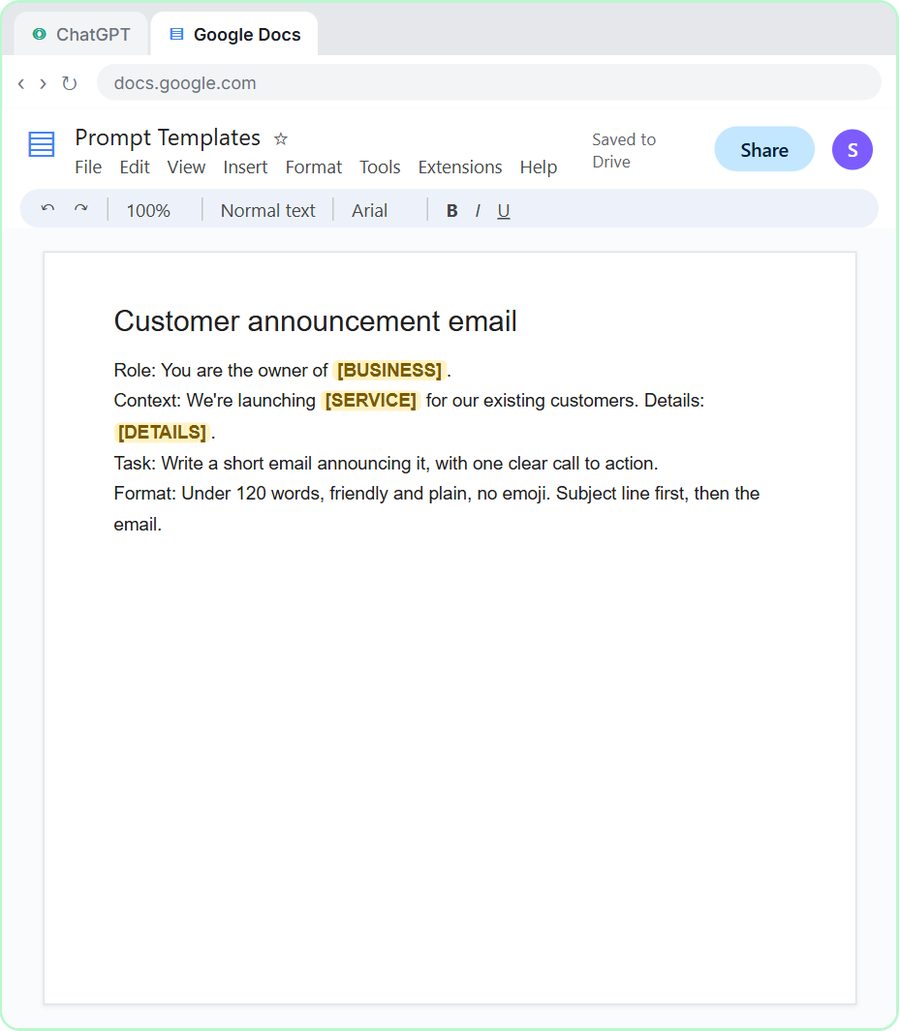 Prompt Writing 101: Role, Context, Task, Format
Ask ChatGPT for the same customer email twice, once vaguely and once with a four-part prompt, and see exactly why structure gets a better answer.
Free · Live ~8 min
 Get Your Business Recommended by ChatGPT
Ask ChatGPT who it recommends in your town, see which pages it trusts, then use it to write an FAQ page and Business Profile copy that answer real customer questions.
Free · Live ~10 min
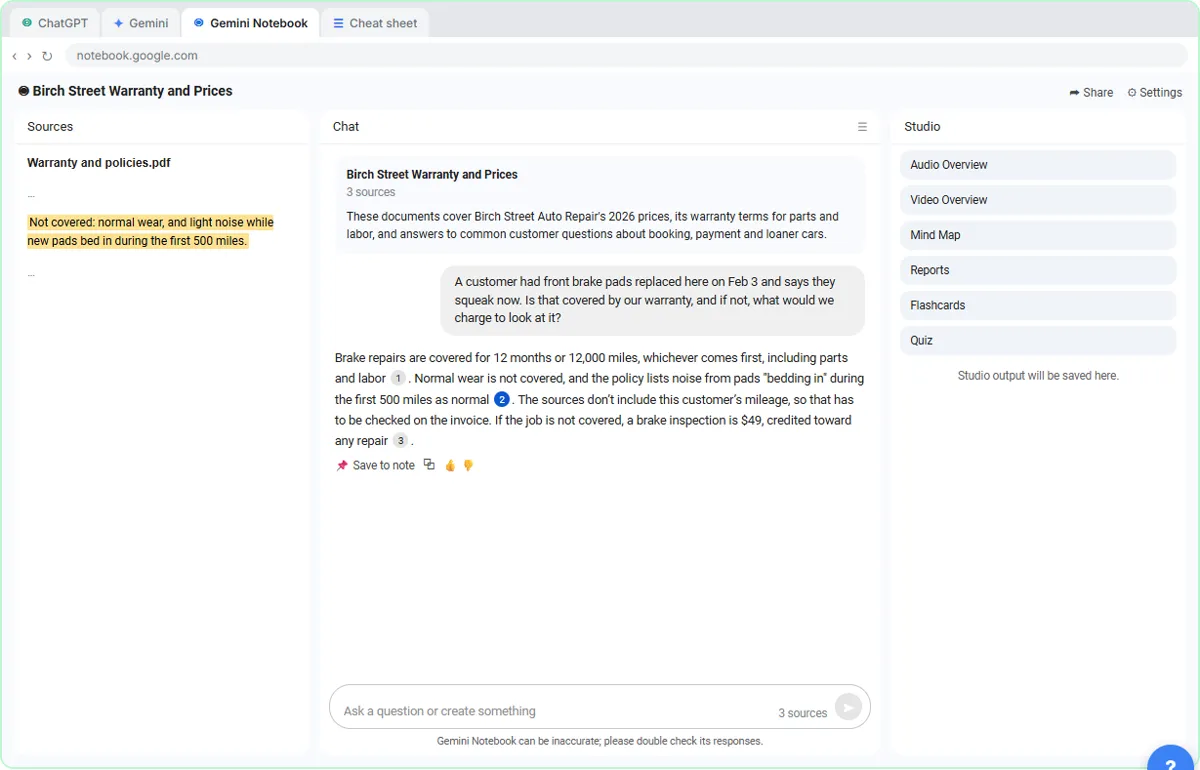 ChatGPT Projects vs Gemini Gems vs Gemini Notebook: Which to Use
Load an auto shop's price list, warranty and FAQ into a ChatGPT Project, a Gemini Gem and Gemini Notebook, ask each the same question, and see which fits which job.
Free · Live ~9 min
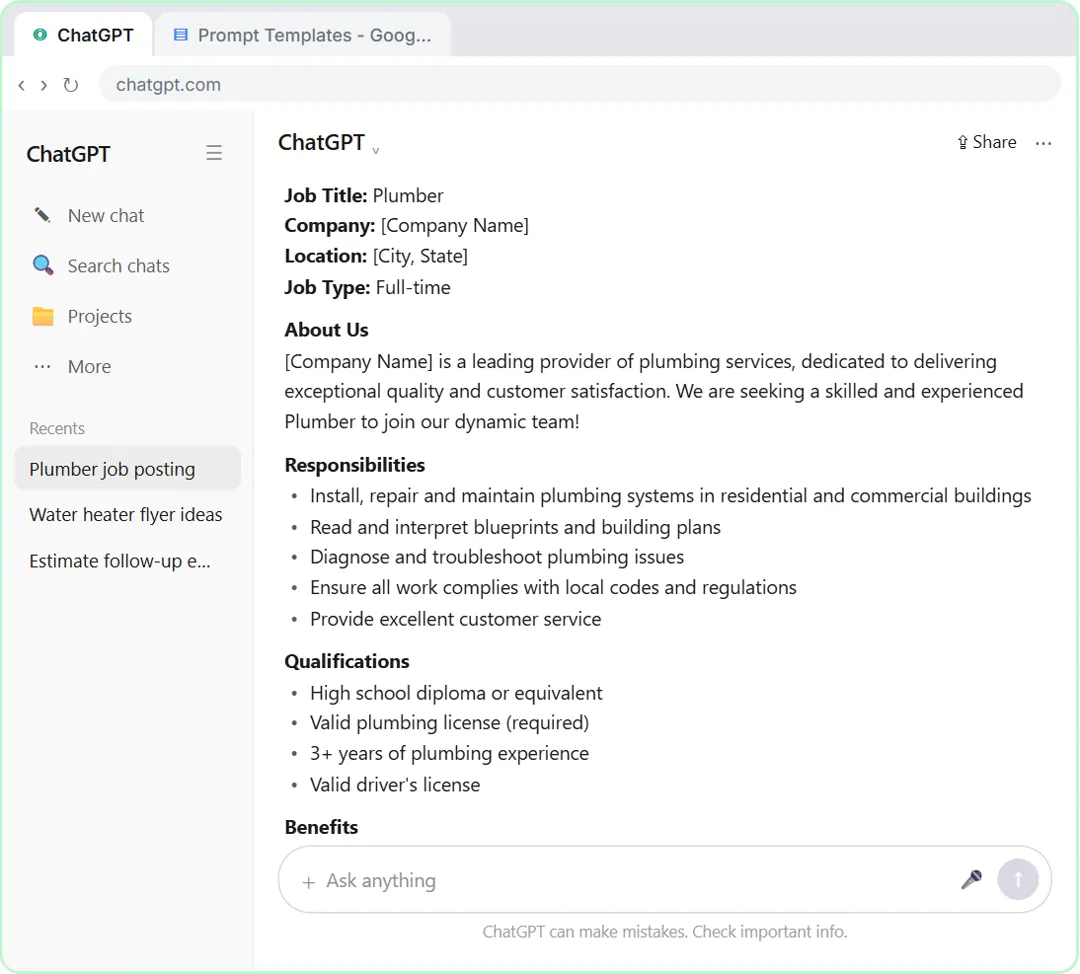 Make ChatGPT Ask You Questions First: The Interview Prompt
Ask for a job posting the quick way, then with the interview prompt: ChatGPT asks what it needs, one question at a time, and writes a posting you can actually use.
Free · Live ~6 min
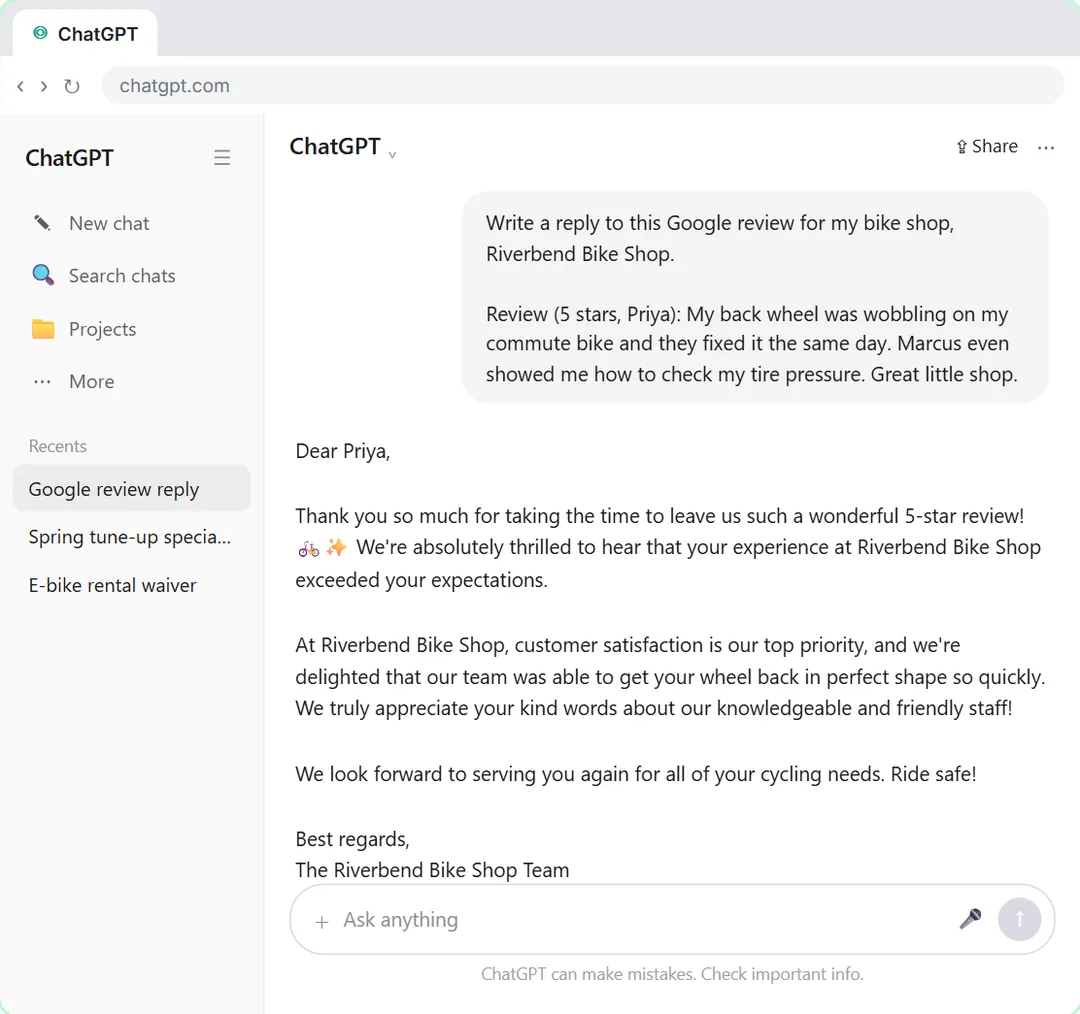 Give Examples: Few-Shot Prompts That Copy Your Style
Paste three of your real past replies into ChatGPT and get new Google review replies that sound like you, not like a template.
Free · Live ~6 min
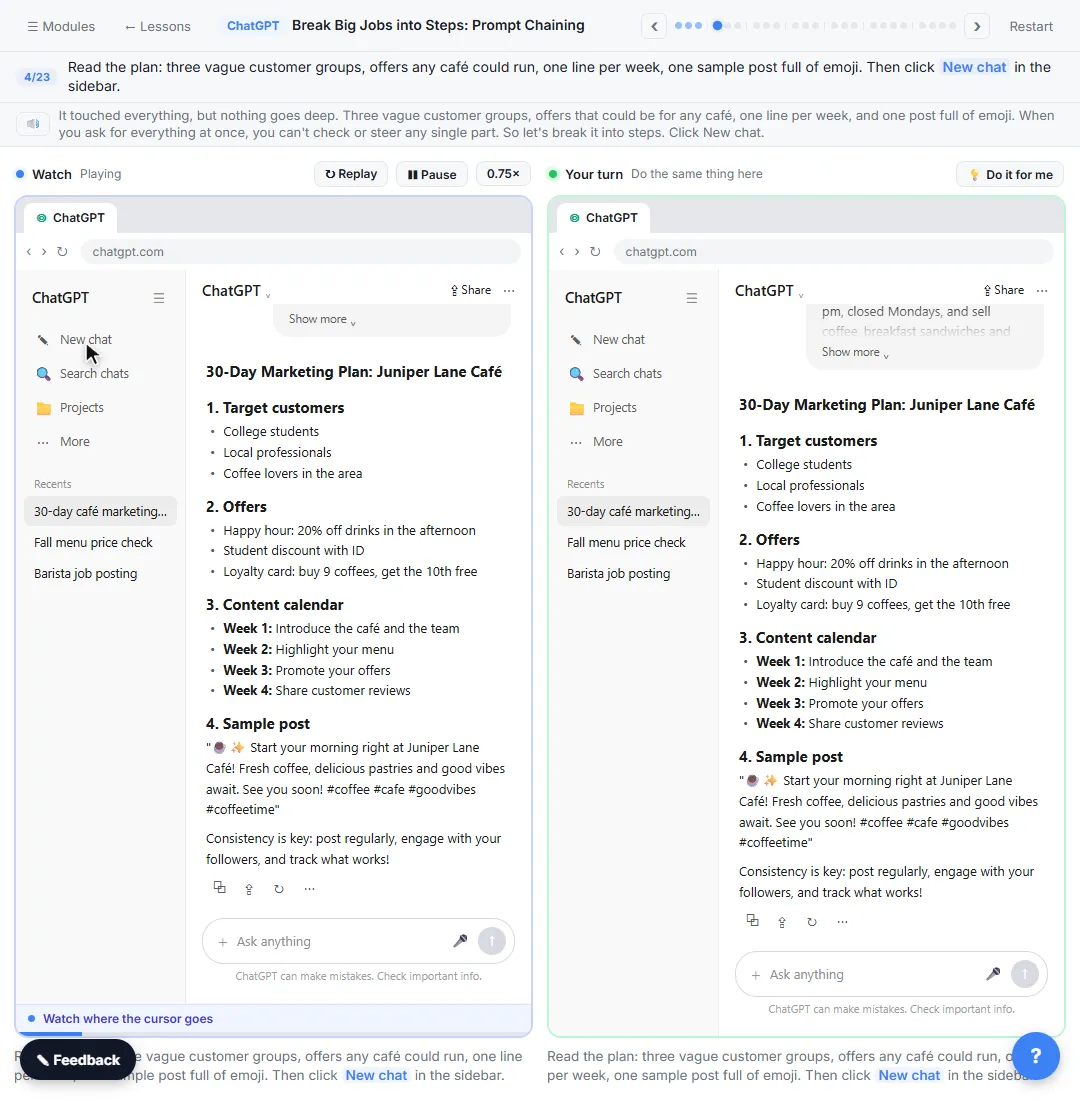 Break Big Jobs into Steps: Prompt Chaining for a Marketing Plan
Ask ChatGPT for a whole marketing plan in one prompt, then build a better one in four small steps: customers, offers, a calendar table and the posts.
Free · Live ~7 min
Terms in this lesson
Plain-English definitions, each with an example from a free lesson.