Updated . Built against the tool’s current screens and checked step by step. How we check this lesson
Most small businesses have months of sales sitting in a spreadsheet that nobody has time to read. In this free, interactive lesson you upload a sales CSV to ChatGPT and turn it into answers you can use: a check of the data, monthly totals, the category that grew the most, a chart you can download, and three takeaways, each backed by a number. You also learn the habit that keeps the answers trustworthy: make ChatGPT check the file before it analyzes anything.
At a glance
| Question | Answer |
|---|---|
| What you build | Upload a CSV of sales to ChatGPT, have it check the data first, ask your questions, get a chart you can download, and finish with the three takeaways that matter. |
| Tools | ChatGPT |
| Time | About 10 minutes, 26 steps in 5 parts |
| Level | Beginner, no coding needed |
| Cost | Free |
| Ways to learn it | Practice it step by step, watch the video, read the guide with screenshots |
The 5 parts, in short
- Upload the CSV: Open the plus menu, Add photos & files, Pick the sales file, Open it.
- Check the data first: Click the message box, Ask it to check the file, Send it, Read the problems it found, and 5 more steps.
- Ask your question: Click the message box, Ask your question, Send it.
- Get a chart: Click the message box, Ask for a chart, Send it, Open the chart, and 2 more steps.
- The three takeaways: Click the message box, Ask for the three takeaways, Send it, Copy the takeaways.
Start here first: Summarize a Meeting Transcript with ChatGPT (module 1 of ChatGPT for Everyday Work)
In the course: Part 3 · ChatGPT for Everyday Work (Module 22 of the full course)
Part of: ChatGPT Jump Start (step 7 of 15). Next up: How to Create a Project in ChatGPT for Your Brand Voice and Files
Part of: Master ChatGPT for Work (step 9 of 17). Next up: Compare Vendor Quotes Side by Side using ChatGPT
Part of: AI for Sales Teams (step 7 of 30). Next up: How to See Sources in Gemini Deep Research: A Cited Brief Before a Meeting
Part of: AI for Finance Teams (step 5 of 23). Next up: How to Create a Project in Claude That Checks Contracts for Red Flags
Part of: Reports That Build Themselves (step 1 of 8). Next up: How to Add a Scheduler in Make.com: Daily Summary Email from Google Sheets
Analyze a Spreadsheet with ChatGPT: Upload a CSV, Get a Chart and Three Takeaways: step-by-step guide with screenshots
About the screenshots. They come from Stepthrough’s simulated practice environment (a practice copy of ChatGPT), not the live tool, so no real account appears. The buttons and labels match the real screens the lesson was built against. Practice it yourself free at learn.ynteractive.com.
- Tools: ChatGPT
- Time: about 10 minutes, 26 steps in 5 parts
- Level: beginner, no coding needed
Part 1: Upload the CSV
Step 1: Open the plus menu
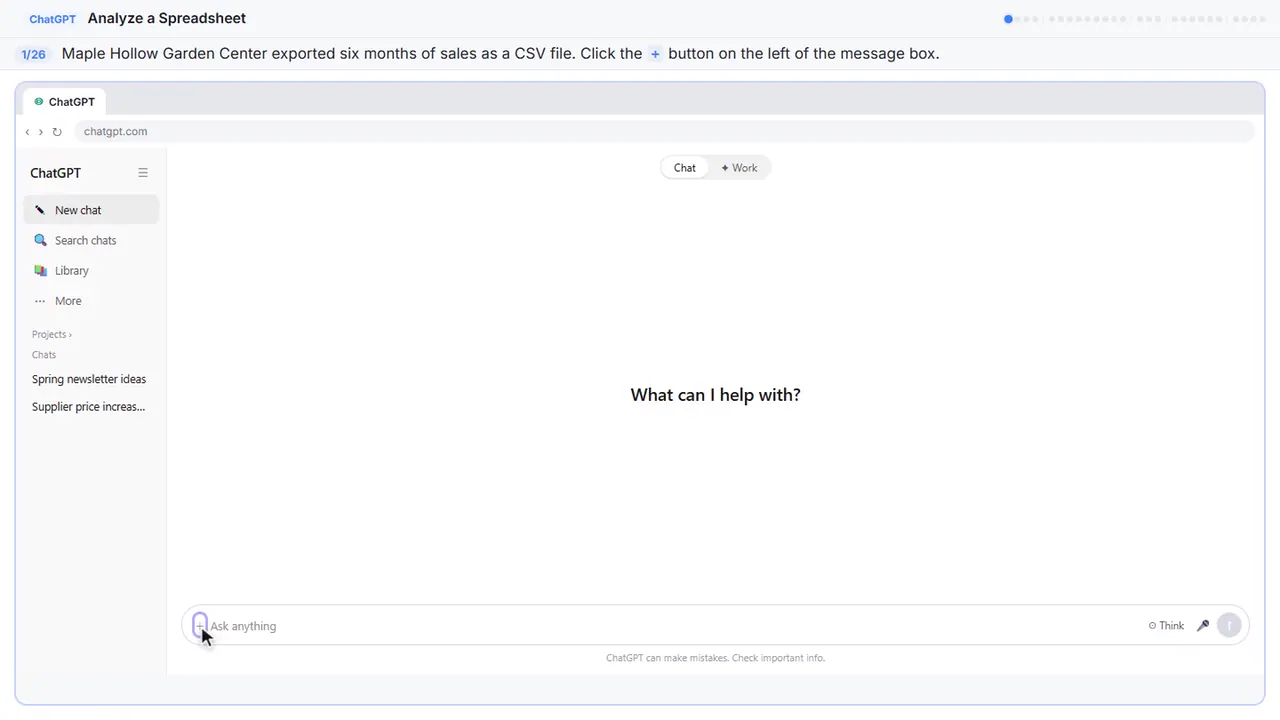
This is ChatGPT. Chats in the sidebar on the left, the conversation in the middle, the message box at the bottom. Maple Hollow Garden Center exported six months of sales from its register as a CSV file: about twelve hundred orders, waiting in your file browser. Nobody has time to scroll through that, so let's hand it to ChatGPT.
Step 2: Add photos & files
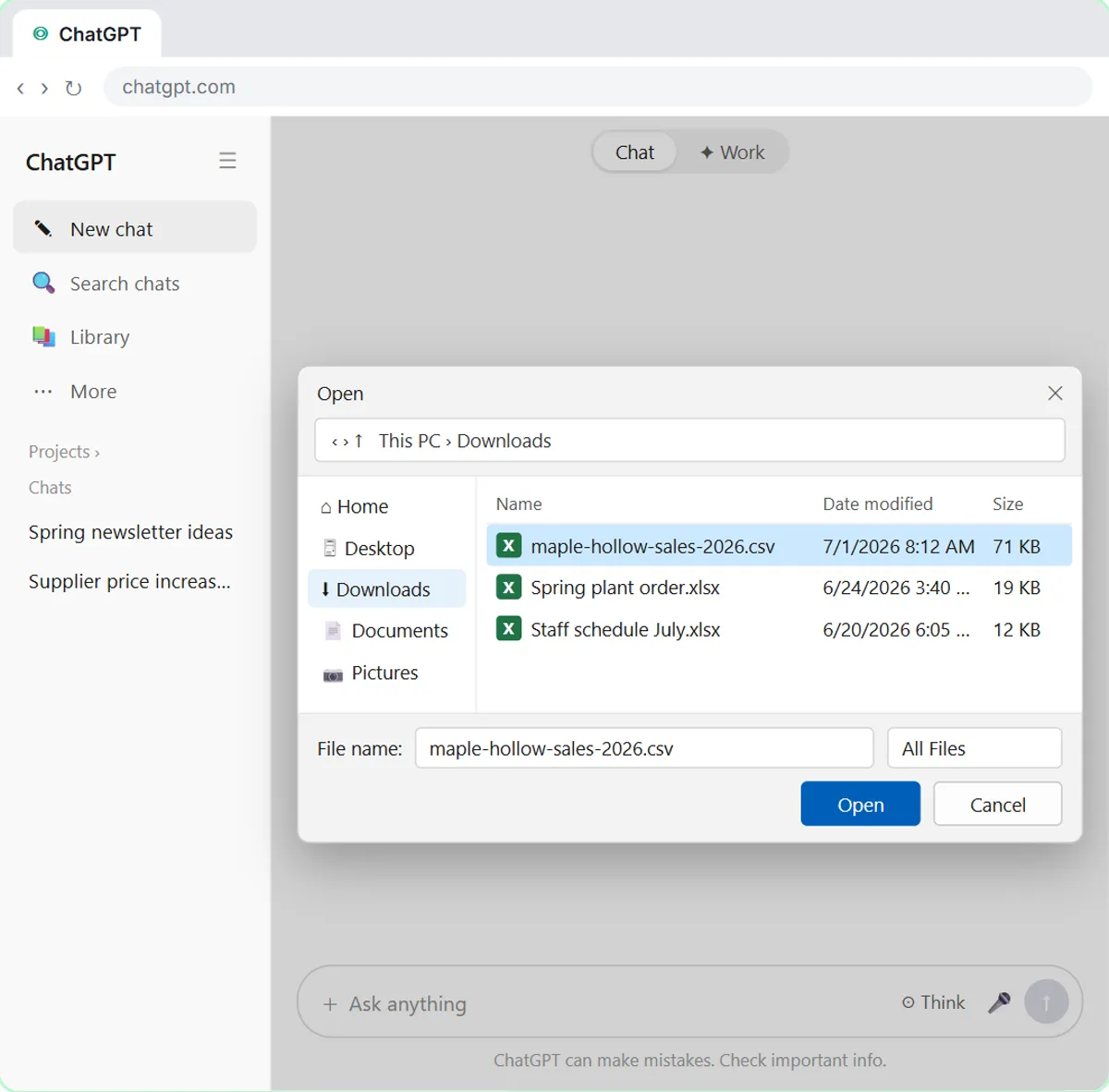
Step 3: Pick the sales file
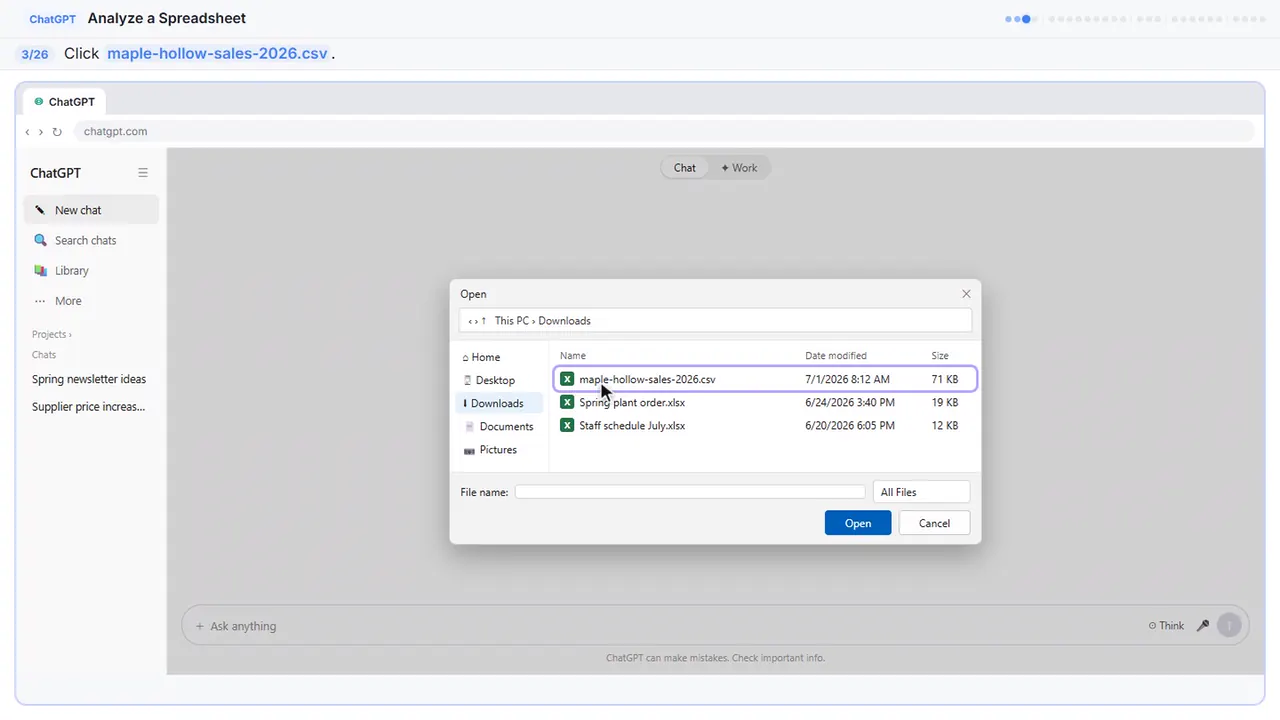
Your file browser opens. An Excel file works the same way.
Step 4: Open it
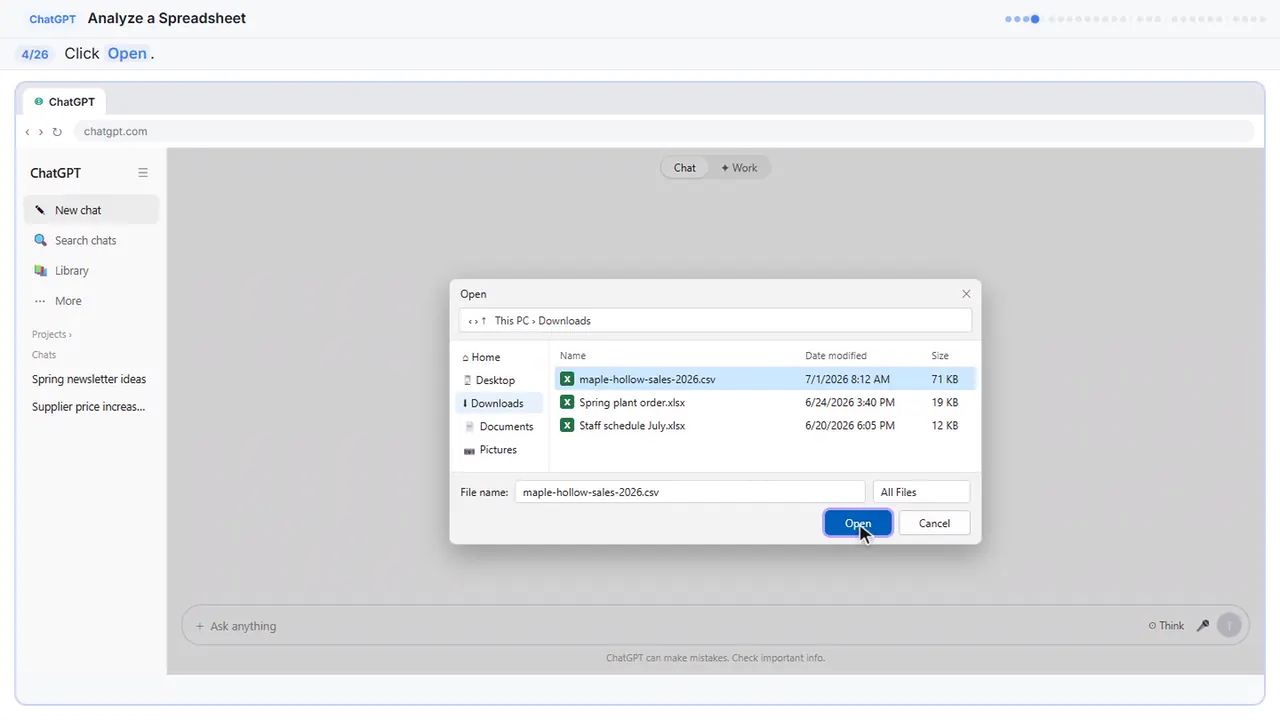
The file sits above the message box, marked Spreadsheet. You can also just drag a file onto the chat.
Part 2: Check the data first
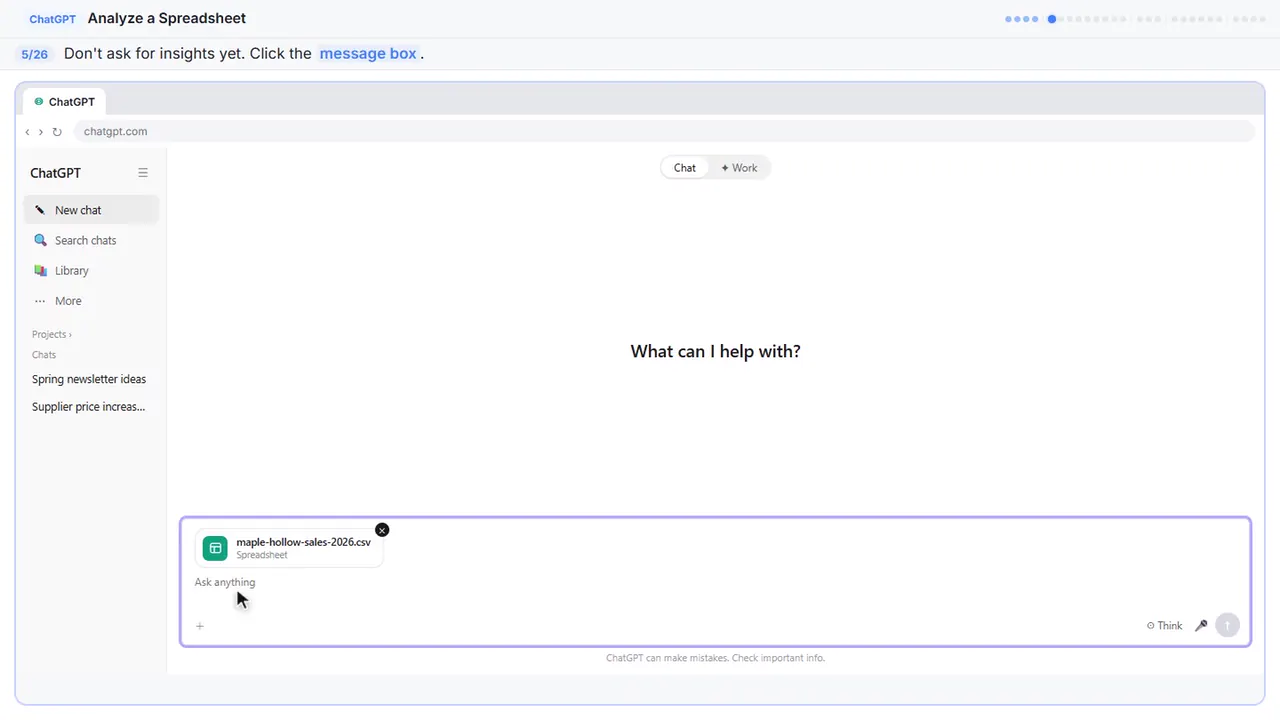
Step 5: Click the message box
Here's the mistake most people make: they type analyze this and trust whatever comes back. First, make sure ChatGPT reads the file correctly.
Step 6: Ask it to check the file
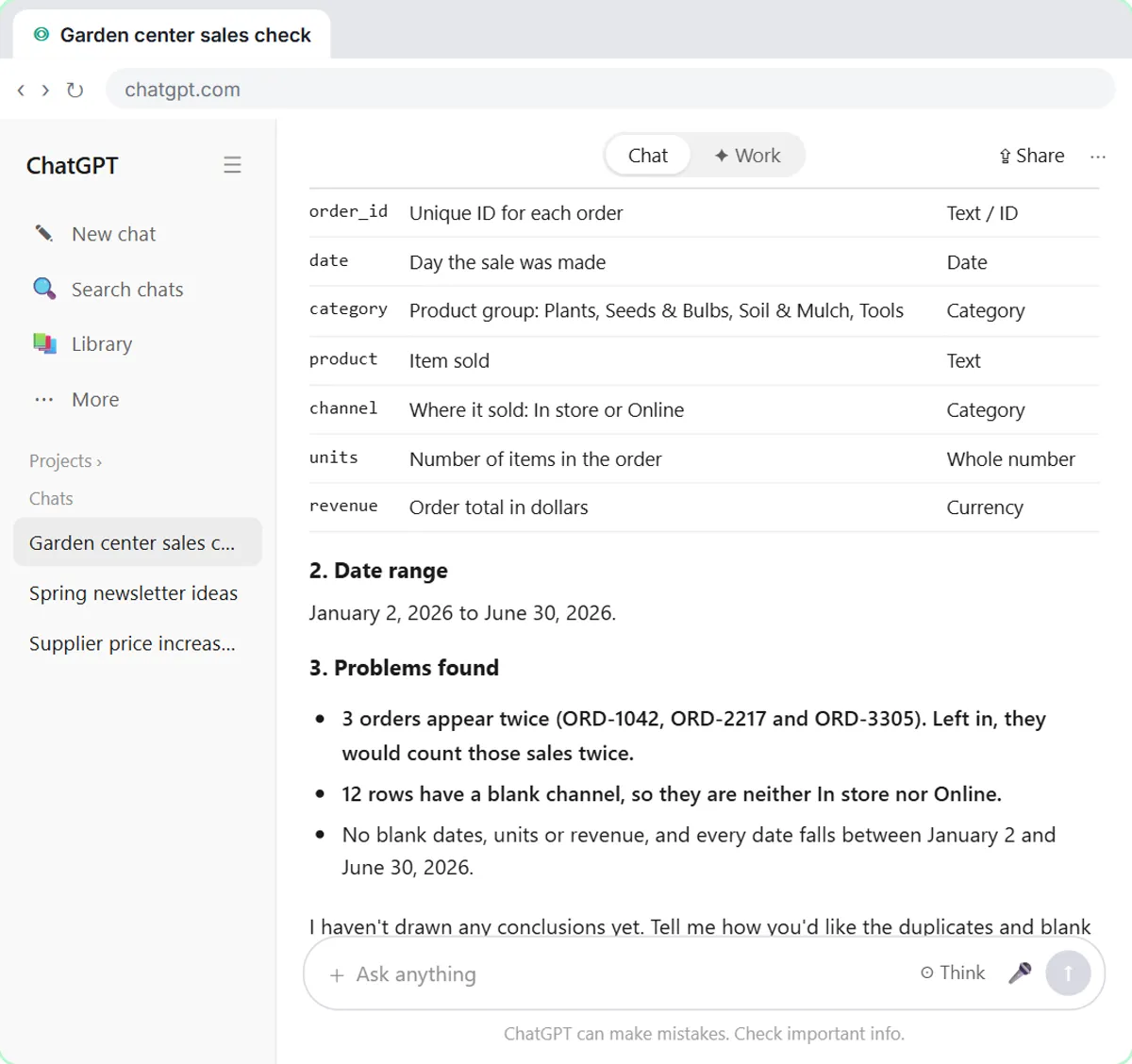
This request asks ChatGPT to check the file before it analyzes anything: what each column means, how many rows, the date range, and any duplicates or blank cells.
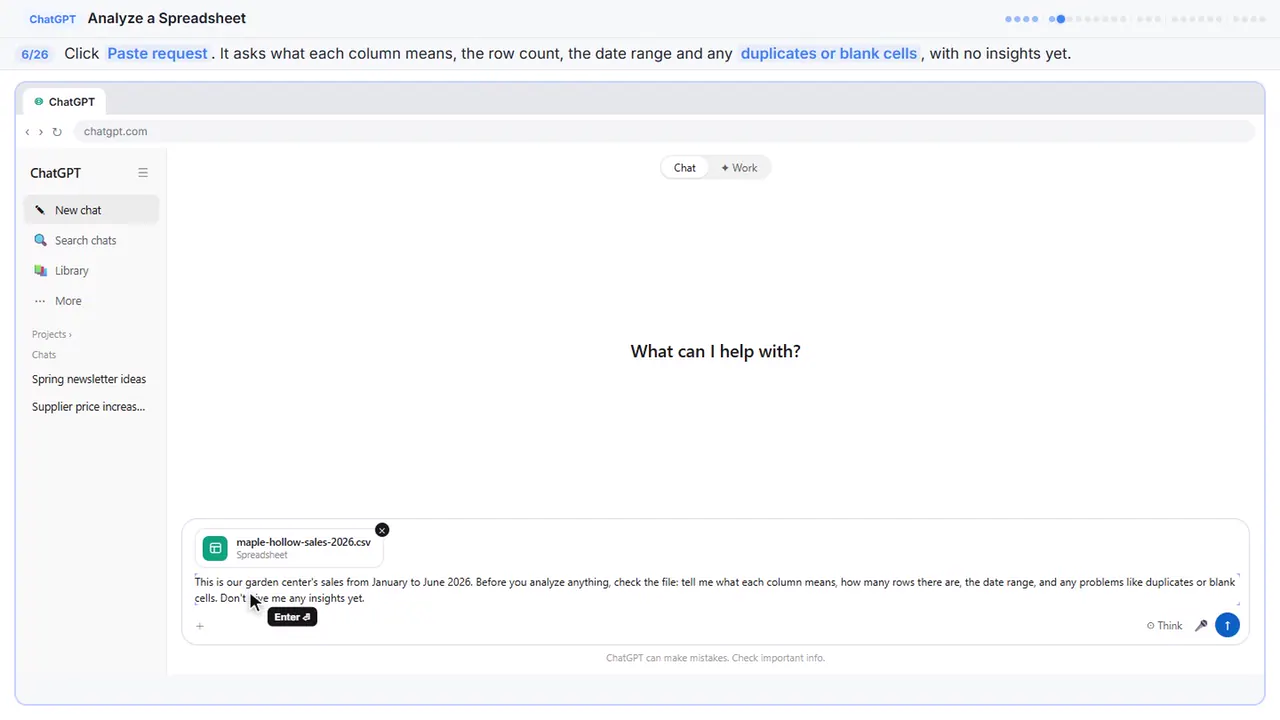
This is our garden center's sales from January to June 2026. Before you analyze anything, check the file: tell me what each column means, how many rows there are, the date range, and any problems like duplicates or blank cells. Don't give me any insights yet.
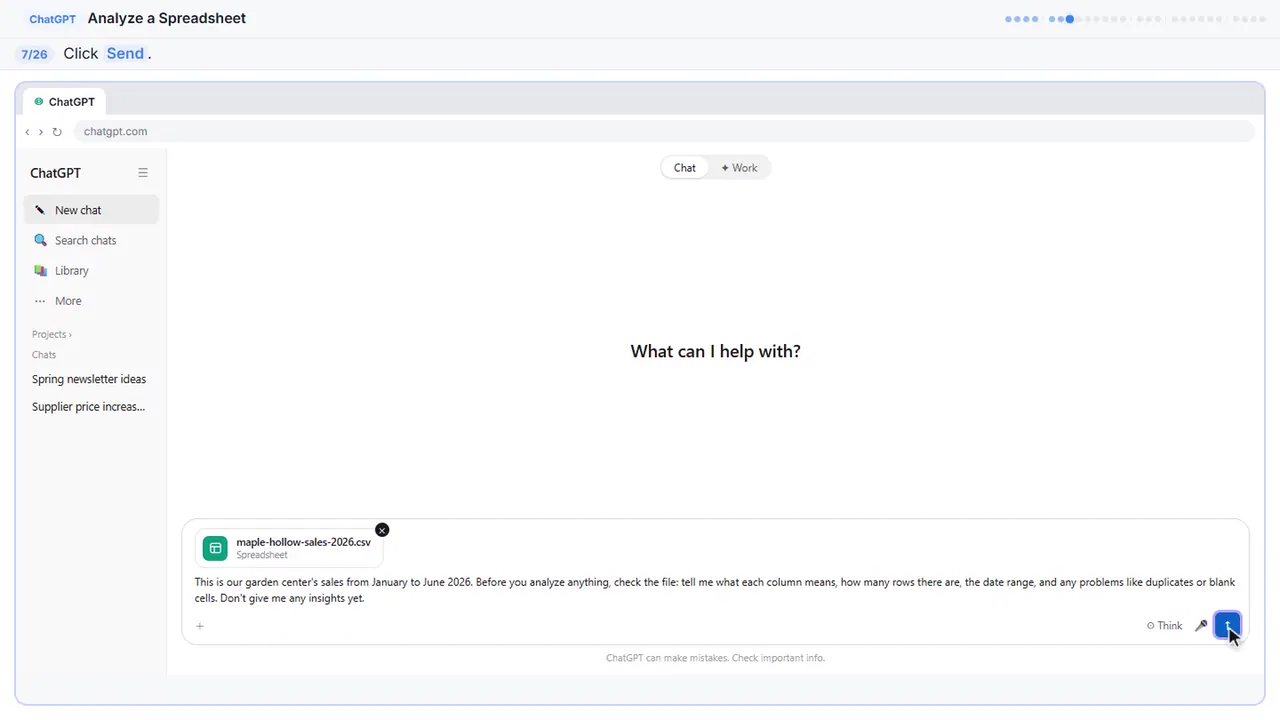
Step 7: Send it
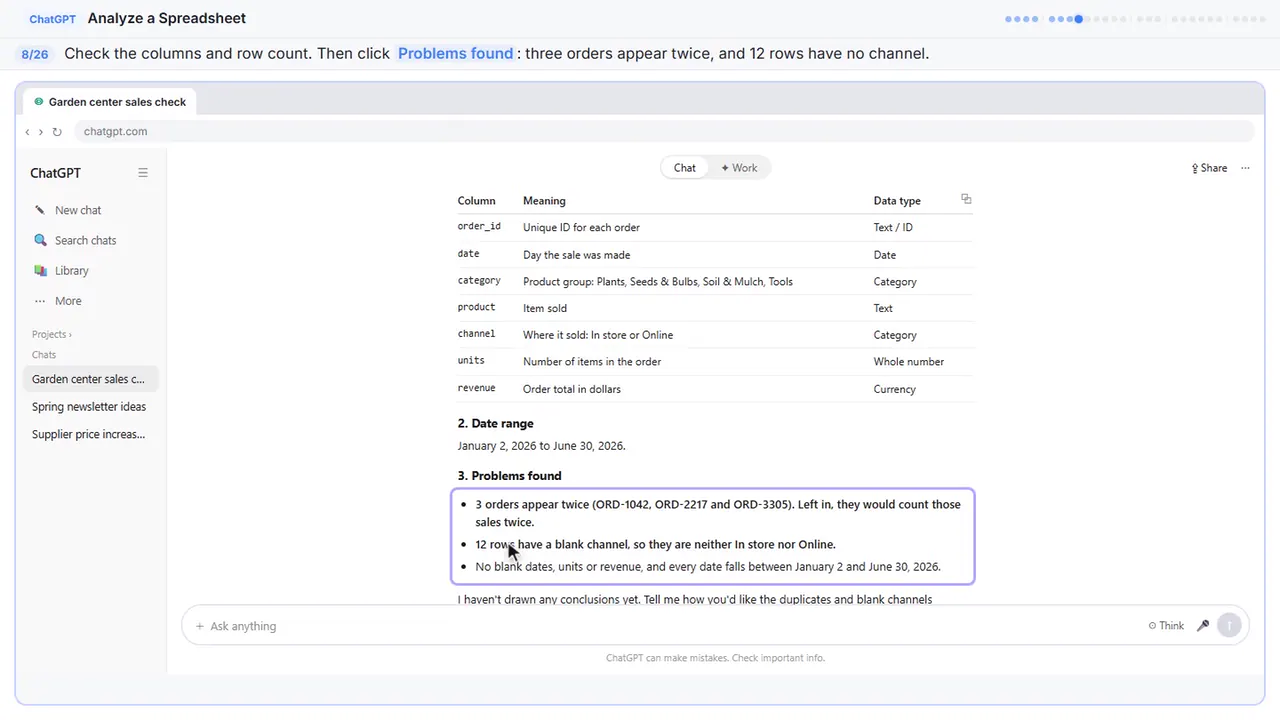
Step 8: Read the problems it found
ChatGPT read the file and explained every column, so you know it understood it. Now look at Problems found. Three orders appear twice, which would count those sales twice, and twelve rows have no channel.
Step 9: Click the message box
You decide how to fix them, not ChatGPT.
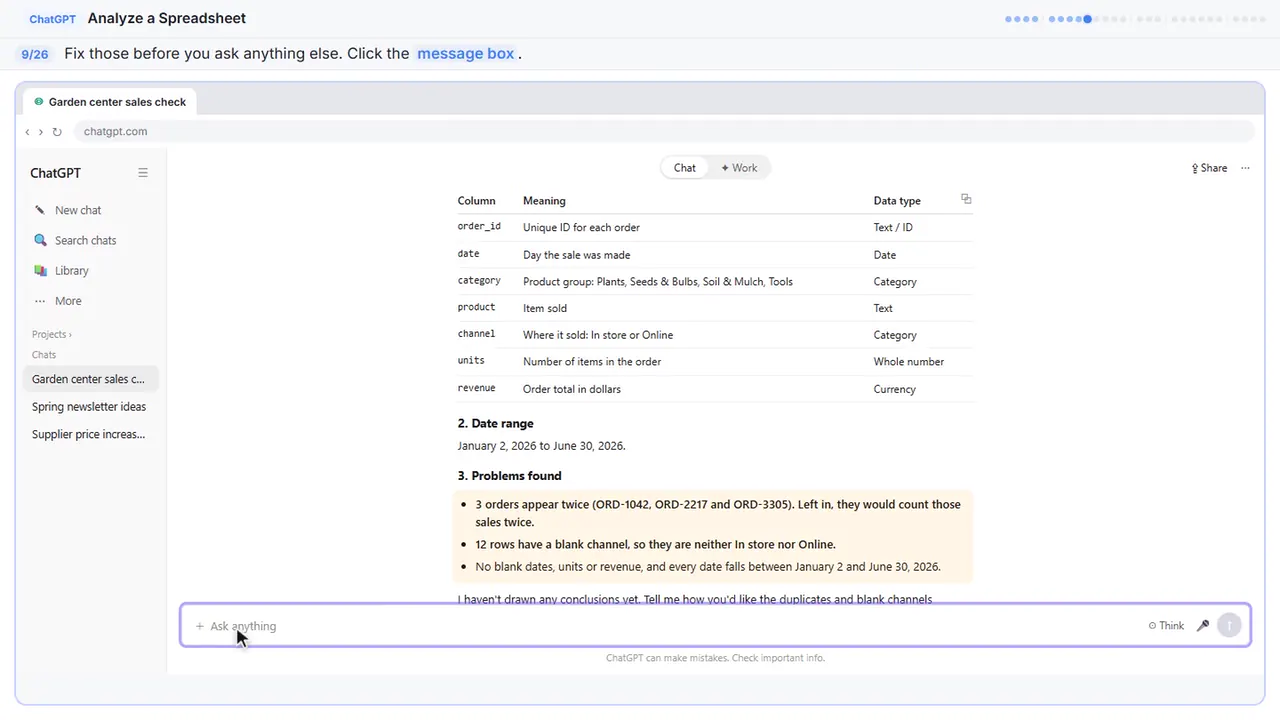
Step 10: Tell it how to clean the data
Tell it to remove the duplicates, label the blank channels Unknown, and give you the cleaned file.
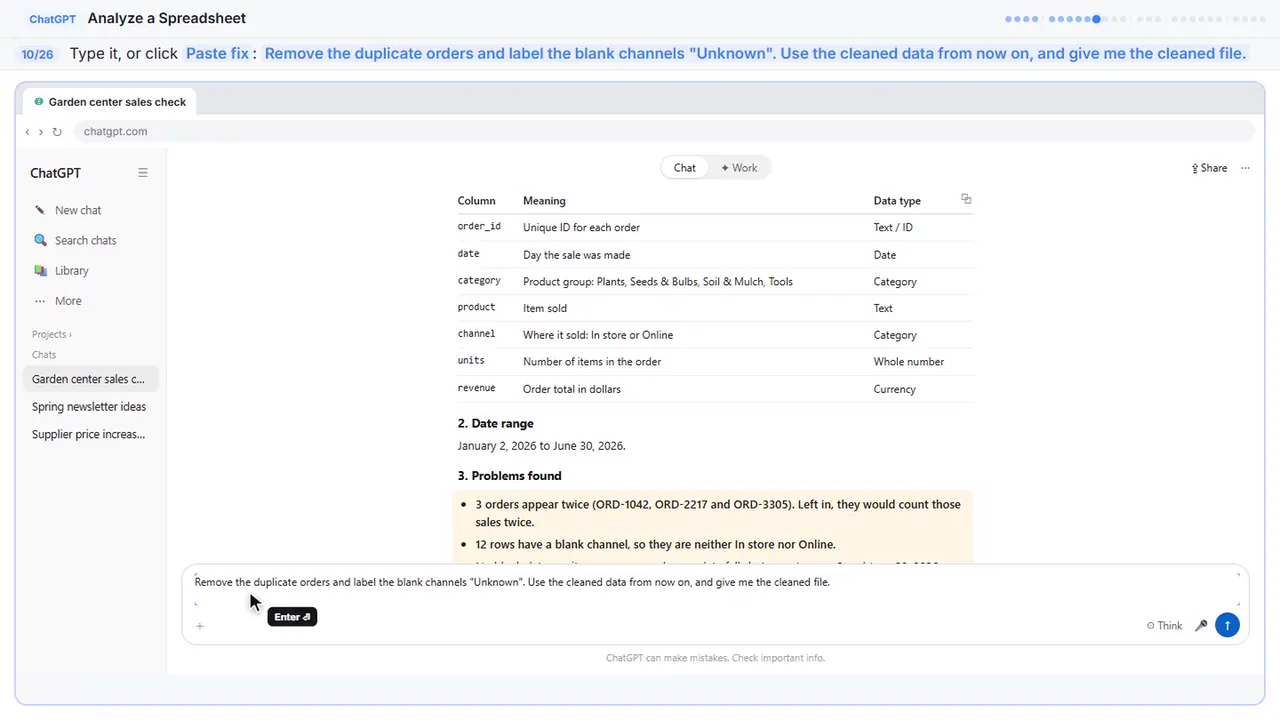
Step 11: Send it
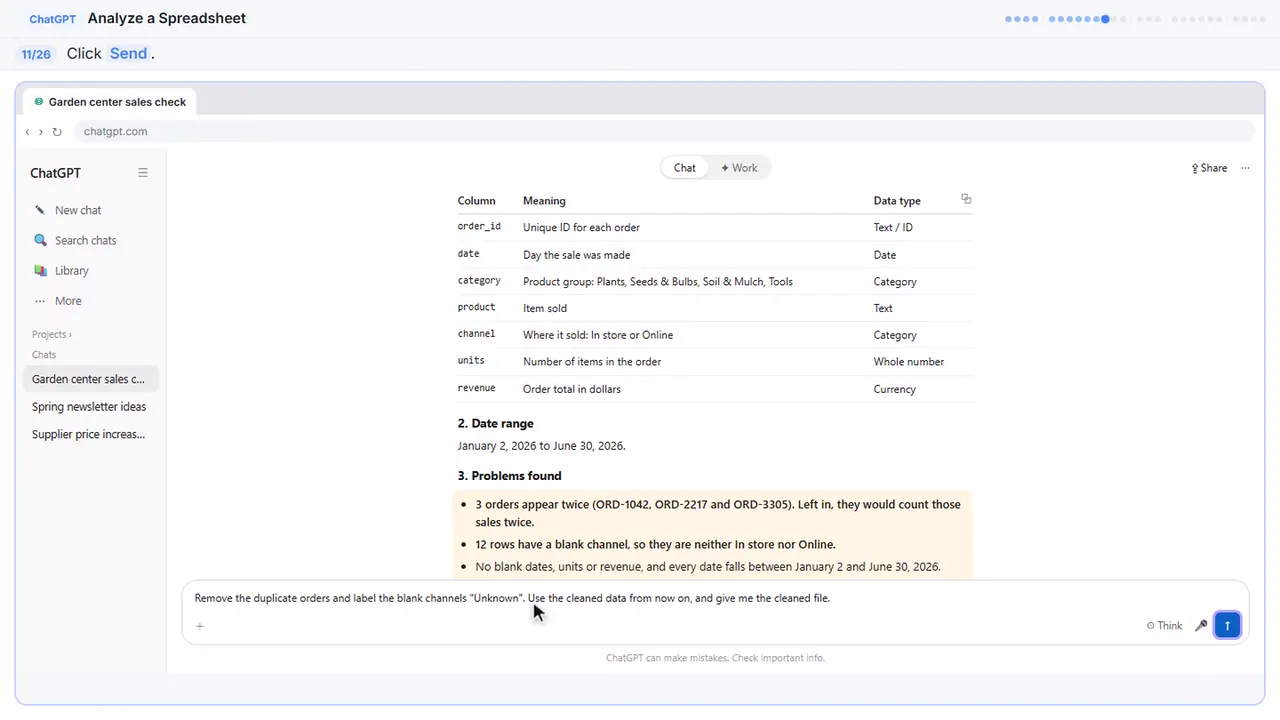
Step 12: Open the cleaned file
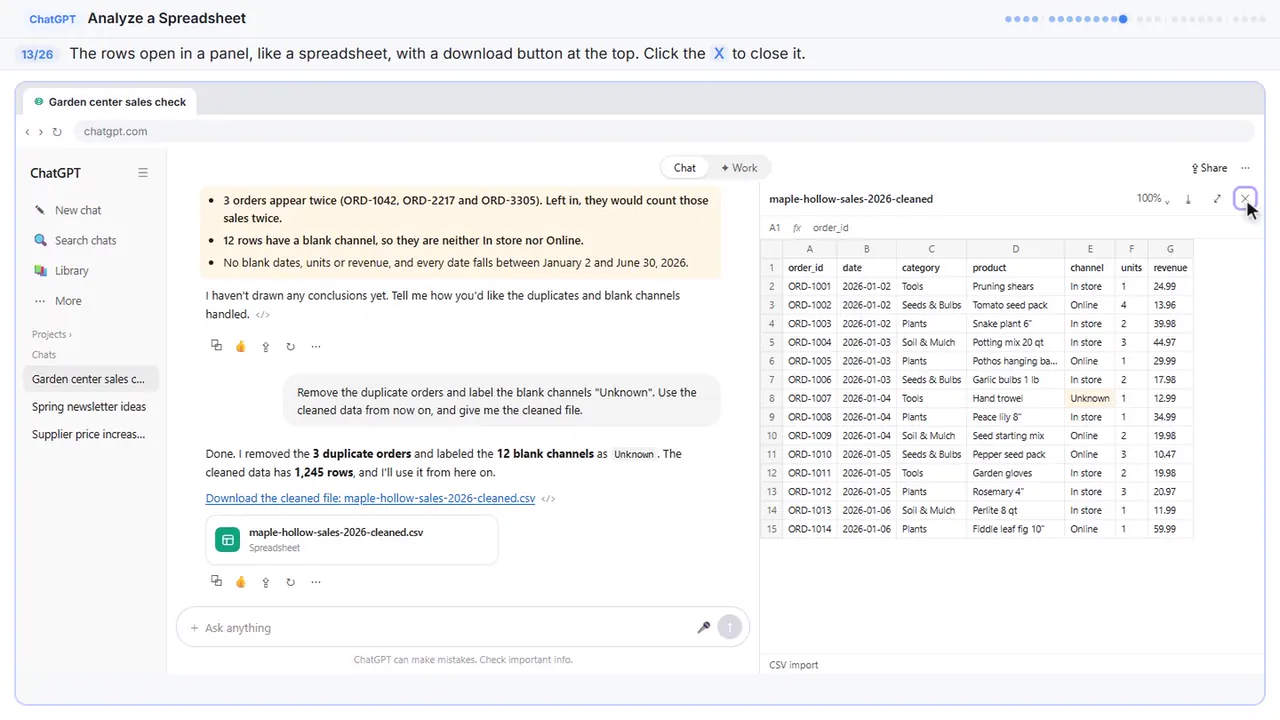
Twelve hundred forty-five clean rows, and a new file you can keep.
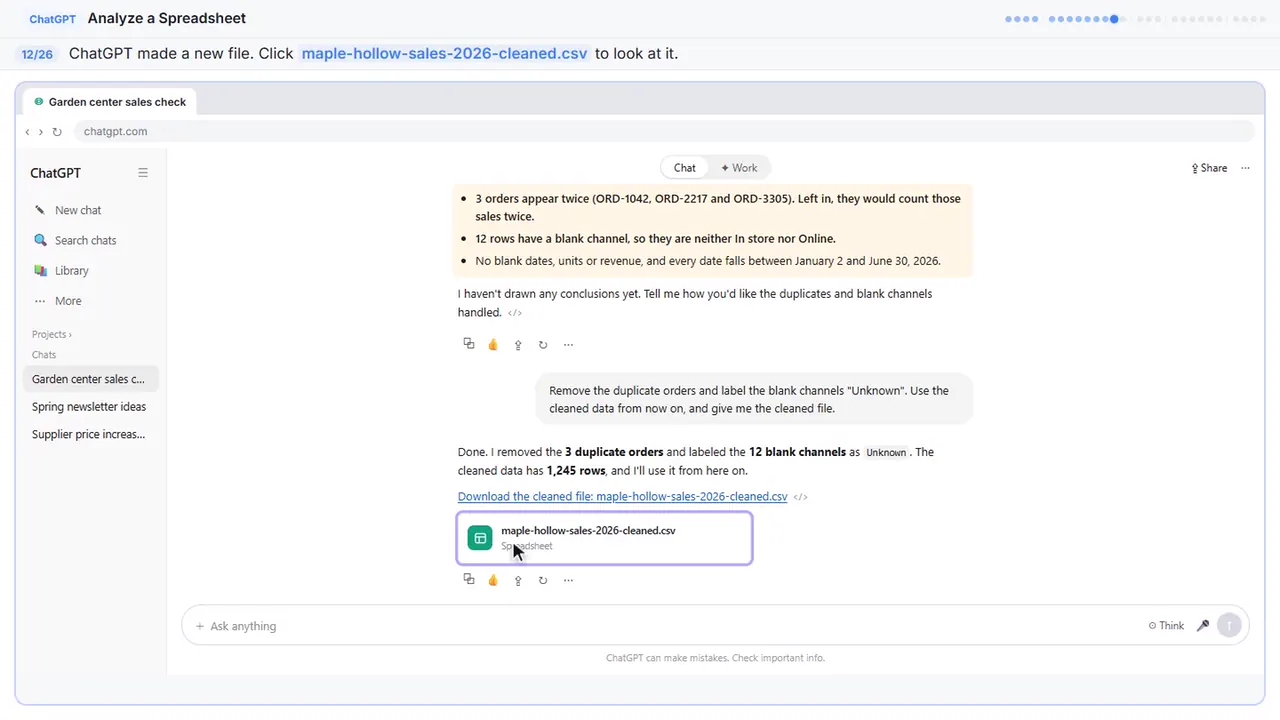
Step 13: Close the preview
The rows open right next to the chat, like a spreadsheet, and the button at the top downloads it. The blank channels now say Unknown. Close the panel with the X.
Part 3: Ask your question
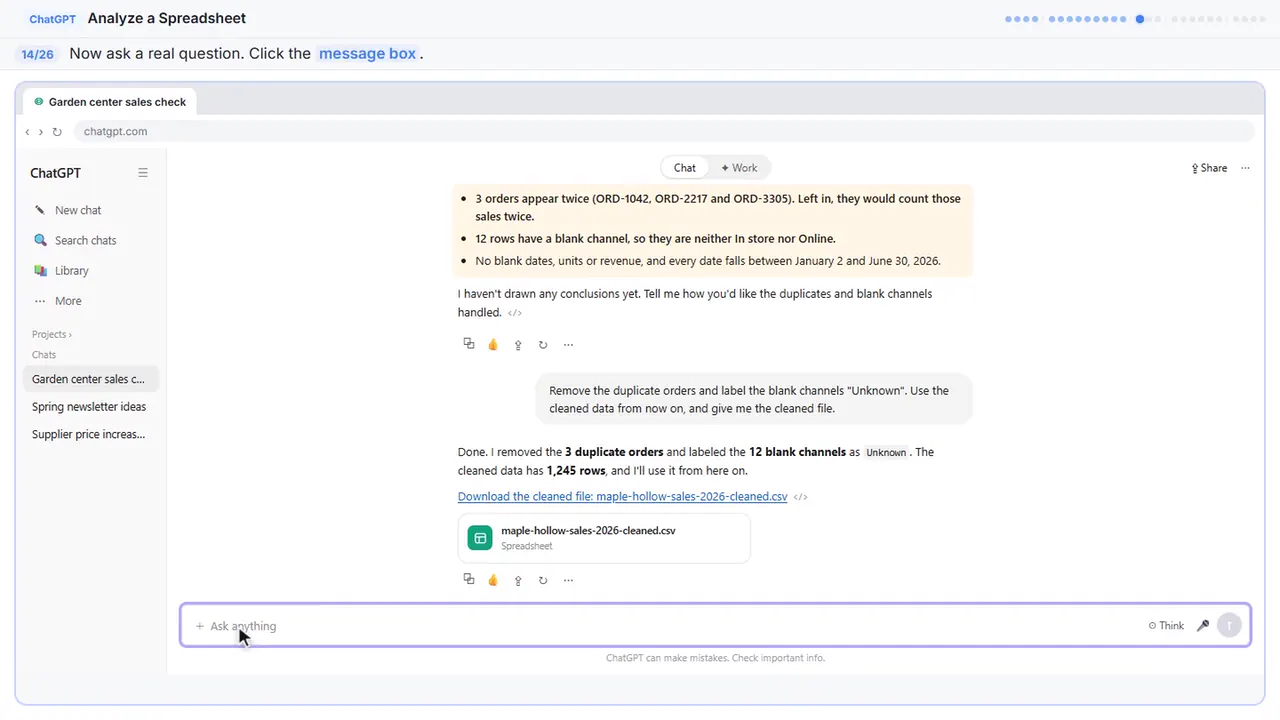
Step 14: Click the message box
Now the data is clean, ask what you actually want to know.
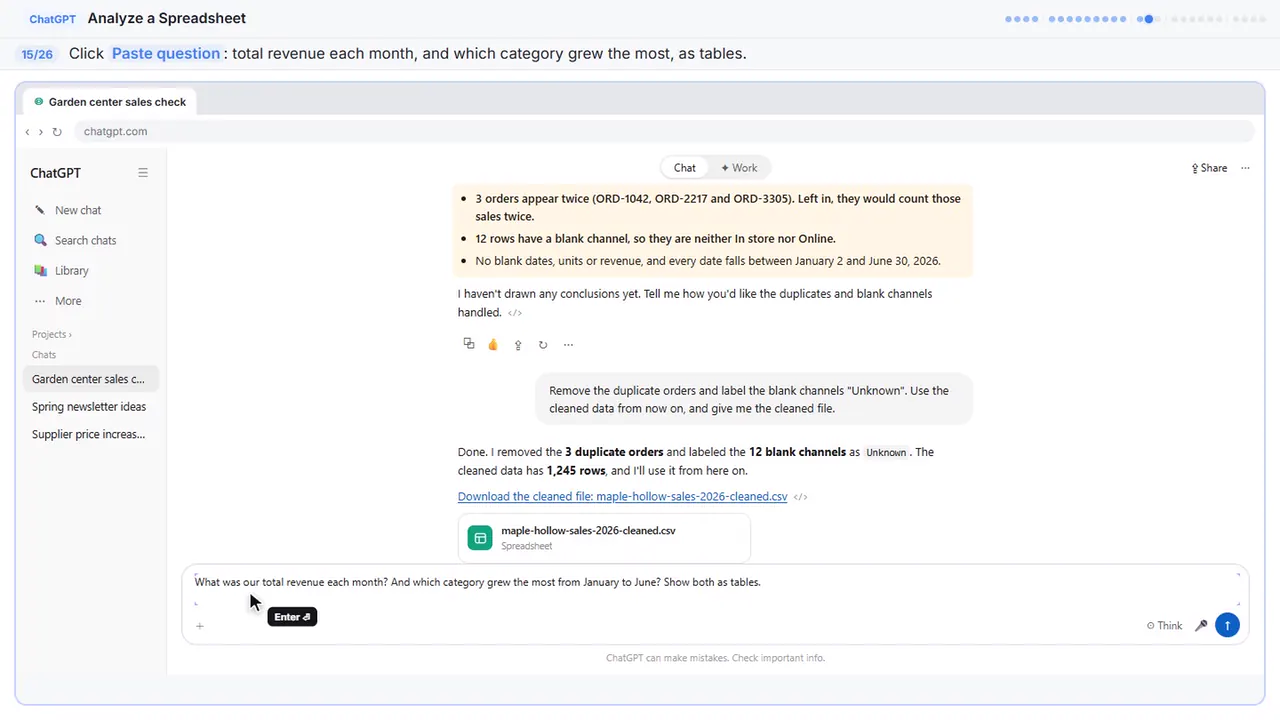
Step 15: Ask your question
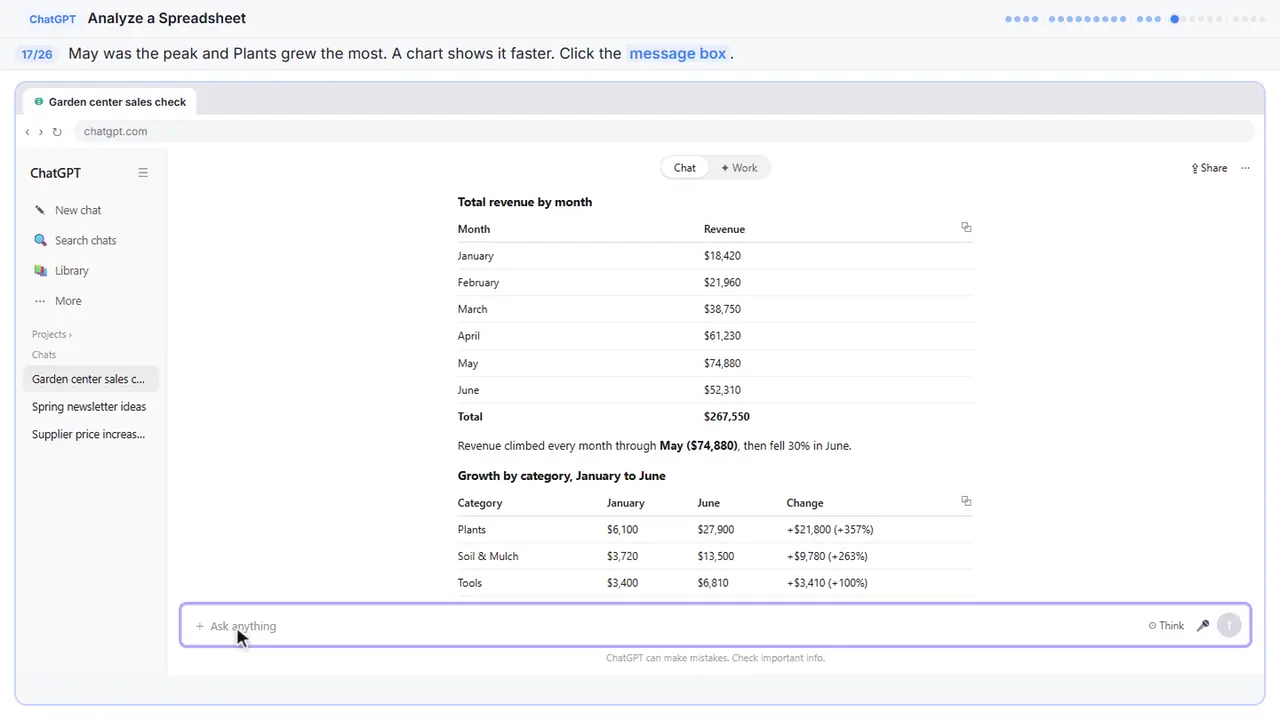
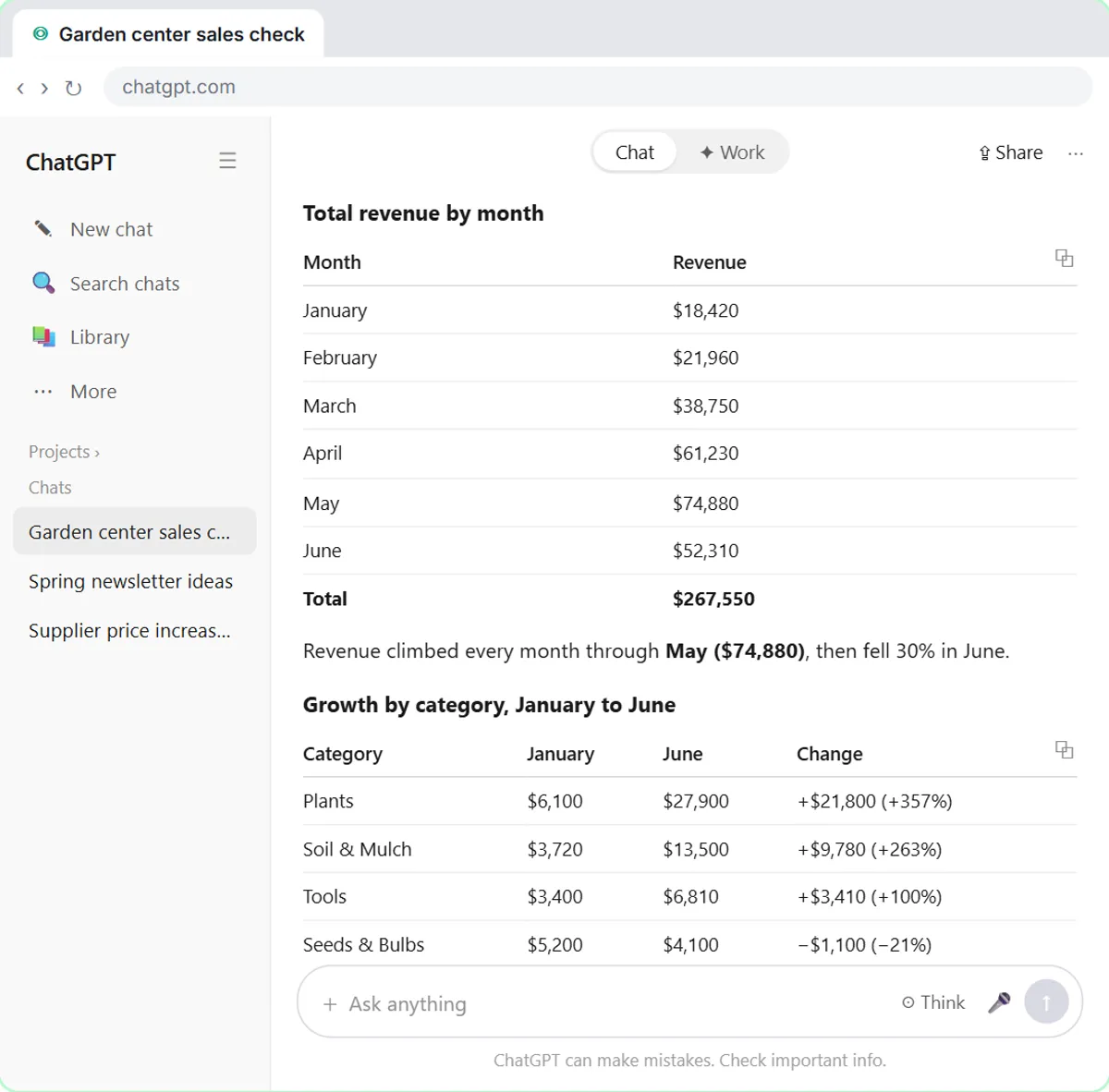
Ask plainly: what was revenue each month, and which category grew the most from January to June. Asking for tables makes the numbers easy to check.
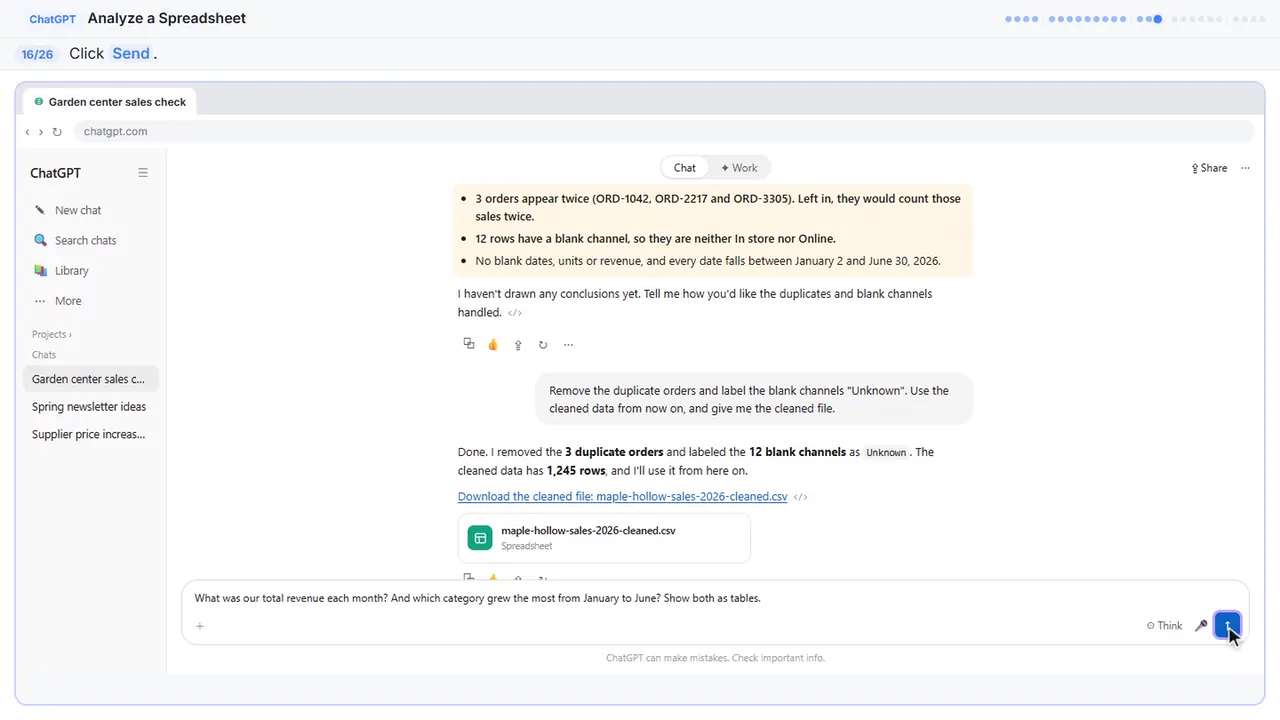
Step 16: Send it
For questions like this, ChatGPT usually writes and runs a little Python code to add up your rows, so the totals are worked out from the file itself.
Part 4: Get a chart
Step 17: Click the message box
May was the best month, and plants grew the most. Now let's see it as a picture.
Step 18: Ask for a chart
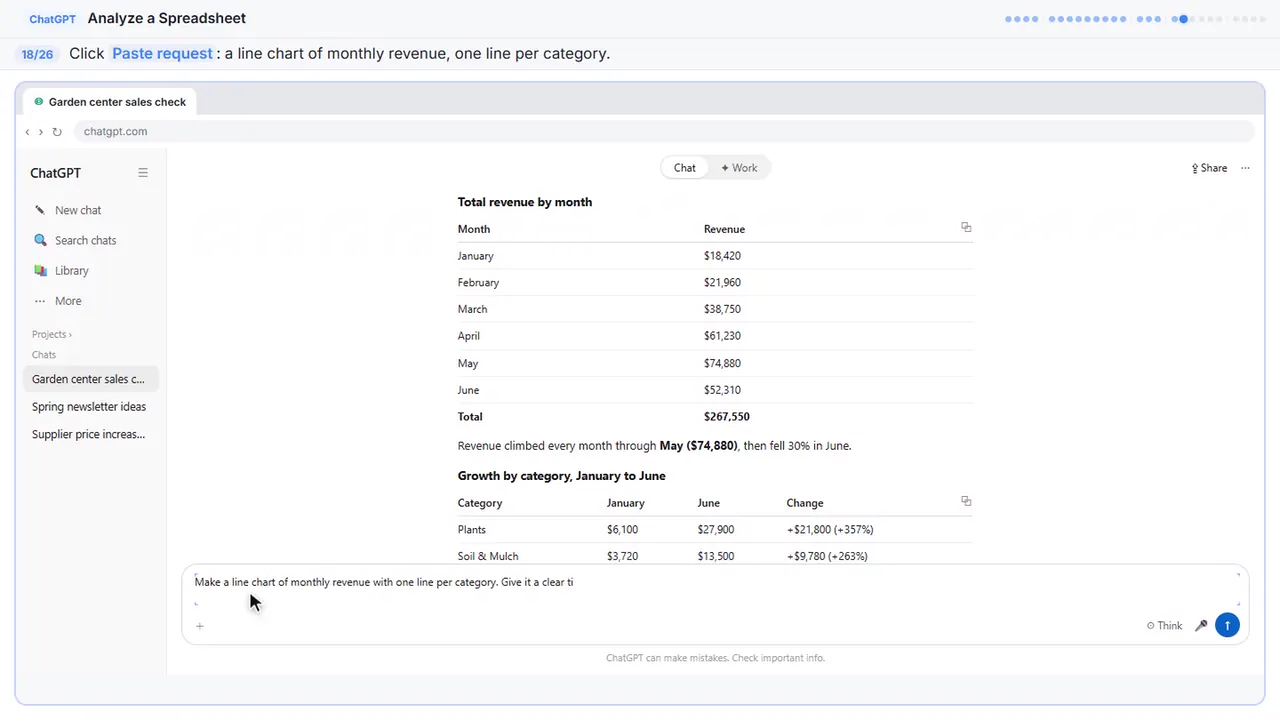
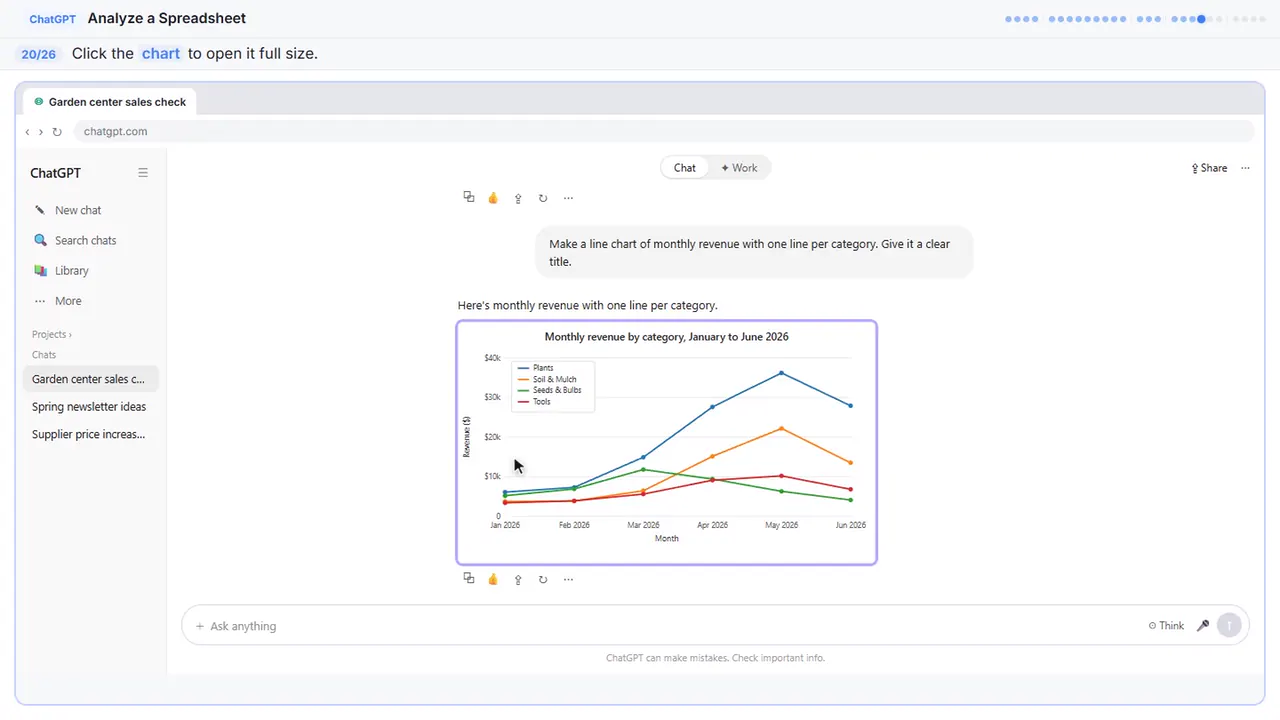
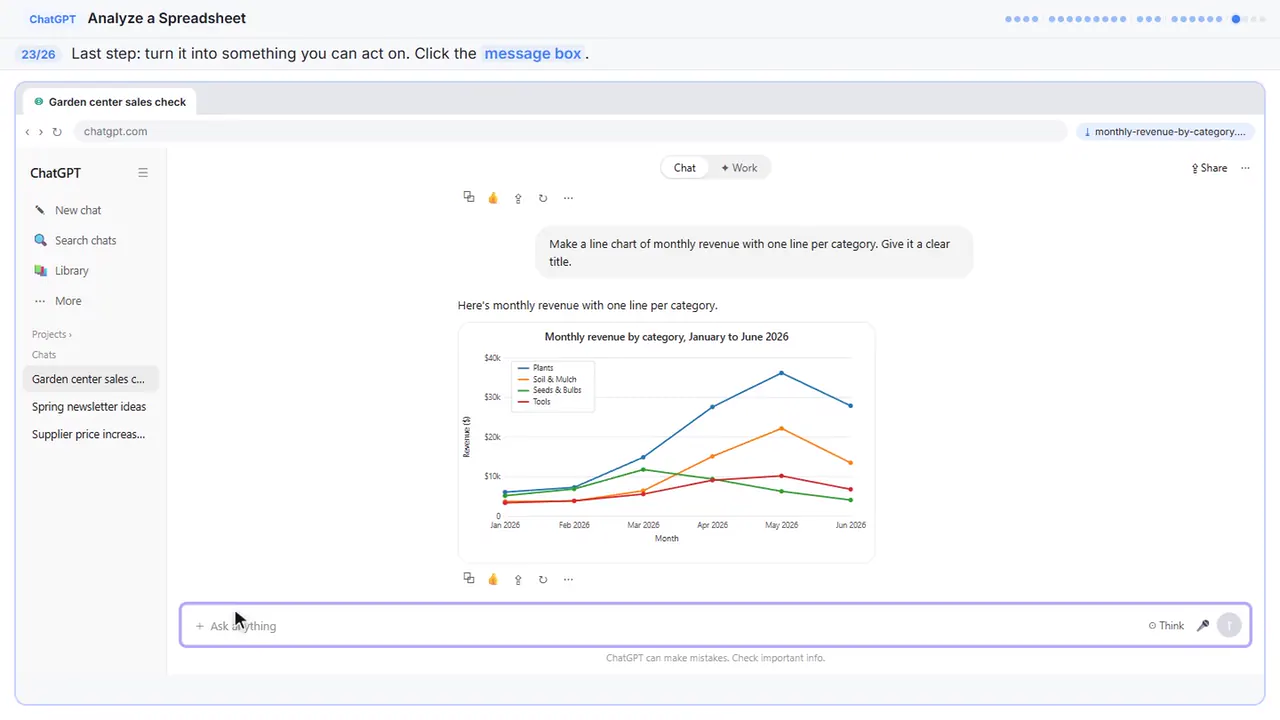
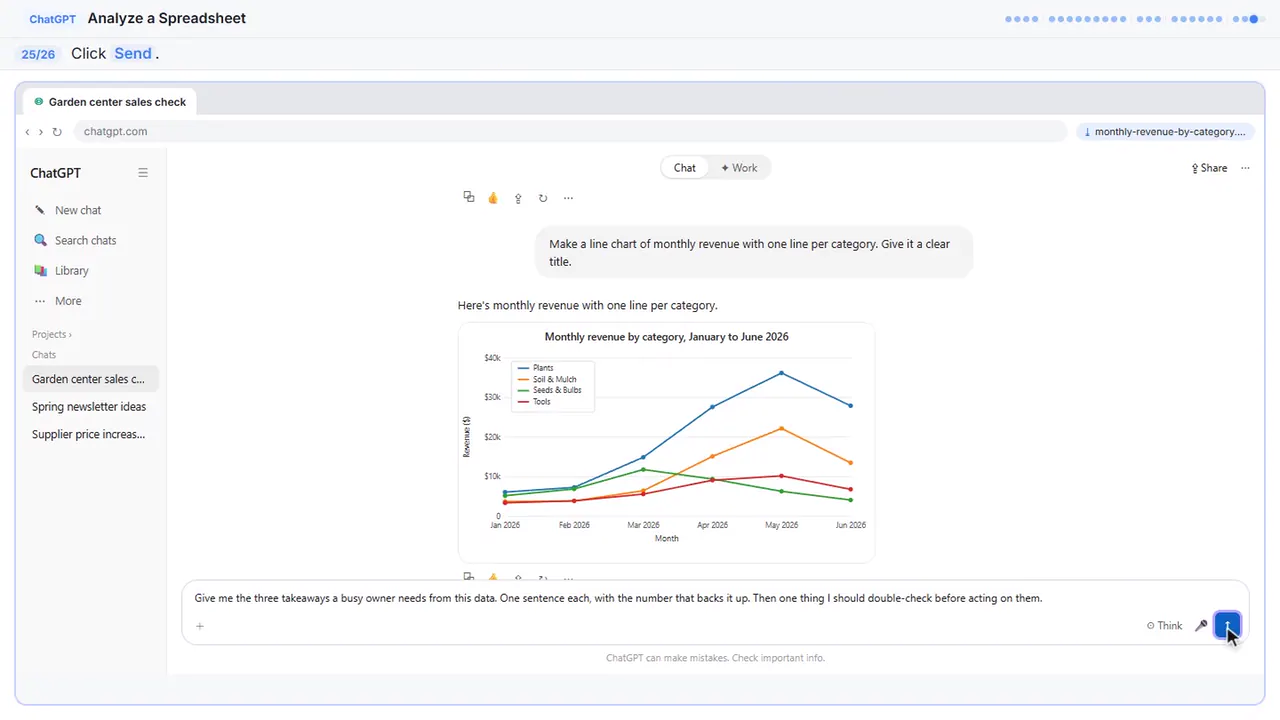
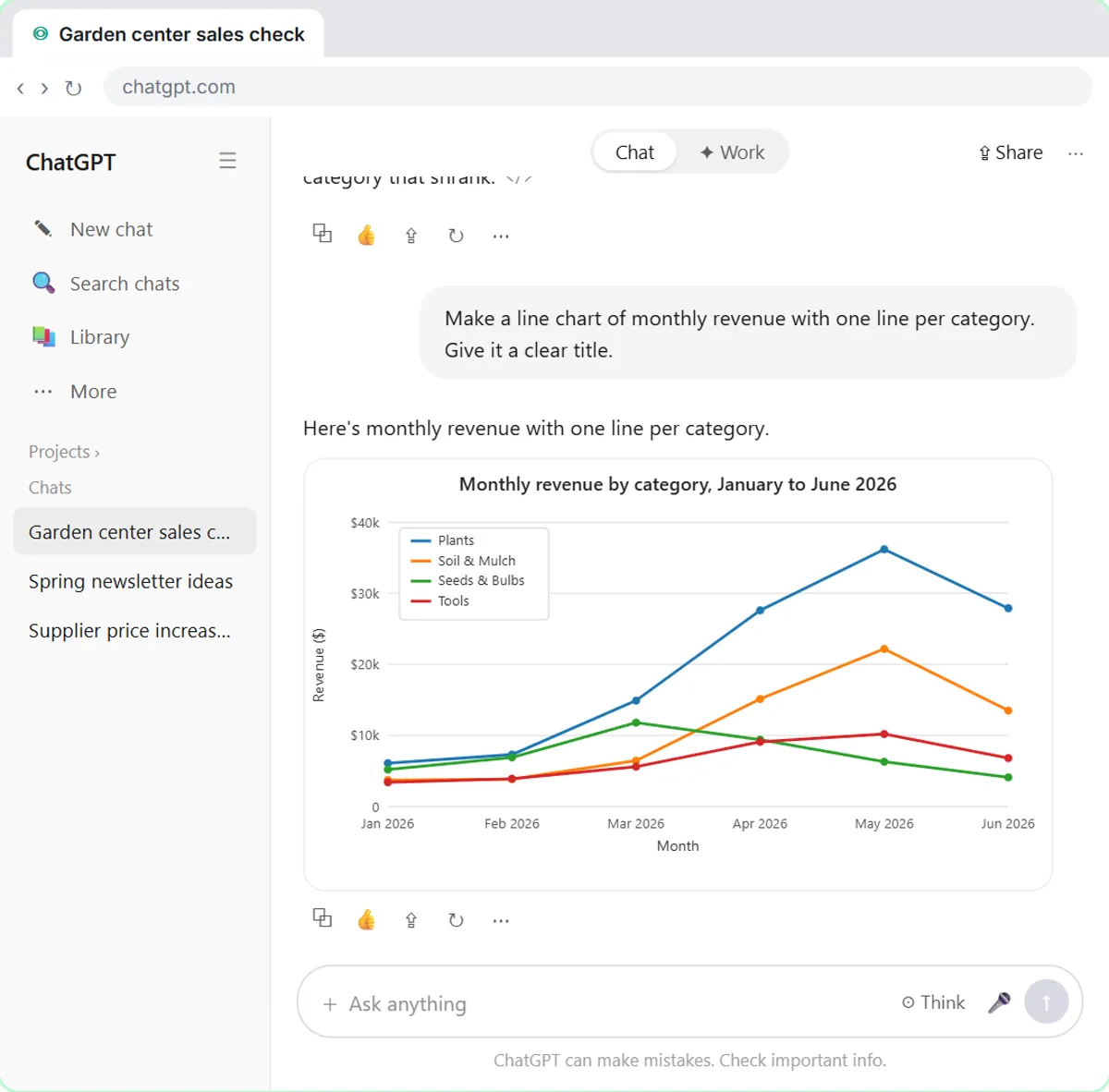
Say which kind of chart you want and what goes on it: a line chart of monthly revenue, one line per category, with a clear title.
Step 19: Send it
Step 20: Open the chart
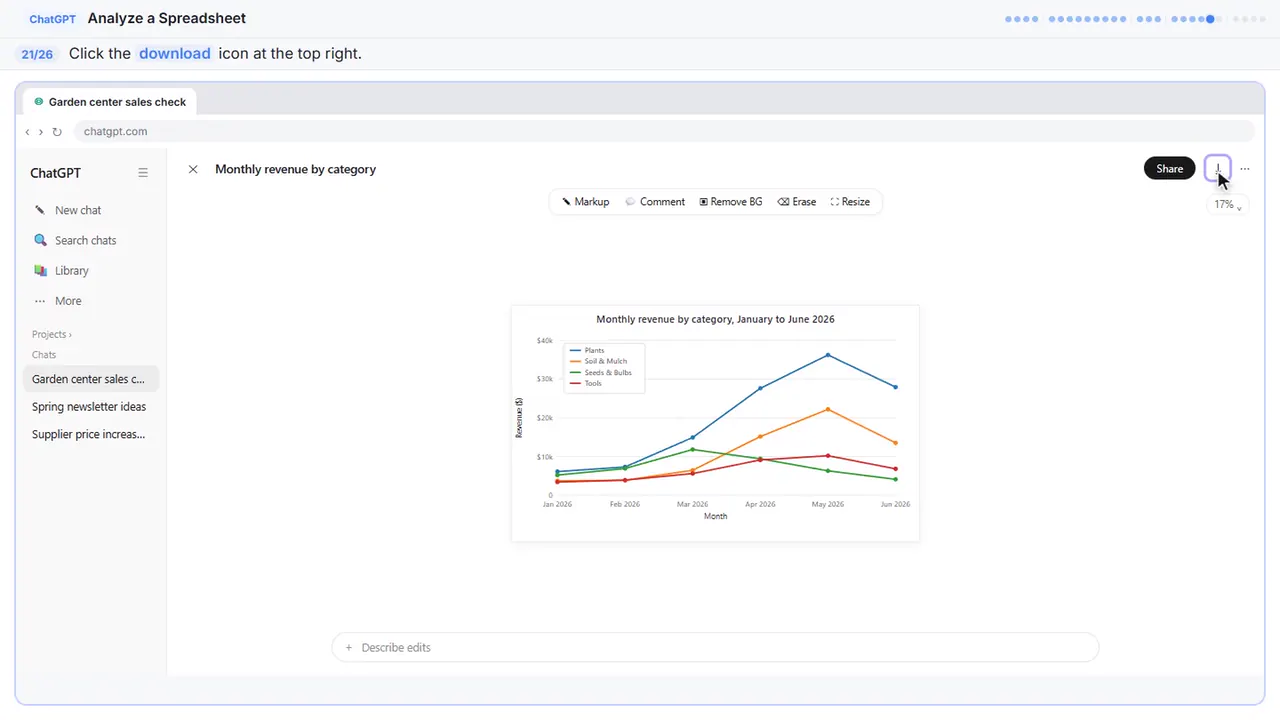
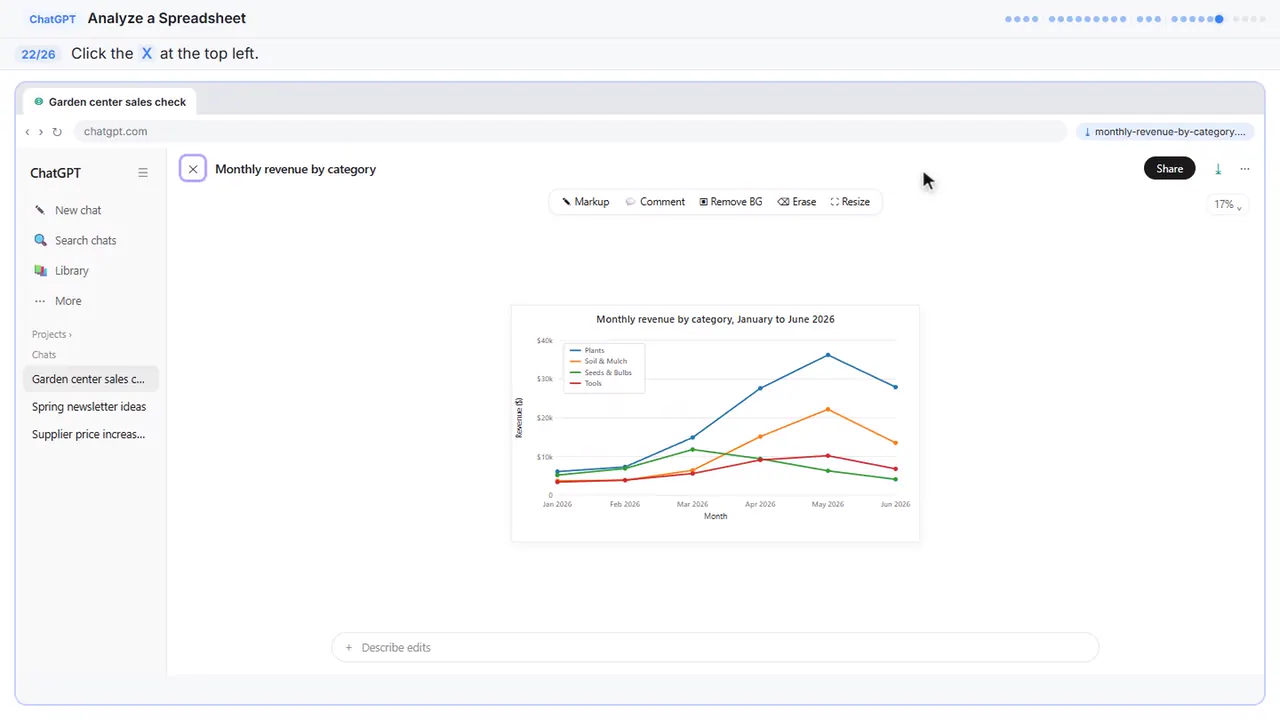
There it is: plants climbing all spring, and seeds and bulbs peaking in March.
Step 21: Download it
It saves as a picture you can drop into an email or a slide.
Step 22: Back to the chat
Part 5: The three takeaways
Step 23: Click the message box
Charts are nice, but what should you actually do?
Step 24: Ask for the three takeaways
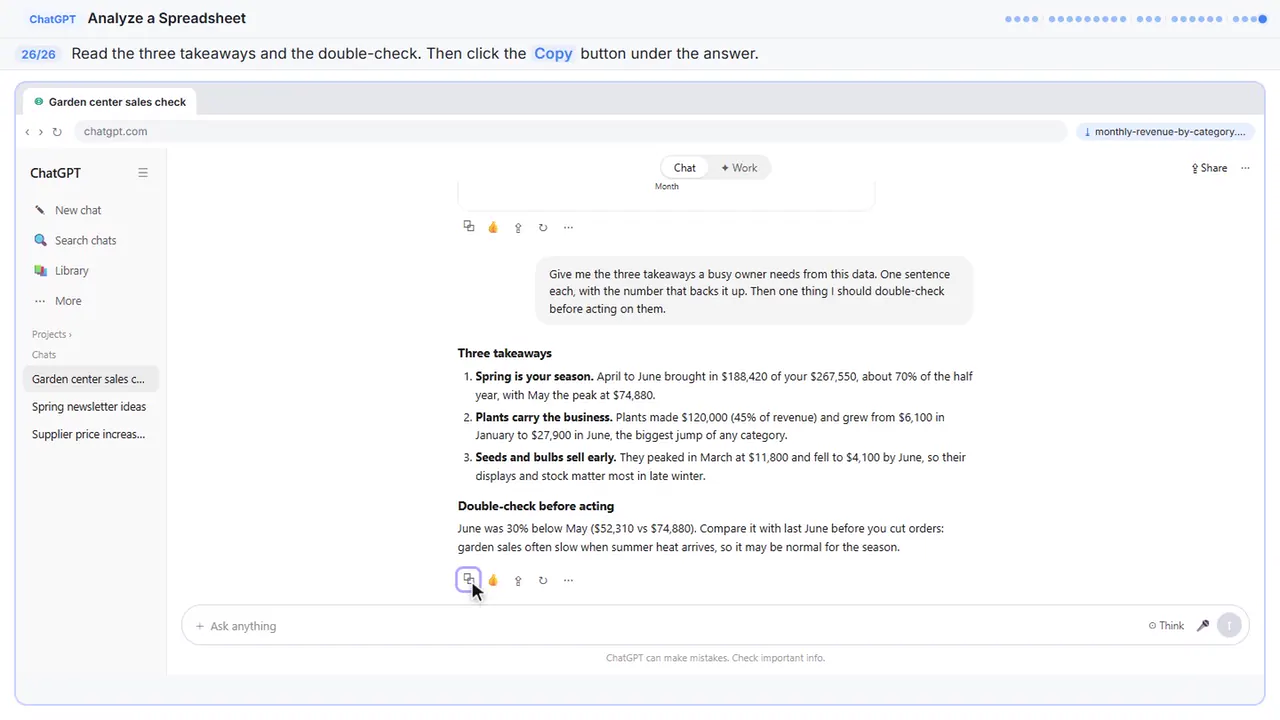
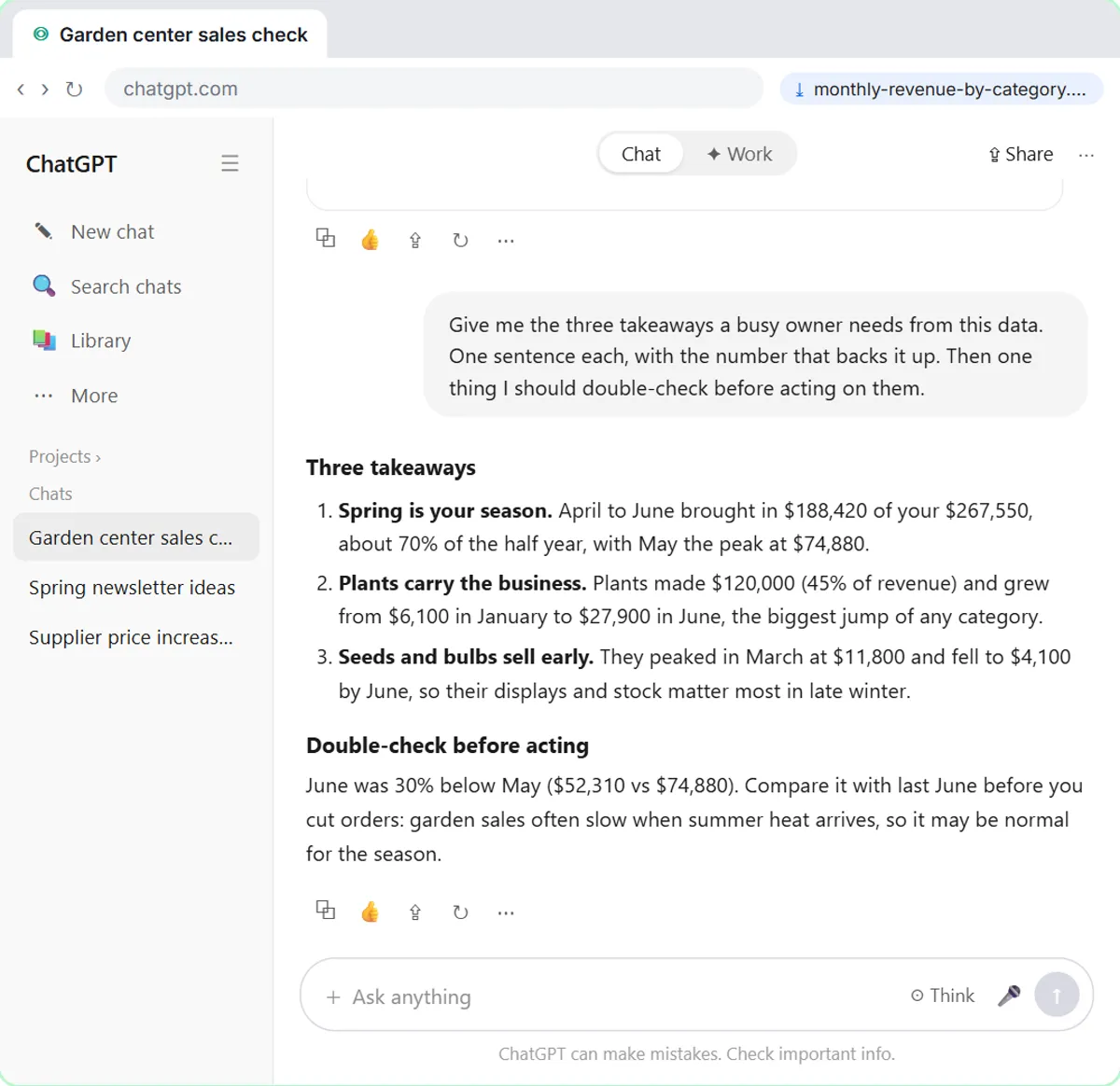
Ask for three takeaways, one sentence each, with the number that backs each one up. Then ask what to double-check before you act.
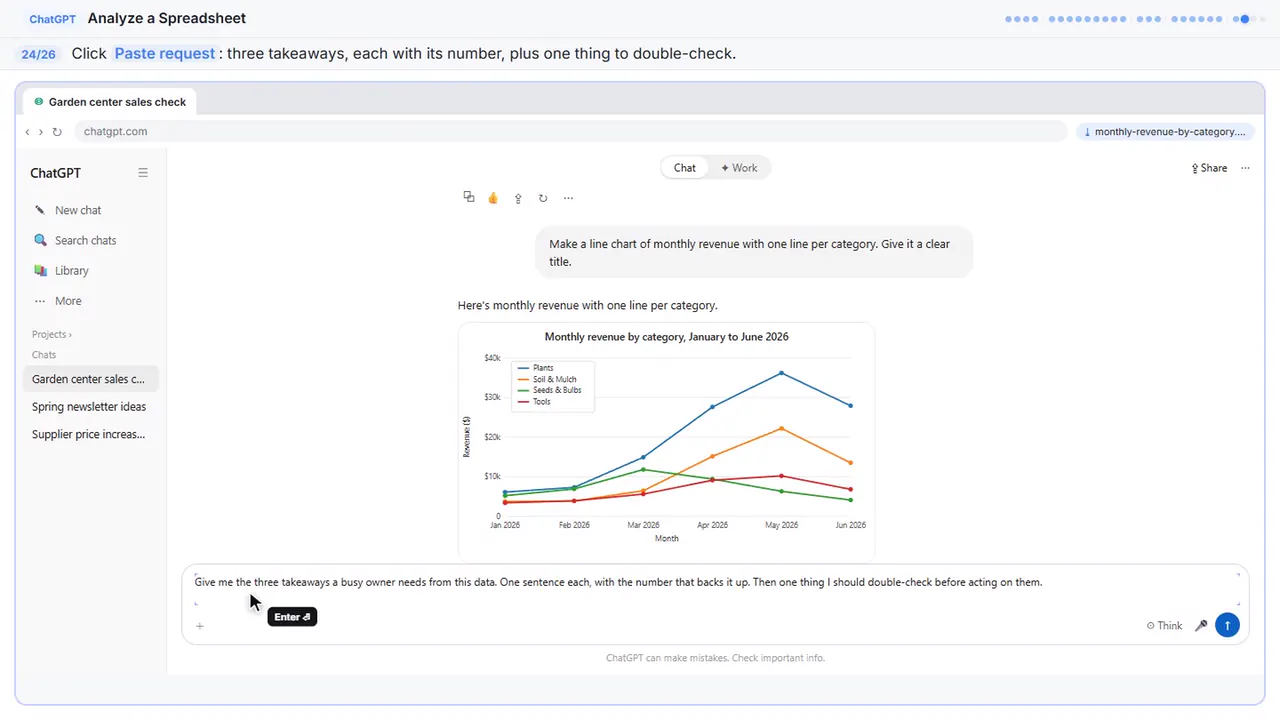
Give me the three takeaways a busy owner needs from this data. One sentence each, with the number that backs it up. Then one thing I should double-check before acting on them.
Step 25: Send it
Step 26: Copy the takeaways
Three takeaways, each with its number, and one honest warning: June dropped thirty percent, so compare it with last June before you cut any orders. Check a total or two against your own records, then click the copy button and paste it wherever your team will read it.
Part of these free courses: ChatGPT for Everyday Work, Master ChatGPT for Work, AI for Sales Teams, AI for Finance Teams, Data and Dashboards for Beginners, AI for Small Business Owners: Your First 30 Days with ChatGPT, a CRM and One Automation, AI for Excel and Google Sheets Jump Start
Now do it yourself, free
Reading the steps is a start. Doing them is how it sticks. The interactive lesson puts you in a practice copy of ChatGPT: you do every step yourself, it checks your work, and “Do it for me” finishes any step you get stuck on. Nothing touches your real accounts.
Practice “Analyze a Spreadsheet with ChatGPT: Upload a CSV, Get a Chart and Three Takeaways” step by stepAnalyze a Spreadsheet with ChatGPT: Upload a CSV, Get a Chart and Three Takeaways: video walkthrough
The whole lesson in 3:04, narrated step by step.
Simulated practice environment. Recorded in Stepthrough’s simulated practice environment, not the live tool. Practice it yourself free at learn.ynteractive.com.
Chapters
Click a chapter to jump the video there.
- 0:00 Intro: what you'll build
- 0:13 Upload the CSV
- 0:38 Check the data first
- 1:38 Ask your question
- 2:01 Get a chart
- 2:31 The three takeaways
Now do it yourself, free
Watching is the warm-up. The interactive lesson puts you in a practice copy of ChatGPT: you do every step yourself, it checks your work, and “Do it for me” finishes any step you get stuck on. Nothing touches your real accounts.
Practice “Analyze a Spreadsheet with ChatGPT: Upload a CSV, Get a Chart and Three Takeaways” step by stepFull transcript
Upload the CSV
0:12 Maple Hollow Garden Center exported six months of sales from its register as a CSV file: about twelve hundred orders. Nobody has time to scroll through that, so let's hand it to ChatGPT. Click the plus button on the left of the message box.
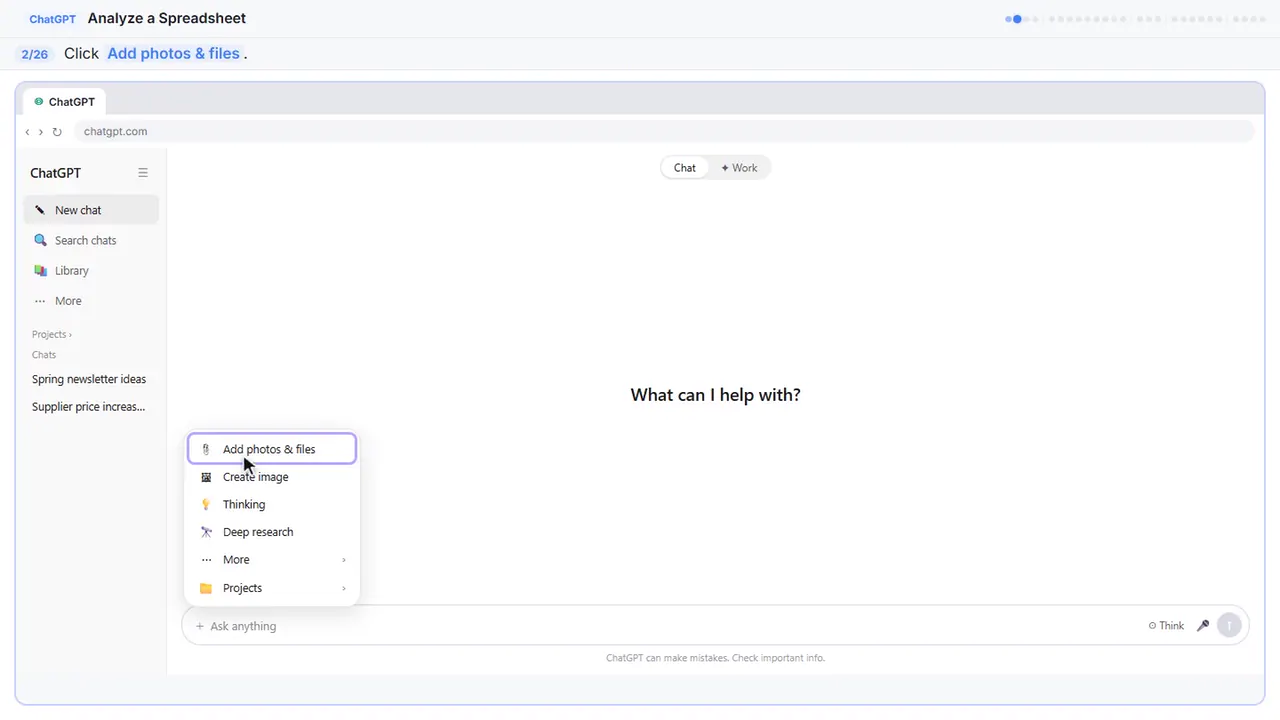
0:25 Click Add photos and files.
0:27 Your file browser opens. Click the sales file. An Excel file works the same way.
0:31 Click Open. The file sits above the message box, marked Spreadsheet. You can also just drag a file onto the chat.
Check the data first
0:37 Here's the mistake most people make: they type analyze this and trust whatever comes back. First, make sure ChatGPT reads the file correctly. Click the message box.
0:47 This request asks ChatGPT to check the file before it analyzes anything: what each column means, how many rows, the date range, and any duplicates or blank cells. Click Paste request.
0:58 Click Send.
1:00 ChatGPT read the file and explained every column, so you know it understood it. Now look at Problems found. Three orders appear twice, which would count those sales twice, and twelve rows have no channel. Click the list.
1:13 You decide how to fix them, not ChatGPT. Click the message box.
1:17 Tell it to remove the duplicates, label the blank channels Unknown, and give you the cleaned file. Type it, or click Paste fix.
1:23 Click Send.
1:25 Twelve hundred forty-five clean rows, and a new file you can keep. Click the file to look inside it.
1:30 The rows open right next to the chat, like a spreadsheet, and the button at the top downloads it. The blank channels now say Unknown. Close the panel with the X.
Ask your question
1:38 Now the data is clean, ask what you actually want to know. Click the message box.
1:42 Ask plainly: what was revenue each month, and which category grew the most from January to June. Asking for tables makes the numbers easy to check. Click Paste question.
1:51 Click Send. For questions like this, ChatGPT usually writes and runs a little Python code to add up your rows, so the totals are worked out from the file itself.
Get a chart
2:01 May was the best month, and plants grew the most. Now let's see it as a picture. Click the message box.
2:07 Say which kind of chart you want and what goes on it: a line chart of monthly revenue, one line per category, with a clear title. Click Paste request.
2:14 Click Send.
2:16 There it is: plants climbing all spring, and seeds and bulbs peaking in March. Click the chart to open it full size.
2:22 Click the download icon at the top right. It saves as a picture you can drop into an email or a slide.
2:28 Click the X at the top right to go back to the chat.
The three takeaways
2:31 Charts are nice, but what should you actually do? Click the message box.
2:35 Ask for three takeaways, one sentence each, with the number that backs each one up. Then ask what to double-check before you act. Click Paste request.
2:43 Click Send.
2:44 Three takeaways, each with its number, and one honest warning: June dropped thirty percent, so compare it with last June before you cut any orders. Check a total or two against your own records, then click the copy button and paste it wherever your team will read it.
What you will build
You work with six months of sales from Maple Hollow Garden Center, a made-up garden center. The file is a CSV export of about 1,200 orders, with an order ID, date, category, product, sales channel, units and revenue for each one. Like most real exports, it has a couple of problems hiding in it: three orders appear twice, and twelve rows have no sales channel.
By the end you have a cleaned copy of the file, a table of revenue by month, a table showing how each category grew from January to June, a line chart with one line per category that you download as a picture, and three plain-English takeaways with the numbers behind them, plus one thing to double-check before you act.
Who this lesson is for
This is for owners, managers and office staff who get sales, orders or expense exports and never quite get around to analyzing them. You do not need to know formulas, pivot tables or any code. When you do want a formula in your own workbook, see How to Use ChatGPT with Excel to Write SUMIFS and XLOOKUP Formulas. If you can export a CSV or Excel file from your point-of-sale, online store or accounting software, you have everything you need.
It is the fifth module in the ChatGPT for Everyday Work course. The earlier modules teach you to write clear requests and to check ChatGPT's work. This one applies the same ideas to numbers, where checking matters even more.
Why checking the file first matters
If ChatGPT misreads what one row means, every number after that is wrong, and the answer still looks confident. A duplicate order quietly inflates a month. A blank cell drops sales out of a category. Asking ChatGPT to describe the file before it analyzes anything gives you a chance to catch those problems while they are cheap to fix.
The other habit is asking for numbers you can check. Tables of monthly totals and category changes are easy to compare with your own records, and asking for the number behind each takeaway means you can see exactly where a conclusion came from. For many data questions ChatGPT writes and runs Python code on your file to get the numbers, and OpenAI recommends reviewing the code, outputs and assumptions before you rely on a result. A quick check of one or two totals against your own system is usually enough. If your numbers live in a Google Sheet that keeps changing, see How to Connect Google Sheets to ChatGPT with an n8n AI Agent.
How to use this in your business
Export a few months of sales, orders or expenses as a CSV or Excel file with clear column names in the first row and one record per row. Remove anything private your business rules say should not be shared, like customer names or card details. Start a new chat, attach the file, and paste the same check-the-file request from this lesson before you ask anything else.
Then ask the questions you actually care about: which products slowed down, which days are busiest, which customers order most, how online compares with in-store. Ask for a table first, then a chart of whatever surprised you, then the takeaways. Save your best requests somewhere handy so next month's report takes minutes, and always compare a total or two against your own records before you change orders, staffing or prices.
How the interactive lesson works
Every step is shown first on the left, in the Watch panel, with a short voice-over. Then you do it yourself on the right, in Your turn, on a practice copy of ChatGPT. Each click is checked, so you know right away if you picked the right button. Long requests go in with one Paste button, and if you get stuck, Do it for me finishes the step. Nothing touches a real account and no file leaves your computer, so you can practice freely, then do it for real with your own export.
Try it yourself, free
Reading the steps is a start. Doing them is how it sticks. The interactive module walks you through every click in a practice copy of ChatGPT, checks each step, and never touches your real accounts.
Start “Analyze a Spreadsheet with ChatGPT: Upload a CSV, Get a Chart and Three Takeaways”Screenshots
Frequently asked questions
- Can ChatGPT analyze a CSV or Excel file?
- Yes. You can attach spreadsheets such as .csv, .xls and .xlsx files with the plus button and Add photos & files, or by dragging the file onto the chat. ChatGPT can summarize the data, answer questions about it, make tables and create charts. Available file types and limits can vary by plan.
- How do I get a chart from my spreadsheet in ChatGPT?
- Upload the file and ask for the chart you want, for example "a line chart of monthly revenue with one line per category." Saying the chart type and what goes on it gets better results than just asking for a chart. You can open the chart full size and download it as an image.
- Can I trust the numbers ChatGPT gives me?
- Treat them as a fast first draft. Ask ChatGPT to check the file for problems before it analyzes it, ask for tables you can verify, and compare a total or two with your own records before you act on anything important.
- How should I prepare my spreadsheet before uploading it?
- Put clear column names in the first row, keep one record per row, and avoid several unrelated tables on one sheet or blank rows that split the data. Remove private details you do not need for the analysis.
- Is this course really free?
- Yes. Stepthrough is completely free, and the practice copy needs no accounts. To do it for real you need your own ChatGPT account, and some features and usage limits depend on your plan.
More in ChatGPT for Everyday Work
 Summarize a Meeting Transcript with ChatGPT
Paste a long meeting transcript into ChatGPT and get the decisions, an action items table with owners and due dates, and a follow-up email ready to send.
Free · Live ~9 min Beginner
 Reply Faster: Turn a Messy Customer Email Thread into a Clear, Friendly Reply
Turn a messy customer email thread into a clear, friendly reply: give ChatGPT the thread and your facts, check every promise, fix the tone, and send it from Gmail.
Free · Live ~9 min Beginner
◷Get a Morning Invoice Summary in Slack using ChatGPT DotsSet up a ChatGPT dot to check Gmail for new invoice emails and post one summary to Slack every weekday morning. A 7-step practice based on OpenAI's published screens.
Free · Live ~4 min Intermediate
 How to Create an Image in ChatGPT for Your Business: Posters, Fixes, Stories
Turn a short brief and your logo into a sale poster with ChatGPT Images, fix wrong text with a comment pin, make a Story version and get a caption to post.
Free · Live ~7 min Beginner
 How to Find Your GPTs in ChatGPT and Replace a Custom GPT with a Project
Custom GPTs are retiring (Enterprise: December 11, 2026). Copy your GPT's instructions, starters and files, rebuild it as a ChatGPT Project with project-only memory…
Free · Live ~7 min Beginner
 How to Migrate a Custom GPT to a ChatGPT Plugin Before Dec 11
Custom GPTs retire on December 11, 2026. Check what your GPT has, write down what will not carry over, and migrate it to a ChatGPT plugin from My GPTs.
Free · Live ~5 min Beginner
All 32 modules in ChatGPT for Everyday Work
More ChatGPT tutorials
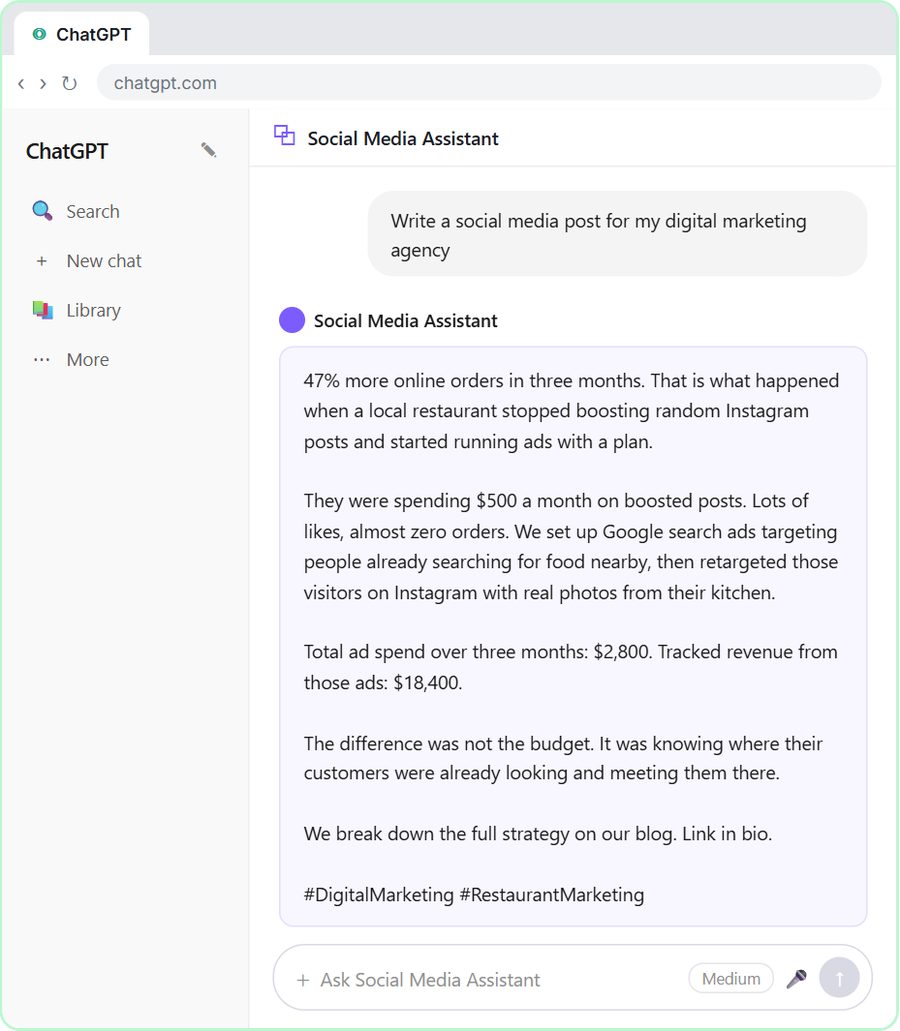 Get On-Brand Social Posts Every Time using a ChatGPT Custom GPT
See why generic prompts give generic results, then build a Custom GPT loaded with your brand voice and watch the output transform.
Free · Live ~8 min Beginner
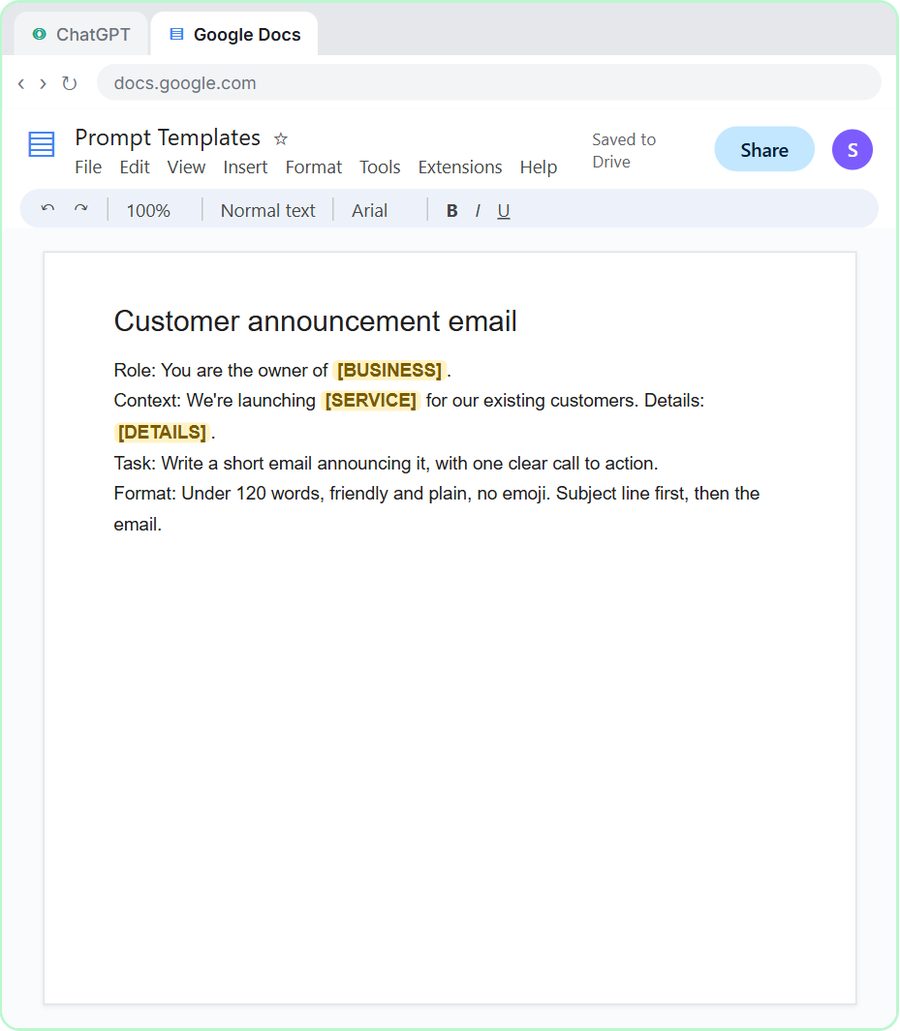 Prompt Writing 101: Role, Context, Task, Format
Ask ChatGPT for the same customer email twice, once vaguely and once with a four-part prompt, and see exactly why structure gets a better answer.
Free · Live ~8 min Beginner
◷Send a Same-Day Follow-up After Every Discovery Call using ChatGPTTurn a discovery call transcript into the decisions, the next steps with owners and dates, deal notes for your CRM, and a follow-up email the prospect gets the same…
Free · Live ~7 min Beginner
◷Hold Your Price When a Prospect Asks for a Discount using ChatGPTA prospect wants 30% off and a free month to sign this week. Give ChatGPT the thread and your pricing rules, catch the discount you can't approve, and send a reply that…
Free · Live ~9 min Beginner
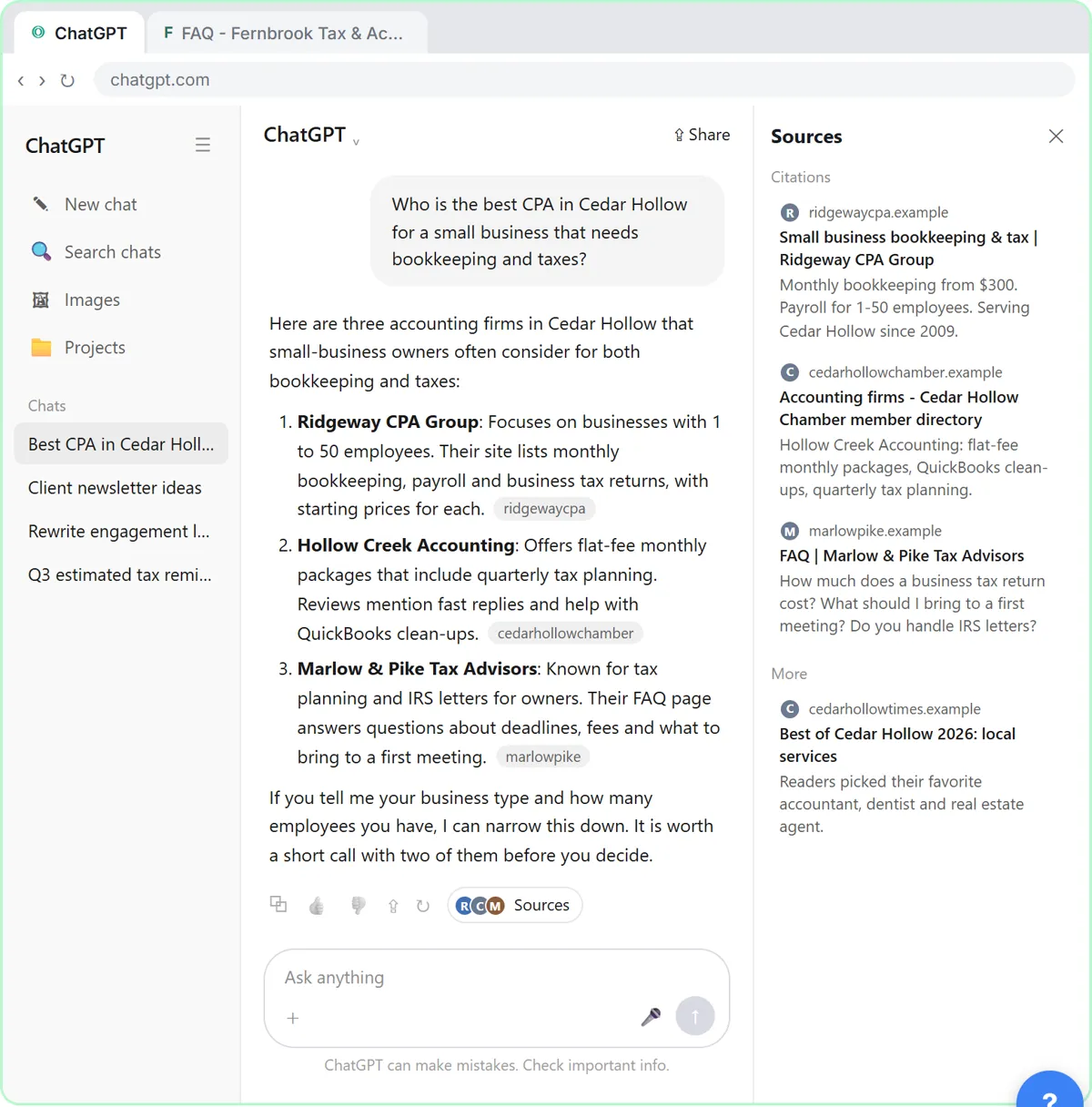 Get Your Business Recommended by ChatGPT
Ask ChatGPT who it recommends in your town, see which pages it trusts, then use it to write an FAQ page and Business Profile copy that answer real customer questions.
Free · Live ~10 min Intermediate
◷Run a Weekly Ops Review Where Every Task Has an Owner using ChatGPTTurn a weekly operations and vendor review into the decisions, the next steps with owners and dates, the risks to watch and a team recap, without turning a vendor's…
Free · Live ~7 min Beginner
From the blog
 How to Get AI to Write Spreadsheet Formulas That Work
How to get ChatGPT, Claude, Gemini or Copilot to write Excel and Google Sheets formulas, check them, and ask questions of your data in plain English.
Oct 22, 2026 4 min read
Can an AI Assistant Answer Questions About Your Own Data?Yes: upload a spreadsheet export to ChatGPT, keep files in a Project, or connect a live Google Sheet with n8n. How each works and how to check answers.
Oct 21, 2026 4 min read
Free cheat sheet
Print it or save the PDF: the key steps and checks from this lesson on one page, free.
All free printable cheat sheets
Terms in this lesson
Plain-English definitions, each with an example from a free lesson.
Related prompts
- Timesheet summary prompt: A ChatGPT prompt that turns a timesheet export into a summary: hours by person and project, missing days, unusual entries and…
- Customer complaint log summary prompt: A ChatGPT prompt that turns a customer complaint log into a summary: complaints by type with counts, repeat customers, open…
- Monthly operations report prompt: A ChatGPT prompt for a monthly operations report: this month against last month and target, what drove the big moves, open…
- Overtime and attendance report prompt: A ChatGPT prompt for an overtime and attendance report: overtime by person and week, the trend against last period, and items…
More prompts on this topic
- Shift handoff notes prompt: A full ChatGPT handoff prompt for a shift handover note: open cases, what is waiting on whom, and what the next person does…